Every successful interview starts with knowing what to expect. In this blog, we’ll take you through the top Raster Editing interview questions, breaking them down with expert tips to help you deliver impactful answers. Step into your next interview fully prepared and ready to succeed.
Questions Asked in Raster Editing Interview
Q 1. Explain the difference between raster and vector graphics.
Raster and vector graphics represent images fundamentally differently. Think of it like this: a raster image is like a mosaic – millions of tiny colored squares (pixels) arranged to form a picture. Changing the size of this mosaic often leads to pixelation or blurriness. A vector image, on the other hand, is like a blueprint – it uses mathematical formulas to define lines, curves, and shapes. Scaling a vector image doesn’t lose quality because it’s redrawing the lines, not stretching pixels.
Raster Graphics: Composed of a grid of pixels. Each pixel has a specific color and intensity value. Examples include photographs and digital paintings.
Vector Graphics: Defined by mathematical equations representing points, lines, and curves. Examples include logos, illustrations, and technical drawings.
Q 2. What are the advantages and disadvantages of raster graphics?
Raster graphics have several advantages and disadvantages:
- Advantages:
- Photorealism: Excellent for representing images with subtle gradations of color and tone, making them ideal for photography and photorealistic art.
- Wide Software Support: Almost all image editing software supports raster formats.
- Ease of Use: Relatively simple to create and edit using readily available tools.
- Disadvantages:
- Resolution Dependence: Quality degrades upon scaling or resizing; enlarging a low-resolution image leads to pixelation.
- Large File Sizes: High-resolution raster images can be very large, requiring significant storage space.
- Not ideal for scaling: Not suitable for applications where resizing is frequently required without quality loss, such as logos or scalable graphics.
Q 3. Describe common raster file formats (JPEG, PNG, TIFF, GIF). What are their applications and limitations?
Several common raster file formats exist, each with its strengths and weaknesses:
- JPEG (Joint Photographic Experts Group): Uses lossy compression, discarding some image data to reduce file size. Excellent for photographs and images with smooth color gradients. Not ideal for images with sharp lines or text because of compression artifacts.
- PNG (Portable Network Graphics): Uses lossless compression, retaining all image data. Supports transparency, making it ideal for graphics with transparent backgrounds, like logos or website elements. File sizes are generally larger than JPEGs.
- TIFF (Tagged Image File Format): A flexible format that supports lossless and lossy compression. Commonly used for high-quality images, especially in professional printing and archiving due to its ability to preserve image data and metadata.
- GIF (Graphics Interchange Format): Supports only 256 colors and uses lossless compression. Best known for its support of animation and simple graphics. Limited color palette restricts its use for complex images.
Applications and limitations vary based on the specific needs of a project. For example, JPEG is ideal for web images where file size is a concern, while TIFF is preferred for archival purposes.
Q 4. What is image resolution and how does it impact image quality?
Image resolution refers to the number of pixels an image contains. It’s typically expressed as width x height (e.g., 1920 x 1080 pixels). Higher resolution means more pixels, leading to greater detail and sharpness. A low-resolution image will appear blurry and pixelated when enlarged.
Think of it like a painting: a painting with many fine brushstrokes (high resolution) will be much more detailed than one with only a few broad strokes (low resolution). The impact on image quality is directly proportional; higher resolution means better quality, but also larger file sizes.
Q 5. Explain the concept of color depth and its relevance to raster images.
Color depth determines the number of bits used to represent the color of a single pixel. Each bit represents a power of 2; for example, 8-bit color (often called ‘true color’) allows for 28 = 256 different colors per pixel. Higher color depth enables smoother color gradations and more accurate color representation. A 24-bit image (16 million colors) can display a much wider range of colors than an 8-bit image.
For instance, an 8-bit image will have noticeable banding in smooth color transitions, while a 24-bit image will have smoother transitions, more closely resembling a real-life scene. The relevance to raster images is significant, as it directly impacts the visual quality and realism of the image.
Q 6. How does image compression work in raster graphics?
Image compression reduces file size by removing redundant or unnecessary data. Two main types exist:
- Lossless Compression: Retains all image data, ensuring perfect reconstruction of the original image. Methods include algorithms like Lempel-Ziv-Welch (LZW) used in GIF and PNG.
- Lossy Compression: Discards some image data to achieve greater compression, resulting in a smaller file size but some loss of image quality. JPEG uses this technique, selectively removing data that’s deemed less important to the human eye (often subtle high-frequency details).
The choice between lossless and lossy compression depends on the application. Lossless is preferred when preserving image detail is critical (medical imaging, archival), while lossy is suitable when file size is a major consideration (web images).
Q 7. What are the different types of image interpolation methods?
Image interpolation methods are used to estimate the values of new pixels when resizing or resampling an image. Different algorithms produce different results in terms of sharpness and artifacts.
- Nearest-Neighbor: The simplest method; assigns the color of the nearest pixel in the original image to the new pixel. Can lead to a blocky, pixelated appearance.
- Bilinear Interpolation: Averages the colors of the four nearest pixels in the original image. Produces smoother results than nearest-neighbor but can lead to some blurring.
- Bicubic Interpolation: Considers the 16 nearest pixels to produce a more refined interpolation. Generally yields the best quality but is computationally more expensive.
- Lanczos Resampling: A more sophisticated algorithm that uses a weighted average of a larger number of surrounding pixels. Known for producing sharp results with minimal artifacts but can be computationally intensive.
The choice of interpolation method impacts the final image quality. Choosing an appropriate method depends on the image and the desired level of quality vs. processing speed. For simple images and faster processing, bilinear might suffice; for high-quality images and professional applications, bicubic or Lanczos is usually preferred.
Q 8. Describe the process of color correction and image retouching.
Color correction and image retouching are crucial steps in post-processing raster images. Color correction aims to adjust the colors in an image to achieve a more accurate or aesthetically pleasing representation of reality, while image retouching focuses on removing blemishes, imperfections, or unwanted elements to enhance the overall image quality.
Color Correction: This involves adjusting parameters like brightness, contrast, saturation, and white balance. Think of it like fine-tuning the colors of a painting to make them pop or to match a specific mood. For example, a photographer might correct a photo where the sky is too blue by lowering the saturation or adjusting the white balance to make it more natural. Tools like curves and levels adjustments provide precise control over color channels.
Image Retouching: This involves removing distracting elements like dust spots, scratches, wrinkles, or even entire objects. This could involve using tools like the clone stamp tool (which copies pixels from one area to another) or the healing brush (which intelligently blends pixels to seamlessly remove imperfections). For instance, a retoucher might remove a distracting person from a landscape photo or smooth out wrinkles on a portrait subject.
The two often work hand-in-hand. A photographer might correct the overall color balance of a photo before retouching individual areas to improve the image’s overall impact.
Q 9. How do you handle different color spaces (e.g., RGB, CMYK)?
Different color spaces represent color information in different ways. RGB (Red, Green, Blue) is an additive color model used for screens and digital displays, while CMYK (Cyan, Magenta, Yellow, Key/Black) is a subtractive color model used for print media. Understanding these differences is critical for achieving consistent color across different output methods.
When working with RGB images destined for print, you must convert them to CMYK. This conversion process can lead to color shifts, requiring adjustments to maintain color fidelity as closely as possible. Software often provides profiles that help manage these conversions, accounting for the specific characteristics of different printing technologies. The challenge lies in anticipating these shifts and making appropriate adjustments in the RGB workspace beforehand. For instance, certain colors might appear duller or more muted in CMYK, so you need to compensate by increasing their saturation in the RGB version. Careful monitoring of color profiles and soft proofing are essential throughout this workflow.
Q 10. What software are you proficient in for raster editing (Photoshop, GIMP, etc.)?
I’m highly proficient in Adobe Photoshop, considered the industry-standard for raster editing, and possess a strong working knowledge of GIMP, a powerful free and open-source alternative. My experience with Photoshop extends to advanced techniques such as creating and manipulating masks, using adjustment layers non-destructively, and automating tasks with actions. GIMP offers a similar feature set though with a slightly different user interface. In my work, I frequently leverage the strengths of each software based on the project’s requirements and constraints. For instance, Photoshop’s superior tools for high-end retouching are often necessary for professional projects, while GIMP proves cost-effective for basic edits or educational purposes.
Q 11. Explain your experience with image manipulation techniques like cropping, resizing, and sharpening.
Cropping, resizing, and sharpening are fundamental image manipulation techniques. Cropping removes unwanted parts of an image, improving composition and focus. Resizing adjusts the dimensions of an image, either to scale it up or down. Sharpening enhances the details and clarity of an image, making edges appear more defined.
Cropping: I use cropping to eliminate distractions and enhance visual impact. For example, I might crop a landscape photo to create a more dramatic composition by focusing on a specific element. It is important to maintain the original image’s aspect ratio unless there’s a specific reason to change it.
Resizing: I resize images for various purposes, such as preparing them for web use (smaller dimensions for faster loading) or printing (larger dimensions for high-resolution output). Resizing needs to be done carefully to avoid pixelization (especially when scaling up) by using resampling algorithms that intelligently fill in the gaps.
Sharpening: I apply sharpening strategically to enhance details without introducing artifacts. Over-sharpening can result in a grainy, unnatural look. I usually use unsharp masking, a technique that selectively sharpens edges and details. The choice of sharpening method and strength depend on the image and its intended use.
Q 12. How do you manage large raster files efficiently?
Managing large raster files efficiently is crucial for maintaining workflow speed and preventing computer crashes. My approach involves a combination of techniques:
- Using Non-Destructive Editing: I avoid permanently altering the original image by utilizing adjustment layers and smart objects. This allows for flexibility and the ability to revisit edits without recomputing the entire image.
- Saving in Optimized Formats: I save images in formats like JPEG (for photos) or PNG (for images with transparency) with appropriate compression levels, balancing file size with quality. Avoid saving in uncompressed formats like TIFF unless absolutely necessary.
- Using Proxies: For exceptionally large files, I create smaller proxy files to work with. These serve as placeholders, allowing me to make edits more quickly. The high-resolution files are then processed only for the final output.
- Working with Layers Strategically: Combining and flattening layers when possible, reducing the memory footprint of the file.
- Utilizing High-Performance Hardware: Sufficient RAM and a fast processor are paramount for smooth performance when working with large files. A good graphics card also helps with quicker rendering.
Q 13. What is image masking and how is it used?
Image masking is a technique used to isolate specific areas of an image. It’s like using a stencil to reveal only certain parts while hiding others. This allows for precise editing or compositing without affecting other areas of the image. Masks can be created using various methods, including:
- Layer Masks: These allow you to control the visibility of a layer, revealing or concealing parts of it as needed.
- Selection Masks: Creating selections and converting them into masks.
- Vector Masks: Precise masks created using vector shapes.
Applications: Masks are crucial for various tasks such as:
- Compositing: Seamlessly blending images together. For example, adding a person to a different background while keeping the edges clean.
- Retouching: Isolating areas for specific corrections like blemish removal without impacting the surroundings.
- Color Correction: Applying adjustments to selected areas, such as changing the color of an object without affecting others.
Q 14. Describe your experience with layer management in raster editing software.
Layer management is fundamental to efficient and non-destructive raster editing. Layers act as transparent sheets stacked on top of each other, allowing for independent manipulation of different elements within an image. Proficient layer management is essential for complex projects. I employ several best practices:
- Naming Conventions: Clear, consistent naming helps me quickly identify layers. I use a system that reflects the layer’s contents (e.g., “Background,” “Subject,” “Text,” etc.).
- Grouping Layers: Related layers are grouped together for better organization, simplifying edits and preventing accidental modifications.
- Using Layer Styles: Applying layer styles (like drop shadows, bevels, or glows) non-destructively allows for adjustments without affecting the underlying layer.
- Adjustment Layers: I heavily utilize adjustment layers for color correction and tonal adjustments. They work non-destructively, allowing for adjustments and modifications without altering the pixel data.
- Layer Order: Careful consideration of layer order is important to ensure that elements are rendered correctly. Layers at the top are displayed over those below.
My approach emphasizes a clean, well-organized layer structure that enhances workflow efficiency and simplifies complex image editing projects.
Q 15. Explain your process for optimizing images for web use.
Optimizing images for web use is crucial for fast loading times and a positive user experience. My process involves a multi-step approach focusing on reducing file size without sacrificing too much visual quality. First, I choose the right file format. JPEG is generally best for photographs due to its excellent compression, while PNG is preferred for images with sharp lines and text because it supports lossless compression and transparency. Then, I carefully adjust the image dimensions. Using excessively large images significantly impacts page load speed. I resize images to the exact dimensions needed for their intended use on the website, avoiding unnecessary scaling by the browser. Next, I optimize the image’s compression level. Finding the right balance between file size and quality is key. I use tools that allow me to preview different compression levels and select the one that yields the smallest file size while maintaining acceptable visual fidelity. Finally, I utilize image optimization tools and plugins which can further reduce file size without significant visual loss, sometimes employing techniques like progressive JPEG loading for faster initial display. For example, I might use a tool that converts to WebP format, often offering superior compression compared to JPEG or PNG.
For example, I once worked on a website with slow loading times. By optimizing images using this process—switching to WebP where appropriate, resizing precisely, and adjusting compression levels—we reduced the overall page size by over 60%, resulting in a dramatic improvement in loading times and user satisfaction.
Career Expert Tips:
- Ace those interviews! Prepare effectively by reviewing the Top 50 Most Common Interview Questions on ResumeGemini.
- Navigate your job search with confidence! Explore a wide range of Career Tips on ResumeGemini. Learn about common challenges and recommendations to overcome them.
- Craft the perfect resume! Master the Art of Resume Writing with ResumeGemini’s guide. Showcase your unique qualifications and achievements effectively.
- Don’t miss out on holiday savings! Build your dream resume with ResumeGemini’s ATS optimized templates.
Q 16. How do you troubleshoot common raster image issues (e.g., pixelation, artifacts)?
Troubleshooting raster image issues often involves identifying the root cause. Pixelation, for instance, typically arises from scaling an image beyond its native resolution, essentially enlarging the pixels, making them appear blocky. To address this, I would either obtain a higher-resolution image or use resampling techniques to create a smoother enlargement, though some detail loss is unavoidable. Another common issue is the appearance of artifacts, which are often compression artifacts resulting from aggressive lossy compression (such as over-compressing a JPEG). These can manifest as jagged edges, banding, or other visual distortions. To mitigate this, I would try reducing the compression level (if the original is still available), using a different compression algorithm, or choosing a different file format altogether. Sometimes, artifacts can also stem from improper editing, such as using overly aggressive sharpening or filters. In such cases, I might try reversing those steps or using more subtle editing techniques. Analyzing the image’s history and metadata can often pinpoint the source of the problem. If the artifacts are minor, I may even be able to selectively retouch the areas of concern.
Example: If a JPEG shows severe banding in a gradient, I would try re-saving it at a lower compression level (e.g., using a quality setting of 80 instead of 70) or converting it to a PNG if appropriate.Q 17. Describe your experience with non-destructive editing techniques.
Non-destructive editing is paramount in my workflow. It means applying edits without permanently altering the original image data. This allows for flexibility and experimentation. I extensively use layers, adjustment layers, and masks in programs like Photoshop. Layers allow me to apply edits to individual elements without affecting others, while adjustment layers provide non-destructive control over aspects like brightness, contrast, and color balance. Masks are crucial for selectively applying edits to specific parts of the image. For instance, I can use a mask to sharpen only a particular area of a photo without affecting the rest. Working this way ensures that I can always revert to the original state or easily make changes later without redoing work. This is crucial for large projects where revisions are expected.
For example, imagine I’m retouching a portrait. Using layers, I might create one layer for skin smoothing, another for blemish removal, and another for color correction. Each layer operates independently, allowing me to adjust or remove them as needed without affecting the original image or other edits. This drastically increases my efficiency and reduces the chances of errors.
Q 18. What are your strategies for creating consistent image style across projects?
Maintaining a consistent image style across projects is crucial for brand recognition and a cohesive visual identity. My approach involves establishing clear style guidelines at the beginning of a project, including color palettes, image filters, and editing techniques. I might create a style guide document with examples to ensure everyone on the team follows the same standards. I also often create custom actions or presets in my editing software to automate repetitive tasks and maintain consistency. These actions can apply a specific set of edits with one click, preventing variations in style and saving time. Furthermore, using a consistent file naming convention is crucial for organization and efficient workflow, aiding in maintaining the image style across various projects. For example, the name structure might include project name, date, and a description to easily identify images by style and usage.
In one branding project, I created a set of Photoshop actions for retouching product photos that applied consistent adjustments to color, sharpness, and contrast, ensuring that the final images had a unified look and feel, thus perfectly reflecting the brand’s image.
Q 19. How do you work with different screen resolutions and devices when preparing raster images?
Handling different screen resolutions and devices requires careful consideration of image scaling and responsive design principles. I typically design images with resolution-independent techniques—avoiding hard-coded pixel dimensions and instead focusing on scalable vector graphics (SVGs) wherever possible. For raster images, I ensure they are of sufficient resolution to be displayed crisply on high-resolution displays without pixelation while also considering ways to create responsive versions for smaller screens. Tools like Photoshop and specialized web image optimization programs allow me to export images in various sizes tailored to different devices. This could involve creating multiple image versions (e.g., a large version for desktops and a smaller version for mobile devices) or using responsive image techniques like srcset and sizes attributes in HTML, allowing the browser to select the most appropriate image for the user’s device.
For example, I might prepare three versions of an image: one at 2000px wide for large desktops, one at 1200px for tablets, and one at 600px for smartphones. Using appropriate HTML, the browser automatically selects the image best suited to each screen size, ensuring optimal image quality and loading speed on all devices.
Q 20. What is your experience with image batch processing?
Batch processing is essential for efficiency when dealing with a large number of images. I regularly use batch processing features in image editing software and dedicated tools like Adobe Bridge or dedicated command-line tools to automate tasks such as resizing, renaming, converting file formats, and applying watermarks. Batch processing saves significant time and effort compared to processing images individually. The specifics of the process depend on the software used, but generally, it involves selecting a group of images, defining the desired operations (e.g., resize to 800×600 pixels, convert to JPEG, compress to quality 80), and then executing the process simultaneously. Careful planning and accurate selection are critical to avoid accidental modifications to the wrong images.
For example, when preparing images for a large e-commerce website, I might use a batch processing script to resize hundreds of product images, apply watermarks, and convert them to a web-optimized format, all within a short period—a task impossible to achieve manually in a reasonable time frame.
Q 21. How do you handle copyright and licensing issues related to raster images?
Copyright and licensing are critical aspects of working with raster images. I always ensure I have the legal right to use any image incorporated into my projects. This involves understanding different license types (e.g., Creative Commons, royalty-free, commercial licenses). I always check the licensing terms before using any image found online and only use images where I have the explicit permission from the copyright holder or images with appropriate free licenses. For images I create, I understand the implications of copyright law and take steps to protect my ownership rights. When using stock photos or other licensed materials, I meticulously document the source and license information to ensure compliance and avoid any legal issues. This documentation is vital for my records and also for potential client requests about image origins.
If I’m unsure about the license, I always err on the side of caution and seek clarification from the copyright holder or find an alternative image rather than risk infringement. Using images without proper licensing can result in legal repercussions and damage professional credibility.
Q 22. Describe a situation where you had to solve a challenging raster editing problem.
One challenging raster editing problem I encountered involved creating a seamless panorama from a set of highly varied photographs taken in different lighting conditions. The images showed significant differences in exposure, white balance, and even slight perspective shifts. A simple stitching wouldn’t work; it would result in noticeable seams and color inconsistencies.
My solution involved a multi-step process. First, I used advanced photo editing software to individually adjust the exposure, contrast, and white balance of each image to achieve a more uniform look. Then, I carefully selected control points for image alignment, focusing on areas with minimal distortion. I used content-aware fill tools to remove any remaining distracting elements that appeared in multiple shots. Finally, I employed advanced masking techniques to blend the images seamlessly, meticulously paying attention to edge details to avoid harsh transitions. The final result was a realistic and visually appealing panorama that would have been impossible using simple stitching techniques.
Q 23. How do you stay up-to-date with the latest trends and technologies in raster editing?
Staying current in raster editing requires a multi-pronged approach. I regularly attend webinars and workshops offered by industry leaders like Adobe and other software developers. This provides hands-on experience with new features and techniques. I also actively participate in online communities and forums dedicated to raster graphics, where professionals share best practices, troubleshoot problems, and discuss emerging trends. Furthermore, I regularly read industry publications, blogs, and research papers, which allows me to stay ahead of the curve with advancements in areas like AI-powered image enhancement and high-dynamic-range imaging (HDR).
Q 24. What are some common raster image editing pitfalls and how do you avoid them?
Common pitfalls in raster editing include excessive compression, leading to a loss of image quality, and improper color management, resulting in inconsistent color reproduction across different devices. Over-sharpening, which can create unwanted artifacts like halos around objects, is another frequent issue. Finally, poor file management can lead to lost or corrupted files, which is disastrous.
To avoid these, I always work with high-resolution images, using lossless compression formats like TIFF or PNG when archiving. I meticulously manage my color profiles, using a consistent color space throughout the editing process and selecting appropriate output profiles for target devices. I apply sharpening carefully and judiciously, previewing the effect at 100% zoom before finalizing. And of course, maintaining a robust file management system with regular backups is paramount.
Q 25. How do you ensure color accuracy across different output devices?
Ensuring color accuracy across different output devices is crucial for professional results. It’s all about color management. I begin by working in a standard color space like Adobe RGB or ProPhoto RGB, which have a wider gamut than sRGB, minimizing color shifts. Throughout the editing process, I use a calibrated monitor to ensure accurate on-screen representation. When preparing an image for print, I convert to a device-specific color profile (like CMYK for offset printing) and use soft-proofing to simulate the final output. For web, I use sRGB, which is the standard for web browsers.
Understanding color spaces, profiles, and the limitations of different output devices is key. It’s not just about selecting the right profile; it’s also about knowing when color conversion might cause issues and how to mitigate those issues with adjustments during the editing process.
Q 26. Explain your understanding of using raster images in print design.
Raster images are fundamental in print design, offering high-resolution detail and smooth color gradients crucial for high-quality output. However, their use requires careful consideration of resolution, color mode, and file size. When preparing a raster image for print, I ensure the resolution is appropriate for the intended print size—generally, 300 DPI is the minimum for high-quality output. I work in CMYK color mode, the standard for print, and optimize the file size to ensure efficient printing without compromising image quality. Furthermore, I always provide the printer with the correct color profiles to prevent color mismatches.
Example: For a magazine cover, a high-resolution image (e.g., 300 DPI at the final print dimensions) is crucial to maintain sharpness, particularly for small text elements.
Q 27. How would you approach optimizing a raster image for use on a website with limited bandwidth?
Optimizing a raster image for web use with limited bandwidth involves striking a balance between image quality and file size. My approach begins by choosing the right format: JPEG for photographs and PNG for images with sharp lines and text. I then use image editing software to reduce the image’s dimensions to the smallest size suitable for its intended purpose. Next, I carefully adjust the compression level. High compression reduces file size but can lead to noticeable quality loss. I find the optimal balance through trial and error, viewing the results at various compression levels. Tools within image editors allow for precise control over this aspect.
Example: Instead of a 3000x2000 pixel image, a resized 1000x667 pixel image can significantly decrease file size without overly impacting quality, especially when using progressive JPEG compression.
Q 28. Describe your workflow for creating a photorealistic composite image.
Creating a photorealistic composite image is a complex process, requiring a strong understanding of lighting, color, and texture. My workflow begins with careful selection and preparation of source images. Each element needs to be carefully masked, ensuring clean edges. Next, I adjust the color balance and lighting of individual elements to match the overall scene. This often involves using adjustment layers and masking to apply edits selectively.
I then use techniques like color blending and layer blending modes to integrate the elements seamlessly, creating realistic shadows and highlights. Finally, I refine the composite using tools like dodge and burn, sharpening, and noise reduction to add detail and remove any imperfections. It’s an iterative process that frequently involves fine-tuning and adjustments based on visual assessment at various zoom levels.
Key Topics to Learn for Raster Editing Interview
- Image Formats: Understanding the strengths and weaknesses of common raster formats like JPEG, PNG, TIFF, GIF, and their appropriate applications.
- Color Models: A solid grasp of RGB, CMYK, and grayscale color spaces, including color depth and its impact on file size and quality.
- Image Resolution and Resampling: Knowing how resolution affects image quality and the implications of upscaling and downscaling images. Understanding different resampling methods.
- Image Manipulation Techniques: Familiarity with common editing techniques like cropping, resizing, color correction, sharpening, blurring, and retouching.
- Non-Destructive Editing: Understanding the advantages of non-destructive workflows and how they preserve image data and allow for flexibility.
- Layer Management: Proficiency in using layers to organize and manipulate image elements efficiently, especially in software like Photoshop.
- File Compression and Optimization: Knowledge of different compression techniques and their effect on file size and quality. Optimizing images for web and print.
- Software Proficiency: Demonstrating practical experience with industry-standard raster editing software (e.g., Adobe Photoshop, GIMP). Be prepared to discuss your experience with specific tools and features.
- Workflow and Efficiency: Articulating your approach to efficient image editing workflows, including batch processing and automation techniques where applicable.
- Troubleshooting and Problem-Solving: Ability to diagnose and resolve common image-related issues, such as color casts, artifacts, and file corruption.
Next Steps
Mastering raster editing is crucial for a successful career in many creative fields, including graphic design, photography, web development, and digital marketing. A strong understanding of these techniques will significantly enhance your job prospects and allow you to contribute effectively to diverse projects. To maximize your chances of landing your dream role, creating an ATS-friendly resume is essential. ResumeGemini can help you build a professional and impactful resume that highlights your skills and experience effectively. We provide examples of resumes tailored to Raster Editing to help guide you. Take the next step towards your career goals – build a winning resume with ResumeGemini today!

Web Designer Resume Sample
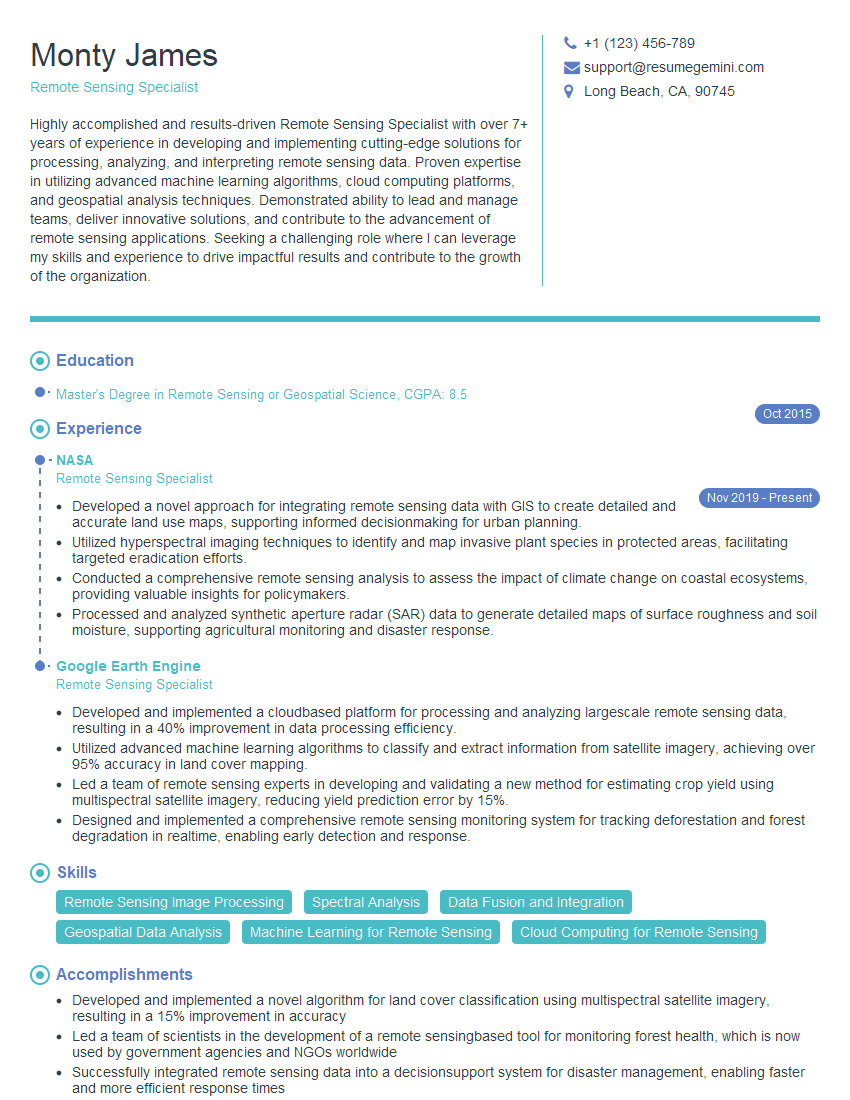
Remote Sensing Specialist Resume Sample

Multimedia Specialist Resume Sample
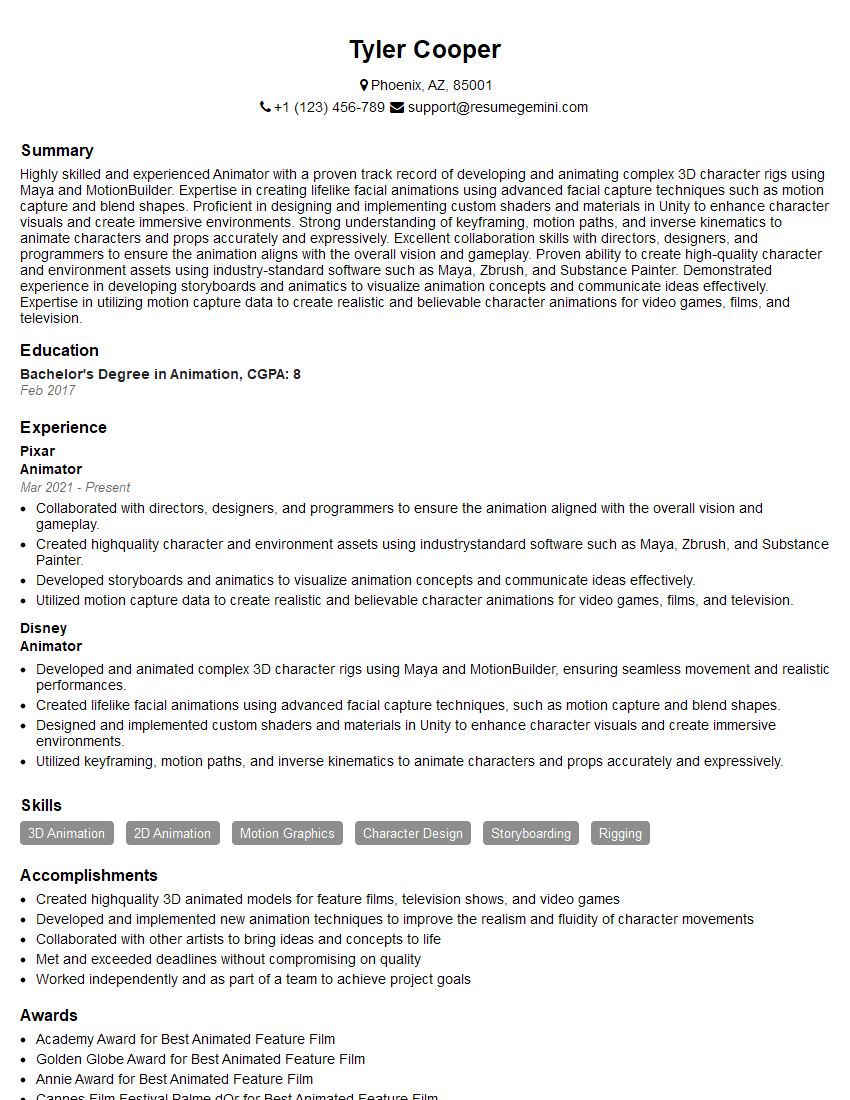
Animator Resume Sample
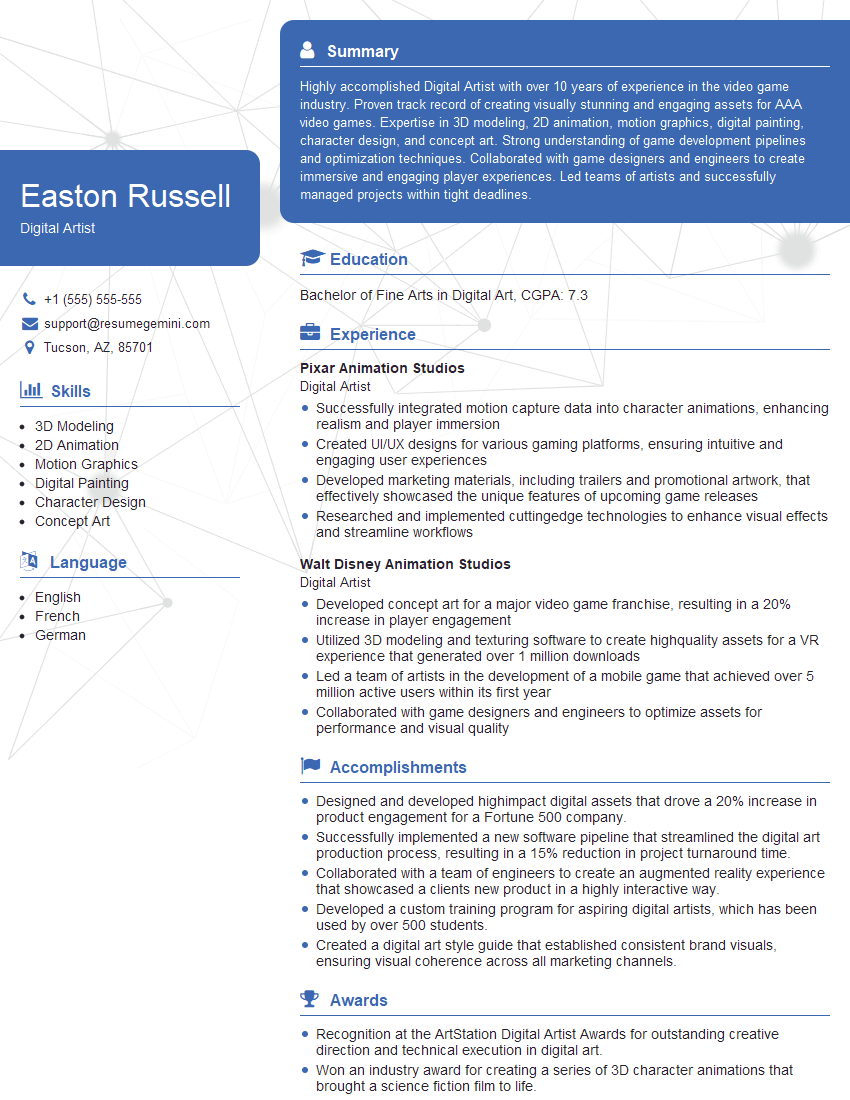
Digital Artist Resume Sample
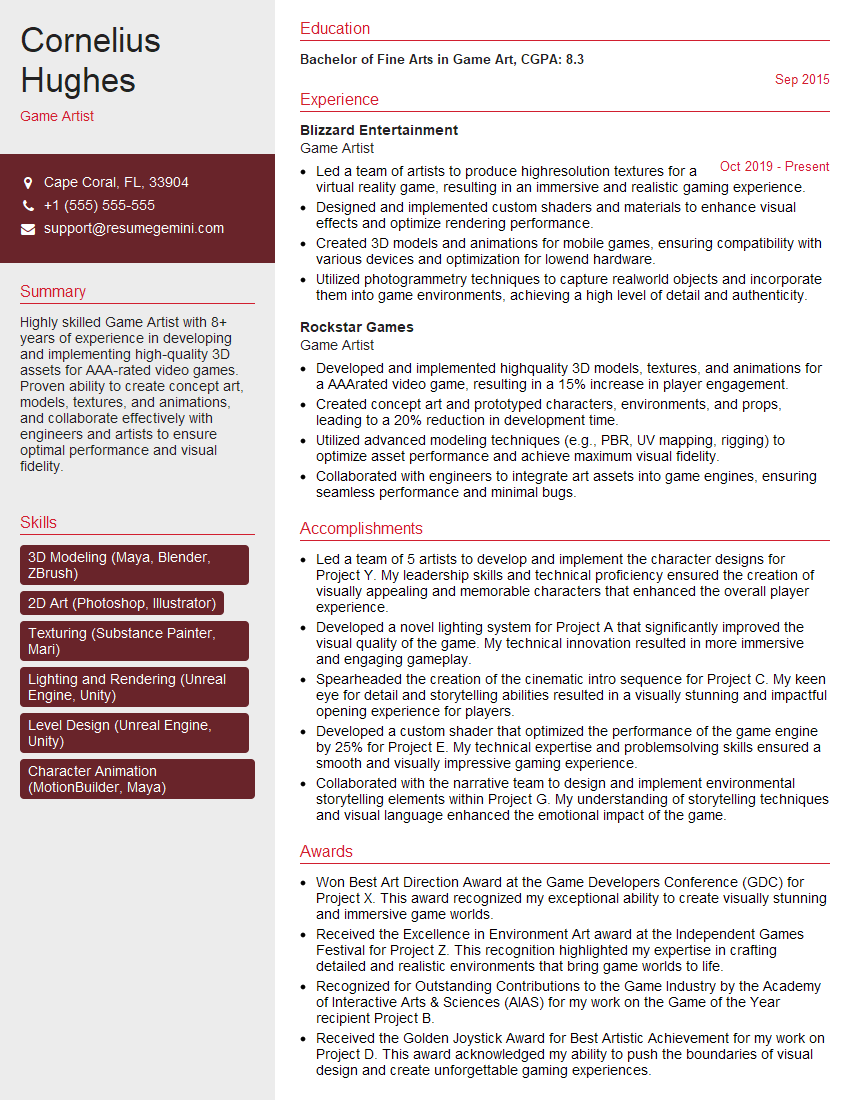
Game Artist Resume Sample

Graphic Designer Resume Sample
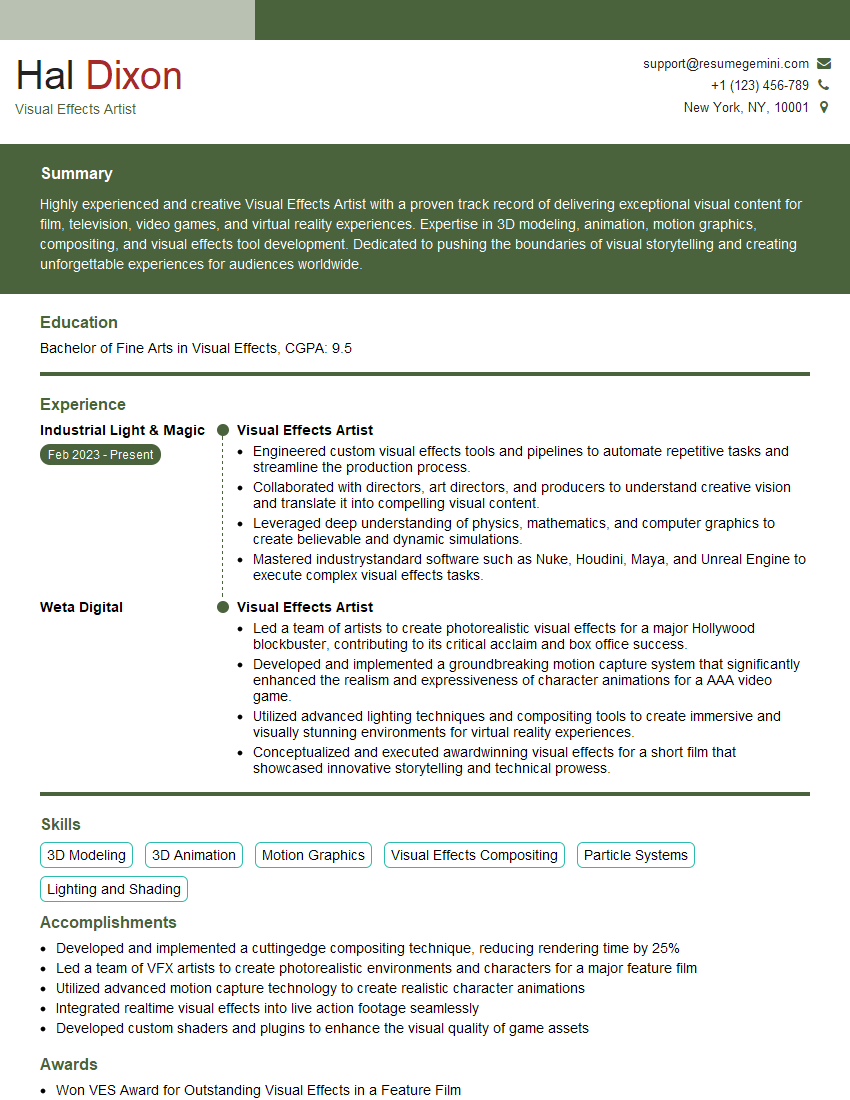
Visual Effects Artist Resume Sample

Photo Editor Resume Sample
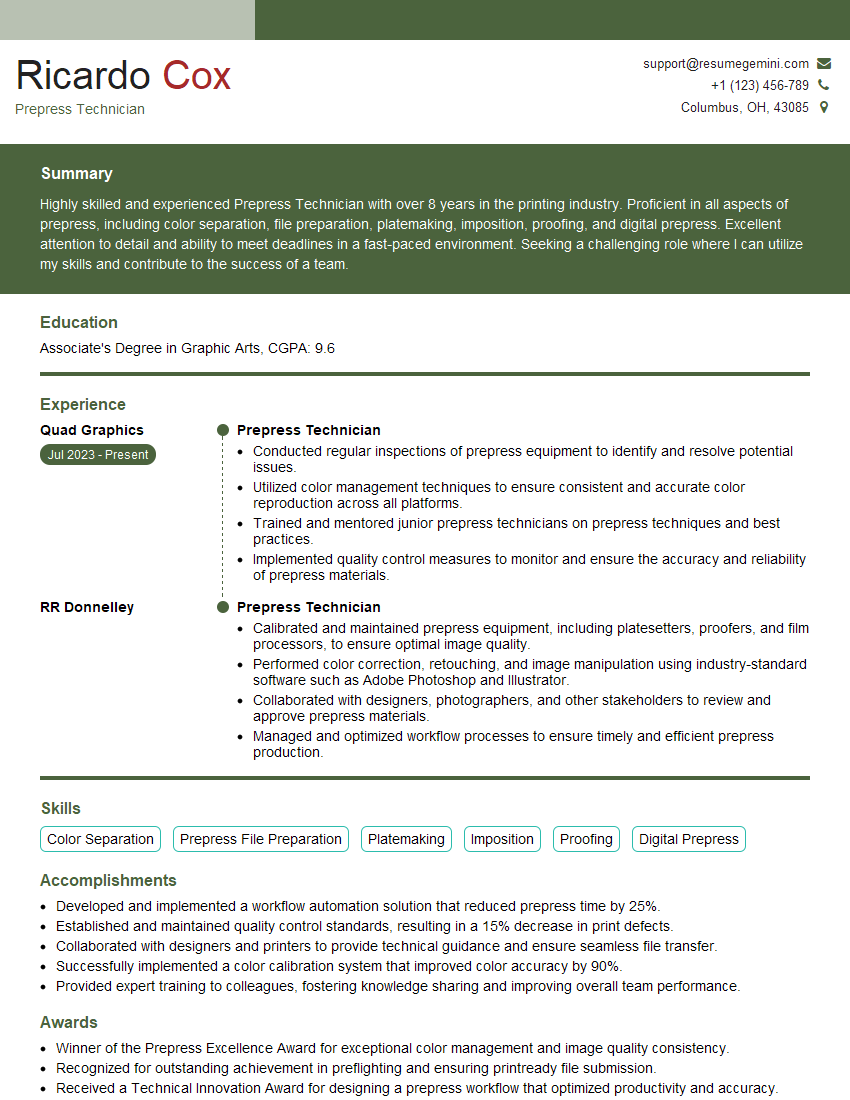
Prepress Technician Resume Sample
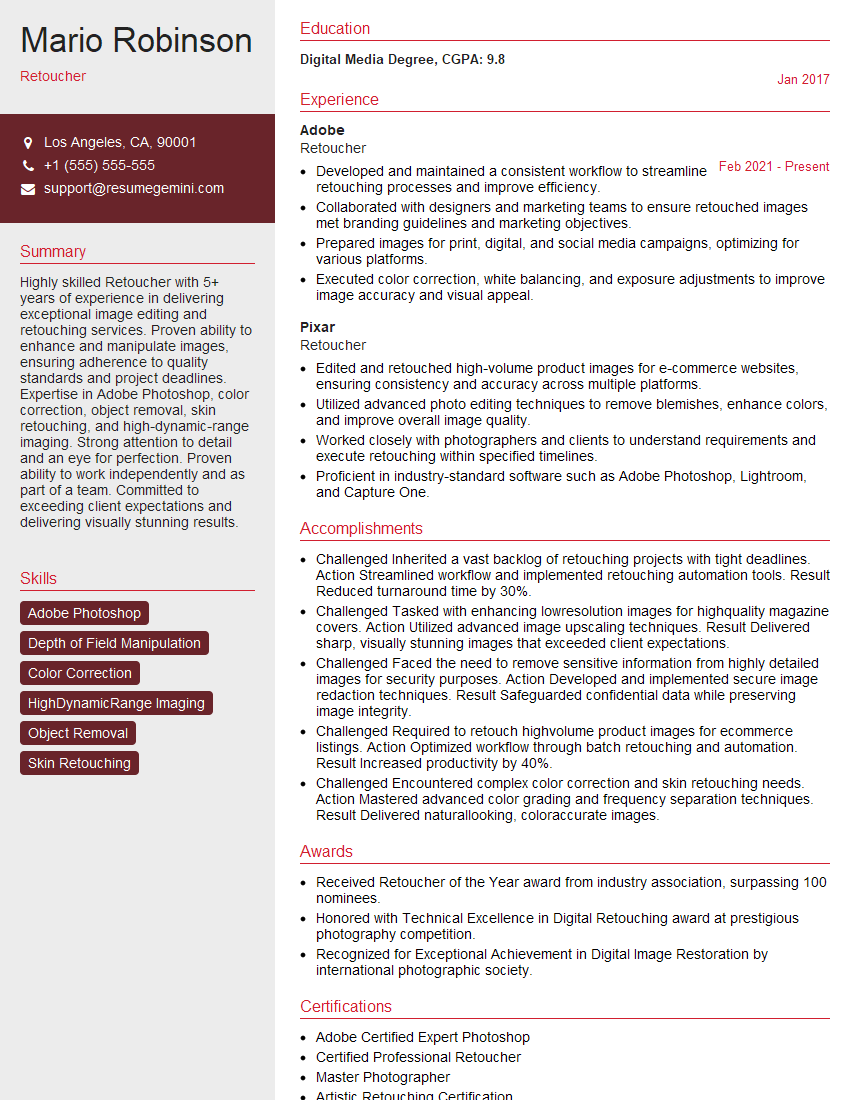
Retoucher Resume Sample
Explore more articles
Users Rating of Our Blogs
Share Your Experience
We value your feedback! Please rate our content and share your thoughts (optional).
What Readers Say About Our Blog
Very informative content, great job.
good