Are you ready to stand out in your next interview? Understanding and preparing for Ability to create custom visual aids (e.g., charts, graphs, diagrams) interview questions is a game-changer. In this blog, we’ve compiled key questions and expert advice to help you showcase your skills with confidence and precision. Let’s get started on your journey to acing the interview.
Questions Asked in Ability to create custom visual aids (e.g., charts, graphs, diagrams) Interview
Q 1. What are the key considerations when choosing between a bar chart, a pie chart, and a line graph?
Choosing between a bar chart, pie chart, and line graph depends heavily on the type of data you’re presenting and the message you want to convey. Think of it like choosing the right tool for the job.
Bar charts are best for comparing discrete categories. For example, comparing sales figures across different regions or product types. The length of each bar directly represents the magnitude of the value. They’re easy to read and understand, even for non-technical audiences.
Pie charts are ideal for showing the proportion of parts to a whole. For instance, illustrating the market share of different companies in an industry. Each slice represents a percentage of the total. However, they become difficult to interpret with more than 5-6 categories.
Line graphs excel at displaying trends and changes over time. Think of stock prices, website traffic over a month, or temperature fluctuations. They show continuous data points connected by lines, allowing you to visualize patterns and rates of change.
In short: Use bar charts for comparisons, pie charts for proportions, and line graphs for trends. The key is to choose the chart that best represents your data and helps your audience grasp the key insights quickly.
Q 2. Explain the difference between a histogram and a bar chart.
While both histograms and bar charts use bars to represent data, their core purpose and data representation differ significantly.
Bar charts compare discrete categories, meaning there are distinct, separate groupings (e.g., types of cars, sales regions). The categories are independent of each other.
Histograms display the distribution of continuous data. They show the frequency of data points within specific ranges or intervals (bins). The data is not discrete; it’s measured on a continuous scale (e.g., heights of students, exam scores). Adjacent bars touch in a histogram to emphasize the continuous nature of the data.
Example: A bar chart could show the number of cars sold for each car brand. A histogram, on the other hand, might show the distribution of the ages of car owners.
Q 3. How would you create a visual representation of complex data to make it easily understandable for a non-technical audience?
Visualizing complex data for a non-technical audience requires a strategic approach focusing on simplicity and clarity. Think of it like telling a story with your data.
Simplify the message: Identify the 2-3 most important key takeaways you want your audience to understand and focus your visualization on those.
Choose the right chart type: Avoid overly complex charts. Simple bar charts, line graphs, or even well-designed tables can often be more effective than intricate 3D charts or overly cluttered graphs.
Use clear labels and titles: Ensure your axes, data points, and the chart title are easily understandable. Avoid jargon.
Consider using annotations or callouts: Highlight key data points or trends using annotations, arrows, or text boxes to emphasize important findings.
Use color effectively: Use color consistently and thoughtfully, avoiding too many colors which can be distracting. Color-blindness needs to be considered as well.
Break down complex data: If you have a large amount of data, consider using multiple charts, presenting the information in a sequential and logical manner.
Example: Instead of showing a detailed scatter plot with numerous data points, present summary statistics (average, median, range) on a simple bar chart to highlight key trends.
Q 4. Describe your experience using different data visualization software (e.g., Tableau, Power BI, Excel).
I have extensive experience with various data visualization tools, each offering unique strengths.
Tableau: I’ve used Tableau for creating interactive dashboards and visualizations, particularly for presenting complex business intelligence data. Its drag-and-drop interface is intuitive, and the ability to connect to various data sources makes it highly versatile. I’ve used it to build dashboards showing real-time sales data, customer segmentation, and market trend analyses.
Power BI: Similar to Tableau, Power BI excels in creating interactive dashboards. I’ve found its integration with Microsoft products (Excel, SharePoint) beneficial. I used it to develop reports analyzing organizational performance metrics and sales forecasting models.
Excel: While less sophisticated than dedicated visualization tools, Excel remains a powerful tool, especially for simpler charts and graphs, quick data exploration, and initial data cleaning and preparation. Its familiarity across workplaces and its ease of use for basic visualization tasks makes it an essential tool in my arsenal.
My proficiency extends beyond just creating visuals; I understand data manipulation, data cleaning, and the importance of data accuracy in the process. Choosing the right tool depends on the complexity of the data, the desired interactivity, and the target audience.
Q 5. What are some common pitfalls to avoid when creating data visualizations?
Several common pitfalls can significantly hinder the effectiveness of data visualizations. Avoiding these helps create clear and impactful visuals.
Chartjunk: Avoid unnecessary elements like 3D effects, unnecessary gridlines, or overly decorative elements that distract from the data itself.
Misleading scales and axes: Manipulating scales or axes can distort the data and create a false impression. Maintain consistent scales and clearly label axes.
Poor choice of chart type: Using the wrong chart type to represent data can obscure insights or lead to misinterpretations. (See previous answer for guidance).
Too much data: Overcrowding a chart with too much data makes it difficult to interpret. Prioritize key findings and simplify the visual.
Lack of context: Failing to provide sufficient context makes it difficult for the audience to understand the data’s significance. Include clear titles, labels, and any relevant background information.
By avoiding these pitfalls, you ensure your visualizations are accurate, easily understood, and effectively communicate the intended message.
Q 6. How do you ensure your visuals are accessible to people with disabilities?
Creating accessible visualizations for people with disabilities is crucial for inclusivity. Key considerations include:
Color contrast: Use sufficient color contrast between text and background to ensure readability for individuals with color blindness.
Alt text for images: Provide descriptive alt text for all images, charts, and graphs to allow screen readers to convey the visual information to users with visual impairments.
Data tables: Always provide data in tabular format in addition to any charts or graphs. This allows those who cannot process visuals to access the information.
Keyboard navigation: Ensure all interactive elements in your visualization are navigable using a keyboard, beneficial to users with motor impairments.
Follow accessibility guidelines (WCAG): Adhere to Web Content Accessibility Guidelines (WCAG) to ensure your visualizations meet accessibility standards.
Testing visualizations with assistive technologies (screen readers, etc.) is crucial to ensure they are accessible.
Q 7. How do you handle large datasets when creating visualizations?
Handling large datasets when creating visualizations often requires a multi-faceted approach.
Data sampling: For exploratory analysis or presenting an overview, a representative sample of the data can be used to create visualizations. This reduces processing time and makes the visualization less cluttered.
Data aggregation: Grouping data into meaningful categories or summarizing data using statistics (averages, medians, etc.) simplifies visualization and highlights key patterns.
Interactive visualizations: Interactive charts and dashboards allow users to explore large datasets dynamically, filtering, zooming, and drilling down into specific areas of interest, rather than presenting everything at once.
Utilize appropriate software: Specialized data visualization software like Tableau or Power BI is designed to handle large datasets efficiently.
Data preprocessing: Cleaning and preparing the data effectively before visualization is critical for efficiency and accuracy. This includes handling missing values and outliers.
The strategy used will depend on the specific nature of the data and the intended insights.
Q 8. Describe your process for creating an infographic.
Creating an effective infographic is a multi-stage process that blends design thinking with data analysis. It starts with a clear understanding of the objective: what message needs to be conveyed and who the target audience is. This informs every subsequent decision.
- Research and Data Gathering: I begin by meticulously gathering the relevant data, ensuring its accuracy and completeness. This might involve accessing databases, conducting surveys, or reviewing existing reports.
- Storyboarding: Next, I create a storyboard – a visual outline of the infographic’s structure and flow. This helps to organize information logically and ensures a cohesive narrative. Think of it like a blueprint for the final product.
- Visual Design: This phase involves selecting the most appropriate chart types and visual elements (icons, colors, fonts) to represent the data clearly and attractively. The goal is to create a visually appealing infographic that is easy to understand at a glance. I leverage color theory and design principles to maximize impact.
- Content Creation and Writing: I craft concise and informative text that complements the visuals, avoiding jargon and using clear, simple language. Every word should serve a purpose.
- Review and Iteration: Finally, I conduct a thorough review to ensure accuracy, consistency, and effectiveness. This often involves getting feedback from others before finalizing the design.
For example, I once created an infographic illustrating the growth of renewable energy sources. The storyboard helped me sequence the information chronologically, highlighting key milestones and the contribution of each energy source. The final infographic successfully communicated complex data in a digestible and engaging format.
Q 9. What are some effective techniques for highlighting key insights in a data visualization?
Highlighting key insights is crucial for effective data visualization. Think of it as guiding the reader’s eye to the ‘aha!’ moments within your data.
- Color Coding: Using a color palette to draw attention to specific data points or trends is very effective. For example, highlighting the highest performing product line in a sales chart with a distinct color.
- Emphasis through Size and Shape: Larger or differently shaped elements can be used to emphasize important data points. For instance, larger bars in a bar chart can represent higher values.
- Data Labels and Annotations: Adding clear labels to data points, and annotating key trends or outliers, helps to interpret the data correctly and focus the viewer’s attention.
- Callouts and Arrows: These visual cues help to connect specific data points to explanations or summaries, guiding the reader through the most important information.
- Interactive Elements (if applicable): For interactive visualizations, using hover effects, tooltips, or click-through functionality can allow users to drill down into specific data points on demand.
For instance, in a chart showing customer churn rates, I might use a bold red color to highlight months with unusually high churn and add a short annotation explaining potential contributing factors.
Q 10. How do you ensure the accuracy and integrity of data presented in your visualizations?
Data accuracy is paramount. Any inaccuracy undermines credibility. My process prioritizes verification and validation at every stage.
- Source Verification: I meticulously document all data sources and cross-reference information to ensure consistency. I prefer using primary data sources whenever possible.
- Data Cleaning and Validation: Before visualization, I thoroughly clean and validate the data, identifying and addressing inconsistencies, outliers, and missing values. This may involve using statistical methods or data manipulation techniques.
- Peer Review: I frequently seek feedback from colleagues to review the data and its interpretation, ensuring there are no biases or errors in my analysis. A fresh pair of eyes can often catch things I miss.
- Transparency: I clearly label data sources and methodologies used, ensuring transparency and allowing others to verify the findings independently. This builds trust and credibility.
For example, if I’m creating a visualization about sales figures, I’ll explicitly state the source of the data (e.g., CRM system, sales reports), the date range, and any data cleaning processes used. This ensures reproducibility and builds confidence in the visualization’s accuracy.
Q 11. Explain the importance of context and labels in data visualizations.
Context and labels are fundamental to understanding data visualizations. They provide the narrative framework and the keys to interpreting the data.
- Context: Provides background information, helping viewers understand the ‘why’ behind the data. This could include the time period, geographical location, or specific circumstances. A title and a brief description are crucial elements of providing context.
- Labels: Clear and concise labels on axes, data points, and legends are essential for interpreting the visual elements. Without proper labels, charts and diagrams become meaningless.
Imagine a bar chart showing sales figures. Without labels indicating the months and the corresponding sales amounts, the viewer cannot extract any meaningful information. Adding a title like “Monthly Sales Performance Q3 2024” provides context. Properly labeling the axes and data points completes the picture. The context makes it clear what is being shown; the labels make it understandable.
Q 12. How would you design a diagram to explain a complex process or system?
Explaining complex processes or systems visually requires a strategic approach, typically involving a combination of diagram types. I generally start by breaking down the system into smaller, more manageable components.
- Flowcharts: To show the sequence of steps in a process. This is particularly useful for illustrating workflows, algorithms, or manufacturing processes. I might use different shapes to represent different types of actions or decisions.
- Swimlane Diagrams: To illustrate the roles and responsibilities within a process. Each ‘lane’ represents a different actor or department.
- Data Flow Diagrams: Show the flow of data through a system. These are useful for visualizing information systems or data processing pipelines.
- Hierarchical Diagrams: To demonstrate the hierarchical relationships between components or elements. This is useful for organizational charts, or illustrating the structure of a complex system.
- Combination Approach: Often, the most effective solution is to combine different types of diagrams to provide a comprehensive overview. This enables a layered understanding of the system.
For example, explaining a customer onboarding process might involve a flowchart showing the steps, a swimlane diagram showing who is responsible for each step, and a data flow diagram illustrating how data moves between different systems.
Q 13. What are the different types of diagrams, and when would you use each one?
There’s a wide array of diagram types, each with its specific purpose. Choosing the right one is critical for clear communication.
- Flowcharts: Show the sequence of steps in a process (as mentioned above).
- UML Diagrams: Used in software engineering to model software systems. Several sub-types exist, such as class diagrams, sequence diagrams, and state diagrams.
- Pie Charts: Show the proportion of different categories within a whole.
- Bar Charts: Compare different categories or groups.
- Line Charts: Show trends over time.
- Scatter Plots: Show the relationship between two variables.
- Network Diagrams: Illustrate connections between different entities.
- Mind Maps: Used for brainstorming and organizing ideas.
- Tree Diagrams: Show hierarchical relationships.
The choice depends on the type of data and the message I aim to convey. A pie chart is ideal for showing market share, while a line chart is better for illustrating trends in stock prices. A flowchart is perfect for a workflow, and a network diagram illustrates connections in a social network.
Q 14. Describe your experience working with different file formats for visual aids (e.g., PNG, JPG, SVG, PDF).
My experience encompasses a range of file formats for visual aids, each with its own strengths and weaknesses. The choice often depends on the intended use and distribution method.
- PNG: Lossless format, ideal for images with sharp lines and text, such as infographics or diagrams. It supports transparency.
- JPG: Lossy format, suitable for photographs and images with smooth gradients. It’s smaller in file size compared to PNG, but quality can be compromised with high compression.
- SVG: Vector format, scalable without loss of quality. Ideal for logos, icons, and illustrations that need to be resized for various applications. It’s preferred for web graphics because of this scalability.
- PDF: Preserves formatting and layout across different platforms. Suitable for distributing reports, presentations, and documents containing both text and visuals. It is a good format for print as well.
For example, I might use SVG for a logo, PNG for an infographic containing sharp text, JPG for a background image in a presentation, and PDF for a final report containing various charts and graphs. Understanding these nuances ensures the optimal choice for any given situation.
Q 15. How do you determine the appropriate scale and resolution for a visual aid?
Choosing the right scale and resolution for a visual aid is crucial for effective communication. It’s like choosing the right lens for a photograph – too zoomed in and you lose context; too zoomed out and details are lost. The process involves considering your audience, the data’s complexity, and the intended medium.
Scale refers to the range of values represented on your axes (for charts) or the overall size of the visual elements. For example, a graph showing stock prices over a decade needs a different scale than one showing daily fluctuations. I start by examining the data’s minimum and maximum values, then determine a suitable range that clearly displays all important data points without excessive empty space or compression.
Resolution dictates the level of detail. A high-resolution image is clearer and sharper, but requires more storage and processing power. For print, a higher resolution is generally needed (300 DPI or more), while for web use, 72-150 DPI is often sufficient. I always choose a resolution appropriate to the final output and consider the need for print-quality or screen-only rendering.
For instance, I recently created a dashboard visualizing website traffic. The scale on the graphs representing daily visits needed to accommodate spikes without masking smaller daily trends. The resolution was set to 72 DPI for optimal display on monitors.
Career Expert Tips:
- Ace those interviews! Prepare effectively by reviewing the Top 50 Most Common Interview Questions on ResumeGemini.
- Navigate your job search with confidence! Explore a wide range of Career Tips on ResumeGemini. Learn about common challenges and recommendations to overcome them.
- Craft the perfect resume! Master the Art of Resume Writing with ResumeGemini’s guide. Showcase your unique qualifications and achievements effectively.
- Don’t miss out on holiday savings! Build your dream resume with ResumeGemini’s ATS optimized templates.
Q 16. How do you incorporate visual hierarchy effectively in your designs?
Visual hierarchy guides the viewer’s eye through the visual aid, emphasizing key information and creating a clear reading path. It’s like a well-written story with a beginning, middle, and end; your visual aid needs a clear introduction, supporting information and a powerful conclusion. I achieve effective visual hierarchy using a combination of techniques:
- Size: Larger elements naturally attract more attention.
- Color: Using contrasting colors to highlight important data points or categories.
- Placement: Positioning key information prominently, often at the top or center.
- Typography: Using different font weights (bold, italic) and sizes to emphasize headings, subheadings, and labels.
- Whitespace: Strategic use of whitespace creates visual breathing room and separates elements.
For example, when designing a presentation slide, I’ll use a large, bold headline to introduce the main point, followed by supporting data presented with clear labels and a consistent color scheme. Less important details may be smaller and placed subtly within the design.
Q 17. How do you manage feedback and revisions during the creation of visual aids?
Managing feedback and revisions is a critical part of the design process. It’s a collaborative effort. I treat feedback as a valuable opportunity for improvement, not criticism. My approach is structured and iterative:
- Clear Communication: I ensure clients understand the design process and the rationale behind my choices. Regular check-ins help manage expectations.
- Version Control: I use version control (e.g., saving different versions of the design) to track changes and easily revert if necessary.
- Organized Feedback: I encourage clients to provide detailed feedback using a structured format, perhaps a checklist or a collaborative document.
- Iterative Refinement: I incorporate feedback incrementally, iteratively reviewing and refining the design until it meets the client’s needs.
I had a project recently where the client initially requested a pie chart. After analyzing the data, we realized a bar chart would communicate the information more effectively. This iterative process led to a much stronger visual aid.
Q 18. Explain your experience using color theory in data visualizations.
Color theory is essential for creating effective data visualizations. Colors evoke emotions and influence perception; understanding this can make or break your visual aid. I leverage color theory in several ways:
- Choosing a color palette: I use color palettes that are both visually appealing and functionally appropriate for the data. I consider the type of data (categorical, numerical), the audience, and the overall message.
- Using color to highlight key information: Strategic use of color draws the eye to the most important parts of the visual aid. Contrast is crucial; this is why colorblind-safe palettes are frequently used.
- Maintaining consistency: Consistent use of color throughout the visualization ensures clarity and professionalism. Think of a corporate identity and use it consistently across your work.
- Considering accessibility: I always consider the needs of users with color vision deficiencies, ensuring sufficient contrast and avoiding color combinations that might be difficult to distinguish.
For example, when visualizing financial data, I might use a color scheme that evokes stability and trust, such as shades of blue and green. For a presentation on environmental issues, I might use a warmer palette to create a sense of urgency.
Q 19. How do you incorporate visual storytelling into your work?
Visual storytelling weaves a narrative through visual elements. It’s not just about presenting data, but about creating an engaging experience. I weave narratives into my visuals using several techniques:
- Clear narrative structure: The visual aid needs a beginning, middle, and end, like a short story. This leads the viewer smoothly through the data.
- Use of visuals and metaphors: Using images, icons, or metaphors can help explain complex data in a more accessible and memorable way.
- Engaging visuals: I will use animations, transitions, and interactive elements to enhance engagement and guide the viewer through the story.
- Compelling narrative: I will craft a compelling narrative around the data to make it resonate with the audience.
For example, in a visualization of climate change data, I might use images of melting glaciers and rising sea levels to complement the quantitative data, reinforcing the impact of climate change.
Q 20. How do you select the appropriate chart type for different data types (e.g., categorical, numerical, time-series)?
Selecting the right chart type is vital for clear communication. The wrong chart can obscure insights or misrepresent data. I follow these guidelines:
- Categorical data: Bar charts, pie charts, or treemaps are suitable for showing the frequency or proportion of different categories (e.g., sales by region).
- Numerical data: Histograms, scatter plots, or box plots are useful for displaying the distribution and relationships between numerical variables (e.g., income distribution).
- Time-series data: Line charts or area charts are excellent for visualizing trends over time (e.g., stock prices over a year).
Choosing a chart type is like selecting the right tool for the job. A hammer is great for driving nails, but not so useful for screwing in screws. Similarly, a bar chart works well for comparing categories, but isn’t suitable for showing trends over time.
Q 21. Explain your experience with creating interactive data visualizations.
Interactive data visualizations greatly enhance engagement and understanding. They allow users to explore the data at their own pace and discover insights that static visuals might miss. My experience includes using libraries like D3.js and tools like Tableau and Power BI.
For instance, I developed an interactive map visualizing crime rates across a city. Users could zoom in and out, filter by crime type, and select specific areas to explore crime statistics over time. This level of interactivity significantly improved data exploration and comprehension compared to a static map. The dynamic nature of the visualization allowed for customized data insights. This project showcased my ability to create an accessible, informative, and user-friendly tool.
I also understand the principles of effective interaction design and focus on user experience, ensuring the interactions are intuitive and the overall experience is seamless. This involves planning the user flows, designing clear and informative tooltips, and creating effective user interface elements.
Q 22. How do you test the effectiveness of your visual aids?
Testing the effectiveness of a visual aid is crucial to ensure it achieves its communication goals. My approach is multifaceted and involves both quantitative and qualitative methods.
- Quantitative Analysis: I track metrics like audience engagement (time spent viewing, scroll depth, click-through rates if interactive), pre- and post-visual aid assessments to measure knowledge gain or attitude change, and survey data on clarity and understanding. For example, if I’m using a chart to demonstrate sales trends, I’d track whether the audience correctly interprets the key takeaway (e.g., sales increased by X% in Y period).
- Qualitative Feedback: I actively solicit feedback through post-presentation questionnaires, informal conversations, and A/B testing different versions of the same visual aid. This helps me understand not just *if* the visual aid worked, but *why* or *why not*. For instance, I might observe participants struggling with a specific element of a diagram, revealing a need for improvement in its design or labeling.
- Eye-Tracking Studies (for advanced cases): In more complex scenarios or for high-stakes projects, I may utilize eye-tracking technology to objectively measure where audience members focus their attention on the visual aid. This can identify areas that grab attention effectively and areas that are confusing or overlooked.
By combining quantitative and qualitative approaches, I can gain a comprehensive understanding of the visual aid’s strengths and weaknesses and iterate on the design accordingly to maximize its impact.
Q 23. Describe a time you had to create a visual aid under tight deadlines.
I once had to create a complex infographic illustrating the financial performance of three different product lines for a board meeting within 24 hours. The initial data was messy and inconsistent.
My strategy involved a prioritized, iterative approach:
- Data Cleaning and Organization: I first spent an hour cleaning and organizing the raw data into a format suitable for visualization. This involved identifying and correcting inconsistencies and inconsistencies.
- Choosing the Right Chart Type: I selected a clustered bar chart to simultaneously compare the financial performance (revenue, profit, etc.) of the three product lines. This chart type provides a clear and concise comparison.
- Prioritizing Key Information: Given the time constraint, I focused on the most critical performance metrics and avoided cluttering the infographic with unnecessary details. This meant making conscious design choices to streamline the information.
- Rapid Prototyping & Iteration: I rapidly prototyped the infographic, using a basic design first, and then iterated based on internal review feedback. The iterative process allowed me to quickly adjust colors, labels, and chart elements.
The final result, though created under pressure, was well-received by the board, proving the value of a structured and iterative approach when faced with a tight deadline.
Q 24. How do you balance aesthetics and clarity in your designs?
Balancing aesthetics and clarity is crucial for creating effective visual aids. It’s not an either/or situation; rather, it’s about finding the sweet spot where both elements work in harmony to enhance understanding.
My approach emphasizes:
- Purpose-Driven Design: The design always starts with the core message. The aesthetics should serve to reinforce and enhance that message, not distract from it. A visually stunning but unclear graph is pointless.
- Strategic Use of Color and Typography: I select colors that are not only visually appealing but also enhance readability and differentiate key data points. Likewise, typography must be clear and easily readable, with appropriate font sizes and weights.
- Minimalist Approach: I avoid unnecessary embellishments or clutter. Whitespace is used strategically to guide the eye and improve readability. The visual aid should be clean and uncluttered, allowing the data to speak for itself.
- Data-Ink Ratio: I strive for a high data-ink ratio—maximizing the amount of ink used to represent data and minimizing unnecessary elements. This ensures that the visual aid is not overly cluttered with non-essential design elements.
Ultimately, the goal is to create a visual aid that is both pleasing to the eye and easily interpretable, allowing the audience to quickly grasp the key message without feeling overwhelmed.
Q 25. What are some best practices for designing visual aids for presentations?
Designing effective visual aids for presentations requires a keen understanding of audience engagement and information architecture. Here are some best practices:
- Know Your Audience: Tailor the visual aid’s complexity and style to the audience’s knowledge and expectations. A technical audience will appreciate more detail than a general audience.
- Start with a Strong Narrative: The visual aid should tell a story, guiding the audience through the information logically. Each visual should support a specific point within the presentation’s narrative.
- Less is More: Avoid overwhelming the audience with too much information on a single slide. Use clear and concise titles, labels, and annotations.
- Choose Appropriate Chart Types: Select the chart type best suited to the data and message. A pie chart is good for proportions, a bar chart for comparisons, and a line chart for trends.
- High-Quality Visuals: Use high-resolution images and graphics. Ensure consistent branding and a professional look and feel.
- Accessibility: Design for accessibility, considering color blindness and other impairments. Use sufficient contrast and alt text for images.
- Practice & Refine: Rehearse your presentation with your visual aids to ensure a smooth delivery and adjust as needed.
By following these best practices, you can create visual aids that not only enhance your presentation but also ensure clear communication of your key message.
Q 26. How would you adapt a visualization for different platforms or devices?
Adapting visualizations for different platforms or devices requires careful consideration of screen size, resolution, and user interaction capabilities.
My approach includes:
- Responsive Design Principles: I leverage responsive design principles to ensure the visual aid scales appropriately across different screen sizes and resolutions. This often involves using vector graphics (SVG) which can scale without losing quality.
- Format Considerations: I choose appropriate file formats—e.g., PNG for high-quality images, SVG for scalable vector graphics, PDF for presentations that need to maintain formatting across different devices.
- Interactive Elements (when appropriate): For digital platforms, I might incorporate interactive elements such as tooltips, hover effects, or zoom functionality to enhance engagement and provide additional detail on demand.
- Simplified Design for Smaller Screens: For smaller screens (e.g., mobile phones), I might simplify the visualization by removing less critical information or using a different chart type to ensure readability and avoid visual clutter.
- Testing Across Devices: Before finalizing the visual aid, I always test it on various devices and screen sizes to ensure it renders correctly and is easily navigable on each platform.
Adaptability ensures accessibility and ensures the visual aid maintains its effectiveness across various display environments.
Q 27. Describe your experience with creating visual aids for different audiences (e.g., executives, technical teams, general public).
My experience creating visual aids for diverse audiences has taught me the importance of tailoring the content and style to resonate with each group’s specific needs and expectations.
- Executives: For executives, I focus on high-level summaries, key takeaways, and impactful visuals that convey complex information quickly and efficiently. I often use executive summaries and dashboards highlighting crucial metrics.
- Technical Teams: When presenting to technical teams, I incorporate greater detail, precision, and potentially more technical terminology. Charts and diagrams would often be more complex, allowing for deeper exploration of data and methodologies.
- General Public: When communicating with the general public, I prioritize simplicity, clarity, and engaging visuals. The use of relatable analogies and avoiding technical jargon are key to effective communication. I might use infographics or visually appealing storytelling elements.
The key is to understand the audience’s background knowledge and their primary interests in the presented data. This understanding allows me to create effective and engaging visualizations for each group.
Key Topics to Learn for Ability to create custom visual aids (e.g., charts, graphs, diagrams) Interview
- Choosing the Right Visual: Understanding when to use different chart types (bar charts, line graphs, pie charts, scatter plots, etc.) to effectively communicate data and insights. Consider data types and the message you want to convey.
- Data Visualization Principles: Mastering principles of visual clarity, including effective labeling, clear legends, appropriate scaling, and avoiding chartjunk. Learn how to guide the viewer’s eye to the key takeaways.
- Software Proficiency: Demonstrating expertise in relevant software such as Microsoft Excel, Google Sheets, Tableau, or specialized data visualization tools. Be prepared to discuss your experience with different software packages and their features.
- Data Interpretation and Storytelling: Going beyond simply creating visuals; show your ability to interpret data, draw meaningful conclusions, and present those findings in a compelling narrative using your chosen visual aids.
- Practical Application Examples: Prepare examples of projects where you’ve used custom visual aids to solve problems, present findings, or communicate complex information. Be ready to discuss the impact of your visuals.
- Technical Considerations: Understanding file formats (e.g., SVG, PNG, JPG), resolution, accessibility considerations (color blindness, screen readers), and best practices for creating visuals for different platforms (print vs. digital).
Next Steps
Mastering the ability to create custom visual aids is crucial for career advancement in many fields, allowing you to communicate complex information clearly and persuasively. This skill is highly valued by employers across various sectors. To maximize your job prospects, focus on building an ATS-friendly resume that effectively showcases your expertise. ResumeGemini is a trusted resource to help you create a professional and impactful resume that highlights your skills in data visualization and gets you noticed. Examples of resumes tailored to showcasing expertise in creating custom visual aids are available within ResumeGemini to help guide your efforts.
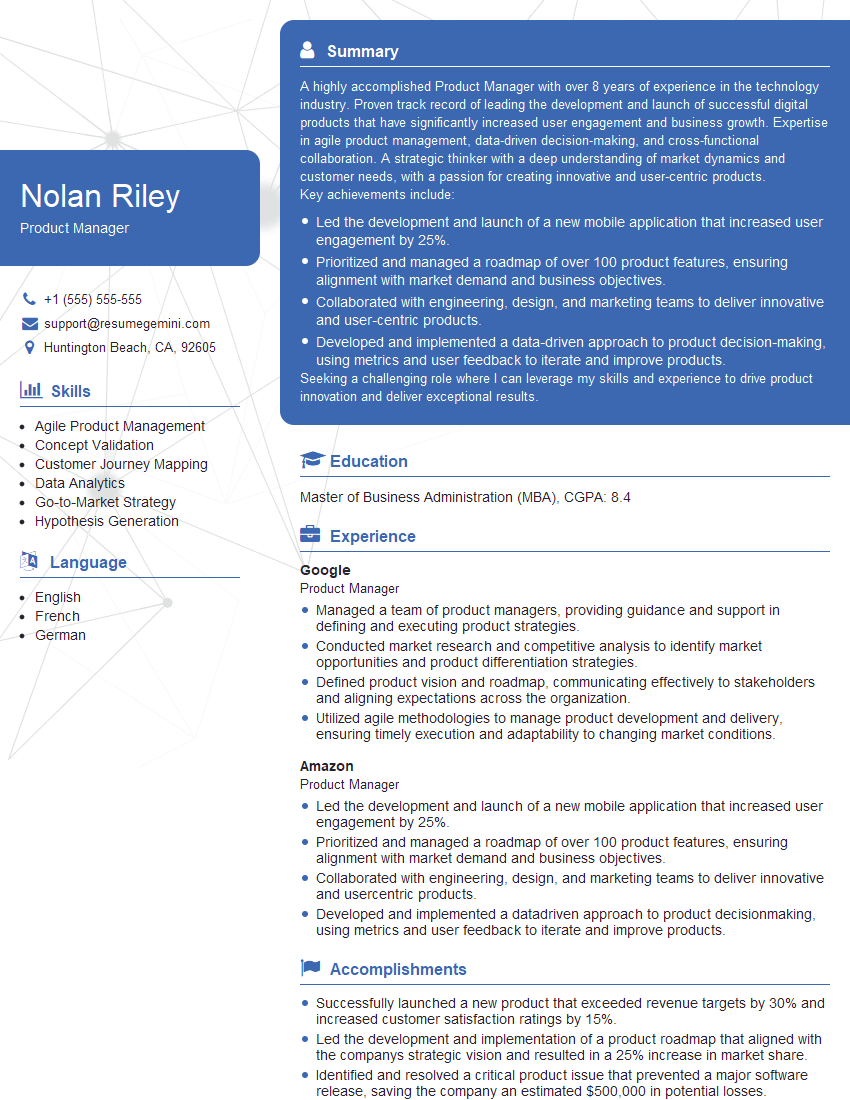
Product Manager Resume Sample
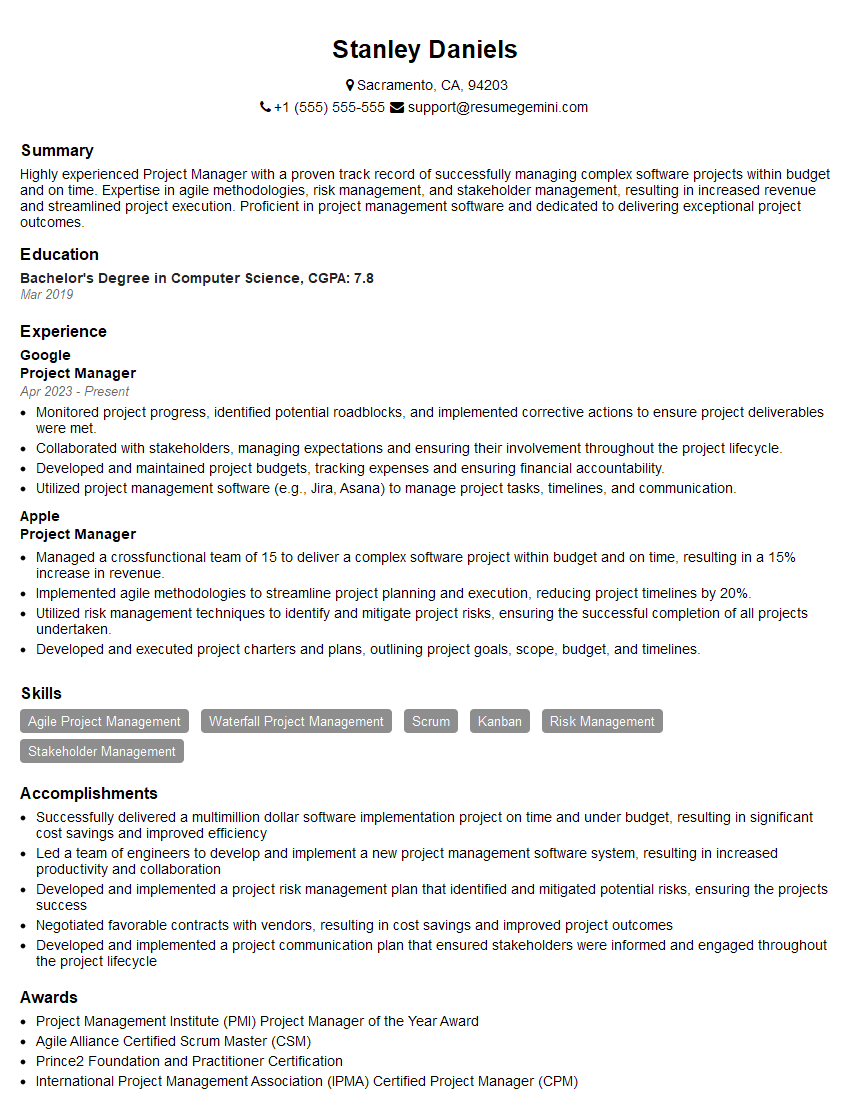
Project Manager Resume Sample

Business Analyst Resume Sample
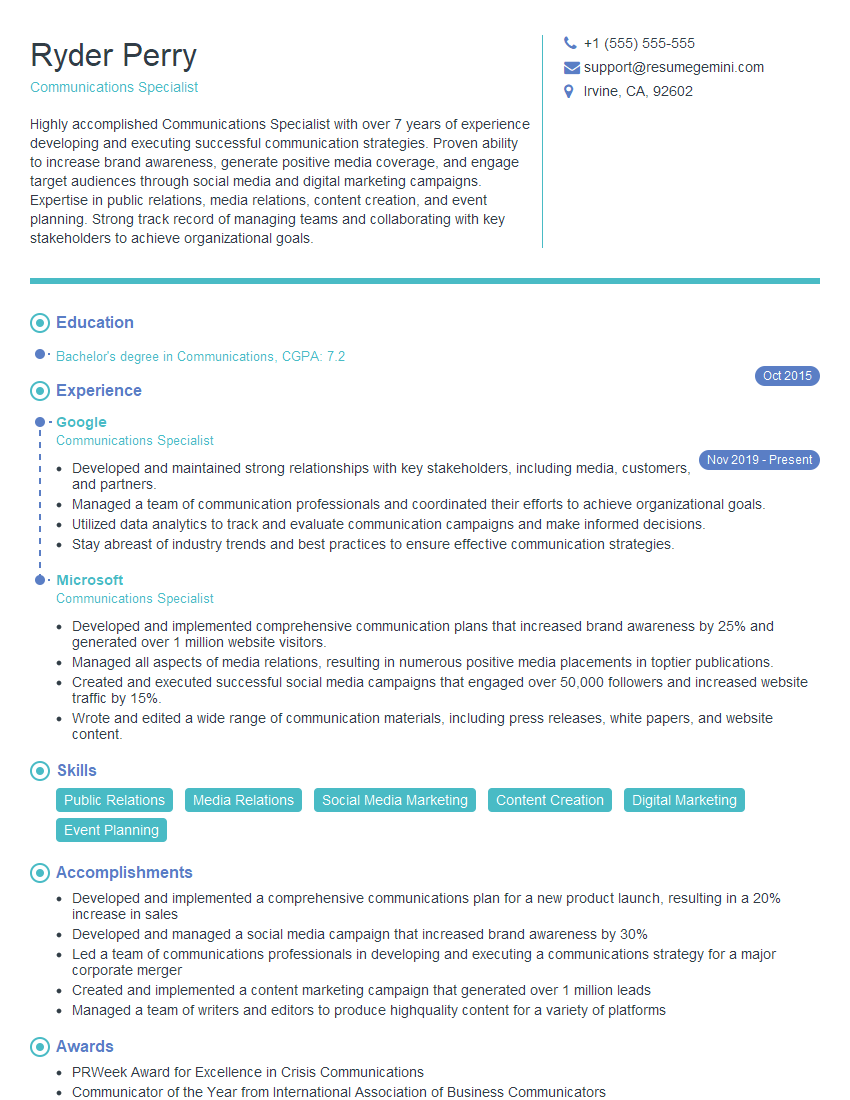
Communications Specialist Resume Sample
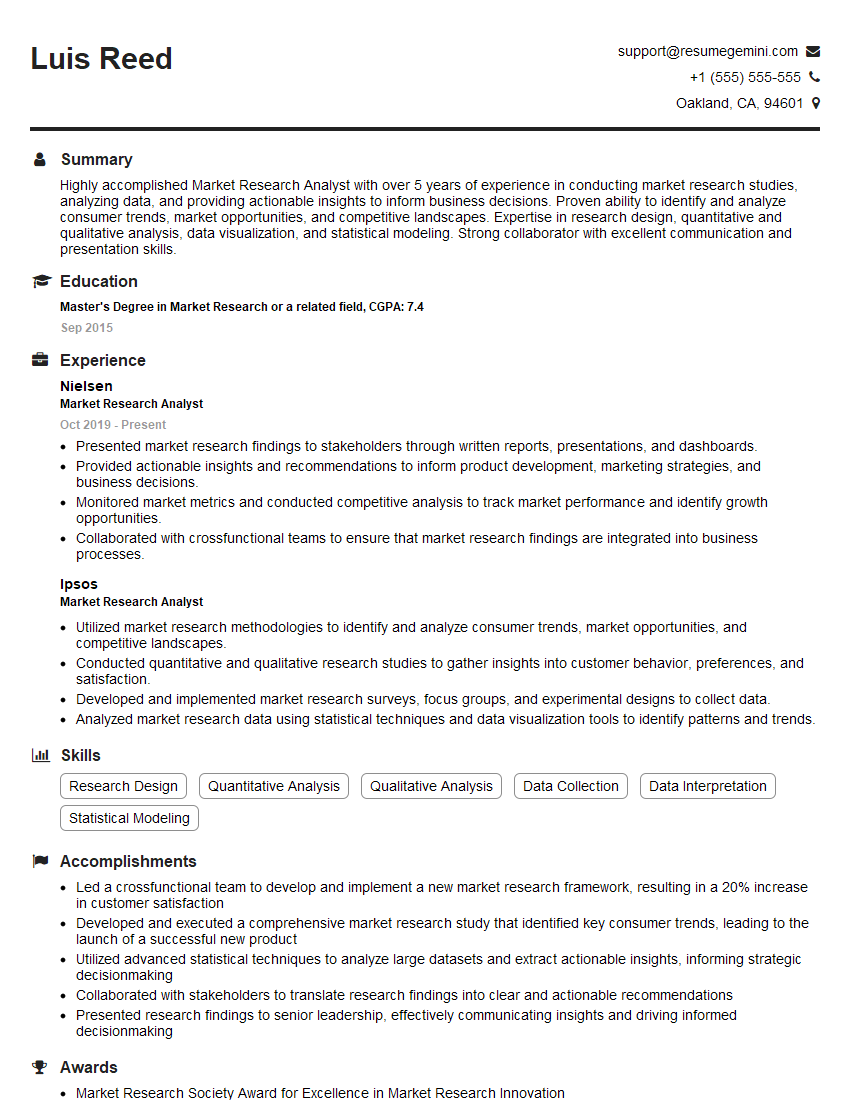
Market Research Analyst Resume Sample
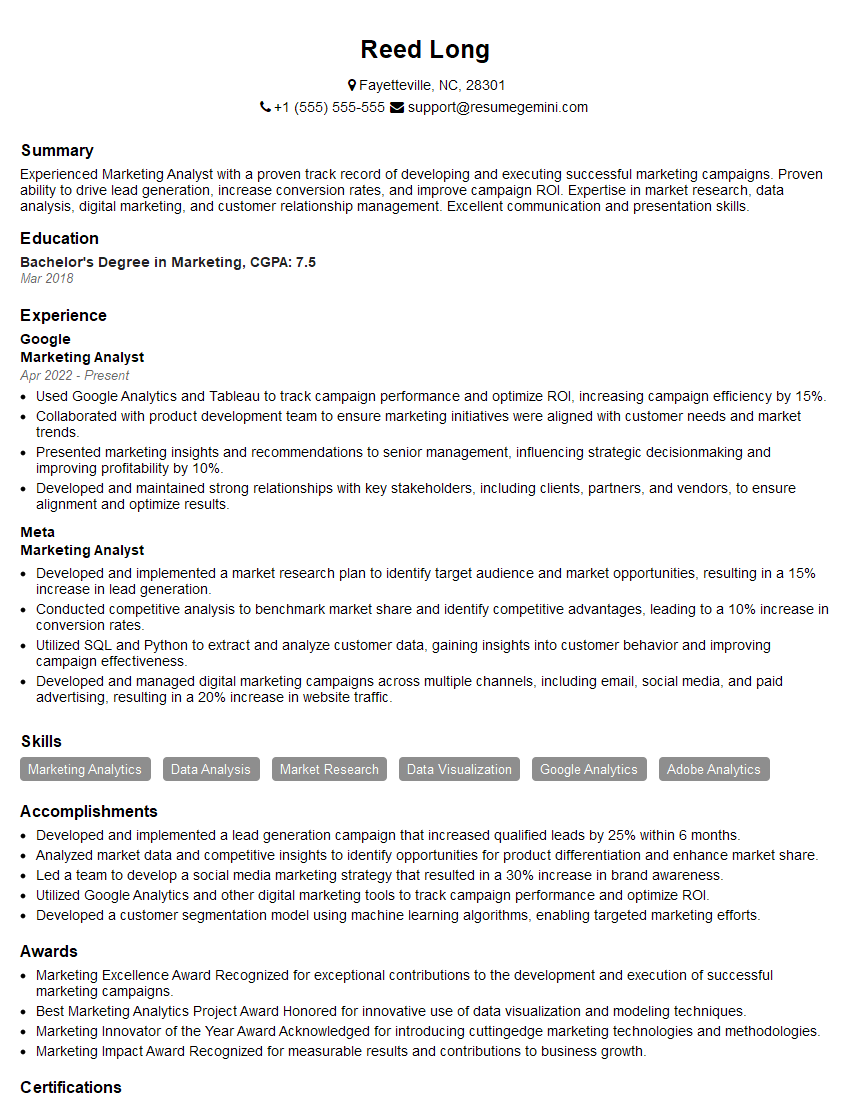
Marketing Analyst Resume Sample
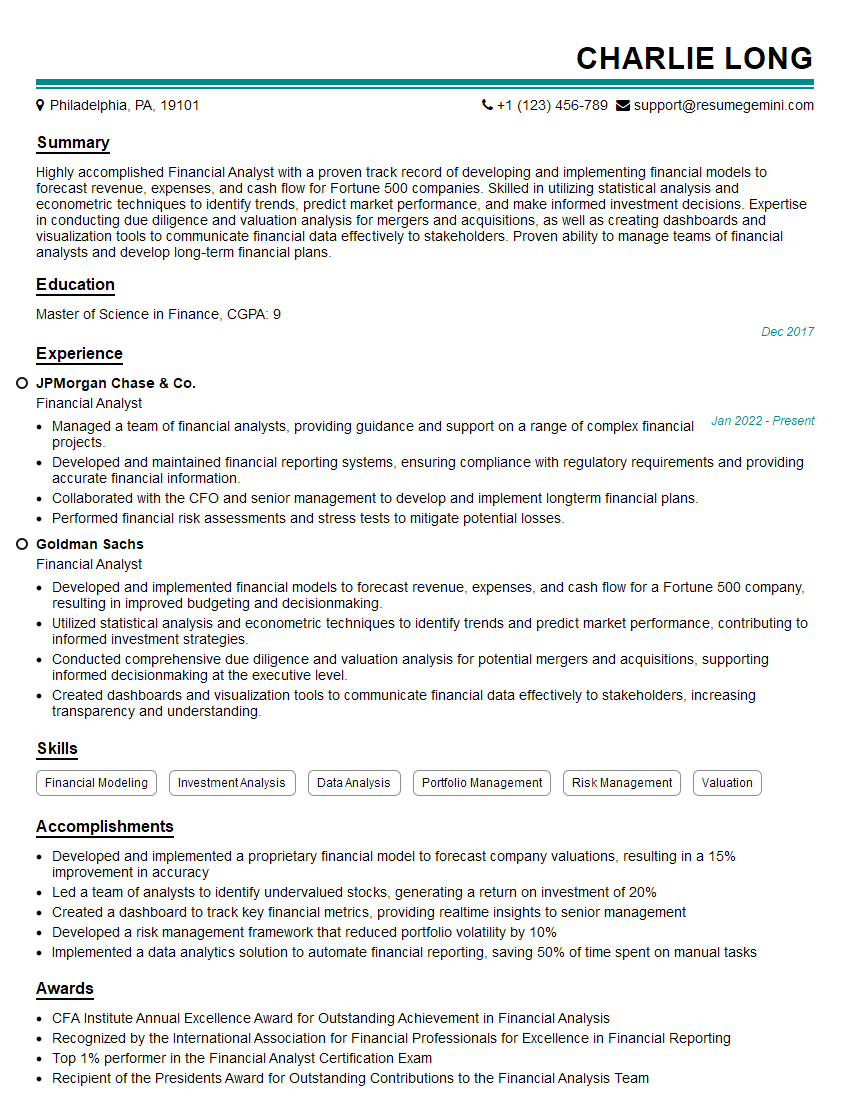
Financial Analyst Resume Sample

Data Analyst Resume Sample
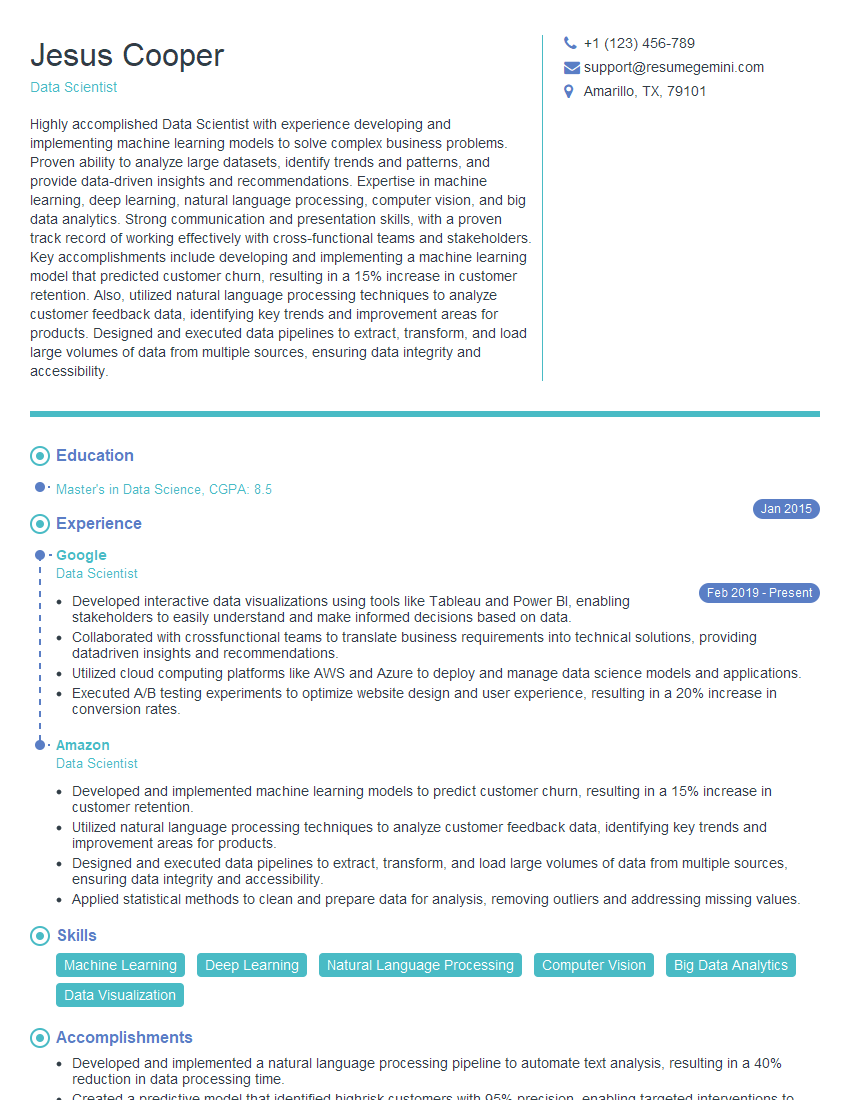
Data Scientist Resume Sample
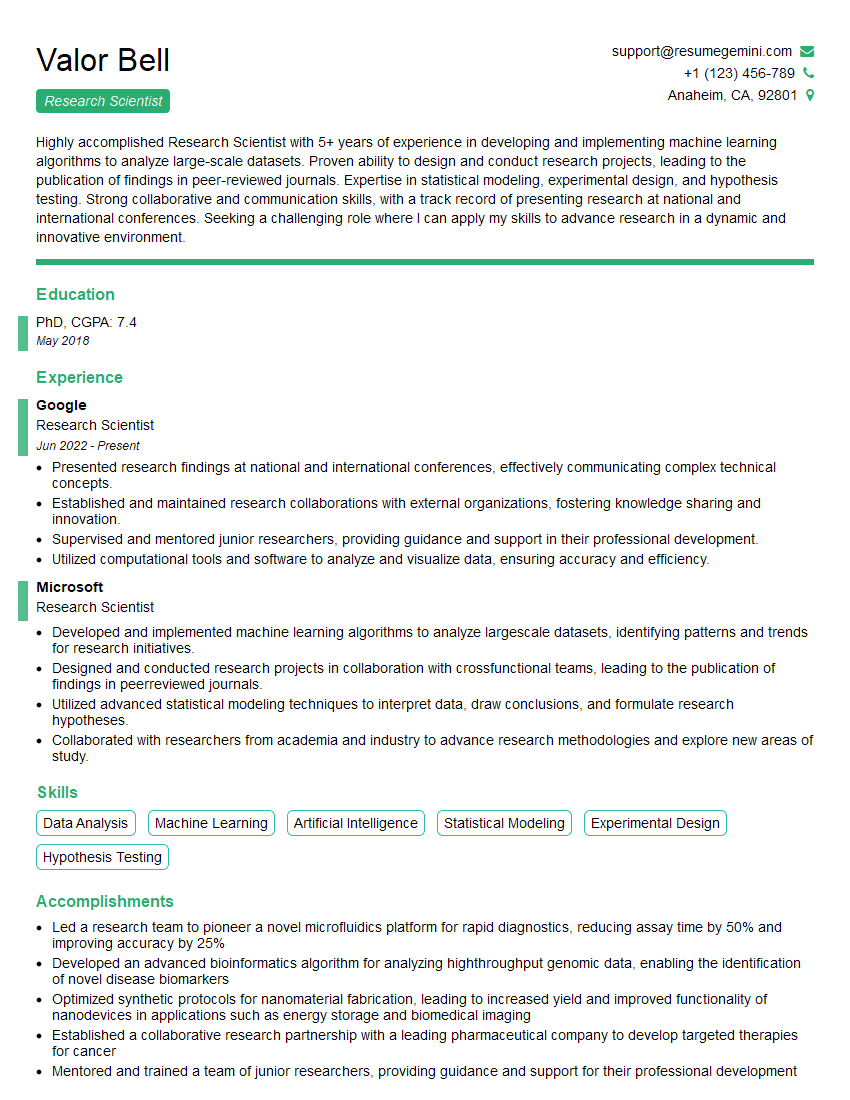
Research Scientist Resume Sample

Web Designer Resume Sample
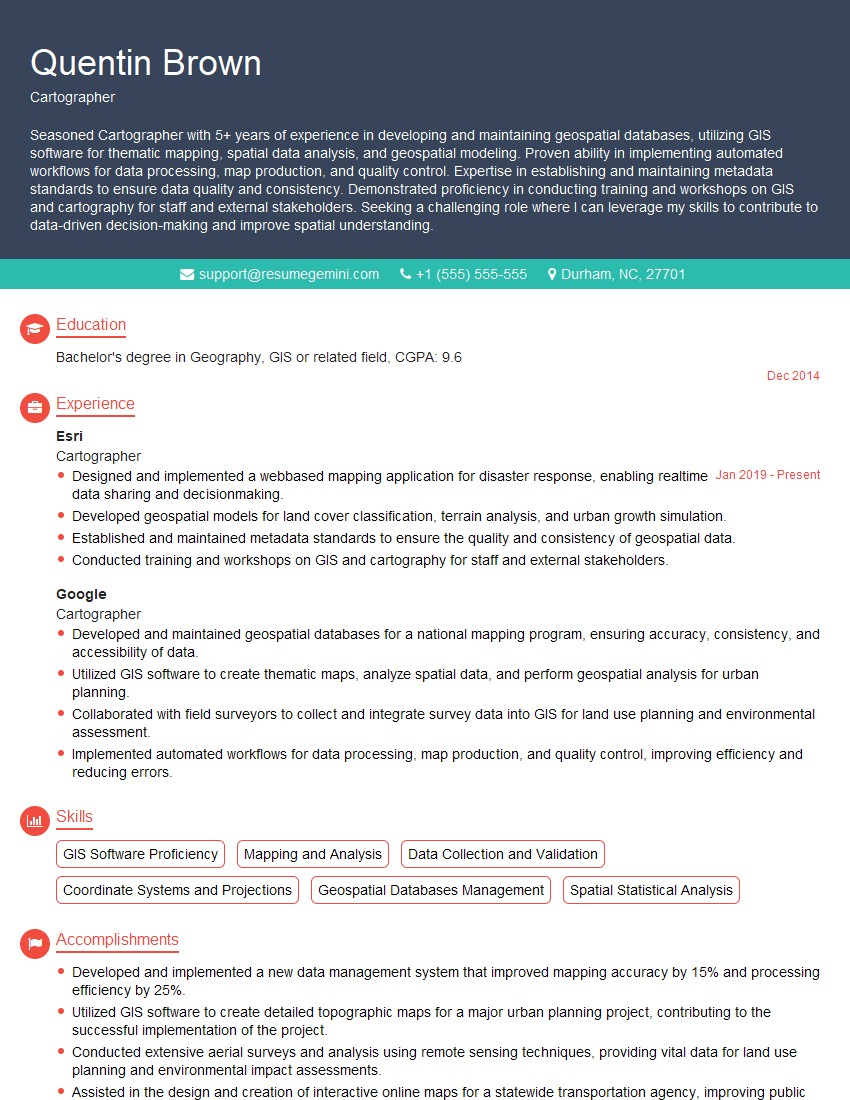
Cartographer Resume Sample
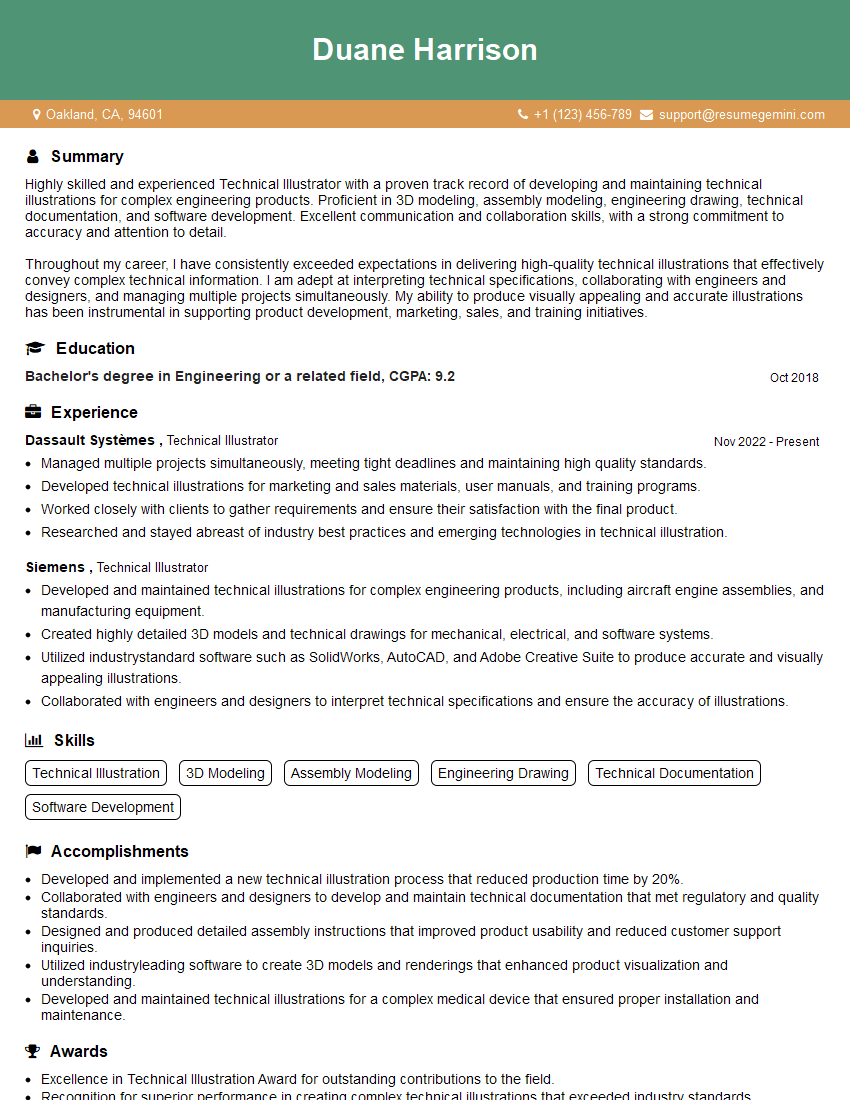
Technical Illustrator Resume Sample
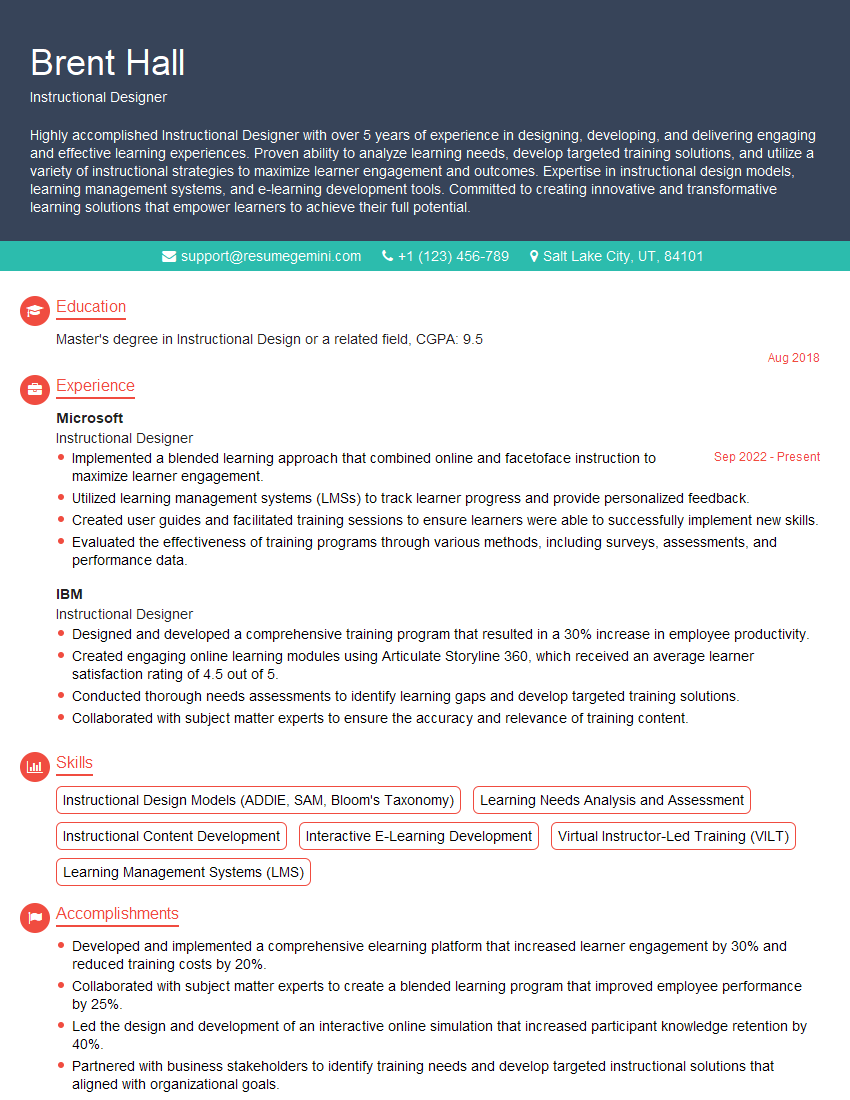
Instructional Designer Resume Sample

Graphic Designer Resume Sample
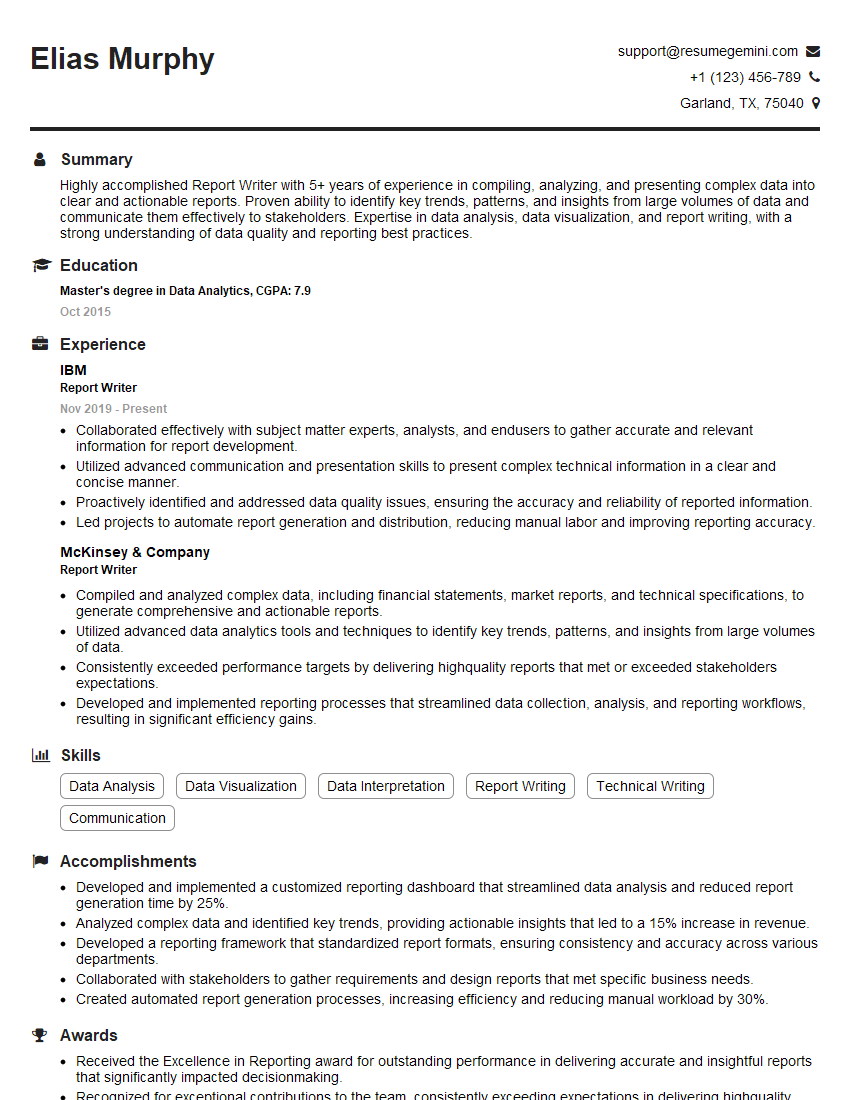
Report Writer Resume Sample

Technical Writer Resume Sample
UX Designer Resume Sample
- Product Manager
- Project Manager
- Business Analyst
- Communications Specialist
- Market Research Analyst
- Marketing Analyst
- Financial Analyst
- Data Analyst
- Data Scientist
- Research Scientist
- Web Designer
- Cartographer
- Technical Illustrator
- Instructional Designer
- Graphic Designer
- Report Writer
- Technical Writer
- UX Designer
Explore more articles
Users Rating of Our Blogs
Share Your Experience
We value your feedback! Please rate our content and share your thoughts (optional).
What Readers Say About Our Blog
Very informative content, great job.
good