Preparation is the key to success in any interview. In this post, we’ll explore crucial Allegorithmic PBR interview questions and equip you with strategies to craft impactful answers. Whether you’re a beginner or a pro, these tips will elevate your preparation.
Questions Asked in Allegorithmic PBR Interview
Q 1. Explain the difference between diffuse, specular, and normal maps in a PBR workflow.
In a Physically Based Rendering (PBR) workflow, diffuse, specular, and normal maps are crucial texture types that define the appearance of a surface. Think of them as layers of information that the renderer uses to calculate how light interacts with the material.
Diffuse Map (Albedo): This map defines the base color of the surface. It’s the color you’d see if the surface were lit evenly from all directions. Imagine painting a wall – the paint color is essentially the diffuse color. In a PBR pipeline, this map doesn’t directly influence the brightness or lighting, only the base hue.
Specular Map: This map dictates how shiny or reflective a surface is. It controls the intensity and size of highlights. A highly polished metal will have a strong, small specular highlight, while a dull surface will have a weak, large one. This map often represents glossiness or roughness (the inverse of glossiness). Think of a mirror versus a piece of cloth; the mirror has a strong specular reflection, the cloth has a weak, diffuse reflection.
Normal Map: This map doesn’t define color; instead, it simulates surface detail by modifying the surface normals (the direction a surface points). This allows you to add fine details like bumps, scratches, or grooves without requiring high-polygon models. It essentially ‘tricks’ the renderer into thinking the surface has more geometry than it actually does. Imagine a brick wall – a normal map can efficiently represent the individual bricks’ shapes without requiring a separate 3D model for each brick.
Q 2. Describe the process of creating a realistic metal material in Substance Painter.
Creating a realistic metal material in Substance Painter involves leveraging its PBR workflow and utilizing appropriate maps. The key is to understand how metals react to light: they have a very strong specular reflection and little to no subsurface scattering.
Base Color: Choose a metallic base color in the Albedo map. This can be a simple color or a detailed texture, depending on the desired level of realism.
Metallic Map: This is crucial for metals. Paint a fully white value (1.0) across the metallic map where the metal should be. Use a grayscale or color mask for variation if the object has non-metallic parts.
Roughness Map: This defines the surface smoothness. For a polished metal, keep the roughness values very low (close to 0.0). Higher values (closer to 1.0) create a rough, worn metal look. You can use masks to control the level of roughness across the surface.
Normal Map: Use this map to add surface details like scratches, dents, or wear and tear. These details add realism to the metal surface.
Optional: Ambient Occlusion (AO) and Height Maps: Adding AO helps to emphasize crevices and recesses, while height maps further enhance the depth of surface details.
By carefully controlling these maps, you can create highly realistic metal materials, from polished chrome to rusty iron.
Q 3. How do you handle UV unwrapping for optimal texture results in a PBR pipeline?
UV unwrapping is a critical step in the PBR pipeline. It’s the process of projecting a 3D model’s surface onto a 2D plane, allowing textures to be applied correctly. Poor UV unwrapping can result in stretched, distorted, or otherwise incorrect texture application, ruining the final render. Optimal UV unwrapping aims for minimal distortion and efficient texture space usage.
Planar Mapping: Suitable for simple, flat surfaces like walls or floors. But can lead to significant distortion on complex geometry.
Cylindrical Mapping: Effective for objects with cylindrical shapes like pipes or bottles. The distortion is minimized along the cylindrical axis.
Spherical Mapping: Ideal for spherical objects like spheres or globes. Minimizes distortion near the poles.
Box Mapping: Works well for box-like shapes but can create seams.
Automatic Unwrapping Tools: Software like Blender, Maya, or 3ds Max offer powerful automated unwrapping tools that utilize algorithms to efficiently unwrap complex models. However, manual adjustments are often necessary for optimal results.
Manual Unwrapping: For intricate models, manual unwrapping is often needed to achieve the best results. The goal is to create UV islands that minimize distortion and are organized logically for efficient texture space use. Seams are carefully placed to minimize their visibility.
Remember, the ultimate goal is to distribute UV islands across the texture space to avoid stretching or artifacts, and to ensure efficient texture memory usage.
Q 4. What are the advantages of using Substance Designer for procedural texture generation?
Substance Designer excels at procedural texture generation, offering several key advantages over hand-painting or using bitmap textures:
Non-destructive workflow: Changes are easily made and adjustments are easily reversed. You’re working with nodes rather than directly painting pixels, making iteration easier.
Infinite variations: Procedural generation allows for creating a virtually infinite number of variations of a texture from a limited set of parameters. This is incredibly useful for creating assets for games or creating highly detailed textures.
Tiling textures: Creating seamless tiling textures is greatly simplified. This is crucial for large environments to avoid repetition.
Parameter control: Allows fine-tuning of texture parameters for various material types and appearances. You can easily experiment with different combinations of features and create unique variations.
Automation: Tasks such as generating variations or creating multiple instances of assets can be automated using Substance Designer’s scripting capabilities.
Integration: Seamlessly integrates with other software like Substance Painter and game engines.
In short, Substance Designer empowers artists to create complex and highly detailed textures with greater efficiency and control compared to traditional methods.
Q 5. Explain how you would create a tiling texture in Substance Designer.
Creating a tiling texture in Substance Designer is straightforward due to its procedural nature. The key is to ensure the edges of your texture seamlessly connect. Here’s a process:
Use appropriate generators: Start with generators that naturally tile, like the Noise, Gradient, or Checker nodes. Avoid using textures that contain obvious, singular features which wouldn’t repeat seamlessly.
Work with multiple channels: Break down your texture into separate channels (e.g., color, roughness, normal). This allows you to create more complex textures by layering different patterns and effects.
Use filters and blending modes: Experiment with filters and blend modes (like Multiply, Overlay, Screen) to combine different textures and create varied effects. These will influence how the texture will seamlessly connect.
Employ smoothing techniques: Use filters like Blur or Smooth along the edges of your texture to minimize visible seams. The Fill Layer node is also particularly helpful here.
Use a checkerboard as a visual guide: Create a simple checkerboard pattern in a separate channel and overlay it onto your main texture. This reveals seams that may be invisible otherwise.
Zoom and Check for Seamlessness: Zoom in at high resolutions and examine your tiles closely for any noticeable seams or mismatches. Even the slightest imperfections can become very apparent at higher resolutions.
By carefully adjusting parameters and blending modes, you can achieve seamless tiling textures suitable for use in various applications.
Q 6. How do you optimize textures for real-time rendering in games?
Optimizing textures for real-time rendering in games requires a focus on reducing texture size and memory footprint without sacrificing visual quality too much. The goal is to strike a balance between visual fidelity and performance.
Reduce resolution: Use the lowest resolution that still provides an acceptable level of detail. Experiment with different resolutions and compare the results to find the sweet spot.
Mipmapping: Enables the renderer to use lower-resolution versions of the texture at further distances, significantly reducing the load. This is essential for optimizing performance.
Compression: Use appropriate compression formats like DXT (BC) or ASTC. These reduce file sizes without significant quality loss. The choice of format depends on the target platform and its hardware capabilities.
Texture atlases: Combine multiple textures into a single larger texture to reduce the number of draw calls. This optimizes performance by cutting down on draw calls.
Normal map compression: Specialized compression techniques are available for normal maps that preserve detail more effectively.
Reduce color depth: For some textures, using a lower color depth (e.g., 16-bit instead of 32-bit) can reduce file size without a perceptible loss of quality.
Always profile and test your game to identify texture-related bottlenecks. Tools available in game engines help in optimizing textures for optimal performance. The key is to find the right balance between visual fidelity and performance.
Q 7. Describe your experience with different PBR shading models (e.g., Cook-Torrance, GGX).
I have extensive experience with various PBR shading models, most notably Cook-Torrance and GGX. Both are microfacet-based models, meaning they model the surface as a collection of tiny, randomly oriented microfacets reflecting light. The difference lies in how they model the distribution of these microfacets.
Cook-Torrance: A classic model that uses a Beckmann distribution function to model the microfacet distribution. It provides accurate reflections, but can struggle with very rough surfaces.
GGX (Trowbridge-Reitz): A more modern model that utilizes a GGX distribution function, which is better at handling rough surfaces. It generally produces more realistic and visually pleasing results, especially on materials with high roughness values. Many modern game engines default to GGX due to its visual improvements.
While both models are physically plausible, GGX tends to provide visually more appealing results for a wider variety of materials. My experience shows that choosing the right model depends on the desired visual fidelity and performance considerations. Some rendering engines allow for switching between different models or even using hybrid approaches.
Beyond Cook-Torrance and GGX, I’m familiar with other shading models like the Phong and Blinn-Phong models (simpler, less physically accurate alternatives), and I’m also familiar with the nuances and trade-offs between them. The choice of shading model will depend on the specific project requirements, aiming for the best balance between visual realism and performance.
Q 8. How do you troubleshoot issues with texture seams or artifacts in Substance Painter?
Texture seams and artifacts in Substance Painter are frustrating, but usually stem from issues with UV unwrapping, texture tiling, or filter settings. Let’s tackle troubleshooting step-by-step:
- Check your UVs: Poorly unwrapped UVs are the most common culprit. Look for overlapping UV islands or stretching. Use the UV editor in your 3D software (like Maya, Blender, or 3ds Max) to ensure even distribution and minimize distortion. Seams should be placed in less visible areas, ideally along edges or in crevices.
- Examine your tiling: If you’re using tiled textures, mismatched tiling can create noticeable seams. Make sure the texture dimensions are powers of two (e.g., 256×256, 1024×1024) and that your UV scaling matches the texture size. In Substance Painter, you can use the ‘Tiling’ setting in the Fill layer to assist with consistent tiling.
- Adjust filter settings: Substance Painter’s filter settings can soften transitions and help blend seams. Experiment with different filter types (like bilinear, bicubic, or miter) in the Fill layer properties. A higher filter size often reduces artifacting but slightly blurs the texture.
- Use seamless textures: Creating or using textures designed to seamlessly tile eliminates the seam problem entirely. This is a proactive approach preferred by many experienced artists.
- Normal map blending: If the seams are particularly visible on normal maps, ensure that your blending mode (in the layer settings) is set to something suitable, often ‘overlay’ or a custom blend designed for seamless normal map tiling.
- Layer stacking order: The order of your layers can influence how seams appear. Experiment with the layer order to see if it improves the look of the seams.
Remember, a combination of these techniques often works best. It’s an iterative process: identify the source, adjust the settings, and check the results until the seams are imperceptible.
Q 9. Explain the concept of roughness and metallic values in a PBR workflow.
Roughness and metallic values are fundamental parameters in a Physically Based Rendering (PBR) workflow. They dictate how light interacts with a surface and are crucial for creating realistic materials.
- Roughness: Represents the surface’s microsurface texture. A low roughness value (0.0) indicates a very smooth surface, like polished metal, resulting in sharp reflections. A high roughness value (1.0) indicates a rough surface, like concrete, producing diffuse reflections and blurry highlights. Think of it as how much the light scatters on the surface.
- Metallic: Represents the percentage of metallic material within the surface. A value of 0.0 means the surface is entirely non-metallic (e.g., wood, plastic, skin). A value of 1.0 means the surface is purely metallic (e.g., gold, iron). This influences the color and reflectivity of the surface. Metallic surfaces primarily reflect light in a specular manner.
In Substance Painter and Designer, these are usually input as grayscale maps (black being 0.0 and white being 1.0). These maps allow for varying degrees of roughness and metallic across the surface of a 3D model, giving great control over material appearance. For instance, you could create a rusty metal surface by combining a metallic map with areas of high metallic values and a roughness map with areas of high roughness, indicating a rough, worn texture.
Q 10. How do you create realistic wear and tear on a material in Substance Painter?
Creating realistic wear and tear involves combining several techniques in Substance Painter. The key is layering and blending different effects to achieve subtlety and believability.
- Using masks: Carefully crafted masks are vital. They isolate areas for specific wear effects. You might mask scratches to edges only or dirt accumulation to crevices.
- Height and normal maps: Height maps add depth and realism to scratches and dents. Normal maps enhance the perceived depth of these imperfections without increasing polygon count.
- Layer blending modes: Experiment with different blending modes (Overlay, Multiply, Screen, etc.) to control how wear layers interact with the base material. For example, ‘multiply’ can darken crevices, simulating dirt buildup.
- Grunge textures: Use pre-made or custom-created grunge textures to add subtle imperfections. This can be effective for dirt, rust, or general weathering.
- Filters and generators: Substance Painter’s filters and generators (like noise, scratches, or wear generators) can help create these effects efficiently. Adjust parameters like scale, intensity, and contrast to fine-tune the results.
- Color variations: Add subtle color variations to simulate staining or discoloration due to wear.
For example, to simulate scratches on a metal surface, I might use a scratch generator to create a high-resolution height map. This would then be used to create a normal map which I’d add as a layer above the base metal material, masked appropriately to only affect the edges and prominent areas. A separate layer with a subtle dirt texture, blended using ‘multiply’, would then add an extra layer of realism. Remember to adjust the opacity and blending modes to control intensity.
Q 11. Describe your workflow for creating a material from scratch in Substance Designer.
My Substance Designer workflow for creating materials from scratch usually follows these steps:
- Define the Material: First, I clearly define the properties of the material I want to create – the type of material (wood, metal, plastic, etc.), its surface characteristics, and the level of detail required.
- Base Color: I start by generating a base color using generators like the Color picker, or importing a texture. I often utilize the Color correction node to adjust color values as needed.
- Roughness and Metallic Maps: I then create maps for roughness and metallic values. Simple gradients or noise generators can be a good starting point. I might utilize a variety of nodes like the Blend node to combine textures for more complex results.
- Normal Map Creation: I use height generators (like the height field node) or import existing height maps to create normal maps which add surface detail. A lot of artistic license comes into play here, as you can create anything from subtle grain to extremely detailed textures.
- Additional Maps: I will also generate other maps depending on the needs of the material, like Ambient Occlusion, which creates realistic shading in crevices.
- Material Refinement: Iterative refinement is crucial. I continually adjust parameters to fine-tune the look and feel of the material, using the viewer to see the live output in real-time.
- Exporting: I export the maps in the appropriate formats (TGA, PNG) and resolution, optimizing for the intended use.
For example, creating wood would involve using noise generators for grain, then using a height map to create a normal map representing wood grain, a subtle roughness map to indicate texture variation, and a non-metallic metallic map. I could use multiple procedural textures, layered and blended to achieve a realistic look.
Q 12. How do you manage large texture sets in your PBR pipeline?
Managing large texture sets effectively involves a multi-pronged approach:
- Texture Compression: Using efficient compression formats like BC7 (in supported applications) significantly reduces file sizes without noticeable quality loss. Experiment with different compression levels to find the right balance between quality and file size.
- Texture Atlasing: Combining multiple smaller textures into a single, larger texture (atlas) reduces draw calls, improving performance. Software like Substance Painter and Designer have tools to assist in the creation of texture atlases.
- Mipmapping: This technique creates multiple versions of the texture at different resolutions (mip levels), allowing the engine to select the most appropriate level of detail depending on distance. Mipmaps significantly reduce aliasing and enhance performance.
- Virtual Texturing: For extremely large textures, virtual texturing techniques can be employed. This allows the engine to stream textures from disk as needed, avoiding loading everything into memory at once.
- Texture Streaming: This is similar to virtual texturing but focuses on loading only the necessary sections of the texture when required.
- Proper Organization: Keeping textures well organized in a folder structure with clear naming conventions is critical for efficient management and easy retrieval.
In a large project, I might employ a combination of techniques such as atlasing for commonly used smaller textures, and virtual texturing or streaming for exceptionally large textures, which might only be rendered from a distant viewpoint or be otherwise performance-intensive.
Q 13. What are the differences between different image formats (e.g., TGA, PNG, JPG) and their implications for PBR workflows?
Different image formats have varying implications for PBR workflows, primarily regarding compression, color depth, and alpha channel support:
- TGA (Targa): Supports lossless compression, high color depth (including 32-bit with an alpha channel), and is widely compatible with 3D software. It’s a good choice for high-quality textures with alpha transparency, particularly normal maps and height maps, due to the lack of compression artifacts. However, it can be larger than other formats.
- PNG (Portable Network Graphics): Supports lossless compression, various color depths (including alpha transparency), and is widely used for web graphics as well as game textures. It offers a good balance between quality and file size, and is well-suited for diffuse maps and other texture types requiring alpha transparency (such as masks).
- JPG (JPEG): Uses lossy compression, offering smaller file sizes but sacrificing some image quality. It’s generally not suitable for textures requiring high fidelity, such as normal maps or height maps, as the compression artifacts can significantly impact the visual result. It’s more appropriate for diffuse maps in scenarios where file size is extremely critical.
For PBR workflows, TGA is frequently preferred for its lossless nature and alpha support, particularly for maps where artifacts are extremely undesirable, while PNG is a versatile alternative with good compression, and JPG is usually avoided unless file size is the absolute paramount concern.
Q 14. Explain your approach to optimizing texture memory usage.
Optimizing texture memory usage is vital for performance, especially in real-time applications. My approach combines several strategies:
- Reduce Texture Resolution: Use the lowest resolution necessary for the desired visual quality. Often, a slightly lower resolution isn’t visually noticeable, but significantly reduces memory usage.
- Texture Compression: Employ efficient compression algorithms like BC7 (or ASTC) to reduce file size and memory footprint without significant quality loss. Experiment with different compression levels to strike a balance between size and quality.
- Mipmapping: Always generate mipmaps to provide different resolution levels for varying distances. This helps avoid aliasing and improves performance.
- Texture Atlasing: Combining multiple textures into one reduces the number of draw calls, improving performance and memory usage.
- Level of Detail (LOD): Implement LOD systems which switch to lower-resolution textures at further distances, saving memory.
- Texture Streaming/Virtual Texturing: For massive textures, leverage streaming or virtual texturing to load only necessary parts into memory as needed.
- Shared Textures: When possible, share textures between different materials to reduce redundancy.
The best approach often involves a careful balancing act. For example, I might use high-resolution textures with efficient compression for close-up details, and switch to lower-resolution, highly compressed textures for distant objects or less visually important parts of the scene. Monitoring memory usage during development is vital to fine-tune these optimizations.
Q 15. How do you integrate Substance Painter textures into your preferred 3D application?
Integrating Substance Painter textures into your 3D application is straightforward. Substance Painter exports textures in various formats, most commonly in a single folder. My preferred workflow involves exporting all relevant maps (base color, roughness, metallic, normal, etc.) as .png files with embedded sRGB color profiles for albedo and other non-linear maps, and linear color space for metallic, roughness etc. Then, I import these textures into my 3D application (currently Unreal Engine, but I’ve also worked extensively with Blender and Maya). This is typically done by assigning the textures to the corresponding material slots within the application’s material editor. For example, in Unreal Engine, you’d drag and drop the base color .png into the Base Color slot of a Material.
It’s crucial to maintain consistent naming conventions for your texture files to avoid confusion. For instance, using ‘BaseColor.png’, ‘Metallic.png’, ‘Roughness.png’ ensures clear identification. This streamlined approach saves time and minimizes errors during the integration process.
Career Expert Tips:
- Ace those interviews! Prepare effectively by reviewing the Top 50 Most Common Interview Questions on ResumeGemini.
- Navigate your job search with confidence! Explore a wide range of Career Tips on ResumeGemini. Learn about common challenges and recommendations to overcome them.
- Craft the perfect resume! Master the Art of Resume Writing with ResumeGemini’s guide. Showcase your unique qualifications and achievements effectively.
- Don’t miss out on holiday savings! Build your dream resume with ResumeGemini’s ATS optimized templates.
Q 16. Describe your experience with using normal maps, height maps, and displacement maps.
Normal maps, height maps, and displacement maps all contribute to surface detail, but they achieve this in different ways. Normal maps affect the surface’s perceived direction of light, creating the illusion of bumps and grooves without actually modifying the geometry. Think of it like painting depth onto the surface. Height maps provide height information, often used to generate normal maps or for displacement mapping. Displacement maps, in contrast, directly modify the geometry of the 3D model, creating actual bumps and indentations. This process is computationally expensive, especially for real-time rendering, whereas normal maps are very efficient.
I often use height maps as the base for generating normal maps in Substance Painter, achieving a more seamless and consistent result. For high-fidelity visuals in offline rendering (like cinematic work), displacement mapping can significantly improve realism, especially for extremely detailed models. However, for real-time applications, I typically rely on normal maps for their performance benefits. I’ve had success using both height and displacement maps in pre-rendering stages to sculpt the geometry. This can be followed by baking normal maps for the game engine.
Q 17. How do you handle baking for real-time rendering?
Baking for real-time rendering is essential for performance. It involves generating lower-resolution maps from a high-poly model to apply to a low-poly version, reducing the polygon count for real-time applications without losing too much detail. My usual process involves exporting a high-poly model (often sculpted in ZBrush) and a low-poly game-ready model. I then use an application like Marmoset Toolbag or xNormal to bake the high-poly details onto the low-poly model as normal maps, ambient occlusion maps, and curvature maps.
Careful consideration of baking settings is critical. This includes adjusting the resolution of the baked maps, the cage distance (for cavity and ambient occlusion), and the ray tracing settings (if applicable). Overly high-resolution baked maps are going to increase memory usage, while lower-resolution maps can lose crucial details. Finding the right balance often involves iteration and testing. After baking, I import these maps into my chosen game engine to use on the low-poly model.
Q 18. What are your preferred methods for creating realistic wood, stone, or fabric textures?
Creating realistic textures in Substance Painter relies heavily on a combination of procedural and hand-painted techniques. For wood, I often start with procedural generators, tweaking parameters like wood grain direction, knot density, and color variations. I might then overlay hand-painted details like scratches, wear, and weathering to increase realism. For stone, I frequently utilize a combination of noise generators and masks to simulate texture variations and weathering patterns. I’ll often layer multiple noise maps to generate more complex and organic results. For fabrics, I usually leverage fiber generators, adjusting parameters to control weave patterns and fiber density. This is then often combined with normal maps to simulate the fabric’s surface details. Post-procedural painting enhances realism by adding details such as wrinkles and folds.
In all cases, I pay close attention to the subtle variations that create realism. Subtle color variations, micro-details, and wear and tear greatly influence the believability of the final result. Using layer masks allow me to control the exact placement of such details. For example, I might selectively apply wear and tear patterns to areas subject to more friction.
Q 19. Explain the importance of color spaces (e.g., sRGB, linear) in PBR workflows.
Color spaces are paramount in PBR workflows. sRGB is a gamma-encoded space designed for display, while linear space is used for lighting calculations. Using sRGB for base color, normal map, and other visually-oriented maps is crucial for proper on-screen visualization. The use of linear color space for roughness, metallic, normal etc. is essential for physically correct rendering. Failing to convert between linear and sRGB color spaces will result in incorrect shading and lighting calculations.
To illustrate, if you don’t use linear space for your roughness and metallic maps, specular highlights will appear incorrect, even if your base color is in the right color space. Many 3D applications offer built-in tools to perform these conversions, but it’s important to understand when and where these transformations need to occur within your pipeline to ensure accuracy and avoid inconsistencies.
Q 20. How do you handle variations in lighting conditions on your materials?
Handling variations in lighting conditions is crucial for realistic materials. The key is to create materials that react correctly to different light sources. This is where the power of PBR comes into play. PBR materials rely on physically based properties such as roughness, metallicness, and subsurface scattering, ensuring the material behaves predictably under various lighting conditions.
For example, a rough material will scatter light diffusely, appearing dull under bright light, while a smooth, metallic surface will exhibit sharp specular reflections. These properties remain constant regardless of the scene’s lighting, ensuring consistent visual behaviour. Substance Painter allows for creating these parameters in a way that they are easily used across different engines and rendering systems.
Q 21. What is your experience with using Substance Source assets?
Substance Source is an invaluable resource for quickly accessing high-quality PBR materials. I frequently use it as a starting point for many projects. It provides a massive library of textures, ranging from simple materials like wood and metal to highly complex, detailed surfaces. This saves me a significant amount of time and effort. I’ll often download a base material from Source, then customize it further in Substance Painter to fine-tune it to my specific needs – adjusting colors, adding wear and tear, or modifying the base procedural maps to fit the specific context of my project.
The benefit is not just speed and convenience; Substance Source textures are consistently high quality and adhere to PBR principles, ensuring they integrate seamlessly into my projects. It’s a tremendous time-saver for establishing a visual baseline for a project.
Q 22. How do you approach creating a stylized material rather than a photorealistic one?
Creating stylized materials in Substance Painter differs significantly from photorealism. Instead of striving for perfect realism, we prioritize artistic expression and a consistent visual style. This involves making deliberate choices to deviate from physically accurate properties.
- Simplified Shading: We might reduce the number of layers and effects, opting for a cleaner, flatter look. For example, instead of complex subsurface scattering for skin, we might use a simpler diffuse texture with some subtle highlights.
- Stylized Textures: The textures themselves become a key component. Instead of highly detailed, realistic textures, we might use hand-painted textures with bold colors and clear shapes, or use procedural noise to generate unique patterns.
- Unrealistic Color Palettes: We might deliberately choose unrealistic colors or color schemes to fit a specific art style. Think of a cartoonish style using saturated, unnatural colors, or a more painterly style using limited color palettes.
- Non-Photorealistic Lighting: We control the lighting to enhance the style. For example, we might use a rim light or cel-shading techniques to create a clear outline on characters, or add dramatic shadows for a more expressive effect.
For instance, to create a stylized cartoon material for a character, I would start with a hand-painted base color, adding a simple specular map for highlights, and a stylized normal map to suggest depth without the need for intricate details. I would avoid using complex displacement maps or subsurface scattering. The goal is to create a visually appealing and consistent look, rather than a perfect simulation of reality.
Q 23. Describe your experience with creating and using custom shaders.
I have extensive experience crafting and implementing custom shaders, primarily within the context of Substance Designer and integrating them into game engines like Unreal Engine and Unity. This often involves leveraging the power of nodes to achieve specific visual effects not easily attainable through pre-built materials. My process generally involves:
- Defining the visual goal: First, I clearly define what I need the shader to accomplish. What unique effect am I looking for? This could range from a specific type of subsurface scattering to a custom weathering effect.
- Node-based design: Within Substance Designer, I use a node-based approach, connecting various functions and textures to create the desired effect. This offers a highly visual and intuitive workflow.
- Testing and iteration: I extensively test the shader in a real-time environment, making adjustments based on the results. I often use render passes to debug and fine-tune individual components.
- Exporting and Integration: Once I’m satisfied, I export the shader in a format compatible with the chosen game engine and integrate it into the material pipeline.
For example, I once created a custom shader for a stylized water material that mimicked the look of painted water in traditional animation. This involved using procedural noise to create a subtle wave pattern and controlling the reflection and refraction to achieve a specific cartoonish look. The key was carefully balancing the effect to maintain performance while delivering the artistic intent.
Q 24. How do you handle feedback and iteration on your material creations?
Feedback is crucial in the material creation process. I actively solicit and incorporate feedback throughout the workflow, utilizing an iterative approach.
- Early Feedback: I often share early work-in-progress versions with art directors or team members to get feedback on the direction and overall style before investing too much time in refining details.
- Iterative Refinement: I continuously refine the material based on feedback, making adjustments to color, textures, or shaders. This iterative process ensures the material aligns with the vision of the project.
- Version Control: I maintain different versions of the material to keep track of changes and revert to previous states if needed.
- Communication: Clear and consistent communication is critical. I make sure to explain the technical choices I’ve made and why, to facilitate better understanding and more constructive feedback.
In one project, initial feedback on a metal material indicated it looked too shiny. By iteratively adjusting the specular intensity and roughness parameters, we achieved a more believable and stylistically appropriate result. The feedback loop ensured the final material met the project’s artistic needs.
Q 25. What is your experience with version control systems (e.g., Perforce, Git) for managing your textures and materials?
Version control is essential for managing large numbers of textures and materials, especially in collaborative projects. I have significant experience with both Perforce and Git, though Perforce is more prevalent in the game industry for its larger file handling capabilities.
- Perforce: I’m proficient in using Perforce for tracking changes to large texture files and Substance Painter project files. Perforce’s robust branching and merging capabilities are well-suited for managing concurrent edits and avoiding conflicts within a team.
- Git: While less common for directly managing large textures, I use Git effectively for managing smaller files like shader scripts and material parameters. The decentralized nature of Git allows for greater flexibility and efficient collaboration on smaller aspects of material creation.
- Best Practices: I consistently follow best practices for version control, including frequent commits, descriptive commit messages, and regular backups to prevent data loss.
Using Perforce, I can efficiently track every iteration of a complex material, allowing me to revert to previous versions if needed, collaborate seamlessly with other artists, and maintain a clean history of all changes.
Q 26. Explain how you would troubleshoot a problem where a material doesn’t look correct in the game engine.
Troubleshooting materials that don’t render correctly in the game engine often requires a systematic approach.
- Check the Material Settings: Begin by meticulously verifying all material settings in the game engine, ensuring they match the intended parameters. Look for discrepancies in roughness, metallic values, normal map scaling, or any other relevant parameters.
- Texture Paths and Formats: Confirm that all texture paths are correct and that the textures are in the appropriate format (e.g., TGA, DDS, etc.) supported by the game engine. Incorrect paths or unsupported formats are common causes of rendering issues.
- Import Settings: Ensure the import settings for your textures in the game engine are appropriate. Sometimes, incorrect settings (like sRGB vs. Linear color space) can cause unexpected visual problems.
- Shader Compilation: Make sure the shader compiles without errors. Compilation errors can cause the material to not render correctly, or render incorrectly. Check the game engine’s logs for any warnings or errors related to the shader or material.
- Rendering Pipeline: Verify that the material is compatible with the current rendering pipeline. Different pipelines may have different requirements or limitations.
- Isolate the Problem: Create a simplified test material to determine if the problem is with the material itself, or a more general engine issue. This helps isolate the source of the problem.
For example, if a material looks unexpectedly dark in the game engine, I might first check the albedo texture’s values, then verify the lighting setup in the scene, and finally examine the material’s emissive properties to see if that is the cause of the problem.
Q 27. What are some of the challenges you’ve faced using Allegorithmic software and how did you overcome them?
While Allegorithmic software is incredibly powerful, I’ve encountered challenges, primarily related to performance and workflow optimization.
- High-Resolution Textures: Working with high-resolution textures can be computationally intensive, leading to slower performance in Substance Painter. I overcome this by using efficient texture workflows, downsampling textures when appropriate, and optimizing the number of layers in my Substance Painter projects.
- Complex Shader Networks: Extremely complex shader networks in Substance Designer can also impact performance. I mitigate this by breaking down complex shaders into smaller, more manageable parts and using optimized nodes whenever possible.
- Memory Management: Large Substance Painter projects can consume significant memory. I address this by managing project size, using layers effectively, and closing unnecessary files to ensure stability and prevent crashes.
One project involved creating highly detailed stone materials for a large open-world game. To manage performance, I utilized efficient tiling techniques for the textures and optimized the shader to minimize the number of calculations. Through careful planning and optimization strategies, I managed to achieve the desired visual quality without compromising game performance.
Q 28. Describe a time you had to optimize a material to meet performance constraints.
Optimizing materials for performance is crucial in game development. I’ve encountered situations where a visually stunning material drastically impacted frame rates.
In one project, a highly detailed wood material, created with many layers of intricate textures and complex shaders, caused significant performance issues. To address this, I employed several optimization techniques:
- Texture Compression: I switched to more efficient texture compression formats like BC7, which significantly reduced texture file sizes without a noticeable visual loss.
- Mipmapping: I ensured proper mipmapping was enabled to optimize rendering at different distances and resolutions, reducing the load on the GPU.
- Shader Simplification: I analyzed the shader graph to identify parts that were computationally expensive and simplified them without sacrificing the overall aesthetic. This often involved using less complex functions or combining multiple nodes into a single, more efficient one.
- Texture Resolution Reduction: Where possible, I reduced the resolution of less prominent textures without impacting the overall visual fidelity. This helped reduce the overall memory footprint.
- Draw Calls Optimization: If applicable, this might involve optimizing the way the material is used in the game engine to reduce draw calls, especially useful when dealing with large meshes.
Through these optimizations, the visual quality of the wood material remained high while significantly improving game performance, achieving the desired balance between visual fidelity and technical constraints.
Key Topics to Learn for Allegorithmic PBR Interview
- Understanding PBR Principles: Grasp the fundamental concepts of physically based rendering, including energy conservation, specular highlights, diffuse reflections, and subsurface scattering. Be prepared to discuss the theoretical underpinnings and how they translate into practical application within Substance Designer/Painter.
- Material Creation Workflow in Substance Designer/Painter: Demonstrate proficiency in creating realistic materials using nodes, generators, and filters. Practice building materials from scratch, modifying existing ones, and troubleshooting common issues. Be ready to discuss your approach to material design, considering factors like performance optimization and artistic intent.
- Texture Baking and Optimization: Understand the process of baking high-resolution textures (normal maps, AO, roughness, etc.) from high-poly models and optimizing them for real-time rendering. Explain techniques for efficient texture management and minimizing memory footprint.
- Shader Networks and Node-Based Workflow: Showcase your understanding of shader networks and how they function within the Substance ecosystem. Discuss different node types, their properties, and how they interact to create complex material behaviors.
- Material Presentation and Communication: Practice clearly explaining your creative choices and technical solutions. Be able to justify your material design decisions from both an artistic and technical perspective.
- Working with Different Asset Types: Demonstrate experience working with various asset types, such as meshes, models, and textures, and how they integrate into a complete PBR workflow within Substance tools.
- Troubleshooting and Problem Solving: Be ready to discuss how you approach and solve problems encountered during the material creation process, such as unexpected shading artifacts or performance bottlenecks.
Next Steps
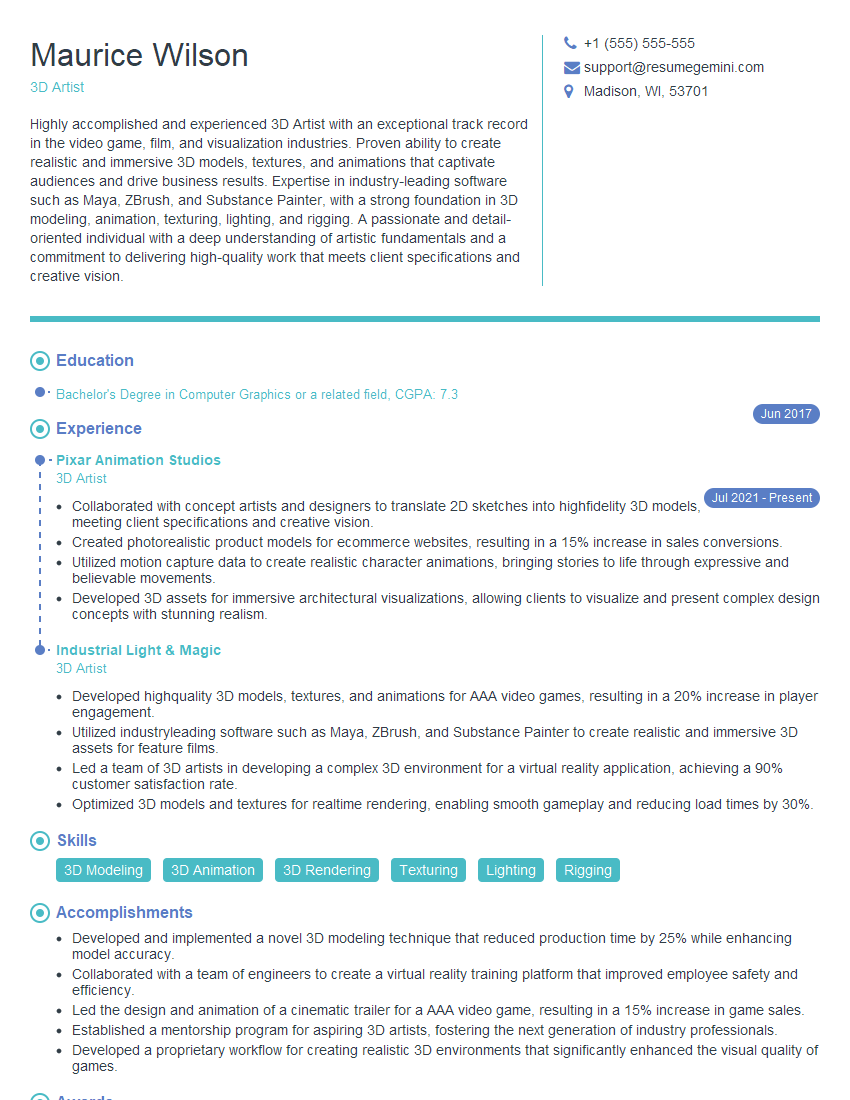
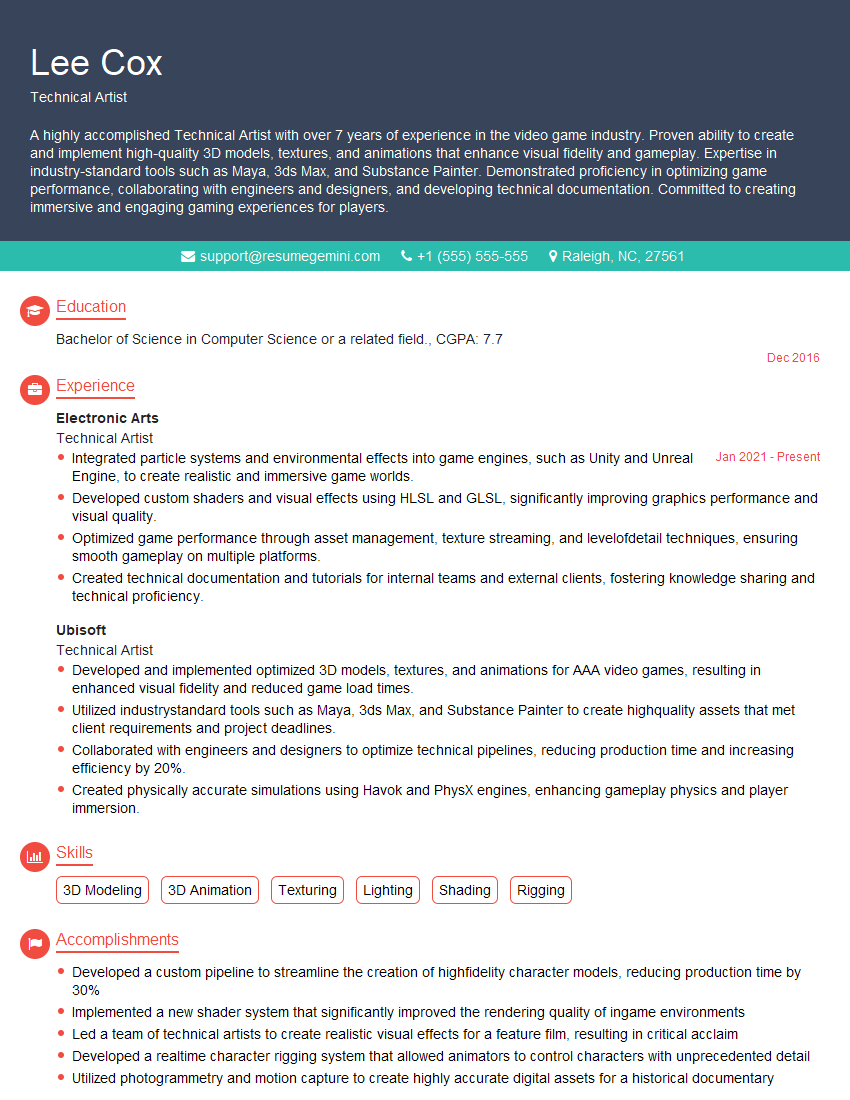
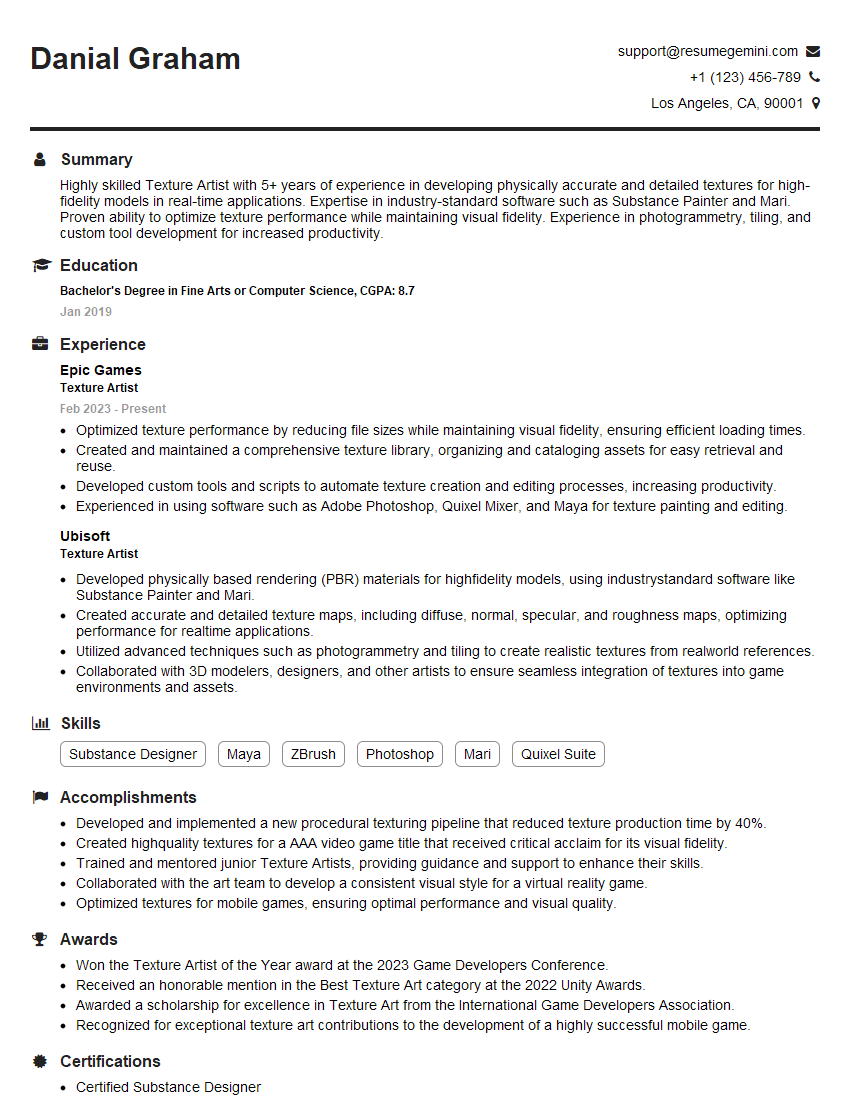
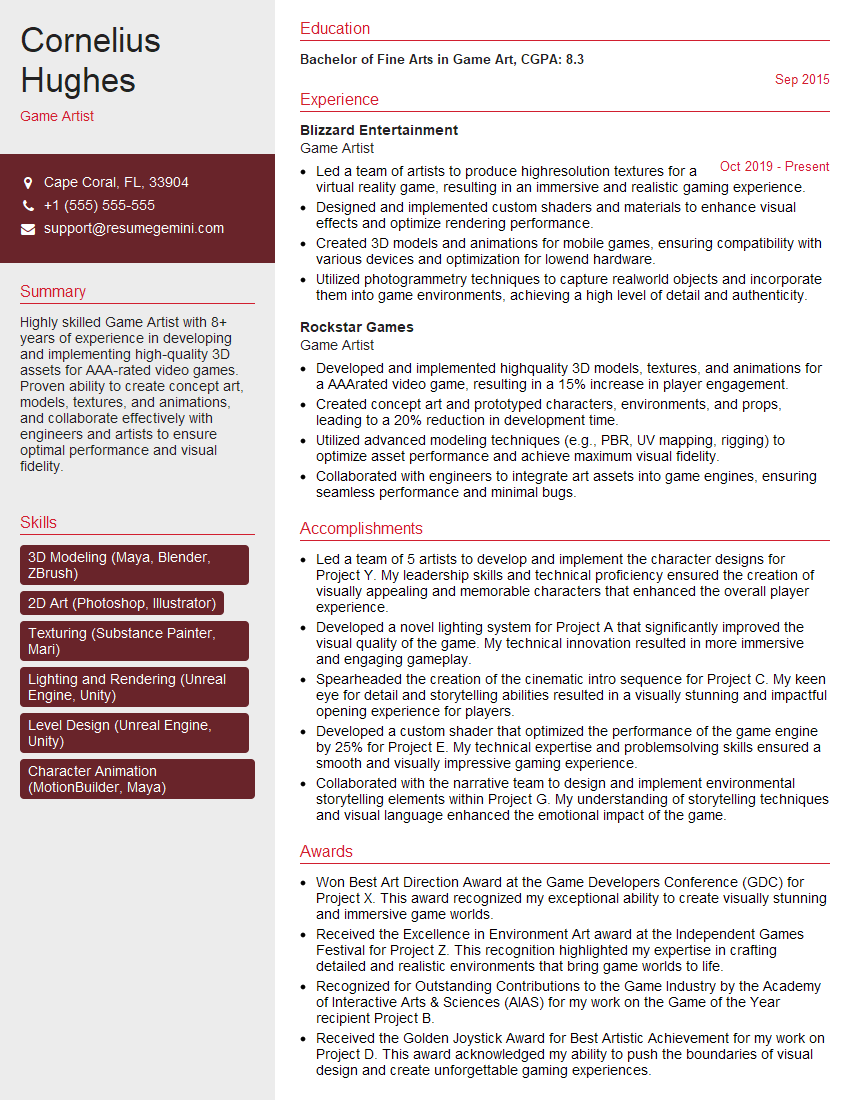
Mastering Allegorithmic PBR significantly enhances your value in the game development, VFX, and architectural visualization industries. A strong understanding of Substance Designer and Painter opens doors to exciting opportunities and showcases your ability to create high-quality, realistic assets. To maximize your chances of landing your dream job, crafting a professional and ATS-friendly resume is crucial. ResumeGemini is a trusted resource to help you build a standout resume that highlights your skills and experience effectively. Examples of resumes tailored to Allegorithmic PBR expertise are available to guide you. Invest time in building a compelling resume – it’s your first impression with potential employers.

Explore more articles
Users Rating of Our Blogs
Share Your Experience
We value your feedback! Please rate our content and share your thoughts (optional).
What Readers Say About Our Blog
Very informative content, great job.
good