Every successful interview starts with knowing what to expect. In this blog, we’ll take you through the top Experience with prototyping tools interview questions, breaking them down with expert tips to help you deliver impactful answers. Step into your next interview fully prepared and ready to succeed.
Questions Asked in Experience with prototyping tools Interview
Q 1. What prototyping tools are you proficient in?
I’m proficient in several prototyping tools, each with its own strengths. My core expertise lies in Figma and Adobe XD, but I also have experience with Axure RP, InVision Studio, and even simpler tools like Balsamiq for low-fidelity prototyping. My choice of tool depends heavily on the project’s requirements, budget, and team familiarity. For instance, Figma’s collaborative features make it ideal for large teams, while Adobe XD’s excellent animation capabilities are perfect for showcasing complex interactions.
Q 2. Compare and contrast Figma and Adobe XD.
Figma and Adobe XD are both powerful prototyping tools, but they cater to slightly different workflows. Figma excels in collaborative design, boasting real-time co-editing capabilities and a robust community of users and plugins. Its vector-based design system allows for scalability and consistency across various platforms. Adobe XD, on the other hand, integrates seamlessly with other Adobe Creative Suite applications, making it a natural choice for designers already working within that ecosystem. It also has strong animation features for creating more polished prototypes. Think of it this way: Figma is the collaborative powerhouse, great for team-based projects, while XD shines when high-fidelity prototypes with smooth animations are needed.
- Figma: Strengths – Collaboration, vector-based, large community, plugin ecosystem; Weaknesses – Can be less intuitive for beginners, fewer native animation features compared to XD.
- Adobe XD: Strengths – Seamless Adobe Creative Suite integration, excellent animation capabilities, user-friendly interface; Weaknesses – Less robust collaboration features compared to Figma, less extensive plugin ecosystem.
Q 3. Explain the difference between low-fidelity and high-fidelity prototypes.
The difference between low-fidelity and high-fidelity prototypes lies in their level of detail and interactivity. A low-fidelity prototype is a quick, rough representation of the design, often created using simple tools like pen and paper, whiteboard, or Balsamiq. It focuses on the overall structure and flow of the user experience, not the visual polish. Think of it as a blueprint – it outlines the core functionality without needing to be visually perfect. A high-fidelity prototype, on the other hand, closely resembles the final product in terms of visuals, interactions, and animations. It’s created using tools like Figma or XD and is used to test usability and gather detailed feedback.
For example, a low-fidelity prototype might be a hand-drawn sketch showing the basic layout of a screen, while a high-fidelity prototype would be a fully interactive digital mockup with realistic animations and micro-interactions.
Q 4. Describe your process for creating a user flow.
Creating a user flow is crucial for mapping out the user’s journey through a product or service. My process generally involves these steps:
- Understand the User Goals: Start by clearly defining what the user wants to achieve. What are their tasks and motivations?
- Identify Key Tasks: Break down the user’s goals into specific, measurable tasks.
- Create User Personas: Develop representative user profiles to guide design decisions.
- Map the Journey: Use a flowchart or diagram to visually represent the steps a user takes to complete each task. This often involves using tools like Miro or even drawing it on a whiteboard. Each step is a node, and the connections show the flow.
- Iterate and Refine: Review the user flow, identifying potential pain points or areas for improvement.
For example, designing a user flow for an e-commerce app might include steps like browsing products, adding to cart, checkout, and payment confirmation. Each of these steps would be clearly represented in the user flow diagram.
Q 5. How do you incorporate user feedback into your prototyping process?
User feedback is integral to a successful prototype. I typically incorporate feedback through several methods:
- Usability Testing: Observing users interacting with the prototype and noting their struggles or successes. This can be done remotely or in person.
- Surveys: Gathering quantitative and qualitative data about user opinions and preferences.
- A/B Testing: Comparing different design options to see which performs better.
- Iterative Design: Continuously incorporating feedback into the design, creating and testing new versions based on user input.
I find that using a combination of these methods provides a holistic view of user needs and preferences. For instance, after a usability testing session, I’ll often follow up with a quick survey to gather more detailed feedback on specific aspects of the prototype.
Q 6. How do you handle complex interactions in a prototype?
Handling complex interactions requires careful planning and the right prototyping tools. For example, if I’m prototyping a complex form with conditional logic, I might use Figma’s prototyping features to create different states for the form based on user inputs. For more advanced interactions, like animations or transitions, I might leverage tools like Adobe XD’s more sophisticated animation features or even consider using a dedicated animation tool and integrating it with the prototype. In some cases, especially for very complex interactions, creating a series of lower-fidelity prototypes to test the flow before committing to a high-fidelity design can save significant time and effort.
The key is to break down complex interactions into smaller, manageable components. This allows for easier testing and iterative refinement.
Q 7. What are some common challenges you face when prototyping?
Prototyping, while rewarding, has its challenges. Some common ones I encounter include:
- Balancing fidelity and feasibility: Creating a prototype that is detailed enough to be useful but not so complex that it becomes overwhelming to build and maintain.
- Managing scope creep: Keeping the prototype focused on the core features and avoiding adding unnecessary complexity.
- Communication and collaboration: Ensuring everyone involved understands the purpose of the prototype and how to provide constructive feedback.
- Technical limitations: Working within the limitations of the chosen prototyping tool, potentially needing to use workarounds or alternative approaches.
Overcoming these challenges often involves careful planning, clear communication, and a willingness to adapt and iterate based on feedback and constraints.
Q 8. How do you ensure your prototypes are accessible?
Accessibility is paramount in prototyping. It’s not just about making the prototype usable for people with disabilities; it’s about ensuring a positive user experience for everyone. I approach accessibility systematically, considering WCAG (Web Content Accessibility Guidelines) standards from the outset. This involves several key strategies:
- Color Contrast: I use tools to check color contrast ratios, ensuring sufficient difference between text and background colors. For example, I avoid pairing light text on a light background. Tools like WebAIM’s Color Contrast Checker are invaluable.
- Alternative Text for Images: All images and non-text elements include descriptive alt text, providing context for screen readers. I ensure this text accurately reflects the image’s purpose and meaning in the prototype.
- Keyboard Navigation: I meticulously test keyboard navigation to ensure all interactive elements are accessible and follow a logical tab order. This prevents users who can’t use a mouse from being blocked.
- Semantic HTML (where applicable): When using prototyping tools that allow for code editing, I prioritize semantic HTML, using elements like
<header>,<nav>,<main>, and<article>to structure content logically, making it easier for assistive technologies to interpret. - Consideration for Cognitive and Motor Disabilities: I incorporate features like clear and concise language, ample white space, and customizable font sizes to cater to diverse needs.
By proactively incorporating these considerations, I create prototypes that are inclusive and cater to a wider user base, leading to more accurate user testing and better design outcomes.
Q 9. Explain your experience with prototyping for different devices (desktop, mobile, tablet).
My experience spans various platforms, and I adapt my prototyping approach accordingly. For desktop prototypes, I leverage tools like Figma or Adobe XD, focusing on creating detailed and interactive interfaces with a focus on screen real-estate and the use of keyboard shortcuts. I pay close attention to responsiveness for different screen sizes and resolutions, although the focus isn’t as critical as it is for mobile.
For mobile prototypes, I use tools like Figma, Adobe XD, or even dedicated mobile prototyping apps that simulate touch interactions. The primary focus is on finger-friendly UI elements, intuitive navigation gestures, and ensuring the prototype adapts seamlessly to various screen sizes and orientations. I often employ user testing on actual mobile devices to get a realistic feel.
Tablet prototypes usually fall somewhere in between, utilizing a combination of techniques from both desktop and mobile approaches. Screen size considerations are crucial, ensuring the UI elements remain easily accessible and the layout is optimized for the larger screen. I prioritize responsive design to make sure the prototype scales well across different tablet sizes.
Regardless of the platform, I always strive to build prototypes that reflect the nuances of each device, considering things like screen size, input methods, and common user behaviors.
Q 10. How do you use prototyping to test specific hypotheses?
Prototyping is a powerful tool for testing hypotheses. For instance, let’s say I’m testing a hypothesis that simplifying the checkout process will increase conversion rates on an e-commerce site. I would create two prototype versions:
- Control Prototype: This mirrors the existing checkout process.
- Experimental Prototype: This simplifies the checkout, perhaps removing unnecessary fields or streamlining the payment options.
I would then conduct A/B testing (more on that below) with these prototypes, collecting data on the number of users who successfully completed the checkout in each version. Analyzing this data will either support or refute my hypothesis.
Another example: If I hypothesize that using a specific color scheme will improve user engagement, I’d create prototypes with different color schemes and track metrics such as time spent on the page and click-through rates.
The key is to define your hypothesis clearly, design prototypes that specifically address it, and then gather and analyze quantitative and qualitative data from user testing to evaluate whether the hypothesis is supported.
Q 11. Describe your experience with A/B testing prototypes.
A/B testing prototypes is a cornerstone of iterative design. I use this method to compare different versions of a prototype to determine which performs better. This often involves using prototyping tools that integrate with user testing platforms or by manually collecting data. Let’s say I’m testing two different designs for a navigation bar:
- Version A: A traditional horizontal navigation bar.
- Version B: A hamburger menu.
I would create separate prototypes for each version and then use a user testing platform or collect data manually by directing participants to one version randomly. Key metrics to track would include task completion rate, time on task and user satisfaction.
The results of this A/B test would show which version leads to better usability and user engagement. This data-driven approach helps make informed design decisions and avoids relying on subjective opinions.
I commonly use tools that provide A/B testing capabilities directly within the prototyping platform or integrate with analytics services for more comprehensive data collection and analysis.
Q 12. How do you measure the effectiveness of your prototypes?
Measuring prototype effectiveness goes beyond simply observing user interactions. It requires a multifaceted approach, combining quantitative and qualitative data. Quantitative metrics include:
- Task Completion Rate: Percentage of users who successfully complete key tasks within the prototype.
- Time on Task: The amount of time users spend completing tasks. Shorter times generally indicate better usability.
- Error Rate: The number of errors users make while interacting with the prototype.
- Click-Through Rates: For certain interactions, measuring how frequently users click on specific elements.
Qualitative data is equally important and is gathered through:
- User Feedback: Direct feedback from participants, whether through post-task questionnaires, interviews or think-aloud protocols.
- Observation: Observing user behavior during testing to identify patterns and pain points.
By combining quantitative data (numbers) with qualitative data (user insights), I get a complete picture of the prototype’s strengths and weaknesses, informing necessary iterations and improvements.
Q 13. What are some best practices for naming layers and components in your prototypes?
Clear and consistent naming conventions are crucial for maintainability and collaboration, especially in complex prototypes. My approach involves using a hierarchical and descriptive naming system:
- Meaningful Names: Avoid cryptic names like “Layer 1” or “Button 2.” Instead, use descriptive names like “Login Button,” “Product Image,” or “Checkout Form.”
- Consistency: Follow a consistent naming structure throughout the prototype. For example, I might use “Section-Name_Element-Type_Description” (e.g., “Header_Navigation_Main”).
- Logical Hierarchy: Organize layers and components in a logical hierarchy that reflects the visual structure of the design. This makes it easy to find specific elements.
- Prefixes/Suffixes: Using prefixes or suffixes can help categorize elements (e.g., “btn-,” “img-,” “txt-”).
This systematic approach ensures that both I and other team members can easily understand the purpose and functionality of each element, facilitating collaboration and efficient iteration.
Q 14. How do you handle version control in your prototyping workflow?
Version control is essential in collaborative prototyping projects. I leverage version control systems integrated within my prototyping tools (like Figma’s built-in version history) or utilize external systems like Git for more sophisticated management.
My workflow typically involves:
- Regular Saving and Versioning: Regularly saving the prototype, using descriptive version names that reflect changes made (e.g., “v1.0-initial-design,” “v1.1-added-checkout-button”).
- Branching (for collaborative projects): Creating separate branches for different features or iterations allows parallel work without interfering with the main prototype.
- Commit Messages: Writing clear and concise commit messages that detail the changes made in each version. This is crucial for understanding the evolution of the prototype.
- Review and Merge: Regularly reviewing and merging changes to ensure consistency and avoid conflicts.
By implementing a robust version control system, I ensure a clear history of design iterations, facilitate collaboration, and make it easy to revert to previous versions if necessary. This is particularly important in large projects with multiple collaborators.
Q 15. Explain your experience with collaborative prototyping.
Collaborative prototyping is crucial for successful design. It’s not just about building a prototype; it’s about building a shared understanding and refining a design through collective input. My experience involves utilizing tools like Figma, Adobe XD, and InVision Studio, all of which offer robust real-time collaboration features.
In a recent project, we used Figma to design a new e-commerce checkout process. Multiple stakeholders – designers, developers, product managers, and even a marketing representative – worked concurrently on the prototype. Figma’s commenting, version history, and shared design system features allowed us to maintain clarity and consistency while iterating rapidly. We held regular online meetings, using screen sharing and the built-in commenting tools in Figma to discuss and resolve design conflicts. This approach dramatically improved the speed of development and resulted in a much better final product that reflected the needs of various teams.
Another example involved using InVision Freehand for quick brainstorming sessions before moving to a more advanced prototyping tool. This allowed the team to iterate on ideas rapidly and collaboratively before committing to a more detailed design.
Career Expert Tips:
- Ace those interviews! Prepare effectively by reviewing the Top 50 Most Common Interview Questions on ResumeGemini.
- Navigate your job search with confidence! Explore a wide range of Career Tips on ResumeGemini. Learn about common challenges and recommendations to overcome them.
- Craft the perfect resume! Master the Art of Resume Writing with ResumeGemini’s guide. Showcase your unique qualifications and achievements effectively.
- Don’t miss out on holiday savings! Build your dream resume with ResumeGemini’s ATS optimized templates.
Q 16. How do you handle unexpected bugs or errors during prototyping?
Unexpected bugs and errors are inevitable in prototyping. My approach focuses on proactive debugging and efficient problem-solving. I begin by identifying the source of the error through careful observation and testing. For instance, if a button isn’t functioning correctly, I’ll check the underlying code (if applicable) or the interactive states within the prototyping tool to see if the correct actions are linked.
If the bug is within the prototyping tool itself, I investigate updates or community forums for solutions. I document all bugs meticulously, including steps to reproduce the issue and screenshots. If it’s a design-related error, I adjust the design components accordingly, making sure to update linked states or interactions. If the bug stems from miscommunication or a misunderstanding of user requirements, this underscores the importance of thorough user research and clear communication within the team.
Finally, version control is key. Maintaining several versions of the prototype helps in quickly reverting to previous, stable versions in case a major bug is introduced during a significant revision.
Q 17. How do you ensure your prototypes are visually appealing and consistent with the brand?
Visual appeal and brand consistency are paramount. I approach this by establishing a solid design system early on, including color palettes, typography, imagery styles, and UI components. This ensures consistency across all screens and interactive elements. For example, I frequently utilize style guides provided by the brand, or if not available, I create them meticulously, adhering closely to brand guidelines found on their website or marketing materials.
In Figma, for example, I leverage style guides and component libraries to ensure the consistency of UI elements. I also use design tools to maintain consistent spacing, padding, and other visual elements to create a clean, visually appealing prototype. By meticulously implementing the design system, I prevent inconsistencies from creeping into the design, ultimately contributing to a polished and professional prototype that accurately reflects the brand’s identity.
Q 18. Describe your experience with prototyping animations and micro-interactions.
Prototyping animations and micro-interactions significantly enhance the user experience, making prototypes more engaging and realistic. My experience includes using tools like Adobe After Effects for complex animations, and built-in animation features in Figma and Adobe XD for simpler interactions. I prefer to focus on micro-interactions that support the user’s flow and provide feedback, rather than overly complex animations that could distract.
For example, a simple loading animation that appears while data is fetched adds a level of realism and provides user feedback. I also use subtle animations like hover effects to highlight interactive elements and provide visual cues. In a recent project for a mobile app, I added a subtle bounce animation to a button on successful submission. This simple animation provided satisfying feedback to the user, indicating that their action was successfully registered. Properly implemented, animations and micro-interactions enhance user engagement and satisfaction without being intrusive.
Q 19. How do you use prototyping to demonstrate the feasibility of a design concept?
Prototypes are invaluable for demonstrating the feasibility of a design concept. I leverage them to showcase the overall user flow, identify potential usability issues, and assess technical constraints early in the design process. For example, if we’re designing a new feature for an existing application, I’ll create a prototype to test the user’s journey through the new feature.
This often involves creating interactive prototypes that simulate actual user interactions, allowing stakeholders to test and critique the design’s effectiveness. By showing – not just telling – how the design will work, we can identify potential challenges early on. Let’s say we’re prototyping a complex data visualization. A static mockup might not reveal the difficulties of interacting with the data. But an interactive prototype, showing the dynamic behavior of the visualization, exposes any limitations and allows for design adjustments before significant development resources are committed.
Q 20. How do you translate user research findings into actionable prototypes?
User research is fundamental to effective prototyping. I ensure research findings translate directly into the prototype by directly incorporating user feedback into design decisions. For instance, if user testing reveals navigation difficulties, I’ll redesign the information architecture and navigation structure within the prototype to address those issues.
I often use affinity mapping to group similar user feedback and prioritize areas for improvement. Then, I translate these insights into concrete design changes in my prototype, such as reordering menu items, simplifying form fields, or improving the clarity of labels. This iterative process of gathering feedback, analyzing findings, and implementing design changes ensures that the final product aligns with user needs and preferences. This might involve A/B testing different design approaches within the prototype to compare their effectiveness.
Q 21. What is your experience with interactive prototyping?
Interactive prototyping is my preferred method because it allows for realistic user simulation. Tools like Figma, Adobe XD, and Axure RP offer robust capabilities for creating interactive prototypes that mimic actual application behavior. My experience spans from simple click-through prototypes to complex simulations involving data input, state changes, and conditional logic.
For example, I created an interactive prototype for a mobile banking app using Figma. This prototype enabled users to simulate a transaction, from selecting an account to entering the amount and confirming the transfer. This allowed us to identify usability issues like confusing button labels and awkward form layouts before development began. The interactive prototype not only showed the ‘look’ but also the ‘feel’ of the app, resulting in a more user-friendly and intuitive final product.
Q 22. Describe your experience with creating prototypes for responsive design.
Creating responsive prototypes involves designing experiences that adapt seamlessly across various devices and screen sizes. It’s not just about resizing elements; it’s about understanding how the layout and interaction should change to provide an optimal user experience on everything from a smartwatch to a large desktop monitor.
My approach involves using tools like Figma and Adobe XD, which offer built-in responsive design features. I start by defining breakpoints – specific screen widths where the design changes – and then create different layouts for each breakpoint. For example, a navigation menu might collapse into a hamburger menu on smaller screens, while elements might rearrange themselves to maintain a clean flow. I heavily utilize auto-layout features to manage responsive elements efficiently. I also test the prototype on real devices and emulators at every stage to ensure responsiveness across browsers and operating systems. For instance, I’ve prototyped e-commerce websites where the product grid dynamically adjusts its column count based on screen size, optimizing the shopping experience regardless of the device.
This ensures that users on different devices encounter a consistent and intuitive experience, irrespective of their screen size.
Q 23. How do you manage the complexity of large-scale prototypes?
Managing the complexity of large-scale prototypes requires a structured and organized approach. Think of it like building a large building: you wouldn’t just start throwing bricks together; you need blueprints and a team. Similarly, for large prototypes, I employ component-based design. I break down the prototype into reusable components (buttons, input fields, navigation bars), creating a library of elements that can be easily reused throughout the prototype. This greatly simplifies maintenance and updates. Furthermore, I utilize version control systems, like Git, to track changes and collaborate effectively with my team. This allows us to work on different parts of the prototype concurrently without conflicts. I also leverage prototyping tools’ features like master components and instances, ensuring changes in one component are automatically reflected across all its instances. Finally, clear documentation and naming conventions are vital for maintaining clarity and understanding across the team.
For instance, while prototyping a complex CRM system, I created reusable components for different user dashboards, saving significant time and ensuring consistency. The version control ensured we could revert to previous versions if needed.
Q 24. How do you balance fidelity and speed in your prototyping workflow?
Balancing fidelity (the level of detail) and speed in prototyping is a crucial skill. High fidelity prototypes are visually rich and interactive, closely resembling the final product. However, they take longer to create. Low fidelity prototypes are quicker to build but lack visual detail. The key is to find the right balance depending on the project phase and goals.
Early in the design process, low-fidelity prototypes, such as wireframes created in tools like Balsamiq, help explore core functionality and user flows quickly. As the design matures, I gradually increase fidelity, using tools like Figma or Adobe XD to add visual details and interactions. This iterative approach allows for early feedback and avoids wasting time on high-fidelity details that might change based on user feedback. For instance, I might start with a simple paper prototype to test the overall workflow, then move to a mid-fidelity digital prototype to test specific interactions, and finally create a high-fidelity prototype to test the visual design and micro-interactions before development.
Q 25. What are some of the latest trends in prototyping tools and techniques?
The prototyping landscape is constantly evolving. Some significant trends include:
- Increased use of AI-powered tools: Tools are integrating AI for tasks like generating design suggestions, creating realistic user interfaces, and automating repetitive tasks, like creating variations of a design.
- Enhanced collaboration features: Prototyping tools are increasingly incorporating real-time collaboration features that allow designers and stakeholders to work together seamlessly on the same prototype, regardless of their location.
- Prototyping for AR/VR: As augmented and virtual reality technologies become more mainstream, the demand for specialized prototyping tools and techniques for these platforms is growing rapidly. This includes tools designed specifically for creating interactive 3D experiences.
- Emphasis on micro-interactions: The focus is shifting towards creating more nuanced and detailed micro-interactions, which enhance the overall user experience and make the product feel more polished.
- Integration with design systems: Tools are better integrating with design systems, enabling designers to leverage pre-built components and maintain consistency across different products and platforms.
Q 26. Describe a time you had to quickly iterate on a prototype based on user feedback.
During the prototyping phase of a mobile banking app, we had developed a prototype for the money transfer feature. User testing revealed significant confusion regarding the confirmation step. Users frequently missed a crucial confirmation message, leading to errors. We had only two days before a key stakeholder review.
My immediate response was to prioritize quick iteration. We abandoned plans for more elaborate visual design refinements and focused solely on improving the confirmation flow. Using Figma’s rapid prototyping capabilities, we redesigned the confirmation screen, making the confirmation message larger, bolder, and more prominent. We added a visual confirmation checkmark. We also tested alternative phrasing for the confirmation button. Within a few hours, we implemented these changes, retested, and refined the design based on the feedback. This iterative process, emphasizing speed over extensive detail, allowed us to address the critical usability issue and present a significantly improved prototype to the stakeholders.
Q 27. How do you use prototyping to communicate design ideas to stakeholders?
Prototypes are invaluable for communicating design ideas to stakeholders. They bridge the gap between abstract concepts and tangible experiences. Instead of just showing static mockups or explaining complex workflows verbally, I present interactive prototypes that stakeholders can directly experience.
My approach involves crafting prototypes that demonstrate core functionality and address key stakeholder concerns. Before presenting, I outline the prototype’s purpose and the specific aspects I want feedback on. During the presentation, I guide stakeholders through the prototype, highlighting key features and design decisions. The interactive nature allows stakeholders to actively explore the design, resulting in more informed feedback. Post-presentation, I document feedback, create a prioritized list of changes, and iterate based on stakeholder input. This ensures alignment and collaborative design refinement. For example, when showcasing a prototype for a new onboarding flow, I’d emphasize user flow and clarity, using annotations in Figma to highlight crucial design choices and solicit specific feedback on areas of concern.
Key Topics to Learn for Experience with Prototyping Tools Interview
- Understanding Prototyping Principles: Grasp the core concepts behind prototyping – low-fidelity vs. high-fidelity, iterative design, and user-centered design principles.
- Tool Proficiency: Demonstrate expertise in popular prototyping tools such as Figma, Adobe XD, Sketch, Axure RP, or InVision Studio. Highlight your skills in specific features and functionalities relevant to your experience.
- Workflow & Collaboration: Explain your approach to prototyping, from initial concept to final deliverable. Discuss how you collaborate with designers, developers, and stakeholders throughout the process.
- User Testing & Iteration: Describe your experience conducting user testing and iterating on prototypes based on feedback. Explain how you use data to inform design decisions.
- Prototyping for Different Platforms: Showcase your ability to create prototypes for various platforms, such as web, mobile, and desktop applications. Explain how you adapt your approach based on the platform’s limitations and opportunities.
- Interactive Prototyping Techniques: Discuss your experience with creating interactive elements, animations, and micro-interactions to enhance the user experience.
- Handoff to Development: Explain how you prepare your prototypes for developers, including asset export, specification documentation, and collaboration strategies.
- Problem-Solving with Prototypes: Describe how you have used prototyping to identify and solve design problems, improve user workflows, or test different design solutions.
Next Steps
Mastering prototyping tools is crucial for success in today’s competitive job market. Strong prototyping skills demonstrate your ability to translate ideas into tangible experiences and contribute significantly to a product’s success. To elevate your job prospects, create an ATS-friendly resume that showcases your expertise effectively. ResumeGemini is a valuable resource to help you build a professional and impactful resume tailored to your skills. Examples of resumes tailored to showcasing experience with prototyping tools are available to help guide you.
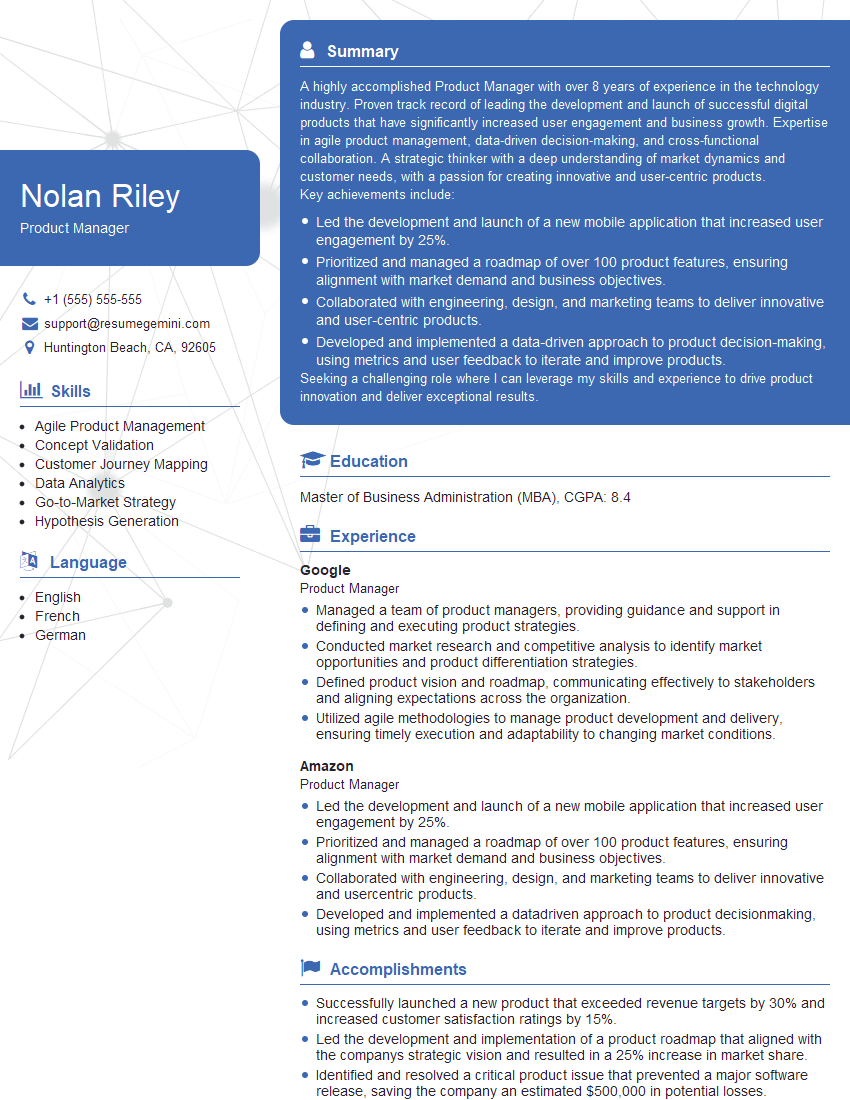
Product Manager Resume Sample

Information Architect Resume Sample

Web Designer Resume Sample
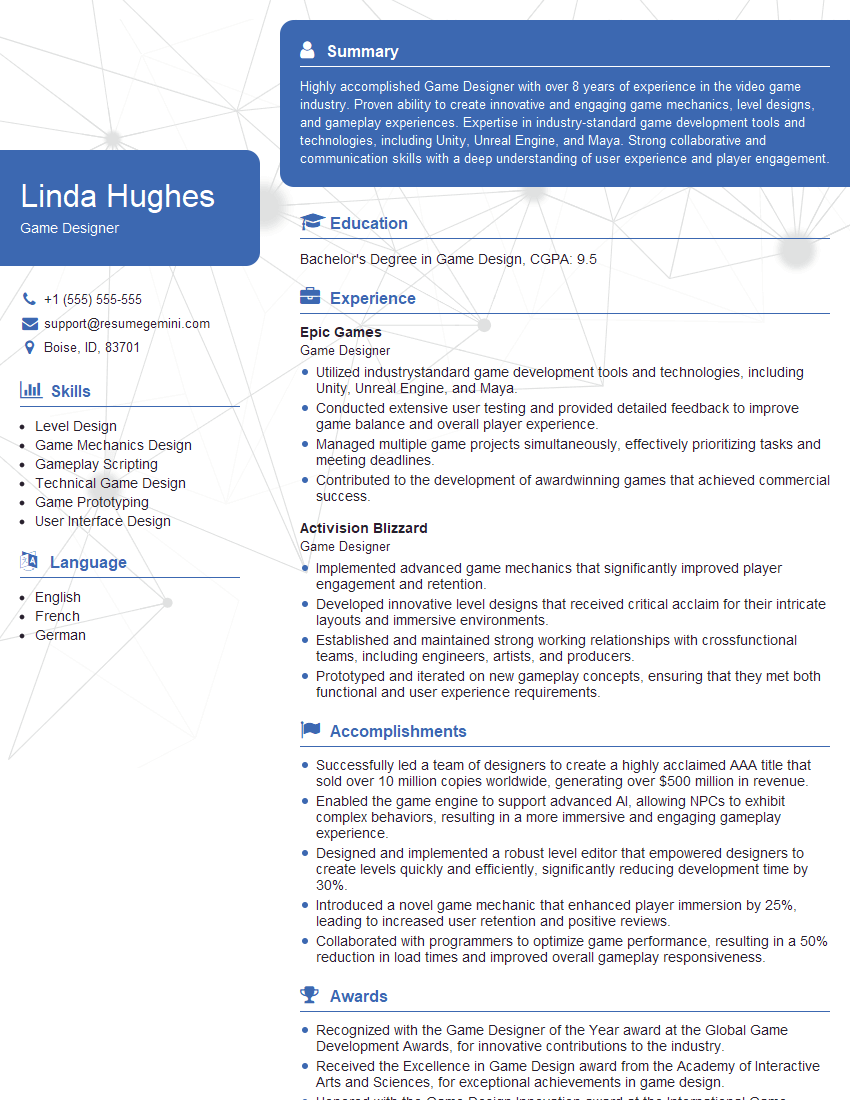
Game Designer Resume Sample
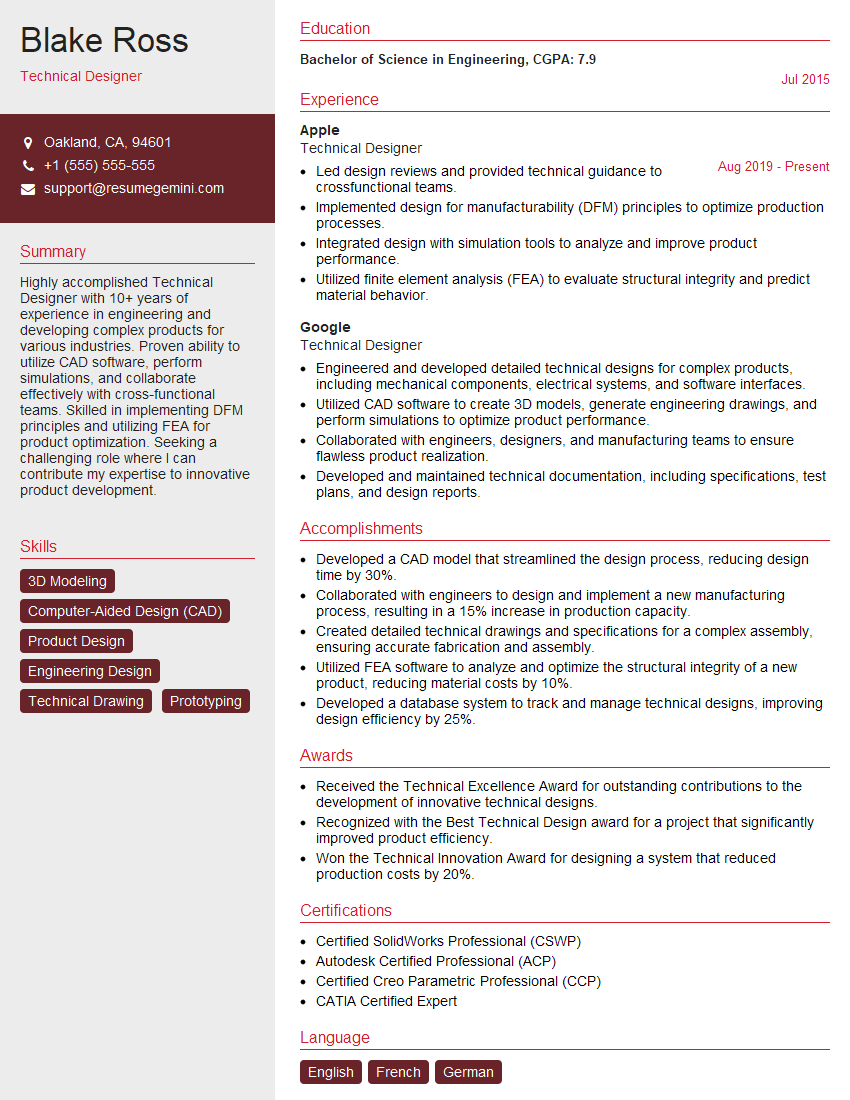
Technical Designer Resume Sample
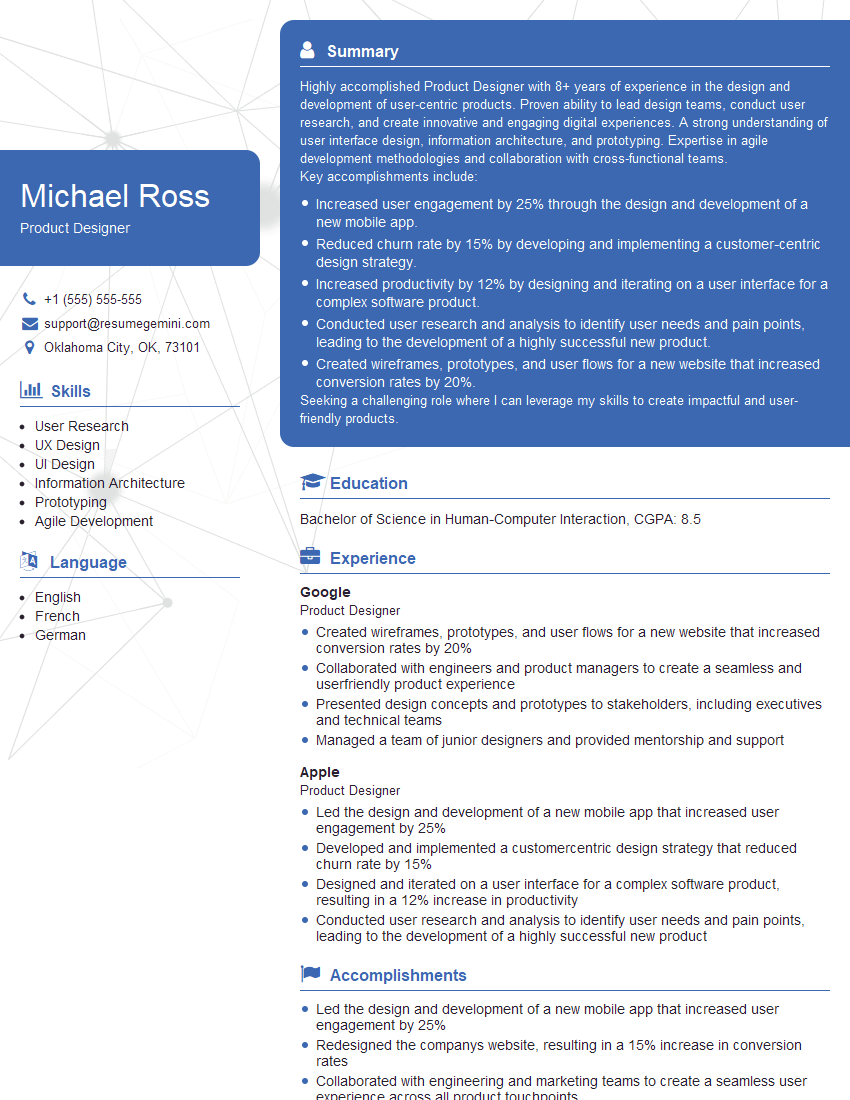
Product Designer Resume Sample
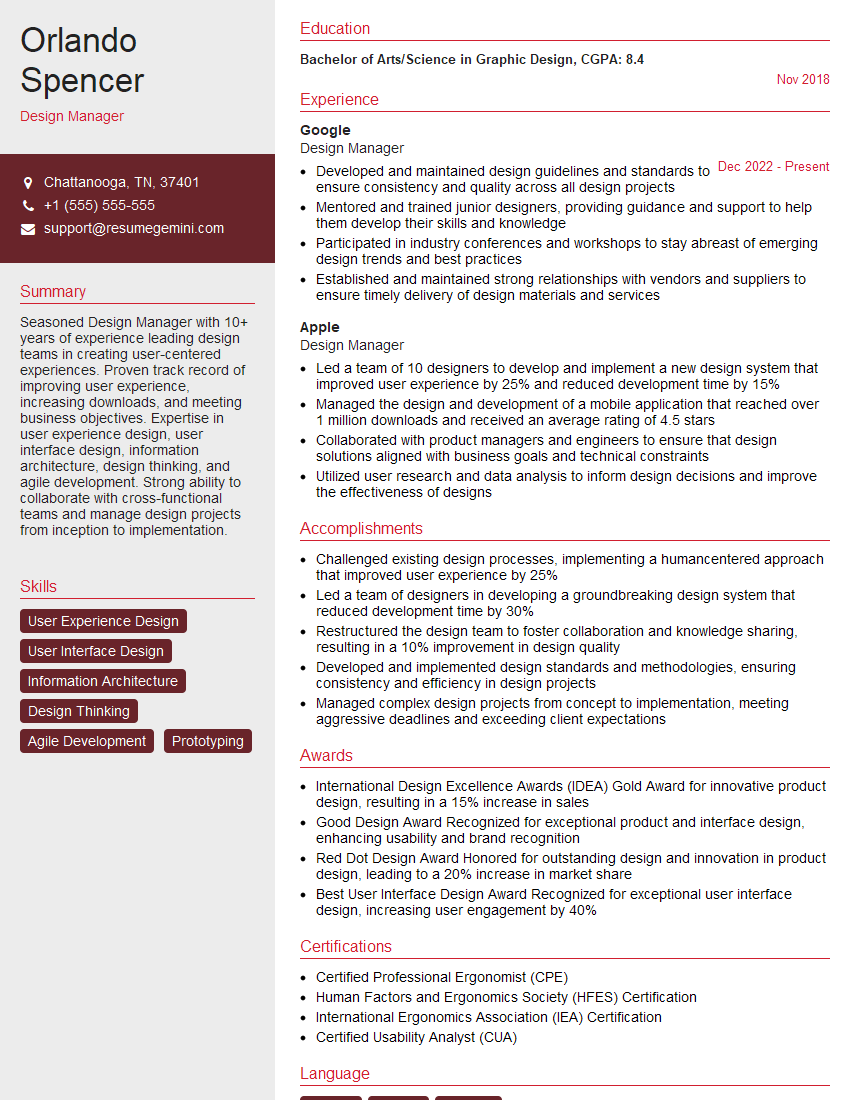
Design Manager Resume Sample
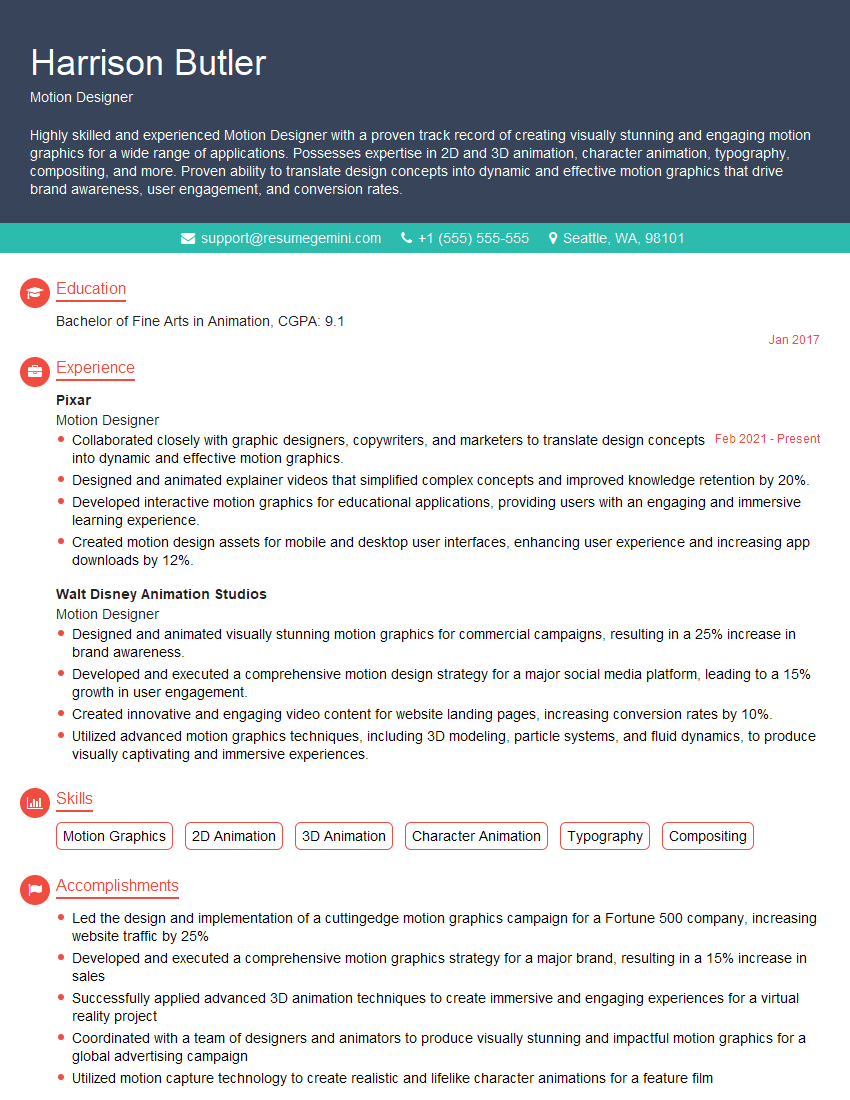
Motion Designer Resume Sample
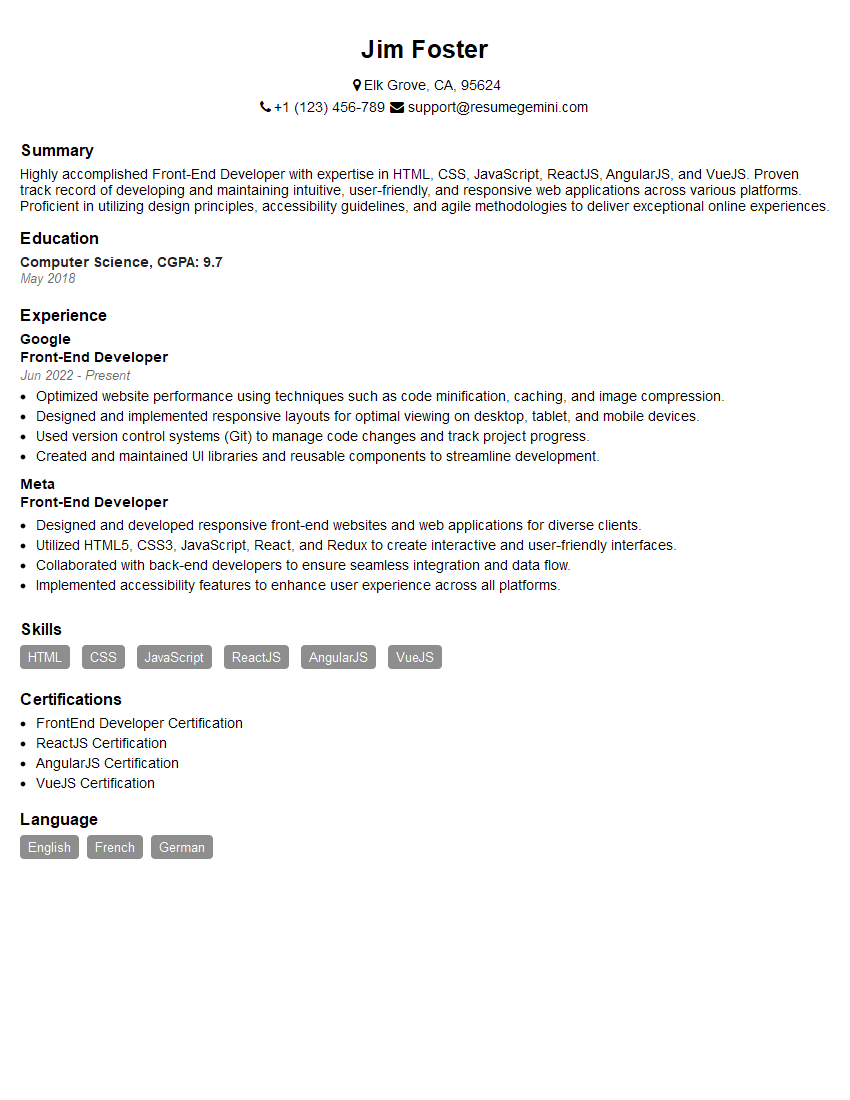
Front-End Developer Resume Sample
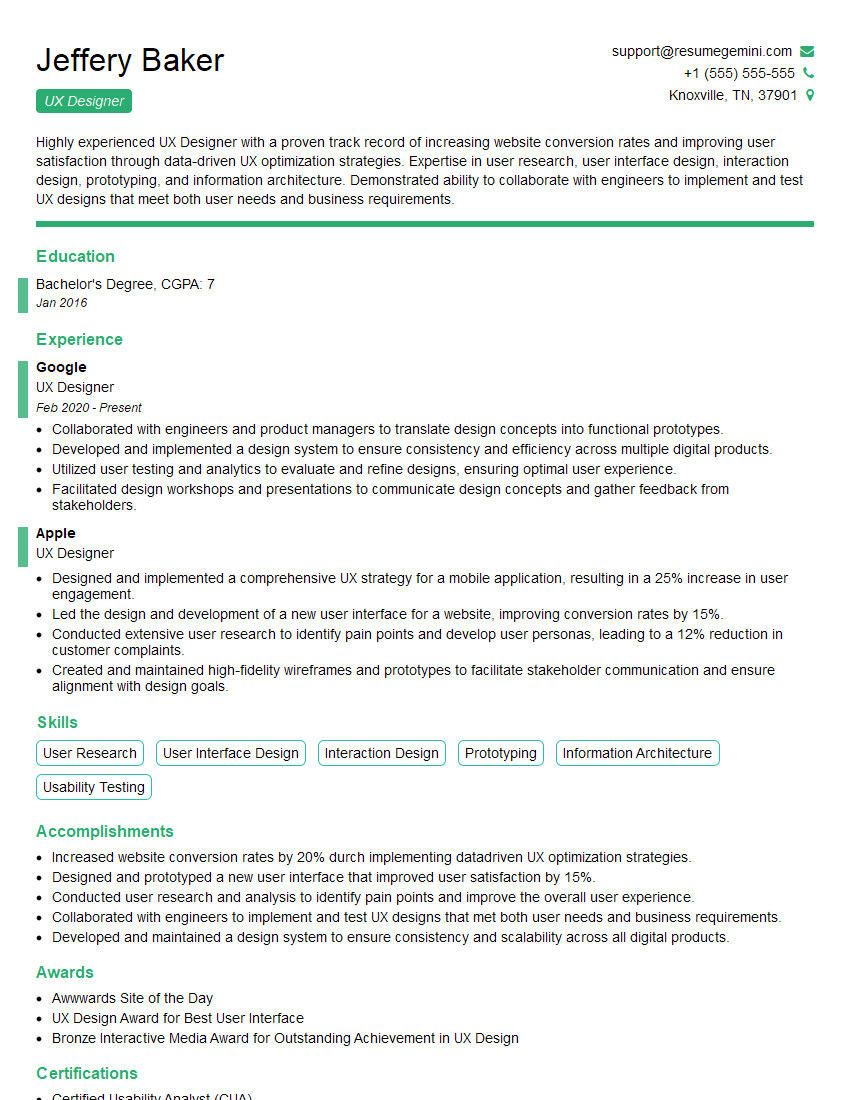
UX Designer Resume Sample
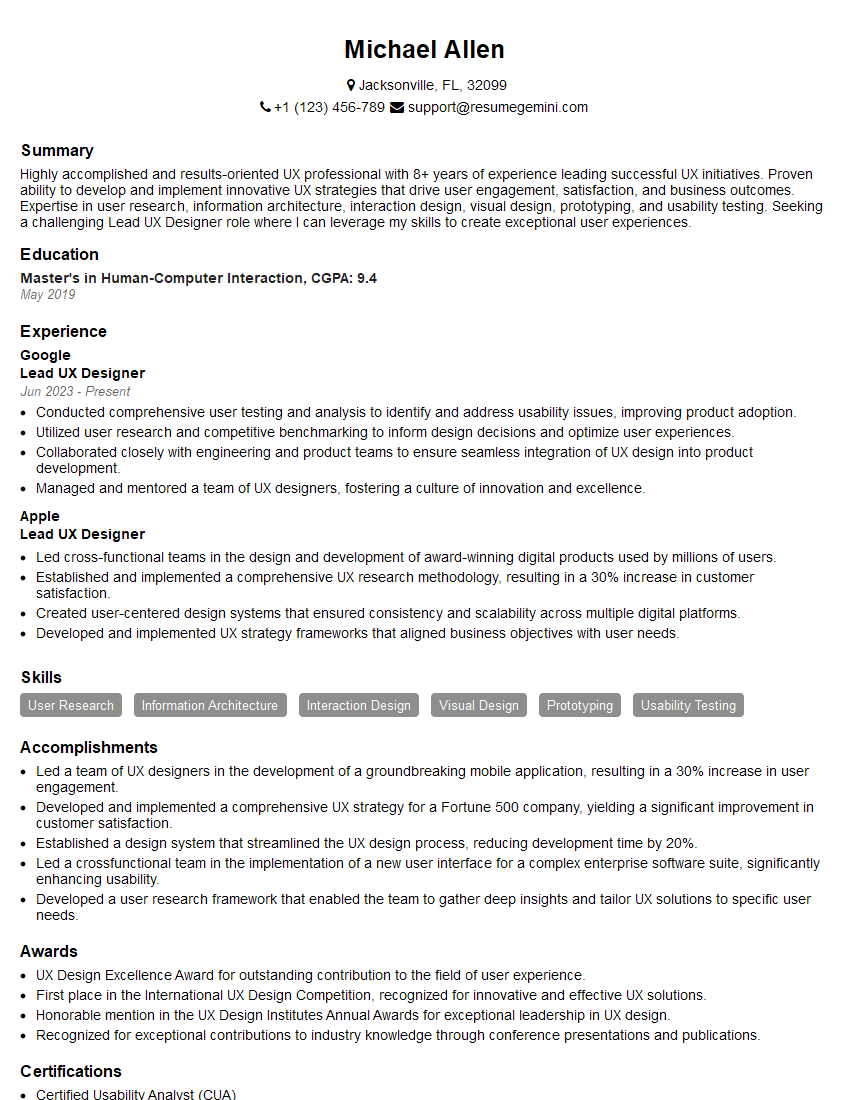
Lead UX Designer Resume Sample
Explore more articles
Users Rating of Our Blogs
Share Your Experience
We value your feedback! Please rate our content and share your thoughts (optional).
What Readers Say About Our Blog
Very informative content, great job.
good