The thought of an interview can be nerve-wracking, but the right preparation can make all the difference. Explore this comprehensive guide to Video Editing (Premiere Pro, After Effects) interview questions and gain the confidence you need to showcase your abilities and secure the role.
Questions Asked in Video Editing (Premiere Pro, After Effects) Interview
Q 1. Explain your workflow for editing a typical video project in Premiere Pro.
My Premiere Pro workflow is highly iterative, but generally follows these steps: First, I ingest all footage and audio, organizing it meticulously into bins. This keeps my project manageable, especially with larger projects. Then, I create a rough assembly, focusing on the overall pacing and narrative flow. I might use placeholder music at this stage. Next comes a more refined edit, tightening the pacing and refining transitions. I incorporate color correction and grading during this phase, often using Lumetri Color. Finally, I add fine details like titles, graphics, and any sound effects. Throughout this process, I regularly export proxies for smoother playback, especially on less powerful machines. I believe in a fluid process, often going back and forth between stages to ensure everything is perfectly aligned.
For example, I recently worked on a documentary where I had hundreds of clips. Organizing them into bins by scene and interviewee was crucial for efficiency. This allowed me to easily locate specific footage without wasting time searching through a chaotic timeline.
Q 2. Describe your experience with color correction and grading in Premiere Pro.
Color correction and grading are crucial for establishing the mood and visual style of a video. In Premiere Pro, I primarily use the Lumetri Color panel. Color correction aims to fix imperfections—balancing white balance, adjusting exposure, and correcting color casts. Grading is more artistic, choosing a specific look and feel, using tools like color curves and HSL adjustments. I often use reference images to match a particular aesthetic or create a cohesive look across the whole project. I start with color correction to establish a solid foundation and then move on to grading for creative flair. For instance, a documentary might need subtle color correction for accuracy, while a music video might benefit from more dramatic grading to amplify its artistic vision.
I regularly use the Lumetri scopes (vectorscope, waveform monitor, parade) to ensure color accuracy and avoid clipping. These tools allow me to visualize my color adjustments in detail and make precise corrections.
Q 3. How do you manage large video files and optimize Premiere Pro performance?
Managing large video files requires a strategic approach. I always work with optimized media. This involves creating proxy files (lower resolution versions of your footage) during import, significantly speeding up playback and editing. I use Premiere Pro’s built-in proxy workflow for this purpose. Additionally, I utilize high-performance storage (SSD drives, ideally NVMe) to reduce render times. Working with a well-organized project panel with clearly named bins also drastically reduces the time it takes to find specific clips, a common bottleneck for large projects. Finally, I often render sequences into intermediate codecs like ProRes or DNxHD to reduce strain on my system.
For instance, during a recent feature film project with 4K footage, using proxies enabled me to edit fluidly on my system, which would otherwise have struggled with real-time playback. The improved performance allowed me to focus on creative decisions instead of technical limitations.
Q 4. What are your preferred keyboard shortcuts in Premiere Pro?
My Premiere Pro workflow heavily relies on keyboard shortcuts for efficiency. Some of my most frequently used shortcuts include: C (selection tool), V (razor tool), B (blade tool), I (insert edit), O (overlay edit), Ctrl+Z (undo), Ctrl+Shift+Z (redo), Cmd+/ (toggle audio waveforms on/off) and Cmd+K (add marker). I also heavily customize my keyboard shortcuts to fit my specific needs. Learning efficient shortcuts significantly reduces the time spent on repetitive tasks and allows for faster editing.
Customizing shortcuts is important, because it allows you to streamline your workflow to your personal preferences and to make less common functions more readily available. For example, I’ve assigned a shortcut to quickly switch between different Lumetri Color panels, saving me valuable time when grading.
Q 5. How do you handle audio mixing and mastering in your video projects?
Audio is just as important as visuals in compelling storytelling. My audio mixing and mastering process usually involves these steps: First, I meticulously clean the audio using tools like noise reduction and de-essing. Next, I adjust levels and panning to create a balanced mix, paying attention to dialogue clarity. Music and sound effects are layered in carefully. I often use EQ and compression to shape the audio, enhancing certain frequencies or reducing unwanted sounds. Finally, I export the audio at a high bitrate and quality for mastering, where I make final adjustments to overall loudness and dynamics. It’s crucial to use quality headphones or monitors for accurate monitoring.
For a recent commercial, the sound design was a key element of its success. By carefully mixing and mastering the soundscape, I emphasized the emotional impact of specific scenes, contributing directly to the narrative.
Q 6. Explain your experience using After Effects for motion graphics and visual effects.
After Effects is my go-to tool for motion graphics and visual effects, complementing Premiere Pro. I frequently use it for creating lower-thirds, animated titles, compositing shots, rotoscoping, and keyframing complex animations. I’m comfortable with keyframing, expressions, masks, and various effects, leveraging the software’s capabilities to create intricate and visually engaging content. I find it invaluable for adding sophisticated visual elements that enhance storytelling and emotional impact.
For example, I recently used After Effects to create a stylized title sequence for a short film, employing motion tracking and particle effects to achieve a unique visual effect. The outcome was far beyond the capabilities of simple Premiere Pro titles.
Q 7. Describe your process for creating a compelling animated title sequence in After Effects.
Creating a compelling animated title sequence in After Effects starts with a clear concept and strong visual style. I begin by sketching out my ideas, considering the overall tone and feel of the project. Then I create the text and graphic elements in Illustrator or Photoshop, importing them into After Effects. I use keyframes to animate the elements, experimenting with different timing and easing functions to create a smooth and engaging sequence. I incorporate various effects like glow, shadows, and lens flares to add depth and visual interest. Color grading is also vital, unifying the look of the title sequence with the overall video aesthetic. Finally, I render the sequence at the appropriate resolution and format for seamless integration into my project.
For a corporate video, I recently created a title sequence that elegantly incorporated the client’s logo and brand colors, seamlessly integrating it with the overall aesthetic.
Q 8. How do you use masks and keyframes effectively in After Effects?
Masks and keyframes are fundamental tools in After Effects for isolating and animating specific areas of a video or image. Think of masks as customizable stencils, allowing you to reveal or hide parts of a layer. Keyframes dictate how these masks change over time, enabling dynamic effects.
Effective Use:
- Shape Masks: These are versatile and allow you to create custom shapes (rectangles, ellipses, pens) to mask your footage. For instance, you might use a pen tool to mask a subject moving against a complex background, isolating them for easy color correction or compositing.
- Keyframes and Mask Paths: Keyframing mask paths allows you to animate the shape and position of your mask over time. Imagine a logo revealing itself frame by frame – keyframes on the mask path would define this animation. You’d create keyframes for the mask’s shape, position, and even feather (softness of the edges).
- Mask Feathering: This softens the edges of the mask, creating a more natural look, especially important when masking intricate details. Experiment with feather values to achieve the desired blend.
- Mask Modes: Different mask modes (Add, Subtract, Intersect) offer various ways to combine masks for complex masking scenarios. For example, you could use the ‘Subtract’ mode to mask out unwanted parts of the image from within a larger mask.
Example: To isolate a person walking through a busy street, I’d use the pen tool to create a mask around the person in the first frame. Then, I’d add keyframes to the mask path to follow the person’s movement throughout the clip, ensuring the mask accurately tracks them throughout the scene.
Q 9. What are your preferred techniques for compositing elements in After Effects?
Compositing in After Effects involves seamlessly blending multiple layers to create a single, cohesive image. My preferred techniques prioritize efficiency and a non-destructive workflow.
- Track Mattes: I heavily rely on track mattes for cleanly integrating elements. This technique uses motion tracking data to automatically mask an element based on the movement of another layer. This is great for adding elements that need to precisely overlap moving subjects (like adding a logo to a moving car).
- Pre-Compositions: Organizing my project using pre-comps is crucial. These are essentially containers for groups of layers, making complex scenes manageable. It improves performance and allows for non-destructive editing. For example, I’d group all the elements for a specific scene, such as a title sequence, into its own pre-comp.
- Adjustment Layers: These are incredibly powerful for non-destructive color correction, effects, and blending. Apply global changes to many layers without altering the original elements. Imagine adjusting the overall brightness and contrast of a scene without affecting the individual layer properties.
- Blending Modes: I experiment with various blending modes (screen, overlay, multiply, etc.) to achieve the desired effect. Knowing how different blending modes interact is key for creating realistic or stylized composites. For example, using ‘Screen’ to blend a light effect with an underlying image.
Example: When adding a spaceship flying through a cityscape, I’d track the cityscape to generate a track matte for the spaceship. This ensures that the spaceship seamlessly integrates into the city without obscuring moving objects or needing tedious manual rotoscoping.
Q 10. Explain how you would create a rotoscoping effect in After Effects.
Rotoscoping involves manually tracing over live footage to isolate a subject or element. In After Effects, it’s primarily achieved using the Roto Brush tool and keyframes.
Process:
- Import Footage: Bring your source video into After Effects.
- Create a Solid: Add a solid layer (a single-color layer) above your footage. This solid will be the canvas for your rotoscope.
- Roto Brush Tool: Select the Roto Brush tool and begin tracing the edges of the subject you want to isolate. The tool automatically tracks subtle movements, reducing the need for excessive keyframes. For complex movement, multiple brush strokes or points will be needed for best results.
- Refine: After outlining your subject, refine the edges of your rotoscope to ensure a clean and accurate separation. You can increase the accuracy by zooming in and meticulously painting.
- Keyframes: If the subject’s movement is particularly dynamic, add keyframes to adjust the rotoscope’s path across each frame.
- Create Mask: The Roto Brush generates a mask, effectively isolating your subject. You can then apply effects or composite your subject onto a different background.
Example: To rotoscope a dancer against a busy studio background, I’d use the Roto Brush to trace the outline of the dancer in each frame, paying attention to detailed movements of hair or clothing. This careful tracking creates a clean matte for compositing the dancer onto a different background or applying post-production effects, such as color grading.
Q 11. How do you manage layers and compositions in After Effects for complex projects?
Managing layers and compositions effectively is crucial for complex projects. A well-organized project is significantly easier to edit and renders much faster.
- Pre-Compositions: Grouping related layers into pre-comps is my most effective strategy. This keeps the main timeline uncluttered, improving performance and readability. For example, a title sequence, a complex VFX shot, or even character animation would each get its own pre-comp.
- Color Coding: Using color-coding to distinguish different layer types (e.g., foreground, background, effects) helps in quick identification.
- Naming Conventions: Clear and consistent naming conventions for layers and compositions (e.g., `shot_01_background`, `char_01_animation`) significantly improve organization and makes finding specific elements simpler.
- Layer Groups: Use layer groups to further organize layers within compositions. This helps avoid an overly crowded timeline, particularly useful for complex VFX or animation.
- Comments: Adding comments to layers and compositions is essential for complex projects, providing clarity and context for future collaborators or even my future self.
Example: A commercial I worked on involved multiple characters, environments, and intricate visual effects. By using pre-comps for each character, environment (and even individual elements within those environments), and specific effects, I kept the main composition clean and easily navigable, even with hundreds of layers.
Q 12. Describe your experience with different video codecs and formats.
Understanding video codecs and formats is vital for efficient workflows and optimal quality. My experience spans a range of options.
- ProRes (Apple ProRes 422, ProRes 4444): These are high-quality codecs ideal for editing and intermediate work. They maintain high image quality with manageable file sizes, particularly beneficial for projects requiring extensive color grading or compositing.
- H.264 (MP4): A widely compatible, compressed codec suitable for web distribution. It provides excellent compression but can sometimes lead to some quality loss, especially in high-contrast areas. I typically use this for final web delivery.
- H.265 (HEVC): A newer, more efficient codec offering better compression than H.264 with a similar level of quality. It’s becoming increasingly popular, particularly for 4K and 8K video.
- DNxHD (Avid DNxHD): Another high-quality codec often used in professional workflows, known for its compatibility across various editing platforms.
Considerations: The choice of codec depends heavily on the project’s requirements. For high-quality editing and flexibility, ProRes is generally preferred. For delivery, H.264 or H.265 are better choices due to smaller file sizes.
Q 13. What is your preferred method for exporting video files for various platforms?
Exporting video files requires careful consideration of the target platform and desired quality. My method involves a multi-step process.
- Encoding Settings: I adjust encoding settings based on the platform. YouTube, for example, has specific recommendations for optimal video encoding settings. I often render multiple outputs for different platforms (social media, broadcast, web).
- Render Queues: After Effects’ render queue allows for batch rendering, saving significant time, especially on larger projects. This is incredibly useful when working on multiple video versions.
- Format Selection: The chosen format depends heavily on the target platform. MP4 (H.264 or H.265) is common for web platforms, while ProRes or DNxHD might be used for broadcast or archival purposes.
- Bitrate Optimization: Finding the optimal bitrate is crucial. A higher bitrate results in better quality but larger files; a lower bitrate results in smaller files but potentially lower quality. I always aim for a balanced approach, testing various bitrates during the render process to determine the best compromise.
Example: For a YouTube video, I typically export an MP4 file using H.264 encoding with a bitrate optimized for the expected viewing resolution. For archiving purposes, I’d create a ProRes 422 version to maintain maximum quality for future editing or potential adjustments.
Q 14. How do you ensure that your video edits are optimized for different screen sizes and resolutions?
Optimizing video for different screen sizes and resolutions ensures a consistent viewing experience across all devices. I employ several strategies.
- Scaling: Avoid scaling up the video to larger sizes, as this results in a pixelated image. For different resolutions, it’s better to render separate output files with the correct resolution.
- Composition Settings: Start with the highest resolution needed for the project. This allows for scaling down to lower resolutions without quality loss, maintaining a sharp image.
- Letterboxing and Pillarboxing: Maintain aspect ratio integrity by using letterboxing (black bars on top and bottom) or pillarboxing (black bars on the sides) as needed to adapt your video for different aspect ratios.
- Responsive Design Principles: Treat video editing similarly to web design. Designing with the widest resolution and then scaling down ensures that details are not lost when viewed on a smaller screen.
Example: When creating a video for both desktop and mobile viewing, I’d create my project at the largest required resolution (e.g., 1920×1080). Then, for smaller screens, I’d render separate outputs, cropping or adding letterboxing/pillarboxing to ensure that the video looks sharp and avoids stretching or unwanted distortion.
Q 15. Describe your experience with working with various video formats (e.g., RAW, ProRes, H.264).
My experience encompasses a wide range of video formats, each with its own strengths and challenges. RAW formats, like REDCODE or CinemaDNG, offer the greatest flexibility and dynamic range, ideal for post-production grading and manipulation. However, they are significantly larger files, demanding powerful hardware and extensive storage. ProRes, developed by Apple, is a high-quality, intermediate codec frequently used in professional workflows. It balances quality and file size effectively, making it excellent for editing and collaboration. Finally, H.264 is a highly compressed format commonly used for online distribution. While efficient in terms of storage, it often compromises quality, especially after multiple edits. I’m adept at managing the complexities of each format, choosing the right one for the project’s needs and budget. For instance, I might shoot in RAW for a high-end commercial requiring extreme flexibility in color grading, but choose ProRes for a corporate video where turnaround time is crucial.
Career Expert Tips:
- Ace those interviews! Prepare effectively by reviewing the Top 50 Most Common Interview Questions on ResumeGemini.
- Navigate your job search with confidence! Explore a wide range of Career Tips on ResumeGemini. Learn about common challenges and recommendations to overcome them.
- Craft the perfect resume! Master the Art of Resume Writing with ResumeGemini’s guide. Showcase your unique qualifications and achievements effectively.
- Don’t miss out on holiday savings! Build your dream resume with ResumeGemini’s ATS optimized templates.
Q 16. How do you troubleshoot common issues that arise during the video editing process?
Troubleshooting is a vital part of video editing. Issues can range from simple technical glitches to complex workflow problems. My approach is systematic. First, I isolate the problem: Is it a media issue (corrupted footage), a software bug (Premiere Pro crash), a hardware limitation (insufficient RAM), or something else? I then systematically check the basics: are the codecs correctly installed? Are there sufficient resources available (RAM, CPU, storage)? Is the timeline organized correctly (nested sequences, excessive effects)? If it’s a software issue, I’ll restart the application, check for updates, and consult online forums and Adobe’s documentation. For media issues, I might try transcoding the footage to a different format, or if it’s a minor corruption, carefully repair the affected sections using dedicated tools. A recent example involved a project where the audio unexpectedly dropped out. After ruling out hardware and software problems, I discovered a small section of the timeline where the audio track had been unintentionally muted. Finding the root cause effectively using a methodical approach is key to efficient troubleshooting.
Q 17. Explain your experience with working in collaborative editing environments.
I have extensive experience collaborating on video projects using various methods. We’ve used shared network storage for projects, allowing multiple editors to access and modify the same project files simultaneously. Version control systems, such as those built into collaborative platforms, help track changes and facilitate easy revert to previous versions. Communication is vital in collaborative editing. We rely heavily on regular check-ins, progress updates, and clear task assignments to ensure everyone stays on the same page. Tools like Premiere Pro’s collaborative features and cloud-based storage streamline the process and reduce conflicts. In one project, our team used a shared project folder on a cloud service and communicated through daily stand-up meetings to address any issues or discrepancies efficiently, ensuring seamless collaboration and timely project completion.
Q 18. How do you handle feedback and revisions from clients or directors?
Handling feedback is crucial for any editor. My process begins with actively listening and asking clarifying questions. I encourage detailed feedback – not just ‘it’s not good,’ but rather, ‘the pacing feels slow in this section,’ or ‘the color grading is too saturated here.’ Once I have a clear understanding of the feedback, I meticulously implement the changes, ensuring they match the client’s or director’s vision. This frequently requires iterations and adjustments. I always maintain open communication, providing updates and previews to ensure everyone is on board with the revisions. Transparency helps to build trust and maintain a collaborative relationship. A recent example involved multiple revisions to a commercial. By actively engaging with the client, taking notes, and showing them interim versions, we successfully arrived at a final product that exceeded expectations.
Q 19. Describe your experience with using proxies in video editing.
Proxies are invaluable for editing high-resolution footage. They are lower-resolution versions of your source media that enable smoother playback and faster rendering times during the editing process. This is especially crucial when working with RAW or high-bitrate formats like ProRes 422 HQ. The process involves creating proxies (usually using software features built into Premiere Pro or dedicated applications) before importing the full-resolution footage. During editing, Premiere Pro uses the proxies, and only renders the high-resolution footage for the final export. This dramatically improves workflow efficiency, especially on systems with limited processing power or RAM. It’s like using a sketch to plan a painting; the sketch (proxy) allows for quick work, while the painting (high-resolution footage) achieves the final quality. I regularly utilize proxies on any project involving high-resolution footage, ensuring a smooth and efficient editing experience.
Q 20. How do you stay current with the latest trends and advancements in video editing software and techniques?
Staying updated in this rapidly evolving field requires continuous learning. I regularly follow industry blogs, subscribe to YouTube channels of prominent video editors, and attend webinars and workshops. Participating in online communities and forums provides insights into new techniques and problem-solving strategies. Exploring new features in software updates, such as those regularly released for Premiere Pro and After Effects, is also a key element. I also regularly try out new plugins and extensions. This combination of formal and informal learning keeps my skills sharp and ensures I’m at the forefront of current trends and technologies, allowing me to leverage the newest and most effective techniques to elevate my video editing capabilities. This commitment allows me to bring fresh perspectives and cutting-edge techniques to my projects.
Q 21. What is your approach to creating a strong narrative flow in video editing?
Creating a strong narrative flow involves understanding the story’s structure and pacing. I start by analyzing the footage, identifying key moments and emotional beats. Then, I build a timeline that guides the viewer through the story logically and engagingly. This involves using techniques such as:
- Juxtaposition: contrasting shots to create tension or emphasis.
- Pacing: varying the length of shots to control the rhythm and emotional impact.
- Transitions: using cuts, dissolves, and wipes strategically to maintain continuity and create a smooth narrative flow.
- Sound Design: incorporating music, sound effects, and voiceover to enhance the emotional impact and clarify the narrative.
Q 22. How do you use transitions and effects to enhance storytelling in your videos?
Transitions and effects aren’t just visual flourishes; they’re crucial storytelling tools. Think of them as the punctuation and pacing in your video narrative. A smooth cross dissolve can subtly signal a passage of time, while a quick cut can create tension or emphasize a specific moment. In Premiere Pro, I frequently use the ‘Dissolve’ transition for gentler shifts and the ‘Jump Cut’ for sharper, more dynamic changes. For After Effects, I might create custom transitions using keyframes and masks to achieve a unique, branded look.
For example, in a documentary, I might use a slow fade to black to transition between different interview segments, giving the viewer a moment to absorb the information. Conversely, in an action sequence, rapid cuts and fast-paced transitions, possibly with motion blur effects added in After Effects, build excitement and momentum. The key is to choose transitions that match the emotional tone and pace of your story, creating a cohesive viewing experience.
Beyond transitions, effects like color grading and text overlays are essential. Color grading (often done via LUTs – which I’ll discuss later) can dramatically alter the mood: Warm tones evoke nostalgia, while cool tones might suggest sadness or mystery. Subtle animated text, created in After Effects, can highlight key information without disrupting the flow.
Q 23. Explain your experience with using third-party plugins or extensions in Premiere Pro or After Effects.
Third-party plugins and extensions significantly expand the capabilities of Premiere Pro and After Effects. I’ve extensively used Red Giant’s Magic Bullet Suite for color correction and effects, particularly their colorista for advanced color grading. For motion graphics and visual effects, I’m proficient with Element 3D and Trapcode Particular. These plugins allow me to create sophisticated effects that would be incredibly time-consuming to achieve using the built-in tools.
For instance, using Trapcode Particular, I can create realistic particle effects like rain or snow, adding a layer of realism or enhancing the visual storytelling, something far beyond Premiere Pro’s capabilities. My workflow often involves planning what effects I need upfront, then researching the best plugin to achieve the desired result. Before implementing any plugin, I always test it thoroughly to ensure compatibility and optimal performance, avoiding any potential glitches or render issues. Proper plugin management is key to efficient workflow and project stability.
Q 24. How do you manage your project files and organizational system for long-term video projects?
For long-term projects, a robust organizational system is paramount. I use a hierarchical folder structure, separating footage, audio, graphics, and project files into clearly labeled directories. Within each directory, I further organize files by date, scene, or shot, consistently employing a naming convention (e.g., ‘SCENE01_TAKE03.mov’). This is especially critical when collaborating, ensuring everyone understands the file structure.
Premiere Pro’s bin organization is also crucial. I create nested bins to categorize different aspects of the project, mirroring the folder structure. For example, a bin for ‘Interview Footage’ might contain sub-bins for ‘Interview A,’ ‘Interview B,’ etc. This avoids searching through hundreds of files and improves workflow speed, particularly on long edits. Regular backups are essential, using both local and cloud storage to safeguard against data loss. Using a cloud-based collaboration platform can also facilitate teamwork.
Q 25. What strategies do you utilize for efficient time management in a fast-paced editing environment?
In fast-paced environments, efficient time management is crucial. My strategy centers around meticulous planning. Before I start editing, I create a detailed shot list or storyboard, outlining the sequence of shots and the overall narrative structure. This pre-visualization significantly reduces wasted time during the editing process.
I prioritize tasks, focusing on the most critical elements first. This often means completing the rough cut quickly, then iteratively refining the visuals and audio. Utilizing keyboard shortcuts and mastering the Premiere Pro interface is crucial. I batch-process similar tasks whenever possible, avoiding repetitive individual actions. I also set realistic deadlines for each stage of the project, using project management tools to track progress and ensure I remain on schedule. Regular breaks to prevent burnout are also crucial for maintaining focus and creativity.
Q 26. Describe your experience in utilizing audio effects such as EQ, compression, and reverb.
Audio is often the overlooked element in video production, but it profoundly impacts the viewer’s experience. I utilize EQ (equalization) to adjust the frequency balance, boosting or cutting specific frequencies to enhance clarity and reduce muddiness. Compression reduces the dynamic range, making quieter sounds louder and louder sounds softer, resulting in a more consistent audio level. Reverb simulates the sound of a space, adding depth and realism, often used subtly to enhance the atmosphere.
For example, I might use EQ to reduce low-frequency rumble from a microphone, applying compression to make dialogue more consistent, and adding a touch of reverb to a voiceover to make it sound more natural and less ‘dry.’ I typically work with Adobe Audition for detailed audio editing and mixing, but I leverage Premiere Pro’s essential audio tools for quick adjustments. Understanding the interplay between these effects is crucial for creating professional-sounding audio. The goal isn’t to artificially enhance the audio but to improve its clarity and balance, enhancing the overall viewing experience.
Q 27. How familiar are you with creating and applying LUTs (Look Up Tables)?
LUTs, or Look Up Tables, are a powerful tool for color grading. They’re essentially pre-defined color transformations that can quickly apply a specific look or style to your footage. I frequently use them to achieve consistent color grading across multiple shots or to emulate film stock aesthetics. In Premiere Pro, I can import and apply LUTs directly to clips, drastically speeding up the color correction workflow.
Creating custom LUTs in After Effects allows for even more creative control. I can fine-tune color curves, add specific color shifts, and save them as LUT files for easy application in Premiere Pro or other editing software. For example, I might create a LUT that simulates the look of a vintage film, giving the video a nostalgic feel. LUTs save immense time and ensure consistency in projects, especially those with a large volume of footage that needs a uniform color style. This is particularly helpful in collaborative environments to maintain a consistent look across multiple editors.
Key Topics to Learn for Video Editing (Premiere Pro, After Effects) Interview
- Project Workflow & Organization: Understanding efficient project setup, asset management, and naming conventions in Premiere Pro. Practical application: Describe your process for organizing a large-scale video project involving multiple clips, soundtracks, and graphics.
- Nonlinear Editing Techniques: Mastering cuts, transitions, and advanced editing techniques like J-cuts and L-cuts. Practical application: Explain the benefits of using J-cuts and L-cuts in storytelling and how they differ from standard cuts.
- Audio Editing & Mixing: Skill in cleaning audio, adjusting levels, adding effects, and basic mixing techniques. Practical application: Describe your approach to addressing audio issues like background noise or inconsistent volume levels.
- Color Correction & Grading: Understanding color theory and applying corrections and grading techniques in Premiere Pro and After Effects. Practical application: Explain the difference between color correction and color grading and when to use each technique.
- Motion Graphics & Animation in After Effects: Creating and integrating motion graphics, animations, and visual effects to enhance video projects. Practical application: Describe your experience creating and integrating animated lower thirds or transitions.
- Visual Storytelling & Composition: Understanding the principles of visual storytelling and using them to craft compelling narratives. Practical application: Explain how you would use visual techniques to emphasize a specific moment or emotion in a video.
- Exporting & Compression: Understanding different video codecs and export settings, optimizing for different platforms and resolutions. Practical application: Describe your process for preparing video for web delivery versus broadcast.
- Troubleshooting & Problem Solving: Ability to diagnose and resolve technical issues encountered during the video editing process. Practical application: Describe a challenging editing problem you faced and how you overcame it.
- Collaboration & Workflow: Understanding collaborative workflows and using version control systems to manage projects effectively. Practical application: Explain how you would handle feedback from a director or client during a video editing project.
Next Steps
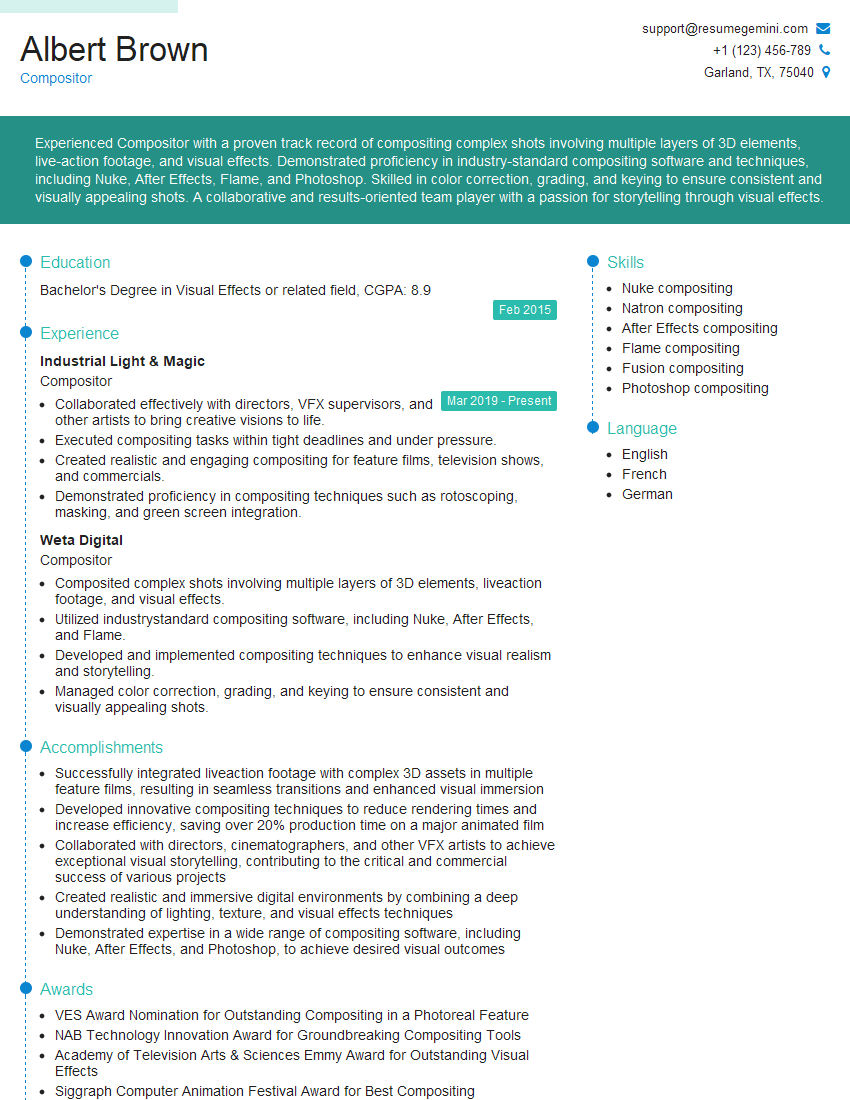
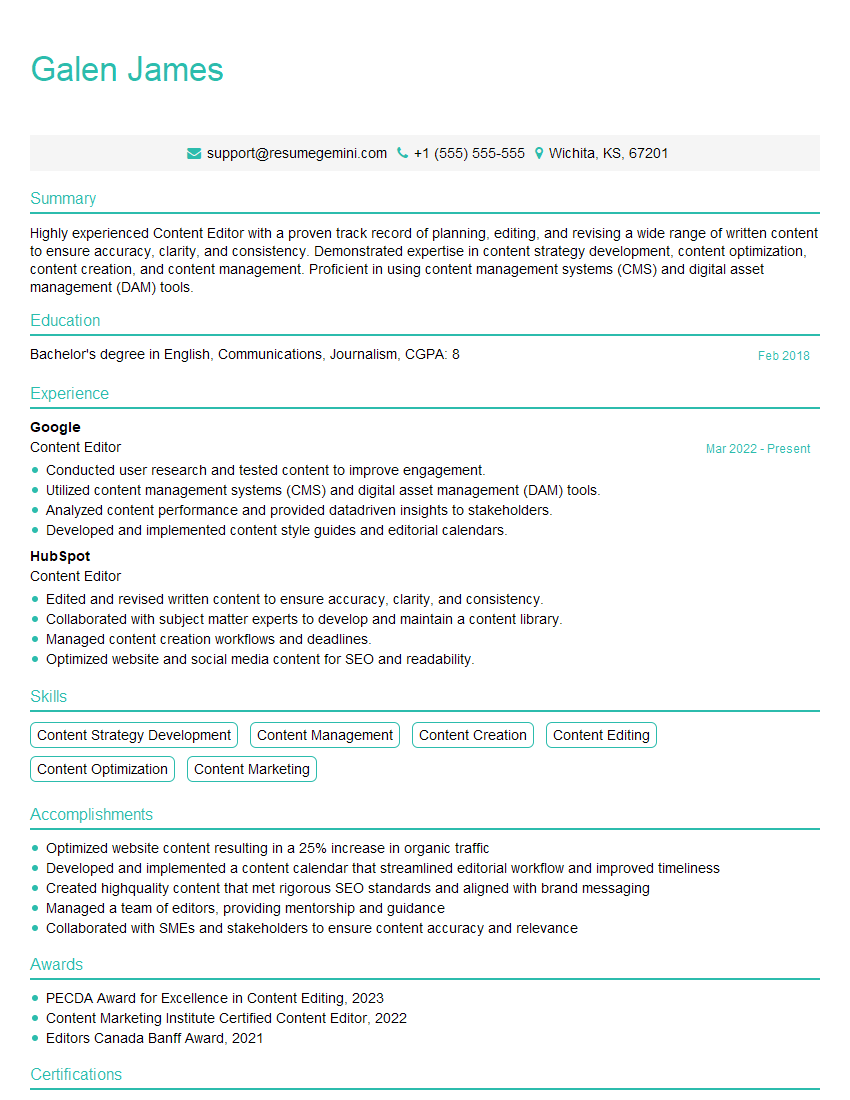
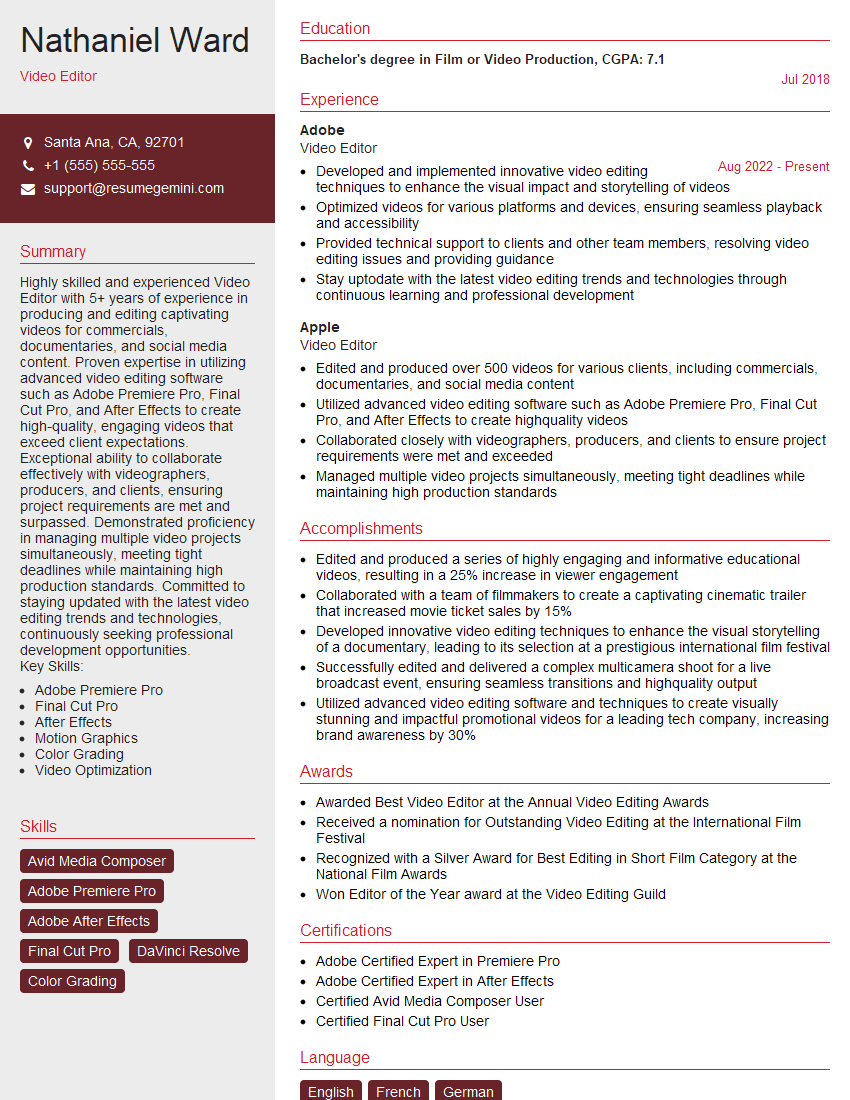
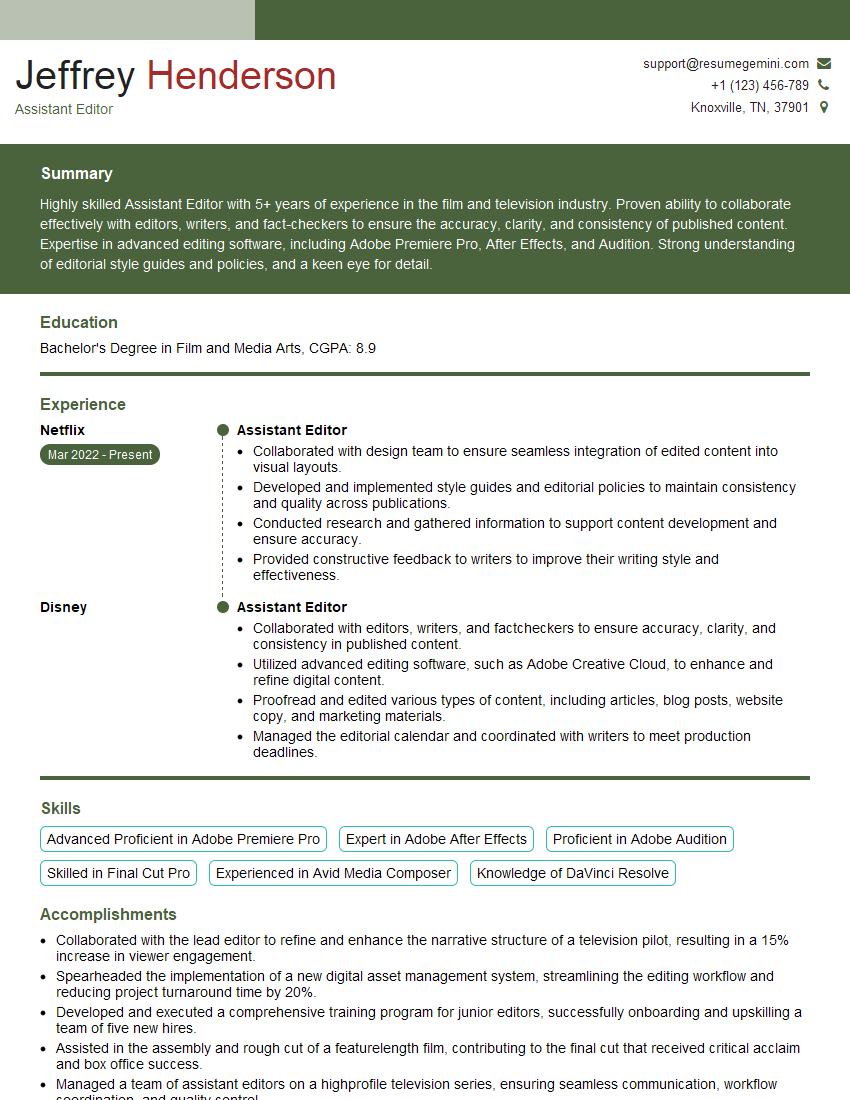
Mastering video editing with Premiere Pro and After Effects opens doors to exciting career opportunities in film, television, advertising, and digital media. To maximize your job prospects, invest time in crafting a strong, ATS-friendly resume that showcases your skills and experience effectively. ResumeGemini is a trusted resource to help you build a professional and impactful resume. They provide examples of resumes tailored to Video Editing (Premiere Pro, After Effects) roles, allowing you to present your qualifications in the best possible light.

Explore more articles
Users Rating of Our Blogs
Share Your Experience
We value your feedback! Please rate our content and share your thoughts (optional).
What Readers Say About Our Blog
Very informative content, great job.
good