Cracking a skill-specific interview, like one for Proficient in Avid Media Composer or DaVinci Resolve, requires understanding the nuances of the role. In this blog, we present the questions you’re most likely to encounter, along with insights into how to answer them effectively. Let’s ensure you’re ready to make a strong impression.
Questions Asked in Proficient in Avid Media Composer or DaVinci Resolve Interview
Q 1. Explain the difference between offline and online editing.
Offline and online editing are two distinct stages in the post-production process, crucial for efficient workflow, especially with high-resolution footage. Think of it like building a house: offline is constructing the frame, and online is the final finish.
Offline Editing: This stage focuses on assembling the rough cut. We work with proxy media – lower-resolution versions of the original footage – to speed up the editing process. This allows for faster rendering and smoother playback, even on less powerful machines. The goal is to establish the narrative structure, pacing, and timing, without worrying about the final picture quality.
Online Editing: Once the edit is locked, we move to online editing. Here, we work with the original, high-resolution media. This stage involves color correction, visual effects, audio mixing, and final output mastering. The focus is on refining the picture and sound to the highest quality possible for broadcast or distribution.
Example: Imagine editing a feature film. In offline, we’d use smaller proxies to quickly assemble scenes and sequences, trying out different variations. Once the director approves the final cut, we move to online and replace the proxies with the high-resolution master files to create the final polished product.
Q 2. Describe your experience with Avid Media Composer’s timeline features.
Avid Media Composer’s timeline is the heart of the editing process, and I’m very comfortable navigating its complexities. My experience includes extensive use of its nested timelines for managing complex projects, particularly commercials with multiple versions or variations. I’m proficient in utilizing its various track types – video, audio, and effects – and how to effectively manage them. I routinely utilize features such as:
- Track Height Adjustment: Adjusting track height to provide more visual space to work with, especially during complex cuts.
- Timeline Markers and Subclips: Using markers to label important points in my project and subclips for improved organization and recall.
- Multicam Editing: Seamlessly switching between various camera angles during multicam shoots.
- Sequence Linking and Nested Sequences: Creating a very organized and flexible workflow with nested timelines when working on a larger, complex project.
These features are not just about convenience; they are about optimizing workflow efficiency and maintaining a clear and organized approach to even the most complicated editorial challenges. For example, when working on a fast-paced music video with several alternate takes, nested sequences allow for quick A/B comparisons between options without cluttering the main timeline.
Q 3. How do you manage large media files in Avid Media Composer?
Managing large media files in Avid Media Composer requires a strategic approach. Simply relying on the system’s default settings can lead to performance bottlenecks. Here’s my strategy:
- AMA (Avid Media Access): For files outside of the Avid project, using AMA linking minimizes storage space by directly referencing the original files. This is ideal for dealing with enormous amounts of footage shot on various cameras.
- Consolidation and Transcoding: For projects needing tighter integration, I consolidate or transcode to create optimized media files within the project. This involves creating smaller proxies or converting to a more manageable codec (like DNxHD), depending on the project’s needs and available system resources. The trade-off is increased storage space, but greatly improved performance.
- Avid MediaFiles: Leveraging the Avid MediaFiles database for efficient storage and retrieval of media. I maintain a well-organized storage structure to keep things tidy and easily accessible.
- External Storage: Relying on high-speed, high-capacity external storage solutions (like RAID arrays) is essential for seamless performance when dealing with high volumes of 4K or even 8K footage.
The key is choosing the right strategy based on the project’s scale and available resources. I assess storage needs and processing power at the start of a project and adapt my approach accordingly. Choosing between AMA and consolidating has to consider both storage space and performance requirements of the machine in use.
Q 4. What are your preferred keyboard shortcuts in Avid Media Composer?
My preferred keyboard shortcuts in Avid Media Composer are deeply ingrained in my muscle memory, streamlining my workflow significantly. Here are a few examples:
Ctrl+K(Windows) /Cmd+K(Mac): Insert EditCtrl+T(Windows) /Cmd+T(Mac): Add TransitionCtrl+Shift+K(Windows) /Cmd+Shift+K(Mac): Add Edit and Transition at the same timeAlt+Shift+C(Windows) /Option+Shift+C(Mac): Create a new subclipCtrl+I(Windows) /Cmd+I(Mac): Insert In-pointCtrl+O(Windows) /Cmd+O(Mac): Insert Out-point
Beyond these, I extensively use keyboard shortcuts for navigation, transport controls, and audio adjustments. Mastering these shortcuts significantly increases editing speed and precision, allowing for a more fluid and intuitive workflow.
Q 5. Explain your workflow for color correction in DaVinci Resolve.
My color correction workflow in DaVinci Resolve is based on a systematic approach that prioritizes efficiency and accuracy. It generally follows these steps:
- Initial Setup: I start by setting up my project correctly, establishing the appropriate color space (usually Rec.709 for broadcast), and ensuring that the footage is properly loaded and organized within DaVinci Resolve.
- Primary Color Correction: This is the foundation – adjusting Lift, Gamma, and Gain (LGG) to correct overall exposure and color balance. I usually make these adjustments globally to ensure a consistent look across the entire project.
- Secondary Color Correction: Using tools like Power Windows, Polygons, and Curves, I refine individual areas, addressing specific color issues or creative enhancements.
- Color Grading: This is where I use creative tools to achieve the desired look and mood for the project. Using tools such as HSL Saturation and other color wheels, I bring artistic vision to the finished product.
- Final Adjustments: I make final color adjustments to fine tune aspects such as contrast, saturation, and overall tone, ensuring the final look meets the creative vision.
- Export: Finally, I export the color corrected media in a suitable format for distribution.
I always keep a balance between realism and artistic interpretation, adjusting to suit each project’s needs. In a documentary, I’d prioritize accuracy; in a narrative film, I might apply a more stylized look.
Q 6. How do you use nodes in DaVinci Resolve for complex effects?
Nodes in DaVinci Resolve are a powerful tool for creating complex effects. Each node represents a specific effect or adjustment. By linking nodes together, we create a chain of processing steps. This allows for much more control and flexibility than traditional effects panels.
Example: Imagine creating a stylized vignette. I might use a node for blurring, followed by a node to control the falloff of the blur, and then another node to adjust the opacity of the result. Each node is independent, allowing for iterative refinement. I can easily adjust the parameters of individual nodes without affecting the entire effect. The non-destructive nature of nodes allows for easy experimentation and modification.
Complex Effects: Nodes become especially useful when crafting advanced effects, such as custom color transformations, creating unique light wraps, or intricate compositing situations. The modular nature lets me create reusable workflows and easily build on previous work for consistent effects across the project.
Q 7. Describe your experience with DaVinci Resolve’s Fusion page.
DaVinci Resolve’s Fusion page is a node-based compositing environment, offering the power of a dedicated visual effects software within the same application. My experience with Fusion includes:
- Motion Graphics: Creating dynamic and engaging titles and lower thirds.
- Compositing: Combining multiple elements, such as footage, graphics, and 3D models, into a seamless scene.
- Keying: Using various keying techniques to cleanly extract subjects from their backgrounds.
- Particle Effects: Generating particle simulations and stylized effects.
- Rotoscoping: Manually tracing objects frame-by-frame to isolate them.
The node-based approach allows for flexible workflows and allows building complex compositions with great precision. For example, I’ve used Fusion to composite realistic explosions, create complex matte paintings, and remove unwanted objects from scenes. The integration with DaVinci Resolve’s other features streamlines post-production workflows and lets me seamlessly move between color correction, editing, and VFX work. Having this powerful tool at my fingertips significantly broadens my creative options.
Q 8. How do you handle audio in your editing workflow?
Audio is a crucial element in any video production, and my workflow prioritizes its careful management from ingest to final mix. I begin by ensuring all audio is properly synchronized with the video. In Avid Media Composer, this often involves using the ‘Sync Points’ feature or relying on timecode if available. I then meticulously clean the audio, removing any unwanted noise or pops using tools like noise reduction and de-clicks. This often involves using plugins within the system (Avid’s own or third party ones). Next comes the balancing of audio levels – ensuring dialogue is clear and distinct from background music and sound effects. I frequently utilize audio tracks to group similar sounds (e.g., dialogue, ambient noise, music) for easier manipulation and mixing. Finally, I’ll add any necessary sound effects or music, making sure to creatively use panning and EQ to enhance the audio landscape. In DaVinci Resolve, the Fairlight page offers similar powerful tools, letting me create a comprehensive soundscape. A recent project involved meticulously cleaning up noisy location audio from a documentary interview using Resolve’s powerful noise reduction tools, resulting in pristine, clear audio ready for narration and delivery.
Q 9. Explain your experience with different video codecs.
My experience spans a range of video codecs, each with its own strengths and weaknesses. I’m comfortable working with codecs like ProRes (Apple ProRes 422, ProRes 4444), DNxHD (Avid’s codec), H.264, and H.265 (HEVC). ProRes is my go-to for editing, especially for high-quality projects where editing performance is paramount. Its uncompressed or near-uncompressed nature ensures smooth playback and avoids compression artifacts. DNxHD serves a similar purpose within the Avid ecosystem. H.264 and H.265, on the other hand, are highly efficient codecs that are excellent for delivery and online distribution because of their smaller file sizes. The choice of codec is always a balance between image quality, file size, and editing performance. For instance, I’d choose ProRes for the initial edit of a high-definition feature film, then move to a smaller, more efficient codec like H.264 for final output to online platforms. Understanding the technical specifications of each codec is critical to make informed decisions about quality vs. file size for each stage of the project.
Q 10. What is your experience with exporting and rendering videos?
Exporting and rendering is the final, crucial step in the post-production process, and its effectiveness directly impacts the final product’s quality and delivery. My process starts with selecting the appropriate codec and resolution based on the intended platform and audience. I always ensure my project settings are optimized for the target platform (YouTube, Vimeo, broadcast, etc.). This might include specific color spaces (Rec.709 for broadcast, for example), frame rates, and bit rates. Within Avid, the Media Composer’s export settings are quite intuitive, with clear options for choosing presets or fine-tuning parameters. DaVinci Resolve offers similar settings, allowing great control over output quality, bitrate and file format. I also preview renders frequently to identify any potential problems during the export process – this will catch any unexpected issues with transparency masks, or color issues early on. In one recent project, I optimized render settings, cutting render time by 40% without compromising quality for an online advertisement by using efficient codecs and avoiding unnecessary render passes.
Q 11. How do you organize your projects in Avid Media Composer?
Organization is essential for efficient project management in Avid Media Composer. I utilize a structured approach that begins with a clearly defined project folder structure. This typically includes folders for source media (video, audio, graphics), edited sequences, renders, and project backups. Within Avid, I create bins to organize clips logically. Bins often represent scenes, acts, or specific types of media. I use descriptive names for bins and clips to ensure quick identification and retrieval. Using the ‘AMA’ (Avid Media Access) feature, I can link to media files stored in their original locations, which keeps the project size manageable. Finally, I regularly save and back up the project, and I even use a version control system, depending on the complexity of the project, so that I can always revert to previous states.
Q 12. Describe your process for creating title sequences.
Creating title sequences is a blend of artistic creativity and technical precision. My approach begins with a clear understanding of the project’s tone and style. I often start with storyboarding or sketching to visualize the sequence’s flow and visual elements. Once the concept is established, I’ll use tools like After Effects or Motion (for those projects requiring complex visual effects) and import the finished titles into my editing software. In simpler cases, I might create the titles directly within Avid Media Composer or DaVinci Resolve, using their built-in title tools. This often involves carefully selecting fonts, animations, and transitions to ensure they integrate seamlessly with the project’s overall aesthetic. For example, a recent project required a dynamic, fast-paced title sequence, which I designed in After Effects using motion graphics and kinetic typography. The resulting sequence immediately established the project’s energetic tone.
Q 13. How do you troubleshoot common issues in Avid Media Composer or DaVinci Resolve?
Troubleshooting is a constant in video editing. Common issues in Avid Media Composer and DaVinci Resolve include media offline errors, corrupted files, rendering problems, and performance bottlenecks. My approach is methodical. I start by identifying the specific error message or symptom. In case of media offline errors, I first check the file paths to ensure the media is still accessible, I’ll then try consolidating or relinking. For corrupted files, I often try to recover them from backups. If rendering issues arise, I review the render settings, ensuring they are optimized for my system resources and the project’s requirements. Sometimes, problems stem from insufficient RAM or storage space; identifying and addressing these underlying issues is crucial. For performance problems, I often optimize my media files (by transcoding into a more efficient codec if necessary) and close any unnecessary applications. A systematic approach, combined with a basic understanding of system resources, is key to efficiently resolve common issues.
Q 14. How do you collaborate with other team members on projects?
Collaboration is vital in today’s video production environment. My approach emphasizes clear communication and efficient workflow management. I often use cloud-based storage and collaboration platforms (like shared network drives or cloud storage solutions) to share projects and media files. Avid Media Composer and DaVinci Resolve both support collaborative workflows. Depending on the project, we often use version control systems, where each team member works on their own version of the project, merging their changes at appropriate intervals. This helps avoid conflicts and track changes. Regular meetings and feedback sessions are essential to maintain alignment and address any challenges that arise. Clear communication of roles and responsibilities from the outset is crucial. On a recent documentary project, our team used a shared online project management tool to track progress, share assets and provide feedback on the timeline, ensuring a smooth and efficient collaborative effort.
Q 15. What is your experience with version control in your NLE?
Version control in my NLE workflow is paramount. I primarily use Avid Media Composer, which offers robust versioning capabilities, and I’ve also extensively used DaVinci Resolve’s project management features. My approach centers around creating multiple versions of a project, clearly labeled with descriptive names (e.g., ‘v1_rough_cut’, ‘v2_client_revision_1’). This allows for easy comparison and reverting to previous states if necessary. For more complex projects, I leverage the ‘save as’ function frequently, essentially creating snapshots of my progress. Furthermore, I always maintain a clearly organized project folder structure with separate subfolders for different versions, assets, and deliverables. This prevents file conflicts and confusion, especially in collaborative environments. Think of it like writing a document with multiple autosaves – it allows for flexibility and prevents disastrous accidental data loss. In DaVinci Resolve, I utilize the built-in versioning, creating different timelines and saving them as separate versions; Resolve’s Fusion page also benefits greatly from this approach when working on complex compositing shots.
Career Expert Tips:
- Ace those interviews! Prepare effectively by reviewing the Top 50 Most Common Interview Questions on ResumeGemini.
- Navigate your job search with confidence! Explore a wide range of Career Tips on ResumeGemini. Learn about common challenges and recommendations to overcome them.
- Craft the perfect resume! Master the Art of Resume Writing with ResumeGemini’s guide. Showcase your unique qualifications and achievements effectively.
- Don’t miss out on holiday savings! Build your dream resume with ResumeGemini’s ATS optimized templates.
Q 16. Describe your experience working with various camera formats.
My experience spans a wide array of camera formats, from standard definition to high-resolution 8K footage. I’m proficient in handling various codecs, including ProRes, DNxHD, H.264, and RAW formats like REDCODE and ArriRAW. I understand the nuances of each format, such as their color science, compression ratios, and data demands. Working with RAW files, for example, offers maximum flexibility during post-production, allowing for greater control in color grading and detail recovery. However, it also requires significantly more storage space and processing power. I always plan my workflow accordingly, considering the project’s scale and resource availability. For example, a low-budget project might necessitate working with ProRes proxies, which are smaller, optimized files that allow smoother editing and faster rendering without sacrificing quality significantly. I’ve successfully managed projects using diverse formats – everything from vintage Super 8 footage to the latest cinema cameras, always adapting my workflow to match the unique demands of each.
Q 17. How do you handle color grading for different delivery platforms?
Color grading for different delivery platforms requires a nuanced understanding of each platform’s color space and dynamic range. For example, a broadcast standard like Rec. 709 will have a different color gamut and brightness range than the wider color space of HDR (High Dynamic Range) formats like Dolby Vision or HDR10. My workflow starts with establishing a consistent color palette across the entire project. I then create separate deliverables for each platform, ensuring that the color grading is optimized for the target display. This involves careful consideration of things like peak brightness, black levels, and color saturation. Tools within DaVinci Resolve, such as the Output Transform, are crucial for this. I’ll create a specific output for YouTube (generally Rec.709), a different one for a streaming service like Netflix (which might specify Dolby Vision or HDR10), and another for theatrical release (which might involve a different color space and mastering workflow). Essentially, I’m not just adjusting colors; I’m ensuring that the final product looks its best on its intended screen.
Q 18. Explain your approach to managing client feedback.
Managing client feedback effectively is key. My approach is highly collaborative. I always schedule regular check-ins, presenting work-in-progress versions at key stages. I prefer face-to-face meetings (or video conferencing) whenever possible to facilitate immediate clarification and discussion. I actively encourage clear communication, using visual tools like annotated screenshots and timecoded notes to precisely pinpoint feedback and revisions. Instead of simply making changes, I actively discuss the reasons behind the client’s feedback, ensuring mutual understanding and achieving the desired aesthetic. I also maintain meticulous records of all revisions and feedback, creating a transparent and traceable process. I utilize notes sections within my NLE to track changes, including dates, the source of the request (client, director, etc.), and a brief description of the modifications. This allows me to easily manage revisions and iterate on the project efficiently and effectively. A clear and organized approach minimizes miscommunication and ensures everyone is on the same page.
Q 19. What are your go-to effects and plugins?
My go-to effects and plugins vary depending on the project’s needs, but some staples include: Boris FX Sapphire for high-end visual effects, Red Giant Universe for a versatile suite of tools, and Neat Video for noise reduction. I rely heavily on the built-in effects in both Avid and DaVinci Resolve, finding their power and efficiency often sufficient. For color grading, I regularly utilize DaVinci Resolve’s powerful color tools and nodes for precise adjustments. When it comes to specific plugins, my choice is largely guided by the type of project. For instance, motion graphics projects might call for more specialized plugins like those offered by After Effects, whereas a documentary might primarily use noise reduction and basic color correction tools. My approach is always to select tools based on their relevance to the project, prioritizing efficiency and quality.
Q 20. How do you maintain a consistent look and feel throughout a project?
Maintaining a consistent look and feel is crucial. My strategy involves creating a detailed style guide at the beginning of a project. This guide outlines key elements such as color palettes, font choices, graphic styles, and even specific editing techniques (like preferred transitions or pacing). This style guide serves as a reference point for everyone on the team. In post-production, I make extensive use of color grading tools to create and apply LUTs (Look Up Tables), which allow for uniform color correction and styling. I might, for example, create a primary LUT to establish a baseline look, and secondary LUTs for specific scenes or sequences that require adjustments. Working closely with the director and cinematographer to define the visual style upfront is also essential for success. Clear communication and early agreement on the overall look help maintain consistency throughout the entire project.
Q 21. Describe your experience with conforming footage.
Conforming footage involves aligning the edited timeline with the original camera footage to create the final deliverable. My experience in conforming involves using various techniques depending on the project’s complexity. For straightforward projects, I often rely on the automated conforming tools built into my NLEs. These tools allow me to import the EDL (Edit Decision List) or XML file from the editing software and automatically match the cuts in the original footage. However, for more complex projects involving multiple cameras, VFX shots, or significant changes during post-production, manual conforming might be required. This process involves carefully reviewing each cut to ensure accuracy and consistency. I meticulously cross-reference markers, timecodes, and audio to guarantee a seamless transition from edit to final output. This is extremely important when dealing with deliverables for broadcast or cinema distribution where precise syncing and alignment are non-negotiable. The skill lies in efficient and accurate matching of the cut version with the original source material, considering potential discrepancies.
Q 22. How do you optimize your workflow for speed and efficiency?
Optimizing my workflow for speed and efficiency is paramount. I achieve this through a multi-pronged approach, focusing on preparation, organization, and leveraging the software’s features to their fullest. Before I even open my NLE (Non-Linear Editor), whether it’s Avid Media Composer or DaVinci Resolve, I meticulously organize my media. This includes creating a clear folder structure, naming conventions for clips, and backing up everything multiple times. This upfront effort saves hours of searching and prevents potential disasters.
In post-production, I utilize keyboard shortcuts extensively. For example, in Avid, I’ve mapped quick keys for common tasks like adding markers, applying transitions, and adjusting audio levels. Similarly, DaVinci Resolve’s customizable keyboard shortcuts enable rapid color grading and effects application. I frequently use the software’s built-in tools like bin organization, smart bins, and nested timelines to manage complex projects effectively. Think of it like a chef meticulously preparing ingredients before starting to cook – the better prepared you are, the smoother and faster the process.
Finally, I leverage the power of proxy workflows, especially when dealing with high-resolution footage. This allows for smoother playback and editing without compromising the final output quality. For example, when working on a project with 4K footage, creating optimized proxies allows me to work seamlessly even on less powerful machines. Once the edit is locked, I switch back to the original high-resolution files for the final export.
Q 23. Explain your understanding of aspect ratios and resolutions.
Aspect ratio refers to the proportional relationship between the width and height of an image, while resolution specifies the number of pixels that make up that image. Understanding both is critical for creating professional-looking videos. A common aspect ratio is 16:9 (wide screen), which is prevalent in most modern televisions and online platforms. Older formats include 4:3 (standard definition TV). Choosing the correct aspect ratio depends heavily on the intended platform for distribution. For instance, a video intended for Instagram might use a vertical aspect ratio optimized for mobile viewing.
Resolution describes the detail level of the image. Higher resolution means more pixels, resulting in a sharper, clearer picture. Common resolutions include 1920×1080 (Full HD), 3840×2160 (4K UHD), and even higher. Selecting the appropriate resolution involves balancing quality with file size and processing power. A 4K video demands significantly more storage and processing resources than a 1080p video. Choosing the right resolution is a decision that needs to be made early in the production and post-production process as it dictates the work involved and the resources required.
Q 24. How do you approach audio mixing and mastering in your workflow?
Audio mixing and mastering are crucial for a professional-quality video. My approach starts with careful recording. I always aim for clean audio during production, minimizing background noise and ensuring proper levels. In post-production, I use my NLE’s audio editing tools to clean up the audio, removing unwanted sounds and correcting imbalances. This often involves using tools like noise reduction, equalization, and compression. For more complex projects, I often collaborate with dedicated sound designers or audio engineers. I consider the audio a fundamental part of the storytelling and will dedicate as much attention to this aspect as I do the video.
Mastering is the final stage, where I optimize the overall sound for the target platform. This includes adjusting the loudness, ensuring consistent levels throughout the video, and applying final effects to enhance the clarity and impact. I always listen on multiple playback systems to ensure consistent quality across devices.
Q 25. What is your experience with different types of transitions?
My experience encompasses a broad range of video transitions, from simple cuts and dissolves to more complex effects. A simple cut is a direct transition between two shots, creating a concise and immediate change. Dissolves smoothly blend one shot into another, often used to indicate a passage of time or a shift in location. Other transitions include wipes (a visual sweep across the screen), fades (gradually darkening or brightening a shot), and more stylized effects found in plugins or through motion graphics software.
The choice of transition depends heavily on the stylistic intent and the overall tone of the video. A documentary might benefit from simple cuts and dissolves, while a music video might utilize more dynamic and visually creative transitions. Overusing complex transitions can distract viewers, so it’s important to use them sparingly and purposefully. A good editor understands the subtle power of a simple cut to tell a story just as effectively as a sophisticated effect.
Q 26. Describe your experience with motion graphics and animation.
I have extensive experience with motion graphics and animation, primarily using After Effects to create titles, lower thirds, and animated elements. I can create bespoke animations to enhance the visual storytelling, adding another layer of engagement and clarity to the project. For example, I have created animated maps for documentaries, illustrating historical events or geographical locations. I can also create custom transitions in After Effects. I understand the principles of animation and can use these techniques to create compelling and visually stunning sequences that compliment the video edit.
Integrating motion graphics seamlessly into the edit requires careful planning and coordination. Understanding the timing and pacing of the edit is crucial to ensure the animated elements enhance, rather than detract, from the overall narrative. I prefer to collaborate closely with the director and other creative team members to ensure the animated elements meet both aesthetic and narrative goals. It’s all about enhancing the viewing experience.
Q 27. How do you ensure the quality of your final deliverables?
Ensuring the quality of my final deliverables is a multifaceted process that begins long before the final export. It starts with meticulous attention to detail during the editing phase, meticulously reviewing every cut, transition, and audio element. This process includes rigorous quality control checks, ensuring there are no technical issues such as dropped frames or audio glitches. I utilize professional color grading techniques to ensure a consistent and high-quality visual experience. I always verify the aspect ratio and resolution match the intended distribution platform.
Finally, I perform a final review on multiple playback devices, representing a range of screens, to ensure consistency across platforms. I also pay close attention to mastering audio to ensure it sounds its best on different playback systems. I always provide multiple versions of the deliverables in various formats, accommodating different platforms and requirements, further ensuring the success of the project and its reception.
Q 28. What are your strengths and weaknesses as a video editor?
My greatest strength lies in my ability to blend technical proficiency with creative vision. I’m highly proficient in both Avid Media Composer and DaVinci Resolve, and I possess a keen eye for detail and an understanding of visual storytelling. I can adapt my workflow to suit various projects and styles, consistently delivering high-quality results under pressure. I also pride myself on my collaborative spirit and my ability to work effectively with diverse teams. For example, recently, a project required immediate changes to match a newly approved color palette. I seamlessly adjusted the color grading and seamlessly integrated new footage without compromising the project’s deadline.
One area I’m constantly working on is expanding my expertise in advanced 3D animation and compositing. While I can handle many aspects of motion graphics, deepening my skills in these areas will allow me to tackle even more complex projects and provide a wider range of creative solutions to clients.
Key Topics to Learn for Proficient in Avid Media Composer or DaVinci Resolve Interview
- Avid Media Composer/DaVinci Resolve Interface & Workflow: Mastering the software’s layout, toolbars, and common shortcuts is crucial for demonstrating efficiency and proficiency. Practice navigating the interface blindfolded, if possible!
- Import, Organization & Management of Media: Understand best practices for importing various media formats, creating organized project folders, and managing large media files efficiently. Discuss your strategies for metadata management and file naming conventions.
- Editing Techniques (Assembly, Rough Cut, Fine Cut): Be prepared to explain your approach to different editing stages, from assembling raw footage to refining the final cut. Highlight your understanding of pacing, rhythm, and storytelling through editing.
- Audio Editing & Mixing (Avid/Fairlight): Explain your experience with audio sweetening, noise reduction, dialogue editing, and sound design principles. Demonstrate your understanding of audio levels and mixing techniques.
- Color Correction & Grading (DaVinci Resolve): If focusing on DaVinci Resolve, be prepared to discuss color science basics, color spaces, primary and secondary color correction, and working with different looks. Showcase your understanding of LUTs and color workflows.
- Effects & Transitions: Discuss your experience using various effects and transitions, and explain your approach to choosing the right tools for a particular project. Highlight your understanding of visual storytelling through effects.
- Exporting & Rendering: Explain your understanding of different export formats, codecs, and resolutions, and how to optimize your workflow for efficient rendering. Discuss your approach to troubleshooting rendering issues.
- Collaboration & Teamwork: Discuss your experience working on collaborative projects, including version control, sharing projects, and communicating effectively within a team.
- Troubleshooting & Problem-Solving: Be ready to discuss how you approach technical challenges, identify errors, and find solutions within Avid Media Composer or DaVinci Resolve. Examples are key!
Next Steps
Proficiency in Avid Media Composer or DaVinci Resolve is highly sought after, significantly boosting your career prospects in post-production. Mastering these tools opens doors to exciting roles and higher earning potential. To maximize your chances, creating a strong, ATS-friendly resume is essential. ResumeGemini is a trusted resource to help you build a professional and impactful resume that highlights your skills and experience. We provide examples of resumes tailored to showcase proficiency in Avid Media Composer and DaVinci Resolve, helping you present yourself effectively to potential employers.
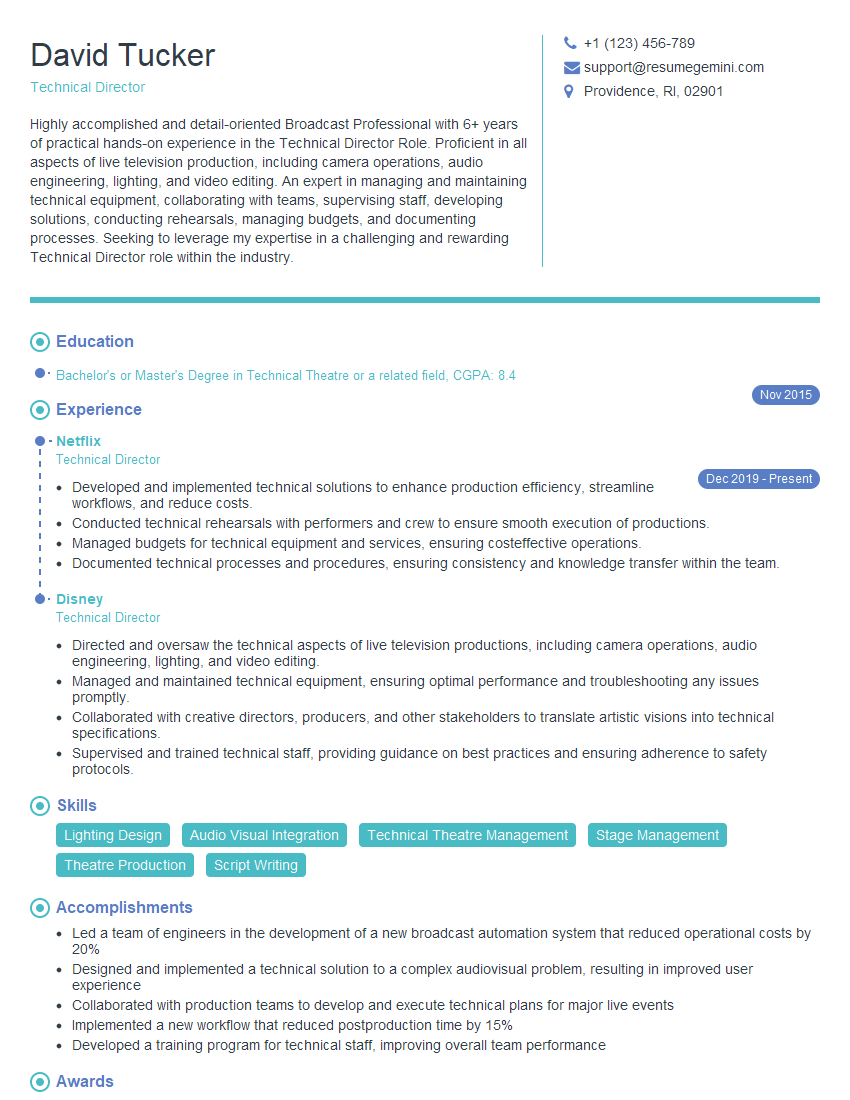
Technical Director Resume Sample
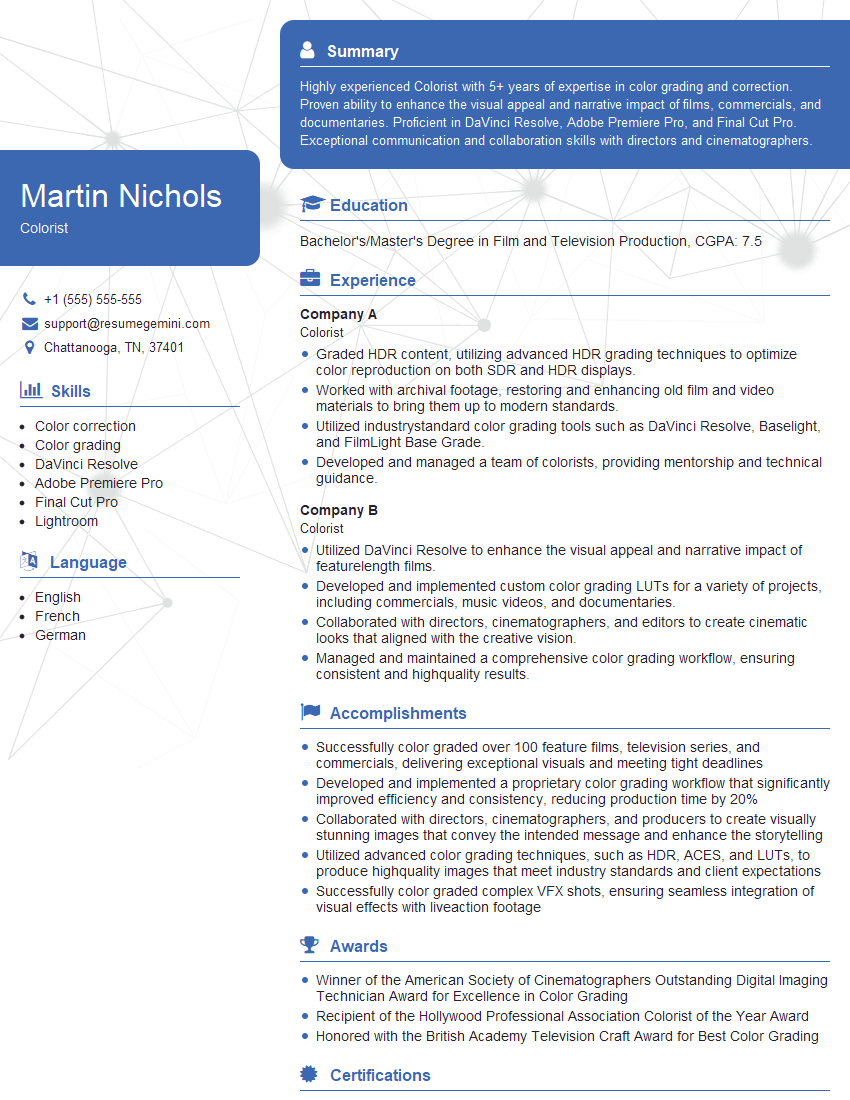
Colorist Resume Sample

Multimedia Specialist Resume Sample
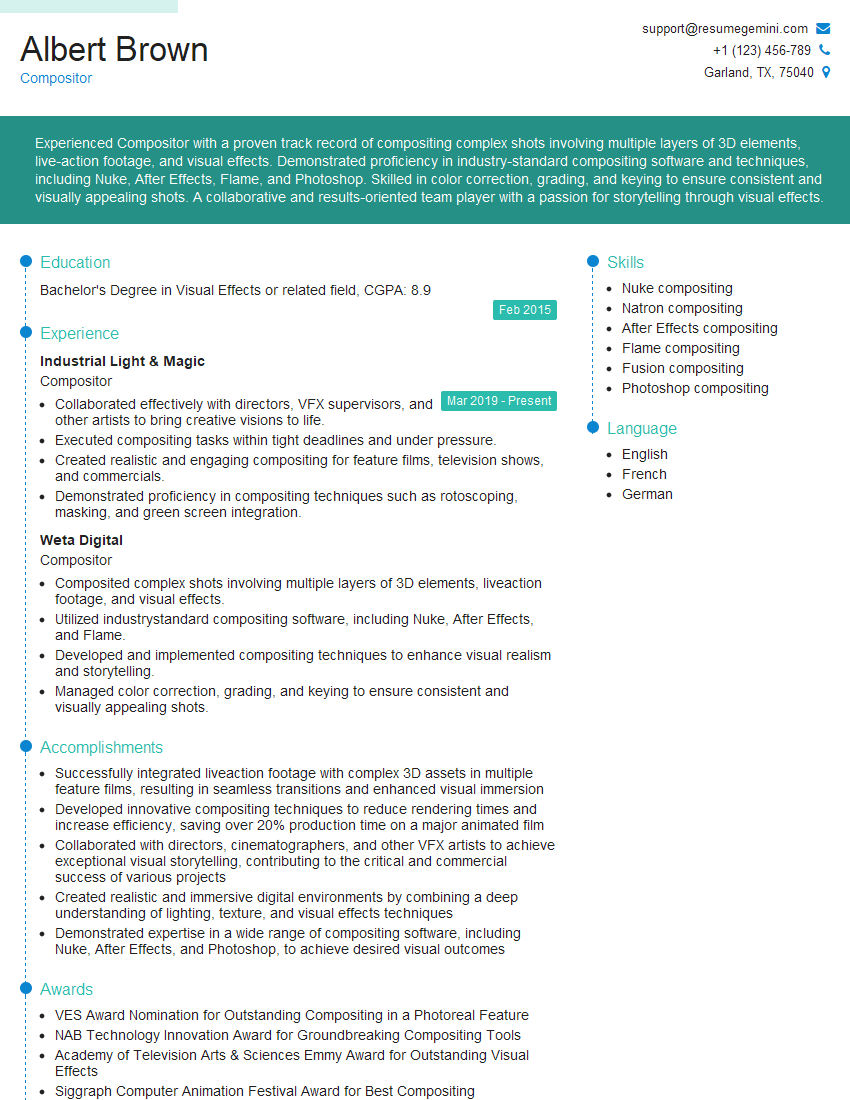
Compositor Resume Sample
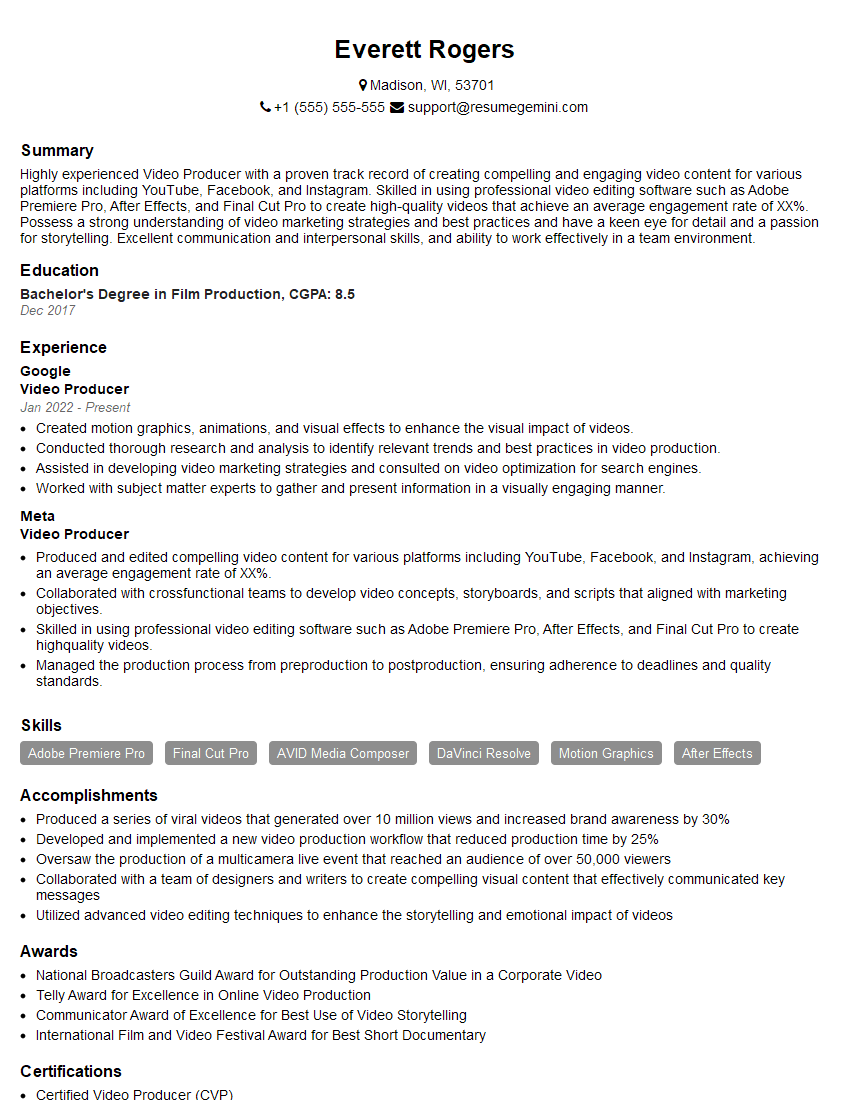
Video Producer Resume Sample
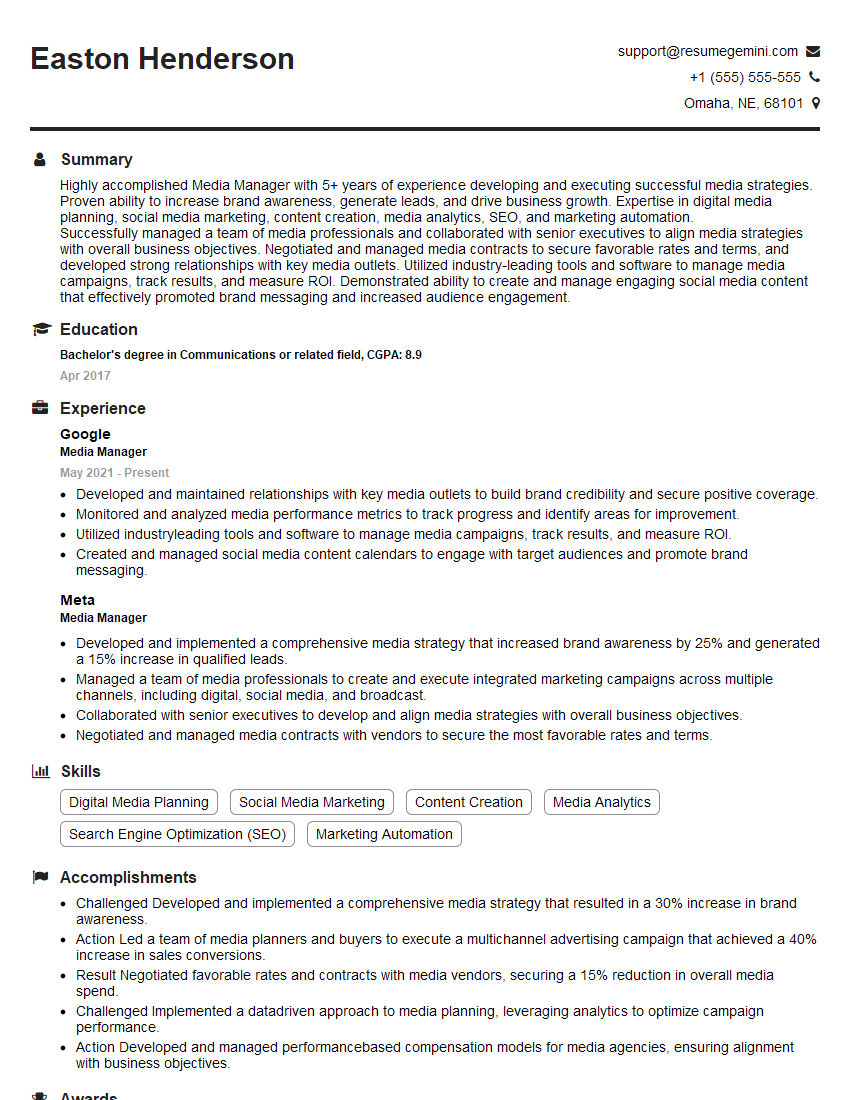
Media Manager Resume Sample
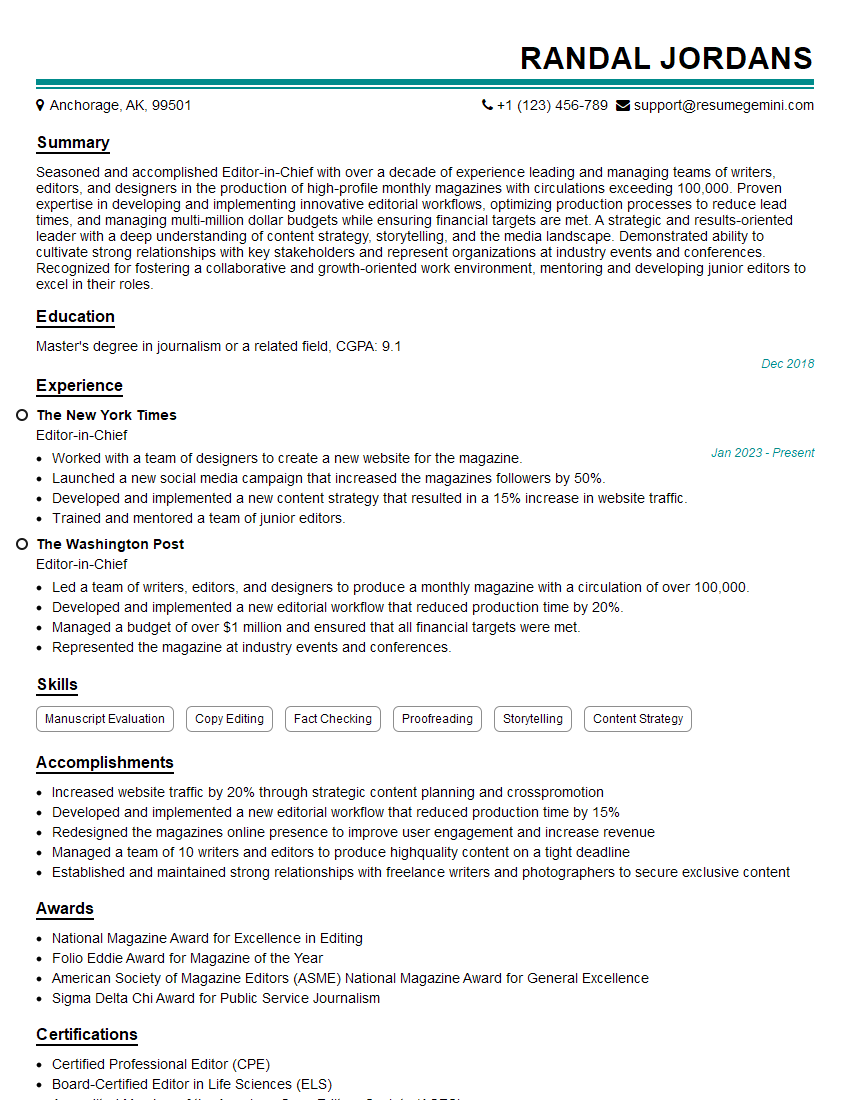
Editor-in-Chief Resume Sample

Online Editor Resume Sample
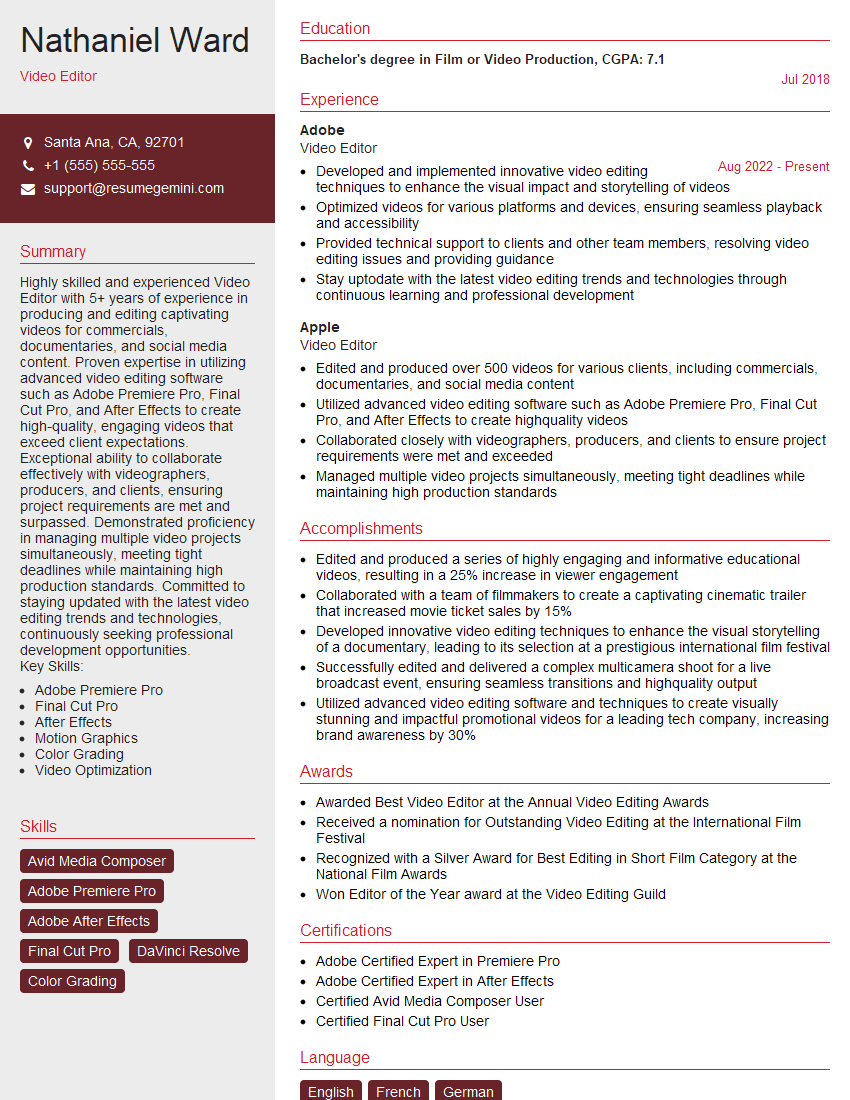
Video Editor Resume Sample
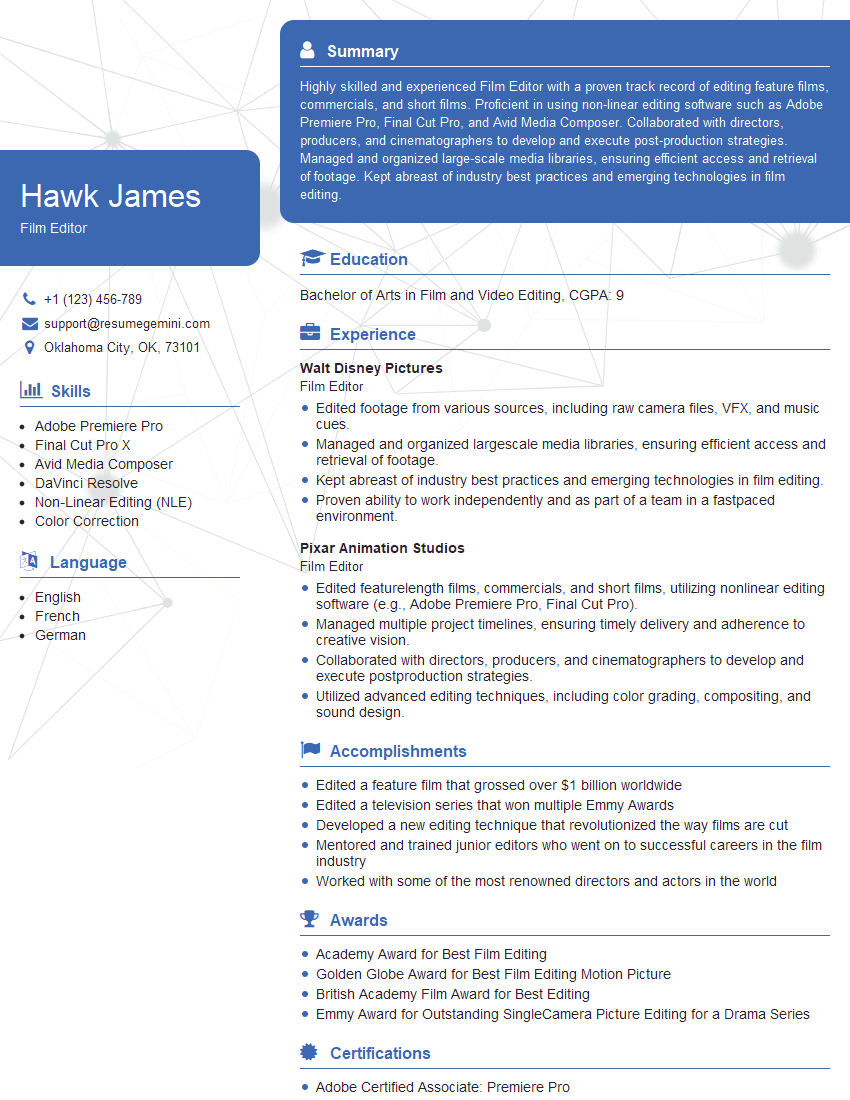
Film Editor Resume Sample
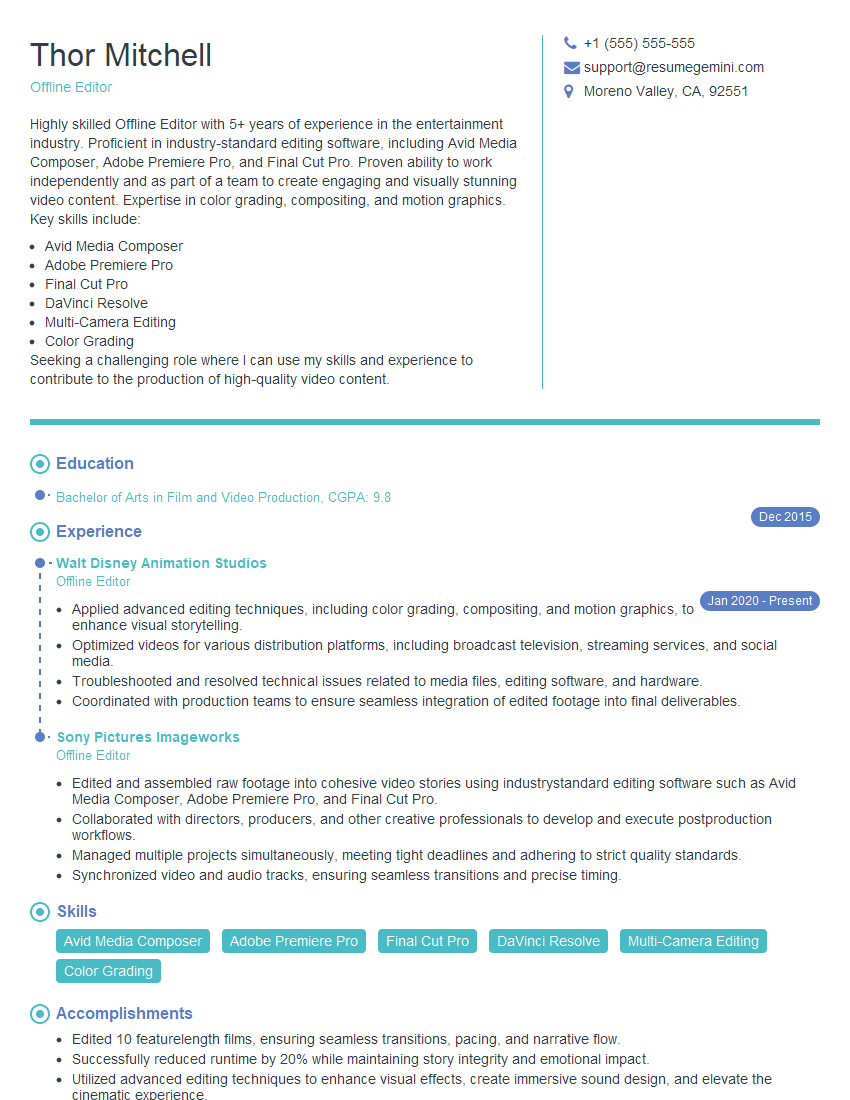
Offline Editor Resume Sample
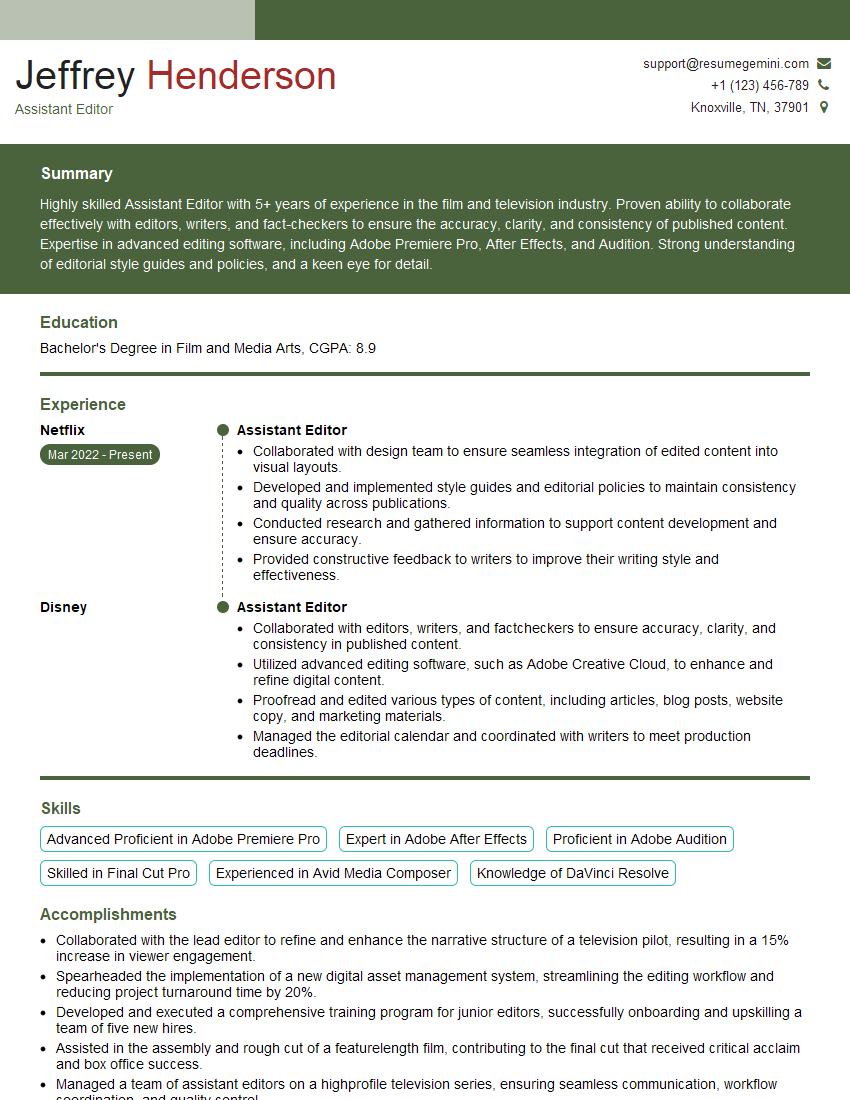
Assistant Editor Resume Sample
Explore more articles
Users Rating of Our Blogs
Share Your Experience
We value your feedback! Please rate our content and share your thoughts (optional).
What Readers Say About Our Blog
Very informative content, great job.
good