Preparation is the key to success in any interview. In this post, we’ll explore crucial Project Management Software (e.g., MS Project) interview questions and equip you with strategies to craft impactful answers. Whether you’re a beginner or a pro, these tips will elevate your preparation.
Questions Asked in Project Management Software (e.g., MS Project) Interview
Q 1. Explain your experience with MS Project’s task dependencies.
Task dependencies in MS Project define the relationships between tasks, specifying the order in which they must be completed. Think of it like a recipe: you can’t add the icing (Task B) before baking the cake (Task A). MS Project offers several dependency types to model these relationships accurately.
- Finish-to-Start (FS): The most common type. Task B cannot begin until Task A is finished. Example: ‘Write report’ (Task A) must finish before ‘Edit report’ (Task B) can start.
- Start-to-Start (SS): Task B cannot begin until Task A begins. Example: ‘Design website layout’ (Task A) and ‘Write website content’ (Task B) can happen concurrently, but ‘Write website content’ can’t start before ‘Design website layout’ starts.
- Finish-to-Finish (FF): Task B cannot finish until Task A finishes. Example: ‘Develop software’ (Task A) and ‘Test software’ (Task B) might run concurrently, but testing can’t be completed until development is completed.
- Start-to-Finish (SF): Less common. Task B cannot finish until Task A starts. Example: This is less intuitive but might be used for a handover where Task A’s initiation triggers the end of Task B (perhaps a training session).
Defining these dependencies accurately is crucial for accurate scheduling and identifying the critical path. In my experience, I always meticulously define dependencies, often discussing them with the team to ensure everyone understands the workflow.
Q 2. How do you create and manage a project baseline in MS Project?
Creating and managing a project baseline in MS Project is essential for tracking progress and measuring performance against the original plan. Think of it as a snapshot of your project plan at a specific point in time, serving as your benchmark.
- Develop a Detailed Project Plan: Before establishing a baseline, ensure your project schedule is complete, including all tasks, durations, resources, and dependencies.
- Set a Baseline: Navigate to the ‘Project’ menu and select ‘Set Baseline’. Choose the ‘Save Baseline’ option to capture the current project plan as the baseline. MS Project will create a copy of your project, effectively ‘freezing’ your plan at this stage.
- Monitor and Compare: As the project progresses, you’ll track actual progress against the baseline using features such as the Tracking Gantt chart. Any deviation will highlight potential problems early.
- Manage Baseline Changes: If changes are required, MS Project allows you to create new baselines to reflect those changes. This ensures you always have a clear record of the original plan and subsequent modifications. This enables easier tracking of the impact of any change requests.
For example, I once managed a software development project. Creating a baseline at the end of the planning phase allowed us to compare our schedule and budget against the actuals throughout the project lifecycle. This helped us identify and mitigate risks promptly.
Q 3. Describe your process for resource allocation and leveling in MS Project.
Resource allocation and leveling are crucial for ensuring your project has the right people at the right time, preventing overallocation and maximizing efficiency. In MS Project, this involves assigning resources to tasks and then using leveling to smooth out resource workloads.
- Assign Resources: First, you define your resources (people, equipment, etc.). Then, assign them to individual tasks in the Task Usage view. This clarifies who is responsible for each task.
- Resource Leveling: This optimizes the assignment to prevent overloading individuals. MS Project’s leveling tools automatically adjust task start and finish dates to distribute workloads more evenly. You can choose between manual leveling (adjusting schedules yourself), automatic leveling (letting MS Project do it), or a combination of both.
- Monitor Resource Allocation: The Resource Graph provides a visual representation of resource workloads, enabling proactive identification and resolution of potential over-allocation issues.
- Address Conflicts: Leveling may cause delays. You might need to adjust task durations, add more resources, or reassess priorities to resolve conflicts effectively.
In a previous construction project, I used resource leveling to address conflicts that arose due to limited availability of specialized equipment. By leveling, I minimized delays and kept the project on track.
Q 4. How do you track project progress and identify potential delays in MS Project?
Tracking project progress and identifying potential delays in MS Project involves utilizing various features and techniques to monitor performance against the plan.
- Tracking Gantt Chart: This visually compares scheduled vs. actual task progress. It immediately highlights tasks behind schedule.
- Task Usage View: Monitors resource utilization and identifies potential over-allocations that may impact deadlines.
- Project Summary Task: Shows an overall project status (percentage complete, remaining duration, etc.).
- Critical Path Analysis: Identifies the longest sequence of tasks, indicating any delays along this path will impact the project’s overall completion date.
- Variance Analysis: Compares planned vs. actual values (schedule, cost, etc.) to understand deviations and potential causes.
For example, in a recent marketing campaign, using the Tracking Gantt Chart, I noticed that the content creation task was significantly behind schedule. This immediate visibility allowed me to allocate additional resources and prevent project delays.
Q 5. What are critical path activities, and how do you identify them using MS Project?
The critical path is the longest sequence of tasks in your project. Any delay on a critical path task directly impacts the project’s overall completion date. Identifying it is vital for efficient project management.
MS Project automatically identifies the critical path. You’ll see tasks on the critical path highlighted (often with a different color or shading) in the Gantt chart. The critical path’s duration is also displayed in the project summary information. You should always focus on monitoring and managing the critical path closely because any slippages there will inevitably impact the project delivery date.
I once used critical path analysis to successfully negotiate for additional resources on a critical path task, avoiding a significant project delay.
Q 6. Explain how you use MS Project’s Gantt charts for project visualization.
Gantt charts in MS Project provide a visual representation of your project schedule, showing tasks, durations, dependencies, and progress. They’re an invaluable tool for communication and monitoring.
- Task Visualization: Tasks are displayed as bars, with their lengths representing their durations. Their horizontal placement shows their scheduled start and finish dates.
- Dependency Representation: Arrows connect tasks, illustrating their dependencies, making it easy to see the workflow.
- Progress Tracking: The Gantt chart shows actual progress, highlighting any deviations from the plan.
- Customization: You can customize the Gantt chart to include additional information, such as resource assignments, milestones, or baseline data.
In a team meeting, the Gantt chart provides a clear, concise overview that facilitates discussion and keeps everyone informed. I regularly use it to illustrate project progress and identify potential issues.
Q 7. How do you handle resource conflicts in MS Project?
Resource conflicts arise when multiple tasks require the same resource at the same time. MS Project offers several ways to handle these:
- Resource Leveling: As discussed earlier, this automatically adjusts task schedules to distribute workloads evenly, potentially resolving conflicts by delaying some tasks.
- Resource Splitting: Allows you to divide a resource’s time between multiple tasks, but this might not always be feasible or desirable (e.g., a single programmer can’t work on two tasks simultaneously).
- Adding Resources: The simplest solution is to add more resources to handle the workload. However, this may have budget or availability implications.
- Negotiating Priorities: Discuss with stakeholders to prioritize tasks and potentially adjust deadlines. This might involve focusing on critical path activities first.
- Task Duration Adjustment: Increase task duration to spread out the workload. But this may extend the project timeline.
In a previous project, a resource conflict arose due to limited engineer availability. I successfully resolved it by a combination of resource leveling and negotiating task priorities with the team, avoiding any project delays.
Q 8. Describe your experience with Earned Value Management (EVM) in MS Project.
Earned Value Management (EVM) is a project management technique for measuring project performance and progress. In MS Project, EVM is implemented by defining a baseline plan, tracking actual work, and calculating key metrics like Planned Value (PV), Earned Value (EV), and Actual Cost (AC). This allows for a comprehensive assessment of schedule and cost performance.
My experience with EVM in MS Project involves setting up custom fields to track PV, EV, and AC. I utilize MS Project’s built-in features to calculate the Schedule Variance (SV = EV – PV) and Cost Variance (CV = EV – AC), which highlight deviations from the planned schedule and budget. For example, in a recent software development project, I used EVM to identify a slippage in the schedule due to unforeseen technical challenges. By closely monitoring the SV and CV, we were able to proactively adjust the project plan, allocate additional resources, and ultimately deliver the project within acceptable parameters. Further, the use of the Cost Performance Index (CPI = EV/AC) and Schedule Performance Index (SPI = EV/PV) provided crucial insights into the efficiency and effectiveness of our work. Regular EVM reporting helped stakeholders understand the project’s health and make informed decisions.
Q 9. How do you create custom reports and dashboards in MS Project?
MS Project offers robust reporting capabilities. Creating custom reports and dashboards involves utilizing the built-in reporting tools and potentially exporting data to external applications for advanced visualizations. Within MS Project, I often leverage the Report Wizard to generate standard reports like Gantt charts, resource usage reports, and task usage reports. These provide a foundational view of the project’s progress. For more customized views, I create tables and charts using the data within MS Project. This might involve creating a custom table view displaying specific task information, such as task name, duration, assigned resources, and the % complete. The data is then easily exported to Excel or other applications for more advanced chart creation or dashboard development using tools like Power BI. For example, I once created a custom dashboard showing key project metrics such as burn-down charts, risk register status, and cost performance indicators on a single page, which was greatly appreciated by senior management for its ease of understanding and efficient information delivery.
Q 10. Explain your experience with MS Project’s risk management features.
MS Project allows for basic risk management by identifying potential risks and assigning probabilities and impacts to them. While not as sophisticated as dedicated risk management software, it’s a useful tool for initial identification and tracking. My approach involves creating a custom table in MS Project to list potential risks, their assigned probability, impact, and mitigation plans. For instance, I might include a risk like ‘Unexpected delays from a third-party vendor’ with a probability of 60% and a high impact on the project schedule. I’ll then outline the mitigation strategy (e.g., engaging with the vendor early, establishing clear communication protocols, and setting up contingency plans). This allows for regular review and update of risk status within the project plan itself. This simple risk register, updated consistently, provides an overview of the project’s potential vulnerabilities and the ongoing efforts to mitigate them.
Q 11. How do you manage project changes and updates in MS Project?
Managing changes and updates in MS Project involves a structured process to ensure that the project baseline is accurately reflected and that stakeholders are informed. I typically use the change management feature within MS Project to track changes to tasks, resources, and timelines. This may involve submitting a formal change request, assessing its impact on the project’s timeline and budget, and obtaining approval before implementing the changes. Once approved, the project baseline is updated accordingly, and notifications are sent to relevant stakeholders. For example, if a task requires additional time, I would create a change request, detailing the reason for the delay and the proposed revised schedule. This ensures transparency and accountability for all project changes. Regularly reviewing and approving change requests is crucial for maintaining the project’s integrity and accurate progress tracking.
Q 12. Describe your experience with MS Project’s collaboration features.
MS Project’s collaboration features, while not as advanced as dedicated collaboration platforms, provide basic functionalities for team communication and task assignment. I primarily utilize MS Project’s task assignment feature to assign tasks to individual team members, setting clear responsibilities and deadlines. The progress on these tasks is then tracked within the project plan. While not a built-in feature, integrating MS Project with other collaboration platforms like Microsoft Teams or SharePoint allows for improved team communication and document sharing. For example, I’ve used Teams to hold project meetings and discuss updates directly related to the MS Project plan, facilitating real-time communication and collaboration. This integrated approach combines the project management capabilities of MS Project with the robust communication features of other tools, thereby enhancing overall project collaboration.
Q 13. How do you use MS Project to track project costs?
MS Project tracks project costs through the use of resource assignments and cost rate definitions. Each assigned resource is linked to a cost rate (hourly, daily, or fixed), and MS Project automatically calculates the total cost based on the task duration and resource assignments. In my experience, I assign resources to tasks, defining their hourly/daily rates and total effort. This facilitates cost tracking throughout the project lifecycle. I also utilize custom fields to track additional costs not directly tied to resources, like materials or travel expenses. Regularly reviewing cost reports generated by MS Project allows me to monitor the project’s cost performance against the budget and take corrective actions when necessary. This ensures that the project stays within the allocated budget throughout its execution. Reporting on actual costs against planned costs provides critical insights into the project’s financial health.
Q 14. What are the advantages and disadvantages of using MS Project?
MS Project, while a powerful project management tool, has advantages and disadvantages.
- Advantages: Gantt chart visualization, resource management, task dependencies, built-in reporting, baseline tracking for performance measurement (EVM), relatively user-friendly interface (with a learning curve).
- Disadvantages: Can be expensive, complex for smaller projects, limited collaboration features compared to dedicated platforms, can become cumbersome for very large or complex projects requiring specialized tools, steep learning curve for full utilization.
The choice of using MS Project depends on the project’s size, complexity, and organizational needs. For simple projects, its features might be overkill, but for large, complex endeavors with many resources and intricate dependencies, its powerful capabilities are invaluable. However, it’s important to weigh its advantages against its cost and complexity before making a decision.
Q 15. How do you integrate MS Project with other project management tools?
Integrating MS Project with other project management tools is crucial for a holistic project view. This can be achieved through several methods, depending on the tools involved. For example, if you’re using a collaboration tool like Microsoft Teams or Slack, you can share project updates and relevant documents directly within those platforms. This keeps everyone informed and centralizes communication.
For more robust integrations, many project management tools offer APIs (Application Programming Interfaces) that allow data exchange. This enables automatic updates between MS Project and other systems, such as CRM (Customer Relationship Management) software or issue tracking systems like Jira. For example, task completion in MS Project might trigger an automatic update in Jira, closing the related issue. This eliminates manual data entry and minimizes errors.
In some cases, you might leverage file formats like CSV (Comma Separated Values) or Excel spreadsheets for data import/export. This is less automated but can still be an effective method for transferring data, especially between less integrated tools. Consider the specific needs of your project and the capabilities of your chosen tools to determine the most suitable integration strategy.
Career Expert Tips:
- Ace those interviews! Prepare effectively by reviewing the Top 50 Most Common Interview Questions on ResumeGemini.
- Navigate your job search with confidence! Explore a wide range of Career Tips on ResumeGemini. Learn about common challenges and recommendations to overcome them.
- Craft the perfect resume! Master the Art of Resume Writing with ResumeGemini’s guide. Showcase your unique qualifications and achievements effectively.
- Don’t miss out on holiday savings! Build your dream resume with ResumeGemini’s ATS optimized templates.
Q 16. Explain your experience using different project management methodologies (e.g., Agile, Waterfall) within MS Project.
My experience spans both Agile and Waterfall methodologies within MS Project. In Waterfall, MS Project’s strength lies in its ability to create detailed, upfront project plans with clearly defined tasks, dependencies, and timelines. I’ve used it extensively to build Gantt charts that visually represent the project’s critical path and track progress against the schedule. This provides a comprehensive overview and facilitates proactive risk management.
With Agile, the approach is more iterative. While MS Project might not be the ideal tool for managing the rapid iterations inherent in Scrum, I’ve used it effectively for high-level planning and tracking of sprints and releases. Instead of overly detailed task breakdowns, I focus on summarizing sprints as high-level tasks within MS Project. This keeps the overall project roadmap visible while accommodating the Agile iterative development. This combination of Agile methodologies for sprint management and MS Project for high-level planning and tracking ensures effective project governance. The key is adapting the tool’s capabilities to the chosen methodology’s principles rather than forcing a rigid fit. Daily stand-up updates are typically managed outside of MS Project, using tools better suited to those interactions.
Q 17. How do you handle unexpected project issues or risks using MS Project?
Handling unexpected issues and risks in MS Project requires a proactive and structured approach. First, I identify the issue and its potential impact on the project’s timeline and budget. This involves utilizing MS Project’s features to analyze the critical path and identify tasks most affected by the problem.
Next, I assess available solutions and their implications. This might involve re-allocating resources, adjusting task durations, or adding buffer time. MS Project allows for quick adjustments to task durations, dependencies, and resource assignments, providing a visual representation of the impact of these changes. I document the issue, the proposed solution, and the decision-making process within the project’s documentation, often using custom fields within MS Project to track this information.
Finally, I communicate the changes to stakeholders, ensuring transparency and buy-in. This proactive approach minimizes disruption and allows for informed decision-making throughout the process. Regularly reviewing the project schedule for potential risks and proactively planning for contingencies is key to minimizing the impact of unexpected issues.
Q 18. Describe your experience using MS Project’s different views (e.g., Gantt Chart, Network Diagram, Task Usage).
I have extensive experience using various views in MS Project to manage projects effectively. The Gantt chart is my go-to view for visualizing the project schedule, task dependencies, and progress. It provides a clear picture of the project timeline and allows for easy identification of critical paths and potential delays. The network diagram is particularly useful for understanding complex task relationships and dependencies. It helps in visualizing the flow of work and identifying potential bottlenecks before they occur.
The Task Usage view provides valuable insights into resource allocation and potential over-allocations. This helps in optimizing resource utilization and preventing conflicts. I often switch between these views depending on the information I need at any given time. For example, when reviewing overall project progress, I’ll use the Gantt chart, while assessing resource allocation would require the Task Usage view.
Q 19. How familiar are you with MS Project Server or Project Online?
I am very familiar with both MS Project Server and Project Online. Project Server (and its successor, Project Online) provide collaborative project management capabilities, allowing multiple users to access and update the project plan simultaneously. This is crucial for larger projects with distributed teams. I have experience managing project portfolios, assigning permissions, tracking project progress, and generating reports using these platforms.
The ability to centralize project data and manage resources effectively makes these collaborative platforms far more powerful than using MS Project locally. For example, resource leveling and assignment across multiple projects is a key benefit of using the server-based versions. I have used them to track project costs, resource utilization, and overall project performance, giving enhanced visibility and control over project management.
Q 20. Describe your experience with creating and managing project calendars in MS Project.
Creating and managing project calendars in MS Project is essential for accurately reflecting working days, non-working days, and holidays. This impacts task durations and resource availability. I have created custom calendars to reflect specific company holidays, reduced working weeks, or other scheduling requirements. For instance, I’ve created calendars that account for shorter workdays during summer or specific industry-related holidays. This ensures the project schedule accurately reflects the actual available time.
Managing multiple calendars allows for the application of different working schedules to various resources or tasks, enhancing the accuracy of project estimations and scheduling. For example, a project involving a team spanning multiple time zones might require distinct calendars for each team member’s location, leading to a more accurate scheduling representation.
Q 21. How do you ensure data accuracy and integrity within MS Project?
Data accuracy and integrity are paramount in project management. In MS Project, I ensure this by implementing several strategies. First, I establish clear data entry standards and guidelines for the entire project team. This includes defining the format and level of detail required for tasks, resources, and other project elements. Clear and consistent naming conventions for tasks and resources are critical.
Second, I regularly validate data to identify and correct any inconsistencies or errors. This involves using MS Project’s built-in reporting features to check for resource over-allocations, inconsistencies in task durations, and other potential issues. This could involve comparing the baseline schedule with the current schedule to highlight any deviations. Regular data audits, reconciliation, and updates are also critical to ensure data integrity. Regular back-ups of the project file are essential to prevent data loss.
Q 22. How do you handle project scope changes in MS Project?
Handling scope changes in MS Project requires a structured approach to minimize disruption. First, any proposed change needs to be formally documented as a Change Request. This typically includes a description of the change, its impact on the schedule and budget, and justification for the change. In MS Project, this often involves adding new tasks or modifying existing ones.
Next, we assess the impact. This involves using MS Project’s built-in features like the ‘What-If’ analysis to simulate the change’s effect on the project schedule (critical path, deadlines, etc.) and budget (costs, resource allocation). We may need to adjust task durations, dependencies, resource assignments, or even the project baseline.
Once the impact is understood, we present the updated project plan, including the revised schedule and budget, to stakeholders for approval. This often involves creating revised Gantt charts and reports highlighting the changes. If approved, the project plan in MS Project is updated to reflect the new scope. If not approved, we reiterate the process with potential alternative solutions.
For example, if a client requests a new feature mid-project, I would create a new task for this feature, assessing its dependencies on existing tasks. Using MS Project’s scheduling engine, I’d determine the impact on the project completion date and resource needs, and only then present the revised plan to stakeholders for approval.
Q 23. Explain your experience with creating and managing WBS (Work Breakdown Structure) in MS Project.
Creating and managing a Work Breakdown Structure (WBS) in MS Project is fundamental for effective project planning. A WBS is a hierarchical decomposition of the project into smaller, manageable work packages. In MS Project, this is usually achieved through the task hierarchy. I begin by defining the main project objectives as the highest-level tasks. These are then broken down into sub-tasks, and so on, until each task represents a clearly defined, actionable piece of work.
I use MS Project’s outlining feature to create this hierarchical structure, assigning unique IDs to each task for easy tracking and reporting. Each task includes a clear description of the work to be done, estimated duration, assigned resources, and dependencies on other tasks. This hierarchical structure allows for easy monitoring of progress at each level, from the overall project to individual work packages. Consistent naming conventions are crucial for clarity and ease of understanding. Properly defined WBS aids in accurate cost estimation and resource allocation.
For instance, in a website development project, the top-level tasks might be ‘Design,’ ‘Development,’ and ‘Testing.’ ‘Design’ would further break down into ‘UI Design,’ ‘UX Design,’ etc. Each of these would then be broken down into even more granular tasks. MS Project’s features allow for easy visual representation of this structure using the Gantt chart, facilitating communication and monitoring of progress.
Q 24. How do you use MS Project to communicate project status to stakeholders?
Communicating project status to stakeholders efficiently is crucial. MS Project provides several tools for this. I primarily use reports, Gantt charts, and dashboards. Customized reports, generated directly from MS Project, provide detailed information about schedule performance, resource utilization, and budget status. These reports can be tailored to specific stakeholder needs.
Gantt charts offer a visual overview of the project schedule, showing task progress, dependencies, and milestones. They are easy to understand and provide a quick snapshot of the project’s health. For executive-level updates, I often create summary reports, focusing on key milestones and potential risks. These summaries visually highlight critical aspects without overwhelming stakeholders with too much detail.
Furthermore, I utilize MS Project’s data export capabilities to create customized dashboards in other applications, such as Power BI, for more interactive and dynamic status updates. These dashboards allow stakeholders to easily filter and drill down into the data, gaining a deeper understanding of the project’s progress. Regular status meetings, supplemented by the reports and visualizations mentioned above, ensure that communication is both clear and frequent.
Q 25. Describe your experience with custom fields in MS Project.
Custom fields in MS Project are incredibly powerful for tailoring the software to specific project needs. They allow you to add additional information to tasks, resources, or assignments beyond the standard fields. This helps capture project-specific data that isn’t inherently tracked by MS Project. I often use them to track things like client approval status, risk levels, or specific quality metrics.
For example, I might add a custom field called ‘Client Approval’ with a dropdown list of options such as ‘Pending,’ ‘Approved,’ and ‘Rejected.’ This provides a clear and easy way to track the approval status of deliverables. Similarly, a custom field like ‘Risk Level’ with values such as ‘Low,’ ‘Medium,’ and ‘High’ helps categorize and prioritize tasks based on their risk profile.
Another example would be using custom number fields to track the number of testing cycles completed for a software development project or the quantity of materials consumed for a construction project. The ability to use these custom fields in reports and filters makes data analysis significantly easier and provides valuable insights not readily available with the standard fields. Careful planning in defining the custom fields ensures their consistent use and accurate reporting throughout the project’s lifecycle.
Q 26. How do you ensure the timely completion of project deliverables using MS Project?
Ensuring timely completion relies heavily on proactive monitoring and management within MS Project. I begin by establishing a realistic baseline schedule, carefully considering task dependencies and resource availability. Regularly monitoring the schedule against the baseline is key. I use MS Project’s tracking features to record actual progress, and the software automatically highlights deviations from the plan.
Proactive risk management is crucial. I identify potential risks early on and develop mitigation strategies, updating the project plan accordingly. For instance, if a task is delayed, I immediately assess its impact on the critical path and adjust the schedule or resource allocation as needed. I use MS Project’s features to track these adjustments and their impact on the overall project schedule.
Frequent communication with the project team is essential. Regular status meetings, supported by MS Project data, help identify potential problems early and prevent delays. Clear communication ensures everyone is aware of their responsibilities and deadlines. Utilizing MS Project’s reporting and visualization capabilities allows for transparent progress tracking, facilitating timely course correction and efficient problem solving.
Q 27. Explain how you use MS Project to improve project efficiency.
MS Project significantly enhances project efficiency in several ways. Firstly, its scheduling engine automatically calculates critical paths and identifies dependencies, helping to proactively manage task sequencing. This prevents delays caused by overlooked dependencies. The critical path analysis allows us to focus resources on the most time-sensitive tasks. Secondly, resource leveling optimizes resource allocation, preventing over-allocation and ensuring efficient resource utilization. This prevents bottlenecks and ensures timely completion of tasks.
MS Project’s tracking capabilities allow for real-time monitoring of progress, enabling early identification of potential problems. This empowers proactive intervention, preventing minor issues from escalating into significant delays. This real-time feedback loop keeps the project on track. Additionally, the ability to generate customized reports provides valuable insights into project performance, empowering data-driven decision-making.
For example, the ability to identify resource conflicts early on allows for proactive adjustments in the schedule or resource assignments, preventing potential delays. Similarly, the ability to generate ‘what-if’ scenarios allows the project manager to explore different options for addressing potential challenges, leading to more informed decision-making and improved efficiency.
Q 28. How do you troubleshoot and resolve common issues encountered in MS Project?
Troubleshooting in MS Project often involves understanding the project’s structure and data integrity. Common issues include scheduling conflicts, resource over-allocations, and data inconsistencies. I begin by systematically investigating the source of the problem. This may involve reviewing task dependencies, resource assignments, or calendar settings.
For scheduling conflicts, I carefully review task dependencies to ensure they are accurately defined. Similarly, for resource over-allocations, I examine resource assignments and may adjust task durations or resource availability to resolve the conflict. Data inconsistencies are usually addressed by carefully reviewing and correcting inaccurate data entries, ensuring the data’s integrity. MS Project’s built-in error-checking features help identify and address many of these problems.
If the issue persists, I explore MS Project’s help resources and online communities for solutions. In some cases, I might need to recreate parts of the project plan to resolve complex issues. Understanding the project’s structure, utilizing MS Project’s built-in diagnostics, and seeking external support when necessary are essential for effectively resolving issues in MS Project. Documenting the problem and its solution helps to prevent similar issues from occurring in the future.
Key Topics to Learn for Project Management Software (e.g., MS Project) Interview
- Project Scheduling & Planning: Understand critical path analysis, Gantt charts, task dependencies, and resource allocation. Be prepared to discuss how you would create and manage a project schedule using MS Project or similar software.
- Resource Management: Explain your experience with assigning resources (people, equipment, budget) to tasks, leveling resources to avoid overallocation, and managing resource calendars. Be ready to discuss scenarios where resource constraints impact project timelines.
- Risk Management: Demonstrate your understanding of identifying, assessing, and mitigating project risks. Be prepared to explain how you would use project management software to track and monitor potential risks and their impact on the project.
- Tracking & Reporting: Explain your proficiency in using project management software to monitor progress, track actuals versus planned, generate reports (e.g., burn-down charts, progress reports), and communicate project status effectively.
- Collaboration & Communication: Discuss your experience using project management software’s features for team collaboration, task assignment, and communication (e.g., shared workspaces, task comments). Highlight your ability to facilitate effective communication within a project team.
- Baseline & Variance Analysis: Explain how you would establish a project baseline, track variances from the baseline, and analyze the reasons for those variances. Show your ability to use this information for corrective actions.
- Customizing Views & Reports: Demonstrate your knowledge of customizing project views and generating tailored reports to meet specific stakeholder needs. Show you’re not just a user but can adapt the software to your workflow.
Next Steps
Mastering project management software like MS Project is crucial for career advancement in today’s competitive job market. It demonstrates your ability to manage complex projects effectively and efficiently, a highly sought-after skill by employers. To maximize your job prospects, focus on creating an ATS-friendly resume that highlights your skills and experience. ResumeGemini is a trusted resource that can help you build a professional and impactful resume tailored to the specific requirements of project management roles. Examples of resumes tailored to showcasing MS Project expertise are available to help you get started.
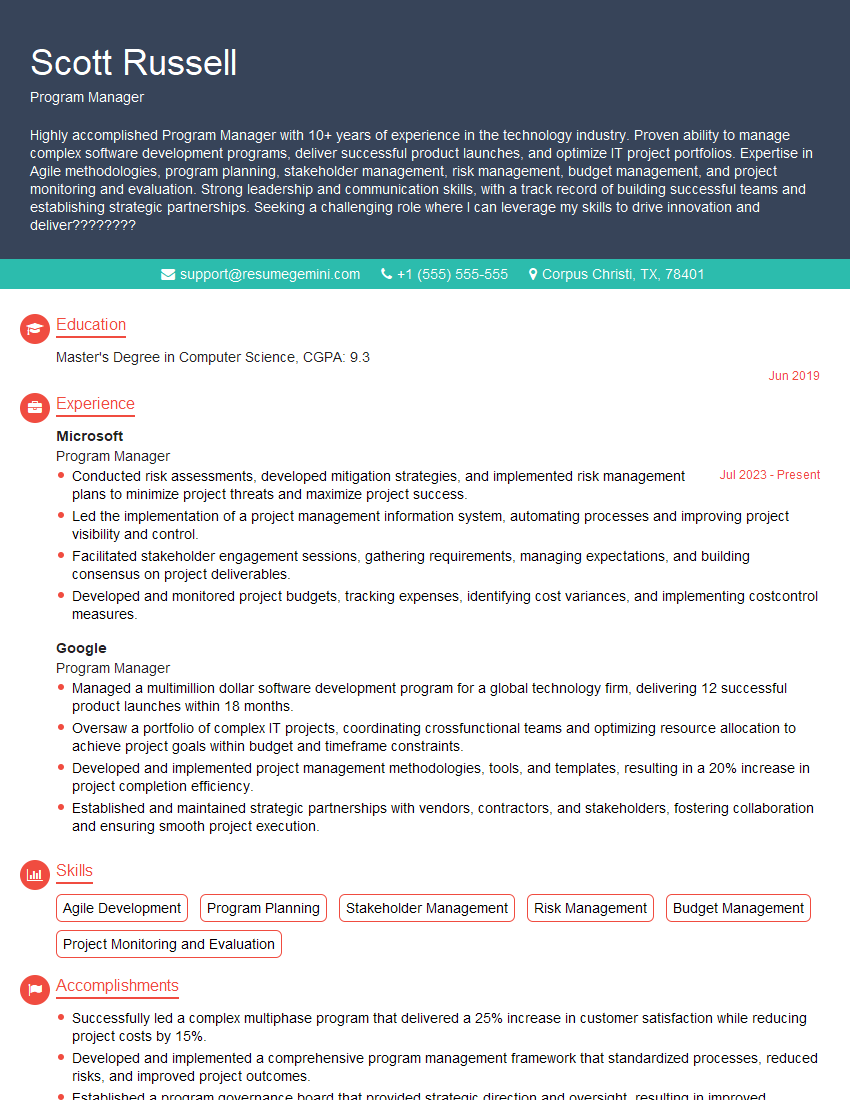
Program Manager Resume Sample
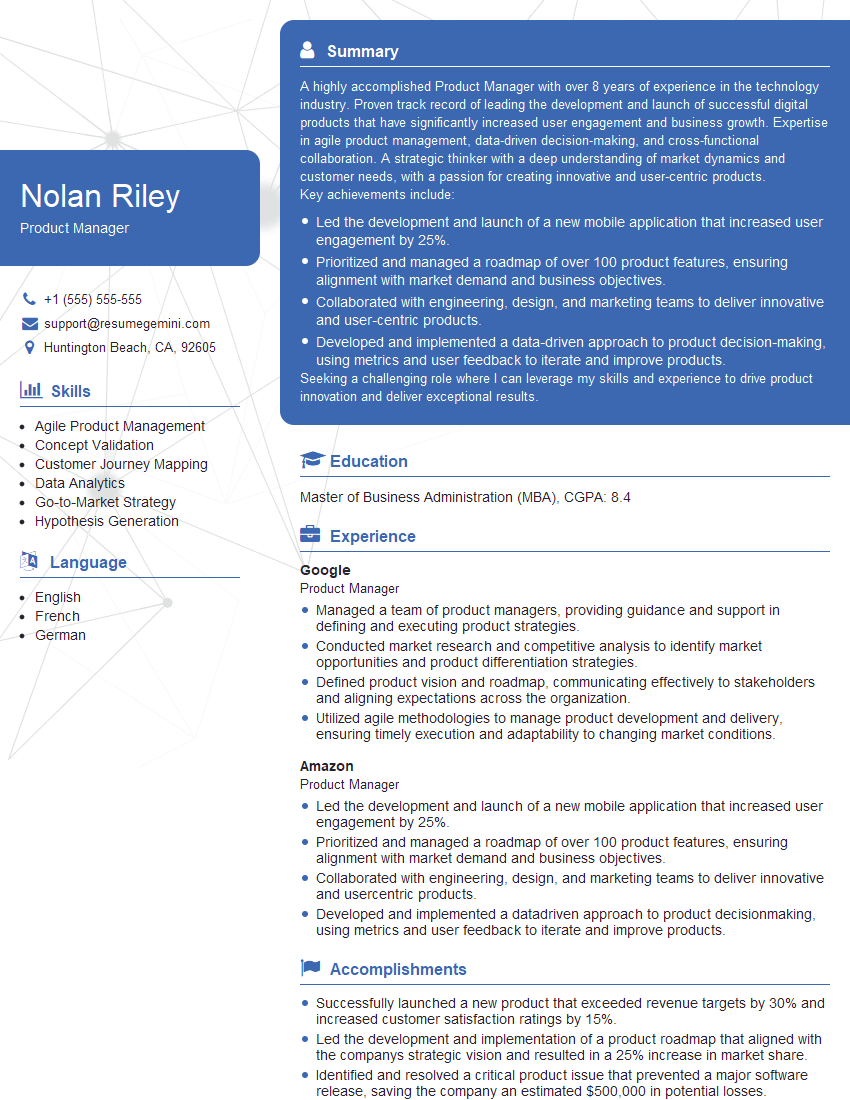
Product Manager Resume Sample
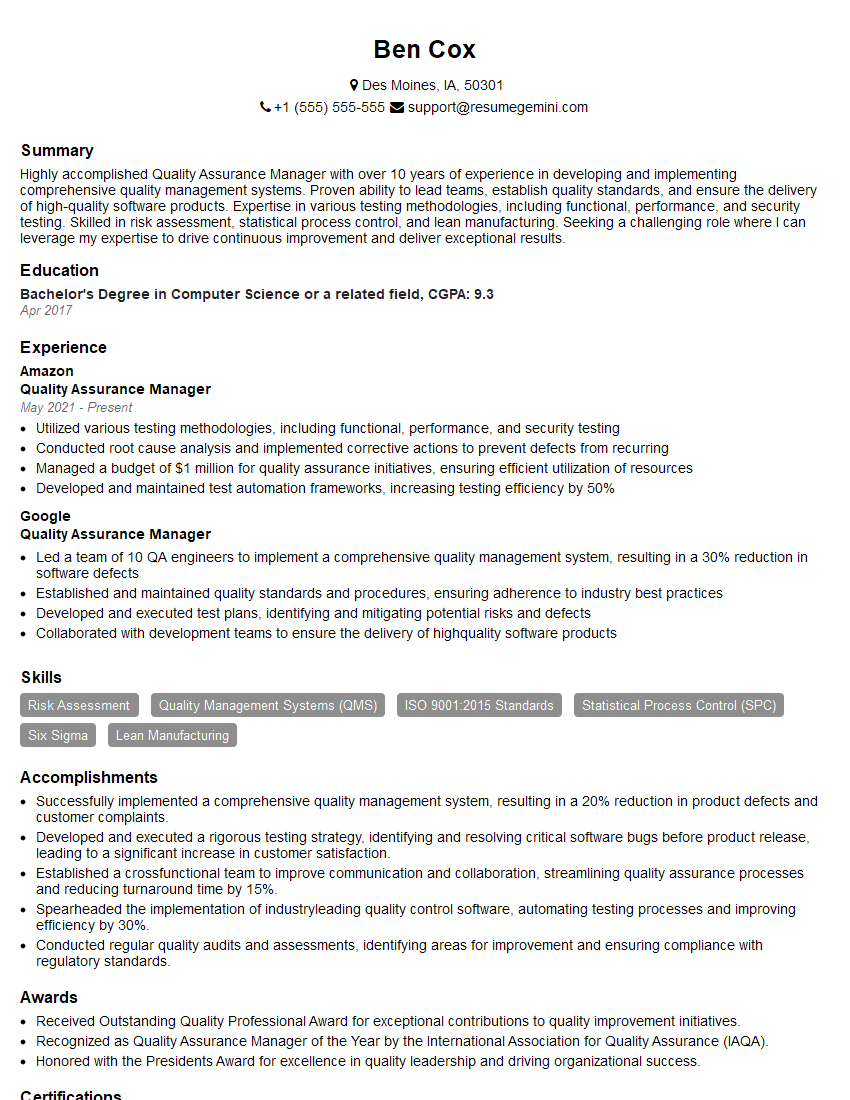
Quality Assurance Manager Resume Sample
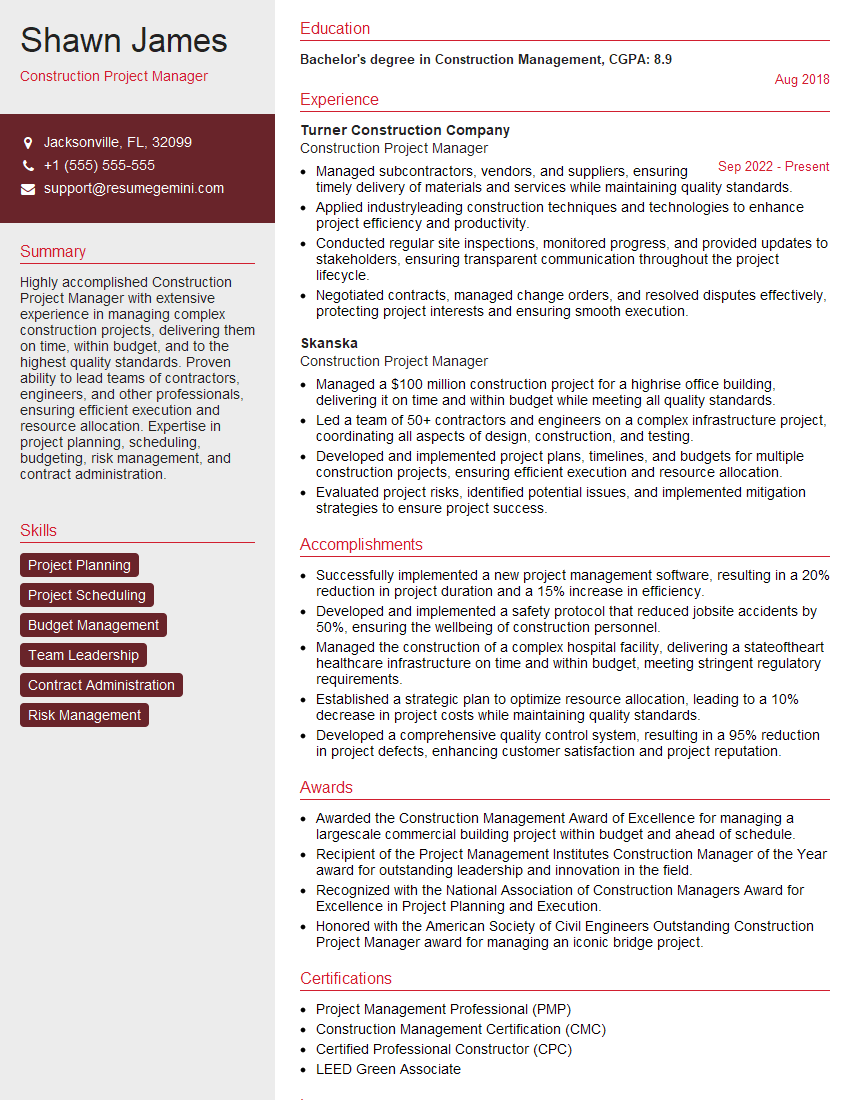
Construction Project Manager Resume Sample
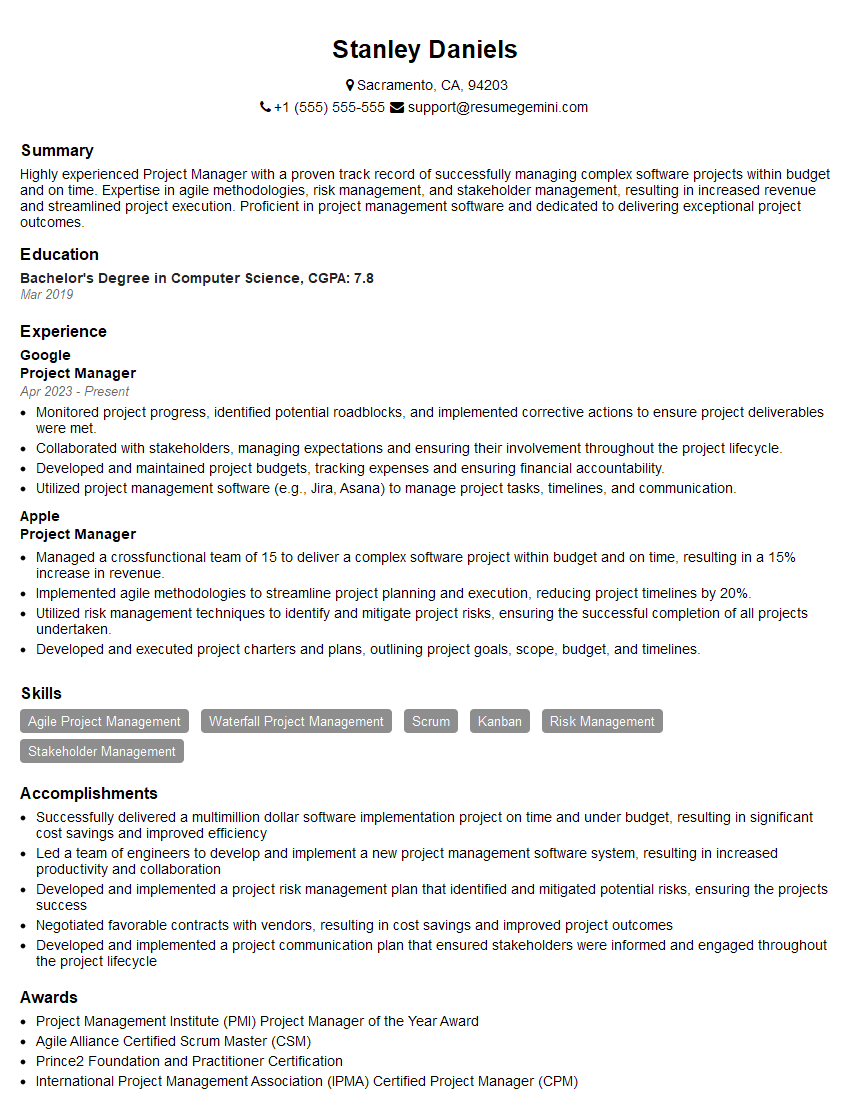
Project Manager Resume Sample
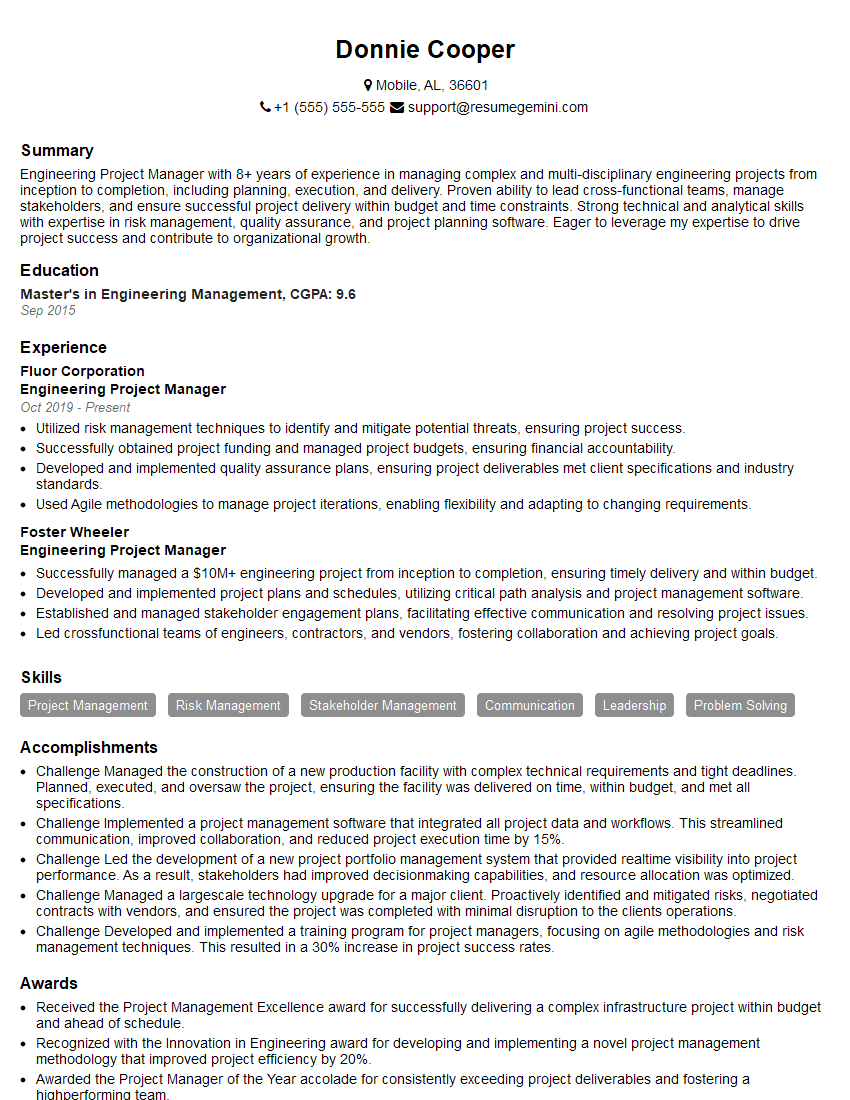
Engineering Project Manager Resume Sample
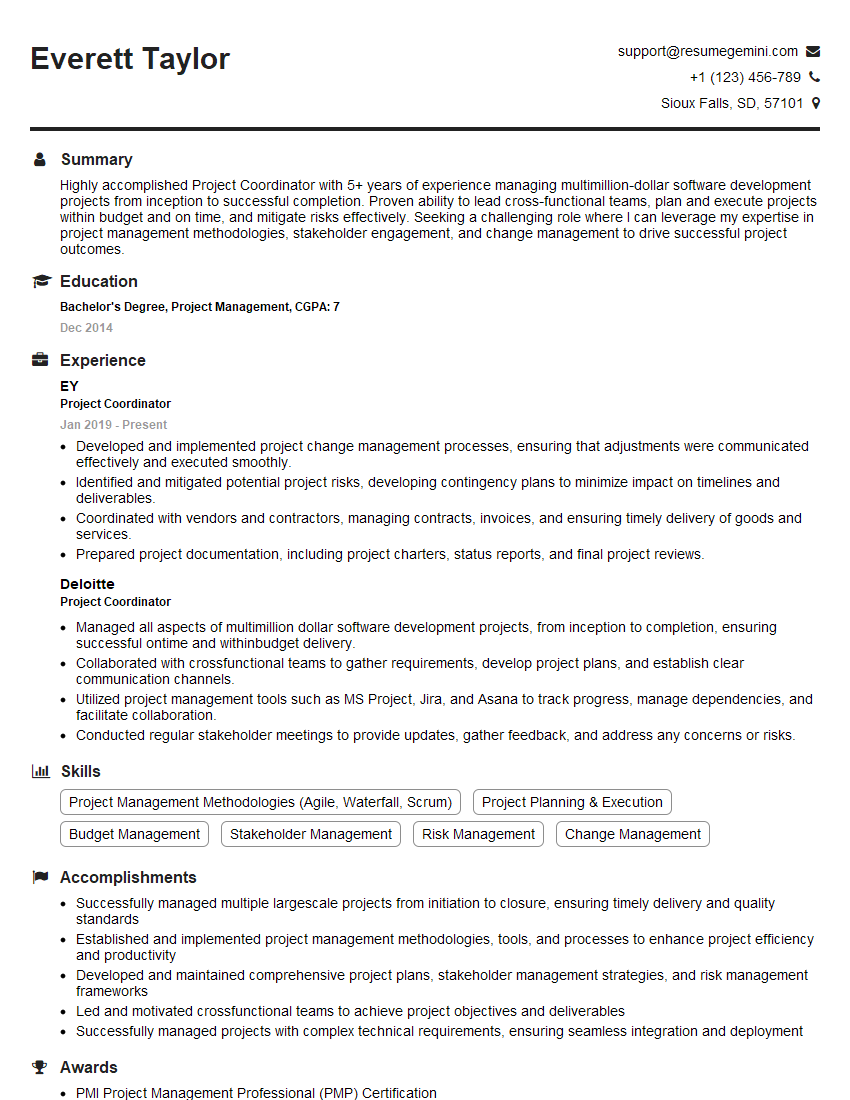
Project Coordinator Resume Sample
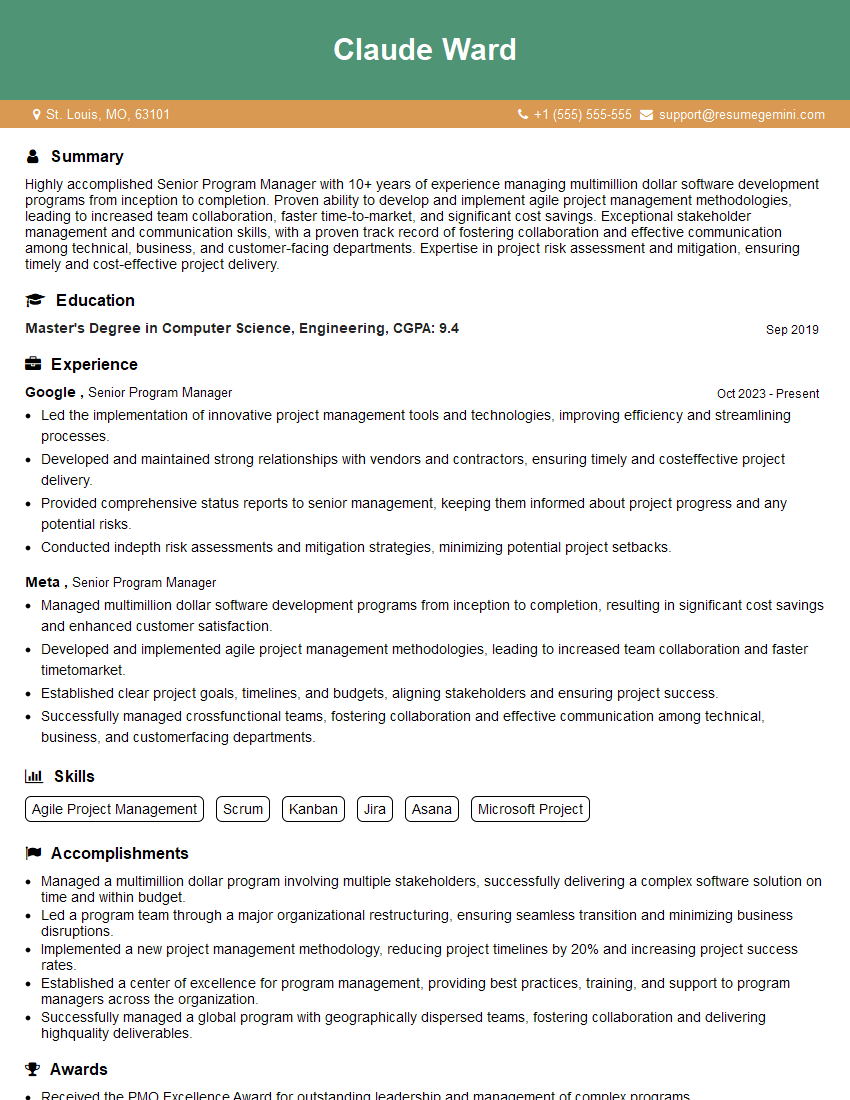
Senior Program Manager Resume Sample
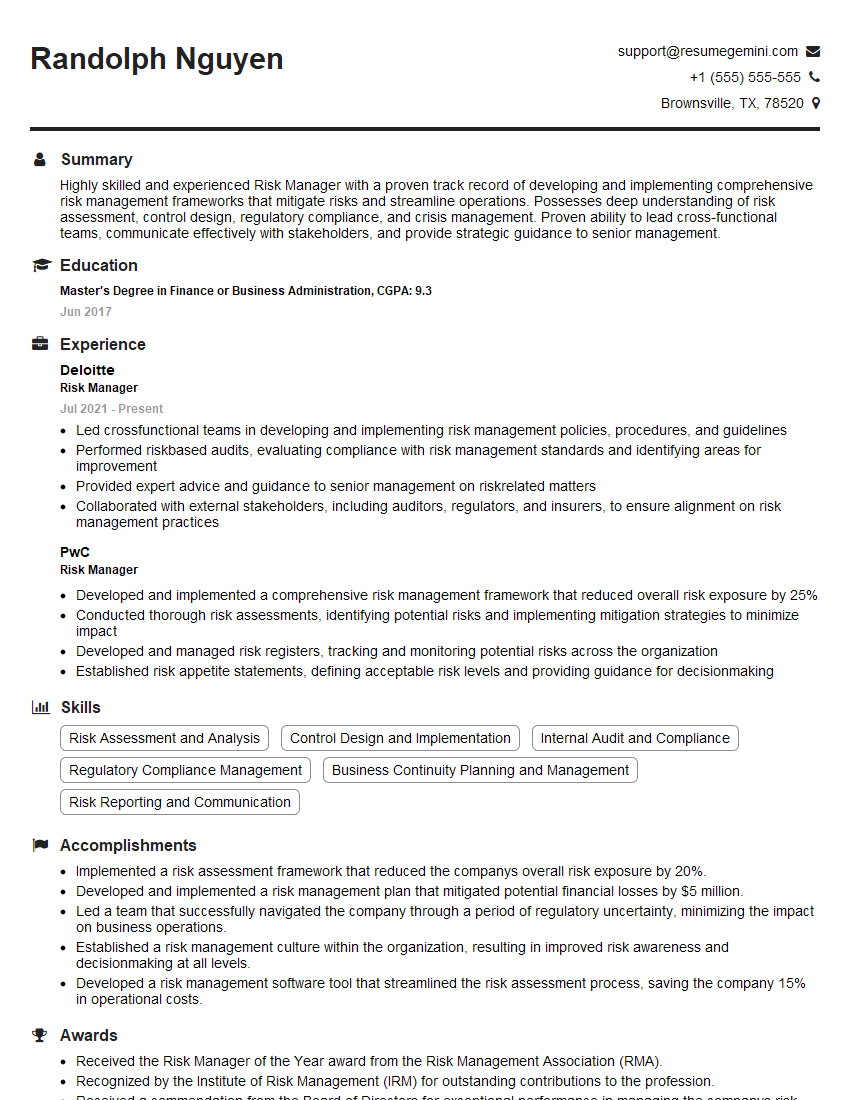
Risk Manager Resume Sample
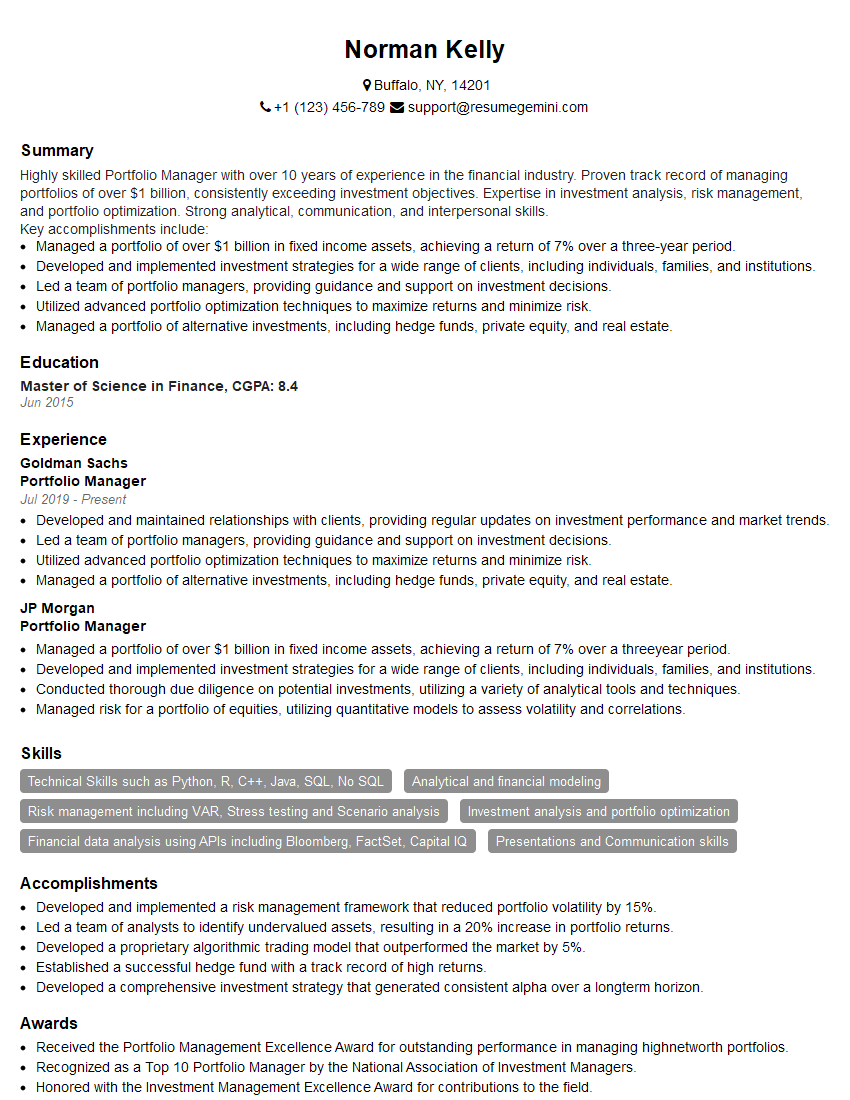
Portfolio Manager Resume Sample

Business Analyst Resume Sample
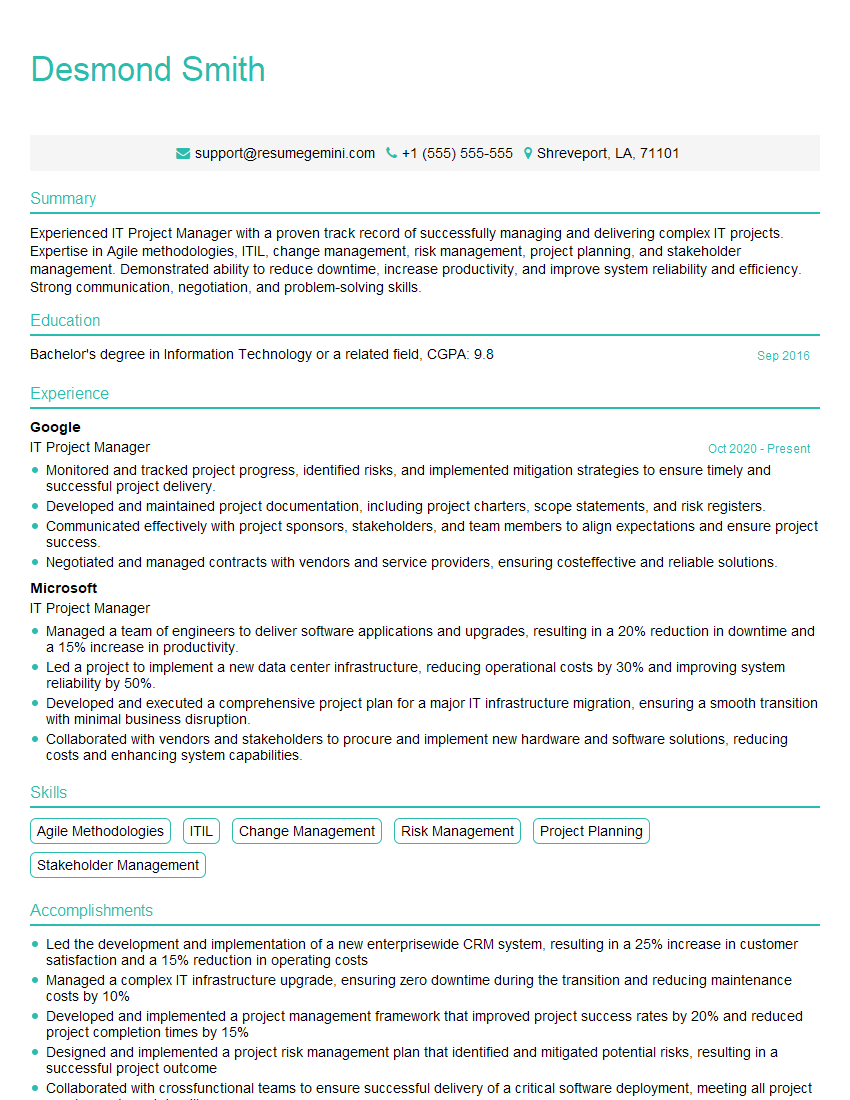
IT Project Manager Resume Sample
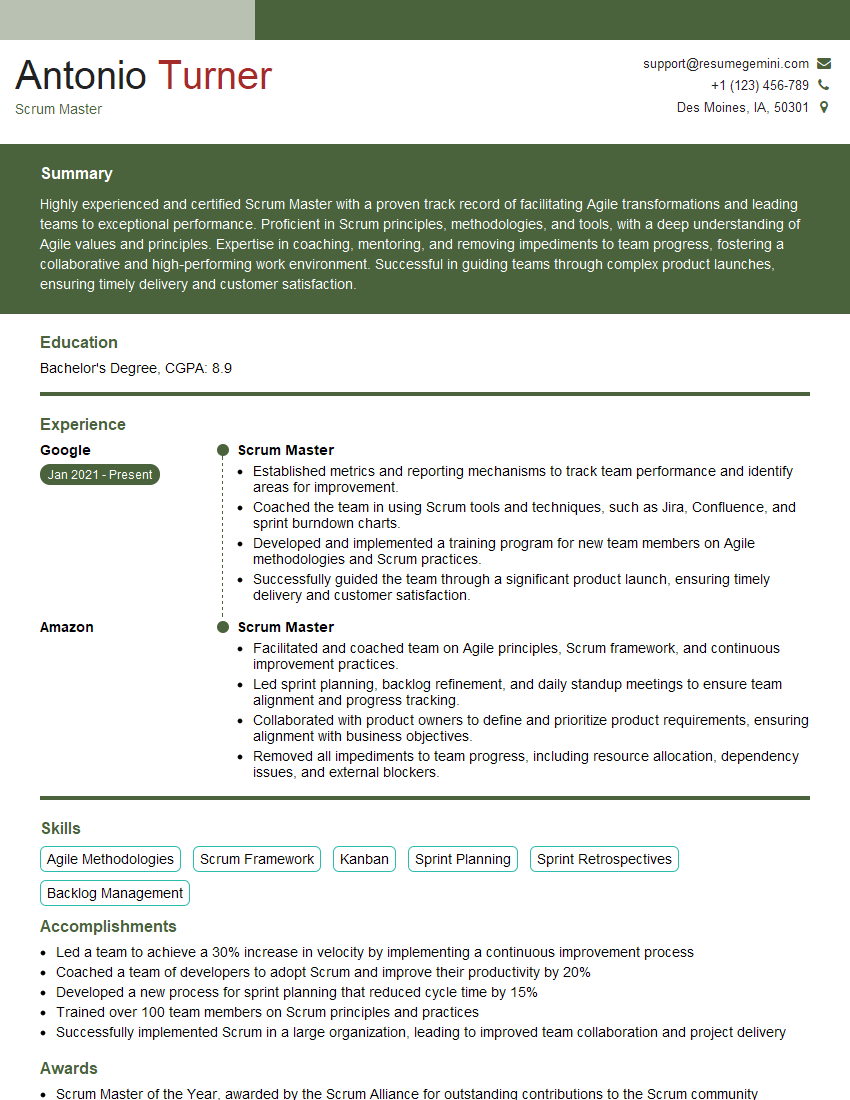
Scrum Master Resume Sample
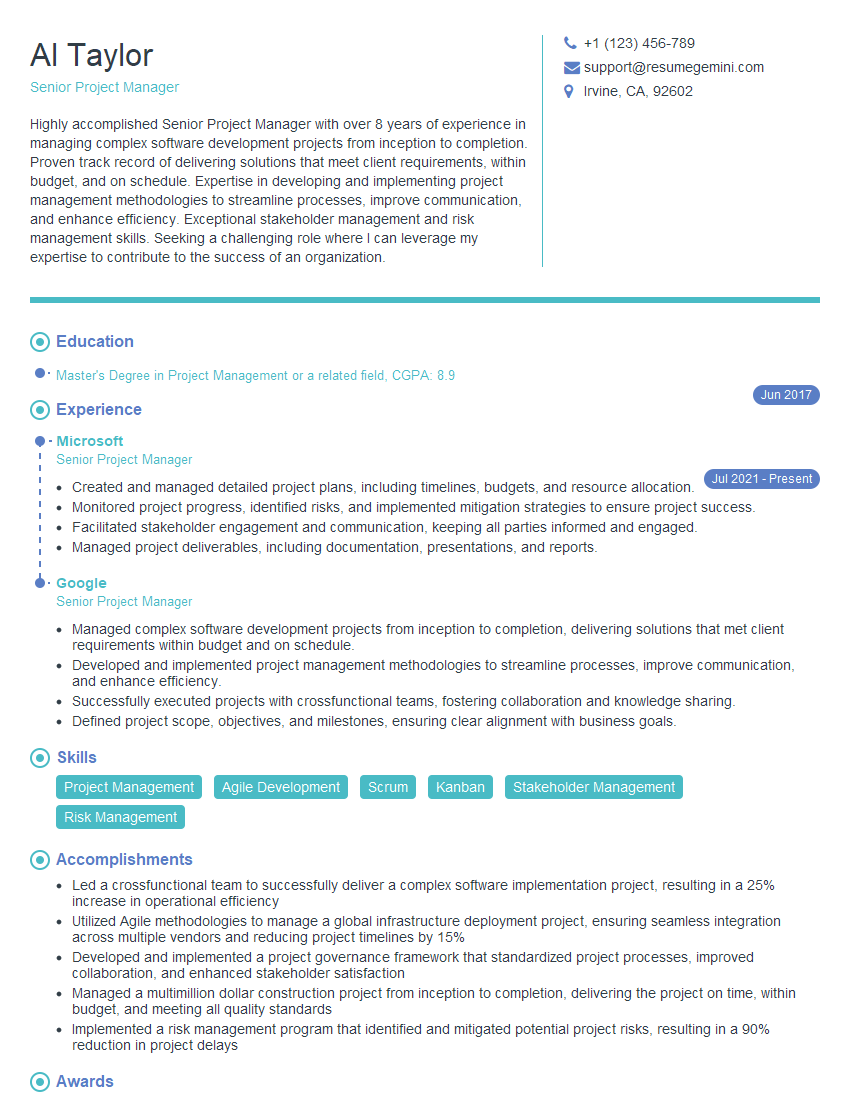
Senior Project Manager Resume Sample
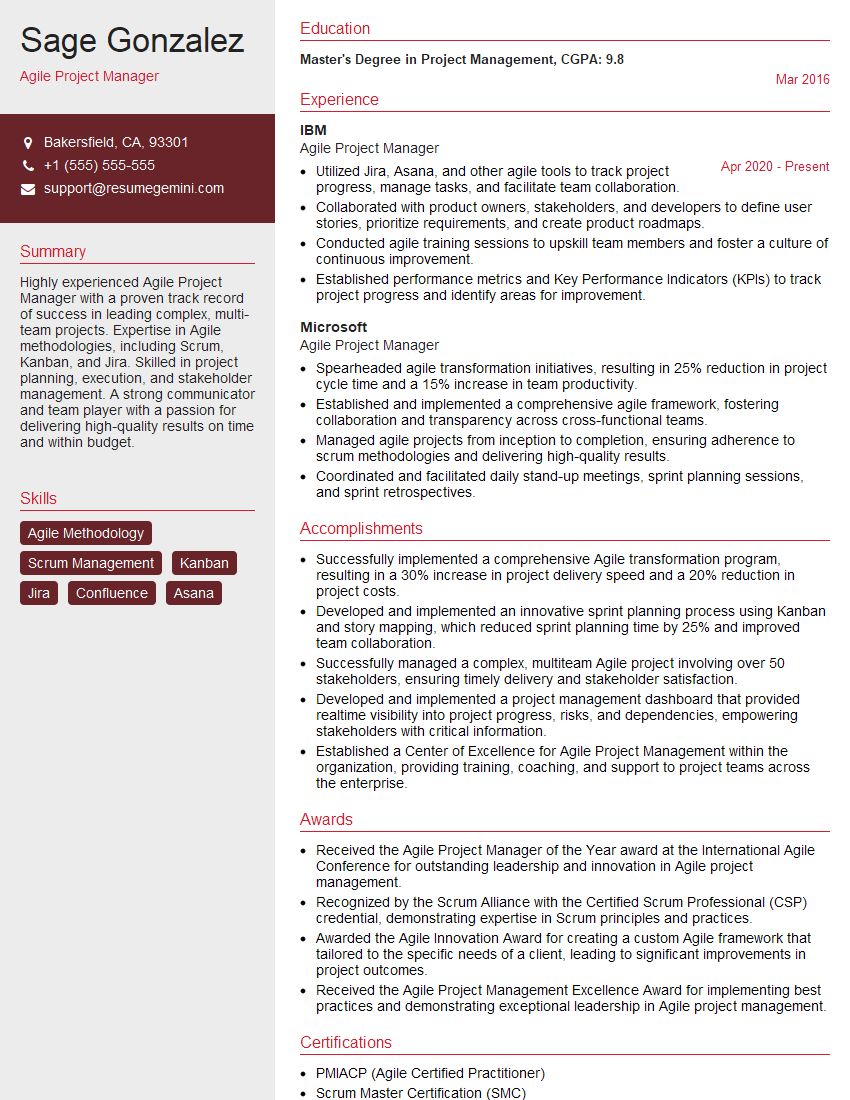
Agile Project Manager Resume Sample
Explore more articles
Users Rating of Our Blogs
Share Your Experience
We value your feedback! Please rate our content and share your thoughts (optional).
What Readers Say About Our Blog
Very informative content, great job.
good