Are you ready to stand out in your next interview? Understanding and preparing for Photography and Photo Manipulation interview questions is a game-changer. In this blog, we’ve compiled key questions and expert advice to help you showcase your skills with confidence and precision. Let’s get started on your journey to acing the interview.
Questions Asked in Photography and Photo Manipulation Interview
Q 1. Explain the difference between RAW and JPEG image formats.
The core difference between RAW and JPEG lies in how they store image data. JPEG (Joint Photographic Experts Group) is a lossy compressed format. Think of it like summarizing a long story – you lose some detail to make the file smaller and faster to share. RAW, on the other hand, is an uncompressed or minimally compressed format. It’s like having the full manuscript; it contains all the image data captured by your camera’s sensor. This means significantly more detail and flexibility for post-processing.
- JPEG: Smaller file size, convenient for sharing, less editing flexibility, some image detail lost during compression.
- RAW: Larger file size, requires more storage, offers significantly greater editing flexibility, retains maximum image detail.
For example, if you’re shooting a landscape with subtle color gradations, a RAW file will allow you to recover highlights and shadows much more effectively than a JPEG. The JPEG will have already ‘decided’ on the final tonal range during compression, losing valuable data.
Q 2. Describe your experience with Adobe Photoshop.
I’ve been using Adobe Photoshop professionally for over 10 years, proficient in all aspects from basic retouching to advanced compositing and 3D integration. My expertise spans various versions, including the latest iterations. I’ve used it for everything from subtle beauty retouching to complex image manipulation for advertising campaigns and editorial work. I’m comfortable with layer masks, adjustment layers, smart objects – all the tools necessary for non-destructive editing. I’ve even developed custom actions and brushes to streamline my workflow. For instance, I created a custom action to automate the process of skin smoothing while preserving texture, saving significant time on large portrait projects.
Q 3. What are your preferred methods for color correction and grading?
My approach to color correction and grading is multifaceted, prioritizing a natural and visually appealing result. I typically start with a non-destructive workflow using adjustment layers in Photoshop. For color correction, I often use curves and levels adjustments to fine-tune the overall tonal range and balance. I might employ the selective color adjustment to target specific colors, say, enhancing the saturation of the blues in a landscape photo. For color grading, I lean towards tools like Color Lookup and Gradient Map to introduce a stylistic mood. I often use reference images to guide my choices, ensuring consistency and a cohesive look. For example, if I’m aiming for a cinematic look, I’ll use a LUT (Look-Up Table) to apply a pre-defined color grading style.
Q 4. How do you handle large-scale image retouching projects?
Handling large-scale retouching projects requires a highly organized and efficient approach. I start by breaking down the project into manageable chunks. This might involve assigning specific tasks to different team members (if applicable) or creating a detailed checklist for individual phases like batch processing, retouching, and final compositing. I always prioritize non-destructive editing to allow for revisions and flexibility. Using actions and batch processing tools in Photoshop significantly reduces repetitive tasks. Regular backups are critical to prevent data loss. Finally, a strong communication structure is essential to keep the team aligned and on schedule, especially when dealing with clients and multiple stakeholders.
Q 5. Describe your workflow for photo manipulation projects.
My photo manipulation workflow is iterative and adaptable. It generally involves:
- Conceptualization & Planning: Clearly defining the desired outcome, including mood, style, and technical aspects.
- Image Acquisition & Selection: Gathering high-resolution source images and selecting the best options.
- Masking & Selection: Precisely isolating elements using various selection tools like the pen tool and the lasso tool.
- Color Correction & Grading: Adjusting tones and colors to achieve consistency and visual harmony.
- Compositing: Combining selected elements seamlessly, paying close attention to lighting, shadows, and perspective.
- Detailing & Refining: Adding final touches, adjusting textures, and perfecting the overall image.
- Final Export & Delivery: Preparing the final image in the correct format and resolution for the intended use.
I always keep a version history, allowing me to revert to previous stages if needed. This systematic approach ensures consistent quality and avoids unexpected issues.
Q 6. What are your go-to techniques for removing blemishes and imperfections?
My preferred methods for removing blemishes and imperfections focus on preserving natural skin texture. I avoid harsh techniques that can create an artificial look. I frequently use the Healing Brush Tool and the Patch Tool in Photoshop. The Healing Brush intelligently samples surrounding skin tones to seamlessly blend blemishes, while the Patch Tool lets me select and replace areas with a more even texture. For more advanced cases, I might use frequency separation, a technique that separates skin texture from tones, allowing me to retouch each aspect independently, resulting in a more natural and refined result.
Q 7. How do you manage color consistency across multiple images?
Maintaining color consistency across multiple images is crucial, particularly in projects like photo series or product photography. I use a variety of techniques to achieve this. First, shooting under consistent lighting conditions is key. Using a color calibration target during the shoot helps with post-production adjustments. In post-processing, I utilize tools like the camera calibration panel in Adobe Camera Raw to adjust white balance and ensure consistency in tone and color. I often create a reference image with a consistent color profile, then use adjustment layers and color matching techniques to bring other images into alignment. Tools like ‘Match Color’ in Photoshop are highly effective in this regard.
Q 8. What is your experience with masking and layering techniques?
Masking and layering are fundamental techniques in photo manipulation, allowing for precise editing and compositing. Think of it like working with transparent sheets of acetate – each layer holds a different element, and masks control the visibility of parts of those layers.
Masking involves selecting specific areas of an image to edit without affecting others. For example, I might use a layer mask to selectively remove a blemish from a portrait without affecting the surrounding skin tones. I commonly use various masking techniques, including quick mask, channel masking (especially useful for complex selections like hair), and vector masks for sharp, easily editable edges.
Layering is the organization of images and edits on separate layers. This non-destructive workflow allows for easy adjustments and revisions. I might layer a texture over a portrait to add depth and interest, or layer multiple exposures to create a high dynamic range (HDR) image. Each layer can be adjusted individually – its opacity, blending mode, etc. – providing unparalleled control over the final image.
For instance, I recently worked on a project where I needed to seamlessly integrate a model into a fantasy landscape. Using layer masks, I carefully masked out the model’s background, paying close attention to the hair and other intricate details. Then, using adjustment layers and blending modes, I matched the lighting and color of the model to the background for a realistic composite.
Q 9. How do you handle client feedback on photo edits?
Client feedback is crucial. I approach it as a collaborative process. First, I ensure clear communication from the start; understanding their vision and expectations before starting any work is key. I often request reference images or mood boards to guide the editing process.
When receiving feedback, I actively listen and ask clarifying questions. Rather than simply implementing changes, I try to understand the *reason* behind the feedback. Sometimes, what a client describes might be achieved through different techniques. For example, a client might say “make it brighter,” but that could mean increasing exposure, highlights, or even adding a luminosity layer – I would discuss the best method with them.
I always provide revisions and actively seek approval before finalizing the image. My aim is not just to meet expectations but to exceed them by delivering a product that truly reflects the client’s vision while leveraging my professional expertise. I find that showing the process and explaining different editing approaches helps clients feel involved and confident in the final product. This transparency builds trust and ensures a positive working relationship.
Q 10. Describe your experience with different file formats (TIFF, PNG, GIF).
Understanding different file formats is crucial for maintaining image quality and compatibility. Each format serves a specific purpose:
- TIFF (Tagged Image File Format): TIFF is a lossless format, meaning no image data is discarded during saving. This ensures the highest possible quality, making it ideal for archiving and high-resolution printing. However, TIFF files are typically much larger than other formats.
- PNG (Portable Network Graphics): PNG is also a lossless format, but it’s more efficient than TIFF, resulting in smaller file sizes. It supports transparency, making it perfect for web graphics and images with alpha channels. PNGs are a versatile choice for many projects.
- GIF (Graphics Interchange Format): GIF is a lossy format that supports animation and a limited color palette (up to 256 colors). Its small file size makes it suitable for web graphics, particularly animations, and situations where file size is paramount. The lossy nature means it’s not ideal for photographs requiring high fidelity.
Choosing the right format depends on the intended use. For archival purposes or high-quality printing, TIFF is the best choice. For web graphics with transparency, PNG is often preferred. And GIF is best utilized for short, looping animations.
Q 11. What software are you proficient in besides Photoshop?
Beyond Photoshop, I’m proficient in several other industry-standard software applications. This diversity allows me to approach projects with flexibility and choose the best tool for the job.
- Capture One: For raw image processing and tethered shooting. It offers powerful tools for color grading and image adjustments, with superior raw file handling capabilities.
- Lightroom Classic: Primarily for organizing, editing, and managing large photo collections. Its non-destructive workflow and intuitive interface enhance efficiency.
- Affinity Photo: A powerful and affordable alternative to Photoshop, boasting a similar feature set and excellent performance. This is great when needing an affordable option with a high level of functionality.
My experience with these programs enhances my overall workflow and lets me provide comprehensive and efficient service to my clients.
Q 12. Explain your understanding of image resolution and DPI.
Image resolution and DPI (dots per inch) are critical concepts for achieving high-quality images. Resolution refers to the number of pixels in an image (e.g., 3000 x 2000 pixels). Higher resolution means more detail and sharper images. DPI, on the other hand, represents the number of ink dots or pixels printed per inch. It dictates print quality.
A common misconception is that increasing DPI increases resolution. This is incorrect; DPI only affects the printing process. Changing the DPI doesn’t add more pixels to the image; it only changes the scale at which the image is printed. A low-resolution image printed at a high DPI will still appear pixelated. Conversely, a high-resolution image printed at a lower DPI will print well, but it will be smaller in size.
For example, a high-resolution image (3000 x 2000 pixels) is suitable for large format printing. To achieve a crisp print, you would set the DPI to 300, which is a standard for high-quality photo printing. However, for web use, a lower resolution is acceptable since screen resolution is typically lower, and larger file sizes would slow down load times.
Q 13. How do you optimize images for web and print?
Optimizing images for web and print requires different approaches due to the varying display and printing capabilities.
Web Optimization: For the web, smaller file sizes are essential to ensure fast loading times. I use techniques like:
- Compression: Reducing file size without significant quality loss using tools like TinyPNG or Photoshop’s Save for Web feature. Lossy compression is often used for JPEGs and GIFs.
- Resizing: Reducing image dimensions (resolution) to match common screen resolutions. Avoid unnecessarily large images.
- Format Selection: Utilizing appropriate formats like JPEG for photos and PNG for images with transparency.
Print Optimization: For print, maintaining high resolution is crucial. I ensure:
- High Resolution: Using images with a minimum of 300 DPI (dots per inch) for high-quality prints.
- Color Profile: Embedding the correct color profile (e.g., sRGB for web, Adobe RGB for print) to ensure accurate color reproduction.
- Format Selection: Typically using TIFF or high-quality JPEG for print-ready files.
Understanding these differences is critical for delivering images that look their best in their intended medium.
Q 14. Describe your experience with HDR photography.
HDR (High Dynamic Range) photography involves capturing and combining multiple exposures of the same scene at different exposures to create an image with a wider range of tones and details than a single exposure could capture. This results in images with richer colors, greater detail in both highlights and shadows, and a more lifelike appearance.
My experience with HDR photography includes capturing bracketed exposures using a tripod, then merging them in software like Photoshop or Lightroom. I often use tools that automatically align and blend the images, followed by careful manual adjustments to fine-tune the results. It’s vital to avoid creating an unrealistic, overly saturated look; the goal is enhancement, not artificiality. The key is to maintain a natural and balanced image.
For example, I recently photographed a sunset over a cityscape. By capturing bracketed exposures, I was able to capture the detail in both the bright sky and the darker buildings, creating an image with greater depth and impact than any single exposure could have provided. Subtle adjustments were made to reduce any halo effects common with HDR and to ensure a realistic final image.
Q 15. Explain your approach to compositing images.
Compositing is the art of combining multiple images to create a single, seamless final image. My approach is meticulous and involves several key stages. First, I carefully select source images ensuring high resolution and optimal quality. I then meticulously mask each element, paying close attention to detail to ensure clean edges and avoid any harsh transitions. This often involves using a combination of tools like the pen tool, lasso tool, and layer masks in Photoshop. Next, I adjust color, tone, and lighting to ensure consistency across the various elements. This might involve using adjustment layers, curves, and color balance tools to match the lighting and color palettes. Finally, I perform a thorough check for any inconsistencies or artifacts, refining the image until it looks completely natural and believable. Think of it like building with LEGOs – each piece (image) needs to fit perfectly with the others, requiring precise cuts and adjustments to achieve a cohesive whole. A recent project involved compositing a model onto a fantasy landscape, requiring careful masking of the model, adjustment of lighting and shadows to match the environment, and subtle color grading to maintain realism.
Career Expert Tips:
- Ace those interviews! Prepare effectively by reviewing the Top 50 Most Common Interview Questions on ResumeGemini.
- Navigate your job search with confidence! Explore a wide range of Career Tips on ResumeGemini. Learn about common challenges and recommendations to overcome them.
- Craft the perfect resume! Master the Art of Resume Writing with ResumeGemini’s guide. Showcase your unique qualifications and achievements effectively.
- Don’t miss out on holiday savings! Build your dream resume with ResumeGemini’s ATS optimized templates.
Q 16. How familiar are you with different types of lenses and their effects?
I’m very familiar with various lenses and their effects. Understanding lenses is crucial for achieving the desired look and feel in photography. For example, wide-angle lenses (e.g., 14-24mm) are great for capturing expansive landscapes, creating a sense of depth and scale, but they can also distort perspective at the edges. Telephoto lenses (e.g., 70-200mm) compress perspective, making subjects appear closer and backgrounds appear flatter. This is ideal for wildlife or portrait photography. Macro lenses allow for extreme close-up shots, revealing intricate details in nature or objects. Prime lenses (fixed focal length) often offer superior image quality and sharpness compared to zoom lenses, which can be crucial in situations where image quality is paramount. The choice of lens significantly influences the overall aesthetic of an image and choosing the right one is an important decision in the creative process.
Q 17. Describe your understanding of lighting and its impact on photography.
Lighting is the foundation of photography. It shapes the mood, highlights textures, and directs the viewer’s eye. Understanding light direction (front, side, back, top, bottom) is key. Front lighting is generally even and reveals detail; side lighting creates drama and shadows; backlighting creates silhouettes and highlights edges. The quality of light—hard (direct sunlight) versus soft (diffused light)—also dramatically alters the feel of an image. Hard light creates strong contrasts and deep shadows, while soft light produces subtle transitions and minimizes harshness. Color temperature (warm versus cool) influences mood; warmer tones suggest comfort and intimacy, while cooler tones create a sense of calm or detachment. Mastering lighting involves understanding these factors and using them strategically to convey the intended emotion and message. For example, a portrait shot with soft, warm light will evoke a different feeling compared to one using harsh, cool light.
Q 18. How do you ensure the ethical use of images and avoid copyright infringement?
Ethical image use is paramount. I always ensure I have the necessary rights before using any image in my work. This includes obtaining model releases for any people in the images and securing licenses for any copyrighted images or stock photos. I also carefully consider the context in which images are used and ensure they are not being used in a misleading or deceptive way. I am diligent in checking websites that offer royalty-free images for legality and verifying the licensing terms before using them. When in doubt, I always seek legal advice to prevent any potential copyright infringement. Building trust and integrity is important, so I always work transparently and ethically with clients and maintain detailed records of image usage.
Q 19. How would you approach a project with a tight deadline?
When facing a tight deadline, I employ a structured approach. I begin with a clear understanding of the project requirements and break it down into smaller, manageable tasks. Prioritization is key—I identify the most critical elements and focus on those first. I utilize efficient workflows and leverage automation where possible, employing shortcuts and actions within my editing software. Effective communication with the client is crucial to manage expectations and ensure we’re on the same page throughout the process. I’ve learned that maintaining focus and staying organized under pressure is crucial; using checklists and detailed project plans can save significant time in the long run. In one instance, I had to deliver a series of photo manipulations for a marketing campaign within 48 hours. By breaking down the project into individual asset creation and prioritizing those most critical to campaign success, I was able to deliver on time and meet all client expectations.
Q 20. Explain your understanding of various photographic styles (e.g., portrait, landscape).
My understanding of photographic styles encompasses a wide range. Portrait photography focuses on capturing the personality and essence of a person, requiring attention to posing, lighting, and composition. Landscape photography focuses on capturing the beauty and scale of natural environments, emphasizing light, composition, and depth of field. Architectural photography emphasizes precision and showcasing the details and structure of buildings. Product photography showcases products effectively and realistically, while street photography documents everyday life candidly and often uses unique perspectives. Each style demands different techniques and approaches. For example, portrait photography often utilizes shallow depth of field to isolate the subject, while landscape photography may prioritize a wider depth of field to maintain sharpness throughout the scene. Understanding the distinct characteristics of each style allows for creative and effective image creation.
Q 21. What are some common challenges you face in photo manipulation?
Common challenges in photo manipulation include achieving realistic blending of elements, dealing with inconsistencies in lighting and color, and maintaining image sharpness without introducing artifacts. Another challenge is seamlessly integrating elements from different sources, which requires careful masking and color correction. Dealing with perspective and ensuring consistent depth of field across different elements can also be tricky. Sometimes, finding high-resolution source images can be limiting. Overcoming these challenges often involves careful planning, meticulous attention to detail, and utilizing advanced techniques like frequency separation for detailed retouching and color grading to achieve consistency. For instance, matching the shadows and highlights between two different images, one with a bright background and the other in shadow, may require extensive work to make the final image appear natural. Experimentation with various masking and blending modes is an essential aspect of overcoming these challenges.
Q 22. How do you troubleshoot technical issues during a photoshoot or edit?
Troubleshooting technical issues during a photoshoot or edit requires a systematic approach. I begin by identifying the problem – is it camera-related (e.g., malfunctioning shutter, incorrect settings), lighting (e.g., inconsistent exposure, harsh shadows), or software-related (e.g., crashing programs, corrupted files)?
- Camera Issues: If the problem stems from the camera, I’ll first check the basic settings: ISO, aperture, shutter speed. I’ll also inspect the lens for any debris or damage. If the issue persists, I might try a different camera or lens to isolate the problem. A quick test shot can help determine if the problem is resolved.
- Lighting Issues: Incorrect lighting often leads to underexposed or overexposed images, harsh shadows, or color casts. My solution would involve adjusting the light source (moving it, using reflectors or diffusers), changing the camera’s settings (aperture priority, exposure compensation) or applying post-processing corrections (exposure adjustment, shadows/highlights recovery).
- Software Issues: For software problems, I start with the basics: restarting the program, checking for updates, and ensuring sufficient disk space and RAM. If a file is corrupted, I might try opening it in a different editing program or recovering it from a backup. If the issue is with a specific plugin or tool, I’d try disabling it temporarily to see if that resolves the problem.
Ultimately, proactive measures like equipment maintenance, regular software updates, and backups are crucial in preventing many technical issues. Experience and a methodical approach allow for efficient problem-solving.
Q 23. What is your experience with image sharpening and noise reduction?
Image sharpening and noise reduction are crucial post-processing steps. Sharpening enhances the detail and clarity of an image, while noise reduction minimizes grain or speckles, especially prevalent in low-light photography.
Sharpening: I typically use unsharp masking (USM) in my workflow. This technique subtly enhances edges and details without creating unnatural halos. I carefully adjust the amount, radius, and threshold parameters to achieve a natural-looking result. Over-sharpening can lead to a harsh, artificial look. I often apply sharpening selectively to areas that need it most.
Noise Reduction: I employ noise reduction techniques carefully, as overly aggressive noise reduction can lead to a loss of detail and a ‘painted’ appearance. I prefer algorithms that intelligently target noise while preserving textures. I often use luminosity masking to target noise reduction only in the darker areas of the image, where noise is usually most visible. The choice of noise reduction technique depends heavily on the type of noise present and the overall style of the image.
My experience spans a wide array of software and techniques. I adapt my approach based on the specific needs of each image and the desired final result.
Q 24. Describe your understanding of different color spaces (e.g., RGB, CMYK).
Color spaces define the range and representation of colors. RGB (Red, Green, Blue) is the additive color model, used for screens and digital displays. CMYK (Cyan, Magenta, Yellow, Key/Black) is the subtractive color model, used for printing. Understanding their differences is essential for consistent color across different media.
- RGB: Each color channel (R, G, B) has values from 0 to 255, representing the intensity of each color. RGB is ideal for digital editing because it offers a wider range of colors than CMYK. Images intended for web or screen display should remain in RGB.
- CMYK: CMYK uses subtractive mixing; inks are applied to a white surface, and the colors subtract from the white to produce the desired color. CMYK has a smaller gamut, meaning it can’t represent as many colors as RGB. The conversion from RGB to CMYK can result in color shifts. Converting to CMYK should only be done when printing is involved.
I routinely convert images between RGB and CMYK as required, while paying close attention to potential color shifts and making adjustments to ensure accurate color reproduction. Color management profiles (ICC profiles) are essential for consistent color across various devices and software.
Q 25. How do you maintain the integrity of the original image during editing?
Maintaining the integrity of the original image is paramount. Non-destructive editing is key. This means applying edits as layers or adjustments that don’t permanently alter the original pixel data. Think of it like writing on a whiteboard with erasable markers – you can change your work without destroying the whiteboard itself.
- Working with Layers: I always edit on separate layers, keeping the original image untouched. This allows me to experiment with different edits and undo changes easily without impacting the base image.
- Adjustment Layers: I use adjustment layers (brightness/contrast, hue/saturation, etc.) instead of applying adjustments directly to the image. This allows for non-destructive adjustments that can be modified or removed at any time.
- Smart Objects: In applications like Photoshop, converting images to Smart Objects preserves image quality even after transformations (resizing, rotation) have been applied. This prevents quality loss that could occur with direct manipulation.
- Regular Backups: Saving multiple versions of my work (e.g., using Photoshop’s history panel or creating backups) is crucial to avoid data loss or irreversible edits. This practice lets me revert to earlier versions if needed.
By using these non-destructive techniques, I can create extensively edited images while always having access to the original pristine version.
Q 26. Describe your experience with using actions and presets in photo editing software.
Actions and presets in photo editing software offer efficiency and consistency. Actions are essentially automated workflows, while presets are pre-defined settings for adjustments like color grading or filters. They can significantly speed up the editing process.
Actions: I use actions to automate repetitive tasks, such as batch processing images (resizing, watermarking), applying specific editing techniques, or creating stylized effects. This is especially valuable for large-scale projects or when applying a consistent editing style across many images. I create custom actions to streamline my own workflows. For instance, I have an action for my standard color grading process that automatically adjusts exposure, contrast, and saturation in a specific way.
Presets: Presets are quicker for applying standard effects, such as a specific filter or color grading style. While helpful, I use them judiciously. Often, I’ll start with a preset as a foundation and then customize it further to fit each image’s individual needs, rather than blindly applying presets without adjustments.
While convenient, I always prioritize understanding the underlying adjustments within an action or preset. This allows for better control and customization, rather than relying solely on pre-defined settings.
Q 27. What is your understanding of non-destructive editing techniques?
Non-destructive editing is a crucial aspect of my workflow. It allows for flexibility, preservation of the original image, and efficient experimentation. As mentioned earlier, this means applying edits as layers or adjustments that don’t permanently change the original pixel data. This approach offers several key advantages.
- Flexibility: Edits can be easily modified, removed, or adjusted at any point during the editing process without affecting the underlying image.
- Reversibility: Mistakes can be easily corrected without fear of losing the original image. You can always go back to the original state.
- Experimentation: You can freely experiment with different edits without worrying about permanently altering the photo.
- Efficiency: Non-destructive edits are especially beneficial in large-scale projects, allowing for easy adjustment and consistency.
Non-destructive editing is not just a technique; it’s a philosophy that guides my entire editing process. It ensures that the original image remains intact, and I retain the flexibility to make adjustments at any stage.
Q 28. Describe a time you had to creatively solve a photo editing problem.
During a shoot for a fashion magazine, the model’s clothing reflected a harsh, distracting light source. Simply removing the reflection in post-processing wasn’t feasible because it would’ve left a noticeable mark on the fabric. The traditional approach would have been to re-shoot, but that wasn’t possible due to time constraints.
Instead, I decided to creatively solve the issue by using a combination of techniques: First, I cloned sections of the fabric subtly, blending them to minimize the reflection. Next, I used frequency separation – a technique that separates texture and color information – to refine the skin tone and fabric texture separately. This allowed me to make fine adjustments without blurring critical details. Finally, I employed color grading to match the overall lighting and tonal values of the image. The client was satisfied, and the magazine featured the image without any issues.
This problem highlights the value of thinking outside the box. While reshooting would have been ideal, my creative problem-solving skills allowed for a high-quality result within the given constraints. This example shows how a deep understanding of techniques and creative thinking can overcome unexpected challenges.
Key Topics to Learn for Photography and Photo Manipulation Interview
- Photography Fundamentals: Composition, lighting (natural and artificial), exposure triangle (aperture, shutter speed, ISO), depth of field, focusing techniques. Practical application: Analyze your portfolio, explaining your creative choices in each image.
- Image Editing & Manipulation Techniques: Color correction, retouching, masking, layering, blending modes, using adjustment layers. Practical application: Describe your workflow for a complex image edit, highlighting problem-solving moments.
- Software Proficiency: Demonstrate expertise in Adobe Photoshop, Lightroom, and potentially other relevant software (e.g., Capture One, GIMP). Practical application: Showcase your skills by discussing specific tools and techniques you’ve mastered.
- Digital Asset Management (DAM): Organizing and archiving your digital photographs efficiently. Practical application: Explain your system for managing large volumes of images and metadata.
- Understanding Client Needs: Interpreting briefs, managing expectations, and delivering high-quality results within deadlines. Practical application: Describe a project where you successfully navigated client feedback.
- Post-Processing Workflow: Developing an efficient and consistent workflow for image editing and delivery. Practical application: Explain your steps from RAW file to final image, including considerations for color space and file formats.
- Specialized Techniques (depending on role): Consider areas like HDR imaging, panoramic photography, 3D modeling/rendering (if applicable to the position). Practical application: Show examples of work that utilize these advanced skills (if relevant).
Next Steps
Mastering photography and photo manipulation opens doors to exciting careers in diverse fields, from advertising and e-commerce to journalism and fine arts. To maximize your job prospects, invest time in crafting a strong, ATS-friendly resume that effectively showcases your skills and experience. ResumeGemini is a trusted resource to help you build a professional resume that stands out. We provide examples of resumes tailored specifically to Photography and Photo Manipulation roles, to help you create a compelling application that secures your dream job.

Multimedia Specialist Resume Sample
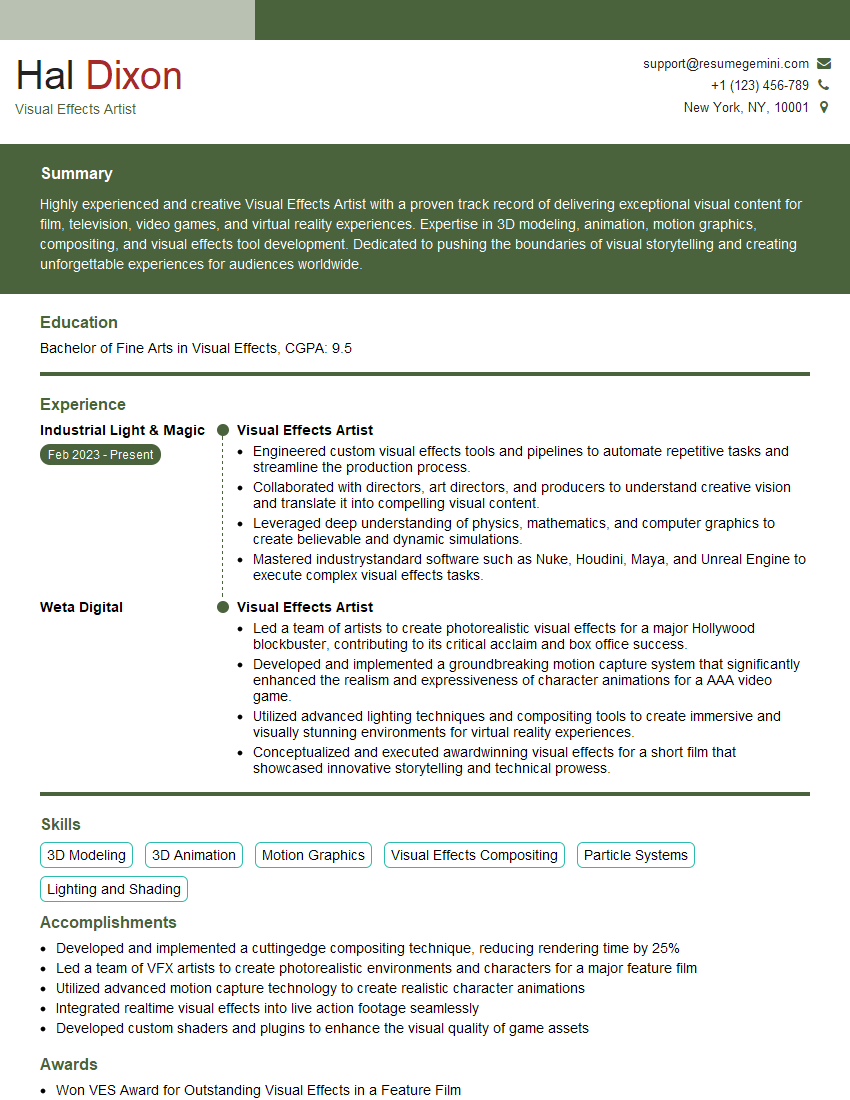
Visual Effects Artist Resume Sample
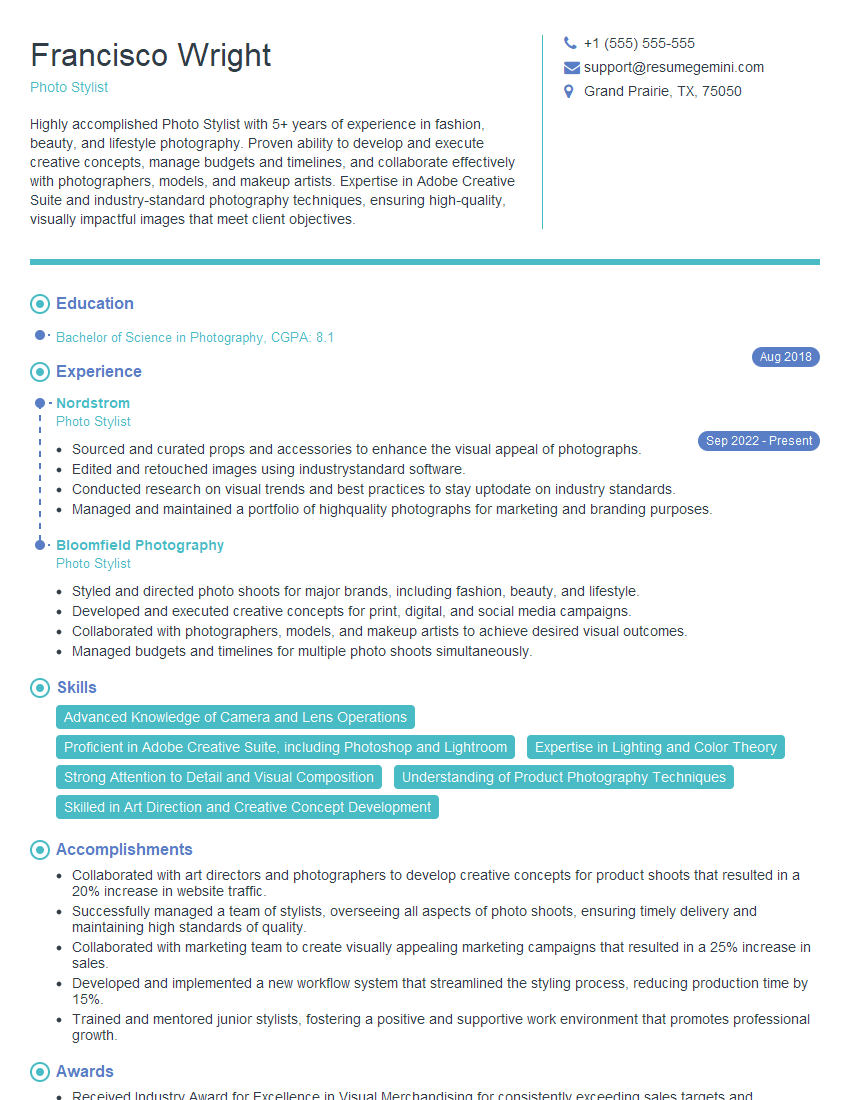
Photo Stylist Resume Sample

Photo Editor Resume Sample
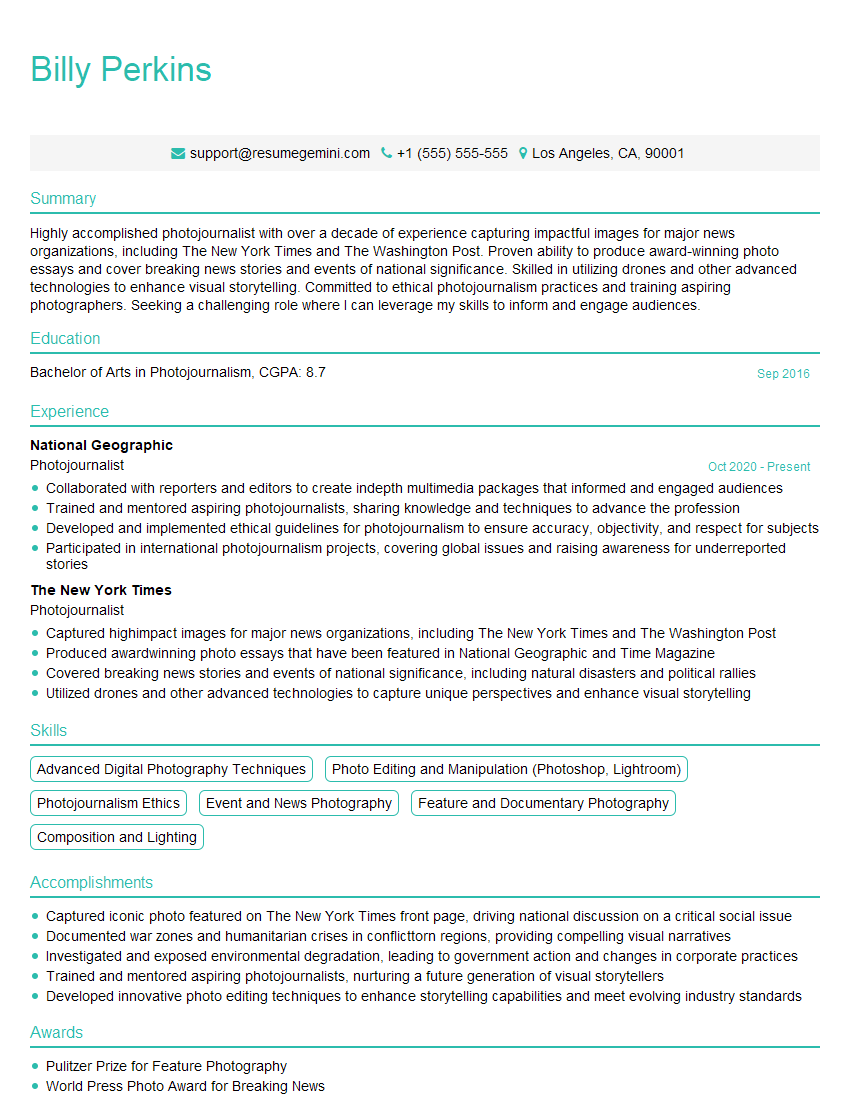
Photojournalist Resume Sample
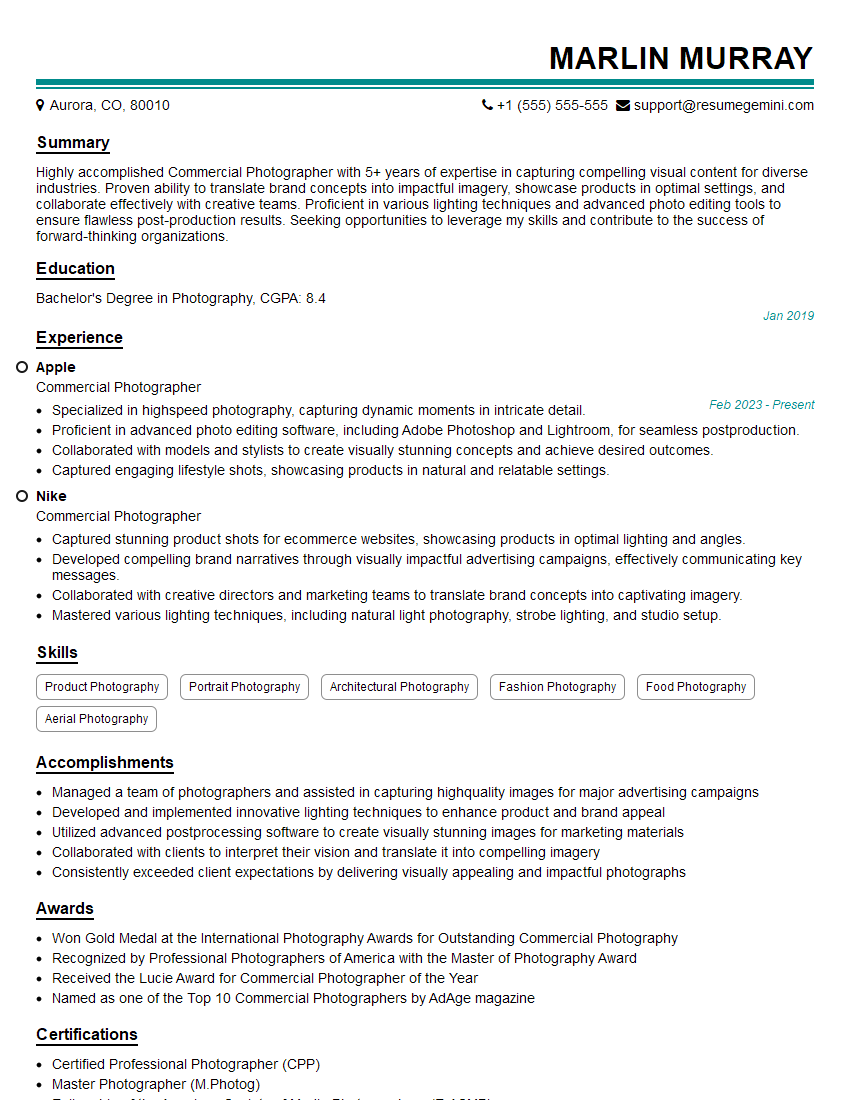
Commercial Photographer Resume Sample
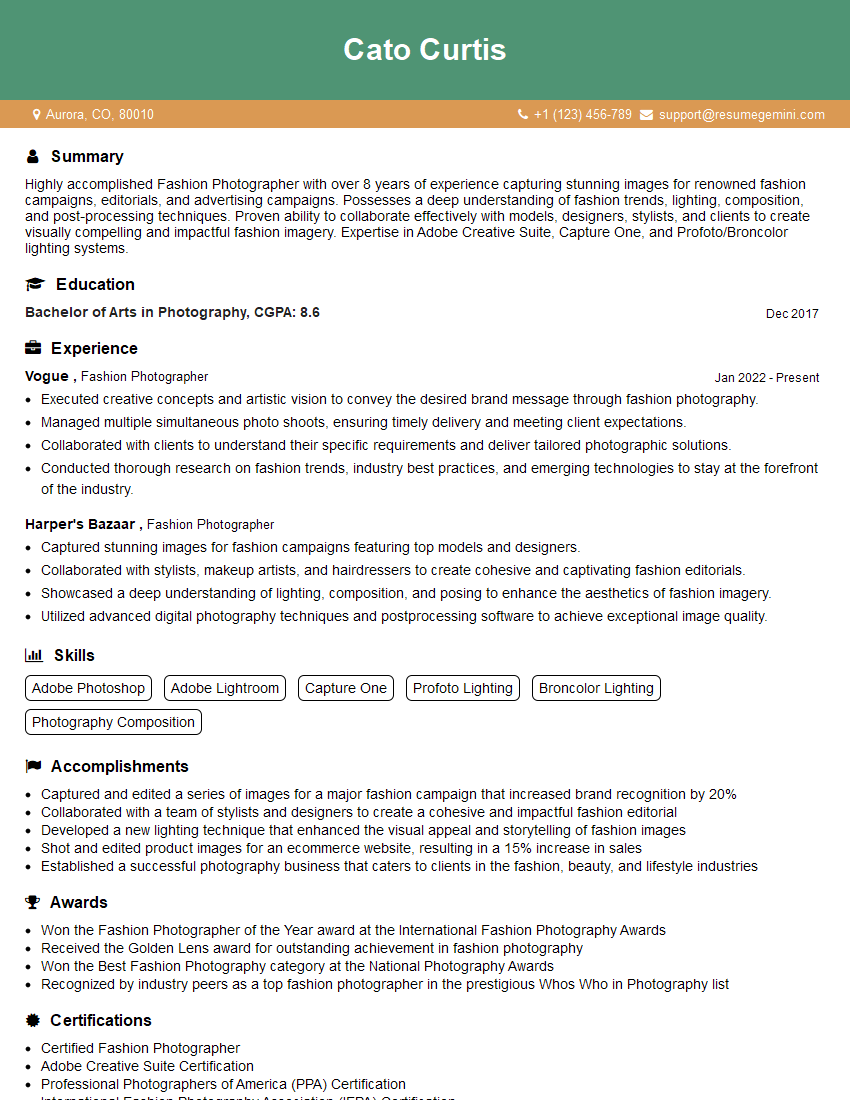
Fashion Photographer Resume Sample
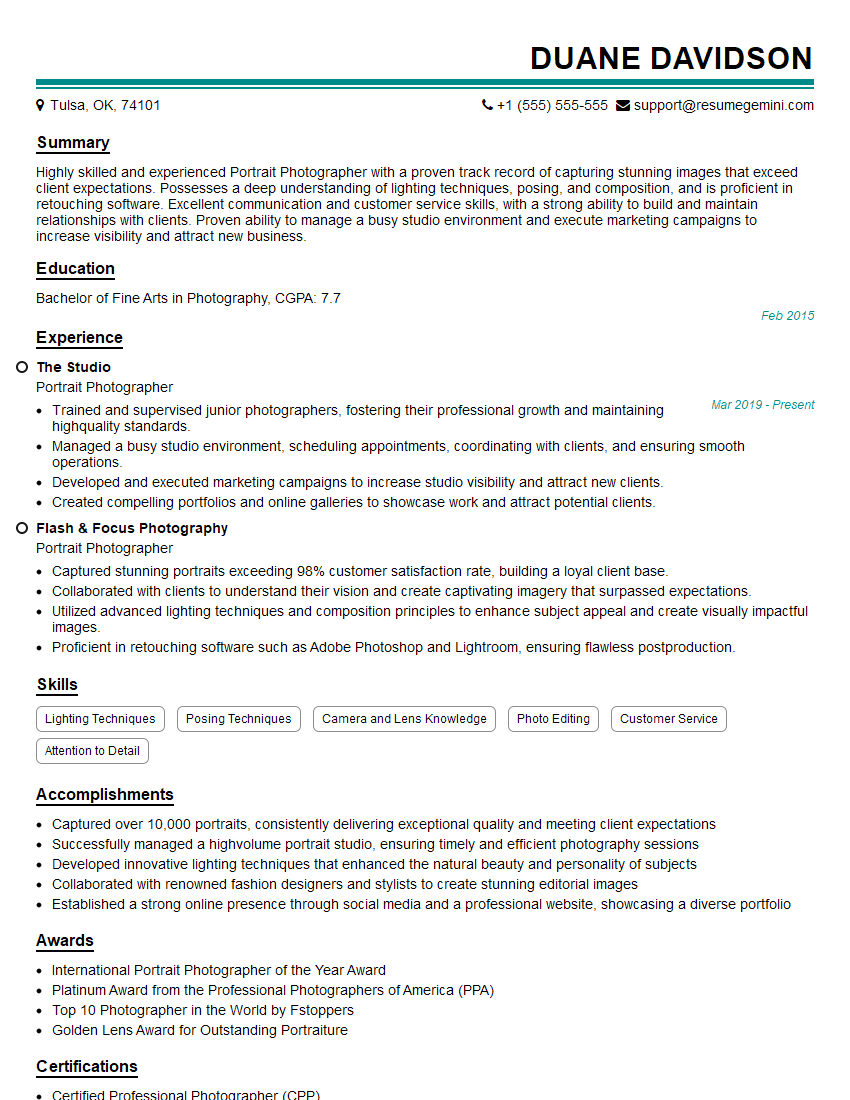
Portrait Photographer Resume Sample
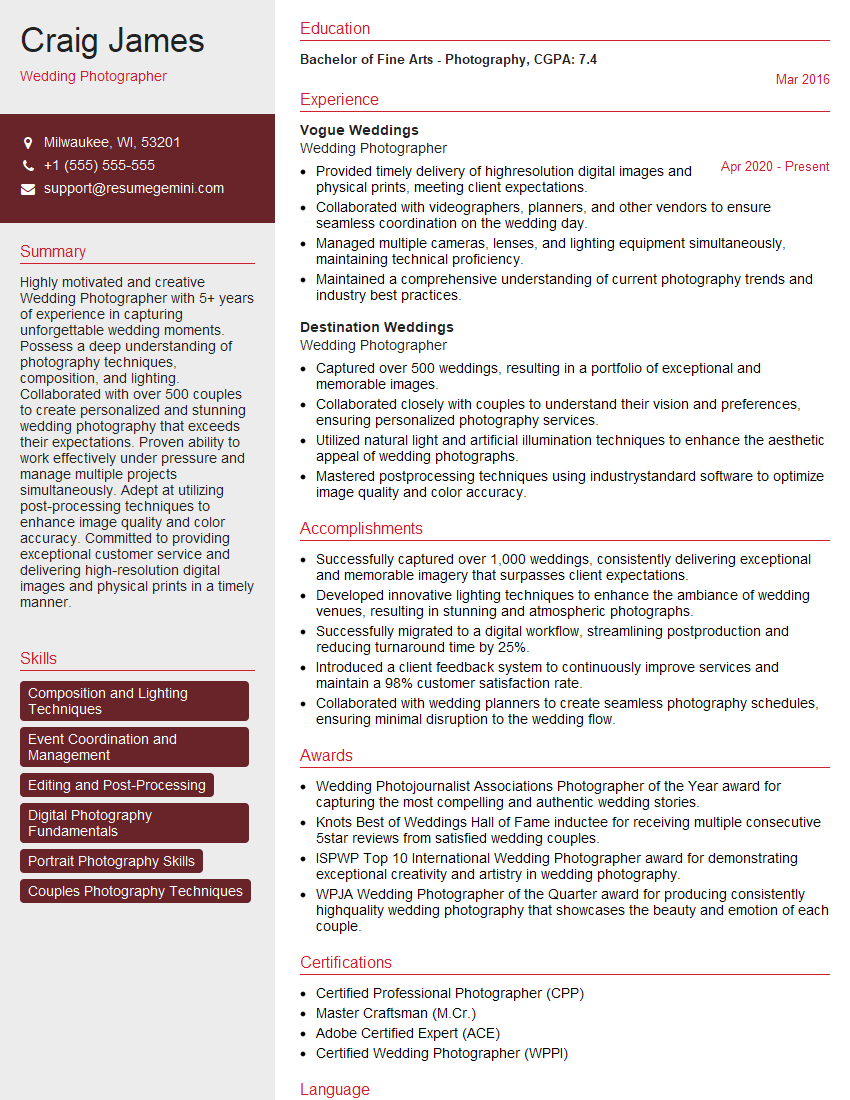
Wedding Photographer Resume Sample
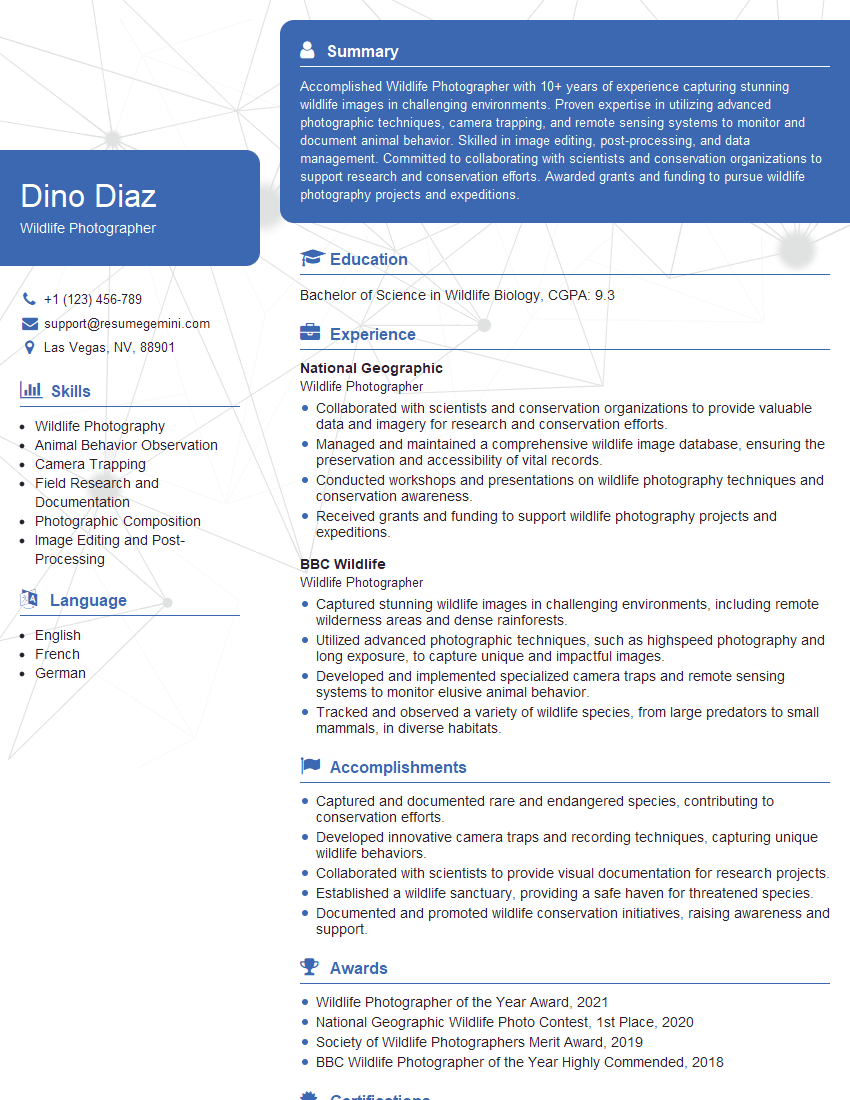
Wildlife Photographer Resume Sample
Explore more articles
Users Rating of Our Blogs
Share Your Experience
We value your feedback! Please rate our content and share your thoughts (optional).
What Readers Say About Our Blog
Very informative content, great job.
good