Cracking a skill-specific interview, like one for Design Software Proficiency, requires understanding the nuances of the role. In this blog, we present the questions you’re most likely to encounter, along with insights into how to answer them effectively. Let’s ensure you’re ready to make a strong impression.
Questions Asked in Design Software Proficiency Interview
Q 1. Explain your experience with Adobe Photoshop.
My experience with Adobe Photoshop spans over eight years, encompassing a wide range of applications from photo retouching and manipulation to creating digital paintings and graphic design elements. I’m proficient in all aspects, from basic color correction and layer management to advanced techniques like masking, blending modes, and using adjustment layers. For example, I recently used Photoshop to retouch product images for an e-commerce client, significantly improving their visual appeal and consistency. This involved removing blemishes, enhancing colors, and ensuring uniform lighting across all images. I also frequently leverage Photoshop’s powerful tools for creating textures and custom brushes, often integrating these elements into larger design projects.
I’m very comfortable working with RAW files, understanding the intricacies of non-destructive editing and optimizing images for web and print. My workflow generally involves a meticulous approach, starting with non-destructive edits and gradually refining the image until the desired result is achieved. I understand the importance of file organization and efficient use of layers to maintain project integrity and facilitate collaboration.
Q 2. Describe your workflow in Adobe Illustrator.
My Adobe Illustrator workflow is centered around vector-based design and creating scalable graphics. I typically begin by sketching out my ideas, either digitally or traditionally, to establish a clear direction. Then, I meticulously build the design in Illustrator using the pen tool and shape tools, paying close attention to precision and accuracy. I utilize layers effectively, organizing elements logically for easy editing and modification.
My process often involves creating reusable components and symbols, allowing for efficient modification and consistency across a project. For example, in designing a logo, I’d create individual vector shapes for each element and group them to make adjustments seamless. I’m also proficient in using the Pathfinder panel to combine, subtract, and manipulate shapes to achieve complex designs. I always prioritize clean file organization, ensuring the artwork is optimized for various output formats (SVG, EPS, PDF) based on the project’s requirements. Color management is also a crucial element of my process, ensuring consistency across different devices and print mediums.
Q 3. How proficient are you with Adobe InDesign?
I’m highly proficient in Adobe InDesign, particularly in creating layouts for publications such as brochures, magazines, and books. My experience encompasses mastering the intricacies of typography, creating master pages for efficient design, and working with complex layouts involving text frames, image placement, and color palettes. I’m skilled in managing styles and creating templates to maintain consistent branding and expedite the design process.
I understand the importance of pre-flighting documents for print and digital publishing, ensuring accurate color profiles and optimal file sizes. For instance, I recently used InDesign to design a marketing brochure for a client, meticulously managing the text flow, image placement, and overall visual hierarchy. I used paragraph and character styles for consistent branding throughout the document, significantly reducing production time and ensuring a professional, polished final product.
Q 4. What are your preferred methods for creating vector graphics?
My preferred method for creating vector graphics is using Adobe Illustrator’s pen tool. It offers unparalleled control and precision, allowing for the creation of complex shapes and curves with absolute accuracy. I also frequently use the shape tools, particularly for simpler geometric shapes. When dealing with complex illustrations, I often employ a combination of techniques, including drawing freehand and then refining the shapes using the pen tool for clean lines.
Another key technique I employ involves utilizing the Pathfinder panel, which allows for powerful shape manipulation and combining of vector objects. This often leads to efficient and elegant designs that would be incredibly difficult to create using other methods. For quick mockups or basic shapes, I might use Illustrator’s direct selection and shape editing tools. However, for high-quality, intricate vector work, the pen tool remains my go-to.
Q 5. Compare and contrast raster and vector graphics.
Raster graphics are made up of pixels, arranged in a grid. Think of a digital photograph; zooming in reveals individual squares of color. They are great for photorealistic images and detailed artwork, but scaling them up drastically results in a loss of quality (pixelization). Common file formats include JPEG, PNG, and TIFF.
Vector graphics, conversely, are composed of mathematical equations that define lines and curves. They’re scalable without losing quality – you can zoom in infinitely without any blurring. They are ideal for logos, illustrations, and designs requiring sharp, crisp lines. Common formats include SVG, EPS, and AI. In essence, raster is like painting with tiny dots, while vector is like drawing with mathematical instructions.
Q 6. Explain your experience with Sketch.
My experience with Sketch is primarily focused on UI/UX design. I find its streamlined interface and focus on prototyping very efficient for designing user interfaces and creating wireframes. Sketch’s Symbols feature significantly speeds up the design process, allowing for the creation of reusable components that maintain consistency across an interface. I use Sketch’s artboards extensively to organize screens and designs for different devices and screen sizes. I appreciate its features like layer styles, which enhance efficiency and consistency in maintaining design language across projects.
Furthermore, Sketch’s export capabilities are robust, simplifying the process of preparing assets for developers. I’ve used Sketch extensively in collaborative design projects, appreciating its efficiency and the overall ease of asset management. While I prefer Illustrator for complex vector illustrations, Sketch provides a superior workflow specifically tailored to UI/UX design.
Q 7. How do you use Figma for collaboration?
Figma’s collaborative features are central to my design workflow. I heavily rely on features like real-time co-editing, allowing multiple designers to work on a single design file simultaneously. This significantly streamlines collaborative design projects and reduces the need for version control hassles. Figma’s commenting and feedback features are invaluable for receiving and providing design critiques directly within the design file. This ensures everyone is on the same page and facilitates clear, efficient communication.
I use Figma’s version history extensively, allowing us to revert to previous versions of the design if needed. Furthermore, Figma’s prototyping capabilities enhance collaboration by enabling designers and stakeholders to experience and test the design interactively. This aids in early feedback gathering and improves the design process by fostering a shared understanding of the design’s functionality and usability.
Q 8. Describe your experience with Figma’s prototyping features.
Figma’s prototyping features are incredibly powerful, allowing me to create interactive prototypes that closely mimic the final product. I’m proficient in using features like:
- Smart Animate: This allows me to create seamless transitions between different states of a design, for example, a button changing color on hover or a card expanding on click. I frequently use this to demonstrate micro-interactions and improve user experience in my prototypes.
- Prototyping Interactions: I’m adept at setting up various interactions like taps, drags, and scrolls to simulate user behavior. This helps me test navigation flows, usability, and overall user journey.
- Constraints and Auto Layout: When creating prototypes, these features ensure responsiveness and maintain design consistency across different screen sizes, a crucial aspect for modern applications. I can efficiently adjust prototypes for various screen sizes without manual repositioning of elements.
- Version History: Crucially, I leverage Figma’s version history to track changes and revert to previous versions if needed. This collaborative feature is essential for managing different iterations during prototyping and prevents potential design loss.
For instance, I recently used Figma’s prototyping features to build a high-fidelity prototype for a mobile banking app, enabling stakeholders to experience the app’s navigation and functionality before development even began. This significantly reduced potential revisions and improved the overall product quality.
Q 9. How do you manage design assets using a version control system?
Managing design assets with a version control system (VCS) like Git is critical for collaboration and preventing design loss. I typically utilize a workflow integrating Git with a design tool like Figma or Adobe XD, often via plugins or external tools. My process involves:
- Creating a repository: I initialize a Git repository for my project, ensuring all design files are tracked.
- Regular commits: I commit changes frequently, with clear and concise commit messages describing the alterations. This allows for easy tracking and rollback if necessary.
- Branching: I use branching to work on different features or bug fixes simultaneously without affecting the main branch. For example, I’d create a branch named ‘feature/new-login-screen’ for designing a new login screen.
- Pull requests (PRs): Before merging any changes into the main branch, I create PRs to allow for code review and feedback from team members. This ensures quality control and collaborative improvement of the design system.
- Conflict resolution: I understand how to resolve merge conflicts that might arise from multiple designers working on the same files. This is critical for smooth collaboration.
Imagine a scenario where two designers simultaneously work on the same component. Using Git, we can easily merge our changes, addressing any conflicts efficiently, ensuring a consistent design system across the application.
Q 10. How familiar are you with Adobe XD?
I’m very familiar with Adobe XD. I’ve used it extensively for UI/UX design, particularly for rapid prototyping and wireframing. My experience encompasses:
- Wireframing and Prototyping: I’m comfortable creating low-fidelity wireframes and high-fidelity prototypes for various platforms (web and mobile).
- Design Specs: I’m familiar with generating design specs directly from XD to help developers understand the implementation details.
- Collaboration Features: I have utilized XD’s collaborative features for teamwork, real-time editing, and sharing designs.
- Plugins: I’m familiar with several plugins that extend XD’s functionality, enhancing design efficiency.
While I prefer Figma for many projects due to its collaborative features and real-time editing capabilities, Adobe XD remains a valuable tool in my design toolkit, particularly for projects where specific Adobe ecosystem integration is beneficial.
Q 11. What are some advanced features of Adobe After Effects?
Adobe After Effects is a powerful tool beyond basic animation. Some advanced features I utilize include:
- 3D Compositions and Camera Tracking: I leverage 3D capabilities to create realistic animations and incorporate camera tracking for engaging visual effects.
- Expressions: I use expressions to automate tasks and create dynamic animations based on data or variables. This allows for more complex and intricate animations. For example, I could animate a progress bar’s length based on a numerical variable.
- Rotoscoping and Keying: I’m skilled in rotoscoping (tracing footage) and keying (isolating elements in footage), which are crucial for creating advanced visual effects.
- Advanced Particle Systems: I utilize particle systems for creating realistic effects like rain, smoke, or explosions.
- Puppet Tool: The Puppet Tool allows for precise control of complex deformations in animation, invaluable for creating realistic character animations or morphing effects.
For example, I recently used After Effects’ advanced features to create a complex animated explainer video, incorporating 3D models, motion graphics, and intricate animations to showcase a product feature. The use of expressions automated many repetitive animation tasks, saving significant time and effort.
Q 12. Explain your understanding of design systems.
A design system is a centralized repository of reusable components, styles, and guidelines that ensure consistency and efficiency in design and development. It’s essentially a single source of truth for all design elements within a product or brand. A well-defined design system typically includes:
- Component Library: A collection of reusable UI components (buttons, forms, icons, etc.) with pre-defined styles and behaviors.
- Style Guide: Defines typography, color palettes, spacing, and other visual elements to ensure brand consistency.
- Design Tokens: These are variables that represent design attributes (colors, spacing, typography), providing a single point of control for making global changes.
- Code Snippets: Often integrated to allow developers to readily implement the design system’s components into their code.
I’ve actively participated in building and maintaining design systems, significantly improving design efficiency and ensuring consistency across various products and platforms. A well-implemented design system drastically reduces design and development time, and ultimately improves the overall user experience.
Q 13. How do you ensure design accessibility?
Design accessibility is crucial for ensuring that everyone, regardless of their abilities, can use and understand a product. My approach to ensuring design accessibility involves:
- WCAG Guidelines: I adhere to WCAG (Web Content Accessibility Guidelines) to ensure my designs meet accessibility standards. This includes considerations for color contrast, keyboard navigation, alternative text for images, and proper ARIA attributes (for screen readers).
- Color Contrast Checkers: I utilize tools like WebAIM’s color contrast checker to ensure sufficient contrast between text and background colors.
- Screen Reader Testing: I test my designs with screen readers to ensure that all content is accessible to users who rely on assistive technologies.
- Keyboard Navigation Testing: I verify that all interactive elements can be accessed and used using only a keyboard.
- Cognitive Accessibility: I consider cognitive accessibility, ensuring that designs are easy to understand and use for individuals with cognitive impairments. This includes simplifying language, reducing clutter, and using clear visual hierarchies.
For example, I recently designed a website with a focus on accessibility, ensuring sufficient color contrast, alternative text for all images, and keyboard navigation for all interactive elements. Testing with screen readers confirmed its accessibility for users with visual impairments.
Q 14. How do you handle design feedback?
Handling design feedback effectively is crucial for creating successful products. My approach is a multi-step process:
- Active Listening: I listen carefully to the feedback, asking clarifying questions to ensure I understand the concerns.
- Empathy and Understanding: I approach feedback with empathy, attempting to understand the perspective of the stakeholder providing the feedback, even if I don’t initially agree with it.
- Organization and Prioritization: I organize the feedback and prioritize the most critical issues based on their impact on the user experience.
- Iteration and Refinement: I iterate on the designs based on the feedback, creating multiple revisions as needed.
- Documentation: I document the changes made and the rationale behind those decisions.
- Transparency: I maintain transparency throughout the process, communicating regularly with stakeholders on the progress of revisions.
For example, when receiving conflicting feedback, I’d often facilitate a discussion amongst stakeholders to find common ground and ensure a cohesive direction for design revisions. This collaborative approach strengthens the design process and yields the best possible results.
Q 15. Describe your experience with responsive design.
Responsive design ensures a website or application adapts seamlessly to various screen sizes and devices, from desktops to tablets and smartphones. It’s about creating a consistent and user-friendly experience regardless of the platform. Think of it like a chameleon – it changes to fit its surroundings.
My experience involves using responsive techniques such as fluid grids, flexible images, media queries, and mobile-first development. For example, I recently worked on a project where we utilized a 12-column fluid grid system. This allowed us to easily adjust the layout across different screen sizes, ensuring optimal readability and usability on all devices. Media queries, using CSS, allowed us to apply specific styles based on screen width, orientation and resolution, dynamically adjusting the layout elements like navigation menus or image sizes. I also prioritize mobile-first development, designing for the smallest screen first, then scaling up to larger screens, ensuring core functionality remains consistent while adding features for larger screens.
Career Expert Tips:
- Ace those interviews! Prepare effectively by reviewing the Top 50 Most Common Interview Questions on ResumeGemini.
- Navigate your job search with confidence! Explore a wide range of Career Tips on ResumeGemini. Learn about common challenges and recommendations to overcome them.
- Craft the perfect resume! Master the Art of Resume Writing with ResumeGemini’s guide. Showcase your unique qualifications and achievements effectively.
- Don’t miss out on holiday savings! Build your dream resume with ResumeGemini’s ATS optimized templates.
Q 16. Explain your process for creating wireframes and mockups.
Creating wireframes and mockups is a crucial step in the design process. Wireframes are low-fidelity representations focusing on the structure and functionality of a design, like a blueprint of a house. Mockups, on the other hand, are high-fidelity representations, showing a more polished visual representation of the final product, similar to a detailed architectural rendering. My process typically begins with user research to understand user needs and behaviors.
I usually start with sketching basic wireframes on paper, brainstorming different layouts and functionalities. Then, I translate those sketches into digital wireframes using tools like Figma or Adobe XD. This allows for easy collaboration and iteration. Once the functionality and structure are finalized, I create high-fidelity mockups, focusing on visual elements like typography, color palettes, and imagery. I regularly test and iterate these mockups based on feedback from user testing and stakeholder reviews.
For instance, in a recent e-commerce project, I started with basic wireframes mapping out the product listing page, product detail page and checkout process. After stakeholder approval, I created high-fidelity mockups reflecting the brand’s aesthetics and incorporating detailed UI elements. This iterative approach ensures the final design meets both the functional and aesthetic requirements of the project.
Q 17. How do you conduct user research to inform your designs?
User research is paramount to effective design. It’s about understanding your users’ needs, behaviors, and pain points. Without it, you risk designing solutions that don’t solve real problems. I employ a mixed-methods approach, combining quantitative and qualitative research techniques.
- User interviews: Conducting one-on-one interviews to gain in-depth insights into user experiences and perspectives.
- Surveys: Using online surveys to gather data from a larger sample size and quantify user preferences.
- Usability testing: Observing users interacting with prototypes to identify usability issues and areas for improvement. This often involves recording screen activity and user comments.
- A/B testing: Testing different design variations to see which performs better.
For example, before designing a new mobile banking app, I conducted user interviews to understand users’ financial habits and frustrations with existing banking apps. This informed the design of the app’s features and overall user flow, ensuring it addressed users’ specific needs and improved their experience.
Q 18. How do you measure the success of your design work?
Measuring the success of design work goes beyond just aesthetics; it’s about measuring the impact on users and business goals. I use a combination of quantitative and qualitative metrics.
- Key Performance Indicators (KPIs): Tracking metrics like conversion rates, bounce rates, task completion rates, and time on task. These provide objective data on the effectiveness of the design in achieving business goals.
- User feedback: Collecting feedback through surveys, usability testing, and user interviews to gain qualitative insights into user satisfaction and identify areas for improvement.
- A/B testing results: Comparing the performance of different design variations to determine which is more effective.
- Heatmaps and clickmaps: Analyzing user interaction data to understand how users engage with the design and identify areas of confusion or disinterest.
For instance, on a recent website redesign, we tracked conversion rates, bounce rates, and time spent on key pages. The improvements we made resulted in a 20% increase in conversion rates and a 15% decrease in bounce rates, indicating a successful design.
Q 19. What are your preferred methods for prototyping?
Prototyping is essential for testing and iterating designs before development. My preferred methods depend on the project’s complexity and stage. For low-fidelity prototypes, I frequently use paper prototyping or digital wireframing tools like Figma or Adobe XD. For higher-fidelity interactive prototypes, I utilize tools like InVision, Axure RP, or even code-based prototyping with tools like React or Framer.
For a recent project involving a complex interactive map, I used InVision to create a clickable prototype demonstrating the user interaction flow and transitions. This allowed stakeholders and testers to experience the functionality and provide feedback before investing resources in full development. For simpler designs, I might even just use a tool like Figma’s prototyping capabilities which are very accessible and easy to use. The choice of method always depends on the project needs and constraints.
Q 20. How do you stay up-to-date with design trends and technologies?
Staying current in the ever-evolving world of design requires continuous learning. I actively engage in several strategies to stay updated:
- Following design blogs and publications: I regularly read blogs like A List Apart, Smashing Magazine, and UX Collective, which offer insights into the latest design trends, techniques, and technologies.
- Attending industry conferences and workshops: Participating in events like Adobe MAX or local design meetups allows for networking and learning from leading designers.
- Exploring online courses and tutorials: Platforms like Udemy, Coursera, and Skillshare offer a wealth of resources to enhance skills and learn new tools.
- Engaging with online design communities: Participating in forums like Dribbble and Behance exposes me to diverse design work and inspires creativity.
- Experimenting with new tools and technologies: I regularly explore new design software and tools to stay ahead of the curve and broaden my skillset.
Continuous learning is a crucial part of my professional development, ensuring my designs remain relevant and innovative.
Q 21. Describe your experience with user interface (UI) testing.
UI testing is a critical step to ensure the user interface is intuitive, effective, and error-free. My approach to UI testing encompasses various methods:
- Usability testing: Observing users interacting with the interface to identify usability issues and areas for improvement. This often involves user think-aloud protocols, where users vocalize their thoughts as they interact with the interface.
- Heuristic evaluation: Applying established usability principles (heuristics) to evaluate the design’s effectiveness and identify potential problems.
- A/B testing: Comparing the performance of different design variations to determine which is more effective.
- Automated testing: Using automated testing tools to check for functional issues and ensure consistency across different browsers and devices.
For instance, during the testing phase of a recent project, we conducted usability testing with five participants, observing their interactions and gathering feedback. This revealed unexpected difficulties in navigating a specific section of the app. This feedback allowed us to make necessary adjustments before launch, improving the overall user experience.
Q 22. How do you handle conflicting design requirements?
Conflicting design requirements are a common challenge. My approach involves a structured process to prioritize and resolve them. First, I meticulously document all requirements, identifying any inconsistencies or overlaps. Then, I schedule a collaborative session with stakeholders – including clients, developers, and other designers – to openly discuss the conflicts. We prioritize requirements based on project goals, user needs, and feasibility. This often involves creating a weighted prioritization matrix where we score each requirement based on its importance and impact. Finally, we create a compromise or alternative solution that satisfies the most critical requirements while mitigating the impact of those that need to be adjusted or dropped. For example, if a client wants a highly interactive design but the development team flags performance issues, we might explore alternative interactive elements or optimize animations to balance user experience with technical limitations.
This collaborative approach ensures everyone understands the rationale behind the final decisions, leading to smoother project execution and increased client satisfaction.
Q 23. What is your approach to creating a consistent design language?
Building a consistent design language is crucial for brand recognition and user experience. My process starts with defining a style guide. This guide acts as a centralized repository for all design elements, including typography, color palettes, spacing, and iconography. I use a component-based design system, where reusable elements are created and documented within the style guide. This ensures consistency across different platforms and projects. For instance, buttons, text fields, and navigation menus are designed once and reused throughout the application, reducing design redundancy and improving efficiency. This approach also facilitates maintenance and updates – changing one component automatically reflects across the entire system.
Regular review and updates of the style guide are critical to keep the design language current and relevant. Throughout the design process, I use the style guide as a reference, ensuring all design elements align with established standards.
Q 24. Describe your experience with design software other than Adobe Creative Suite.
Beyond the Adobe Creative Suite, I’m proficient in Figma, Sketch, and Axure RP. Figma, for its collaborative capabilities and real-time design updates, has been instrumental in several recent projects involving remote teams. Sketch’s vector-based tools proved invaluable for creating intricate illustrations and icons in a past branding project. Axure RP, with its prototyping features, helped me quickly create interactive wireframes and user flows, enabling early testing and feedback gathering on a complex e-commerce platform. Each tool has its strengths; I choose the most appropriate software based on the project’s specific requirements and collaborative needs.
Q 25. How familiar are you with the principles of visual hierarchy?
Visual hierarchy is the arrangement of design elements to guide the user’s eye through the content, prioritizing important information. I understand and apply principles like size, color, contrast, proximity, and whitespace to create a clear hierarchy. For example, larger text size and bolder colors highlight main headings, while smaller text and lighter colors are used for supporting information. Proximity groups related elements together, while whitespace creates separation and improves readability. Understanding visual hierarchy is critical for creating effective and user-friendly designs. A poorly structured design can confuse users and hinder information comprehension. A well-structured design makes the information easily scannable and digestible.
Q 26. What are some common pitfalls to avoid when using design software?
Common pitfalls in design software include neglecting proper file organization, leading to chaos and difficulty finding assets. Another is relying too heavily on default settings without understanding the impact on the final output. This can result in inconsistent design elements and suboptimal results. Overusing effects and filters can lead to cluttered and visually unappealing designs. Finally, insufficient version control can cause irreversible data loss and create unnecessary complications during collaboration. To avoid these pitfalls, I implement a robust file management system, thoroughly test settings and effects, strive for minimalist designs, and diligently utilize version control features provided by the design software.
Q 27. Explain your understanding of color theory and typography.
Color theory involves understanding color relationships, including hue, saturation, value, and temperature. I use color palettes to evoke specific emotions and create visual harmony. For example, warm colors like reds and oranges are energizing, while cool colors like blues and greens are calming. Understanding color contrast is critical for readability and accessibility. Typography involves choosing and arranging typefaces to create a visually appealing and readable text. I consider factors such as font family, size, weight, and spacing. The choice of typeface significantly impacts the overall feel and tone of the design. Pairing fonts carefully, considering readability across different screen sizes and resolutions, and using sufficient spacing between lines and paragraphs are crucial for effective typography. I often use online tools and resources to check for proper contrast ratios for accessibility compliance.
Q 28. How do you optimize images for web and print?
Optimizing images for web and print requires different approaches. For web, I use lossy compression techniques like JPEG for photographs and lossless compression like PNG for graphics with sharp lines and text. I also carefully consider image dimensions, minimizing file size without sacrificing quality. Larger images can significantly increase loading times, negatively impacting user experience. For print, I use higher resolutions (300 DPI) and file formats like TIFF or PSD to ensure high-quality output. Color profiles are also crucial for accurate color reproduction. I often create different image versions tailored for the specific output method, ensuring the best possible outcome for each platform. Tools like Photoshop and specialized image optimization software are critical in this process.
Key Topics to Learn for Design Software Proficiency Interview
- Software Fundamentals: Mastering the interface, navigation, and basic functionalities of your chosen design software (e.g., Adobe Photoshop, Illustrator, InDesign, Figma, Sketch). Understanding keyboard shortcuts and efficient workflow techniques is crucial.
- Image Manipulation & Editing: Demonstrate proficiency in image retouching, color correction, compositing, and layer management. Be ready to discuss your approach to achieving specific visual effects.
- Vector Graphics & Illustration: Showcase your understanding of vector-based artwork, including creating and manipulating shapes, paths, and type. Explain your process for designing scalable and adaptable graphics.
- Typography & Layout: Discuss your knowledge of typography principles, including kerning, tracking, leading, and font selection. Explain how you approach designing effective and aesthetically pleasing layouts for various media.
- Design Principles & Theory: Articulate your understanding of fundamental design principles such as balance, contrast, hierarchy, proximity, and repetition. Be prepared to discuss how these principles inform your design choices.
- Workflow & Collaboration: Explain your preferred workflow for managing design projects, including file organization, version control, and collaboration with other team members. Highlight your experience with design handoff processes.
- Problem-Solving & Design Thinking: Be ready to discuss your approach to solving design problems, outlining your process from initial concept to final deliverable. Highlight your ability to iterate and adapt based on feedback.
- Software-Specific Advanced Features: Explore advanced features within your chosen software. This demonstrates a deep understanding beyond the basics and a commitment to continuous learning.
Next Steps
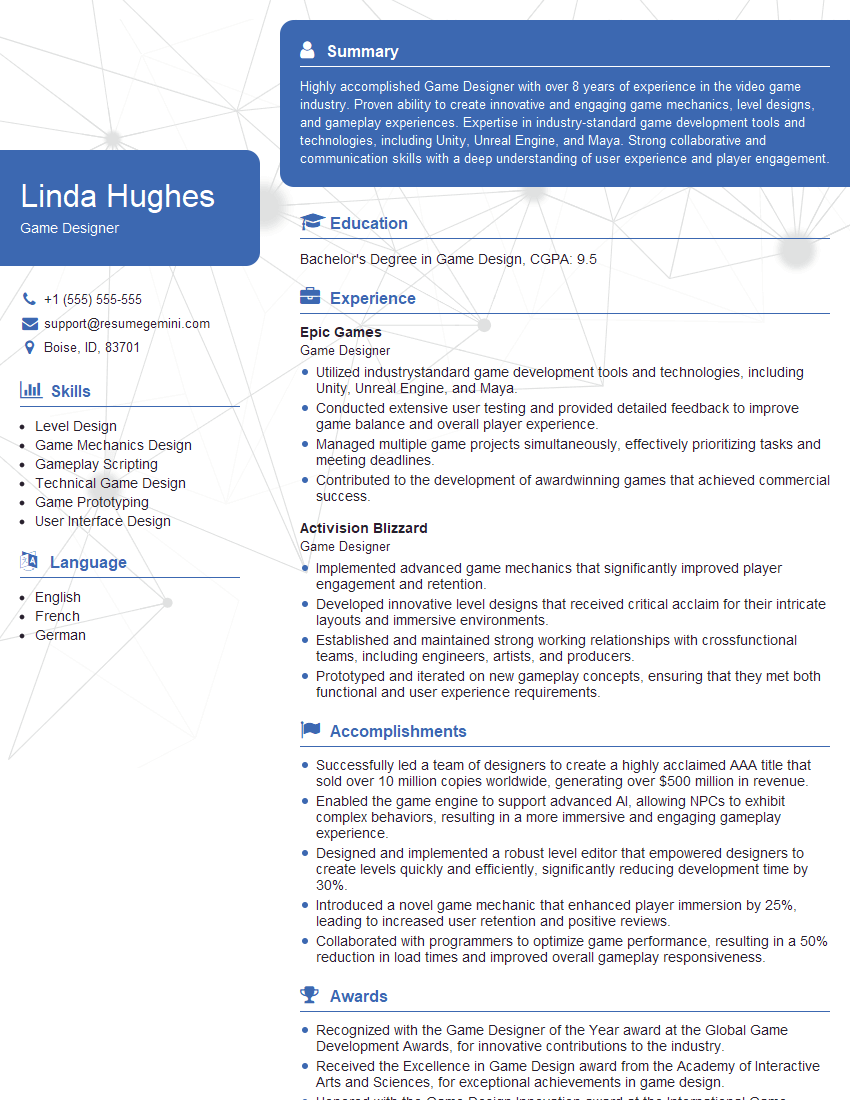
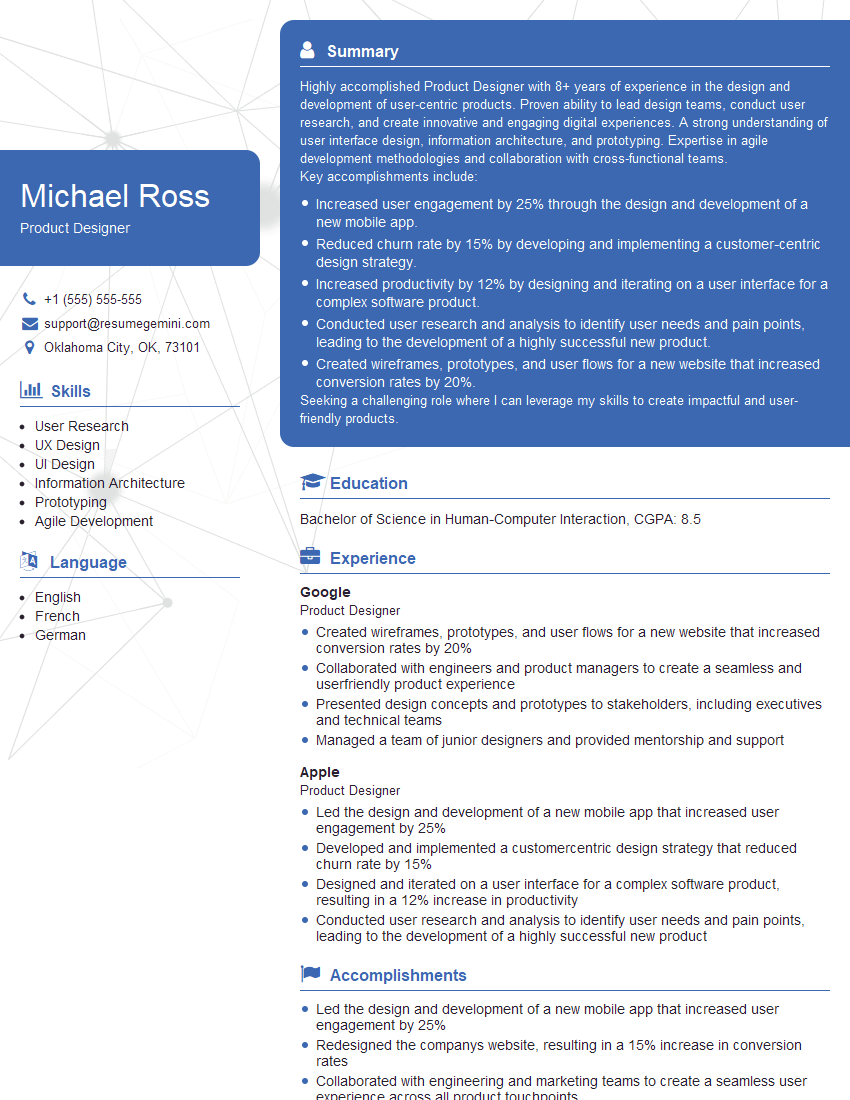
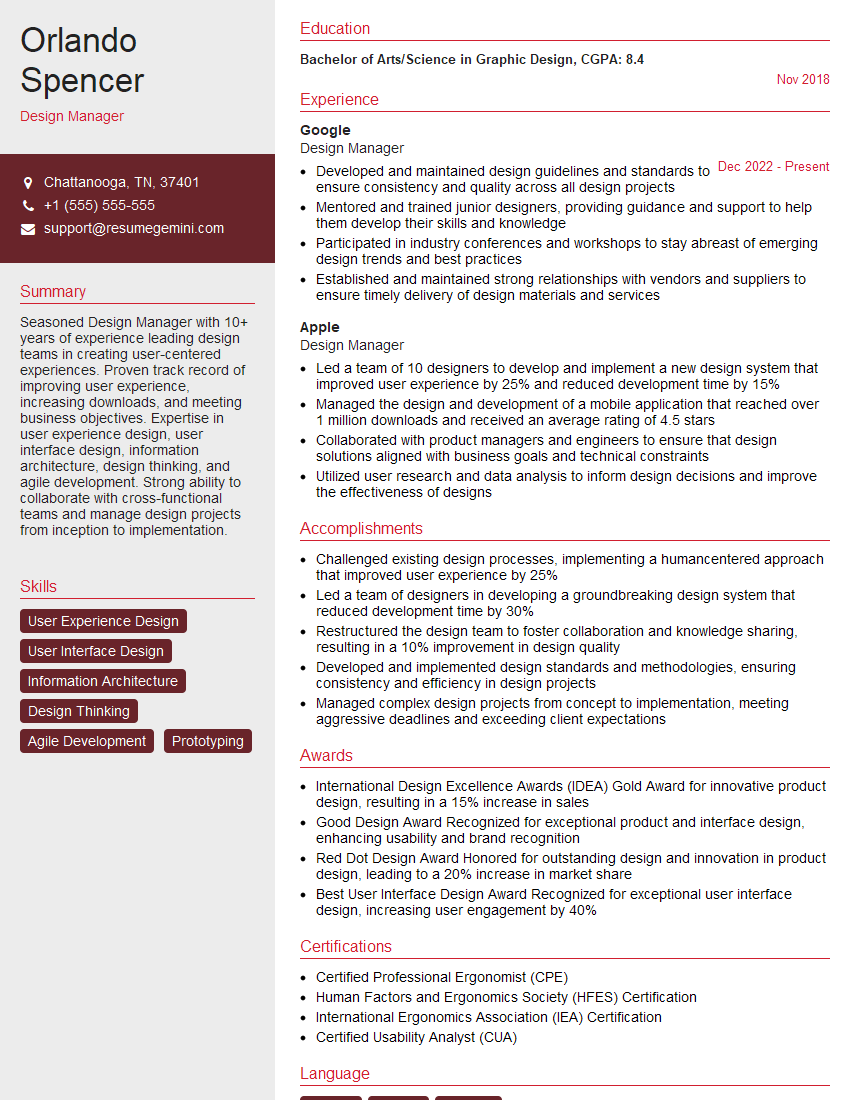
Mastering design software proficiency is paramount for career advancement in the creative industry. A strong grasp of these tools translates directly to increased efficiency, higher quality output, and greater opportunities. To maximize your job prospects, create an ATS-friendly resume that showcases your skills effectively. ResumeGemini is a trusted resource to help you build a professional and impactful resume tailored to your specific experience. Examples of resumes tailored to Design Software Proficiency are available to help you get started.






Explore more articles
Users Rating of Our Blogs
Share Your Experience
We value your feedback! Please rate our content and share your thoughts (optional).
What Readers Say About Our Blog
Very informative content, great job.
good