Unlock your full potential by mastering the most common Pasting interview questions. This blog offers a deep dive into the critical topics, ensuring you’re not only prepared to answer but to excel. With these insights, you’ll approach your interview with clarity and confidence.
Questions Asked in Pasting Interview
Q 1. Explain the difference between pasting text and pasting formatted text.
The key difference between pasting text and pasting formatted text lies in the preservation of the original source’s formatting. When you paste text only, you’re essentially transferring the raw characters, ignoring any styling like font type, size, color, bolding, italics, or paragraph breaks. Think of it like copying the words from a book onto a plain notepad – you get the content, but not the visual presentation. Pasting formatted text, on the other hand, attempts to replicate the visual appearance of the source. This means the pasted content retains its original formatting attributes. Imagine copying and pasting a section of a beautifully formatted Word document into another Word document; the formatting, such as headings, bullet points, and font styles, should generally be preserved.
Example: Copying This is bold text. and pasting as plain text might result in This is bold text. while pasting formatted text would retain the bold tag.
Q 2. How do you handle pasting large amounts of data?
Pasting large amounts of data requires a strategic approach to prevent application crashes or significant performance slowdown. My strategy typically involves several steps: First, I assess the data size and the target application’s capabilities. For extremely large datasets, I avoid directly pasting into the target application if possible. Instead, I may use a staging area, such as a temporary file or a database, to manage the data in smaller, more manageable chunks. This helps avoid memory issues. If a direct paste is necessary, I ensure the target application is optimized for handling large data volumes and may consider disabling unnecessary features (like auto-formatting) to improve performance. Furthermore, I often use specialized tools designed for efficient data import or transfer, depending on the data format (e.g., CSV, XML).
Example: When pasting a large CSV file into a spreadsheet program, I might first import it into a database management system, then select and copy the specific data subsets needed before pasting into the spreadsheet.
Q 3. What are the common challenges you encounter when pasting data from different sources?
Pasting data from different sources frequently presents challenges due to inconsistencies in formatting, encoding, and data types. For example, a spreadsheet cell formatted as a number might be interpreted as text in a database. Inconsistent line breaks or tab characters can lead to misaligned data when pasting into a text editor. Character encodings (like UTF-8 or ASCII) can also cause issues, leading to garbled characters. Furthermore, differences in how data is structured (e.g., different delimiters in CSV files) pose significant problems. Finally, differences in date and time formats can cause serious data errors.
Example: Pasting data from a webpage which uses HTML entities like & can cause problems unless the receiving application correctly interprets them. It could either display the entities as is or fail to render them.
Q 4. Describe your experience with different pasting methods (e.g., Ctrl+V, right-click paste, paste special).
I’m proficient in various pasting methods, each suited for different situations. Ctrl+V (or Cmd+V on macOS) is my go-to for quick, simple pasting, especially when formatting isn’t critical. The right-click paste context menu provides options which enhance control, for example to paste without formatting. ‘Paste Special’ offers the most granular control over pasting. It is invaluable when dealing with different data formats or when you need to control exactly how the data is inserted. For instance, I can choose to paste as a plain text value, a formula, or even convert image formats when working with imported files.
Example: If I’m copying numbers from a spreadsheet that contain leading zeros (which could be misinterpreted as text), I’d choose ‘Paste Special’ and select the ‘Numbers’ or a similar option to ensure they’re handled correctly.
Q 5. How do you ensure data integrity when pasting information?
Maintaining data integrity during pasting is paramount. My strategy revolves around careful verification. Before pasting, I meticulously review the source data for errors or inconsistencies. After pasting, I carefully compare the pasted data against the source to check for any discrepancies. For critical operations, I use checksums or hash functions to verify that the data hasn’t been corrupted during the copy-paste process. I also utilize validation rules within the target application (if applicable) to ensure data types and formats conform to the required standards. In some cases, automating the data verification process using scripting may be necessary.
Q 6. What strategies do you use to avoid pasting errors?
Avoiding pasting errors requires a proactive approach. This includes: always checking the data before pasting, using ‘Paste Special’ to ensure you paste the right format, utilizing find-and-replace to clean up any unintended formatting (e.g., excess spaces or tabs), and conducting thorough post-paste checks for accuracy. I also frequently save a backup copy before significant pasting operations, so I can easily revert to the previous state if anything goes wrong. In cases of large datasets, I often opt for a gradual, incremental pasting process, verifying each step to detect and correct issues early on.
Q 7. How do you resolve issues related to formatting discrepancies after pasting?
Resolving formatting discrepancies after pasting usually involves a combination of techniques. If the discrepancies are minor, manual adjustments (using the formatting tools of the target application) might suffice. However, for more extensive issues, I may use find-and-replace to correct formatting problems across multiple instances. For large-scale formatting adjustments, utilizing scripting or regular expressions to automate the process can be significantly more efficient. Style sheets (CSS) can also be used to standardize formatting if the target is a document that accepts CSS.
Example: If all paragraphs after pasting use incorrect line spacing, a find-and-replace function (or script) can change the line spacing for all paragraphs to the desired value.
Q 8. Explain your approach to troubleshooting pasting problems.
Troubleshooting pasting issues requires a systematic approach. I begin by identifying the source of the problem: is it the source application (where the data is copied from), the destination application (where the data is pasted to), or the clipboard itself?
My troubleshooting steps typically involve:
- Verifying the copy process: Ensure the data is correctly copied from the source. Sometimes, a simple re-copy is enough.
- Checking the clipboard contents: Using a clipboard manager (more on this later), I can examine the content directly to see if the data is present and in the expected format.
- Testing in a different application: Pasting into a different program can help isolate whether the problem lies with the source or destination.
- Restarting applications: Simple restarts can resolve many temporary glitches.
- Checking for application updates: Outdated software can have compatibility issues.
- Inspecting application settings: Some applications have specific pasting settings that might need adjustment.
- Examining system resources: Insufficient memory or a full hard drive can sometimes interfere.
For example, if pasting an image fails in a word processor, I might try pasting it into an image editor first to verify the image is intact. If it works there, the problem lies with the word processor’s image handling, perhaps a corrupted setting or a missing codec.
Q 9. Describe your experience with pasting images and other non-text content.
Pasting images and other non-text content requires understanding the limitations of both the source and destination applications. Different applications handle various image formats (JPEG, PNG, GIF, etc.) and other media (audio, video) differently.
My experience includes successfully pasting images into various documents, presentations, and design software. I am familiar with resolving issues arising from incompatible file formats, corrupted files, or limitations in the destination application’s support for specific media types. For example, if a high-resolution image pastes poorly in a web page due to size constraints, I would consider resizing the image in an image editor before pasting. Similarly, if pasting a video file fails, I’d check its format compatibility with the application.
Q 10. How do you handle pasting data into different applications (e.g., Word, Excel, Adobe InDesign)?
Pasting data into different applications like Word, Excel, and InDesign requires understanding each application’s specific data handling capabilities. While the basic paste function (Ctrl+V or Cmd+V) works in most cases, the results can vary.
Word usually retains rich text formatting, Excel often converts pasted data into cells, and InDesign offers more sophisticated options for importing content while maintaining layout control. I utilize the “Paste Special” function frequently to control how data is inserted: this allows choosing between pasting as plain text, an image, or retaining source formatting.
For example, pasting a table from a spreadsheet into a Word document might require using “Paste Special” to ensure the table structure is preserved and not converted into simple text.
Q 11. How familiar are you with different file formats and their impact on pasting?
Familiarity with file formats is crucial for effective pasting. Different formats store data differently, impacting how it’s pasted. Text formats like .txt, .rtf, and .doc(x) handle text differently, some preserving formatting and others not. Spreadsheet formats like .csv, .xls, and .xlsx determine how tabular data is pasted. Image formats (JPEG, PNG, GIF, TIFF) affect image quality and size.
Understanding these differences helps anticipate potential issues and choose appropriate pasting methods. For instance, pasting a .csv file into Excel preserves the tabular data readily, while pasting a .txt file might require additional formatting in Excel. If a lossless image format like PNG is required for high-quality output, pasting a JPEG might not be suitable.
Q 12. What are the best practices for pasting data into databases?
Best practices for pasting data into databases involve avoiding direct pasting and instead using structured methods. Direct pasting is risky, prone to errors, and potentially damaging to database integrity. Instead, I would recommend using:
- SQL INSERT statements: These statements allow precise control over data insertion, handling data types and constraints efficiently.
- Database import tools: Many databases offer tools to import data from various formats (CSV, Excel, etc.), validating data during the import process.
- Programming interfaces: Using programming languages like Python or Java with database connectors allows for automated and validated data transfer.
- Data cleaning and transformation: Before pasting, data should be validated and cleaned to ensure data integrity.
For example, instead of directly copying and pasting data from a spreadsheet into a database, I would create an SQL script to insert the data row by row, ensuring that data types match database schemas and constraints are met.
Q 13. Describe your experience with clipboard management tools.
I have extensive experience with clipboard management tools such as Ditto, CopyQ, and the built-in clipboard history in many operating systems. These tools allow me to manage multiple clipboard entries, recall previous copies, and organize copied data. This is invaluable when working with multiple sources or handling complex data.
Clipboard managers increase efficiency by eliminating repetitive copy-paste tasks. Imagine needing to copy several pieces of text from different locations: instead of multiple copy-paste operations, a clipboard manager lets me select and paste the exact entry with ease, improving workflow and reducing errors.
Q 14. How do you manage the pasting process within a collaborative workflow?
In collaborative workflows, pasting requires careful coordination to avoid conflicts and maintain data integrity. Clear communication is essential. Using version control systems (for documents) and database locking mechanisms (for databases) prevents overwriting each other’s work.
For documents, I’d suggest using collaborative editing tools like Google Docs or Microsoft Office Online that manage concurrent edits. For databases, established protocols and communication around updates and merges would be vital to ensure data consistency. Before pasting into a shared document or database, it’s critical to confirm the action won’t overwrite someone else’s work. Clear communication channels like instant messaging or shared documentation help coordinate these activities effectively.
Q 15. How do you handle pasting confidential or sensitive information?
Handling confidential information when pasting requires a multi-layered approach focusing on minimizing risk at every stage. I never paste sensitive data directly into untrusted systems. Instead, I prefer secure methods. For example, if I need to transfer data to a colleague, I’ll use an encrypted file-sharing service rather than copy-pasting. If it’s for an application, I’d ensure it’s a trusted and secure platform. Before pasting, I verify the destination’s security measures, such as encryption at rest and in transit. After pasting, I immediately delete the copied data from the clipboard using a dedicated keyboard shortcut or a system-level clipboard cleaner. Furthermore, I utilize strong password management practices and multi-factor authentication to protect access to all systems involved.
Think of it like this: You wouldn’t leave a briefcase full of cash unattended. Similarly, sensitive data needs careful handling. Each step, from the source to the destination, requires deliberate consideration of potential threats.
Career Expert Tips:
- Ace those interviews! Prepare effectively by reviewing the Top 50 Most Common Interview Questions on ResumeGemini.
- Navigate your job search with confidence! Explore a wide range of Career Tips on ResumeGemini. Learn about common challenges and recommendations to overcome them.
- Craft the perfect resume! Master the Art of Resume Writing with ResumeGemini’s guide. Showcase your unique qualifications and achievements effectively.
- Don’t miss out on holiday savings! Build your dream resume with ResumeGemini’s ATS optimized templates.
Q 16. What are some potential security risks associated with pasting data?
Pasting data presents several security risks, especially when handling sensitive information. One major risk is accidental data exposure. If you copy sensitive data and then paste it into an untrusted application, that application could potentially steal the data. Malware can also exploit the clipboard to capture pasted information. Keyloggers, for instance, can record everything typed, including passwords and credit card details, which can be further exposed through a simple paste operation. Another significant risk is data leakage. If you copy data from a secure system and then paste it into an insecure one, you create a pathway for data breaches. Finally, there’s the risk of data contamination. Pasting data from untrusted sources can introduce malware or viruses into your system.
Imagine pasting an address from a dubious website – you might inadvertently download malware. That’s why it’s crucial to be cautious and aware of potential threats.
Q 17. Describe your experience with automating pasting tasks using scripting or macros.
I have extensive experience automating pasting tasks using various scripting languages and macro tools. In a previous role, I developed a VBA macro in Microsoft Excel to automate the process of extracting data from multiple reports and consolidating it into a single, master spreadsheet. This significantly reduced manual effort and minimized the risk of human error. The macro would copy data from specific cells in each report, paste it into the master sheet, and then perform necessary data cleaning operations. Another example includes using Python with libraries like PyAutoGUI to automate tasks involving copying and pasting data between different applications, significantly increasing efficiency. The key is to understand the target application’s automation capabilities – whether through built-in scripting languages like VBA or external tools. The code needs to be robust and handle exceptions gracefully to ensure reliability.
# Example Python snippet (Illustrative)
import pyautogui
pyautogui.write('My pasted text')
pyautogui.hotkey('ctrl', 'v')
Q 18. How do you ensure data consistency when pasting from multiple sources?
Ensuring data consistency when pasting from multiple sources requires a structured approach. First, I define a standard data format. This could involve establishing specific column headers, data types, and formatting rules. Then, before pasting, I perform data cleaning and transformation to align each source with the standard format. This might include removing extra whitespace, handling different date formats, or converting data types. For example, if one source uses commas as thousands separators and another uses periods, I’ll standardize them before pasting. After pasting, I usually implement data validation checks to identify and correct any inconsistencies. Tools like spreadsheet software or dedicated data validation libraries can help automate this process.
Think of it like assembling a puzzle: each piece needs to fit perfectly. Standardization is the key to making all the pieces compatible.
Q 19. How do you resolve formatting issues when pasting into a web page or other online platform?
Formatting issues when pasting into web pages or online platforms are common. One strategy is to use the “paste as plain text” option. This strips away most of the original formatting, reducing conflicts. If that’s not an option, inspecting the HTML source of the target web page can identify the specific formatting styles used. This allows me to then pre-format the data before pasting, minimizing formatting discrepancies. Another technique is to use specialized tools or browser extensions that offer more control over pasting, allowing for customized formatting adjustments. If the platform offers a rich text editor, leveraging its built-in formatting tools after pasting is often the easiest solution. Trial and error is sometimes needed, adjusting formatting until a consistent result is achieved.
It’s like painting a wall – you’ll likely need a few coats and some touch-ups to get the perfect look.
Q 20. What is your experience with using find and replace function before/after pasting?
I frequently use the find and replace function, both before and after pasting, for data manipulation and cleanup. Before pasting, I often use find and replace to standardize data formats. For example, changing date formats to a consistent style or replacing variations in names to a standardized format. After pasting, I might use find and replace to correct errors introduced during the pasting process or to update data based on new information. This approach is particularly helpful when dealing with large datasets or when cleaning up messy data.
Think of it as editing a manuscript – proofing and making corrections are essential for ensuring accuracy and clarity.
Q 21. How do you check data accuracy after pasting?
Checking data accuracy after pasting is crucial. My methods depend on the context and data type. For smaller datasets, I usually perform a visual inspection, comparing the pasted data with the original source. For larger datasets, I use automated checks. This might involve comparing the number of records, checking for data type consistency, and validating against known ranges or constraints. I might also use checksums or hash functions to ensure data integrity. If inconsistencies are found, I trace the source of the error, whether it’s a formatting problem, an issue with the original data, or a problem during the paste operation itself. Documenting the validation process is equally important for auditing and traceability.
It’s like proofreading a document before submission – multiple checks are necessary to ensure accuracy.
Q 22. Explain your understanding of data validation in relation to pasting.
Data validation in pasting is crucial for ensuring data integrity. It’s the process of verifying that the data being pasted is in the correct format, contains valid values, and conforms to the expected structure of the target location. Think of it like a meticulous librarian checking if a new book fits the library’s cataloging system before shelving it. Without validation, pasting could lead to errors, inconsistencies, and ultimately, data corruption.
For example, if you’re pasting numerical data into a spreadsheet column designed for numbers only, validation would check that each item pasted is indeed a number, flagging any text entries or inappropriate characters. Similarly, if pasting data into a database, validation might ensure that dates are in the correct format (e.g., YYYY-MM-DD), that required fields aren’t empty, and that values fall within acceptable ranges.
Effective validation methods often involve a combination of techniques: checking data types, enforcing length constraints, using regular expressions for pattern matching, and referencing external data sources for validation (e.g., cross-checking against a list of valid customer IDs).
Q 23. How do you handle pasting errors that result in data loss?
Handling pasting errors that lead to data loss requires a multi-pronged approach. First and foremost, prevention is key. Robust data validation (as discussed previously) is crucial. Secondly, if data loss occurs despite validation efforts, immediate action is needed. This involves analyzing the error to understand its root cause. Was it a software glitch, a user error, or a data integrity problem?
My strategy involves several steps:
- Recovery from backups: I always maintain regular backups to revert to a previous, known-good state. (This will be detailed further in the next answer).
- Manual reconstruction (if possible): If the backup is too old, I might attempt to manually reconstruct the lost data from available sources, such as logs or other related data sets. This is often time-consuming and depends on the nature of the data.
- Error logging and reporting: Thorough logging of the error is critical for future analysis and prevention. Reporting the issue to the relevant parties can help identify system-level problems.
- Testing and Validation: After the issue is resolved, I test to ensure that the fix doesn’t introduce further issues. Retesting procedures, including validation checks, are a key step in my process.
Consider an analogy: if a painter accidentally spills paint on a canvas, they might try to clean it up, or they may have an earlier sketch to restore from. That earlier sketch is my backup, my critical protection against this kind of loss.
Q 24. What are your preferred methods for backing up data before and after pasting?
Backing up data is paramount before and after pasting, especially when dealing with sensitive or crucial information. My preferred methods are a combination of strategies for redundancy and security.
Before pasting: I typically perform a full backup of the target dataset using version control systems (e.g., Git for code, specialized database backups) or cloud-based services (e.g., automated snapshots on a cloud server). This ensures a point to revert to if the paste operation fails.
After pasting: After the paste is complete, I conduct a verification step to ensure data integrity by comparing it to the original source and performing additional checks. Another incremental backup is then created, allowing me to track changes and revert if needed. The frequency of backups depends on the criticality of the data; more frequent backups are used for high-risk operations.
The ‘3-2-1’ backup rule is a valuable guideline: 3 copies of your data, on 2 different media, with 1 copy offsite. This ensures data protection even against catastrophic events like hardware failure or theft.
Q 25. Describe a situation where you had to resolve a complex pasting issue. What was the solution?
I once encountered a complex pasting issue involving a large CSV file (over 500,000 rows) into a database. The initial paste failed intermittently, causing inconsistent data insertion and error messages. The underlying issue was a combination of factors: insufficient memory allocation for the database during the import process and data inconsistencies within the CSV file (missing values and invalid data types).
My solution involved a multi-step approach:
- Memory Optimization: We increased the database server’s memory allocation and optimized the database queries to handle large datasets more efficiently.
- Data Cleaning: I meticulously cleaned the CSV file using scripting languages like Python. This involved handling missing values using appropriate methods (e.g., imputation or removal), converting data types to match the database schema, and validating the data against a pre-defined set of rules.
- Batch Processing: Instead of importing the entire CSV file at once, we split it into smaller, manageable batches. This significantly reduced the risk of memory errors and allowed for more controlled data insertion.
- Error Handling: I implemented robust error handling to gracefully catch and log any further errors during the import process, allowing for efficient debugging and recovery.
After implementing these changes, the data import completed successfully without issues. The rigorous error handling and structured approach helped to prevent further data loss and maintain data integrity.
Q 26. How do you prioritize tasks when multiple pasting operations are required?
Prioritizing multiple pasting operations requires a structured approach. I use a combination of factors to determine the order of tasks:
- Urgency: Tasks with immediate deadlines or critical dependencies take precedence. For example, updating live dashboards with real-time data would be higher priority than importing historical data.
- Impact: Tasks with potentially higher consequences in case of failure are also prioritized. Pasting critical financial data would naturally take precedence over pasting less consequential information.
- Dependencies: Tasks that depend on the completion of others are sequenced appropriately. You wouldn’t paste data into a report before pasting the source data, for instance.
- Resource Availability: If certain operations require specific resources (e.g., software licenses, specialized hardware), I prioritize those when the resources become available.
Often, I use project management tools or simple to-do lists to visualize the dependencies and track progress. This ensures efficiency and prevents conflicts or bottlenecks.
Q 27. How do you adapt your pasting techniques to different software applications?
Adapting pasting techniques to different software applications requires understanding the specific capabilities and limitations of each. While the fundamental principles remain the same (data validation, backup, error handling), the implementation differs.
For instance, pasting into a spreadsheet program like Excel might involve using keyboard shortcuts (Ctrl+V), potentially working with specific cell formatting and formulas. Pasting into a database requires using SQL commands or database-specific tools, focusing on data type conversions and constraint enforcement. Pasting into a word processor would involve different aspects regarding text formatting, image insertion, and rich text manipulation.
I adapt by familiarizing myself with each application’s documentation and features before proceeding. This includes understanding supported data formats, keyboard shortcuts, and the application’s methods for handling errors. I often employ techniques like using the applications’ built-in import wizards to streamline the process.
Q 28. How do you stay up-to-date on best practices for pasting and data handling?
Staying up-to-date on best practices involves a multifaceted approach. I actively engage in several methods:
- Professional Development: Attending conferences, webinars, and workshops on data management and software applications provides exposure to the latest techniques and industry standards.
- Online Resources: I follow relevant blogs, online forums, and reputable publications to stay informed about new tools, methods, and best practices in data handling.
- Industry Certifications: Pursuing certifications related to data management and specific software applications provides formal recognition of expertise and ensures adherence to best practices.
- Community Engagement: Participating in online and offline communities related to data management allows for sharing knowledge and learning from others’ experiences.
- Continuous Learning: Experimenting with new tools and approaches and regularly reviewing existing workflows allows for identifying areas of improvement and adapting methods as technology changes.
Staying current is vital in a rapidly evolving landscape. The best practices are not static but constantly improving with technology. Consistent effort in keeping abreast of the changes is crucial for data integrity and efficient workflow.
Key Topics to Learn for Pasting Interview
- Data Structures for Pasting Operations: Understanding how pasted data is stored and managed internally, including considerations for memory efficiency and data integrity.
- Algorithm Efficiency in Pasting: Analyzing the time and space complexity of different pasting algorithms, and optimizing for speed and resource usage in various scenarios (e.g., large datasets, complex data structures).
- Error Handling and Recovery: Implementing robust error handling mechanisms to gracefully manage interruptions or failures during pasting operations, ensuring data consistency.
- Security Considerations in Pasting: Addressing potential security vulnerabilities related to pasting, such as cross-site scripting (XSS) or data injection attacks, and implementing appropriate safeguards.
- Cross-Platform Compatibility: Ensuring seamless pasting functionality across different operating systems, browsers, and applications, accounting for variations in clipboard formats and data representations.
- UI/UX Design for Pasting: Designing intuitive and user-friendly interfaces for pasting, considering factors like feedback mechanisms, progress indicators, and error messages.
- Integration with Other Applications: Understanding how pasting interacts with other software components and applications, such as word processors, spreadsheets, or specialized editing tools.
- Testing and Debugging Pasting Functionality: Implementing comprehensive testing strategies to ensure the reliability and stability of pasting operations, including unit tests, integration tests, and user acceptance testing.
Next Steps
Mastering the nuances of pasting is crucial for career advancement in many technical fields, demonstrating your proficiency in data handling, algorithm design, and software engineering best practices. To maximize your job prospects, create an ATS-friendly resume that highlights your relevant skills and experience. ResumeGemini is a trusted resource for building professional resumes that stand out. Examples of resumes tailored to showcasing Pasting expertise are provided below to help you build a compelling application.

Administrative Assistant Resume Sample
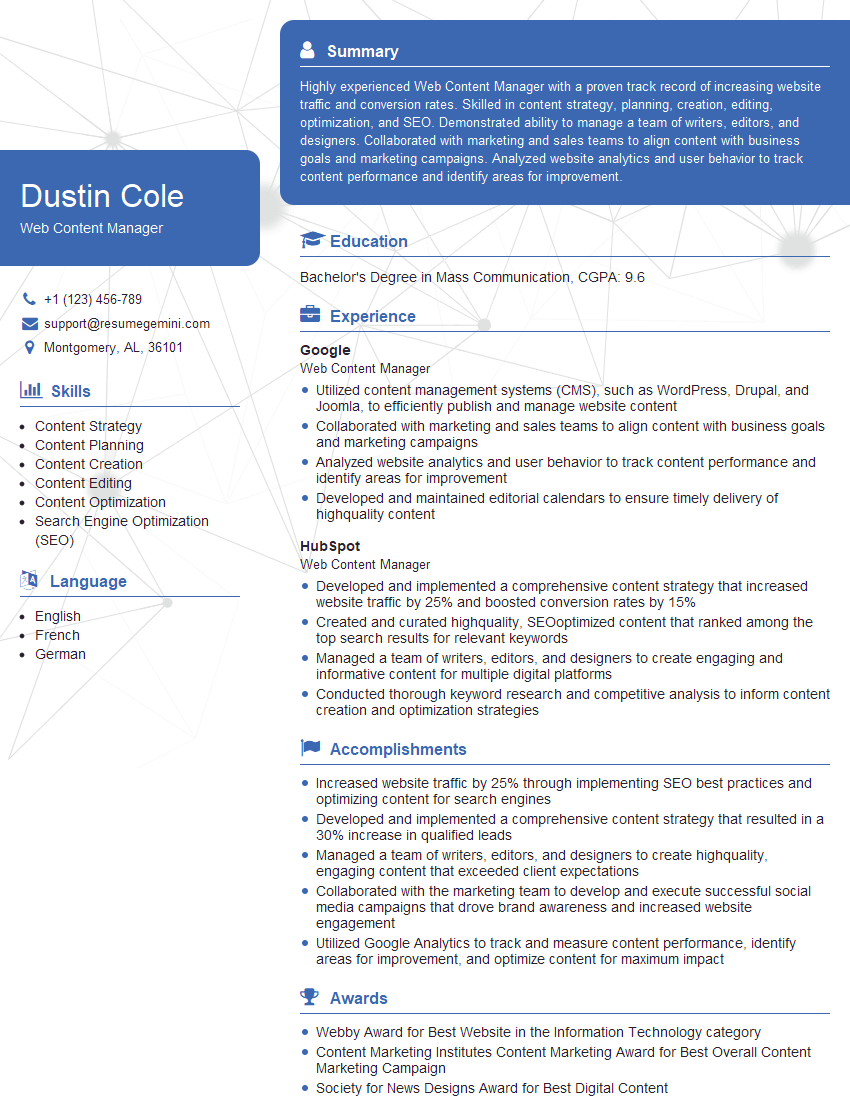
Web Content Manager Resume Sample
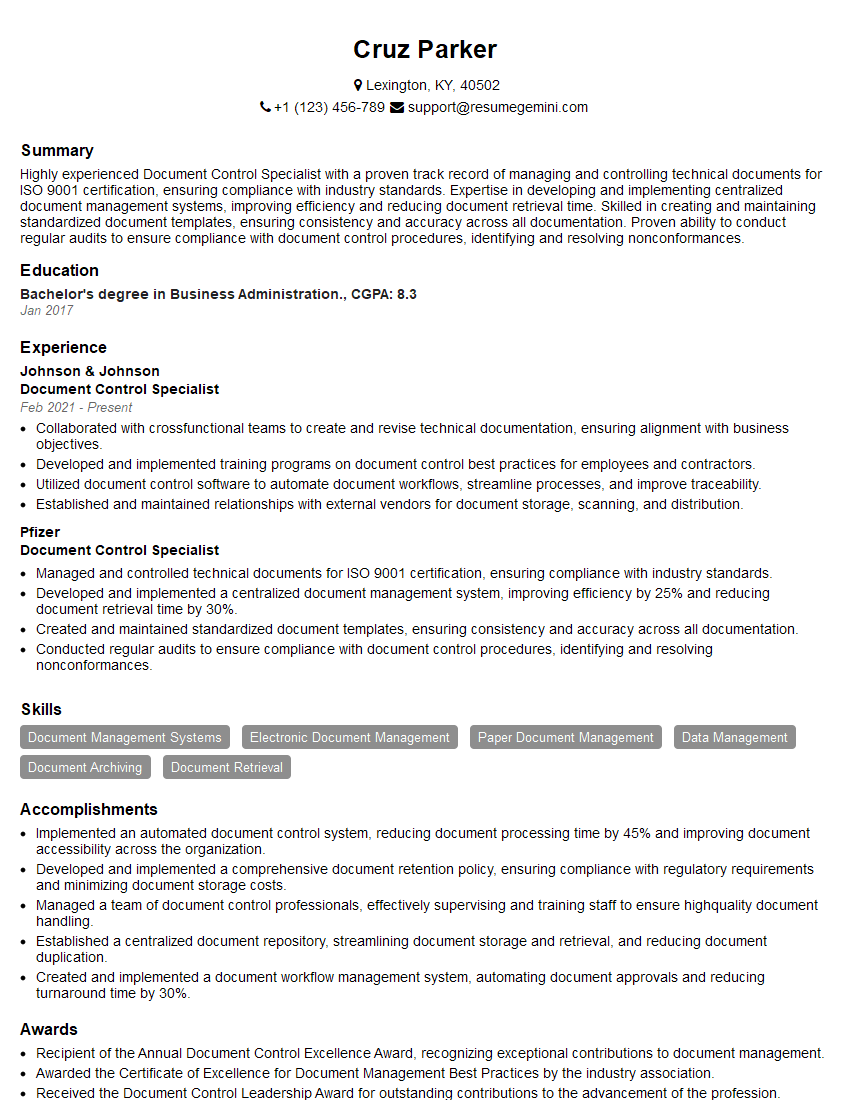
Document Control Specialist Resume Sample
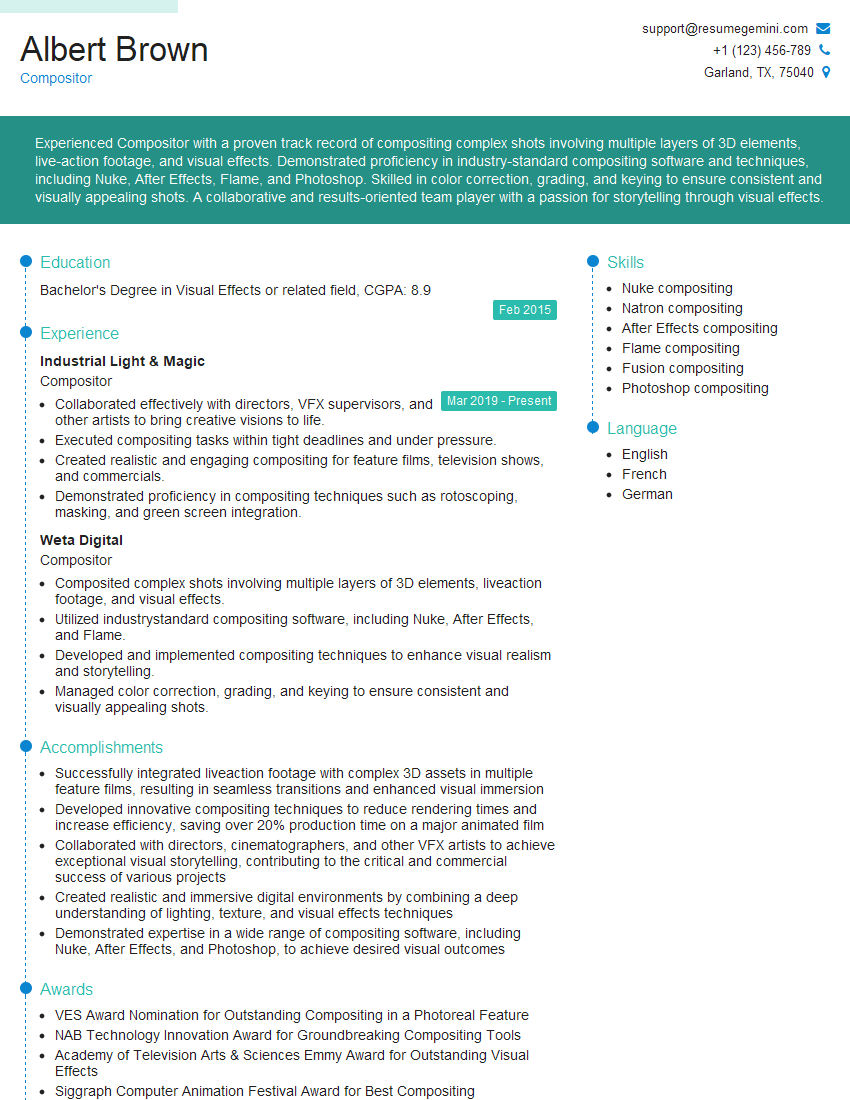
Compositor Resume Sample

Graphic Designer Resume Sample
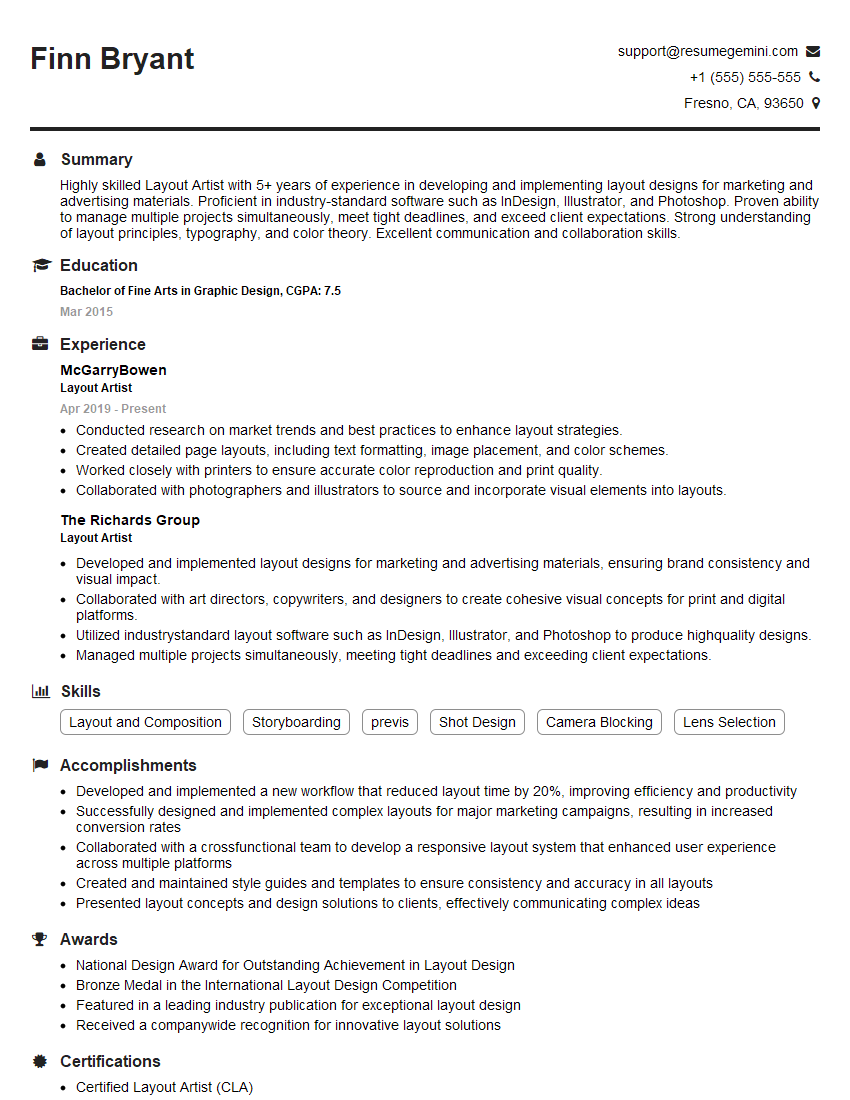
Layout Artist Resume Sample

Production Artist Resume Sample
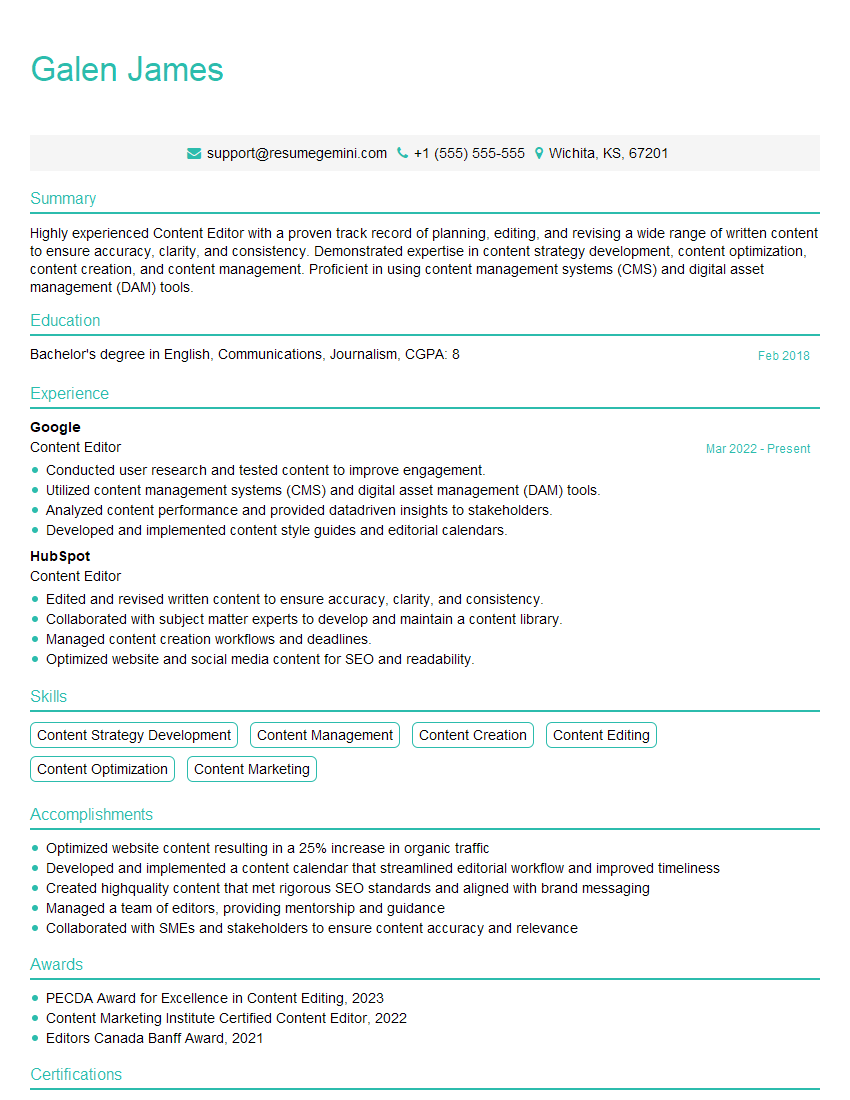
Content Editor Resume Sample
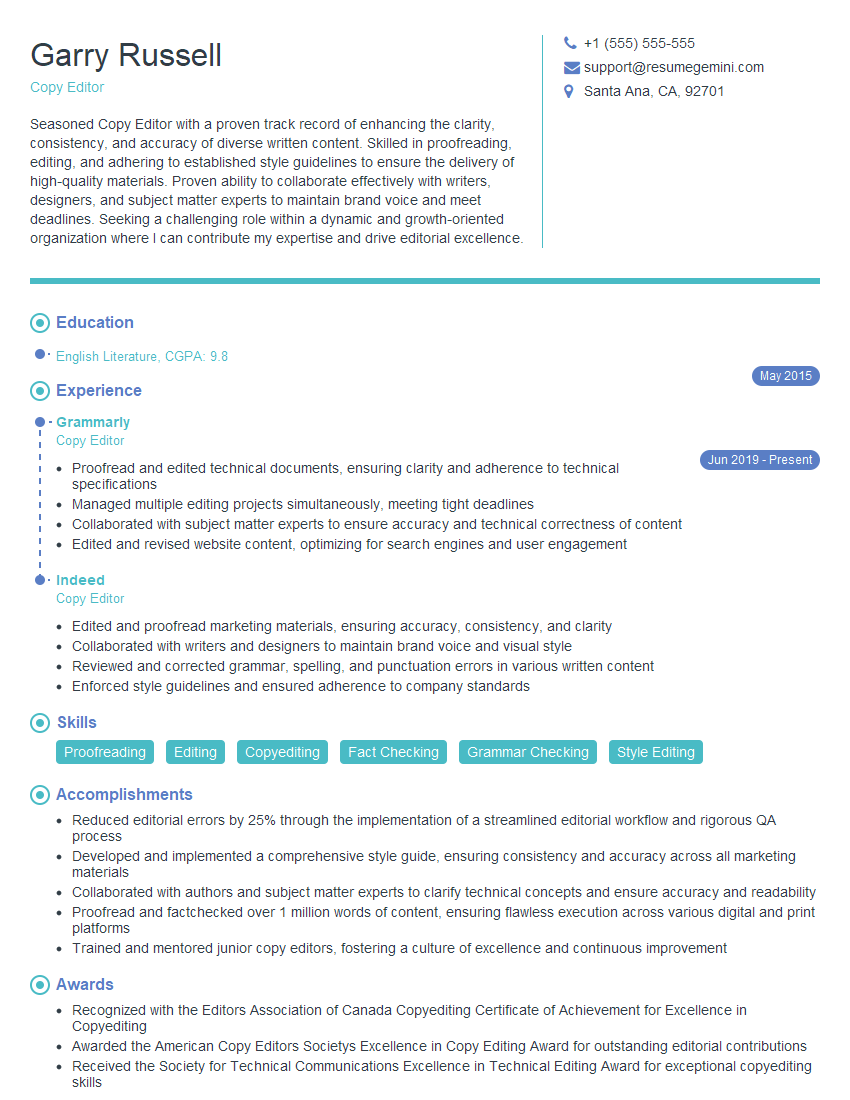
Copy Editor Resume Sample
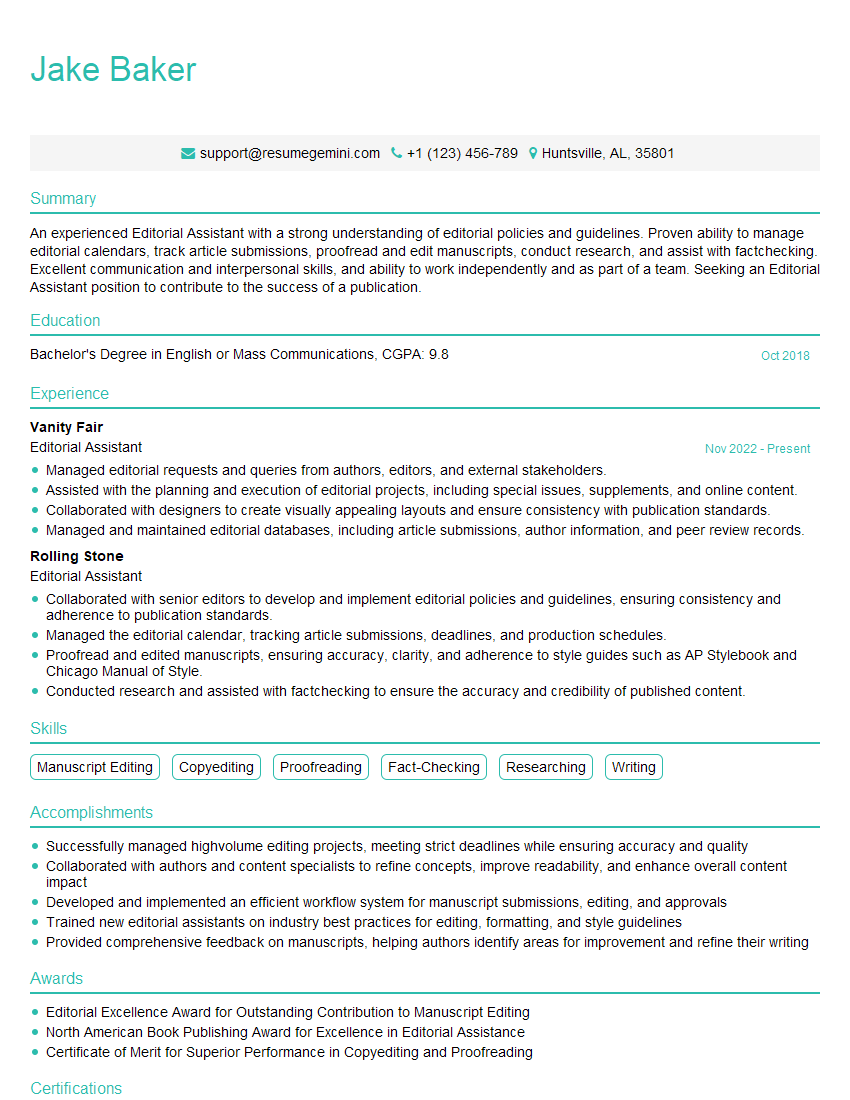
Editorial Assistant Resume Sample
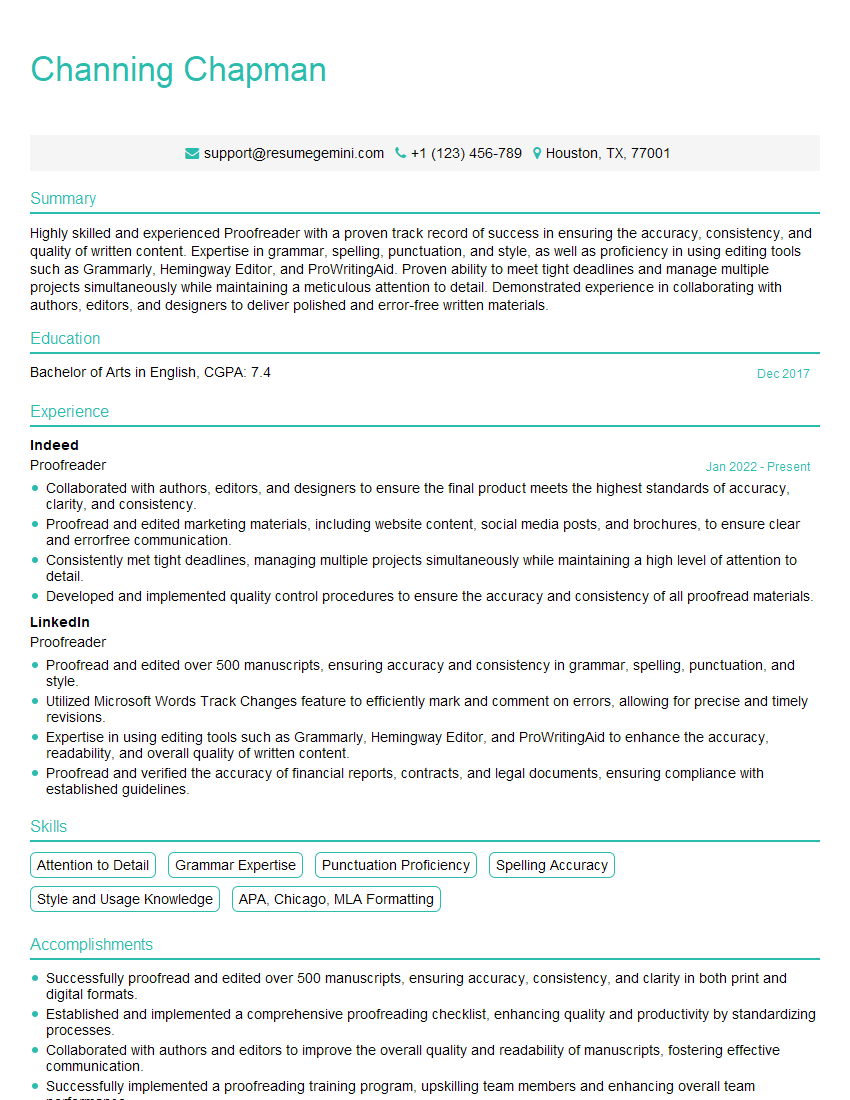
Proofreader Resume Sample
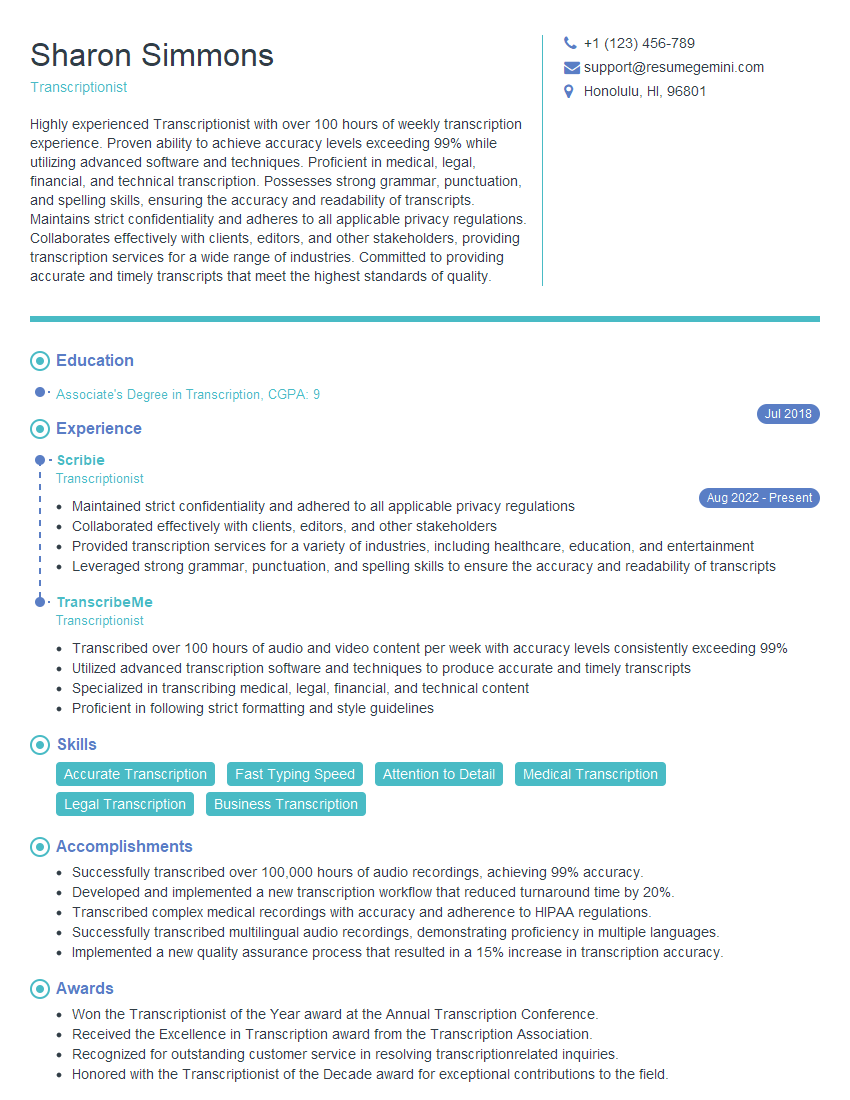
Transcriptionist Resume Sample
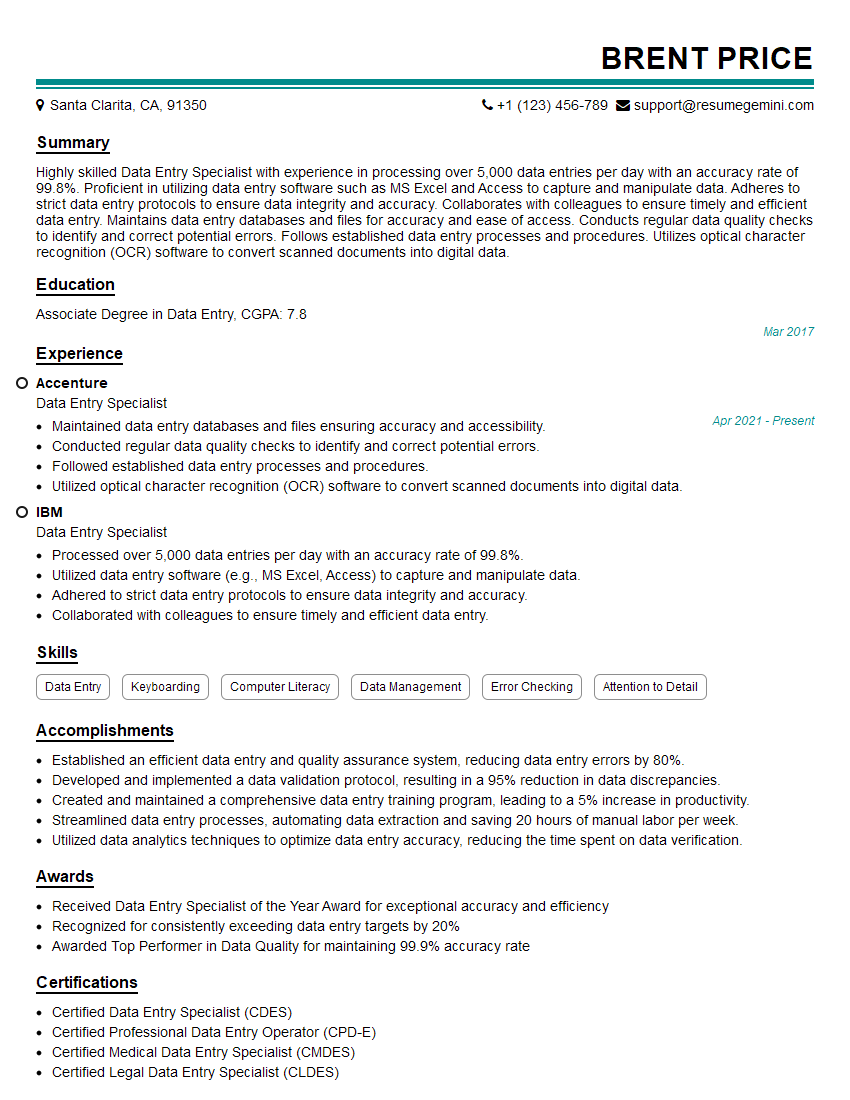
Data Entry Specialist Resume Sample
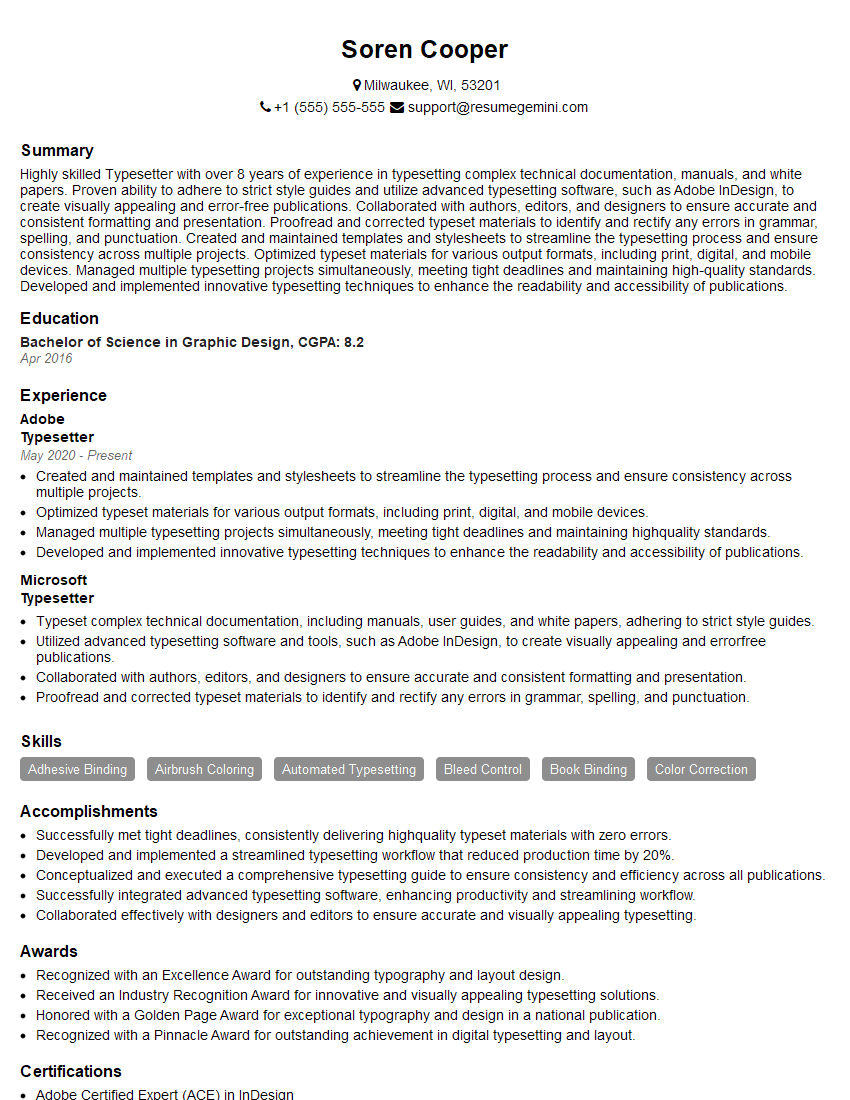
Typesetter Resume Sample
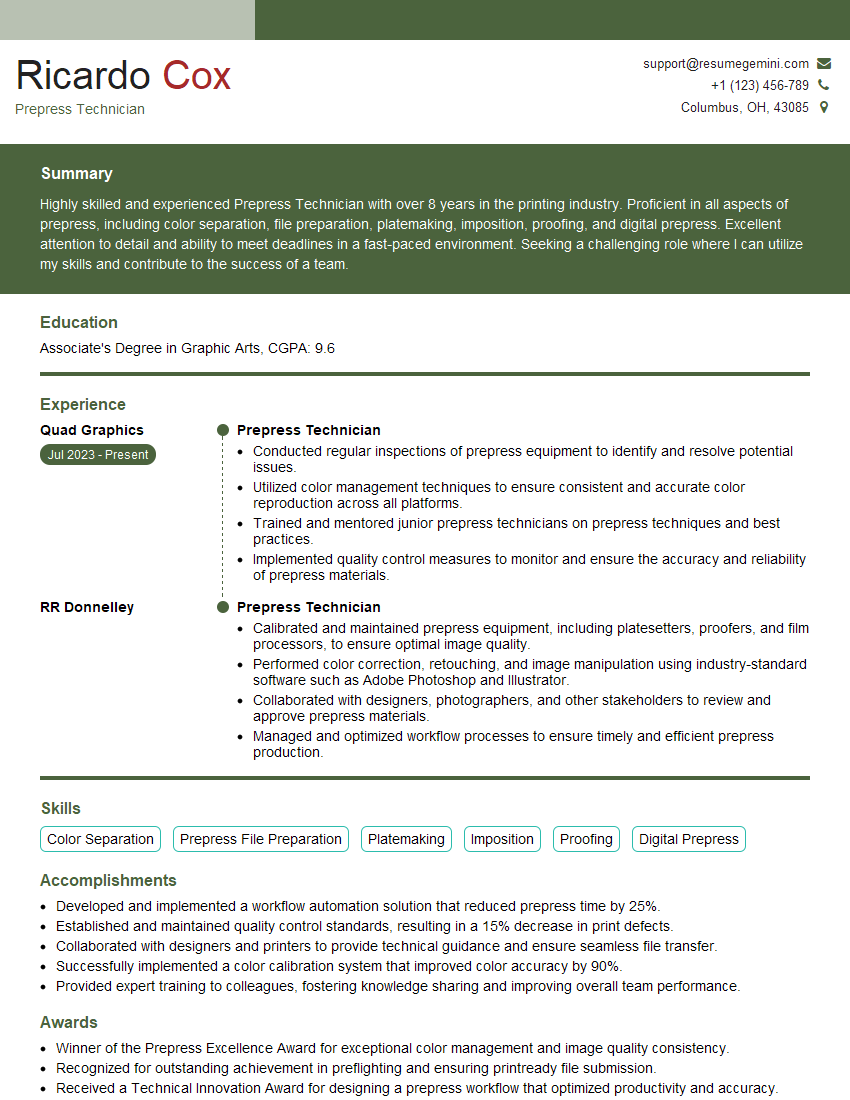
Prepress Technician Resume Sample
Explore more articles
Users Rating of Our Blogs
Share Your Experience
We value your feedback! Please rate our content and share your thoughts (optional).
What Readers Say About Our Blog
Very informative content, great job.
good