Preparation is the key to success in any interview. In this post, we’ll explore crucial Operating Systems (Windows, Mac) interview questions and equip you with strategies to craft impactful answers. Whether you’re a beginner or a pro, these tips will elevate your preparation.
Questions Asked in Operating Systems (Windows, Mac) Interview
Q 1. Explain the difference between a process and a thread.
A process and a thread are both ways an operating system executes a program, but they differ significantly in their independence and resource usage. Think of a process as a complete, independent program running in its own memory space, while a thread is a smaller unit of execution within a process. Multiple threads can exist within the same process, sharing the same memory space.
- Process: A process has its own dedicated memory space, including code, data, and stack. Processes are isolated from each other; changes made by one process don’t directly affect others. Switching between processes involves more overhead. For example, opening a web browser creates a new process. Opening multiple tabs within that browser might create multiple threads within the same browser process.
- Thread: Threads share the same memory space as their parent process. This sharing allows for easier communication between threads, but it also requires careful synchronization to avoid data corruption. Switching between threads within a process is faster and less resource-intensive than switching between processes. For example, a word processor might use multiple threads: one for saving the document, one for spell-checking, and another for displaying the text on the screen.
In essence, a process is like a separate apartment building, while threads are like multiple residents sharing an apartment.
Q 2. What is the difference between a hard link and a symbolic link?
Hard links and symbolic links are both ways to create shortcuts or references to files, but they work differently:
- Hard Link: A hard link is essentially another name for the same file. It points directly to the file’s data on the disk. Deleting one hard link doesn’t delete the file, as long as at least one other hard link exists. Hard links can only be created for files within the same file system.
- Symbolic Link (or Symlink): A symbolic link, or symlink, is a file that contains a path to another file or directory. It’s like a shortcut. If you delete a symbolic link, the target file remains unaffected. Symlinks can point to files or directories on different file systems.
Example: Imagine you have a file named mydocument.txt. If you create a hard link named mydoc.txt, both names point to the same underlying data. If you delete mydoc.txt, mydocument.txt still exists. However, if you create a symbolic link called linktomydoc.txt pointing to mydocument.txt, deleting linktomydoc.txt only removes the link; mydocument.txt persists.
Q 3. Describe the function of the Windows Registry.
The Windows Registry is a hierarchical database that stores configuration settings and options for the operating system, applications, and users. Think of it as a central control panel, holding information about everything from hardware settings to software preferences. It’s crucial for the smooth operation of Windows.
It’s organized into keys, subkeys, and values. Keys are like folders, subkeys are subfolders, and values hold the actual data. Modifying the registry directly can be dangerous and should only be done with caution, as incorrect changes can cause system instability or failures. Most settings are accessed and modified through the graphical user interface or command-line tools rather than direct registry editing.
Key Functions:
- Stores hardware profiles.
- Manages user preferences.
- Configures application settings.
- Contains system-wide settings.
- Provides a central location for software to store configuration data.
Q 4. How does macOS handle memory management?
macOS employs a sophisticated memory management system primarily using a technique called virtual memory and a copy-on-write mechanism. It also incorporates features like memory paging and swap space.
Virtual Memory: Allows applications to access more memory than physically available by using a combination of RAM and hard drive space. Pages of data are swapped between RAM and the hard drive as needed, providing the illusion of larger memory capacity.
Copy-on-write: When a process needs to modify a shared memory page, a copy is made before modification. This reduces the need for unnecessary data duplication and improves overall performance.
Memory Paging: The operating system divides memory into fixed-size blocks (pages). When a process needs data from a page not currently in RAM, it retrieves the page from the hard drive (swap space).
Swap Space: A designated area on the hard drive used as an extension of RAM to store pages not immediately needed.
These methods work together to efficiently manage memory resources, allowing numerous applications to run concurrently without performance issues, even when RAM is limited.
Q 5. Explain the concept of virtual memory.
Virtual memory is a memory management technique that allows a computer to use more memory than physically installed in the system’s RAM. This is achieved by using a portion of the hard drive as an extension of RAM. Think of it as an overflow area for data that doesn’t fit immediately into RAM.
When the system needs to use a piece of data that’s not currently in RAM, the operating system retrieves that data from the hard drive and loads it into RAM. Conversely, when RAM needs to be freed up, data that hasn’t been accessed recently can be moved back from RAM to the hard drive. This process is called paging or swapping.
The benefit of virtual memory is that it allows users to run larger programs and have more applications open simultaneously than would otherwise be possible. However, accessing data from the hard drive is significantly slower than accessing RAM, so excessive use of virtual memory can lead to performance slowdowns (commonly referred to as ‘paging to disk’).
Q 6. What are the common file systems used in Windows and macOS?
Windows and macOS employ different, but in many ways similar, file systems.
- Windows: The most common file system for Windows is NTFS (New Technology File System). It supports features like security permissions, file compression, journaling (to ensure data integrity), and large file sizes. Older systems might still use FAT32 (File Allocation Table), though it has limitations on file size and partition size.
- macOS: APFS (Apple File System) is the primary file system for modern macOS systems. It’s designed for flash storage and offers features such as snapshots, efficient space management, and improved performance for SSDs.
While both aim to manage and organize files, their architectures, features, and optimization differ, reflecting each operating system’s design goals and hardware platforms.
Q 7. Describe different types of operating system kernels.
Operating system kernels can be broadly categorized into different types based on their architecture and design.
- Monolithic Kernel: In a monolithic kernel, all the core OS services (memory management, file system, device drivers, etc.) run in the same memory space. While simple to implement, it can be less stable since a bug in one component can affect the entire system. MS-DOS, earlier versions of Unix, and some embedded systems used monolithic kernels.
- Microkernel: A microkernel minimizes the services running in kernel space. Most of the operating system functions run as separate processes. This enhances stability and modularity; a bug in one service is less likely to crash the entire system. Mach and QNX are examples of microkernel architectures.
- Hybrid Kernel: Hybrid kernels combine aspects of both monolithic and microkernel designs. They aim to strike a balance between stability and efficiency. Linux is considered a hybrid kernel; while largely monolithic, it employs certain microkernel-like techniques.
- Exokernel: Exokernels provide minimal services, delegating most functionalities to user-level services. This approach allows higher customization but requires careful management of system resources. It is generally considered more experimental in comparison to widely-deployed kernels.
The choice of kernel architecture depends on design priorities, such as performance, security, and ease of development.
Q 8. How do you troubleshoot a blue screen of death (BSOD)?
The Blue Screen of Death (BSOD), also known as a stop error in Windows, is a dreaded sign of a serious system problem. Troubleshooting involves a systematic approach to identify the root cause. It’s like detective work; you need to gather clues to solve the mystery.
Immediate Actions: Note the error code (e.g., 0x0000007B) displayed on the BSOD. This is crucial information for diagnosis. Write it down or take a picture if possible. Then, try restarting the computer. Sometimes a simple reboot resolves temporary glitches.
Check Hardware: Loose connections or failing hardware are common culprits. Reseat RAM modules, check power cables, and inspect hard drives for any physical damage. A failing hard drive, for example, could be the source of the BSOD.
Boot in Safe Mode: If the system boots, start in Safe Mode (usually by pressing F8 repeatedly during startup). This loads a minimal set of drivers, helping to identify if a driver is causing the issue. If the system is stable in Safe Mode, the problem likely lies with a recently installed driver or program.
System Restore: If Safe Mode works, try using System Restore to revert to a previous point before the BSOD started appearing. This is like turning back the clock on your system’s changes.
Check Event Viewer (Windows): The Event Viewer logs system events, including errors that may have led to the BSOD. Review the logs for errors or warnings around the time of the crash. This provides valuable clues about the underlying issue.
Update or Reinstall Drivers: Outdated or corrupted drivers are frequent suspects. Check for updated drivers on the manufacturer’s website and install them. If the problem persists, consider reinstalling the driver completely. Imagine updating the software for your car’s engine; it’s essential for optimal performance.
Run a Virus Scan: Malware can cause system instability leading to BSODs. Run a full system scan with your antivirus software.
Memory Diagnostics: Run Windows Memory Diagnostic to check for RAM errors. This is like having a doctor check your heart rate; it’s essential for stability.
Check for Overheating: Overheating components can cause instability. Make sure your computer’s cooling system (fans) is functioning correctly.
Reinstall Windows (Last Resort): If all else fails, reinstalling Windows is a last resort. Back up your important data before attempting this.
Q 9. What are the different types of network configurations (e.g., client-server, peer-to-peer)?
Network configurations determine how devices share resources and communicate. Two fundamental types are:
Client-Server: This is a centralized model where a central server manages resources (files, printers, applications) and clients request access to these resources. Think of a large company network where a central server provides email and file storage for all employees. The server acts like a librarian, handing out books (data) to students (clients) on demand. This model offers better security, centralized management, and scalability.
Peer-to-Peer (P2P): In a P2P network, all devices share resources directly with each other without a central server. Each device acts as both a client and a server. Think of a small home network sharing files between computers. It’s like a small study group where everyone shares notes directly without a central repository. This is simpler to set up but generally less secure and scalable than client-server.
Other types include hybrid models combining aspects of both, and more specialized networks like mesh networks, which are designed for greater resilience.
Q 10. Explain the concept of user permissions and access control lists (ACLs).
User permissions define what actions a user can perform within a system or on specific files and folders. Access Control Lists (ACLs) are the mechanism to enforce these permissions. They’re like security guards at the gates of a building, determining who can enter and what they can do once inside.
Imagine a company document. Only certain people (users) need access, and each might have different levels of access (read-only, read-write, edit, delete). ACLs meticulously specify these levels for each user or group. A simple file might have an ACL with the owner having full control, while others only have read access. Complex systems use intricate ACL structures to manage access to shared resources.
Common permissions include:
Read: Ability to view the file or folder contents.
Write: Ability to modify or add data to the file or folder.
Execute: Ability to run programs or scripts.
Full Control: Combination of all the above permissions, allowing the user complete access and control.
ACLs provide granular control, ensuring data security and system stability. Without them, unauthorized access would be rampant, posing serious security risks.
Q 11. How do you manage user accounts and groups in Windows and macOS?
Managing user accounts and groups is crucial for security and system administration. The processes differ slightly between Windows and macOS, but the fundamental principles remain the same.
Windows: User accounts and groups are managed through the
Computer Managementconsole (accessible through the Control Panel or by searching for it). You can create new user accounts, assign them to groups (like ‘Administrators’ or ‘Users’), and set permissions. Active Directory (in larger networks) adds a layer of centralized management.macOS: User account management is primarily handled through
System Preferences > Users & Groups. You can create new users, assign passwords, set their home folders, and configure their access privileges. Instead of Active Directory, macOS relies on its built-in user management tools and Local Accounts.
In both systems, grouping users simplifies management. Instead of setting permissions for each user individually, you assign them to groups, and manage permissions at the group level. For instance, all members of the ‘Marketing’ group might have access to a specific shared folder.
Q 12. Describe different methods for system backup and recovery.
System backup and recovery are essential for data protection and disaster recovery. Several methods exist, each offering different levels of protection and complexity:
Full Backup: Creates a complete copy of all selected data. It’s like photographing your entire room; you capture everything at once. It takes the longest, but offers complete restoration.
Incremental Backup: Only backs up data that has changed since the last backup (full or incremental). This is like only noting the changes in your room since the last photograph, saving time and space. It’s efficient but requires the full or latest incremental backup for complete restoration.
Differential Backup: Backs up all data that has changed since the last full backup. This is similar to incremental, but the restore process is simpler since it only needs the full backup and the latest differential backup.
Image Backup: Creates a complete image of the entire system drive, including the operating system, applications, and data. It’s like cloning your entire hard drive. This allows for quick and complete system recovery, either to the same drive or another drive. Most backup solutions and some OS utilities offer this feature.
Cloud Backup: Storing backups offsite in the cloud provides protection against physical disasters. Services like OneDrive, iCloud, and Backblaze offer this capability, providing extra security and peace of mind.
The best method depends on your needs, budget, and tolerance for downtime. Regular backups, along with a recovery plan, are crucial for minimizing data loss and ensuring business continuity.
Q 13. What are the common command-line tools used in Windows and macOS?
Command-line tools offer powerful ways to manage systems directly. Here are some common examples:
Windows:
cmd.exe(Command Prompt): Basic command-line interface.PowerShell: More advanced scripting and automation capabilities.ipconfig: Displays network configuration information.ping: Tests network connectivity.netstat: Displays network connections.diskpart: Manages disk partitions.
macOS:
Terminal: The main command-line interface.ls: Lists files and directories.cd: Changes directories.mkdir: Creates directories.rm: Removes files and directories.cp: Copies files and directories.netstat: Displays network connections.ifconfig: Displays network interface configuration.
Mastering these tools enhances your ability to troubleshoot, automate tasks, and manage systems efficiently. They are essential for system administrators and power users alike.
Q 14. How do you monitor system performance and resource utilization?
Monitoring system performance is crucial for identifying bottlenecks, optimizing resource utilization, and proactively addressing potential problems. Several tools and techniques help achieve this:
Windows:
Task Manager: Provides real-time information on CPU, memory, disk, and network utilization. It’s like the dashboard of your computer, showing key performance indicators.
Resource Monitor: Offers a more detailed view of resource usage, identifying specific processes consuming significant resources.
Performance Monitor: A powerful tool for tracking various system metrics over time, generating charts and reports to analyze trends.
macOS:
Activity Monitor: Similar to Windows Task Manager, it displays real-time information about CPU, memory, disk, and network activity.
System Information: Provides comprehensive information about your system hardware and software.
Console: The command-line provides tools like
top(displays real-time processes),iostat(disk I/O statistics), and others for in-depth monitoring.
By regularly monitoring these metrics, you can identify resource-intensive processes, detect potential hardware issues, and optimize system performance. It’s like regularly checking your car’s oil level—preventative maintenance.
Q 15. Explain the concept of device drivers and their importance.
Device drivers are essentially the translators between your operating system and your hardware. Think of it like this: your OS speaks a high-level language, while your hardware speaks a low-level, device-specific language. The device driver acts as the interpreter, allowing them to communicate effectively. Without drivers, your operating system wouldn’t be able to interact with any of your hardware – your keyboard, mouse, printer, graphics card, etc. would be useless.
Their importance is paramount. They enable the OS to utilize all connected devices and functionalities. For example, the graphics card driver allows the OS to display images on your screen; the network driver enables internet connectivity; and the printer driver makes printing possible. A malfunctioning or missing driver can lead to system instability, device malfunctions, or a complete lack of functionality.
Career Expert Tips:
- Ace those interviews! Prepare effectively by reviewing the Top 50 Most Common Interview Questions on ResumeGemini.
- Navigate your job search with confidence! Explore a wide range of Career Tips on ResumeGemini. Learn about common challenges and recommendations to overcome them.
- Craft the perfect resume! Master the Art of Resume Writing with ResumeGemini’s guide. Showcase your unique qualifications and achievements effectively.
- Don’t miss out on holiday savings! Build your dream resume with ResumeGemini’s ATS optimized templates.
Q 16. What are some common security threats to operating systems?
Operating systems face a wide range of security threats. Some common ones include:
- Malware: This encompasses viruses, worms, Trojans, ransomware, and spyware, all designed to damage, disable, or gain unauthorized access to your system. Ransomware, for instance, encrypts your files and demands a ransom for their release.
- Phishing: This involves deceptive attempts to acquire sensitive information such as usernames, passwords, and credit card details by masquerading as a trustworthy entity in electronic communication. Think of fake emails appearing to be from your bank.
- SQL Injection: This attack targets databases by injecting malicious SQL code into input fields. It can compromise data integrity and confidentiality.
- Zero-day exploits: These are attacks that exploit software vulnerabilities before the vendor has released a patch. They are especially dangerous because there’s no immediate fix.
- Denial-of-Service (DoS) attacks: These attacks flood a system with traffic, rendering it unavailable to legitimate users. Imagine a website being overwhelmed by requests, making it impossible to access.
These threats necessitate strong security measures, including up-to-date antivirus software, firewalls, regular security updates, and user education about safe online practices.
Q 17. How do you handle software installations and updates?
Software installations and updates are critical for maintaining system stability, security, and performance. I always follow a structured approach:
- Verification: Before installing, I verify the source of the software to ensure it’s legitimate and hasn’t been tampered with. I check reviews and ratings, especially for less-known software.
- Backup: I create a system backup before installing anything major, just in case something goes wrong. This allows me to easily restore my system to its previous state.
- Installation: I follow the installation instructions carefully, paying attention to any custom settings or options. I prefer to install software with administrator privileges when necessary.
- Update Management: I utilize the built-in update mechanisms of the operating system and applications. For example, I use Windows Update on Windows and Software Update on macOS. I enable automatic updates for security patches but often review the updates before installing non-security related ones.
- Testing: After installation, I thoroughly test the software to ensure it functions correctly and doesn’t conflict with other applications. I monitor for any unexpected behavior.
This methodical approach minimizes risks and ensures a smooth installation and update process.
Q 18. Describe different types of operating system virtualization.
Operating system virtualization allows you to run multiple operating systems simultaneously on a single physical machine. There are several types:
- Type 1 (Bare-metal): This is also known as hypervisor. The hypervisor runs directly on the hardware, managing the resources and allocating them to virtual machines. Examples include VMware ESXi and Xen.
- Type 2 (Hosted): This type of virtualization runs on top of an existing operating system, like Windows or macOS. The host OS manages the hardware, and the virtualization software creates and manages the virtual machines. Examples include VMware Workstation Player and VirtualBox.
- Paravirtualization: This approach modifies the guest operating system to work more efficiently with the hypervisor. It provides better performance compared to full virtualization but requires some modifications to the guest OS.
- Full Virtualization: This method doesn’t require any changes to the guest OS. The hypervisor emulates the entire hardware environment, providing complete isolation between the guest OS and the host.
The choice of virtualization type depends on the specific needs and resources available. Type 1 hypervisors are generally more performant but require more technical expertise, while Type 2 hypervisors are more user-friendly.
Q 19. What are the differences between FAT32, NTFS, and APFS file systems?
FAT32, NTFS, and APFS are all file systems, meaning they’re how data is organized and stored on a storage device. They have key differences:
- FAT32 (File Allocation Table 32): Older file system, widely compatible with various operating systems, but has a 4GB file size limit and limited security features.
- NTFS (New Technology File System): Developed by Microsoft, it supports larger file sizes (up to 16 EB), has robust security features like access control lists (ACLs), and supports journaling (ensuring data integrity).
- APFS (Apple File System): Used in macOS and iOS devices, it offers features like copy-on-write (improving performance and data integrity), space sharing (efficient space usage), and built-in encryption.
In essence, NTFS is a more advanced and secure file system ideal for Windows systems, while APFS is optimized for Apple devices, and FAT32 is a legacy system best suited for compatibility across a wider range of systems.
Q 20. Explain the role of the boot loader in an operating system.
The boot loader is a small program that initiates the startup process of an operating system. Think of it as the conductor of an orchestra, ensuring all the different parts of the system start up in the right order and at the right time. When you turn on your computer, the BIOS (Basic Input/Output System) or UEFI (Unified Extensible Firmware Interface) locates the boot loader, typically residing on the hard drive’s Master Boot Record (MBR) or GPT (GUID Partition Table).
The boot loader’s responsibilities include loading the operating system kernel into memory, setting up the system’s hardware, and then transferring control to the kernel. In systems with multiple operating systems installed, the boot loader presents a menu allowing the user to select which OS to boot.
Examples include GRUB (GRand Unified Bootloader) for Linux systems and the Windows Boot Manager for Windows.
Q 21. How do you troubleshoot network connectivity issues?
Troubleshooting network connectivity issues involves a systematic approach. I typically follow these steps:
- Check the obvious: Ensure the device is properly connected to the network (cables plugged in, Wi-Fi enabled). Check if the network cable is damaged.
- Test the physical connection: Try a different cable, or connect to a different network or access point.
- Check the network settings: Verify the IP address, subnet mask, and default gateway are correctly configured. Look for any conflicting settings or missing configurations.
- Ping the gateway: Using the command prompt (
ping 192.168.1.1or your gateway IP) checks whether your computer can communicate with the router. If it fails, there’s a problem with your network hardware. - Test internet connectivity: Attempt to access websites or online services. If internet is unavailable, contact your internet service provider (ISP).
- Check for conflicts: Look for any conflicting software or drivers that might be interfering with the network connection.
- Use network diagnostic tools: Operating systems provide built-in network diagnostic tools which can help in isolating the issue further.
- Restart devices: Sometimes a simple restart of your computer and router fixes temporary glitches.
By systematically ruling out potential problems, I can often pinpoint the cause of network connectivity issues efficiently. If problems persist, advanced network troubleshooting tools and consultation with network specialists might be required.
Q 22. How do you manage disk space and storage efficiently?
Efficient disk space management is crucial for optimal system performance. Think of your hard drive as a meticulously organized closet; if it’s overflowing, finding anything becomes a nightmare. My approach involves a multi-pronged strategy focusing on identifying and removing unnecessary files, optimizing storage allocation, and employing proactive measures to prevent future space issues.
Identifying and Removing Unnecessary Files: I regularly use disk cleanup utilities (like Disk Cleanup in Windows or DaisyDisk on macOS) to identify and remove temporary files, system files, and old downloads. I also manually review folders containing large files, such as Downloads and Documents, deleting anything no longer needed. For example, I recently freed up 20GB on a client’s machine by removing years’ worth of outdated software installers.
Optimizing Storage Allocation: This involves analyzing disk usage patterns to understand where space is being consumed. Tools like WinDirStat (Windows) or OmniDiskSweeper (macOS) visually represent disk usage, making it easy to pinpoint large files or folders. Once identified, these can be moved to external storage or deleted.
Proactive Measures: Regularly backing up important data to an external drive or cloud service is essential. This frees up space on the primary drive and protects against data loss. Enabling automatic deletion of temporary internet files and browser caches also contributes to long-term space optimization.
For example, on a recent project involving a server with limited storage, I implemented a daily automated script to remove old log files, keeping only the last week’s worth of data, effectively preventing disk space exhaustion.
Q 23. Describe the importance of system logs and how to interpret them.
System logs are essentially detailed diaries of your operating system’s activities. They record everything from successful login attempts to software errors, providing invaluable insights into system health and troubleshooting. Think of them as a detective’s case file; they contain clues to solve system mysteries.
Interpreting logs requires understanding their structure and format. Typically, they contain timestamps, event IDs, severity levels (e.g., Error, Warning, Information), and descriptions of the events. For example, a Windows event log might show an error message indicating a failed driver installation, providing crucial information for resolving the issue. Similarly, macOS logs often reside in the Console application and provide detailed information about the kernel and other system processes.
I use tools like Event Viewer (Windows) and the Console application (macOS) to analyze logs. I focus on error messages, warnings, and critical events, searching for recurring patterns that might indicate a problem. Knowing the source of the log entry (e.g., a specific application or driver) significantly speeds up the troubleshooting process.
Effective log management also involves configuring log rotation to prevent log files from consuming excessive disk space. Many systems can automatically archive or delete older log files after a set period.
Q 24. How do you secure an operating system from malware?
Securing an operating system from malware is a multi-layered approach, much like building a fortress with multiple defense walls. It’s about creating a strong, resilient system that’s difficult for malicious software to penetrate.
Keep Software Updated: Regularly updating the operating system, applications, and firmware ensures that known vulnerabilities are patched. Think of updates as adding new security features to your fortress walls.
Use a Reputable Antivirus: A robust antivirus solution provides real-time protection against malware. This is like having well-trained guards patrolling the walls of your fortress.
Practice Safe Browsing Habits: Avoid suspicious websites, be wary of email attachments from unknown senders, and don’t download software from untrusted sources. This is akin to making sure the fortress gates are heavily guarded.
Enable Firewall: A firewall acts as a gatekeeper, controlling network traffic and blocking unauthorized access. This is an extra layer of protection surrounding the fortress.
Regular Backups: Regularly backing up data protects against data loss in case of a malware attack. This is like having a separate safe location for your most valuable assets.
User Education: Educate users about phishing scams and other social engineering techniques. Well-informed users are less likely to fall victim to malware attacks. This is like training your citizens to recognize threats and defend the fortress themselves.
I also regularly employ advanced security measures like enabling User Account Control (UAC) on Windows and employing App Sandboxing features on macOS to restrict software permissions and minimize the impact of compromised applications.
Q 25. Explain the concept of a firewall and its role in security.
A firewall is essentially a security gatekeeper for your computer or network, controlling the flow of network traffic in and out. It examines incoming and outgoing data packets and decides whether to allow or block them based on predefined rules. Think of it like a bouncer at a nightclub, carefully examining everyone who wants to enter or leave.
Its primary role is to prevent unauthorized access to your system or network from external sources. It does this by blocking malicious traffic, such as attempts to exploit vulnerabilities or launch denial-of-service attacks. Firewalls can also block outgoing connections to prevent malware from communicating with command-and-control servers.
Most modern operating systems come with built-in firewalls (Windows Firewall, macOS Firewall). These can be configured to allow or block specific applications or ports. For example, you might configure your firewall to allow access to your web browser on port 80 but block access to a specific port known to be used by malicious software. Advanced firewalls offer features like intrusion detection and prevention, providing even more robust security.
Q 26. How do you troubleshoot a slow-performing computer?
Troubleshooting a slow computer is a systematic process involving careful observation, analysis, and targeted interventions. It’s like being a mechanic diagnosing a car’s problem; you need to examine different aspects to find the root cause.
Check Resource Usage: Start by monitoring CPU, memory, and disk usage using Task Manager (Windows) or Activity Monitor (macOS). High CPU usage might indicate a resource-intensive application or a malware infection. High memory usage might indicate insufficient RAM or memory leaks. High disk usage could be due to a hard drive failure or a process writing a large amount of data.
Scan for Malware: Run a full system scan with an updated antivirus solution. Malware can significantly impact performance.
Check Startup Programs: Many applications automatically start when the computer boots, consuming resources. Disable unnecessary startup programs to reduce boot time and improve overall performance. In Windows, use the msconfig utility; in macOS, use the System Preferences’ Users & Groups panel.
Update Drivers: Outdated or corrupted device drivers can cause system instability and performance issues. Update drivers to their latest versions. Check device manager in Windows or system information in macOS.
Check Disk Space: Low disk space can drastically slow down a computer. Free up disk space by deleting unnecessary files or moving data to an external drive.
Consider Hardware Upgrades: If the problem persists after software troubleshooting, hardware upgrades like adding more RAM or replacing a failing hard drive might be necessary.
For example, I recently resolved a client’s slow computer issue by identifying a rogue application consuming excessive CPU resources and then updating outdated drivers, resulting in a noticeable performance improvement.
Q 27. Describe your experience with scripting or automation tools for system administration.
I have extensive experience with scripting and automation tools for system administration, using them to streamline repetitive tasks, improve efficiency, and enhance system security. My proficiency lies primarily in PowerShell (Windows) and bash (macOS/Linux).
PowerShell Examples: I’ve used PowerShell to automate tasks such as:
Get-ChildItem -Path C:\Temp -Recurse | Where-Object {$_.LastWriteTime -lt (Get-Date).AddDays(-7)} | Remove-Item -Force(Deletes files in the Temp folder older than 7 days)Creating scripts to deploy software updates to multiple machines.
Automating user account creation and management.
Bash Examples: In macOS environments, I’ve utilized bash scripting for:
find /tmp -type f -mtime +7 -delete(Similar to the PowerShell example, deleting files older than 7 days)Automating log file analysis and reporting.
Creating scripts for system monitoring and alerting.
These scripting skills allow me to build robust and reusable solutions, reducing manual intervention and minimizing human error. For example, I created a PowerShell script that automatically backs up critical server data every night, significantly reducing the risk of data loss.
Beyond PowerShell and bash, I’m also familiar with other automation tools, including Ansible and Chef, depending on the specific project requirements. This allows me to adapt to different infrastructure needs and leverage the strengths of various technologies.
Key Topics to Learn for Operating Systems (Windows, Mac) Interview
- Processes and Threads: Understand process scheduling algorithms (e.g., FIFO, SJF, Round Robin), thread management, context switching, and inter-process communication (IPC) mechanisms. Consider practical applications like optimizing application performance and handling concurrency.
- Memory Management: Learn about virtual memory, paging, segmentation, and memory allocation strategies. Explore how these concepts impact application stability and performance, and be prepared to discuss memory leaks and their solutions.
- File Systems: Familiarize yourself with different file system types (e.g., NTFS, FAT32, APFS), their structures, and how they manage file access and storage. Practical applications include understanding file permissions and efficient file I/O operations.
- I/O Management: Grasp the concepts of device drivers, interrupt handling, and DMA. Be ready to discuss how operating systems manage input and output devices efficiently.
- Security: Understand user authentication, access control lists (ACLs), and security vulnerabilities. Discuss practical implications for securing systems and protecting data.
- Networking: Familiarize yourself with networking protocols (TCP/IP), sockets, and network programming concepts within the context of operating systems. Consider how network performance impacts applications.
- System Calls and APIs: Understand how applications interact with the operating system through system calls and APIs (Application Programming Interfaces) in both Windows and macOS environments.
- Differences between Windows and macOS: Be prepared to discuss the key architectural differences between the two operating systems and their implications for application development and system administration.
Next Steps
Mastering Operating Systems (Windows and Mac) is crucial for a successful career in software development, system administration, and related fields. A strong understanding of these concepts will significantly boost your problem-solving skills and technical proficiency. To increase your chances of landing your dream job, it’s vital to create a compelling, ATS-friendly resume that highlights your skills and experience. ResumeGemini is a trusted resource to help you build a professional and effective resume. They offer examples of resumes tailored to Operating Systems (Windows, Mac) roles, helping you present your qualifications in the best possible light. Invest time in crafting a standout resume; it’s your first impression and a key to unlocking your career potential.
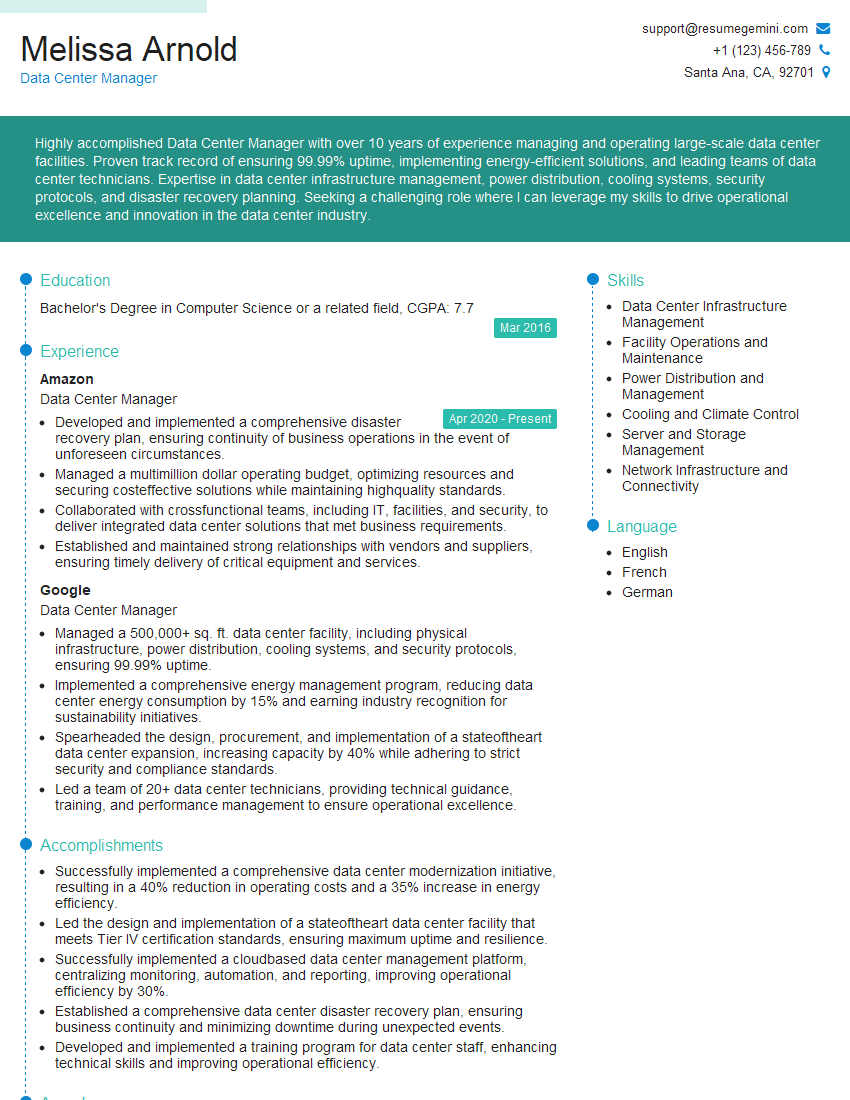
Data Center Manager Resume Sample
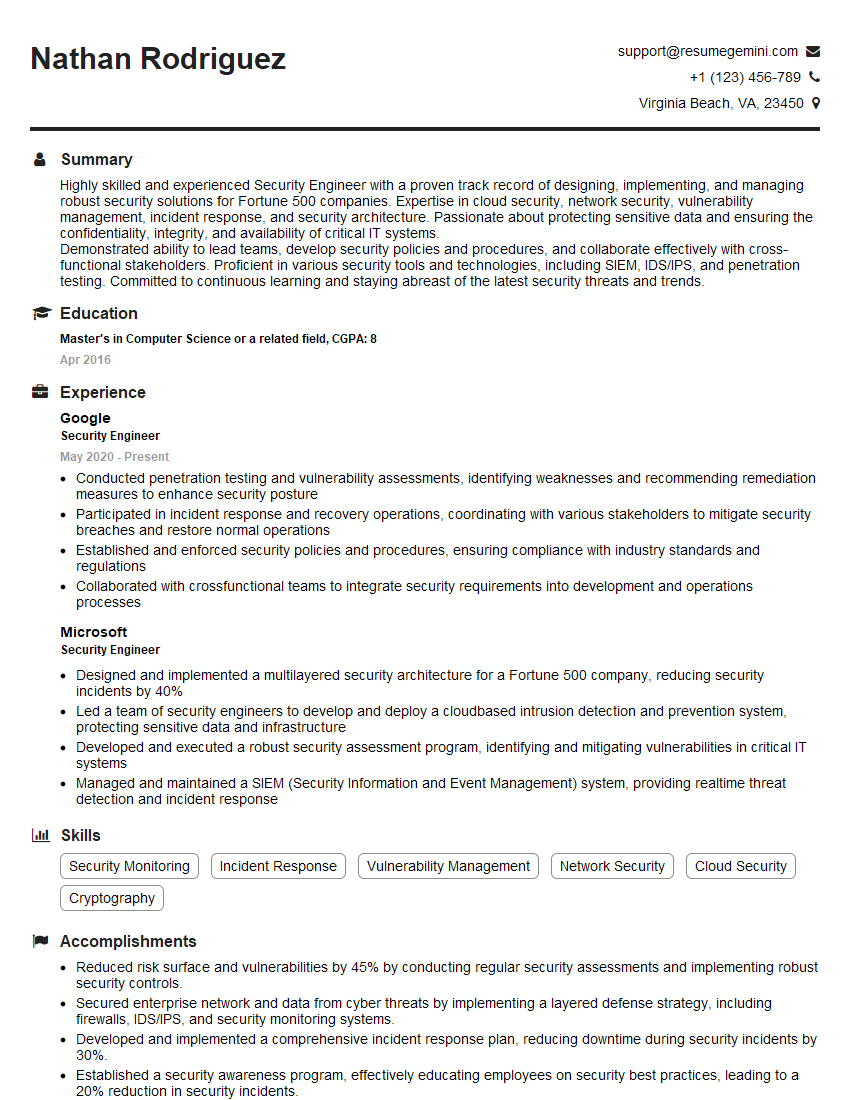
Security Engineer Resume Sample
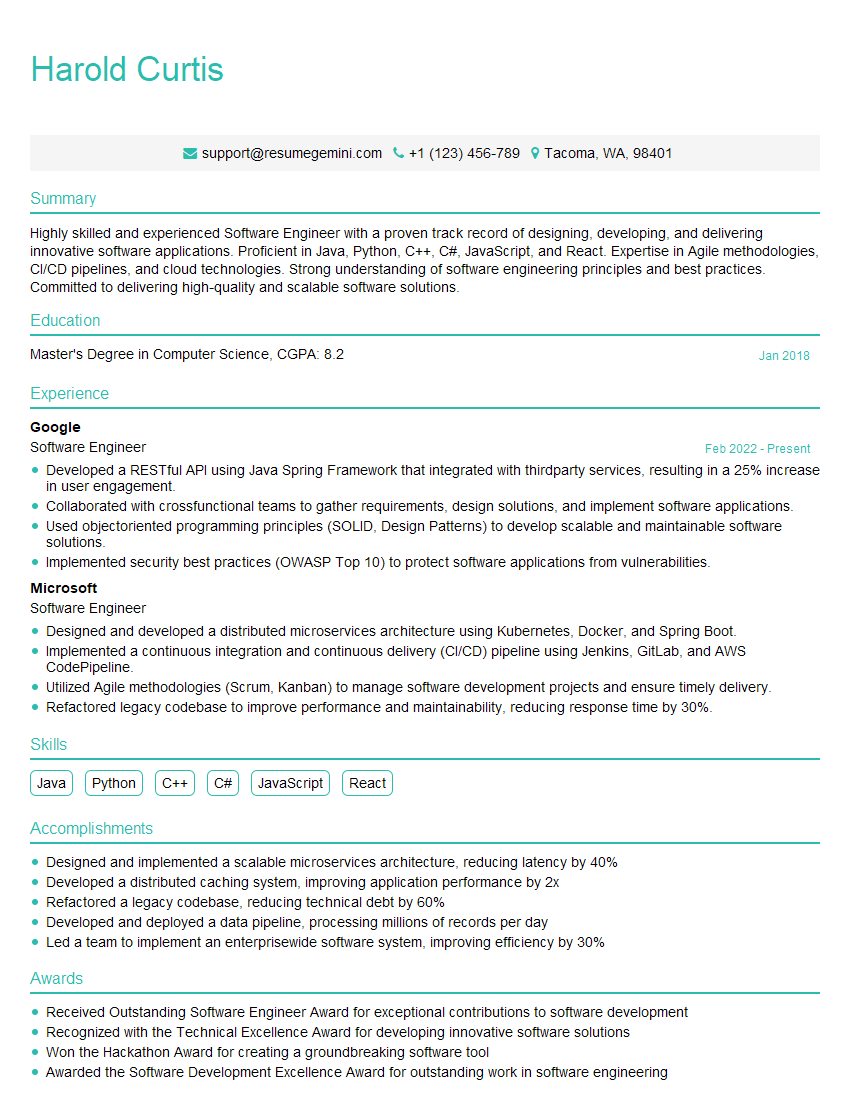
Software Engineer Resume Sample
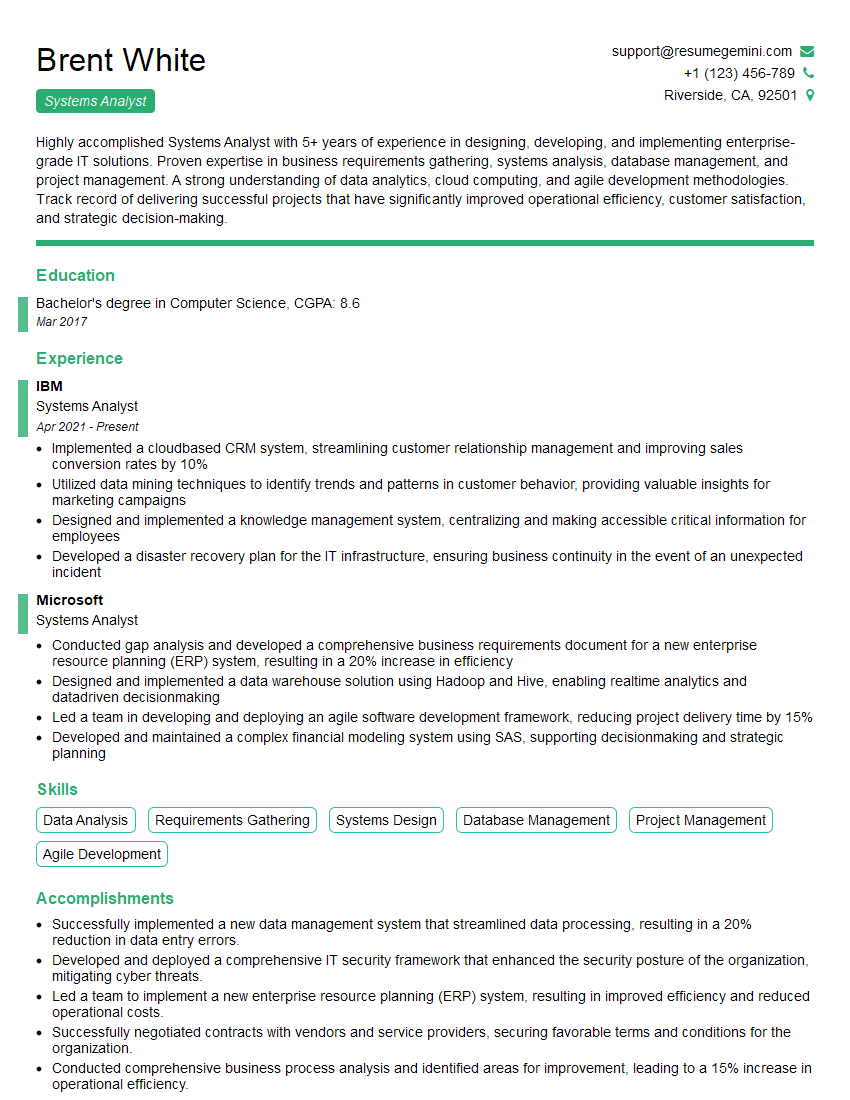
Systems Analyst Resume Sample
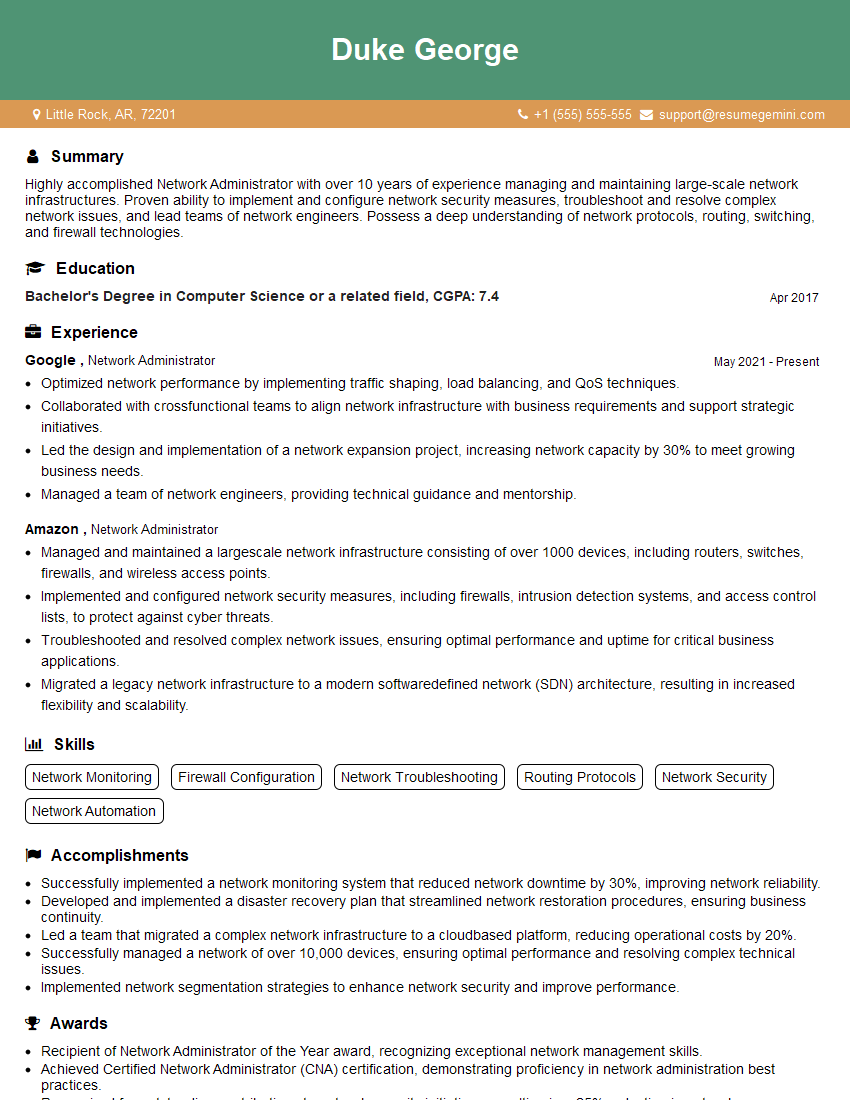
Network Administrator Resume Sample
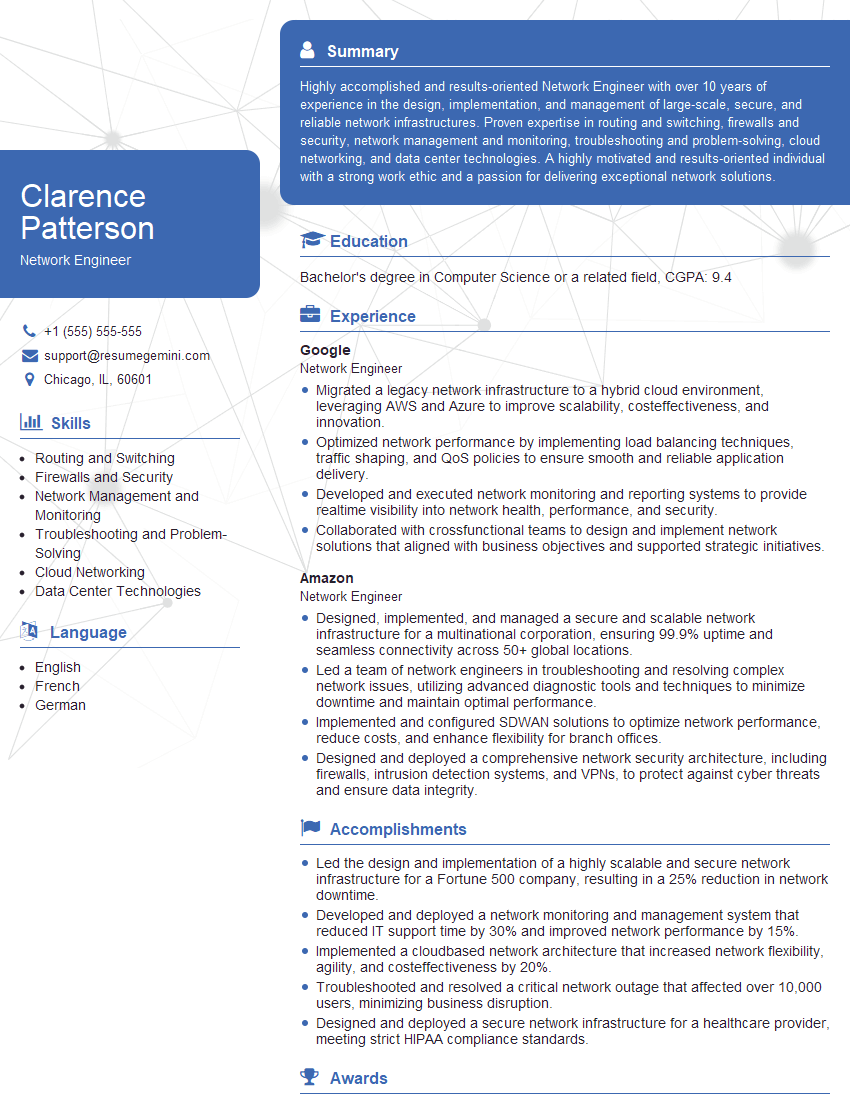
Network Engineer Resume Sample
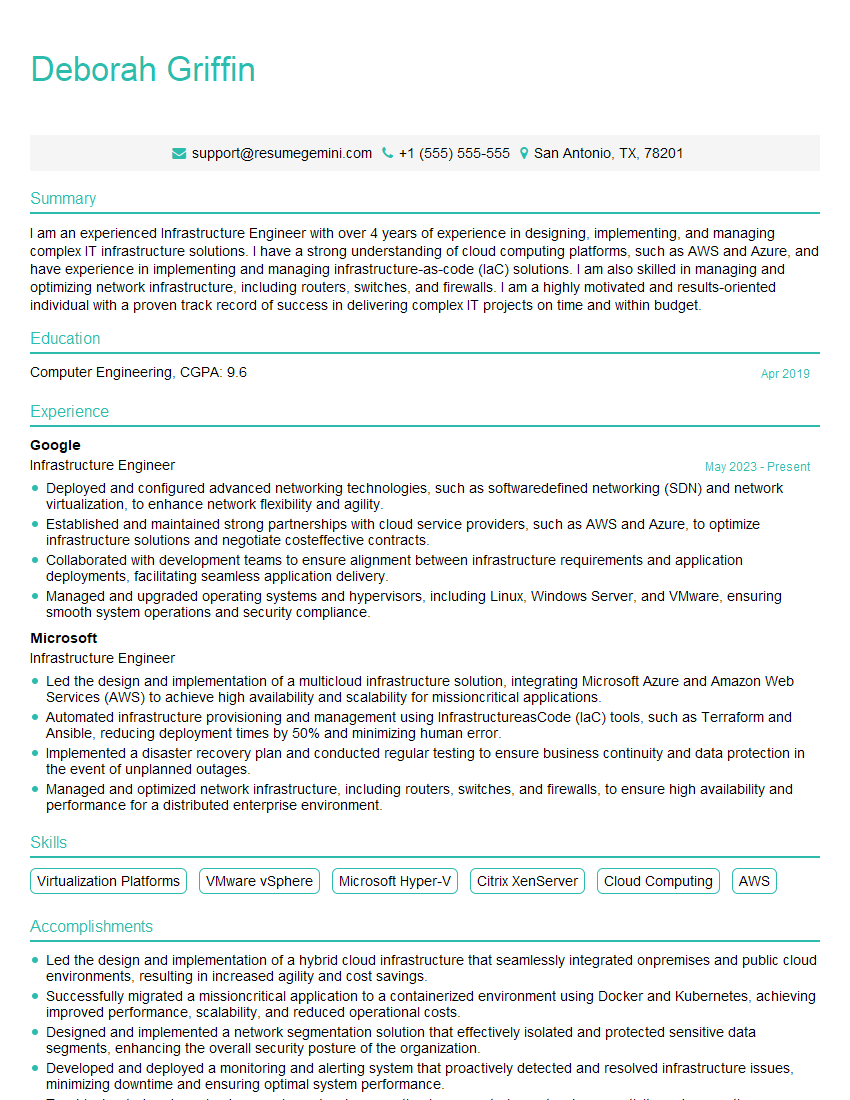
Infrastructure Engineer Resume Sample
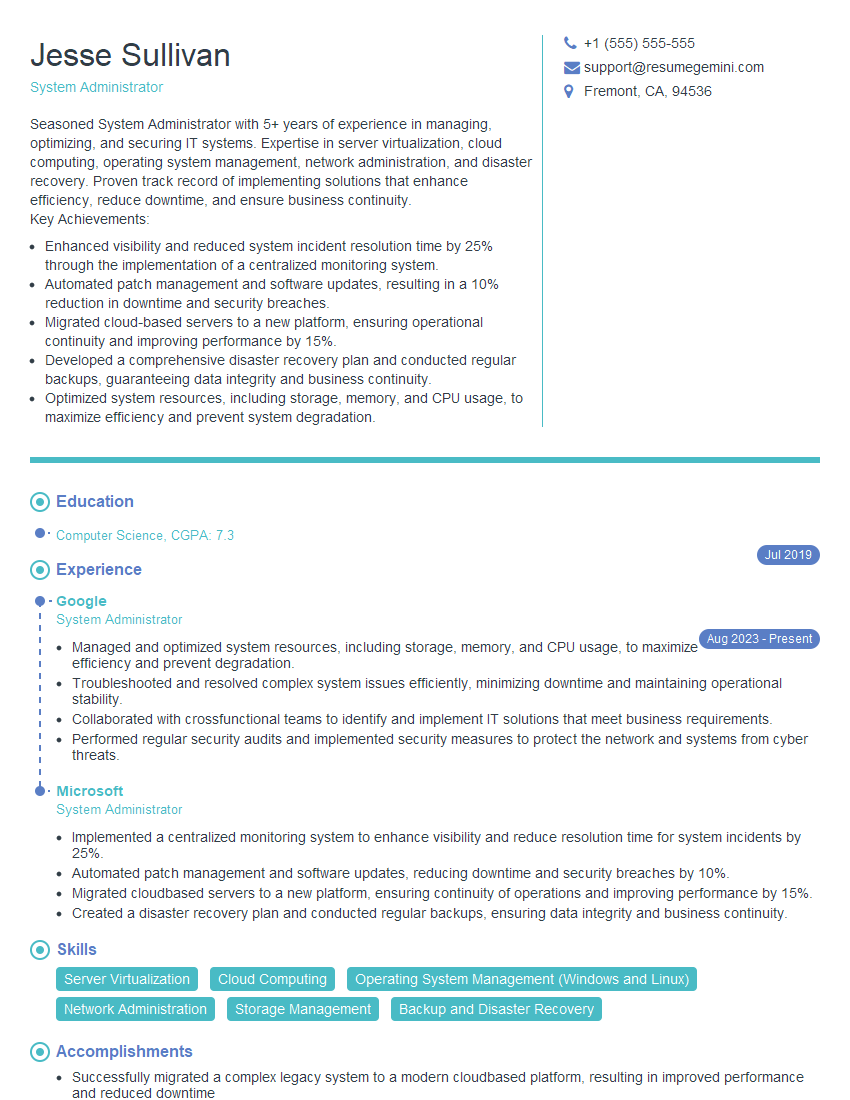
System Administrator Resume Sample
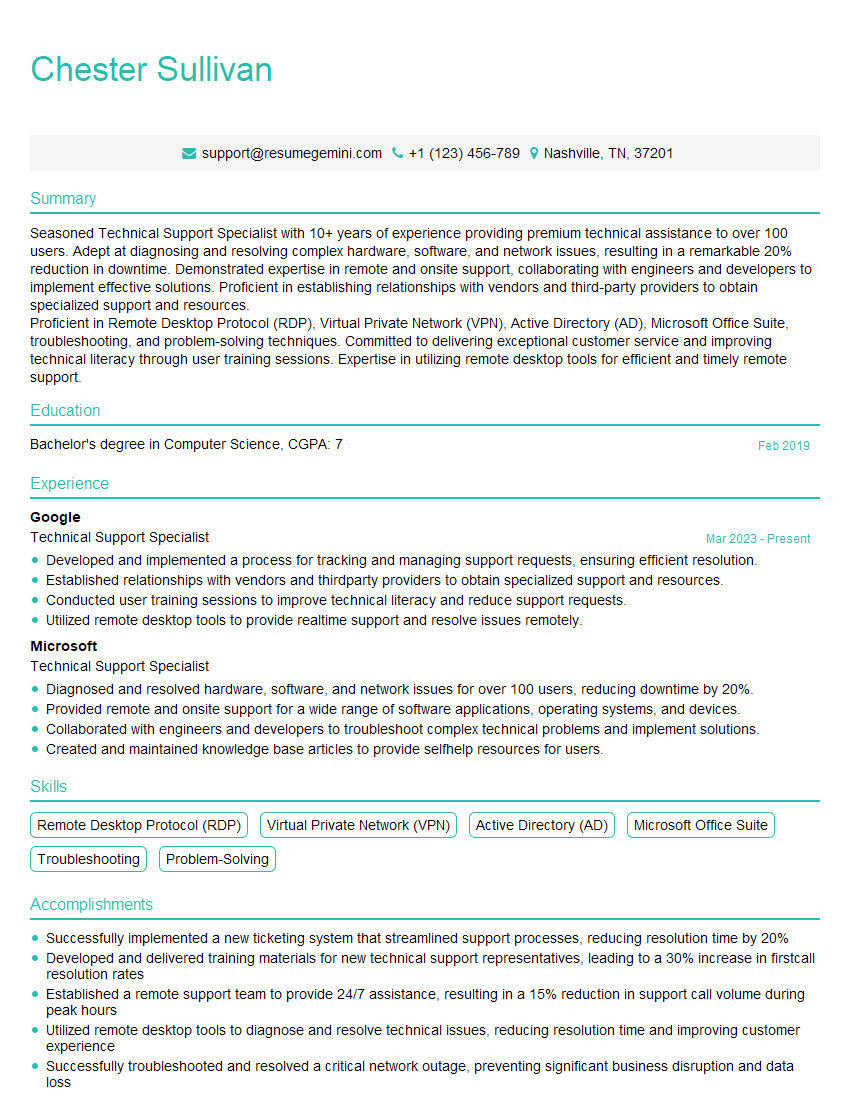
Technical Support Specialist Resume Sample
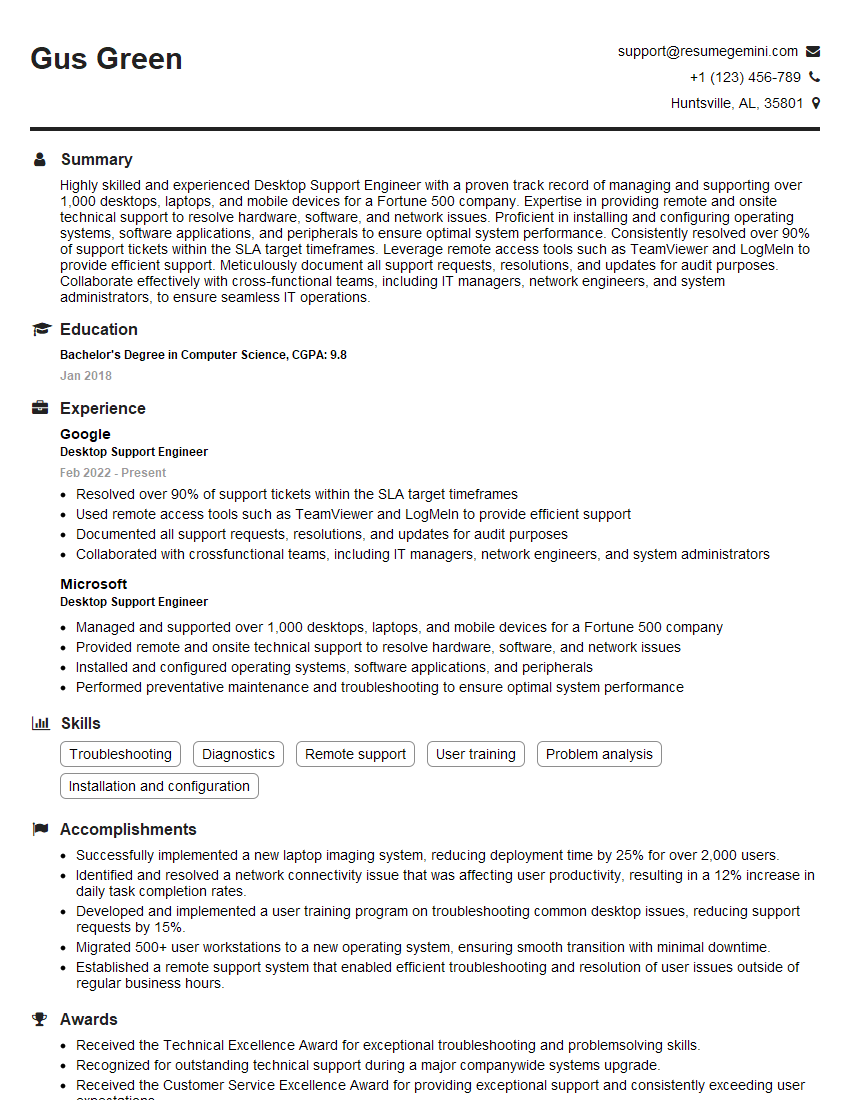
Desktop Support Engineer Resume Sample
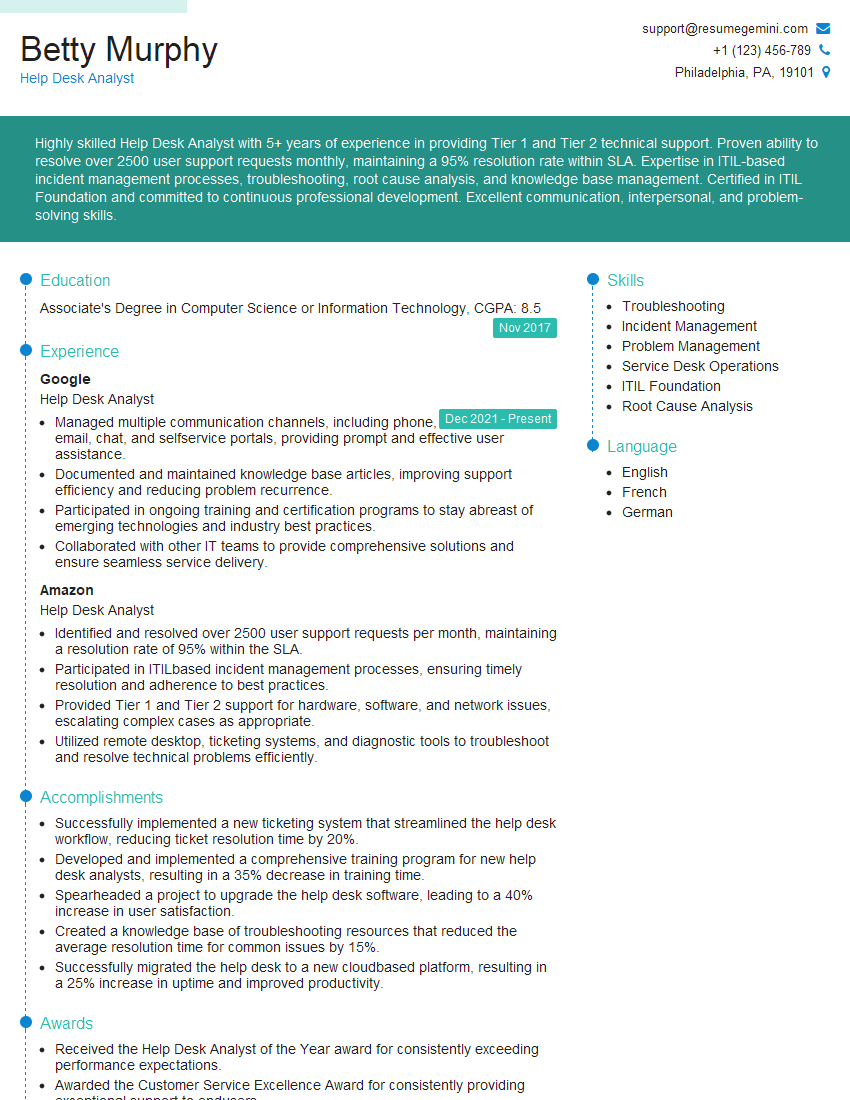
Help Desk Analyst Resume Sample

IT Manager Resume Sample
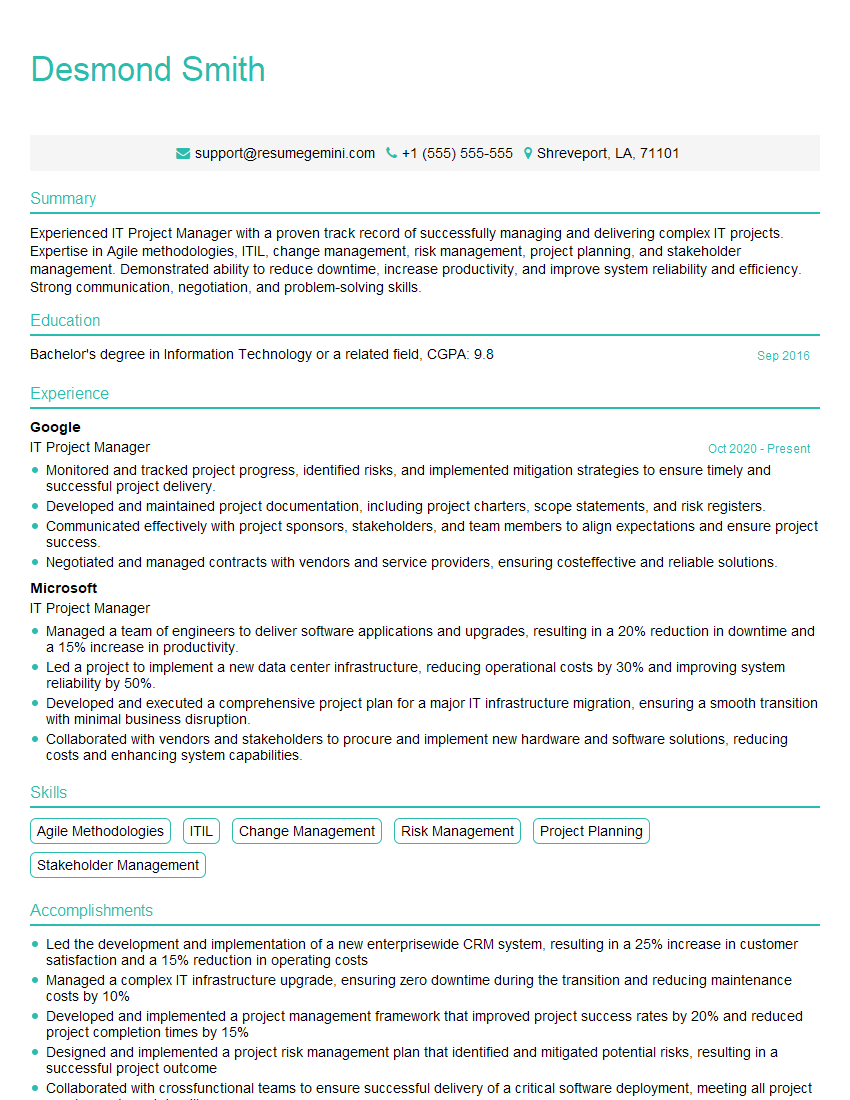
IT Project Manager Resume Sample
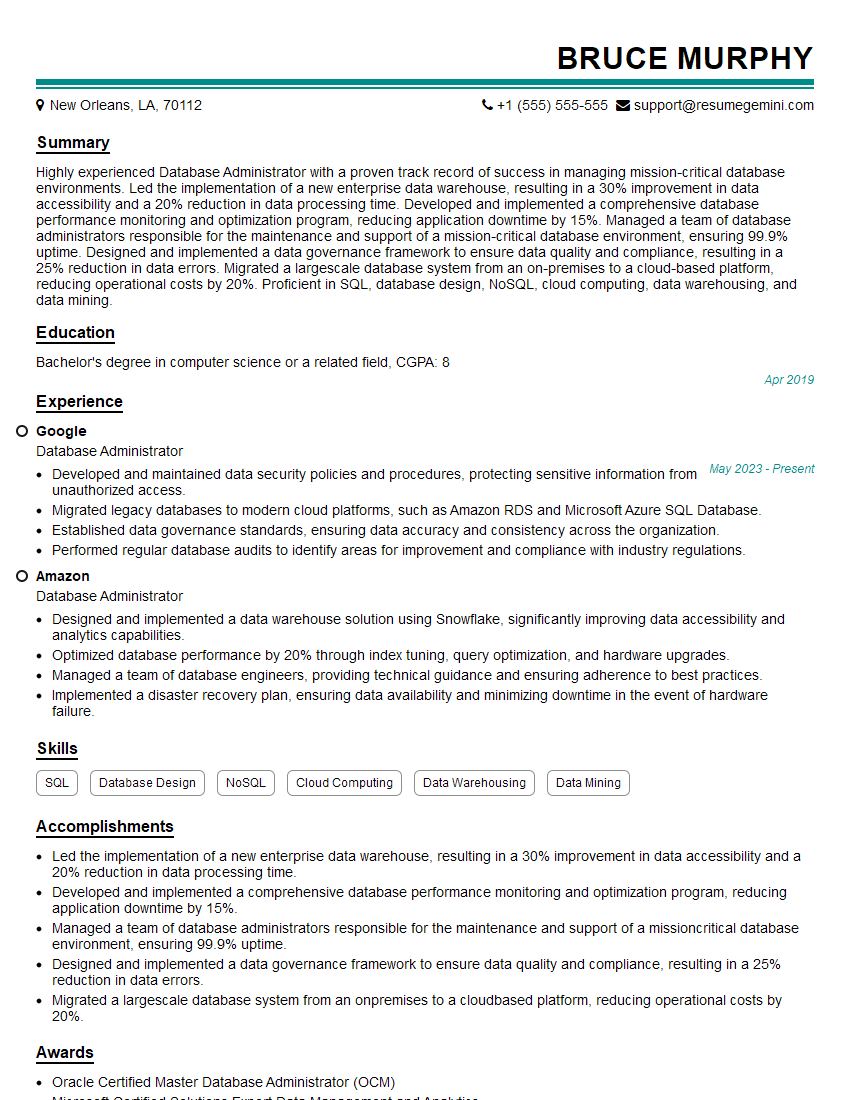
Database Administrator Resume Sample

DevOps Engineer Resume Sample
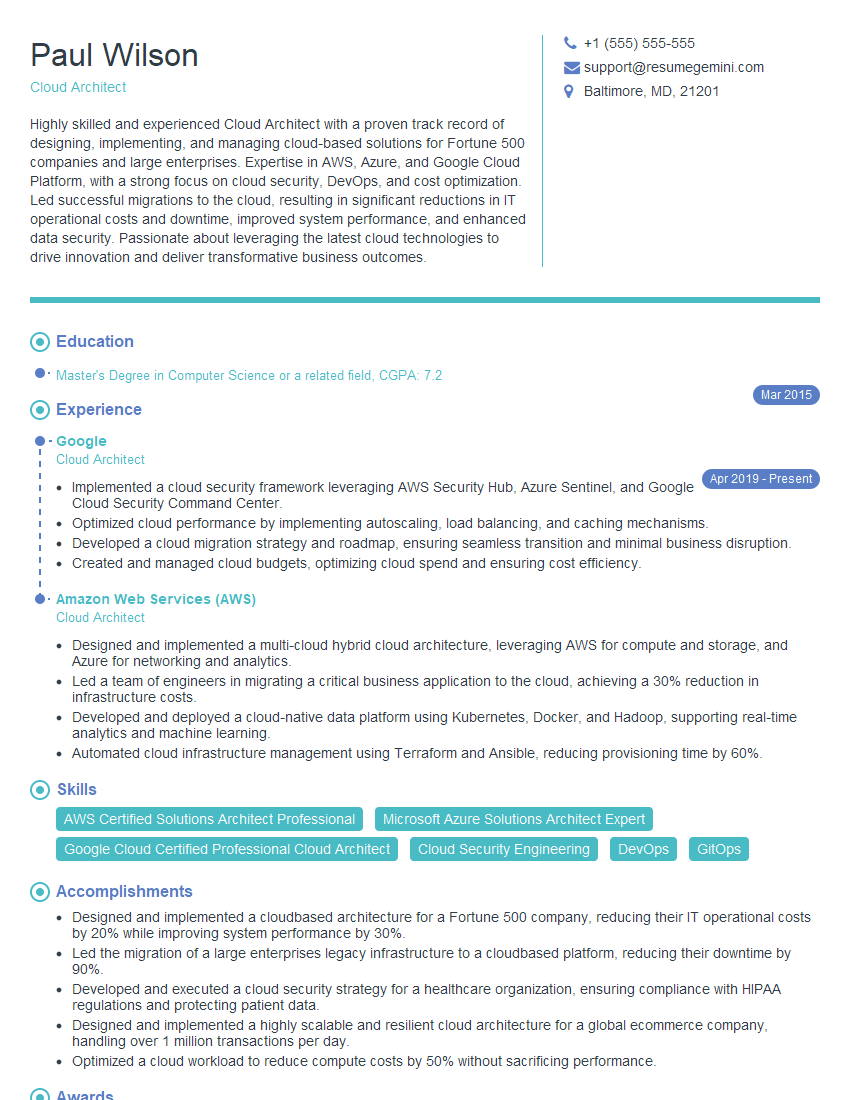
Cloud Architect Resume Sample
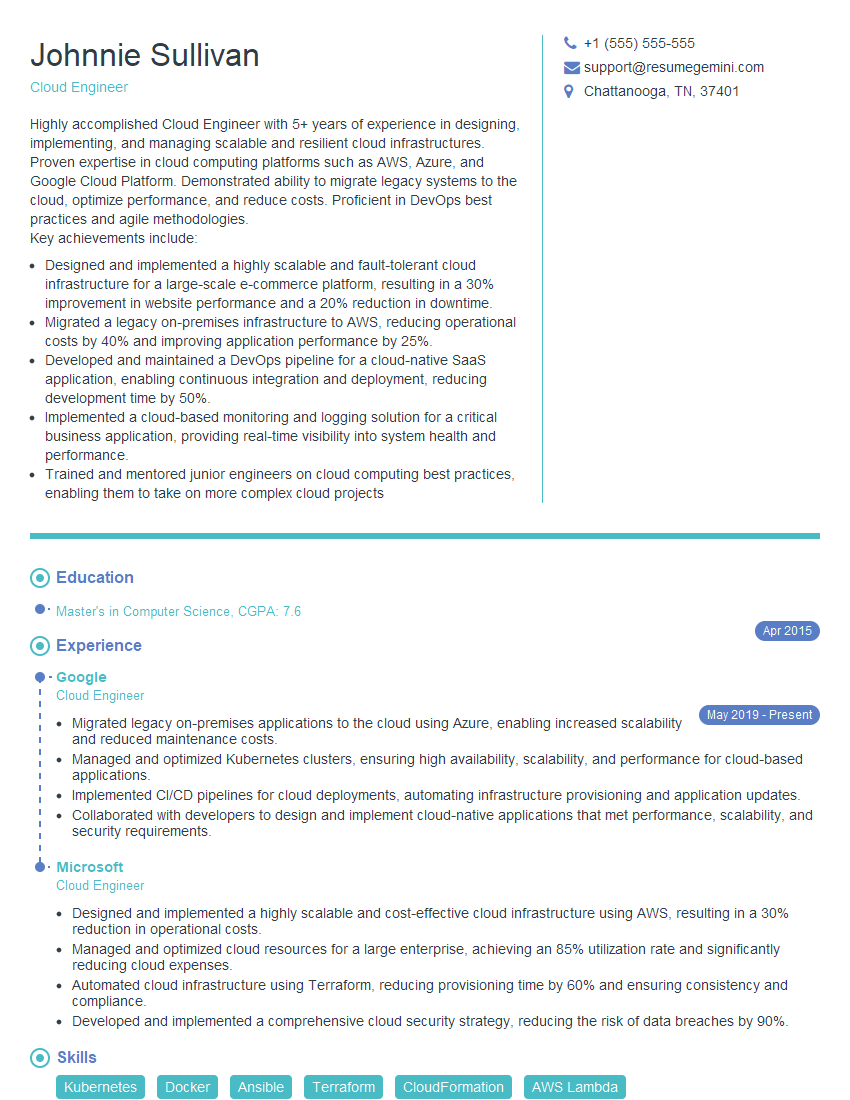
Cloud Engineer Resume Sample
- Data Center Manager
- Security Engineer
- Software Engineer
- Systems Analyst
- Network Administrator
- Network Engineer
- Infrastructure Engineer
- System Administrator
- Technical Support Specialist
- Desktop Support Engineer
- Help Desk Analyst
- IT Manager
- IT Project Manager
- Database Administrator
- DevOps Engineer
- Cloud Architect
- Cloud Engineer
Explore more articles
Users Rating of Our Blogs
Share Your Experience
We value your feedback! Please rate our content and share your thoughts (optional).
What Readers Say About Our Blog
Very informative content, great job.
good