Feeling uncertain about what to expect in your upcoming interview? We’ve got you covered! This blog highlights the most important Network and Systems Administration Fundamentals interview questions and provides actionable advice to help you stand out as the ideal candidate. Let’s pave the way for your success.
Questions Asked in Network and Systems Administration Fundamentals Interview
Q 1. Explain the difference between TCP and UDP.
TCP (Transmission Control Protocol) and UDP (User Datagram Protocol) are both communication protocols used on the internet, but they differ significantly in how they handle data transmission. Think of it like sending a package: TCP is like registered mail – reliable, but slower; UDP is like sending a postcard – faster, but less reliable.
TCP is a connection-oriented protocol. This means it establishes a connection between sender and receiver before transmitting data, ensuring reliable delivery. It uses acknowledgments (ACKs) to confirm successful receipt of data packets and retransmits lost or corrupted packets. This makes TCP suitable for applications requiring high reliability, such as web browsing (HTTP), email (SMTP), and file transfer (FTP). Imagine sending a crucial document – you’d want to make sure it arrives safely and completely!
UDP, on the other hand, is a connectionless protocol. It doesn’t establish a connection before transmitting data, making it faster but less reliable. It doesn’t guarantee delivery or order of packets. If a packet is lost or corrupted, it’s simply not resent. This speed makes it suitable for applications where speed is more important than reliability, such as online gaming (where a slight delay is less critical than the speed of response), video streaming (where some packet loss is acceptable), and DNS lookups.
- TCP: Connection-oriented, reliable, ordered delivery, slower, uses acknowledgments.
- UDP: Connectionless, unreliable, unordered delivery, faster, no acknowledgments.
Q 2. What are the different layers of the OSI model?
The OSI (Open Systems Interconnection) model is a conceptual framework that standardizes the functions of a networking system into seven distinct layers. Each layer has a specific role, and they work together to facilitate communication between devices. Think of it as a layered cake, where each layer depends on the layer below it.
- Layer 1: Physical Layer: Deals with the physical cables, connectors, and signals that transmit data. This is the very bottom layer, like the foundation of the cake.
- Layer 2: Data Link Layer: Handles local area network (LAN) addressing (MAC addresses) and error detection. It ensures data is reliably transferred between two nodes on the same LAN, like adding a sturdy layer of frosting.
- Layer 3: Network Layer: Handles routing and addressing of data packets between different networks using IP addresses. This is the layer that enables communication across the internet. Like the filling, it allows different ‘flavors’ to be combined.
- Layer 4: Transport Layer: Provides reliable and ordered data delivery (TCP) or faster, unreliable delivery (UDP). Think of this layer as segmenting the filling to be managed independently.
- Layer 5: Session Layer: Manages connections and sessions between applications. This can be seen as the ‘decoration’ to ensure a coherent experience.
- Layer 6: Presentation Layer: Handles data formatting and encryption. It makes sure the data is in a format that the application can understand, like converting the filling into the intended flavor for the end consumer.
- Layer 7: Application Layer: Provides network services to applications (e.g., HTTP, FTP, SMTP). The application layer is the final layer, and what the user interacts with, such as the icing on the cake.
Q 3. Describe the functions of a router and a switch.
Routers and switches are both crucial network devices, but they operate at different layers of the OSI model and perform distinct functions. Think of a city: switches connect the buildings within a neighborhood, while routers connect different neighborhoods (networks).
Routers operate at the Network Layer (Layer 3) of the OSI model and forward data packets between different networks. They use IP addresses to determine the best path to send data packets. They are essential for routing traffic across the internet and connecting different LANs. They intelligently decide which path to use, reducing congestion. They are akin to traffic controllers, deciding where to direct each car (packet).
Switches operate at the Data Link Layer (Layer 2) of the OSI model and forward data packets within a single network. They use MAC addresses to learn which device is connected to each port and forward data only to the intended recipient. Switches create a separate collision domain, thereby enhancing efficiency. They are like smart mailboxes, ensuring the letter only goes to the correct house.
Q 4. What is DNS and how does it work?
DNS (Domain Name System) is the internet’s phonebook. It translates human-readable domain names (like google.com) into machine-readable IP addresses (like 172.217.160.142) that computers use to communicate. Without DNS, you’d have to remember the numerical IP address for every website you visit!
Here’s how it works:
- Your computer sends a DNS query to your DNS server (often provided by your ISP).
- If the DNS server doesn’t know the IP address, it queries another DNS server higher up in the hierarchy (recursive query).
- This process continues until a server finds the IP address corresponding to the domain name.
- The IP address is then returned to your computer, allowing it to connect to the website.
DNS uses a hierarchical system of servers: root servers, top-level domain (TLD) servers (like .com, .org), and authoritative name servers (specific to each domain). This distributed architecture ensures high availability and scalability.
Q 5. Explain the concept of subnetting.
Subnetting is the process of dividing a larger network (IP address range) into smaller, more manageable subnetworks. Think of it like dividing a large apartment building into smaller apartments, each with its own address. This improves network performance, security, and efficiency.
It works by borrowing bits from the host portion of the IP address to create additional network bits. For example, a Class C network (192.168.1.0/24) can be subnetted into multiple smaller networks. By changing the subnet mask (e.g., 255.255.255.192), you create multiple subnets, each with its own network address and broadcast address. This allows you to segment your network, improving security and performance, particularly in larger networks.
Subnetting is crucial for efficient network management. It allows for better security by isolating different parts of the network and preventing broadcast storms. It allows for more efficient routing as well.
Q 6. How do you troubleshoot network connectivity issues?
Troubleshooting network connectivity issues requires a systematic approach. I usually follow these steps:
- Identify the problem: What isn’t working? Is it a single device, a group of devices, or the entire network? What error messages are you seeing?
- Check the basics: Are cables plugged in correctly? Is the device powered on? Are there any obvious physical problems?
- Ping the device: Use the
pingcommand (available on most operating systems) to test connectivity to the device’s IP address. A successful ping indicates basic connectivity. - Trace the route (traceroute): Use the
traceroutecommand to trace the path of packets to the destination. This helps identify any points of failure along the way. - Check network configuration: Verify IP addresses, subnet masks, default gateways, and DNS servers are correctly configured on the device. A misconfiguration is a very common problem.
- Check the firewall: Ensure the firewall isn’t blocking network traffic. Temporarily disabling the firewall (with caution!) can help determine if it’s the cause.
- Check for conflicts: Make sure there are no IP address conflicts on the network. Use tools like
arporipconfigto identify potential duplicates. - Restart devices: Often, a simple restart can resolve temporary network glitches.
- Check for malware: Malicious software can disrupt network connectivity. Run a virus scan.
- Consult documentation and support: Refer to the documentation of your network devices, and contact your network administrator or service provider if needed.
The process is iterative; you may need to repeat these steps to isolate the problem.
Q 7. What is DHCP and what is its purpose?
DHCP (Dynamic Host Configuration Protocol) is a network management protocol that automatically assigns IP addresses and other network configuration parameters (like subnet mask, default gateway, and DNS servers) to devices on a network. Think of it as an automatic address dispenser for your network, eliminating the need for manual configuration.
Its purpose is to simplify network administration. Without DHCP, you’d have to manually configure each device’s IP address, subnet mask, and other settings, which can be very time-consuming and error-prone, especially in large networks. DHCP automates this process, making network administration much easier and more efficient. It also ensures that IP addresses are used efficiently and prevents IP address conflicts. It dynamically assigns addresses, meaning that they are released when no longer in use. This is especially important in temporary scenarios, such as a guest WiFi.
Q 8. Explain the difference between IPv4 and IPv6.
IPv4 and IPv6 are both internet protocols that assign unique addresses to devices on a network, but they differ significantly in their address length and structure. Think of it like comparing house addresses: IPv4 uses a shorter address, like a street address, while IPv6 uses a much longer and more detailed address, almost like a full GPS coordinate.
IPv4 uses 32-bit addresses, represented as four sets of numbers separated by dots (e.g., 192.168.1.1). This system has a limited number of unique addresses, leading to the current address exhaustion problem.
IPv6, on the other hand, uses 128-bit addresses, represented as eight groups of four hexadecimal digits separated by colons (e.g., 2001:0db8:85a3:0000:0000:8a2e:0370:7334). This vastly expands the number of available addresses, solving the IPv4 exhaustion issue. IPv6 also offers improved security features and simplified header structure for better efficiency.
In short, IPv6 is the successor to IPv4, addressing its limitations and offering improved scalability and security for the future of the internet.
Q 9. What are the common network security threats?
Network security threats are numerous and constantly evolving. Think of your network as a castle; you need strong walls and vigilant guards to protect it. Common threats include:
- Malware: Viruses, worms, Trojans, ransomware – malicious software that can damage systems, steal data, or disrupt services. Imagine a spy infiltrating your castle and sabotaging it.
- Phishing: Deceptive attempts to obtain sensitive information like usernames, passwords, and credit card details by disguising as a trustworthy entity in email or websites. This is like a con artist tricking your guards into opening the gates.
- Denial-of-Service (DoS) attacks: Flooding a network or server with traffic to make it unavailable to legitimate users. This is like a siege, overwhelming your castle’s defenses.
- Man-in-the-middle (MitM) attacks: Intercepting communication between two parties to eavesdrop or manipulate data. This is like a spy intercepting messages between your guards and you.
- SQL Injection: Exploiting vulnerabilities in database applications to gain unauthorized access to data. This is like finding a secret passage into your castle’s treasure room.
- Zero-day exploits: Attacks that leverage previously unknown vulnerabilities in software or hardware. This is like discovering a hidden weakness in your castle walls before you could reinforce them.
Effective security requires a multi-layered approach, including firewalls, intrusion detection systems, strong passwords, security awareness training, and regular software updates – think of this as building stronger walls, deploying more guards, and regularly inspecting your castle for any weaknesses.
Q 10. Describe different types of network topologies.
Network topologies describe the physical or logical layout of network devices. Imagine these as different ways to arrange your castle’s rooms and connecting corridors.
- Bus topology: All devices connect to a single cable. Simple but a single cable failure can bring down the entire network (like a single corridor connecting all rooms).
- Star topology: All devices connect to a central hub or switch. Most common topology due to its scalability and easy troubleshooting (like having a central courtyard where all rooms branch out from).
- Ring topology: Devices are connected in a closed loop. Data travels in one direction. Less common today, but it ensured data delivery (like a circular corridor where messages are passed from one room to the next).
- Mesh topology: Multiple paths exist between devices, providing redundancy and fault tolerance. Highly reliable but complex to set up (like having multiple corridors connecting different rooms, providing backup routes).
- Tree topology: A hierarchical structure combining star and bus topologies, often used in larger networks. It combines the scalability of a star with the structure of a tree-like organization.
The choice of topology depends on factors such as network size, budget, and required reliability.
Q 11. How do you monitor network performance?
Monitoring network performance is crucial for identifying bottlenecks and ensuring optimal functionality. Think of it as regularly inspecting your castle’s infrastructure to ensure everything is running smoothly.
Methods include:
- Network Monitoring Tools: Software like Nagios, Zabbix, or PRTG collect data on various network metrics (bandwidth utilization, latency, packet loss, CPU/memory usage on network devices).
- System Logs: Examining logs from servers, routers, and switches provides insights into errors and performance issues.
- SNMP (Simple Network Management Protocol): Allows centralized monitoring of network devices by querying them for performance statistics.
- Performance Counters: Operating system tools allow monitoring of CPU, memory, and disk I/O on servers.
By analyzing collected data, you can identify performance problems, such as slow connections, high latency, or congested links. These issues can be tackled by implementing solutions like upgrading hardware, optimizing network configurations, or adding more bandwidth.
Q 12. What are firewalls and how do they work?
Firewalls act as security barriers between your network and the outside world. Imagine them as the fortified gates of your castle.
They work by inspecting incoming and outgoing network traffic based on predefined rules. These rules can be based on IP addresses, ports, protocols, or applications. Traffic matching the rules is allowed; traffic violating them is blocked.
Types of Firewalls:
- Packet filtering firewalls: Examine each packet’s header and filter based on pre-defined rules.
- Stateful inspection firewalls: Track the state of network connections to make more informed decisions about allowing or blocking traffic.
- Application-level gateways (proxies): Act as intermediaries, inspecting application data in addition to network headers.
Firewalls are a critical component of network security, protecting against unauthorized access and malicious traffic. Proper configuration and regular updates are essential for their effectiveness.
Q 13. Explain the concept of VLANs.
VLANs (Virtual Local Area Networks) are logical subdivisions of a physical network. Think of them as creating separate virtual ‘rooms’ within your castle, even though they all share the same physical space.
They allow you to segment your network into multiple broadcast domains, improving security and performance. Devices within a VLAN can communicate with each other as if they were on a separate physical network, but they share the same underlying physical infrastructure. This allows for better management of network resources and increased security by isolating sensitive data.
For example, you could create separate VLANs for different departments (like finance, HR, and marketing), allowing each department to have its own isolated network segment, while still connected to the main network infrastructure.
VLANs are configured using switches capable of VLAN tagging, assigning a VLAN ID to each frame of data.
Q 14. What are the different types of operating systems?
Operating systems (OS) are the fundamental software that manages computer hardware and software resources. Think of them as the foundation upon which all other software and processes run.
Different types exist depending on the intended use and scale:
- Server Operating Systems (OS): Designed for servers, prioritizing reliability, stability, and security (e.g., Windows Server, Linux distributions like CentOS or Ubuntu Server).
- Desktop Operating Systems: Intended for personal computers, focusing on user-friendliness and application support (e.g., Windows, macOS, various Linux distributions like Ubuntu or Fedora).
- Mobile Operating Systems: Used on mobile devices, optimized for touchscreens and mobile applications (e.g., Android, iOS).
- Embedded Operating Systems: Designed for specific devices with limited resources, often optimized for efficiency and specific tasks (e.g., real-time operating systems in industrial control systems).
The choice of OS depends on factors like the intended application, system requirements (processing power, storage), and security needs.
Q 15. Describe the process of installing and configuring an operating system.
Installing and configuring an operating system (OS) involves several key steps. Think of it like building a house: you need a foundation (hardware), blueprints (installation media), and then you furnish and decorate (configuration).
First, you need the installation media (usually a DVD or USB drive) containing the OS files. You then boot your computer from this media, initiating the installation process. This involves partitioning the hard drive, allocating space for the OS and other data. You’ll select your desired language, region, and keyboard layout. Then, the OS files are copied to the hard drive. After the initial installation, you’ll be prompted to create a user account with a username and password for security. This is crucial for access control. The next phase is configuration – this involves setting up network connectivity (connecting to Wi-Fi or Ethernet), installing necessary drivers for hardware like printers and sound cards, installing updates to patch vulnerabilities and improve performance, and personalizing settings (date, time, etc.). You may also install additional software applications required for the system’s intended purpose. For example, installing a web server on a Linux system for a website or installing specific productivity software for office use.
For instance, installing Windows involves using a Windows installation DVD or USB, while Linux distributions like Ubuntu often use a bootable USB drive. The specific steps might differ slightly based on the OS and hardware, but the core process remains the same: boot from installation media, partition the drive, install files, configure settings, and add applications.
Career Expert Tips:
- Ace those interviews! Prepare effectively by reviewing the Top 50 Most Common Interview Questions on ResumeGemini.
- Navigate your job search with confidence! Explore a wide range of Career Tips on ResumeGemini. Learn about common challenges and recommendations to overcome them.
- Craft the perfect resume! Master the Art of Resume Writing with ResumeGemini’s guide. Showcase your unique qualifications and achievements effectively.
- Don’t miss out on holiday savings! Build your dream resume with ResumeGemini’s ATS optimized templates.
Q 16. Explain the concept of virtualization.
Virtualization is the creation of a virtual version of something, often a computer system. Imagine having multiple computers within a single physical machine. This is achieved by using software called a hypervisor, which creates and manages these virtual machines (VMs). Each VM has its own virtualized hardware (CPU, memory, storage, network interface) independent from other VMs and the host operating system. This allows you to run different operating systems, applications, or even test environments without affecting the main system.
Think of it like having multiple apartments within a single building. Each apartment (VM) is independent and has its own utilities, but they all share the same building infrastructure (physical hardware). Virtualization is widely used in server environments for cost savings, resource optimization, and improved security, as a compromised VM is unlikely to compromise the entire physical system. It’s also useful for software testing, development, and training purposes.
Q 17. What are the different types of storage solutions?
Storage solutions range from simple to complex, depending on needs and budget. The most common types include:
- Hard Disk Drives (HDDs): Traditional mechanical storage, relatively inexpensive but slower than SSDs.
- Solid State Drives (SSDs): Use flash memory, much faster and more durable than HDDs, but generally more expensive per gigabyte.
- Network Attached Storage (NAS): A dedicated storage device connected to a network, allowing multiple devices to access it. Offers centralized storage and often data redundancy.
- Storage Area Networks (SANs): A dedicated high-speed network specifically for storage, usually found in larger enterprise environments. Provides high availability and scalability.
- Cloud Storage: Storing data on remote servers accessed over the internet, offered by various providers like Amazon S3, Google Cloud Storage, and Microsoft Azure. Provides flexibility and scalability.
The choice depends on factors like budget, performance requirements, data security needs, and scalability. A small office might use a NAS, while a large enterprise would benefit from a SAN or a cloud solution.
Q 18. How do you manage user accounts and permissions?
Managing user accounts and permissions is vital for security and system administration. It ensures only authorized users can access specific resources and perform certain actions. This typically involves creating user accounts with unique usernames and strong passwords. You’ll assign each user to a group (e.g., ‘Administrators’, ‘Users’, ‘Guests’) and then grant access permissions at both the operating system level and application level.
At the OS level, administrators have full control, while regular users have limited privileges. At the application level, you might grant a user the right to read, write, or execute files or make changes to a database. You can use tools built into operating systems (e.g., the User Accounts control panel in Windows, the useradd and usermod commands in Linux) or Active Directory (in Windows networks) to manage user accounts and permissions effectively. Regular auditing of user permissions and account activities is important to identify potential security vulnerabilities.
Q 19. Explain the concept of Active Directory.
Active Directory (AD) is a directory service developed by Microsoft for Windows networks. Think of it as a central database that stores information about users, computers, and other network resources. It provides a single point of management for authentication, authorization, and resource access in a domain-based network.
Imagine a large organization with hundreds or thousands of employees. AD provides a centralized system to manage user accounts, passwords, group policies, and permissions. If a user leaves the company, you can quickly disable their account, preventing unauthorized access. You can enforce security policies like password complexity requirements and control access to shared resources like printers and network drives through group policies. This simplifies administration, improves security, and streamlines user management across a large network.
Q 20. How do you perform system backups and restores?
System backups and restores are crucial for data protection and disaster recovery. A backup is a copy of your system’s data (operating system, applications, files) stored on a separate location. Regular backups safeguard against data loss due to hardware failure, software crashes, or malicious attacks.
There are various backup strategies, including full backups (copying all data), incremental backups (copying only changes since the last backup), and differential backups (copying all changes since the last full backup). The chosen strategy depends on factors like data size, storage capacity, and recovery time objectives. Restoration involves using the backup copy to recover the system to a previous state, whether it’s a complete system restore or restoring individual files. Tools such as Windows Server Backup, Acronis True Image, and various Linux backup utilities provide these functionalities. Regular testing of the backup and restore process is essential to ensure its effectiveness and to identify potential issues before a disaster strikes.
Q 21. What are the different types of RAID configurations?
RAID (Redundant Array of Independent Disks) is a technology that combines multiple hard drives into a single logical unit to improve performance, redundancy, or both. Different RAID levels offer different trade-offs:
- RAID 0 (Striping): Improves performance by distributing data across multiple drives. No redundancy, data loss if one drive fails.
- RAID 1 (Mirroring): Provides redundancy by mirroring data across two drives. Excellent data protection, but uses twice the disk space.
- RAID 5 (Striping with parity): Combines data striping with parity information, providing both performance and redundancy. Can tolerate one drive failure.
- RAID 6 (Striping with dual parity): Similar to RAID 5 but with dual parity, allowing tolerance of two drive failures.
- RAID 10 (Mirrored Stripes): Combines mirroring and striping for high performance and redundancy. Requires at least four drives.
The best RAID level depends on your needs. If performance is paramount and data loss is acceptable, RAID 0 might be considered. For data protection, RAID 1 or RAID 10 would be preferred. RAID 5 and RAID 6 are popular choices for balancing performance and redundancy in many server environments.
Q 22. Describe your experience with scripting languages (e.g., Python, PowerShell).
My scripting experience centers around Python and PowerShell, two languages crucial for automating tasks and managing systems efficiently. Python’s versatility shines in tasks requiring complex logic, data analysis, and network programming. I’ve used it extensively for creating custom network monitoring scripts, automating backups, and parsing log files to identify trends and potential issues. For example, I developed a Python script that automatically checks the disk space on all servers in our network and sends email alerts if space falls below a predefined threshold. PowerShell, on the other hand, excels in managing Windows environments. I’ve leveraged it for automating Active Directory administration, managing user accounts, deploying software, and scripting routine maintenance tasks. A practical example is a PowerShell script I created to automate the installation and configuration of new virtual machines on our Hyper-V cluster, significantly reducing deployment time.
Q 23. How do you troubleshoot system errors?
Troubleshooting system errors is a systematic process that begins with gathering information. I start by examining error logs (system, application, and security logs) for clues. Then I check resource utilization (CPU, memory, disk I/O) using tools like Task Manager (Windows) or top (Linux) to see if any component is overloaded. Network connectivity is another key area, and I use tools like ping, traceroute, and netstat to pinpoint network issues. Next, I look at the event sequence leading up to the error. If the problem persists, I might use remote debugging tools, depending on the system and the nature of the error. Consider a scenario where a web server is unresponsive. I’d first check the server logs for error messages, then examine CPU and memory usage. If network issues are suspected, I’d use ping and traceroute to check connectivity. A methodical approach is key—isolating the problem by eliminating potential causes one by one.
Q 24. Explain your experience with cloud platforms (e.g., AWS, Azure, GCP).
My cloud experience includes significant work with AWS (Amazon Web Services). I’ve provisioned and managed EC2 instances, configured networking using VPCs and subnets, implemented load balancing with Elastic Load Balancing, and utilized S3 for storage. I’m proficient in using the AWS command-line interface (CLI) and the AWS Management Console. For example, I designed and deployed a highly available web application on AWS, utilizing multiple EC2 instances behind a load balancer and leveraging auto-scaling to handle fluctuating traffic demands. I have also worked with Azure and GCP, primarily for exploring their functionalities and understanding the differences between the major cloud providers; however, my core cloud experience is centered around AWS.
Q 25. How do you monitor system performance?
System performance monitoring is crucial for maintaining system health and identifying potential bottlenecks. I use a combination of tools and techniques. For operating systems, I rely on built-in tools like Performance Monitor (Windows) and top/htop (Linux) to track CPU utilization, memory usage, disk I/O, and network traffic. For applications, I leverage application-specific monitoring tools or integrate custom monitoring scripts. Network monitoring involves using tools like Nagios or Zabbix to track network connectivity, bandwidth usage, and latency. I also employ log analysis to pinpoint performance issues that may not be immediately evident through standard monitoring tools. For instance, slow database queries might not show up in basic OS monitoring but would be revealed through database log analysis. The key is selecting the right monitoring tools based on specific needs and correlating data from multiple sources to get a holistic view of system performance.
Q 26. What is your experience with database administration?
My database administration experience primarily involves MySQL and PostgreSQL. I’m comfortable with database design, implementation, and maintenance. This includes creating and managing databases, users, and permissions; optimizing query performance; implementing backups and recovery strategies; and troubleshooting database-related errors. In a recent project, I optimized a slow-running MySQL database by indexing critical columns, improving query execution plans, and tuning server configurations, resulting in a significant reduction in query response times. I also have experience with database replication and high availability setups to ensure data redundancy and system resilience.
Q 27. Describe your experience with IT security best practices.
IT security best practices are paramount in my work. I adhere to the principle of defense in depth, employing multiple layers of security controls. This includes implementing strong password policies, using multi-factor authentication, regularly patching systems and applications, deploying firewalls and intrusion detection systems (IDS), and implementing robust access control lists (ACLs). Regular security audits and vulnerability scans are essential components of my approach. Data encryption both in transit and at rest is crucial, and I ensure that all sensitive data is protected according to industry best practices and compliance requirements. For example, I have implemented and maintained a security information and event management (SIEM) system to monitor security logs and detect potential threats in real-time.
Q 28. Explain your experience with automation tools (e.g., Ansible, Chef).
My experience with automation tools includes Ansible. I’ve used it to automate various system administration tasks, including server provisioning, configuration management, and application deployment. Ansible’s agentless architecture simplifies deployment and management. A recent project involved using Ansible to automate the deployment of a new web application across multiple servers, ensuring consistency in configuration and reducing manual intervention. The playbook managed the installation of necessary packages, configured the web server, and deployed the application code. This not only saved considerable time but also improved the consistency and reliability of our deployments. While I haven’t worked extensively with Chef, I understand its principles and recognize its strengths in managing complex infrastructure configurations.
Key Topics to Learn for Network and Systems Administration Fundamentals Interview
- Networking Fundamentals: Understanding TCP/IP model, subnetting, routing protocols (e.g., BGP, OSPF), DNS, DHCP, and network security concepts like firewalls and VPNs. Practical application: troubleshooting network connectivity issues, configuring network devices.
- Operating Systems (OS) Administration: Proficiency in at least one major OS (Linux, Windows Server). This includes user and group management, file system management, process management, and basic scripting. Practical application: optimizing OS performance, managing user accounts, automating administrative tasks.
- System Security: Implementing security best practices, understanding vulnerability management, intrusion detection/prevention systems, and security auditing. Practical application: configuring security policies, responding to security incidents.
- Virtualization and Cloud Computing: Familiarity with virtualization technologies (e.g., VMware, Hyper-V) and cloud platforms (e.g., AWS, Azure, GCP). Practical application: deploying and managing virtual machines, understanding cloud infrastructure concepts.
- Server Hardware: Basic understanding of server hardware components, their function, and troubleshooting common hardware issues. Practical application: identifying potential hardware bottlenecks, performing basic hardware maintenance.
- Monitoring and Logging: Implementing and interpreting system monitoring tools to identify and resolve performance issues. Practical application: proactively identifying and resolving system problems before they impact users. Understanding log analysis for troubleshooting.
- Problem-Solving and Troubleshooting: Developing a systematic approach to diagnose and resolve technical problems. This includes utilizing various diagnostic tools and resources.
Next Steps
Mastering Network and Systems Administration Fundamentals is crucial for a successful and rewarding career in IT. These skills are highly sought after, offering excellent job prospects and continuous learning opportunities. To significantly boost your chances of landing your dream role, creating an ATS-friendly resume is essential. ResumeGemini can help you build a professional and impactful resume that gets noticed. Leverage their expertise and access examples of resumes tailored to Network and Systems Administration Fundamentals to showcase your skills effectively. Invest the time to craft a compelling resume—it’s your first impression with potential employers.
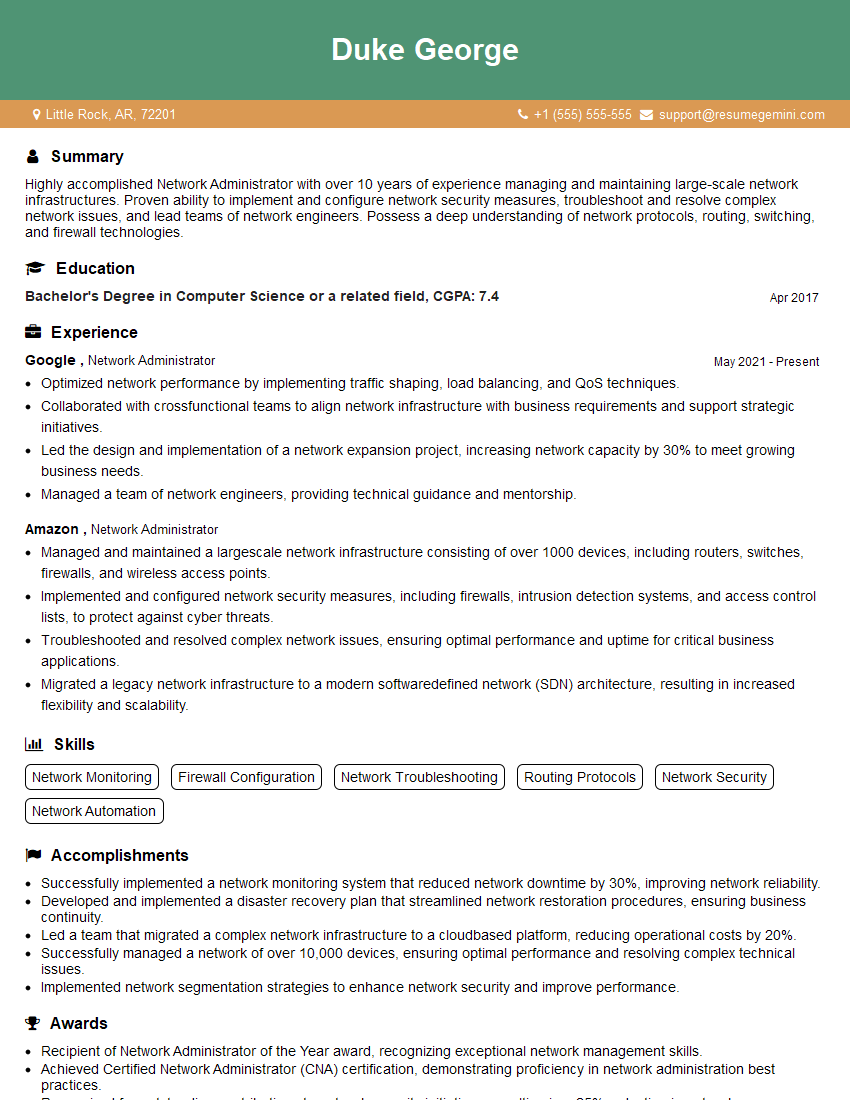
Network Administrator Resume Sample
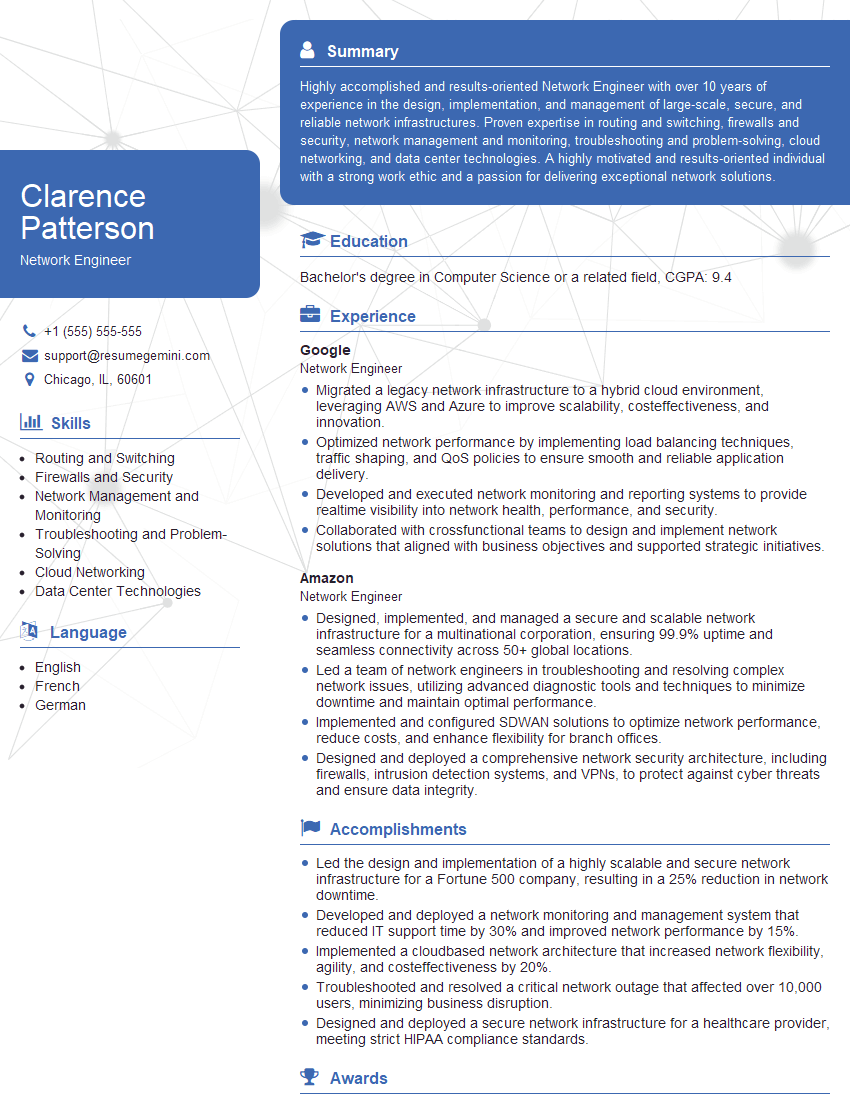
Network Engineer Resume Sample
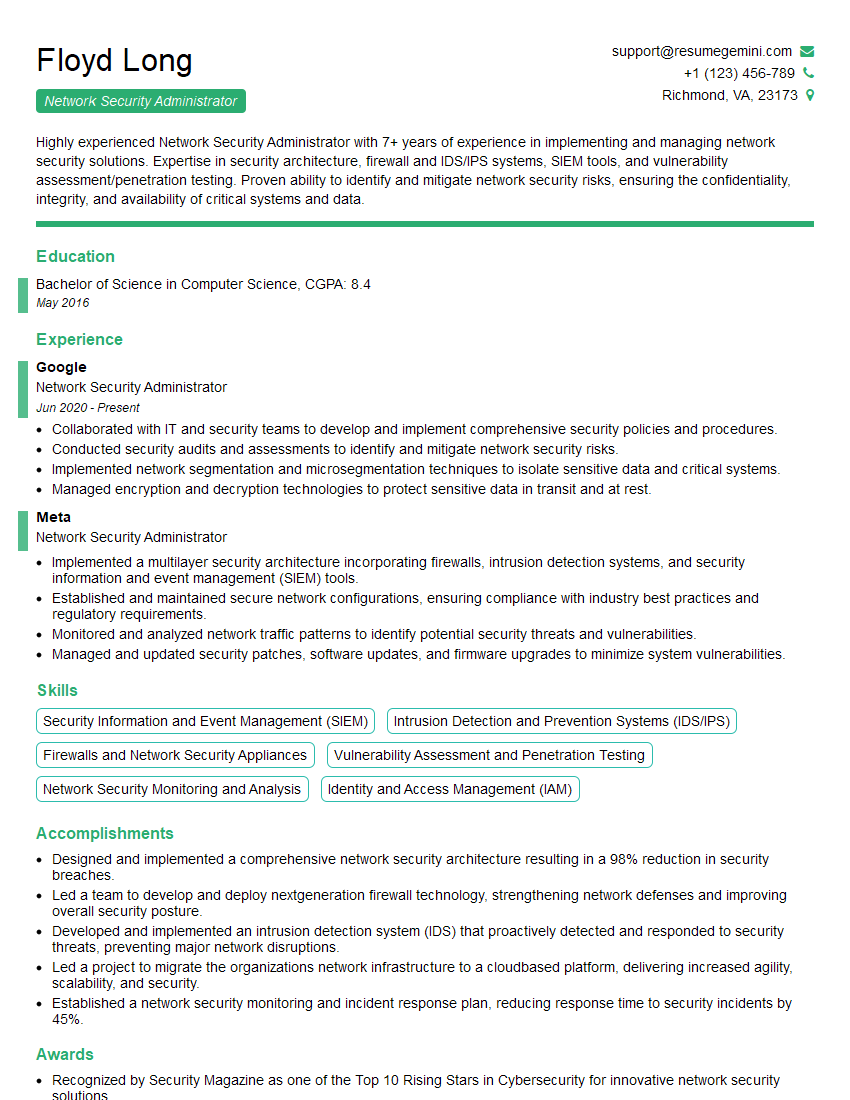
Network Security Administrator Resume Sample
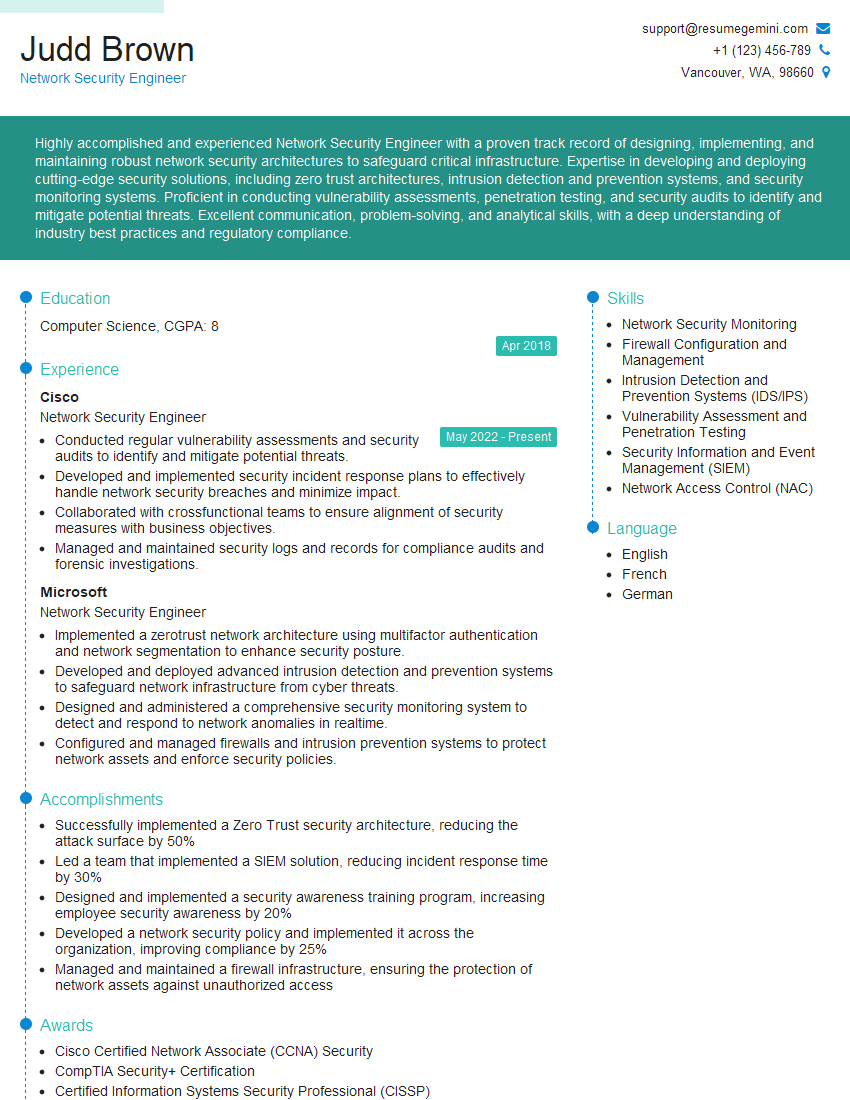
Network Security Engineer Resume Sample
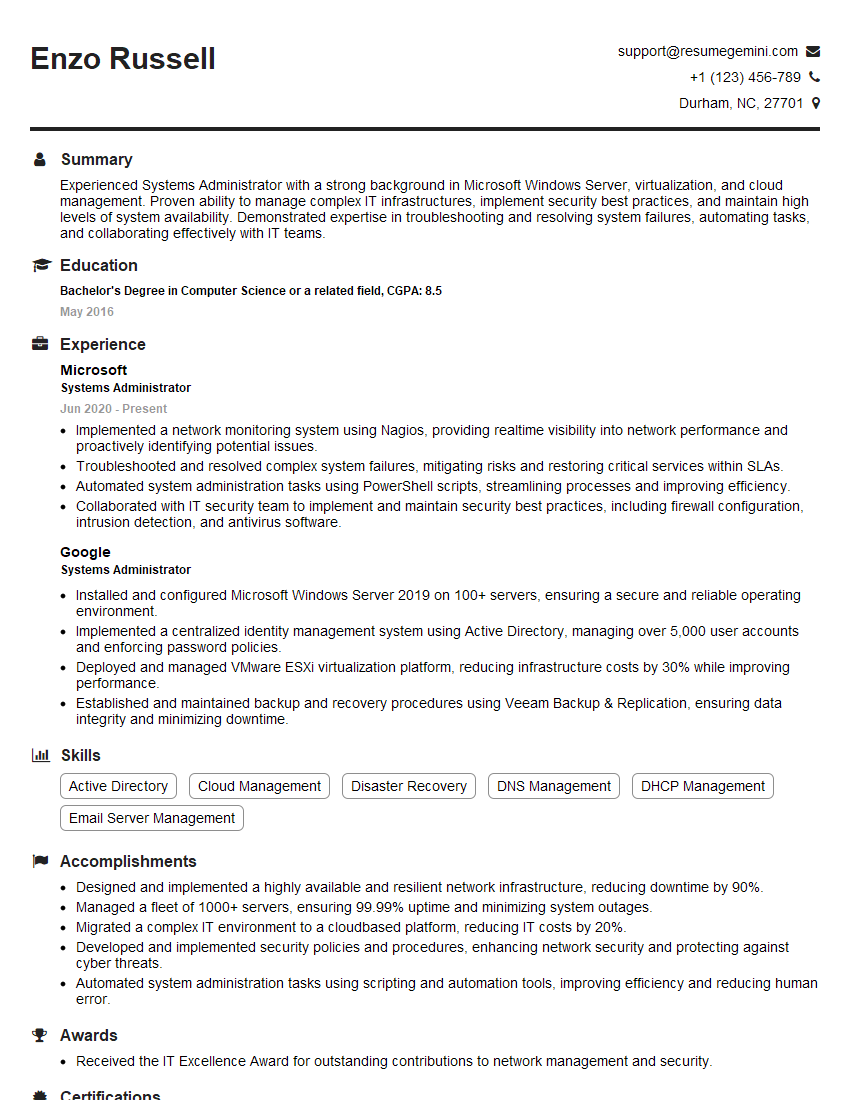
Systems Administrator Resume Sample

Technical Support Engineer Resume Sample
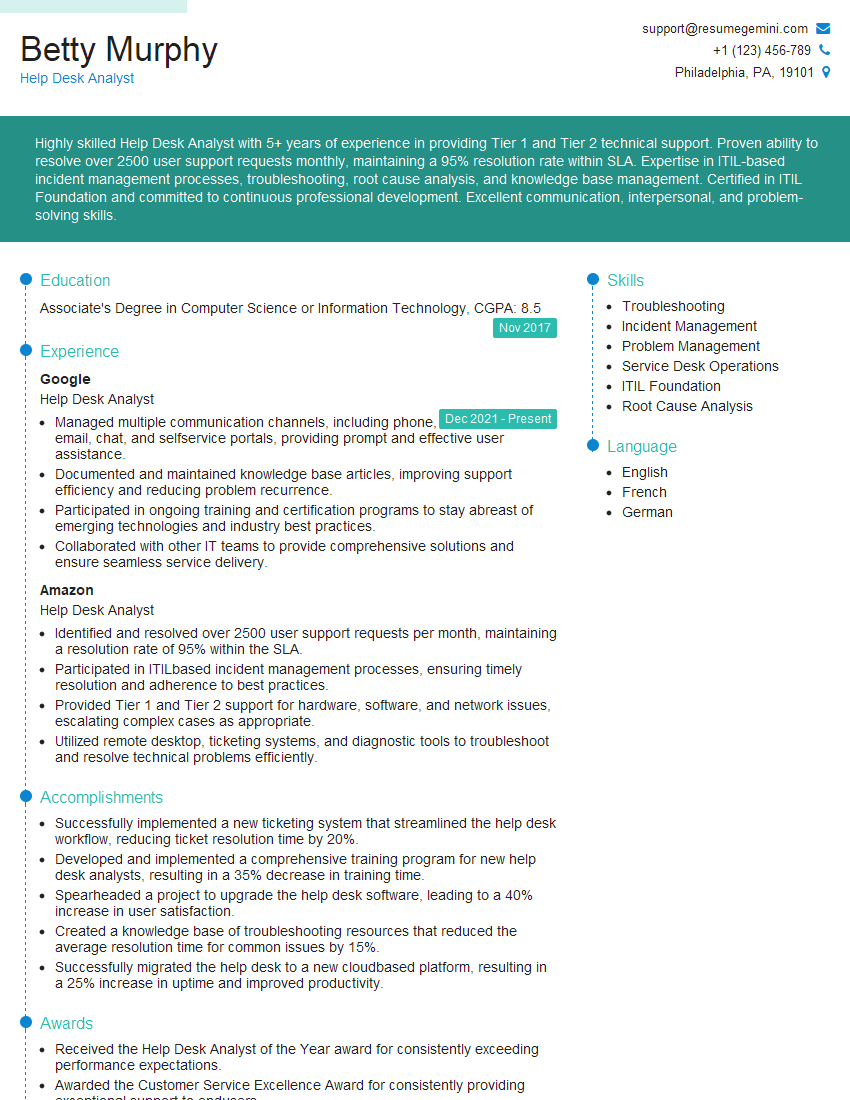
Help Desk Analyst Resume Sample

IT Manager Resume Sample
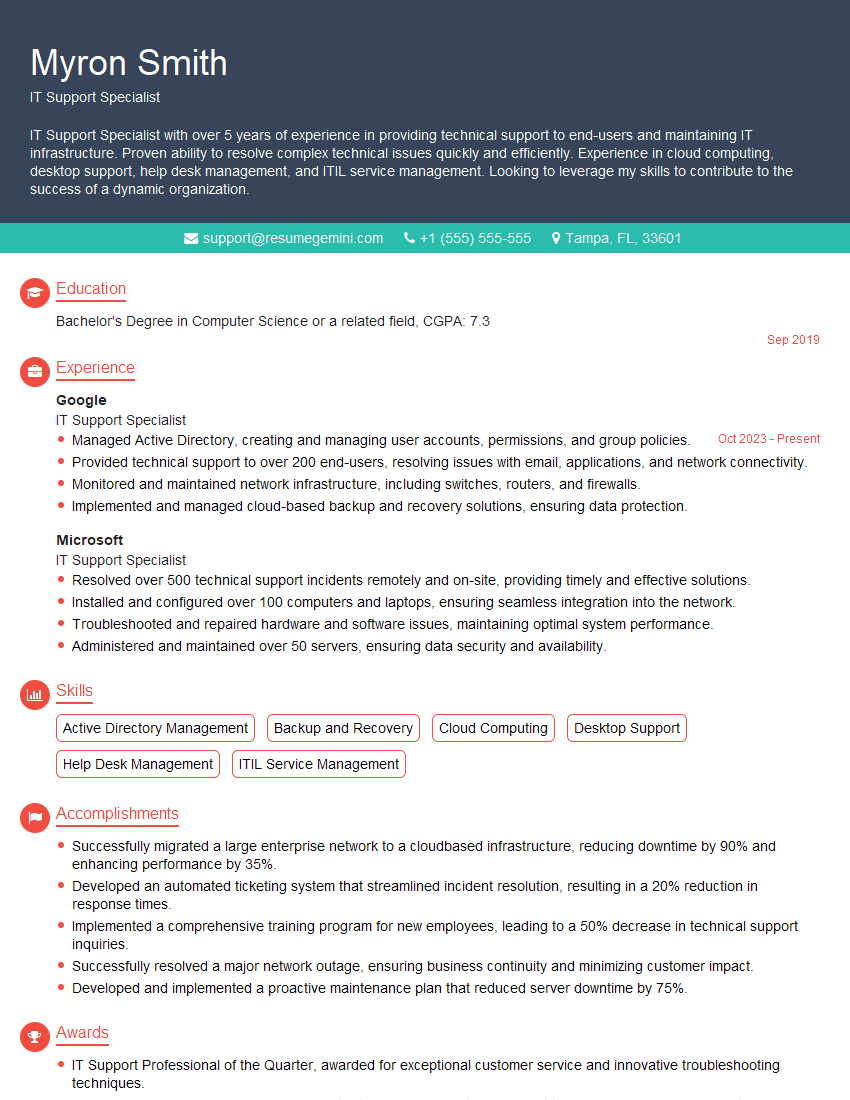
IT Support Specialist Resume Sample
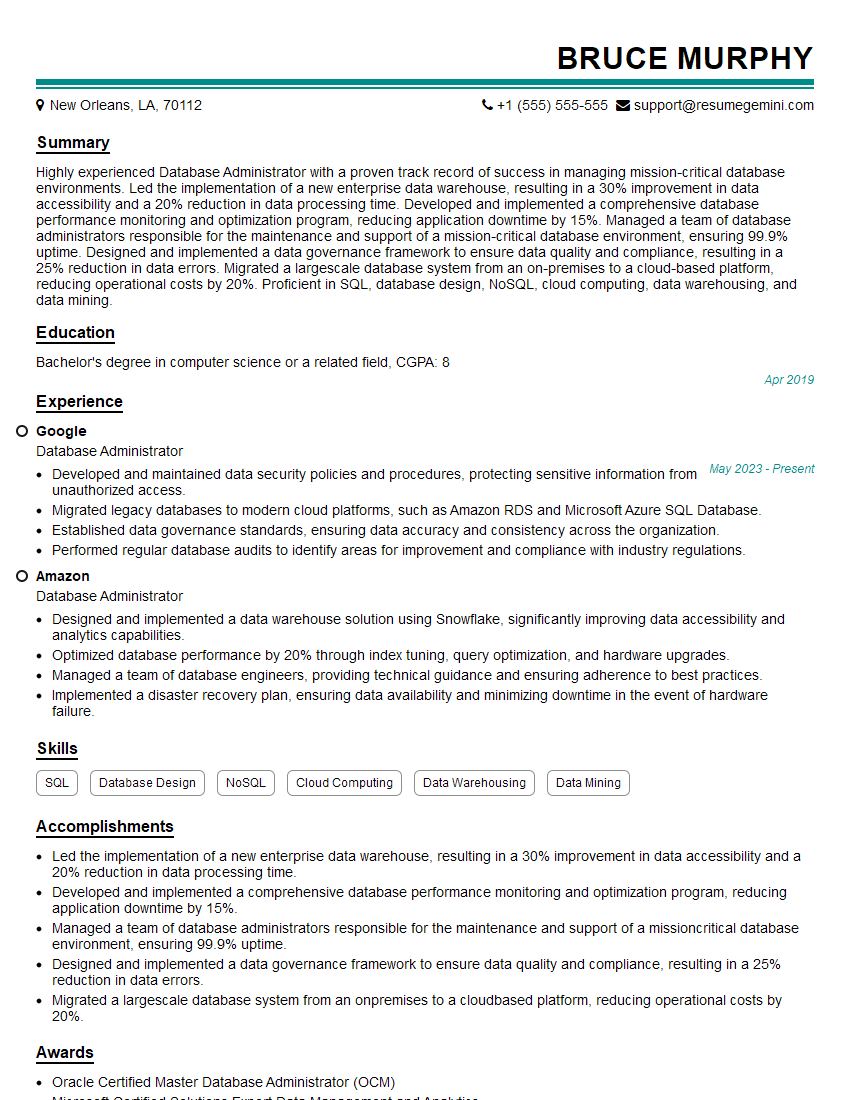
Database Administrator Resume Sample
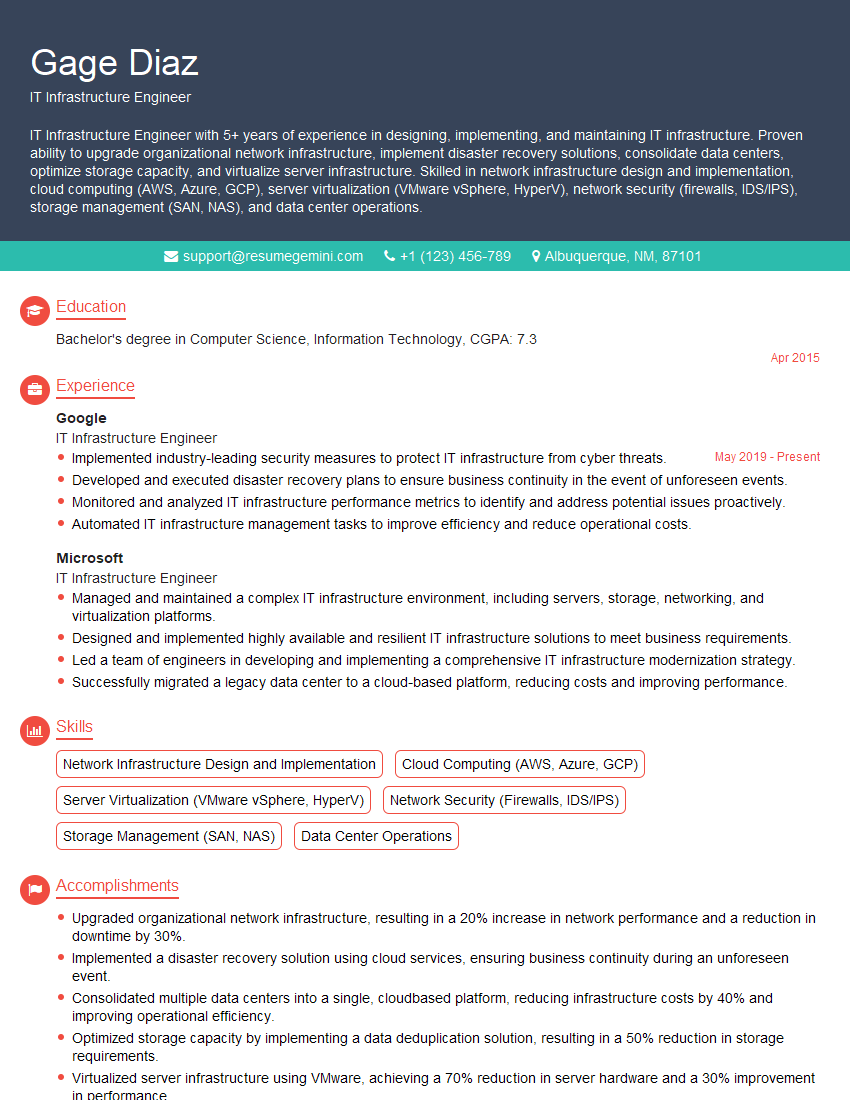
IT Infrastructure Engineer Resume Sample

DevOps Engineer Resume Sample
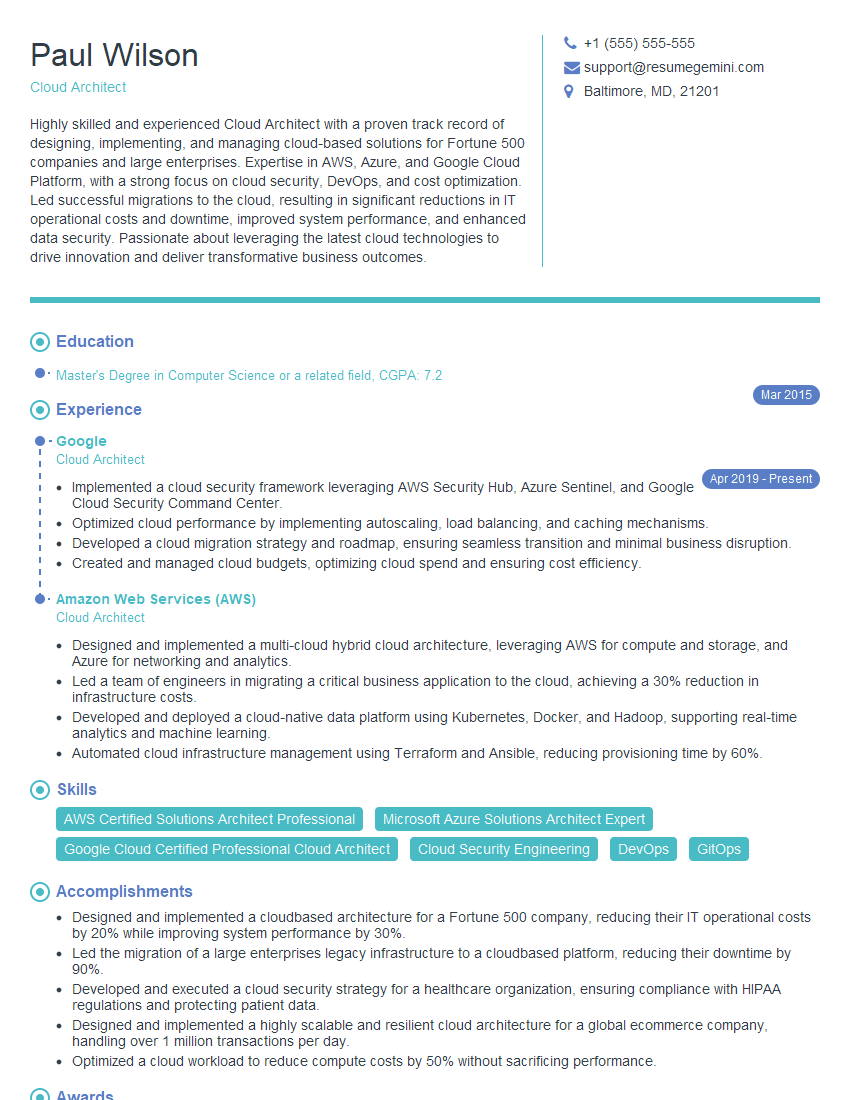
Cloud Architect Resume Sample
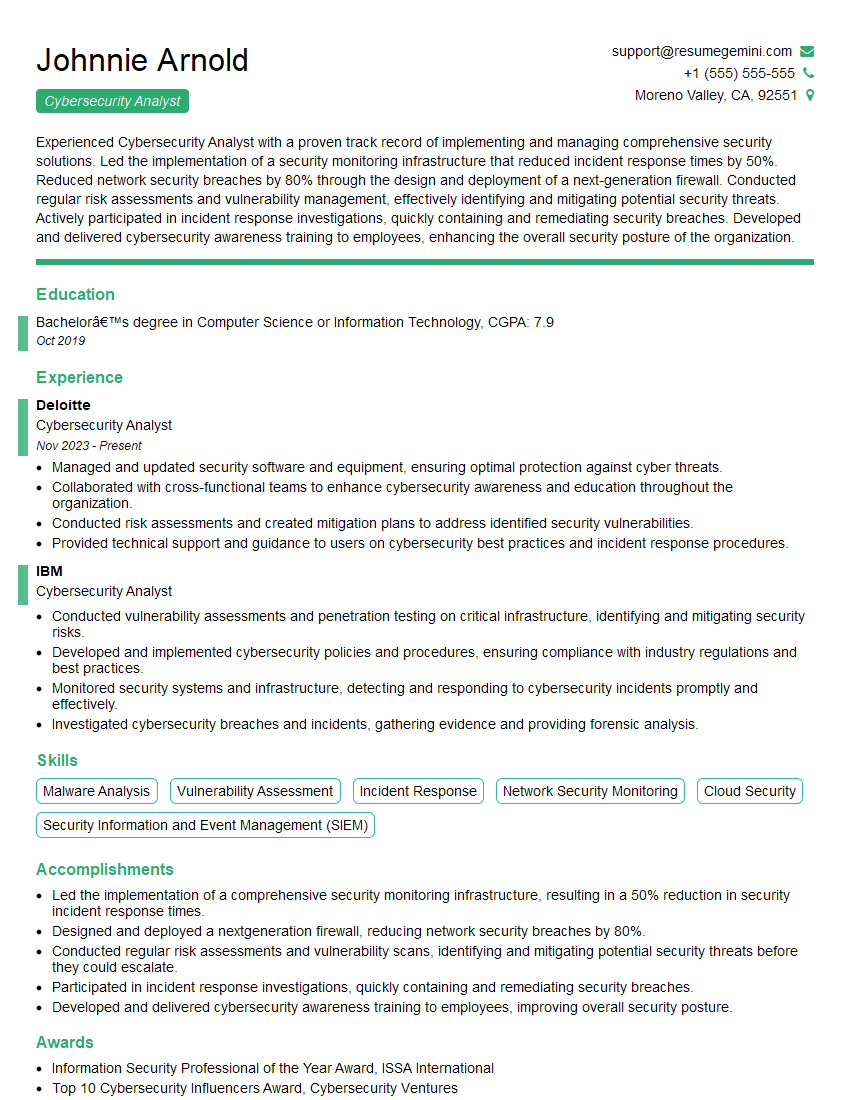
Cybersecurity Analyst Resume Sample
Explore more articles
Users Rating of Our Blogs
Share Your Experience
We value your feedback! Please rate our content and share your thoughts (optional).
What Readers Say About Our Blog
Very informative content, great job.
good