Cracking a skill-specific interview, like one for Computer Proficiency (MS Office, Excel, etc.), requires understanding the nuances of the role. In this blog, we present the questions you’re most likely to encounter, along with insights into how to answer them effectively. Let’s ensure you’re ready to make a strong impression.
Questions Asked in Computer Proficiency (MS Office, Excel, etc.) Interview
Q 1. Explain your experience with Microsoft Excel.
My experience with Microsoft Excel spans over a decade, encompassing everything from basic data entry and formatting to advanced functions like macros and VBA scripting. I’ve used Excel extensively for data analysis, financial modeling, report generation, and database management in various professional settings. I’m comfortable working with large datasets, creating complex formulas, and visualizing data using charts and graphs. For instance, in my previous role, I developed an Excel-based model to forecast sales, which significantly improved our accuracy in predicting future revenue. This involved using advanced forecasting techniques and incorporating external data sources. I’m also proficient in utilizing Excel’s data validation tools to ensure data accuracy and consistency.
Furthermore, I have experience with creating and managing complex spreadsheets involving multiple worksheets, linked data, and external references. I’m adept at using features like conditional formatting, data tables, and scenario manager to streamline analysis and presentation of data.
Q 2. Describe your proficiency in using Microsoft Word.
My proficiency in Microsoft Word extends beyond basic document creation. I’m skilled in using advanced features such as styles, templates, mail merge, and track changes. I regularly use Word for report writing, creating presentations, and composing formal documents. I understand the importance of maintaining consistent formatting and creating visually appealing and easy-to-read documents. For example, in a previous project, I used mail merge to send personalized letters to hundreds of clients, saving significant time and effort. My experience also includes collaborating on documents using Word’s track changes and commenting features, which ensures effective teamwork and clear communication.
I am proficient in utilizing advanced features such as creating custom styles to maintain consistent formatting throughout large documents, embedding images and other media, and creating complex tables. I also utilize Word’s citation and bibliography features for academic or professional papers.
Q 3. How familiar are you with Microsoft PowerPoint?
I am very familiar with Microsoft PowerPoint and consider it a vital tool for effective communication and presentation. My experience encompasses creating visually engaging presentations, incorporating animations and transitions, and using multimedia elements to enhance audience engagement. I’ve used PowerPoint extensively for client presentations, internal training sessions, and conveying complex information in a concise and compelling manner. For example, I once developed a series of training presentations for new employees, which were highly praised for their clarity and engaging content. I utilize best practices such as using consistent branding, incorporating relevant data visualizations, and keeping the text concise to make my presentations impactful and easy to follow.
Beyond basic slide creation, I am skilled in using features like SmartArt, charts, and graphs to effectively communicate data and ideas. I also understand the importance of using appropriate transitions and animations to enhance the flow of the presentation without being distracting. I’m comfortable using PowerPoint’s presenter view to manage my notes and time effectively.
Q 4. What are your strengths and weaknesses when using Microsoft Access?
My strengths in Microsoft Access lie in designing and managing relational databases. I’m comfortable creating tables, defining relationships, and developing queries to retrieve and manipulate data. I can also create forms and reports to provide user-friendly interfaces for data entry and analysis. However, my weakness lies in the advanced programming aspects of Access, such as VBA scripting for complex automation tasks. While I can understand and modify existing VBA code, I don’t possess the extensive experience to create highly complex automated systems from scratch. I am however, actively working on improving this skill through online courses and practice.
For example, I successfully designed and implemented a database system for a small business to manage their customer and inventory data. This involved creating efficient queries to provide reports on sales trends, low stock items, and customer demographics. While I could not automate every aspect of the data management using VBA, the functional database significantly improved their efficiency and decision-making process.
Q 5. How would you create a pivot table in Excel?
Creating a pivot table in Excel is a straightforward process that allows for dynamic data summarization and analysis. First, select the data range you want to analyze. Then, navigate to the ‘Insert’ tab and click on ‘PivotTable’. Choose where you want to place the pivot table (a new worksheet or the existing one). The PivotTable Fields pane will appear. This pane allows you to drag and drop fields to different areas of the pivot table: Rows, Columns, Values, and Filters. The ‘Rows’ area determines how the data is grouped, the ‘Columns’ area provides further categorization, the ‘Values’ area summarizes the data (e.g., sum, average, count), and the ‘Filters’ area allows you to filter the data based on specific criteria. Once you’ve arranged the fields, the pivot table will automatically summarize your data.
For instance, if you have sales data with columns for ‘Region’, ‘Product’, and ‘Sales Amount’, you could drag ‘Region’ to ‘Rows’, ‘Product’ to ‘Columns’, and ‘Sales Amount’ to ‘Values’. This will automatically create a table summarizing sales by region and product.
Q 6. Explain how you’d use VLOOKUP or INDEX/MATCH in Excel.
Both VLOOKUP and INDEX/MATCH are used to look up values in a table, but INDEX/MATCH offers more flexibility and power. VLOOKUP searches for a value in the first column of a range and returns a value in the same row from a specified column. Its limitation is that it only looks up values in the first column. The syntax is: =VLOOKUP(lookup_value, table_array, col_index_num, [range_lookup]).
INDEX/MATCH, on the other hand, allows you to look up values in any column. INDEX returns a value from a range based on its row and column number, while MATCH finds the position of a value within a range. You combine them: INDEX finds the value based on the row/column number found by MATCH. This is more robust because you can look up values in any column.
=INDEX(return_array, MATCH(lookup_value, lookup_array, [match_type]))
Example: Let’s say you have a table with product names in column A and prices in column B. To find the price of a specific product using VLOOKUP, you’d need the product name in the first column. With INDEX/MATCH, you can have the product name anywhere and still find the price.
Q 7. How do you handle large datasets in Excel?
Handling large datasets in Excel requires strategies to maintain performance and accuracy. Avoid unnecessary calculations and formatting. Use data tables instead of manually creating formulas for multiple scenarios. Consider using Power Query (Get & Transform Data) to import, clean, and transform data before analysis. This allows for efficient data manipulation and reduces the burden on Excel’s core engine. Power Query also allows you to connect to external data sources. For extremely large datasets, consider using specialized data analysis tools like Power BI or migrating the data to a database system like SQL Server for more efficient processing and analysis. Finally, regularly save your work to avoid data loss.
Think of it like organizing a massive library; you wouldn’t try to manage it all by hand. You’d use a cataloging system, which is analogous to Power Query, and potentially a more robust storage solution, similar to a database, for very large collections.
Q 8. What are some common Excel formulas you frequently use?
My daily work in Excel involves a wide range of formulas, but some of the most frequently used include:
SUM(): This adds all the numbers in a range of cells. For example,=SUM(A1:A10)sums the values from A1 to A10.AVERAGE(): Calculates the average of a range of numbers.=AVERAGE(B1:B10)finds the average of numbers in B1 to B10.IF(): A conditional statement that allows you to perform different calculations based on whether a condition is true or false. For instance,=IF(A1>10, "High", "Low")assigns “High” if A1 is greater than 10, otherwise “Low”.VLOOKUP()andHLOOKUP(): These functions search for a specific value in a column (VLOOKUP) or row (HLOOKUP) and return a corresponding value from another column or row. Imagine a table with product IDs and prices;VLOOKUPcould find the price based on the ID.COUNTIF()andCOUNTIFS(): These count the number of cells that meet a specified criterion.=COUNTIF(A1:A10, "Apple")counts how many cells in A1:A10 contain “Apple”.COUNTIFSallows multiple criteria.CONCATENATE()or the ampersand (&): This joins text strings together. For example,=CONCATENATE("Hello", " ", "World!")or="Hello" & " " & "World!"both result in “Hello World!”.
I also regularly use functions for date manipulation, financial calculations (like PMT for loan payments), and statistical analysis (like STDEV for standard deviation).
Q 9. Describe your experience with data cleaning and manipulation in Excel.
Data cleaning and manipulation are crucial parts of my workflow. I’ve dealt with datasets containing inconsistencies, missing values, and errors. My process typically involves:
- Identifying and handling missing values: This could involve removing rows with missing data if the missing values are insignificant or imputing them (filling them in) using techniques like averages or using the
IFERROR()function to replace errors with a default value. - Correcting inconsistencies: This includes standardizing formats (e.g., dates, currencies), correcting spelling errors, and ensuring data consistency across different columns. I often use Excel’s ‘Find and Replace’ feature for this, along with custom formulas to identify and rectify inconsistencies.
- Removing duplicates: Excel has a built-in feature to remove duplicate rows, which is extremely useful for cleaning up large datasets.
- Data transformation: I frequently transform data using functions to extract parts of strings (
LEFT(),RIGHT(),MID()), convert data types, and create new columns based on existing data.
For example, I once had to clean a sales dataset with inconsistent date formats. I used TEXT() function to standardize them all to YYYY-MM-DD format. Then I used IFERROR() to handle cases where the date parsing failed and replaced them with a default value. This ensured the data was ready for analysis.
Q 10. How would you create a chart or graph in Excel to visualize data?
Creating charts and graphs in Excel is straightforward. First, I select the data I want to visualize. Then, I go to the ‘Insert’ tab and choose the appropriate chart type from the options available (column charts, bar charts, line charts, pie charts, scatter plots, etc.). Excel provides a preview of the chart as I select options. After inserting the chart, I can customize its appearance – titles, labels, legends, colors, etc. – to make it clear and informative. For example, if I want to show the sales trend over time, I’d use a line chart; for comparing sales across different product categories, a column chart would be suitable; a pie chart would be great for showcasing the proportion of each category within the whole.
Choosing the right chart type is critical for effective data visualization. Each chart type is suitable for different kinds of data and insights. I always consider what story I want the data to tell, and select the chart that best facilitates that narrative.
Q 11. How familiar are you with Excel macros or VBA?
I have intermediate proficiency in Excel macros and VBA (Visual Basic for Applications). While I don’t build highly complex applications, I’m comfortable using VBA to automate repetitive tasks, such as generating reports, formatting data consistently, or creating custom functions not available in standard Excel formulas. I find this particularly useful for tasks that I might have to do repeatedly or across many spreadsheets.
For example, I wrote a VBA macro to automate the process of importing data from a specific text file, cleaning it using custom functions, and then generating a summary report which automatically saved to a specified location. This saved considerable time and reduced manual errors.
Q 12. What are some advanced Excel features you have experience with?
Beyond the basics, I have experience with several advanced Excel features. These include:
- Pivot Tables: These are incredibly useful for summarizing and analyzing large datasets. I use them frequently to aggregate data, create cross-tabulations, and identify trends.
- Power Query (Get & Transform): This allows for importing and transforming data from various sources (databases, web pages, text files) and cleaning the data before loading it into Excel. This is highly efficient for handling large and complex datasets.
- Data Validation: This ensures data accuracy by setting rules for data entry into specific cells (e.g., only accepting numbers within a certain range, dates in a particular format, or values from a dropdown list).
- Conditional Formatting: I use this to highlight cells that meet certain criteria (e.g., highlighting cells with values above a certain threshold). This makes identifying key data points much easier.
These advanced features greatly enhance my efficiency and accuracy in data analysis. They allow me to work with large, complex data sets with ease and confidence.
Q 13. Describe a situation where you used Excel to solve a problem.
In a previous role, we needed to analyze sales data from multiple regions to identify trends and potential areas for improvement. The data was spread across numerous spreadsheets with inconsistent formatting. I consolidated all the data into a single Excel workbook using Power Query, cleaning and standardizing it in the process. Then I created pivot tables to summarize sales by region, product, and time period. This allowed us to easily identify top-performing regions, products, and months, along with those that needed attention. We used line charts to visualize sales trends over time and help communicate these findings to management. The analysis led to strategic decisions on resource allocation and marketing campaigns, ultimately boosting overall sales.
Q 14. How do you ensure data accuracy and integrity in Excel?
Ensuring data accuracy and integrity in Excel is paramount. My approach involves several key steps:
- Data Validation: As mentioned, I use data validation rules to restrict invalid entries. This prevents errors from entering the spreadsheet in the first place.
- Regular Data Checks: I perform regular checks using formulas (like
SUMorCOUNT) to verify the data’s consistency and identify any discrepancies. I visually inspect the data as well. - Version Control: For critical projects, I maintain multiple versions of the spreadsheet and clearly label them. This allows me to revert to previous versions if needed. I also use comments to document changes and decisions.
- Data Source Verification: I always verify the accuracy of the source data before importing it into Excel. Understanding the data’s origin and its limitations is essential.
- Documentation: I thoroughly document the data cleaning and transformation process to ensure transparency and reproducibility.
By combining these techniques, I strive to maintain high levels of data accuracy and integrity in my Excel work.
Q 15. Explain your experience with different types of Excel charts (bar, line, pie, etc.).
Excel offers a variety of chart types, each best suited for different data visualization needs. I’m proficient in using bar charts (comparing categories), line charts (showing trends over time), pie charts (illustrating proportions), scatter plots (exploring correlations between variables), and many more.
- Bar Charts: Ideal for comparing discrete categories. For example, I might use a bar chart to compare sales figures across different regions or product lines. The length of each bar visually represents the magnitude of the data.
- Line Charts: Perfect for showcasing trends over a continuous period, such as monthly website traffic or stock prices. The lines connecting data points clearly demonstrate change over time.
- Pie Charts: Best for showing the proportion of parts to a whole. For example, I’d use a pie chart to represent market share percentages for competing companies.
- Scatter Plots: Useful for identifying relationships between two variables. For instance, I could use a scatter plot to visualize the correlation between advertising spend and sales revenue.
Choosing the right chart type is crucial for effective communication. A poorly chosen chart can obscure insights; a well-chosen one will make data immediately clear and impactful. In my previous role, using a line chart to display sales growth over the past five years significantly simplified presentation to the board.
Career Expert Tips:
- Ace those interviews! Prepare effectively by reviewing the Top 50 Most Common Interview Questions on ResumeGemini.
- Navigate your job search with confidence! Explore a wide range of Career Tips on ResumeGemini. Learn about common challenges and recommendations to overcome them.
- Craft the perfect resume! Master the Art of Resume Writing with ResumeGemini’s guide. Showcase your unique qualifications and achievements effectively.
- Don’t miss out on holiday savings! Build your dream resume with ResumeGemini’s ATS optimized templates.
Q 16. How do you manage multiple worksheets in a single Excel workbook?
Managing multiple worksheets within a single Excel workbook is fundamental to organizing complex data. I typically use a well-defined naming convention to keep track of each sheet’s purpose (e.g., ‘Data_Entry’, ‘Sales_Q1’, ‘Analysis’). This allows for efficient navigation and data referencing.
Beyond naming, I leverage features like sheet tabs for quick switching between worksheets and the use of formulas and functions to link data across sheets. For instance, I might use the =SUM('Sales_Q1'!B:B) formula to sum data from column B in the ‘Sales_Q1’ sheet on my ‘Summary’ sheet. This allows me to easily aggregate and analyze data from different sources within the same workbook, avoiding redundancy and ensuring data consistency.
Furthermore, I often utilize worksheet grouping and hiding for better organization. This is particularly helpful when working with many worksheets, allowing me to focus on specific sections of the data while maintaining a clear structure.
Q 17. How familiar are you with data validation in Excel?
Data validation is a critical tool for maintaining data integrity in Excel. I’m highly familiar with its various applications. It essentially prevents users from entering incorrect or unwanted data into specific cells.
- List Validation: Restricting input to a predefined set of choices (e.g., dropdown menus for selecting regions or product categories).
- Number Validation: Specifying acceptable ranges or data types (e.g., requiring a value between 0 and 100 or ensuring a cell contains only whole numbers).
- Date Validation: Enforcing specific date formats or ranges (e.g., accepting only dates within a particular fiscal year).
- Custom Validation: Using formulas to define more complex validation rules (e.g., checking if a cell value matches a pattern or falls within a calculated range).
In a recent project, I used data validation to ensure that only valid product codes were entered into an order form, reducing errors and improving efficiency significantly. The ease of implementing and the preventative nature of data validation saves considerable time in the long run by minimizing manual data checks.
Q 18. How do you use conditional formatting in Excel?
Conditional formatting is a powerful tool for visually highlighting data based on specified criteria. I use it extensively to draw attention to key insights within spreadsheets. It makes complex datasets easier to understand at a glance.
For example, I might highlight cells containing values above a certain threshold in green (e.g., sales exceeding targets), cells below a threshold in red (e.g., inventory levels falling below minimum stock), or use color scales to represent data ranges. I also use icon sets to represent performance, using green arrows for positive change and red for negative.
Furthermore, I use data bars to visually represent the magnitude of values within cells, making comparisons immediate and obvious. In a previous project, conditional formatting helped me quickly identify overdue invoices in a large dataset by highlighting them with red text. This saved my team considerable time in reviewing the information.
Q 19. What are your experiences with Microsoft Outlook?
I’m highly proficient in using Microsoft Outlook for email management, calendar scheduling, and contact organization. I regularly use its features for efficient communication and task management.
- Email Management: I use folders, rules, and filters to organize my inbox, prioritizing important messages and quickly archiving less critical ones. I make extensive use of the search function for quickly locating specific emails.
- Calendar Scheduling: I schedule meetings, set reminders, and manage my appointments efficiently. I can create recurring appointments and share calendars with colleagues for seamless collaboration.
- Contact Management: I maintain a well-organized contact list, grouping contacts by category for easy access. I regularly update contact information and utilize the merge function for bulk emails.
In my past role, I relied heavily on Outlook for managing client communication, team coordination, and project scheduling. Its features were instrumental in streamlining my workflow and enhancing overall productivity.
Q 20. How proficient are you in creating professional-looking documents in Word?
I’m proficient in creating professional-looking documents in Word, leveraging its features to produce high-quality reports, presentations, and other documents.
I have a solid understanding of formatting options, including fonts, styles, paragraph formatting, tables, images, and headers/footers. I also understand how to use templates for efficient document creation and consistency of branding. My skills extend to using Word’s mail merge function for creating personalized documents, and I’m adept at using styles to maintain consistent formatting throughout lengthy documents.
For instance, I created a template for our monthly progress reports that automatically pulls in data from our project management system and applies consistent formatting. This saved my team hours each month and ensured a professional, standardized output.
Q 21. How do you use mail merge in Word?
Mail merge in Word allows for creating personalized documents from a single template and a data source. I’m experienced in using this feature to efficiently generate mass mailings, personalized letters, or customized labels.
The process generally involves selecting a main document (e.g., a letter template), creating or selecting a data source (e.g., an Excel spreadsheet containing recipient information), and then using Word’s mail merge wizard to merge the data into the document. Fields in the main document are replaced with data from the data source, producing unique documents for each recipient.
For example, I’ve used mail merge to generate personalized thank-you letters to clients after a conference, personalizing the letters with names, contact information, and specific details from the interactions during the conference. This allowed for a more impactful and personal communication, exceeding a generic, mass-produced email.
Q 22. How familiar are you with different Word formatting options?
My familiarity with Word’s formatting options is extensive. I’m proficient in using all aspects, from basic text formatting like font styles, sizes, and colors, to more advanced features such as styles, paragraph formatting, columns, and sections. I understand the importance of consistent formatting for professional documents.
- Font Styles and Sizes: I use a variety of fonts (like Times New Roman for formal documents and Arial for more modern ones) and sizes to create visual hierarchy and readability. For instance, I’d use a larger, bold heading font for titles and a smaller, regular font for body text.
- Paragraph Formatting: I use features like indentation, spacing before and after paragraphs, line spacing, and alignment (left, right, center, justified) to create a clean and professional layout. For example, I might use hanging indents for bibliographies.
- Styles: I leverage styles to ensure consistency across a document. Applying styles makes it easy to update formatting throughout the entire document with a single change. For example, defining a ‘Heading 1’ style ensures all my level 1 headings maintain a consistent appearance.
- Columns and Sections: I use columns to create newsletters or multi-column layouts and sections to apply different formatting to different parts of a document (e.g., a different header for each chapter).
I regularly use these features to create reports, presentations, and other professional documents ensuring they are visually appealing and easy to read.
Q 23. How do you create and manage templates in Word?
Creating and managing templates in Word is crucial for efficiency and consistency. A template is a pre-formatted document that serves as a starting point for new documents. You can save time and effort by reusing a template rather than recreating formatting each time.
- Creating a Template: Create a document with your desired formatting (styles, headers, footers, etc.). Then, save the file as a ‘.dotx’ file (Word template). This creates a template that you can readily reuse.
- Managing Templates: You can save templates in various locations, including the default template folder, a specific folder on your computer, or even a network location for easy team access. Word provides a template gallery where you can access and manage your saved templates.
- Using Templates: When creating a new document, you can select a template from the ‘New’ menu, or you can open an existing ‘.dotx’ template.
For example, I created a template for my company’s standard reports. It includes the company logo, pre-formatted sections for data, and a consistent style guide, guaranteeing all reports have a unified look and feel. This significantly reduced the time spent on formatting each individual report.
Q 24. How do you use tables and other formatting tools effectively in Word?
Tables and other formatting tools are essential for organizing information clearly and effectively in Word. I frequently use tables to present data in a structured format, improving readability and understanding.
- Table Creation and Formatting: I can easily create tables of various sizes and styles. I know how to adjust cell sizes, merge and split cells, add borders and shading, and apply formatting to individual cells or entire tables. I use features like autofit to adjust column widths automatically based on content.
- Other Formatting Tools: Beyond tables, I use other formatting features like page breaks, section breaks, headers, and footers to structure documents appropriately. I am comfortable with inserting images, charts, and other visual elements to improve communication.
- Accessibility: I also consider accessibility when using formatting tools, ensuring that documents are readable and usable for everyone, including those with disabilities. This includes using alt text for images and ensuring sufficient contrast between text and background colors.
For instance, I once created a complex report summarizing sales data across different regions. Using tables with appropriate formatting, charts, and clear headings allowed me to present the information concisely and impactfully.
Q 25. How familiar are you with PowerPoint’s animation and transition features?
I am very familiar with PowerPoint’s animation and transition features. These features are crucial for creating engaging and dynamic presentations that keep the audience interested.
- Animations: I understand how to apply animations to individual objects (text, images, shapes) on a slide, controlling their appearance (entrance, emphasis, exit) and timing. I can choose from a range of animation effects to create impactful visuals.
- Transitions: I use transitions to control how slides move from one to another, selecting from different types of transitions (fade, wipe, push, etc.) to set the tone and flow of the presentation. I avoid overusing transitions, keeping them subtle and professional.
- Coordination: I understand that effective use of both animations and transitions requires careful coordination. Overusing either can distract the audience from the content. I prefer a balance that enhances understanding and engagement.
For example, I used animations to highlight key data points in a financial report presentation, and transitions to create a smooth flow between different sections of the presentation. The result was a presentation that was both informative and engaging.
Q 26. Describe your experience creating engaging PowerPoint presentations.
My experience creating engaging PowerPoint presentations is extensive. I focus on clear communication, visual appeal, and audience engagement to create presentations that are both informative and memorable.
- Storytelling: I structure presentations around a narrative, making it easier for the audience to follow and remember the key points. I avoid overwhelming the audience with too much information on each slide.
- Visuals: I use high-quality images, charts, and graphs to complement the text and make the presentation more visually appealing. I ensure visuals are relevant and support the message.
- Audience Consideration: I tailor the content, style, and delivery of the presentation to the specific audience, considering their background and interests. I aim to make the presentation relevant and relatable.
In a recent presentation to potential investors, I used a combination of compelling visuals, clear data representation, and a concise narrative to successfully convey our company’s vision and secure funding. The feedback was overwhelmingly positive, highlighting the impact of a well-crafted presentation.
Q 27. How do you incorporate multimedia elements into your PowerPoint presentations?
Incorporating multimedia elements into PowerPoint presentations can significantly enhance audience engagement and understanding. I regularly use various multimedia types to create dynamic and informative presentations.
- Audio: I incorporate audio clips strategically, for example, to play background music or highlight a particular point with sound effects. I always ensure the audio complements, rather than distracts from, the message.
- Video: I use videos to illustrate concepts or showcase examples. Short, high-quality videos are more effective than long, rambling ones. I ensure videos are relevant to the topic and properly embedded.
- Hyperlinks: I use hyperlinks to provide additional information or resources. This allows the audience to explore topics in more depth after the presentation. I make sure the links are clear, relevant and working.
For example, in a training presentation, I used short video tutorials to demonstrate software features. This made the presentation more interactive and resulted in better learning outcomes compared to a presentation with only static images.
Key Topics to Learn for Computer Proficiency (MS Office, Excel, etc.) Interview
Ace your next interview by mastering these key areas of computer proficiency. Remember, practical application is key!
- Microsoft Word: Understanding document formatting, styles, tables, mail merge, and advanced features like track changes and collaboration tools. Practical application: Creating professional reports, letters, and presentations.
- Microsoft Excel: Data entry, formulas (including VLOOKUP, HLOOKUP, SUMIF, AVERAGEIF), functions, data analysis, charting, pivot tables, and data visualization. Practical application: Analyzing sales data, creating financial reports, tracking project timelines.
- Microsoft PowerPoint: Creating engaging presentations, using animations and transitions effectively, incorporating multimedia elements, and mastering presentation delivery techniques. Practical application: Delivering compelling presentations to clients or colleagues.
- Microsoft Outlook: Efficient email management, calendar scheduling, contact management, and understanding email etiquette. Practical application: Maintaining a professional inbox and managing your time effectively.
- Data Analysis & Problem Solving: Think critically about how to use these tools to solve problems. Practice identifying trends, drawing conclusions, and presenting your findings clearly. This is crucial for demonstrating your practical skills.
- Keyboard Shortcuts: Mastering keyboard shortcuts for increased efficiency in all applications. This demonstrates attention to detail and efficiency.
Next Steps
In today’s competitive job market, strong computer proficiency is no longer just an advantage – it’s often a necessity. Mastering these skills opens doors to a wider range of opportunities and accelerates your career growth. To maximize your chances, focus on creating a compelling and ATS-friendly resume that showcases your abilities effectively. ResumeGemini is a trusted resource that can help you build a professional resume that truly highlights your skills and experience. We even provide examples of resumes tailored to demonstrate proficiency in MS Office and Excel – check them out to see how you can best present your qualifications!

Office Manager Resume Sample

Administrative Assistant Resume Sample
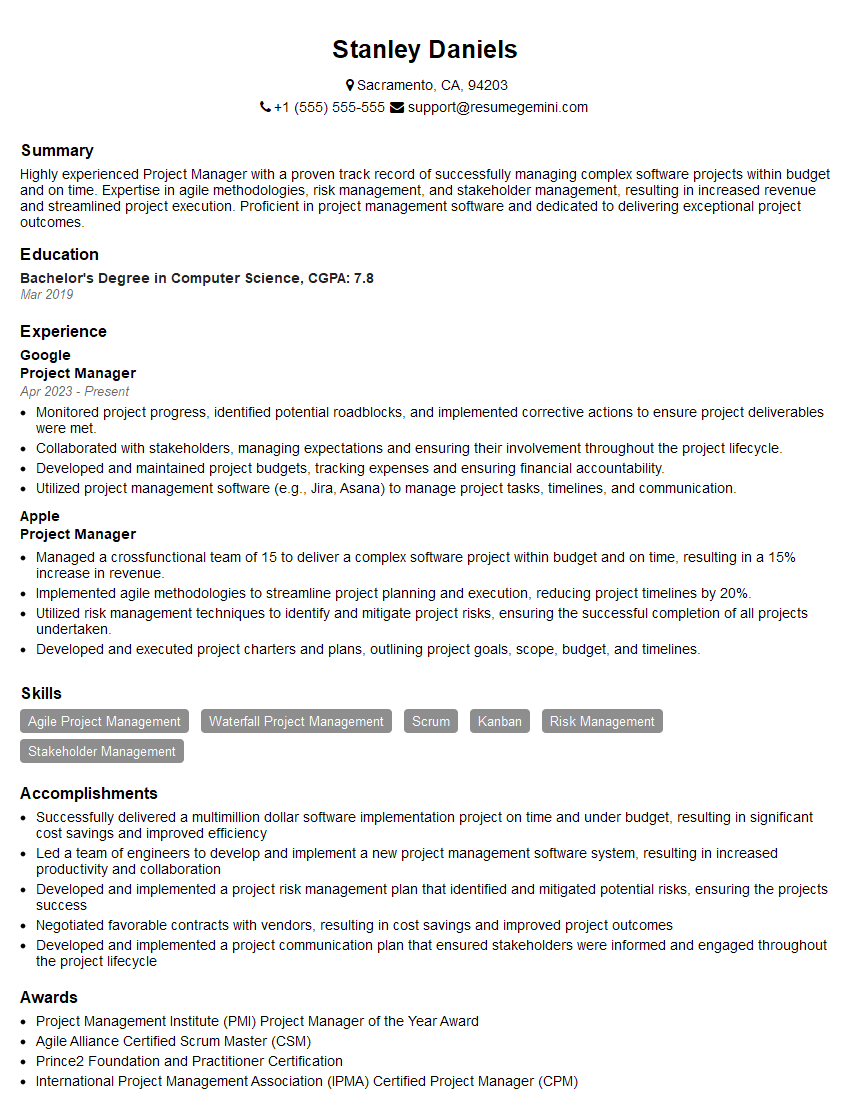
Project Manager Resume Sample
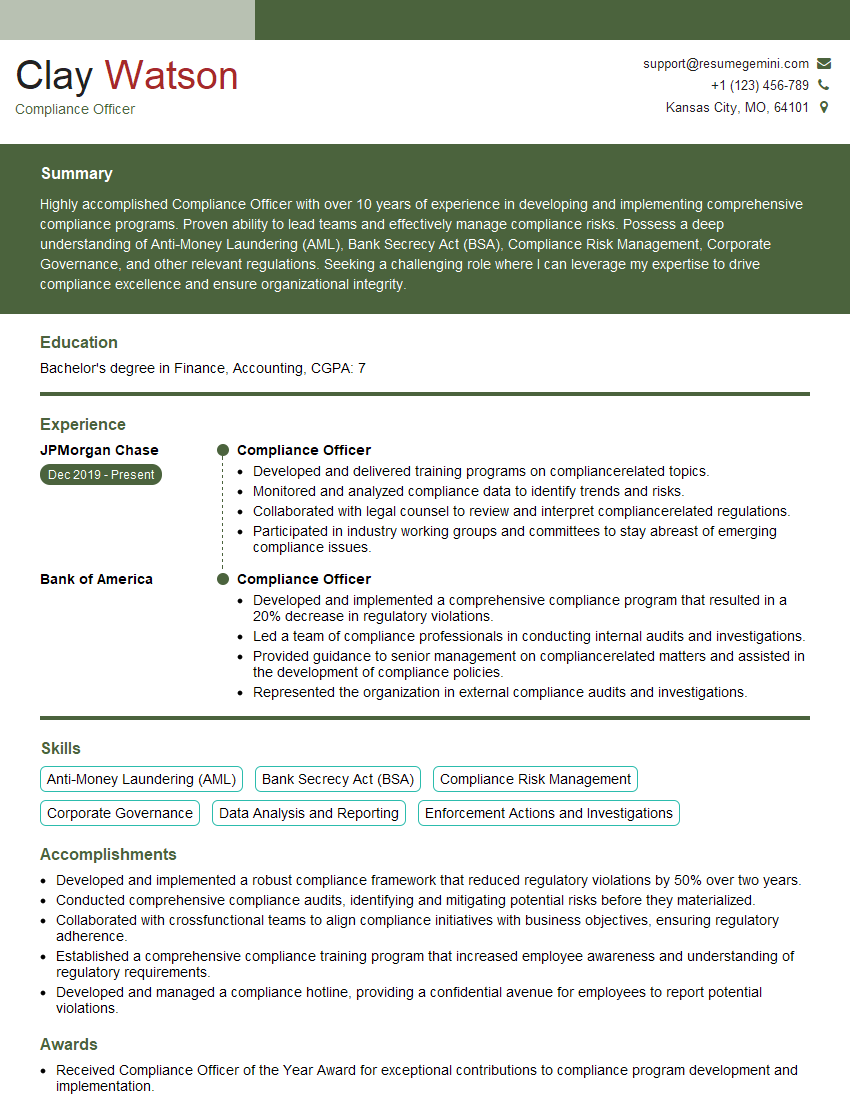
Compliance Officer Resume Sample

Business Analyst Resume Sample
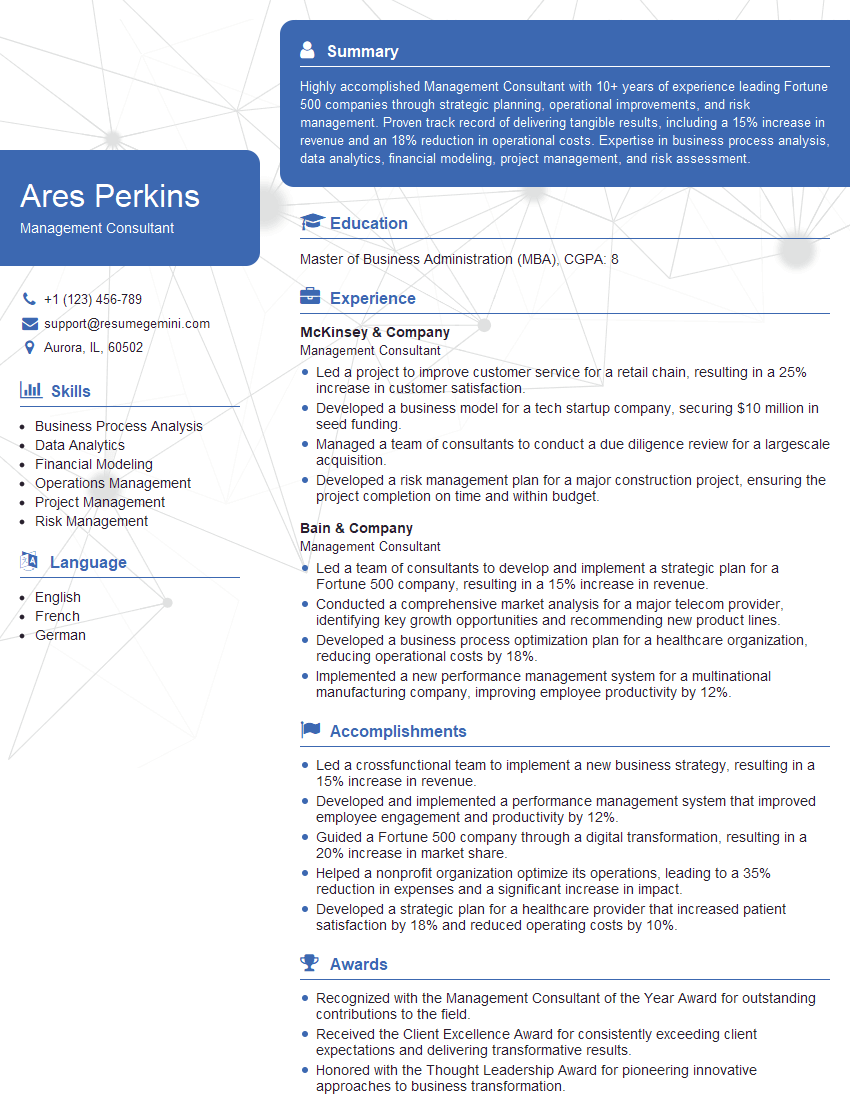
Management Consultant Resume Sample
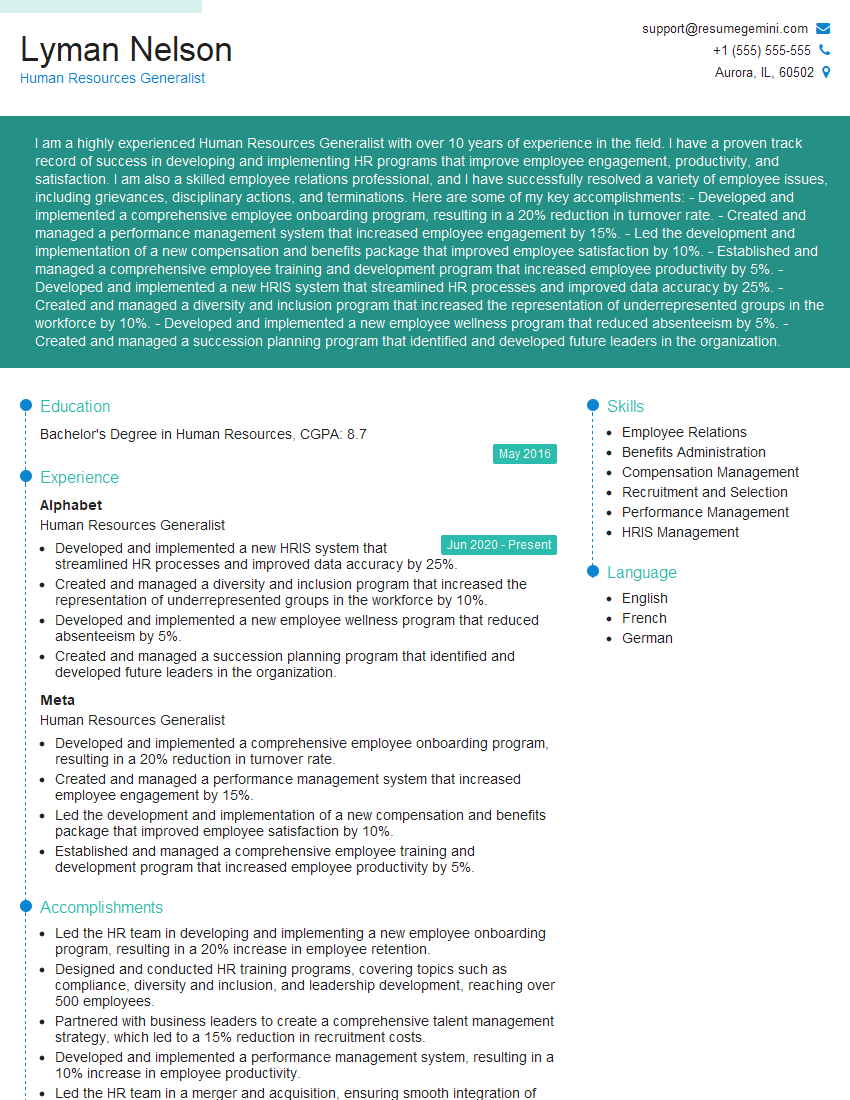
Human Resources Generalist Resume Sample

Training Specialist Resume Sample
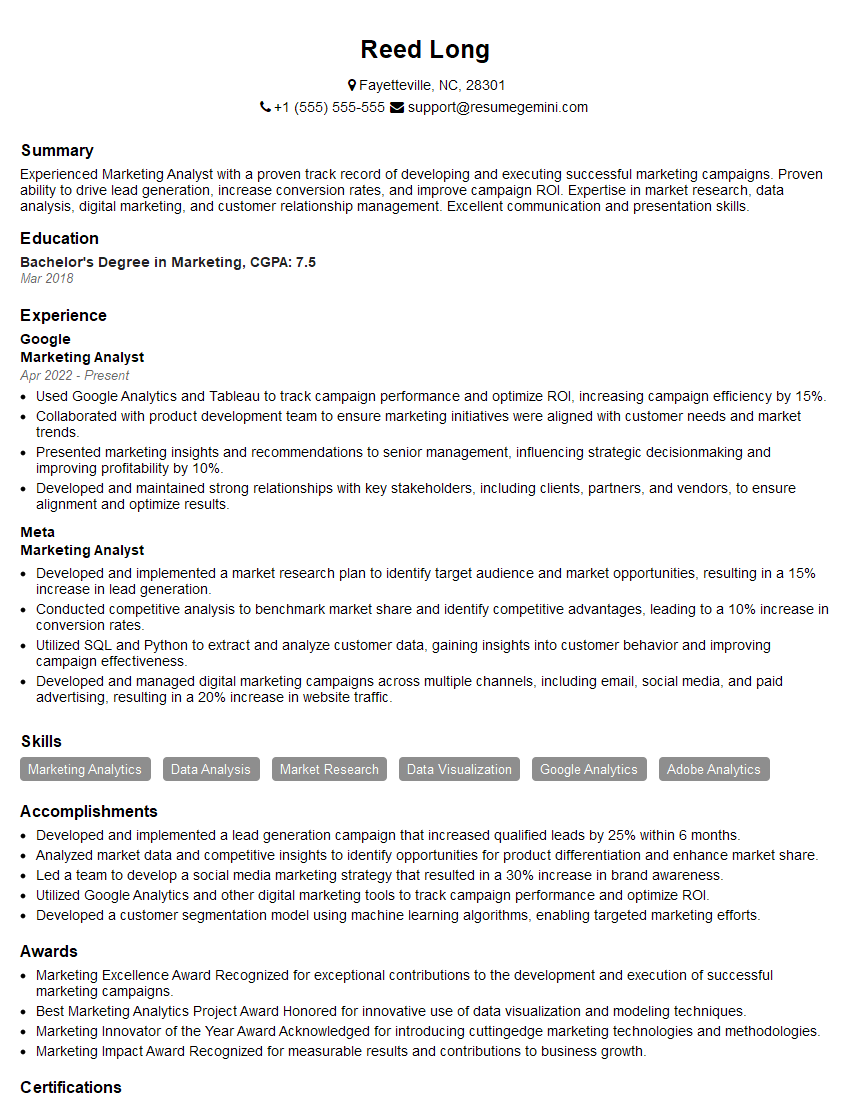
Marketing Analyst Resume Sample
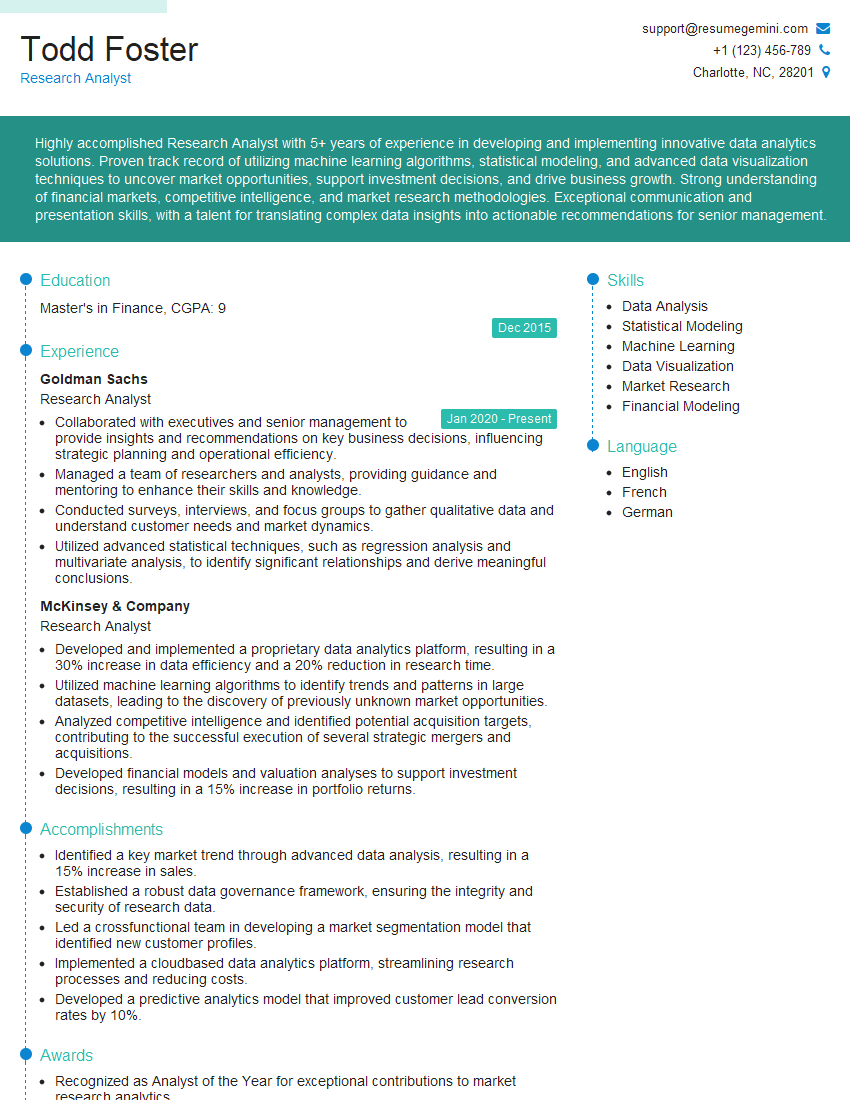
Research Analyst Resume Sample
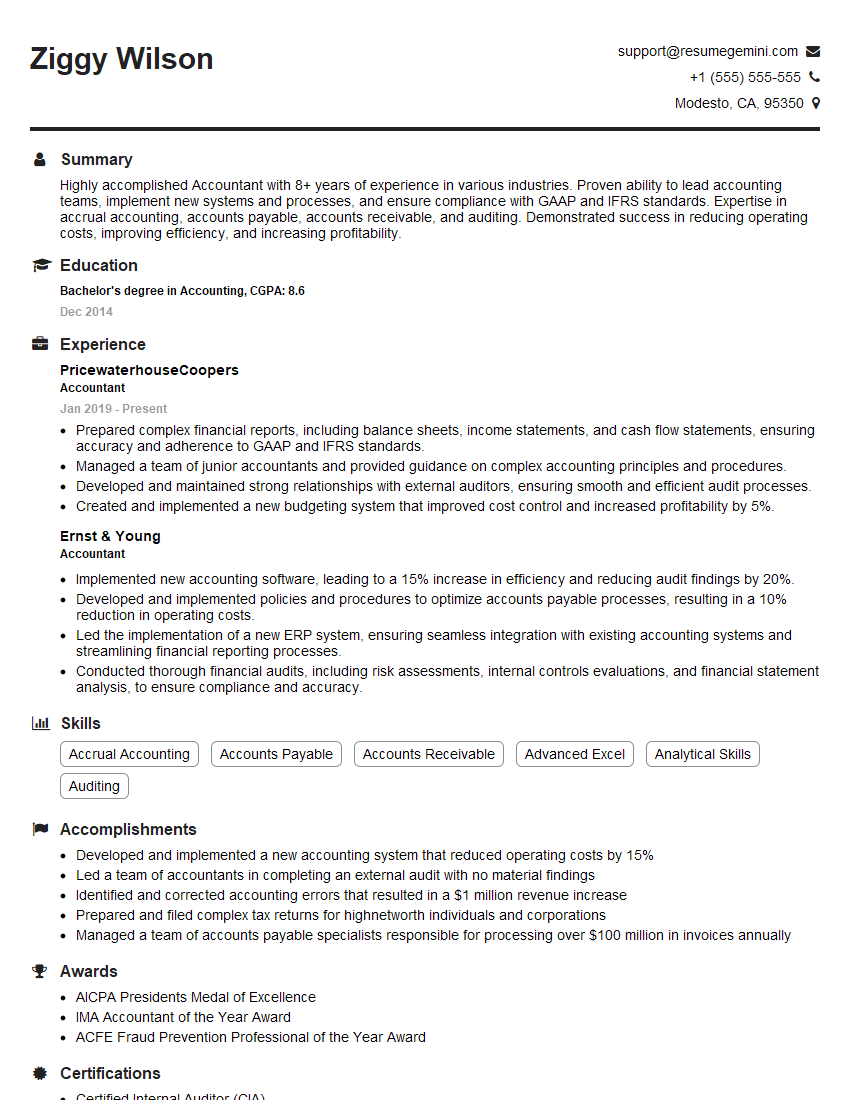
Accountant Resume Sample
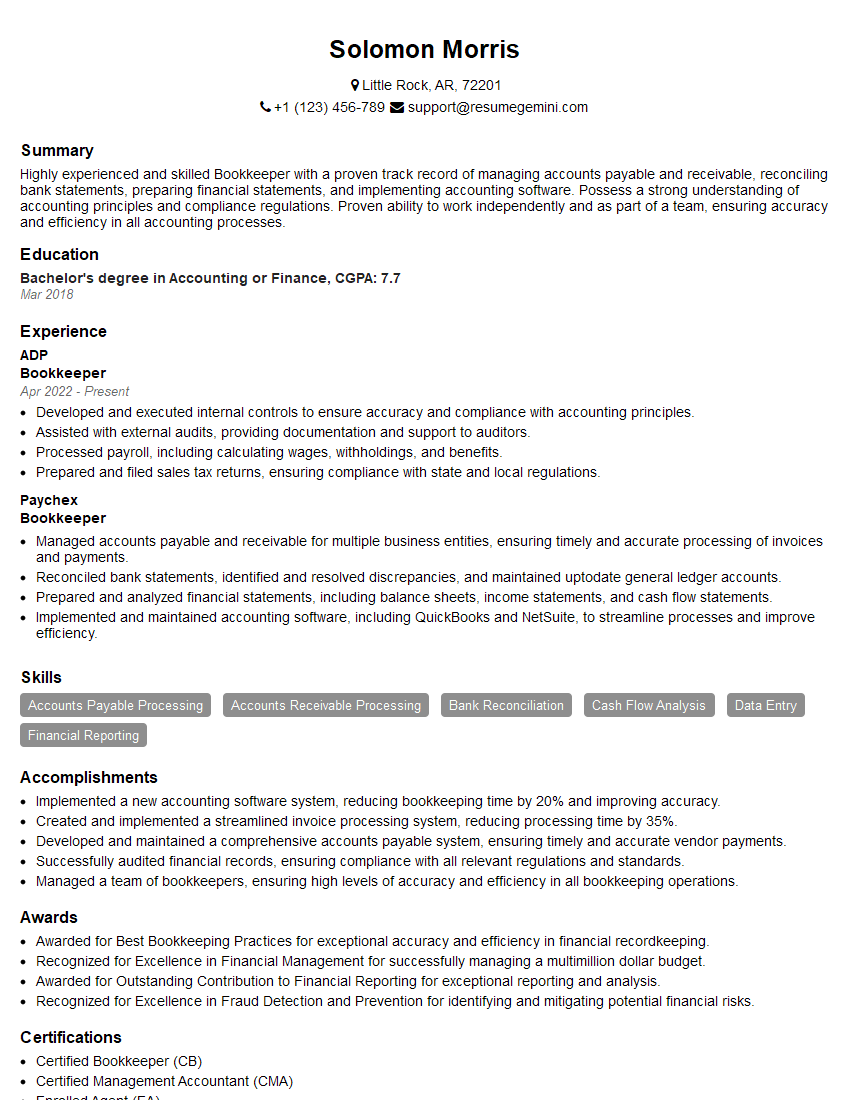
Bookkeeper Resume Sample
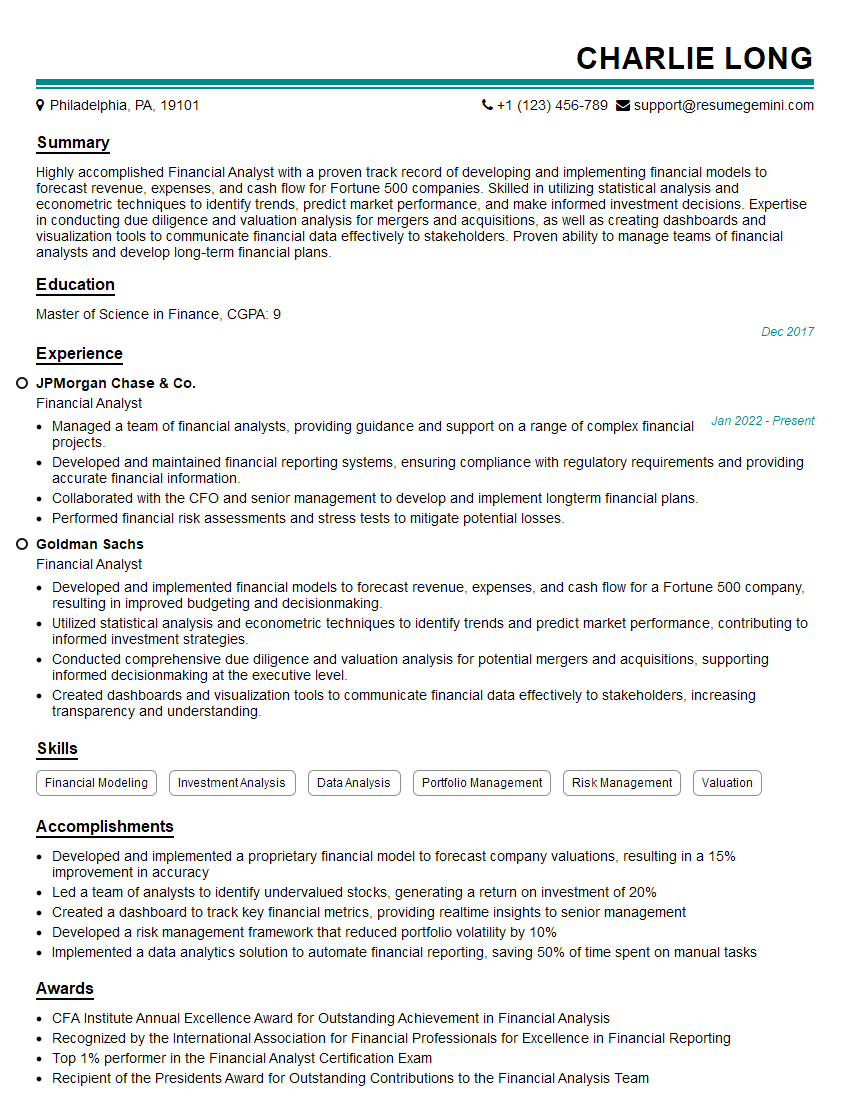
Financial Analyst Resume Sample

Data Analyst Resume Sample
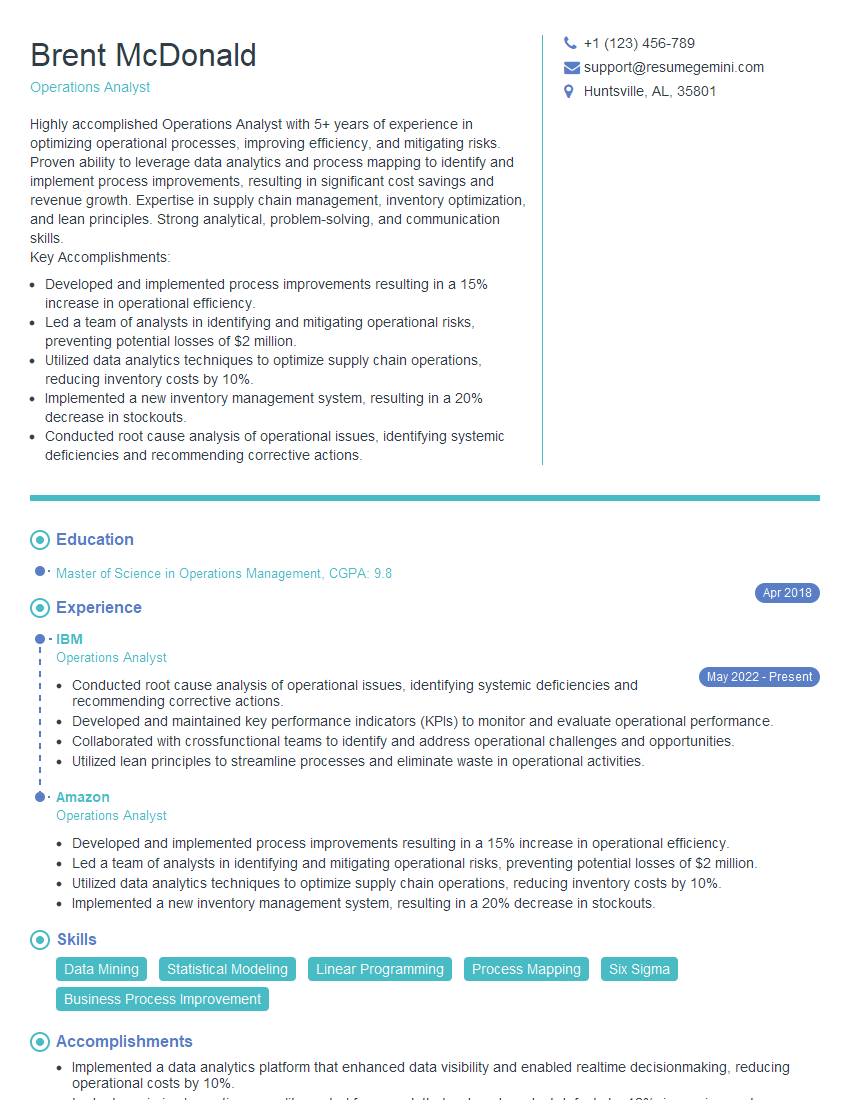
Operations Analyst Resume Sample

Technical Writer Resume Sample
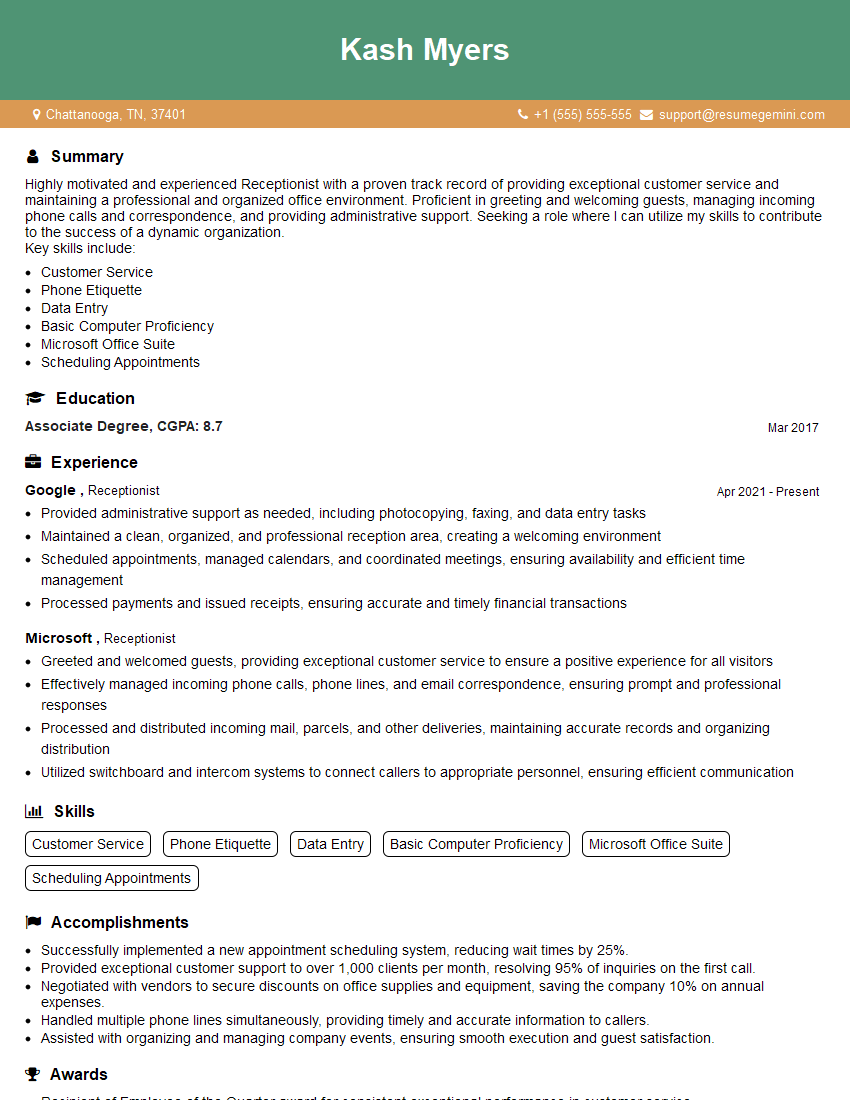
Receptionist Resume Sample

Executive Assistant Resume Sample

Data Entry Clerk Resume Sample
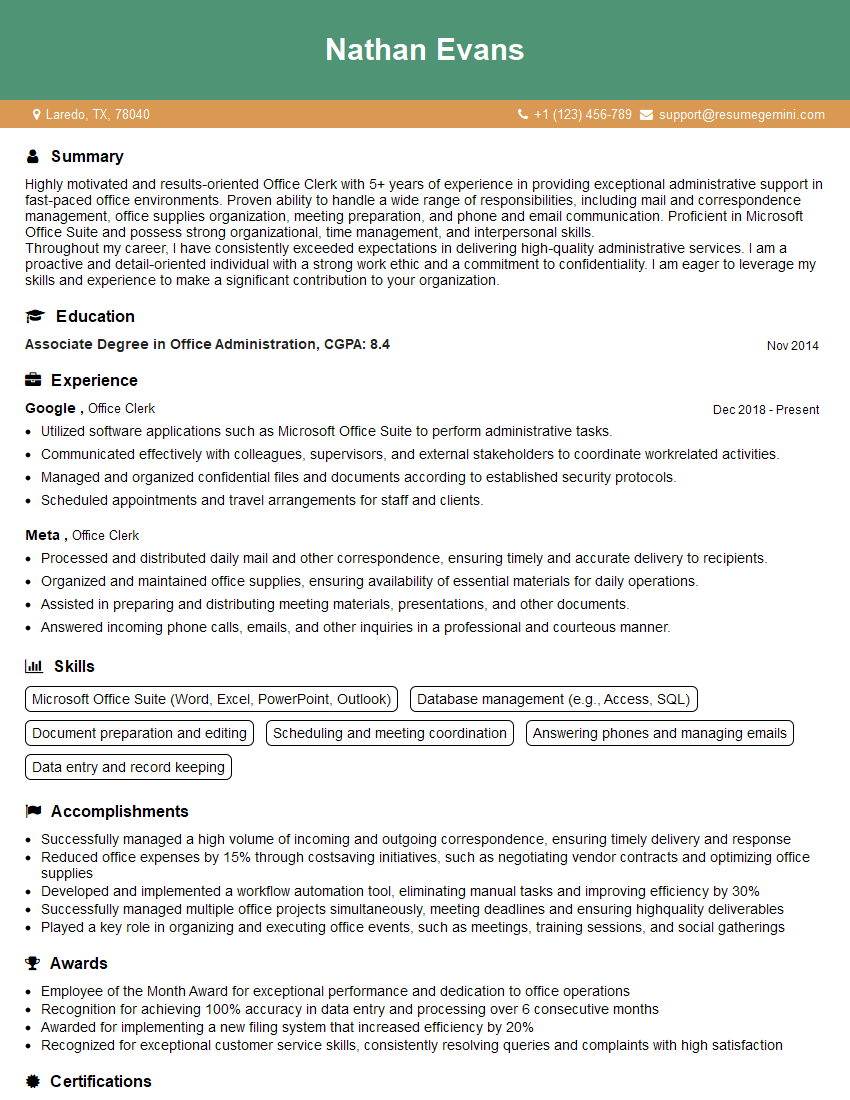
Office Clerk Resume Sample
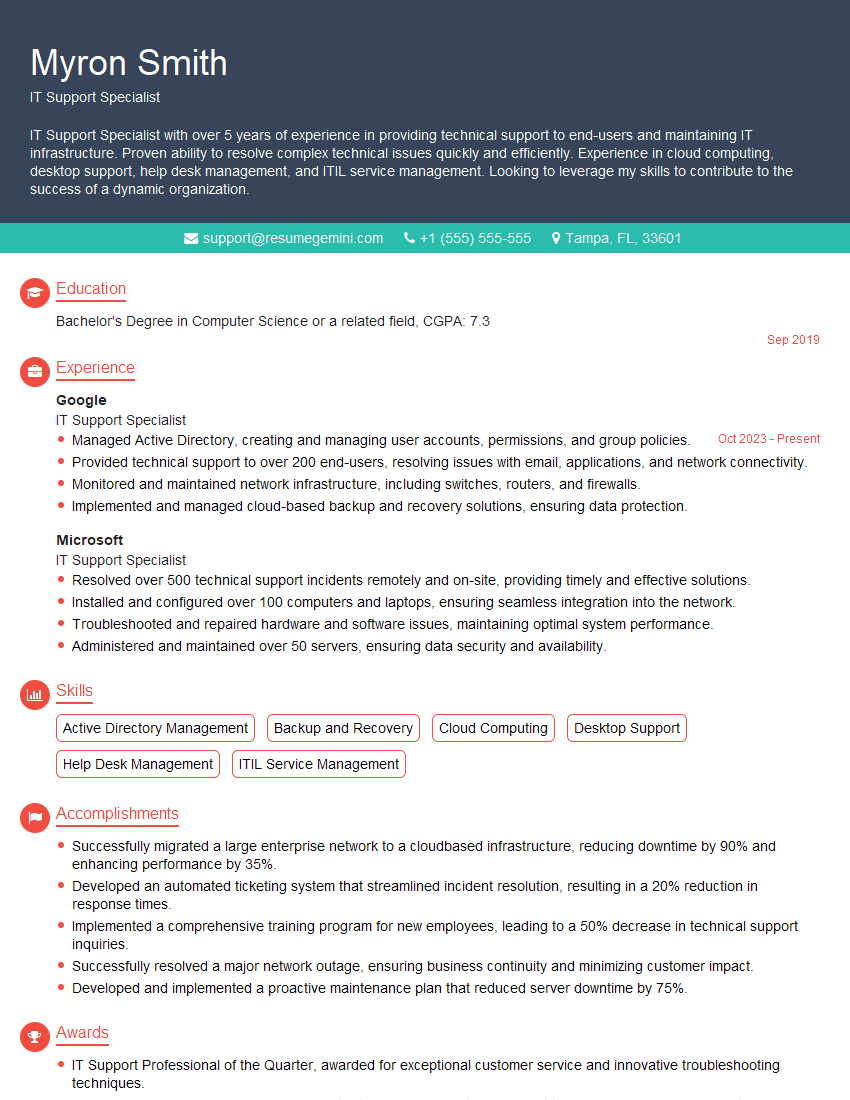
IT Support Specialist Resume Sample
- Office Manager
- Administrative Assistant
- Project Manager
- Compliance Officer
- Business Analyst
- Management Consultant
- Human Resources Generalist
- Training Specialist
- Marketing Analyst
- Research Analyst
- Accountant
- Bookkeeper
- Financial Analyst
- Data Analyst
- Operations Analyst
- Technical Writer
- Receptionist
- Executive Assistant
- Data Entry Clerk
- Office Clerk
- IT Support Specialist
Explore more articles
Users Rating of Our Blogs
Share Your Experience
We value your feedback! Please rate our content and share your thoughts (optional).
What Readers Say About Our Blog
Attention music lovers!
Wow, All the best Sax Summer music !!!
Spotify: https://open.spotify.com/artist/6ShcdIT7rPVVaFEpgZQbUk
Apple Music: https://music.apple.com/fr/artist/jimmy-sax-black/1530501936
YouTube: https://music.youtube.com/browse/VLOLAK5uy_noClmC7abM6YpZsnySxRqt3LoalPf88No
Other Platforms and Free Downloads : https://fanlink.tv/jimmysaxblack
on google : https://www.google.com/search?q=22+AND+22+AND+22
on ChatGPT : https://chat.openai.com?q=who20jlJimmy20Black20Sax20Producer
Get back into the groove with Jimmy sax Black
Best regards,
Jimmy sax Black
www.jimmysaxblack.com
Hi I am a troller at The aquatic interview center and I suddenly went so fast in Roblox and it was gone when I reset.
Hi,
Business owners spend hours every week worrying about their website—or avoiding it because it feels overwhelming.
We’d like to take that off your plate:
$69/month. Everything handled.
Our team will:
Design a custom website—or completely overhaul your current one
Take care of hosting as an option
Handle edits and improvements—up to 60 minutes of work included every month
No setup fees, no annual commitments. Just a site that makes a strong first impression.
Find out if it’s right for you:
https://websolutionsgenius.com/awardwinningwebsites
Hello,
we currently offer a complimentary backlink and URL indexing test for search engine optimization professionals.
You can get complimentary indexing credits to test how link discovery works in practice.
No credit card is required and there is no recurring fee.
You can find details here:
https://wikipedia-backlinks.com/indexing/
Regards
NICE RESPONSE TO Q & A
hi
The aim of this message is regarding an unclaimed deposit of a deceased nationale that bears the same name as you. You are not relate to him as there are millions of people answering the names across around the world. But i will use my position to influence the release of the deposit to you for our mutual benefit.
Respond for full details and how to claim the deposit. This is 100% risk free. Send hello to my email id: lukachachibaialuka@gmail.com
Luka Chachibaialuka
Hey interviewgemini.com, just wanted to follow up on my last email.
We just launched Call the Monster, an parenting app that lets you summon friendly ‘monsters’ kids actually listen to.
We’re also running a giveaway for everyone who downloads the app. Since it’s brand new, there aren’t many users yet, which means you’ve got a much better chance of winning some great prizes.
You can check it out here: https://bit.ly/callamonsterapp
Or follow us on Instagram: https://www.instagram.com/callamonsterapp
Thanks,
Ryan
CEO – Call the Monster App
Hey interviewgemini.com, I saw your website and love your approach.
I just want this to look like spam email, but want to share something important to you. We just launched Call the Monster, a parenting app that lets you summon friendly ‘monsters’ kids actually listen to.
Parents are loving it for calming chaos before bedtime. Thought you might want to try it: https://bit.ly/callamonsterapp or just follow our fun monster lore on Instagram: https://www.instagram.com/callamonsterapp
Thanks,
Ryan
CEO – Call A Monster APP
To the interviewgemini.com Owner.
Dear interviewgemini.com Webmaster!
Hi interviewgemini.com Webmaster!
Dear interviewgemini.com Webmaster!
excellent
Hello,
We found issues with your domain’s email setup that may be sending your messages to spam or blocking them completely. InboxShield Mini shows you how to fix it in minutes — no tech skills required.
Scan your domain now for details: https://inboxshield-mini.com/
— Adam @ InboxShield Mini
support@inboxshield-mini.com
Reply STOP to unsubscribe
Hi, are you owner of interviewgemini.com? What if I told you I could help you find extra time in your schedule, reconnect with leads you didn’t even realize you missed, and bring in more “I want to work with you” conversations, without increasing your ad spend or hiring a full-time employee?
All with a flexible, budget-friendly service that could easily pay for itself. Sounds good?
Would it be nice to jump on a quick 10-minute call so I can show you exactly how we make this work?
Best,
Hapei
Marketing Director
Hey, I know you’re the owner of interviewgemini.com. I’ll be quick.
Fundraising for your business is tough and time-consuming. We make it easier by guaranteeing two private investor meetings each month, for six months. No demos, no pitch events – just direct introductions to active investors matched to your startup.
If youR17;re raising, this could help you build real momentum. Want me to send more info?
Hi, I represent an SEO company that specialises in getting you AI citations and higher rankings on Google. I’d like to offer you a 100% free SEO audit for your website. Would you be interested?
Hi, I represent an SEO company that specialises in getting you AI citations and higher rankings on Google. I’d like to offer you a 100% free SEO audit for your website. Would you be interested?