Interviews are opportunities to demonstrate your expertise, and this guide is here to help you shine. Explore the essential Printers Troubleshooting and Maintenance interview questions that employers frequently ask, paired with strategies for crafting responses that set you apart from the competition.
Questions Asked in Printers Troubleshooting and Maintenance Interview
Q 1. Explain the process of troubleshooting a printer that is not printing.
Troubleshooting a non-printing printer involves a systematic approach. Think of it like detective work; you need to gather clues and eliminate possibilities one by one.
- Check the Obvious: First, ensure the printer is powered on, has paper, and isn’t paused. A simple power cycle (turning it off and on again) can often resolve minor glitches.
- Examine the Print Job: Is the document actually sent to print? Check your computer’s print queue (usually accessible through the printer icon in your system tray). Look for errors or stuck jobs. Cancel and resubmit if necessary.
- Check the Printer Status: Many printers have control panels with status lights or messages. These can point to problems like low ink/toner, paper jams, or connection issues. Consult your printer’s manual for specific indicator meanings.
- Connectivity Issues: If it’s a network printer, verify the network connection. Is the printer connected to your Wi-Fi? Are the network cables properly plugged in? Check your network settings on your computer and the printer itself. For wireless printers, you may need to re-establish the connection.
- Driver Issues: An outdated or corrupted printer driver can prevent printing. Uninstall the current driver from your computer and reinstall the latest one from the manufacturer’s website. This often solves many printing issues.
- Physical Inspection: If none of the above helps, check for physical obstructions. Inspect the printer’s paper path for jams, ensure the toner cartridge (for laser printers) or ink cartridges (for inkjet printers) are properly installed and not empty.
- Test Page: Try printing a test page from the printer’s control panel (if available) or from the printer properties on your computer. This helps isolate the problem; is it a specific document or a general printing failure?
- Seek Professional Help: If the issue persists after checking all of the above, it’s time to contact the printer’s manufacturer or a qualified technician for support. A hardware fault might be the culprit.
For instance, I once helped a client whose printer wasn’t printing. After eliminating software issues and checking the cables, we found a small piece of paper jammed deep within the printer’s mechanism, blocking the paper path. A simple removal resolved the problem.
Q 2. How do you diagnose a paper jam in different printer types?
Diagnosing paper jams depends heavily on the printer type. Inkjet printers, with their simpler paper paths, are often easier to troubleshoot than laser printers, which have more complex internal mechanisms.
- Inkjet Printers: These typically have a single paper path. Start by opening the access panel and gently removing any visible obstructions. Look closely for jammed paper scraps near the rollers and the print head area. Carefully remove any crumpled or torn pieces without tearing them further.
- Laser Printers: Laser printers can have multiple paper trays and more intricate pathways. Carefully examine each tray and access point for paper jams. They often involve fuser units and transfer rollers which may require more specialized knowledge to safely access. Refer to your printer’s manual for specific instructions on accessing internal components.
- All-in-One Printers: These printers combine various functions like printing, scanning, and copying into a single device. Paper jams can occur in any of these pathways, so carefully check all access panels and possible paper routes.
Remember, always turn off the printer before attempting to remove a paper jam to prevent injury or further damage.
In a real-world scenario, I encountered a frequent paper jam in a laser printer due to incorrectly loaded paper. The paper was slightly too thick for the tray, causing it to bend and jam. Simply switching to the correct paper type solved the issue.
Q 3. Describe your experience with different printer technologies (laser, inkjet, etc.).
My experience spans various printer technologies, each with its unique strengths and weaknesses.
- Inkjet Printers: These are known for their excellent color reproduction, making them ideal for photo printing and tasks requiring vibrant colors. However, they tend to be less economical for high-volume printing due to the cost of ink cartridges and the potential for print head clogging. I’ve worked extensively with inkjet printers, troubleshooting issues such as print head alignment and cartridge replacement.
- Laser Printers: Laser printers are renowned for their speed and efficiency, especially for high-volume black-and-white printing. Toner cartridges provide lower printing costs per page than inkjet cartridges. However, laser printers are often more expensive upfront and their color reproduction is typically not as good as inkjet printers. I have experience maintaining and repairing various laser printer models, including addressing issues with toner cartridges, fusing units, and rollers.
- Thermal Printers: I have experience with thermal printers, which use heat-sensitive paper and are common in point-of-sale systems and receipt printers. Their simplicity makes them reliable and easy to maintain, but they aren’t suitable for high-quality printing tasks.
- Dot Matrix Printers: While less common now, I’ve worked with these printers, particularly in legacy systems. They are durable but slow and produce low-quality output. Maintaining these often involves replacing the print head and ribbon cartridges.
My experience allows me to quickly diagnose problems specific to each technology, selecting the appropriate troubleshooting steps.
Q 4. How do you resolve connectivity issues with network printers?
Resolving connectivity issues with network printers involves a systematic process of elimination.
- Check Physical Connections: Ensure the network cable (for wired connections) is securely plugged into both the printer and the network router. If wireless, verify the printer’s Wi-Fi is enabled and connected to the same network as your computer.
- Check Printer’s IP Address: Obtain the printer’s IP address from its control panel or network settings. If you can’t ping the printer using its IP address from your computer (using the
pingcommand in your computer’s command prompt or terminal), there is a network connectivity problem. - Check Network Settings: Ensure your computer is correctly configured to access the network printer. In Windows, you would go to ‘Devices and Printers’ and add the printer, or use the network share. The printer may need to be added manually using the IP address.
- Router Configuration: Access your router’s configuration page. Confirm that the printer is visible on your network and that there are no firewall rules blocking communication. You might need to add the printer’s IP address as an exception.
- DNS Resolution: If the printer is named on the network, check that your computer can resolve the printer’s name to its IP address. If not, this may point to a DNS problem.
- Printer Driver: Ensure the printer driver on your computer is up-to-date and correctly configured. Sometimes, an outdated driver can interfere with network connectivity.
- Reboot Devices: Restart your computer, the printer, and the router. A simple reboot often fixes temporary network glitches.
I once solved a network connectivity problem by simply noticing that the printer wasn’t receiving DHCP from the router; it was set to use a static IP that was outside the router’s range. Switching it back to DHCP solved the issue immediately.
Q 5. What are common causes of blurry or faded printouts?
Blurry or faded printouts can stem from several causes.
- Low Ink/Toner: The most common cause is low ink or toner levels. The printer may still print but with reduced intensity and clarity.
- Print Head Alignment (Inkjet): Misaligned print heads in inkjet printers often result in blurry or faded colors. Cleaning the print heads and performing an alignment procedure through the printer’s settings can often rectify this.
- Toner Cartridge Issues (Laser): In laser printers, a worn or damaged toner cartridge or drum unit will lead to faded or inconsistent output. Replacing these components usually solves the issue.
- Drum Unit Issues (Laser): Similar to the toner cartridge, a worn drum unit in a laser printer will create faded or light printouts. If the toner cartridge is full but the print is pale, this component likely needs replacement.
- Paper Quality: Using poor-quality or damp paper can result in blurry or smeared prints. Switching to better paper will improve the output.
- Print Settings: Incorrect print settings, such as low resolution or unsuitable paper type selected, can also affect print quality. Review and adjust your print settings accordingly.
- Driver Problems: Sometimes a faulty or outdated printer driver may interfere with print quality. Update or reinstall the driver to rule out this possibility.
For example, I once solved a fading issue by simply replacing the toner cartridge despite the printer’s indicator not signaling low toner. The old cartridge was partially depleted even though its sensor failed to correctly report this.
Q 6. How do you maintain printer consumables (toner, ink, etc.)?
Maintaining printer consumables involves careful handling and storage to maximize their lifespan and print quality.
- Toner Cartridges (Laser): Store toner cartridges in a cool, dry place away from direct sunlight. Avoid touching the drum surface and use the protective cover provided with the cartridge. Regularly check for low toner levels, and always replace cartridges when the printer indicates low levels to avoid print quality degradation.
- Ink Cartridges (Inkjet): Similarly, store ink cartridges in a cool, dry place away from direct sunlight. While replacing an empty cartridge is simple, you should ensure you perform a proper print head cleaning before changing cartridges to avoid clogging issues.
- Ribbon Cartridges (Dot Matrix): Keep these in their protective packaging and install them according to the manufacturer’s instructions. Inspect the ribbon regularly to ensure its quality and replace it as needed.
- Thermal Paper: Thermal paper is sensitive to heat, moisture, and light. Store it in a cool, dry, dark place to prevent premature fading or discoloration.
Proper handling, such as gently installing cartridges to avoid scratching, and regular maintenance are key. In my experience, proactive maintenance significantly reduces print quality issues and prolongs the life of consumables.
Q 7. Explain your experience with printer driver installation and configuration.
Installing and configuring printer drivers is a crucial aspect of printer management. The process varies slightly depending on the operating system but generally involves these steps:
- Download the Driver: Go to the printer manufacturer’s website and locate the correct driver for your printer model and operating system. Download the installer.
- Run the Installer: Execute the downloaded installer file. Follow the on-screen instructions provided by the installation wizard. This often involves selecting the printer port and specifying whether it’s a network or locally connected printer.
- Connect the Printer: Connect your printer either via USB or network cable before or during the installation process, as prompted by the wizard.
- Test the Print: After the installation is complete, test print a document to confirm that the driver is installed and configured correctly. If there are problems, you may need to reinstall the driver, ensure the correct port is selected, or check the printer’s connection.
- Network Printer Configuration: For network printers, the process typically involves adding the printer through the operating system’s network devices section, often specifying the printer’s IP address or hostname. Additional network configuration may be required, depending on your network’s setup.
I’ve encountered situations where the wrong driver was installed, resulting in various issues such as incorrect print settings or printing failures. Thoroughly verifying the driver’s compatibility is crucial. In one instance, I had to manually add the correct printer port to the printer driver settings because the auto-detection failed.
Q 8. How do you handle a situation where a printer is offline?
A printer showing ‘offline’ usually indicates a communication breakdown between the printer and your computer or network. Think of it like a phone call – if the connection is dropped, you can’t talk. To troubleshoot, I’d systematically check several points:
- Check the physical connections: Ensure the printer’s power cord is securely plugged in, and the USB or network cable is firmly connected to both the printer and the computer/router. Sometimes a loose cable is the culprit.
- Verify network connectivity: If it’s a network printer, confirm the printer is correctly connected to your network. This might involve checking the printer’s IP address and ensuring it’s reachable. I’d use network diagnostic tools provided by the operating system or router to check for connectivity issues. For example, on Windows, you can use the ‘ipconfig’ command in the Command Prompt.
- Restart the printer and computer: This simple step often resolves temporary glitches. Power cycling the devices clears any temporary software errors.
- Check printer drivers: Outdated or corrupted printer drivers can cause offline status. I would uninstall and reinstall the correct drivers from the manufacturer’s website, ensuring compatibility with your operating system. This is especially important after operating system upgrades.
- Examine the printer queue: Sometimes, a large print job or a print job stuck in the queue can lead to an offline status. I would clear the print queue and try again.
- Check for firewall or antivirus interference: These security programs might be blocking communication with the printer. Temporarily disabling them (while maintaining caution) can help identify this issue.
By systematically following these steps, I can pinpoint the cause of the ‘offline’ status and get the printer back up and running.
Q 9. What is your experience with PostScript or PCL printer languages?
PostScript (PS) and Printer Control Language (PCL) are page description languages – they’re essentially the instructions the printer uses to render a page. Think of them as the printer’s recipe book. I have extensive experience with both.
PostScript is a more powerful and versatile language, often used for high-quality printing, especially in professional printing environments. It supports complex graphics and fonts and is highly scalable. I’ve worked with PostScript printers extensively in publishing and design, where precise rendering is crucial.
PCL is generally simpler and more commonly used for office printers. It’s known for its speed and efficiency, making it suitable for everyday printing tasks. While it might not support as many advanced features as PostScript, it is more commonly used in business settings where speed and efficiency are vital.
My experience includes troubleshooting issues related to font rendering, image quality, and memory management within both languages. I can interpret error messages specific to these languages to diagnose problems.
Q 10. How do you troubleshoot a printer that is printing blank pages?
Blank pages from a printer indicate a problem in the printing process, from ink/toner to the printer’s internal mechanisms. Here’s my troubleshooting approach:
- Check the ink/toner levels: The most obvious cause is empty or low ink/toner cartridges. Replace or refill as needed. This is often the easiest fix.
- Examine the cartridges: Sometimes, even with ink/toner, the cartridge might be faulty or improperly installed. Check for leaks, damage, or incorrect placement. This step requires attention to ensure correct installation and often involves visually inspecting the cartridges.
- Inspect the paper path: A paper jam or misaligned paper can cause blank pages. Carefully clear any jams and ensure the paper is properly loaded, following the printer’s instructions. Misaligned paper trays are a common source of printing problems.
- Check the print settings: Make sure you are printing to the correct printer and the print settings (like grayscale or color) are appropriate. Sometimes, accidental settings can cause blank pages.
- Test print a diagnostic page: Most printers have a built-in diagnostic test. This page will help identify if there are hardware issues affecting printing. The instructions on how to access the diagnostic page will vary by printer model and are often found in the printer’s manual.
- Check the printer’s internal components (Advanced): If the above steps fail, the problem could be related to a more serious hardware fault, such as a malfunctioning print head, drum unit, or fuser unit. This step often requires specialized tools and knowledge and might need professional assistance.
I’d methodically proceed through these steps, starting with the simplest solutions and moving to more complex ones, documenting each step to isolate the root cause.
Q 11. How do you resolve issues with duplex printing?
Duplex printing, or double-sided printing, can encounter several issues. My approach involves examining the following:
- Check the printer’s duplex settings: Ensure that the duplex printing option is correctly enabled in both the printer’s driver settings and the print job settings. Many printers have a physical setting as well as a software option.
- Verify the paper tray: The printer needs to be loaded with the correct paper type and weight for duplex printing. Using incorrect paper can lead to jams or misaligned prints.
- Check for paper jams: Paper jams are common in duplex printing because of the paper path’s complexity. Carefully check and clear any jams, paying special attention to the area where the paper reverses.
- Inspect the duplex unit (if applicable): Some printers have a separate duplex unit. Ensure it’s correctly installed and functioning. A faulty duplex unit often needs replacement.
- Examine the print settings: Make sure the document layout is appropriate for duplex printing. Incorrect margins or page orientation can cause misaligned prints.
- Update printer drivers: Outdated drivers can sometimes cause duplex printing issues. Update to the latest drivers from the manufacturer’s website.
By carefully examining these aspects, I can identify the cause of the duplex printing problem and effectively resolve it.
Q 12. Describe your experience with printer firmware updates.
Printer firmware updates are essential for improving performance, adding features, and fixing bugs. My experience with them encompasses several aspects:
- Identifying the need for updates: I regularly check the printer manufacturer’s website for firmware updates, particularly when encountering recurring issues or when new features are desired. Many printers offer automatic update options; however, I always prefer to review and approve the update before installation.
- Downloading and installing updates: I follow the manufacturer’s instructions carefully during the update process. This often involves downloading the update file to a USB drive, then installing it through the printer’s control panel. Sometimes, the update is installed via a network connection.
- Troubleshooting update issues: Occasionally, firmware updates encounter issues, such as network connectivity problems or corrupted update files. If this happens, I troubleshoot by checking the printer’s network settings, ensuring the firmware file is downloaded completely, and trying the update again. In extreme cases, it might involve seeking the manufacturer’s support.
- Understanding the impact of updates: I understand that firmware updates can sometimes introduce new issues, so I always test the printer thoroughly after any update to confirm its proper functioning.
In summary, I ensure firmware updates are carried out smoothly and effectively and understand the potential impact on printer functionality.
Q 13. How do you identify and resolve print quality issues?
Print quality issues can range from faded colors to blurry text. My diagnostic process is systematic:
- Check ink/toner levels and quality: Low ink/toner is a common cause of poor print quality. Inspect the cartridges for leaks or damage. Using compatible but low-quality cartridges often results in unsatisfactory prints.
- Examine the paper: The type and quality of paper significantly impact print quality. Using the correct paper type for the printer is crucial. I’ve encountered issues from using overly rough or damp paper.
- Inspect the print head/drum unit: These components wear out over time, leading to faded or streaky prints. Cleaning the print head (as per the manufacturer’s instructions) or replacing the drum unit might be necessary. I follow specific safety precautions and use appropriate cleaning solutions to avoid damaging the printer.
- Check the print settings: Incorrect print settings (e.g., low resolution, incorrect color mode) can compromise print quality. Review and adjust the settings accordingly.
- Run a print quality test page: Many printers have a test page that assesses the printer’s internal components. This aids in pinpointing problems with specific components.
- Calibrate the printer: Some printers allow calibration to optimize print quality, aligning the print head or adjusting the color settings. This feature enhances the accuracy of printing.
- Check for mechanical issues: Internal mechanical problems, such as worn rollers or debris in the paper path, can degrade print quality. This often requires a thorough cleaning or even repair.
I always address issues systematically and document each step to identify and resolve the root cause of poor print quality.
Q 14. How do you perform preventive maintenance on various printer models?
Preventive maintenance is crucial for extending printer life and ensuring optimal performance. My approach varies depending on the printer model but typically includes:
- Regular cleaning: This involves cleaning the exterior of the printer, removing dust and debris from the paper path, and cleaning the print head or drum unit (as per the manufacturer’s instructions). Different models have different requirements for cleaning, so I always refer to the appropriate manual.
- Ink/toner cartridge management: Regularly checking ink/toner levels and replacing them before they run out completely helps avoid print head damage.
- Paper handling: Using the correct paper type and ensuring proper paper loading prevents jams and wear on the paper rollers. This includes checking for any paper dust build-up inside the machine.
- Roller inspection and cleaning: The rollers in the paper path are prone to accumulating dust and debris, affecting paper feeding. I inspect and clean them regularly.
- Firmware updates: Keeping the printer’s firmware up to date ensures optimal performance and addresses potential bugs.
- Inspection of mechanical parts: Regularly checking moving parts for wear and tear can help prevent malfunctions.
The exact procedure varies greatly depending on the printer model, but the underlying principle of regular cleaning and inspection remains constant.
Q 15. Explain your experience with different printer brands (e.g., HP, Canon, Xerox).
Throughout my career, I’ve worked extensively with HP, Canon, and Xerox printers, encompassing a wide range of models from basic inkjet and laser printers to high-volume production devices. My experience with HP printers includes troubleshooting network connectivity issues, resolving paper jams, and performing preventative maintenance on their LaserJet and OfficeJet series. With Canon, I’ve focused on image quality calibration, driver installation, and addressing issues with their imageCLASS and PIXMA lines. My work with Xerox has primarily centered on their high-volume copiers and printers, including managing supplies, addressing complex print-related errors, and conducting advanced diagnostics. This diverse experience allows me to effectively handle most printer-related challenges regardless of the brand.
For example, I once resolved a recurring paper jam issue in a high-volume HP LaserJet printer by identifying a faulty pickup roller. Replacing the roller completely eliminated the problem, highlighting the importance of understanding the printer’s mechanical components. In another instance, I successfully diagnosed and fixed a network connectivity issue with a Canon imageCLASS printer by identifying a conflict with the IP address assignment on the network.
Career Expert Tips:
- Ace those interviews! Prepare effectively by reviewing the Top 50 Most Common Interview Questions on ResumeGemini.
- Navigate your job search with confidence! Explore a wide range of Career Tips on ResumeGemini. Learn about common challenges and recommendations to overcome them.
- Craft the perfect resume! Master the Art of Resume Writing with ResumeGemini’s guide. Showcase your unique qualifications and achievements effectively.
- Don’t miss out on holiday savings! Build your dream resume with ResumeGemini’s ATS optimized templates.
Q 16. How do you manage printer queues and prioritize print jobs?
Managing printer queues and prioritizing print jobs efficiently is crucial for maintaining productivity. I utilize a combination of techniques depending on the environment. In smaller office settings, I often rely on the built-in features of the printer’s operating system or print server to manage queues. This may involve adjusting print job order or pausing/resuming print jobs as needed.
For larger networks, I utilize a print management software such as PaperCut or Equitrac. These solutions provide advanced queue management capabilities, including job prioritization based on user, job size, or other criteria. They also allow for detailed tracking and reporting of print usage, facilitating cost management and identifying potential bottlenecks. For instance, I might prioritize urgent print jobs marked as ‘high priority’ while delaying less urgent tasks to ensure critical documents are printed promptly.
Understanding the nuances of each system, from simple first-in-first-out (FIFO) queues to more complex priority-based systems, is key to optimizing workflow.
Q 17. What troubleshooting tools and techniques do you utilize?
My troubleshooting arsenal includes a combination of hardware and software tools. I start with basic visual inspections to check for obvious problems like paper jams, toner levels, or cable connections. For software-related issues, I examine error messages, check driver settings, and review printer logs. Network tools like ping and tracert help diagnose connectivity issues.
I also use printer-specific diagnostic tools provided by manufacturers. These tools often perform self-tests, provide detailed error codes, and offer insights into the printer’s internal state. In addition, I leverage remote management tools to access and troubleshoot printers remotely, saving valuable time and resources. For example, I use built-in HP web interfaces or third-party tools for remote access and diagnostics. Finally, understanding the printer’s architecture – whether it’s laser, inkjet, or thermal – is crucial to effectively pinpoint the root cause of a problem.
Q 18. How do you document troubleshooting steps and solutions?
Thorough documentation is essential for efficient troubleshooting and maintenance. I maintain a detailed log of each incident, including the date, time, printer model, problem description, steps taken to diagnose the problem, the solution implemented, and any relevant observations. This documentation helps prevent recurring issues and facilitates knowledge sharing within the team.
I use a combination of methods – a ticketing system for tracking, detailed notes within the system (e.g., comments in the print management software), and creating detailed internal documentation that can be accessed by the team and used as a resource for future troubleshooting. This ensures that all necessary information is captured and easily retrievable for future reference or knowledge base creation.
Q 19. How familiar are you with different printer architectures?
My understanding of printer architectures is comprehensive, encompassing various technologies and their implications. I’m familiar with inkjet, laser (both monochrome and color), thermal, and dot-matrix printing technologies. This includes the various components involved such as print heads, drums, fusers, toner cartridges, and paper paths. I understand the differences between various printer types such as impact, non-impact, and digital printers. Understanding these differences is crucial to troubleshooting issues efficiently. For example, a paper jam in a laser printer often requires a different approach than a jam in an inkjet printer.
Moreover, I’m also adept at understanding network printer architectures, including how printers connect to networks (wired and wireless), their interaction with print servers, and the role of print drivers. I’m experienced with different network protocols relevant to printing, such as TCP/IP and LPD.
Q 20. How would you handle a printer malfunction during a critical business operation?
A printer malfunction during a critical business operation demands a swift and effective response. My approach follows a prioritized, structured methodology:
- Immediate Assessment: First, I determine the nature and severity of the malfunction, and its impact on ongoing operations. Is it impacting a single user or the entire department?
- Quick Fixes: I attempt immediate fixes, such as checking for simple errors like paper jams or toner issues. If the problem is minor, addressing it quickly can restore functionality.
- Escalation Plan: If a quick fix isn’t possible, I immediately escalate the issue to appropriate personnel, possibly a senior technician or vendor support. This ensures a broader range of expertise is available.
- Alternative Solution: While troubleshooting continues, I explore temporary solutions, such as redirecting print jobs to alternative printers or using a shared network drive. This mitigates disruption to business processes.
- Root Cause Analysis: Once the issue is resolved, I perform a thorough root cause analysis to prevent similar incidents in the future. This includes documenting the issue, solution, and any preventive measures.
For instance, if a critical report needs printing, and the main printer fails, I would immediately redirect the print jobs to a backup printer and contact support while concurrently investigating the primary printer’s problem. Prioritization is key in high-pressure situations.
Q 21. Describe your experience with remote printer diagnostics and support.
I have significant experience with remote printer diagnostics and support, utilizing various tools and techniques. Remote access is achieved through several methods, including remote desktop software, manufacturers’ web interfaces built into many printers, and secure network connections. These allow me to view the printer’s status, access logs, and perform diagnostics remotely.
Remote troubleshooting techniques involve analyzing error codes, checking network configurations, and guiding users through basic troubleshooting steps. I often use screen-sharing software to visually assess the problem and guide users through the solution. For instance, I’ve successfully diagnosed and resolved multiple network connectivity issues, driver conflicts, and print quality problems using remote access. This has improved response time and reduced downtime significantly.
Secure access and confidentiality are always prioritized when working remotely. I adhere to strict security protocols to protect sensitive data.
Q 22. What are the common causes of printer error codes?
Printer error codes are essentially the printer’s way of communicating problems. They can range from simple issues like a paper jam (often indicated by a generic ‘Paper Jam’ error) to more complex problems related to hardware malfunctions or software glitches. The specific code often points to the source of the problem. For example, an ‘Out of Toner’ code is straightforward, while a cryptic code like ‘5B00’ usually requires consulting the printer’s manual or support website.
- Hardware Problems: These include things like low toner, jammed paper, faulty print heads, or problems with the fuser unit (the component that melts the toner onto the paper).
- Software Issues: Incorrect printer drivers, corrupted print jobs, network connectivity problems, or conflicts with other software can all trigger error codes.
- Connectivity Issues: Problems connecting to the network (wrong IP address, network cable issues, or Wi-Fi problems) often manifest as error codes.
Troubleshooting involves carefully analyzing the error code, checking the printer’s status indicators (lights), and systematically investigating the potential sources based on the nature of the code. For instance, a code indicating a ‘Cartridge Error’ may require checking that the cartridges are properly installed and not empty, and possibly even cleaning the cartridge contacts.
Q 23. How do you ensure printer security and prevent unauthorized access?
Printer security is crucial to protect sensitive information and prevent unauthorized printing. A multi-layered approach is necessary.
- Network Security: The printer should be connected to a secure network with robust firewalls and intrusion detection systems. This prevents external access attempts.
- Access Control: Implement features like user authentication (requiring login credentials before printing) and access control lists (ACLs), which limit who can use specific printers or print specific documents.
- Encryption: If sensitive documents are printed, ensure the printer and network use encryption to protect data transmission from unauthorized access.
- Firmware Updates: Regularly updating the printer’s firmware patches security vulnerabilities and ensures the printer is running the latest security protocols.
- Physical Security: Limit physical access to the printer to authorized personnel. This might involve placing the printer in a secure location or using physical locks to secure the printer itself.
- Secure Printing: Using secure print release features requires users to authenticate at the printer before releasing a print job, preventing unintended printing of sensitive documents.
For example, in a corporate setting, only employees with specific access rights should be able to print confidential documents. This can be controlled through the use of network authentication methods and access control lists, which would only allow verified users to access or print. Similarly, encrypting the network traffic between computers and the printer adds an extra layer of security against eavesdropping and unauthorized access.
Q 24. How familiar are you with different printer network protocols (e.g., TCP/IP, LPD)?
I’m very familiar with various printer network protocols. TCP/IP and LPD are the most common, but I also have experience with others like IPP (Internet Printing Protocol) and SMB/CIFS (Server Message Block/Common Internet File System).
- TCP/IP: This is the dominant protocol used for network printing today. It’s a reliable connection-oriented protocol, ensuring data integrity and order. Printers using TCP/IP use IP addresses for communication and usually have a port number associated with them (often 9100).
- LPD (Line Printer Daemon): An older protocol but still encountered in some legacy systems. It’s a connectionless protocol, simpler than TCP/IP, but less reliable for large print jobs.
- IPP: A more modern and flexible protocol than LPD, allowing for advanced job management features. It’s very common in modern printers and printing systems.
- SMB/CIFS: Often used for sharing printers on Windows networks, providing a simpler method for connecting to printers.
My experience includes troubleshooting connectivity issues across these protocols. This involves diagnosing issues such as incorrect IP configurations, network connectivity problems, firewall rules, and protocol mismatches that can prevent printers from being discovered and communicating effectively with network clients. For example, I’ve effectively resolved several issues where mismatched IP addressing or firewall configurations on the network prevented computers from communicating with the printer using the TCP/IP protocol.
Q 25. What safety precautions do you take when working on printers?
Safety is paramount when working on printers. My approach always involves prioritizing personal safety and preventing damage to equipment.
- Power Down: Before undertaking any maintenance or repair, I always ensure the printer is completely powered off and unplugged from the electrical outlet. This prevents electrical shocks.
- Personal Protective Equipment (PPE): Depending on the task, I might use appropriate PPE, such as gloves to protect my hands from toner dust (which can be irritating) and eye protection to prevent injury from flying debris.
- Proper Handling: I handle printer components carefully to avoid damage or injury. Heavy components should be moved with assistance.
- Static Electricity: I’m mindful of static electricity, which can damage sensitive electronics. I might use an anti-static wrist strap when working on internal printer components.
- Disposal of Waste: I follow proper procedures for disposing of used toner cartridges and other printer waste materials to ensure environmental safety.
For example, when replacing a fuser unit (which can be quite hot), I always ensure the printer has cooled down completely before handling it. This prevents burns. I also always use gloves when handling toner cartridges to avoid skin irritation from the toner dust.
Q 26. Describe your experience with printer calibration and alignment.
Printer calibration and alignment are critical for producing high-quality prints. My experience encompasses both laser and inkjet printers.
- Laser Printers: Calibration often involves adjusting the drum’s position, ensuring the laser beam accurately scans across the drum, and fine-tuning the toner application. Alignment involves ensuring the drum, laser, and fuser unit are precisely aligned to produce sharp images. This is frequently done using specialized tools and calibration pages provided by the manufacturer.
- Inkjet Printers: Calibration usually involves adjusting the ink nozzles to ensure even ink distribution, and aligning the print heads correctly. The process often uses test pages with alignment patterns, and the printer software guides the user through the adjustment process.
I’ve successfully performed these procedures on many printer models, resolving issues like blurry prints, skewed images, misaligned colors, and inconsistent ink coverage. For example, I recently resolved a problem with a laser printer producing faded output. After careful investigation and thorough calibration, I discovered that the laser’s power level needed adjustment. Correcting this resulted in greatly improved print quality.
Q 27. How do you handle escalated printer issues that you cannot resolve?
When facing an escalated printer issue I can’t resolve, I follow a structured approach:
- Detailed Documentation: I thoroughly document the problem, including error codes, troubleshooting steps taken, and observed symptoms. This assists in communicating the problem to others.
- Escalation Procedure: I follow the established escalation procedure within my organization. This typically involves contacting higher-level support, such as a senior technician or the vendor’s support team.
- Remote Support: If applicable, I use remote support tools to allow a more experienced technician to investigate the problem remotely. This could involve screen sharing or remote access to the printer’s control panel.
- Knowledge Base: I consult online resources, knowledge bases, and manufacturer documentation to look for solutions or workarounds.
- Community Forums: For particularly obscure issues, I may search online forums or communities for potential solutions.
Effectively communicating the problem to the next level of support is key. This includes providing all the gathered data to help facilitate a quicker resolution. For example, if I couldn’t resolve a network connectivity problem, I would provide the printer’s IP address, subnet mask, network configuration, any error logs, and screenshots of network diagnostics.
Q 28. What are your salary expectations for this role?
My salary expectations for this role are in the range of [Insert Salary Range]. This is based on my experience, skills, and the responsibilities associated with this position. I’m open to discussing this further and am confident that my contributions will significantly benefit your organization.
Key Topics to Learn for Printers Troubleshooting and Maintenance Interview
- Understanding Printer Mechanisms: Explore the inner workings of different printer types (laser, inkjet, thermal), including paper paths, toner/ink systems, and print engine components. This foundational knowledge is crucial for effective troubleshooting.
- Troubleshooting Common Printer Issues: Learn to diagnose and resolve problems like paper jams, print quality issues (streaks, blurry text), connectivity problems (network, USB), and toner/ink cartridge errors. Practice applying systematic problem-solving techniques.
- Preventive Maintenance Procedures: Understand the importance of regular maintenance tasks such as cleaning print heads, replacing toner/ink cartridges, and inspecting rollers and other moving parts. Knowing the recommended maintenance schedules for different printer models demonstrates proactive skills.
- Networking and Connectivity: Gain a solid understanding of printer network configurations, IP addressing, and troubleshooting network connectivity issues. This is increasingly important in modern office environments.
- Hardware and Software Diagnostics: Familiarize yourself with using diagnostic tools and software to identify hardware malfunctions and software errors. Knowing how to interpret error codes is a key skill.
- Safety Procedures: Understand and emphasize the importance of adhering to safety protocols when working with printers and handling toner/ink cartridges. Demonstrating a commitment to safety is essential.
- Driver Installation and Configuration: Gain proficiency in installing and configuring printer drivers for various operating systems (Windows, macOS, Linux). This ensures smooth printer integration into different work environments.
Next Steps
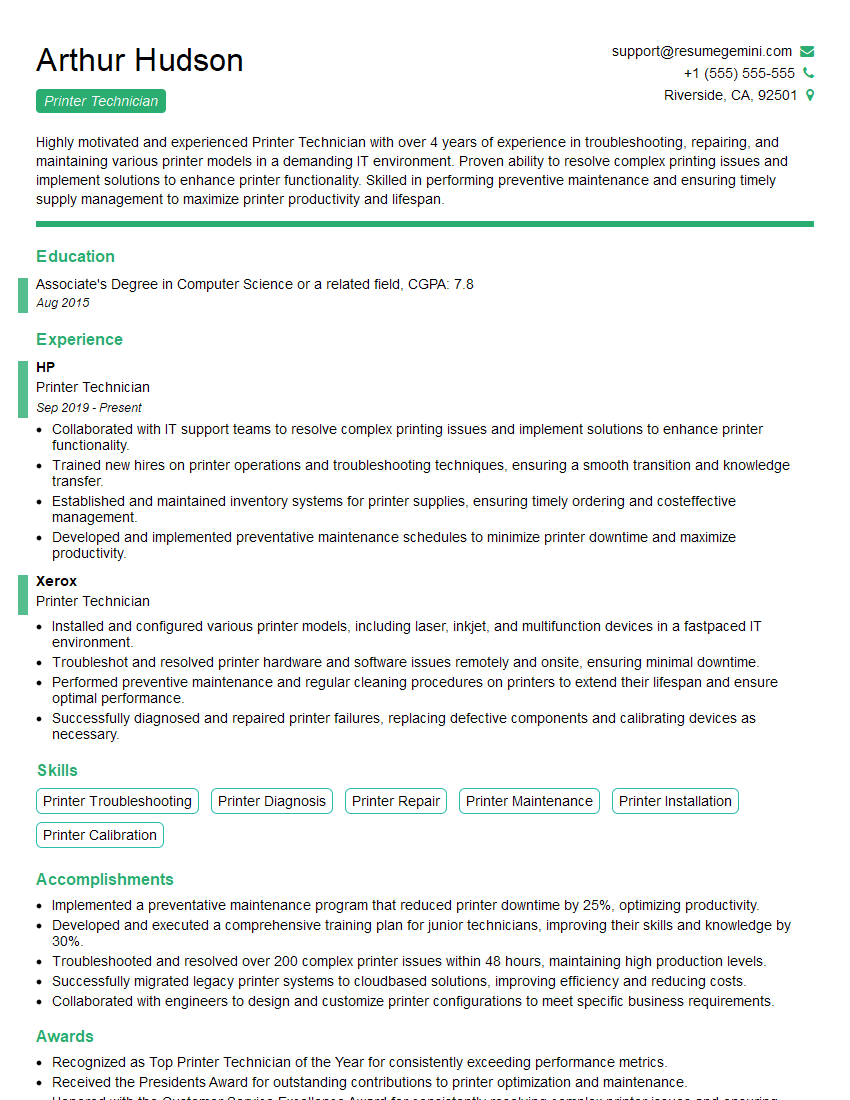
Mastering Printers Troubleshooting and Maintenance opens doors to exciting career opportunities in IT support, print services, and office management. A strong understanding of these skills is highly valued by employers. To maximize your job prospects, create an ATS-friendly resume that highlights your technical abilities and experience. ResumeGemini is a trusted resource that can help you build a professional and effective resume, ensuring your skills are showcased to potential employers. Examples of resumes tailored to Printers Troubleshooting and Maintenance are available to guide you.
Explore more articles
Users Rating of Our Blogs
Share Your Experience
We value your feedback! Please rate our content and share your thoughts (optional).
What Readers Say About Our Blog
Very informative content, great job.
good