Interviews are more than just a Q&A session—they’re a chance to prove your worth. This blog dives into essential Artwork Editing interview questions and expert tips to help you align your answers with what hiring managers are looking for. Start preparing to shine!
Questions Asked in Artwork Editing Interview
Q 1. Explain your experience with different image file formats (JPEG, PNG, TIFF, etc.) and their appropriate uses.
Understanding image file formats is crucial for efficient artwork editing. Each format has its strengths and weaknesses, making it suitable for specific applications.
- JPEG (Joint Photographic Experts Group): A lossy format, meaning some image data is discarded during compression. This results in smaller file sizes, ideal for web use and photography where slight quality loss is acceptable. It excels at representing photographs with smooth color gradients but struggles with sharp lines and text. Think of it like summarizing a long story – you lose some detail, but the core message remains.
- PNG (Portable Network Graphics): A lossless format, preserving all image data. This leads to larger file sizes but superior image quality, perfect for logos, illustrations, and images with text. PNG supports transparency, which is a significant advantage for many design projects. It’s like meticulously transcribing a document – every word and detail is preserved.
- TIFF (Tagged Image File Format): Another lossless format, often used for high-resolution images and print work. TIFFs can handle large color depths and are excellent for preserving detail in archival projects. However, their large file sizes make them less suitable for web use. It’s like creating a meticulously detailed archive of a historical event—everything is recorded, and the detail is exceptional.
Choosing the right format depends on the intended use. For a website banner, JPEG is usually sufficient. For a company logo, PNG with transparency is preferred. For printing a high-resolution poster, TIFF is the ideal choice.
Q 2. Describe your proficiency in Adobe Photoshop, Illustrator, and InDesign.
My proficiency in Adobe Photoshop, Illustrator, and InDesign is extensive, stemming from years of professional experience. Each program serves a unique purpose in my workflow:
- Photoshop: My primary tool for raster-based image editing, including retouching, color correction, and compositing. I’m proficient in using layers, masks, adjustment layers, and various filters to achieve desired effects. For example, I recently used Photoshop to seamlessly blend a model into a fantastical landscape, using masking and layer blending modes to achieve photorealism.
- Illustrator: My go-to software for vector graphics. I use it to create logos, illustrations, and scalable graphics that maintain their quality at any size. My expertise includes working with paths, type tools, and color palettes to create crisp, clean designs. I recently used Illustrator to design a series of icons for a mobile app, ensuring their scalability across various screen sizes.
- InDesign: This is my tool for page layout and design, primarily for publications like brochures, magazines, and books. I’m comfortable with text formatting, image placement, and master pages, ensuring consistent design across multiple pages. I recently used InDesign to design a company’s annual report, meticulously aligning text and images to create a professional and visually appealing document.
I seamlessly integrate these tools to create a comprehensive and efficient workflow. For instance, I might create a logo in Illustrator, retouch images in Photoshop, and then assemble the final design in InDesign.
Q 3. How do you handle color correction and color management in your workflow?
Color correction and color management are critical to ensuring consistent and accurate color reproduction across different devices and print outputs. My workflow involves:
- Profile Matching: I always begin by ensuring my monitor is calibrated using a colorimeter to guarantee accurate color representation. Working with a miscalibrated monitor leads to inconsistencies and disappointments in the final product.
- Working in a Color-Managed Workspace: I utilize Adobe RGB or sRGB color spaces, depending on the intended output. Understanding the nuances between these color spaces is crucial. Adobe RGB offers a wider gamut, suitable for print, while sRGB is optimized for web display.
- Using Adjustment Layers: In Photoshop, I heavily rely on adjustment layers (Curves, Levels, Hue/Saturation) for non-destructive color correction, allowing for flexibility and easy modifications.
- Soft Proofing: Before sending artwork to print, I always soft proof the document in InDesign or Photoshop, simulating the final printed output to check for color accuracy.
- CMYK vs. RGB: I understand the distinction between RGB (Red, Green, Blue) for screen display and CMYK (Cyan, Magenta, Yellow, Key/Black) for print. I convert to CMYK only when preparing files for print, avoiding premature conversion which can lead to unwanted color shifts.
A real-world example involves working on a project requiring precise color matching for a corporate branding guide. Using color management tools and workflows ensured that the colors appeared exactly as intended across all mediums, from website banners to printed materials.
Q 4. What techniques do you use for image retouching and restoration?
Image retouching and restoration require a blend of technical skills and artistic judgment. My techniques include:
- Healing Brush Tool & Clone Stamp Tool (Photoshop): These are essential for removing blemishes, dust, and scratches from photos. Understanding the nuances of brush settings and blending modes is crucial for natural-looking results.
- Frequency Separation: This technique allows for separate editing of texture and color, making retouching more precise and efficient. It’s particularly useful when dealing with skin imperfections.
- Content-Aware Fill: A powerful tool in Photoshop that intelligently fills in selected areas based on surrounding pixels, invaluable for removing unwanted objects or filling gaps.
- Manual Retouching: For delicate tasks requiring high precision, such as restoring damaged historical photographs, manual retouching using the pen tool and layers is often necessary.
- Layer Masking: This is critical for selective editing, protecting areas that should remain untouched. It’s invaluable for delicate restoration work.
For instance, I once restored a severely damaged antique family photograph, using a combination of these techniques to carefully remove tears and scratches, and digitally reconstruct missing parts based on the surrounding image details. The resulting image preserved the historical value while improving its visual appeal.
Q 5. How do you ensure the quality and consistency of artwork across different devices and platforms?
Maintaining consistent artwork quality across various devices and platforms requires a thoughtful approach:
- Resolution Awareness: I always create artwork at the appropriate resolution for its intended use. High-resolution images for print require significantly higher resolution than images intended for web use. Using the correct resolution prevents blurry or pixelated results.
- Color Space Consistency: As previously mentioned, color management is key. Sticking to standard color spaces like sRGB for web and Adobe RGB for print ensures consistent color appearance across different displays and printers.
- Responsive Design Principles: For web-based artwork, employing responsive design principles allows images to adapt seamlessly to different screen sizes and resolutions, preventing distortion or cropping.
- Vector Graphics for Scalability: Utilizing vector graphics for logos and illustrations ensures their quality remains consistent regardless of scaling. Vector graphics do not pixelate when enlarged, unlike raster graphics.
- Testing Across Devices: Thorough testing across various devices and browsers is crucial to ensure consistent appearance. This may involve using different browsers, screen sizes, and devices (desktops, tablets, phones).
A recent project for a client involved designing a logo and marketing materials. By using vector graphics for the logo and ensuring consistent color management, I could guarantee the brand identity looked sharp and consistent across the client’s website, social media, and printed promotional materials.
Q 6. Explain your process for preparing artwork for print.
Preparing artwork for print requires a precise and methodical process:
- High Resolution: Images should be at the appropriate resolution for the print size (e.g., 300 DPI for most print projects). Lower resolutions lead to blurry prints.
- Color Mode: Converting to CMYK is crucial. Failure to do so can result in significant color shifts during printing.
- Bleed: Adding bleed (extra space around the image) prevents white borders from appearing after trimming.
- Color Profiles: Embedding the correct color profile ensures consistent color reproduction.
- File Format: TIFF or high-quality JPEGs are typically preferred for print, depending on the specific requirements of the print shop.
- Proofing: Always provide a hard or soft proof to the printer to ensure accuracy and minimize surprises.
For example, when preparing a design for a poster, I’d ensure the image resolution is high enough, add appropriate bleed, convert to CMYK, embed the color profile, and provide a soft proof to the printing company for final approval. This careful process guarantees a professional-looking final product.
Q 7. Describe your experience with image optimization for web use.
Optimizing images for web use is essential for fast loading times and a positive user experience. My techniques include:
- Appropriate File Format: JPEGs are often preferred due to their smaller file sizes, but PNGs are essential when transparency is required.
- Compression: Using image compression tools to reduce file size without significant quality loss is crucial. There’s a balance to be found; overly aggressive compression leads to noticeable artifacts.
- Resolution: Using resolutions appropriate for web display (typically 72 DPI) avoids unnecessarily large file sizes.
- Image Dimensions: Optimizing image dimensions for their intended use on the website ensures efficient loading times.
- Lazy Loading: For websites with many images, using lazy loading techniques can significantly improve loading performance by only loading images that are visible in the viewport.
- WebP Format: Using the WebP format, where supported, offers superior compression compared to JPEGs and PNGs, resulting in smaller file sizes and higher quality.
For a recent e-commerce website project, I carefully optimized product images using a combination of these methods. This ensured the website loaded quickly, even with high-quality product images, resulting in a positive user experience and improved SEO.
Q 8. How familiar are you with vector graphics and raster graphics?
Understanding the difference between vector and raster graphics is fundamental in artwork editing. Raster graphics, like JPEGs and PNGs, are made up of pixels arranged in a grid. Think of it like a mosaic – changing the size can lead to pixelation and loss of quality. Vector graphics, on the other hand, are defined by mathematical equations describing lines and curves. This means they can be scaled to any size without losing quality. Think of a logo – it can be printed on a business card or a billboard without blurring. I’m highly proficient in both. I use raster graphics for photo editing and realistic imagery, and vectors for logos, illustrations, and designs that need to be scalable.
- Raster: JPEG, PNG, TIFF, GIF
- Vector: SVG, AI, EPS, PDF
For instance, I recently worked on a project where we needed both a large billboard and a tiny website icon. The logo was created as a vector, ensuring crispness at both sizes.
Q 9. What are your preferred methods for removing blemishes and imperfections from images?
Removing blemishes and imperfections is a common task, and I employ a variety of techniques depending on the image and the severity of the imperfection. For minor blemishes, the healing brush tool in Photoshop is incredibly effective. It samples surrounding pixels to seamlessly blend the imperfection. For more significant problems, I might use the clone stamp tool, carefully selecting a clean area to clone over the blemish. In cases of severe damage, I may need to resort to more advanced techniques like content-aware fill, which intelligently fills in the damaged area based on the surrounding context. Frequency separation is another powerful tool I use for retouching portraits, allowing me to adjust the texture and frequency separately for finer control.
For example, in a recent portrait retouch, I used frequency separation to subtly smooth out skin texture without losing detail. I then selectively applied healing brush to remove individual blemishes.
Q 10. How do you handle color profiles and prevent color discrepancies?
Color management is critical for ensuring consistent color across different devices and printing methods. I always work in a specific color profile, typically sRGB for web and Adobe RGB for print. Choosing the right profile depends on the final destination of the artwork. Before starting a project, I confirm the client’s desired color profile and set my workspace accordingly. I also embed color profiles in my files to prevent any color shifts during transfer. Understanding color spaces like CMYK (used for printing) and RGB (used for screens) is fundamental, and I frequently convert between them as needed, always ensuring accurate color representation. I avoid using arbitrary adjustments, always referencing calibrated monitors.
One time, a client’s logo looked significantly different on their website versus printed brochures. It turned out they had forgotten to specify the correct color profiles. Addressing this discrepancy early saves time and prevents costly reprints.
Q 11. What is your approach to working with clients and receiving feedback on artwork?
Client communication is paramount. I begin every project by establishing clear expectations: understanding their vision, the intended use of the artwork, and deadlines. I prefer regular check-ins throughout the process, using platforms like email and project management software to share drafts and receive feedback. I encourage clients to provide detailed and specific feedback, including annotated images. I respond promptly to all inquiries and strive to make the revision process collaborative and efficient. The goal is to ensure that the final artwork perfectly reflects their vision.
In one project, I received a lot of vague feedback initially. I proactively requested more specific comments and visual examples, which significantly improved the speed and accuracy of revisions. This open communication helped deliver a product the client loved.
Q 12. Explain your experience with different printing techniques and their impact on artwork.
Different printing techniques significantly impact artwork. Offset printing, for example, uses plates to transfer ink to paper, providing high-quality results for large print runs. However, it requires specific file preparations, like converting to CMYK and ensuring adequate resolution. Digital printing, using inkjet or laser printers, offers flexibility and speed for smaller runs, but might produce less vibrant colors than offset. Screen printing is another technique with unique aesthetic qualities – perfect for posters and apparel but limiting in terms of detail and color gradients. My experience encompasses all these methods; I understand how to prepare files for each technique and anticipate potential issues based on the client’s needs. I always account for the limitations of each technique and advise the client accordingly.
Once, a client wanted to use a photo with subtle gradations for screen printing. I explained the limitations – screen printing might lose the gradations. This resulted in the client choosing a different image and a much more successful outcome.
Q 13. How do you manage large image files and maintain efficient workflow?
Managing large image files efficiently requires a multi-pronged approach. Firstly, I use non-destructive editing techniques whenever possible, avoiding unnecessary saving as high-resolution files unless absolutely needed. Smart objects and layers help in preserving original data for future editing. Secondly, I organize my files meticulously within a structured folder system and employ file compression techniques where appropriate without compromising quality, using lossless compression formats like PNG or TIFF for images that require the highest fidelity, and lossy formats like JPEG for photos where some data loss is acceptable. I also utilize cloud storage solutions for backup and collaboration, which optimizes both file storage and accessibility. Utilizing software features like Photoshop’s ‘Save for Web’ function is crucial for reducing file size without significant quality loss for web applications. Finally, I make use of proxy files where applicable to expedite editing workflows.
I have successfully managed several large-scale projects with thousands of high-resolution images by employing these methods.
Q 14. Describe your experience using image editing software plugins and extensions.
I have extensive experience utilizing plugins and extensions in image editing software, significantly expanding the functionality of core applications. For example, in Photoshop, I frequently use plugins for tasks such as advanced noise reduction (e.g., Topaz Denoise AI), sharpening (e.g., Nik Collection), and creating unique effects. The use of such plugins depends greatly on the project requirements; I don’t use them indiscriminately. I carefully assess each plugin’s capabilities and ensure compatibility with my existing workflow before integrating them into my workflow. I understand that over-reliance on plugins can sometimes lead to a lack of fundamental skill development, so I always prioritize mastering the core functionality of the software before employing extensions. Plugin management is also crucial – regular updates and conflict resolutions are essential to maintain a smooth workflow.
Recently, I employed a plugin to automate a repetitive task during batch image processing, significantly reducing the time required for the project.
Q 15. How do you approach creating mockups and presentations for artwork?
Creating compelling mockups and presentations is crucial for effectively communicating design ideas. My approach involves a multi-step process. First, I thoroughly understand the client’s brief and target audience. This informs the style, tone, and overall aesthetic of the presentation. Next, I select appropriate software; for print design, I might use Adobe InDesign, while for web design, Figma or Adobe XD are preferred. Then, I create high-fidelity mockups showcasing the artwork in its intended context. For example, if it’s a logo, I’ll show it on various applications like business cards, website headers, and social media profiles. Finally, I meticulously craft the presentation itself, using clear visuals and concise text to highlight key features and benefits. I always ensure the presentation is visually appealing and easy to navigate, facilitating clear communication and client understanding.
For instance, when presenting a logo design, instead of just showing the logo on a white background, I would showcase it on mock merchandise like t-shirts and mugs, on a website banner, and even on a business card to demonstrate its versatility and effectiveness across different platforms.
Career Expert Tips:
- Ace those interviews! Prepare effectively by reviewing the Top 50 Most Common Interview Questions on ResumeGemini.
- Navigate your job search with confidence! Explore a wide range of Career Tips on ResumeGemini. Learn about common challenges and recommendations to overcome them.
- Craft the perfect resume! Master the Art of Resume Writing with ResumeGemini’s guide. Showcase your unique qualifications and achievements effectively.
- Don’t miss out on holiday savings! Build your dream resume with ResumeGemini’s ATS optimized templates.
Q 16. How familiar are you with version control systems for artwork?
I’m highly proficient with version control systems, primarily Git. Understanding Git is fundamental for managing artwork revisions and collaborating with teams efficiently. I leverage Git repositories to track changes, revert to previous versions if needed, and manage different branches for simultaneous work on various aspects of a project. This prevents accidental overwrites and ensures a clear history of the design process. I often use platforms like GitHub or Bitbucket for hosting and collaboration. This is especially important in large projects or when working with multiple designers; it keeps everything organized and allows for seamless collaboration.
For example, if I’m working on a complex illustration, I might create separate branches for sketching, line art, and coloring. This allows me to work on different stages concurrently without interfering with each other and provides a clear and well-organized version history.
Q 17. Explain your experience with different image manipulation techniques, such as masking, layering, and blending modes.
Masking, layering, and blending modes are essential tools in my arsenal. Masking allows for precise selection and isolation of areas within an image, enabling complex edits without affecting other parts. For instance, I might use a layer mask to seamlessly integrate a person into a different background. Layering enables the organization of elements in a non-destructive manner, making it easy to adjust individual components later. Blending modes control how layers interact, creating diverse effects. For example, using ‘Overlay’ can enhance the vibrancy of colors, while ‘Multiply’ can deepen shadows.
I regularly use these techniques. Let’s say I’m retouching a portrait. I might use a layer mask to carefully lighten the skin tone without affecting the hair or eyes. Then, I’d use multiple layers for various adjustments – one for color correction, another for sharpening, and so on. Finally, I might experiment with blending modes to create a subtle glow or enhance the overall atmosphere.
Q 18. Describe your process for creating and managing color palettes.
Creating and managing color palettes is crucial for maintaining visual consistency and conveying a desired mood or brand identity. My process begins with understanding the project’s requirements and target audience. I then explore various sources of inspiration, such as mood boards, existing brand guidelines, or trending color palettes. I use tools like Adobe Color or Coolors to generate palettes, experiment with different harmonies (complementary, analogous, etc.), and refine them based on visual appeal and project suitability. I document the final palettes meticulously, ensuring accessibility and consistency throughout the project.
For instance, when designing a website for a sustainable energy company, I might use a palette with earthy greens and blues to convey a sense of nature and responsibility. I would then ensure this palette is consistent across all elements of the website design – from the logo to the buttons and background elements.
Q 19. How do you ensure the accuracy and consistency of text and typography in artwork?
Maintaining accuracy and consistency in typography is paramount. I begin by carefully selecting appropriate typefaces based on readability, aesthetics, and brand guidelines. Then, I meticulously check kerning (spacing between individual letters) and tracking (spacing between words) to ensure optimal readability and visual appeal. I use style guides and consistent text styles within design software to automatically enforce formatting rules. This prevents inconsistencies and ensures the final artwork is both visually pleasing and easy to read.
A practical example: if I am designing a book cover, I’ll choose fonts that complement the book’s genre and tone. I’ll also meticulously adjust the spacing between letters and words to create a balanced and professional look that doesn’t impede readability.
Q 20. How do you handle complex image compositions and layouts?
Handling complex image compositions and layouts requires careful planning and execution. I start with a clear understanding of the overall design goal and the hierarchy of elements. I utilize grids and guides to create a structured foundation for the layout. This ensures visual balance and harmony. I then strategically place and size elements to guide the viewer’s eye and create a compelling visual narrative. I frequently utilize layering to manage complex compositions, allowing for easy adjustments and refinements without affecting other elements. I always prioritize visual hierarchy, ensuring important elements are prominent and easily distinguishable.
Think of it like building with LEGOs; you start with a base structure (the grid) and strategically place individual elements (images, text, etc.) to create a cohesive and engaging composition. Each element has its place and purpose.
Q 21. What is your experience with creating and editing 3D models or animations?
While my primary focus is 2D artwork, I possess foundational experience with 3D modeling and animation using software such as Blender and Cinema 4D. I can create simple 3D models and basic animations, primarily to support 2D artwork or create visual elements for presentations. My skills in this area are sufficient to create basic 3D assets or integrate existing 3D models into my designs but don’t encompass advanced animation techniques or complex 3D modeling pipelines.
For instance, I could create a simple 3D model of a product for a product brochure or a basic animation for an explainer video, complementing my core 2D design skills to create a more dynamic and engaging presentation.
Q 22. Describe your experience with image resizing and scaling while maintaining quality.
Image resizing and scaling is crucial for maintaining visual quality across various platforms and applications. Simply enlarging an image using basic methods often leads to pixelation and blurring. My approach involves understanding the difference between vector and raster graphics. Vector graphics (like those created in Illustrator) are resolution-independent; they can be scaled infinitely without loss of quality because they’re based on mathematical formulas. Raster graphics (like JPEGs and PNGs), on the other hand, are composed of pixels. Resizing these requires careful consideration.
For raster images, I employ techniques like bicubic resampling which averages the color values of surrounding pixels to create a smoother transition when upscaling. Downscaling is generally less problematic, but I always use methods to minimize aliasing (jagged edges). Tools like Adobe Photoshop offer various resampling algorithms; the choice depends on the image and the desired outcome. For example, if I’m resizing an image for web use, I might prioritize speed and use a bicubic sharper algorithm. If it’s for print, a bicubic smoother algorithm might be better to avoid artifacts. I also frequently use techniques like sharpening after resizing to restore some of the detail lost during the process. Finally, I’ll always save the original high-resolution file to avoid further quality degradation in subsequent edits.
Q 23. How do you handle unexpected technical issues during the artwork editing process?
Unexpected technical issues are a reality in artwork editing. My approach is a multi-layered one, starting with preventative measures. This includes regular software updates, backups of my work (incremental saves are key!), and ensuring my hardware (computer, storage) is up to the task. When a problem arises, my first step is to identify the specific issue. Is it a software glitch, a hardware failure, a corrupted file, or something else? I systematically troubleshoot using these steps:
- Restart the software and computer: Often resolves temporary glitches.
- Check file integrity: Make sure the file isn’t corrupted. If possible, try opening it in a different program.
- Review recent actions: Undo recent edits to see if that resolves the issue.
- Consult online resources: Search for the specific error message or problem online; solutions are frequently available on forums or help sites.
- Contact support: If the issue persists and I can’t find a solution, I’ll reach out to the software’s technical support.
For example, once I encountered a system crash mid-project, resulting in a partially saved file. Thankfully, because I regularly saved, I only lost a few minutes’ worth of work. In other cases, I’ve had to use recovery software to restore corrupted files.
Q 24. Explain your experience with automated image processing workflows.
I have extensive experience using automated image processing workflows, particularly within Adobe Photoshop using Actions and Adobe Lightroom’s presets. These automated workflows allow me to streamline repetitive tasks and maintain consistency across multiple images. For instance, I often create an action to batch process images for web use. This action might include resizing, sharpening, and converting to a web-friendly format (like JPEG) with specific compression settings, all in a single click. In Lightroom, presets allow me to apply specific edits (color grading, exposure adjustments, etc.) consistently across a large number of photographs, saving significant time. Using these tools boosts efficiency considerably, especially in large-scale projects like product photography or website image preparation.
Beyond Photoshop and Lightroom, I’m familiar with scripting languages like JavaScript for Photoshop to automate even more complex workflows, like dynamically renaming files based on metadata.
Q 25. What is your approach to working with different image resolutions and DPI?
Understanding image resolution (measured in pixels) and DPI (dots per inch), which relates to print resolution, is fundamental. Resolution determines the image’s sharpness on screen, while DPI affects print quality. A high-resolution image will look sharper on screen and can be printed at a larger size without losing detail. A low-resolution image will look pixelated when enlarged.
My approach is to match the image’s resolution and DPI to its intended use. For web images, I typically use a resolution appropriate for screen display (72 DPI is common). For print, I’ll use a much higher DPI (300 DPI is standard for high-quality prints). I always check the requirements of the final output medium (website, print publication, etc.) before making any adjustments. Mismatching these can lead to blurry web images or pixelated prints. I frequently work with clients to understand their needs, ensuring the final image meets the specific requirements for their use case.
Q 26. How do you stay updated with the latest trends and technologies in artwork editing?
Staying updated is crucial in this rapidly evolving field. I regularly engage in several key activities:
- Following industry blogs and publications: I stay informed about new software features, techniques, and trends through reputable sources.
- Attending workshops and conferences: In-person or online learning opportunities provide valuable hands-on experience and networking opportunities.
- Experimenting with new software and plugins: I test out new tools and techniques to assess their usefulness for my workflow.
- Online courses and tutorials: Platforms like Skillshare, Udemy, and LinkedIn Learning offer excellent courses to improve skills.
- Engaging with online communities: Participating in forums and communities allows me to learn from others and share my knowledge.
A recent example involved learning about AI-powered upscaling tools, which offer impressive improvements in image quality compared to traditional methods. This is a technology I now actively incorporate when appropriate.
Q 27. Describe your experience in working with different styles of artwork and adapting your techniques accordingly.
Adaptability is essential when working with diverse art styles. My experience ranges from photo editing and retouching to manipulating vector illustrations and creating digital paintings. Each style demands a different approach.
For photo editing, I focus on maintaining realism and enhancing existing elements, using tools like dodging and burning, color correction, and noise reduction. For vector illustrations, my focus shifts to precision and clean lines, utilizing the tools within Adobe Illustrator. Digital painting requires a different set of skills, emphasizing brushwork, texture, and color blending. My process always starts with understanding the artist’s vision and the style of the artwork. I then select the appropriate tools and techniques to achieve the desired look and feel. I’ve worked on projects ranging from highly stylized graphic design to realistic photo manipulation, adjusting my methods accordingly in each case.
Q 28. How do you ensure accessibility in artwork design, considering color blindness and other accessibility needs?
Accessibility in artwork design is critical to ensure inclusivity. I consider various factors, particularly color blindness. Tools like Adobe Photoshop offer features to simulate different types of color blindness, allowing me to check if the design remains understandable despite color vision deficiencies. For example, I avoid relying solely on color to convey information, incorporating text labels or patterns to ensure clarity. I also maintain sufficient contrast between text and background elements to ensure readability for users with low vision. Furthermore, I consider alternative text for images, which is crucial for screen readers used by visually impaired individuals. This involves providing concise descriptions of the image’s content and function.
Beyond color blindness, I aim to create designs that are generally user-friendly, regardless of disability. This includes providing clear and concise visual hierarchy, avoiding confusing layouts, and using appropriate font sizes. Ultimately, I strive to create visually engaging and accessible designs for everyone.
Key Topics to Learn for Artwork Editing Interview
- Image Manipulation & Retouching: Mastering software like Photoshop, understanding color correction, and applying retouching techniques to enhance images for various media.
- File Formats & Resolution: Knowing the differences between file formats (JPEG, PNG, TIFF, etc.) and their appropriate uses, along with understanding resolution and its impact on image quality and print suitability.
- Color Management & Profiles: Understanding color spaces (RGB, CMYK), color profiles (ICC), and how to ensure color accuracy across different devices and printing processes.
- Image Composition & Cropping: Applying principles of design to improve image composition, selecting effective crops, and understanding aspect ratios.
- Workflow & Automation: Efficiently managing image editing workflows, utilizing batch processing and automation techniques to improve productivity.
- Pre-press Preparation: Understanding the requirements for preparing artwork for print, including resolution, color, and bleed settings.
- Software Proficiency: Demonstrating advanced skills in industry-standard software such as Adobe Photoshop, Illustrator, and InDesign. Understanding layer management, masking, and advanced selection tools is crucial.
- Troubleshooting & Problem-Solving: Diagnosing and resolving common image issues like artifacts, color casts, and blurry images. Presenting effective solutions during the interview process.
- Client Communication & Collaboration: Effectively communicating with clients and collaborators to understand their needs and deliver high-quality artwork meeting their expectations.
Next Steps
Mastering artwork editing is key to unlocking exciting career opportunities in graphic design, publishing, advertising, and many more creative fields. A strong portfolio is essential, but equally important is presenting yourself professionally with a well-crafted resume. An ATS-friendly resume significantly increases your chances of getting noticed by recruiters. To build a powerful and effective resume tailored to the artwork editing industry, leverage the expertise of ResumeGemini. ResumeGemini provides resources and examples of resumes specifically designed for professionals in artwork editing, helping you showcase your skills and experience effectively. Take advantage of these resources and significantly improve your job search prospects.

Art Director Resume Sample

Creative Director Resume Sample

Web Designer Resume Sample
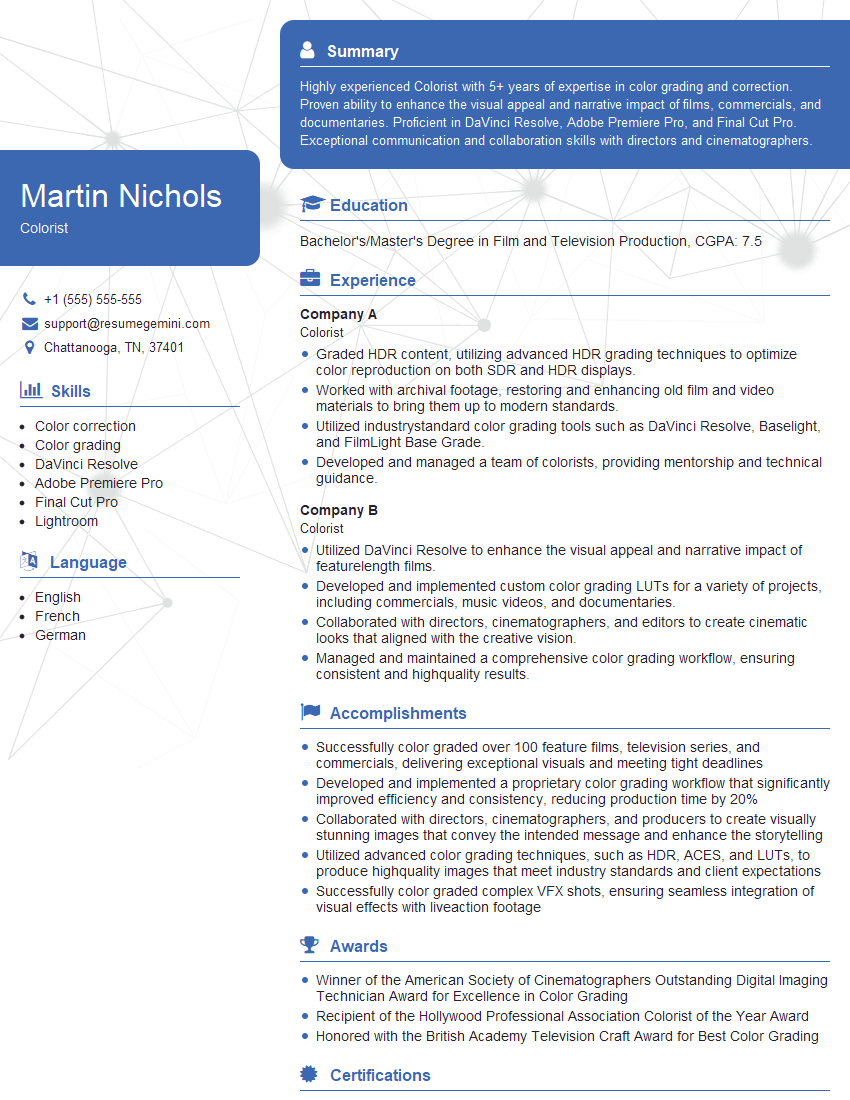
Colorist Resume Sample

Multimedia Specialist Resume Sample
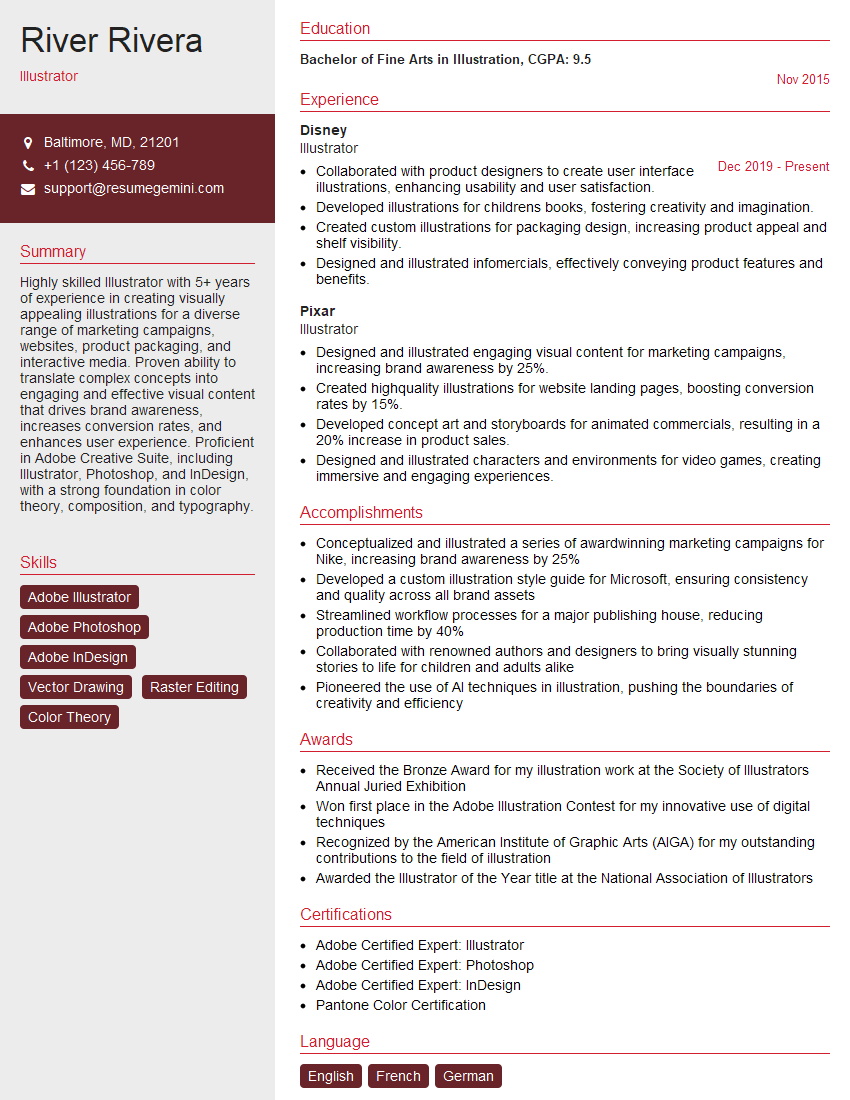
Illustrator Resume Sample

3D Modeler Resume Sample
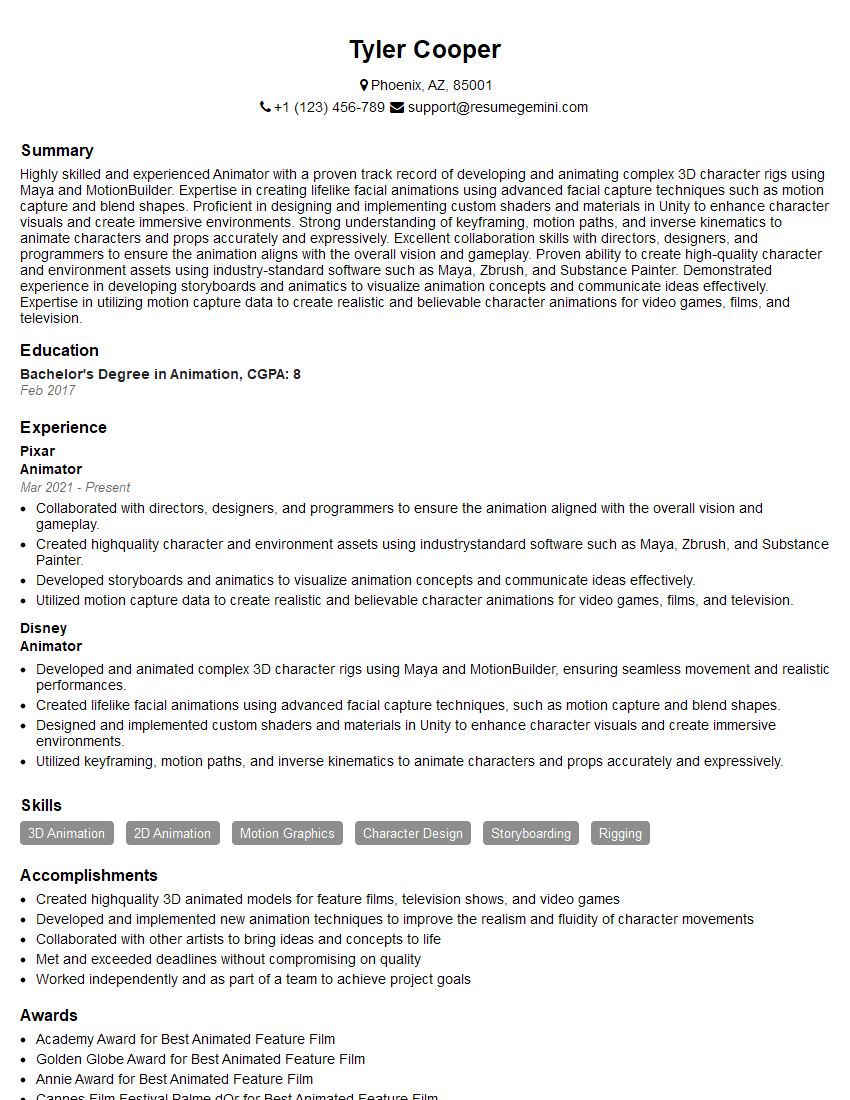
Animator Resume Sample
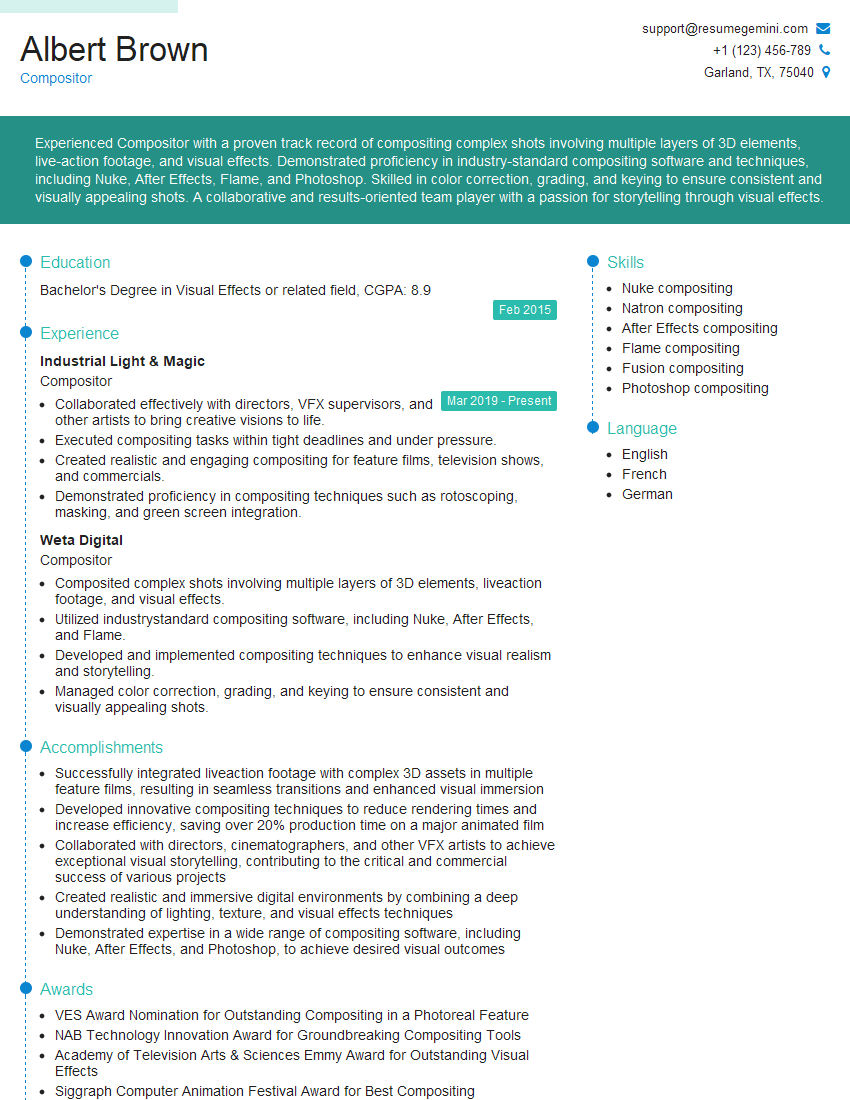
Compositor Resume Sample
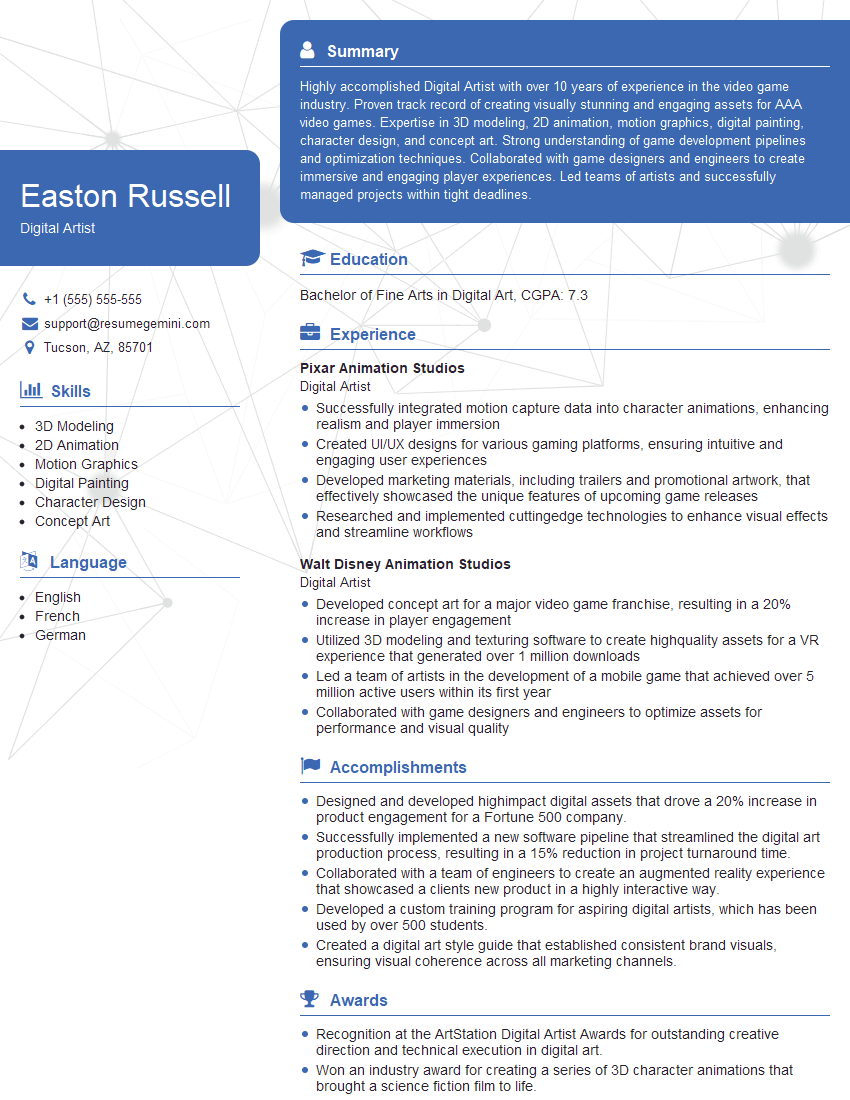
Digital Artist Resume Sample
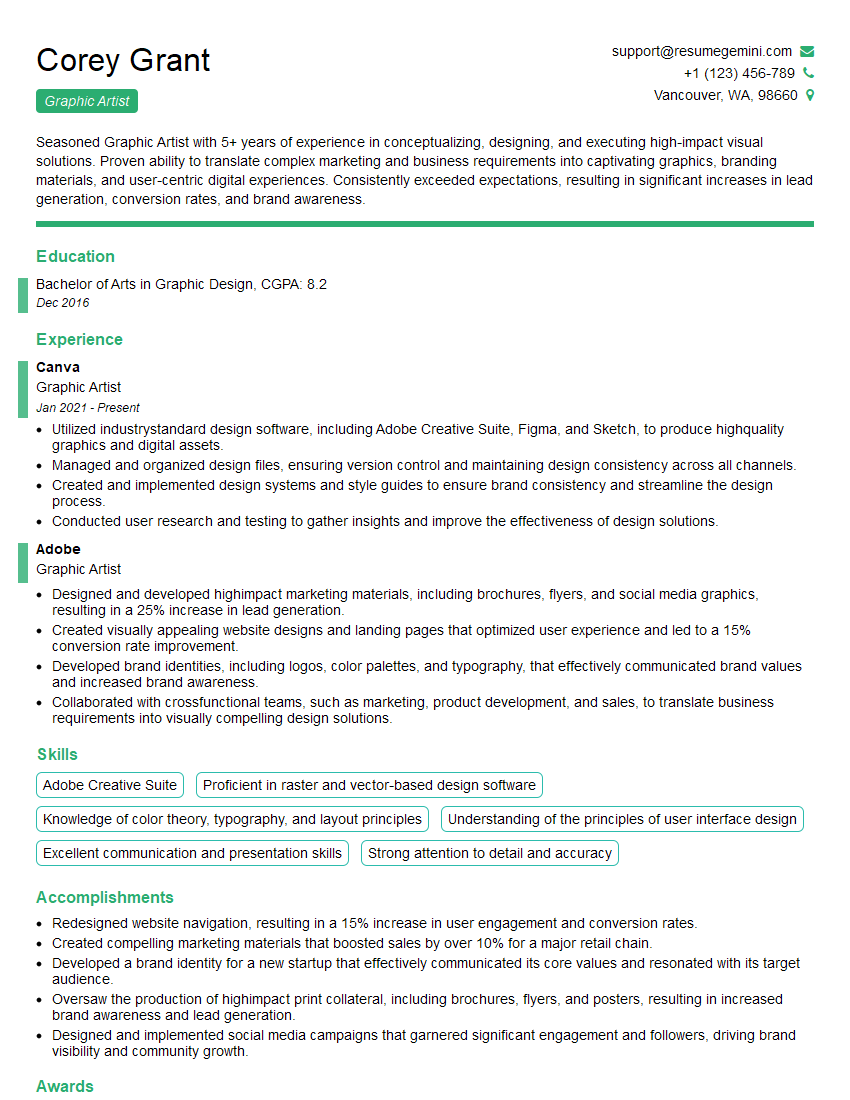
Graphic Artist Resume Sample

Graphic Designer Resume Sample
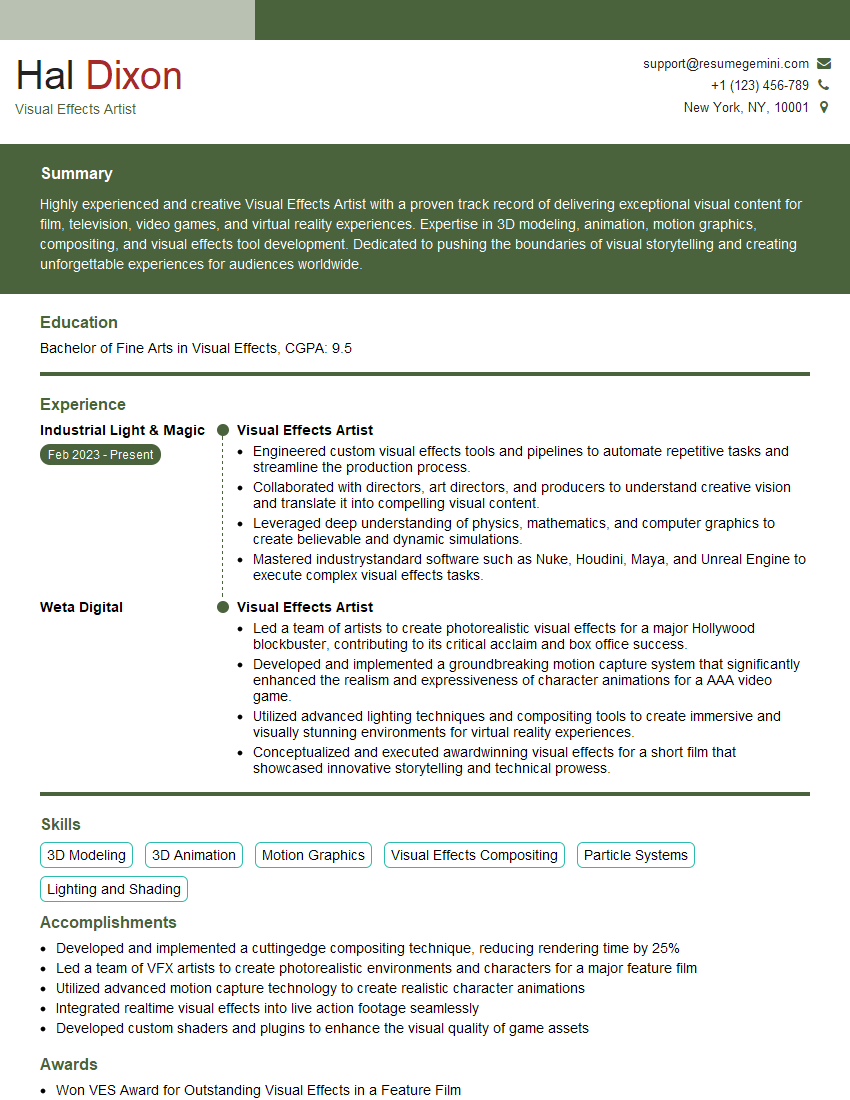
Visual Effects Artist Resume Sample
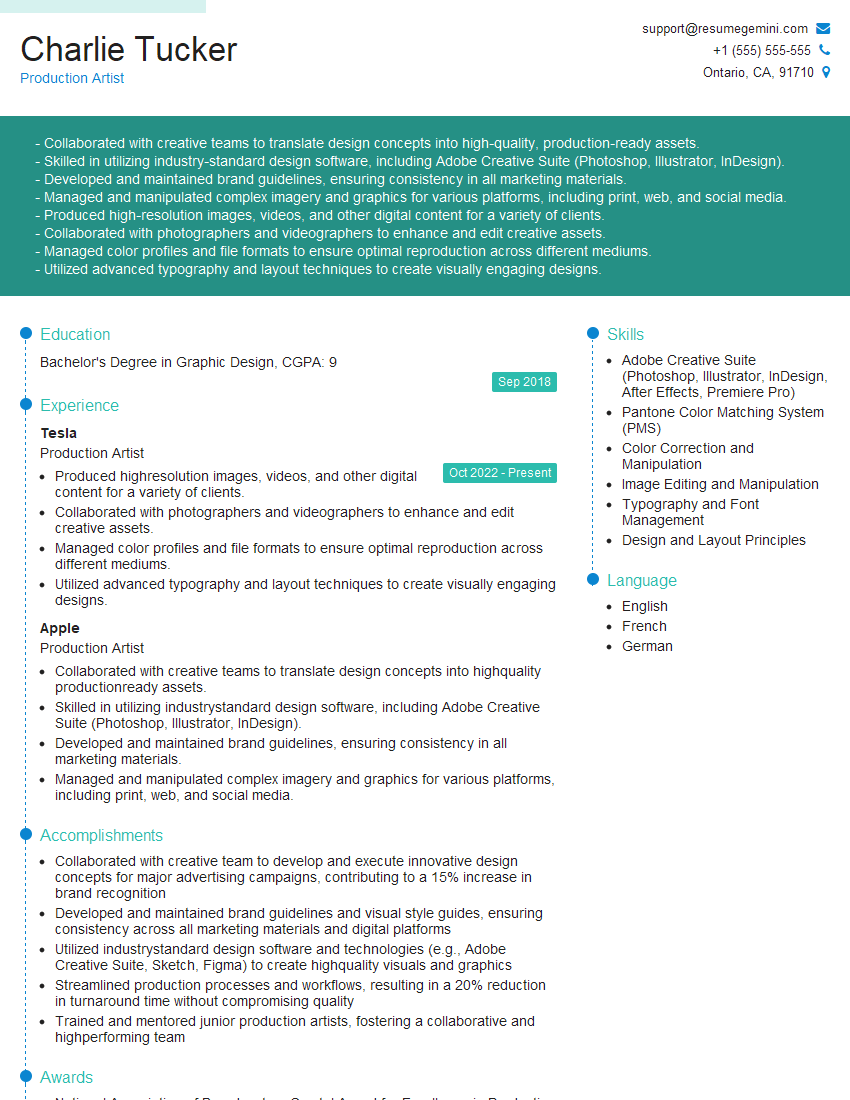
Production Artist Resume Sample

Photo Editor Resume Sample
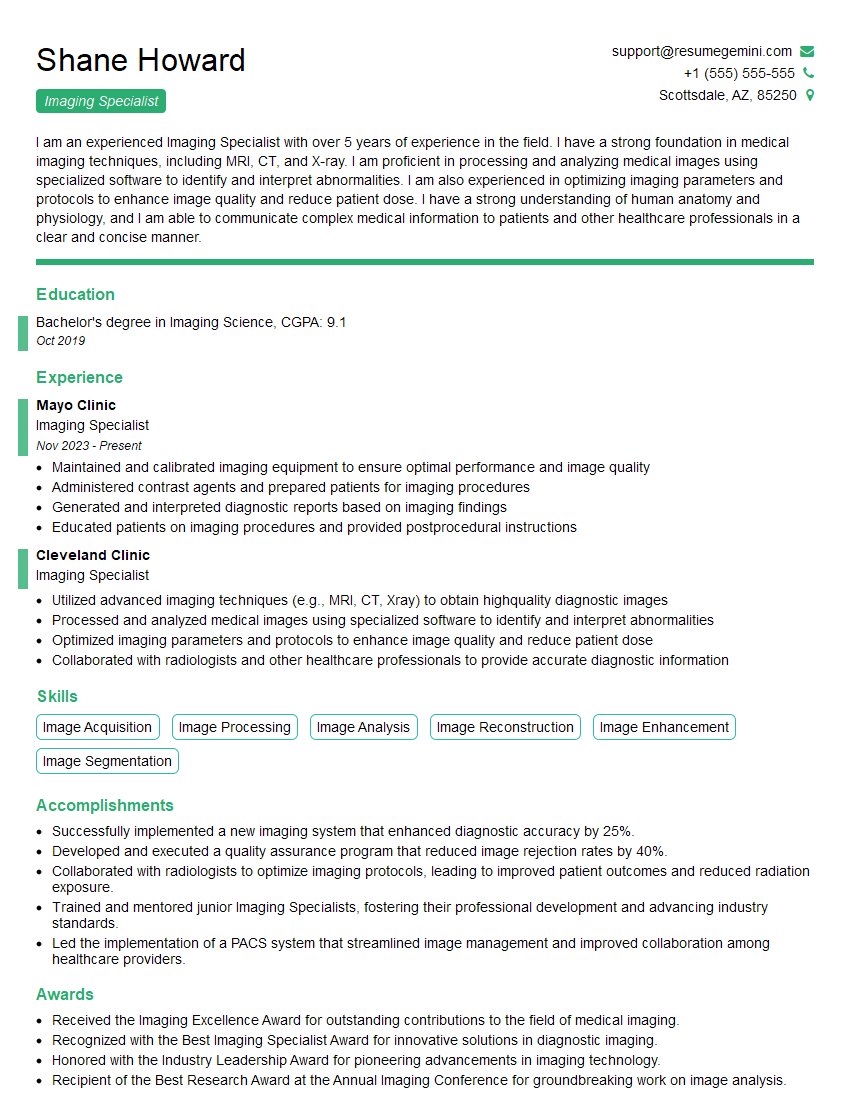
Imaging Specialist Resume Sample
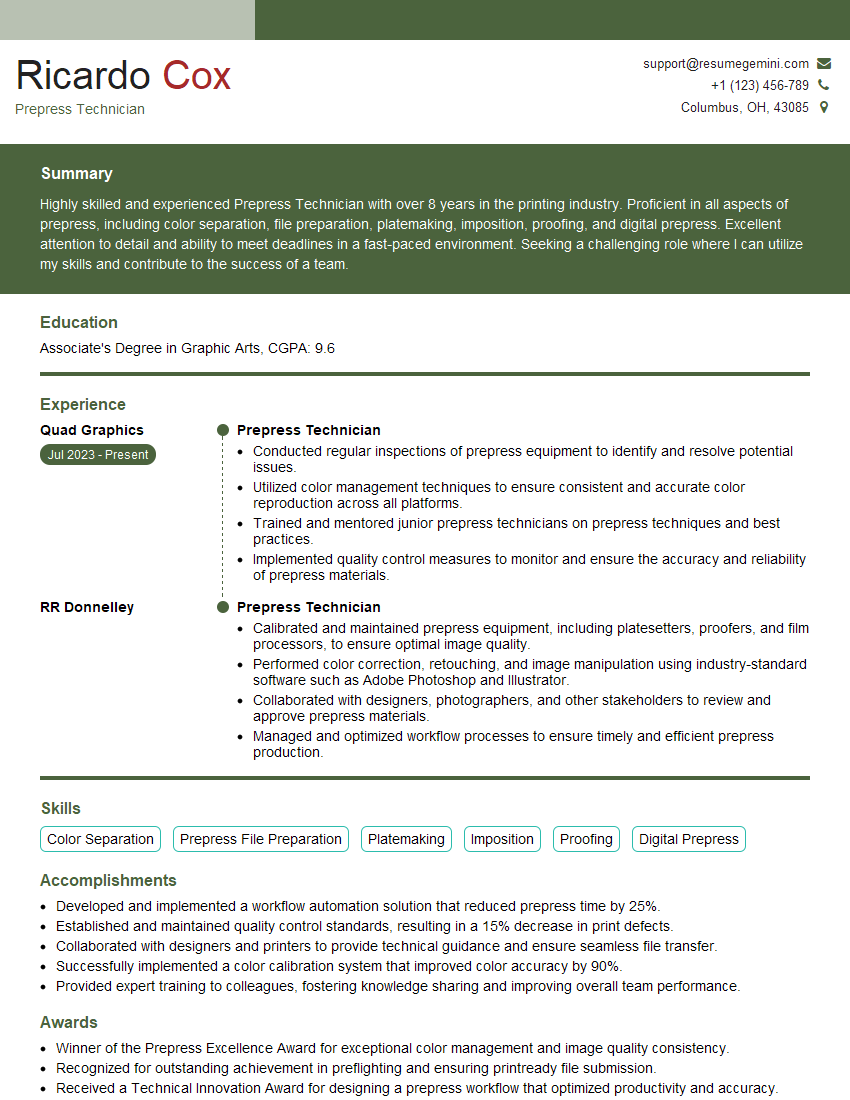
Prepress Technician Resume Sample
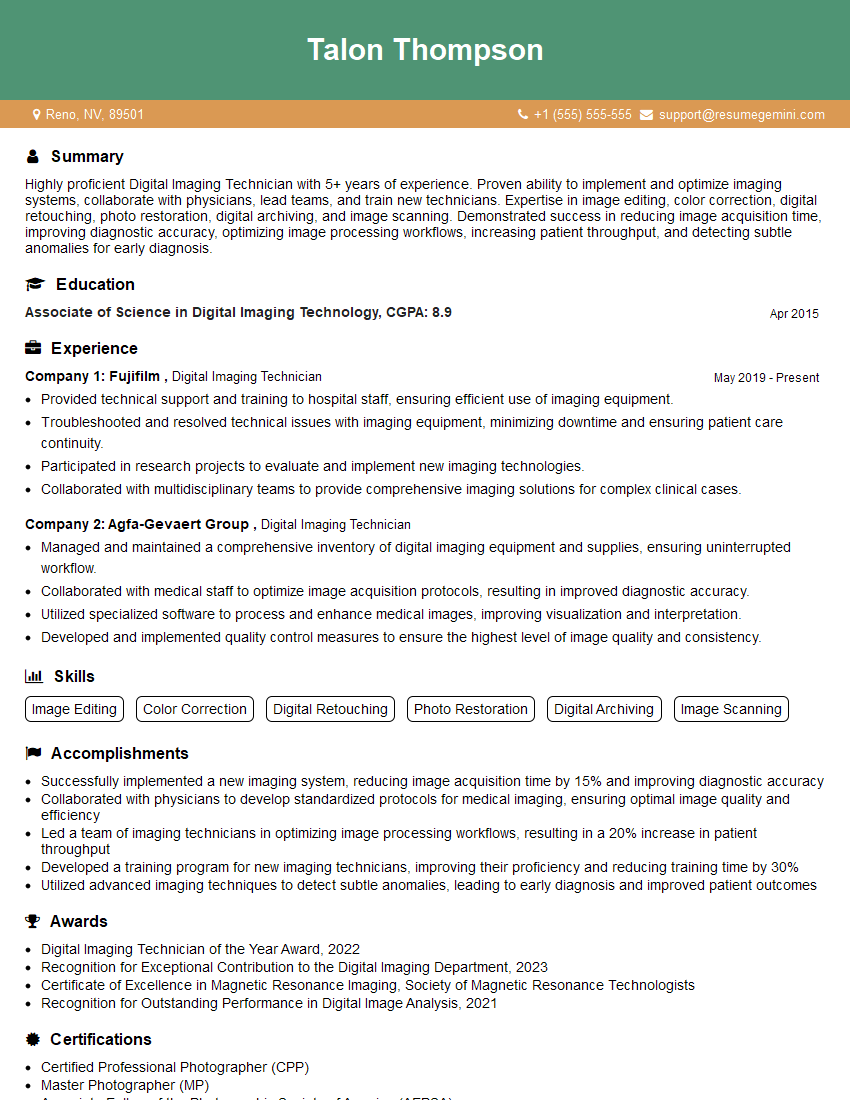
Digital Imaging Technician Resume Sample
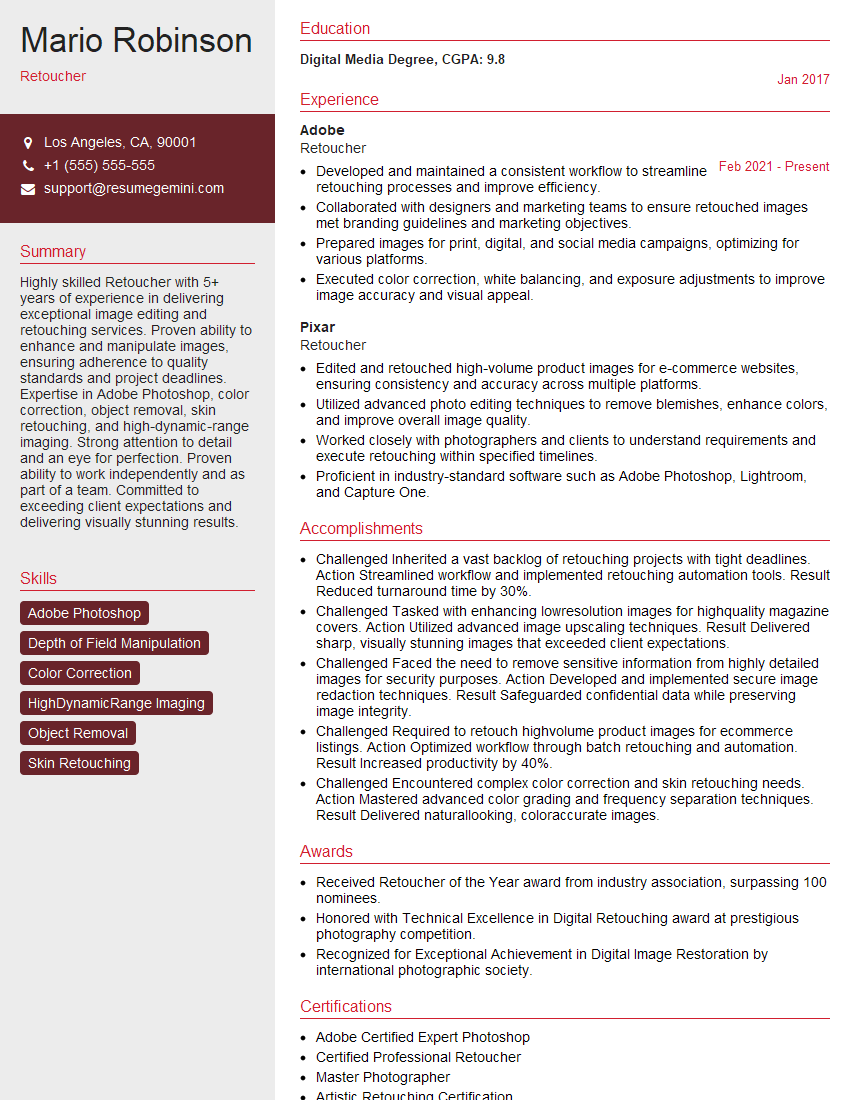
Retoucher Resume Sample
Explore more articles
Users Rating of Our Blogs
Share Your Experience
We value your feedback! Please rate our content and share your thoughts (optional).
What Readers Say About Our Blog
Very informative content, great job.
good