Feeling uncertain about what to expect in your upcoming interview? We’ve got you covered! This blog highlights the most important Microsoft Office Suite Proficiency (e.g., Word, Excel, PowerPoint) interview questions and provides actionable advice to help you stand out as the ideal candidate. Let’s pave the way for your success.
Questions Asked in Microsoft Office Suite Proficiency (e.g., Word, Excel, PowerPoint) Interview
Q 1. Explain your experience with different versions of Microsoft Word.
My experience with Microsoft Word spans several versions, from Word 2007 to the current Microsoft 365. I’ve witnessed and adapted to the evolution of features across these iterations. Early versions introduced me to the fundamentals of document creation, formatting, and basic editing. As versions progressed, I embraced new capabilities like improved collaboration tools in Word 2013 and the enhanced track changes and commenting features in later versions, crucial for team projects. Word 2016 brought significant improvements in real-time co-authoring, streamlining collaborative workflows. Finally, Microsoft 365 offers a continuously updated experience with cloud integration, advanced features, and regular updates that keep me ahead of the curve. This continuous engagement has allowed me to master various functionalities across all these versions, adapting my skills with each new update.
Q 2. How proficient are you in using mail merge in Word?
Mail merge in Word is a powerful tool I utilize frequently for creating personalized documents, such as letters, labels, and envelopes. I’m highly proficient in this feature. Think of it like a template factory: you create one main document (the template) and then feed it data from a spreadsheet (your data source). Word then automatically populates the template with information from each row in the spreadsheet, generating a unique document for each entry. For example, I’ve used mail merge to generate hundreds of personalized thank-you notes for clients, each addressed individually, saving countless hours compared to manual creation. My proficiency extends to managing complex data sources, handling different data fields, and troubleshooting potential merge errors. I am adept at using various options within the mail merge wizard, such as previewing the merged documents before printing and handling different data formats effectively.
Q 3. Describe your experience creating and editing complex tables in Word.
Creating and editing complex tables in Word is a regular part of my workflow. I’m comfortable working with tables containing numerous rows and columns, applying advanced formatting, and incorporating formulas for calculations within the table cells. For instance, I’ve developed complex project timelines with various task dependencies visualized using tables with conditional formatting to highlight milestones and potential delays. Beyond basic table creation, I excel at techniques like merging cells, splitting cells, adjusting column widths and row heights precisely, applying different border styles, and using shading and color to enhance readability and highlight key information. I also understand how to utilize the table properties to ensure consistency and professional presentation.
Q 4. How do you ensure document consistency and formatting in Word?
Maintaining document consistency and formatting in Word is paramount for producing professional-looking documents. My approach involves several key strategies. Firstly, I meticulously define styles early in the document creation process, ensuring consistency in headings, paragraphs, lists, and other formatting elements. Think of styles as templates for formatting; once a style is defined, applying it throughout the document maintains a unified look and feel. Secondly, I leverage the ‘Styles’ pane to manage and modify styles efficiently. Thirdly, I utilize the ‘Find and Replace’ feature with formatting options to make global changes across the document quickly and accurately – for example, updating all instances of a specific font or heading style. Finally, I regularly use the ‘Review’ tab to track changes and ensure everyone is working from the same version, maintaining document integrity. This ensures a streamlined workflow and a polished final product.
Q 5. Explain your experience with various Excel functions (e.g., VLOOKUP, SUMIF, Pivot Tables).
My Excel skills encompass a wide range of functions, including VLOOKUP, SUMIF, and PivotTables. VLOOKUP is invaluable for retrieving data from one table based on a value from another. For example, I used VLOOKUP to pull employee salary information from a separate payroll database into a performance review spreadsheet. SUMIF allows for conditional summation. I might use it to calculate the total sales for a specific product category. Finally, PivotTables are my go-to tool for analyzing large datasets, summarizing data, and generating insightful reports. I’ve used PivotTables to create sales reports showing trends over time, broken down by region and product line, enabling data-driven decision-making. My experience extends beyond these; I also use functions like AVERAGE, COUNTIF, INDEX, and MATCH to perform various data analyses and manipulations.
Q 6. Describe your experience with data cleaning and manipulation in Excel.
Data cleaning and manipulation are essential for accurate analysis. My approach involves several steps: firstly, identifying and handling missing values – I might replace missing data with averages, zeros, or remove rows with extensive missing information, depending on the context. Secondly, I address inconsistent data entry. This often involves using ‘Find and Replace’ or text functions to standardize data formats (e.g., converting different date formats to a single standard). Thirdly, I detect and remove duplicate entries using Excel’s built-in tools. Finally, I employ advanced filtering and sorting techniques to isolate specific data subsets for focused analysis. An example would be cleaning a customer database before generating a marketing report, ensuring accurate targeting and eliminating potential biases due to inconsistent or incomplete data.
Q 7. How do you create and format charts and graphs in Excel?
Creating and formatting charts and graphs in Excel is crucial for data visualization. I begin by selecting the appropriate chart type for the data – bar charts for comparisons, line charts for trends, pie charts for proportions, and so on. Excel offers a wide variety of options, and I choose the one that best communicates the story within the data. After selecting the data range, Excel automatically generates a basic chart. However, I go beyond this by customizing the chart’s appearance. This includes adding clear and concise titles and labels, choosing appropriate colors for better readability, adjusting the axis scales for clarity, and adding data labels to highlight key values. Furthermore, I can create professional-looking charts by utilizing formatting options such as gridlines, legends, and chart styles. I understand the importance of creating visually appealing and easily interpretable charts to effectively communicate data insights to diverse audiences.
Q 8. Explain your experience with Excel macros and VBA.
My experience with Excel macros and VBA (Visual Basic for Applications) is extensive. I’ve used them to automate repetitive tasks, analyze large datasets efficiently, and create custom functions not available in standard Excel. Think of VBA as a programming language specifically designed to work within the Office suite. It allows you to extend Excel’s functionality far beyond its built-in capabilities.
For instance, I once developed a macro to automatically generate monthly reports from raw sales data. This macro would import data from a database, clean it, perform calculations (like calculating sales totals, averages, and variances), and then format the data into a professional report, complete with charts and graphs. This saved countless hours of manual work and significantly reduced the potential for human error. Another example involves creating a custom function to calculate a complex financial metric that wasn’t readily available within Excel’s built-in functions. This function greatly improved the efficiency of our financial analysis processes.
My VBA skills encompass working with various objects within Excel (like worksheets, ranges, and charts), handling user input through dialog boxes, and integrating external data sources. I’m comfortable debugging code and troubleshooting errors, ensuring robust and reliable automation solutions.
Q 9. How do you handle large datasets in Excel?
Handling large datasets in Excel requires a strategic approach. Simply opening a massive dataset can crash Excel, and working with it directly can be excruciatingly slow. My strategy involves several key techniques:
- Data Reduction/Sampling: For initial analysis, I often work with a representative sample of the data to test my formulas and approaches. This significantly speeds up the process and avoids unnecessary processing on the entire dataset.
- Power Query (Get & Transform): This powerful tool allows me to connect to various data sources (databases, CSV files, web data), cleanse and transform the data, and load only the necessary columns and rows into Excel. This avoids loading unnecessary information.
- Data Consolidation/Pivot Tables: Instead of working with a giant spreadsheet, I often consolidate data from multiple sources or summarize it using Pivot Tables. Pivot Tables are extremely efficient for analysis and reporting on large datasets.
- External Data Sources/Databases: For very large datasets, the best approach is to avoid working directly in Excel altogether. I would often connect Excel to a database (like SQL Server or Access) and use queries to extract only the relevant data needed for analysis. This dramatically improves performance.
- Excel’s Data Model: Excel’s data model allows for improved performance when dealing with large datasets by building relationships and leveraging Power Pivot functionalities.
By combining these strategies, I can efficiently manage and analyze even the largest datasets in Excel, focusing on speed, accuracy, and avoiding system crashes.
Q 10. Describe your experience with data analysis and reporting using Excel.
My experience with data analysis and reporting in Excel is substantial. I’ve used Excel to perform a wide variety of analyses, from simple summary statistics to complex financial modeling and forecasting. I’m proficient in creating impactful reports using charts, graphs, and visualizations that effectively communicate insights.
For example, I’ve utilized Excel to analyze sales data to identify top-performing products and regions, analyze customer segmentation data to create targeted marketing campaigns, and build financial models to forecast revenue and expenses. I’m familiar with various statistical techniques, including regression analysis, trend analysis, and hypothesis testing, all performed using Excel’s built-in functions or add-ins. I’m also adept at formatting reports to meet specific business needs and creating visually appealing dashboards to present key performance indicators (KPIs).
My reports always follow a consistent structure: a clear executive summary, data visualizations that are easy to understand, supporting data tables, and actionable conclusions. I always strive to make my reports clear, concise, and insightful, focusing on communicating the most important information effectively.
Q 11. How proficient are you in creating professional-looking PowerPoint presentations?
I’m highly proficient in creating professional-looking PowerPoint presentations. I focus on creating presentations that are not only visually appealing but also effectively communicate the message. My presentations are designed to engage the audience and leave a lasting impression.
I pay close attention to detail: consistent formatting, high-quality images and graphics, and a clear and concise layout. I utilize design principles to create visually appealing slides that are easy to read and understand. I understand the importance of using whitespace effectively to avoid overwhelming the audience with too much information.
Q 12. Explain your experience with different PowerPoint features (e.g., animations, transitions, SmartArt).
I have extensive experience using various PowerPoint features to enhance the visual appeal and impact of presentations. Animations, transitions, and SmartArt are powerful tools, but I use them judiciously to avoid distracting the audience.
- Animations: I use subtle animations to highlight key points or to draw attention to specific elements on the slide, ensuring the animation supports the message and doesn’t overwhelm it. I avoid overuse which can be distracting.
- Transitions: Similar to animations, I use transitions sparingly and strategically. I choose transitions that are smooth and professional, avoiding flashy or distracting options.
- SmartArt: SmartArt is a great tool for visually representing complex information such as processes, hierarchies, or relationships. I use SmartArt to create clear and concise visuals that effectively communicate complex information.
The key is to use these features strategically and purposefully, avoiding unnecessary visual clutter and prioritizing clear communication. A well-designed presentation is elegant in its simplicity, not its complexity.
Q 13. How do you manage multiple PowerPoint presentations simultaneously?
Managing multiple PowerPoint presentations simultaneously requires organization and a system for keeping track of different projects. I utilize a few key strategies:
- Folder Structure: I use a well-defined folder structure to organize presentations by project, client, or topic. This makes it easy to locate and access specific presentations.
- File Naming Conventions: Consistent file naming conventions help me quickly identify presentations. For example, using a date and project name ensures clear identification.
- Cloud Storage: Cloud storage (such as OneDrive or Google Drive) enables easy access to presentations from multiple devices and allows for collaboration with others.
- Presentation Templates: I often create templates for frequently used presentations which saves time and ensures a consistent brand look and feel.
By maintaining a structured system, I can efficiently manage even a large number of simultaneous presentations, avoiding confusion and ensuring timely completion.
Q 14. Describe your experience with creating and delivering effective presentations.
Creating and delivering effective presentations involves more than just visually appealing slides; it’s about connecting with the audience and effectively communicating your message. My approach is multifaceted:
- Audience Analysis: Before creating a presentation, I carefully consider my audience’s knowledge level, interests, and expectations. This helps tailor the content and style of the presentation to resonate with them.
- Storytelling: I structure my presentations around a compelling narrative, using storytelling techniques to engage the audience and make the information memorable.
- Visual Aids: I use visuals (charts, graphs, images) strategically to enhance understanding and make the presentation more engaging. But I avoid visual overload.
- Practice and Rehearsal: I always rehearse my presentations multiple times before delivering them. This helps me identify areas for improvement and ensures a smooth and confident delivery.
- Engagement Techniques: During the presentation, I use techniques like asking questions, incorporating interactive elements, and making eye contact to keep the audience engaged.
By combining these techniques, I aim to create and deliver presentations that not only inform but also inspire and motivate the audience, leading to a more impactful and memorable experience.
Q 15. How do you ensure visual consistency in your PowerPoint presentations?
Maintaining visual consistency in PowerPoint presentations is crucial for professional impact. It’s about creating a unified look and feel that guides the audience’s eye and reinforces your message. I achieve this through several key strategies:
- Theme Selection: I always start with a pre-designed theme or create a custom one based on brand guidelines. This ensures consistent fonts, colors, and background styles throughout the presentation.
- Master Slides: I leverage master slides to apply formatting changes across all slides simultaneously. For example, if I decide to change the font or add a logo, I only need to make the adjustment in the master slide, and it automatically updates across all slides.
- Consistent Formatting: I meticulously maintain consistent formatting for headings, body text, bullet points, images, and charts. This includes using consistent font sizes, styles, and spacing throughout the presentation.
- Color Palette: I limit my color palette to 2-3 main colors plus accents, ensuring a visually appealing and cohesive look. This avoids a cluttered and overwhelming feel.
- Image Style: I maintain consistency in image sizes, styles (e.g., rounded corners, borders), and placement to create visual harmony.
For example, I recently created a presentation for a client showcasing their new product line. By using a consistent theme, font, and color palette throughout, I was able to present a professional and easily digestible presentation that was clearly aligned with the company’s branding.
Career Expert Tips:
- Ace those interviews! Prepare effectively by reviewing the Top 50 Most Common Interview Questions on ResumeGemini.
- Navigate your job search with confidence! Explore a wide range of Career Tips on ResumeGemini. Learn about common challenges and recommendations to overcome them.
- Craft the perfect resume! Master the Art of Resume Writing with ResumeGemini’s guide. Showcase your unique qualifications and achievements effectively.
- Don’t miss out on holiday savings! Build your dream resume with ResumeGemini’s ATS optimized templates.
Q 16. How familiar are you with using templates in Word, Excel, and PowerPoint?
I’m highly proficient in utilizing templates across Word, Excel, and PowerPoint. Templates offer a significant time-saving advantage, providing pre-designed layouts and formatting that ensure consistency and professionalism.
- Word: I frequently use templates for reports, letters, and resumes. They help maintain a consistent brand identity, including headers, footers, and formatting styles.
- Excel: I utilize Excel templates for budgeting, tracking data, and creating dashboards. They provide pre-defined formulas, charts, and layouts which greatly expedite data analysis and reporting.
- PowerPoint: As mentioned before, PowerPoint templates are crucial for ensuring visual consistency in presentations. They streamline the design process, enabling me to focus on the content rather than formatting.
In practice, I often modify existing templates to better suit specific needs rather than starting from scratch. For instance, I might adapt a generic report template to reflect a company’s unique branding guidelines or modify an existing Excel template to accommodate a specific data set.
Q 17. Explain your experience with collaborating on documents using Microsoft Office online.
I have extensive experience collaborating on Microsoft Office documents online, using features like co-authoring and version history. This collaborative approach is essential in modern professional settings.
- Real-time Collaboration: Co-authoring allows multiple users to work on the same document simultaneously, making it easy to share ideas and make edits in real-time. This greatly accelerates the document creation process and improves communication amongst team members.
- Version History: The version history feature provides a comprehensive record of all changes made to a document, allowing us to easily revert to previous versions if needed. This eliminates the risk of losing work and ensures transparency in the editing process.
- Comment Functionality: The ability to leave comments within documents greatly enhances communication and allows for targeted feedback on specific sections. This simplifies the review and revision process and ensures that all feedback is addressed.
For example, during a recent project, my team and I used Microsoft Office Online to collaboratively develop a marketing proposal. Co-authoring allowed us to work simultaneously on different sections, while version history ensured that we could always track changes and revert to previous versions as needed. This collaborative environment greatly improved efficiency and facilitated a seamless workflow.
Q 18. How do you troubleshoot common issues in Microsoft Office applications?
Troubleshooting Microsoft Office applications involves a systematic approach. I typically follow these steps:
- Identify the Issue: First, precisely define the problem. What is happening? When does it happen? What actions precede the error?
- Restart the Application: Often the simplest solution; a restart can resolve temporary glitches.
- Check for Updates: Outdated software frequently causes issues. Ensure all Office applications are updated to the latest version.
- Repair the Office Installation: A corrupted installation can lead to various problems. Using the repair option in the Control Panel can often resolve this.
- Check System Resources: Insufficient memory or hard drive space can impact performance. Monitor resource usage using Task Manager.
- Consult Microsoft Support: If the problem persists, explore Microsoft’s support resources, including online help and community forums.
- Reinstall Office: As a last resort, reinstalling Office may be necessary if all other troubleshooting steps fail.
For example, if a document is unexpectedly freezing, I’d first try restarting the application. If the issue persists, I would check for updates and then consider repairing the Office installation. If the problem remains, I would investigate system resource usage before seeking help from Microsoft support.
Q 19. How do you utilize advanced formatting options in Word (e.g., styles, headers, footers)?
Advanced formatting in Word, using styles, headers, and footers, is essential for creating professional and consistent documents.
- Styles: Styles are pre-defined formatting templates that allow you to apply consistent formatting across your document with a single click. For example, you could create a style for headings, body text, and captions, ensuring consistent font size, style, and spacing throughout.
Style Name: Heading 1, Font: Arial, Size: 16pt, Bold: Yes - Headers and Footers: These are sections at the top and bottom of each page, respectively, useful for including page numbers, document titles, dates, or company logos. This ensures consistent branding and page organization.
Using styles significantly enhances document consistency and simplifies making global changes. If I need to change the font of all headings, for instance, I simply modify the ‘Heading 1’ style, and the change automatically applies throughout the document. Headers and footers, in turn, establish a professional look and easily identifiable page numbering.
Q 20. Describe your experience with conditional formatting in Excel.
Conditional formatting in Excel allows you to highlight cells that meet specific criteria, making it easier to identify trends and patterns in your data. It dramatically improves data visualization and analysis.
- Highlighting Cells: You can highlight cells based on their value (e.g., highlight cells greater than 100), formulas (e.g., highlight cells where a formula returns TRUE), or even by comparing cells to other cells.
- Data Bars: These visually represent the values in a range of cells with different colored bars. Longer bars indicate larger values.
- Color Scales: This applies a gradient of colors to a range of cells based on their values.
- Icon Sets: This uses icons (e.g., arrows, traffic lights) to represent values within specified ranges.
For example, I used conditional formatting to highlight cells in a sales report representing sales exceeding the target quota. The cells immediately stood out, allowing me to quickly identify top performers and areas needing attention. This facilitated a quicker and more efficient analysis of the sales data.
Q 21. How do you protect and secure your Microsoft Office documents?
Protecting and securing Microsoft Office documents is paramount. Here’s how I approach it:
- Password Protection: This prevents unauthorized access to the document. I use strong, unique passwords for increased security.
- Restrict Editing: I can limit editing permissions, allowing only specific users to make changes. This is essential for collaborative projects where you want to control who can edit specific parts.
- Digital Signatures: These ensure the document’s authenticity and prevent tampering. This is especially important for legal or sensitive documents.
- Information Rights Management (IRM): More advanced security features within Office 365 or Microsoft 365 allow for fine-grained control over who can access, print, or forward a document.
- Cloud Storage with Access Control: Storing documents in the cloud (like OneDrive or SharePoint) with appropriate access controls limits who can view or modify documents.
The method used depends on the sensitivity of the document. For a less sensitive document, a password might suffice. However, for highly sensitive documents like financial reports, I’d utilize a combination of methods, including IRM, strong passwords, and cloud storage with restricted access.
Q 22. What are some tips for improving the readability of a Word document?
Improving readability in Word involves several key strategies focusing on visual clarity and logical flow. Think of it like writing a clear, engaging story – your document needs to guide the reader smoothly from beginning to end.
Consistent Formatting: Use a consistent font, size, and style throughout. Avoid excessive use of bold, italics, and underlines. Think of it like a well-dressed person; consistency is key.
Headings and Subheadings: Break up large blocks of text with clear headings and subheadings. This provides a visual roadmap for the reader, similar to chapter titles in a book.
White Space: Use sufficient white space (margins and spacing between paragraphs) to avoid a cramped look. Imagine reading a densely packed newspaper – it’s exhausting! Give your readers some breathing room.
Bulleted and Numbered Lists: Use these for lists of items to improve readability and scannability. This makes it easy to pick out key points.
Visual Aids: Incorporate images, tables, and charts to break up text and present information concisely. A picture truly is worth a thousand words.
Readability Checkers: Utilize Word’s built-in readability features to assess and improve your document’s clarity. These tools often suggest improvements to sentence structure and word choice.
For example, instead of a wall of text explaining project phases, using headings like “Phase 1: Initiation,” “Phase 2: Planning,” etc., with bullet points for tasks within each phase, significantly enhances readability.
Q 23. How do you ensure data accuracy in Excel spreadsheets?
Ensuring data accuracy in Excel is paramount. Think of your spreadsheet as a foundation for crucial decisions; if the foundation is weak, the entire structure crumbles. Here’s how to build a robust and accurate spreadsheet:
Data Validation: This feature restricts the type of data entered into a cell, preventing errors like text in a number column. For example, you can create a dropdown list of valid options or specify a range for numerical input.
Formulas and Functions: Use formulas and functions (like
SUM,AVERAGE,VLOOKUP) to automate calculations and reduce manual entry errors. These act like double-checking mechanisms for your data.Data Cleaning: Regularly check for inconsistencies, duplicates, or missing values. Use features like ‘Find and Replace’ and ‘Remove Duplicates’ to maintain data integrity. Imagine cleaning your house regularly – the same principle applies to your data.
Cell Formatting: Apply appropriate formatting (number formats, dates, etc.) to ensure data consistency and clarity. This clarifies the meaning of your data at a glance.
Auditing Tools: Utilize Excel’s auditing tools (Trace Precedents, Trace Dependents) to understand formula relationships and identify potential errors. These tools highlight the connections between different parts of your spreadsheet, like a roadmap for your calculations.
Regular Backups: Regularly save your work and create backups to protect against data loss.
For instance, if you’re tracking sales, using data validation to ensure only positive numbers are entered in the ‘Sales Amount’ column prevents inaccurate data entry.
Q 24. How do you effectively use hyperlinks and cross-referencing in Word?
Hyperlinks and cross-referencing are powerful tools for navigation and organization within Word documents. They transform a static document into a dynamic resource.
Hyperlinks: These connect your document to external websites, files, or other locations within the same document. To create one, select the text you want to link, click the ‘Insert’ tab, and choose ‘Hyperlink’. You can then specify the destination URL or file path.
Cross-referencing: This creates links to other parts of your document, such as headings, figures, or tables. It helps readers easily navigate to specific sections. To cross-reference, go to the ‘References’ tab, click ‘Cross-reference’, and select the item you want to link to. You can specify the type of reference (e.g., heading, page number).
For a report with multiple sections, you could use hyperlinks to jump between chapters or cross-references to direct readers to relevant figures or tables mentioned within the text, enhancing navigation and comprehension.
Q 25. Explain your experience using Excel’s data validation features.
Data validation in Excel is a crucial skill I’ve extensively used to prevent errors and maintain data integrity. I’ve leveraged its features in various projects, from simple spreadsheets to complex databases.
Dropdown Lists: I frequently utilize dropdown lists to constrain user input, ensuring data consistency. For example, in a customer database, I would use a dropdown list for ‘Country’ to prevent typos and inconsistencies in data entry.
Number Validation: I’ve employed number validation to ensure only numerical data within a specified range is entered. This is particularly useful in financial spreadsheets where ensuring the validity of numbers is critical.
Custom Validation: For more complex scenarios, I’ve built custom validation rules using formulas to ensure the data meets specific criteria. For instance, I’ve created rules checking that the sum of percentages equals 100%.
Error Messages: I always include custom error messages to guide users on acceptable data entry, ensuring clarity and providing immediate feedback.
For example, in a project tracking spreadsheet, I implemented data validation to limit project status entries to a dropdown list of ‘Initiated,’ ‘In Progress,’ ‘Completed,’ and ‘Delayed,’ thus eliminating inconsistencies in data.
Q 26. How familiar are you with creating and managing charts in PowerPoint?
I’m highly proficient in creating and managing charts in PowerPoint. Effective charts are crucial for visually communicating data, transforming complex information into easily digestible insights.
Chart Selection: I carefully select the appropriate chart type based on the data and the message I want to convey. A bar chart is ideal for comparisons, while a line chart is better for showing trends over time. Choosing the right chart is like selecting the right tool for a specific job.
Data Sourcing: I can seamlessly integrate data from various sources, such as Excel spreadsheets or databases, directly into my PowerPoint charts. This ensures data accuracy and efficiency.
Chart Customization: I customize charts with appropriate titles, axis labels, legends, and data labels to ensure clarity and context. This enhances understanding and eliminates any ambiguity.
Chart Design Principles: I adhere to design principles to ensure the charts are visually appealing and easy to understand, avoiding clutter and focusing on clear communication.
In a recent presentation for a marketing team, I used a combination of bar and pie charts to show sales performance across different product lines and market segments, providing a clear and concise summary of key findings.
Q 27. How do you use speaker notes effectively in PowerPoint presentations?
Effective use of speaker notes in PowerPoint presentations is vital for delivering a confident and engaging speech. They serve as your personal script, ensuring you stay on track while maintaining a natural conversational flow.
Concise Notes: I keep my speaker notes concise, using keywords and phrases instead of full sentences. These act as memory cues, not a verbatim script.
Timing and Pacing: I use speaker notes to remind myself of the appropriate timing and pacing for different sections of my presentation.
Key Talking Points: I include key talking points and supporting data in my notes to ensure I cover all essential information. This helps me elaborate on the visuals without reading directly from the slides.
Visual Cues: I add visual cues in my notes to remind myself of transitions, animations, or specific aspects of the slides I need to highlight.
Engagement Points: I incorporate points for audience interaction and questions in my speaker notes to facilitate a more dynamic presentation.
For example, instead of writing “Discuss market trends,” I might write “Market trends – highlight growth in Asia, slight decline in Europe” to give myself specific points to cover while still maintaining a natural flow.
Q 28. Describe your experience with exporting Microsoft Office documents to other formats (e.g., PDF).
Exporting Microsoft Office documents to other formats is a routine task I perform frequently. Understanding the nuances of different formats ensures the final product meets the intended purpose and maintains data integrity.
PDF: I often export to PDF for document distribution and archiving. PDF preserves formatting and ensures the document appears consistently across different platforms and devices. I am mindful of potential accessibility issues when creating PDFs and ensure the document is accessible to people with disabilities.
Other Formats: I’ve also exported to formats like DOCX (for compatibility with older Word versions), PPTX (for presentations), XLSX (for spreadsheets), and various image formats (e.g., JPG, PNG) for specific requirements.
Format Considerations: I always consider the context and recipient when choosing a format. For example, a client might require a PDF for a final report, whereas a collaborative document might be better shared as a DOCX file. Knowing the limitations of different formats is crucial for success.
Troubleshooting: I’m proficient in troubleshooting issues that might arise during the export process, such as font inconsistencies or layout changes. Knowing how to resolve these challenges maintains a high-quality end product.
For instance, when submitting a research paper to a journal, I’d typically export to PDF to preserve formatting and ensure the document appears as intended.
Key Topics to Learn for Microsoft Office Suite Proficiency (e.g., Word, Excel, PowerPoint) Interview
- Word: Mastering document formatting (styles, headers, footers, tables), mail merge functionality, advanced editing features (track changes, comments), creating professional-looking reports and letters.
- Word: Practical application: Creating a compelling cover letter and resume, demonstrating proficiency in formatting and utilizing advanced features to showcase your skills.
- Excel: Understanding spreadsheet design, data entry and cleaning, formula creation (basic and advanced functions like VLOOKUP, pivot tables), data analysis and visualization (charts, graphs).
- Excel: Practical application: Demonstrating the ability to analyze a dataset, create insightful charts, and present key findings concisely. Consider preparing examples using real-world datasets.
- PowerPoint: Designing effective presentations, incorporating visuals and multimedia, mastering animation and transitions, delivering a clear and concise message. Understanding design principles for visual appeal and audience engagement.
- PowerPoint: Practical application: Preparing a short presentation outlining a project or skill, demonstrating your ability to present information clearly and professionally. Focus on visual clarity and impactful storytelling.
- Advanced Concepts (All Applications): Understanding automation (macros in Excel, VBA scripting), data validation and error handling, efficient file management and collaboration techniques.
Next Steps
Mastering the Microsoft Office Suite is crucial for nearly every professional role. Proficiency in these tools demonstrates strong organizational skills, attention to detail, and the ability to effectively communicate complex information. To maximize your job prospects, crafting an ATS-friendly resume is vital. A well-structured, keyword-rich resume increases your chances of getting noticed by recruiters and landing interviews. ResumeGemini is a trusted resource that can help you build a professional and impactful resume tailored to highlight your Office Suite skills. Examples of resumes specifically designed to showcase Microsoft Office Suite proficiency are available to help you get started.
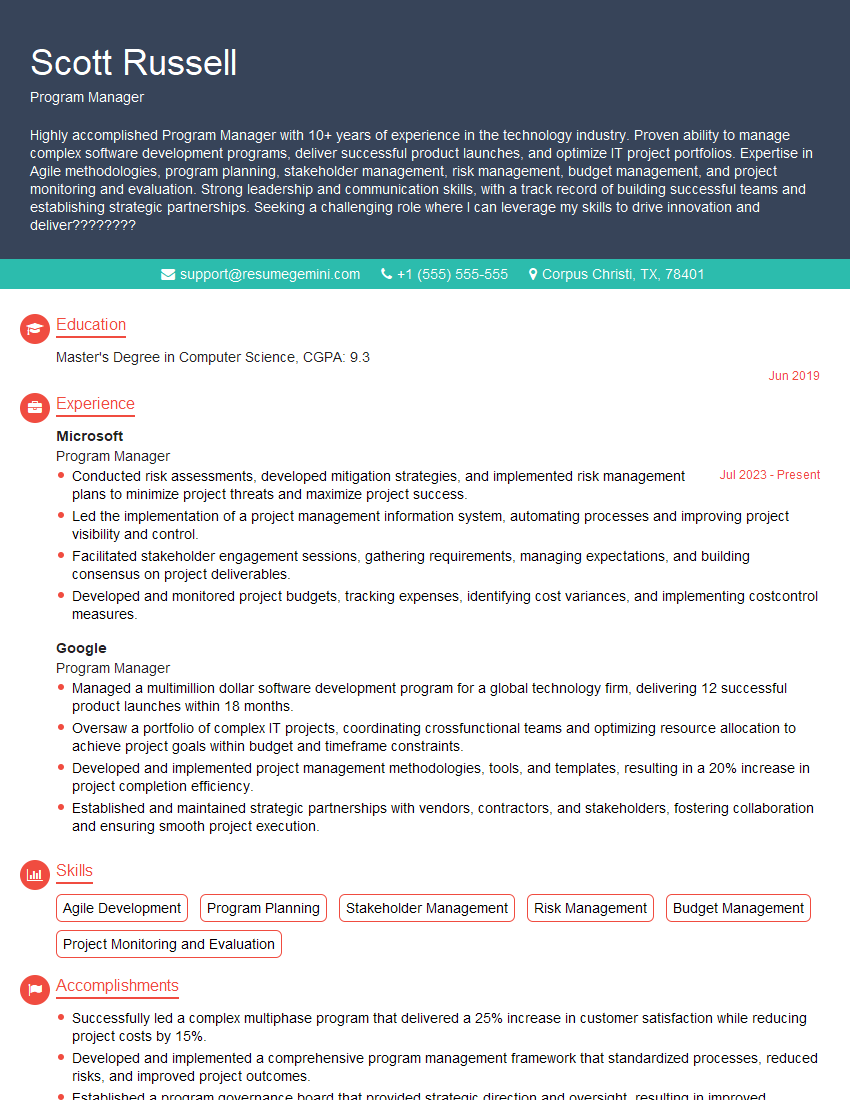
Program Manager Resume Sample

Office Manager Resume Sample
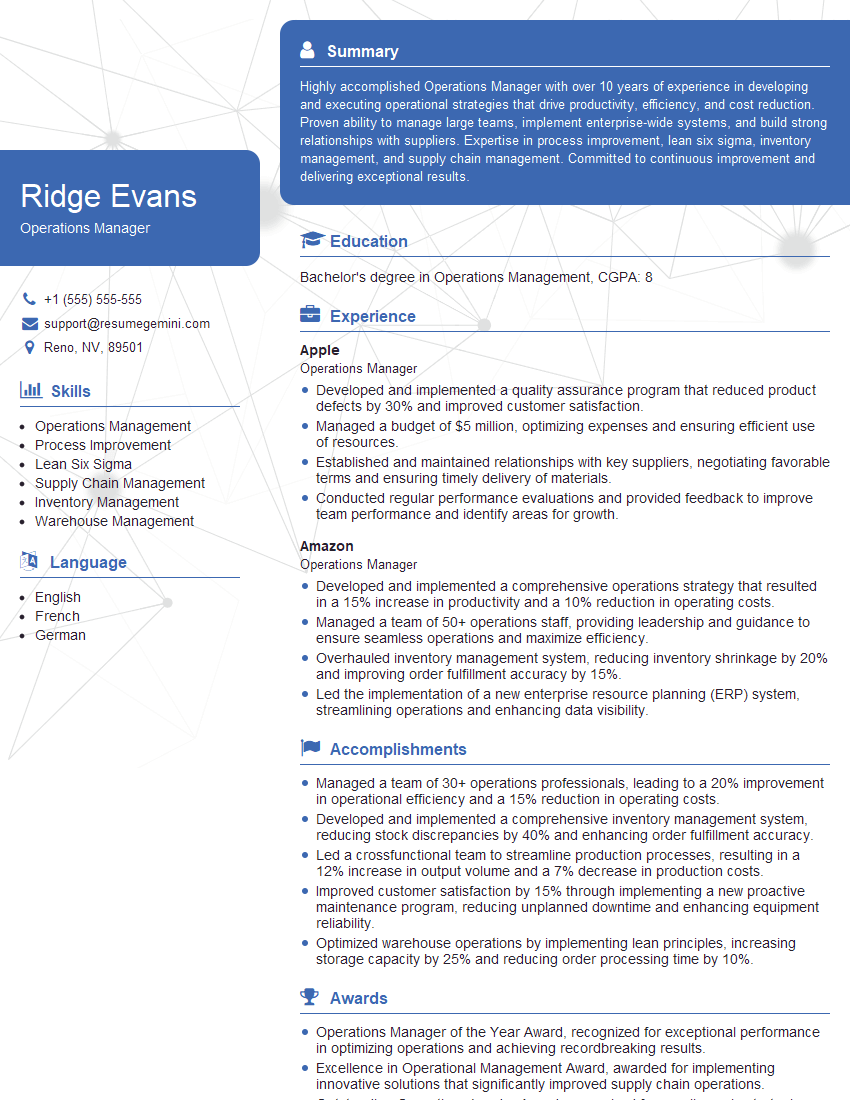
Operations Manager Resume Sample
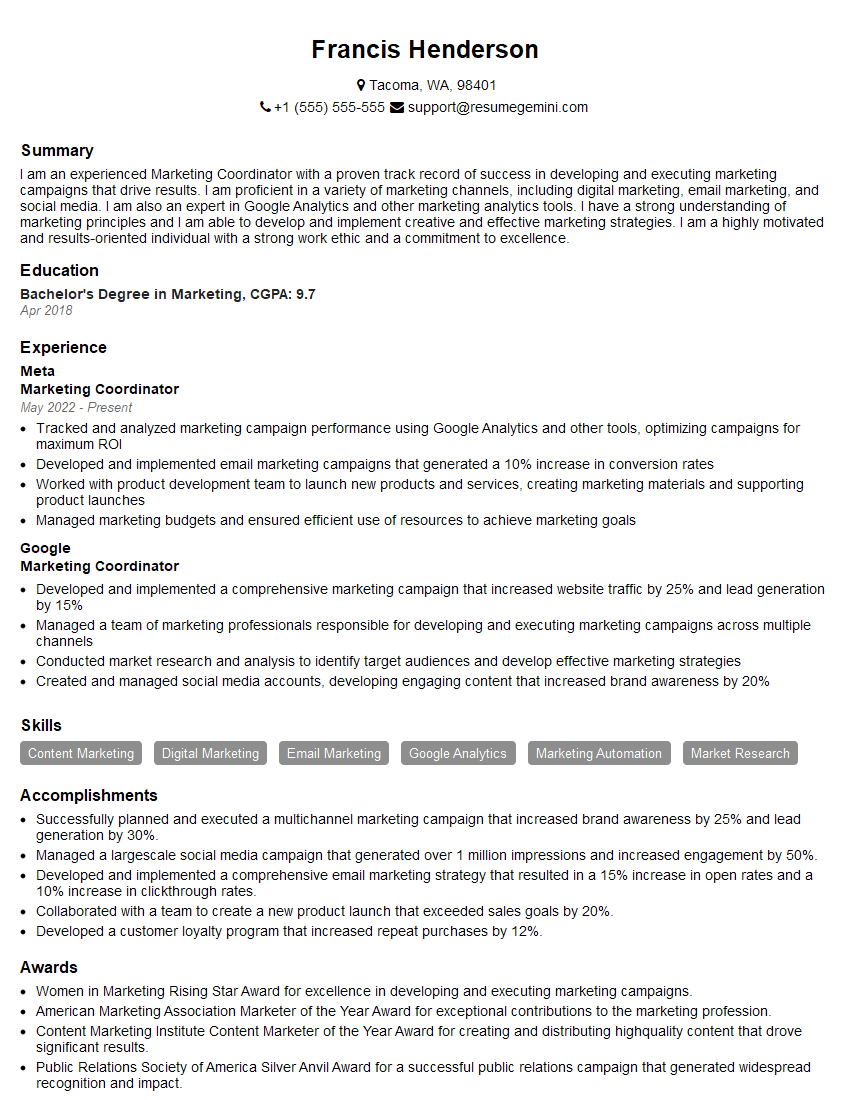
Marketing Coordinator Resume Sample

Administrative Assistant Resume Sample
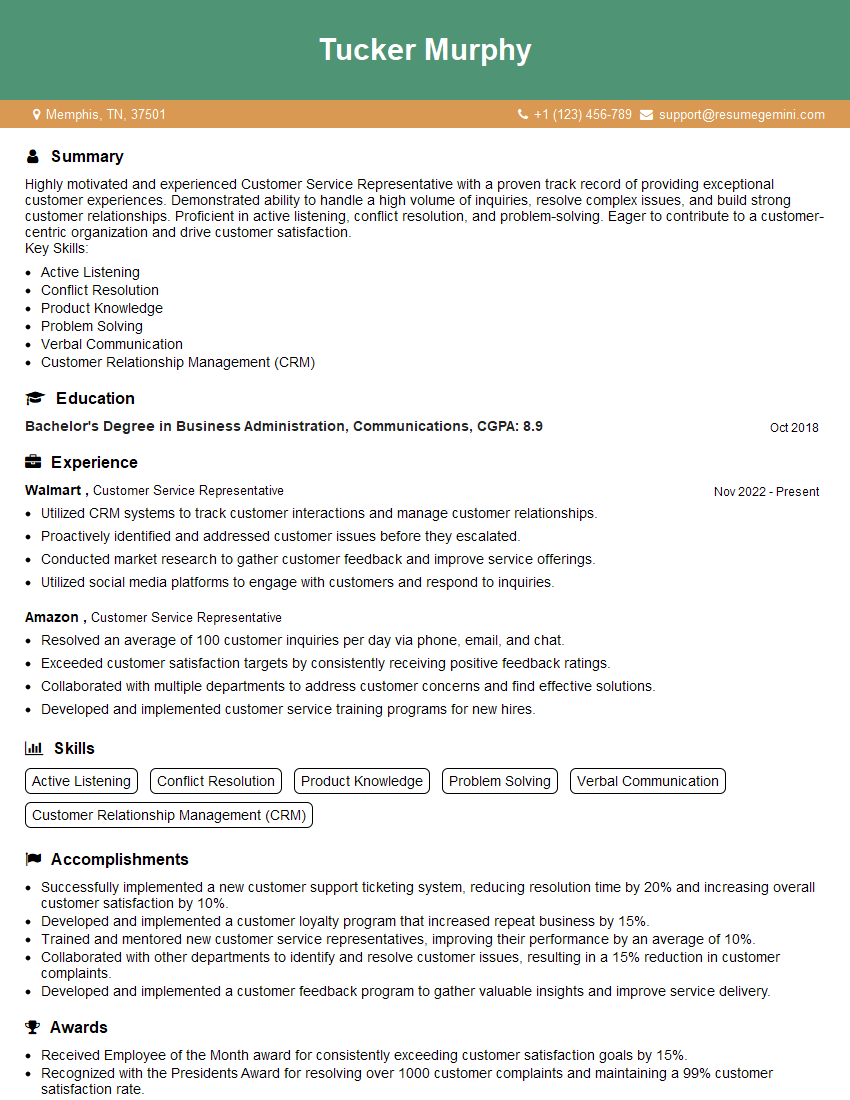
Customer Service Representative Resume Sample
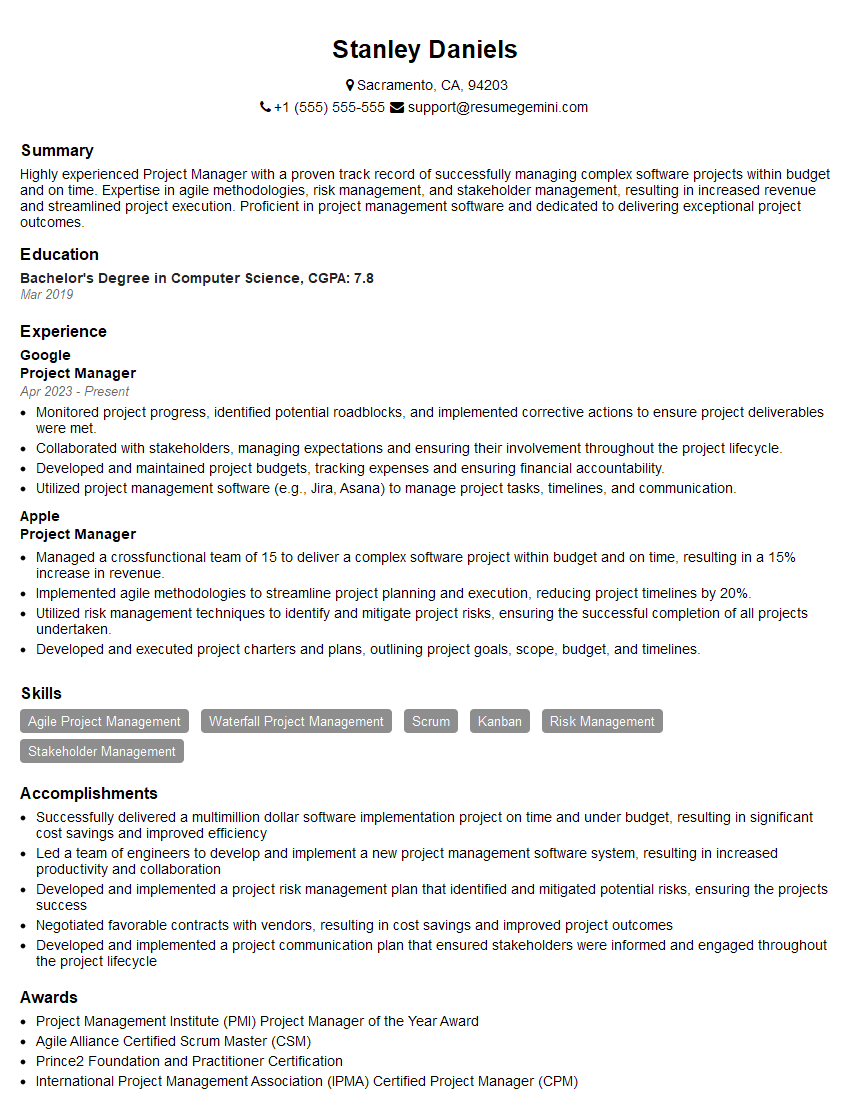
Project Manager Resume Sample

Business Analyst Resume Sample
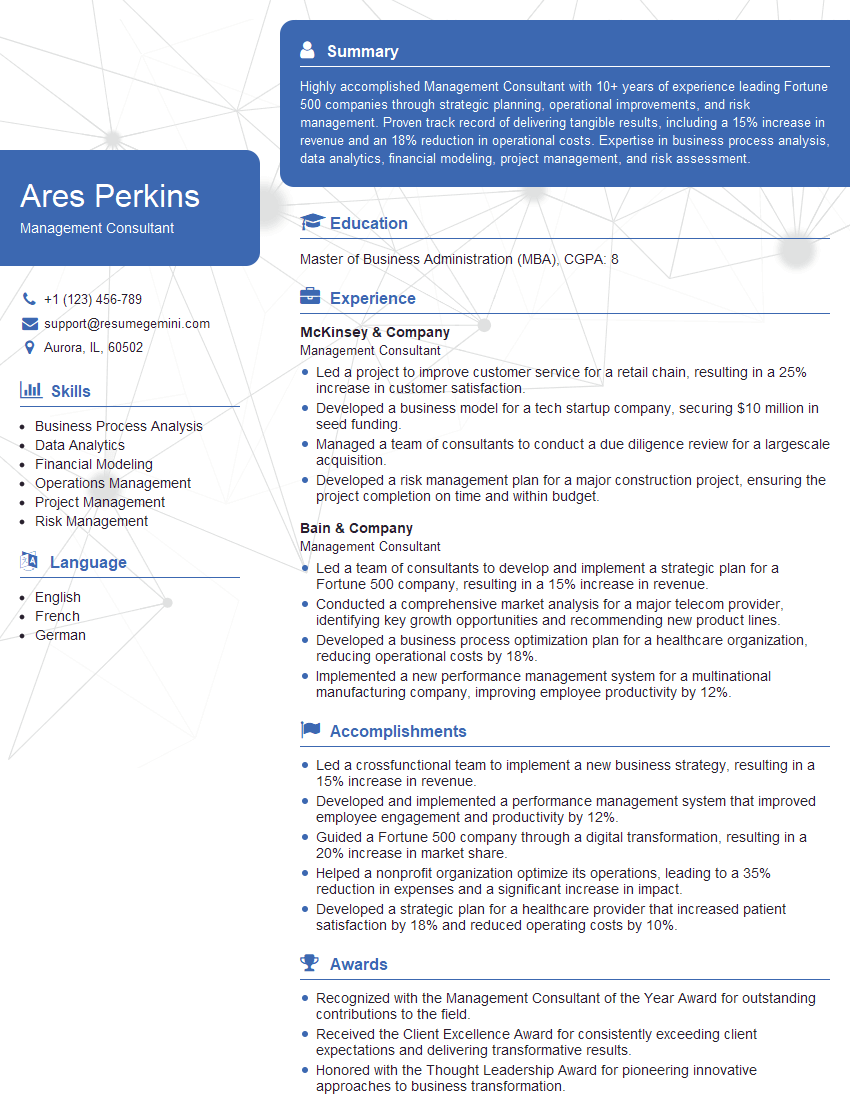
Management Consultant Resume Sample
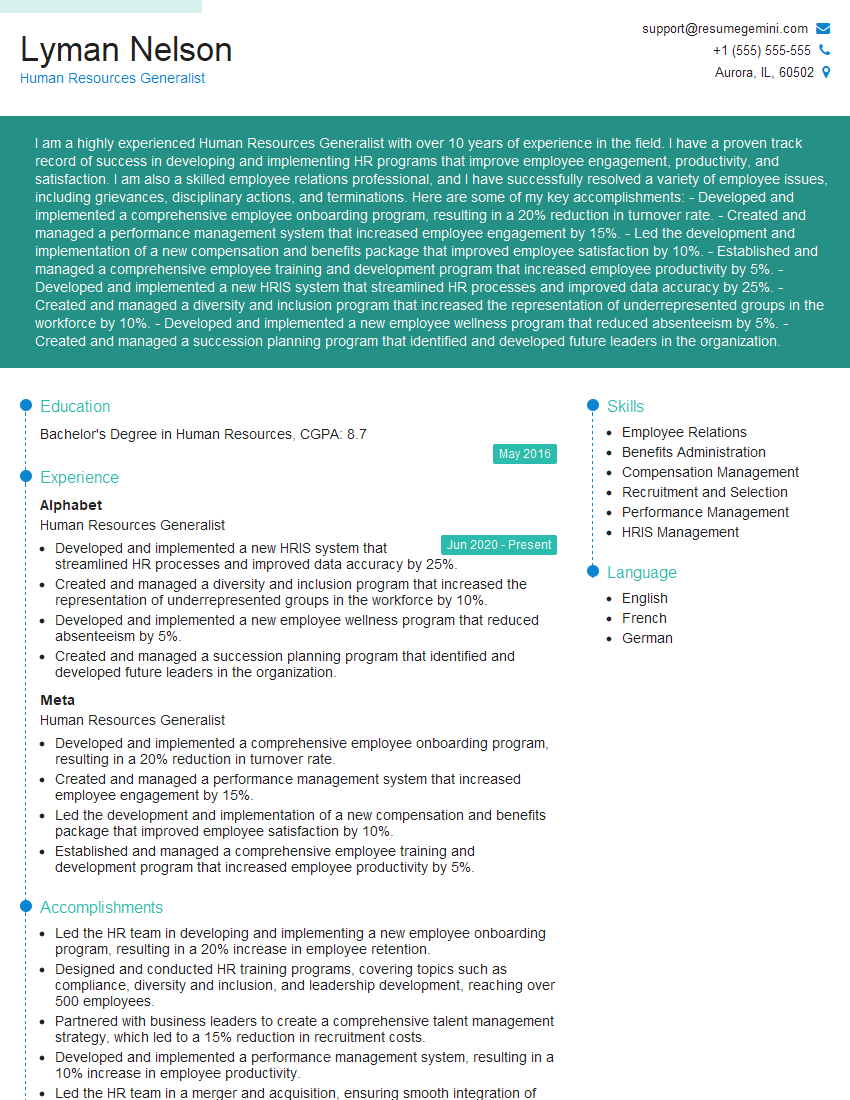
Human Resources Generalist Resume Sample
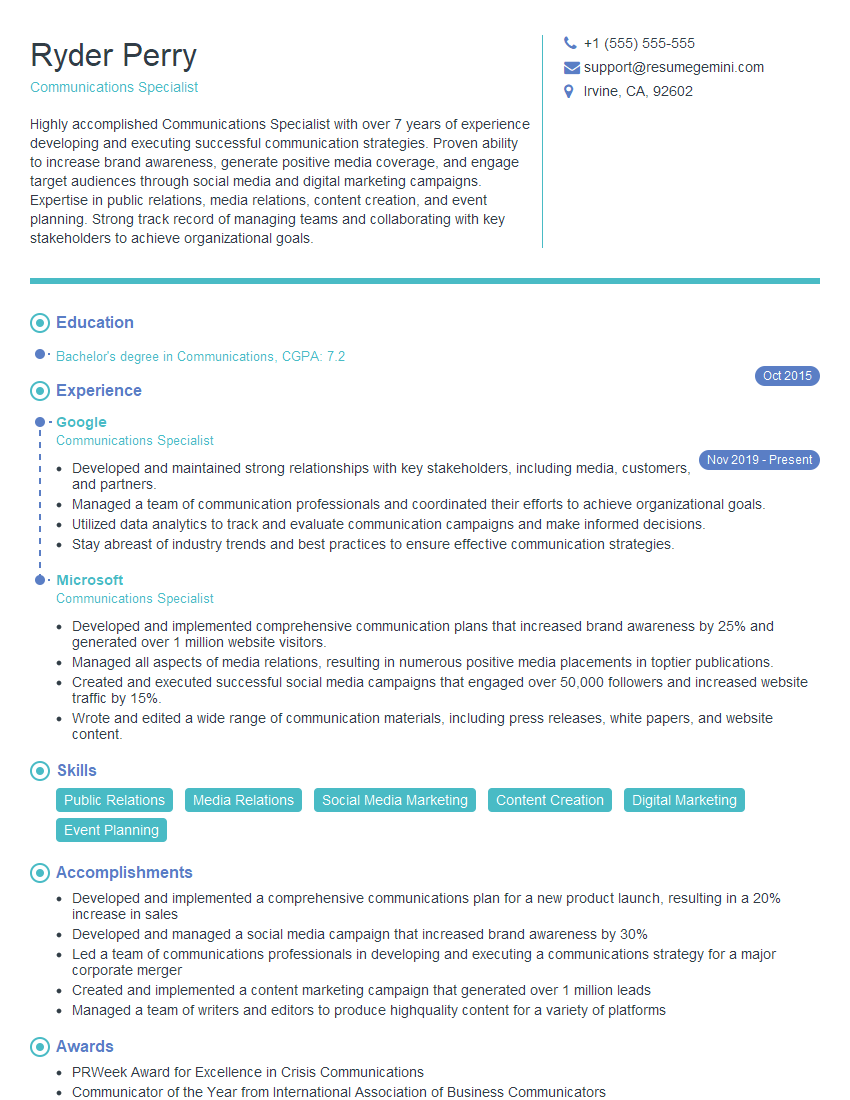
Communications Specialist Resume Sample
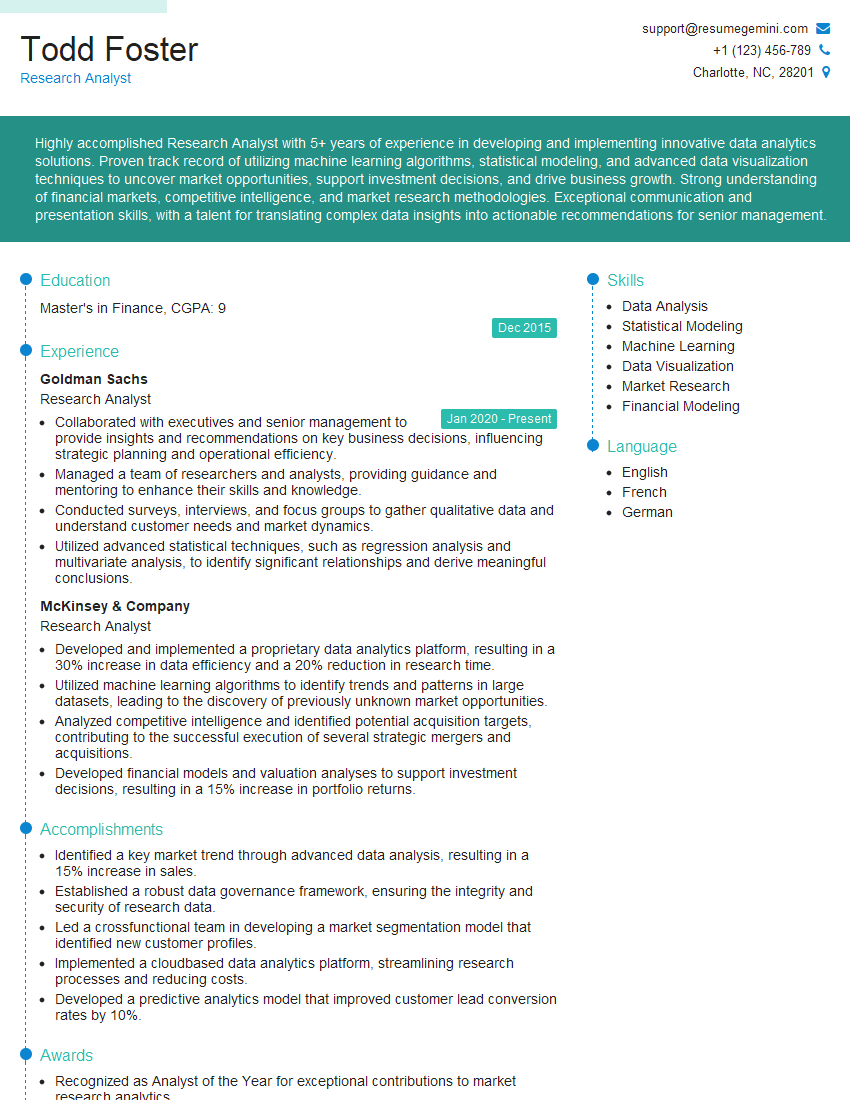
Research Analyst Resume Sample
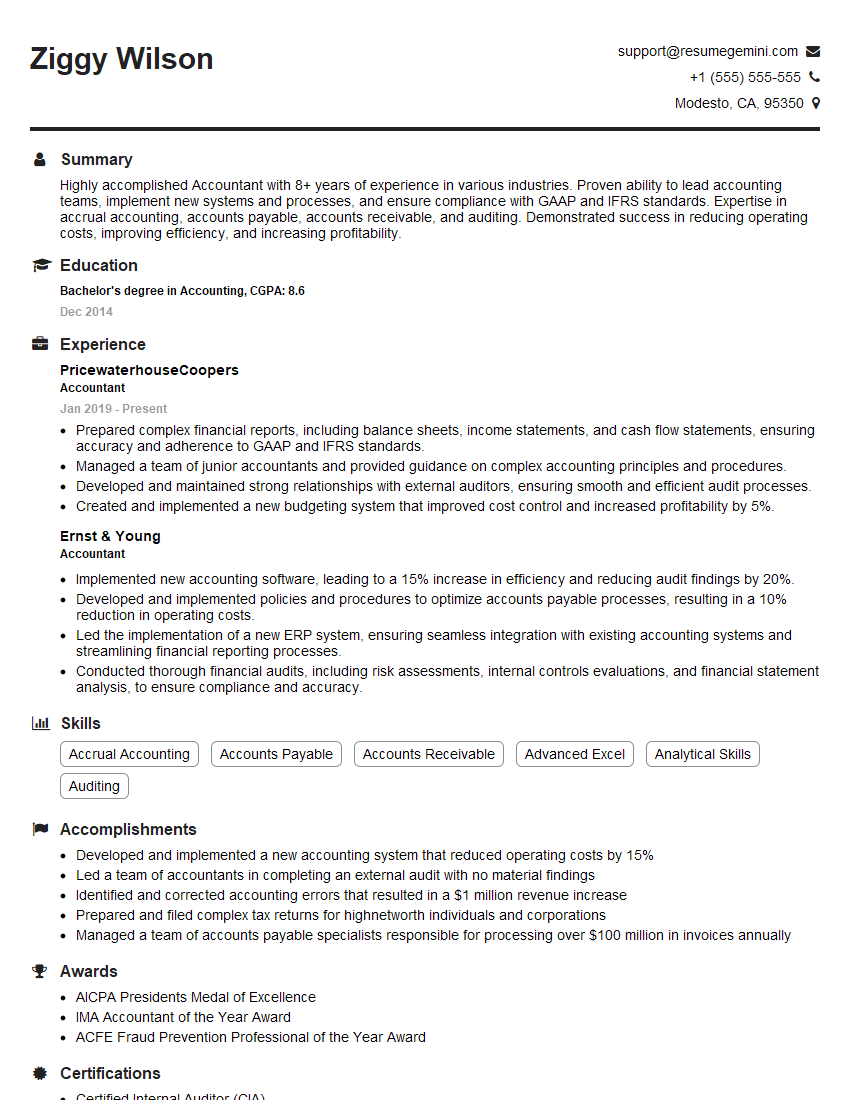
Accountant Resume Sample
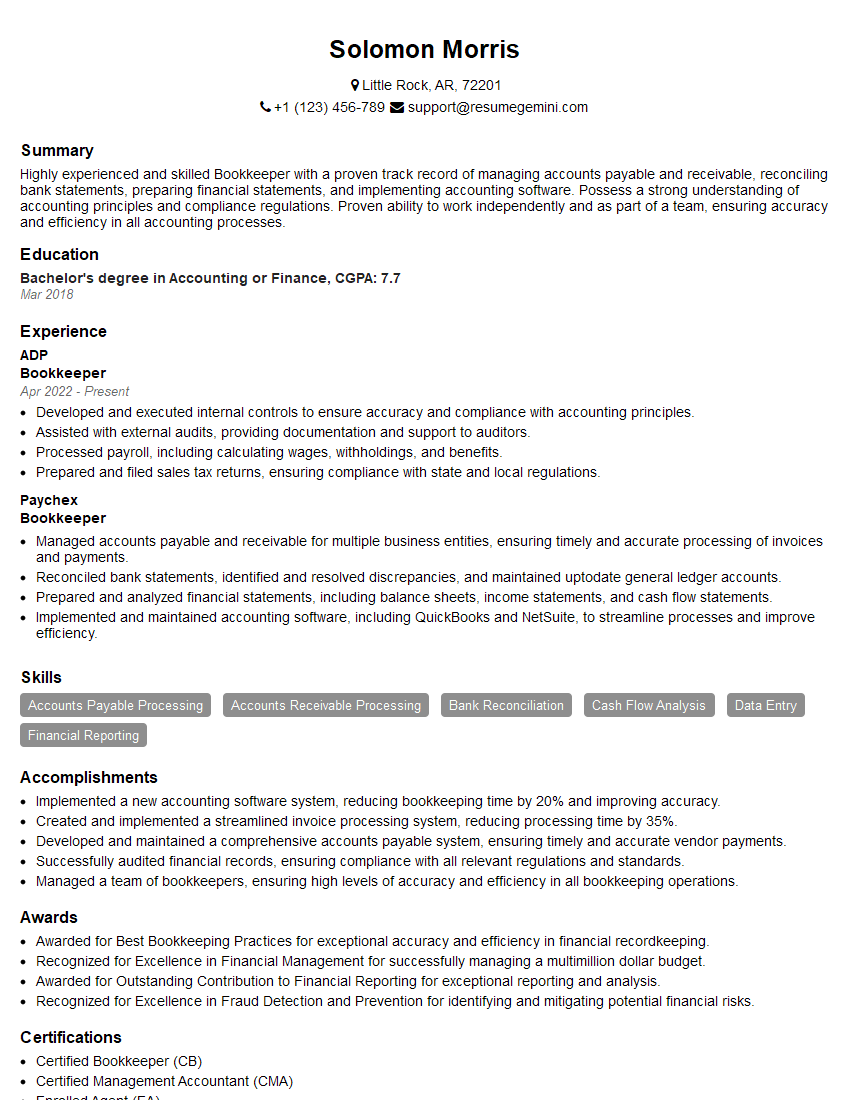
Bookkeeper Resume Sample
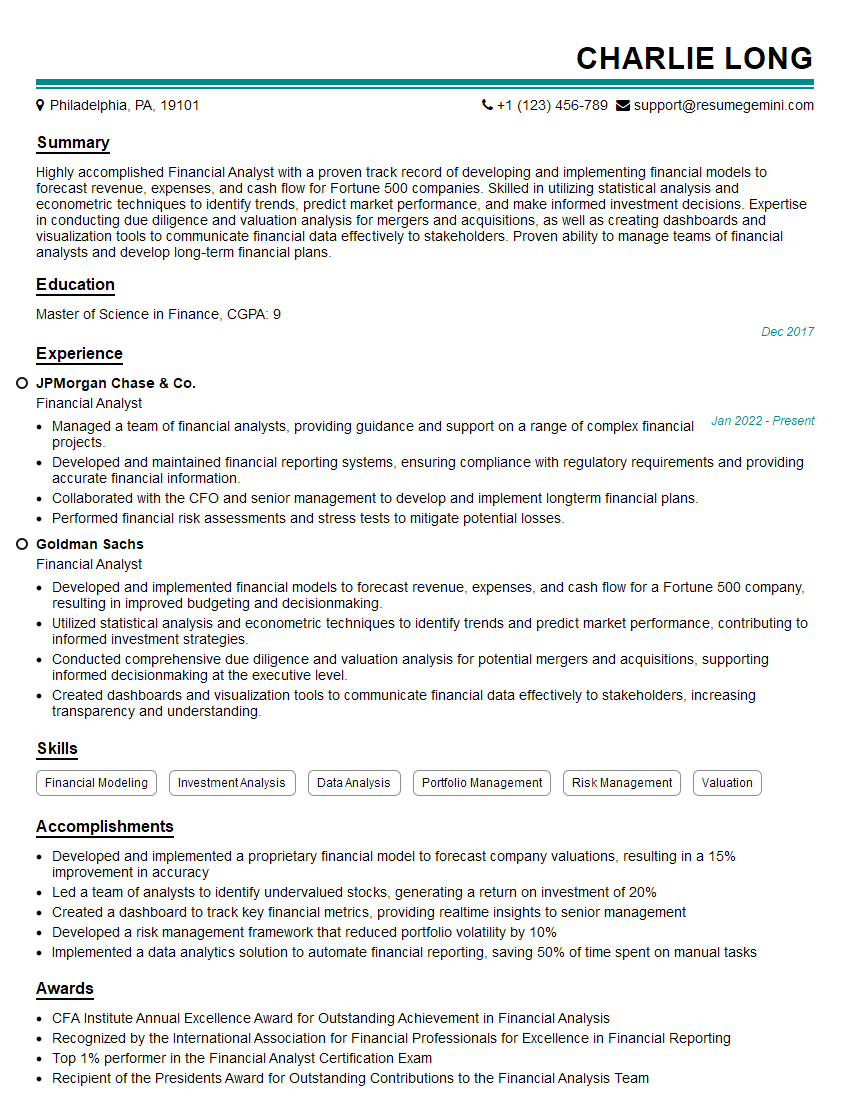
Financial Analyst Resume Sample

Data Analyst Resume Sample
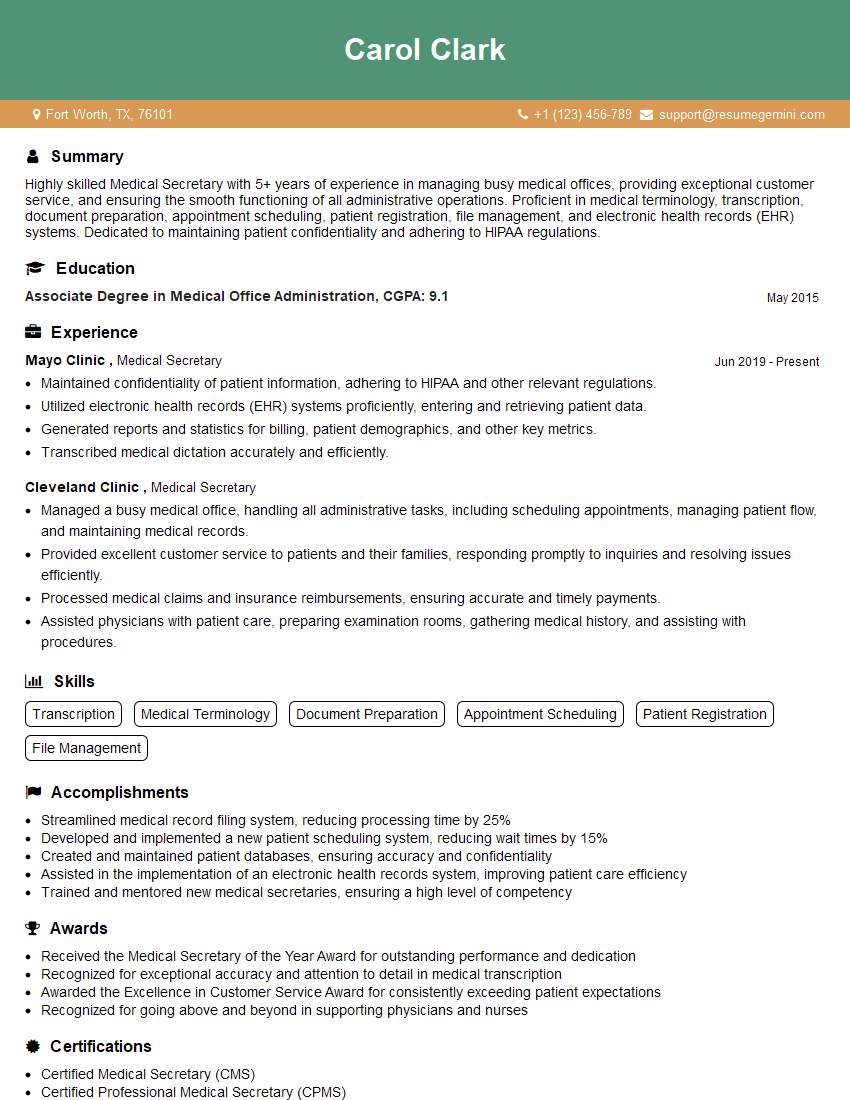
Medical Secretary Resume Sample
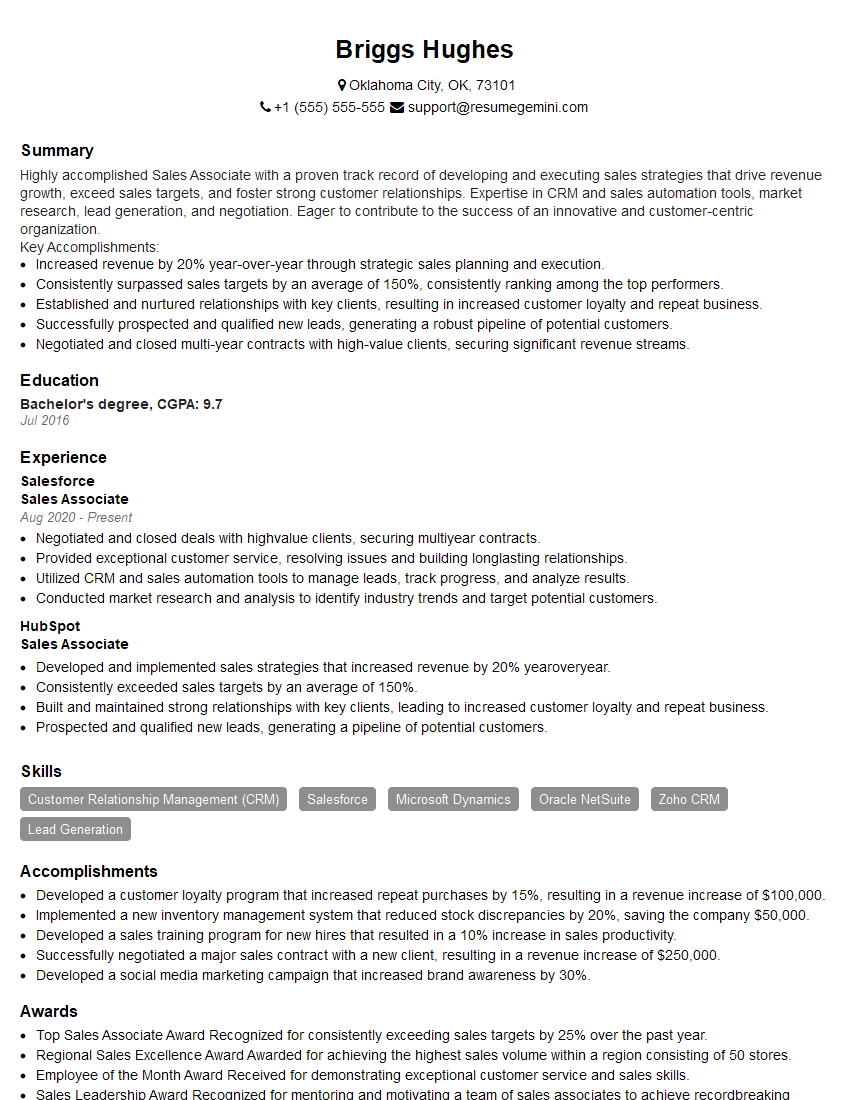
Sales Associate Resume Sample

Executive Assistant Resume Sample
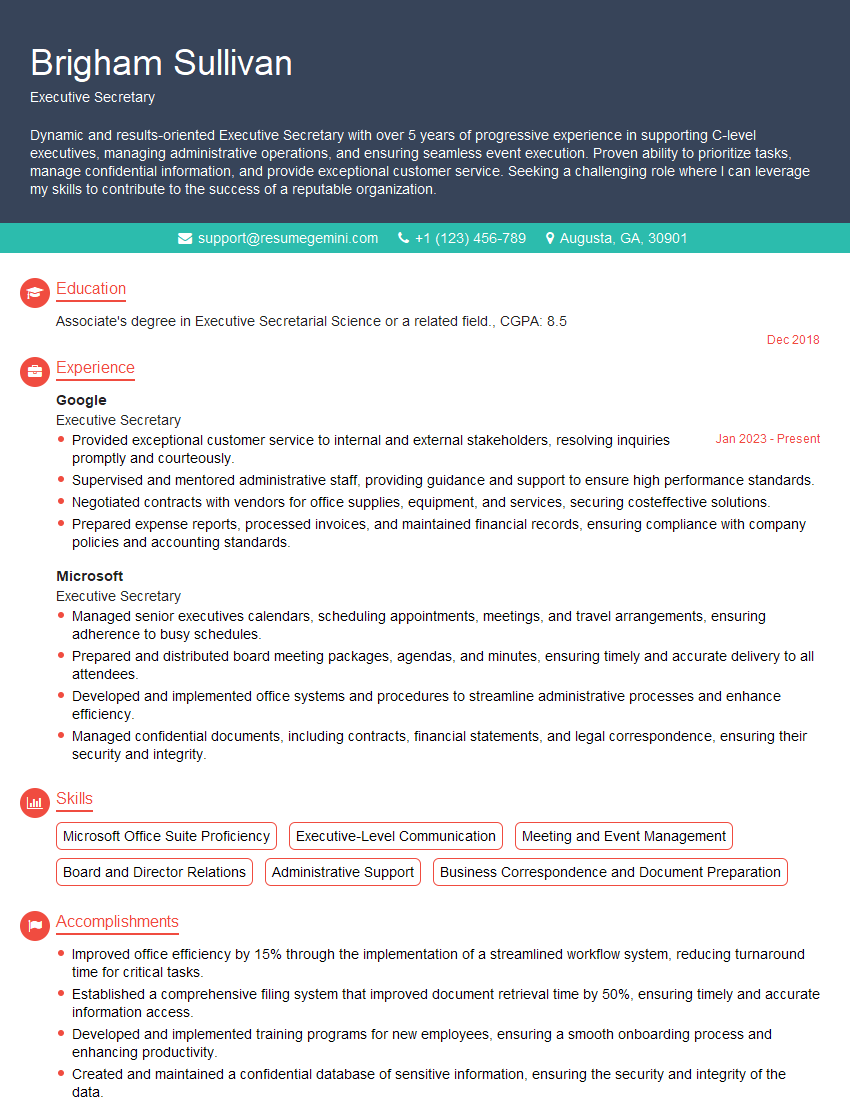
Executive Secretary Resume Sample
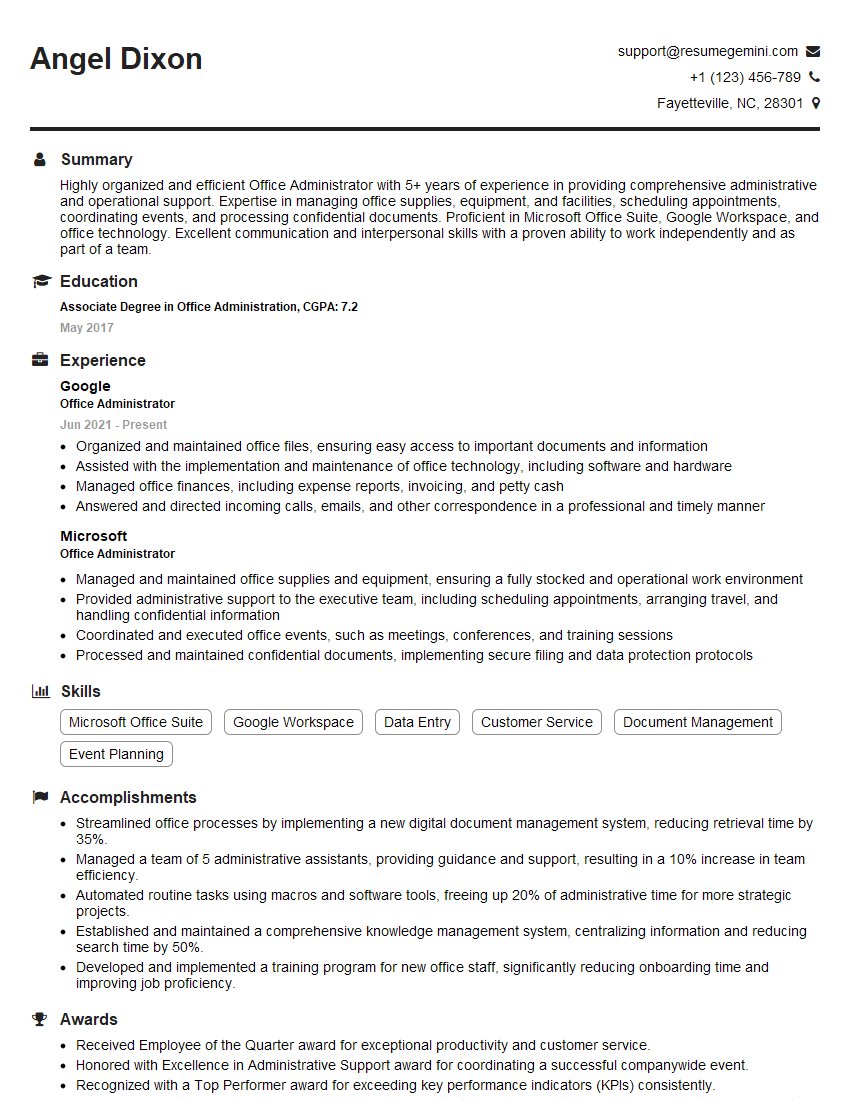
Office Administrator Resume Sample
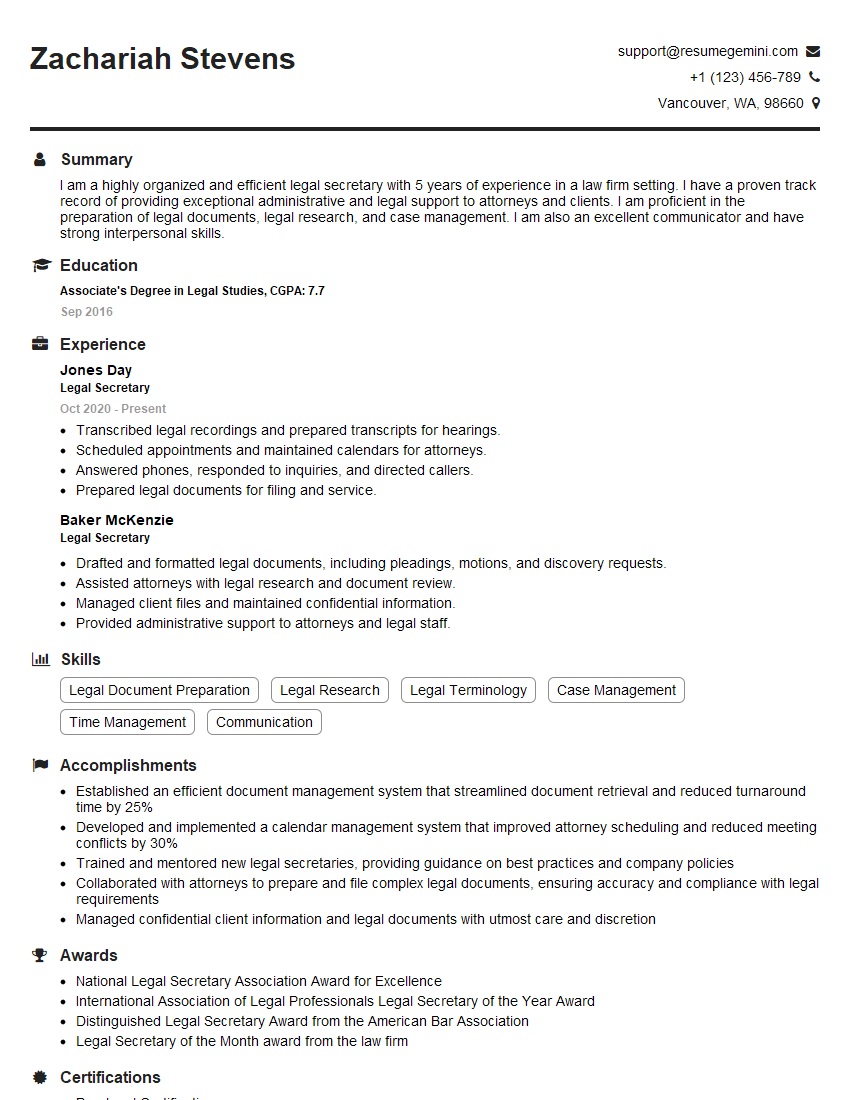
Legal Secretary Resume Sample

Data Entry Clerk Resume Sample
- Program Manager
- Office Manager
- Operations Manager
- Marketing Coordinator
- Administrative Assistant
- Customer Service Representative
- Project Manager
- Business Analyst
- Management Consultant
- Human Resources Generalist
- Communications Specialist
- Research Analyst
- Accountant
- Bookkeeper
- Financial Analyst
- Data Analyst
- Medical Secretary
- Sales Associate
- Executive Assistant
- Executive Secretary
- Office Administrator
- Legal Secretary
- Data Entry Clerk
Explore more articles
Users Rating of Our Blogs
Share Your Experience
We value your feedback! Please rate our content and share your thoughts (optional).
What Readers Say About Our Blog
Attention music lovers!
Wow, All the best Sax Summer music !!!
Spotify: https://open.spotify.com/artist/6ShcdIT7rPVVaFEpgZQbUk
Apple Music: https://music.apple.com/fr/artist/jimmy-sax-black/1530501936
YouTube: https://music.youtube.com/browse/VLOLAK5uy_noClmC7abM6YpZsnySxRqt3LoalPf88No
Other Platforms and Free Downloads : https://fanlink.tv/jimmysaxblack
on google : https://www.google.com/search?q=22+AND+22+AND+22
on ChatGPT : https://chat.openai.com?q=who20jlJimmy20Black20Sax20Producer
Get back into the groove with Jimmy sax Black
Best regards,
Jimmy sax Black
www.jimmysaxblack.com
Hi I am a troller at The aquatic interview center and I suddenly went so fast in Roblox and it was gone when I reset.
Hi,
Business owners spend hours every week worrying about their website—or avoiding it because it feels overwhelming.
We’d like to take that off your plate:
$69/month. Everything handled.
Our team will:
Design a custom website—or completely overhaul your current one
Take care of hosting as an option
Handle edits and improvements—up to 60 minutes of work included every month
No setup fees, no annual commitments. Just a site that makes a strong first impression.
Find out if it’s right for you:
https://websolutionsgenius.com/awardwinningwebsites
Hello,
we currently offer a complimentary backlink and URL indexing test for search engine optimization professionals.
You can get complimentary indexing credits to test how link discovery works in practice.
No credit card is required and there is no recurring fee.
You can find details here:
https://wikipedia-backlinks.com/indexing/
Regards
NICE RESPONSE TO Q & A
hi
The aim of this message is regarding an unclaimed deposit of a deceased nationale that bears the same name as you. You are not relate to him as there are millions of people answering the names across around the world. But i will use my position to influence the release of the deposit to you for our mutual benefit.
Respond for full details and how to claim the deposit. This is 100% risk free. Send hello to my email id: lukachachibaialuka@gmail.com
Luka Chachibaialuka
Hey interviewgemini.com, just wanted to follow up on my last email.
We just launched Call the Monster, an parenting app that lets you summon friendly ‘monsters’ kids actually listen to.
We’re also running a giveaway for everyone who downloads the app. Since it’s brand new, there aren’t many users yet, which means you’ve got a much better chance of winning some great prizes.
You can check it out here: https://bit.ly/callamonsterapp
Or follow us on Instagram: https://www.instagram.com/callamonsterapp
Thanks,
Ryan
CEO – Call the Monster App
Hey interviewgemini.com, I saw your website and love your approach.
I just want this to look like spam email, but want to share something important to you. We just launched Call the Monster, a parenting app that lets you summon friendly ‘monsters’ kids actually listen to.
Parents are loving it for calming chaos before bedtime. Thought you might want to try it: https://bit.ly/callamonsterapp or just follow our fun monster lore on Instagram: https://www.instagram.com/callamonsterapp
Thanks,
Ryan
CEO – Call A Monster APP
To the interviewgemini.com Owner.
Dear interviewgemini.com Webmaster!
Hi interviewgemini.com Webmaster!
Dear interviewgemini.com Webmaster!
excellent
Hello,
We found issues with your domain’s email setup that may be sending your messages to spam or blocking them completely. InboxShield Mini shows you how to fix it in minutes — no tech skills required.
Scan your domain now for details: https://inboxshield-mini.com/
— Adam @ InboxShield Mini
support@inboxshield-mini.com
Reply STOP to unsubscribe
Hi, are you owner of interviewgemini.com? What if I told you I could help you find extra time in your schedule, reconnect with leads you didn’t even realize you missed, and bring in more “I want to work with you” conversations, without increasing your ad spend or hiring a full-time employee?
All with a flexible, budget-friendly service that could easily pay for itself. Sounds good?
Would it be nice to jump on a quick 10-minute call so I can show you exactly how we make this work?
Best,
Hapei
Marketing Director
Hey, I know you’re the owner of interviewgemini.com. I’ll be quick.
Fundraising for your business is tough and time-consuming. We make it easier by guaranteeing two private investor meetings each month, for six months. No demos, no pitch events – just direct introductions to active investors matched to your startup.
If youR17;re raising, this could help you build real momentum. Want me to send more info?
Hi, I represent an SEO company that specialises in getting you AI citations and higher rankings on Google. I’d like to offer you a 100% free SEO audit for your website. Would you be interested?
Hi, I represent an SEO company that specialises in getting you AI citations and higher rankings on Google. I’d like to offer you a 100% free SEO audit for your website. Would you be interested?