Interviews are opportunities to demonstrate your expertise, and this guide is here to help you shine. Explore the essential Linux/Unix Environment interview questions that employers frequently ask, paired with strategies for crafting responses that set you apart from the competition.
Questions Asked in Linux/Unix Environment Interview
Q 1. Explain the difference between hard links and symbolic links.
Hard links and symbolic links are both ways to create references to files in Linux, but they differ fundamentally in how they achieve this.
A hard link is essentially a second name for the same file data. Imagine it like giving a file a nickname. Multiple hard links point to the same inode (a data structure that contains metadata about the file, including the location of its data on disk). Deleting one hard link doesn’t affect the others; the file only disappears when all hard links are deleted. Hard links cannot span file systems.
A symbolic link (or symlink) is a separate file that contains a path to another file or directory. It’s more like a shortcut or pointer. Deleting a symbolic link only removes the link itself; the target file remains unaffected. Symlinks can point to files on different file systems.
- Hard Link Example: If you create a hard link named
mydocument.txt.linkto an existing filemydocument.txt, both names refer to the same data.ls -l mydocument.txtandls -l mydocument.txt.linkwould show the same inode number. - Symbolic Link Example: If you create a symbolic link
/home/user/documents/report.txtpointing to/data/reports/final_report.pdf, accessing/home/user/documents/report.txtactually accesses the file/data/reports/final_report.pdf. Deleting/home/user/documents/report.txtleaves/data/reports/final_report.pdfintact.
In short: hard links are multiple names for the same data, while symbolic links are pointers to other files.
Q 2. How do you find and kill a process in Linux?
Finding and killing processes in Linux is a common task for system administration. The primary tools are ps and kill.
To find a process, use ps with various options. For example, ps aux | grep "process_name" will show all processes and filter for those containing “process_name” in their command line. ps -ef | grep process_id would search by process ID. Remember that grep itself will show up in the results – carefully examine the output to identify the target process.
Once you have the Process ID (PID), use the kill command to terminate it. kill PID sends a termination signal (SIGTERM), giving the process a chance to clean up before exiting. If the process doesn’t respond, you can use kill -9 PID, which sends the SIGKILL signal, forcing immediate termination. However, this is generally less preferred as it can lead to data corruption if the process wasn’t able to save its state properly. Think of kill as politely asking the process to stop (SIGTERM) versus forcefully shutting it down (SIGKILL).
ps aux | grep 'firefox' # Find firefox processes kill 12345 # Kill process with PID 12345 (politely) kill -9 67890 # Kill process with PID 67890 (forcefully)
Always be cautious when killing processes, particularly system-critical ones. Incorrectly terminating essential services can lead to system instability.
Q 3. Describe the differences between various Linux file systems (ext4, XFS, Btrfs).
Linux offers several file systems, each with strengths and weaknesses. Let’s compare ext4, XFS, and Btrfs:
- ext4: The default file system for many Linux distributions. It’s mature, reliable, and widely supported. It offers good performance for most general-purpose uses, with features like journaling for data integrity. However, its scalability might be limited compared to others for very large filesystems.
- XFS: Known for excellent performance, particularly with large files and file systems. It’s highly scalable and often preferred for servers and high-performance computing. It uses advanced data structures that allow efficient handling of large datasets. It’s less commonly used on desktop systems.
- Btrfs: A relatively newer file system that aims for advanced features like data integrity, snapshots, and self-healing capabilities. It excels in managing large datasets and offers features that simplify data management. However, it’s still under active development, and some features may be less stable compared to ext4 or XFS.
Choosing the right filesystem depends on your needs:
- ext4: Suitable for most desktop and server applications where reliability and broad compatibility are priorities.
- XFS: Ideal for servers and systems requiring high performance with large files or datasets.
- Btrfs: A good option if advanced features like snapshots, data integrity, and self-healing are crucial, but be mindful of its relative maturity.
Q 4. What are the different runlevels in Linux and how do you manage them?
Runlevels in Linux define the system’s operational state, determining which services are running. The concept is somewhat less prevalent in modern systemd-based systems, but understanding runlevels provides valuable historical context and remains useful in some older systems and specialized environments like embedded systems. Historically, each runlevel was represented by a number (e.g., 0 for halt, 1 for single-user mode, 3 for multi-user mode without networking, 5 for multi-user mode with networking, 6 for reboot).
Managing Runlevels (SysVinit): In older systems using SysVinit, the init process controls the runlevel. The command telinit changed the runlevel. For example, telinit 3 would switch to multi-user mode without networking.
Managing Runlevels (systemd): Systemd replaced SysVinit in many modern distributions. Instead of numerical runlevels, systemd uses target states (e.g., multi-user.target, graphical.target). These targets control which services are started. The command systemctl is used to manage these targets. systemctl isolate multi-user.target would transition the system to multi-user mode, while systemctl reboot reboots the system.
Runlevels were crucial for controlling the boot process and specifying system functionalities, but systemd provides a more flexible and powerful approach to managing system states.
Q 5. How do you manage users and groups in Linux?
User and group management in Linux is essential for security and resource control. The primary commands are useradd, usermod, userdel, groupadd, groupmod, and groupdel.
useradd username creates a new user account. usermod -g groupname username changes the user’s group. userdel username deletes a user account. Similar commands exist for managing groups. The passwd command changes a user’s password.
You can also manage users and groups through a graphical user interface (GUI) provided by your Linux distribution, which is often simpler for basic administration. However, command-line tools offer more flexibility and control for advanced tasks.
Best practice involves creating users with only the necessary privileges, following the principle of least privilege. This restricts the potential damage if a user account is compromised.
Example: Creating a user named ‘newuser’ belonging to the ‘developers’ group:
sudo groupadd developers sudo useradd -g developers newuser sudo passwd newuser
Q 6. Explain the importance of the /etc/passwd and /etc/shadow files.
/etc/passwd and /etc/shadow are crucial files for user account management in Linux. They contain essential information about users on the system.
/etc/passwd is a human-readable file containing basic user information: username, password (represented by an ‘x’ for security), UID (user ID), GID (group ID), user’s full name, home directory, and login shell.
/etc/shadow contains more sensitive information, including the user’s encrypted password, password aging information (last password change, minimum password age, etc.), and account expiration details. This file has restricted permissions to prevent unauthorized access and modification; only the root user can read it. This separation of password information enhances security.
Think of /etc/passwd as a public directory listing of users, while /etc/shadow is a secure vault containing the actual password information. Keeping password data in a separate, restricted file is a critical aspect of system security.
Q 7. How do you monitor system performance in Linux?
Monitoring system performance in Linux involves using a variety of tools to track resource usage (CPU, memory, disk I/O, network traffic) and identify potential bottlenecks. Here are some commonly used tools:
topandhtop: These provide real-time displays of CPU, memory, and process usage.htopis an interactive, more user-friendly version oftop.vmstat: Shows statistics about virtual memory, processes, paging, and I/O activity.iostat: Displays disk I/O statistics (read/write operations, transfer rates).netstat(orss): Shows network connection information.df: Displays disk space usage.du: Shows disk usage of files and directories.uptime: Shows system uptime and load average (a measure of CPU load).- Graphical Monitoring Tools: Distributions often include GUI tools (e.g., System Monitor, GNOME System Monitor) that provide visual dashboards of system performance metrics.
By regularly monitoring these metrics, you can identify potential problems, such as high CPU usage from a specific process, low disk space, or network congestion. This allows for proactive optimization and troubleshooting, preventing performance degradation.
Q 8. What are system calls and why are they important?
System calls are the interface between user-space applications and the Linux kernel. Think of them as requests a program makes to the operating system to perform actions it can’t do directly, like accessing a file or creating a network connection. They’re crucial because they provide a controlled and secure way for programs to interact with the system’s hardware and resources. Without them, applications would have uncontrolled access, leading to instability and security vulnerabilities.
For example, if your word processor needs to save a file, it doesn’t directly manipulate the hard drive. Instead, it makes a system call (like open(), write(), and close()) to the kernel, which handles the low-level details securely and efficiently. This ensures data integrity and prevents conflicts between different applications vying for the same resources.
Q 9. Describe the differences between TCP and UDP.
TCP (Transmission Control Protocol) and UDP (User Datagram Protocol) are both networking protocols used to transmit data over the internet, but they differ significantly in their approach. Imagine sending a package: TCP is like sending a registered package – reliable, with tracking and guaranteed delivery. UDP is like sending a postcard – fast, but there’s no guarantee of arrival.
- TCP: Connection-oriented, reliable, ordered, and provides error checking. It establishes a connection before data transfer, ensuring data integrity and sequence. It’s ideal for applications requiring reliable data delivery, such as web browsing (HTTP) and email (SMTP).
- UDP: Connectionless, unreliable, unordered, and doesn’t guarantee delivery or order. It’s faster and more efficient than TCP because it doesn’t require the overhead of connection establishment and error checking. It’s suitable for applications where speed is prioritized over reliability, like online gaming and video streaming, where occasional packet loss is less critical than latency.
Q 10. Explain the concept of shell scripting and provide an example.
Shell scripting is essentially writing automated sequences of commands for the Linux shell to execute. It’s like creating a recipe for your computer: you provide the steps, and it follows them in order. This is incredibly useful for automating repetitive tasks, streamlining workflows, and managing systems efficiently.
Here’s a simple example of a bash script that lists all files in the current directory and then backs them up to a separate directory:
#!/bin/bash

# List all files
ls -l

# Create a backup directory if it doesn't exist
mkdir -p /backup

# Copy all files to the backup directory
cp * /backup

echo "Backup complete!"
This script first lists the files, then creates a backup directory (if one doesn’t already exist), and finally copies all files to that directory. This is a small example, but scripts can become much more complex and powerful, handling intricate tasks and even interacting with other programs.
Q 11. What are the different types of Linux shells?
Linux offers several different shells, each with its own features and syntax. The most common are:
- Bash (Bourne Again Shell): The most widely used shell, known for its extensive features and customization options.
- Zsh (Z Shell): A powerful shell that’s highly configurable and often preferred by developers for its plugin ecosystem and enhanced features.
- Ksh (Korn Shell): Known for its programming-like features and robust scripting capabilities.
- Csh (C Shell): Less commonly used nowadays, it has a syntax similar to the C programming language.
- Fish (Friendly Interactive Shell): A user-friendly shell with auto-suggestions and syntax highlighting, making it easier to learn.
The choice of shell depends on personal preference and the specific needs of the task. Many users start with Bash, but Zsh has gained significant popularity recently due to its extensibility and features.
Q 12. How do you use regular expressions in Linux?
Regular expressions (regex or regexp) are powerful tools for pattern matching within text. They’re like wildcard searches on steroids, allowing you to find and manipulate strings based on complex patterns. In Linux, they’re frequently used with tools like grep, sed, and awk.
For example, the regex ^abc.*xyz$ would match any line starting with “abc”, containing any characters (.*), and ending with “xyz”. The ^ matches the beginning of a line, the $ matches the end, and .* is a wildcard that matches any character (except newline) zero or more times.
You use them by incorporating them into the command-line tools; for example, grep '^abc.*xyz$' myfile.txt would search for lines matching that pattern in the file myfile.txt.
Q 13. Explain the use of grep, awk, and sed commands.
grep, awk, and sed are fundamental text processing tools in Linux, often used in conjunction with regular expressions:
grep(global regular expression print): Primarily used for searching text for specific patterns. It can highlight matching lines, count occurrences, and perform other searches.awk: A powerful tool for processing structured text data. It’s great for extracting specific fields from data, performing calculations, and reformatting output. It uses a pattern-action mechanism, where patterns define what lines to process, and actions specify what operations to perform on them.sed(stream editor): Used for in-place text editing, manipulating lines in a file without requiring separate writes. It’s powerful for substitutions, deletions, and other transformations.
For example, grep 'error' logfile.txt would search for lines containing “error” in logfile.txt. awk '{print $1}' data.csv would print the first field of each line in data.csv (assuming it’s comma-separated). sed 's/old/new/g' myfile.txt would replace all instances of “old” with “new” in myfile.txt.
Q 14. How do you secure a Linux server?
Securing a Linux server is a multifaceted process requiring a layered approach. It’s like building a castle with multiple defenses. No single solution offers complete security; instead, multiple techniques combined provide the best protection.
- Regular Updates: Keep the operating system, applications, and all software components updated with the latest security patches. This is the single most important step.
- Firewall Configuration: Use a firewall (like
iptablesorfirewalld) to control network traffic, blocking unauthorized access to ports and services. Only open ports absolutely necessary. - Strong Passwords and Authentication: Enforce strong password policies, using complex passwords and potentially two-factor authentication for enhanced security.
- User Management: Implement the principle of least privilege. Grant users only the minimum necessary access rights to perform their tasks.
- Regular Security Audits: Conduct regular security audits and penetration testing to identify and address vulnerabilities.
- Intrusion Detection and Prevention Systems (IDS/IPS): Consider using an IDS/IPS to monitor network traffic for malicious activity.
- Secure Shell (SSH): Use SSH for secure remote access and disable or limit access via other less secure methods.
- Regular Backups: Maintain regular backups of your data to protect against data loss from various threats.
Security is an ongoing process. Continuous monitoring, vigilance, and proactive measures are essential for maintaining a secure Linux server.
Q 15. Describe different methods for performing backups in Linux.
Backing up data in a Linux environment is crucial for data protection and disaster recovery. There are several methods, each with its strengths and weaknesses, depending on your needs and resources.
Full Backups: These copy all selected data. Think of it like photocopying an entire book. It takes the longest but offers complete restoration. The command
tar -cvpzf /path/to/backup.tar.gz /path/to/datacreates a compressed tarball backup.Incremental Backups: Only the data that has changed since the last full or incremental backup is copied. Imagine only photocopying the pages you’ve changed since the last time. This is much faster than full backups and saves space, but restoring requires having the full backup and all subsequent incrementals.
Differential Backups: These copy only the data that has changed since the last full backup. Similar to incremental but referencing the full backup each time. This is faster than a full backup and requires less storage than multiple incremental backups but still needs the full backup for restoration.
Rsync: A powerful command-line utility for synchronizing files. It can be used for backups by copying only changed files and directories, saving time and space. For example:
rsync -avz /path/to/source/ /path/to/destination/. It can also be used with SSH for remote backups.Specialized Backup Tools: Tools like
Amanda,Bacula, andBorgBackupoffer more advanced features like network backups, scheduling, and deduplication, making them ideal for larger systems and complex backup strategies. They handle complexities like handling incremental backups and managing multiple backup sets.
Choosing the right method depends on factors like the size of your data, your recovery time objectives (RTO), and your recovery point objectives (RPO). For example, a small server might use rsync, while a large enterprise data center might leverage a sophisticated solution like Bacula.
Career Expert Tips:
- Ace those interviews! Prepare effectively by reviewing the Top 50 Most Common Interview Questions on ResumeGemini.
- Navigate your job search with confidence! Explore a wide range of Career Tips on ResumeGemini. Learn about common challenges and recommendations to overcome them.
- Craft the perfect resume! Master the Art of Resume Writing with ResumeGemini’s guide. Showcase your unique qualifications and achievements effectively.
- Don’t miss out on holiday savings! Build your dream resume with ResumeGemini’s ATS optimized templates.
Q 16. Explain the concept of virtualization.
Virtualization is the process of creating a virtual version of something, often a computer system. Instead of having one physical machine running one operating system, virtualization lets you run multiple virtual machines (VMs) on a single physical host. Each VM has its own virtual CPU, memory, storage, and network interface, acting as if it were a completely separate physical computer. Think of it like having multiple apartments (VMs) within a single building (physical server).
This is incredibly useful for many reasons:
- Cost Savings: Reduces the need for many physical servers.
- Resource Consolidation: Improves server utilization.
- Isolation: Provides a secure environment for applications and operating systems.
- Flexibility: Easily create, clone, and manage VMs.
- Testing and Development: Ideal for experimenting with new software without affecting the production environment.
Popular virtualization platforms include VMware vSphere, Microsoft Hyper-V, and KVM (Kernel-based Virtual Machine) for Linux. KVM is integrated directly into the Linux kernel, providing a very efficient and lightweight solution.
Q 17. What are containers (Docker, Kubernetes) and how do they work?
Containers, such as those managed by Docker and orchestrated by Kubernetes, provide a lightweight alternative to VMs. Instead of virtualizing the entire hardware, containers virtualize the operating system’s kernel. This means multiple containers share the same host kernel, leading to significantly better resource utilization and faster startup times compared to VMs.
Docker: A containerization platform that packages applications and their dependencies into containers. Think of it as packaging everything an application needs – libraries, configurations, etc. – into a single, self-contained unit. This ensures consistent execution across different environments (development, testing, production). You can build, ship, and run containers easily using Docker commands like docker build, docker run, and docker stop.
Kubernetes (K8s): An orchestration platform designed to manage and scale containerized applications across clusters of machines. It automates tasks like deployment, scaling, and load balancing. It simplifies the management of complex applications spread across multiple containers and servers. Imagine it as an air traffic controller for containers, coordinating their movements and ensuring smooth operation.
Together, Docker and Kubernetes provide a powerful way to build and deploy highly scalable and portable applications. The combination allows for efficient use of resources and the management of complex application landscapes.
Q 18. What are the different networking tools in Linux?
Linux offers a rich set of networking tools. Here are some key examples:
ip: The modern command-line tool for managing network interfaces and routing tables. It replaces the olderifconfigandroutecommands.ip addr showdisplays interface information.netstat(orss): Displays network connections, routing tables, interface statistics, masquerade connections, and multicast memberships.ss -tulpnshows active TCP connections, listening ports, and process information.ping: Tests network connectivity by sending ICMP echo requests to a host.ping google.comchecks connectivity to Google.traceroute(ortraceroute6for IPv6): Traces the route packets take to reach a destination, showing each hop along the way. This helps identify network bottlenecks or failures.tcpdump: Captures and displays network traffic. It’s a powerful tool for analyzing network problems.tcpdump -i eth0 port 80captures HTTP traffic on the eth0 interface.iftop: Displays real-time network bandwidth usage, showing which hosts are consuming the most bandwidth.nmap: A security scanner that can be used to discover hosts and services on a network. It identifies open ports and services running on remote hosts, providing valuable information about network security.
These tools, combined with appropriate log analysis, provide a comprehensive arsenal for managing and troubleshooting network connectivity in Linux.
Q 19. How do you troubleshoot network connectivity issues?
Troubleshooting network connectivity involves a systematic approach. Here’s a step-by-step process:
Check the basics: Start with the simplest checks: Are the cables plugged in correctly? Is the network interface active? (
ip link show). Is the server itself reachable (ping)?Check IP configuration: Verify the IP address, subnet mask, gateway, and DNS servers are correctly configured (
ip addr show). Is the IP address on the correct subnet?Test connectivity: Use
pingto test connectivity to the gateway and other known hosts. Usetracerouteto identify points of failure along the network path.Check the firewall: Ensure that firewalls (
iptables,firewalld) aren’t blocking necessary traffic. Temporarily disable the firewall (carefully!) to rule it out.Examine network logs: Check system logs (e.g.,
/var/log/syslog,/var/log/messages) for error messages related to networking.Use network monitoring tools: Tools like
tcpdumpandiftopcan help identify network bottlenecks or unusual traffic patterns.Check DNS resolution: If you’re unable to reach a host by name, verify DNS resolution using
nslookupordig.Check for cable issues: Using a cable tester to ensure that the physical layer is functional is extremely useful.
Remember to consult relevant documentation and logs for your specific network configuration.
Q 20. Explain the concept of process management in Linux.
Process management in Linux involves overseeing the creation, execution, and termination of processes. It’s fundamental to the operating system’s stability and efficiency. Key aspects include:
Process Creation: Processes are created when a program is executed. The parent process creates child processes, forming a process tree. The
fork()system call is crucial for process creation.Process Scheduling: The kernel’s scheduler determines which process gets CPU time. This is crucial for fair resource allocation and responsiveness. Different scheduling algorithms (e.g., FIFO, Round Robin, Priority-based) exist.
Process States: Processes can be in various states such as running, ready, sleeping, waiting, and zombie.
Process Termination: Processes can be terminated normally (exit), or forcefully (kill). Signals (e.g., SIGTERM, SIGKILL) are used to terminate processes. The command
kill -9forcefully terminates process.Process Monitoring: Tools like
ps(for listing processes),top(for real-time process monitoring), andhtop(an interactive process viewer) allow you to observe process activity and resource consumption.
Effective process management is essential for maintaining system performance and stability. Understanding how to monitor, control, and terminate processes is a core skill for any Linux administrator.
Q 21. How do you manage disk space and partitions?
Managing disk space and partitions in Linux involves several tasks:
Partitioning: Dividing a hard drive into logical sections. This can be done using tools like
fdisk(for older style partitioning) orparted(a more modern, flexible tool).fdisk /dev/sdaopens the partition editor for the first hard drive.File System Creation: Formatting a partition with a file system (ext4, XFS, btrfs, etc.) to make it usable by the operating system. The
mkfscommand family is used (e.g.,mkfs.ext4 /dev/sda1).Mounting: Attaching a file system to a directory in the file system hierarchy, making it accessible. The
mountcommand is used. For example:mount /dev/sda1 /mnt/mypartition.Disk Space Monitoring: Using commands like
df -h(displays disk space usage) anddu -sh *(displays disk usage of files and directories in the current folder) to track disk space consumption.Disk Space Management: Identifying and deleting unnecessary files, using tools like
findto locate large files or unused files. Compressing files, archiving data, or moving data to other storage locations can free up space.Logical Volume Management (LVM): Using LVM (with commands like
lvcreate,lvextend,lvreduce,vgextendetc) to create flexible, dynamically sized logical volumes that span multiple physical partitions. This provides enhanced flexibility for managing disk space.
Effective disk space and partition management are crucial for maintaining the health and performance of any Linux system.
Q 22. What are cron jobs and how do you use them?
Cron jobs are scheduled tasks in Unix-like operating systems. Think of them as automated reminders for your computer. You define a specific time and command, and the system executes that command at the scheduled time. They’re invaluable for automating repetitive tasks, like backups, log rotations, or running system checks.
You use cron by editing the crontab (cron table) file. This is typically done using the command crontab -e. The crontab file contains lines, each representing a scheduled task. Each line follows a specific format:
MINUTE HOUR DAY_OF_MONTH MONTH DAY_OF_WEEK COMMANDFor instance, to run a script called myscript.sh every day at 3 AM, you would add this line to your crontab:
0 3 * * * /path/to/myscript.shHere, 0 3 * * * specifies the schedule (0 minutes, 3 hours, every day of the month, every month, every day of the week), and /path/to/myscript.sh is the command to be executed. The asterisk (*) acts as a wildcard, meaning ‘every’. More complex schedules can be created using ranges and step values. Cron also provides variables like % for representing the date in various formats. Incorrectly configured cron jobs can lead to system overload; meticulous planning and testing are crucial.
Q 23. Describe different methods of user authentication.
User authentication verifies a user’s identity before granting access to a system. Several methods exist, each with its strengths and weaknesses:
- Password-based authentication: The most common method, where users provide a username and password. Security relies heavily on password strength and practices. Vulnerable to brute-force attacks if passwords are weak.
- Token-based authentication: Users receive a one-time password or token (often through an authenticator app) in addition to their username. This adds an extra layer of security against stolen passwords.
- Public Key Infrastructure (PKI): This utilizes asymmetric cryptography, where users possess a private key and a public key. The system verifies authenticity using the public key, offering strong security. SSH uses this extensively.
- Biometric authentication: Utilizes biological characteristics like fingerprints or facial recognition for user verification. Offers high security but can be susceptible to spoofing if not implemented properly.
- Multi-factor authentication (MFA): Combines multiple authentication methods, increasing overall security significantly. For example, combining password and token authentication. A best practice for sensitive systems.
The choice of authentication method depends on the security needs and the resources available. A layered approach, combining multiple methods, is usually the best defense against unauthorized access. I’ve personally implemented and administered all these methods in various systems, adjusting the approach to the specific security requirements of the client.
Q 24. How do you manage system logs?
System log management is crucial for troubleshooting and security. Logs record system events, providing insights into errors, security breaches, and overall system health. Effective management involves several steps:
- Log rotation: Regularly archiving old log files to prevent disk space exhaustion. Tools like
logrotateautomate this process. - Centralized logging: Collecting logs from multiple servers into a central location for easier monitoring and analysis. Tools like rsyslog or syslog-ng facilitate this.
- Log analysis: Using log analysis tools to identify patterns, anomalies, and security threats. Tools like Splunk, ELK stack (Elasticsearch, Logstash, Kibana), or even simple grep commands can help.
- Log monitoring: Setting up alerts for critical events, such as security breaches or system failures. This often involves integrating log management with monitoring systems.
In my experience, effective log management hinges on establishing a clear logging strategy early in the system’s lifecycle. This ensures that relevant information is collected, stored efficiently, and easily accessible for analysis when needed. I’ve successfully implemented centralized logging solutions using rsyslog, significantly improving troubleshooting and security monitoring across multiple servers.
Q 25. What is SSH and how does it work?
SSH (Secure Shell) is a cryptographic network protocol used for secure remote login and other secure network services over an unsecured network. It’s like having a secure tunnel for your data.
SSH works by establishing an encrypted connection between the client and the server. The client initiates a connection, and the server authenticates the client’s identity (usually through passwords or public key authentication). Once authenticated, the connection is secured using strong encryption algorithms, preventing eavesdropping and tampering. This encryption ensures confidentiality and integrity of data exchanged.
Imagine sending a letter through regular mail – anyone could intercept it. SSH is like sending the same letter inside a locked box that only the recipient can unlock. SSH is widely used for remote administration, secure file transfer (using scp), and running remote commands (using ssh).
Q 26. Explain the concept of IP addressing.
IP addressing is a system for assigning a unique numerical label to each device (computer, printer, smartphone, etc.) connected to a computer network that uses the Internet Protocol for communication. Think of it as a unique postal address for each device on the internet.
IP addresses are typically written in dotted decimal notation (e.g., 192.168.1.100). The address is divided into network and host portions. The network portion identifies the network the device belongs to, and the host portion uniquely identifies the device within that network. Two main versions exist: IPv4 and IPv6.
- IPv4: Uses 32 bits (4 bytes) to represent an address, resulting in approximately 4.3 billion unique addresses. Running out of IPv4 addresses is a significant concern.
- IPv6: Uses 128 bits (16 bytes) to represent an address, providing a vastly larger address space. It’s designed to overcome the limitations of IPv4 and is becoming increasingly prevalent.
Understanding IP addressing is fundamental for network administration, troubleshooting network connectivity issues, and configuring network devices like routers and firewalls. In my experience, proper IP address planning and configuration are essential for a smoothly functioning network.
Q 27. What is the difference between a process and a thread?
Both processes and threads are ways of executing a program, but they differ significantly in how they operate and manage resources:
- Process: An independent, self-contained execution environment with its own memory space, resources, and operating system context. Think of it as a separate apartment in a building. Processes are relatively heavy to create and manage, involving significant system overhead.
- Thread: A lightweight unit of execution within a process. Threads share the same memory space and resources of their parent process. Imagine them as people living within the same apartment. Creating and managing threads is less resource-intensive than processes. They allow for concurrent execution within the same process, improving performance in multi-core systems.
Key differences include memory space (processes have independent memory, threads share), resource management (processes have independent resources, threads share resources), and creation overhead (processes have higher overhead, threads have lower overhead). Multi-threaded programs often provide better performance and responsiveness than single-threaded programs, particularly on systems with multiple processors or cores. I’ve worked extensively with multi-threaded applications to optimize performance and resource utilization in Linux environments.
Q 28. Describe your experience with Linux kernel modules.
Linux kernel modules are dynamically loadable pieces of code that extend the functionality of the Linux kernel without requiring a kernel recompilation. They’re like add-ons for your operating system, allowing you to tailor it to specific needs.
My experience includes developing, compiling, and installing kernel modules in various contexts. I have worked with modules for different hardware devices, such as network adapters and USB devices, and also with modules that add custom system functionality. The development process typically involves writing code in C, compiling it using a kernel-specific compiler (like gcc with appropriate flags), and then loading the module using insmod. Error handling and debugging are crucial parts of this process. Removing a module is done with rmmod. Understanding the kernel’s API and memory management is essential when working with kernel modules. I’ve debugged and resolved issues related to module loading, unloading, and interactions with the kernel’s core functionalities, enhancing the performance and capabilities of the system.
Example: I once created a custom kernel module to manage a specialized hardware sensor. This allowed seamless integration of the sensor into the system, providing data to user-space applications. It required careful attention to memory management, synchronization, and interrupt handling within the kernel environment.
Key Topics to Learn for Linux/Unix Environment Interview
- The Linux/Unix Command Line: Master fundamental commands (
ls,cd,mkdir,rm,grep,find, etc.) and understand their practical applications in file management, navigation, and searching. - File System Hierarchy and Permissions: Comprehend the structure of a typical Linux/Unix file system and how to manipulate file permissions (
chmod,chown) to control access and security. Practice managing user accounts and groups. - Process Management: Learn how to monitor, manage, and control processes (
ps,top,kill). Understand concepts like process states, signals, and process priorities. - Shell Scripting: Develop basic scripting skills to automate tasks and improve efficiency. Understand variables, loops, conditional statements, and input/output redirection.
- Networking Fundamentals: Gain a grasp of networking concepts like IP addresses, DNS, TCP/IP, and basic network troubleshooting using tools like
ping,netstat, andifconfig. - System Administration Concepts: Familiarize yourself with system administration tasks like user management, package management (using tools like
apt,yum, orpacman), and basic system monitoring. - Regular Expressions (Regex): Learn the power of regular expressions for pattern matching in text files and other data streams. This is invaluable for many tasks in a Linux/Unix environment.
- Security Best Practices: Understand common security threats and best practices for securing a Linux/Unix system, including user access control, password management, and firewalls.
- Understanding the Kernel and System Calls: Develop a foundational understanding of the kernel’s role and how system calls facilitate interaction between user-space applications and the kernel.
Next Steps
Mastering the Linux/Unix environment significantly enhances your marketability and opens doors to exciting career opportunities in diverse fields. A strong understanding of these concepts is highly valued by employers in software development, system administration, DevOps, and cybersecurity roles. To maximize your job prospects, focus on building an ATS-friendly resume that effectively highlights your skills and experience. ResumeGemini is a trusted resource that can help you craft a professional and impactful resume. Take advantage of their tools and resources, including examples of resumes tailored to the Linux/Unix environment, to present your qualifications in the best possible light.

Security Engineer Resume Sample
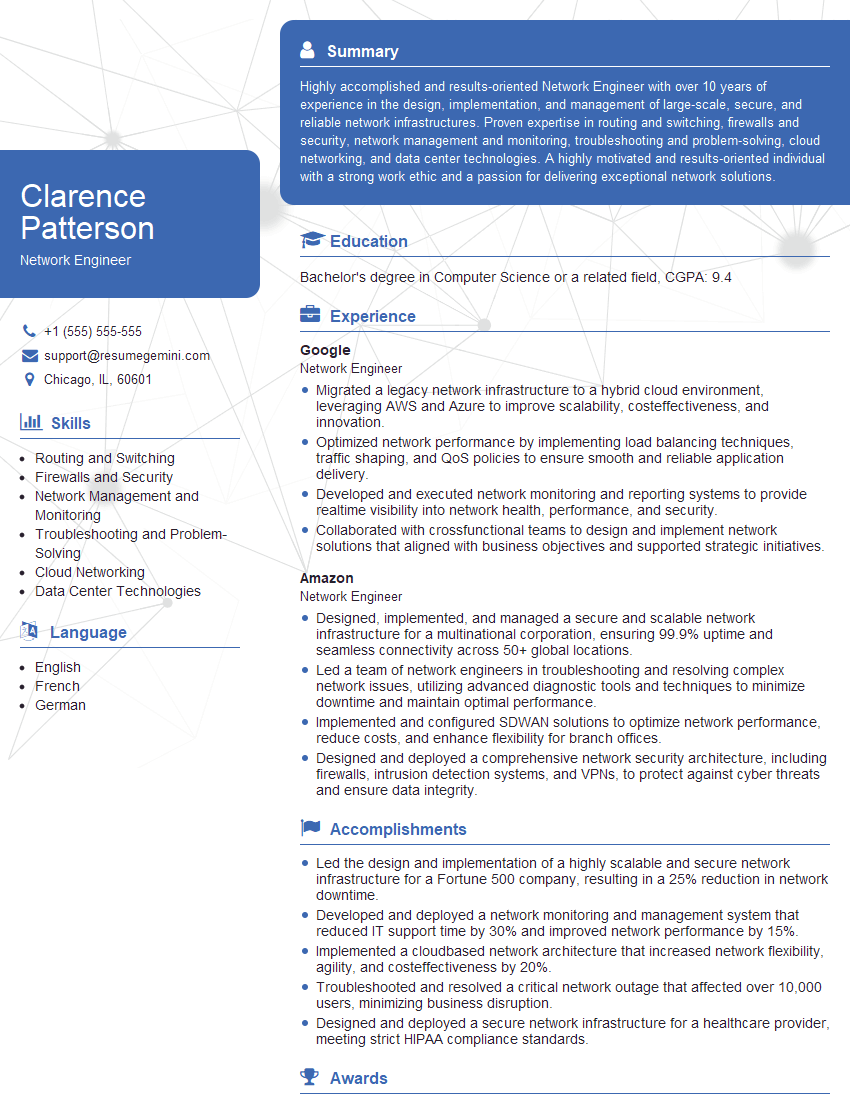
Network Engineer Resume Sample

Automation Engineer Resume Sample
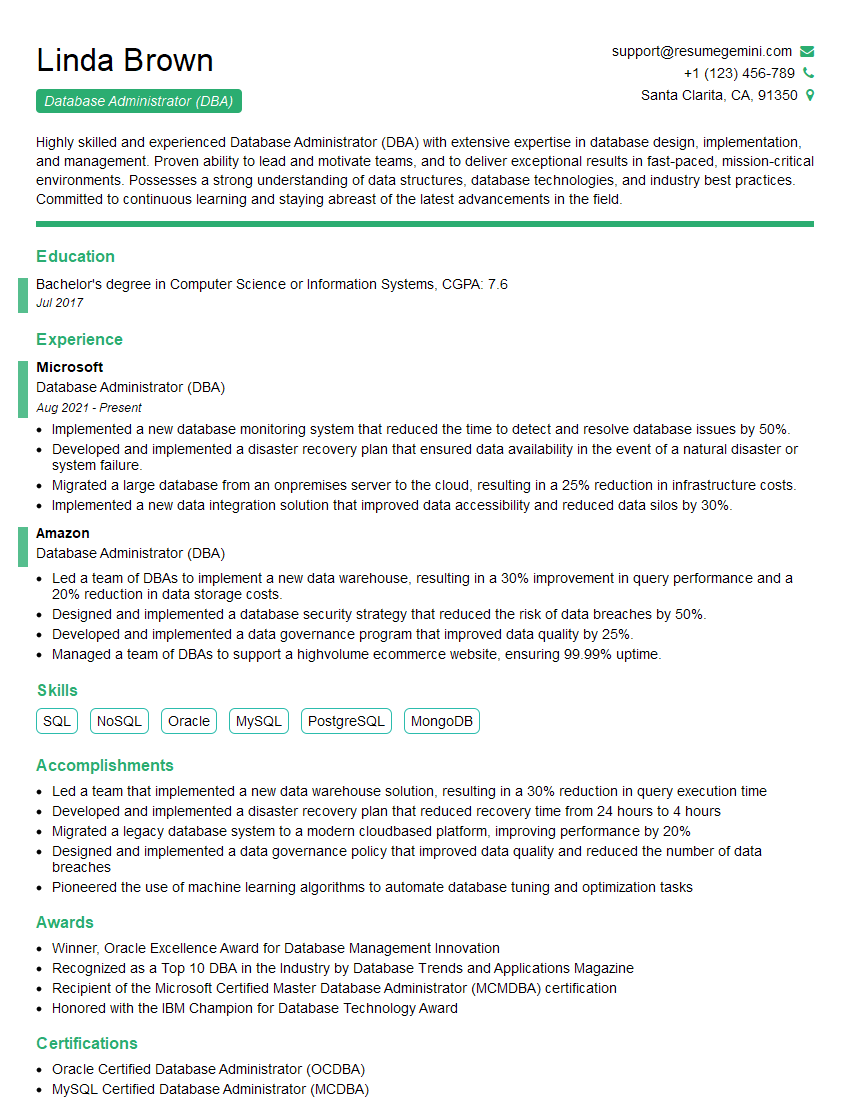
Database Administrator (DBA) Resume Sample

System Architect Resume Sample

IT Manager Resume Sample
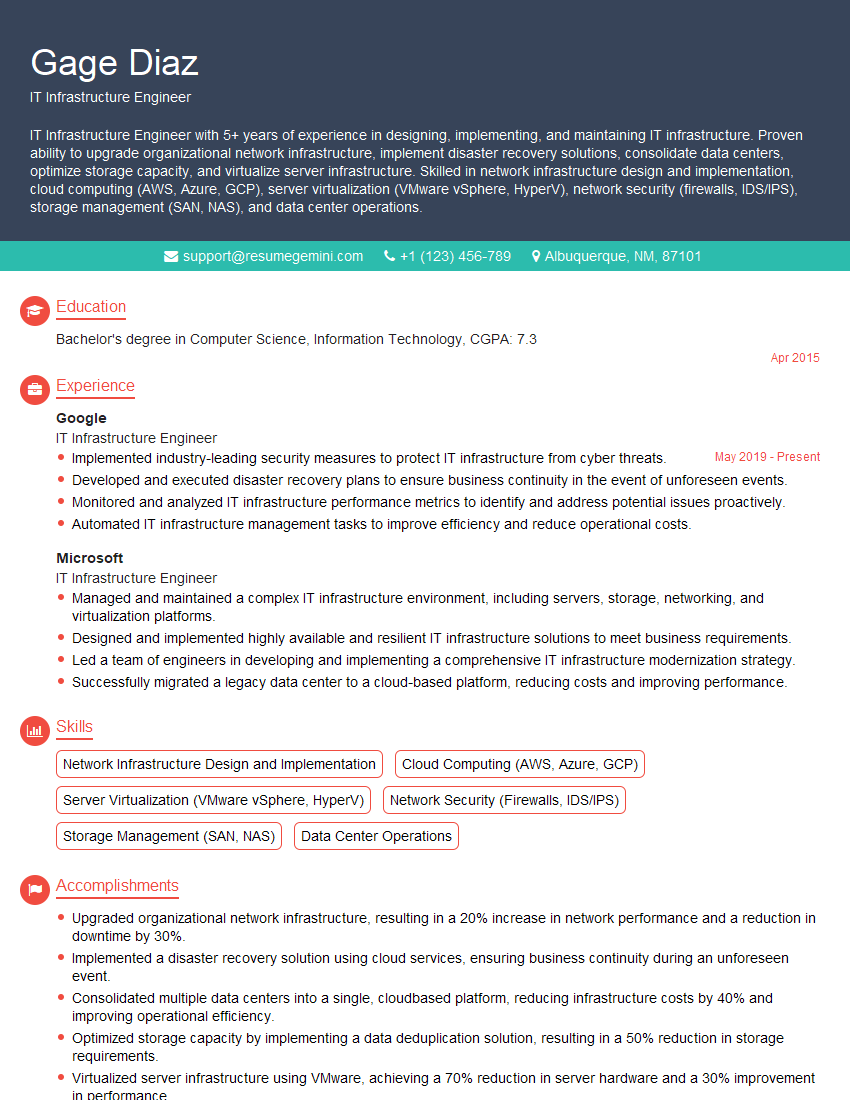
IT Infrastructure Engineer Resume Sample

DevOps Engineer Resume Sample
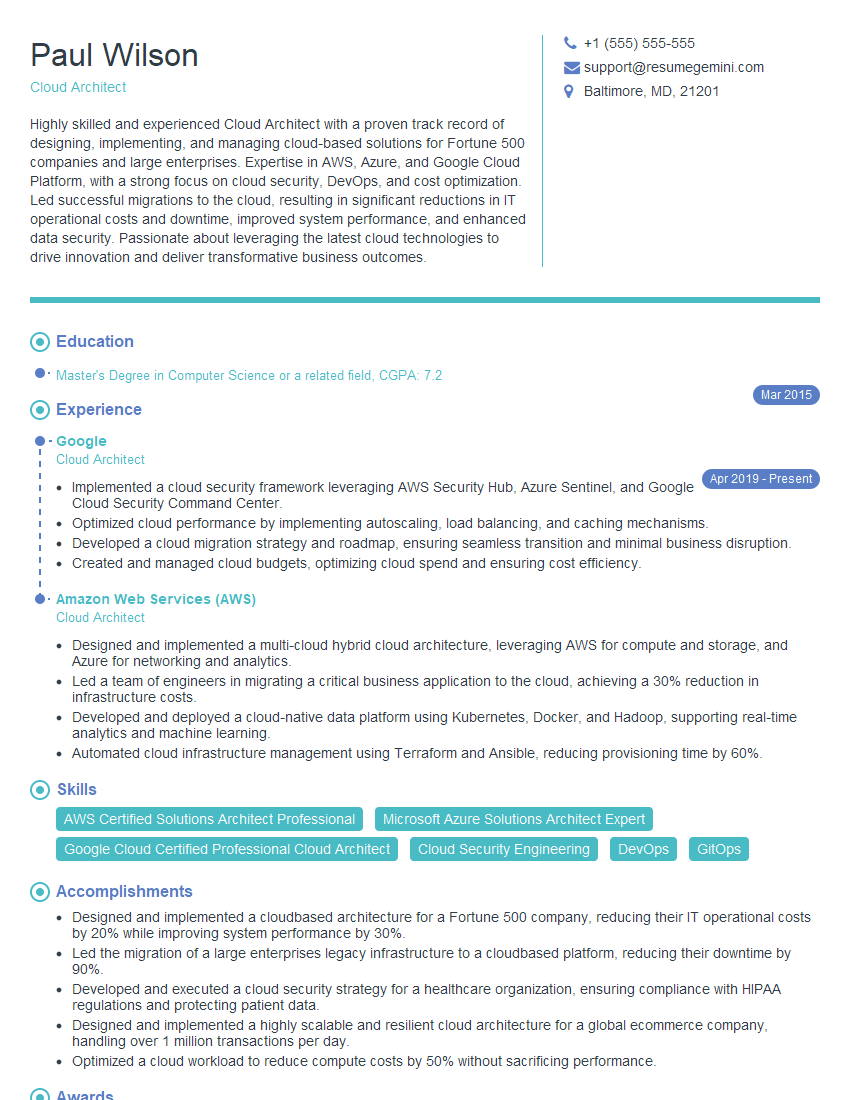
Cloud Architect Resume Sample

Cloud Engineer Resume Sample
Explore more articles
Users Rating of Our Blogs
Share Your Experience
We value your feedback! Please rate our content and share your thoughts (optional).
What Readers Say About Our Blog
Hello,
we currently offer a complimentary backlink and URL indexing test for search engine optimization professionals.
You can get complimentary indexing credits to test how link discovery works in practice.
No credit card is required and there is no recurring fee.
You can find details here:
https://wikipedia-backlinks.com/indexing/
Regards
NICE RESPONSE TO Q & A
hi
The aim of this message is regarding an unclaimed deposit of a deceased nationale that bears the same name as you. You are not relate to him as there are millions of people answering the names across around the world. But i will use my position to influence the release of the deposit to you for our mutual benefit.
Respond for full details and how to claim the deposit. This is 100% risk free. Send hello to my email id: [email protected]
Luka Chachibaialuka
Hey interviewgemini.com, just wanted to follow up on my last email.
We just launched Call the Monster, an parenting app that lets you summon friendly ‘monsters’ kids actually listen to.
We’re also running a giveaway for everyone who downloads the app. Since it’s brand new, there aren’t many users yet, which means you’ve got a much better chance of winning some great prizes.
You can check it out here: https://bit.ly/callamonsterapp
Or follow us on Instagram: https://www.instagram.com/callamonsterapp
Thanks,
Ryan
CEO – Call the Monster App
Hey interviewgemini.com, I saw your website and love your approach.
I just want this to look like spam email, but want to share something important to you. We just launched Call the Monster, a parenting app that lets you summon friendly ‘monsters’ kids actually listen to.
Parents are loving it for calming chaos before bedtime. Thought you might want to try it: https://bit.ly/callamonsterapp or just follow our fun monster lore on Instagram: https://www.instagram.com/callamonsterapp
Thanks,
Ryan
CEO – Call A Monster APP
To the interviewgemini.com Owner.
Dear interviewgemini.com Webmaster!
Hi interviewgemini.com Webmaster!
Dear interviewgemini.com Webmaster!
excellent
Hello,
We found issues with your domain’s email setup that may be sending your messages to spam or blocking them completely. InboxShield Mini shows you how to fix it in minutes — no tech skills required.
Scan your domain now for details: https://inboxshield-mini.com/
— Adam @ InboxShield Mini
Reply STOP to unsubscribe
Hi, are you owner of interviewgemini.com? What if I told you I could help you find extra time in your schedule, reconnect with leads you didn’t even realize you missed, and bring in more “I want to work with you” conversations, without increasing your ad spend or hiring a full-time employee?
All with a flexible, budget-friendly service that could easily pay for itself. Sounds good?
Would it be nice to jump on a quick 10-minute call so I can show you exactly how we make this work?
Best,
Hapei
Marketing Director
Hey, I know you’re the owner of interviewgemini.com. I’ll be quick.
Fundraising for your business is tough and time-consuming. We make it easier by guaranteeing two private investor meetings each month, for six months. No demos, no pitch events – just direct introductions to active investors matched to your startup.
If youR17;re raising, this could help you build real momentum. Want me to send more info?
Hi, I represent an SEO company that specialises in getting you AI citations and higher rankings on Google. I’d like to offer you a 100% free SEO audit for your website. Would you be interested?
Hi, I represent an SEO company that specialises in getting you AI citations and higher rankings on Google. I’d like to offer you a 100% free SEO audit for your website. Would you be interested?
good