Preparation is the key to success in any interview. In this post, we’ll explore crucial Adobe Creative Cloud interview questions and equip you with strategies to craft impactful answers. Whether you’re a beginner or a pro, these tips will elevate your preparation.
Questions Asked in Adobe Creative Cloud Interview
Q 1. Explain the difference between RGB and CMYK color modes.
RGB and CMYK are two different color models used in digital imaging, each suited for different purposes. Think of it like this: RGB is for screens, and CMYK is for print.
RGB (Red, Green, Blue) is an additive color model. It mixes red, green, and blue light to create a wide range of colors. This is how your computer monitor, phone, and TV display colors. The more light added, the brighter the color. Pure white is achieved by combining all three colors at their maximum intensity. Black is the absence of light.
CMYK (Cyan, Magenta, Yellow, Key [black]) is a subtractive color model. It uses cyan, magenta, yellow, and black inks to create colors by subtracting light from white. This is the process used by printers. Ink is applied to a white page, absorbing certain wavelengths of light and reflecting others to create the final color. Adding more ink makes the color darker; pure white is the absence of ink.
Key Differences in a Nutshell:
- RGB: Additive, used for screens, brighter colors.
- CMYK: Subtractive, used for print, more muted colors.
For example, a vibrant green that looks great on your screen might appear duller when printed because the CMYK color space is smaller and less saturated than RGB. Converting between these color spaces often involves color adjustments to achieve the desired result.
Q 2. Describe your workflow for creating a website mockup in Adobe XD.
My workflow for creating a website mockup in Adobe XD prioritizes efficiency and client collaboration. It typically involves these steps:
- Planning & Research: I start by gathering requirements from the client, understanding their target audience, and analyzing competitor websites. This helps define the site’s purpose and desired user experience (UX).
- Wireframing: I then create low-fidelity wireframes to map out the site structure and content placement. This is a quick and iterative process focused on functionality and information architecture, not visual design.
- Prototyping: Once the wireframes are approved, I move to high-fidelity prototyping. I use XD’s design tools to add visual elements, branding, typography, and imagery, creating interactive mockups. This involves setting up interactions like buttons, links, and animations.
- Testing & Iteration: I test the prototype on various devices to ensure responsiveness and identify usability issues. Client feedback is crucial here, allowing me to iterate and refine the design.
- Handoff: Finally, I export the assets in suitable formats for developers, such as images and specifications for interactive elements. XD offers efficient exporting options to streamline the handover process.
Throughout the process, I use XD’s features like artboards for different screen sizes, components for consistent design elements, and repeat grids for efficient layouts. Collaboration features like sharing prototypes and gathering feedback directly in XD are key to keeping the client involved and the project on track.
Q 3. How would you optimize an image for web use in Photoshop?
Optimizing images for web use in Photoshop is crucial for fast loading times and a positive user experience. Here’s my approach:
- Choose the Right Format: JPEG is great for photographs with smooth color gradients. PNG is better for images with sharp edges, text, or transparency. WebP offers the best compression across both types, but browser support may be a factor.
- Resize Appropriately: Don’t upload unnecessarily large images. Resize your images to the exact dimensions needed for your website, avoiding unnecessary scaling by the browser.
- Compression: Use Photoshop’s “Save for Web (Legacy)” or “Save for Web (Optimize)” options to compress your image without significant quality loss. Experiment with different settings to find the right balance between file size and visual quality. Pay close attention to the file size preview. Consider progressive JPEGs which gradually reveal image detail for better user experience during loading.
- Color Mode: Ensure your image is in the sRGB color space, which is the standard for web use.
Example: If you’re preparing a banner image, carefully select the right size, file format (e.g. WebP if possible), and compression level to achieve a balance between image quality and file size to load quickly on your website.
Q 4. What are layers and layer masks in Photoshop and how do you use them?
Layers are the foundation of Photoshop’s non-destructive editing workflow. Imagine them as transparent sheets stacked on top of each other, each containing a different element of your image. Layer masks allow you to selectively hide or reveal parts of a layer without permanently altering the layer itself.
Layers: They allow you to work on individual elements of your image independently, making it easy to edit, move, or adjust them without affecting other parts. For example, you might have separate layers for the background, subject, text, and shadows.
Layer Masks: These are essentially grayscale images applied to a layer. Black hides the layer, white reveals it, and shades of gray create transparency. This is invaluable for blending images seamlessly, creating realistic effects, and making non-destructive edits. For example, you could use a layer mask to create a vignette effect around an image, gradually darkening the edges without altering the original photo.
Using them together: Let’s say you have a photo of a person against a busy background and want to isolate the person. You could create a layer mask on the person’s layer and carefully paint black over the background, leaving only the person visible. Any changes to the original layer would still be apparent only where the mask is white.
Q 5. Explain the use of clipping masks in Adobe Illustrator.
Clipping masks in Illustrator are like cookie cutters for your artwork. They allow you to mask one object using the shape of another, revealing only the portion of the masked object that falls within the shape of the clipping mask.
How it works: You select the object you want to mask (this is masked object) and the object you want to use as the mask (this is the clipping mask). Then, you use the menu command ‘Make Clipping Mask’ (Cmd/Ctrl+7). The masked object will now be visible only where it overlaps with the clipping mask. The clipping mask itself remains visible. This is not a permanent change; the masked object is hidden only conditionally.
Example: Imagine you have a complex illustration of flowers and you want to place them inside a circle. The circle becomes your clipping mask, and the flowers are the masked object. Only the flowers inside the circle will be visible. This maintains editability for both elements; you could later resize or change the shape of the circle and the flowers would automatically adapt to that change.
Q 6. How do you create and manage vector graphics in Illustrator?
Illustrator is built for vector graphics, which are images created using mathematical equations instead of pixels. This makes them scalable without losing quality. Creating and managing vector graphics in Illustrator involves:
- Using the Drawing Tools: The Pen Tool, Pencil Tool, and Shape Tools are the core for creating precise vector shapes. The Pen Tool offers the most control for creating complex curves and paths, whereas the other tools are used for quick, simpler objects.
- Organizing with Layers and Groups: Just like Photoshop, layers help keep your artwork organized and manageable. Grouping related objects keeps them together while you work.
- Using the Pathfinder Panel: This panel allows for combining, subtracting, and merging shapes, creating complex visuals from simpler elements. This helps create intricate shapes by performing boolean operations such as union, intersection, and exclusion.
- Working with Paths: Understanding how to manipulate paths (the outlines of your shapes) is fundamental to precise editing. This includes adjusting anchor points and curves to refine your designs.
- Using the Live Paint Bucket: This tool simplifies the coloring and filling of complex vector shapes with flat or gradient colors.
Example: A logo design is a classic use case for Illustrator’s vector tools. The scalability of vector graphics makes it ideal for printing the logo on business cards, billboards, or websites without any loss of quality or detail. Good organization of layers and groups will help maintain the usability and editing possibilities.
Q 7. What are the different types of type tools in InDesign and when would you use each one?
InDesign offers a variety of type tools for creating and manipulating text within your layouts. Choosing the right tool depends on your specific needs:
- Type Tool (T): This is the most basic tool, used for creating and editing text blocks. It is used for most general text input.
- Vertical Type Tool (Shift+T): Creates text that flows vertically, often used for Asian languages or specific design styles.
- Path Type Tool (Shift+T): This tool creates text that flows along a path you draw or select, ideal for creating curved text along any outline.
- Area Type Tool (Shift+T): This tool creates a text frame that fills a selected area, ideal for wrapping text around images or creating irregular text frames.
- Line Type Tool: Creates text that runs along a horizontal or vertical line, suitable for short text labels.
When to use each: The standard Type Tool is perfect for most body text and headlines. The Vertical Type Tool is essential for languages that read vertically. The Path Type Tool is perfect for creating stylish text effects along curves or paths. The Area Type Tool adds flexibility for text layout in more complex designs. The Line tool is ideal for simple captions or labels.
Q 8. How do you create and manage master pages in InDesign?
Master pages in InDesign are like templates for your document. They allow you to create consistent elements—headers, footers, page numbers, and even background images—that automatically appear on every page. This saves significant time and ensures design uniformity across your entire publication.
To create a master page, you navigate to the Pages panel (Window > Pages). At the bottom of the panel, you’ll find the master page thumbnails. Click the ‘New Master Page’ button (it looks like a page with a plus sign). You can then design your master page elements. Any content placed on a master page will be replicated on every page based on that master. You can create multiple master pages for different sections of your document (e.g., one for chapters, another for appendices). Managing them is straightforward; simply select the master page you want to edit in the Pages panel and make your changes.
For example, if I’m designing a brochure, I might create a master page with the company logo in the top left corner and contact information in the bottom right. This ensures consistency across all pages. If I need to update the logo, I only need to change it on the master page, and all pages using that master will automatically update.
Q 9. Describe your experience with Adobe Premiere Pro video editing.
I have extensive experience in Adobe Premiere Pro, utilizing it for various projects ranging from short corporate videos to longer-form documentaries. My proficiency includes importing and organizing footage, color correction and grading, audio mixing and sweetening, and title/graphic creation within the software itself. I’m comfortable working with various codecs and resolutions, optimizing projects for different platforms and distribution channels. I’m adept at working within deadlines and collaborating effectively with clients and creative teams.
For example, on a recent project for a non-profit, I used Premiere Pro to edit interview footage, incorporate b-roll shots, create dynamic lower-thirds, and add a compelling musical score. The result was a compelling narrative that effectively communicated the organization’s mission and impact.
Q 10. How do you work with audio in Adobe Premiere Pro?
Audio editing in Premiere Pro is crucial for creating a polished final product. It’s more than just adding music; it involves meticulous sound design, dialogue editing, and mixing. My workflow usually begins with organizing audio tracks, removing unwanted noise or pops using tools like the De-noise effect, and adjusting levels for consistency and clarity. I’m proficient in using keyframes to create subtle transitions in audio levels and create dynamic soundscapes. I often use EQ and compression to shape the sound, making it fuller or more present. For dialogue, I might use noise reduction and audio restoration tools to achieve crystal-clear audio. Mixing involves balancing different audio tracks—music, dialogue, sound effects—to create a harmonious soundscape. Finally, I always export the audio mix separately at a high resolution before exporting the video for optimal quality.
Think of it like conducting an orchestra; each instrument (audio track) needs to be balanced correctly for a perfect performance. In Premiere, I use the audio mixer and effects to achieve this balance, ensuring that all elements are clear and contribute positively to the overall sound design.
Q 11. Explain your understanding of keyframing in After Effects.
Keyframing in After Effects is the foundation of animation. It allows you to control the properties of a layer over time, creating movement, changes in opacity, color shifts, and much more. Each keyframe defines a specific value at a specific point in time. After Effects then interpolates—smoothly transitions—between these keyframes to create the animation. You can create keyframes for almost any property—position, scale, rotation, opacity, color—allowing for incredibly detailed and nuanced animation.
For instance, to animate a logo bouncing, you’d create keyframes for its position property. One keyframe at the start, defining its initial position, another at the peak of its bounce, and another at the end, back in its original spot. The software automatically calculates the movement between those points. Different interpolation methods (linear, ease in/out, etc.) control the smoothness and timing of the animation, providing precise control over the visual feel.
Imagine it like drawing a curve with dots; each dot is a keyframe, and the line connecting them is the animation.
Q 12. How do you create and manage motion graphics in After Effects?
Creating and managing motion graphics in After Effects involves a combination of techniques, including using shape layers, text layers, and imported assets. I frequently employ pre-compositions to organize complex animations, ensuring better workflow and easier editing. Masking and effects play a critical role in creating intricate visuals and refined animations. I often start with a sketch or storyboard to plan out the animation. I use different tools for creating various motion graphic elements, for example, the Pen tool for creating precise shapes, and the Puppet Tool for warping and deforming elements. Efficient use of expressions can automate complex animation tasks, reducing manual workload and increasing precision. My focus is always on creating clear, concise, and engaging graphics that serve the purpose of the video or project.
For instance, creating a logo reveal might involve animating the logo’s appearance, perhaps with a glow effect, while simultaneously animating the background color. Using pre-compositions, I can organize these layers and effects for easier management and modification, enabling me to make targeted edits without disrupting the rest of the composition.
Q 13. What are your preferred methods for color correction in Photoshop?
My preferred methods for color correction in Photoshop often involve a layered approach using adjustment layers. I start with assessing the overall tone and balance, making general adjustments before moving to more detailed corrections. For example, I might begin with a Levels adjustment layer to refine the overall contrast, followed by a Curves adjustment layer for more precise tonal adjustments. I often use the Color Balance adjustment layer to fine-tune individual color channels. I also utilize the Hue/Saturation adjustment layer to manipulate the saturation, lightness and hue of different color ranges. To achieve natural results, I tend to work non-destructively, meaning all adjustments are applied through layers, allowing for easy modification and experimentation. Finally, I frequently employ the Camera Raw filter for its powerful adjustment tools, especially for photos straight from the camera.
Think of it as painting with light: you can subtly adjust the intensity, hue, and saturation of different color zones to create an image that is both accurate and visually appealing.
Q 14. How do you use adjustment layers in Photoshop?
Adjustment layers in Photoshop are non-destructive editing tools that allow you to modify the appearance of an image without directly affecting the original pixels. This is crucial for flexibility and ease of revision. Each adjustment layer acts as a filter, changing only the layers beneath it. You can change the blend mode and opacity of the adjustment layer to refine how it modifies the image. Adjustment layers include options like Levels, Curves, Hue/Saturation, Brightness/Contrast and many more. They are incredibly versatile and allow for targeted corrections or stylistic enhancements. The power lies in their non-destructive nature, allowing adjustments to be tweaked or removed at any time without affecting the base image. This maintains the quality and integrity of the original photograph.
For example, if I need to adjust the contrast of an image, I’d create a Curves adjustment layer rather than directly modifying the image’s contrast settings. This way, I can easily adjust the curve, or even delete the layer entirely, to return to the original image. This approach is much more efficient than making adjustments directly to the image pixels.
Q 15. Explain the difference between raster and vector graphics.
Raster and vector graphics are fundamentally different ways of representing images. Think of it like this: raster is like a mosaic, made up of tiny squares of color called pixels, while vector is like a blueprint, defined by mathematical equations describing lines and curves.
- Raster Graphics: These are resolution-dependent. Enlarging a raster image makes it pixelated because you’re just stretching those individual pixels. Common file formats include JPEG, PNG, and TIFF. They’re great for photorealistic images where subtle color gradations are important. Examples include photographs, scanned images, and digital paintings created in Photoshop.
- Vector Graphics: These are resolution-independent. You can scale them to any size without losing quality because the image is defined mathematically, not by pixels. Common file formats include AI (Adobe Illustrator), SVG, and EPS. They’re ideal for logos, illustrations, and anything that needs to be scaled without losing sharpness. Think of a company logo that needs to look crisp on a business card and a billboard.
In Adobe Creative Cloud, Photoshop primarily works with raster graphics, while Illustrator primarily works with vector graphics.
Career Expert Tips:
- Ace those interviews! Prepare effectively by reviewing the Top 50 Most Common Interview Questions on ResumeGemini.
- Navigate your job search with confidence! Explore a wide range of Career Tips on ResumeGemini. Learn about common challenges and recommendations to overcome them.
- Craft the perfect resume! Master the Art of Resume Writing with ResumeGemini’s guide. Showcase your unique qualifications and achievements effectively.
- Don’t miss out on holiday savings! Build your dream resume with ResumeGemini’s ATS optimized templates.
Q 16. Describe your experience with Adobe Acrobat Pro.
I have extensive experience with Adobe Acrobat Pro, using it for everything from creating and editing PDFs to managing document workflows. I’ve used it to:
- Combine and Organize Documents: Merging multiple files into a single, well-structured PDF for easy distribution and archiving. For example, consolidating client presentations or lengthy research papers.
- Redacting Sensitive Information: Removing confidential data from documents before sharing them, ensuring compliance with privacy regulations. I’ve worked on projects requiring careful redaction of personal and financial details.
- Creating Interactive Forms: Designing forms with fillable fields, drop-down menus, and calculated results, streamlining data collection processes. This has been incredibly useful for automating surveys and client feedback forms.
- Adding Security Measures: Protecting PDFs with passwords, digital signatures, and permissions to restrict access and prevent unauthorized modifications.
My proficiency extends to advanced features like optical character recognition (OCR) for making scanned documents searchable and editable, and creating accessible PDFs compliant with ADA standards.
Q 17. How do you create interactive PDFs using Adobe Acrobat?
Creating interactive PDFs in Adobe Acrobat is straightforward. You can add various interactive elements to enhance user engagement and functionality.
- Using the Tools Panel: Acrobat Pro provides a dedicated tools panel with options to add buttons, links, multimedia content (audio, video), and form fields.
- Form Fields: Create interactive forms with text fields, checkboxes, radio buttons, and more, allowing users to fill out information directly within the PDF. I often use this for online questionnaires and applications.
- Navigation Tools: Add bookmarks, hyperlinks, and page thumbnails to create a structured and easy-to-navigate document. This improves user experience, especially for lengthy reports or manuals.
- Multimedia Integration: Embed videos and audio files to create rich and engaging content. This is particularly useful for training materials or presentations.
- Actions and JavaScript: For more complex interactions, Acrobat supports scripting with JavaScript, allowing you to automate tasks and create custom behaviours. This requires more advanced knowledge of scripting languages.
For example, I once created an interactive training manual with embedded videos, clickable quizzes, and a progress tracker, making the learning experience far more engaging than a static document.
Q 18. How do you use the Pen Tool in Illustrator to create precise paths?
The Pen Tool in Illustrator is essential for creating precise, smooth paths. It allows for unparalleled control over the shape and curvature of your lines.
- Anchoring Points: The Pen Tool works by creating anchor points, which define the beginning and end of each curve segment. Clicking creates a sharp corner; dragging creates a smooth curve.
- Direction Handles: When creating a curve, you’ll see direction handles extending from each anchor point. These control the shape and curvature of the line segment. Adjusting their length and angle allows for fine-tuning.
- Precise Positioning: Use Illustrator’s rulers and guides to ensure accuracy. The Smart Guides feature helps snap objects to specific points and aligns them precisely. Keyboard shortcuts like Shift (for perfectly straight lines and 45-degree angles) and Alt (to adjust direction handles symmetrically) can greatly improve efficiency.
- Path Editing Tools: After creating the path, you can further refine it using tools like the Direct Selection Tool (white arrow) to adjust individual anchor points and direction handles, ensuring perfect accuracy.
Creating precise paths with the Pen Tool is essential for logo design, illustration, and any work requiring high-quality, scalable vector graphics. It’s a skill that takes practice, but mastering it significantly improves workflow efficiency and creative capabilities.
Q 19. Explain your experience with using Adobe Audition for audio editing.
My experience with Adobe Audition encompasses a wide range of audio editing tasks, from basic cleanup to advanced sound design. I’ve used it for:
- Audio Cleaning and Restoration: Removing noise, hiss, and clicks from recordings, enhancing audio quality for podcasts, voiceovers, and music. I’ve used tools like spectral frequency display and noise reduction to achieve this.
- Sound Effects Design: Creating and manipulating sound effects, utilizing features like spectral editing and multiband compression to achieve desired effects. I’ve worked on projects requiring unique and creative sound design for video games and multimedia presentations.
- Multitrack Editing: Working with multiple audio tracks simultaneously, adjusting levels, panning, and adding effects to create a polished mix. This is crucial for music production and podcasting.
- Audio Mastering: Preparing audio for final distribution, applying mastering techniques to optimize loudness and dynamics. This involves careful EQ, compression, and limiting to ensure the audio sounds its best.
I’m proficient in using Audition’s many effects and tools, and I’m comfortable working with a variety of audio formats.
Q 20. How do you handle large files in Adobe Photoshop?
Handling large files in Photoshop requires a strategic approach to manage both performance and storage space. Here’s how I approach it:
- Using High-Resolution Monitors: Working with a high-resolution monitor reduces the need to zoom in excessively, which can slow down the application.
- Layer Management: Keeping the number of layers to a minimum, merging layers when possible, and using layer groups to organize complex images. This prevents unnecessary memory usage.
- Memory Allocation: Adjusting Photoshop’s memory allocation in the Preferences. Allocating a larger percentage of RAM to Photoshop can improve performance but could potentially impact the overall system performance.
- Using 16-bit or 8-bit Images: Choosing the appropriate bit depth. 16-bit offers greater color depth but significantly increases file size. 8-bit is a good balance between color depth and file size.
- Saving in a Lossy Format (JPEG, etc.): For images where perfect fidelity isn’t essential, saving in a lossy format like JPEG significantly reduces file size. This may introduce some data loss but may improve handling large image files.
- Saving as PSD with Layers if needed: If the image requires layers for further editing, save as a PSD file to maintain editing capabilities. Consider flattening the image if it’s the final output.
- Using external hard drives or cloud storage: Storing the image files on external drives or cloud storage to free up system storage.
By employing these methods, you can effectively work with large files in Photoshop without significant performance issues.
Q 21. Describe your experience with Adobe Bridge for asset management.
Adobe Bridge is a powerful asset management tool within the Creative Cloud suite. I’ve used it extensively to organize, preview, and manage my creative assets.
- File Organization: Using Bridge’s intuitive interface to browse and organize files by metadata, keywords, ratings, and more. This keeps my projects organized and easy to find specific files.
- Batch Processing: Using Bridge to perform batch operations on multiple files at once, such as renaming, resizing, and converting file formats. This saves a significant amount of time compared to manually processing each file.
- Metadata Management: Adding and editing metadata, including keywords and copyright information, to ensure proper asset management and tracking. This is essential for large projects with numerous files.
- File Preview: Previewing files without opening them in their respective applications, speeding up workflow and allowing for quick selection of necessary assets. This helps to quickly find the right files without having to open them.
- Integration with Other Apps: Seamlessly transferring files between Bridge and other Adobe applications like Photoshop and Illustrator, streamlining workflow and improving efficiency.
I find Adobe Bridge to be invaluable for maintaining a well-organized and efficient digital asset library, improving my overall productivity and creative process.
Q 22. How do you create and manage libraries in Adobe Creative Cloud?
Creating and managing libraries in Adobe Creative Cloud is a fantastic way to organize your assets and ensure consistency across projects. Think of libraries as your centralized, easily accessible toolbox for graphics, colors, text styles, and more. You can create them directly within applications like Photoshop, Illustrator, or InDesign.
- Creating a Library: In most Creative Cloud apps, you’ll find the Libraries panel (usually accessed via Window > Libraries). Click the ‘Create New Library’ button (often a plus icon) to create a new library and give it a descriptive name.
- Adding Assets: Drag and drop assets (images, graphics, logos, text styles, color swatches, etc.) directly from your working file into the Libraries panel. Alternatively, some apps allow you to create assets within the Libraries panel itself.
- Organizing Assets: You can create folders within your libraries to categorize your assets, making it easy to find what you need. Rename, delete or even duplicate assets as needed.
- Syncing and Sharing: Libraries are synced across devices signed in with your Adobe ID. This means assets added on one computer are instantly accessible on others. You can also share your libraries with collaborators, enhancing team workflows. This makes collaborative projects much more streamlined and efficient.
- Using Assets: To use a library asset, simply drag and drop it from your library panel onto your canvas in your current project. This ensures consistency in branding and style throughout various projects.
For example, I once created a library of brand assets (logo, fonts, color palettes) for a client. This ensured consistent branding across all their marketing materials – business cards, website, social media posts – created in different Adobe applications. This saved a lot of time and guaranteed consistent visual identity.
Q 23. What are some common keyboard shortcuts you use in Adobe Photoshop?
Keyboard shortcuts are essential for efficiency in Photoshop. They allow you to work faster and more intuitively. Here are some of my go-to shortcuts:
Ctrl+Z (Cmd+Z): Undo – a lifesaver when you make a mistake!Ctrl+S (Cmd+S): Save – saving frequently is crucial to avoid data loss.Ctrl+Alt+Z (Cmd+Option+Z): Redo – reverse an undo operation.Ctrl+J (Cmd+J): Duplicate Layer – invaluable for non-destructive editing.Ctrl+T (Cmd+T): Free Transform – resize, rotate, and skew images easily.B: Brush Tool – for painting and retouching.M: Marquee Tool – for selecting areas.V: Move Tool – for moving layers and selections.Ctrl+Shift+Alt+S (Cmd+Shift+Option+S): Save for Web (Legacy) – for optimizing images for web use.
I constantly use these shortcuts; they’ve become muscle memory, significantly speeding up my workflow. For example, during a recent e-commerce product photoshoot retouching project, the ability to quickly duplicate layers and use free transform sped up my editing process, allowing me to deliver the final product under a tight deadline.
Q 24. What are some common keyboard shortcuts you use in Adobe Illustrator?
Illustrator shortcuts are just as crucial as Photoshop’s. They improve vector-based artwork creation significantly. Some of my favorites include:
V: Selection Tool – for selecting and moving objects.A: Direct Selection Tool – for editing individual anchor points.P: Pen Tool – for creating precise vector paths.L: Lasso Tool – for freehand selections.M: Rectangle Tool – for creating rectangles and squares.E: Ellipse Tool – for creating circles and ovals.Ctrl+C (Cmd+C): Copy – duplicates selected objects.Ctrl+V (Cmd+V): Paste – inserts copied objects.Ctrl+D (Cmd+D): Duplicate – creates a copy of the selected object.Ctrl+[ (Cmd+[): Send Backward – moves the selected object backward in the layer order.Ctrl+] (Cmd+]): Bring Forward – moves selected object forward in the layer order.
For instance, while creating a complex logo design, using the Pen tool and its shortcuts helped me create smooth, accurate curves with speed. The ability to quickly duplicate and adjust elements was crucial for iterative refinement.
Q 25. How do you ensure color consistency across different Adobe applications?
Maintaining color consistency across Adobe applications is paramount for professional projects. This is achieved through several methods:
- Using Color Swatches: Create and save color swatches in one application and reuse them in others via Creative Cloud Libraries. This ensures exact color matching across all your projects.
- Adobe Color Themes: Explore and utilize Adobe Color to create and save harmonious color themes which can then be accessed and used in various Adobe applications.
- Color Profiles: Ensure your documents are using consistent color profiles (e.g., sRGB, Adobe RGB). This is crucial, especially when printing, to avoid unexpected color shifts.
- Working in CMYK or RGB Consistently: Understand which color model is appropriate for your final output (CMYK for print, RGB for screens) and stick to that model to avoid color mismatches.
- Proofing: Employ color proofing techniques within your chosen application to preview your work as it will appear on the intended output device (monitor or printer).
In a recent branding project, I used a shared color library to ensure perfect color continuity across the website design (in Photoshop and Illustrator) and print collateral (InDesign). Using this methodology avoided costly reprint revisions due to color discrepancies.
Q 26. Describe a time you had to troubleshoot a technical issue in Adobe Creative Cloud.
During a project involving a high-resolution timelapse video sequence in After Effects, I encountered an issue with the video files becoming increasingly corrupted during rendering. The problem was the RAM limitations of my system. The high resolution combined with many effects caused the system to run out of available RAM.
My troubleshooting steps were as follows:
- Identify the problem: I pinpointed the issue to the system’s memory limitations by monitoring resource usage during rendering.
- Memory Management: I then adjusted After Effects’ cache settings to optimize RAM usage.
- Proxy Files: I created lower-resolution proxy files of the footage to reduce the rendering load on my system.
- Render Settings: I also explored optimizing the render settings to reduce the processing strain.
- System Upgrade: Finally, for future projects, I planned for an upgrade to a system with more RAM to prevent similar issues.
By systematically addressing the problem through a combination of software adjustments and system-level considerations, I successfully completed the project without data loss and learned valuable lessons about memory management in video editing.
Q 27. How do you stay up-to-date with the latest features and updates in Adobe Creative Cloud?
Staying current with Adobe Creative Cloud features and updates is essential for maintaining my skills and leveraging the latest tools. I employ several strategies:
- Adobe’s Website and Blogs: Regularly visit Adobe’s official website and blogs to read about new features, updates, and tutorials.
- Adobe Creative Cloud App Updates: Enabling automatic updates for the Creative Cloud applications ensures that I always have the latest versions and features installed.
- Online Tutorials and Courses: I watch tutorials and follow along with online courses (such as those offered by LinkedIn Learning or Skillshare) to explore new features in more detail.
- Industry Publications and Forums: I follow industry publications and online forums which discuss latest application releases and tips and tricks.
- Adobe User Groups: Participating in local or online Adobe user groups provides opportunities to learn from other professionals and discuss new features collaboratively.
This multi-faceted approach keeps me informed and ready to adapt my workflow for optimal results with the ever-evolving Adobe Creative Cloud suite.
Key Topics to Learn for Adobe Creative Cloud Interview
- Photoshop Mastery: Understanding layers, blending modes, adjustment layers, and non-destructive editing workflows. Practical application: Demonstrate your ability to retouch images, create compelling compositions, and prepare images for print or web.
- Illustrator Expertise: Working with vectors, creating and manipulating shapes, using the pen tool effectively, and understanding color palettes. Practical application: Showcasing your ability to design logos, create illustrations, and prepare artwork for various applications.
- InDesign Proficiency: Mastering page layout, typography, and working with master pages and styles. Practical application: Demonstrating your skill in creating professional brochures, magazines, or other print materials.
- Adobe Bridge & Asset Management: Efficiently organizing, previewing, and managing large volumes of creative assets. Practical application: Showcasing your ability to maintain a well-organized digital asset library and optimize workflows.
- Understanding Color Theory & Design Principles: Applying knowledge of color harmony, typography, and visual hierarchy to create effective and aesthetically pleasing designs. Practical application: Demonstrate how these principles inform your design choices and problem-solving approaches.
- Creative Cloud Collaboration Tools: Familiarity with features enabling teamwork and version control within the Creative Cloud ecosystem. Practical application: Explain your experience using collaborative tools to manage projects and share assets effectively.
- File Formats & Exporting: Understanding the strengths and weaknesses of various file formats (JPEG, PNG, PDF, SVG, etc.) and optimizing for different output mediums. Practical application: Explain how you choose the appropriate file format for a given project and how you optimize for print vs. web.
Next Steps
Mastering Adobe Creative Cloud is crucial for career advancement in the design and digital media industries. A strong command of these tools significantly enhances your marketability and opens doors to exciting opportunities. To increase your job prospects, focus on creating an ATS-friendly resume that highlights your skills and experience effectively. We strongly recommend using ResumeGemini, a trusted resource for building professional resumes, to craft a compelling document that showcases your abilities. Examples of resumes tailored to Adobe Creative Cloud expertise are available to help you get started.

Art Director Resume Sample

Creative Director Resume Sample

Social Media Manager Resume Sample

Web Designer Resume Sample
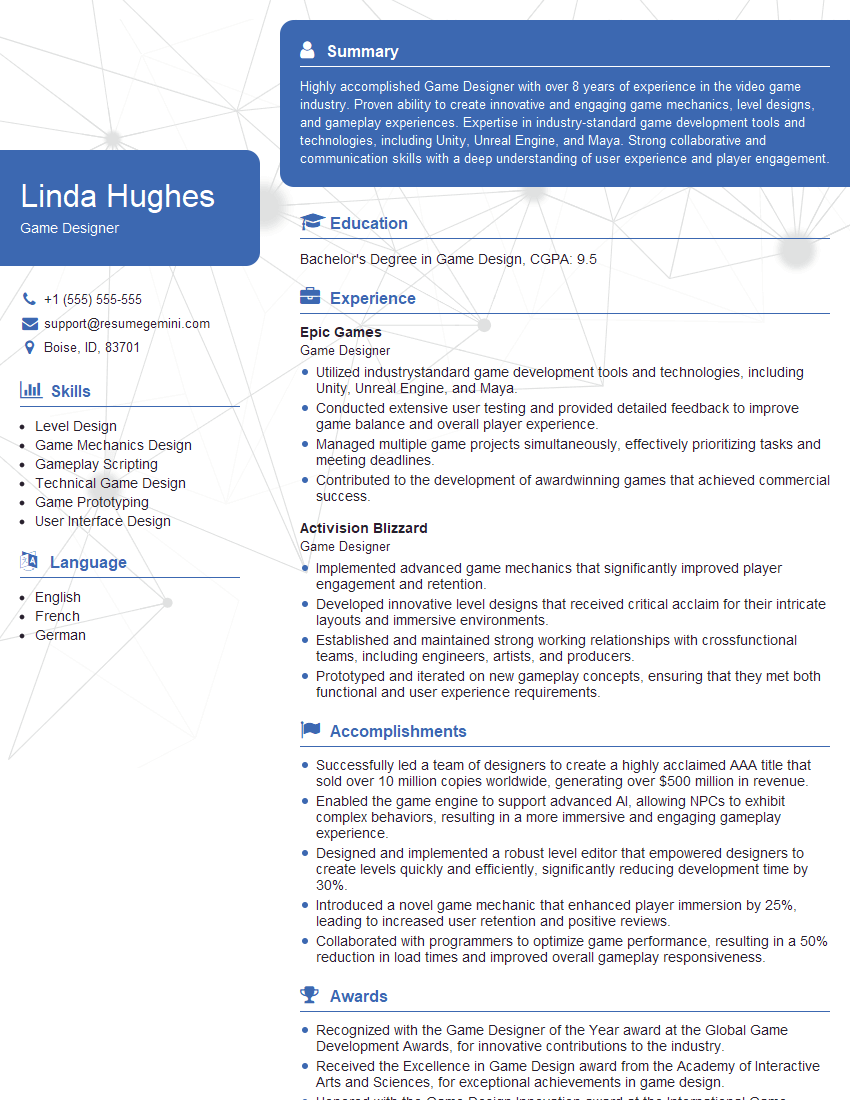
Game Designer Resume Sample
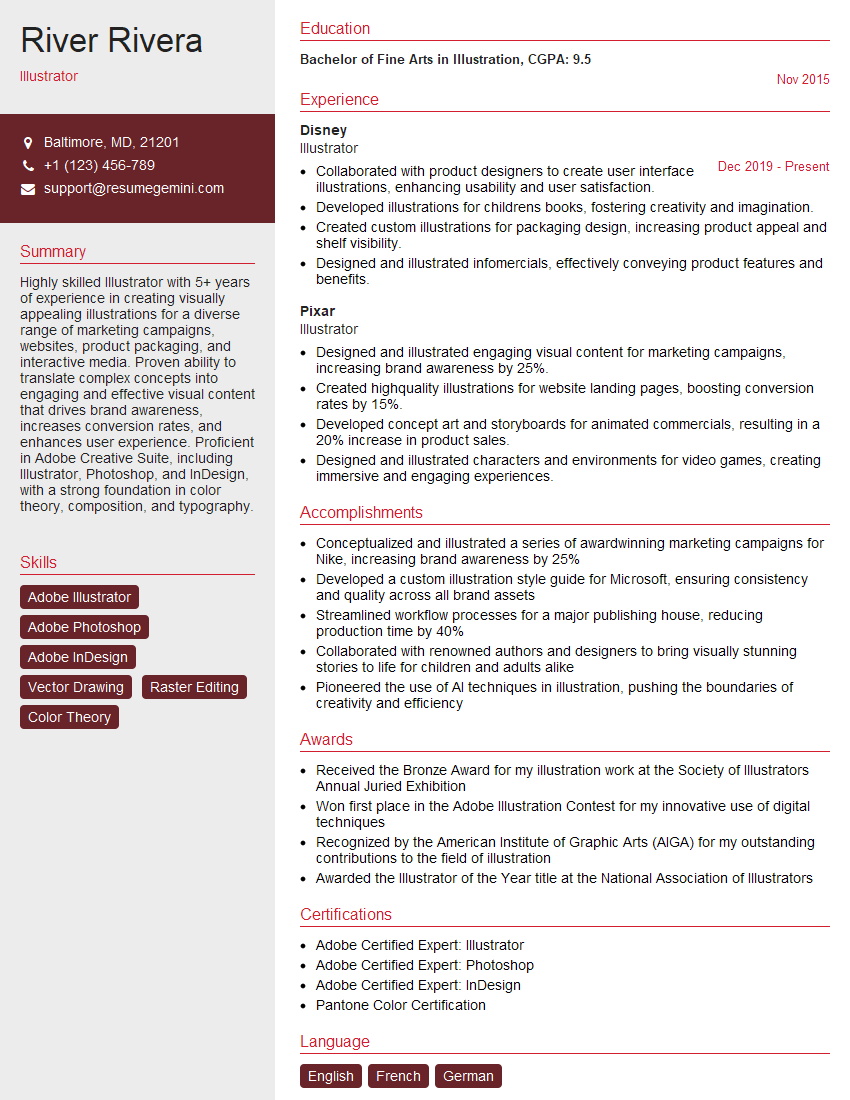
Illustrator Resume Sample
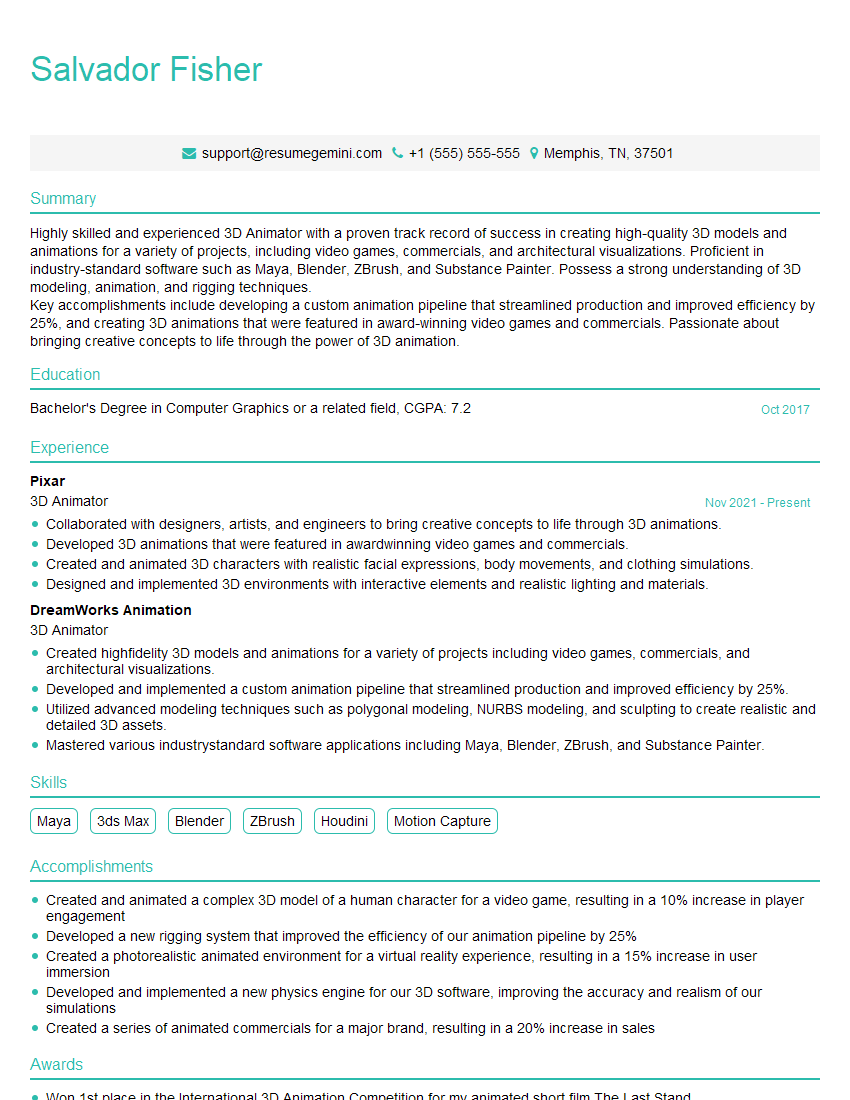
3D Animator Resume Sample
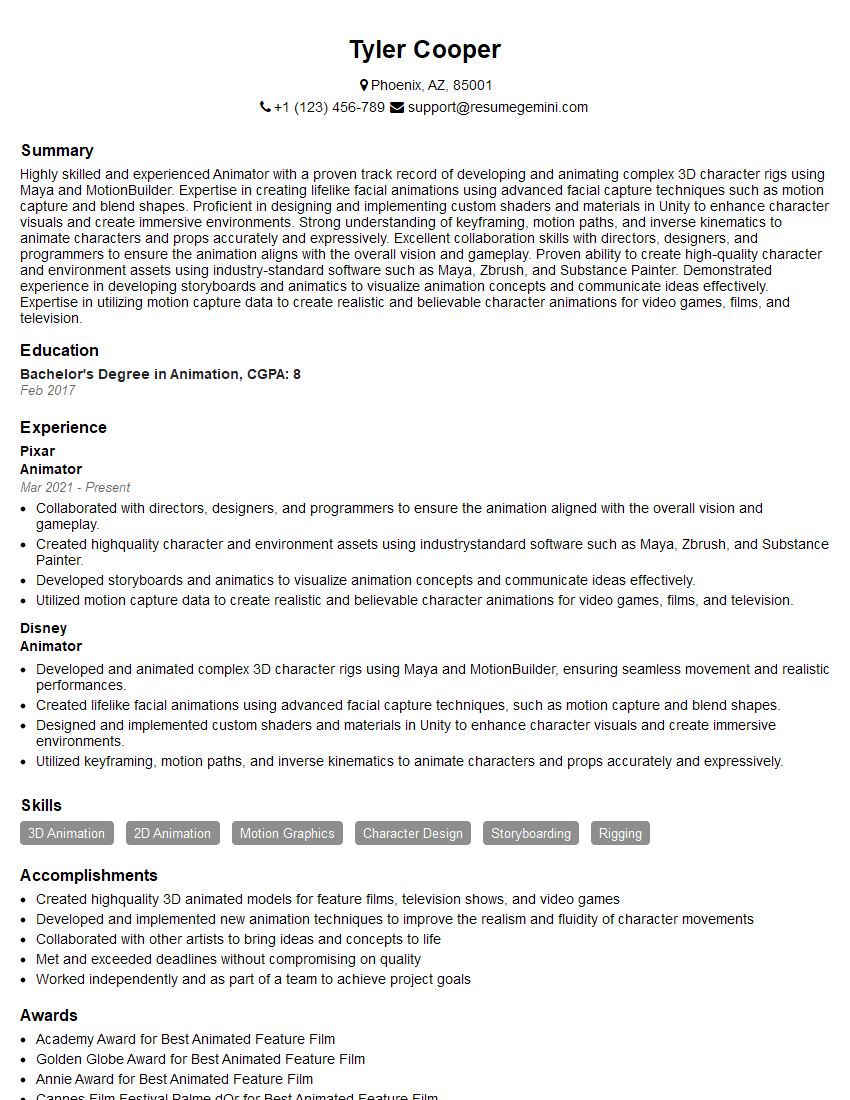
Animator Resume Sample

Graphic Designer Resume Sample
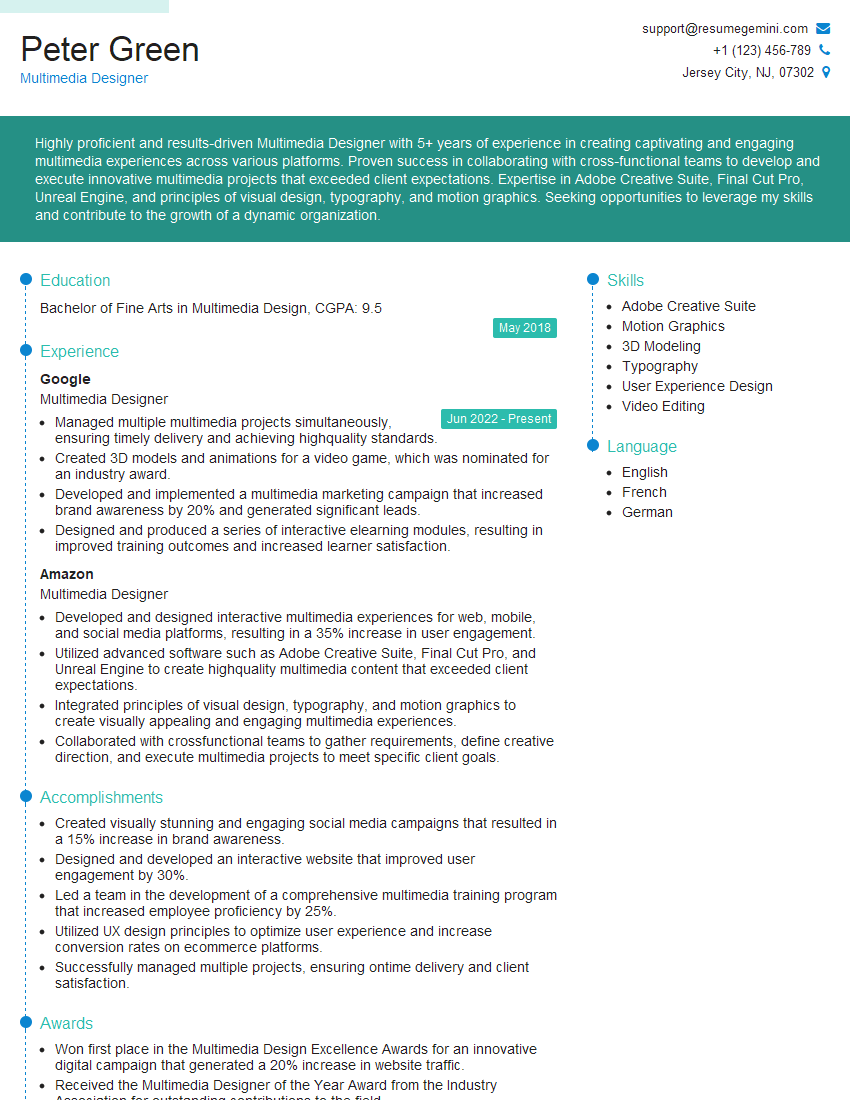
Multimedia Designer Resume Sample
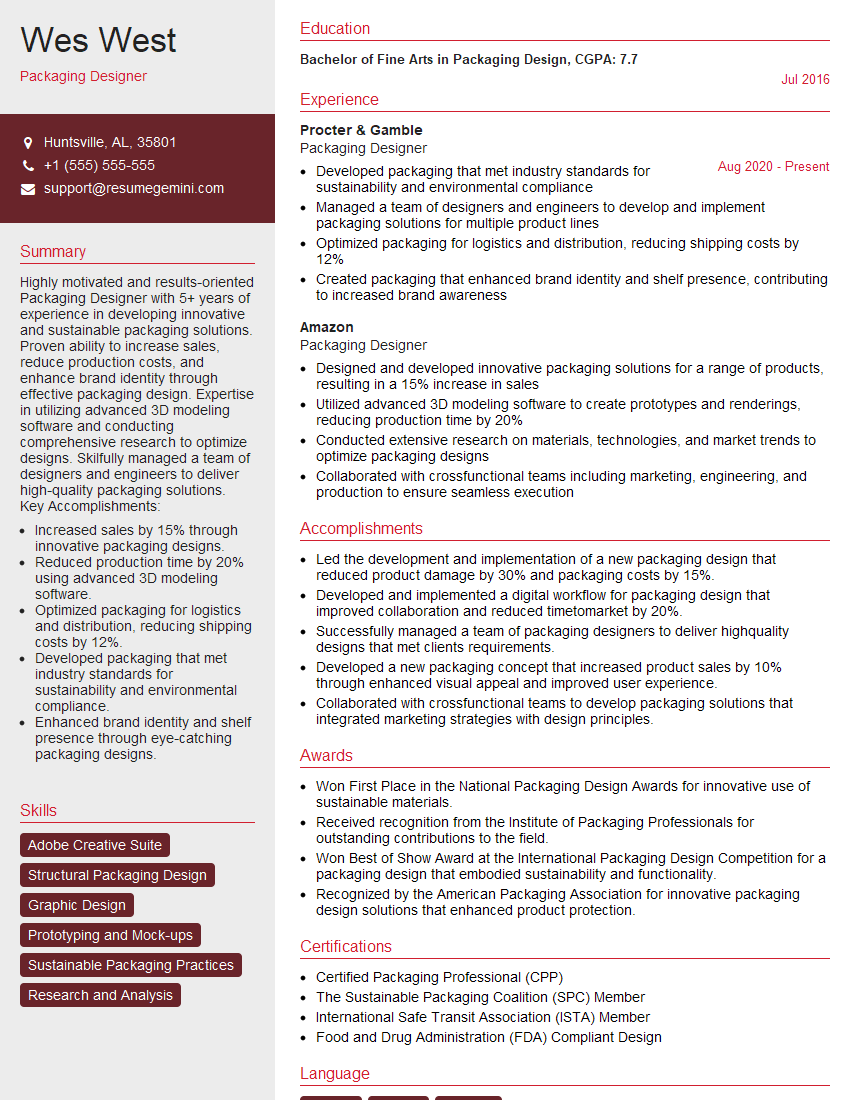
Packaging Designer Resume Sample

Photo Editor Resume Sample
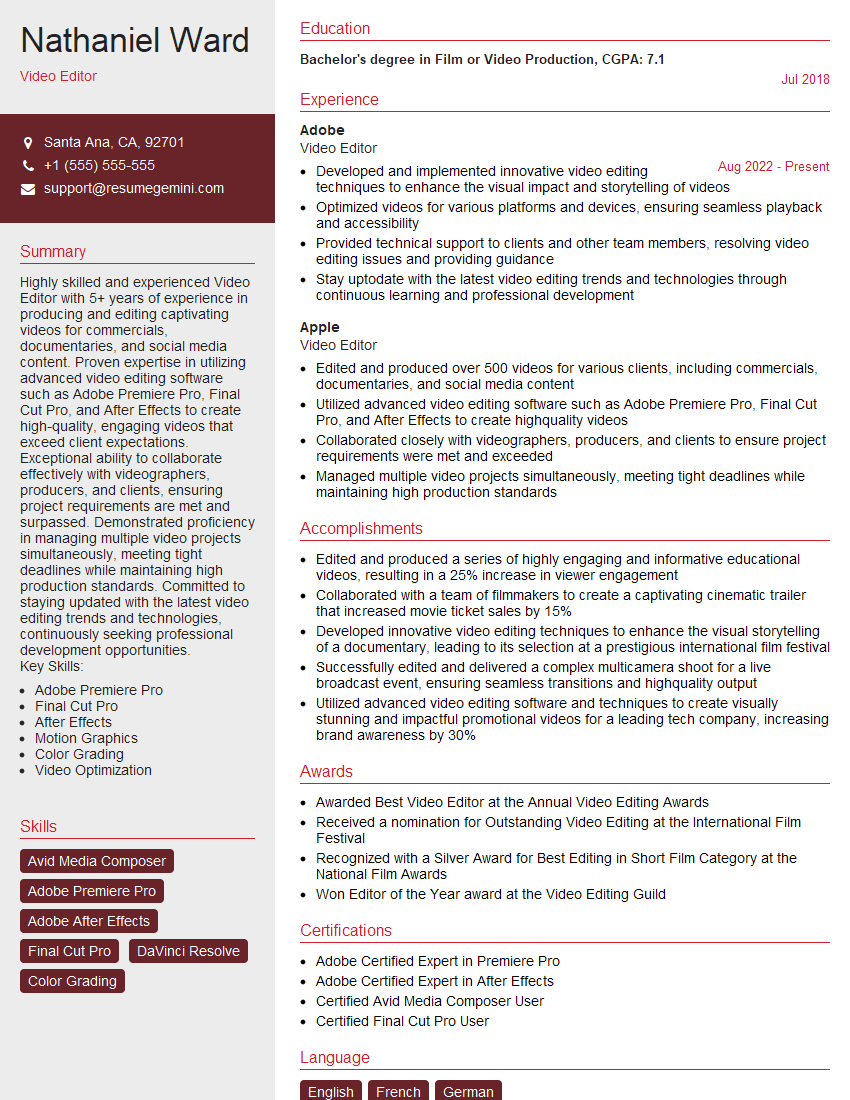
Video Editor Resume Sample
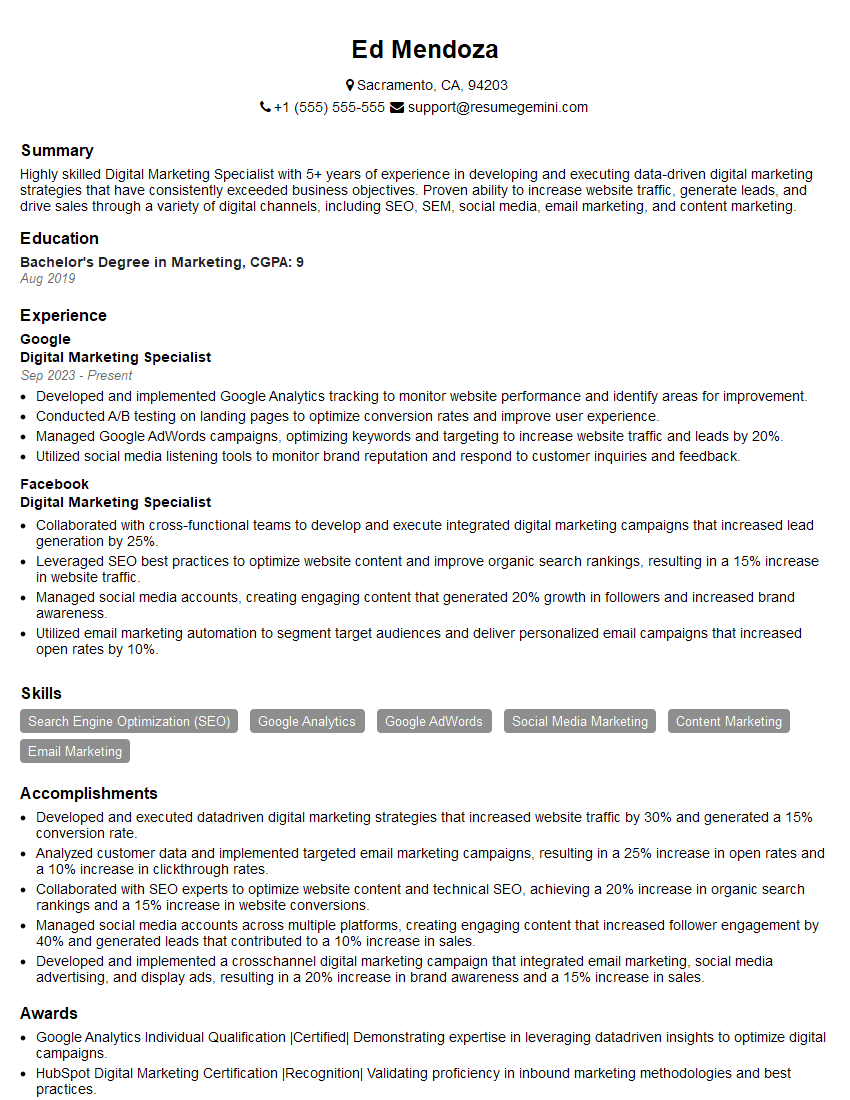
Digital Marketing Specialist Resume Sample

Content Creator Resume Sample
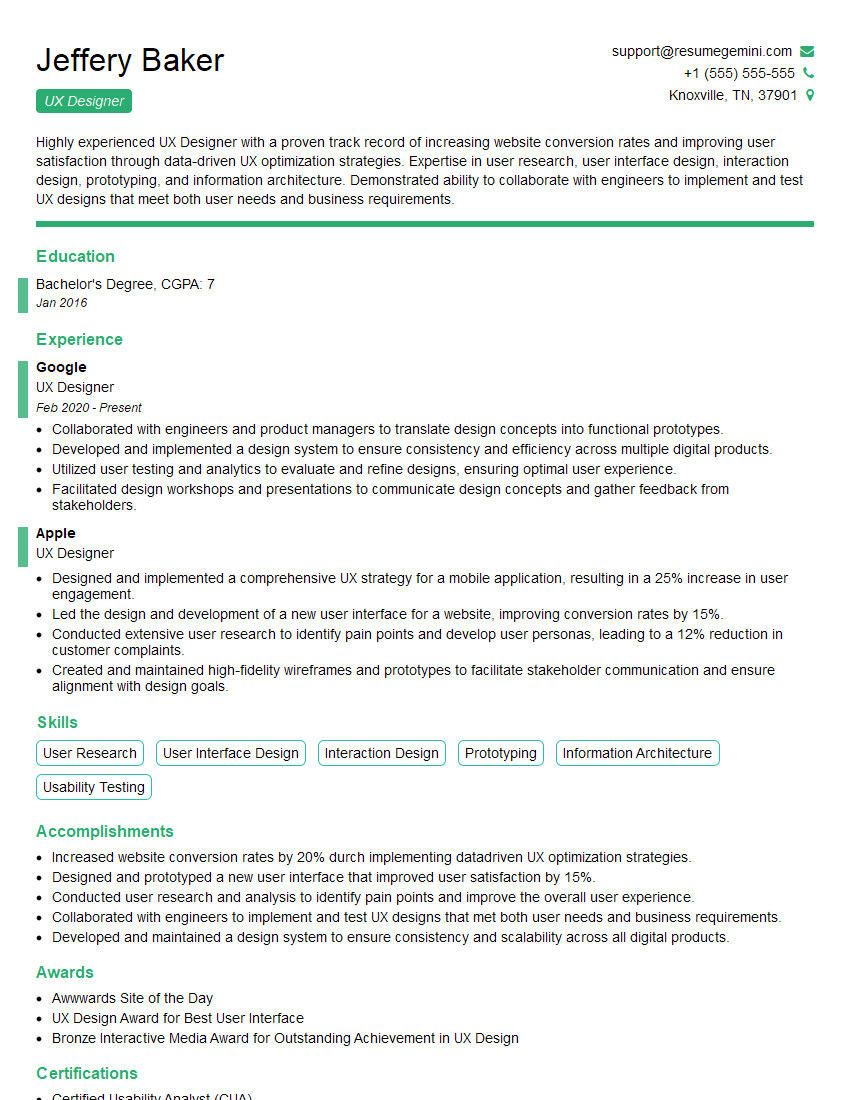
UX Designer Resume Sample
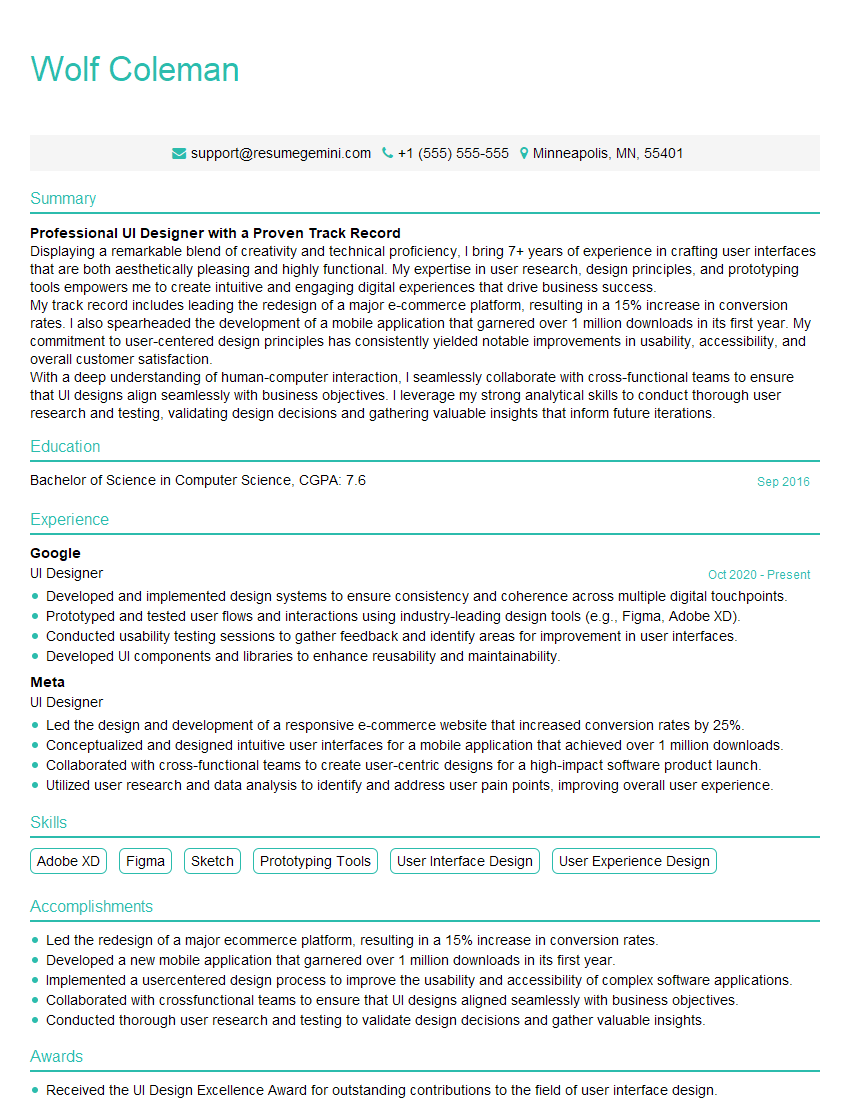
UI Designer Resume Sample
Explore more articles
Users Rating of Our Blogs
Share Your Experience
We value your feedback! Please rate our content and share your thoughts (optional).
What Readers Say About Our Blog
Attention music lovers!
Wow, All the best Sax Summer music !!!
Spotify: https://open.spotify.com/artist/6ShcdIT7rPVVaFEpgZQbUk
Apple Music: https://music.apple.com/fr/artist/jimmy-sax-black/1530501936
YouTube: https://music.youtube.com/browse/VLOLAK5uy_noClmC7abM6YpZsnySxRqt3LoalPf88No
Other Platforms and Free Downloads : https://fanlink.tv/jimmysaxblack
on google : https://www.google.com/search?q=22+AND+22+AND+22
on ChatGPT : https://chat.openai.com?q=who20jlJimmy20Black20Sax20Producer
Get back into the groove with Jimmy sax Black
Best regards,
Jimmy sax Black
www.jimmysaxblack.com
Hi I am a troller at The aquatic interview center and I suddenly went so fast in Roblox and it was gone when I reset.
Hi,
Business owners spend hours every week worrying about their website—or avoiding it because it feels overwhelming.
We’d like to take that off your plate:
$69/month. Everything handled.
Our team will:
Design a custom website—or completely overhaul your current one
Take care of hosting as an option
Handle edits and improvements—up to 60 minutes of work included every month
No setup fees, no annual commitments. Just a site that makes a strong first impression.
Find out if it’s right for you:
https://websolutionsgenius.com/awardwinningwebsites
Hello,
we currently offer a complimentary backlink and URL indexing test for search engine optimization professionals.
You can get complimentary indexing credits to test how link discovery works in practice.
No credit card is required and there is no recurring fee.
You can find details here:
https://wikipedia-backlinks.com/indexing/
Regards
NICE RESPONSE TO Q & A
hi
The aim of this message is regarding an unclaimed deposit of a deceased nationale that bears the same name as you. You are not relate to him as there are millions of people answering the names across around the world. But i will use my position to influence the release of the deposit to you for our mutual benefit.
Respond for full details and how to claim the deposit. This is 100% risk free. Send hello to my email id: lukachachibaialuka@gmail.com
Luka Chachibaialuka
Hey interviewgemini.com, just wanted to follow up on my last email.
We just launched Call the Monster, an parenting app that lets you summon friendly ‘monsters’ kids actually listen to.
We’re also running a giveaway for everyone who downloads the app. Since it’s brand new, there aren’t many users yet, which means you’ve got a much better chance of winning some great prizes.
You can check it out here: https://bit.ly/callamonsterapp
Or follow us on Instagram: https://www.instagram.com/callamonsterapp
Thanks,
Ryan
CEO – Call the Monster App
Hey interviewgemini.com, I saw your website and love your approach.
I just want this to look like spam email, but want to share something important to you. We just launched Call the Monster, a parenting app that lets you summon friendly ‘monsters’ kids actually listen to.
Parents are loving it for calming chaos before bedtime. Thought you might want to try it: https://bit.ly/callamonsterapp or just follow our fun monster lore on Instagram: https://www.instagram.com/callamonsterapp
Thanks,
Ryan
CEO – Call A Monster APP
To the interviewgemini.com Owner.
Dear interviewgemini.com Webmaster!
Hi interviewgemini.com Webmaster!
Dear interviewgemini.com Webmaster!
excellent
Hello,
We found issues with your domain’s email setup that may be sending your messages to spam or blocking them completely. InboxShield Mini shows you how to fix it in minutes — no tech skills required.
Scan your domain now for details: https://inboxshield-mini.com/
— Adam @ InboxShield Mini
support@inboxshield-mini.com
Reply STOP to unsubscribe
Hi, are you owner of interviewgemini.com? What if I told you I could help you find extra time in your schedule, reconnect with leads you didn’t even realize you missed, and bring in more “I want to work with you” conversations, without increasing your ad spend or hiring a full-time employee?
All with a flexible, budget-friendly service that could easily pay for itself. Sounds good?
Would it be nice to jump on a quick 10-minute call so I can show you exactly how we make this work?
Best,
Hapei
Marketing Director
Hey, I know you’re the owner of interviewgemini.com. I’ll be quick.
Fundraising for your business is tough and time-consuming. We make it easier by guaranteeing two private investor meetings each month, for six months. No demos, no pitch events – just direct introductions to active investors matched to your startup.
If youR17;re raising, this could help you build real momentum. Want me to send more info?
Hi, I represent an SEO company that specialises in getting you AI citations and higher rankings on Google. I’d like to offer you a 100% free SEO audit for your website. Would you be interested?
Hi, I represent an SEO company that specialises in getting you AI citations and higher rankings on Google. I’d like to offer you a 100% free SEO audit for your website. Would you be interested?