Interviews are opportunities to demonstrate your expertise, and this guide is here to help you shine. Explore the essential Adobe Creative Suite Proficiency (InDesign, Illustrator, Photoshop) interview questions that employers frequently ask, paired with strategies for crafting responses that set you apart from the competition.
Questions Asked in Adobe Creative Suite Proficiency (InDesign, Illustrator, Photoshop) Interview
Q 1. Explain the difference between raster and vector graphics.
Raster and vector graphics represent images in fundamentally different ways. Think of it like this: raster is like a mosaic, made of tiny squares called pixels, while vector is like a blueprint, made of mathematical equations defining lines and curves.
- Raster Graphics (e.g., JPEG, PNG, GIF): These images are resolution-dependent. Zooming in makes them pixelated and blurry because you’re enlarging those individual squares. They are ideal for photographs and photorealistic images where subtle color gradations are important.
- Vector Graphics (e.g., AI, SVG, EPS): These images are resolution-independent. You can scale them to any size without losing quality because the computer redraws the image based on the mathematical formulas, not by stretching pixels. Logos, illustrations, and typography are best represented as vectors.
For example, a photo of a landscape would be best as a raster image, while a company logo should always be a vector image to ensure it looks crisp on a business card, website banner, or billboard.
Q 2. Describe the uses of different Photoshop blending modes.
Photoshop blending modes determine how the pixels of a layer interact with the pixels of the layer below. They offer a vast range of creative possibilities beyond simple layering. Each mode alters the color and opacity of the top layer based on the underlying layer’s color.
- Normal: The default mode; the top layer simply sits on top.
- Multiply: Darkens the underlying layer; useful for creating shadows or depth.
- Screen: Lightens the underlying layer; ideal for creating highlights or glows.
- Overlay: Creates a blend based on the underlying layer’s brightness; useful for adding contrast or vibrancy.
- Difference: Creates a high-contrast blend based on the difference between the two layers’ colors; useful for creating special effects.
Imagine you’re painting. Normal mode is like painting directly over the existing canvas. Multiply is like adding a dark glaze, while Screen is like adding a light wash. Experimenting with different blending modes lets you achieve complex effects quickly and easily.
Q 3. How do you optimize images for web and print?
Optimizing images for web and print involves different strategies due to their distinct requirements. Web images need to load quickly, while print images need high resolution for sharp output.
- Web Optimization: Use lossy compression formats like JPEG for photographs (balancing quality and file size) and lossless formats like PNG for graphics with sharp lines and text. Reduce image dimensions to the smallest size suitable for the intended web use. Consider using progressive JPEGs for faster initial display.
- Print Optimization: Use high-resolution images (at least 300 DPI) in a format that preserves image detail, such as TIFF or PSD. Ensure the color profile is accurately set for the printer you’re using (e.g., CMYK for offset printing). Avoid excessive sharpening or compression which can lead to artifacts.
Think of it like preparing a photo for Instagram versus a large poster. For Instagram, you’d compress it to make it load faster, while the poster needs a much higher resolution for clear printing.
Q 4. What are the advantages of using Smart Objects in Photoshop?
Smart Objects in Photoshop are non-destructive editable containers. Instead of directly editing the pixels, you embed the original image or vector file within a Smart Object layer. This allows for non-destructive scaling, transforming, and filtering.
- Non-destructive editing: Changes are made to the Smart Object itself, not to the pixels of the layer. You can always go back and change the original file, and the changes reflect automatically in the design.
- Scalability: You can resize Smart Objects without loss of quality, as they retain their original information.
- Layer Styles and Effects: Smart Objects can have layer styles and filters applied without affecting the underlying image.
- Reusable assets: One Smart Object can be used multiple times in the same design and in multiple different projects.
Imagine it like using a template. You can customize the content inside, but the template itself remains intact. If you update the template, all instances using that template are updated as well. This saves time and effort, especially in projects with multiple iterations.
Q 5. Explain the concept of color profiles and their importance in design.
Color profiles are essentially sets of data that define how a specific device (like a monitor or printer) interprets and displays colors. They ensure color consistency across different devices and stages of production.
- Importance: Different devices have different color ranges and rendering capabilities. A color that looks vibrant on your monitor may print dull unless the appropriate color profiles are used. Inconsistent color can lead to significant problems in branding and marketing.
- Working with Profiles: sRGB is commonly used for web projects; Adobe RGB offers a wider color gamut and is better for print; CMYK is used for print production. Ensure that your design software uses the correct color profile for the intended output device. Color management tools help prevent color shifts during conversion between profiles.
It’s like having a color recipe that translates consistently between different kitchens (devices). Without it, what might be a beautiful ‘red’ in one kitchen could turn out a completely different shade in another.
Q 6. Describe your workflow for creating a multi-page InDesign document.
My workflow for creating a multi-page InDesign document typically involves these steps:
- Planning and Structuring: Defining the document’s purpose, content, and overall structure (e.g., creating a style guide to ensure consistency in fonts and text styles).
- Master Pages: Creating master pages to establish consistent design elements across all pages (header, footer, page numbers).
- Content Creation/Import: Gathering and organizing all text and image assets. Importing text using InDesign’s powerful text-import tools.
- Text and Image Placement: Placing text and images onto the pages, ensuring appropriate alignment, spacing, and wrapping.
- Style Application: Applying styles consistently to maintain visual unity and facilitate edits (paragraphs, character styles, tables).
- Image Editing (if necessary): Any required image editing is done in Photoshop and then imported back into InDesign as linked files or embedded images.
- Review and Quality Control: Thoroughly reviewing and proofreading the document before final output, paying attention to kerning, tracking, spacing, and other critical details.
- Export/Print: Exporting the document to the required format (PDF for digital distribution or print-ready PDF for commercial printing).
This approach ensures efficiency and consistency, allowing for easy modifications and updates throughout the design process.
Q 7. How do you handle color consistency across different design projects?
Maintaining color consistency across different design projects requires a rigorous and organized approach:
- Centralized Color Palette: Create and maintain a central color palette (e.g., in a separate document or using a dedicated color management software) for all projects. This ensures brand consistency across different design elements. Using spot colors for brand colors ensures consistency across different print methods.
- Consistent Color Profiles: Employ the same color profile across all projects (e.g., Adobe RGB for design work, CMYK for print). Always use the same color mode (RGB or CMYK) from start to finish to avoid unwanted color changes.
- Color Management Software: Use tools that assist in color profile conversion and management to minimize color shifts.
- Proofing: Always proof designs on different devices and/or using soft proofing to ensure the color accuracy across various output methods.
Imagine you’re baking a cake. Having a standardized recipe (centralized color palette) and using consistent ingredients (color profiles) ensures you get the same delicious cake (consistent color) every time, no matter what oven (device) you use.
Q 8. What are the key differences between InDesign, Illustrator, and Photoshop?
Adobe InDesign, Illustrator, and Photoshop are all powerful tools within the Creative Suite, but they serve distinct purposes. Think of it like this: Photoshop is for photo editing and raster graphics (images made of pixels), Illustrator is for vector graphics (images made of mathematical equations, scalable without losing quality), and InDesign is for page layout and complex publications.
- Photoshop: Primarily used for image manipulation, retouching, and creating raster-based artwork. It excels at tasks like color correction, compositing images, and adding special effects. Imagine retouching a product photo for an online store or creating a digital painting.
- Illustrator: Ideal for creating logos, illustrations, and other vector-based artwork. Because vectors are resolution-independent, you can scale them to any size without losing clarity. Think of designing a company logo that needs to look crisp on a business card, website, and billboard.
- InDesign: Designed for page layout and creating multi-page documents like brochures, magazines, and books. It excels at managing text and images across multiple pages, ensuring consistent formatting and design. Imagine laying out a 20-page magazine article with images, captions, and text boxes.
In short, while there’s some overlap, each program has a primary strength making it the best choice for specific design tasks.
Q 9. How do you create and use custom brushes in Photoshop?
Creating custom brushes in Photoshop opens up a world of creative possibilities. You can build brushes from existing images, shapes, or even your own drawings, significantly enhancing your workflow. Here’s how:
- From a selection: Select an area of an image (e.g., a flower petal, a texture). Go to
Edit > Define Brush Preset. Name your brush and it’s added to your brush panel. - From a shape: Create a shape using the shape tools. Go to
Edit > Define Brush Preset. - From scratch: Using the brush settings (Shape Dynamics, Scattering, Texture, etc.) you can customize the brush’s behavior. You can control things like size jitter, angle, roundness, and more. This allows for very organic and unique brush strokes.
Once created, you can access and use your custom brushes from the Brushes panel. Experimenting with different settings lets you create brushes perfectly suited to your artistic style. For example, I once created a custom brush from a scanned watercolor texture to add a unique artistic touch to a project.
Q 10. Explain the use of layers and layer masks in Photoshop.
Layers and layer masks are fundamental to non-destructive editing in Photoshop. Think of layers as transparent sheets stacked on top of each other. Each sheet contains its own element (image, text, etc.). Layer masks act as controls determining the visibility of parts of a layer, allowing you to make changes without permanently altering the original content.
- Layers: Organizing your work into layers is crucial for managing complexity, making edits easy, and allowing for adjustments without affecting other elements. For instance, if I’m designing a poster, I’d have separate layers for the background, text, logo, and images. This makes it simple to move, edit, or delete individual elements without affecting the whole design.
- Layer Masks: These allow you to reveal or conceal portions of a layer. Imagine you have a photo of a person you want to place on a different background. Using a layer mask, you could selectively erase the original background from the person’s layer, revealing the new background beneath without deleting the original image information. This is non-destructive editing at its best.
The combination of layers and layer masks is essential for efficient and flexible image editing in Photoshop. Mastering these is key to achieving professional results.
Q 11. How do you create and manage styles in InDesign?
Styles in InDesign are pre-defined formatting attributes that can be applied to text and paragraphs, ensuring consistency throughout a document. They significantly speed up the design process and maintain a unified look and feel. Creating and managing styles involves several steps:
- Creating paragraph styles: In the Paragraph Styles panel, click the ‘Create New Style’ button. Define the style’s characteristics, such as font, size, spacing, and indentation. You can also link this style to character styles for intricate control.
- Creating character styles: Similarly, create character styles for specific text formatting needs (e.g., bold headings, italicized quotes). These can then be applied within paragraph styles.
- Applying styles: Select text and apply a style from the Paragraph or Character Styles panels. This is much quicker than manually formatting each instance of similar text.
- Modifying styles: Changes to a style automatically update all instances of that style throughout your document, making global changes a breeze. This feature is extremely helpful for making last-minute adjustments to font or sizing.
Effective use of styles is crucial for professional document creation in InDesign, ensuring consistency, efficiency, and ease of modification.
Q 12. Describe your experience with Illustrator’s pen tool.
Illustrator’s Pen Tool is the cornerstone of precise vector illustration. It allows you to create smooth curves and sharp lines by placing anchor points and manipulating their handles to define the shape’s path. It takes practice but mastering it is transformative for creating clean vector artwork.
My experience with the Pen Tool is extensive. I’ve used it to create everything from intricate logos requiring perfect curves and angles to complex illustrations with multiple paths and intricate details. I find the tool incredibly versatile. For instance, I recently used it to design a complex logo with subtle curves and sharp edges. The Pen Tool’s precision allowed me to achieve the exact shape and proportions needed for a professional and scalable logo.
Understanding the nuances of anchor points and handles is key. Knowing when to use corner points versus smooth points and how to adjust the handles to create desired curves is crucial. While it initially has a steep learning curve, the ability to precisely control shapes is indispensable for vector work.
Q 13. How do you prepare files for print in InDesign?
Preparing files for print in InDesign requires attention to detail to ensure high-quality output. This involves several key steps:
- High-resolution images: Use images with a resolution of at least 300 dpi (dots per inch). Low-resolution images will appear blurry in print.
- Color mode: Use CMYK (Cyan, Magenta, Yellow, Key/Black) color mode, as this is the standard for printing. RGB (Red, Green, Blue) is for screens only.
- Fonts: Embed or outline fonts to ensure the document prints correctly. Missing fonts can cause significant problems.
- Bleeds: Add bleeds (extra space beyond the trim edge) to prevent white margins around your design after trimming.
- Proofing: Use InDesign’s proofing capabilities to check for potential issues like missing images or fonts.
- Output settings: In the ‘Export’ or ‘Print’ dialog box, select appropriate settings for your printer and paper type.
Prior to sending the file to print, a preflight check is crucial. This ensures that all components are correctly linked and the document is optimized for the print process, preventing costly errors. Neglecting these steps can result in unsatisfactory print results.
Q 14. What are your preferred methods for creating vector graphics?
My preferred methods for creating vector graphics primarily revolve around Illustrator, leveraging its powerful tools. However, the best method depends on the project’s complexity and desired outcome.
- Pen Tool: For precise control and creating complex shapes, the Pen Tool is my go-to. It allows for accurate path creation, essential for logos, illustrations, and other detailed vector artwork.
- Shape Tools: For basic shapes like rectangles, circles, and ellipses, the Shape Tools are efficient and quick. These are perfect for constructing foundational elements for a design.
- Image Tracing: For converting raster images into vectors, Illustrator’s Image Trace feature is invaluable. This allows for a quick way to vectorize existing artwork.
- Live Trace (now Image Trace): When converting raster images, there are various settings allowing control over accuracy, detail, and color preservation. This ensures a high-quality vector conversion, minimizing artifacts and retaining the original image’s integrity.
Choosing the right method depends on the design’s intricacy and the desired level of precision. Often I’ll combine multiple techniques within a single project. For example, I may use the Pen Tool for intricate details and Shape Tools for basic shapes.
Q 15. Explain your understanding of CMYK and RGB color spaces.
CMYK and RGB are two different color models used in different contexts. RGB (Red, Green, Blue) is an additive color model, meaning colors are created by adding light. It’s used for screens, like monitors and phones, where light is emitted to create the colors you see. CMYK (Cyan, Magenta, Yellow, Key – black) is a subtractive color model. It’s used for print, where colors are created by subtracting light from white paper. Think of it like mixing paint; each color absorbs light, and the combination creates the final color.
The key difference lies in their application: RGB is best for digital displays; CMYK is for print media. Converting between the two can lead to color shifts, as they aren’t perfectly aligned. A vibrant green in RGB might appear duller in CMYK because of the way light is handled in each system. Careful color management, using color profiles and proofing, is crucial to ensure accurate color reproduction across both mediums.
Career Expert Tips:
- Ace those interviews! Prepare effectively by reviewing the Top 50 Most Common Interview Questions on ResumeGemini.
- Navigate your job search with confidence! Explore a wide range of Career Tips on ResumeGemini. Learn about common challenges and recommendations to overcome them.
- Craft the perfect resume! Master the Art of Resume Writing with ResumeGemini’s guide. Showcase your unique qualifications and achievements effectively.
- Don’t miss out on holiday savings! Build your dream resume with ResumeGemini’s ATS optimized templates.
Q 16. How do you troubleshoot common printing issues?
Troubleshooting printing issues often involves a systematic approach. First, I’d check the most common culprits: the printer settings, the document’s color mode (making sure it’s in CMYK for print), and the resolution. Often, incorrect printer settings, such as DPI (dots per inch) or color profile mismatches, cause problems. Low-resolution images will appear blurry in print, so I’d ensure images are high enough resolution for the intended print size.
Next, I’d examine the document itself. Is it properly prepared for print? Are there any embedded fonts that might cause issues? Are there any color inconsistencies or objects that might be accidentally overlapping?
If the problem persists, I’d then look at the hardware: are the inks or toner low? Are the printer heads clogged? Is the paper correctly loaded? Sometimes, a simple printer restart can resolve temporary glitches. Finally, if the problem is complex or persists, I’d seek assistance from the IT department or contact the printer manufacturer’s support.
Q 17. Describe your experience with Adobe Bridge.
Adobe Bridge is an invaluable asset for managing and pre-processing files within the Adobe Creative Suite. I use it extensively for organizing my projects, finding specific files quickly, and performing batch processes. I frequently leverage its preview capabilities to quickly assess image quality and metadata before importing assets into InDesign, Illustrator, or Photoshop.
Beyond simple file management, Bridge’s features are vital for workflow optimization. For example, I use its batch renaming functionality to maintain consistent file naming conventions across projects. I frequently utilize its metadata editing tools to add keywords and descriptions to ensure easy searchability and future retrieval. Its ability to create contact sheets and generate PDF previews streamlines the review and approval process with clients. It effectively integrates with other Adobe applications, enabling a seamless transition between file management and design work.
Q 18. How do you ensure your designs are accessible?
Accessible design is paramount to ensuring everyone can interact with and understand the content, regardless of disability. My approach involves considering several key aspects:
- Color Contrast: Using sufficient contrast between text and background colors to ensure readability for those with low vision. Tools within Adobe products can help check contrast ratios.
- Font Choice: Selecting clear and legible fonts, avoiding overly stylized fonts that might be difficult to read. Using larger font sizes for better readability is also crucial.
- Alternative Text for Images: Providing descriptive alternative text for all images, so screen readers can convey the image content to visually impaired users.
- Keyboard Navigation: Designing layouts and interactions that are fully navigable using only a keyboard, allowing users with motor impairments to interact with the content.
- Clear and Simple Language: Using plain and concise language to avoid jargon or overly complex sentences that may confuse some users.
By adhering to WCAG (Web Content Accessibility Guidelines) standards, I ensure my designs are inclusive and accessible to a broader audience.
Q 19. Explain your approach to designing for different screen sizes.
Designing for various screen sizes requires a responsive design approach. This isn’t simply resizing the same design; it’s about creating a design that adapts seamlessly to different devices and resolutions. My strategy generally involves these steps:
- Understanding the Target Devices: Identifying the specific devices and screen sizes (desktops, tablets, smartphones) my design needs to accommodate.
- Fluid Grids and Flexible Layouts: Utilizing fluid grids and flexible layouts that adjust to different screen widths, ensuring content scales proportionally. This involves using relative units (percentages) instead of fixed pixels.
- Responsive Images: Using images optimized for different screen resolutions to avoid large file sizes and slow loading times on smaller devices. I often use tools to create responsive image formats.
- Testing Across Devices: Thoroughly testing the design on various devices and screen sizes to ensure functionality and visual appeal across the board. Browser developer tools are invaluable for this process.
By adopting these methods, I ensure consistent user experience across different platforms, enhancing user engagement and accessibility.
Q 20. What are some common keyboard shortcuts you use in Adobe Creative Suite?
I rely heavily on keyboard shortcuts to boost efficiency in Adobe Creative Suite. Here are some of the most frequent ones I use:
- Photoshop:
Ctrl+T(Transform),Ctrl+J(Duplicate Layer),Ctrl+Z(Undo),Ctrl+S(Save) - Illustrator:
Ctrl+C(Copy),Ctrl+V(Paste),Ctrl+Z(Undo),Ctrl+S(Save),V(Selection Tool),A(Direct Selection Tool) - InDesign:
Ctrl+Shift+Alt+V(Paste in Place),Ctrl+Z(Undo),Ctrl+S(Save),Ctrl+A(Select All),Ctrl+K(Preferences)
These are just a few examples; I’ve tailored my use of shortcuts to match my workflow in each application, further enhancing productivity.
Q 21. Describe a time you had to solve a complex design problem.
I once faced a challenge designing a multi-page brochure with intricate illustrations and typography for a high-profile client. The client had provided multiple versions of the logo, varying significantly in style, and wanted all versions incorporated into the brochure without it looking chaotic. Furthermore, the deadline was extremely tight.
My approach involved breaking down the problem into smaller, manageable tasks. I began by carefully organizing the logo variations and their appropriate usage guidelines. I then used InDesign’s master pages to create a consistent layout across all pages, while allowing for flexibility in individual page designs. For the illustrations, I integrated vector-based assets where possible for scalability, and used Photoshop for the image retouching and adjustments required.
To maintain consistency and speed up the process, I leveraged InDesign’s styles and paragraph styles for text formatting and applied the same rules for graphics as well. Finally, thorough testing and proofing ensured the brochure was flawless before delivery. This systematic approach allowed me to overcome the challenge effectively and deliver a high-quality product within the tight deadline. The client was very pleased with the final result.
Q 22. How do you handle constructive criticism of your designs?
Constructive criticism is invaluable for growth. I approach it as an opportunity to refine my designs and enhance my skills. I start by actively listening to the feedback, asking clarifying questions to fully understand the points raised. I then analyze the criticism objectively, separating subjective opinions from actionable suggestions. For example, if a client says a color palette feels ‘too cold,’ I wouldn’t just dismiss it. Instead, I’d explore what aspects feel cold – are the hues too saturated? Too dark? Understanding the *why* behind the criticism is key. I then work to integrate the useful feedback, often creating multiple revisions and presenting them for further review. Even if I don’t agree with every suggestion, I always show respect and explain my design choices, fostering a collaborative environment. Ultimately, the goal is a design that satisfies both aesthetic and functional requirements.
Q 23. What are your favorite design resources?
My favorite design resources are diverse and cater to different needs. For inspiration, I regularly browse sites like Behance and Dribbble to see the work of other designers, identifying trends and innovative techniques. For fonts, I use Google Fonts and Adobe Fonts for their vast libraries and easy integration. For color palettes, I rely on websites like Coolors and Adobe Color for quick generation and exploration. Beyond online resources, I find immense value in design books – they provide in-depth theoretical understanding and showcase masterful craftsmanship. Lastly, I frequently attend webinars and online courses to stay abreast of new software features and design thinking methodologies.
Q 24. What are your strengths and weaknesses as a graphic designer?
My strengths lie in my proficiency with the Adobe Creative Suite, particularly InDesign for layout and typography, Illustrator for vector graphics, and Photoshop for image manipulation and retouching. I’m detail-oriented, ensuring pixel-perfect precision and consistent branding across all projects. I excel at translating complex ideas into visually compelling designs and collaborating effectively with clients to achieve their objectives. For example, recently, I helped a client revamp their brand identity, moving from a dated look to a modern, sleek aesthetic that resonated with their target audience. My weakness? I sometimes get so immersed in the details that I might overlook the bigger picture. To mitigate this, I implement regular checkpoints during the design process, ensuring the final product aligns with the overall vision.
Q 25. Describe your experience with creating interactive PDF documents in InDesign.
Creating interactive PDFs in InDesign is a key skill for enhancing user engagement. I’ve extensively used interactive elements such as buttons, hyperlinks, form fields, and multimedia integration. For example, I’ve developed interactive brochures with clickable links to external websites, embedded videos demonstrating products, and fillable forms for collecting client information. The process typically involves using InDesign’s interactive features within the ‘Interactive Objects’ panel, meticulously defining actions, and setting triggers. The key is careful planning, ensuring smooth navigation and intuitive user experience. Thorough testing is crucial to identify and resolve any technical issues before delivering the final document. I also pay special attention to accessibility, designing PDFs that are easily navigable and understandable by users with disabilities.
Q 26. How do you work with clients to meet their design needs?
Working with clients is a collaborative process built on clear communication and mutual understanding. I start by conducting thorough briefings to grasp their objectives, target audience, and brand guidelines. I actively listen to their ideas and concerns, asking clarifying questions to ensure I completely understand their vision. I then present mood boards, sketches, and initial concepts, iteratively refining them based on client feedback. Regular check-ins throughout the project ensure transparency and allow for timely adjustments. I always maintain professional and respectful communication, keeping the client informed every step of the way. For instance, I recently worked with a non-profit that needed a visually compelling annual report. We worked together through several design iterations until we landed on a design that both communicated their story and captured their brand essence.
Q 27. Explain your understanding of typography and its importance in design.
Typography is the art and technique of arranging type to make written language legible, readable, and appealing. It’s a fundamental aspect of design, profoundly impacting the overall aesthetic and effectiveness of any communication. Understanding aspects like kerning (spacing between individual letters), tracking (spacing between words), leading (spacing between lines), and font selection is crucial. Choosing appropriate typefaces – serifs, sans-serifs, scripts – depends on the context and message. For example, a serif font might be suitable for a formal document, while a sans-serif font might be more appropriate for a modern website. Effective typography improves readability, creates hierarchy, and conveys tone and emotion. Poor typography can lead to confusion, distraction, and damage to the overall message. Mastering typography is about balancing aesthetics and functionality to create visually engaging and easily understandable text.
Q 28. How do you stay updated with the latest design trends and technologies?
Staying current in the dynamic field of design requires continuous learning. I actively follow design blogs, such as those from Awwwards and Smashing Magazine, to stay informed about new trends and technologies. I engage with online design communities on platforms like Behance and participate in online courses and workshops to enhance my skills in specific areas. Additionally, I subscribe to newsletters and podcasts from industry experts. Attending design conferences and exhibitions offers invaluable networking opportunities and exposure to groundbreaking work. This multi-faceted approach ensures I stay at the forefront of design innovation and adapt my skills to the evolving landscape.
Key Topics to Learn for Adobe Creative Suite Proficiency (InDesign, Illustrator, Photoshop) Interview
- InDesign: Mastering document setup, page layout, typography, master pages, styles, and working with images and text frames. Practical application: Designing a multi-page brochure or magazine layout.
- Illustrator: Understanding vector graphics, path manipulation, creating and using brushes, working with layers, color palettes, and exporting artwork for various uses. Practical application: Designing a logo and preparing it for web and print.
- Photoshop: Image manipulation, retouching, color correction, layer management, using adjustment layers, masking techniques, and understanding file formats and resolutions. Practical application: Retouching product photography for an e-commerce website.
- Cross-Suite Workflow: Efficiently moving assets between InDesign, Illustrator, and Photoshop. Understanding file compatibility and optimizing files for print and digital media.
- Color Management: Understanding color modes (CMYK, RGB), color profiles, and ensuring color consistency across different applications and output methods.
- Print Production Knowledge: Familiarizing yourself with print-related concepts like bleeds, margins, resolution requirements, and color separations.
- Problem-Solving: Be prepared to discuss how you approach troubleshooting common design issues, such as font rendering problems, image resolution issues, or file corruption.
- Workflow Efficiency: Demonstrate your understanding of efficient design workflows, including using shortcuts, automation tools, and organizing your files.
Next Steps
Mastering the Adobe Creative Suite (InDesign, Illustrator, and Photoshop) is crucial for career advancement in graphic design, publishing, and related fields. A strong command of these tools significantly enhances your marketability and opens doors to exciting opportunities. To maximize your job prospects, create an ATS-friendly resume that highlights your skills and experience effectively. ResumeGemini is a trusted resource that can help you build a professional resume tailored to your specific skills and experience. Examples of resumes tailored to Adobe Creative Suite proficiency are available to help you get started.

Art Director Resume Sample

Creative Director Resume Sample

Web Designer Resume Sample
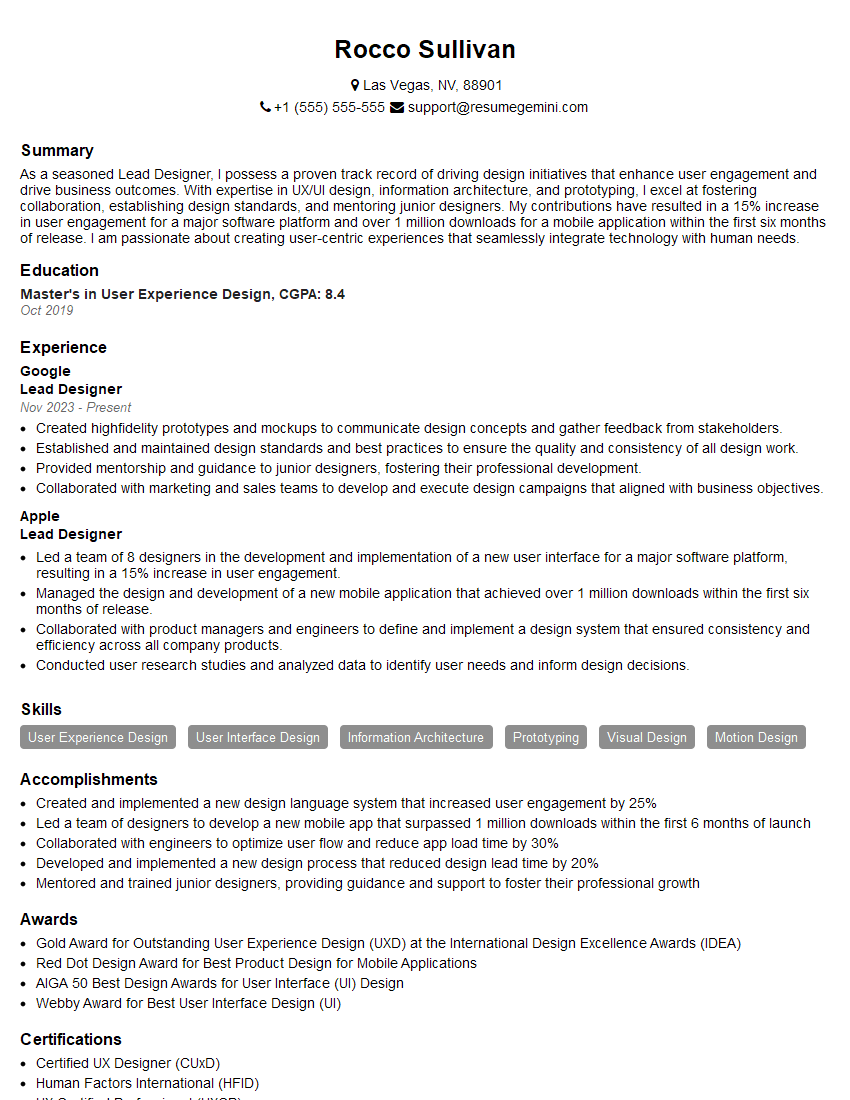
Lead Designer Resume Sample
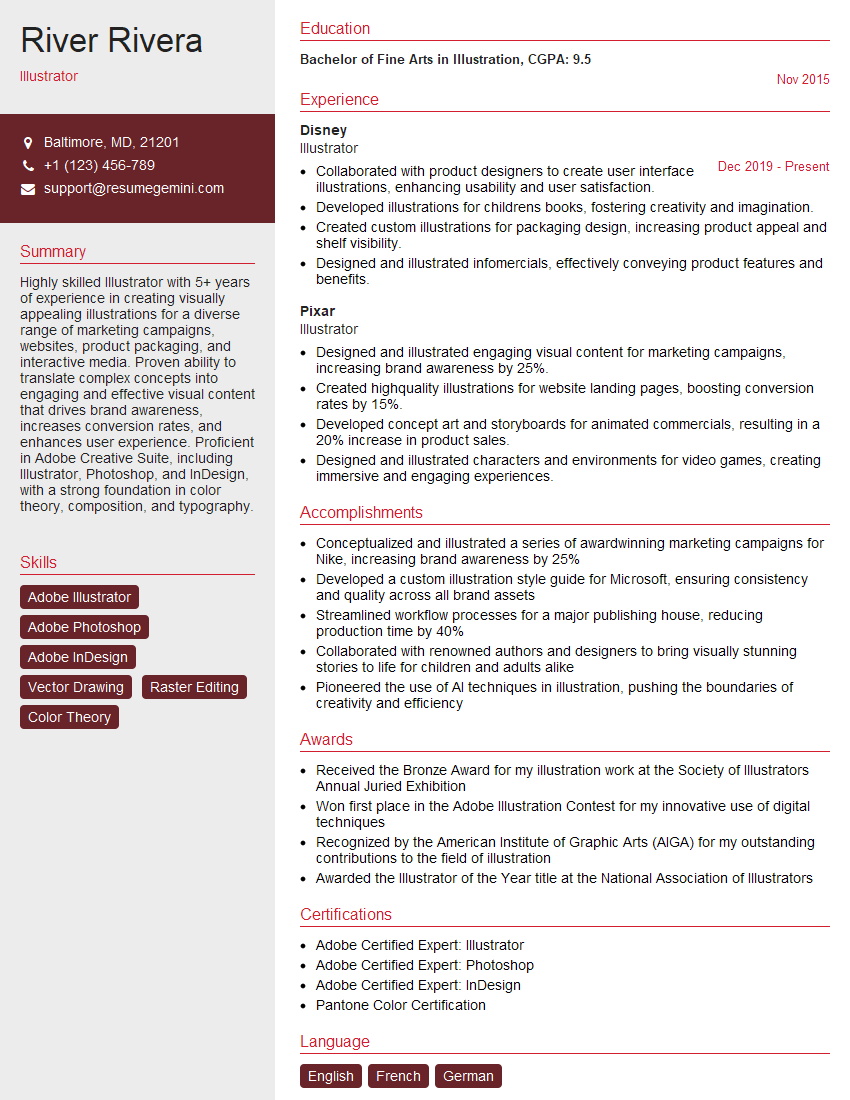
Illustrator Resume Sample
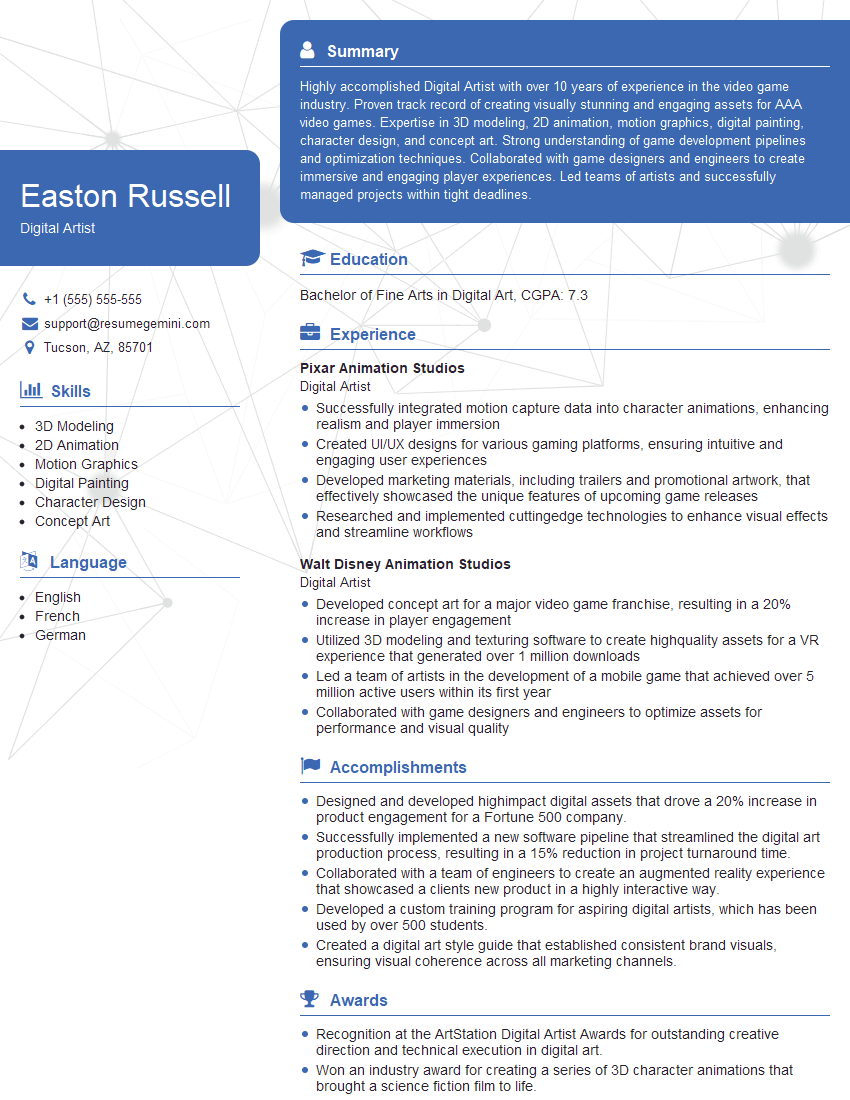
Digital Artist Resume Sample

Graphic Designer Resume Sample
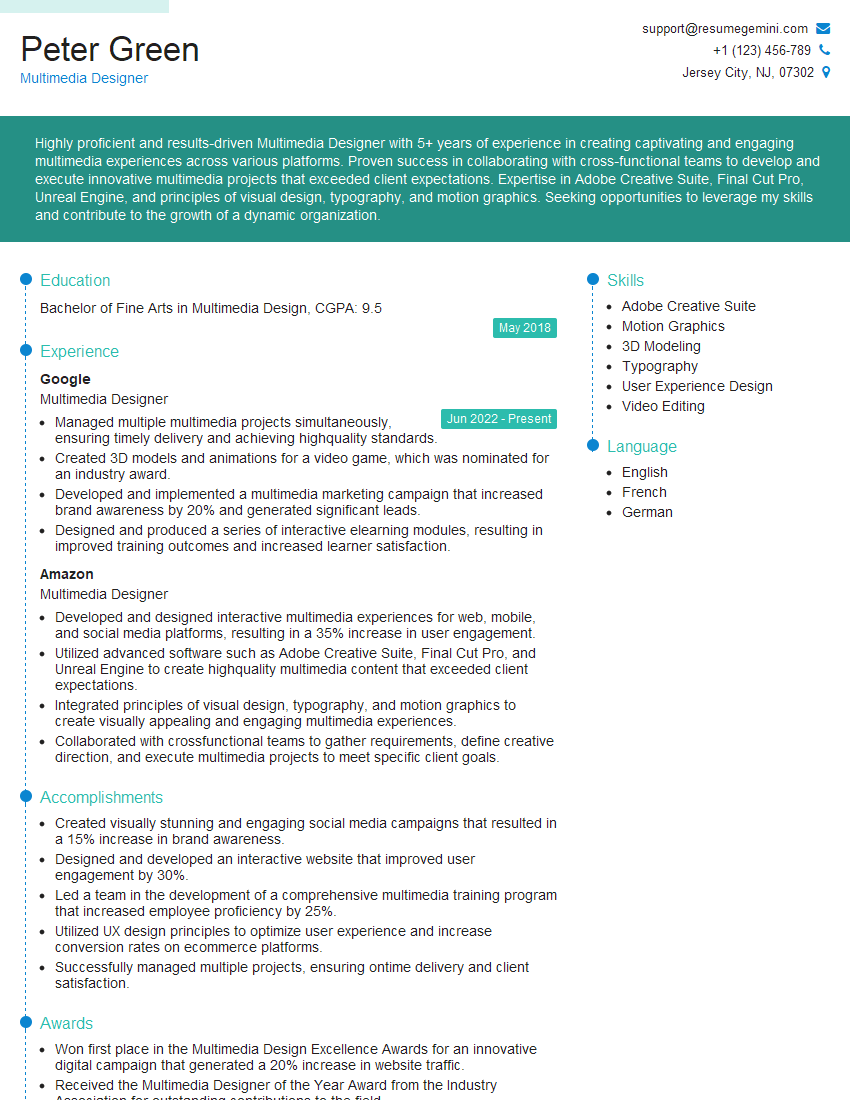
Multimedia Designer Resume Sample
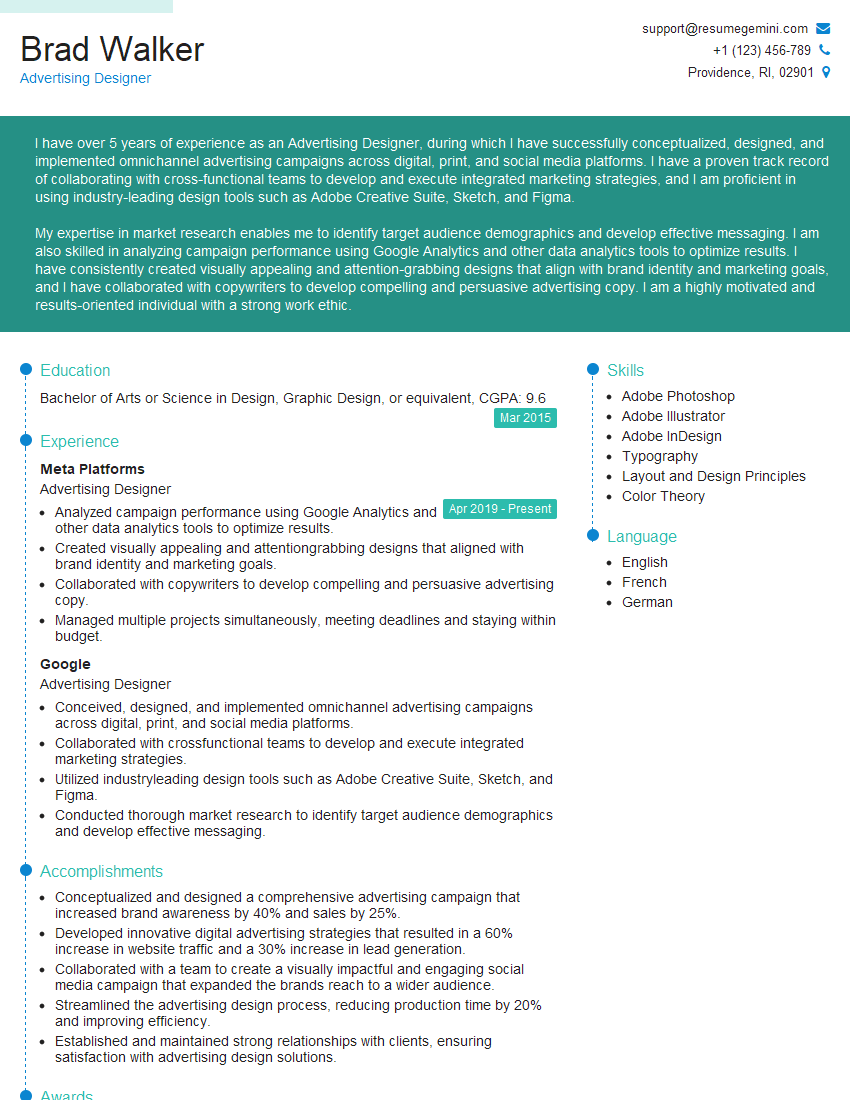
Advertising Designer Resume Sample
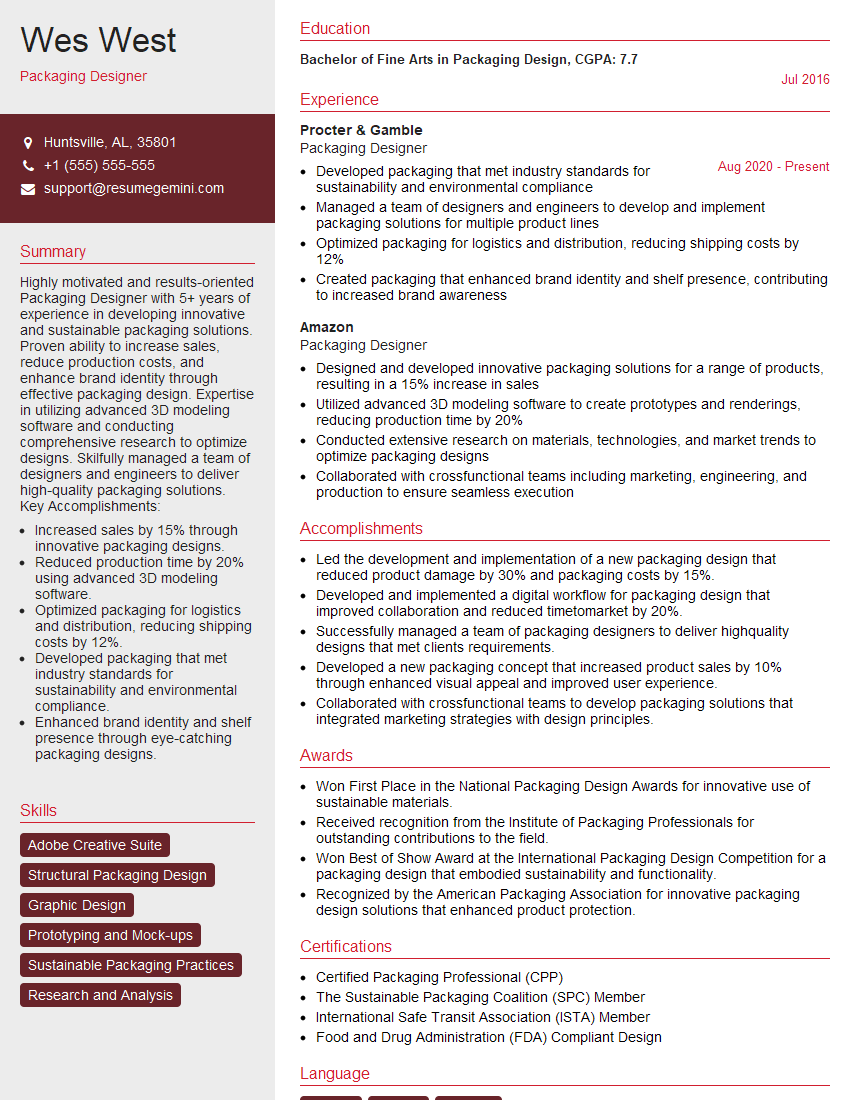
Packaging Designer Resume Sample

Photo Editor Resume Sample
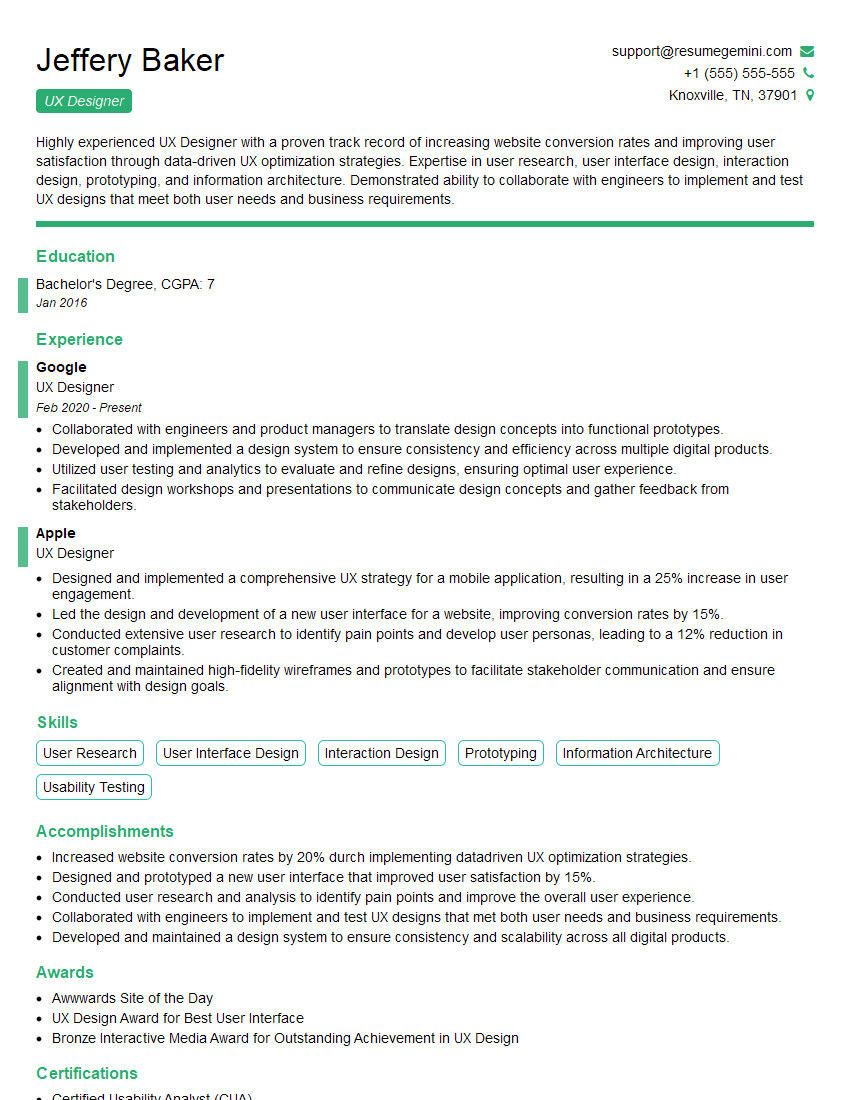
UX Designer Resume Sample
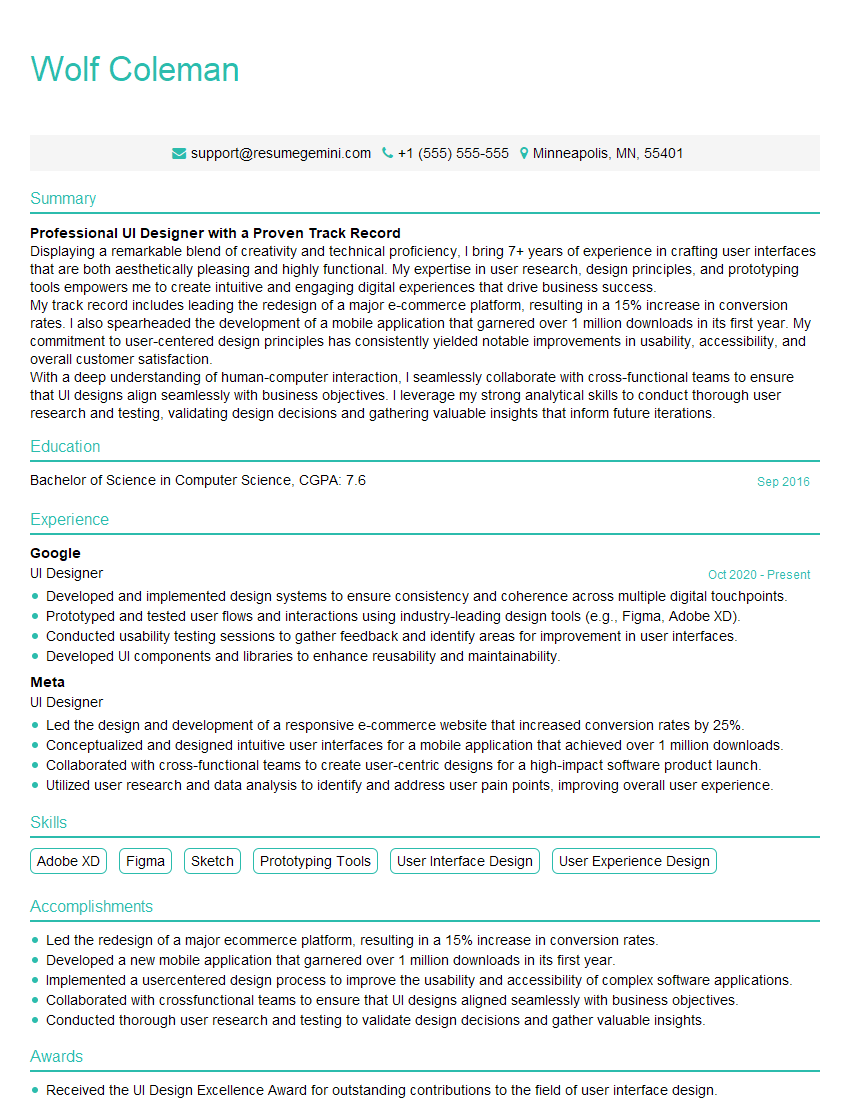
UI Designer Resume Sample
Explore more articles
Users Rating of Our Blogs
Share Your Experience
We value your feedback! Please rate our content and share your thoughts (optional).
What Readers Say About Our Blog
Attention music lovers!
Wow, All the best Sax Summer music !!!
Spotify: https://open.spotify.com/artist/6ShcdIT7rPVVaFEpgZQbUk
Apple Music: https://music.apple.com/fr/artist/jimmy-sax-black/1530501936
YouTube: https://music.youtube.com/browse/VLOLAK5uy_noClmC7abM6YpZsnySxRqt3LoalPf88No
Other Platforms and Free Downloads : https://fanlink.tv/jimmysaxblack
on google : https://www.google.com/search?q=22+AND+22+AND+22
on ChatGPT : https://chat.openai.com?q=who20jlJimmy20Black20Sax20Producer
Get back into the groove with Jimmy sax Black
Best regards,
Jimmy sax Black
www.jimmysaxblack.com
Hi I am a troller at The aquatic interview center and I suddenly went so fast in Roblox and it was gone when I reset.
Hi,
Business owners spend hours every week worrying about their website—or avoiding it because it feels overwhelming.
We’d like to take that off your plate:
$69/month. Everything handled.
Our team will:
Design a custom website—or completely overhaul your current one
Take care of hosting as an option
Handle edits and improvements—up to 60 minutes of work included every month
No setup fees, no annual commitments. Just a site that makes a strong first impression.
Find out if it’s right for you:
https://websolutionsgenius.com/awardwinningwebsites
Hello,
we currently offer a complimentary backlink and URL indexing test for search engine optimization professionals.
You can get complimentary indexing credits to test how link discovery works in practice.
No credit card is required and there is no recurring fee.
You can find details here:
https://wikipedia-backlinks.com/indexing/
Regards
NICE RESPONSE TO Q & A
hi
The aim of this message is regarding an unclaimed deposit of a deceased nationale that bears the same name as you. You are not relate to him as there are millions of people answering the names across around the world. But i will use my position to influence the release of the deposit to you for our mutual benefit.
Respond for full details and how to claim the deposit. This is 100% risk free. Send hello to my email id: lukachachibaialuka@gmail.com
Luka Chachibaialuka
Hey interviewgemini.com, just wanted to follow up on my last email.
We just launched Call the Monster, an parenting app that lets you summon friendly ‘monsters’ kids actually listen to.
We’re also running a giveaway for everyone who downloads the app. Since it’s brand new, there aren’t many users yet, which means you’ve got a much better chance of winning some great prizes.
You can check it out here: https://bit.ly/callamonsterapp
Or follow us on Instagram: https://www.instagram.com/callamonsterapp
Thanks,
Ryan
CEO – Call the Monster App
Hey interviewgemini.com, I saw your website and love your approach.
I just want this to look like spam email, but want to share something important to you. We just launched Call the Monster, a parenting app that lets you summon friendly ‘monsters’ kids actually listen to.
Parents are loving it for calming chaos before bedtime. Thought you might want to try it: https://bit.ly/callamonsterapp or just follow our fun monster lore on Instagram: https://www.instagram.com/callamonsterapp
Thanks,
Ryan
CEO – Call A Monster APP
To the interviewgemini.com Owner.
Dear interviewgemini.com Webmaster!
Hi interviewgemini.com Webmaster!
Dear interviewgemini.com Webmaster!
excellent
Hello,
We found issues with your domain’s email setup that may be sending your messages to spam or blocking them completely. InboxShield Mini shows you how to fix it in minutes — no tech skills required.
Scan your domain now for details: https://inboxshield-mini.com/
— Adam @ InboxShield Mini
support@inboxshield-mini.com
Reply STOP to unsubscribe
Hi, are you owner of interviewgemini.com? What if I told you I could help you find extra time in your schedule, reconnect with leads you didn’t even realize you missed, and bring in more “I want to work with you” conversations, without increasing your ad spend or hiring a full-time employee?
All with a flexible, budget-friendly service that could easily pay for itself. Sounds good?
Would it be nice to jump on a quick 10-minute call so I can show you exactly how we make this work?
Best,
Hapei
Marketing Director
Hey, I know you’re the owner of interviewgemini.com. I’ll be quick.
Fundraising for your business is tough and time-consuming. We make it easier by guaranteeing two private investor meetings each month, for six months. No demos, no pitch events – just direct introductions to active investors matched to your startup.
If youR17;re raising, this could help you build real momentum. Want me to send more info?
Hi, I represent an SEO company that specialises in getting you AI citations and higher rankings on Google. I’d like to offer you a 100% free SEO audit for your website. Would you be interested?
Hi, I represent an SEO company that specialises in getting you AI citations and higher rankings on Google. I’d like to offer you a 100% free SEO audit for your website. Would you be interested?