Preparation is the key to success in any interview. In this post, we’ll explore crucial Advanced knowledge of file formats, such as EPS, PDF, and TIFF interview questions and equip you with strategies to craft impactful answers. Whether you’re a beginner or a pro, these tips will elevate your preparation.
Questions Asked in Advanced knowledge of file formats, such as EPS, PDF, and TIFF Interview
Q 1. Explain the differences between EPS, PDF, and TIFF file formats.
EPS, PDF, and TIFF are all file formats used for storing images, but they differ significantly in their capabilities and intended uses. Think of them like different containers for your artwork – each best suited for a particular purpose.
- EPS (Encapsulated PostScript): Primarily a vector graphics format. This means images are represented mathematically as lines and curves, allowing for infinite scalability without loss of quality. EPS files often contain a preview image for display purposes, but the core data is vector-based. They are frequently used for illustrations and logos intended for print.
- PDF (Portable Document Format): A versatile format capable of handling both vector and raster graphics (images made of pixels). PDF files are designed for document exchange and archival, focusing on preserving the appearance and layout across different platforms and software. They can incorporate text, images, and interactive elements.
- TIFF (Tagged Image File Format): A raster graphics format commonly used for high-resolution images, particularly in photography and publishing. TIFF supports various compression methods and color depths, making it suitable for archival and print purposes. It’s less versatile than PDF in terms of integrating other document elements.
In short: EPS is for scalable vector graphics, PDF is for versatile document exchange, and TIFF excels in high-quality raster images.
Q 2. Describe the advantages and disadvantages of using EPS for vector graphics.
EPS files offer several advantages for vector graphics:
- Scalability: Vectors don’t lose quality when resized, unlike raster images. You can enlarge an EPS logo to billboard size without pixelation.
- Precise Editing: Vector data is easily manipulated in vector-editing software like Adobe Illustrator. You can precisely adjust curves and lines.
- Small File Sizes (relatively): Compared to high-resolution raster images, vector EPS files are often smaller for similar visual complexity.
However, there are drawbacks:
- Limited Color Support (sometimes): While EPS can handle color, some older or simpler implementations may have limitations compared to more modern formats.
- Software Compatibility: Not all software can directly edit or reliably display EPS files. It’s best viewed in programs designed to handle PostScript.
- Not ideal for photographs: EPS is not the right choice for photorealistic images, which are best represented using raster formats.
Imagine trying to edit a complex illustration – EPS’s precision is invaluable. But if you’re dealing with a photo, TIFF might be a better fit.
Q 3. What are the different compression methods available in TIFF files, and when would you use each?
TIFF supports several compression methods, each with its own trade-offs between file size and image quality:
- None (Uncompressed): Preserves the maximum image quality but results in the largest file sizes. Use this for archival purposes where quality is paramount and storage space isn’t a major constraint.
- Packbits: A relatively simple, lossless compression method. It’s a good choice when a balance between file size reduction and quality preservation is needed. Works well for images with gradual color transitions.
- CCITT Group 3 and 4: Lossless compression methods specifically designed for black-and-white or grayscale images, very efficient for these types. Often used for faxes.
- JPEG (lossy): Offers significant compression, reducing file size considerably but at the cost of some image quality loss. Use this when file size is a primary concern and a slight loss of detail is acceptable. Commonly used for photographs.
- LZW (lossless): A commonly used lossless method providing a good balance between file size and quality, suitable for many image types.
The choice depends on your needs. For a museum-quality scan, uncompressed or LZW is preferable. For web images where file size matters, JPEG might be better (though you might sacrifice detail). For line art, CCITT Group 3 or 4 would be a good choice.
Q 4. How does color space affect the choice of file format (e.g., RGB vs. CMYK)?
Color space significantly influences file format choice. It determines how colors are represented and displayed.
- RGB (Red, Green, Blue): An additive color model used for displays like monitors and screens. Best suited for images intended for on-screen viewing. JPEG and TIFF are often used for RGB images.
- CMYK (Cyan, Magenta, Yellow, Black): A subtractive color model used for printing. It works by subtracting colors from white. EPS, PDF, and TIFF are often used for CMYK images for print work.
If you’re designing a website, RGB is the natural choice. If you’re creating a brochure, CMYK is necessary to accurately reproduce colors in print. Choosing the wrong color space can result in significant color discrepancies between screen and print.
Q 5. Explain the concept of embedded vs. linked images in PDF documents.
In PDF documents, images can be either embedded or linked:
- Embedded Images: The image data is directly incorporated into the PDF file. This ensures the image will always be available, even if the original image file is moved or deleted. However, this increases the PDF’s file size.
- Linked Images: The PDF file only contains a reference to the image file’s location on your system. This keeps the PDF file smaller, but if the linked image is moved or deleted, the PDF will display a broken image.
Embedding is ideal for archival purposes or when you want to ensure the document remains self-contained. Linking is better when file size is a major concern and the original image files are reliably stored and accessible.
Q 6. What are the different PDF versions, and what are their key differences?
PDF versions have evolved over time, adding features and improving compatibility. Key differences include:
- PDF 1.0 – 1.7: These early versions laid the foundation, introducing basic features like text, images, and simple formatting. They lack many advanced features found in later versions.
- PDF 1.7 (PDF/A-1): Introduced archival features, designed to ensure long-term accessibility and preservation of documents.
- PDF 1.4 – 1.7 (and beyond): Added support for advanced features such as transparency, layers, security, digital signatures, and richer multimedia content. Later versions also enhanced features like accessibility and security.
- PDF/X standards: Specialized subsets of PDF designed for reliable color reproduction in print production. They define specific color profiles and other requirements.
The choice of PDF version depends on the intended use. For simple documents, an older version might suffice. For archival, print-ready, or complex interactive documents, a later version with enhanced features and potentially PDF/X compliance is crucial.
Q 7. How do you handle color profiles when working with EPS, PDF, and TIFF files?
Color profile management is essential when working with EPS, PDF, and TIFF files to ensure accurate color reproduction. Color profiles are essentially descriptions of a color space. They translate colors between different devices and software applications.
- Embedding Color Profiles: It’s crucial to embed the appropriate color profile (e.g., sRGB, Adobe RGB, or a custom CMYK profile for print) within your EPS, PDF, and TIFF files. This ensures that the colors are interpreted correctly by the receiving software or device.
- Color Space Consistency: Maintain consistency in color spaces throughout the workflow. If you start with an RGB image, ensure you convert it to CMYK appropriately only when preparing for print.
- Working with Color Management Systems (CMS): Use a robust CMS (like those built into Adobe Creative Suite) to manage color profiles, conversions, and display settings. This is critical for achieving consistent color reproduction across different platforms and output devices.
- Proofing: Always conduct soft and hard proofs to verify the accuracy of color reproduction before final output. This allows you to identify and correct any color discrepancies.
Failing to manage color profiles can lead to unexpected color shifts, resulting in printed materials looking significantly different from the on-screen preview. Consistent and careful color management is fundamental for professional results.
Q 8. Describe the process of optimizing images for web use from various formats.
Optimizing images for web use involves reducing file size without significant quality loss. This is crucial for faster loading times and improved user experience. The process differs depending on the source format:
- JPEG (from various sources): Use image editing software (like Photoshop, GIMP) to reduce the file size. Aim for a balance between quality and file size. Consider using tools that allow you to adjust the compression level. For example, in Photoshop, you can save as a JPEG and adjust the quality slider. Lower values mean smaller files but more compression artifacts. Higher values mean larger files but better quality.
- TIFF: TIFFs are often large, high-resolution images. Before using them on the web, convert them to a web-friendly format like JPEG or PNG. WebP is also an excellent choice offering good compression. The conversion process will require deciding on the appropriate resolution for the web (72-150 DPI is usually sufficient) and compression settings.
- EPS: EPS files are vector-based, meaning they’re resolution-independent. However, EPS files often contain raster images embedded within them. You need to convert these into JPEGs or PNGs before using the file online. The vector part of an EPS is best converted into SVG for web use.
- PDF: PDFs can contain both vector and raster graphics. For web use, extract the images individually and optimize them separately as discussed above. If the PDF contains text, consider converting it to HTML or using a PDF rendering library on the web page.
In all cases, using a tool that allows you to preview the image at different compression levels and resolutions is recommended. Remember to always back up your original high-resolution images.
Q 9. How do you ensure compatibility across different operating systems and software when using these file formats?
Ensuring compatibility across different operating systems and software requires understanding the limitations and capabilities of each. For example, older versions of software may not support the latest features of a file format.
- File Format Choice: Stick to widely supported formats like JPEG, PNG, and PDF. These are generally compatible across Windows, macOS, Linux, and various software.
- Embedded Fonts: When creating PDFs, embed fonts to prevent font substitution issues on different systems. Similar considerations apply to EPS files which may rely on specific fonts.
- Color Profiles: Use a standard color profile like sRGB for web images to ensure consistent color rendering across different devices and operating systems. TIFF supports embedded color profiles and should be used when high color accuracy is critical.
- Testing: Thoroughly test your files on different operating systems and software versions to identify and resolve any compatibility problems.
By following these guidelines, you minimize the risk of encountering rendering problems, ensuring consistency across diverse environments.
Q 10. What are the best practices for archiving and managing large numbers of image files in various formats?
Archiving and managing large numbers of image files requires a structured approach. This involves a combination of organizational strategies, file naming conventions, and storage solutions.
- Folder Structure: Use a clear and logical folder structure based on projects, dates, or other relevant criteria. Consistent naming conventions are vital for easy retrieval.
- Metadata: Leverage metadata (keywords, descriptions, etc.) within the files themselves or in a database to improve searchability. TIFF files support extensive metadata tags, which should be utilized whenever possible.
- File Naming: Use descriptive and consistent file names. Consider a scheme like ‘YYYYMMDD_Project_Description.tif’ for example.
- Backup Strategy: Implement a robust backup system using multiple storage locations (cloud storage, external hard drives). Regular backups are critical to prevent data loss.
- Database Management: For extremely large collections, consider using a dedicated image management database or digital asset management (DAM) system. This allows for efficient searching, tagging, and organization.
Adopting a well-defined archiving process prevents chaos and ensures easy access to your image assets in the future.
Q 11. Explain lossy vs. lossless compression and its relevance to these file formats.
Lossy and lossless compression methods determine how file size is reduced. Lossy compression permanently removes data, resulting in smaller files but potential quality degradation, while lossless compression reduces size without data loss.
- Lossy Compression: JPEG is a lossy compression algorithm. The compression level determines the trade-off between file size and image quality. Higher compression means smaller file size but more noticeable artifacts. Lossy compression is suitable for images where minor quality loss is acceptable, particularly for web use.
- Lossless Compression: TIFF and PNG support lossless compression. These methods maintain the original image data, resulting in larger files but preserving image quality. Lossless compression is preferable when high fidelity is crucial, such as in archiving or prepress workflows.
- Relevance to File Formats: JPEG is almost always lossy. TIFF can use both lossy (like JPEG compression) and lossless compression. PNG is typically lossless. PDFs can contain both lossy and lossless compressed images depending on how the images were initially incorporated into the document.
Choosing the right compression method depends on the intended use and the acceptable level of quality loss. Lossy compression excels in web contexts while lossless compression is invaluable for archival purposes.
Q 12. How do you troubleshoot issues related to corrupted EPS, PDF, or TIFF files?
Troubleshooting corrupted files requires a systematic approach. The specific steps depend on the file format, but here are some general guidelines:
- Try Opening with Different Software: Sometimes, a file may open in one application but not another. Experiment with different programs that support EPS, PDF, and TIFF to see if it’s a software compatibility issue.
- File Repair Tools: Several specialized utilities can attempt to repair corrupted files. Search for programs that specifically handle the file format in question.
- Check File Integrity: If possible, verify the file’s checksum (MD5 or SHA) to ensure it matches the original. This can help identify if the corruption happened during transfer or storage.
- Recovery from Backup: Always maintain backups of important files. Restore from a known good backup if corruption is severe.
- Data Recovery Software: For severe corruption, professional-grade data recovery software may be necessary, but success is not guaranteed.
Prevention is better than cure! Regularly backing up files and using reliable storage media minimizes the likelihood of encountering such issues.
Q 13. Discuss the importance of resolution in different file formats.
Resolution, measured in pixels per inch (PPI) or dots per inch (DPI), refers to the density of pixels or dots within an image. It significantly impacts print and screen quality.
- Vector Formats (EPS, PDF vector elements): Resolution is irrelevant. Vector graphics are resolution-independent; they can be scaled to any size without quality loss.
- Raster Formats (TIFF, JPEG, PNG, PDF raster elements): Resolution matters significantly. Higher resolution images have more detail and print better. For web use, excessively high resolutions result in larger file sizes and slower loading times. 72-150 DPI is typically sufficient for web images.
- Print vs. Screen: Print requires higher resolution (300 DPI or more) to avoid noticeable pixelation, while screen resolutions are lower (72-96 DPI).
Understanding resolution is crucial for producing high-quality outputs across different media. You can adjust resolution using image editing software.
Q 14. What are the implications of different file sizes for printing and web use?
File size directly impacts printing and web use. Smaller files are generally preferred for both, but the optimal size depends on the application.
- Web Use: Large files lead to slow loading times, negatively impacting the user experience. Optimization techniques, such as choosing appropriate compression and resolution, are vital to balance quality and speed.
- Printing: The required file size depends on the print resolution and image size. Higher resolution and larger prints necessitate larger files. For high-quality printing, large files are often necessary to avoid pixelation. However, extremely large files may cause issues with certain printers or RIP software.
- File Format Considerations: Choosing an appropriate file format affects the final file size. Lossy compression (JPEG) yields smaller files than lossless compression (TIFF, PNG), but at the cost of image quality.
Finding the right balance between file size and quality is key for both web and print applications. Proper optimization ensures a positive user experience without sacrificing image fidelity.
Q 15. How do you identify and fix common problems related to fonts in PDF files?
Font problems in PDFs often stem from font embedding issues. A PDF might display correctly on one system but show missing or substituted fonts on another. This happens because the PDF might not have embedded the necessary font files, relying instead on the viewer having those fonts installed. Sometimes, the fonts themselves are corrupted.
Identifying the problem: If you see incorrect fonts or boxes instead of text, the first step is to check the PDF’s properties to see what fonts are used and whether they are embedded. Most PDF viewers allow you to examine the document’s metadata. If a font isn’t embedded, that’s the likely culprit.
Fixing the problem: The solution depends on the source of the PDF.
- If you have the original document: The best approach is to re-create the PDF using software that correctly embeds fonts. Ensure the ’embed fonts’ option is checked during export in your word processor or design program. Software like Adobe Acrobat Pro allows for granular font embedding control.
- If you only have the problematic PDF: You can try using a PDF editor to replace the problematic font with a readily available substitute. However, this might affect the document’s visual appearance, especially if the fonts are drastically different. In some cases, professional PDF repair tools might be necessary to fix corrupted font data.
Example: I once worked on a marketing brochure where a specific custom font was not embedding correctly. Replacing it with a similar font from Adobe Fonts solved the problem, maintaining a consistent brand image.
Career Expert Tips:
- Ace those interviews! Prepare effectively by reviewing the Top 50 Most Common Interview Questions on ResumeGemini.
- Navigate your job search with confidence! Explore a wide range of Career Tips on ResumeGemini. Learn about common challenges and recommendations to overcome them.
- Craft the perfect resume! Master the Art of Resume Writing with ResumeGemini’s guide. Showcase your unique qualifications and achievements effectively.
- Don’t miss out on holiday savings! Build your dream resume with ResumeGemini’s ATS optimized templates.
Q 16. Describe your experience working with transparency in these file formats.
Transparency is a crucial aspect of modern image editing and file formats. EPS, PDF, and TIFF all support transparency, but they handle it differently. EPS typically uses masks or clipping paths to define transparency, PDF uses transparency layers and blending modes, and TIFF uses alpha channels.
My experience includes working with transparency in various contexts, from web design (where transparent PNGs are common) to print production (where transparency affects how colors interact). I’ve dealt with issues like improper flattening of transparency, leading to unexpected results during printing or unexpected visual artifacts in certain PDF readers.
Challenges: One common challenge is maintaining consistent transparency across different software and file formats. A transparent image might look fine in Photoshop but appear differently when placed into InDesign or exported to a specific PDF version. Another challenge is managing transparency in large complex files to avoid performance issues or increasing file size.
Solutions: I usually address transparency issues by carefully controlling how transparency is applied in the source file. For instance, I might use vector-based transparency for sharp lines in an EPS or pre-flatten transparency before placing an image into a print-ready PDF to prevent rasterizing issues. Choosing the correct export settings in software is critical to handling transparency reliably.
Q 17. Explain your knowledge of different PDF security features.
PDF security features are essential for protecting sensitive documents. They range from simple password protection to more sophisticated methods like digital signatures and encryption.
Password Protection: This is the most basic form, requiring a password to open the document or to allow specific actions, like printing or editing. It’s vital to remember that strong passwords are key, and weak passwords can be easily cracked.
Encryption: More robust, encryption scrambles the PDF’s content, making it unreadable without the decryption key. Different levels of encryption offer varying levels of security.
Digital Signatures: These verify the document’s authenticity and integrity. A digital signature ensures that the document hasn’t been tampered with since it was signed. This is important for legal and confidential documents.
Permissions: PDF security also allows setting restrictions on what users can do with the document (printing, copying, editing, etc.). These permissions can be tailored to fit the specific security needs.
Example: In a legal context, I’ve used digital signatures to authenticate contracts, ensuring no alterations could be made after signing. The document was also encrypted and password protected for added security.
Q 18. How do you handle version control for image assets in various formats?
Version control for image assets is paramount to avoid confusion and maintain consistency. I typically use a combination of methods:
- Dedicated Version Control Systems (VCS): Git, although primarily for code, can also effectively manage image assets. Using Git LFS (Large File Storage) addresses the challenge of handling large files efficiently. This keeps a detailed history of changes and allows easy rollback to previous versions.
- Cloud Storage with Version History: Services like Google Drive, Dropbox, or Adobe Creative Cloud offer version history, saving multiple iterations of files. This is a simpler approach suitable for smaller projects or individual workflows.
- Descriptive File Naming: A well-defined naming convention (e.g.,
logo_v1_final.ai,logo_v2_revised.eps) is crucial. This instantly clarifies the version and any modifications. - Metadata: Utilizing metadata within the image files themselves (such as creation date, keywords, or author information) adds another layer of organization and allows for effective searching and identification.
Combining these methods ensures a robust and organized image asset management system, preventing issues related to accidentally overwriting files or losing track of earlier versions.
Q 19. What tools or software do you use for working with these file formats?
My toolkit includes a variety of software, depending on the task:
- Adobe Creative Suite: Photoshop, Illustrator, InDesign, and Acrobat Pro are my primary tools for image editing, vector graphics, layout, and PDF manipulation. They provide robust functionality for handling EPS, PDF, and TIFF files.
- Affinity Suite: A strong alternative to Adobe Creative Suite, offering comparable functionality at a lower cost. It’s a great option for managing image assets across different formats.
- GIMP: A free and open-source raster graphics editor providing solid image manipulation capabilities, especially useful for handling TIFF files and performing basic raster adjustments.
- ImageMagick: A powerful command-line tool for batch processing and automating image conversions and manipulations, particularly useful for scripting tasks or handling large numbers of images.
- PDFsam Basic: A useful, free tool for merging, splitting, rotating and other PDF manipulations which can address problems before even opening files in a full editor.
The choice of tools depends heavily on the project’s complexity and the desired level of control.
Q 20. Describe your experience with image editing software and its relevance to file format manipulation.
Image editing software is fundamental to my work with file formats. It allows me to create, modify, and optimize images for specific uses and file types.
Relevance to File Format Manipulation: The software dictates how images are saved and what information is included in the file. For example, in Photoshop, I can carefully manage color profiles and export settings to ensure the output TIFF file is suitable for high-quality printing. Similarly, Illustrator enables me to create vector graphics for EPS files that maintain scalability and resolution integrity. When dealing with PDFs, it’s crucial to use a software suite equipped to handle transparency, embedding fonts, and managing other PDF-specific features.
Examples: I’ve used Photoshop extensively for image retouching, adjusting color balance, and preparing images for web or print. Illustrator is invaluable when creating logos or other vector-based graphics which must maintain high quality at any size. I’ve also used these tools to prepare files for specific printing methods, addressing potential issues during the print process.
Q 21. Explain the importance of metadata in image files.
Metadata, or data about data, within image files is critical for organization, searchability, and efficient workflow management. It provides essential information about the image, including:
- Copyright information: Attribution and ownership details.
- Keywords: Descriptive tags that help with searching and categorizing.
- Date and time of creation/modification: Tracking history and versions.
- Camera settings (for photos): Exposure, aperture, ISO, and other technical details that aid in understanding how the image was captured.
- GPS data (for geotagged photos): Location information.
Importance: Metadata improves workflow efficiency by allowing users to quickly find specific images and helps ensure compliance with copyright laws. Well-organized metadata can save significant time during large-scale projects involving numerous image assets.
Example: In a large project with thousands of images, I relied on metadata to efficiently search and locate specific photos based on keywords like location, subject matter, or date of capture. This significantly reduced search time and enhanced the project’s overall workflow.
Q 22. How do you ensure image quality is maintained throughout the workflow?
Maintaining image quality throughout a workflow hinges on understanding the limitations of each file format and employing best practices at every stage. Think of it like baking a cake – using the right ingredients (high-resolution source files) and following the recipe (correct color profiles and settings) precisely will yield the best results.
- Using high-resolution source files: Starting with a high-resolution image is crucial. Downscaling a high-resolution image will generally preserve quality better than upscaling a low-resolution one. For print, aim for at least 300 DPI (dots per inch).
- Color management: Consistent color profiles (e.g., sRGB, Adobe RGB) are paramount. Ensure your software, monitor, and printer are all calibrated and using the same profile to prevent color shifts.
- Non-destructive editing: When editing, use non-destructive methods whenever possible (e.g., layers in Photoshop) to avoid permanently altering the original image data. This allows for adjustments without losing quality.
- Lossless compression: When saving files, opt for lossless compression formats (like TIFF or PNG) to avoid data loss. Lossy compression formats (like JPEG) discard data to reduce file size, resulting in quality degradation with each save.
- File format selection: Choose the appropriate format for the intended use (see answer to question 4).
Q 23. What are some common pitfalls to avoid when working with these file types?
Several pitfalls can compromise image quality and workflow efficiency when handling EPS, PDF, and TIFF files. These are often caused by a lack of attention to detail or an incomplete understanding of the format’s properties.
- Embedding vs. linking: In PDFs, improperly embedding fonts or images can lead to missing elements when the file is opened on a different system. Always verify that all necessary elements are embedded.
- Color space inconsistencies: Using different color spaces (e.g., CMYK for print and RGB for screen) can result in significant color shifts. Maintain consistency throughout the workflow, choosing the appropriate color space from the start.
- Resolution issues: Using low-resolution images for print can lead to blurry or pixelated output. Always check the resolution of your files before proceeding to print.
- File corruption: Damaged files due to transfer errors or software glitches can disrupt the workflow. Regular backups and file integrity checks are essential.
- Version control: Failure to track changes and revisions can lead to using outdated or incorrect file versions. Using a version control system is vital in collaborative projects.
Q 24. Describe a time you had to solve a problem involving a corrupted or incompatible image file.
I once encountered a crucial client presentation hampered by a corrupted high-resolution TIFF image. The file, vital for showcasing product details, was unreadable in most image editing software. I systematically addressed the issue, following these steps:
- Tried various image viewers/editors: I started with readily available software and attempted opening the file with different programs to see if any could extract usable data.
- Used recovery software: When standard methods failed, I utilized specialized file recovery tools designed to repair damaged images. Some of these tools offer preview functions, allowing evaluation of repair quality before overwriting.
- Investigated file metadata: By analyzing the TIFF file’s metadata (accessible using tools like Exiftool), I could determine the image’s original characteristics and potentially identify clues leading to the damage cause.
- Contacted the source: Since the problem persisted, I contacted the original source of the file to request a fresh copy. This approach serves as a final back-up.
- Reshot if necessary: As a contingency, I discussed with the client the possibility of reshooting the product photographs, which ultimately ensured successful completion of the presentation.
This experience highlighted the importance of regular backups, careful file handling, and maintaining clear communication with stakeholders.
Q 25. How do you choose the appropriate file format for a specific task?
Choosing the right file format depends entirely on the intended use and the balance between file size, image quality, and compatibility.
- EPS (Encapsulated PostScript): Ideal for vector graphics, suitable for high-quality printing and preserving scalability without losing quality. Often used for illustrations and logos in print and desktop publishing.
- PDF (Portable Document Format): Versatile format for both vector and raster images, excellent for print and digital distribution. Supports text, images, and various interactive elements. Choose PDF/X-1a for print-ready files.
- TIFF (Tagged Image File Format): Often used for high-resolution images, particularly in photography and scanning. Supports lossless compression, preserving image quality, but resulting in larger files.
For web use, JPEG or PNG are usually preferred due to smaller file sizes and better browser compatibility. For archival purposes, TIFF’s lossless compression is often the best choice. For print-ready files requiring precise color reproduction, PDF/X-1a is essential.
Q 26. Explain your understanding of vector vs. raster graphics and how that impacts format choice.
Understanding the difference between vector and raster graphics is fundamental in choosing the correct file format. Think of it like building with LEGOs (vector) versus using a mosaic (raster).
- Vector graphics: Defined by mathematical equations, scalable without loss of quality. Ideal for logos, illustrations, and designs that need to be resized without pixelation (e.g., EPS, PDF). Examples include line art, illustrations created in Adobe Illustrator.
- Raster graphics: Composed of a grid of pixels, resolution-dependent. Suitable for photographic images, but quality degrades when resized (e.g., TIFF, JPEG, PNG). Examples include photographs, scanned documents.
If you need an image that can be resized without losing quality, a vector format is best. If you’re working with photographs or images with fine detail, a raster format might be more appropriate. The format choice directly impacts the final output’s quality and scalability.
Q 27. Describe your experience working with large format printing and related file considerations.
Large format printing demands meticulous attention to file preparation. The resolution, color space, and file format are critical factors determining the final print quality.
- High Resolution: Large format prints require significantly higher resolutions than typical screen displays. At minimum, 150 DPI is needed, but often 300 DPI or more for high-quality results.
- Color Space: CMYK (Cyan, Magenta, Yellow, Key/Black) is standard for large format printing. Converting RGB images to CMYK requires careful color management to avoid unexpected shifts.
- File Format: PDF/X-1a is the most widely accepted format for large format print because it embeds all necessary color profiles and fonts, minimizing the risk of inconsistencies. TIFF can also be used, but requires precise color management.
- File Size: Large files can be challenging to handle and process. Optimize file sizes while preserving quality using appropriate compression techniques and ensuring the print job is handled by software and hardware capable of handling those large files.
In my experience, preparing files for large format printing often involved extensive color profiling, resolution adjustments, and meticulous quality checks before sending the files to the printer. Ignoring these can result in expensive reprint costs.
Q 28. How do you maintain consistency of file formats across a team or organization?
Maintaining file format consistency across a team requires clear guidelines, standardized workflows, and effective communication. Think of it like having a common language for everyone on the team.
- Style Guide: Develop and distribute a style guide that specifies acceptable file formats for different tasks (e.g., using PDF/X-1a for print projects and PNG for web graphics). This helps standardize the workflow.
- Training and Education: Provide training to team members to educate them on proper file handling, color management, and the characteristics of different file formats.
- Template Creation: Provide pre-designed templates with embedded settings (color profiles, resolution) to guide users and minimize the risk of errors.
- File Naming Conventions: Implement a consistent file naming convention to avoid confusion and improve organization. This makes finding specific files easier.
- Centralized File Management: Utilizing a central storage system allows for version control and easy access for the team, fostering collaboration and consistency.
By implementing these methods, you significantly reduce the chances of compatibility issues and ensure smoother collaboration within the team or organization.
Key Topics to Learn for Advanced Knowledge of File Formats (EPS, PDF, TIFF) Interview
- Raster vs. Vector Graphics: Understand the fundamental differences between raster (TIFF) and vector (EPS) formats, their strengths and weaknesses, and appropriate use cases for each. Consider image resolution, scalability, and file size implications.
- EPS File Format: Explore the intricacies of Encapsulated PostScript files. Learn about its use in high-quality printing, its compatibility with various design software, and potential issues with embedding fonts or linked images.
- PDF File Format: Delve into the capabilities of Portable Document Format. Focus on different PDF creation methods, compression techniques, security features, and the impact of various PDF settings on file size and accessibility.
- TIFF File Format: Master the Tagged Image File Format, focusing on its lossless and lossy compression options, color spaces (CMYK, RGB), and its relevance in archiving and high-resolution image storage. Understand its limitations compared to other formats.
- Color Spaces and Profiles: Develop a strong understanding of color management and the importance of color profiles in ensuring accurate color reproduction across different devices and file formats. This is crucial for all three formats.
- File Compression and Optimization: Learn techniques for optimizing file sizes without significant loss of quality. This includes understanding different compression algorithms and their impact on file size and image quality for each format. Practical application includes preparing files for web use vs. print.
- Troubleshooting File Issues: Be prepared to discuss common problems encountered with these formats, such as corrupted files, compatibility issues, and font rendering problems. Develop problem-solving strategies for these situations.
- Metadata and Image Information: Understand how metadata is embedded within these files and how this information can be used for organization, asset management, and troubleshooting.
Next Steps
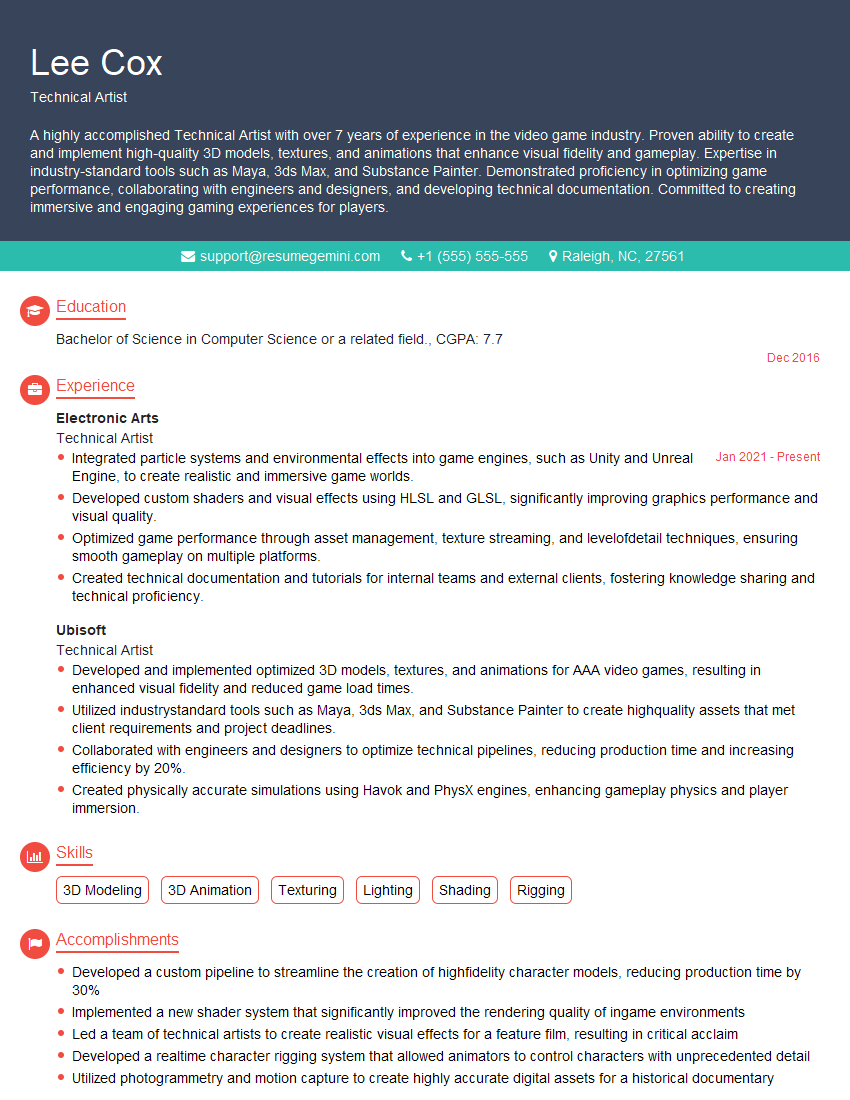
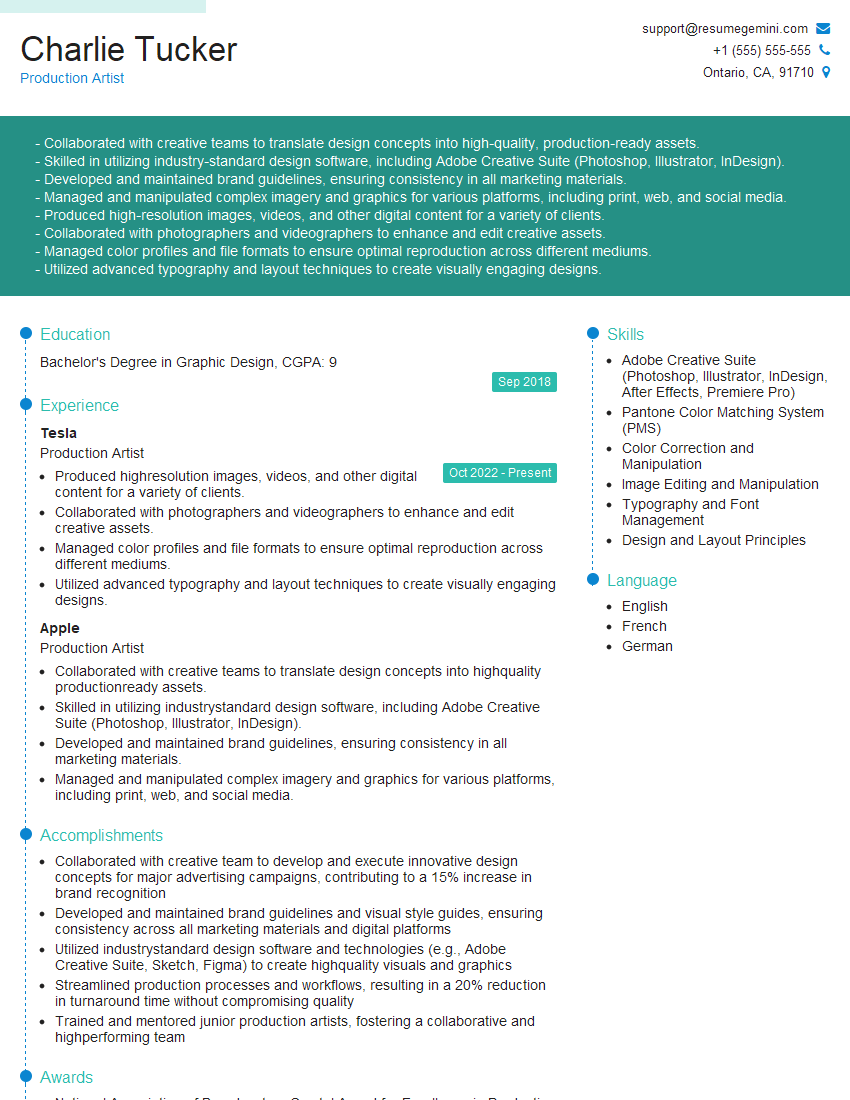
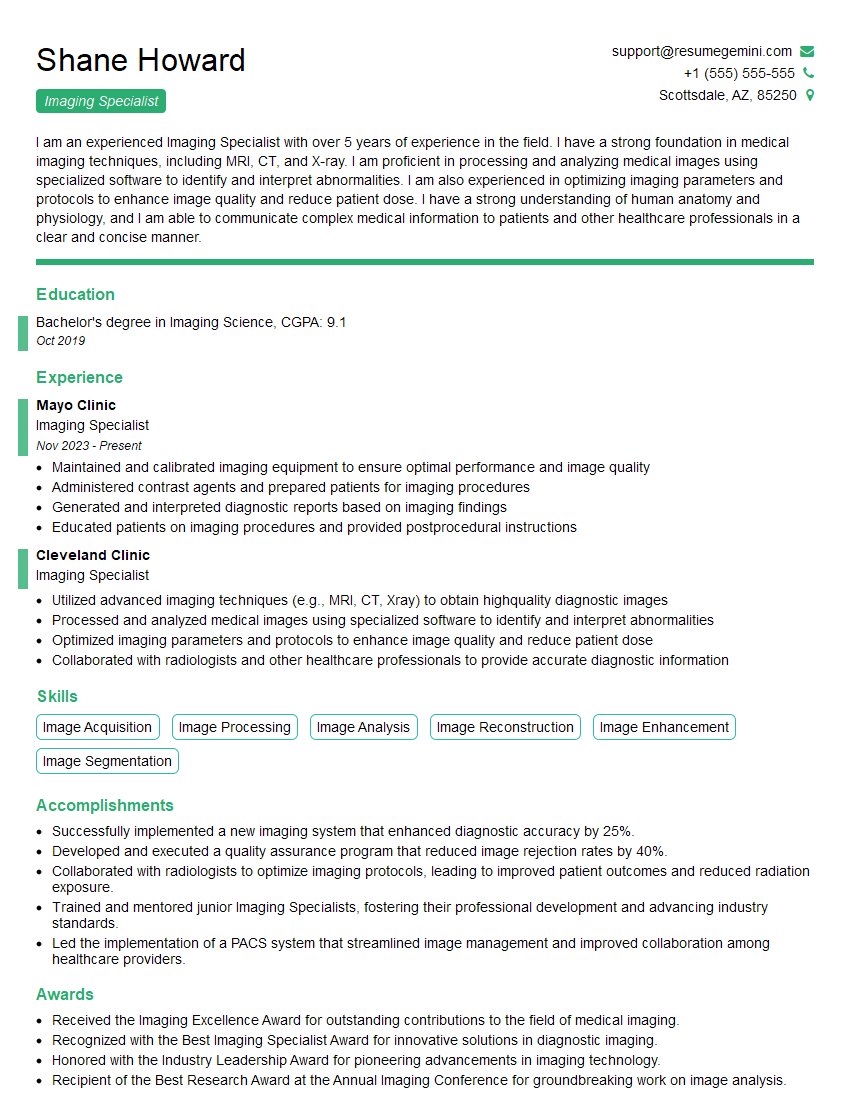
Mastering advanced knowledge of file formats like EPS, PDF, and TIFF is crucial for career advancement in design, publishing, and image processing roles. A strong understanding of these formats demonstrates technical proficiency and problem-solving skills highly valued by employers. To maximize your job prospects, create an ATS-friendly resume that clearly highlights your expertise. ResumeGemini is a trusted resource that can help you build a professional and impactful resume tailored to your skills. Examples of resumes tailored to showcasing expertise in EPS, PDF, and TIFF file formats are available to guide you.



Explore more articles
Users Rating of Our Blogs
Share Your Experience
We value your feedback! Please rate our content and share your thoughts (optional).
What Readers Say About Our Blog
Attention music lovers!
Wow, All the best Sax Summer music !!!
Spotify: https://open.spotify.com/artist/6ShcdIT7rPVVaFEpgZQbUk
Apple Music: https://music.apple.com/fr/artist/jimmy-sax-black/1530501936
YouTube: https://music.youtube.com/browse/VLOLAK5uy_noClmC7abM6YpZsnySxRqt3LoalPf88No
Other Platforms and Free Downloads : https://fanlink.tv/jimmysaxblack
on google : https://www.google.com/search?q=22+AND+22+AND+22
on ChatGPT : https://chat.openai.com?q=who20jlJimmy20Black20Sax20Producer
Get back into the groove with Jimmy sax Black
Best regards,
Jimmy sax Black
www.jimmysaxblack.com
Hi I am a troller at The aquatic interview center and I suddenly went so fast in Roblox and it was gone when I reset.
Hi,
Business owners spend hours every week worrying about their website—or avoiding it because it feels overwhelming.
We’d like to take that off your plate:
$69/month. Everything handled.
Our team will:
Design a custom website—or completely overhaul your current one
Take care of hosting as an option
Handle edits and improvements—up to 60 minutes of work included every month
No setup fees, no annual commitments. Just a site that makes a strong first impression.
Find out if it’s right for you:
https://websolutionsgenius.com/awardwinningwebsites
Hello,
we currently offer a complimentary backlink and URL indexing test for search engine optimization professionals.
You can get complimentary indexing credits to test how link discovery works in practice.
No credit card is required and there is no recurring fee.
You can find details here:
https://wikipedia-backlinks.com/indexing/
Regards
NICE RESPONSE TO Q & A
hi
The aim of this message is regarding an unclaimed deposit of a deceased nationale that bears the same name as you. You are not relate to him as there are millions of people answering the names across around the world. But i will use my position to influence the release of the deposit to you for our mutual benefit.
Respond for full details and how to claim the deposit. This is 100% risk free. Send hello to my email id: lukachachibaialuka@gmail.com
Luka Chachibaialuka
Hey interviewgemini.com, just wanted to follow up on my last email.
We just launched Call the Monster, an parenting app that lets you summon friendly ‘monsters’ kids actually listen to.
We’re also running a giveaway for everyone who downloads the app. Since it’s brand new, there aren’t many users yet, which means you’ve got a much better chance of winning some great prizes.
You can check it out here: https://bit.ly/callamonsterapp
Or follow us on Instagram: https://www.instagram.com/callamonsterapp
Thanks,
Ryan
CEO – Call the Monster App
Hey interviewgemini.com, I saw your website and love your approach.
I just want this to look like spam email, but want to share something important to you. We just launched Call the Monster, a parenting app that lets you summon friendly ‘monsters’ kids actually listen to.
Parents are loving it for calming chaos before bedtime. Thought you might want to try it: https://bit.ly/callamonsterapp or just follow our fun monster lore on Instagram: https://www.instagram.com/callamonsterapp
Thanks,
Ryan
CEO – Call A Monster APP
To the interviewgemini.com Owner.
Dear interviewgemini.com Webmaster!
Hi interviewgemini.com Webmaster!
Dear interviewgemini.com Webmaster!
excellent
Hello,
We found issues with your domain’s email setup that may be sending your messages to spam or blocking them completely. InboxShield Mini shows you how to fix it in minutes — no tech skills required.
Scan your domain now for details: https://inboxshield-mini.com/
— Adam @ InboxShield Mini
support@inboxshield-mini.com
Reply STOP to unsubscribe
Hi, are you owner of interviewgemini.com? What if I told you I could help you find extra time in your schedule, reconnect with leads you didn’t even realize you missed, and bring in more “I want to work with you” conversations, without increasing your ad spend or hiring a full-time employee?
All with a flexible, budget-friendly service that could easily pay for itself. Sounds good?
Would it be nice to jump on a quick 10-minute call so I can show you exactly how we make this work?
Best,
Hapei
Marketing Director
Hey, I know you’re the owner of interviewgemini.com. I’ll be quick.
Fundraising for your business is tough and time-consuming. We make it easier by guaranteeing two private investor meetings each month, for six months. No demos, no pitch events – just direct introductions to active investors matched to your startup.
If youR17;re raising, this could help you build real momentum. Want me to send more info?
Hi, I represent an SEO company that specialises in getting you AI citations and higher rankings on Google. I’d like to offer you a 100% free SEO audit for your website. Would you be interested?
Hi, I represent an SEO company that specialises in getting you AI citations and higher rankings on Google. I’d like to offer you a 100% free SEO audit for your website. Would you be interested?