Every successful interview starts with knowing what to expect. In this blog, we’ll take you through the top AutoCAD (2D and 3D) interview questions, breaking them down with expert tips to help you deliver impactful answers. Step into your next interview fully prepared and ready to succeed.
Questions Asked in AutoCAD (2D and 3D) Interview
Q 1. Explain the difference between relative and absolute coordinates in AutoCAD.
In AutoCAD, coordinates define the location of points. Absolute coordinates specify a point’s location directly relative to the origin (0,0) of the drawing. Relative coordinates, on the other hand, define a point’s location relative to the last point you picked. Think of it like giving directions: absolute directions are like providing a full address, while relative directions are like saying “go two blocks north, then one block east.”
Absolute Coordinates: You specify the X and Y (and Z in 3D) values directly. For example, 10,5 places a point 10 units along the X-axis and 5 units along the Y-axis from the origin. 5,10,2 in 3D would place a point at X=5, Y=10, Z=2.
Relative Coordinates: You use the @ symbol followed by the X and Y (and Z) offsets from the previous point. For instance, if the last point was at (10,5), @5,10 would place the next point at (15,15) (10+5, 5+10). Similarly, @-2,3 would place a point at (8,8) (10-2, 5+3).
Imagine you’re drawing a house. You’d likely start with absolute coordinates to define the base corner, then use relative coordinates to quickly define other corners based on the first one. This is much more efficient than repeatedly calculating absolute coordinates for each point.
Q 2. How do you create and manage layers in AutoCAD?
Layers are fundamental in AutoCAD for organizing and managing drawing elements. They are like separate sheets of transparent paper stacked on top of each other. Each layer can have its own properties like color, linetype, lineweight, and whether it’s frozen or locked. This allows you to control the visibility and editing of specific parts of your drawing.
Creating Layers: You can create a new layer through the Layers palette (usually accessed through the ribbon or the command line with the LAYER command). Simply give your layer a descriptive name (e.g., “Walls,” “Doors,” “Plumbing”) and set its properties. Consider a clear naming convention to keep your drawings organized (e.g., using prefixes to indicate the purpose of the layer).
Managing Layers: The Layers palette allows you to turn layers on or off (controlling visibility), freeze layers (improving performance by hiding them temporarily), and lock layers (preventing accidental modification). You can also change layer properties individually or in bulk. Effective layer management is crucial for large, complex drawings, simplifying revisions and collaboration.
For example, imagine you are designing a house. You might have layers for walls, doors, windows, electrical, plumbing etc. You can easily switch between layers to work on specific areas, or freeze layers which are not immediately necessary while focusing on a detail. This approach prevents clutter and enhances efficiency.
Q 3. Describe the process of creating a 3D model in AutoCAD.
Creating a 3D model in AutoCAD involves defining points in three-dimensional space (X, Y, and Z coordinates) to create surfaces and solids. You can start with basic primitives like boxes, cylinders, and spheres, then use various commands to combine, modify, and refine them into more complex shapes.
The process generally includes:
- Defining the base geometry: Start with simple 2D shapes or 3D primitives as the foundation of your model.
- Extruding, revolving, or sweeping: These are common techniques to add depth and volume to 2D shapes. Extrusion creates a 3D solid by extending a 2D shape along a specified path; revolving creates a solid by rotating a 2D shape around an axis; sweeping creates a 3D solid by moving a profile along a path.
- Combining solids: Use commands like
UNION,SUBTRACT, andINTERSECTto combine or modify existing solids. This is key to creating more complex forms. - Modifying the model: Use editing tools like fillets, chamfers, and mirroring to refine the model’s geometry and appearance. Use the
SOLIDEDITcommand for powerful solid modification options. - Adding details: Incorporate smaller details using curves, surfaces, and meshes. AutoCAD offers a variety of tools for creating and manipulating these more complex geometry types.
Think of building a LEGO castle: you start with individual bricks (primitives), then connect them (combine solids) and shape them (modify the model) to create the final design.
Q 4. What are the different types of 3D modeling techniques used in AutoCAD?
AutoCAD supports several 3D modeling techniques:
- Solid Modeling: This creates fully defined 3D solids with volume. Operations like boolean operations (union, subtraction, intersection) are common here. It’s ideal for precise representations and analysis.
- Surface Modeling: This creates surfaces without inherent volume, useful for complex shapes and organic forms that might be difficult to represent as solids. NURBS surfaces (Non-Uniform Rational B-Splines) are a powerful type of surface in AutoCAD.
- Mesh Modeling: This uses a network of interconnected polygons (faces) to represent a 3D object. This method is well-suited for representing complex organic shapes and importing/exporting models from other software. It can be less precise than solid modeling but very versatile.
The choice of technique depends on the project’s requirements. Solid modeling might be preferred for mechanical parts, while surface modeling might be better for car bodies, and mesh modeling for terrain or scanned objects.
Q 5. How do you use blocks and xrefs in AutoCAD?
Blocks and external references (xrefs) are powerful tools for reusing and managing drawing components in AutoCAD.
Blocks: Blocks are collections of objects grouped together as a single unit. You create a block by selecting objects and using the BLOCK command. Once created, you can insert the block multiple times into your drawing without redrawing the objects. Blocks save time and ensure consistency. Think of it as creating a custom stamp for a frequently used component like a door or window.
Xrefs: External references (xrefs) allow you to insert drawings from other files into your current drawing. Changes to the xref file are automatically reflected in your drawing. This is beneficial for collaboration, as multiple team members can work on different parts of a project and easily merge their work. Think of xrefs as including a pre-made blueprint from another designer into your overall design.
For instance, in architectural design, you might create a block for a standard door type. You can then insert that block multiple times throughout the building plan. Meanwhile, you might use xrefs to link in the structural design from a separate file. Any revisions made by the structural engineer would be instantly incorporated into your architectural design drawing.
Q 6. Explain the use of different snap modes in AutoCAD.
Snap modes in AutoCAD help you precisely position objects by restricting cursor movement to specific points or directions. They act as guides, making drawing much easier and more accurate.
Common snap modes include:
- Endpoint: Snaps to the endpoint of an object.
- Midpoint: Snaps to the midpoint of an object.
- Center: Snaps to the center of circles and arcs.
- Intersection: Snaps to the intersection of two objects.
- Quadrant: Snaps to the quadrant points of circles and arcs.
- Node: Snaps to points defined within blocks.
- Perpendicular: Snaps to points perpendicular to an object.
- Tangent: Snaps to points tangent to arcs and circles.
- Insertion: Snaps to the insertion point of a block.
Imagine drawing a perfect square. Using the Endpoint and Perpendicular snap modes, you can easily create lines that meet precisely at right angles. These snap modes dramatically improve accuracy and speed, especially when dealing with intricate details.
Q 7. How do you create and edit text styles in AutoCAD?
Text styles in AutoCAD define the appearance of text, allowing you to control font, height, width factor, and other attributes. Creating and managing text styles ensures consistency and efficiency throughout your drawings.
Creating Text Styles: Use the STYLES command to open the Text Style dialog box. Here, you can create new styles, naming them appropriately (e.g., “Title Style,” “Annotation Style”). You can specify the font family, font size, height, width factor (to adjust the text’s width), and other stylistic parameters. You can also define the angle and alignment of the text, allowing for flexibility and customization.
Editing Text Styles: Existing styles can be easily modified through the same Text Style dialog box. This allows for quick updates and adjustments to your drawing’s text. Remember that changes made to a text style will automatically apply to all text objects already using that style, making large-scale changes efficient.
For example, you might create one text style for large title text (a bold, larger font), another for dimensions (a smaller, more concise font), and yet another for annotations (another specific font). This consistency improves readability and the overall professional appearance of your drawings.
Q 8. Describe your experience with AutoCAD’s dimensioning tools.
AutoCAD’s dimensioning tools are crucial for creating precise and accurately scaled drawings. They allow you to add dimensions to your geometry, providing crucial information about lengths, angles, diameters, and more. The process involves selecting the objects you want to dimension and then choosing the appropriate dimension style and tool. This ensures consistency and clarity across your entire drawing.
For instance, you might use linear dimensions to measure the length of a wall, angular dimensions to define the angle between two lines, or radial dimensions to specify the radius of a circle. Beyond the basic types, AutoCAD offers features like baseline, continuous, and ordinate dimensioning for more complex scenarios. I’ve used these tools extensively in projects ranging from detailed architectural plans, where precise measurements are vital, to mechanical designs requiring exact tolerances. The ability to customize dimension styles – including text height, arrowheads, and precision – is key to maintaining professional presentation and clarity. I often create custom dimension styles to adhere to specific company or industry standards.
Consider a scenario where I was designing a complex piece of machinery. The tolerances were extremely tight, and using the proper dimensioning tools ensured that the fabrication process went smoothly and produced a piece that performed as intended. The ability to quickly and easily create accurate dimensions is critical for efficient design and manufacturing processes.
Q 9. How do you manage and organize large AutoCAD drawings?
Managing large AutoCAD drawings efficiently involves a multi-faceted approach focusing on organization, external referencing, and leveraging AutoCAD’s features. Think of it like organizing a large library—you wouldn’t just throw all the books on the floor!
Firstly, I use a well-defined layer system. Each layer represents a specific element or system, like walls, doors, electrical, or plumbing. This allows for easy selection, hiding, and freezing of elements to improve drawing performance and clarity. Naming conventions are crucial— consistent naming makes searching and filtering easier.
Secondly, I heavily rely on external references (xrefs). Instead of embedding large drawings within each other, I create separate drawings for different parts of a project, linking them together as xrefs. This not only reduces file size but also promotes modularity; changes in one drawing automatically update the others.
Finally, AutoCAD’s block feature is indispensable. I create blocks for recurring elements, such as standard doors or windows, saving time and ensuring consistency. I also use named views to save specific zoom and pan settings, enabling quick navigation through large, complex drawings.
For example, in a large-scale construction project, I would divide the project into individual building sections as separate drawings, each carefully managed with layers and blocks, then link those into a master drawing using xrefs. This is a much more efficient and organized approach compared to having one massive, unmanageable file.
Q 10. Explain the concept of hatching in AutoCAD.
Hatching in AutoCAD is the process of filling an area with a pattern of lines or shapes to represent materials or textures within a drawing. It’s like coloring in a picture, but with lines and patterns instead of solid colors. It visually distinguishes different materials or areas in a technical drawing, making it much easier to understand.
AutoCAD offers a wide range of predefined hatch patterns, from simple lines to complex textures mimicking wood, concrete, or brick. You can also create custom hatch patterns if your needs extend beyond the defaults. The process usually involves selecting the area to be hatched, choosing the pattern, and adjusting its scale and angle.
For instance, in an architectural drawing, I might use a cross-hatch pattern to represent a concrete slab, a brick pattern for walls, and a different hatch for wood flooring. In a mechanical drawing, I would use hatching to indicate different materials, such as steel or aluminum. The use of proper hatching is fundamental to creating clear and professional drawings which are easy to read and interpret.
Q 11. What are the different types of file formats supported by AutoCAD?
AutoCAD supports a variety of file formats, each with its own strengths and weaknesses. The most common ones include:
.dwg: AutoCAD’s native drawing file format. It retains all the drawing data, including layers, blocks, and other attributes. It’s the best choice for maintaining full compatibility within the AutoCAD ecosystem..dxf: Drawing exchange format. A more neutral format that facilitates interoperability between different CAD software. Although information might be slightly reduced, it is widely used to exchange data between different platforms..pdf: Portable Document Format. A universally recognized format ideal for sharing drawings that need to be viewed but not edited, guaranteeing preservation of the original layout..dwf: Design Web Format. Specifically designed for viewing and sharing drawings online or via email, making them more accessible across different devices and operating systems.- Other formats:
- Image formats (
.jpg,.png,.tif) for exporting image representations. - Template files (
.dwt) used as starting points for new drawings.
Choosing the right format depends on the intended use. For example, .dwg is ideal for ongoing projects within the same firm, whereas .pdf is perfect for distributing final drawings to clients.
Q 12. How do you perform a plot or print in AutoCAD?
Plotting or printing in AutoCAD involves several steps, starting with selecting the correct plotter or printer. AutoCAD recognizes various plotters and printers (both physical and virtual PDF printers). Next, you would choose the appropriate page setup—defining the paper size, orientation (portrait or landscape), and plot area (what portion of the drawing to print). You may adjust the scaling factor to fit the drawing onto the chosen paper size.
The Plot Style Table (PST) plays a critical role. This table defines the color and line weight for each layer in the drawing, ensuring consistent output. If your design incorporates different pen weights for different elements this is where you define this, allowing for a professional output. I always carefully review the preview before printing to avoid unexpected results or wasting paper. Finally, initiate the plot/print process. AutoCAD provides options to choose the plot area, plot style, paper size, and more.
For example, before sending architectural drawings to a client, I would create a plot configuration specifically for that document, ensuring that all the details were visible and clearly legible on the chosen paper size, without sacrificing clarity or compromising the details of my drawing.
Q 13. How do you work with external references (xrefs) in AutoCAD?
External references (xrefs) in AutoCAD are like linking documents in a word processor – allowing you to incorporate other drawings into your current one without actually merging the files. This is extremely useful for managing large projects, especially when multiple people are working on different aspects simultaneously.
When you attach an xref, you specify its location, and AutoCAD dynamically updates the referenced drawing whenever changes are made to the original. There are different types of xrefs: attached (where changes in the xref are reflected immediately) and overlaid (allowing you to work independently from the xref while maintaining reference). The management of xrefs is critical to managing the integrity of the design process and ensuring everyone has the most up-to-date drawings.
For instance, in a building design, one team might work on the structural plans in one drawing file (xref), another on the electrical systems in a separate file (xref), and both would be incorporated into the master drawing. Any updates to the individual xref files automatically reflect in the master drawing, enhancing efficiency and collaboration. I frequently use xrefs, and the ability to manage their status (attaching, detaching, reloading) is crucial for efficient workflow and avoiding version conflicts.
Q 14. Explain your experience with AutoCAD’s rendering capabilities.
AutoCAD’s rendering capabilities have significantly improved over the years, evolving from simple wireframe visuals to realistic photorealistic images and animations. While not as feature-rich as dedicated rendering software, AutoCAD provides sufficient tools for generating visual representations of 3D models.
The basic rendering in AutoCAD provides a quick and convenient way to visualize a 3D model. It produces a solid representation of the geometry, with basic shading and lighting. However, for more advanced visuals, I often use third-party rendering engines or plugins that integrate with AutoCAD for higher quality and more realistic renderings with better light and shadow effects. These engines offer more control over materials, textures, and lighting, resulting in highly detailed images suitable for presentations and client communication.
For example, while working on a residential project, I used a rendering plugin to create photorealistic images showing the house from different angles with realistic lighting, landscaping, and even shadows. This greatly helped clients visualize the final product, leading to more effective design discussions and approvals.
Q 15. How do you use AutoCAD’s dynamic input feature?
AutoCAD’s Dynamic Input is a powerful feature that allows you to enter commands and data directly at the cursor location, eliminating the need to constantly switch between the command line and the drawing area. Think of it as a floating input box that follows your cursor. It’s a significant time-saver, enhancing efficiency and workflow.
For instance, when drawing a line, instead of typing ‘LINE’ in the command line and then specifying coordinates separately, dynamic input lets you simply click your start point, and then type in the length and angle directly next to your cursor. You can even specify coordinates relative to other objects. The input box displays options for distance, angle, coordinates (absolute or relative), and more. You can customize what information is shown and even turn off certain aspects. For example, if I’m drawing a rectangle, I might only need to input the length and width, so I’d make sure those parameters are visible while keeping others hidden.
Let’s say I need to draw a line 5 units long at a 30-degree angle from the current point. With dynamic input enabled, I simply click my starting point, type 5<30, and press Enter. The line is drawn instantly. This direct feedback significantly improves precision and speeds up the design process. I often use this for precise dimensioning or when working with complex geometries, significantly reducing the number of steps required to achieve the desired results. It’s invaluable for quick sketching and precise drafting, making it an essential tool in my daily workflow.
Career Expert Tips:
- Ace those interviews! Prepare effectively by reviewing the Top 50 Most Common Interview Questions on ResumeGemini.
- Navigate your job search with confidence! Explore a wide range of Career Tips on ResumeGemini. Learn about common challenges and recommendations to overcome them.
- Craft the perfect resume! Master the Art of Resume Writing with ResumeGemini's guide. Showcase your unique qualifications and achievements effectively.
- Don't miss out on holiday savings! Build your dream resume with ResumeGemini's ATS optimized templates.
Q 16. What are your preferred methods for creating and editing solids in AutoCAD?
Creating and editing solids in AutoCAD relies heavily on the understanding of 3D modeling techniques. My preferred methods involve leveraging the '3D Modeling' workspace and its associated commands. I find the 'Extrude' and 'Revolve' commands particularly versatile. 'Extrude' takes a 2D shape (like a circle or polygon) and extends it along a path, creating a 3D solid. 'Revolve' creates a solid by rotating a 2D profile around an axis. This is perfect for creating cylindrical and conical shapes.
For more complex shapes, I frequently use the 'Solid Editing' tools, which allow for operations like union, subtraction, and intersection of solids. Imagine designing a mechanical part: I might create a solid cylinder, then subtract a smaller cylinder to create a hole. This Boolean operation is incredibly powerful and essential for detailed modeling. Furthermore, I often utilize the 'Sweep' command to create complex solids by sweeping a profile along a path. This is great for creating curved or irregular shapes. Finally, direct solid editing, with commands like 'Fillet' and 'Chamfer', is frequently employed to refine the edges and corners of the solid model. This step is crucial for achieving a high-quality and realistic model, especially when dealing with parts that need to fit together.
For example, to create a simple bolt, I'd first create a cylinder using the 'Revolve' command. Then, I'd use the 'Extrude' command to create the bolt head from a polygon. After that, I'd use the 'Subtract' command to remove material, creating the threaded portion. The ability to easily modify and manipulate these solids ensures iterative design and efficient adjustments throughout the process. Careful selection of the right tools based on geometry is crucial for achieving optimal workflow and efficiency.
Q 17. Describe your experience using AutoCAD's surface modeling tools.
AutoCAD's surface modeling capabilities are robust and provide a powerful way to create complex, free-form shapes. My experience encompasses using various tools, including the 'Surface' command for creating ruled surfaces, tabulated surfaces, and revolved surfaces. Think of these as different ways to ‘skin’ a 3D form using interconnected curves. For example, ruled surfaces connect two curves, creating a smooth surface between them, ideal for modeling simple transitions.
I also extensively use the 'Network Surface' command, which creates a surface from a network of curves. This allows for more organic shapes and intricate details. It’s incredibly helpful for things like sculpting smooth aerodynamic forms or creating complex architectural models. Moreover, the ability to edit existing surfaces using tools like 'Edit Surface' and 'Match Properties' enhances control and precision. I frequently use these to adjust surface curvature or blend different surfaces together, refining the model for accurate representation.
Consider designing a car body. Using Network Surfaces allows me to sculpt the curves of the hood, roof, and fenders with a lot more freedom than I’d have with basic solids alone. Then, using ruled surfaces connects different sections smoothly, creating seamless transitions. The ability to blend and manipulate these surfaces adds a considerable level of sophistication to my modeling and design projects. For instance, I may need to smoothly connect a curved surface to a flat surface, and the control over continuity and tangency allows me to create a professionally polished model.
Q 18. How do you create and manipulate sections in AutoCAD?
Creating and manipulating sections in AutoCAD is crucial for analyzing 3D models and extracting 2D views. The primary tools are the 'Section' command for creating sectional views and the 'Section Plane' command for defining cutting planes. Essentially, you're virtually slicing through the model to reveal internal structure.
The 'Section' command is straightforward; you define a cutting plane by selecting two points or specifying a distance and direction. The resulting section view is automatically generated. However, the 'Section Plane' command provides more control, especially in complex assemblies. You can create named section planes that can be easily reused or repositioned. I often use this approach for creating multiple section views of the same model. It is crucial for understanding the internal geometry and structure.
Furthermore, the section view can be further manipulated through AutoCAD's standard editing tools. I can easily adjust the section line, add annotations, modify the resulting geometry, and more. This helps me effectively convey critical information about the model, especially when creating documentation for manufacturing or construction. I frequently use this feature in my mechanical design projects to check clearances, reveal internal structures, or create detailed manufacturing drawings.
Q 19. How do you use AutoCAD's parametric modeling features?
AutoCAD's parametric modeling capabilities, while not as extensive as dedicated parametric modeling software, are still valuable. The key is understanding how constraints and parameters work together. A simple example is creating a rectangle. Instead of simply defining its length and width directly, I might parameterize these dimensions using variables. This means that if I change one dimension, the others will update automatically maintaining the defined relationships. This is especially helpful for creating families of similar parts.
This involves using the 'Parameters' palette to define variables and relationships between them. You might use equations or constraints to link variables. Then, when editing these parameters, the model updates dynamically. This approach is powerful for design iteration. For instance, if I'm designing a series of boxes with varying dimensions, I can easily adjust the overall size by simply changing the value of a parameter, rather than manually redrawing each one. That saves immense time and effort. The extent of parametric control depends on the complexity of the model. It's most effective when used strategically rather than trying to make everything parametric.
While not as full-featured as dedicated parametric CAD systems, AutoCAD's parametric capabilities can still significantly improve design efficiency and allow for easy modification of designs based on changes in parameters. I often leverage this for simple designs or components where automating adjustments based on parameter changes is useful.
Q 20. Describe your experience with AutoCAD's customization options.
AutoCAD offers extensive customization options to tailor the software to individual preferences and workflows. This involves using CUI (Custom User Interface) to modify toolbars, menus, and keyboard shortcuts. I’ve frequently customized tool palettes to include frequently used commands, thus reducing the number of steps required to perform common tasks. This is invaluable for improving speed and efficiency.
Furthermore, AutoLISP and VBA scripting provide advanced customization capabilities. I’ve created custom macros to automate repetitive tasks and scripts to streamline specific workflows. For example, I might have a script to automatically generate a bill of materials based on the attributes of objects in a drawing. This has substantially improved my productivity, allowing me to focus on creative design tasks rather than repetitive manual work.
Customizing the display settings, like changing colors, linetypes, and text styles, can improve the clarity and visual appeal of the drawings. This isn’t just about aesthetics; improving clarity and visual organization directly correlates to less time spent reviewing and interpreting the model's information. AutoCAD's flexibility in allowing a user to adapt the software to their own individual methods is a major benefit for increased efficiency and improved personal workflow.
Q 21. How do you troubleshoot common AutoCAD errors?
Troubleshooting AutoCAD errors involves a systematic approach. The first step is always to identify the error message precisely. This often involves examining the error log files or consulting the AutoCAD help documentation.
Common errors often involve corrupted files, insufficient system resources (like memory or hard drive space), or issues with drivers or add-ons. I usually start by checking the file for corruption. If that fails, I look at system resources and ensure I have sufficient RAM and disk space. Then, I check the graphics drivers. Outdated or faulty drivers are frequently the culprit for rendering problems. Finally, I disable any unnecessary add-ons, as conflicts can cause instability.
If the problem persists, I might try reinstalling AutoCAD. As a last resort, and particularly for complicated errors, contacting AutoCAD support can be necessary. They often have access to advanced diagnostic tools. A well-documented error report including relevant information about the specific error message, steps to reproduce the issue, AutoCAD version, and system specifications significantly helps in resolving complex issues. The key is to be methodical and to eliminate potential issues one by one.
Q 22. Explain your experience with data extraction and reporting in AutoCAD.
Data extraction and reporting in AutoCAD is crucial for leveraging the information embedded within drawings for analysis, documentation, and decision-making. I've extensively used various methods for this, depending on the complexity of the task and the required output format.
For simple extractions, I utilize AutoCAD's built-in tools like the List command to obtain property data of objects or the Area command to calculate surface areas. For more complex scenarios, I leverage the Data Extraction wizard, which allows me to define specific data fields to export to a spreadsheet (CSV or XLSX). This is particularly useful for creating bills of materials (BOMs) or extracting coordinates of specific points.
Furthermore, I'm proficient in using external tools and scripts (like those written in AutoLISP or VBA) to automate complex data extraction processes. For instance, I've developed a script that automatically extracts all dimensions from a drawing and formats them into a neatly organized report. This significantly improves efficiency compared to manual data entry. Finally, I'm familiar with exporting data to other software such as GIS applications using DXF or other compatible formats. The key is choosing the right method based on the required level of automation, data complexity, and the desired output format.
Q 23. How familiar are you with AutoCAD's API?
My familiarity with AutoCAD's API (Application Programming Interface) is extensive. I've used it to automate repetitive tasks, customize workflows, and integrate AutoCAD with other applications. I'm comfortable working with both AutoLISP and VBA, and I've also explored ObjectARX, although less frequently for smaller projects due to its steeper learning curve.
For example, I developed an AutoLISP routine that automatically generates detailed reports from AutoCAD drawings, including dimensions, material lists, and other pertinent information. This automated a previously manual process, significantly reducing errors and increasing efficiency. I also used VBA to integrate AutoCAD with a project management database, allowing for seamless data transfer between the two applications. This enhanced data management and analysis capabilities for large projects. My understanding of the API goes beyond simple scripting; I understand object hierarchy, event handling, and data structures crucial for effective development and troubleshooting.
Q 24. How do you manage revisions and version control in your AutoCAD projects?
Managing revisions and version control in AutoCAD projects is critical for maintaining data integrity and preventing conflicts. I employ a multi-faceted approach that includes using AutoCAD's built-in features, along with external version control systems.
Within AutoCAD, I meticulously use the XREF (external reference) functionality to manage different components of a project separately. This allows team members to work concurrently without overwriting each other's changes. I also utilize AutoCAD's version control via its file saving and naming conventions (e.g., adding revision numbers to filenames). Moreover, I often integrate with external version control systems like SVN or Git, using external software to manage the drawings as files and track changes. This is especially crucial for large-scale projects with multiple team members or extensive design iterations. This combined approach ensures a robust version history and facilitates easy rollback to previous versions if necessary.
Q 25. Describe your experience with AutoCAD's collaboration tools.
AutoCAD offers several collaboration tools, and my experience with them is quite extensive. I've worked with both cloud-based and local collaborative environments.
For cloud-based collaboration, I've used AutoCAD's cloud capabilities for sharing and syncing drawings across multiple devices and collaborating with remote team members using tools like Autodesk Collaboration for AutoCAD. For local collaboration, I extensively use XREFs to facilitate parallel work on different parts of the project. This approach reduces conflicts and allows us to effectively manage our workflow. I understand the importance of establishing clear communication and file management protocols in team settings to ensure smooth and efficient collaboration. Proper naming conventions and clear communication channels are crucial to avoiding confusion and conflicts.
Q 26. How do you ensure the accuracy and precision of your AutoCAD drawings?
Ensuring accuracy and precision in AutoCAD drawings is paramount. I employ a range of strategies to maintain high standards of quality.
First, I meticulously set up my drawing units and precision settings before starting any project. This ensures that all dimensions and coordinates are recorded to the required level of accuracy. I also frequently use the SNAP, GRID, and ORTHO modes to constrain my drawing, preventing accidental deviations. Regularly checking my work against design specifications, using tools like dimension constraints and geometric constraints to define relationships between objects, and conducting thorough quality checks before finalizing drawings all contribute to maintaining accuracy. Employing precise input methods and leveraging model space for accurate geometry creation is fundamental. Finally, I validate my drawings through internal quality checks and peer reviews before they are released.
Q 27. Describe your experience working with AutoCAD in a team environment.
I have extensive experience working with AutoCAD in a team environment, particularly within a BIM (Building Information Modeling) workflow. Collaboration is crucial in these projects.
I've participated in teams ranging from small groups to larger, multi-disciplinary projects where effective communication and coordination are critical. We leverage tools like XREFs and cloud-based collaboration platforms to ensure everyone is working on the most up-to-date version of the design. I actively participate in design reviews and coordinate with colleagues to resolve any conflicts or discrepancies promptly. Strong communication, a collaborative approach, and the utilization of appropriate collaboration tools are essential aspects of my team experience. Clear communication protocols, regular meetings, and transparent version control help ensure seamless teamwork and high-quality outputs.
Q 28. What are your strategies for improving efficiency and productivity in AutoCAD?
Improving efficiency and productivity in AutoCAD involves a combination of strategies focusing on both software skills and workflow optimization.
- Mastering Keyboard Shortcuts: This significantly reduces mouse reliance and accelerates the drawing process. I've memorized many shortcuts, and regularly learn new ones to streamline tasks.
- Utilizing Blocks and External References (XREFs): Creating and utilizing blocks for frequently used components, and using XREFs to manage complex drawings, minimizes repetitive work and improves consistency.
- Automating Tasks with AutoLISP or VBA: I write scripts to automate repetitive or complex tasks, freeing up time for more creative work and reducing errors.
- Effective Layer Management: Organizing layers effectively makes it easier to manage and edit drawings, minimizing the risk of errors and improving clarity.
- Regularly Updating Skills and Software Knowledge: I keep abreast of the latest updates and functionalities in AutoCAD to leverage new features and improve my overall workflow.
- Employing Templates: Creating and using customized templates ensures consistency in drawings, saving time and reducing setup overhead.
By consistently applying these strategies, I maintain high productivity and efficiency in my AutoCAD work.
Key Topics to Learn for AutoCAD (2D and 3D) Interview
- 2D Drafting Fundamentals: Understanding drawing setup, units, layers, and object snaps. Practical application: Creating detailed floor plans from architectural sketches.
- 3D Modeling Techniques: Mastering extrusion, revolution, and sweeping commands. Practical application: Developing a 3D model of a mechanical part from 2D blueprints.
- Geometric Constraints and Parametric Modeling: Utilizing constraints to create dynamic and easily modifiable models. Practical application: Designing a product family with varying dimensions while maintaining consistent relationships.
- Annotation and Dimensioning: Creating clear and accurate drawings with dimensions, text, and leader lines. Practical application: Preparing construction drawings for a client.
- Working with Blocks and Xrefs: Efficiently managing and reusing design elements across multiple drawings. Practical application: Creating a library of standard components for repeated use in projects.
- Rendering and Visualization: Generating realistic images and presentations of 3D models. Practical application: Creating compelling visuals for client presentations or marketing materials.
- AutoCAD Customization: Understanding and utilizing custom tool palettes, linetypes, and text styles. Practical application: Streamlining your workflow and improving drawing consistency.
- File Management and Data Exchange: Exporting and importing drawings in various formats (DWG, DXF, PDF). Practical application: Collaborating effectively with other engineers and designers using different software.
- Troubleshooting and Problem Solving: Identifying and resolving common AutoCAD errors and inefficiencies. Practical application: Demonstrating your ability to overcome technical challenges during a project.
Next Steps
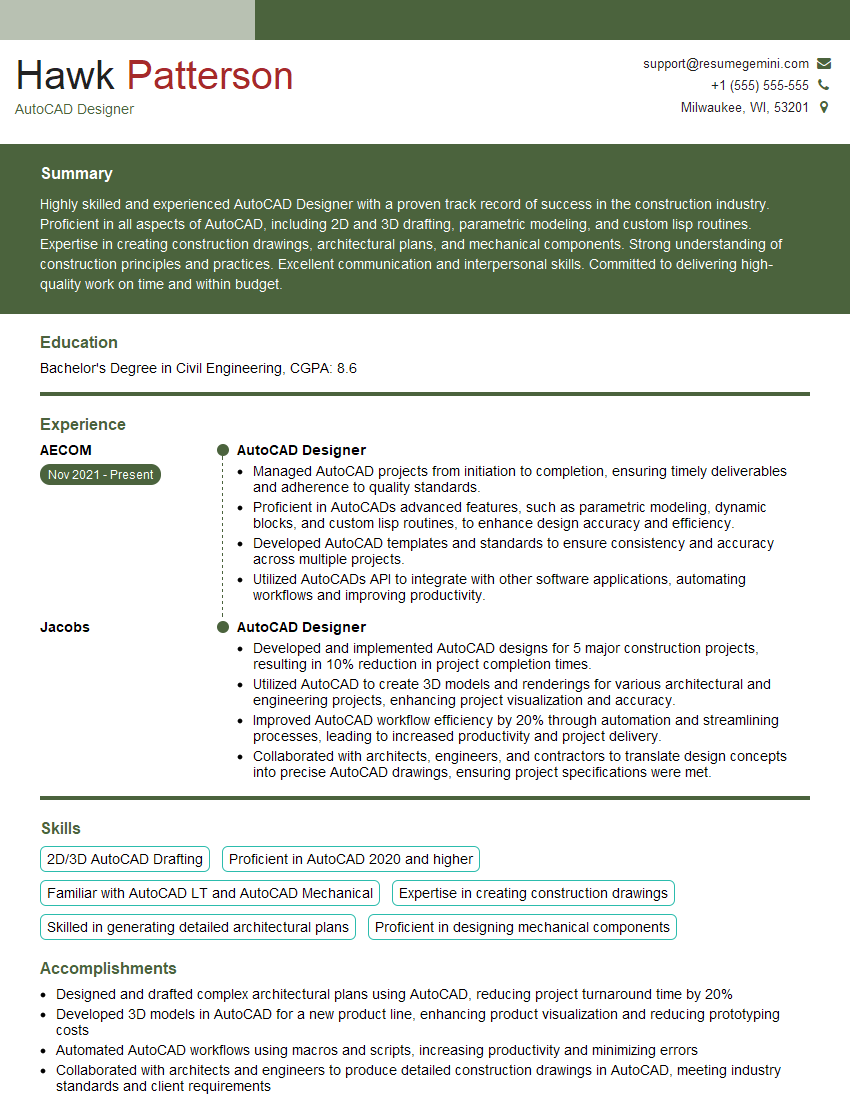
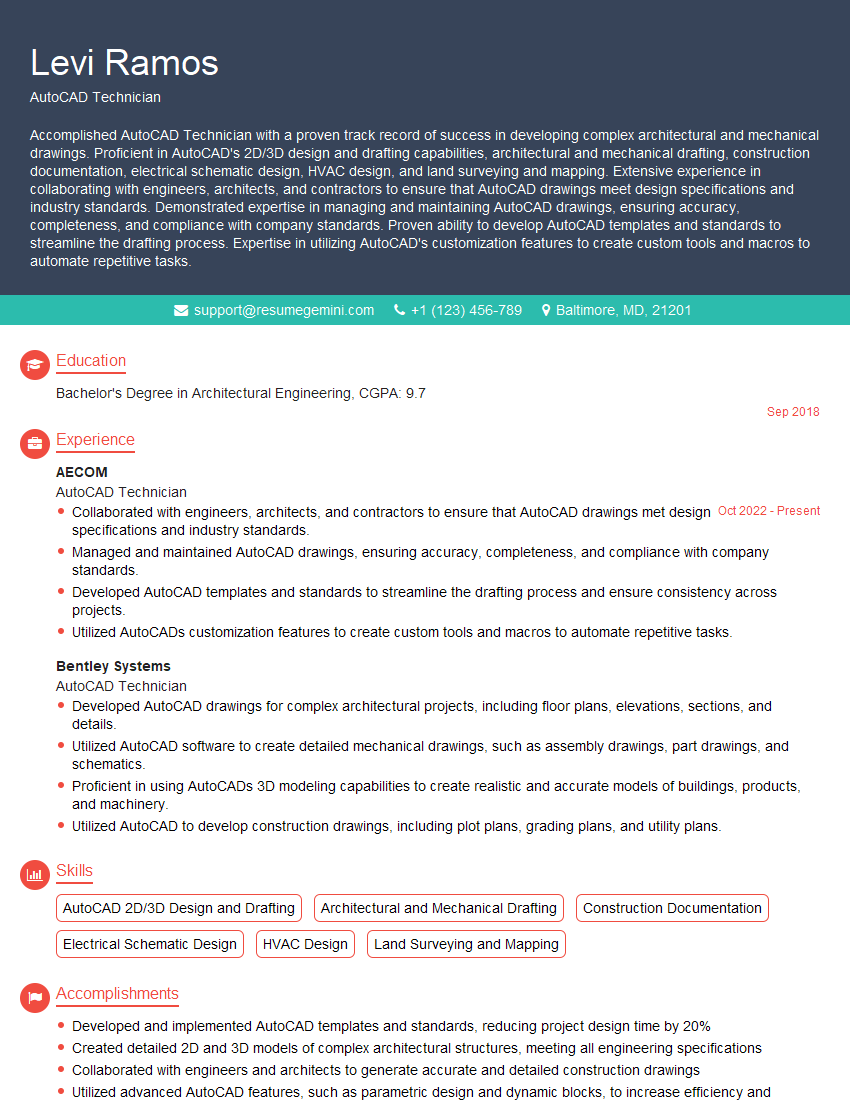
Mastering AutoCAD (2D and 3D) is crucial for a successful career in architecture, engineering, and design. It opens doors to exciting opportunities and allows you to contribute significantly to complex projects. To maximize your job prospects, focus on creating an ATS-friendly resume that highlights your skills and experience effectively. ResumeGemini is a trusted resource for building professional resumes, and we provide examples of resumes tailored to AutoCAD (2D and 3D) users to help you get started. Take the next step towards your dream career – craft a compelling resume that showcases your AutoCAD expertise!
Explore more articles
Users Rating of Our Blogs
Share Your Experience
We value your feedback! Please rate our content and share your thoughts (optional).
What Readers Say About Our Blog
Hello,
we currently offer a complimentary backlink and URL indexing test for search engine optimization professionals.
You can get complimentary indexing credits to test how link discovery works in practice.
No credit card is required and there is no recurring fee.
You can find details here:
https://wikipedia-backlinks.com/indexing/
Regards
NICE RESPONSE TO Q & A
hi
The aim of this message is regarding an unclaimed deposit of a deceased nationale that bears the same name as you. You are not relate to him as there are millions of people answering the names across around the world. But i will use my position to influence the release of the deposit to you for our mutual benefit.
Respond for full details and how to claim the deposit. This is 100% risk free. Send hello to my email id: [email protected]
Luka Chachibaialuka
Hey interviewgemini.com, just wanted to follow up on my last email.
We just launched Call the Monster, an parenting app that lets you summon friendly ‘monsters’ kids actually listen to.
We’re also running a giveaway for everyone who downloads the app. Since it’s brand new, there aren’t many users yet, which means you’ve got a much better chance of winning some great prizes.
You can check it out here: https://bit.ly/callamonsterapp
Or follow us on Instagram: https://www.instagram.com/callamonsterapp
Thanks,
Ryan
CEO – Call the Monster App
Hey interviewgemini.com, I saw your website and love your approach.
I just want this to look like spam email, but want to share something important to you. We just launched Call the Monster, a parenting app that lets you summon friendly ‘monsters’ kids actually listen to.
Parents are loving it for calming chaos before bedtime. Thought you might want to try it: https://bit.ly/callamonsterapp or just follow our fun monster lore on Instagram: https://www.instagram.com/callamonsterapp
Thanks,
Ryan
CEO – Call A Monster APP
To the interviewgemini.com Owner.
Dear interviewgemini.com Webmaster!
Hi interviewgemini.com Webmaster!
Dear interviewgemini.com Webmaster!
excellent
Hello,
We found issues with your domain’s email setup that may be sending your messages to spam or blocking them completely. InboxShield Mini shows you how to fix it in minutes — no tech skills required.
Scan your domain now for details: https://inboxshield-mini.com/
— Adam @ InboxShield Mini
Reply STOP to unsubscribe
Hi, are you owner of interviewgemini.com? What if I told you I could help you find extra time in your schedule, reconnect with leads you didn’t even realize you missed, and bring in more “I want to work with you” conversations, without increasing your ad spend or hiring a full-time employee?
All with a flexible, budget-friendly service that could easily pay for itself. Sounds good?
Would it be nice to jump on a quick 10-minute call so I can show you exactly how we make this work?
Best,
Hapei
Marketing Director
Hey, I know you’re the owner of interviewgemini.com. I’ll be quick.
Fundraising for your business is tough and time-consuming. We make it easier by guaranteeing two private investor meetings each month, for six months. No demos, no pitch events – just direct introductions to active investors matched to your startup.
If youR17;re raising, this could help you build real momentum. Want me to send more info?
Hi, I represent an SEO company that specialises in getting you AI citations and higher rankings on Google. I’d like to offer you a 100% free SEO audit for your website. Would you be interested?
Hi, I represent an SEO company that specialises in getting you AI citations and higher rankings on Google. I’d like to offer you a 100% free SEO audit for your website. Would you be interested?
good