Are you ready to stand out in your next interview? Understanding and preparing for basic knowledge of computer applications interview questions is a game-changer. In this blog, we’ve compiled key questions and expert advice to help you showcase your skills with confidence and precision. Let’s get started on your journey to acing the interview.
Questions Asked in basic knowledge of computer applications Interview
Q 1. What is your experience with Microsoft Word?
My experience with Microsoft Word spans over a decade, encompassing everything from basic document creation to advanced formatting and mail merge functionalities. I’m proficient in utilizing styles and templates to maintain consistency across large documents, and I’m comfortable working with tables, images, and advanced features like Track Changes and reviewing comments for collaborative editing. For example, in my previous role, I managed the creation and update of a 200-page company policy manual using Word, ensuring consistent formatting and seamless updates across multiple versions.
I’m also skilled in using Word’s advanced features such as creating macros for repetitive tasks, utilizing the built-in citation and bibliography tools for academic papers, and generating professional-looking reports with charts and graphs embedded directly from Excel spreadsheets.
Q 2. How proficient are you in using Microsoft Excel?
I’m highly proficient in Microsoft Excel, possessing expertise in data manipulation, analysis, and visualization. My skills extend beyond basic spreadsheet creation to encompass advanced functions such as VLOOKUP, INDEX/MATCH, PivotTables, and macros. I’m adept at using formulas to automate calculations and data cleaning. I frequently use charts and graphs to represent data clearly and effectively, communicating insights derived from data analysis.
For instance, in a past project, I used Excel to analyze sales data spanning three years, identifying key trends and developing predictive models to forecast future sales. This involved extensive data cleaning, formula application, and ultimately, presenting the findings to stakeholders through visually compelling charts and graphs.
Q 3. Describe your experience with Microsoft PowerPoint.
My PowerPoint experience goes beyond simply creating slide decks; I’m skilled in designing engaging and visually compelling presentations that effectively convey information. I use a variety of design principles to enhance clarity and visual appeal, employing animations and transitions judiciously to maintain professionalism. I’m comfortable incorporating multimedia elements such as videos and audio, and I’m well-versed in using different presentation templates to adapt to various audiences and purposes.
I’ve presented to diverse audiences, including executive teams and large conference groups, leveraging PowerPoint to support my narrative and ensure key messages resonated. I’ve also created interactive presentations, using features like hyperlinks and embedded videos to improve engagement and information retention.
Q 4. Can you explain your experience with email applications?
I have extensive experience with various email applications, including Outlook, Gmail, and Yahoo Mail. My proficiency includes managing multiple accounts, composing professional emails, organizing emails using folders and filters, and efficiently managing email attachments. I’m familiar with using email for both personal and professional communication, understanding the nuances of effective email etiquette, like appropriate subject lines and professional tone.
Beyond basic email management, I’m experienced in using features like email templates for efficient communication, setting up automatic replies (out-of-office messages), and utilizing the calendar function for scheduling meetings and managing appointments directly within the email application.
Q 5. How familiar are you with different types of file formats (e.g., .doc, .pdf, .xls)?
I’m very familiar with a wide array of file formats, including .doc (Microsoft Word), .docx (Microsoft Word), .pdf (Portable Document Format), .xls (Microsoft Excel), .xlsx (Microsoft Excel), .ppt (Microsoft PowerPoint), .pptx (Microsoft PowerPoint), .txt (plain text), .csv (comma-separated values), and .jpg (JPEG image). Understanding these formats is crucial for seamless collaboration and data exchange. I understand the differences in their properties, such as editing capabilities (read-only versus editable), compatibility across different software, and suitability for specific purposes (e.g., .pdf for archival purposes).
For example, I know that while a .doc file can be easily edited, a .pdf file is usually read-only, requiring dedicated software to make alterations. This understanding informs my choice of file format depending on the situation – whether for editing, sharing, or archiving.
Q 6. What is your experience with data entry?
My data entry experience includes accurately and efficiently inputting data into various systems, including spreadsheets, databases, and CRM software. I have experience with both manual data entry and importing data from external sources. I prioritize accuracy and maintain attention to detail throughout the process. My data entry speed is high, but I always prioritize accuracy over speed to prevent errors.
In past roles, I’ve been responsible for entering large volumes of data with a high degree of accuracy. I’ve utilized techniques to ensure accuracy, such as double-checking entries and using data validation tools to prevent incorrect inputs. I’m also skilled at identifying and correcting inconsistencies in data.
Q 7. How would you handle a large amount of data entry?
Handling large amounts of data entry effectively involves a structured approach. First, I would assess the data’s format and structure to determine the most efficient input method. This might involve using data import tools rather than manual entry where possible. Second, I would break down the task into smaller, manageable chunks. This approach reduces the likelihood of errors and allows for breaks to maintain focus and accuracy. Third, I would implement quality control checks throughout the process, periodically verifying data accuracy.
For example, if I had to enter a large customer database, I’d likely leverage import functions in Excel or a database system. I would perform regular data validation to ensure consistency and accuracy, and I’d create a system for documenting and resolving any inconsistencies or errors. Using tools such as data validation rules in Excel can help prevent erroneous entries before they become part of the larger dataset.
Q 8. How comfortable are you working with spreadsheets?
I’m highly comfortable working with spreadsheets. My experience spans several years and includes using spreadsheet software like Microsoft Excel and Google Sheets for a wide variety of tasks. I’m proficient in data entry, manipulation, formula creation (including complex nested formulas), data analysis, and data visualization. Think of spreadsheets as my go-to tool for organizing, analyzing, and presenting data effectively. For example, I’ve used spreadsheets to track project budgets, analyze sales data to identify trends, and manage inventory for a small business. I’m confident in my ability to learn and adapt to new spreadsheet functionalities as needed.
Q 9. How familiar are you with creating charts and graphs in Excel?
I’m very familiar with creating charts and graphs in Excel. I can create a wide variety of chart types, including bar charts, line graphs, pie charts, scatter plots, and more, to effectively visualize data. My expertise extends beyond simply creating the charts; I understand the importance of choosing the right chart type to best represent the data and communicate insights clearly. For instance, when presenting sales figures over time, a line graph is ideal to show trends. If showcasing market share, a pie chart is more appropriate. I’m also skilled in customizing charts and graphs – adding titles, labels, legends, and formatting them to maintain a professional and consistent look. I’ve used this skill extensively in preparing reports and presentations.
Q 10. Describe your experience with database management software.
My experience with database management software includes working with both relational databases (like MySQL and PostgreSQL) and NoSQL databases (like MongoDB). I’m proficient in designing database schemas, creating and managing tables, writing SQL queries to retrieve and manipulate data, and ensuring data integrity. For example, I’ve built databases to manage customer information, product catalogs, and project timelines. I understand the importance of normalization to reduce data redundancy and ensure efficient data storage. In a previous role, I designed a database system for a client that improved their data retrieval time by 70% by optimizing queries and database structure.
Q 11. Have you used any project management software before?
Yes, I have extensive experience using various project management software, including Asana, Trello, and Jira. I’m familiar with using these tools to manage tasks, track progress, assign responsibilities, and collaborate with team members. I understand Agile methodologies and have experience using these tools within Agile frameworks such as Scrum and Kanban. For example, in a recent project, I used Jira to manage a complex software development project, tracking bugs, features, and deadlines. My experience encompasses all aspects of project management software – from initial project setup to final report generation. I’m adept at customizing workflows and reporting to meet specific project needs.
Q 12. Can you explain your experience with presentation software?
My experience with presentation software includes proficiency in Microsoft PowerPoint and Google Slides. I’m skilled in creating visually appealing and informative presentations, including choosing appropriate templates, incorporating images and multimedia, and creating engaging narratives. I understand the importance of a clear and concise message, and I tailor my presentations to my audience. For example, I’ve presented complex technical information to both technical and non-technical audiences, adapting my language and visual aids accordingly. I’m also familiar with animation and transition effects to enhance audience engagement, but I prioritize clarity and professionalism over excessive embellishment.
Q 13. How would you create a professional-looking presentation?
Creating a professional-looking presentation involves several key steps: First, define a clear message and structure. Organize your content logically using headings, subheadings, and bullet points. Second, choose a professional template that is visually appealing but not distracting. Third, use high-quality images and graphics to illustrate your points. Fourth, maintain consistency in fonts, colors, and styles throughout the presentation. Fifth, ensure readability by using appropriate font sizes and contrasting colors. Sixth, practice your delivery to ensure a smooth and confident presentation. Finally, proofread carefully for any errors in grammar or spelling. Think of it like this: the presentation should be a visual reflection of your clear thinking and professionalism.
Q 14. Are you familiar with internet browsers and search engines?
Yes, I am very familiar with internet browsers (such as Chrome, Firefox, Safari, and Edge) and search engines (like Google, Bing, and DuckDuckGo). I understand how to effectively utilize these tools for research, information gathering, and communication. I’m proficient in using advanced search operators to refine search results and find specific information efficiently. For example, I regularly use boolean operators (AND, OR, NOT) to narrow down search results when conducting research. I also understand the importance of evaluating the credibility of online sources and identifying potential biases.
Q 15. What is your experience with online collaboration tools (e.g., Google Docs, SharePoint)?
I have extensive experience with online collaboration tools like Google Docs, Google Sheets, Google Slides, and SharePoint. I’ve used these tools extensively for both individual projects and team collaborations. For instance, in my previous role, we utilized Google Docs for drafting and editing reports collaboratively, allowing multiple team members to contribute simultaneously and track changes easily. This significantly improved our workflow, reducing version control issues and enabling faster project completion. With SharePoint, I’ve managed document libraries, ensuring proper version control and access permissions for sensitive information. The ability to work on documents in real-time, share comments, and track revisions is invaluable for maintaining transparency and efficiency in a team environment.
My understanding extends beyond basic usage. I’m proficient in leveraging advanced features like comment threads, version history, and access control lists to streamline collaboration and enhance project management. I’m also adept at integrating these tools with other applications to optimize our overall workflow.
Career Expert Tips:
- Ace those interviews! Prepare effectively by reviewing the Top 50 Most Common Interview Questions on ResumeGemini.
- Navigate your job search with confidence! Explore a wide range of Career Tips on ResumeGemini. Learn about common challenges and recommendations to overcome them.
- Craft the perfect resume! Master the Art of Resume Writing with ResumeGemini’s guide. Showcase your unique qualifications and achievements effectively.
- Don’t miss out on holiday savings! Build your dream resume with ResumeGemini’s ATS optimized templates.
Q 16. How comfortable are you using social media platforms for professional purposes?
I’m comfortable using social media platforms professionally, understanding the nuances and etiquette required. I recognize that social media is a powerful tool for networking, sharing industry insights, and building professional relationships. I use LinkedIn regularly to connect with colleagues, participate in relevant discussions, and stay updated on industry trends. I also utilize Twitter judiciously, carefully curating my posts to reflect a professional image. My approach is strategic; I focus on building a professional network, contributing meaningfully to conversations, and sharing relevant content that showcases my expertise. I am mindful of the potential risks and always adhere to my company’s social media policies and best practices for maintaining a professional online presence.
I understand the importance of maintaining a consistent and positive brand image, ensuring all my posts are accurate, respectful, and aligned with the professional context. I would never use social media to share sensitive company information or engage in unproductive online debates.
Q 17. How would you troubleshoot a common computer issue (e.g., printer not working)?
Troubleshooting a printer issue involves a systematic approach. For example, if a printer isn’t working, my first step would be to check the most obvious things: Is the printer turned on? Is it connected to the computer and the power source? Is there paper in the tray? Are the ink or toner cartridges properly installed and not empty?
- Check the physical connections: Ensure the printer cable is securely connected to both the printer and the computer. Try a different cable if possible.
- Check the power: Verify the power cord is plugged into both the printer and a working outlet. Try a different outlet.
- Check the printer queue: In your computer’s settings, check the printer queue for any jobs that might be stuck. Cancel any pending print jobs.
- Check the driver: Make sure you have the correct printer driver installed and updated. You may need to reinstall the driver.
- Check the network connection (for network printers): If it’s a network printer, confirm the network connection is working correctly. Check your network settings and ensure the printer is reachable on the network.
- Restart the printer and computer: Sometimes, a simple restart solves temporary glitches.
- Consult the printer manual: Check the printer’s troubleshooting section for specific instructions.
- Contact support: If the problem persists, contact your IT department or the printer manufacturer’s support team.
This methodical approach helps quickly identify and resolve the issue, minimizing downtime.
Q 18. Describe your experience with file organization and management.
My approach to file organization and management is based on a clear and consistent naming convention, utilizing folders and subfolders to categorize information logically. I use a hierarchical structure, organizing files by project, date, or client, depending on the context. For instance, a project folder might contain subfolders for documents, spreadsheets, presentations, and images. This ensures easy retrieval of files when needed. I also regularly delete unnecessary files and archive older ones to prevent clutter and maintain system performance.
Furthermore, I utilize cloud storage services like Google Drive or Dropbox for backup and collaboration, ensuring accessibility from multiple devices. Regularly backing up my files ensures data security and protects against accidental loss. I am also familiar with version control systems which allows tracking different versions of a file and reverting to previous versions.
Q 19. How do you ensure the accuracy of your data entry?
Data accuracy is paramount. To ensure accuracy during data entry, I employ several strategies. First, I meticulously double-check every entry, comparing it to the source document. I also use data validation features provided by software applications, such as setting data types and input restrictions. For instance, in a spreadsheet, I might constrain a column to only accept numbers, preventing accidental text input.
Furthermore, I regularly review my entered data for inconsistencies or errors. If working with large datasets, I might utilize data validation tools or formulas to highlight potential errors. I maintain a clear audit trail, documenting any changes or corrections made to the data. If dealing with particularly sensitive information, I would use checksum verification or similar methods for extra security and data integrity. Finally, a thorough understanding of the data and its context aids in identifying and correcting errors before they propagate.
Q 20. What are some strategies to improve efficiency when using computer applications?
Improving efficiency when using computer applications involves several key strategies. First, learning and utilizing keyboard shortcuts dramatically reduces the time spent on repetitive tasks. For example, using Ctrl+C (copy) and Ctrl+V (paste) instead of using the mouse menus is a simple way to boost productivity. Similarly, mastering application-specific shortcuts can further enhance efficiency.
Secondly, mastering the features and functions of the applications is crucial. Understanding advanced options and automation features, such as macros or scripting in programs like Excel, greatly accelerates complex tasks. Thirdly, proper file organization and management prevents wasted time searching for documents. Finally, regular maintenance, such as updating software and clearing unnecessary files, maintains optimal system performance.
Q 21. How familiar are you with using keyboard shortcuts?
I’m quite familiar with keyboard shortcuts. My proficiency extends beyond basic commands like copy, paste, and cut (Ctrl+C, Ctrl+V, Ctrl+X). I regularly utilize shortcuts for navigation, formatting, and other tasks specific to applications like Microsoft Word, Excel, and PowerPoint. For example, I use Ctrl+S (save) frequently to prevent data loss. In addition, I’m familiar with shortcuts that improve workflow in web browsers and operating systems. This knowledge significantly accelerates my work and reduces reliance on the mouse, making my workflow significantly more efficient. I’m always keen to learn and implement new shortcuts as needed.
Q 22. Describe your experience with any specific software relevant to the job description.
My experience with relevant software is extensive, particularly within the Microsoft Office suite. I’m highly proficient in Word, Excel, and PowerPoint, utilizing advanced features such as VBA scripting in Excel for automation and data analysis. For example, I developed a macro in Excel to automate a repetitive monthly reporting process, saving over 10 hours per month. In addition, I have considerable experience with project management software like Asana and Trello, using them to effectively manage tasks, deadlines, and collaborations within team projects. My proficiency in these tools is not merely limited to basic usage; I understand and leverage their full capabilities for increased efficiency and productivity.
Q 23. How do you adapt to new software or applications?
Adapting to new software is a crucial skill for me. My approach is systematic and involves several key steps. First, I carefully read the documentation or online tutorials provided. Then, I actively engage with the software, experimenting with different features and functionalities, paying close attention to the user interface and workflow. I also look for opportunities to apply what I’ve learned immediately in a relevant context. If there are any challenges, I don’t hesitate to seek support through online forums or the software’s help center. Think of learning a new software like learning a new language – it takes practice and immersion. For instance, when our company switched to a new CRM system, I quickly mastered the basics through online training and then took on the initiative of creating training materials for my colleagues. Through focused effort and hands-on experience, I quickly become proficient in new applications.
Q 24. How do you manage your time effectively when working on multiple computer tasks?
Effective time management when juggling multiple computer tasks hinges on prioritization and organization. I use a combination of techniques, including task lists, time blocking, and the Pomodoro Technique. I prioritize tasks based on urgency and importance, using tools like to-do list apps or project management software to visually track progress. Time blocking helps allocate specific time slots for different tasks, minimizing distractions. The Pomodoro Technique, with its short focused work intervals followed by short breaks, enhances concentration and prevents burnout. For example, I might dedicate the first hour to responding to emails, then two hours to a data analysis project, followed by a short break before tackling a presentation. This structured approach enables me to efficiently complete multiple tasks without sacrificing quality.
Q 25. What are some common computer security practices you follow?
Computer security is paramount. My practices include strong, unique passwords for all accounts (often using a password manager), regularly updating software and operating systems, enabling two-factor authentication whenever possible, being wary of phishing emails and suspicious links, and avoiding public Wi-Fi for sensitive tasks. I also understand the importance of backing up crucial data regularly to prevent data loss. Additionally, I am familiar with various cybersecurity best practices, including the importance of firewalls and antivirus software. This is crucial not just for personal security but also to protect sensitive company data.
Q 26. Have you worked with any CRM software (e.g., Salesforce, HubSpot)?
While I haven’t directly used Salesforce or HubSpot in a professional capacity, I’m familiar with the core functionalities of CRM systems. My understanding is based on extensive research and training materials. I know how these systems are used for managing customer relationships, tracking interactions, and streamlining sales processes. I’m confident in my ability to quickly learn and effectively utilize either system should the need arise, given my experience with similar database-driven applications and my adaptable approach to new software.
Q 27. What are your strengths and weaknesses when using computer applications?
My strengths lie in my quick learning ability and efficient problem-solving skills when using computer applications. I’m adept at learning new software and quickly adapting my workflow to leverage its features. I’m also comfortable navigating complex software interfaces and troubleshooting technical issues. A weakness, however, might be a tendency to take on too many tasks simultaneously. While I have strategies for managing multiple projects, I am continuously working on improving my ability to focus on one task at a time for maximum efficiency. I actively address this weakness by consistently refining my time management techniques.
Q 28. How do you stay updated with new developments in computer technology?
Staying current with new developments is crucial. I subscribe to tech newsletters and follow industry leaders on social media platforms such as LinkedIn and Twitter. I also regularly attend webinars and online courses focusing on emerging technologies and software updates. Furthermore, engaging with online communities and forums related to my area of interest allows me to learn from others’ experiences and insights. Staying updated is an ongoing process that involves a mix of formal and informal learning methods.
Key Topics to Learn for Basic Computer Applications Interviews
- Operating Systems (OS): Understand the fundamental functions of an OS (e.g., Windows, macOS, Linux), including file management, multitasking, and user interface interaction. Consider exploring different OS types and their strengths.
- Word Processing Software (e.g., Microsoft Word, Google Docs): Master essential features like formatting text, creating tables, inserting images, and utilizing advanced features like mail merge or track changes. Practice creating professional-looking documents.
- Spreadsheet Software (e.g., Microsoft Excel, Google Sheets): Learn basic formulas, data entry, sorting, filtering, and creating charts and graphs. Focus on practical applications like data analysis and presentation.
- Presentation Software (e.g., Microsoft PowerPoint, Google Slides): Understand how to create effective presentations, including slide design, incorporating visuals, and delivering compelling narratives. Practice structuring presentations logically.
- Database Basics (e.g., Access, basic SQL concepts): Familiarize yourself with fundamental database concepts such as tables, records, and fields. A basic understanding of data organization and querying will be beneficial.
- Internet & Email: Demonstrate proficiency in using email clients, navigating the internet, and understanding basic online safety and etiquette. This includes searching for information effectively.
- Problem-Solving & Troubleshooting: Develop your ability to identify and resolve common computer issues, such as software malfunctions, file errors, and connectivity problems. Highlight your systematic approach to troubleshooting.
Next Steps
Mastering basic computer applications is crucial for nearly every role today, significantly boosting your career prospects and showcasing your adaptability. An ATS-friendly resume is your key to unlocking job opportunities. It ensures your qualifications are easily identified by applicant tracking systems, increasing your chances of landing an interview. To create a professional and impactful resume, leverage the power of ResumeGemini. ResumeGemini offers a user-friendly platform to build a standout resume, and we provide examples of resumes tailored to showcasing proficiency in basic computer applications.

Office Manager Resume Sample
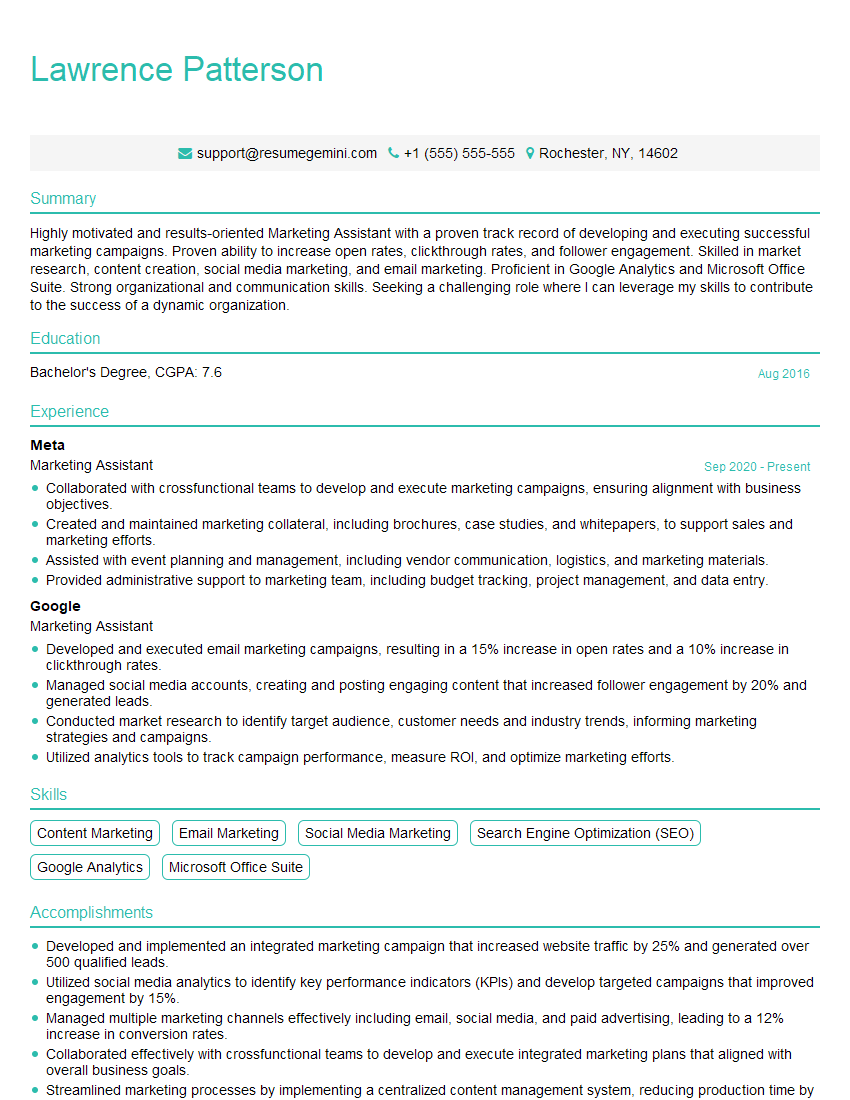
Marketing Assistant Resume Sample

Administrative Assistant Resume Sample
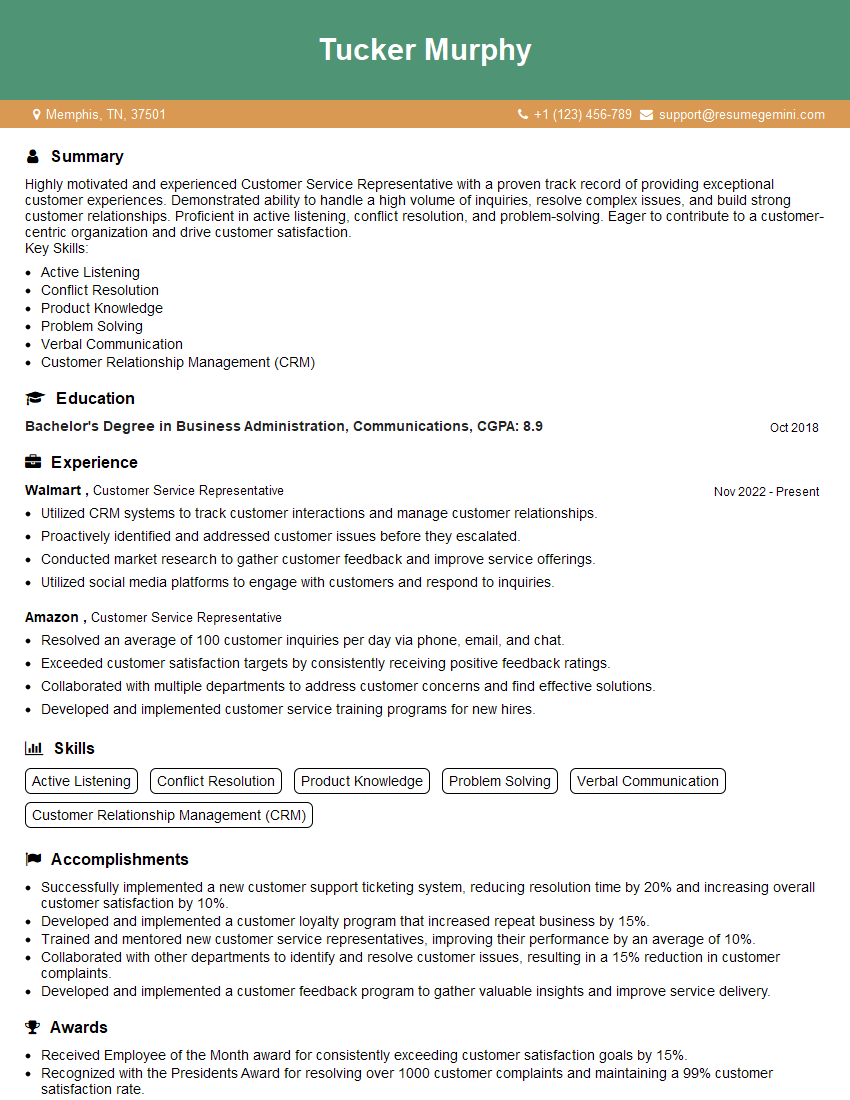
Customer Service Representative Resume Sample
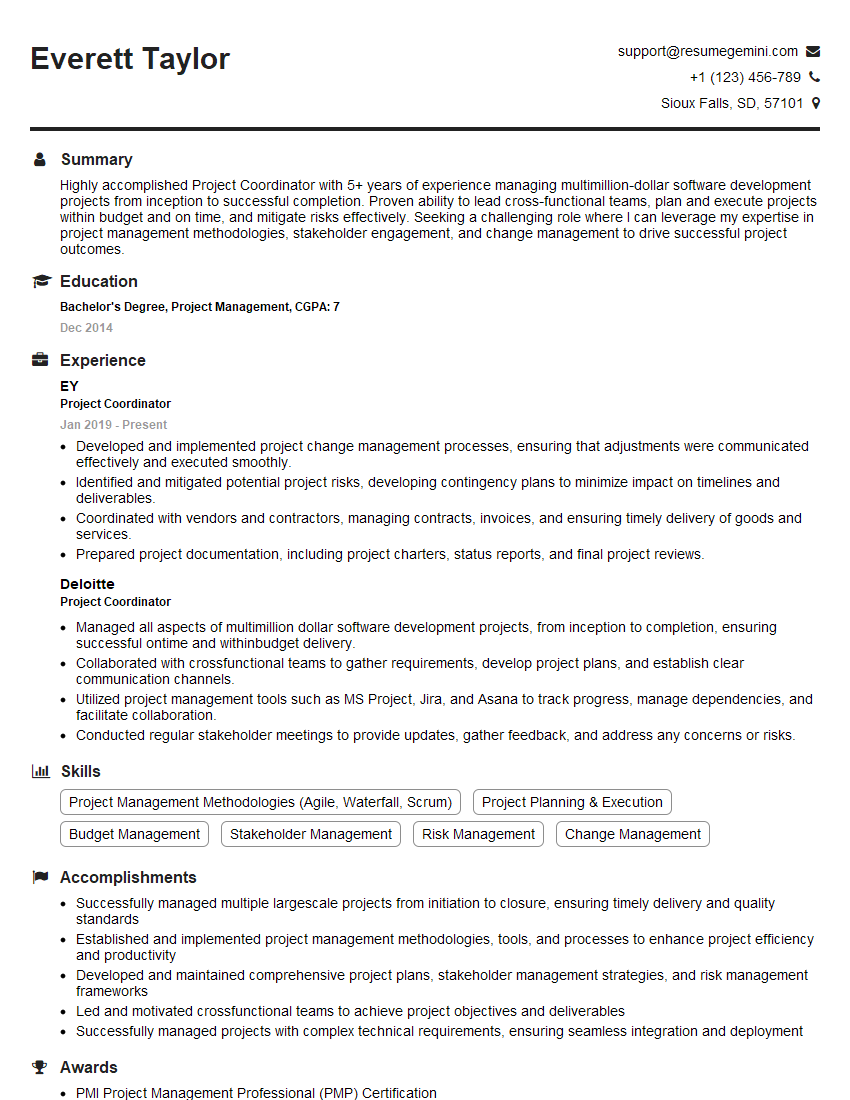
Project Coordinator Resume Sample

Social Media Manager Resume Sample
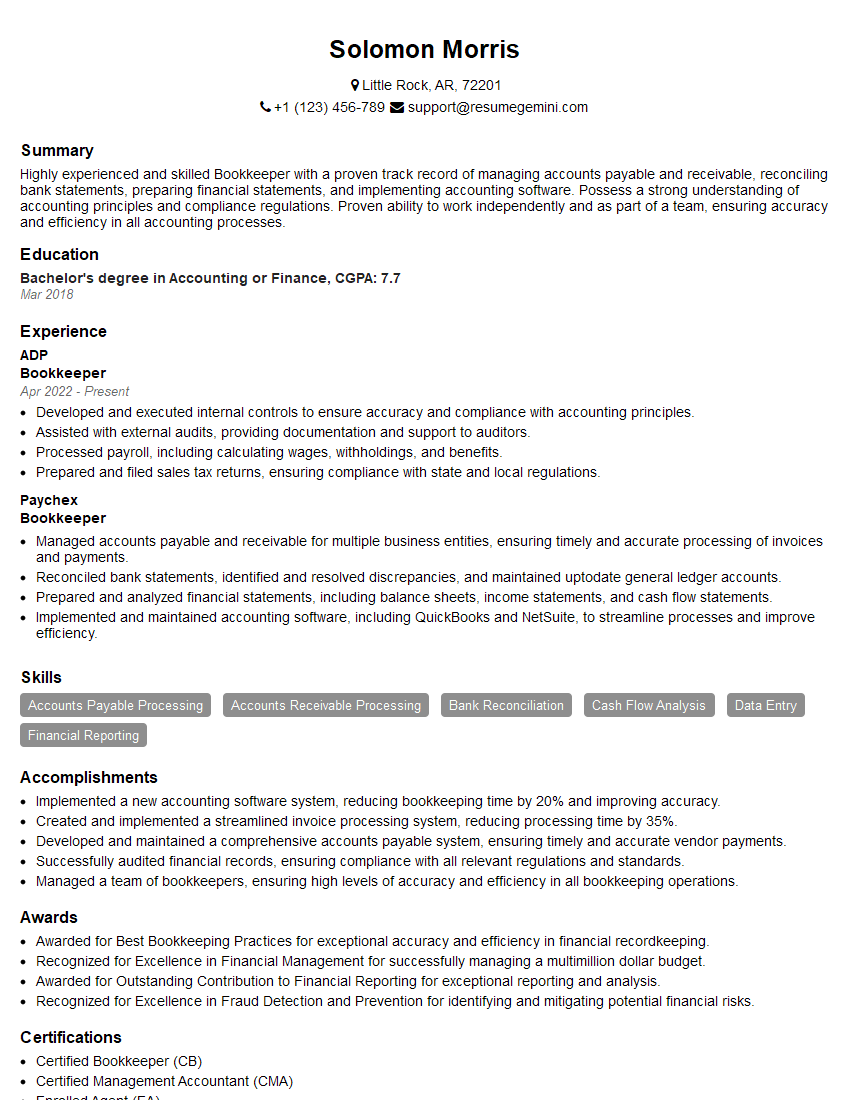
Bookkeeper Resume Sample
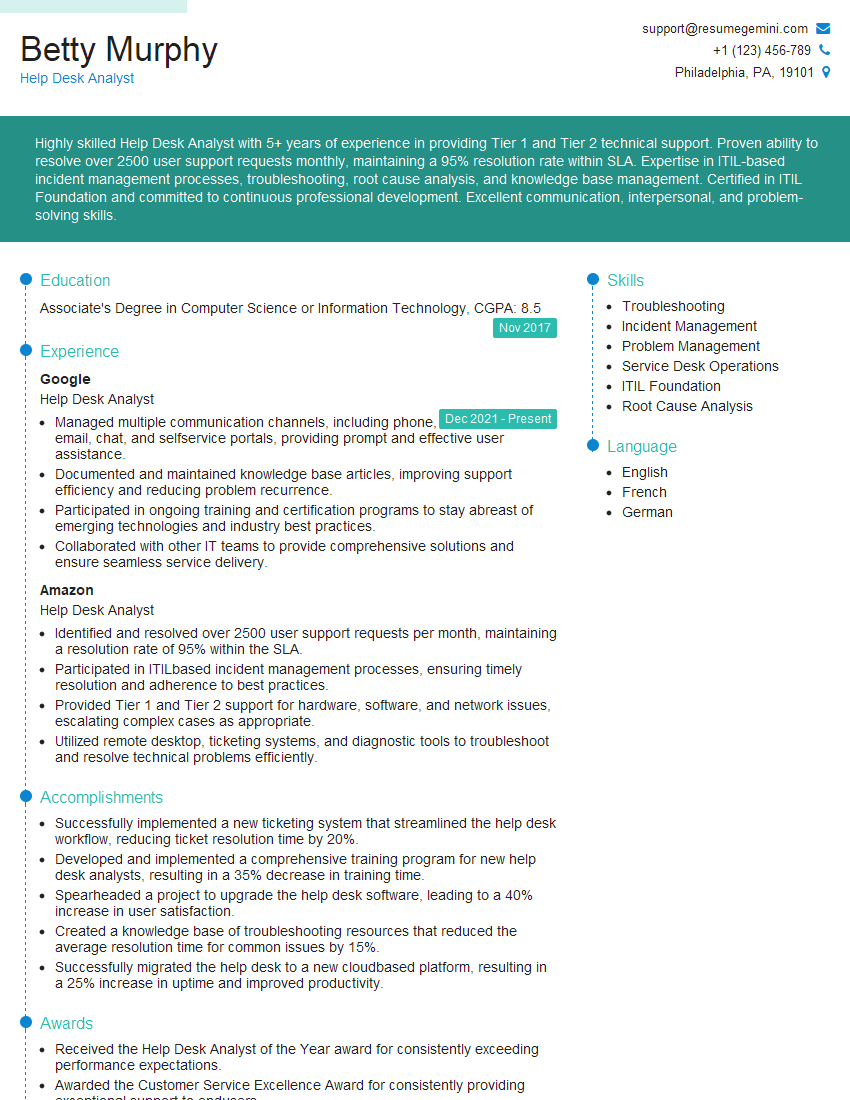
Help Desk Analyst Resume Sample
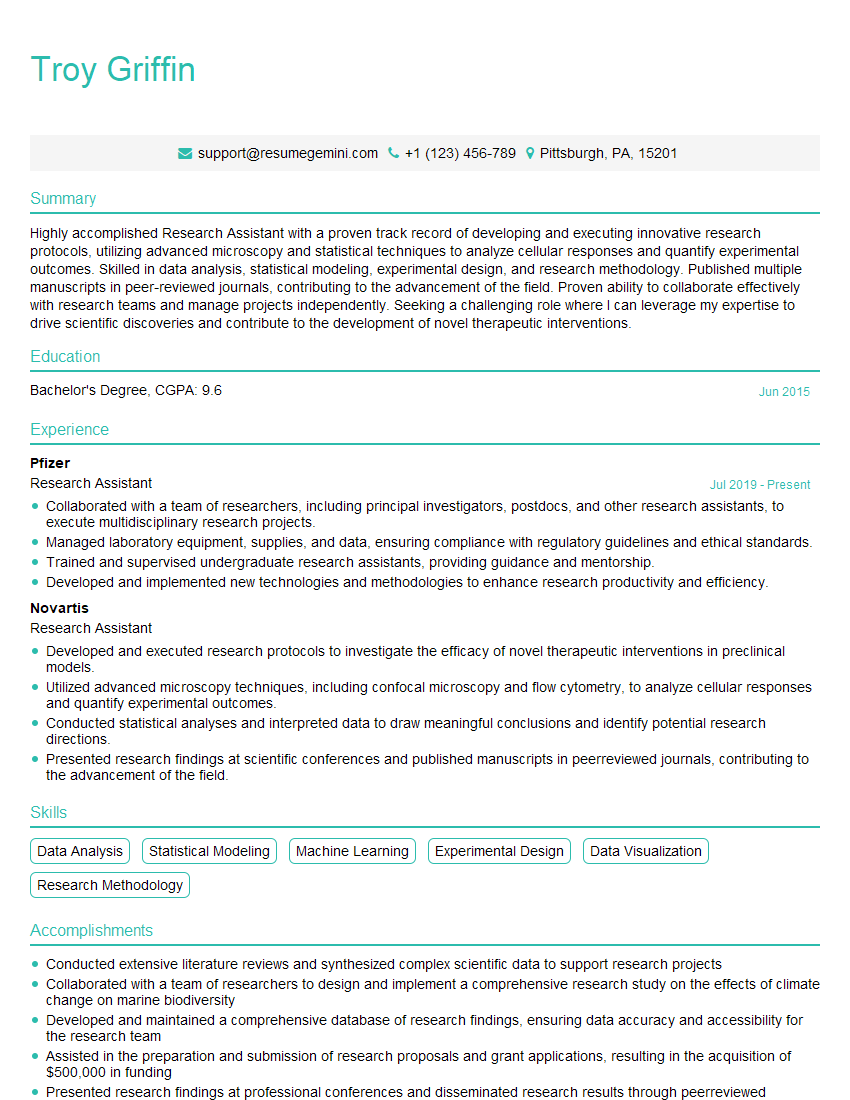
Research Assistant Resume Sample
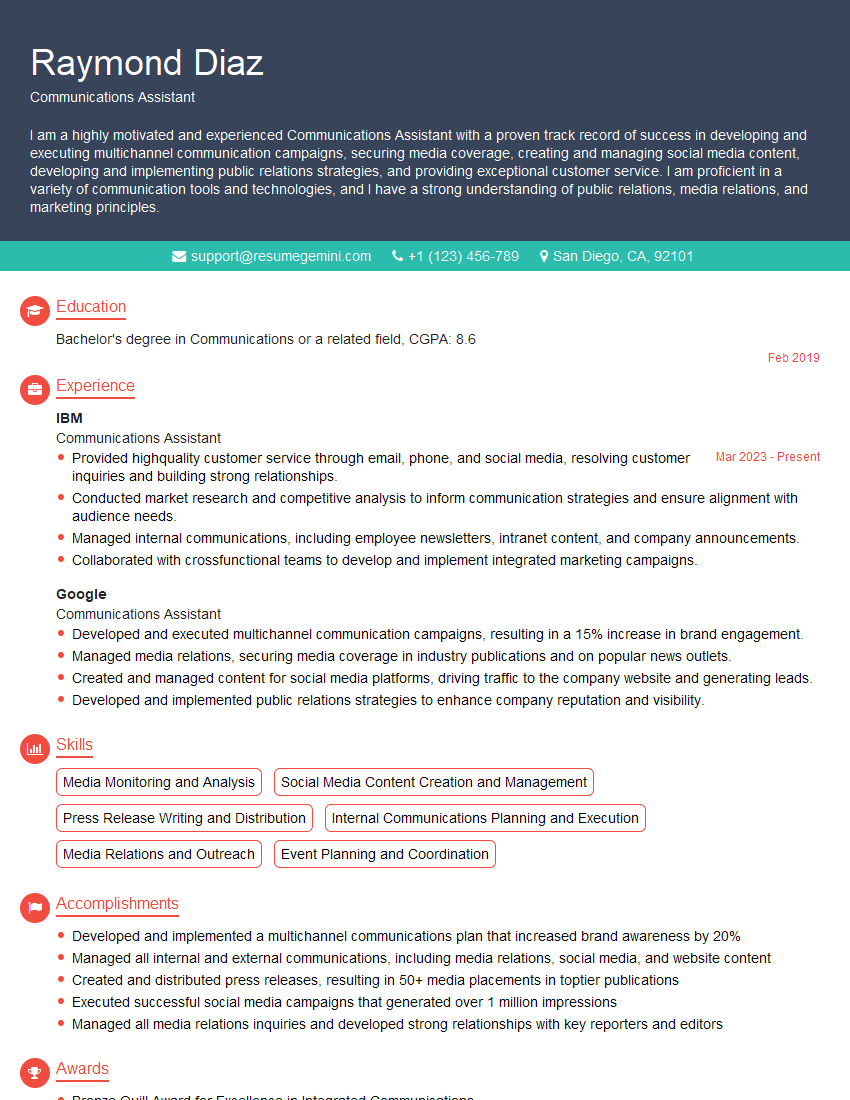
Communications Assistant Resume Sample
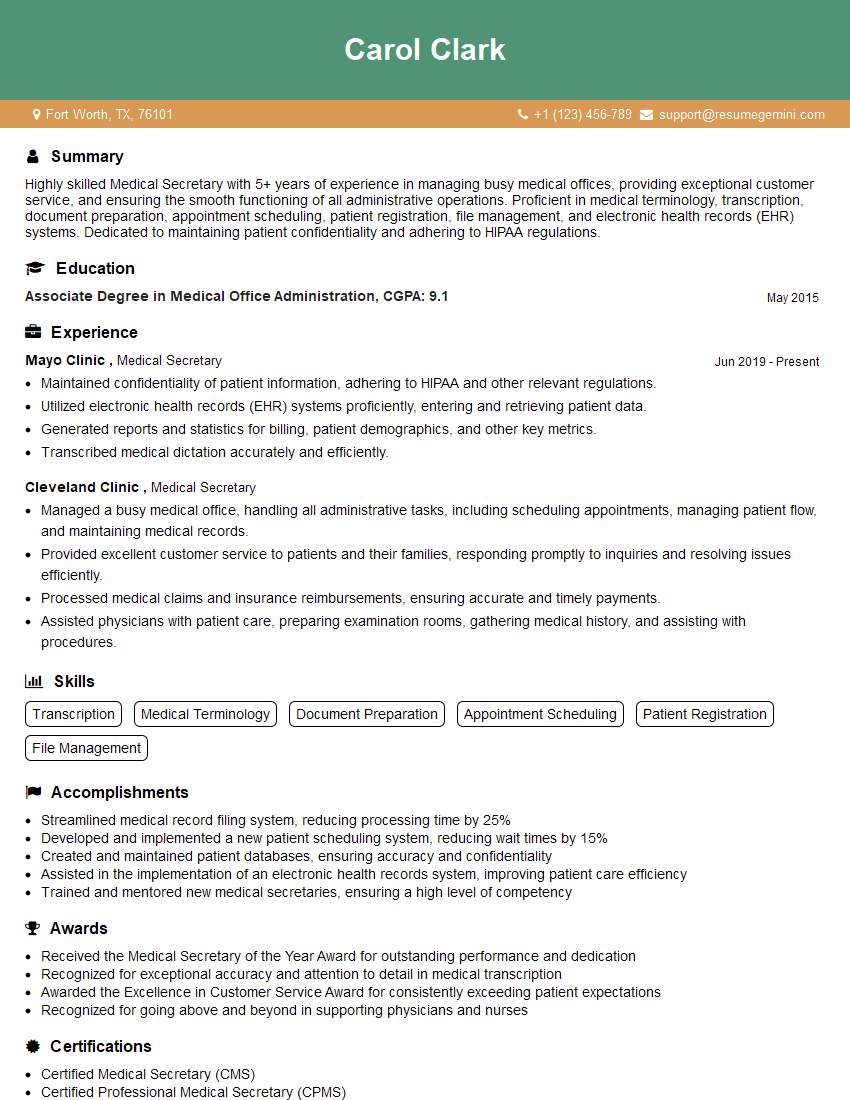
Medical Secretary Resume Sample
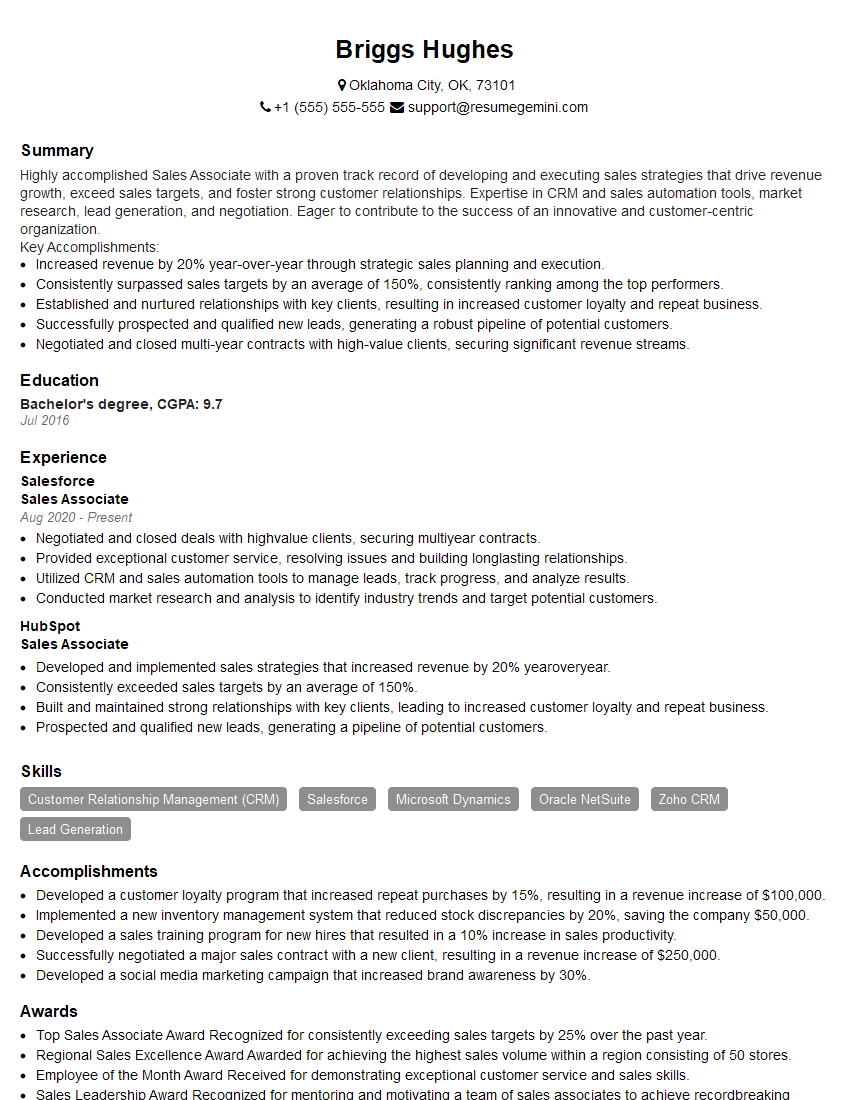
Sales Associate Resume Sample
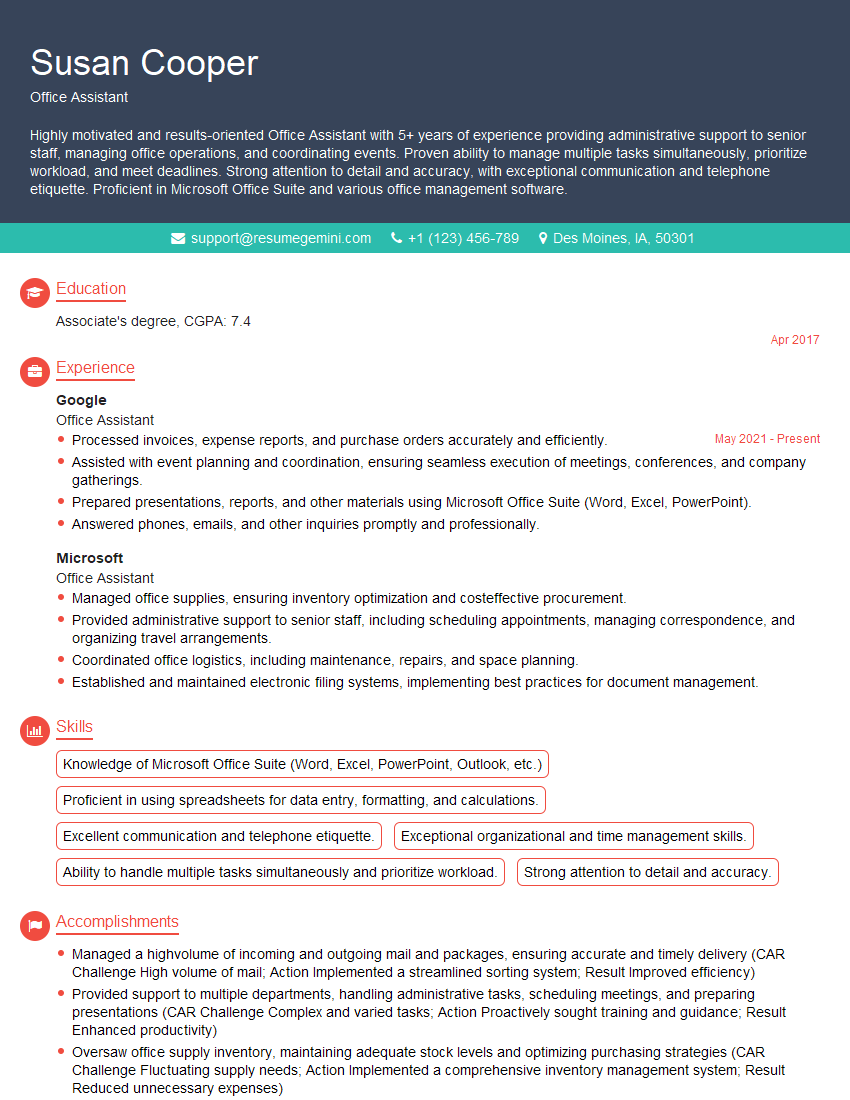
Office Assistant Resume Sample
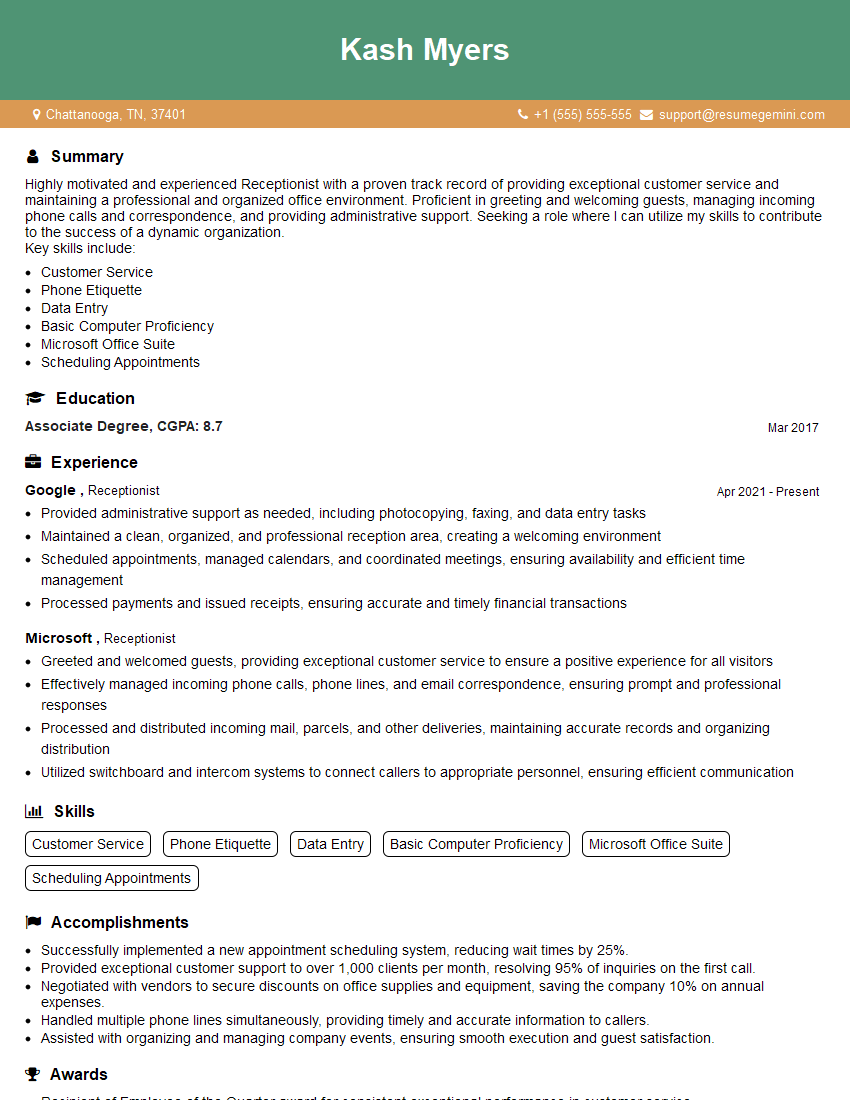
Receptionist Resume Sample

Executive Assistant Resume Sample
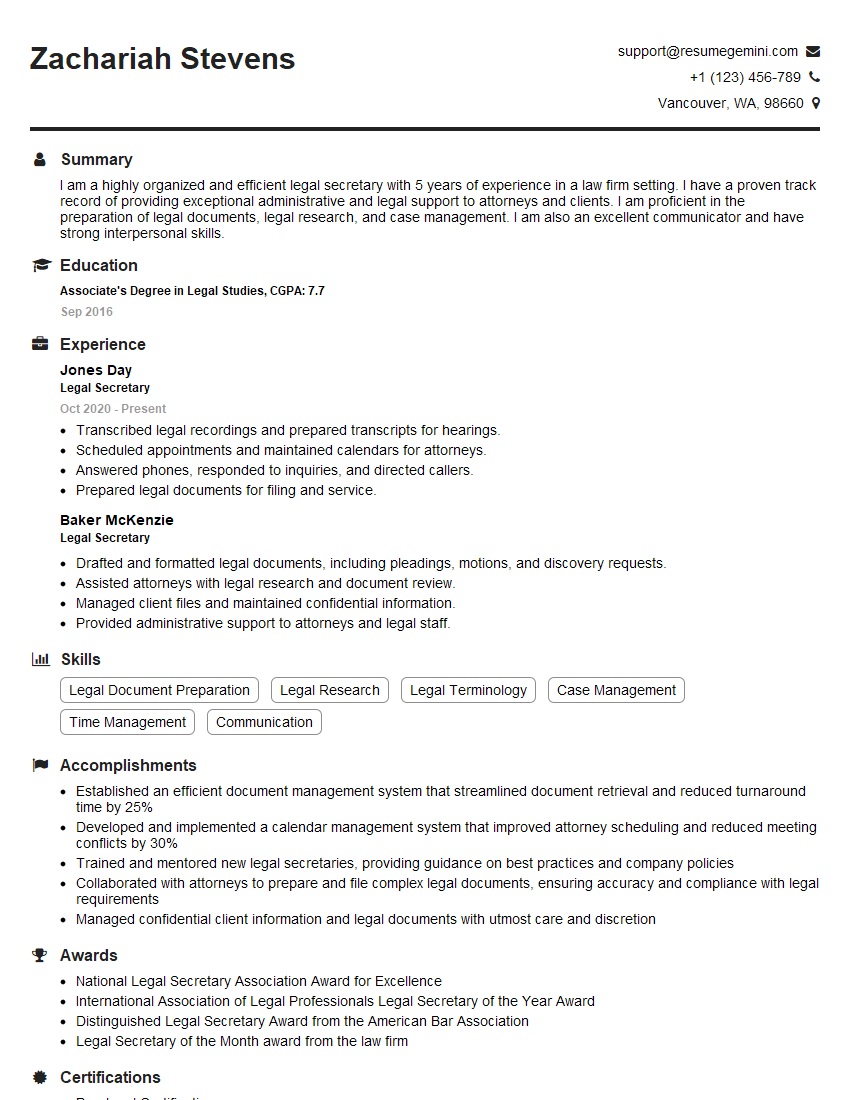
Legal Secretary Resume Sample

Data Entry Clerk Resume Sample
- Office Manager
- Marketing Assistant
- Administrative Assistant
- Customer Service Representative
- Project Coordinator
- Social Media Manager
- Bookkeeper
- Help Desk Analyst
- Research Assistant
- Communications Assistant
- Medical Secretary
- Sales Associate
- Office Assistant
- Receptionist
- Executive Assistant
- Legal Secretary
- Data Entry Clerk
Explore more articles
Users Rating of Our Blogs
Share Your Experience
We value your feedback! Please rate our content and share your thoughts (optional).
What Readers Say About Our Blog
Hello,
we currently offer a complimentary backlink and URL indexing test for search engine optimization professionals.
You can get complimentary indexing credits to test how link discovery works in practice.
No credit card is required and there is no recurring fee.
You can find details here:
https://wikipedia-backlinks.com/indexing/
Regards
NICE RESPONSE TO Q & A
hi
The aim of this message is regarding an unclaimed deposit of a deceased nationale that bears the same name as you. You are not relate to him as there are millions of people answering the names across around the world. But i will use my position to influence the release of the deposit to you for our mutual benefit.
Respond for full details and how to claim the deposit. This is 100% risk free. Send hello to my email id: [email protected]
Luka Chachibaialuka
Hey interviewgemini.com, just wanted to follow up on my last email.
We just launched Call the Monster, an parenting app that lets you summon friendly ‘monsters’ kids actually listen to.
We’re also running a giveaway for everyone who downloads the app. Since it’s brand new, there aren’t many users yet, which means you’ve got a much better chance of winning some great prizes.
You can check it out here: https://bit.ly/callamonsterapp
Or follow us on Instagram: https://www.instagram.com/callamonsterapp
Thanks,
Ryan
CEO – Call the Monster App
Hey interviewgemini.com, I saw your website and love your approach.
I just want this to look like spam email, but want to share something important to you. We just launched Call the Monster, a parenting app that lets you summon friendly ‘monsters’ kids actually listen to.
Parents are loving it for calming chaos before bedtime. Thought you might want to try it: https://bit.ly/callamonsterapp or just follow our fun monster lore on Instagram: https://www.instagram.com/callamonsterapp
Thanks,
Ryan
CEO – Call A Monster APP
To the interviewgemini.com Owner.
Dear interviewgemini.com Webmaster!
Hi interviewgemini.com Webmaster!
Dear interviewgemini.com Webmaster!
excellent
Hello,
We found issues with your domain’s email setup that may be sending your messages to spam or blocking them completely. InboxShield Mini shows you how to fix it in minutes — no tech skills required.
Scan your domain now for details: https://inboxshield-mini.com/
— Adam @ InboxShield Mini
Reply STOP to unsubscribe
Hi, are you owner of interviewgemini.com? What if I told you I could help you find extra time in your schedule, reconnect with leads you didn’t even realize you missed, and bring in more “I want to work with you” conversations, without increasing your ad spend or hiring a full-time employee?
All with a flexible, budget-friendly service that could easily pay for itself. Sounds good?
Would it be nice to jump on a quick 10-minute call so I can show you exactly how we make this work?
Best,
Hapei
Marketing Director
Hey, I know you’re the owner of interviewgemini.com. I’ll be quick.
Fundraising for your business is tough and time-consuming. We make it easier by guaranteeing two private investor meetings each month, for six months. No demos, no pitch events – just direct introductions to active investors matched to your startup.
If youR17;re raising, this could help you build real momentum. Want me to send more info?
Hi, I represent an SEO company that specialises in getting you AI citations and higher rankings on Google. I’d like to offer you a 100% free SEO audit for your website. Would you be interested?
Hi, I represent an SEO company that specialises in getting you AI citations and higher rankings on Google. I’d like to offer you a 100% free SEO audit for your website. Would you be interested?
good