Interviews are more than just a Q&A session—they’re a chance to prove your worth. This blog dives into essential Computer Hardware Diagnostics interview questions and expert tips to help you align your answers with what hiring managers are looking for. Start preparing to shine!
Questions Asked in Computer Hardware Diagnostics Interview
Q 1. Explain the boot process of a computer.
The computer boot process is the sequence of events that occur when you turn on your computer, leading to the operating system loading. Think of it like starting a car – several steps must occur in a specific order before you can drive.
- Power On Self-Test (POST): The computer’s BIOS (Basic Input/Output System) or UEFI (Unified Extensible Firmware Interface) performs a self-test, checking basic hardware components like the CPU, RAM, and hard drive. If it finds problems, it may display error codes.
- BIOS/UEFI Initialization: The BIOS/UEFI loads its configuration settings, including boot order. This determines which device (e.g., hard drive, USB drive, network) the system will attempt to boot from first.
- Boot Device Selection: The BIOS/UEFI searches for a bootable device according to the defined boot order. This is usually the hard drive containing the operating system.
- Bootloader Execution: The bootloader (e.g., GRUB, Windows Boot Manager) is loaded from the boot device. Its job is to find and load the operating system kernel.
- Operating System Kernel Loading: The bootloader loads the operating system kernel into memory. This is the core of the OS.
- Operating System Initialization: The kernel initializes various drivers and services, loads system files, and finally presents you with the login screen or desktop environment.
A failure at any stage can prevent the computer from booting, requiring troubleshooting. For example, a failing hard drive might prevent the OS from loading, while a faulty RAM module could cause POST errors.
Q 2. Describe different types of RAM and their differences.
RAM (Random Access Memory) is the computer’s short-term memory. It stores data the CPU actively uses. Different types exist, each with varying speeds, capacities, and power consumption:
- DRAM (Dynamic Random Access Memory): This is the most common type of RAM. It needs constant refreshing to retain data. There are several sub-types including SDRAM, DDR SDRAM (Double Data Rate), DDR2, DDR3, DDR4, and DDR5, each offering increased speed and capacity compared to its predecessor. The differences lie primarily in the speed at which data can be transferred and the power efficiency.
- SRAM (Static Random Access Memory): SRAM is faster and more expensive than DRAM but consumes more power and generally has a smaller capacity. It’s commonly used as cache memory.
- VRAM (Video RAM): Specialized RAM dedicated to the graphics card. Its purpose is to store and quickly access image data needed for display.
Choosing the right RAM depends on the motherboard’s compatibility (e.g., DDR4 vs. DDR5) and your needs. Faster RAM will result in smoother performance, especially for multitasking and gaming.
Q 3. How do you troubleshoot a system that won’t power on?
A system that won’t power on is a common problem, but systematic troubleshooting can usually pinpoint the issue. Follow this sequence:
- Check the Power Supply: Ensure the power cord is securely connected to both the computer and the wall outlet. Try a different outlet to rule out power issues. Consider using a power meter to check if the PSU is delivering power.
- Check the Power Switch: Make sure the physical power switch on the computer’s case is in the ‘on’ position.
- Listen for Sounds: Listen for any sounds emanating from the computer, such as fan noise. The absence of any sound suggests a power supply or motherboard problem.
- Inspect Internal Components: Open the computer case (after turning off the power and grounding yourself) and check for loose or damaged cables, especially those connected to the power supply and motherboard.
- Check the Power Supply (PSU): Test the PSU separately using a PSU tester to ensure it provides the appropriate voltages. A faulty PSU is a frequent cause of no-power issues.
- Test Components Individually: If possible, test individual components (such as the CPU and RAM) in a known good system to isolate the problem.
Troubleshooting a no-power situation may require specialized tools like a multimeter to test voltages and a PSU tester. Sometimes a faulty motherboard or a power supply problem is the culprit.
Q 4. What are the common causes of a blue screen of death (BSOD)?
The Blue Screen of Death (BSOD), or Stop error, in Windows indicates a critical system error. Common causes include:
- Driver Issues: Faulty or incompatible drivers (software that allows the OS to communicate with hardware) are a frequent cause. Updating or reinstalling drivers is a crucial troubleshooting step.
- Hardware Failures: Problems with RAM, hard drive, or other hardware components can trigger a BSOD. Running diagnostic tests on the hardware is essential.
- Software Conflicts: Incompatible software or corrupted system files can lead to BSODs. Reinstalling or repairing the software or performing a system restore may be necessary.
- Overheating: Excessive heat can cause system instability and BSODs. Cleaning the computer’s fans and ensuring proper ventilation can help.
- Corrupted System Files: Damaged or missing system files can render the system unstable. Running system file checker (
sfc /scannow) can help to fix this. - Malware or Viruses: Malicious software can disrupt system operation and lead to BSODs. Running a full antivirus scan is recommended.
The BSOD message usually provides a Stop code that provides clues to the cause. Searching online for the specific Stop code can provide more detailed information.
Q 5. Explain the function of a CMOS battery.
The CMOS (Complementary Metal-Oxide-Semiconductor) battery is a small, lithium battery on the motherboard. It’s vital because it maintains the CMOS settings even when the computer is turned off. These settings include:
- System Date and Time: Keeps the system clock running.
- Boot Order: Determines which devices the system tries to boot from first.
- Hardware Configuration: Stores information about installed hardware, such as CPU speed and memory size.
If the CMOS battery fails, you may lose your BIOS settings, requiring you to reconfigure them manually. The computer will usually still boot, but you might lose the date and time, or it might not recognize certain devices.
Q 6. How do you diagnose a failing hard drive?
Diagnosing a failing hard drive requires a combination of software and sometimes hardware tools. Signs of failure include:
- Slow Performance: Significantly slower boot times and application loading.
- Error Messages: Error messages during file access or system startup.
- Strange Noises: Clicking, grinding, or other unusual sounds from the drive.
- Data Loss: Inconsistent or missing files.
- Frequent Crashes: System crashes and freezes.
Diagnostic Tools:
- Manufacturer’s Diagnostic Tools: Many hard drive manufacturers provide diagnostic utilities (like SeaTools) for checking the drive’s health.
- Windows CHKDSK: The built-in Windows tool (
chkdsk c: /f /r) can check the drive for errors and attempt to repair them. - Third-Party Tools: CrystalDiskInfo and others can monitor the drive’s health and provide SMART (Self-Monitoring, Analysis and Reporting Technology) data, which indicates drive wear and potential failures.
If the drive is failing, backing up data is crucial before it becomes completely inaccessible.
Q 7. What tools do you use for diagnosing hardware problems?
Diagnosing hardware problems often relies on a suite of tools:
- Multimeter: To measure voltages, currents, and resistances, crucial for checking power supplies and other components.
- PSU Tester: Specifically for testing power supplies, verifying that they’re outputting the correct voltages.
- Hardware Diagnostic Software: Tools like MemTest86 (for RAM testing), and manufacturer’s utilities (for hard drive testing), help assess individual components.
- Thermal Paste: Applying fresh thermal paste to the CPU ensures effective heat dissipation.
- Anti-Static Wrist Strap: To prevent electrostatic discharge, which can damage sensitive components.
- Screwdrivers: Various sizes are required for opening computer cases and accessing internal components.
- Compressed Air: To clean dust from fans and other components.
Choosing the right tools depends on the specific problem. For example, a multimeter is essential for checking power supply issues, while MemTest86 is needed for diagnosing RAM problems. Often a combination of tools are necessary for accurate diagnostics.
Q 8. How do you troubleshoot network connectivity issues?
Troubleshooting network connectivity issues involves a systematic approach, starting from the simplest checks and progressing to more complex diagnostics. Think of it like investigating a crime scene – you need to gather evidence systematically.
- Check the basics: Is the device physically connected? Are the cables properly plugged in? Is the network cable working correctly (try a different cable)? Is the Wi-Fi enabled and connected to the correct network? Is the device itself turned on?
- Check network indicators: Look at the network connection icons on the device and the router. Are there any error messages or unusual indicators? A blinking light could indicate activity, while a steady light shows a connection. A non-lit light is usually a cable or power problem.
- Check the router: Is the router powered on? Are the internet lights on and working properly? If you have a modem, check its connection to the router and its power and signal lights.
- Try another device: Does another device in the same location have the same issue? This helps isolate whether the problem is with the device or the network itself. If the other device works, focus on the original device; if not, suspect the network itself or its connection to the internet.
- IP Address and DNS: Use the command prompt (
ipconfig /allon Windows orifconfigon Linux/macOS) to check the IP address, subnet mask, and default gateway. Are they properly configured? A misconfigured IP address will prevent the device from communicating on the network. DNS issues can prevent name resolution (e.g., inability to access websites by name). - Restart devices: Often, a simple reboot of the device, router, and modem will resolve temporary glitches. It’s the equivalent of clearing the cache in your browser.
- Advanced tools: For more complex situations, tools like ping (
ping google.com), traceroute (tracert google.comon Windows ortraceroute google.comon Linux/macOS) can help pinpoint bottlenecks or network connectivity issues.
For example, I once worked on a case where a user was experiencing intermittent network connectivity. By systematically checking the cables and router, I discovered a loose connection in the router’s power supply. A simple tightening fixed the issue. In another case, traceroute revealed a problem with the internet service provider’s connection, requiring a call to their support line.
Q 9. Describe your experience with different types of connectors (e.g., SATA, PCIe, USB).
My experience with various connectors is extensive, covering a wide range of hardware interfaces. Each connector type has unique specifications and functionalities.
- SATA (Serial ATA): Primarily used for connecting hard disk drives (HDDs) and solid-state drives (SSDs) to the motherboard. I’ve worked extensively with SATA connectors during system builds and upgrades, understanding their data transfer speeds and power requirements. The SATA III interface, for example, offers significantly faster transfer speeds than its predecessors.
- PCIe (Peripheral Component Interconnect Express): This high-speed serial expansion bus is used for a variety of devices, including graphics cards, network interface cards (NICs), and solid-state drives. I regularly work with PCIe slots during motherboard troubleshooting and expansion card installation. Identifying the correct PCIe version (e.g., PCIe x16, PCIe x4) is crucial for optimal performance.
- USB (Universal Serial Bus): A ubiquitous interface used for connecting a vast array of peripherals, from keyboards and mice to external storage devices and printers. I have encountered numerous issues with USB connectors, ranging from faulty ports to driver conflicts. Recognizing the different USB versions (e.g., USB 2.0, USB 3.0, USB-C) and their data transfer speeds is essential for diagnostics and troubleshooting.
In one instance, a client was experiencing slow data transfer speeds from an external SSD. After testing different cables and ports, I identified the problem as an incompatibility between the older USB 2.0 port and the high-speed SSD. Switching to a USB 3.0 port resolved the issue immediately. Understanding the nuances of these connectors, their pinouts, and physical compatibility is critical for successful hardware diagnostics and repair.
Q 10. Explain the difference between a CPU and a GPU.
The CPU (Central Processing Unit) and GPU (Graphics Processing Unit) are both processors, but they are specialized for different tasks.
- CPU: The CPU is the “brain” of the computer, responsible for executing instructions and performing calculations. It handles general-purpose tasks, including processing data from applications, running the operating system, and managing the computer’s resources. Think of it as the general manager of the computer.
- GPU: The GPU is specialized for handling graphics-intensive operations, such as rendering images and videos. It excels at parallel processing, allowing it to perform many calculations simultaneously. Think of it as the specialist graphics artist in the team.
The key difference lies in their architecture and purpose. The CPU is designed for sequential processing, efficiently handling diverse tasks one after another. The GPU is optimized for parallel processing, handling massive amounts of data simultaneously—particularly beneficial for graphics rendering and complex mathematical problems. While CPUs are getting better at parallel processing (with multi-core designs), GPUs remain significantly more efficient for graphic-intensive tasks.
Q 11. How do you identify and resolve overheating issues in a computer?
Overheating is a common computer problem that can lead to performance issues and hardware damage. Identifying and resolving it requires a multi-pronged approach.
- Monitor temperatures: Use monitoring software (like HWMonitor or Core Temp) to check CPU and GPU temperatures under load. Excessively high temperatures (above 80-90°C for most CPUs and GPUs) indicate a problem.
- Check cooling systems: Inspect the CPU cooler and heatsink, ensuring they are properly seated and making good thermal contact. Is the thermal paste correctly applied? Dust buildup on the heatsink or fan greatly reduces cooling efficiency. Clean the system thoroughly.
- Check fans: Are all fans working correctly? Are they sufficiently powerful for the system’s components? A failing or clogged fan significantly reduces airflow.
- Improve airflow: Ensure the case has adequate ventilation. Consider adding more case fans for better airflow. Be sure to install them according to the case’s airflow direction recommendations.
- Repaste the CPU: Applying new thermal paste can improve thermal conductivity between the CPU and heatsink. This is a common solution for older systems or those where thermal paste has dried out.
- Re-seat components: Ensure that all components are securely seated. Loose connections may increase temperatures.
In one case, a client’s computer was frequently crashing. Temperature monitoring revealed the CPU was overheating. Cleaning the dust-laden heatsink and reapplying thermal paste solved the issue immediately. Overheating is a common problem but easily solved with careful attention to cooling components.
Q 12. Describe your experience with motherboard troubleshooting.
Motherboard troubleshooting is a complex task requiring a thorough understanding of hardware components and their interconnections. The process usually involves a combination of visual inspection, component testing, and systematic elimination.
- Visual inspection: Check for any physical damage, such as burnt components, bulging capacitors, or loose connections. Look for any signs of water damage or corrosion.
- Component testing: Test individual components, such as RAM, CPU, and expansion cards, using known-good replacements. This helps isolate whether the problem lies within the motherboard itself or a faulty component.
- POST (Power-On Self-Test) codes: Pay close attention to any POST codes displayed during startup. These codes provide valuable information about the boot process and can help identify potential problems. (See next answer for more detail on POST).
- BIOS settings: Access the BIOS settings to check for any incorrect configurations or warnings. This might indicate a problem with the motherboard’s settings.
- Use a multimeter: Measure voltages on the motherboard to ensure it’s receiving the correct power. This is particularly helpful when suspecting power supply problems affecting the motherboard.
I once encountered a motherboard that had a faulty capacitor. The visual inspection initially showed no obvious problems, but careful examination revealed a slightly bulging capacitor. Replacing that capacitor resolved the intermittent boot issues the client was experiencing.
Q 13. How do you diagnose and repair a faulty power supply unit (PSU)?
Diagnosing and repairing a faulty PSU (Power Supply Unit) requires caution due to the high voltages involved. Always disconnect the power cord before working on any internal components!
- Check the power cord and outlet: The simplest check is to verify that the power cord is properly connected to both the PSU and the wall outlet. Try a different outlet to ensure the outlet itself isn’t the problem.
- Listen for noises: Faulty PSUs can produce unusual noises such as whining, clicking, or humming. These sounds often indicate internal problems.
- Inspect the PSU: Check for any physical damage, such as burnt components, or bulging capacitors on the PSU.
- Test the PSU outputs: Use a multimeter to measure the voltages on the PSU’s output rails (usually +3.3V, +5V, +12V). Compare the measurements to the PSU’s specifications. Significant deviations indicate a problem. (CAUTION: Be very careful when using a multimeter on a PSU to avoid electrical shock. If you are not comfortable, consult a professional).
- Test with a known-good PSU: The most definitive test is to replace the PSU with a known-good one. If the computer works, the original PSU was faulty.
In a recent instance, a client’s computer would power on intermittently. Using a multimeter, I discovered the +12V rail was outputting an unstable voltage. Replacing the PSU immediately resolved the problem. Never underestimate the importance of a properly functioning PSU—it’s the heart of the computer’s power distribution.
Q 14. What is POST and how do you use it for diagnostics?
POST (Power-On Self-Test) is a diagnostic process performed by the computer’s BIOS (Basic Input/Output System) upon startup. It checks the basic hardware components to ensure they are functioning correctly before the operating system loads. POST provides an early indication of potential problems.
- Visual indicators: During POST, the system may display POST codes (often numerical or alphanumeric) on the screen. These codes typically indicate the stage of the POST process and can provide clues to problems. Consult your motherboard manual for the meaning of specific POST codes.
- Beeps: Some motherboards use a series of beeps to indicate various problems during POST. These beeps have specific meanings documented in the motherboard manual. For example, a repeating short beep might indicate RAM problems.
- Error messages: Error messages on the screen can also indicate problems detected during POST, such as a missing or faulty component.
- Troubleshooting with POST information: By analyzing the POST codes, beeps, or error messages, you can narrow down the potential problems to specific components or areas of the system. For example, if POST stops at a particular stage, it suggests a problem with the component being tested at that stage (e.g., if the POST halts after the RAM check, this might suggest a RAM issue).
Understanding POST is fundamental in hardware diagnostics. If a system won’t boot, analyzing the POST behavior is often the first step in identifying the cause. For example, a client’s computer would only show a blank screen. After careful examination of the beeps from the motherboard, according to the manual, I identified a RAM problem, and replacing the RAM module solved the issue. The POST is like a preliminary health check for your computer.
Q 15. How do you troubleshoot a system with intermittent boot problems?
Intermittent boot problems are frustrating, but a systematic approach is key. Think of it like detective work – you need to gather clues to pinpoint the culprit. The first step is to observe the system’s behavior closely. Does it fail consistently after a certain amount of time? Does a specific error message appear? Note down everything you see, from beeps to displayed error codes.
Next, I’d start with the basics: Check the power supply – ensure the cables are securely connected and the PSU is delivering sufficient power. A failing PSU can cause intermittent issues. Then, I’d move on to the boot order in the BIOS/UEFI; a misconfiguration here could lead to the system not finding a bootable device consistently. Inspect the hardware connections – loose cables or components can easily introduce intermittent problems. Pay special attention to RAM modules and the hard drive.
If the problem persists, I would use diagnostic tools. Memory testing software like Memtest86+ is crucial for ruling out RAM problems. I’d also run hard drive diagnostics using tools provided by the manufacturer (e.g., SeaTools for Seagate drives). The system’s event logs (Windows Event Viewer or similar) often contain valuable clues about the nature of the boot failure. If the problem persists after all of these steps, further investigation might be needed, which could involve reseating components and potentially component-level replacement.
Career Expert Tips:
- Ace those interviews! Prepare effectively by reviewing the Top 50 Most Common Interview Questions on ResumeGemini.
- Navigate your job search with confidence! Explore a wide range of Career Tips on ResumeGemini. Learn about common challenges and recommendations to overcome them.
- Craft the perfect resume! Master the Art of Resume Writing with ResumeGemini’s guide. Showcase your unique qualifications and achievements effectively.
- Don’t miss out on holiday savings! Build your dream resume with ResumeGemini’s ATS optimized templates.
Q 16. Describe your experience working with different operating systems at the hardware level.
I have extensive experience working with various operating systems at the hardware level, including Windows (various versions), macOS, Linux (various distributions), and even some embedded systems. My experience covers both x86 and ARM architectures. For example, I’ve worked on troubleshooting boot issues on a server running CentOS where a faulty RAID controller was causing intermittent data loss leading to system crashes. On another occasion, I resolved a hardware conflict on a macOS system by updating the system’s EFI firmware and resolving a compatibility issue between the graphics card and the motherboard. My experience spans from desktop PCs to servers and even virtual machine environments, where the ability to diagnose issues at the hypervisor and guest OS levels is critical.
Understanding the low-level interactions between the OS and hardware is vital. This includes knowing how different OSes handle device drivers, interrupt handling, and memory management. For instance, I once had to debug a kernel panic on a Linux system that was related to a faulty network card that was not properly handled by the system kernel.
Q 17. How do you test the integrity of RAM?
RAM integrity testing is crucial to ensure system stability. The most effective way is to use dedicated memory diagnostic tools that run outside the operating system, thus avoiding interference from potential software issues. Memtest86+ is a popular and free choice; it’s a bootable ISO that thoroughly tests the RAM for errors. Other commercial tools offer similar functionalities but are often associated with a cost.
The process involves creating a bootable USB drive with Memtest86+, booting the system from it, and letting it run for several hours. The software performs numerous tests that push the RAM to its limits. If errors are found, they indicate faulty RAM modules. The precise location of the faulty module is typically identified, indicating which stick needs to be replaced. It is not uncommon for the process to take many passes or an extended period to detect intermittent or subtle RAM errors.
Q 18. Explain different types of storage devices and their performance characteristics.
Storage devices are categorized into different types, each with unique performance characteristics. Think of it as choosing the right tool for the job:
- Hard Disk Drives (HDDs): These are traditional mechanical storage devices with spinning platters and read/write heads. They’re generally slower than SSDs but offer significantly higher storage capacities at a lower cost per gigabyte.
- Solid State Drives (SSDs): These use flash memory to store data. They’re much faster than HDDs in terms of read/write speeds, boot times, and application loading. However, they are generally more expensive per gigabyte than HDDs.
- NVMe (Non-Volatile Memory Express) SSDs: These are a newer generation of SSDs using the PCIe interface, enabling significantly faster speeds than traditional SATA SSDs, especially in random access operations. They’re ideal for applications needing high performance, like gaming and video editing.
- Optical Drives (CD/DVD/Blu-ray): These are used for reading and writing optical media. They are slow and have a limited storage capacity compared to HDDs and SSDs but are still useful for archiving data.
The choice depends on the application. For a budget system with massive storage needs, an HDD might be suitable. For a gaming PC or a workstation needing high-speed access, an NVMe SSD is the better choice. A balance of speed and capacity might be achieved by using an SSD as the primary drive (for the OS and applications) and an HDD for mass storage.
Q 19. How do you troubleshoot printer problems?
Printer troubleshooting is a systematic process. I usually start by checking the obvious: Is the printer turned on? Are the cables (USB or network) securely connected? Is the printer online and detected by the system? Next, check the printer’s power supply and connections.
Then, I move onto checking the print queue: Are there any pending jobs that are stuck? Clearing the print queue is a common solution. I would also examine the printer’s status indicators (lights) for error codes. Many printers display helpful messages. Consulting the printer’s manual is crucial for interpreting these codes.
If the problem involves network connectivity, I would check the network settings on both the printer and the computer. This includes checking IP addresses, subnet masks, and network connectivity. Driver issues are also a common source of printer problems; ensuring the correct drivers are installed and updated is important. If problems persist, a more in-depth check of the printer’s internal mechanisms (ink cartridges, paper jams, and printheads) might be necessary.
Q 20. What is BIOS/UEFI and how is it used in hardware diagnostics?
BIOS (Basic Input/Output System) and UEFI (Unified Extensible Firmware Interface) are firmware interfaces between the operating system and the computer’s hardware components. Think of them as the initial startup code that wakes the machine and bridges between the hardware and the OS.
In hardware diagnostics, BIOS/UEFI plays a vital role. It’s the first place to check when troubleshooting boot issues. The BIOS/UEFI settings allow configuration of boot order, storage devices, and system time, which can all impact the start-up process. Many BIOS/UEFI interfaces incorporate basic system diagnostics such as memory tests and hard drive checks, allowing for preliminary hardware checks during the boot sequence. POST (Power-On Self-Test) is initiated by the BIOS/UEFI. Any error codes displayed during POST are crucial clues in hardware diagnosis. Modern UEFI systems can also offer sophisticated secure boot options and advanced diagnostics features.
Q 21. How do you handle a situation where a client’s data is lost due to hardware failure?
Data loss due to hardware failure is a serious situation, and my priority is to reassure the client and take steps to recover as much data as possible. My approach would involve several steps:
- Data Recovery Attempt: I’d attempt data recovery using specialized data recovery software or services. This involves carefully handling the affected hardware to prevent further data loss. For example, if the hard drive failed, I’d use a clean room environment and specialized tools to extract the drive’s platters and attempt data recovery.
- Backup Check: I’d check for the existence of backups and try to restore data from them. The availability and recency of backups dictate the success of this method.
- Client Communication: I’d keep the client informed about the data recovery process, setting realistic expectations and outlining potential costs involved in specialized data recovery services.
- Hardware Replacement: After recovering as much data as possible, I’d ensure that the failing hardware is replaced with a working alternative and verify the new system’s functionality.
- Prevention Discussion: I’d emphasize the importance of regular data backups and provide recommendations to prevent future data loss. This would involve discussing different backup strategies (cloud, local, or a combination) and their pros and cons.
It’s critical to prioritize data recovery while ensuring the client is kept informed and reassured. Professional data recovery services are often necessary in cases of extensive data loss or complex storage devices, highlighting the importance of both skilled expertise and specialized tools.
Q 22. Explain the process of replacing a component like a hard drive or RAM.
Replacing a component like a hard drive or RAM involves a methodical approach prioritizing safety and data preservation. Before you begin, always power down the computer completely and unplug the power cord. This is crucial to prevent electrical shock and data loss. Then, ground yourself using an anti-static wrist strap to prevent electrostatic discharge (ESD), which can damage sensitive components.
For a Hard Drive:
- Open the computer case (refer to your computer’s manual for instructions).
- Locate the hard drive; it’s typically a large rectangular component.
- Carefully disconnect the data cable (SATA or IDE) and the power cable from the hard drive.
- Unscrew the hard drive from its bay and remove it.
- Install the new hard drive, securing it with screws.
- Reconnect the data and power cables.
- Close the computer case and power it on.
- You might need to reinstall the operating system if replacing the boot drive.
For RAM:
- Open the computer case.
- Locate the RAM slots; they’re usually located near the CPU.
- Carefully release the clips holding the RAM module in place.
- Gently remove the old RAM module.
- Insert the new RAM module, ensuring it’s correctly aligned with the slot.
- Press down firmly until the clips engage and the RAM is secure.
- Close the computer case and power it on.
Remember to consult your computer’s manual for specific instructions and diagrams. Always double-check connections before powering on. Replacing components incorrectly can lead to further damage.
Q 23. Describe your experience using diagnostic software.
I’ve extensive experience with various diagnostic software, including CrystalDiskInfo (for hard drive health), Memtest86 (for RAM testing), and HWMonitor (for system monitoring). CrystalDiskInfo, for example, provides detailed information about hard drive attributes like SMART data, allowing for proactive identification of potential failures. I use Memtest86 to thoroughly test RAM for errors, ensuring stability and reliability. HWMonitor helps monitor real-time temperatures and voltages, identifying potential overheating or power supply issues. My proficiency extends to using these tools to pinpoint specific hardware problems, analyze logs, and create effective reports to document findings.
For instance, I once used Memtest86 to diagnose intermittent system crashes. The test revealed errors in a specific RAM module, which was then replaced, resolving the crashes. The ability to accurately interpret the results from these diagnostic tools is crucial for efficient troubleshooting.
Q 24. How do you document your troubleshooting process?
Thorough documentation is essential for effective troubleshooting and future reference. My documentation process typically includes:
- Detailed description of the problem: I meticulously document the initial symptoms, including error messages, unusual behaviors, and the environment in which the issue occurred (e.g., specific software running).
- Steps taken during troubleshooting: I maintain a chronological log of every step I take, noting the actions performed, the tools used, and the results obtained. This includes specific commands executed or software used. For example,
'sfc /scannow'to check system file integrity in Windows. - Results of diagnostic tests: I record the results of any diagnostic software used, including screenshots where necessary. This might include a screenshot of a CrystalDiskInfo report showing a failing hard drive.
- Parts replaced or repaired: I document any components replaced, repaired, or upgraded, including their model numbers and serial numbers.
- Final resolution: The final solution, including the root cause of the problem and the steps taken to resolve it, is clearly documented to aid future troubleshooting.
This detailed documentation helps in recreating the troubleshooting process, assisting in future diagnoses, and sharing knowledge within a team.
Q 25. How do you stay up-to-date with the latest hardware technologies?
Staying current in the rapidly evolving field of computer hardware necessitates a multi-pronged approach:
- Reading industry publications and websites: I regularly follow reputable tech news websites and blogs, focusing on hardware reviews and announcements to keep abreast of new technologies and advancements.
- Attending conferences and webinars: Participating in industry events exposes me to cutting-edge technologies and best practices presented by leading experts.
- Hands-on experience: Actively working with new hardware components and technologies allows me to gain practical experience and a deeper understanding of their capabilities and limitations.
- Manufacturer documentation: I consult manufacturers’ documentation, datasheets, and support materials for the latest information on specific components and troubleshooting strategies.
- Professional certifications: Pursuing relevant certifications, such as CompTIA A+, demonstrates commitment to professional development and ensures competence with the latest hardware technologies.
This holistic approach ensures I am well-equipped to handle the ever-changing landscape of computer hardware.
Q 26. Describe a time you had to troubleshoot a particularly challenging hardware problem.
I once encountered a particularly challenging issue involving a server that experienced random reboots. Initial diagnostic tests revealed no obvious hardware problems. After systematically eliminating potential software conflicts, I suspected a power supply issue. However, standard power supply testing tools showed no faults.
The breakthrough came when I used a specialized power analyzer to monitor the power consumption under load. This revealed intermittent voltage spikes exceeding the server’s tolerance, pointing towards a failing power supply despite initial tests showing no clear issue. Replacing the power supply completely resolved the reboots. The problem was subtle and not easily detected using conventional methods, highlighting the need for diverse diagnostic tools and thorough investigation when troubleshooting complex hardware issues.
Q 27. What safety precautions do you take when working with computer hardware?
Safety is paramount when working with computer hardware. I always adhere to the following safety precautions:
- Power down and unplug: Always ensure the computer is completely powered down and unplugged from the power source before opening the case or working on any internal components.
- Ground yourself: I use an anti-static wrist strap connected to a grounded surface to prevent electrostatic discharge, which can damage sensitive components.
- Proper handling: I handle components carefully, avoiding excessive force or dropping them. RAM modules, for instance, can be easily damaged if handled carelessly.
- Workspace: I maintain a clean and well-lit workspace to avoid accidental damage or injury.
- Tools: I use appropriate tools for the job; never use improvised tools that might damage components or injure me. For example, using a plastic spudger, rather than a metal screwdriver, to avoid short circuits.
- Dispose of components properly: I dispose of old or defective components responsibly, adhering to local regulations for electronic waste disposal.
These safety measures help protect me and the equipment from damage, promoting a safe and efficient work environment.
Key Topics to Learn for Computer Hardware Diagnostics Interview
- Motherboard Diagnostics: Understanding BIOS/UEFI, POST process, CMOS settings, and troubleshooting boot issues. Practical application: Diagnosing a system that fails to boot and identifying the failing component (e.g., RAM, CPU, etc.).
- Peripheral Device Diagnostics: Troubleshooting issues with hard drives (HDD/SSD), optical drives, network adapters, and input devices (keyboard, mouse). Practical application: Identifying and resolving slow hard drive performance or network connectivity problems.
- Memory Diagnostics: Utilizing memory testing tools (e.g., Memtest86) to identify faulty RAM modules. Practical application: Implementing effective strategies for replacing or repairing faulty RAM.
- Processor Diagnostics: Understanding CPU architecture, overclocking risks, and thermal management. Practical application: Diagnosing CPU-related performance bottlenecks and overheating issues.
- Power Supply Diagnostics: Testing power supply units (PSUs) for proper voltage output and identifying power supply failures. Practical application: Safely testing and replacing a malfunctioning PSU.
- Operating System Diagnostics: Basic troubleshooting of operating system issues impacting hardware functionality. Practical application: Identifying driver conflicts or resource limitations affecting hardware performance.
- Hardware Troubleshooting Methodologies: Understanding systematic troubleshooting approaches (e.g., process of elimination, binary search) and documentation techniques. Practical application: Effectively documenting diagnostic steps and findings for efficient problem resolution.
- Safety Precautions and ESD: Understanding and applying proper safety procedures when working with computer hardware. Practical application: Demonstrating safe handling of components to prevent electrostatic discharge (ESD) damage.
Next Steps
Mastering Computer Hardware Diagnostics is crucial for career advancement in IT support, repair, and system administration roles. A strong understanding of these concepts will significantly enhance your job prospects and open doors to higher-paying positions. To maximize your chances of success, create an ATS-friendly resume that highlights your skills and experience effectively. ResumeGemini is a trusted resource that can help you build a professional and impactful resume, ensuring your qualifications stand out to potential employers. Examples of resumes tailored to Computer Hardware Diagnostics are provided to help you get started.
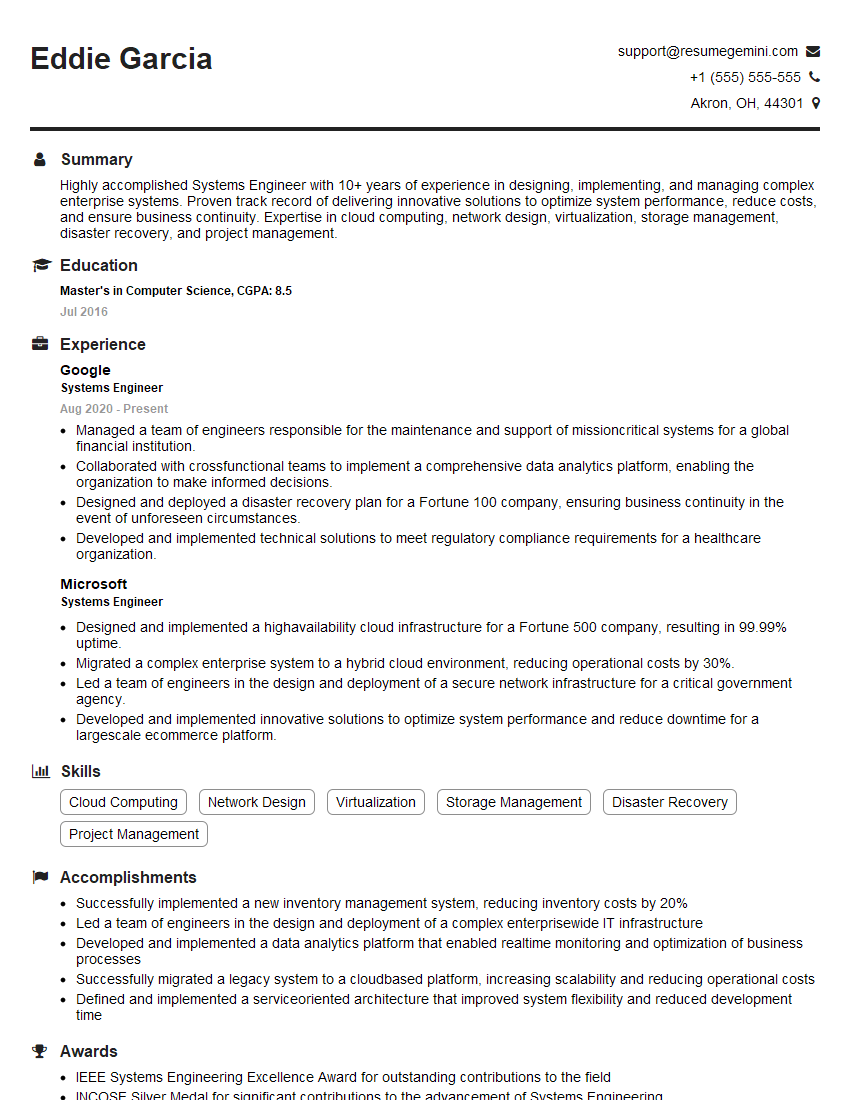
Systems Engineer Resume Sample
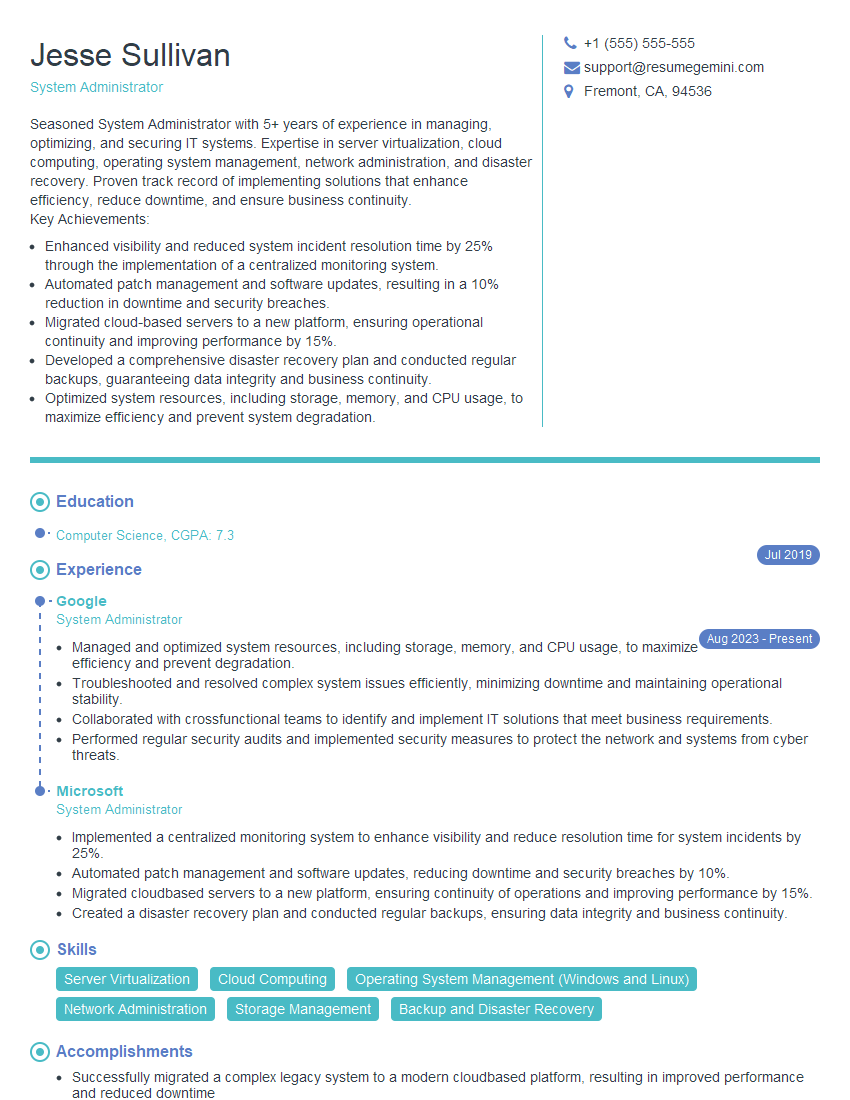
System Administrator Resume Sample
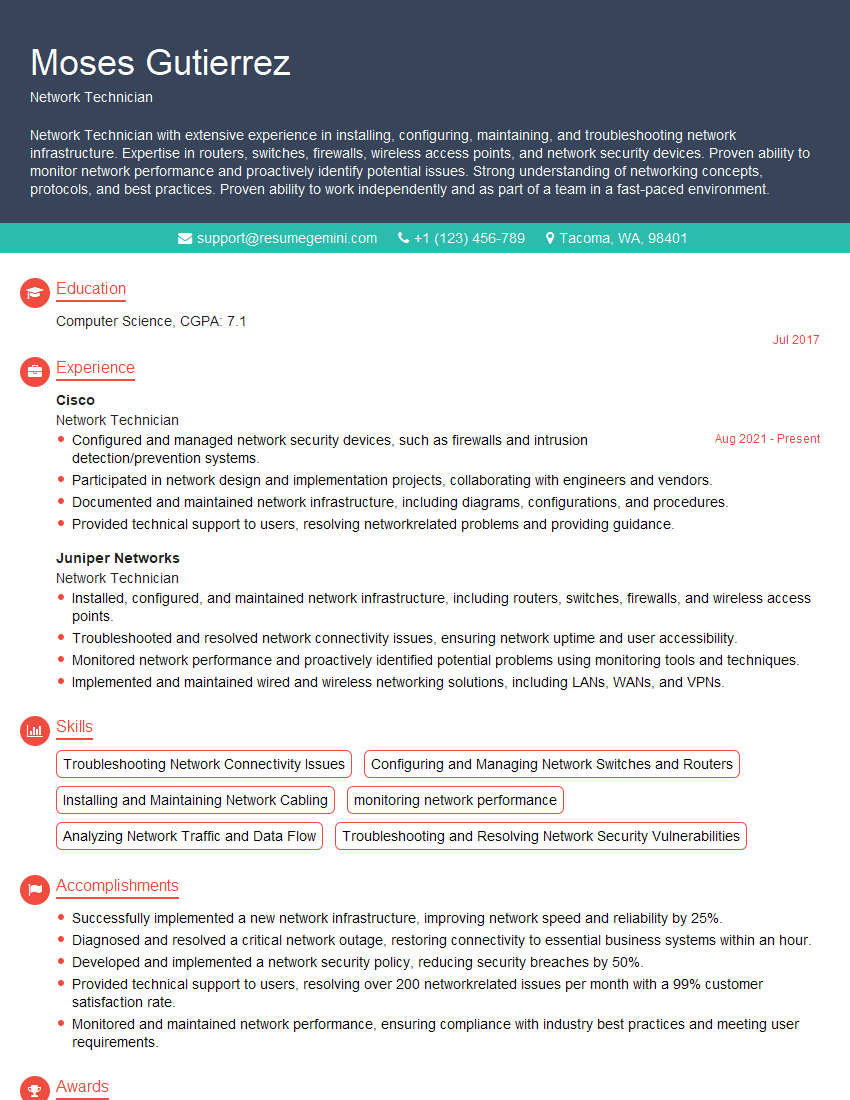
Network Technician Resume Sample
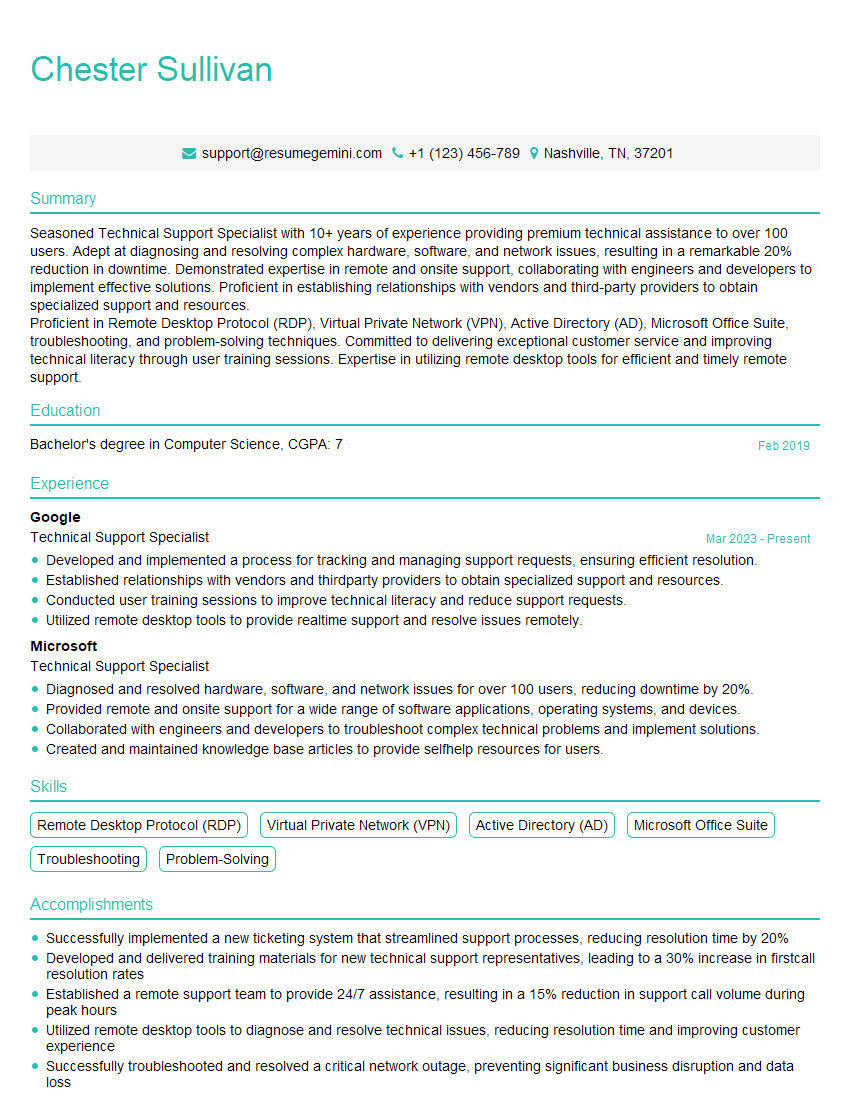
Technical Support Specialist Resume Sample
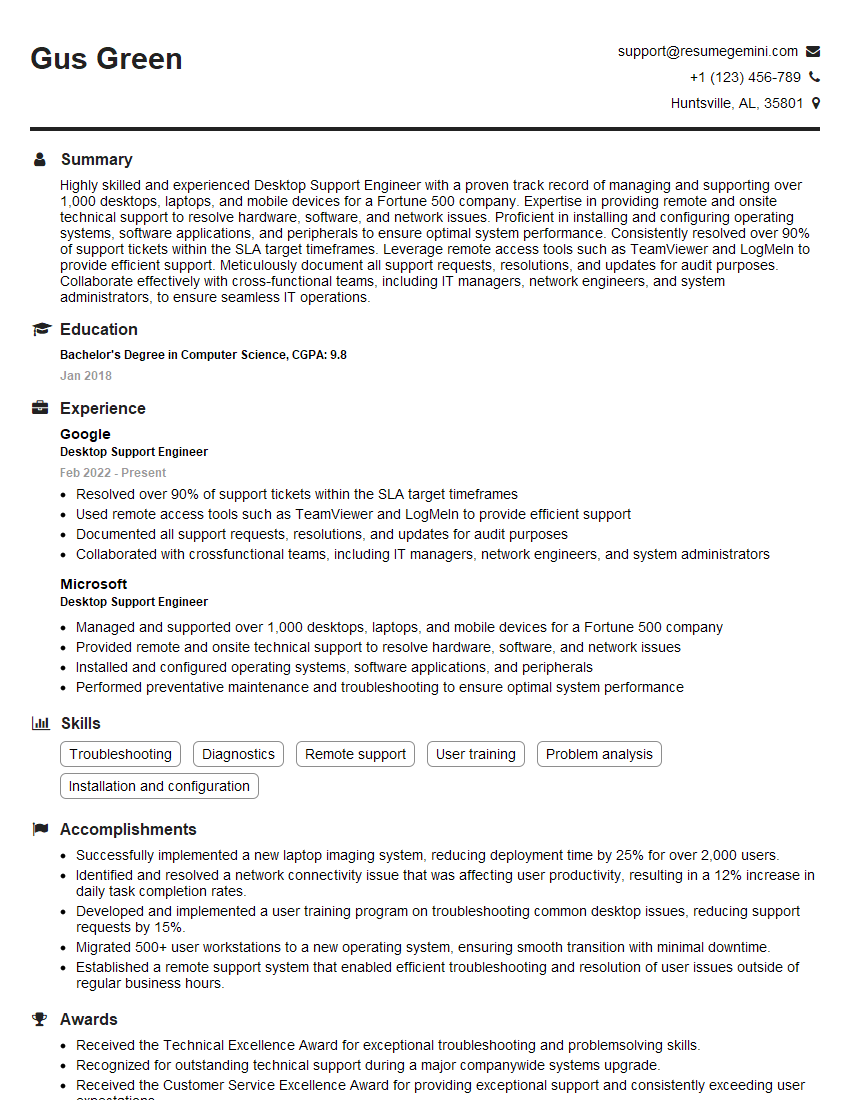
Desktop Support Engineer Resume Sample
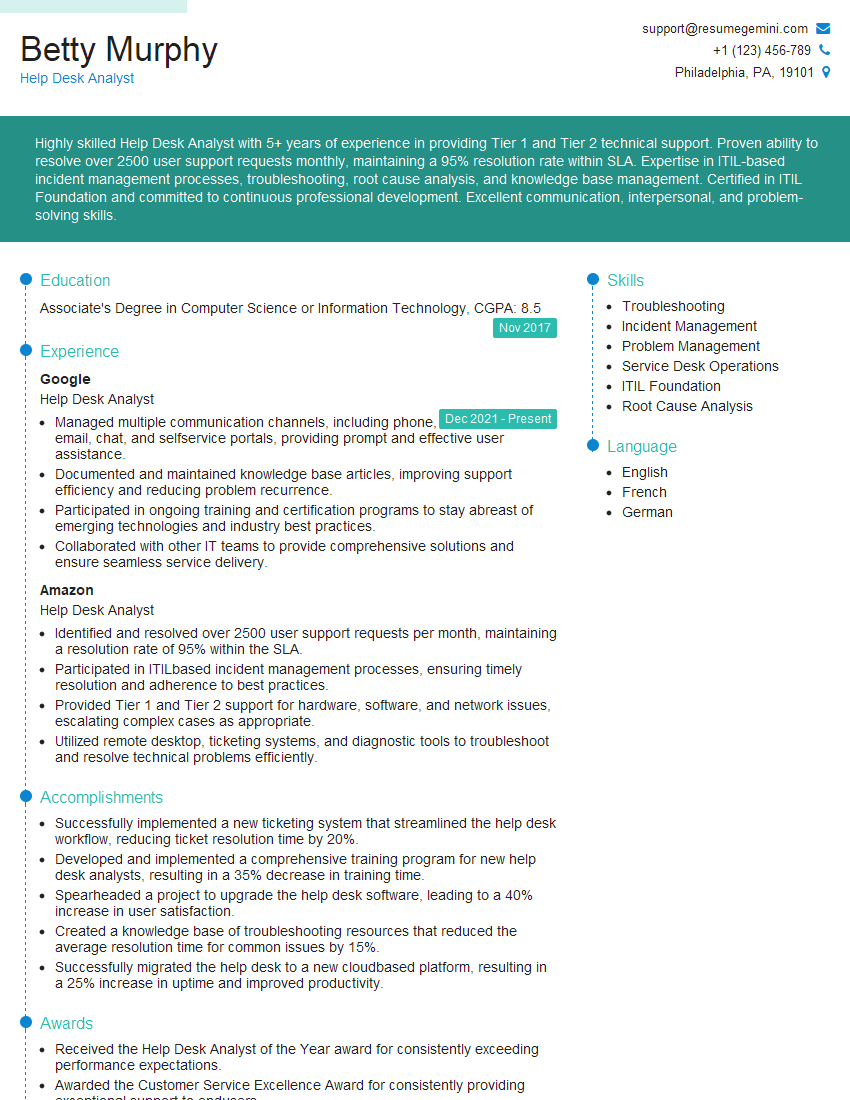
Help Desk Analyst Resume Sample
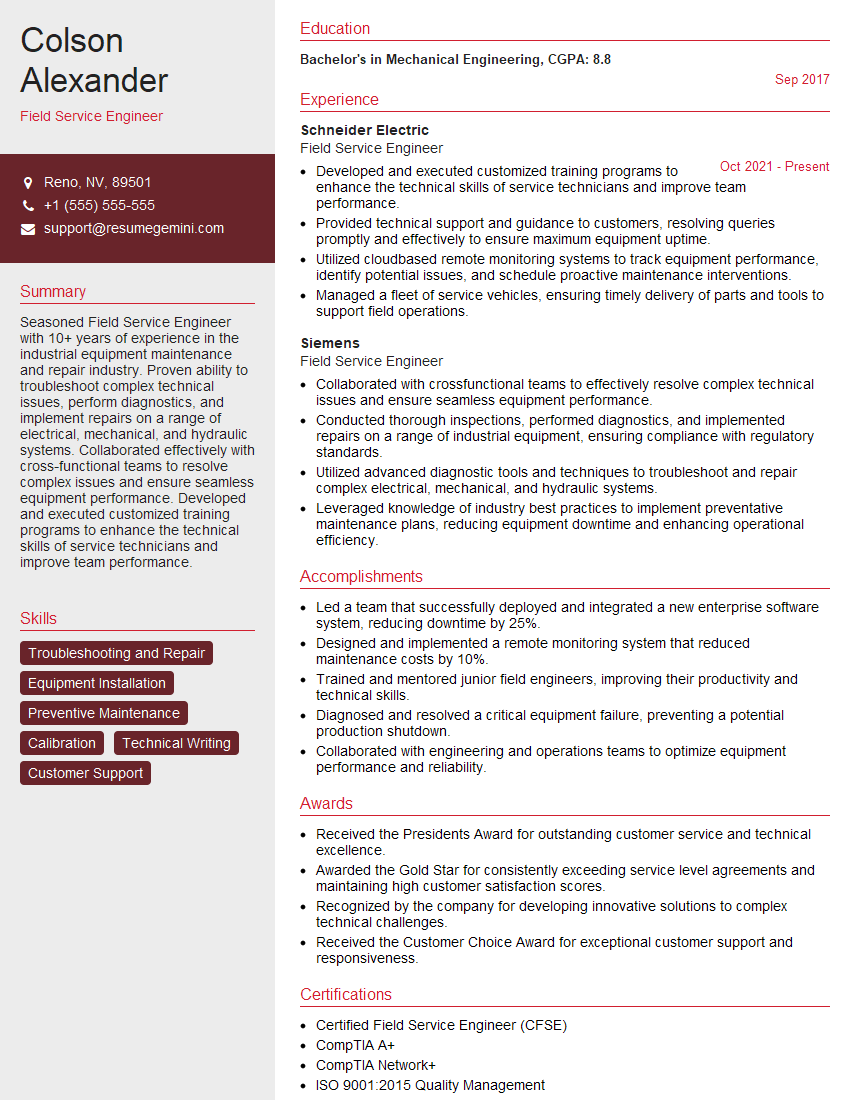
Field Service Engineer Resume Sample

Hardware Engineer Resume Sample
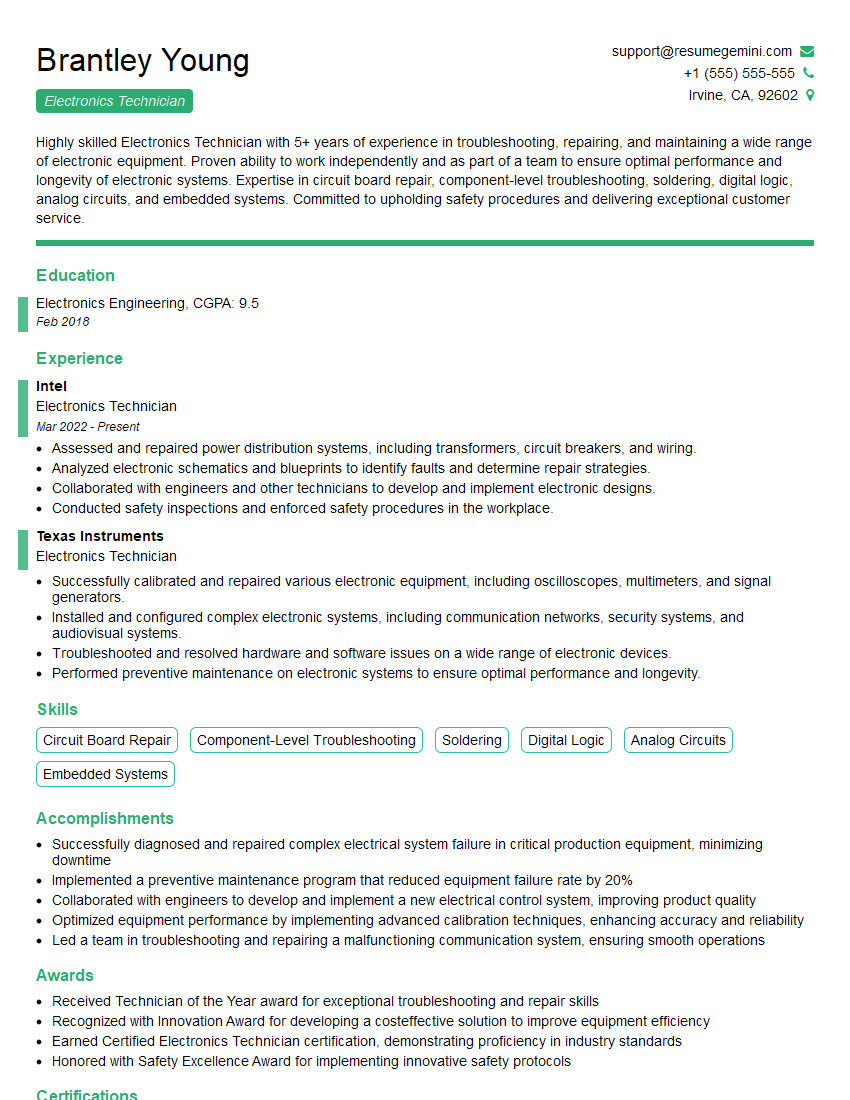
Electronics Technician Resume Sample
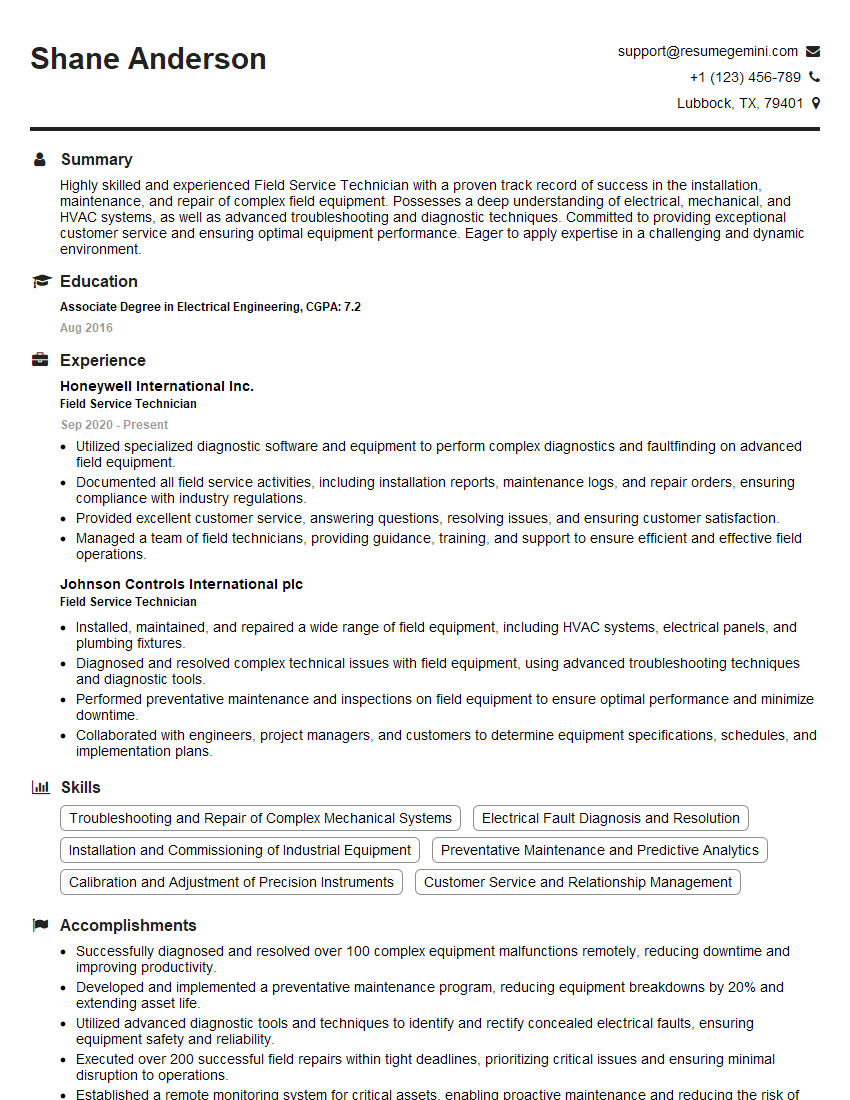
Field Service Technician Resume Sample
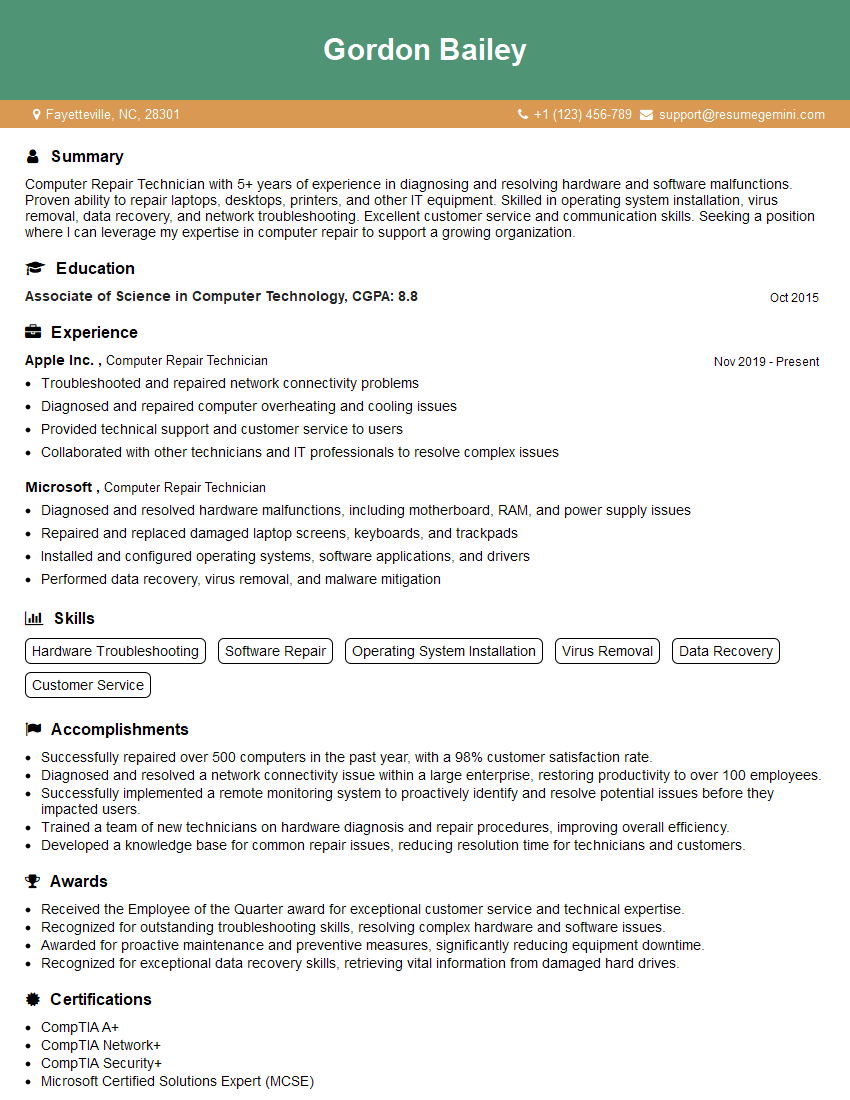
Computer Repair Technician Resume Sample
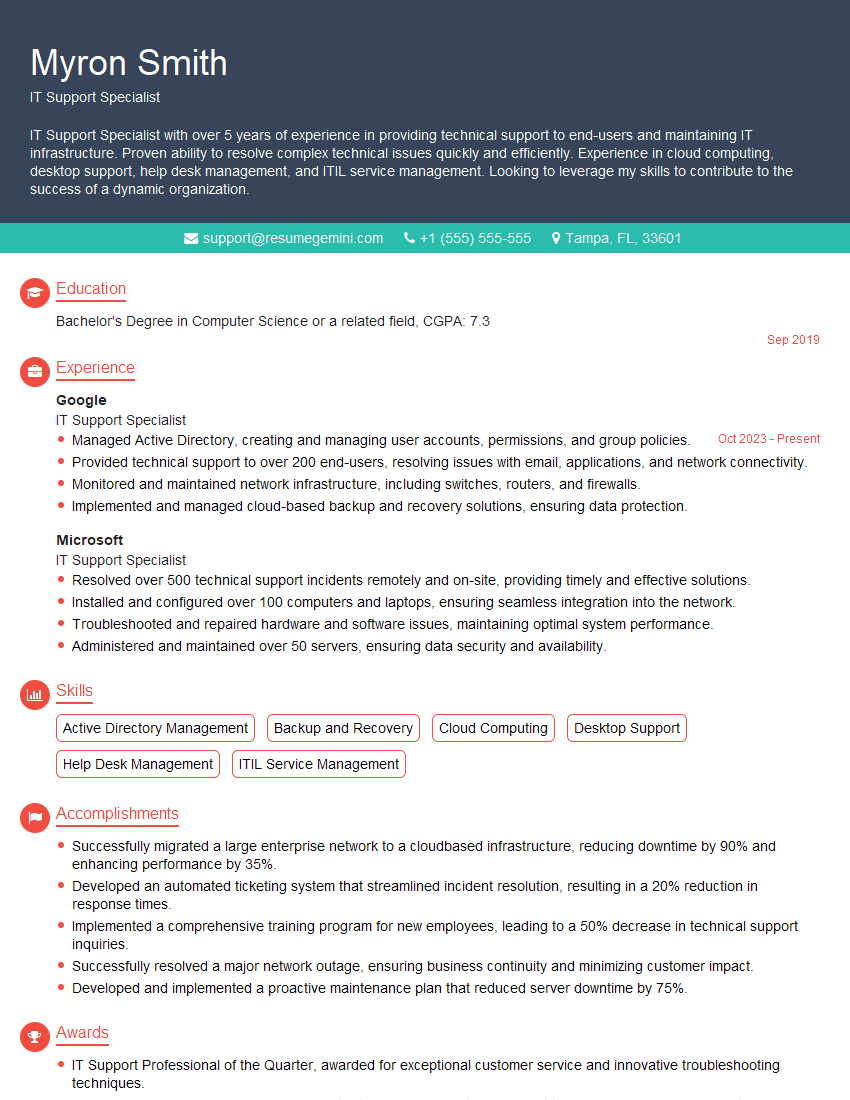
IT Support Specialist Resume Sample
Explore more articles
Users Rating of Our Blogs
Share Your Experience
We value your feedback! Please rate our content and share your thoughts (optional).
What Readers Say About Our Blog
Attention music lovers!
Wow, All the best Sax Summer music !!!
Spotify: https://open.spotify.com/artist/6ShcdIT7rPVVaFEpgZQbUk
Apple Music: https://music.apple.com/fr/artist/jimmy-sax-black/1530501936
YouTube: https://music.youtube.com/browse/VLOLAK5uy_noClmC7abM6YpZsnySxRqt3LoalPf88No
Other Platforms and Free Downloads : https://fanlink.tv/jimmysaxblack
on google : https://www.google.com/search?q=22+AND+22+AND+22
on ChatGPT : https://chat.openai.com?q=who20jlJimmy20Black20Sax20Producer
Get back into the groove with Jimmy sax Black
Best regards,
Jimmy sax Black
www.jimmysaxblack.com
Hi I am a troller at The aquatic interview center and I suddenly went so fast in Roblox and it was gone when I reset.
Hi,
Business owners spend hours every week worrying about their website—or avoiding it because it feels overwhelming.
We’d like to take that off your plate:
$69/month. Everything handled.
Our team will:
Design a custom website—or completely overhaul your current one
Take care of hosting as an option
Handle edits and improvements—up to 60 minutes of work included every month
No setup fees, no annual commitments. Just a site that makes a strong first impression.
Find out if it’s right for you:
https://websolutionsgenius.com/awardwinningwebsites
Hello,
we currently offer a complimentary backlink and URL indexing test for search engine optimization professionals.
You can get complimentary indexing credits to test how link discovery works in practice.
No credit card is required and there is no recurring fee.
You can find details here:
https://wikipedia-backlinks.com/indexing/
Regards
NICE RESPONSE TO Q & A
hi
The aim of this message is regarding an unclaimed deposit of a deceased nationale that bears the same name as you. You are not relate to him as there are millions of people answering the names across around the world. But i will use my position to influence the release of the deposit to you for our mutual benefit.
Respond for full details and how to claim the deposit. This is 100% risk free. Send hello to my email id: [email protected]
Luka Chachibaialuka
Hey interviewgemini.com, just wanted to follow up on my last email.
We just launched Call the Monster, an parenting app that lets you summon friendly ‘monsters’ kids actually listen to.
We’re also running a giveaway for everyone who downloads the app. Since it’s brand new, there aren’t many users yet, which means you’ve got a much better chance of winning some great prizes.
You can check it out here: https://bit.ly/callamonsterapp
Or follow us on Instagram: https://www.instagram.com/callamonsterapp
Thanks,
Ryan
CEO – Call the Monster App
Hey interviewgemini.com, I saw your website and love your approach.
I just want this to look like spam email, but want to share something important to you. We just launched Call the Monster, a parenting app that lets you summon friendly ‘monsters’ kids actually listen to.
Parents are loving it for calming chaos before bedtime. Thought you might want to try it: https://bit.ly/callamonsterapp or just follow our fun monster lore on Instagram: https://www.instagram.com/callamonsterapp
Thanks,
Ryan
CEO – Call A Monster APP
To the interviewgemini.com Owner.
Dear interviewgemini.com Webmaster!
Hi interviewgemini.com Webmaster!
Dear interviewgemini.com Webmaster!
excellent
Hello,
We found issues with your domain’s email setup that may be sending your messages to spam or blocking them completely. InboxShield Mini shows you how to fix it in minutes — no tech skills required.
Scan your domain now for details: https://inboxshield-mini.com/
— Adam @ InboxShield Mini
Reply STOP to unsubscribe
Hi, are you owner of interviewgemini.com? What if I told you I could help you find extra time in your schedule, reconnect with leads you didn’t even realize you missed, and bring in more “I want to work with you” conversations, without increasing your ad spend or hiring a full-time employee?
All with a flexible, budget-friendly service that could easily pay for itself. Sounds good?
Would it be nice to jump on a quick 10-minute call so I can show you exactly how we make this work?
Best,
Hapei
Marketing Director
Hey, I know you’re the owner of interviewgemini.com. I’ll be quick.
Fundraising for your business is tough and time-consuming. We make it easier by guaranteeing two private investor meetings each month, for six months. No demos, no pitch events – just direct introductions to active investors matched to your startup.
If youR17;re raising, this could help you build real momentum. Want me to send more info?
Hi, I represent an SEO company that specialises in getting you AI citations and higher rankings on Google. I’d like to offer you a 100% free SEO audit for your website. Would you be interested?
Hi, I represent an SEO company that specialises in getting you AI citations and higher rankings on Google. I’d like to offer you a 100% free SEO audit for your website. Would you be interested?