Unlock your full potential by mastering the most common Computer Literacy (MS Office Suite, AutoCAD) interview questions. This blog offers a deep dive into the critical topics, ensuring you’re not only prepared to answer but to excel. With these insights, you’ll approach your interview with clarity and confidence.
Questions Asked in Computer Literacy (MS Office Suite, AutoCAD) Interview
Q 1. Explain your experience with different versions of AutoCAD.
My experience with AutoCAD spans several versions, starting with AutoCAD 2010 and extending to the current release, AutoCAD 2024. Each version has offered incremental improvements in functionality, interface, and performance. For example, the transition from 2D-centric interfaces to the more intuitive and feature-rich 3D modeling environments in later versions like AutoCAD 2018 and beyond was significant. I’ve adapted to each version’s unique features, utilizing new tools and commands efficiently. I remember specifically learning the improvements in the ribbon interface and how it streamlined workflow compared to the older menu structures. My familiarity across multiple versions allows me to quickly grasp new releases and understand the evolution of AutoCAD’s capabilities.
Working with different versions has also highlighted the importance of file compatibility. I’ve regularly dealt with projects requiring backward compatibility, ensuring older versions can open newer files without data loss. This requires a solid understanding of the version-specific features and limitations.
Q 2. Describe your proficiency in using AutoCAD commands.
My proficiency in AutoCAD commands is extensive. I’m comfortable with fundamental commands like LINE, ARC, CIRCLE, RECTANG, and POLYGON for creating basic shapes. Beyond the basics, I’m proficient in more advanced commands such as OFFSET, ARRAY, MIRROR, TRIM, and EXTEND for manipulating and refining drawings. I also utilize commands related to dimensioning (DIMLINEAR, DIMDIAMETER, etc.), text creation and editing, and layer management.
Furthermore, I’m fluent in using parametric commands and dynamic input, which significantly accelerate the design process and improve accuracy. I regularly employ these commands to create complex geometries and automate repetitive tasks. For example, I can create a series of precisely spaced holes using the ARRAY command, saving considerable time and effort.
Q 3. How familiar are you with AutoCAD’s drawing tools and functionalities?
I possess a deep understanding of AutoCAD’s drawing tools and functionalities. My expertise encompasses the use of various drawing aids, such as object snaps (OSNAP), which greatly enhance precision. I use these constantly to ensure geometric accuracy in my drawings. I also leverage the capabilities of grips for modifying object geometry interactively. Understanding and using these tools is critical for efficiently creating accurate drawings.
Beyond the basic shapes, I’m skilled in using tools for creating complex curves (SPLINE, ARC), text and annotation (MTEXT, DTEXT), and hatches (HATCH). I frequently use these tools in architectural and engineering drawings, creating detailed plans and sections that are both aesthetically pleasing and highly informative. My familiarity extends to specialized tools depending on the project’s requirements; for instance, I regularly utilize tools for creating blocks and external references (xrefs) for efficient management of large and complex drawings.
Q 4. How do you manage large AutoCAD files efficiently?
Managing large AutoCAD files efficiently involves a multi-pronged approach. Firstly, I always employ proper layer management. Organizing objects into logical layers significantly reduces file size and improves drawing performance. Secondly, I regularly purge unnecessary data, removing unused blocks and layers to reduce file bloat. AutoCAD’s built-in PURGE command is invaluable for this.
Thirdly, for extremely large drawings, I often consider using external references (xrefs) to manage drawing components separately. This technique allows me to manage and update individual components without affecting the main drawing file, significantly improving performance and collaboration. Finally, I utilize AutoCAD’s features to optimize drawing display, such as turning off layers or using visual styles to improve performance when working with intricate drawings. For example, I frequently switch to wireframe view when not needing shaded visualization.
Q 5. How do you create and manage layers in AutoCAD?
Layer management in AutoCAD is crucial for organizing complex drawings. I create layers with descriptive names that clearly indicate their purpose (e.g., `Walls`, `Doors`, `Windows`, `Plumbing`, `Electrical`). Each layer has its own properties, including color, line type, and linetype scale, which can be customized to improve readability. I use the layer properties manager to control layer visibility, freezing and thawing layers as needed to optimize performance while working with large drawings. This significantly reduces visual clutter, improving efficiency and clarity.
I strictly adhere to a consistent layer naming convention for better organization and collaborative efforts. This ensures consistency and understandability when working with colleagues on the same project. For example, I might use a prefix for each discipline (e.g., `ARCH-Walls`, `MEP-Plumbing`). This method not only aids organization but also simplifies the selection and modification of specific elements within the drawing.
Q 6. Describe your experience using AutoCAD’s 3D modeling capabilities.
My experience with AutoCAD’s 3D modeling capabilities is substantial. I’m proficient in creating 3D models using various techniques, including extrusion, revolution, and 3D solids modeling. I’m comfortable using commands like EXTRUDE, REVOLVE, and 3DSOLIDS to build complex three-dimensional forms. I also utilize surface modeling techniques for creating more organic shapes.
Beyond basic 3D modeling, I’m familiar with using tools for surface manipulation, rendering, and creating realistic visualizations. I have experience in creating detailed 3D models for architectural visualizations, engineering designs, and product design projects. For example, I have modeled entire buildings including landscaping and site details, using 3D modeling tools to create photorealistic renderings for client presentations.
Q 7. How familiar are you with AutoCAD’s plotting and printing features?
I’m very familiar with AutoCAD’s plotting and printing features. I understand the importance of setting up the correct plot style table (PST) to ensure that layers, lineweights, and colors are rendered accurately on the output. I’m adept at configuring plot settings, including paper size, scale, and plot area. This allows me to produce professional-quality drawings ready for printing or sharing with colleagues and clients.
I also understand the use of different plotters and the associated drivers, and I can troubleshoot common printing issues. I regularly use the plot preview feature to check the accuracy of the output before committing to a print. Furthermore, I’m familiar with exporting drawings in various formats (PDF, DWG, DXF) to ensure compatibility across different software and platforms.
Q 8. How do you use AutoCAD to create detailed drawings and schematics?
AutoCAD is my go-to tool for creating precise and detailed drawings and schematics. I leverage its powerful drawing tools and functionalities to create everything from simple 2D sketches to complex 3D models. The process typically involves several key steps:
- Defining the scope: I begin by clearly understanding the project requirements, including dimensions, specifications, and any specific client needs. This stage prevents costly rework later on.
- Setting up the drawing: This includes choosing appropriate units (e.g., millimeters, inches), creating layers for organization (e.g., walls, doors, furniture), and setting up the drawing limits.
- Using drawing tools: I utilize AutoCAD’s various drawing commands, such as
LINE,ARC,CIRCLE,POLYLINE, andSPLINE, to create the basic shapes and outlines of the design. For example, I might use theRECTANGcommand to quickly draw a room, then add details using theLINEcommand. - Adding dimensions and annotations: Accurate dimensioning is crucial. I use AutoCAD’s dimensioning tools to add linear, angular, radial, and other types of dimensions to the drawing. I also add text annotations to label components, provide descriptions, and include specifications.
- Applying blocks and symbols: Repetitive elements, such as doors, windows, and electrical symbols, are created as blocks to ensure consistency and save time. These can then be easily inserted into the drawing multiple times.
- Generating layouts and viewports: For larger projects, I create multiple layouts to show different views (plan, elevation, section) of the design. Viewports within a layout allow me to display different portions of the model at various scales.
- Using layers effectively: Organizing the drawing into layers is essential for managing complexity. Each layer might represent a different aspect of the design (e.g., structural elements, electrical systems, plumbing). This allows me to easily turn layers on or off for better visualization and plotting.
- Printing and exporting: Finally, I create high-quality printouts or export the drawing to various formats (e.g., PDF, DWG, DXF) for sharing and collaboration.
For example, when designing a house, I’d use AutoCAD to create detailed floor plans, elevation views, and sections, incorporating all the necessary dimensions and annotations. The ability to create and manage layers would be vital to keep the different aspects of the house (structure, electrical, plumbing) organized.
Q 9. How comfortable are you using Microsoft Word for creating reports and documentation?
I’m highly comfortable using Microsoft Word for creating reports and documentation. I’ve extensively utilized its features for various professional tasks, from writing technical reports to composing formal proposals. I’m proficient in using styles for consistency, creating tables for data organization, inserting images and graphs to enhance readability, and utilizing advanced features like mail merge and track changes for collaboration.
Think of a time I had to create a comprehensive report on a construction project. I used Word to meticulously document the project timeline, budget, materials used, and any challenges encountered. The built-in tools allowed for efficient formatting, ensuring a professional and easy-to-read document.
Q 10. Describe your experience with Microsoft Excel, including formulas and data analysis.
My Excel skills are extensive, encompassing data entry, formula creation, data analysis, and visualization. I’m proficient in using a wide range of formulas, including SUM, AVERAGE, IF, VLOOKUP, and COUNTIF, to perform calculations and extract meaningful insights from datasets. I also understand pivot tables and charts for data summarization and presentation.
For example, I once used Excel to analyze sales data for a company. Using VLOOKUP, I cross-referenced product sales with marketing campaign data to determine which campaigns were most effective. Then, I used pivot tables to summarize the data and created charts to visually represent the findings to the management team.
Q 11. How proficient are you in using Microsoft PowerPoint for presentations?
I’m highly proficient in PowerPoint, creating engaging and informative presentations for diverse audiences. I understand how to effectively structure presentations, use visual aids, and deliver compelling narratives. My skills include incorporating animations, transitions, charts, and graphs to enhance visual appeal and information retention.
Recently, I prepared a presentation showcasing a new design for a client. I strategically utilized visuals, charts, and concise bullet points to clearly convey the design’s functionalities and benefits. The presentation’s success was due to a clear structure, high-quality visuals, and compelling storytelling.
Q 12. How do you use Microsoft Outlook for email management and scheduling?
Microsoft Outlook is an integral part of my daily workflow. I utilize its features for effective email management and scheduling. I routinely use features like creating folders and rules to organize my inbox, scheduling meetings, setting reminders, and managing contacts.
For example, I use Outlook’s calendar to coordinate meetings with multiple stakeholders, ensuring everyone’s availability is considered. Its integrated email functionality lets me efficiently manage correspondence and track important conversations, preventing missed deadlines and miscommunications.
Q 13. Explain your experience with Microsoft Access for database management.
My experience with Microsoft Access involves designing and managing databases. I’m familiar with creating tables, defining relationships between tables, creating queries to retrieve specific data, and designing forms and reports for user interaction and data presentation. I understand the importance of data integrity and normalization in database design.
In a past project, I developed an Access database to track inventory for a small business. This involved creating tables for products, suppliers, and orders, establishing relationships between them, and designing forms and reports for easy data input and retrieval. This streamlined their inventory management significantly.
Q 14. How would you troubleshoot a common AutoCAD error?
Troubleshooting AutoCAD errors requires a systematic approach. A common error is “file corrupted”. My steps would be:
- Identify the error message: Note the exact error message and any accompanying details.
- Check the file: Try opening the file in a different AutoCAD version or on a different computer.
- Recover the file: AutoCAD often provides a recovery option. Try this to see if it can salvage the data.
- Examine the drawing: Look for any unusual or corrupted objects within the drawing that could be causing the issue.
- Purge the drawing: Use the
PURGEcommand to remove unused blocks, layers, and other objects which may be corrupt. - Audit the drawing: The
AUDITcommand helps identify and fix errors within the drawing database. - Reinstall AutoCAD: If all else fails, reinstalling AutoCAD can solve problems stemming from a faulty installation.
- Seek online support: Search online forums or contact Autodesk support for assistance.
For instance, if a drawing refuses to open due to a file corruption, I’d first try the recovery option. If that fails, I’d run the AUDIT command to check for database errors and then PURGE to clean up the drawing. Only as a last resort would I consider reinstalling the software.
Q 15. How would you use Excel to create a chart from data you’ve collected?
Creating charts in Excel is straightforward and allows for powerful data visualization. First, ensure your data is organized in a clear table format, with each column representing a category and each row representing a data point. Then, select the data you want to chart. Next, navigate to the ‘Insert’ tab and choose the chart type that best suits your data. Excel offers a wide variety of options, including column charts, bar charts, line charts, pie charts, and scatter plots. Each type is suited for different kinds of data representation. For example, a column chart is great for comparing categories, while a line chart is better for showing trends over time. Once you’ve selected your chart type, Excel will automatically generate a chart based on your selected data. You can then customize the chart’s appearance – titles, labels, colors, legend – to enhance its clarity and professional appeal, ensuring your message is effectively conveyed.
For instance, if you have sales data for different products over several months, a column chart would clearly show which product performed best each month and highlight overall trends. A pie chart, on the other hand, might be more suitable to show the percentage of total sales each product contributed.
Career Expert Tips:
- Ace those interviews! Prepare effectively by reviewing the Top 50 Most Common Interview Questions on ResumeGemini.
- Navigate your job search with confidence! Explore a wide range of Career Tips on ResumeGemini. Learn about common challenges and recommendations to overcome them.
- Craft the perfect resume! Master the Art of Resume Writing with ResumeGemini’s guide. Showcase your unique qualifications and achievements effectively.
- Don’t miss out on holiday savings! Build your dream resume with ResumeGemini’s ATS optimized templates.
Q 16. How would you format a Word document for professional presentation?
Formatting a Word document for professional presentation involves careful attention to detail. Consistency is key. Start by selecting a professional font like Calibri or Times New Roman, using a size between 10 and 12 points for body text. Use headings and subheadings (Heading 1, Heading 2, etc.) to structure your document logically and improve readability. These styles are easily customizable, allowing you to maintain a consistent look throughout. Consistent use of these styles allows for easy navigation using the document’s navigation pane. Employ bullet points or numbered lists to break up large chunks of text. Use white space effectively – add spacing between paragraphs and sections to improve readability. In terms of visual appeal, consider using high-quality images and diagrams to support your text, but avoid overcrowding the page. Finally, proofread carefully for any grammatical errors or typos. Using a consistent style guide, such as APA or MLA, can ensure professional standards are met throughout your document.
For example, a report for a client should utilize a clean, professional template, ensuring that it projects the same high quality and polish as your analysis. This would include aspects such as consistent margins, an appropriate header and footer, and a clear, consistent font.
Q 17. Describe your experience using VBA (Visual Basic for Applications) in MS Office.
I have extensive experience using VBA (Visual Basic for Applications) within the MS Office suite, primarily in Excel and Access. VBA allows for automating repetitive tasks and creating custom solutions tailored to specific needs. I’ve used it to automate data entry, generate reports, customize user interfaces, and integrate different applications. For example, I once developed a VBA macro in Excel that automatically imported data from a text file, cleaned it, performed calculations, and generated a formatted report, saving hours of manual work each week. My experience includes using loops, conditional statements, and working with objects within the MS Office object model. This proficiency allows me to design and implement efficient and robust solutions to complex data manipulation challenges.
A practical example would be creating a macro that automatically formats an Excel spreadsheet based on user-defined criteria. This could involve setting specific cell formatting, adding headers and footers, or inserting charts and graphs.
Q 18. How would you create a macro in MS Access to automate a task?
Creating a macro in MS Access to automate a task involves using VBA. First, you need to open the VBA editor (Alt + F11). Then, you insert a new module and write the VBA code to perform the desired task. Access provides a robust object model, allowing interaction with forms, reports, tables, and queries. This allows for tasks such as automating data entry, report generation, database updates, and user interface control. For example, a macro could automate the process of importing data from a CSV file into an Access table, performing data validation and cleaning, and then updating related tables based on the imported data. It’s important to use error handling to make your macro robust and prevent unexpected crashes. You would also want to make sure to adequately comment the code to ensure that it’s easy to understand and maintain. Proper planning is crucial for ensuring efficient and effective automation.
Imagine a scenario where you need to regularly update a database with information from multiple spreadsheets. A well-crafted Access macro could automate this process, consolidating data and eliminating manual data entry, reducing the risk of errors, and saving valuable time.
Q 19. How do you use Excel’s pivot tables for data analysis?
Excel’s PivotTables are a powerful tool for data analysis. They allow you to summarize, analyze, explore, and present your data in a meaningful way. You begin by selecting your data range. Then, go to the ‘Insert’ tab and choose ‘PivotTable’. You can then choose where to place the PivotTable – in a new worksheet or in the existing one. The PivotTable field list appears, showing all the columns from your data. You drag and drop fields into the different areas of the PivotTable (Rows, Columns, Values, Filters) to create different summaries and analyses. The ‘Values’ area shows the aggregated data (sum, average, count, etc.), while ‘Rows’ and ‘Columns’ define the categories used for grouping. The ‘Filters’ area lets you further refine the data displayed.
For example, if you have sales data with fields like ‘Region’, ‘Product’, and ‘Sales Amount’, you can use a PivotTable to quickly see total sales by region, sales of each product per region, and identify top-performing products. The dynamic nature of PivotTables makes it easy to explore your data from multiple angles, providing valuable insights without writing complex formulas.
Q 20. What are your preferred methods for organizing large datasets in Excel?
Organizing large datasets in Excel requires a structured approach. I typically start by cleaning the data – removing duplicates, handling missing values, and ensuring data consistency. Then, I use appropriate data types for each column. Next, I create clear and descriptive headers for each column, facilitating easy understanding and navigation. I leverage Excel’s filtering and sorting capabilities to easily locate specific information within the data. For very large datasets, I might consider using Excel’s advanced filtering options, or even exporting the data to a database management system (DBMS) like Access for more efficient management and analysis. Using named ranges also significantly improves the readability and maintainability of complex spreadsheets by making formulas easier to write and comprehend.
Imagine a dataset with thousands of customer records. Using appropriate filters, sorting and named ranges, I can easily find all customers from a specific region, or analyze purchasing trends for a particular product, all within Excel’s interface.
Q 21. How do you manage multiple projects simultaneously using AutoCAD and MS Office Suite?
Managing multiple projects simultaneously using AutoCAD and the MS Office Suite requires effective organization and time management. I use project management tools like task lists (often integrated within Outlook) or dedicated project management software to track tasks, deadlines, and progress across both AutoCAD and MS Office projects. For each project, I create separate folders to store all related files – AutoCAD drawings, MS Word documents, Excel spreadsheets, etc. – ensuring a clear separation of different projects to avoid confusion. This organized approach, coupled with effective prioritization of tasks, allows for streamlined workflows. I also leverage cloud storage to access and share files across multiple devices, ensuring seamless work across different locations.
A typical scenario might involve designing a building in AutoCAD while simultaneously preparing client presentations in PowerPoint and tracking project costs in Excel. My organizational system ensures that I can seamlessly switch between these tasks, maintaining progress across all projects without losing track of important details or deadlines.
Q 22. Describe your experience using AutoCAD for collaboration with others.
Collaborating on AutoCAD projects involves leveraging its collaborative features effectively. Think of it like a shared online whiteboard, but for precise technical drawings. We’ve used cloud-based solutions like Autodesk A360 to share and manage projects. This allows multiple users to work on the same file simultaneously, seeing each other’s edits in real-time, much like Google Docs. Crucially, version control is key; each change is tracked, preventing accidental overwrites and allowing us to revert to earlier versions if needed. We also heavily utilize Xrefs (external references) to incorporate work from other team members into a master drawing. Imagine assembling a complex puzzle – each Xref is a piece, and the master drawing combines them. Clear communication is crucial; we use project management software and regular meetings to coordinate tasks and avoid conflicts. For example, on a recent stadium design, different team members worked on sections (structural, MEP, landscaping), integrating their work using Xrefs and A360 for seamless collaboration.
Q 23. How familiar are you with importing/exporting data between AutoCAD and other software?
Importing and exporting data between AutoCAD and other software is a fundamental aspect of my workflow. It’s like translating between different languages to ensure seamless data flow. I routinely import data from GIS software (like ArcGIS) into AutoCAD, using formats such as DXF or SHP to bring in geographical information for site plans. Conversely, I frequently export AutoCAD data as DXF or DWG to other programs, including Revit for building information modeling (BIM). For instance, I’ve exported precise AutoCAD models of architectural details as DWGs for use in 3D rendering software like 3ds Max. The choice of file format is crucial – DXF offers broader compatibility, while DWG maintains AutoCAD-specific features. I also utilize data exchange with spreadsheet programs like Excel to manage data associated with drawings, like material quantities or cost estimates. This is done via CSV import/export, ensuring data accuracy and easy manipulation within spreadsheets. Understanding limitations of different formats and potential data loss during conversion is also crucial for maintaining data integrity.
Q 24. Explain your experience with AutoCAD customization and settings.
AutoCAD customization is akin to tailoring a suit to fit perfectly. I regularly customize settings to enhance efficiency and personal preferences. This involves adjusting display settings for optimal screen clarity, creating custom linetypes and text styles for consistent design presentation, and developing custom tool palettes to streamline frequently used commands. I create LISP routines for repetitive tasks, automating workflows, which significantly saves time and minimizes errors. For instance, I’ve written a LISP routine to automatically generate dimensioning on a series of similar components. It’s like having a robot assistant performing tedious tasks flawlessly. I also personalize the user interface (UI) to match my preferred workflow, including customizing toolbars and shortcuts. This customization is crucial because it aligns the software with my personal style and dramatically increases my productivity.
Q 25. What are some best practices for maintaining data integrity in MS Office applications?
Maintaining data integrity in MS Office applications is critical for accurate and reliable results, kind of like keeping a meticulous financial ledger. This involves several key strategies:
- Regular backups: Saving frequent autosaves and creating regular backups to cloud storage or external drives prevent data loss from crashes or accidental deletions.
- Version control: Utilizing version history (in applications like Word and Excel) allows you to revert to previous versions if errors occur or edits need to be undone.
- Data validation: Implementing data validation rules in Excel prevents incorrect data entry, such as limiting input to specific numerical ranges or data types.
- Formula auditing: Using Excel’s formula auditing tools helps to identify and correct errors in complex spreadsheets, ensuring accurate calculations.
- Proofreading and review: Carefully reviewing documents and spreadsheets before finalizing them identifies and corrects errors in content and formatting.
Q 26. How familiar are you with different file formats used in AutoCAD and MS Office?
Familiarity with various file formats is essential for smooth data transfer between applications. In AutoCAD, I work with .dwg (AutoCAD native), .dxf (a more universal CAD format), and occasionally .pdf for sharing drawings. The key difference is that .dwg files retain all the original AutoCAD-specific information, while .dxf is a more generic exchange format, sometimes losing specific information during conversion. Understanding this is crucial for selecting the appropriate format. In MS Office, I use .docx (Word), .xlsx (Excel), and .pptx (PowerPoint), being aware of the compatibility and potential issues when sharing these files between different versions of the software or across various operating systems.
Q 27. How would you create a professional-looking presentation in PowerPoint?
Creating a professional PowerPoint presentation is about more than just text and bullet points; it’s about delivering a compelling visual narrative. I start by defining a clear message and organizing content logically, ensuring a strong flow of information. This is like writing a compelling story with a beginning, middle, and end. Next, I choose a consistent and visually appealing template, using high-quality images and graphics. I employ a limited color palette and consistent fonts for a cohesive look, ensuring readability. Animations and transitions are used sparingly, only to enhance understanding, not to distract. Data visualization is key – I use charts and graphs effectively to present information clearly and concisely. Finally, I proofread meticulously and ensure the presentation is free of grammatical and spelling errors, refining the design until it conveys professionalism and clarity. Think of it as polishing a gemstone until it shines.
Q 28. How do you ensure accuracy and consistency in your AutoCAD and MS Office work?
Ensuring accuracy and consistency is paramount in both AutoCAD and MS Office. In AutoCAD, this involves utilizing layers effectively to organize drawing elements, using snaps and constraints for precise drawing, and implementing consistent drawing standards and templates. Regular checks for geometry errors, using tools like the AUDIT command, are crucial for detecting and correcting issues early on. In MS Office, I maintain consistency through template usage, ensuring consistent formatting, styles, and font usage. I rigorously proofread documents and spreadsheets, paying attention to details such as spelling, grammar, and number formatting. Using Excel’s built-in formula auditing capabilities and data validation rules ensures accuracy in calculations and data entry. In both instances, regular backups and version control are vital to protecting against errors and loss of work. It’s like being a meticulous craftsman, paying attention to every detail to ensure the final product is flawless.
Key Topics to Learn for Computer Literacy (MS Office Suite, AutoCAD) Interview
- MS Word: Mastering document creation, formatting (styles, tables, headers/footers), mail merge, and advanced features like track changes and collaboration tools. Practical application: Demonstrate creating a professional report or letter.
- MS Excel: Proficiency in data entry, formula creation (including complex functions like VLOOKUP and pivot tables), data analysis, charting, and data visualization. Practical application: Showcase your ability to analyze a dataset and present key findings effectively using charts and graphs.
- MS PowerPoint: Creating engaging presentations, utilizing animation and transitions effectively, incorporating charts and multimedia, and delivering a confident presentation. Practical application: Prepare a short presentation showcasing a project or skill.
- AutoCAD: Understanding of drawing tools, object manipulation, layering, dimensioning, annotation, and printing. Practical application: Be prepared to discuss your experience with 2D and/or 3D modeling and demonstrate your knowledge of common AutoCAD commands.
- File Management & Collaboration: Efficient file organization, cloud storage utilization (OneDrive, Google Drive, etc.), and collaborative work practices using shared documents and version control. Practical application: Discuss your experience working on team projects and managing files efficiently.
- Problem-Solving & Troubleshooting: Demonstrate your ability to identify and resolve common software issues, such as formula errors in Excel or troubleshooting printing problems. Practical application: Be ready to discuss how you’ve overcome technical challenges in the past.
Next Steps
Mastering the MS Office Suite and AutoCAD is crucial for success in many professional fields. These skills demonstrate your efficiency, attention to detail, and ability to leverage technology to enhance productivity. To significantly boost your job prospects, create a compelling and ATS-friendly resume that highlights your skills and experience effectively. ResumeGemini is a trusted resource for building professional resumes, and we provide examples of resumes tailored to showcasing Computer Literacy (MS Office Suite and AutoCAD) skills. Invest time in crafting a strong resume – it’s your first impression on potential employers.

Office Manager Resume Sample
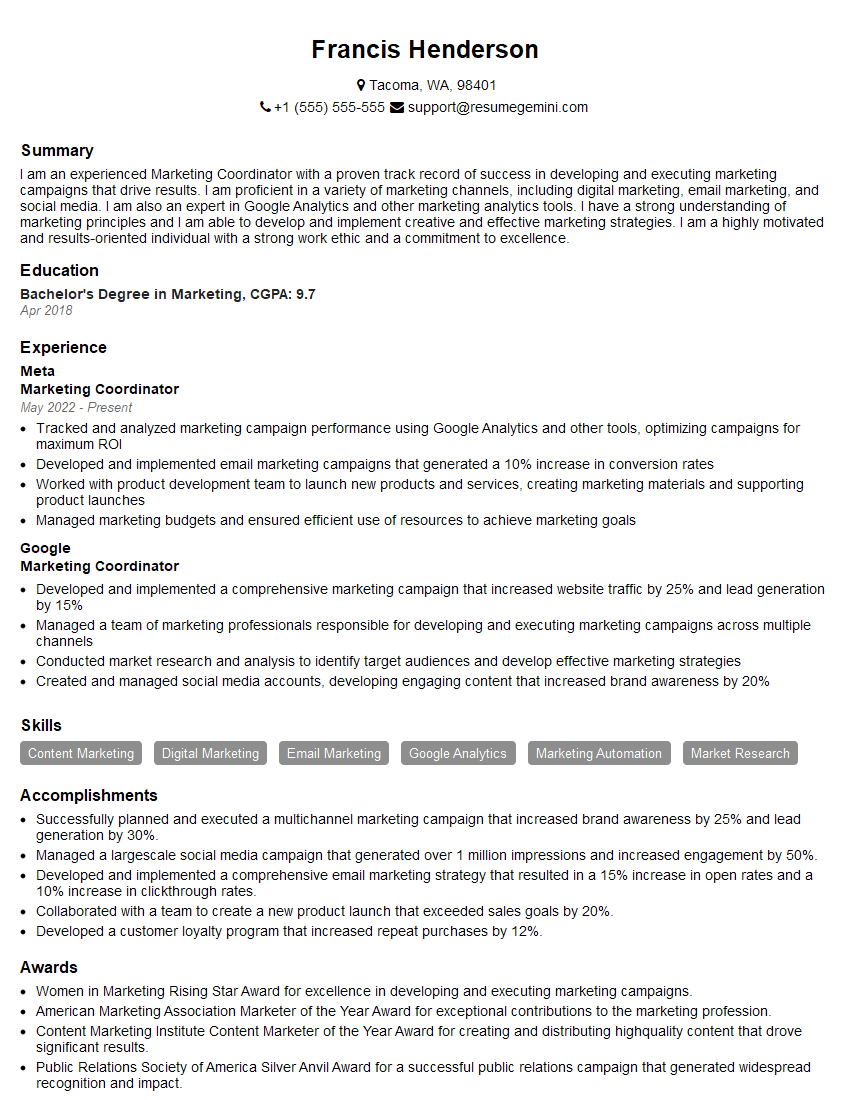
Marketing Coordinator Resume Sample
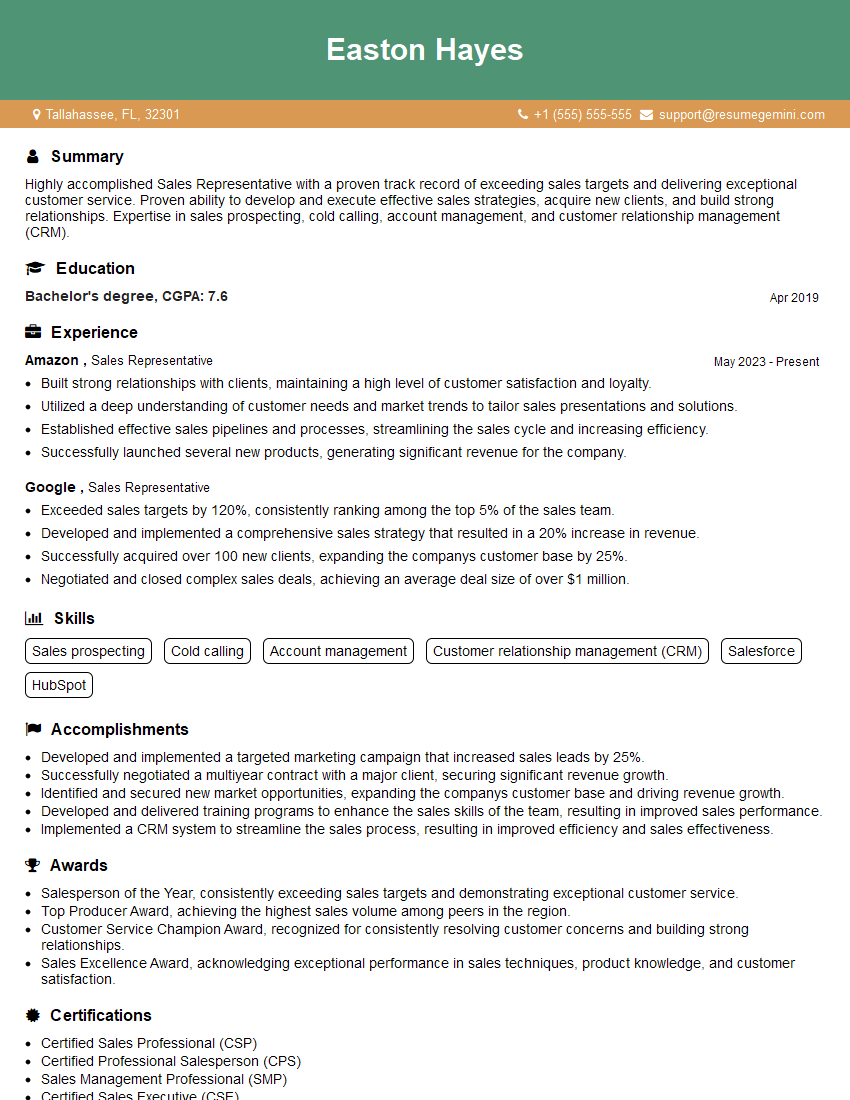
Sales Representative Resume Sample

Administrative Assistant Resume Sample
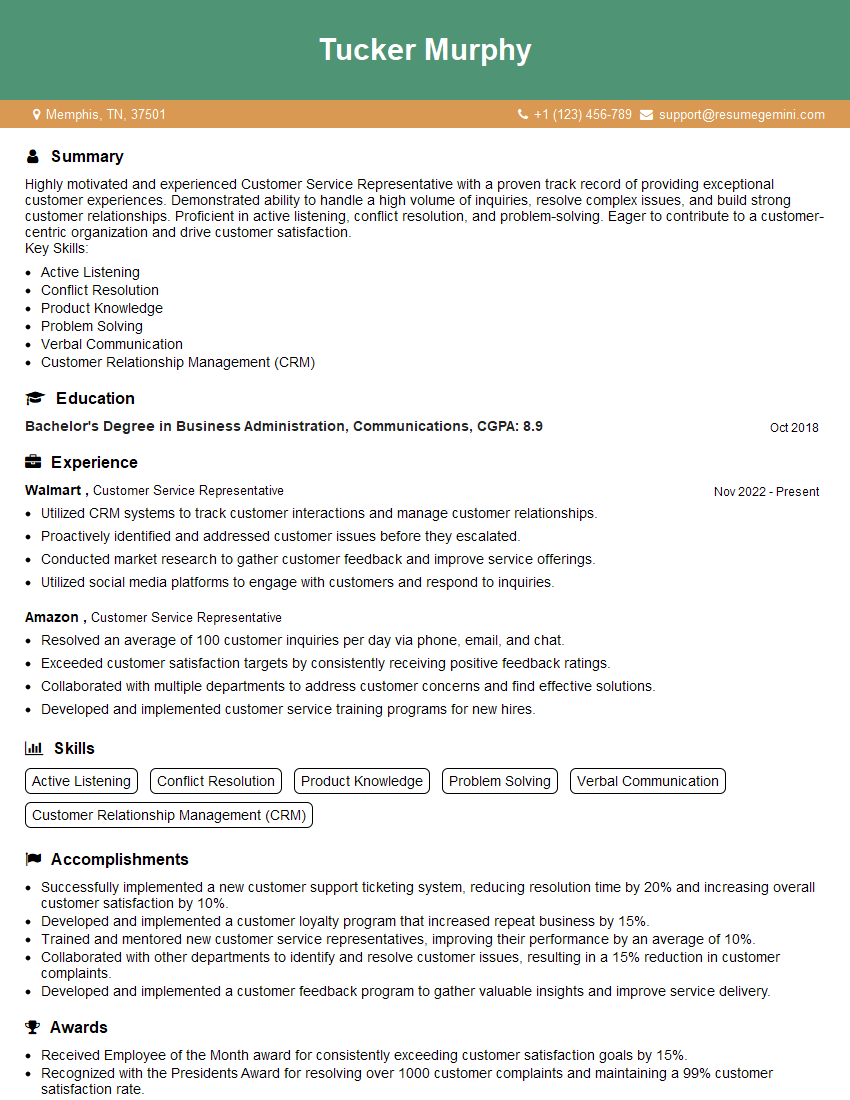
Customer Service Representative Resume Sample

Business Analyst Resume Sample

Data Analyst Resume Sample
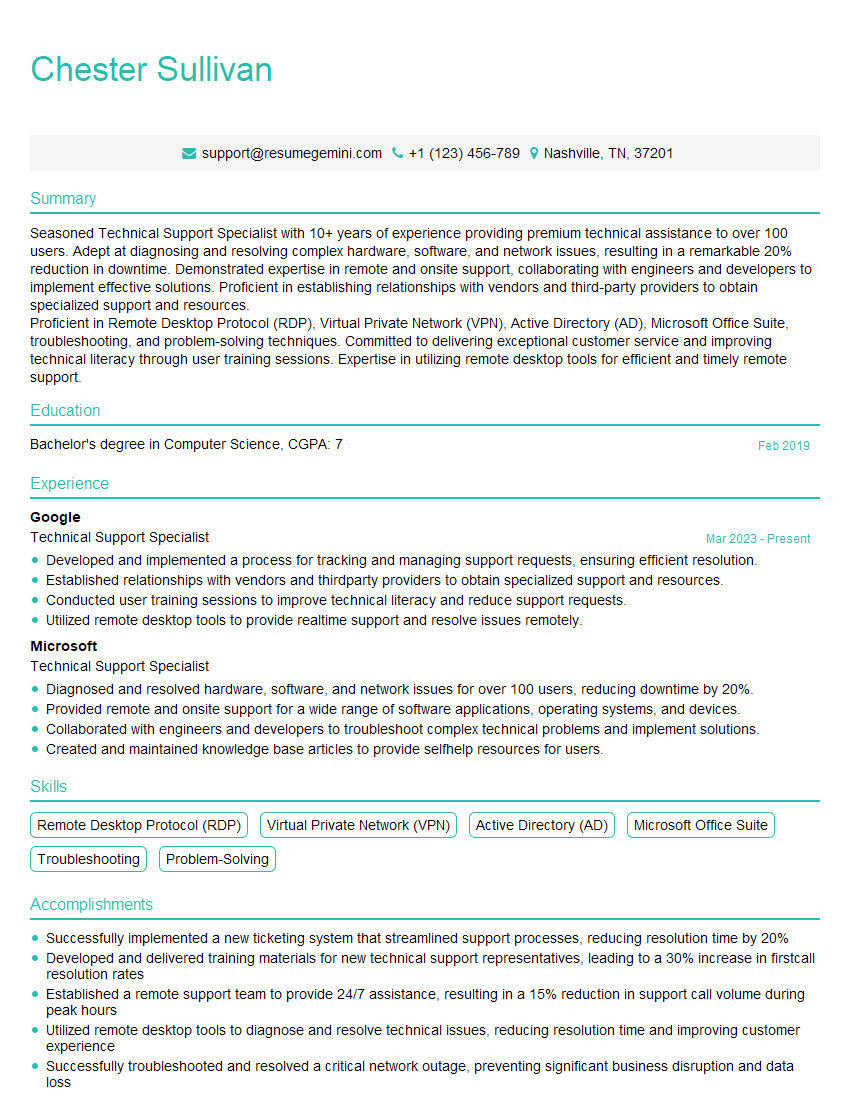
Technical Support Specialist Resume Sample
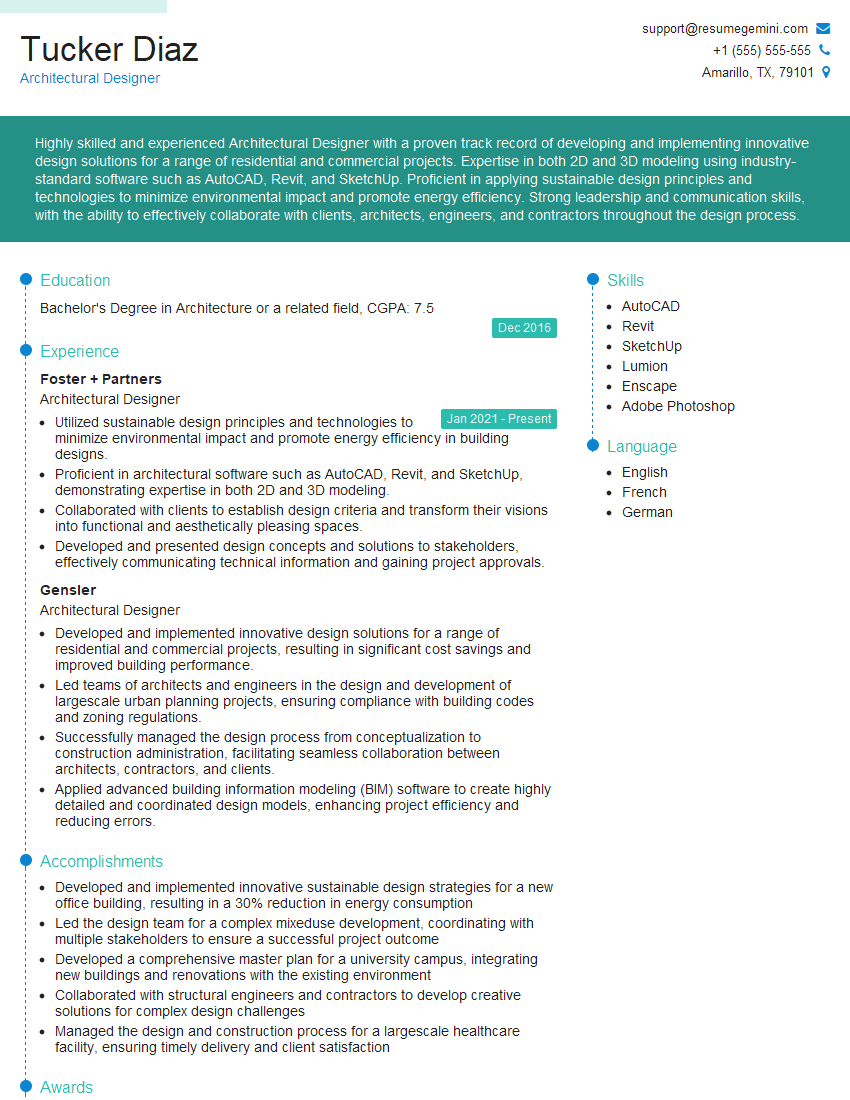
Architectural Designer Resume Sample
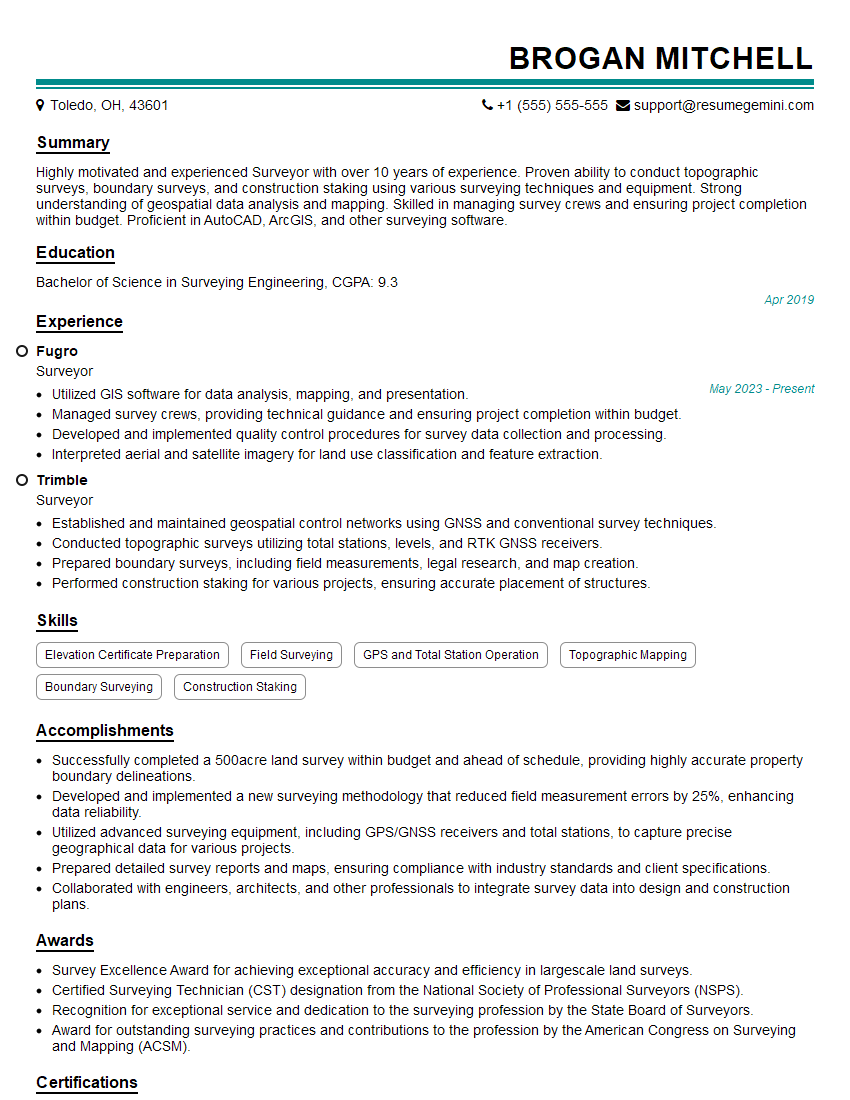
Surveyor Resume Sample
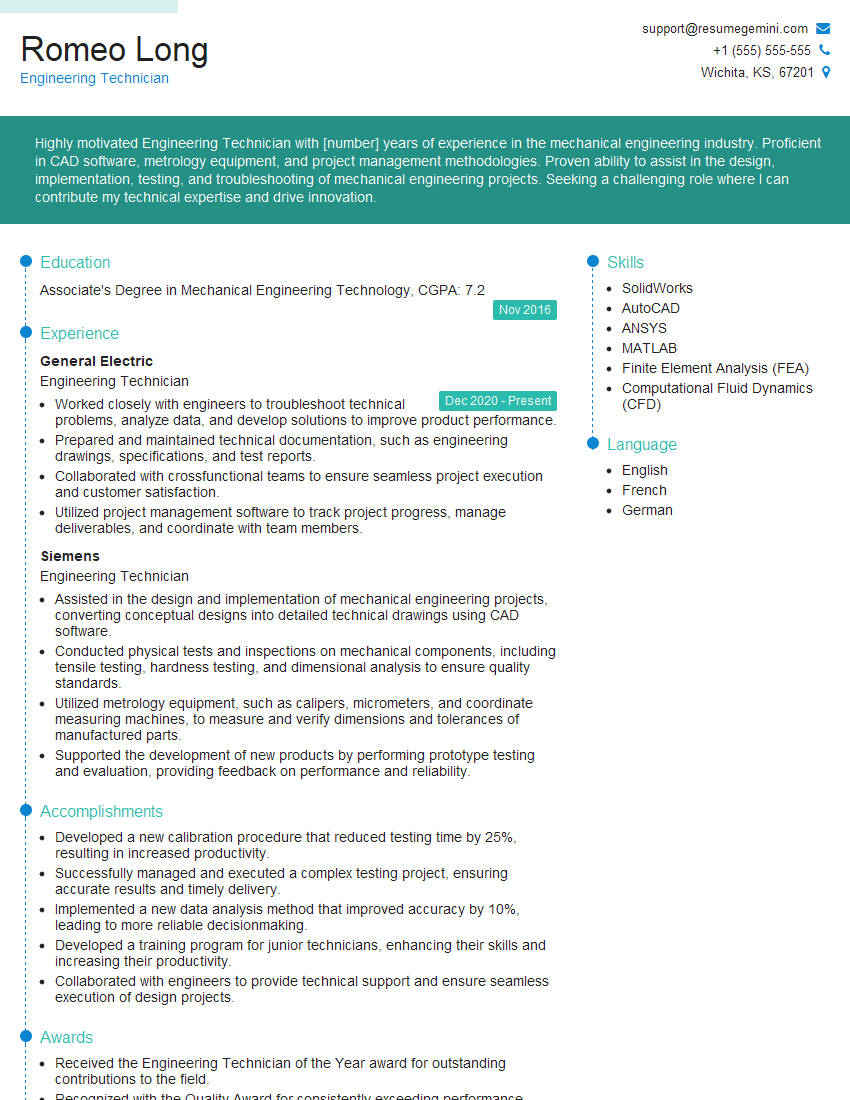
Engineering Technician Resume Sample
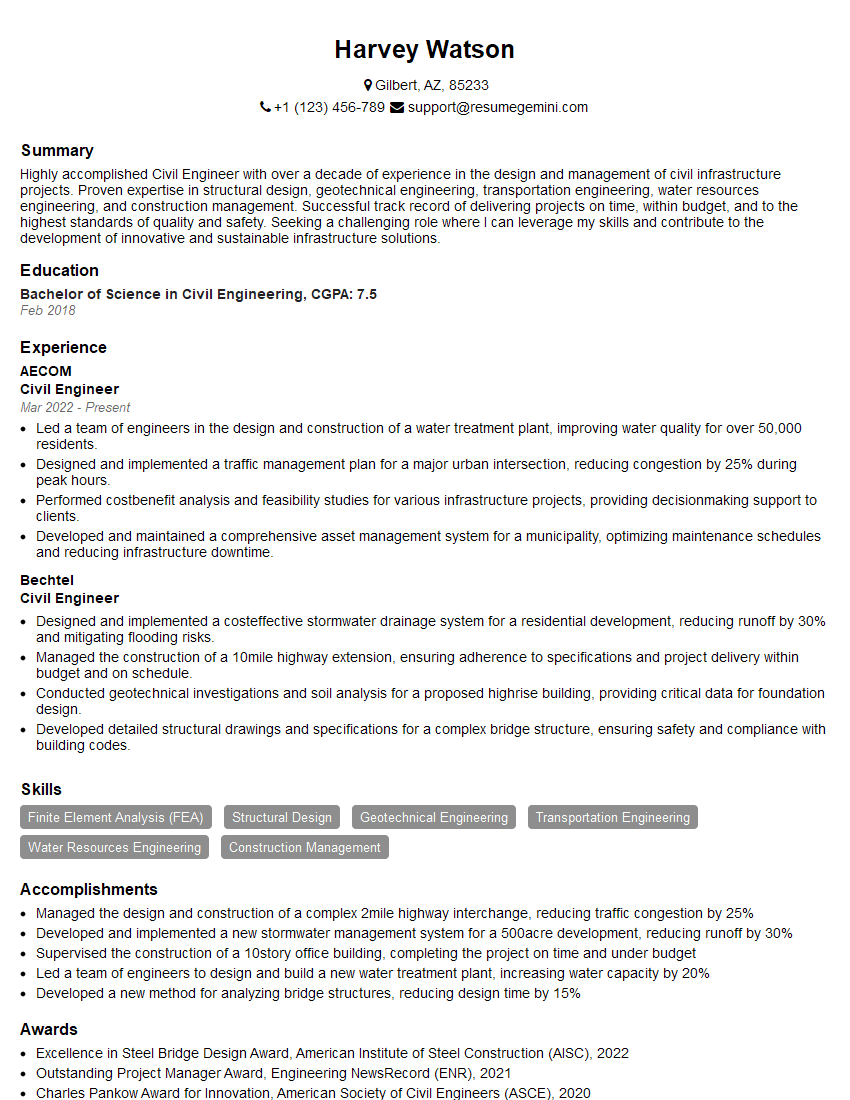
Civil Engineer Resume Sample
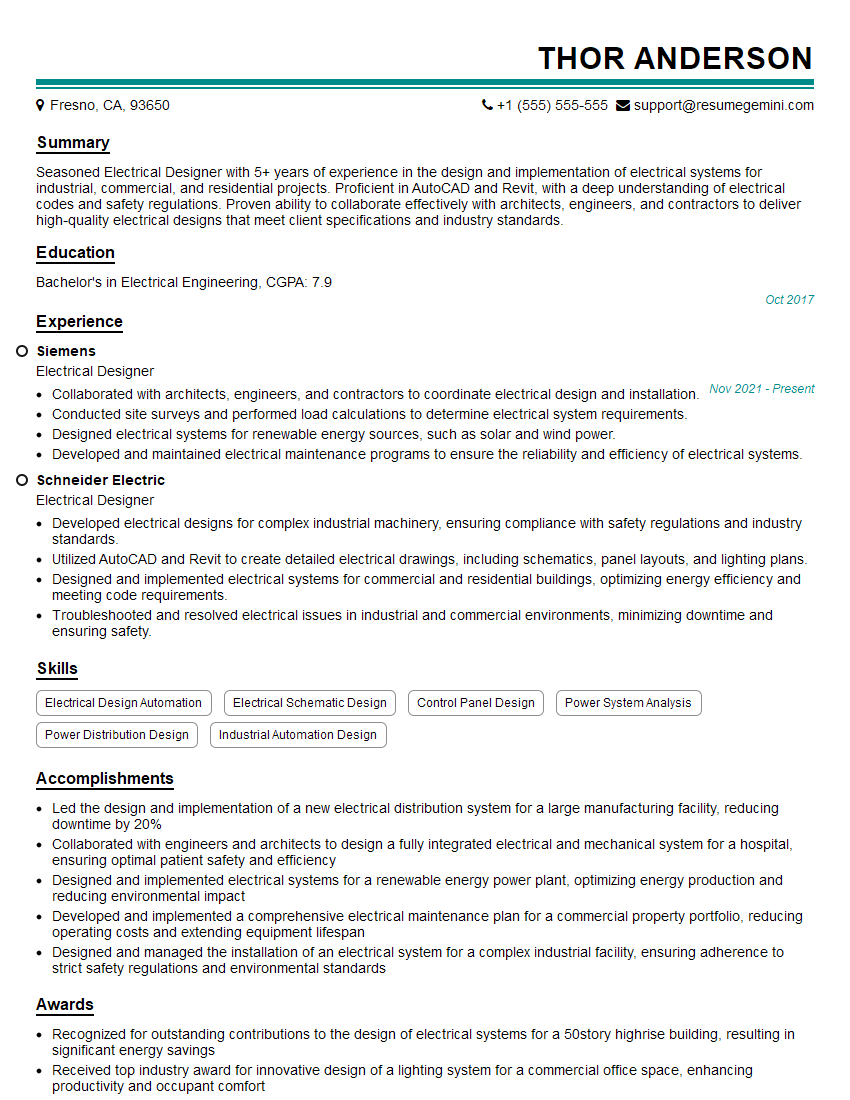
Electrical Designer Resume Sample
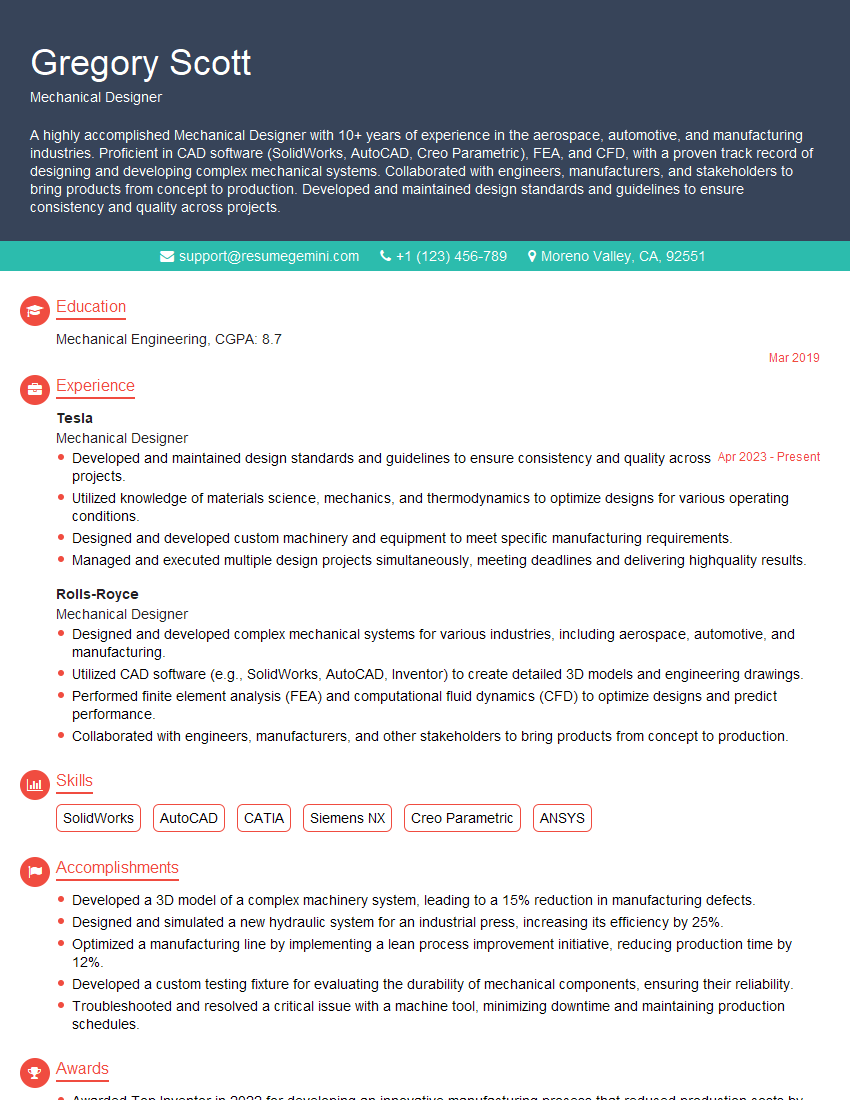
Mechanical Designer Resume Sample

Technical Writer Resume Sample

Executive Assistant Resume Sample
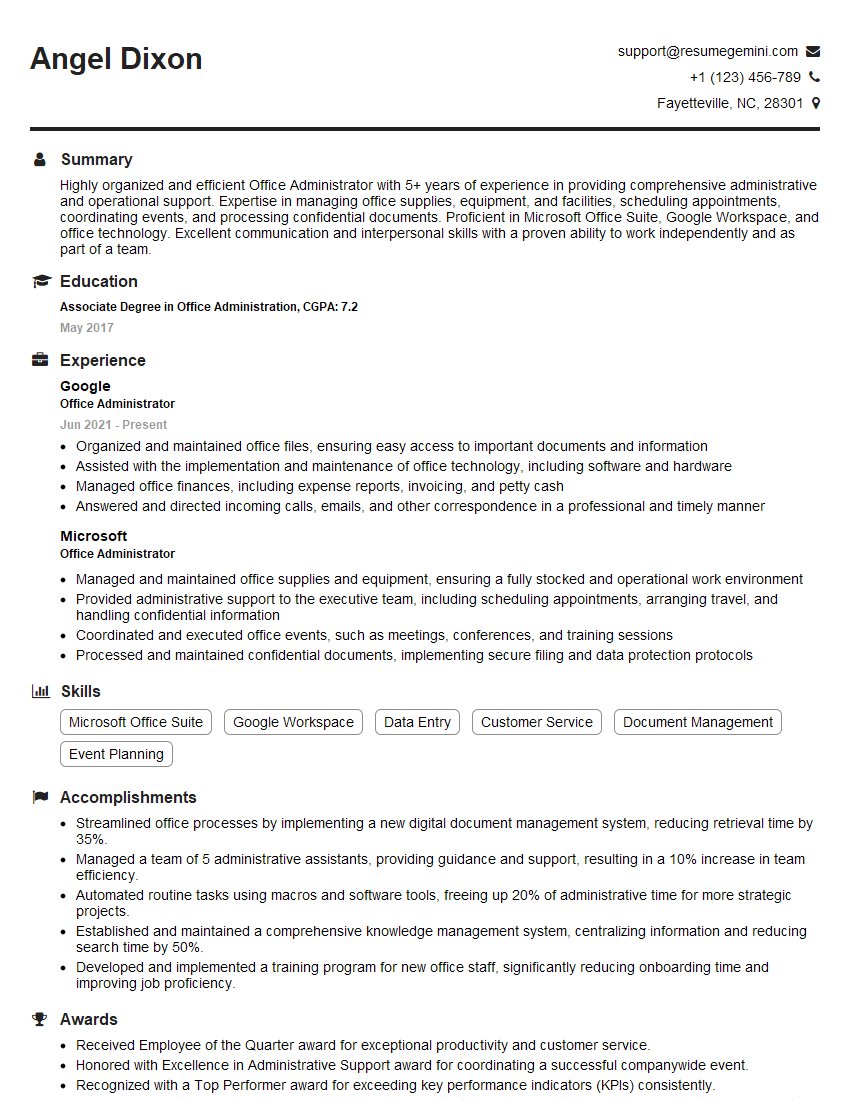
Office Administrator Resume Sample

Data Entry Clerk Resume Sample
- Office Manager
- Marketing Coordinator
- Sales Representative
- Administrative Assistant
- Customer Service Representative
- Business Analyst
- Data Analyst
- Technical Support Specialist
- Architectural Designer
- Surveyor
- Engineering Technician
- Civil Engineer
- Electrical Designer
- Mechanical Designer
- Technical Writer
- Executive Assistant
- Office Administrator
- Data Entry Clerk
Explore more articles
Users Rating of Our Blogs
Share Your Experience
We value your feedback! Please rate our content and share your thoughts (optional).
What Readers Say About Our Blog
Hello,
we currently offer a complimentary backlink and URL indexing test for search engine optimization professionals.
You can get complimentary indexing credits to test how link discovery works in practice.
No credit card is required and there is no recurring fee.
You can find details here:
https://wikipedia-backlinks.com/indexing/
Regards
NICE RESPONSE TO Q & A
hi
The aim of this message is regarding an unclaimed deposit of a deceased nationale that bears the same name as you. You are not relate to him as there are millions of people answering the names across around the world. But i will use my position to influence the release of the deposit to you for our mutual benefit.
Respond for full details and how to claim the deposit. This is 100% risk free. Send hello to my email id: [email protected]
Luka Chachibaialuka
Hey interviewgemini.com, just wanted to follow up on my last email.
We just launched Call the Monster, an parenting app that lets you summon friendly ‘monsters’ kids actually listen to.
We’re also running a giveaway for everyone who downloads the app. Since it’s brand new, there aren’t many users yet, which means you’ve got a much better chance of winning some great prizes.
You can check it out here: https://bit.ly/callamonsterapp
Or follow us on Instagram: https://www.instagram.com/callamonsterapp
Thanks,
Ryan
CEO – Call the Monster App
Hey interviewgemini.com, I saw your website and love your approach.
I just want this to look like spam email, but want to share something important to you. We just launched Call the Monster, a parenting app that lets you summon friendly ‘monsters’ kids actually listen to.
Parents are loving it for calming chaos before bedtime. Thought you might want to try it: https://bit.ly/callamonsterapp or just follow our fun monster lore on Instagram: https://www.instagram.com/callamonsterapp
Thanks,
Ryan
CEO – Call A Monster APP
To the interviewgemini.com Owner.
Dear interviewgemini.com Webmaster!
Hi interviewgemini.com Webmaster!
Dear interviewgemini.com Webmaster!
excellent
Hello,
We found issues with your domain’s email setup that may be sending your messages to spam or blocking them completely. InboxShield Mini shows you how to fix it in minutes — no tech skills required.
Scan your domain now for details: https://inboxshield-mini.com/
— Adam @ InboxShield Mini
Reply STOP to unsubscribe
Hi, are you owner of interviewgemini.com? What if I told you I could help you find extra time in your schedule, reconnect with leads you didn’t even realize you missed, and bring in more “I want to work with you” conversations, without increasing your ad spend or hiring a full-time employee?
All with a flexible, budget-friendly service that could easily pay for itself. Sounds good?
Would it be nice to jump on a quick 10-minute call so I can show you exactly how we make this work?
Best,
Hapei
Marketing Director
Hey, I know you’re the owner of interviewgemini.com. I’ll be quick.
Fundraising for your business is tough and time-consuming. We make it easier by guaranteeing two private investor meetings each month, for six months. No demos, no pitch events – just direct introductions to active investors matched to your startup.
If youR17;re raising, this could help you build real momentum. Want me to send more info?
Hi, I represent an SEO company that specialises in getting you AI citations and higher rankings on Google. I’d like to offer you a 100% free SEO audit for your website. Would you be interested?
Hi, I represent an SEO company that specialises in getting you AI citations and higher rankings on Google. I’d like to offer you a 100% free SEO audit for your website. Would you be interested?
good