Unlock your full potential by mastering the most common Design Software (e.g., Photoshop, Illustrator) interview questions. This blog offers a deep dive into the critical topics, ensuring you’re not only prepared to answer but to excel. With these insights, you’ll approach your interview with clarity and confidence.
Questions Asked in Design Software (e.g., Photoshop, Illustrator) Interview
Q 1. Explain the difference between raster and vector graphics.
Raster and vector graphics are two fundamentally different ways of representing images digitally. Think of it like this: raster is like a mosaic, made up of tiny squares called pixels, while vector is like a blueprint, made up of mathematical equations defining lines and curves.
- Raster Graphics: These are made of a grid of pixels. Each pixel has its own color information. Examples include JPEGs, PNGs, and GIFs. They are great for photorealistic images but lose quality when scaled up (because you’re essentially stretching those pixels).
- Vector Graphics: These are based on mathematical formulas. They define shapes, lines, and curves with precise equations. Examples include SVGs, AI (Adobe Illustrator) files, and EPS files. They can be scaled to any size without losing quality because the image is recreated from the mathematical definitions each time.
In practice, you’d use raster graphics for photographs and detailed illustrations, and vector graphics for logos, illustrations that need to be scaled, and typography.
Q 2. Describe your experience using Photoshop’s layer styles.
Photoshop’s layer styles are a powerful way to add effects to layers without affecting the original image data. I extensively use them to create shadows, glows, bevels, and other effects. For example, I recently used a drop shadow layer style to give a product image depth and make it stand out on a webpage. I often combine multiple layer styles to achieve complex effects. I particularly appreciate the non-destructive nature of layer styles; I can adjust the settings anytime without having to re-create the effect. This workflow saves a lot of time and makes edits easy.
My workflow usually involves experimenting with different combinations of layer styles to achieve the desired look. For instance, I might combine an inner shadow with a bevel and emboss to create a more three-dimensional effect. The ability to preview changes in real-time makes the process intuitive and efficient.
Q 3. How do you optimize images for web use in Photoshop?
Optimizing images for web use in Photoshop is crucial for fast loading times and a good user experience. My process involves several key steps:
- Resizing: I reduce the image dimensions to a size appropriate for the web, balancing quality with file size. I avoid unnecessarily large images.
- Format Selection: I choose the appropriate file format. JPEGs are good for photographic images, while PNGs are better for images with sharp lines and transparency. WebP is an increasingly popular option offering better compression than both.
- Compression: I use Photoshop’s ‘Save for Web (Legacy)’ or ‘Export As’ features to compress the image. I carefully adjust the quality settings to find the best balance between image quality and file size. Higher compression levels mean smaller file sizes but can result in some quality loss.
- Progressive JPEGs (optional): For JPEGs, I often use progressive compression. This allows the image to load gradually, showing a low-resolution version first and then improving in quality as it loads, improving the user experience.
I always test the optimized images on different devices and browsers to ensure they render correctly and look good across different screen sizes and bandwidths.
Q 4. What are some common keyboard shortcuts you use in Illustrator?
Illustrator relies heavily on keyboard shortcuts to speed up workflows. My most frequent shortcuts include:
V: Selection ToolA: Direct Selection ToolP: Pen ToolL: Line Segment ToolM: Rectangle ToolE: Ellipse ToolCtrl+C/Cmd+C: CopyCtrl+V/Cmd+V: PasteCtrl+Z/Cmd+Z: UndoCtrl+S/Cmd+S: Save[and]: Adjust stroke weight
Mastering these shortcuts significantly increases efficiency, allowing for faster creation and modification of vector graphics. For example, using the pen tool (P) with the direct selection tool (A) allows for quick and precise adjustments to complex shapes.
Q 5. Explain the use of different blending modes in Photoshop.
Blending modes in Photoshop control how layers interact with each other. Instead of simply layering colors on top of each other, they use mathematical formulas to combine the colors. Each mode has a unique effect.
- Normal: The default; the top layer simply sits on top.
- Multiply: Darkens the layers below.
- Screen: Lightens the layers below.
- Overlay: Creates a more contrasted look depending on the base color.
- Soft Light: Subtly adjusts contrast and saturation.
- Hard Light: More pronounced contrast adjustment than Soft Light.
For example, using ‘Multiply’ on a dark layer over a light layer will result in a darker, more intense image. ‘Screen’, on the other hand, will create a brighter effect. Experimenting with blending modes is key to achieving creative and unique effects. I often use them to create realistic lighting, blend textures seamlessly, and add subtle enhancements to images.
Q 6. How do you create and use custom brushes in Photoshop?
Creating custom brushes in Photoshop allows for greater control and creativity. It’s like having your own personal set of painting tools tailored to your needs.
The process typically involves:
- Creating a source image: This could be a simple shape, a texture, or even a photo. I ensure my image has a transparent background when needed.
- Importing it into the Brush Preset Editor: I go to Edit > Preset Manager > Brushes and select ‘Import’.
- Configuring brush settings: Here, I control shape, size, spacing, scattering, and other properties to fine-tune the brush’s behavior.
- Saving the custom brush: I save it for later use.
I’ve used custom brushes extensively to create unique textures for backgrounds, add stylized elements to illustrations, and simulate various painting techniques (like dry brush or splatter effects). This allows for a consistent look and feel throughout projects.
Q 7. Describe your workflow for creating a logo in Illustrator.
My workflow for creating a logo in Illustrator starts with understanding the client’s needs and vision. I begin with thorough research, sketching ideas, and gathering inspiration. I then follow these key steps:
- Initial Sketches (and Brainstorming): I often start by sketching several logo concepts on paper. This helps me refine the ideas before transferring them to Illustrator.
- Vector Creation: I create the logo in Illustrator using vector tools. I focus on precision and ensuring scalability. The Pen Tool is my primary tool for creating clean lines and curves.
- Refinement and Iteration: I carefully refine the design, experimenting with different shapes, fonts, and color palettes. I often iterate on designs based on client feedback.
- Font Selection: Font selection is critical. I choose fonts that are legible, reflect the brand’s personality, and work well within the logo’s design.
- Color Palette: The color palette is crucial for brand identity. I select colors that are visually appealing, memorable, and consistent with the client’s brand guidelines.
- File Export: I export the logo in various formats (SVG, AI, EPS, PNG, JPEG) to meet the client’s needs for different applications.
Throughout the process, communication with the client is essential to ensure the final logo meets their expectations and effectively represents their brand.
Q 8. How do you handle color management in your design projects?
Color management is crucial for ensuring design consistency across different devices and output methods. It involves controlling the colors from the initial design phase to the final product, preventing unexpected color shifts. I always begin by defining my color space – typically sRGB for web and Adobe RGB for print, which offers a wider gamut. I then use a color profile assigned to my monitor for accurate on-screen representation. In Photoshop, I ensure that the document’s color profile is correctly set and utilize the ‘Proof Colors’ feature to preview how the design will look in different color spaces or on different media. For print projects, I’ll work with a professional color management system (CMS) like those provided by X-Rite, and carefully consider the printer’s profile for accurate color reproduction.
For example, if I’m designing a website, I’ll work in sRGB and use color palettes converted to hex codes for web compatibility. For a print project like a brochure, I might create a custom color profile based on the printing process (CMYK) to ensure consistent color across the print run. I regularly calibrate my monitor to ensure accurate color representation, and I always export my files with the appropriate embedded color profiles.
Q 9. What are your preferred techniques for retouching images in Photoshop?
My retouching techniques in Photoshop are tailored to the specific image and desired outcome. I generally start by assessing the image’s quality and identifying areas needing attention. This often includes dust and scratch removal, skin smoothing, color correction, and overall enhancement. I rely heavily on non-destructive editing techniques, utilizing adjustment layers (like Curves, Levels, and Hue/Saturation) to achieve control over the process.
For example, I might use the Healing Brush tool to remove blemishes, the Spot Healing Brush for quick fixes, and the Clone Stamp tool for more precise cloning. The Patch tool is great for seamlessly blending areas with similar textures. For more complex skin retouching, I frequently use frequency separation to adjust skin texture and tone independently. I always aim to maintain the image’s natural look and avoid over-processing, striving for realism and a subtle enhancement.
Q 10. Explain the process of creating a vector illustration from a raster image.
Converting a raster image (like a JPG or PNG) into a vector image (like an AI or SVG) involves tracing the image. This process requires careful attention to detail. While there are automated tools, manual tracing often delivers superior results, particularly for complex images.
In Illustrator, I typically use the Image Trace feature. This allows me to select an image and apply different tracing presets based on the image complexity. This might involve adjusting settings like paths, colors, and noise reduction. After tracing, I often manually refine the resulting vector shapes, correcting any inaccuracies and simplifying the paths for cleaner, smaller file sizes. Alternatively, for a more artistic approach, I might manually redraw the image using the Pen tool, creating vector shapes from scratch based on the raster reference.
For instance, when creating logos, vectorization is essential for scalability without loss of quality. The vectorized logo can be resized infinitely without pixelation, making it ideal for various applications, from business cards to billboards.
Q 11. How do you use the Pathfinder panel in Illustrator?
The Pathfinder panel in Illustrator is a powerful tool for combining and manipulating vector shapes. It provides a wide array of functions to create complex shapes from simpler ones. I use it extensively to create logos, illustrations, and intricate designs.
- Unite: Combines selected shapes into a single, unified shape.
- Minus Front: Subtracts the topmost shape from the shapes below.
- Intersect: Creates a new shape showing only the overlapping areas of the selected shapes.
- Exclude: Creates a shape representing the areas of the selected shapes that do not overlap.
For example, to create a complex logo with multiple overlapping shapes, I might use the Pathfinder panel’s ‘Intersect’ option to create intricate shapes by combining different elements. The ‘Minus Front’ is useful for creating cutouts or negative space within a design. Understanding the capabilities of the Pathfinder panel is critical for creating efficient and clean vector artwork.
Q 12. Describe your experience with creating and editing text in Photoshop and Illustrator.
Both Photoshop and Illustrator offer robust text tools, but their strengths lie in different areas. Photoshop excels at creating and editing raster-based text, ideal for photo manipulations or designs needing a more textured feel. I often use Photoshop’s text tools for adding stylistic text effects that blend with photorealistic elements. Illustrator is better suited for vector-based text, allowing for scalable, clean text suitable for logos, print, and web applications where crispness and scalability are crucial.
In Photoshop, I utilize text layers, blending modes, and layer styles (like drop shadows, bevels, and glows) to create various effects. Illustrator’s text capabilities extend to creating outline text, which can be easily manipulated and edited. I might use Photoshop for adding a textured, hand-painted feel to text on a poster and Illustrator for creating a sharp, scalable logo.
Q 13. How do you work with different file formats (e.g., PSD, AI, EPS, JPG, PNG)?
Understanding the strengths and limitations of different file formats is key to efficient workflow. I choose the format based on the project needs and intended use.
- PSD (Photoshop Document): My go-to format for layered Photoshop work, allowing for easy editing and modification later.
- AI (Adobe Illustrator): The native format for Illustrator vector graphics, preserving scalability and editability.
- EPS (Encapsulated PostScript): A vector format suitable for print, widely compatible with different software.
- JPG (JPEG): A compressed raster format ideal for web images and photographs, with some loss of image quality.
- PNG (Portable Network Graphics): A lossless raster format often used for web graphics that support transparency.
For example, I might save a logo design as both an AI and EPS file for maximum compatibility. For web graphics, I would usually use PNG for its transparency support, and JPG for photographs.
Q 14. Explain your understanding of resolution and its importance in design.
Resolution refers to the number of pixels per inch (PPI) or dots per inch (DPI) in an image. It determines the image’s sharpness and clarity. In design, understanding resolution is crucial for producing high-quality output across various mediums.
High-resolution images (e.g., 300 DPI for print) are sharp and detailed, suitable for print materials like brochures and posters. Low-resolution images (e.g., 72 DPI for web) are less detailed but load faster online. Using a low-resolution image for print will result in a blurry, pixelated output. Conversely, using a very high-resolution image for web purposes will unnecessarily increase the file size and loading time. I carefully tailor the resolution to the intended use; a website banner will require different resolution compared to a large-format print advertisement.
Q 15. Describe your experience with print design and pre-press preparation.
My experience in print design and pre-press preparation encompasses the entire workflow, from initial concept to final print-ready files. This includes a deep understanding of color spaces (CMYK vs. RGB), resolution requirements for different print methods (offset, digital, etc.), bleed and trim settings, and the importance of creating vector-based artwork for sharp, scalable output. I’ve worked extensively with Adobe InDesign for layout, Photoshop for image retouching and preparation, and Illustrator for vector graphics. For example, in a recent project designing a brochure, I meticulously ensured the images were high-resolution (at least 300 DPI), set up appropriate bleed (0.125 inches on all sides) for accurate trimming, and converted the color mode to CMYK to ensure accurate color reproduction during printing. I also created output-ready PDF files following industry best practices for print production, including the correct color profiles and compression settings. This ensured a smooth transition to the print shop and a high-quality final product.
Career Expert Tips:
- Ace those interviews! Prepare effectively by reviewing the Top 50 Most Common Interview Questions on ResumeGemini.
- Navigate your job search with confidence! Explore a wide range of Career Tips on ResumeGemini. Learn about common challenges and recommendations to overcome them.
- Craft the perfect resume! Master the Art of Resume Writing with ResumeGemini’s guide. Showcase your unique qualifications and achievements effectively.
- Don’t miss out on holiday savings! Build your dream resume with ResumeGemini’s ATS optimized templates.
Q 16. How do you ensure consistency in your design projects?
Maintaining design consistency across projects is paramount. I achieve this through several key strategies. First, I meticulously document design systems, including color palettes, typography specifications (font families, sizes, weights), and graphic elements. These are stored centrally (often using a style guide document and a cloud-based storage system) and are meticulously referenced throughout the project. Second, I leverage tools within the design software itself. In Adobe programs, this means creating and utilizing styles, swatches, and graphic styles to ensure uniformity. For example, if a specific shade of blue is used on one page, that same swatch is applied to any other instance of that color. Finally, and critically, I maintain open communication with clients and other team members to ensure everyone is on the same page and any deviations from the established system are approved.
Q 17. How do you handle design revisions and client feedback?
Handling design revisions and client feedback is a crucial aspect of the design process. I approach this with a structured and collaborative mindset. Firstly, I carefully track all feedback, using dedicated annotation tools within the design software or a project management system. I then carefully review each comment and organize it by priority and feasibility. Before making any changes, I actively discuss the suggested revisions with the client, explaining the implications of each alteration on the overall design and brand consistency. For example, I might present alternative design solutions if a requested change conflicts with the established design system. This ensures that the revisions align with the project’s goals and aesthetic vision. Once the revisions are implemented, I meticulously document them, providing a clear record of the changes made, ensuring transparency and accountability throughout the process.
Q 18. Describe your experience using Adobe Bridge or similar asset management tools.
Adobe Bridge is an indispensable tool for efficient asset management. I use it daily to browse, organize, and preview all my project files – images, graphics, documents, etc. Its ability to batch process files (such as renaming or converting image formats) significantly streamlines my workflow. For example, I’ll use Bridge to quickly locate high-resolution images for a print project, or to batch rename a series of photographs based on a naming convention. The metadata functionality is also extremely valuable, enabling detailed organization and efficient searching. This is especially helpful for large projects with hundreds or thousands of assets, allowing me to easily find a specific file based on keywords, date, or other metadata attributes. The ability to preview images within Bridge without having to open each file individually greatly increases efficiency.
Q 19. How do you use layer masks in Photoshop?
Layer masks in Photoshop are powerful tools allowing for non-destructive editing. Imagine it like a stencil: you can selectively hide or reveal parts of a layer without permanently altering the layer’s content. You create a mask by clicking the ‘Add layer mask’ icon at the bottom of the layers panel. This adds a white mask to the layer. Painting black on the mask hides parts of the layer, while painting white reveals them. Painting with shades of gray provides varying levels of transparency. For example, if I want to blend a person seamlessly into a background, I’d use a layer mask to carefully reveal parts of the person while softening the edges to achieve a natural-looking blend. This allows for easy adjustments later without damaging the original image. This is crucial for flexibility and efficiency in the editing process.
Q 20. What are some common design principles you apply in your work?
Several key design principles guide my work. Proximity involves grouping related elements to create visual unity. Think of the close grouping of headlines and sub-headlines on a webpage. Alignment ensures that elements are purposefully positioned, avoiding a cluttered look. Everything should have a visual anchor. Repetition reinforces elements by using them consistently throughout a design to build familiarity and brand identity (think repeated use of a particular font or color). Contrast creates visual interest through differences in color, size, and weight. This ensures key elements stand out. Whitespace (or negative space) is crucial; allowing empty space between elements gives them room to breathe and prevents clutter, making them more digestible. These are interconnected principles, used strategically to create a harmonious and effective design. For instance, in a poster design, I’ll use strong contrast to make the headline pop, proximity to group related information, and repetition of a key visual element for brand consistency.
Q 21. Describe your process for creating a website mockup using Photoshop or Illustrator.
Creating a website mockup in Photoshop or Illustrator involves a strategic process. First, I gather information – the client’s vision, content, and target audience. Then, I create a wireframe (a low-fidelity blueprint) outlining the structure and layout of the website. This could be done with simple shapes in Illustrator or even a pen and paper sketch. This helps establish navigation, key features, and overall flow. Next, I use Photoshop or Illustrator to create a high-fidelity mockup. In Photoshop, I’d use layers to separate different elements (header, navigation, content blocks, footer). I’d leverage existing design assets or create new ones for buttons, icons, and graphics, paying close attention to typography, color palette, and overall visual hierarchy. For consistency, I’d use style guides and predefined assets. In Illustrator, I’d focus on creating vector-based elements for sharp and scalable graphics, using artboards for different website pages. The final mockup would be presented as layered PSD or AI files, enabling easy edits and collaboration. This meticulous approach results in a highly detailed and accurate representation of the final website, allowing for thorough client review before development begins.
Q 22. How do you troubleshoot common problems in Photoshop or Illustrator?
Troubleshooting in Photoshop and Illustrator often involves a systematic approach. I start by identifying the specific issue – is it a performance problem, a corrupted file, a stylistic issue, or something else? For performance problems, I’ll check RAM usage, close unnecessary applications, and ensure my scratch disk has sufficient space. Corrupted files often require saving a copy and attempting to open it in a previous version, or using file repair tools if available. Stylistic issues usually involve revisiting the initial design decisions and experimenting with different techniques. For example, if I’m having trouble achieving the right color balance, I’ll check my color profiles, consider using adjustment layers rather than direct edits, and use tools like the Levels or Curves adjustments for precise control.
Let’s say a layer is unresponsive. I’d first try restarting the software. If that fails, I’d check the layer’s blending mode and opacity settings, ensuring there are no conflicting effects. If the problem persists, I’d try duplicating the layer to see if the issue is inherent to the layer itself or something else affecting it. Ultimately, understanding the software’s architecture and workflow is crucial for effective troubleshooting. Documenting my troubleshooting process, including steps taken and outcomes, is also key for future reference and efficiency.
Q 23. What are some of your favorite plugins or extensions for Photoshop or Illustrator?
My favorite plugins and extensions depend heavily on the project, but some standouts include:
- For Photoshop:
Filter Forge: This provides access to an extensive library of highly customizable filters allowing for incredibly creative effects not found in the standard filter collection. It’s particularly useful for generating unique textures and patterns.
PortraitPro: While primarily for portrait retouching, it significantly streamlines the process of skin smoothing, blemish removal, and other enhancements, saving me considerable time and effort.
- For Illustrator:
Astute Graphics Plugins: This suite offers a variety of time-saving tools for creating and manipulating vector graphics. Tools like ‘SubScribe’ for creating perfect paths and ‘VectorScribe’ for more control over points and paths, substantially increase efficiency.
Icons8: A vast library of icons directly accessible within Illustrator, ideal for adding visual flair to designs quickly and easily.
I always evaluate plugins based on their stability, integration with my workflow, and the value they add to my projects. I avoid plugins that slow down performance significantly or are overly complex.
Q 24. How do you ensure your designs are accessible to people with disabilities?
Accessible design is paramount. I ensure accessibility through several key strategies:
- Sufficient Color Contrast: I use tools like WebAIM’s color contrast checker to ensure adequate contrast ratios between text and background, making it readable for users with low vision. This involves selecting complementary colors and avoiding color combinations that can cause readability issues.
- Alternative Text for Images: Every image needs descriptive alt text. This not only helps screen readers convey the image content to visually impaired users but also improves SEO.
- Keyboard Navigation: I test designs with keyboard-only navigation to ensure all interactive elements are accessible without a mouse.
- Clear and Concise Language: I use simple and direct language, avoiding jargon.
- Proper Heading Structure: I organize content using heading tags (H1-H6) for semantic structure and improved screen reader navigation.
- ARIA Attributes: Where necessary, I use ARIA attributes (Accessible Rich Internet Applications) to add semantic information to elements that aren’t inherently understood by screen readers.
Regularly testing with assistive technologies, like screen readers and magnification software, is essential to verify the design’s accessibility.
Q 25. Describe your experience with designing for different screen sizes and resolutions.
Designing for different screen sizes and resolutions requires a responsive design approach. My experience involves using flexible layouts, scalable images, and relative units (like percentages) rather than fixed pixel values. I’m proficient in using tools like Adobe XD or Figma for creating responsive prototypes and testing how my designs adapt across various devices.
For example, I might design a website with a fluid grid system that adjusts columns based on screen width, using CSS media queries to tailor styles for different breakpoints. For images, I’d use vector graphics where possible, or optimize raster images for different resolutions using techniques like image compression without compromising quality. I frequently utilize tools to check the responsiveness of my designs across different devices and browsers.
Q 26. How do you stay up-to-date with the latest design trends and software updates?
Staying current involves a multi-pronged approach:
- Following Design Blogs and Publications: I regularly read publications like Awwwards, Behance, and Dribbble to see the latest design trends and gather inspiration.
- Attending Webinars and Conferences: Industry conferences and online webinars provide insights into emerging technologies and best practices.
- Monitoring Social Media: Following key influencers and design communities on platforms like Twitter, Instagram, and LinkedIn helps me keep my finger on the pulse of the latest news.
- Regular Software Updates: Keeping Photoshop and Illustrator updated ensures access to new features and performance enhancements.
- Experimentation and Personal Projects: I actively experiment with new techniques and tools through personal projects to stay sharp and build my skills.
Continuous learning is vital in the rapidly evolving world of design.
Q 27. Explain your experience collaborating with other designers or developers.
Collaboration is a cornerstone of my design process. I have extensive experience working with designers and developers using various collaborative tools. For example, I’ve used Figma and Adobe XD for real-time collaboration on design files, allowing multiple team members to work concurrently and provide feedback directly within the design interface. This facilitates a seamless feedback loop.
When collaborating with developers, I ensure clear communication regarding design specifications, including asset formats, color codes, and font styles. Using version control systems like Git is another important aspect of collaboration. I also participate actively in design reviews and provide constructive feedback to other team members, contributing to a positive and productive collaborative environment.
Key Topics to Learn for Design Software (e.g., Photoshop, Illustrator) Interview
- Image Manipulation & Retouching: Mastering techniques like color correction, layer masking, and healing tools in Photoshop. Understand the practical application in preparing images for web and print.
- Vector Graphics & Illustration: Proficiency in Illustrator’s pen tool, shape tools, and path manipulation. Demonstrate understanding of creating scalable vector graphics for logos and illustrations.
- Typography & Layout: Showcase knowledge of typography principles, kerning, tracking, and leading. Explain how to effectively use these within a design layout, considering both print and digital contexts.
- File Formats & Workflow: Demonstrate a clear understanding of various file formats (e.g., PSD, AI, JPEG, PNG, SVG) and their optimal use cases. Explain efficient workflows for managing large projects and collaborating with others.
- Color Theory & Design Principles: Articulate your understanding of color palettes, color modes (RGB, CMYK), and fundamental design principles like balance, contrast, and hierarchy. Explain how these concepts are applied in practical design scenarios.
- Non-Destructive Editing Techniques: Explain the importance and practical applications of non-destructive editing, highlighting efficiency and flexibility in the design process.
- Software-Specific Features & Shortcuts: Showcase your familiarity with advanced features and keyboard shortcuts to demonstrate efficiency and expertise in your chosen software.
Next Steps
Mastering design software like Photoshop and Illustrator is crucial for career advancement in the creative industry. Proficiency in these tools translates directly into higher earning potential and more exciting opportunities. To significantly boost your job prospects, creating a strong, ATS-friendly resume is essential. This ensures your application gets noticed by recruiters and hiring managers. We highly recommend using ResumeGemini to build a professional, impactful resume that highlights your skills and experience. ResumeGemini provides examples of resumes tailored to design software expertise, helping you craft a winning application.

Art Director Resume Sample

Creative Director Resume Sample

Web Designer Resume Sample
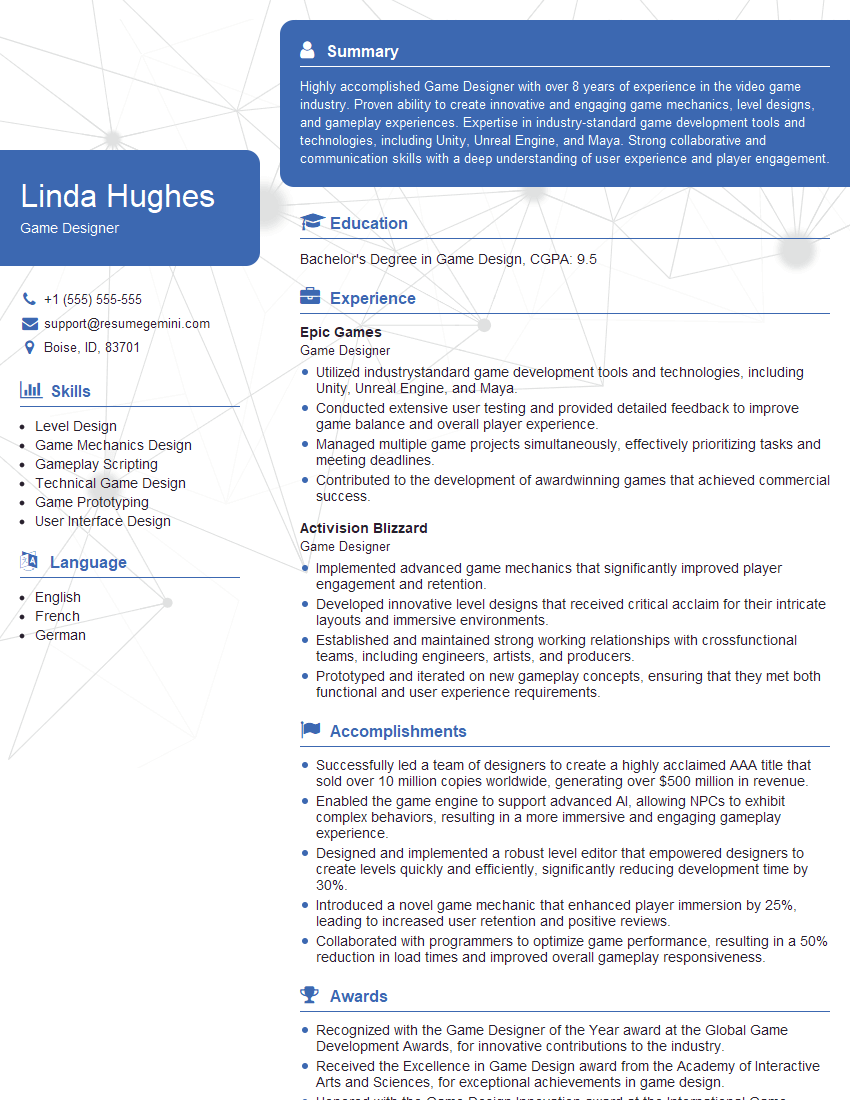
Game Designer Resume Sample
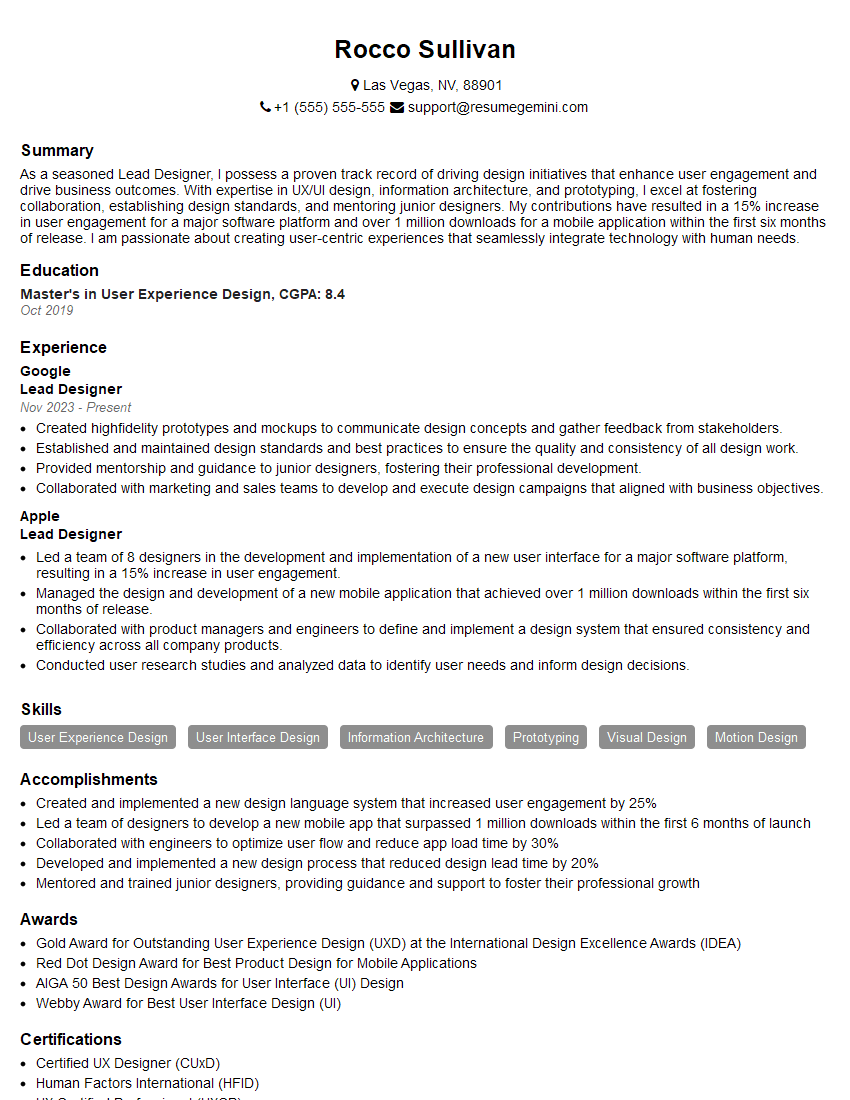
Lead Designer Resume Sample
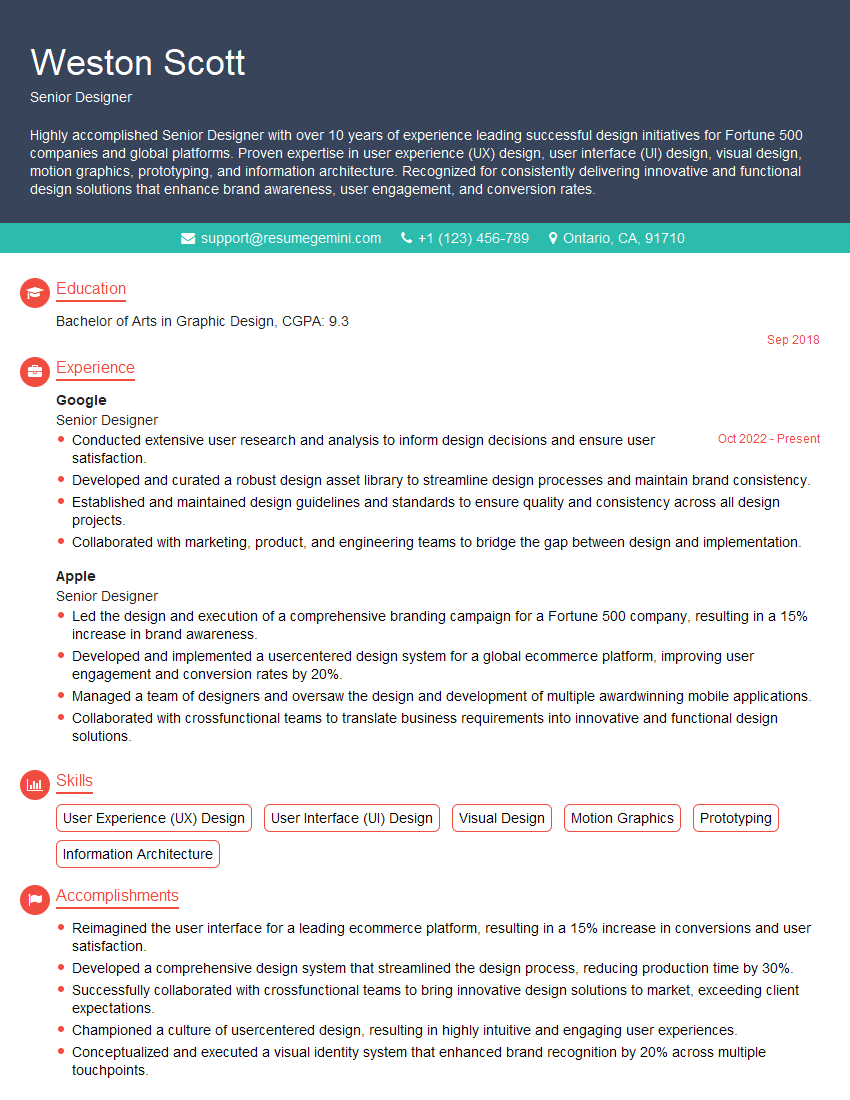
Senior Designer Resume Sample
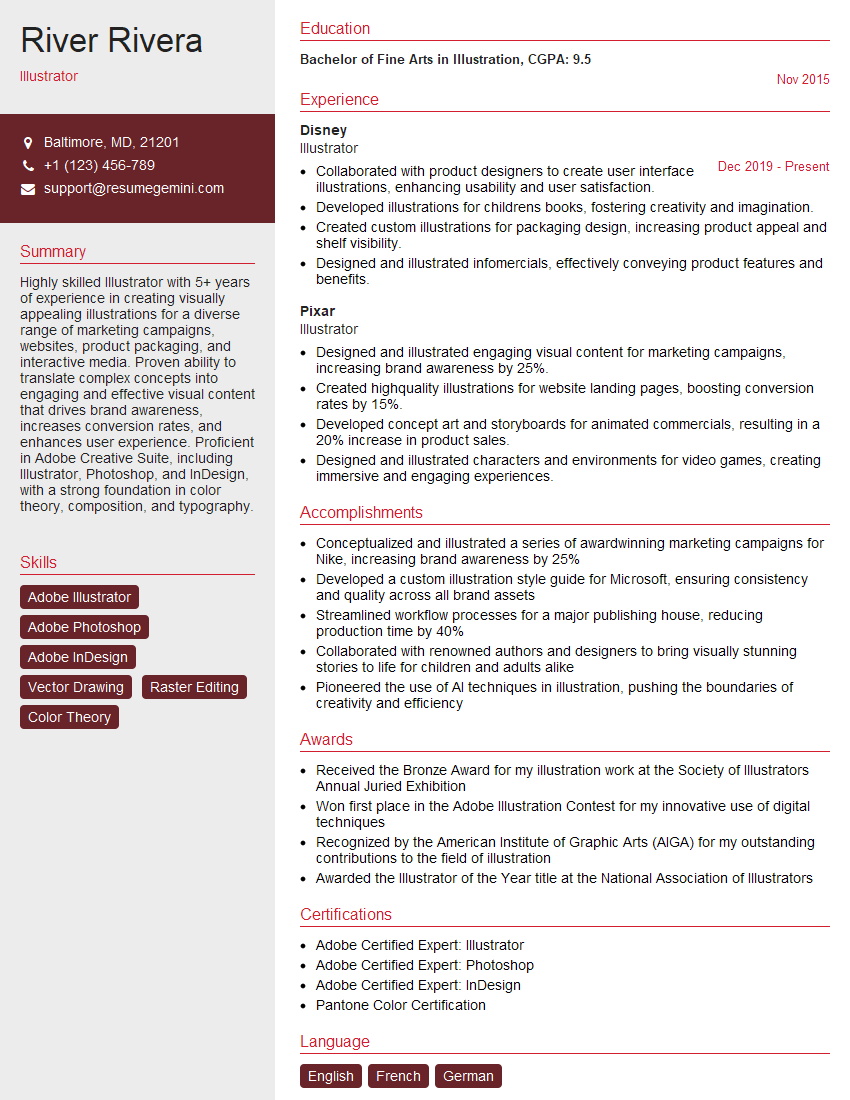
Illustrator Resume Sample

Graphic Designer Resume Sample
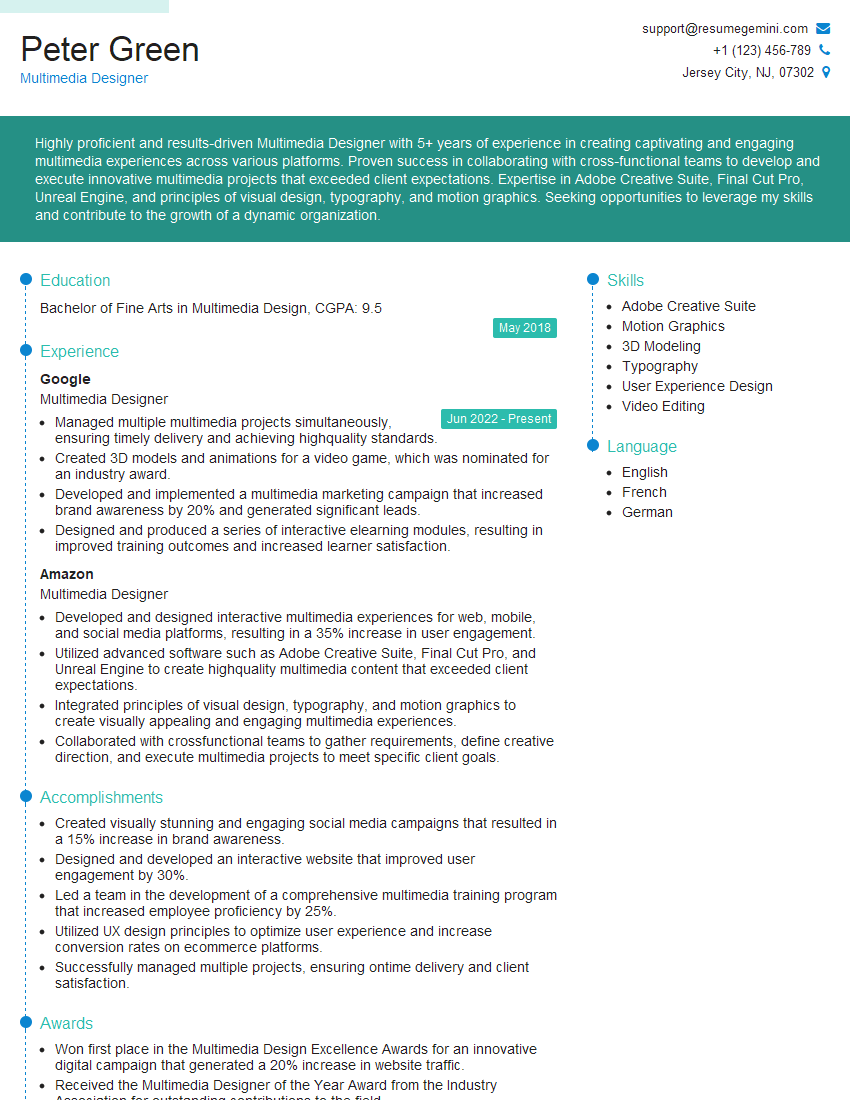
Multimedia Designer Resume Sample
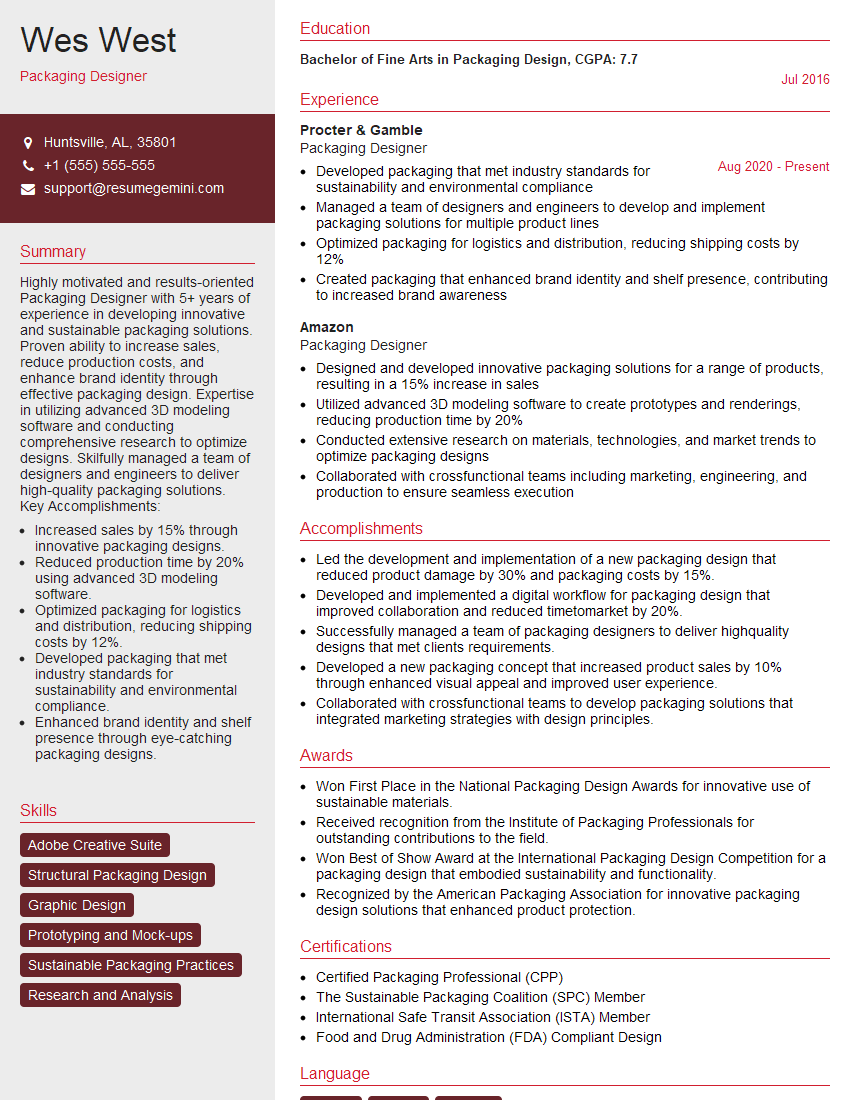
Packaging Designer Resume Sample
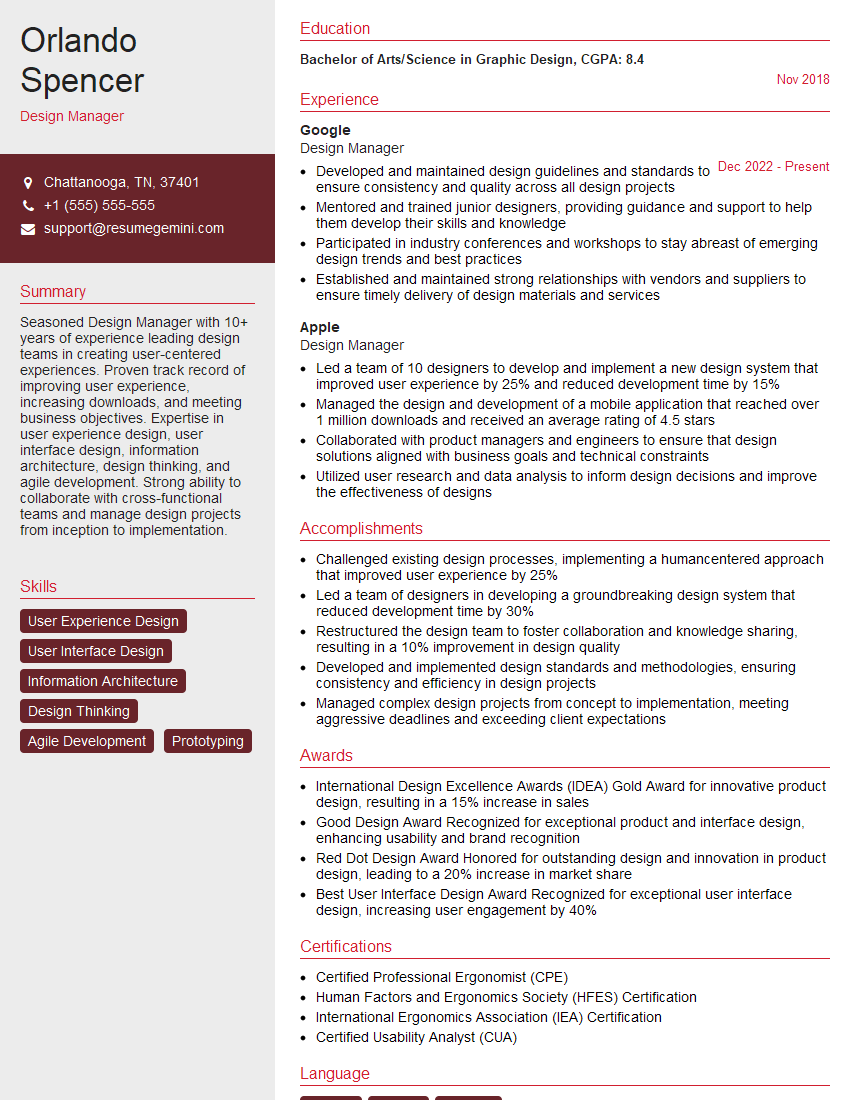
Design Manager Resume Sample

Photo Editor Resume Sample
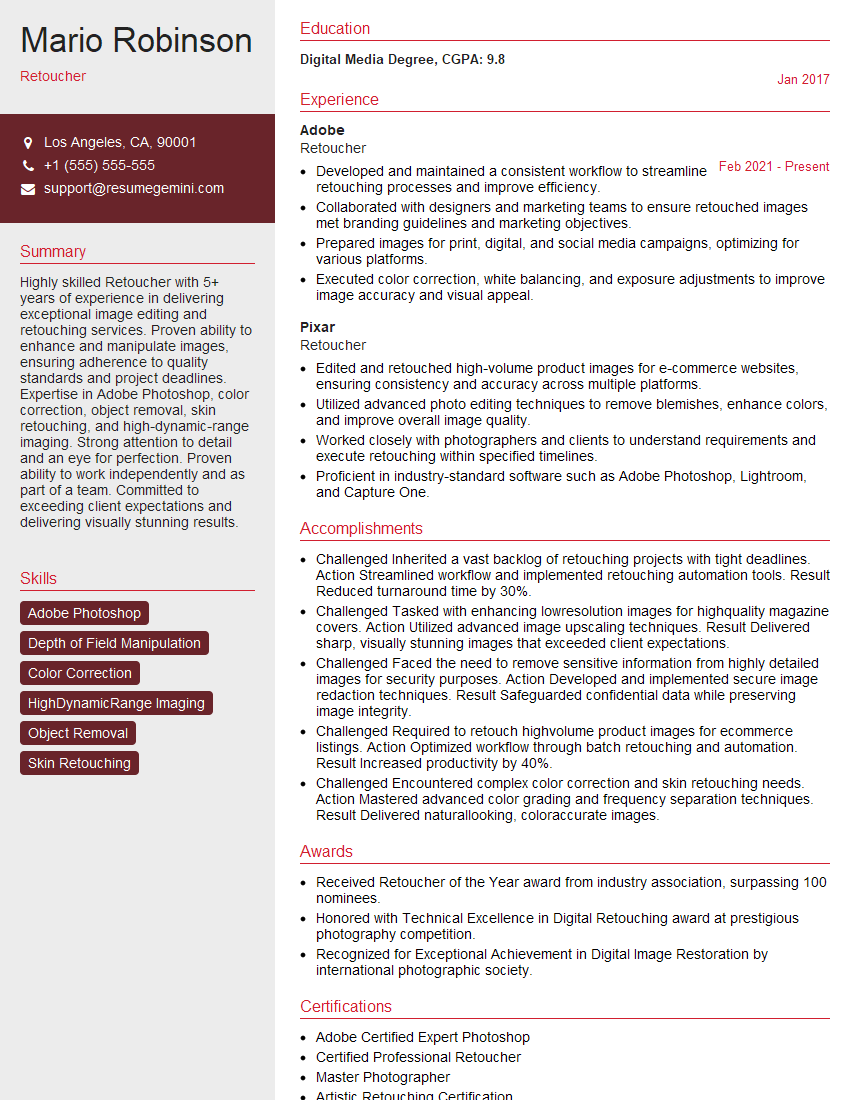
Retoucher Resume Sample
Explore more articles
Users Rating of Our Blogs
Share Your Experience
We value your feedback! Please rate our content and share your thoughts (optional).
What Readers Say About Our Blog
Attention music lovers!
Wow, All the best Sax Summer music !!!
Spotify: https://open.spotify.com/artist/6ShcdIT7rPVVaFEpgZQbUk
Apple Music: https://music.apple.com/fr/artist/jimmy-sax-black/1530501936
YouTube: https://music.youtube.com/browse/VLOLAK5uy_noClmC7abM6YpZsnySxRqt3LoalPf88No
Other Platforms and Free Downloads : https://fanlink.tv/jimmysaxblack
on google : https://www.google.com/search?q=22+AND+22+AND+22
on ChatGPT : https://chat.openai.com?q=who20jlJimmy20Black20Sax20Producer
Get back into the groove with Jimmy sax Black
Best regards,
Jimmy sax Black
www.jimmysaxblack.com
Hi I am a troller at The aquatic interview center and I suddenly went so fast in Roblox and it was gone when I reset.
Hi,
Business owners spend hours every week worrying about their website—or avoiding it because it feels overwhelming.
We’d like to take that off your plate:
$69/month. Everything handled.
Our team will:
Design a custom website—or completely overhaul your current one
Take care of hosting as an option
Handle edits and improvements—up to 60 minutes of work included every month
No setup fees, no annual commitments. Just a site that makes a strong first impression.
Find out if it’s right for you:
https://websolutionsgenius.com/awardwinningwebsites
Hello,
we currently offer a complimentary backlink and URL indexing test for search engine optimization professionals.
You can get complimentary indexing credits to test how link discovery works in practice.
No credit card is required and there is no recurring fee.
You can find details here:
https://wikipedia-backlinks.com/indexing/
Regards
NICE RESPONSE TO Q & A
hi
The aim of this message is regarding an unclaimed deposit of a deceased nationale that bears the same name as you. You are not relate to him as there are millions of people answering the names across around the world. But i will use my position to influence the release of the deposit to you for our mutual benefit.
Respond for full details and how to claim the deposit. This is 100% risk free. Send hello to my email id: lukachachibaialuka@gmail.com
Luka Chachibaialuka
Hey interviewgemini.com, just wanted to follow up on my last email.
We just launched Call the Monster, an parenting app that lets you summon friendly ‘monsters’ kids actually listen to.
We’re also running a giveaway for everyone who downloads the app. Since it’s brand new, there aren’t many users yet, which means you’ve got a much better chance of winning some great prizes.
You can check it out here: https://bit.ly/callamonsterapp
Or follow us on Instagram: https://www.instagram.com/callamonsterapp
Thanks,
Ryan
CEO – Call the Monster App
Hey interviewgemini.com, I saw your website and love your approach.
I just want this to look like spam email, but want to share something important to you. We just launched Call the Monster, a parenting app that lets you summon friendly ‘monsters’ kids actually listen to.
Parents are loving it for calming chaos before bedtime. Thought you might want to try it: https://bit.ly/callamonsterapp or just follow our fun monster lore on Instagram: https://www.instagram.com/callamonsterapp
Thanks,
Ryan
CEO – Call A Monster APP
To the interviewgemini.com Owner.
Dear interviewgemini.com Webmaster!
Hi interviewgemini.com Webmaster!
Dear interviewgemini.com Webmaster!
excellent
Hello,
We found issues with your domain’s email setup that may be sending your messages to spam or blocking them completely. InboxShield Mini shows you how to fix it in minutes — no tech skills required.
Scan your domain now for details: https://inboxshield-mini.com/
— Adam @ InboxShield Mini
support@inboxshield-mini.com
Reply STOP to unsubscribe
Hi, are you owner of interviewgemini.com? What if I told you I could help you find extra time in your schedule, reconnect with leads you didn’t even realize you missed, and bring in more “I want to work with you” conversations, without increasing your ad spend or hiring a full-time employee?
All with a flexible, budget-friendly service that could easily pay for itself. Sounds good?
Would it be nice to jump on a quick 10-minute call so I can show you exactly how we make this work?
Best,
Hapei
Marketing Director
Hey, I know you’re the owner of interviewgemini.com. I’ll be quick.
Fundraising for your business is tough and time-consuming. We make it easier by guaranteeing two private investor meetings each month, for six months. No demos, no pitch events – just direct introductions to active investors matched to your startup.
If youR17;re raising, this could help you build real momentum. Want me to send more info?
Hi, I represent an SEO company that specialises in getting you AI citations and higher rankings on Google. I’d like to offer you a 100% free SEO audit for your website. Would you be interested?
Hi, I represent an SEO company that specialises in getting you AI citations and higher rankings on Google. I’d like to offer you a 100% free SEO audit for your website. Would you be interested?