Are you ready to stand out in your next interview? Understanding and preparing for Excel for Data Management interview questions is a game-changer. In this blog, we’ve compiled key questions and expert advice to help you showcase your skills with confidence and precision. Let’s get started on your journey to acing the interview.
Questions Asked in Excel for Data Management Interview
Q 1. Explain the difference between VLOOKUP and INDEX/MATCH.
Both VLOOKUP and INDEX/MATCH are used to find data within a table, but they differ significantly in their approach and capabilities. VLOOKUP searches for a value in the first column of a table and returns a value in the same row from a specified column. INDEX/MATCH, on the other hand, offers much greater flexibility. It allows you to search for a value in any column of a table and return a value from any other column. This makes INDEX/MATCH significantly more powerful and adaptable.
Think of VLOOKUP as a one-way street – you can only enter from the beginning. INDEX/MATCH is a grid – you can enter from anywhere and go anywhere.
- VLOOKUP:
=VLOOKUP(lookup_value, table_array, col_index_num, [range_lookup])This function requires the lookup value to be in the first column of the table. It’s simpler for basic lookups, but limited. - INDEX/MATCH:
=INDEX(array, MATCH(lookup_value, lookup_array, [match_type]))This function uses INDEX to return a value from a specified array and MATCH to find the position of the lookup value within a lookup array. This provides flexibility in choosing the lookup column and the return column.
Example: Let’s say you have a table with product IDs in column A and prices in column B. VLOOKUP would easily find the price given the product ID. However, if you needed to find the product ID given the price (with the price being in column B), VLOOKUP would fail. INDEX/MATCH can easily handle this.
Q 2. How would you handle inconsistencies in data during import?
Handling data inconsistencies during import is crucial for data integrity. My approach involves a multi-step process. First, I’d visually inspect a sample of the data to identify common inconsistencies, such as incorrect data types (e.g., numbers stored as text), missing values, and inconsistent formatting (e.g., dates in multiple formats). I then use Excel’s built-in features to address these issues. For example, I’d use the TEXT function to standardize date formats, VALUE to convert text to numbers, and conditional formatting to highlight inconsistencies or errors.
For more complex scenarios, I’d leverage Power Query (Get & Transform Data in Excel). Power Query provides robust tools to clean, transform, and consolidate data from various sources. It allows me to perform tasks such as:
- Data Cleaning: Removing duplicates, filling missing values (using various imputation techniques), and trimming whitespace.
- Data Transformation: Changing data types, splitting columns, merging columns, and creating custom columns based on existing data.
- Data Consolidation: Combining data from multiple sources into a single table.
Following data cleaning, I would always validate the data to ensure the inconsistencies have been adequately resolved before further analysis. This might involve creating summary tables or using data validation rules within Excel.
Q 3. Describe your experience with data validation and its importance.
Data validation is a cornerstone of effective data management. It’s the process of ensuring that data entered into a spreadsheet meets predefined criteria. I use data validation extensively to prevent errors, improve data quality, and enforce consistency. For instance, I’ll use data validation to restrict data entry to specific ranges, lists, or data types.
Example: If a column represents order quantities, I’d use data validation to ensure only numerical values greater than zero are entered. If another column represents a country, I’d create a dropdown list of valid country names, preventing typos and inconsistencies. This prevents erroneous data from entering the system in the first place.
The importance of data validation cannot be overstated. It saves time and resources by preventing the need to correct errors later on. Moreover, it increases the reliability and trustworthiness of the data used for analysis and decision-making. Imagine reporting sales figures where order quantities are negative – the consequences could be significant.
Q 4. How do you ensure data integrity and accuracy in Excel?
Maintaining data integrity and accuracy in Excel requires a proactive and multifaceted approach. This starts with careful planning of the worksheet structure and data entry processes. I always aim for a clear and well-organized data model to make it easy to maintain and update.
- Data Validation: As previously discussed, using data validation rules to enforce constraints on data entry is paramount.
- Formulas and Functions: Using formulas and functions to perform calculations and derive data, rather than manual entry, minimizes errors.
- Regular Auditing: Regularly review the data for any inconsistencies or errors. This can include comparing against other reliable data sources.
- Version Control: When working on large datasets, consider using version control to track changes and revert to previous versions if necessary. This might involve saving different versions of the file or using external version control systems.
- Data Backup: Regularly back up your Excel files to prevent data loss due to accidental deletion or corruption.
Following these practices ensures the dataset maintains its integrity and accuracy over time, supporting reliable analysis and decision-making.
Q 5. What are your preferred methods for cleaning and transforming large datasets in Excel?
For cleaning and transforming large datasets in Excel, I strongly prefer using Power Query. Excel’s built-in functions can be cumbersome for large datasets. Power Query offers a visual and intuitive interface to perform complex data manipulation tasks efficiently.
My process typically involves:
- Importing Data: Using Power Query to import data from various sources (CSV, text files, databases, etc.).
- Data Cleaning: Employing Power Query’s features to remove duplicates, handle missing values, transform data types, and filter unwanted rows or columns.
- Data Transformation: Performing operations such as splitting columns, merging columns, pivoting tables, and creating custom columns.
- Data Consolidation: Combining multiple datasets into a single, unified table.
- Loading Data: Loading the cleaned and transformed data back into Excel for further analysis or reporting.
Power Query’s ability to handle large datasets efficiently, combined with its intuitive interface, makes it an invaluable tool for data management in Excel. It greatly enhances the effectiveness of data manipulation and reduces the time required compared to manual methods.
Q 6. Explain your process for identifying and correcting errors in a dataset.
Identifying and correcting errors in a dataset is a systematic process that involves a combination of automated checks and manual review. I begin with a thorough visual inspection of the data looking for inconsistencies or outliers. I will then employ these techniques:
- Data Validation Checks: Utilizing Excel’s data validation features to highlight cells containing values that violate predefined rules.
- Conditional Formatting: Applying conditional formatting to highlight cells based on specific criteria (e.g., highlighting values outside a certain range).
- Formula-Based Error Detection: Writing formulas to identify errors (e.g., checking for inconsistencies between related columns).
- Data Sorting and Filtering: Sorting and filtering the data to identify groups of similar values that may indicate errors.
- Statistical Analysis: Performing statistical analysis to identify outliers that may represent errors.
Once potential errors are identified, I carefully assess the context of the data and use appropriate methods for correction, which could range from simple manual corrections to more complex imputation techniques if appropriate. Proper documentation of the corrections made is also very important for maintaining the integrity of the dataset.
Q 7. How familiar are you with PivotTables and PivotCharts? Explain their use cases.
PivotTables and PivotCharts are powerful tools for data summarization and analysis within Excel. They allow you to quickly create interactive summaries of large datasets, without needing to write complex formulas.
- PivotTables: These are interactive tables that allow you to summarize and analyze data by grouping and aggregating data according to different fields. You can easily create summaries by summing, averaging, counting, or performing other calculations on your data.
- PivotCharts: These are charts that are directly linked to PivotTables. They provide a visual representation of the summarized data, allowing you to quickly identify trends and patterns.
Use Cases:
- Sales Analysis: Summarize sales data by region, product, or time period to identify top-performing products or regions.
- Marketing Campaign Analysis: Analyze marketing campaign data to determine which campaigns generated the most leads or conversions.
- Financial Reporting: Summarize financial data to create income statements, balance sheets, or cash flow statements.
- Customer Segmentation: Group customers based on demographics or purchase history to understand different customer segments.
In essence, PivotTables and PivotCharts provide a flexible and efficient way to explore large datasets and extract meaningful insights without significant manual effort.
Q 8. Describe your experience with Power Query (Get & Transform).
Power Query, also known as Get & Transform in Excel, is a powerful data integration and transformation tool. Think of it as a self-service ETL (Extract, Transform, Load) solution built directly into Excel. It allows you to connect to various data sources – databases (SQL Server, Oracle, etc.), text files (CSV, TXT), web pages, and more – cleanse, shape, and consolidate that data before loading it into your Excel workbook. This is incredibly helpful for managing large, messy datasets that would be difficult to handle using only Excel’s built-in functions.
My experience encompasses building complex queries involving multiple data sources, merging tables based on different criteria (inner, left, right, full outer joins), applying data transformations like filtering, pivoting, unpivoting, and data type conversions, and creating custom columns based on formulas. For example, I once used Power Query to connect to a sales database, cleanse inconsistent addresses, consolidate data from multiple sales regions, and calculate regional sales totals, all within Power Query before loading the clean, summarized data into Excel for analysis and reporting.
Furthermore, I’m proficient in leveraging Power Query’s advanced features such as conditional column creation, advanced editor (M language scripting for complex transformations), and publishing queries for reusability and refresh schedules. This allows me to create robust and maintainable data pipelines for ongoing reporting needs.
Q 9. How would you create a dynamic dashboard in Excel?
Creating a dynamic dashboard in Excel involves using a combination of techniques to ensure that the dashboard updates automatically when the underlying data changes. This is achieved primarily through the use of formulas, charts linked to data ranges, slicers, and potentially VBA (Visual Basic for Applications) macros for more complex interactions.
- Data Source: The foundation is a well-organized data source. Using structured tables helps tremendously.
- Charts and Tables: Select appropriate charts (bar, line, pie, etc.) to visualize your data. Ensure that the chart data source is linked to your data table, not hardcoded cell references.
- Slicers and Filters: Slicers provide interactive controls allowing users to filter data and see the impact on the dashboard in real-time.
- Formulas: Use dynamic formulas (e.g.,
SUMIFS,COUNTIFS,AVERAGEIFS) to calculate key metrics based on the filtered data. These should automatically update whenever data or slicer selections change. - Conditional Formatting: To make the dashboard visually engaging and highlight important trends, I often employ Excel’s conditional formatting features.
- VBA (Optional): For advanced interactions, like automated data refreshes or more complex user interfaces, VBA macros can add substantial functionality. This could involve things like automatically generating charts or reports based on user-selected parameters.
For instance, I built a dynamic sales dashboard that allowed users to filter sales data by region, product category, and sales representative. The dashboard dynamically updated charts, key performance indicator (KPI) values, and tables showing the filtered data. This eliminated the need for manual data updates and provided interactive data exploration.
Q 10. Explain your experience with data visualization techniques in Excel.
My experience with data visualization in Excel is extensive, encompassing a wide range of chart types and best practices. I understand that effective visualization is crucial for communicating insights clearly and concisely. I choose the chart type based on the nature of the data and the message I want to convey.
- Bar charts and Column charts: Ideal for comparing categories or showing trends over time.
- Line charts: Excellent for displaying trends over continuous data.
- Pie charts: Useful for showing proportions of a whole.
- Scatter plots: Show correlations between two variables.
- Maps: Effective for visualizing geographical data.
- Heatmaps: Display data using color gradients to highlight patterns and outliers.
I pay close attention to chart details: clear titles and axis labels, appropriate scales, legends, and data labels to ensure the charts are easily understood. I also focus on creating visually appealing charts without sacrificing clarity or accuracy. For example, in a recent project, I used a combination of bar charts and a map to visualize sales performance across different geographical regions, clearly highlighting high-performing and underperforming areas. The resulting visualization made it easy for stakeholders to understand the regional sales trends at a glance.
Q 11. How do you handle missing data in a dataset?
Handling missing data is a crucial aspect of data management. Missing data can skew analysis and lead to inaccurate conclusions. My approach involves a multi-step process:
- Identification: First, I identify the extent and patterns of missing data using tools like conditional formatting or functions like
COUNTBLANKorCOUNTIF. This helps understand if missing data is random or systematic. - Understanding the Cause: It’s crucial to understand *why* data is missing. Was it accidental omission? Systematic data collection failure? This informs how to best handle it.
- Imputation or Removal: Based on the cause and characteristics of missing data, I choose an appropriate strategy.
- Removal: If missing data is a small percentage and random, I might remove rows or columns with missing values (using filters). However, this only works if the removal won’t significantly bias my analysis.
- Imputation: For larger datasets or systematic missing data, I might impute (replace) missing values. Techniques include:
- Mean/Median/Mode: Replace missing values with the average, middle value, or most frequent value of the column.
- Regression imputation: Use a statistical model to predict missing values based on other variables.
- K-Nearest Neighbors: Impute missing values based on similar data points.
- Documentation: Importantly, I document the methods used for handling missing data. This is crucial for transparency and reproducibility of my analysis.
For example, if I encounter missing sales figures for a particular product, I might use the average sales for that product over previous periods to impute the missing data. However, I would clearly document that imputation was done, noting the method used.
Q 12. What are some common data manipulation techniques you use in Excel?
Data manipulation in Excel is where I spend a significant amount of my time. It’s all about transforming raw data into a format suitable for analysis and reporting. Common techniques I use include:
- Filtering and Sorting: Basic but essential for isolating specific subsets of data.
- Text Functions: Functions like
LEFT,RIGHT,MID,CONCATENATE,TRIM,UPPER,LOWERfor cleaning and manipulating text data. - Date and Time Functions:
YEAR,MONTH,DAY,NOW,TODAYfor extracting and manipulating date and time information. - Lookup Functions:
VLOOKUP,HLOOKUP,INDEX,MATCHto retrieve data from one table based on values in another.XLOOKUPis a newer function I utilize frequently for its improved flexibility. - Conditional Logic:
IF,IFS,AND,ORfor creating more complex calculations based on specific criteria. - Aggregate Functions:
SUM,AVERAGE,COUNT,MIN,MAXto calculate summary statistics. - Pivot Tables: A powerful tool for summarizing and analyzing large datasets; I often use them for quick data exploration and reporting.
For instance, I might use VLOOKUP to match customer IDs from a sales order database to a customer master database to get customer names and addresses. Or I might use IF statements to categorize sales based on certain thresholds.
Q 13. How do you create and manage named ranges?
Named ranges are incredibly useful for improving the readability and maintainability of Excel workbooks. They’re essentially labels assigned to a group of cells. This makes formulas easier to understand and manage because instead of referring to cells by their coordinates (e.g., A1:B10), you can refer to them by a meaningful name (e.g., SalesData).
Creating Named Ranges: There are several ways to create named ranges:
- Using the Name Manager: Go to the ‘Formulas’ tab, click ‘Name Manager’, then ‘New’. Define the name and select the range.
- Directly in the Formula Bar: Type the name in the formula bar, select the range, and press enter.
- Using the Define Name Dialog: Select the range, go to the ‘Formulas’ tab, click ‘Define Name’, and provide the name.
Managing Named Ranges: The Name Manager is the central hub for managing named ranges. You can edit, delete, or check the scope of your names there. It’s crucial to use descriptive and meaningful names for your ranges, avoiding spaces and special characters (underscore is acceptable). This improves collaboration and understanding of the workbook.
For example, in a financial model, I would name the ranges for revenue, expenses, and net income, like Revenue_2024, Expenses_2024, NetIncome_2024. This makes the formulas much clearer and easier to update if the data range changes. =SUM(Revenue_2024)-SUM(Expenses_2024) is far easier to understand than =SUM(A1:A100)-SUM(B1:B100).
Q 14. Describe your experience with using macros in Excel.
My experience with Excel macros using VBA is extensive, enabling automation of repetitive tasks and creating custom functionality. VBA allows you to extend Excel’s capabilities beyond its built-in features. This means increased efficiency and reduced human error.
I’ve utilized VBA for a variety of tasks, including:
- Automating data import and cleaning: Writing macros to import data from various sources, cleanse it according to specific rules, and format it consistently.
- Generating reports: Creating custom reports with dynamic data and formatting, including charts, tables, and summary statistics.
- Customizing user interfaces: Building custom dialog boxes to gather user input and control macro execution.
- Creating custom functions: Extending Excel’s functionality by creating new functions that perform specific tasks.
- Data validation: Using macros to enforce data integrity by implementing custom validation rules.
For example, I developed a macro that automatically imported sales data from a CSV file, cleaned it up by removing duplicates and handling missing values, then generated a sales report with charts and key performance indicators. This reduced the time required for report generation from hours to minutes, significantly improving efficiency. I am also comfortable with debugging and troubleshooting VBA code, ensuring the robustness and reliability of my macros.
Q 15. Explain your experience with conditional formatting.
Conditional formatting is a powerful Excel feature that allows you to automatically change the appearance of cells based on their values or formulas. Think of it as adding visual cues to highlight important data points or trends. Instead of manually formatting cells, conditional formatting does it for you, saving time and making your spreadsheets much easier to analyze.
For example, you might highlight cells containing values above a certain threshold in green to quickly identify top performers, or highlight cells with negative values in red to spot potential problems. You can apply various formatting options, such as changing the font color, fill color, adding borders, or even applying icon sets or data bars.
- Example 1: Highlighting sales figures above $10,000. You would select the sales data, go to Conditional Formatting, select ‘Highlight Cells Rules’, then ‘Greater Than’, enter 10000, and choose a formatting style (e.g., green fill).
- Example 2: Applying a color scale to show a range of values. You could apply a color scale to a column of test scores, where the highest score is bright green, and the lowest score is bright red, with a gradient in between. This immediately gives a visual representation of the distribution of scores.
In a professional setting, I’ve used conditional formatting extensively to highlight project milestones nearing deadlines (red if overdue, yellow if approaching), identify outliers in financial data (to flag potential errors or anomalies), and create visual representations of data for presentations.
Career Expert Tips:
- Ace those interviews! Prepare effectively by reviewing the Top 50 Most Common Interview Questions on ResumeGemini.
- Navigate your job search with confidence! Explore a wide range of Career Tips on ResumeGemini. Learn about common challenges and recommendations to overcome them.
- Craft the perfect resume! Master the Art of Resume Writing with ResumeGemini’s guide. Showcase your unique qualifications and achievements effectively.
- Don’t miss out on holiday savings! Build your dream resume with ResumeGemini’s ATS optimized templates.
Q 16. How familiar are you with using different Excel data types (numbers, text, dates)?
I’m very familiar with Excel’s data types and how to manage them effectively. Understanding data types is crucial for accurate analysis and data integrity. Let’s break down the common types:
- Numbers: These are the foundation of many calculations and analyses. Excel handles various number formats, from integers and decimals to scientific notation. Correctly identifying and formatting numbers is vital for accurate calculations (e.g., avoiding text-formatted numbers in SUM functions).
- Text (String): Any non-numeric characters are treated as text. This includes names, addresses, and descriptions. I often use text functions like
LEFT,RIGHT,MID, andCONCATENATEto manipulate and extract information from text strings. - Dates: Excel stores dates as numbers, allowing for easy date-based calculations (e.g., calculating durations, identifying deadlines). I consistently use date functions such as
TODAY(),DATE(), andDAY()to work with dates effectively and ensure accurate timeline analysis. Correct date formatting is also important to avoid errors and for clear reporting.
For instance, in a recent project involving customer data, I had to separate customer names (text) from their order dates (dates) and order values (numbers) to perform effective data analysis. I ensured each data type was correctly formatted before running any calculations or visualizations. Proper data type handling avoids frustrating errors and ensures accurate reporting.
Q 17. How would you perform data aggregation and summarization?
Data aggregation and summarization are key skills for extracting meaningful insights from data. Excel provides a powerful suite of tools for this. My approach typically involves a combination of functions and features:
- SUM, AVERAGE, COUNT, MIN, MAX: These are fundamental functions for calculating sums, averages, counts, minimums, and maximums of selected data ranges.
- Subtotal Feature: This allows for grouping data and calculating subtotals for each group, useful for analyzing data across different categories (e.g., sales by region).
- PivotTables: These are exceptionally powerful tools for summarizing large datasets. You can quickly create interactive summaries and pivot your data to analyze it from different perspectives. I frequently use PivotTables for creating reports and identifying key trends in complex datasets.
- Power Query (Get & Transform): For larger datasets, Power Query is an invaluable tool. It allows for importing, cleaning, transforming, and consolidating data from various sources, preparing it efficiently for aggregation and summarization within Excel.
For example, when working with sales data, I’d use PivotTables to aggregate sales figures by product, region, and sales representative, then use charts to visualize the aggregated data and identify top-performing products or regions. Power Query would be crucial if the data needed cleaning or was spread across multiple sources.
Q 18. How do you ensure your Excel spreadsheets are well-documented and easy to understand?
Well-documented spreadsheets are crucial for collaboration, maintainability, and understanding. My approach involves several key strategies:
- Descriptive Sheet Names: Clear sheet names (e.g., ‘Sales Data 2024’, ‘Customer Information’) avoid confusion.
- Clear Headers: Each column should have a descriptive header clearly explaining the data it contains.
- Data Validation: I use data validation to ensure data integrity, restricting entries to specific formats or values (e.g., only allowing valid dates or specific choices from a dropdown list).
- Comments and Notes: I add comments to explain complex formulas or unusual data entries. I also use notes to provide context or explanations about the spreadsheet’s purpose and structure.
- Color-Coding: Consistent and meaningful color-coding can visually improve data organization and comprehension.
- Version Control: For significant projects, I maintain version control using file names indicating the date and version (e.g., ‘Project_Report_v1_20240308’).
Imagine a scenario where multiple team members need to work on a budget spreadsheet. Without proper documentation, it becomes difficult for anyone to quickly understand the data and make informed changes. My documentation practices ensure easy collaboration and prevent errors from misinterpretations.
Q 19. Describe your experience working with large datasets in Excel.
Working with large datasets in Excel requires strategic planning and efficient techniques. Excel’s limitations become apparent with datasets exceeding a few hundred thousand rows. I’ve tackled this through several approaches:
- Data Subsetting: Instead of working with the entire dataset, I often filter or subset the data to work with smaller, manageable portions, focusing on a specific analysis task.
- Power Query: Power Query is invaluable for managing and transforming large datasets before importing them into Excel. This cleans the data and reduces its size.
- External Data Sources: For exceptionally large datasets, I often avoid directly importing the entire dataset into Excel. Instead, I link to the data source (like a database or CSV file) and use Excel to query and analyze smaller subsets. This keeps Excel responsive and prevents performance issues.
- Data Summarization and Aggregation: Before loading into Excel, I often summarize data in other tools, reducing the size of the dataset before loading it into Excel for easier analysis.
For example, while analyzing a customer database with millions of entries, I utilized Power Query to filter for specific customer segments, conduct data cleaning, and then import the reduced dataset into Excel for further analysis, significantly improving performance.
Q 20. What are some best practices for creating efficient and scalable Excel spreadsheets?
Creating efficient and scalable Excel spreadsheets requires mindful design and best practices:
- Avoid unnecessary formulas: Complex, nested formulas can significantly slow down calculation times. Look for ways to simplify or optimize formulas.
- Use structured tables: Excel tables offer many advantages, including automatic expansion, structured references, and built-in filtering and sorting.
- Data validation: Prevent data entry errors with appropriate data validation rules.
- Regular data cleaning: Regularly clean and remove unnecessary data to keep files concise.
- Use named ranges: Improve readability and maintainability by using descriptive names for ranges instead of cell references.
- External data sources: For very large datasets, linking to external data sources is more efficient than importing the entire dataset into Excel.
- Avoid merged cells: Merged cells can complicate formulas and make it harder to work with data.
Think of it like building a house: A well-planned, organized design with strong foundations will result in a sturdy and efficient structure that can adapt to changes. Similarly, applying these practices in Excel builds spreadsheets that are robust, easy to maintain, and readily scalable.
Q 21. How do you protect sensitive data in your Excel spreadsheets?
Protecting sensitive data in Excel spreadsheets is paramount. My approach involves a multi-layered strategy:
- Password Protection: The most basic step is to password-protect the spreadsheet to restrict access to authorized individuals.
- Data Encryption: For highly sensitive data, consider encrypting the entire workbook to further secure the data, even if the file is accessed without authorization.
- Restrict Access: Use Excel’s permission settings to control who can open, edit, or print the spreadsheet.
- Data Masking: Where appropriate, sensitive data can be masked or replaced with less sensitive alternatives for reporting purposes.
- Secure Storage: Store the spreadsheets in secure locations, such as encrypted network drives or cloud storage with access controls.
- Regular Backups: Ensure regular backups are performed to mitigate the risk of data loss due to accidental deletion or hardware failure.
I always prioritize data security. For example, in a recent project containing confidential financial data, I implemented both password protection and encryption, ensuring that only authorized personnel could access the spreadsheet and its sensitive content.
Q 22. Explain your experience with data analysis tools beyond Excel (e.g., Power BI, Tableau).
While Excel is my primary tool for data management, I possess significant experience with other powerful business intelligence tools like Power BI and Tableau. These tools excel where Excel might fall short, particularly with larger datasets and more complex visualizations. My experience with Power BI involves creating interactive dashboards and reports, utilizing DAX (Data Analysis Expressions) for advanced calculations and data modeling. I’ve used it to connect to various data sources, including SQL databases and cloud storage, transforming raw data into actionable insights. With Tableau, I’ve focused on building compelling visualizations that effectively communicate complex information, leveraging its intuitive drag-and-drop interface and extensive charting options. I find that the choice of tool depends on the specific project needs; for smaller, simpler datasets, Excel is sufficient, but for larger-scale projects requiring interactive dashboards and sophisticated visualizations, Power BI and Tableau are invaluable.
For instance, in a previous role, I used Power BI to create a dynamic dashboard tracking sales performance across different regions. This allowed stakeholders to easily filter data, drill down into specifics, and identify trends that weren’t readily apparent in static Excel reports. In another project, I leveraged Tableau’s mapping capabilities to visualize customer distribution, revealing key geographic patterns that informed strategic business decisions.
Q 23. Describe a situation where you had to troubleshoot a complex Excel problem.
One particularly challenging Excel problem involved a large dataset with inconsistencies in data formatting and numerous hidden errors. The dataset, tracking inventory across multiple warehouses, contained several columns with mixed data types (numbers, text, and dates), leading to inaccurate calculations and unexpected results. Initially, the pivot tables were producing nonsensical results.
My troubleshooting involved a systematic approach: First, I used data cleaning techniques – text-to-columns to separate concatenated data, FIND and REPLACE functions to standardize inconsistent entries, and data validation to enforce data types. I then leveraged conditional formatting to highlight errors and inconsistencies, identifying cells containing unexpected values or formats. Finally, I used the `COUNTIF` and `SUMIF` functions to cross-check data accuracy across different columns and identified several instances of duplicate entries. The root cause was a faulty data import process; I worked with the IT team to address the underlying data entry issues and established a robust data validation process to prevent similar problems in the future. The final, cleaned data resulted in accurate and reliable insights.
Q 24. How would you use Excel to identify trends and patterns in a dataset?
Excel offers several powerful tools for identifying trends and patterns in datasets. My approach typically involves a combination of techniques:
- Visualizations: Charts and graphs are invaluable. Scatter plots can show correlations, line graphs display trends over time, and bar charts compare values across categories. Excel’s built-in charting tools make this straightforward.
- Pivot Tables: Pivot tables are incredibly powerful for summarizing and analyzing large datasets. They allow for quick aggregation, filtering, and sorting of data, revealing patterns that might be hidden in raw data. For example, I can use pivot tables to analyze sales data by region, product category, or time period, easily identifying top-performing regions or products.
- Data Analysis Tools: Excel’s Data Analysis toolpak includes features like regression analysis to identify relationships between variables and forecasting models to predict future outcomes. This is particularly useful for identifying trends and projecting future behavior based on historical data.
For example, to analyze sales trends over time, I would create a line chart showing sales figures each month. I might then add a trendline to visualize the overall trend and use the forecast function to project future sales. A pivot table would allow me to segment sales by product or region, comparing performance across categories.
Q 25. How familiar are you with different data formats (CSV, TXT, JSON)?
I am very familiar with CSV (Comma Separated Values), TXT (Text), and JSON (JavaScript Object Notation) data formats. Each format has its strengths and weaknesses, and my familiarity allows me to choose the best format for a given task and to effectively import and export data between these formats and Excel.
- CSV: Simple, widely supported, and excellent for importing and exporting tabular data. Excel handles CSV files natively.
- TXT: A basic text format. While less structured than CSV, it can be imported into Excel with appropriate delimiters specified during the import process. Often used for data that doesn’t fit neatly into a tabular format.
- JSON: A human-readable format used for representing structured data. While not directly supported by Excel’s native import functions, it can be easily processed using Power Query or VBA (Visual Basic for Applications) to transform the data into a usable format within Excel. JSON is commonly used for data exchange with web applications and APIs.
My experience spans using Power Query’s ‘Get Data’ function to import these files into Excel, handling potential data cleaning issues arising from format inconsistencies and ensuring accurate data integration into my analysis.
Q 26. Explain your approach to presenting data insights clearly and concisely.
Presenting data insights clearly and concisely is crucial. My approach focuses on tailoring the presentation to the audience and the message. I believe in using a combination of visual aids and concise narratives to avoid overwhelming the audience with complex technical details.
- Visualizations: I select the most appropriate chart type to highlight key findings. For example, I might use a bar chart for comparing categories, a line chart for showing trends, or a map for geographic data. I carefully label axes, titles, and legends to ensure clarity.
- Data Storytelling: I begin by framing the analysis within a clear context, highlighting the key questions being answered and the overall goals. Then I use visuals to present the findings systematically, highlighting key trends, patterns, and outliers. I support these findings with concise written explanations that are easily understandable.
- Data Summarization: I avoid overwhelming the audience with granular details. I focus on presenting key takeaways and actionable recommendations. I use concise bullet points or summary tables to highlight critical findings.
For example, instead of presenting a massive data table, I would create a summary chart and focus on highlighting the top 3-5 key findings. Each chart would have a concise, easy-to-understand caption summarizing the key message.
Q 27. How would you use Excel to create a forecast based on historical data?
Excel offers several ways to create forecasts based on historical data. The most common approach is using the built-in forecasting features or by performing regression analysis.
- Excel’s Forecasting Function: This is a simple yet powerful method, particularly suitable for time-series data. You select your historical data, specify the forecast period, and Excel uses statistical models (typically exponential smoothing) to project future values. The accuracy of this method depends on the stability and predictability of the historical data.
- Regression Analysis: This is a more sophisticated technique that can model complex relationships between variables. You can use Excel’s Data Analysis Toolpak to perform linear regression, which identifies the best-fitting line to your historical data. The equation of this line can then be used to predict future values based on input variables. For more complex relationships, other regression models (like polynomial or multiple regression) might be needed.
For example, to forecast monthly sales, I would use Excel’s forecasting function or perform a linear regression on historical sales data. The accuracy of the forecast will be greatly improved if additional relevant factors (like seasonality, promotions, or economic indicators) are incorporated into the model. It’s crucial to remember that forecasting involves uncertainty; the forecasts provide estimates, not certainties, and should be interpreted with that understanding.
Example (Linear Regression): You could use the LINEST function to perform linear regression: =LINEST(known_y's, known_x's, const, stats)
Key Topics to Learn for Excel for Data Management Interview
- Data Cleaning and Transformation: Understanding techniques like handling missing values, removing duplicates, data type conversions, and text manipulation. Practical application: Preparing messy datasets for analysis and reporting.
- Data Analysis Functions: Mastering essential functions like VLOOKUP, INDEX & MATCH, SUMIF, COUNTIF, AVERAGEIF, and pivot tables. Practical application: Extracting insights, summarizing data, and creating insightful reports.
- Data Validation and Error Handling: Implementing data validation rules to ensure data accuracy and integrity. Practical application: Preventing incorrect data entry and improving data quality.
- Data Visualization: Creating charts and graphs (bar charts, line graphs, pie charts, scatter plots) to effectively communicate data insights. Practical application: Presenting findings clearly and concisely.
- Advanced Excel Features: Exploring Power Query (Get & Transform Data), Power Pivot (Data Modeling), and Macros for automating tasks and enhancing efficiency. Practical application: Streamlining workflows and tackling complex data manipulation.
- Data Organization and Structure: Designing efficient spreadsheets with clear naming conventions, consistent formatting, and well-defined data structures. Practical application: Ensuring data is easily accessible and understandable.
- Understanding Data Integrity and Security: Best practices for protecting sensitive data, ensuring data accuracy, and maintaining version control. Practical application: Preventing data breaches and ensuring reliable reporting.
Next Steps
Mastering Excel for Data Management is crucial for career advancement in numerous fields, opening doors to exciting opportunities and higher earning potential. A strong command of Excel demonstrates valuable analytical and problem-solving skills highly sought after by employers. To significantly boost your job prospects, crafting an ATS-friendly resume is paramount. ResumeGemini can help you create a professional and impactful resume that effectively highlights your skills and experience. ResumeGemini provides examples of resumes tailored specifically to Excel for Data Management roles, giving you a head start in showcasing your capabilities. Take the next step towards your dream job today!
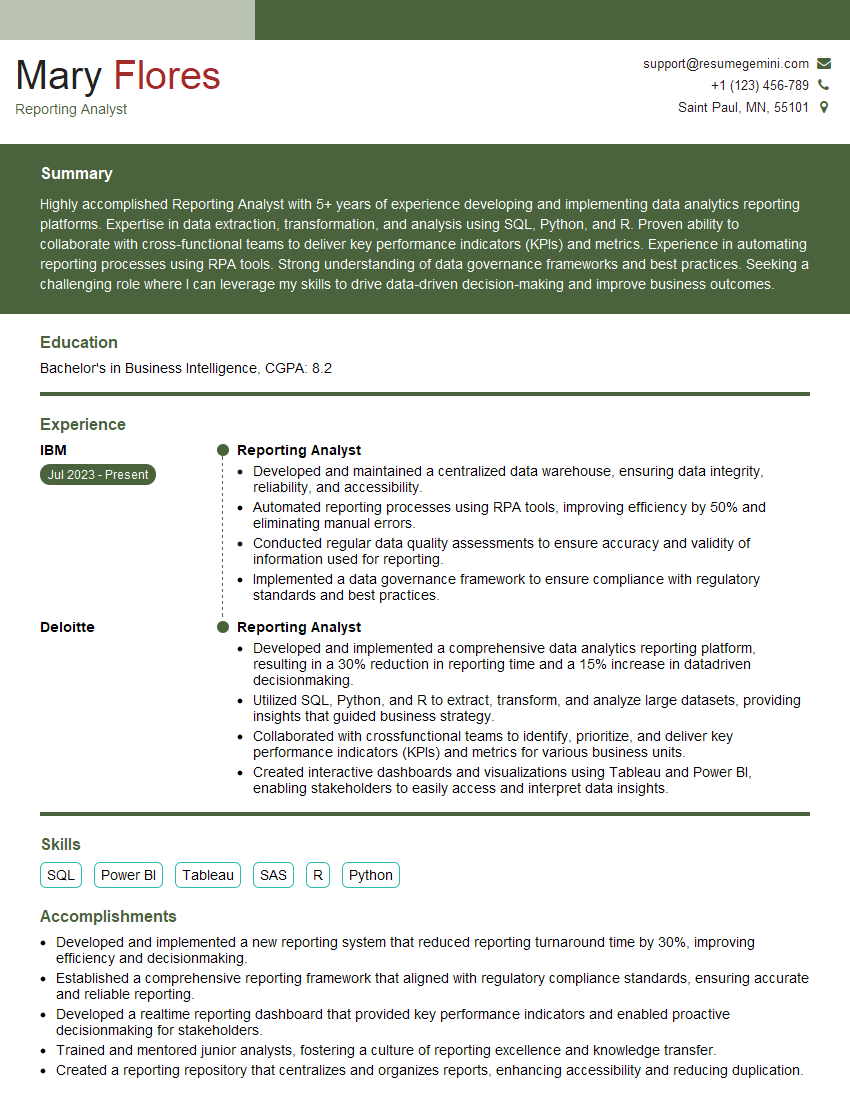
Reporting Analyst Resume Sample
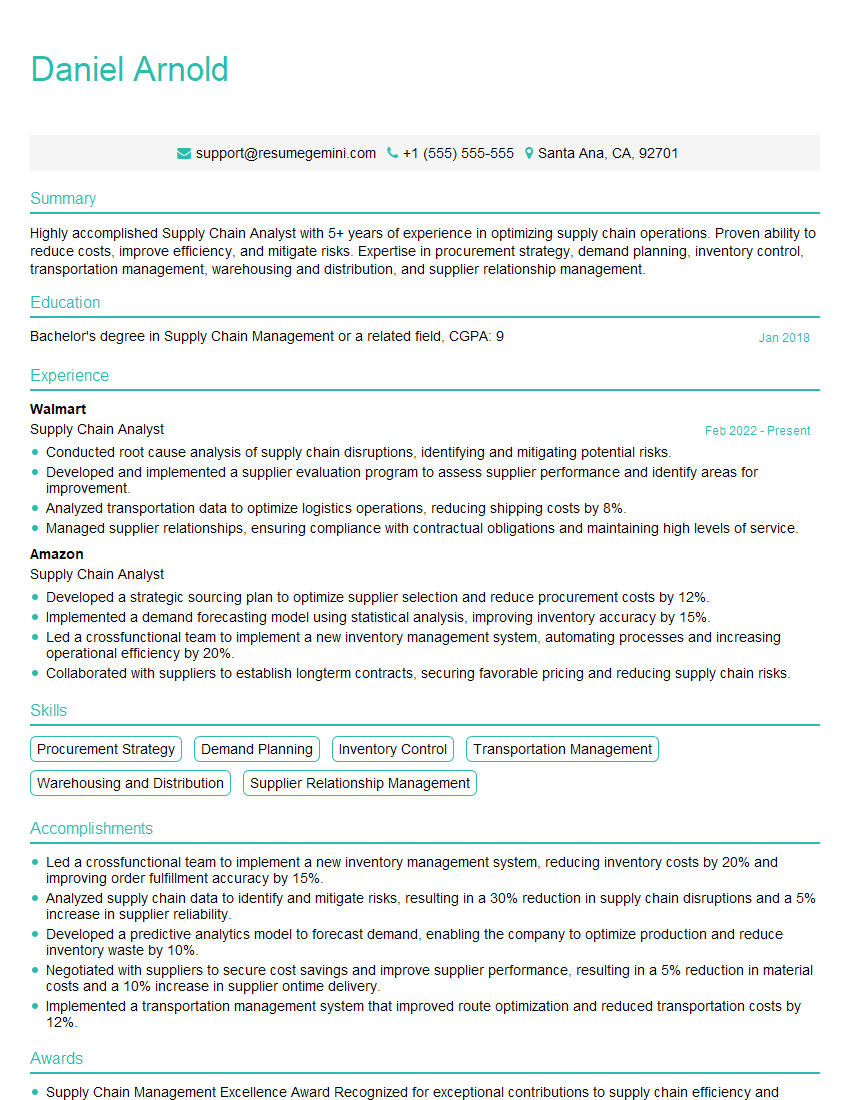
Supply Chain Analyst Resume Sample

Business Analyst Resume Sample
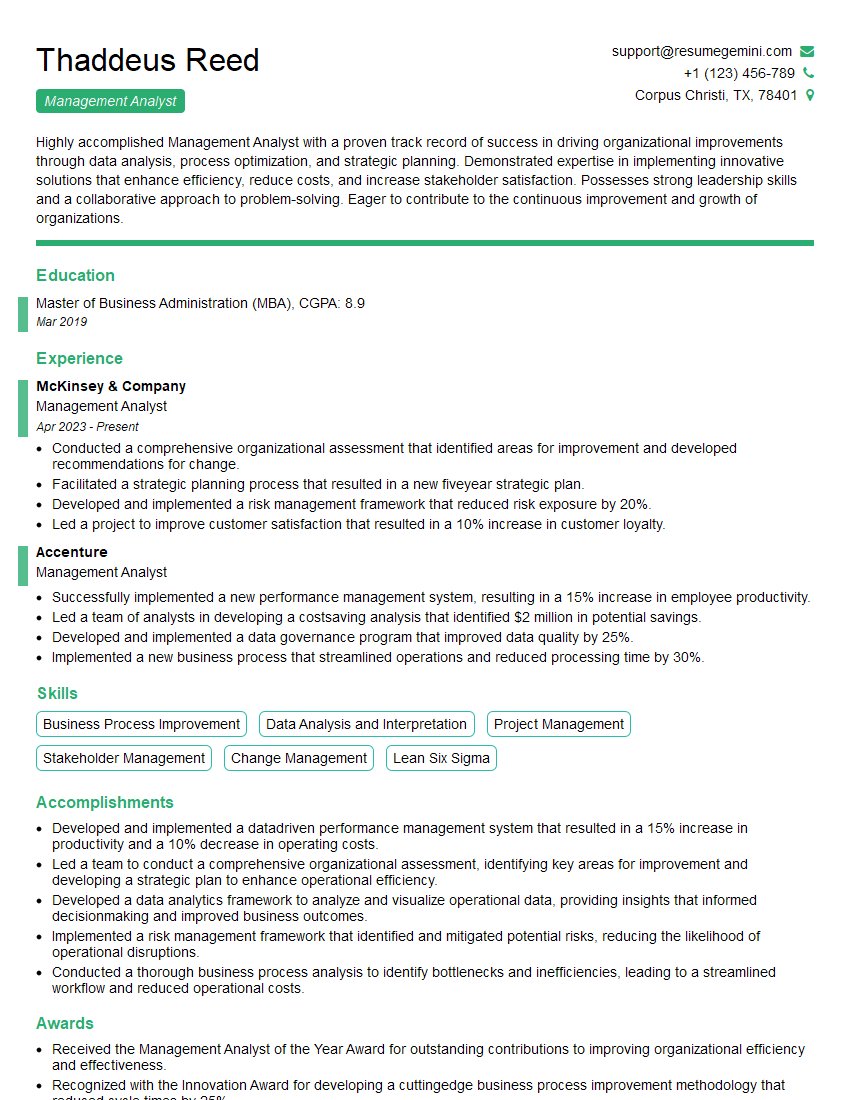
Management Analyst Resume Sample
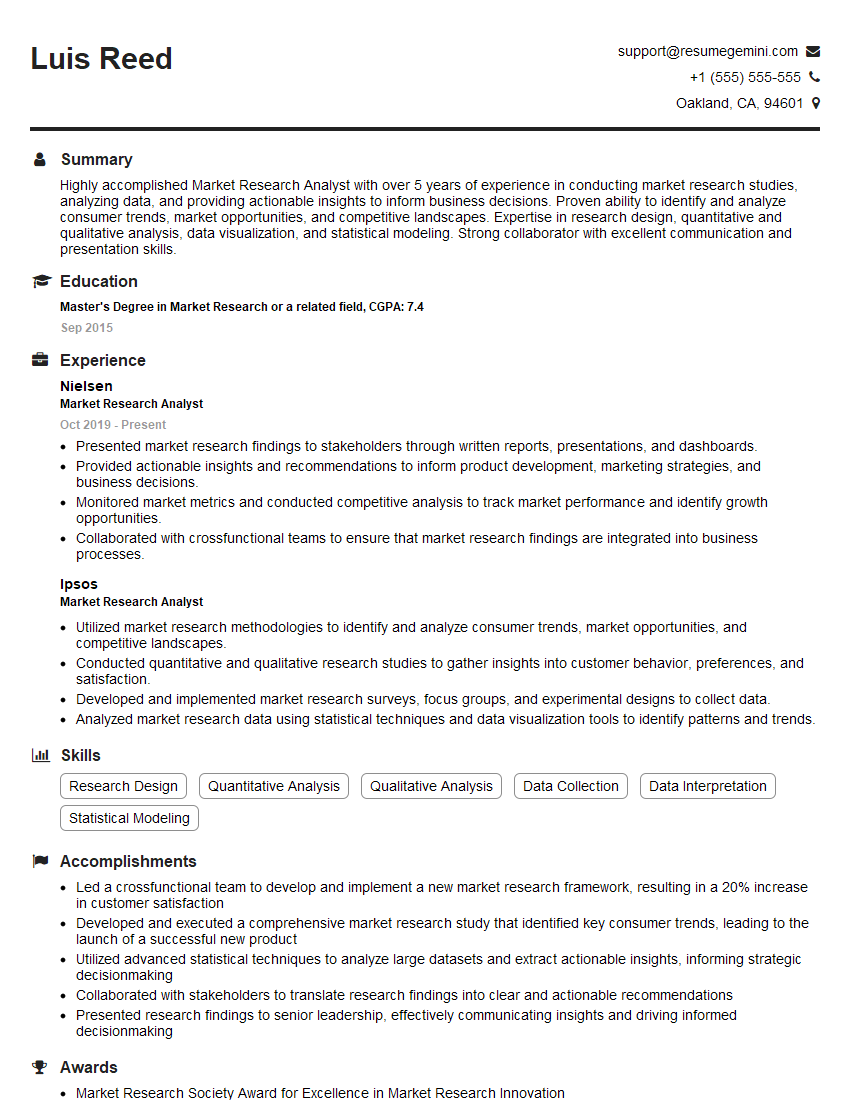
Market Research Analyst Resume Sample
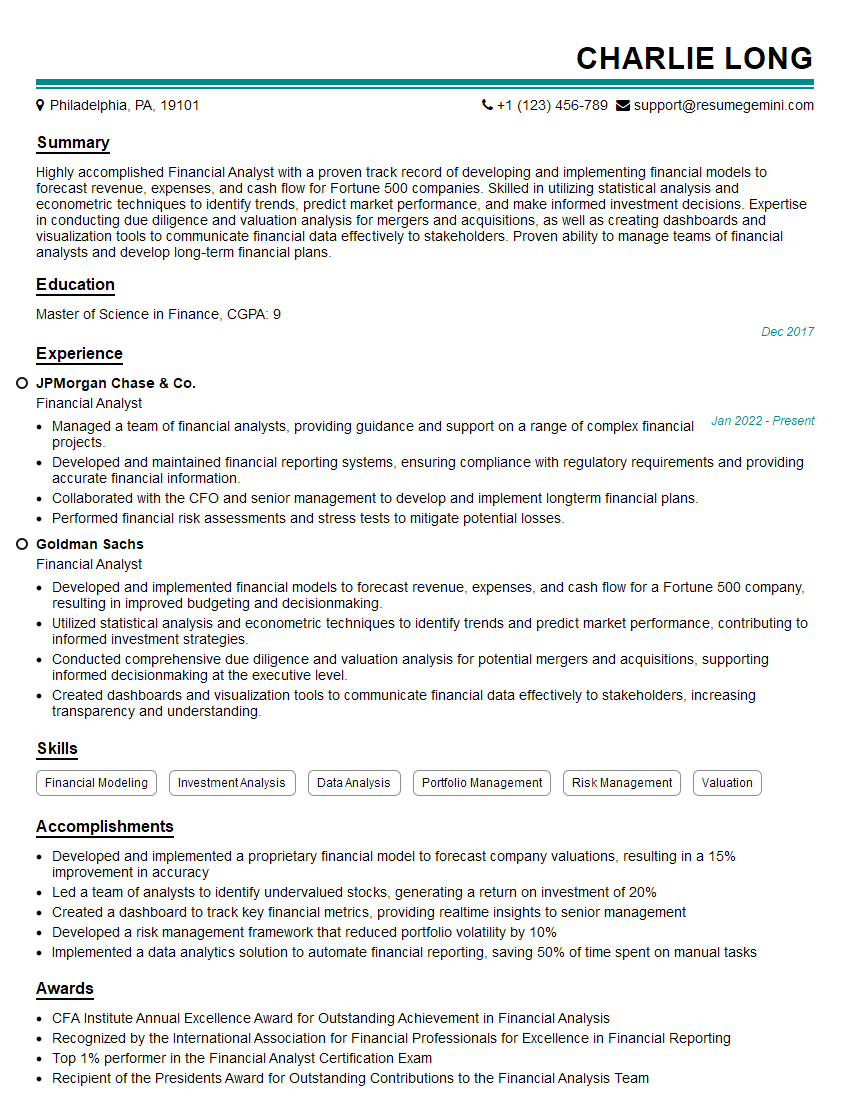
Financial Analyst Resume Sample

Data Analyst Resume Sample
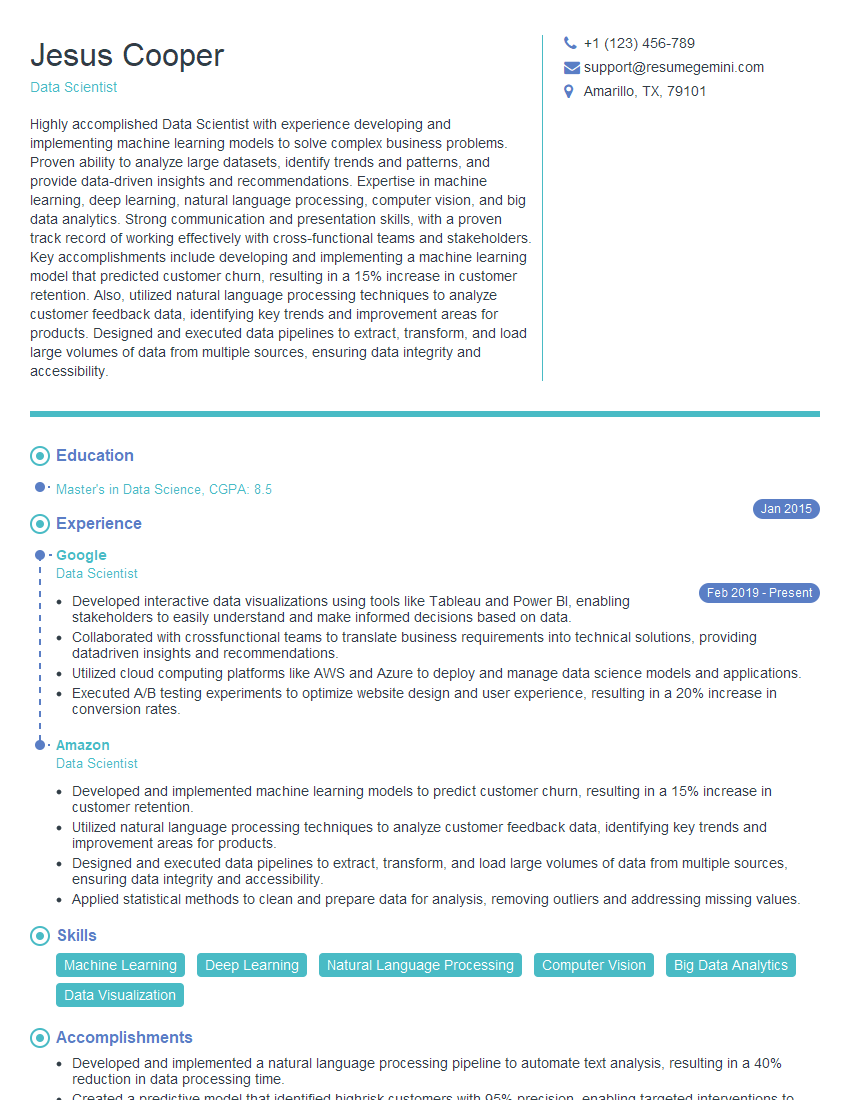
Data Scientist Resume Sample
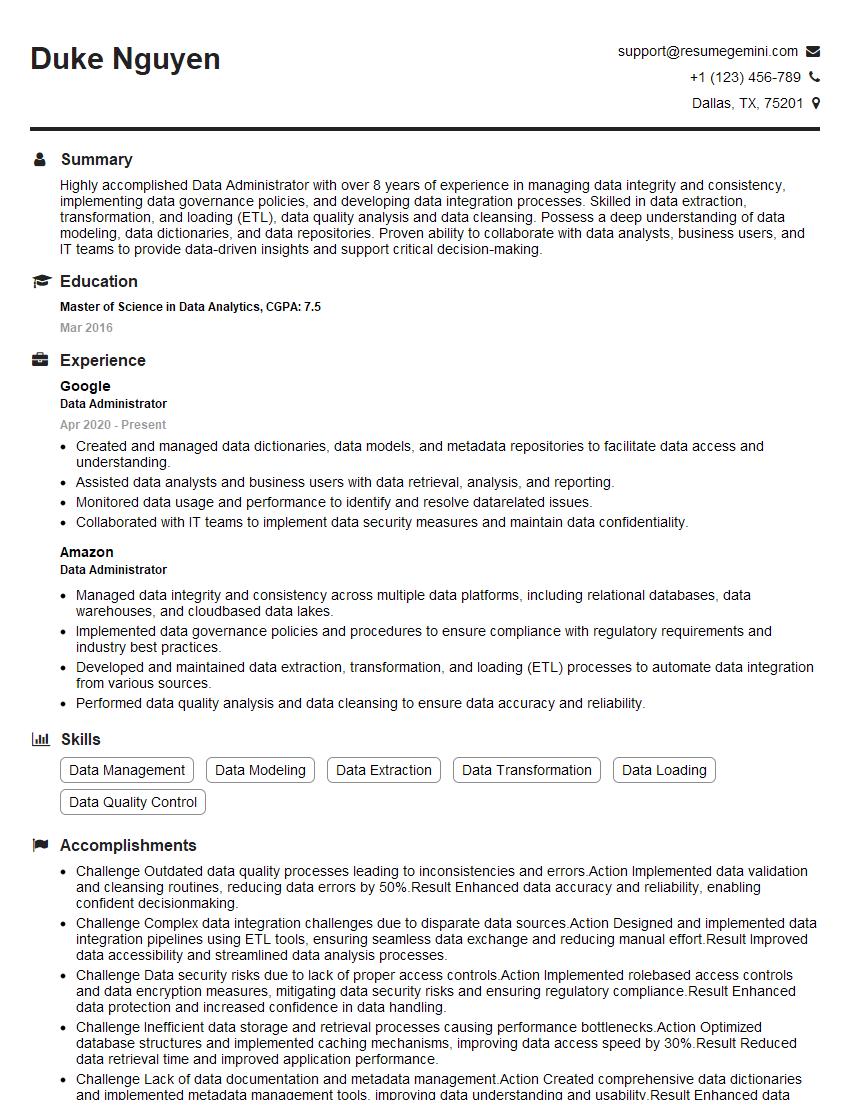
Data Administrator Resume Sample
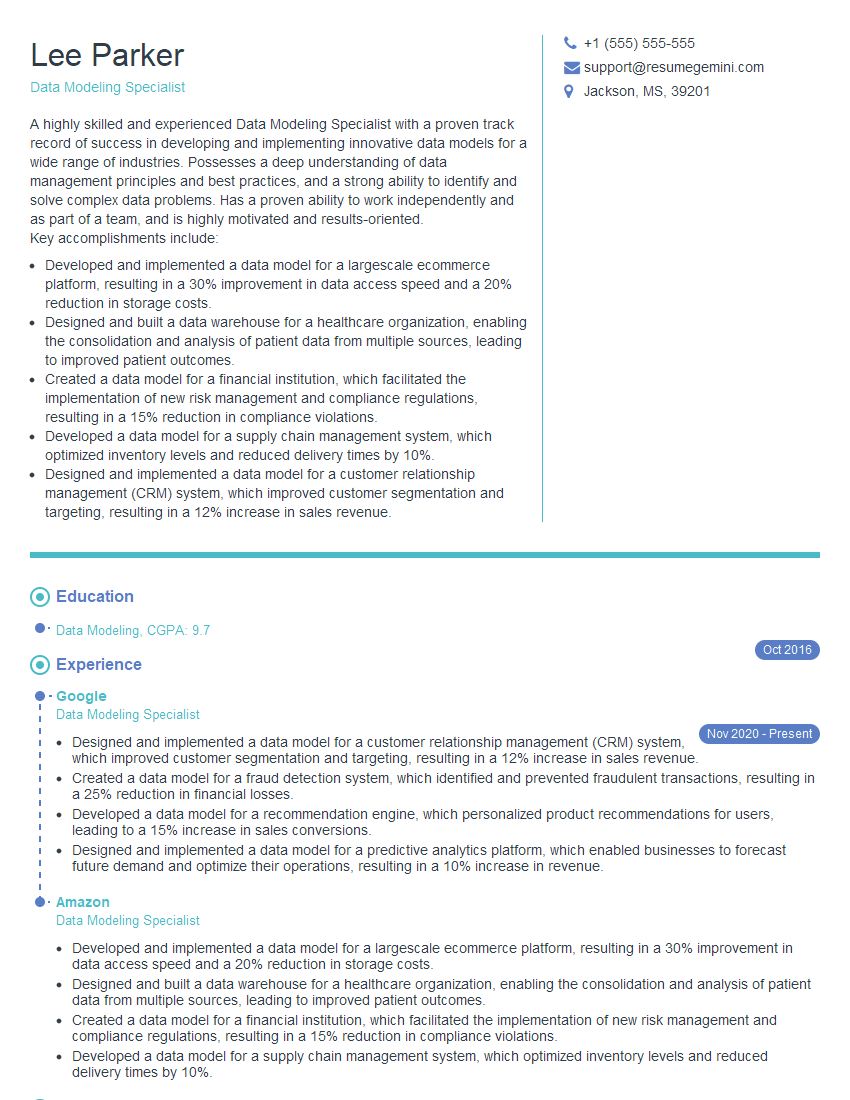
Data Modeling Specialist Resume Sample
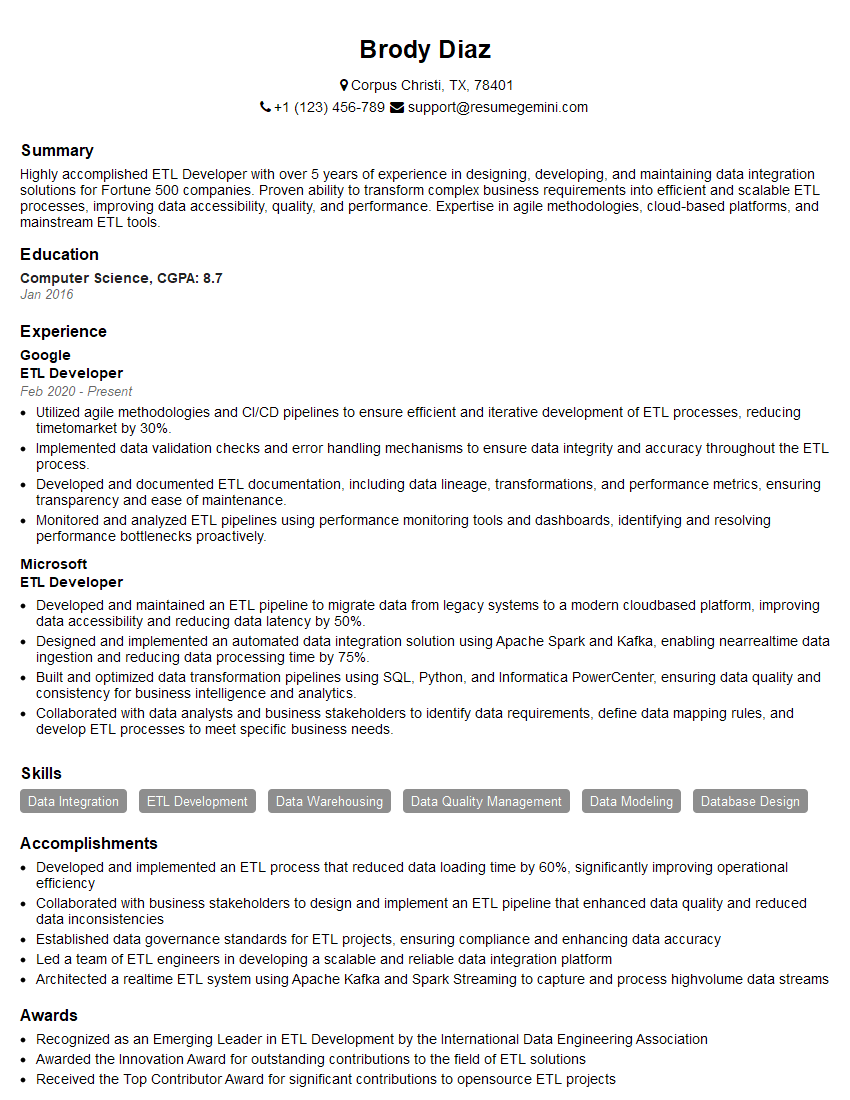
ETL Developer Resume Sample
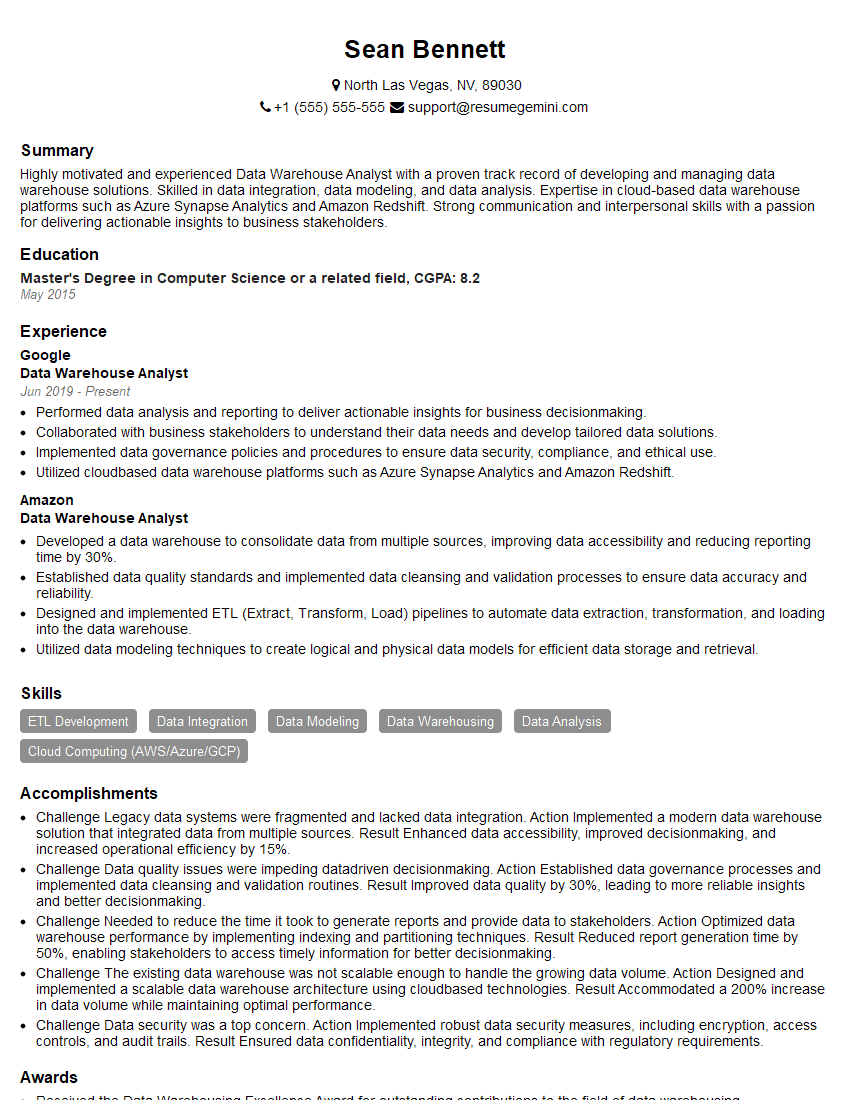
Data Warehouse Analyst Resume Sample
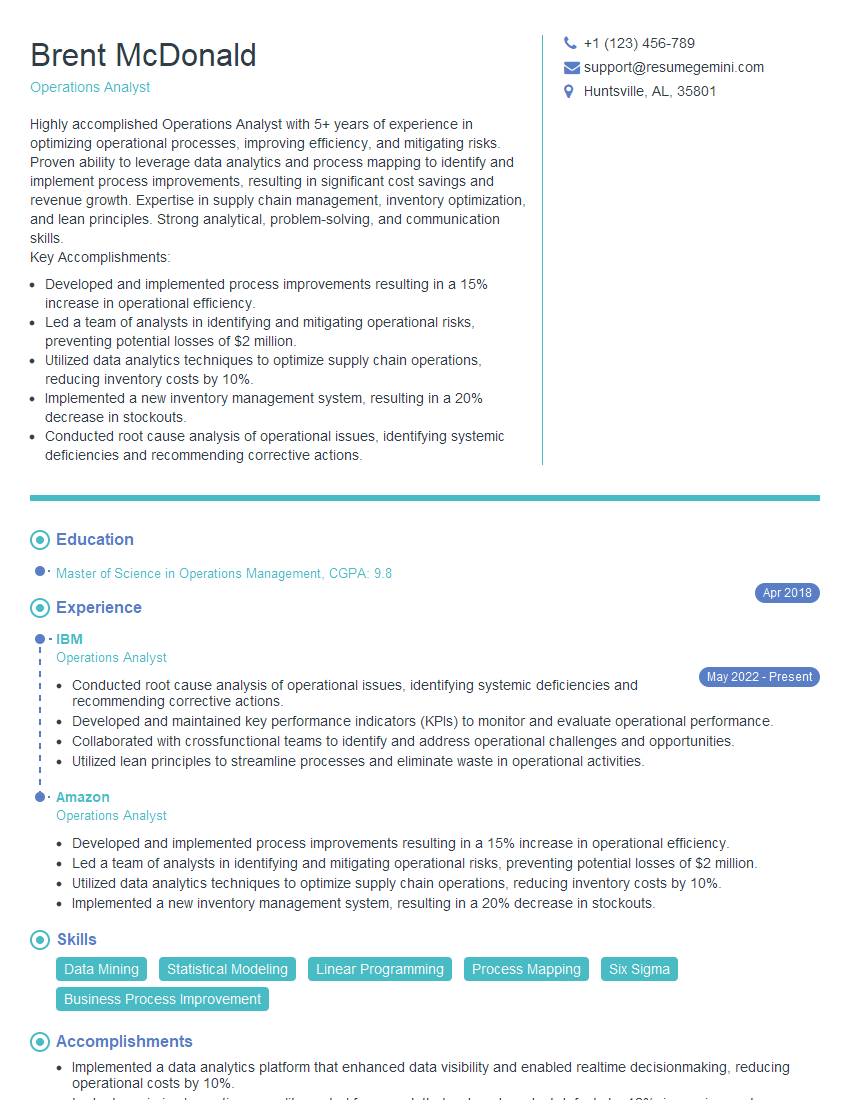
Operations Analyst Resume Sample
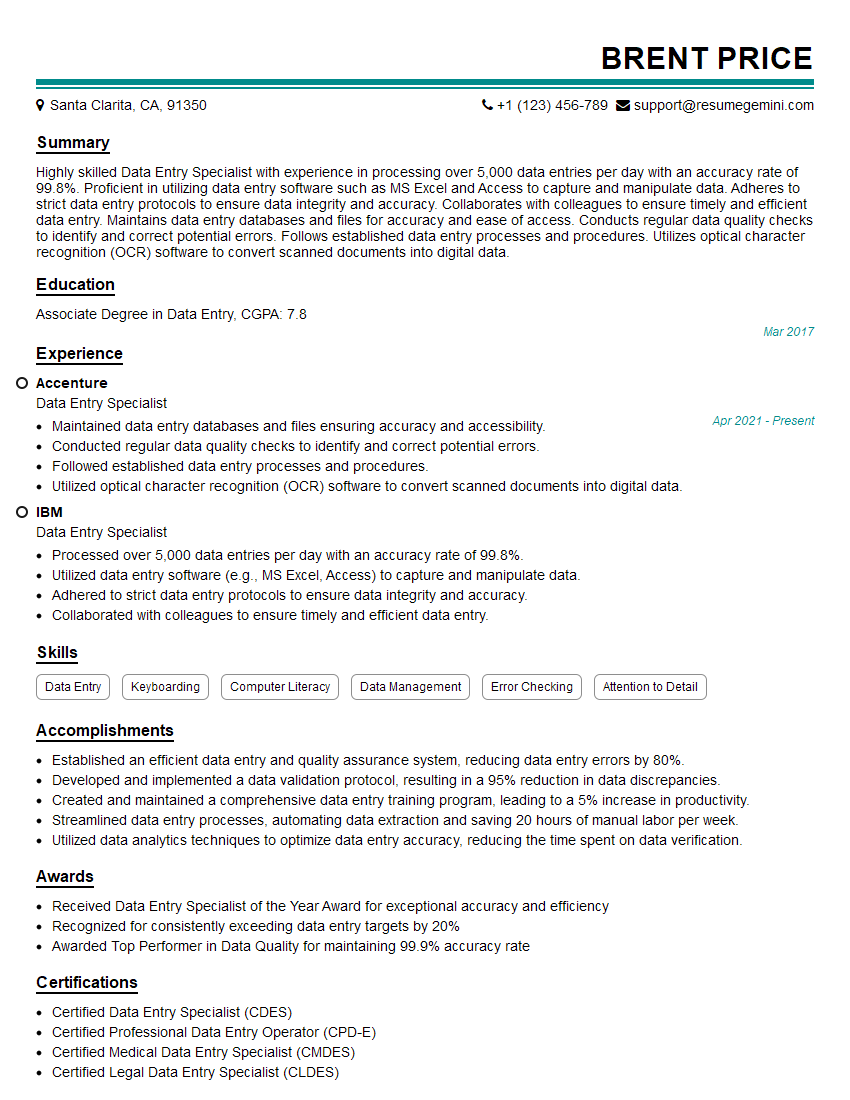
Data Entry Specialist Resume Sample
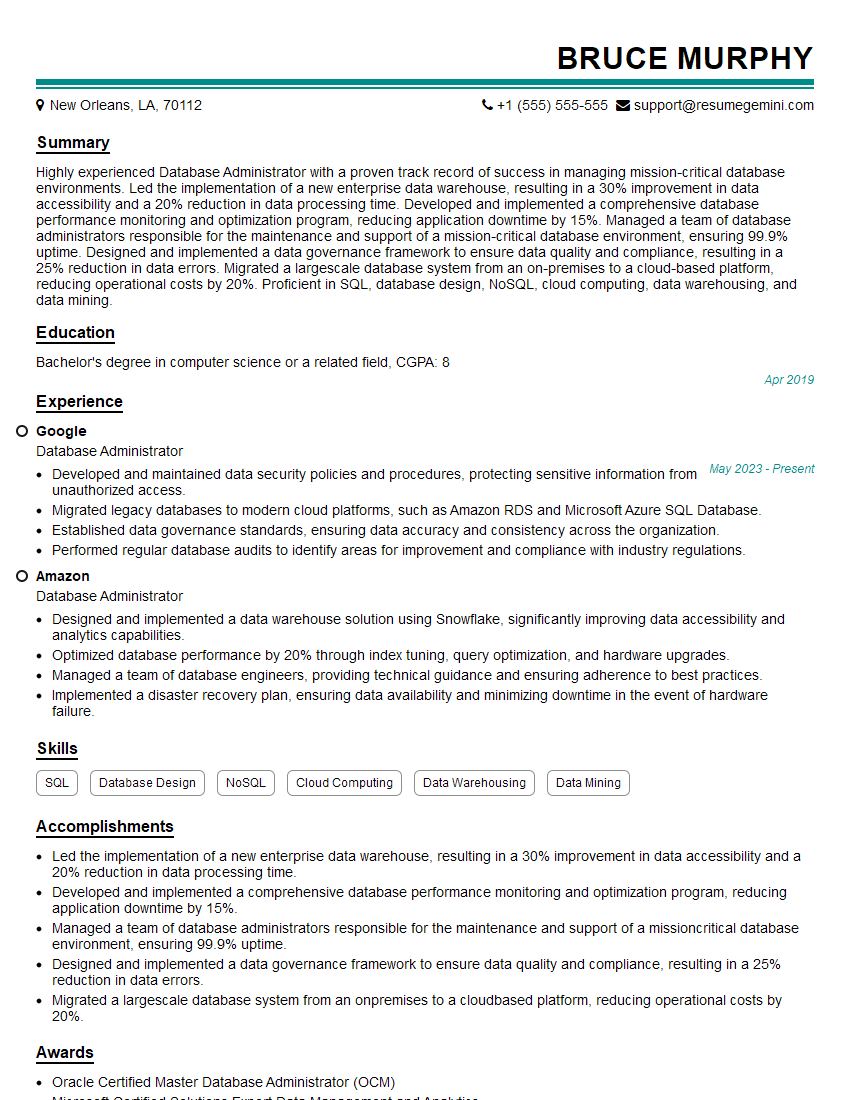
Database Administrator Resume Sample
Explore more articles
Users Rating of Our Blogs
Share Your Experience
We value your feedback! Please rate our content and share your thoughts (optional).
What Readers Say About Our Blog
Hello,
we currently offer a complimentary backlink and URL indexing test for search engine optimization professionals.
You can get complimentary indexing credits to test how link discovery works in practice.
No credit card is required and there is no recurring fee.
You can find details here:
https://wikipedia-backlinks.com/indexing/
Regards
NICE RESPONSE TO Q & A
hi
The aim of this message is regarding an unclaimed deposit of a deceased nationale that bears the same name as you. You are not relate to him as there are millions of people answering the names across around the world. But i will use my position to influence the release of the deposit to you for our mutual benefit.
Respond for full details and how to claim the deposit. This is 100% risk free. Send hello to my email id: [email protected]
Luka Chachibaialuka
Hey interviewgemini.com, just wanted to follow up on my last email.
We just launched Call the Monster, an parenting app that lets you summon friendly ‘monsters’ kids actually listen to.
We’re also running a giveaway for everyone who downloads the app. Since it’s brand new, there aren’t many users yet, which means you’ve got a much better chance of winning some great prizes.
You can check it out here: https://bit.ly/callamonsterapp
Or follow us on Instagram: https://www.instagram.com/callamonsterapp
Thanks,
Ryan
CEO – Call the Monster App
Hey interviewgemini.com, I saw your website and love your approach.
I just want this to look like spam email, but want to share something important to you. We just launched Call the Monster, a parenting app that lets you summon friendly ‘monsters’ kids actually listen to.
Parents are loving it for calming chaos before bedtime. Thought you might want to try it: https://bit.ly/callamonsterapp or just follow our fun monster lore on Instagram: https://www.instagram.com/callamonsterapp
Thanks,
Ryan
CEO – Call A Monster APP
To the interviewgemini.com Owner.
Dear interviewgemini.com Webmaster!
Hi interviewgemini.com Webmaster!
Dear interviewgemini.com Webmaster!
excellent
Hello,
We found issues with your domain’s email setup that may be sending your messages to spam or blocking them completely. InboxShield Mini shows you how to fix it in minutes — no tech skills required.
Scan your domain now for details: https://inboxshield-mini.com/
— Adam @ InboxShield Mini
Reply STOP to unsubscribe
Hi, are you owner of interviewgemini.com? What if I told you I could help you find extra time in your schedule, reconnect with leads you didn’t even realize you missed, and bring in more “I want to work with you” conversations, without increasing your ad spend or hiring a full-time employee?
All with a flexible, budget-friendly service that could easily pay for itself. Sounds good?
Would it be nice to jump on a quick 10-minute call so I can show you exactly how we make this work?
Best,
Hapei
Marketing Director
Hey, I know you’re the owner of interviewgemini.com. I’ll be quick.
Fundraising for your business is tough and time-consuming. We make it easier by guaranteeing two private investor meetings each month, for six months. No demos, no pitch events – just direct introductions to active investors matched to your startup.
If youR17;re raising, this could help you build real momentum. Want me to send more info?
Hi, I represent an SEO company that specialises in getting you AI citations and higher rankings on Google. I’d like to offer you a 100% free SEO audit for your website. Would you be interested?
Hi, I represent an SEO company that specialises in getting you AI citations and higher rankings on Google. I’d like to offer you a 100% free SEO audit for your website. Would you be interested?
good