The thought of an interview can be nerve-wracking, but the right preparation can make all the difference. Explore this comprehensive guide to Experience in using content editing and tracking tools (e.g., TrackChanges, Wordable) interview questions and gain the confidence you need to showcase your abilities and secure the role.
Questions Asked in Experience in using content editing and tracking tools (e.g., TrackChanges, Wordable) Interview
Q 1. Describe your experience using TrackChanges in Microsoft Word.
Track Changes in Microsoft Word is a fantastic tool for collaborative writing and editing. It allows multiple authors to work on a single document simultaneously, keeping a clear record of every alteration made. Think of it as a detailed history of the document’s evolution. Each edit – additions, deletions, formatting changes – is clearly marked, allowing reviewers to easily see what’s been changed and by whom.
For instance, if I insert a sentence, it appears in a different color (usually red by default), and if I delete something, it’s marked with a strikethrough. This visual clarity makes reviewing large documents significantly easier. The ‘Review’ tab provides tools to accept or reject changes individually or in bulk, significantly streamlining the editing process. I’ve used it extensively in projects ranging from collaborative marketing reports to legal documents, ensuring everyone’s contributions are tracked meticulously.
Q 2. How do you handle conflicting edits using TrackChanges?
Handling conflicting edits in Track Changes is where the tool’s power truly shines. Imagine two people editing the same sentence simultaneously. Track Changes will highlight both edits, showing you both versions. There’s no automatic resolution; it requires human intervention. I typically approach this by carefully reviewing both changes, understanding the context, and then deciding which edit is better or if a synthesis of both is preferable. This careful consideration ensures the final document is accurate and coherent. Often, a simple conversation with the other editor clarifies the intent behind the conflicting edits.
For example, if one person rewrites a paragraph and another adds a sentence to the original paragraph, Track Changes will display both. I might accept the rewrite but integrate the added sentence in a way that makes sense within the revised context. This thoughtful approach to conflict resolution is key to effective collaboration using Track Changes.
Q 3. Explain the advantages and disadvantages of using TrackChanges for collaborative editing.
Track Changes offers several significant advantages for collaborative editing. Its primary benefit is the detailed audit trail it provides, making it easy to track who made what changes and to revert to previous versions if necessary. It also facilitates clear communication and reduces ambiguity, as everyone can see precisely what edits have been suggested. However, there are some drawbacks. For very large documents or complex projects, navigating numerous edits can become cumbersome. Also, resolving conflicts can be time-consuming, requiring careful consideration and potentially further communication amongst editors.
- Advantages: Detailed audit trail, clear communication, easy to revert to earlier versions
- Disadvantages: Can be cumbersome with large documents, conflict resolution can be time-consuming
Q 4. How familiar are you with Wordable and its features?
I am quite familiar with Wordable. It’s a powerful tool designed specifically for managing and updating content across multiple platforms. Unlike Track Changes, which is focused primarily on document-level collaboration, Wordable streamlines the process of publishing and updating content to websites, blogs, and other online platforms. Its key features include the ability to connect to various CMS platforms (content management systems), schedule posts, and automatically update content across multiple locations. I’ve personally used it to efficiently manage content across several client websites.
Q 5. How would you use Wordable to manage content updates across multiple platforms?
Wordable simplifies managing content updates across multiple platforms by centralizing the editing process. Instead of updating each platform individually, I would make the changes in a single Word document. Wordable then facilitates the automated publication of those changes to all connected platforms. This is particularly helpful when maintaining consistency across a blog, social media, and a website. For example, if I were publishing a blog post announcing a new product launch, I could write it in Word, using Wordable to schedule simultaneous publication on the company blog, LinkedIn, and Facebook. This ensures consistency of messaging and saves significant time and effort.
Q 6. Compare and contrast TrackChanges and Wordable in terms of functionality and workflow.
Track Changes and Wordable are both valuable tools but serve different purposes. Track Changes is ideal for collaborative editing within a single document, focusing on tracking revisions and facilitating consensus. It’s a powerful tool for internally reviewing and finalizing a document. Wordable, on the other hand, excels at publishing and updating content to multiple online platforms simultaneously, streamlining content distribution and ensuring consistency. Think of Track Changes as focused on internal collaboration and Wordable as focused on external distribution and update management.
- Track Changes: In-document collaboration, revision tracking, consensus building.
- Wordable: Cross-platform content publishing and updating, streamlined distribution.
Q 7. What are some best practices for using content editing and tracking tools effectively?
Effective use of content editing and tracking tools relies on clear communication and established workflows. Always clearly define roles and responsibilities for each collaborator to avoid confusion. Before starting, agree on a style guide to maintain consistency. When using Track Changes, regularly review and accept/reject edits to prevent the document from becoming too cluttered. With tools like Wordable, thoroughly test the automated publishing process before publishing to live platforms to avoid unintentional errors. Regularly back up your work and use version control where possible. Think of it like building a house: a solid plan, clear communication, and a systematic approach are crucial to success.
Q 8. How do you ensure consistency and accuracy when using these tools?
Maintaining consistency and accuracy when using content editing and tracking tools like Track Changes and Wordable relies on a multi-faceted approach. It’s not just about the tools themselves, but also about establishing clear processes and communication.
- Style Guides and Templates: Before any editing begins, a comprehensive style guide should be established and shared with all contributors. This ensures everyone is on the same page regarding formatting, tone, and terminology. Using consistent document templates helps enforce this style guide from the outset.
- Clear Communication: Regular communication with contributors is crucial. Before edits begin, clarifying the goals and scope of the project avoids misunderstandings. This is particularly vital for larger documents with multiple contributors.
- Comment Functionality: Effectively using the comment features within these tools is key. Instead of simply making changes, explain the rationale behind each edit in a comment. This promotes transparency and improves understanding.
- Proofreading and Review: Even with meticulous editing, proofreading is essential. A final review step helps catch any inconsistencies that might have slipped through the cracks. This may involve a second pair of eyes or using tools that check for grammar and style.
- Version Control: Employing version control (discussed further in question 4) ensures you always have access to previous versions, allowing you to revert changes if necessary and track the evolution of the document.
For example, if we’re working on a marketing brochure, using a template with pre-defined styles for headings, body text, and call-to-actions guarantees consistent formatting across the document. Adding comments to explain changes, such as ‘Updated headline to improve SEO,’ clarifies intent and facilitates better collaboration.
Q 9. Have you ever encountered challenges while using these tools? How did you overcome them?
Challenges are inevitable when working with collaborative editing tools. One common challenge is managing merge conflicts in large documents. Another is ensuring all contributors understand and follow the style guide consistently.
One instance involved a large technical document with several engineers contributing. We initially struggled with multiple overlapping edits creating confusing merge conflicts. To overcome this, we implemented a phased editing approach. We divided the document into sections, assigning each section to a single contributor, and then integrated the sections sequentially. This streamlined the merge process and improved the overall quality.
Another challenge was inconsistent use of terminology. To resolve this, we created a glossary of terms and embedded it within the document template, making it readily accessible to all contributors. This minimized confusion and maintained consistency in terminology throughout the document.
Q 10. How do you manage large documents with multiple contributors using TrackChanges or Wordable?
Managing large documents with numerous contributors using Track Changes or Wordable requires a structured workflow. Think of it like an orchestra — each player needs to know their part and how it fits within the larger composition.
- Section Assignments: Dividing the document into manageable sections and assigning each section to a specific contributor simplifies the editing process and reduces the likelihood of conflicts. This also helps in tracking individual contributions.
- Clear Roles and Responsibilities: Defining clear roles—e.g., editor, reviewer, approver—ensures accountability and avoids duplicated efforts. A project manager or lead editor can coordinate these roles.
- Regular Check-ins: Frequent communication and progress checks keep everyone synchronized. This might involve short daily or weekly meetings to discuss updates and address any roadblocks.
- Centralized Repository: Storing the document in a cloud-based shared drive or collaborative workspace (like Google Docs or SharePoint) offers all contributors easy access and facilitates version control.
- Comment Threads: Utilize the tools’ comment features for discussions about specific sections or edits. This helps avoid email chains and keeps all relevant information within the document itself.
For instance, when working on a lengthy white paper, we assigned each chapter to a subject matter expert. They would make their edits, leaving comments to justify their changes. Once completed, a lead editor would review the document and the comments, integrating the approved edits and addressing any inconsistencies.
Q 11. Describe your experience with version control within these tools or other platforms.
Version control is paramount in collaborative editing. It’s like having a detailed history of your document, allowing you to rewind, review, and understand the evolution of your content. While Track Changes and Wordable offer basic versioning within the document itself, a dedicated version control system like Git is generally more robust for larger projects.
Within Track Changes and Wordable, each time the document is saved, you essentially have a new version. However, tracking changes across multiple contributors simultaneously can get cumbersome. These tools are ideal for smaller projects with a limited number of contributors. For larger, more complex projects, a dedicated version control system offers superior tracking capabilities, enabling rollback to any previous state and facilitating comparison of different versions.
My experience with Git, for instance, involves using branching to create separate development versions. Each contributor works on their own branch, and then these changes are merged together later. This isolates edits and avoids merge conflicts during development. When using a shared document in cloud-based platforms that have version history, such as Google Docs, the version history is similar to Track Changes but offers a more comprehensive overview of changes over time.
Q 12. How do you resolve merge conflicts when using these tools in a collaborative environment?
Merge conflicts arise when multiple contributors make simultaneous edits to the same section of a document. The tools’ built-in merge capabilities can be helpful but often require manual intervention.
- Identify the Conflict: The first step is clearly identifying the conflicting edits highlighted by the tool. This usually involves pinpointing the specific sentences or paragraphs where changes overlap.
- Understand the Edits: Carefully read each contributor’s edits to understand the intended changes and the context behind them.
- Manual Resolution: Using a word processor’s built-in comparison tools is helpful. Often, manual intervention is necessary to select the best version, integrate both changes (if possible), or combine elements from different edits.
- Communication is Key: When there are disagreements or it’s unclear which changes to prioritize, direct communication with the contributors is essential to reach a consensus.
- Version Control System: Utilizing a dedicated version control system helps immensely in complex situations. Git, for example, allows you to visualize the conflict, compare different branches, and resolve conflicts in a more controlled environment.
Example: If two contributors both edited the same paragraph but in different ways, the merge conflict would highlight the discrepancies. I would then manually compare their edits and choose the version which is most accurate, grammatically correct, and stylistically consistent.
Q 13. Can you explain your process for reviewing and approving edits made by others using these tools?
My review and approval process for edits made by others using these tools emphasizes clarity, consistency, and accuracy.
- Thorough Review: I begin by carefully reviewing all edits and their associated comments to understand the context of the changes.
- Consistency Check: I ensure consistency with the style guide, brand guidelines, and the overall document’s tone.
- Accuracy Verification: I verify the accuracy of facts, figures, and any cited sources.
- Feedback and Communication: If changes require modifications, I use the commenting features to provide detailed feedback to the contributors, indicating the areas needing adjustments and the reasons for suggested changes.
- Final Approval: After all changes are addressed, I provide final approval of the document, ensuring all edits meet the established standards and guidelines.
For example, if a contributor rewrote a sentence but changed the meaning, I’d use comments to explain the original intent and suggest alternative wording that retains the original meaning while improving the flow.
Q 14. How do you ensure that edits made using these tools meet editorial standards and guidelines?
Ensuring edits adhere to editorial standards and guidelines is crucial for maintaining quality and consistency. This involves a combination of proactive measures and thorough review processes.
- Style Guide Enforcement: A clearly defined style guide is the foundation. All contributors need access and should be familiar with its rules. In practice, this involves enforcing guidelines for formatting, tone, terminology, grammar, and punctuation. The style guide should address all aspects of the writing to create uniformity and prevent errors.
- Automated Checks: Tools like Grammarly or ProWritingAid can assist in identifying grammar and style issues, which can reduce the workload and improve accuracy. These automated tools usually have settings to enforce specific style guides and even suggest improvements.
- Peer Review: A peer review system helps catch errors or inconsistencies that might be missed during the initial editing phase. This involves having another editor or a subject matter expert review the work to provide additional feedback.
- Editorial Checklist: A comprehensive checklist for reviewers ensures all key aspects of editorial standards (e.g., accuracy, consistency, clarity, style, grammar) are reviewed systematically.
- Training and Resources: Providing contributors with the necessary training and access to relevant resources increases their understanding of the editorial guidelines and reduces the need for extensive revisions.
For example, if the style guide mandates the use of the serial comma, I would review the edited document to ensure this is followed consistently. Grammar and style checking tools are used to supplement this and catch any inconsistencies. Then the final review checks for compliance and clarity.
Q 15. How do you use these tools to track changes to images and other non-textual content?
While Track Changes is primarily designed for text, managing changes to images and other non-textual content requires a slightly different approach. I typically use a version control system alongside these tools. For example, if I’m working with images in a Word document, I might use Track Changes to annotate the image itself (e.g., “Replace with higher resolution image”). Then, I’d save different versions of the document, clearly labeling each version with a date and description of changes. Tools like Wordable often integrate better with version control by allowing for the management of different file versions. This way, I have a clear history of image changes, even though Track Changes itself doesn’t directly track the image files. For more complex projects with many image assets, a dedicated digital asset management (DAM) system is ideal, which allows for version control and metadata tracking of images separately from the document itself.
Consider this scenario: I’m creating a marketing brochure. One image needs replacing. In Word, I’d use Track Changes’ ‘comment’ feature to note the required replacement. Then, in my project folder, I’d save the old image as ‘brochure_image_v1.jpg’ and the new image as ‘brochure_image_v2.jpg’. This provides a complete record of image revisions.
Career Expert Tips:
- Ace those interviews! Prepare effectively by reviewing the Top 50 Most Common Interview Questions on ResumeGemini.
- Navigate your job search with confidence! Explore a wide range of Career Tips on ResumeGemini. Learn about common challenges and recommendations to overcome them.
- Craft the perfect resume! Master the Art of Resume Writing with ResumeGemini’s guide. Showcase your unique qualifications and achievements effectively.
- Don’t miss out on holiday savings! Build your dream resume with ResumeGemini’s ATS optimized templates.
Q 16. What are some potential risks associated with using these tools, and how can they be mitigated?
Risks associated with these tools include accidental acceptance of unwanted changes, version control issues (especially when multiple people are editing simultaneously), and the potential for the document to become overly cluttered with tracked changes. To mitigate these risks, I employ several strategies:
- Regular backups: I frequently save my work and maintain multiple versions.
- Clear communication: Before starting collaborative editing, I establish clear guidelines and expectations for using the tools.
- Structured review process: I use a structured workflow where reviewers only work on their designated sections at a time, preventing conflicts.
- Careful acceptance of changes: I review all changes meticulously before accepting them, ensuring no accidental acceptance of errors.
- Use of comments effectively: Instead of solely relying on Track Changes, I use comments to communicate detailed suggestions, avoiding unnecessary changes that could introduce errors.
Imagine a scenario where a reviewer accidentally accepts all changes, including an unintended deletion. By frequently saving and maintaining multiple versions, we can easily revert to a previous, correct version.
Q 17. How familiar are you with other collaborative editing platforms (e.g., Google Docs)?
I’m very familiar with Google Docs and other collaborative editing platforms. While Track Changes and Wordable excel at providing detailed change tracking and version history, Google Docs offers real-time co-editing, which is invaluable for some projects. I choose the platform based on the project’s needs. For instance, when detailed revision history is crucial for legal or regulatory reasons, Track Changes is preferred. However, for quick, iterative revisions with multiple team members working simultaneously, Google Docs is often more efficient. My experience allows me to seamlessly switch between these tools based on the specific context.
Q 18. How do you incorporate feedback from multiple reviewers using TrackChanges or Wordable?
Incorporating feedback from multiple reviewers with Track Changes or Wordable involves a structured approach. I generally request reviewers to focus on specific sections and leave comments using distinct markers or styles. For instance, Reviewer A might use a specific color for their comments, and Reviewer B another. This helps to visually distinguish between reviews. I review all comments systematically, responding to each one before accepting or rejecting suggested changes. I might consolidate multiple suggestions into a single revision where possible for clarity. A well-defined review process, including clear deadlines and communication channels, is also crucial.
Q 19. What strategies do you use to prevent confusion and errors when using these tools in group projects?
To prevent confusion and errors in group projects, I establish clear guidelines before editing begins. This includes defining roles, designating sections for each reviewer, and outlining a consistent commenting style. For example, specifying a particular color for comments for each individual reviewer helps to maintain clarity. I also ensure everyone understands how the chosen tool’s features work and schedule regular check-in meetings to discuss progress and address any issues that may arise. Using a combination of comments and tracked changes also allows for easy comparison and resolution of any conflicting changes.
Q 20. Describe a situation where using these tools significantly improved your work efficiency.
In a recent project involving a complex legal document, we used Track Changes to manage revisions from multiple legal experts. The detailed tracking of each change, along with the ability to easily accept or reject revisions, ensured that the final document was both accurate and reflected the consensus of the legal team. Without Track Changes, managing the iterative feedback from various experts would have been extremely time-consuming and prone to errors. The tool not only significantly reduced the time spent on revisions but also ensured transparency and accountability. The detailed change log provided a solid audit trail, vital for legal documents. This ultimately saved considerable time and resources, compared to the traditional method of emailing documents back and forth.
Q 21. How do you handle situations where edits introduce inconsistencies or errors?
When edits introduce inconsistencies or errors, I revert to a previous version of the document if the errors are significant. Then, I carefully analyze the changes to identify the source of the errors. I frequently use the ‘compare’ feature within the editing tools to understand what has changed, where, and by whom. Communication with the reviewer(s) who introduced the changes is critical to understand the reasoning behind the edits and find a solution. Often, a simple discussion and clarification can resolve the issue. In more complex cases, a detailed review of the document with all stakeholders is necessary to ensure consistency and accuracy. The key is proactive communication and a systematic approach to error correction.
Q 22. Explain your process for training others on using TrackChanges or Wordable.
Training others on Track Changes and Wordable involves a layered approach. I start with a hands-on demonstration, focusing on the core functionalities. For TrackChanges (within Microsoft Word), this means showing how to activate Track Changes, the different revision marking options (insertions, deletions, formatting changes), and how to accept or reject changes. For Wordable, I’d highlight its collaborative features, version history, and the commenting system.
Following the demonstration, I provide practical exercises. This might involve a sample document where participants need to edit and then review changes. I encourage them to experiment and ask questions. I emphasize the importance of clear communication when using these tools, particularly in larger teams, as misunderstandings can easily arise if edits aren’t clearly marked or explained. Finally, I provide supplementary resources like short videos or documentation, and I am always available for follow-up support and clarification.
For example, when training on Wordable, I’d show how to use the commenting feature to discuss specific changes and solicit feedback, which is a crucial aspect of collaborative writing that Track Changes lacks.
Q 23. How do you ensure the integrity of a document after multiple rounds of edits using TrackChanges or Wordable?
Maintaining document integrity after multiple edit rounds using Track Changes or Wordable requires a structured approach. Firstly, I always ensure that a clean, final version is created after all edits are reviewed and incorporated. This means accepting or rejecting all tracked changes in Track Changes or consolidating edits in Wordable and then saving it as a new, clean version. I also maintain a clear version history, especially in Wordable, where this functionality is built in. In Track Changes, I make sure to save different versions of the document throughout the editing process. If you use Wordable you can utilize their features to track changes in a similar manner.
Secondly, I advocate for clear communication throughout the process. This often involves regular check-ins to discuss the progress and address any outstanding issues. This prevents conflicts and helps maintain consistency. For instance, if two editors make conflicting edits, a timely discussion ensures the intended changes are preserved. Lastly, for particularly complex or critical documents, I often opt for a formal review process where the edits are meticulously checked before finalization.
Q 24. What are some common pitfalls to avoid when using these tools?
Common pitfalls to avoid include:
- Overlooking formatting changes: Track Changes doesn’t always clearly highlight subtle formatting changes, potentially leading to inconsistencies. It’s essential to review carefully.
- Ignoring comments: In both tools, comments are crucial for context and discussion. Failure to address comments can lead to misunderstandings or unintended changes.
- Unclear revision marking: Simply inserting or deleting text without context is problematic. Providing clear explanations using comments is crucial for others to understand the rationale behind the changes.
- Over-reliance on auto-accept features: While convenient, blindly accepting all changes without review can lead to significant errors. A thorough manual check is always recommended.
- Not saving versions regularly: In Track Changes, save frequent versions, so you can revert to earlier stages if needed. Wordable’s version history makes this less critical but regular saves are still a good practice.
Q 25. How do you determine when to use TrackChanges vs. other collaborative editing solutions?
The choice between Track Changes and other collaborative editing solutions depends heavily on the project’s needs and team dynamics. Track Changes is best suited for scenarios involving a smaller team (e.g., two to three editors) where the edits are relatively straightforward and linear. Its strengths lie in its simplicity and integration within Microsoft Word. However, it lacks robust collaborative features found in solutions like Wordable or Google Docs.
I use Wordable or Google Docs for larger teams, complex documents needing parallel edits, and situations requiring more advanced version control and comment features. These tools offer more transparency and facilitate smoother collaboration where multiple users are working concurrently.
For example, for a simple technical document edit with one other person, Track Changes would suffice. But for a marketing campaign with a team, a project management solution integrated with a collaborative editor like Wordable would be superior.
Q 26. Describe your experience using these tools for different types of content (e.g., technical documentation, marketing materials).
I’ve extensively used Track Changes and Wordable across diverse content types. For technical documentation, Track Changes works well for minor revisions and proofreading, but Wordable is more appropriate for larger updates and collaboration among multiple technical writers. Its version history is invaluable for tracking revisions across multiple releases.
In marketing materials, Wordable’s collaborative features are indispensable. Multiple designers, copywriters, and marketers often work concurrently on campaigns, and the real-time co-editing and commenting capabilities of Wordable significantly streamline the workflow. Track Changes, in contrast, becomes cumbersome in such a scenario.
Q 27. How comfortable are you adapting your use of these tools to different client needs or project requirements?
Adapting my use of these tools is second nature. I’m comfortable tailoring my approach based on client needs and project requirements. My focus is always on efficiency and maintaining a transparent workflow that aligns with the project’s specific demands. For example, with some clients, I might prioritize the use of comments and detailed explanations within the document; with others, the focus may be more on speed and getting edits reviewed quickly. I ensure that my workflow choices actively support the client’s preferred methods of communication and collaboration.
Q 28. How do you maintain a clear audit trail of all changes made using these tools?
Maintaining a clear audit trail is crucial. With Track Changes, I rely on the built-in revision history. I consistently save versions of the document, often using a naming convention (e.g., ‘Document_v1’, ‘Document_v2’) to track changes chronologically. The revision history itself provides details of who made what change and when.
Wordable simplifies this greatly by providing a comprehensive version history. Its platform inherently tracks all changes, allowing me to easily revert to any previous version. In both cases, I often supplement this with email communication or project management software to create a record of discussions and decisions impacting the document’s evolution. For instance, I might record key decisions or resolutions to potential edit conflicts in a shared project document.
Key Topics to Learn for Experience in using content editing and tracking tools (e.g., TrackChanges, Wordable) Interview
- Understanding Version Control: Grasp the fundamental principles of tracking changes and maintaining document history. Explore the benefits of collaborative editing and revision management.
- Mastering Track Changes (Word & Google Docs): Learn to effectively use Track Changes features, including inserting, deleting, and commenting. Understand how to accept, reject, and manage revisions efficiently.
- Utilizing Wordable (or similar platform): Familiarize yourself with the functionality of Wordable or alternative content editing and collaboration platforms. Understand its workflow for content updates and approvals.
- Collaborative Editing Best Practices: Learn strategies for effective collaboration using these tools, including clear communication and efficient conflict resolution. Understand the importance of consistent formatting and style guidelines.
- Practical Application: Case Studies: Prepare examples from your experience demonstrating how you’ve used these tools to improve content quality, streamline workflows, and manage revisions effectively in past projects. Focus on quantifiable results whenever possible.
- Troubleshooting and Problem-Solving: Be prepared to discuss scenarios where you encountered challenges using these tools and how you successfully resolved them. This could include dealing with conflicting revisions or technical issues.
- Advanced Features & Integrations: Explore advanced features such as comment resolution, version history comparison, and potential integrations with other project management or content management systems.
Next Steps
Mastering content editing and tracking tools is crucial for success in many roles requiring collaborative content creation and management. Demonstrating proficiency in these tools showcases your ability to work efficiently, manage revisions effectively, and contribute to high-quality output. To maximize your job prospects, create an ATS-friendly resume that highlights your skills in this area. We strongly recommend using ResumeGemini to build a professional and impactful resume that showcases your abilities. Examples of resumes tailored to highlight experience with content editing and tracking tools like TrackChanges and Wordable are available to help you get started.
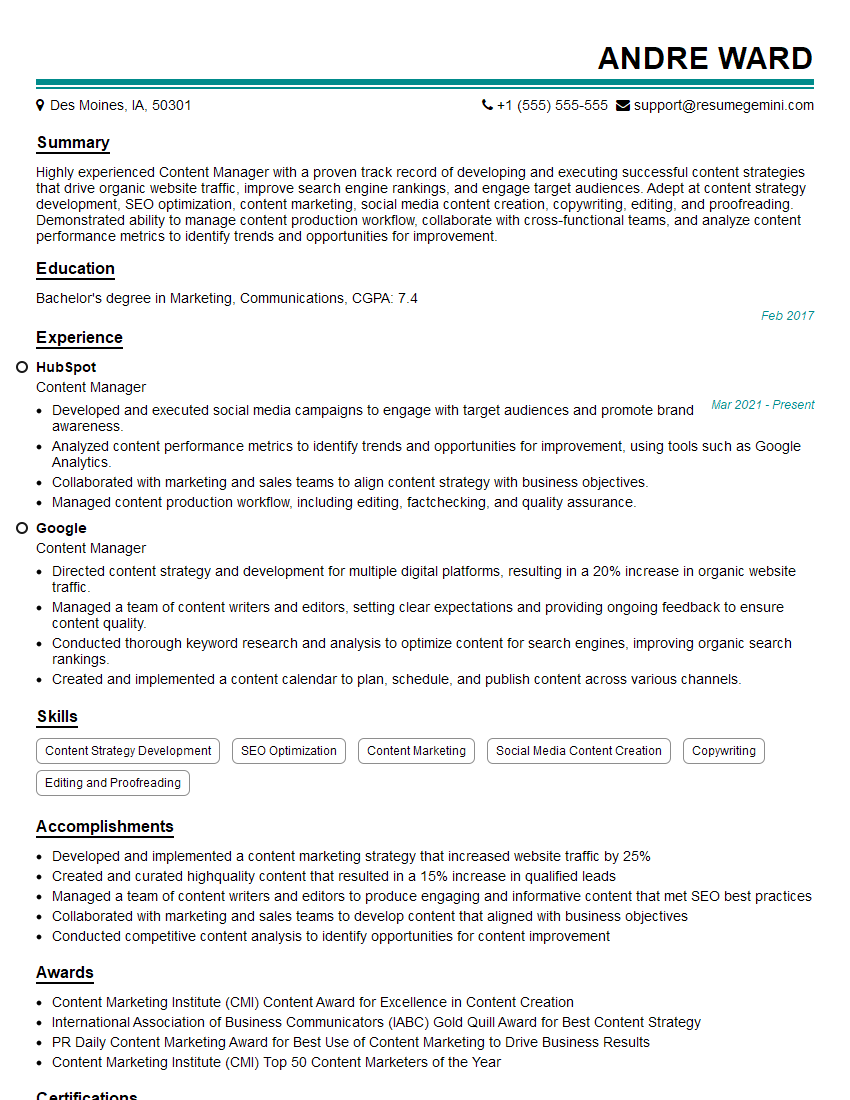
Content Manager Resume Sample

Content Strategist Resume Sample
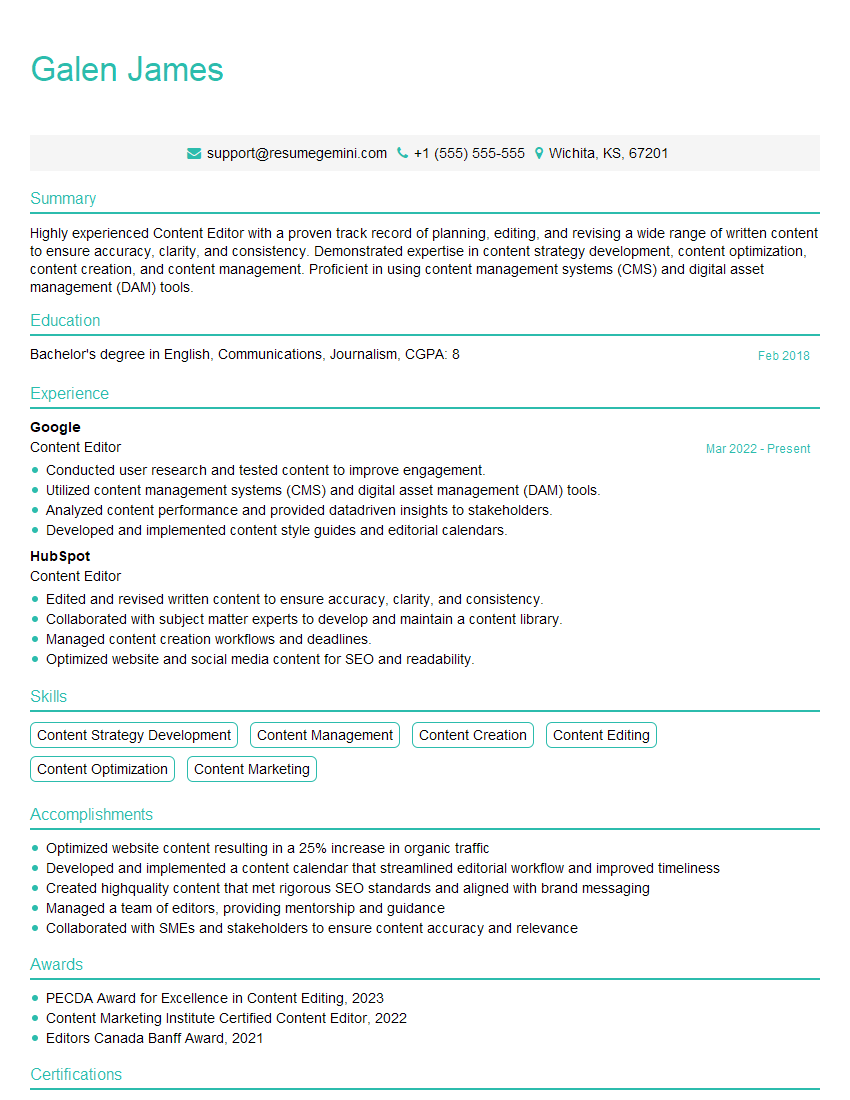
Content Editor Resume Sample
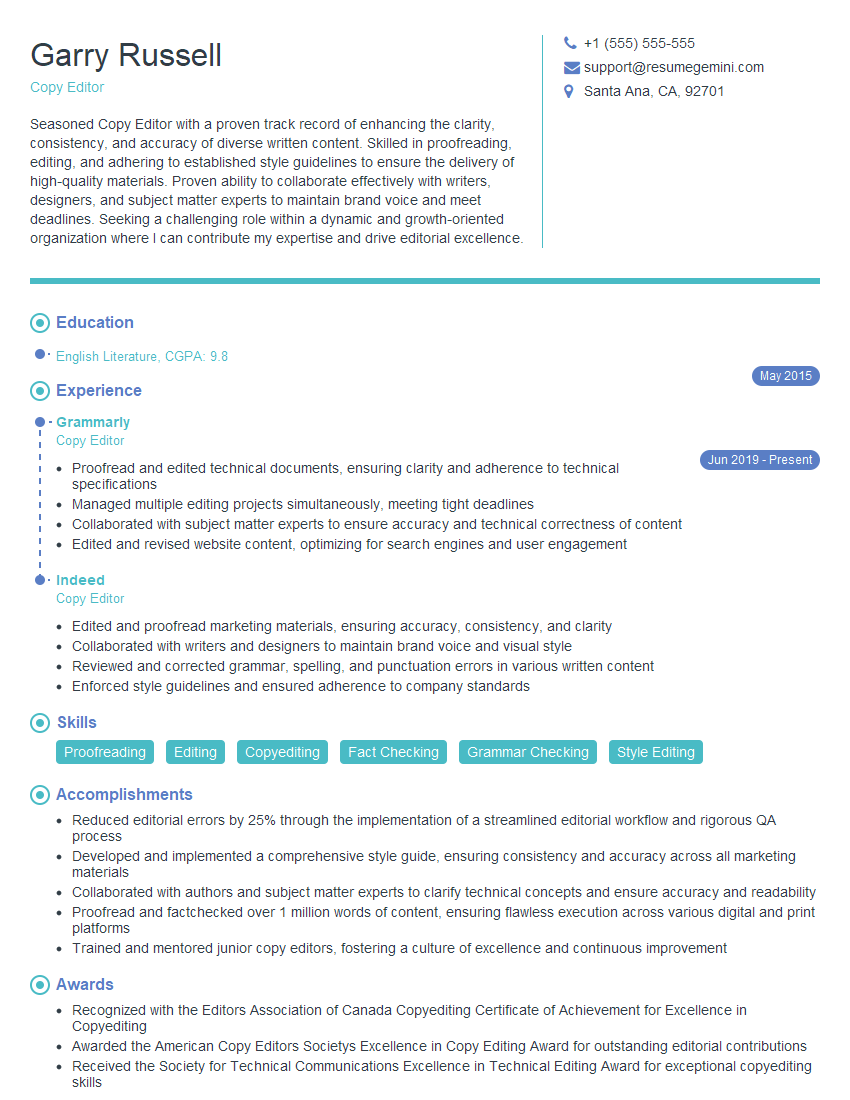
Copy Editor Resume Sample
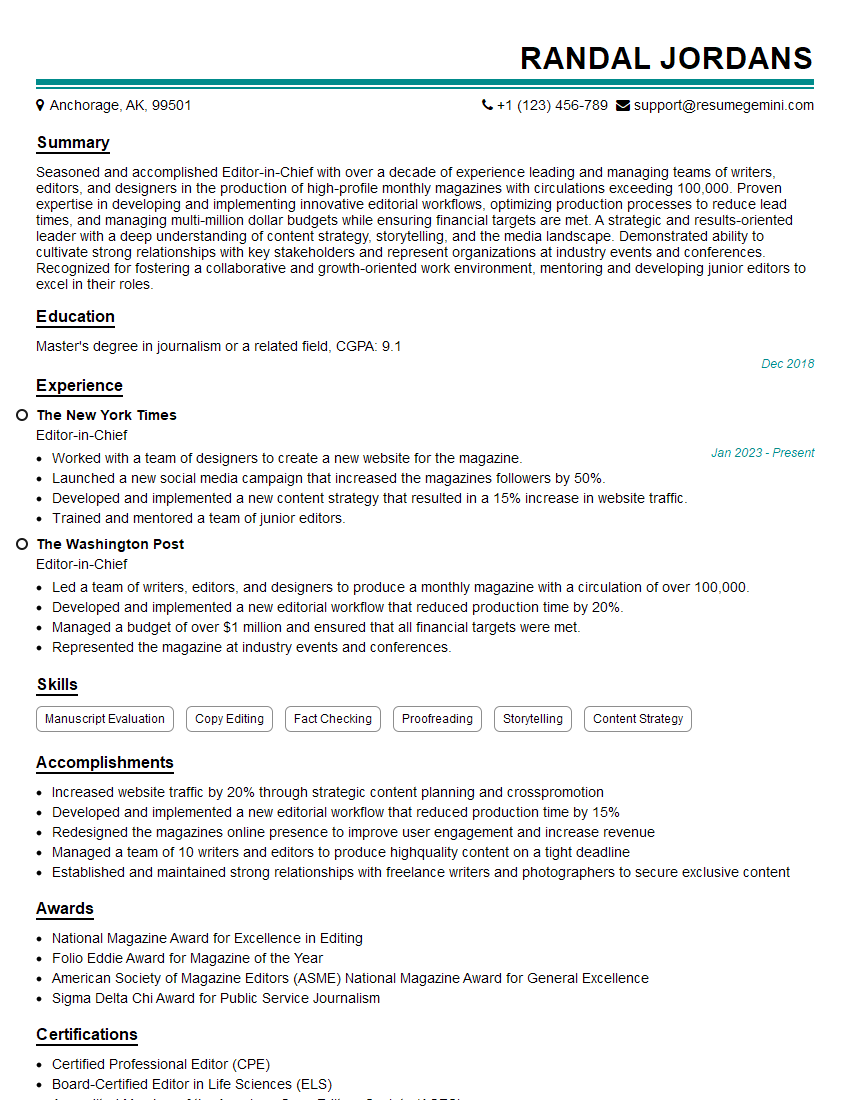
Editor-in-Chief Resume Sample
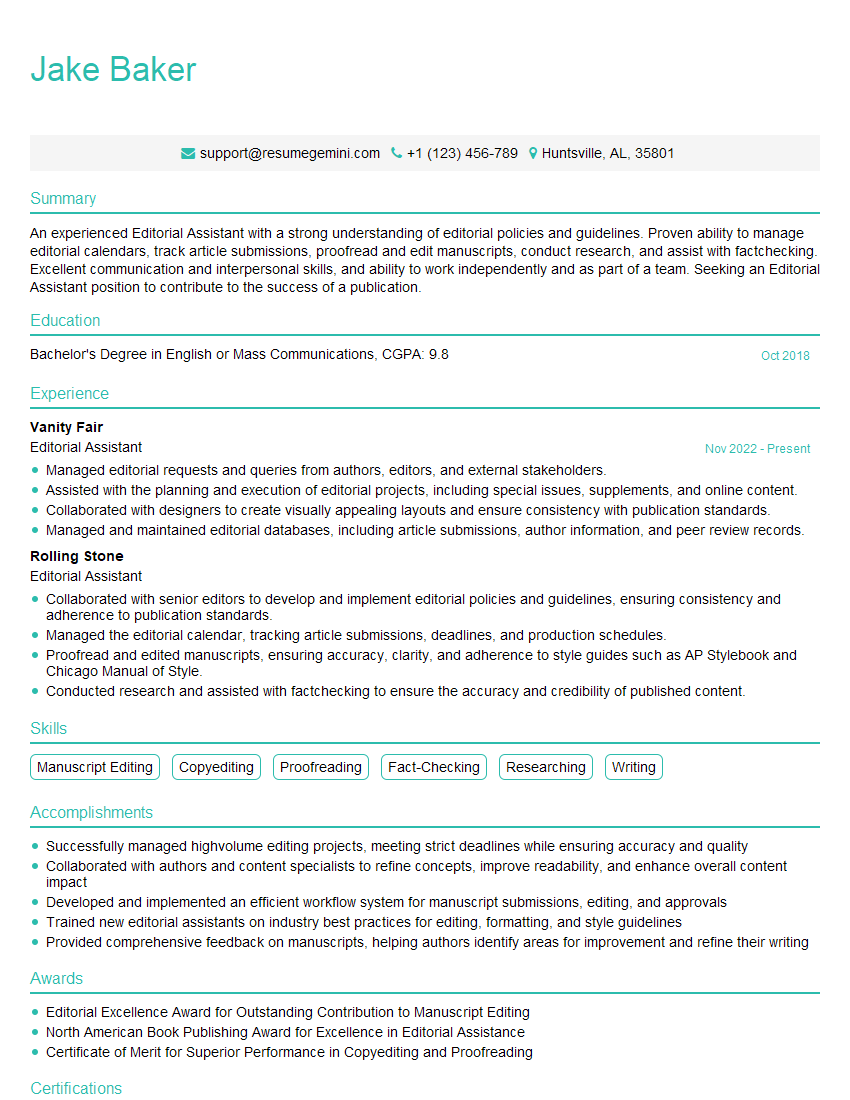
Editorial Assistant Resume Sample
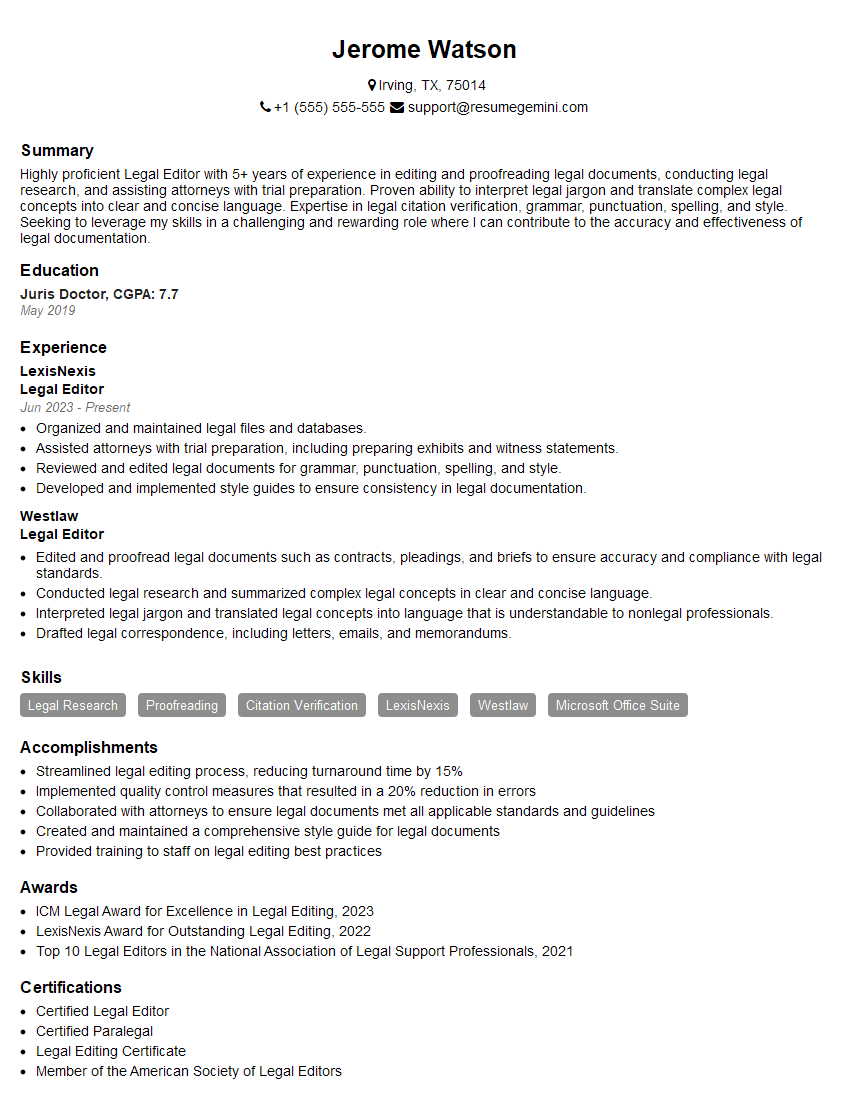
Legal Editor Resume Sample
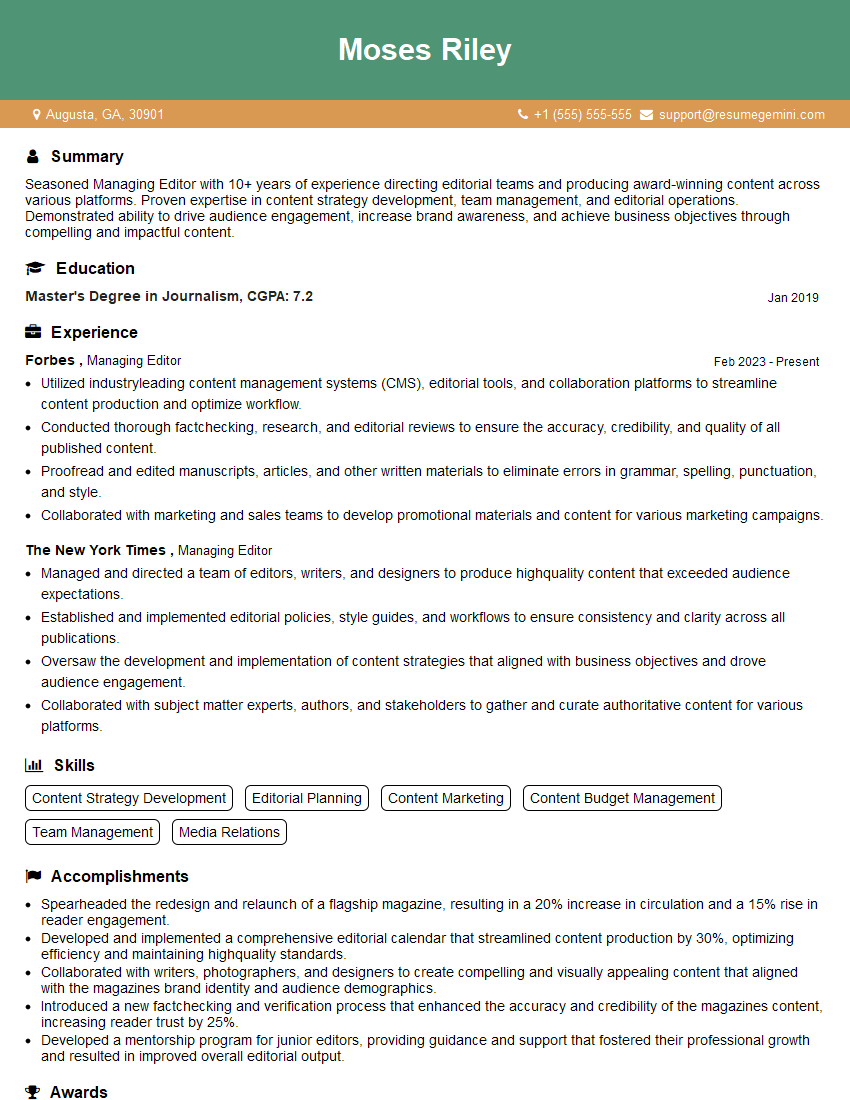
Managing Editor Resume Sample
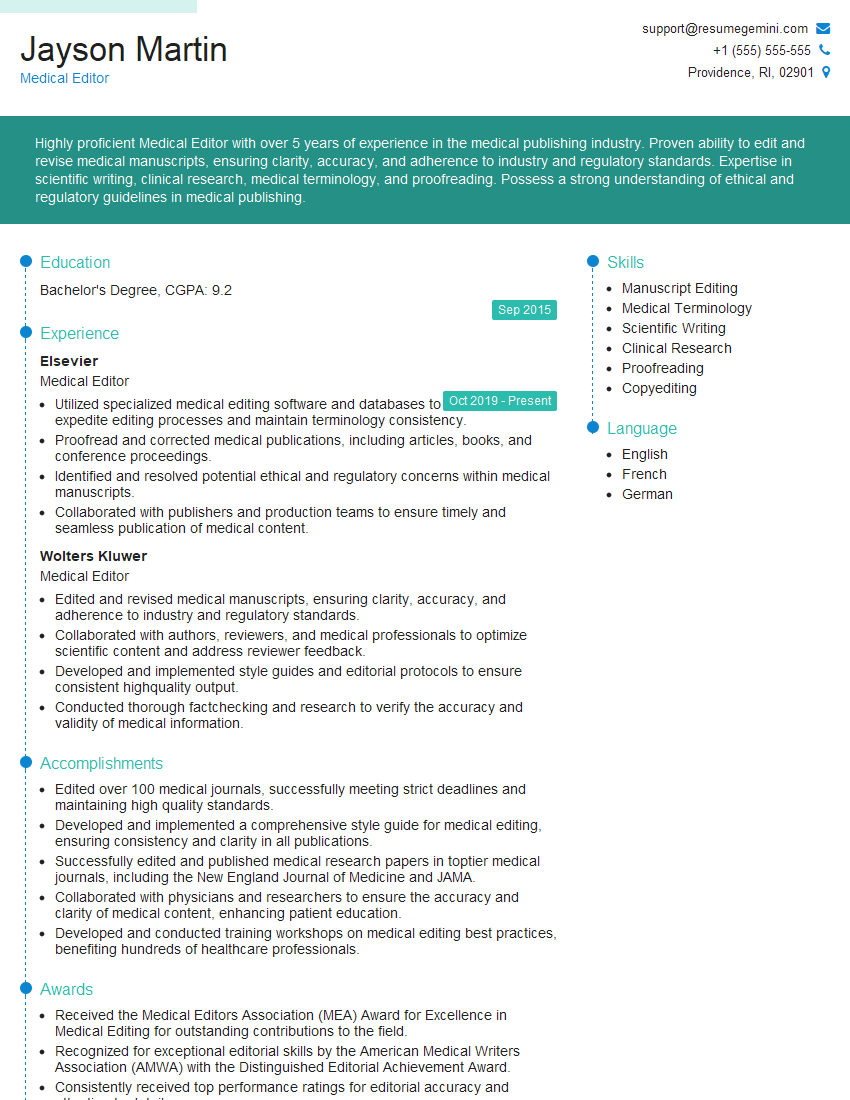
Medical Editor Resume Sample
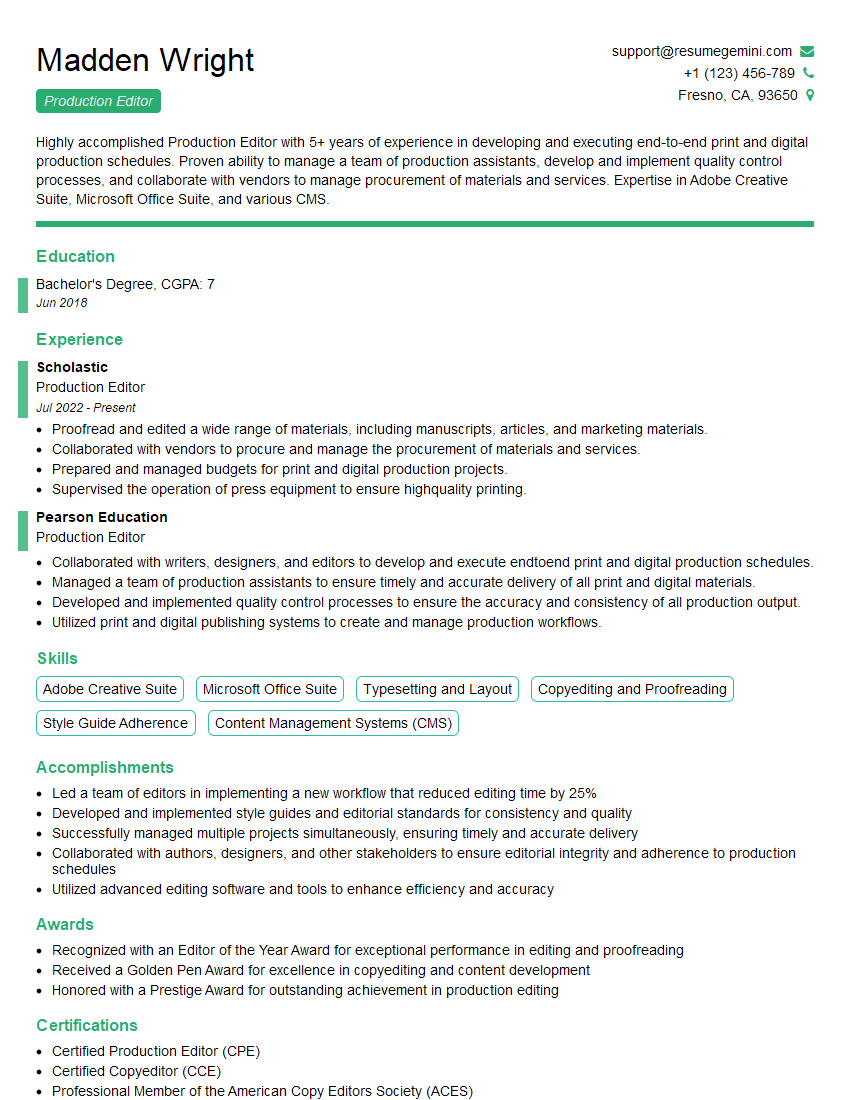
Production Editor Resume Sample
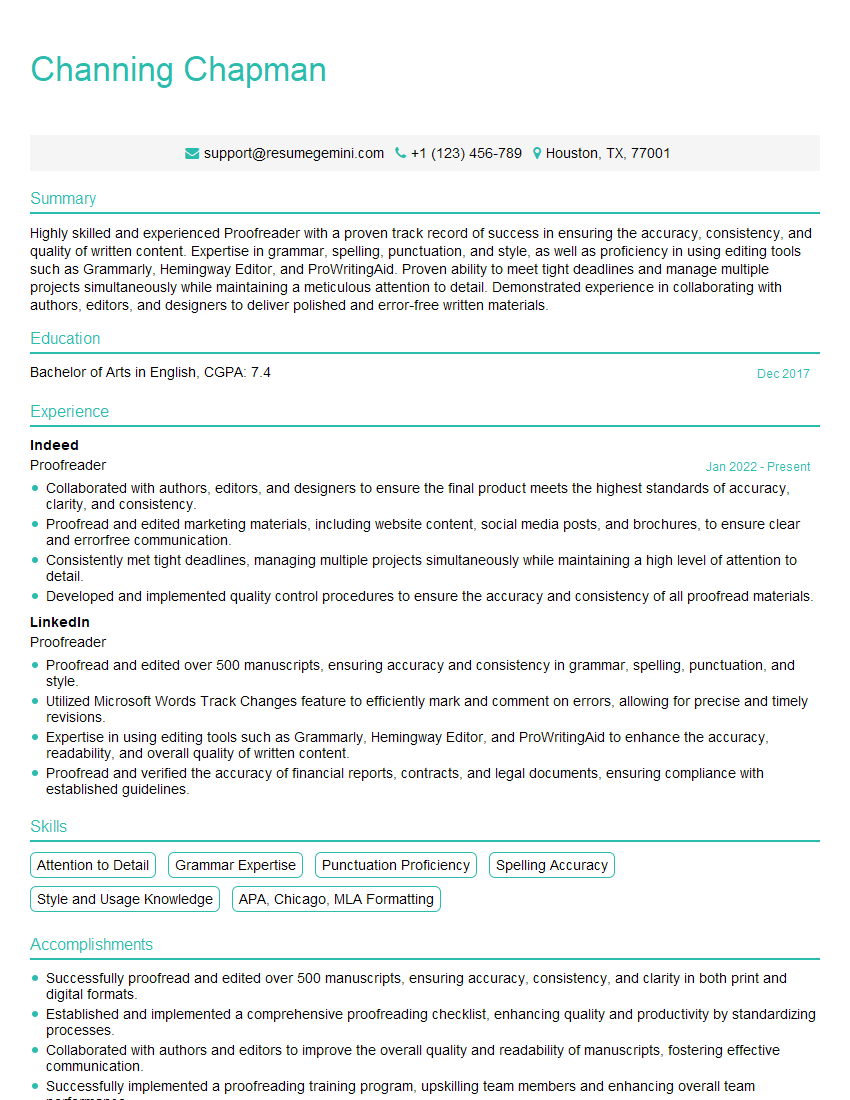
Proofreader Resume Sample
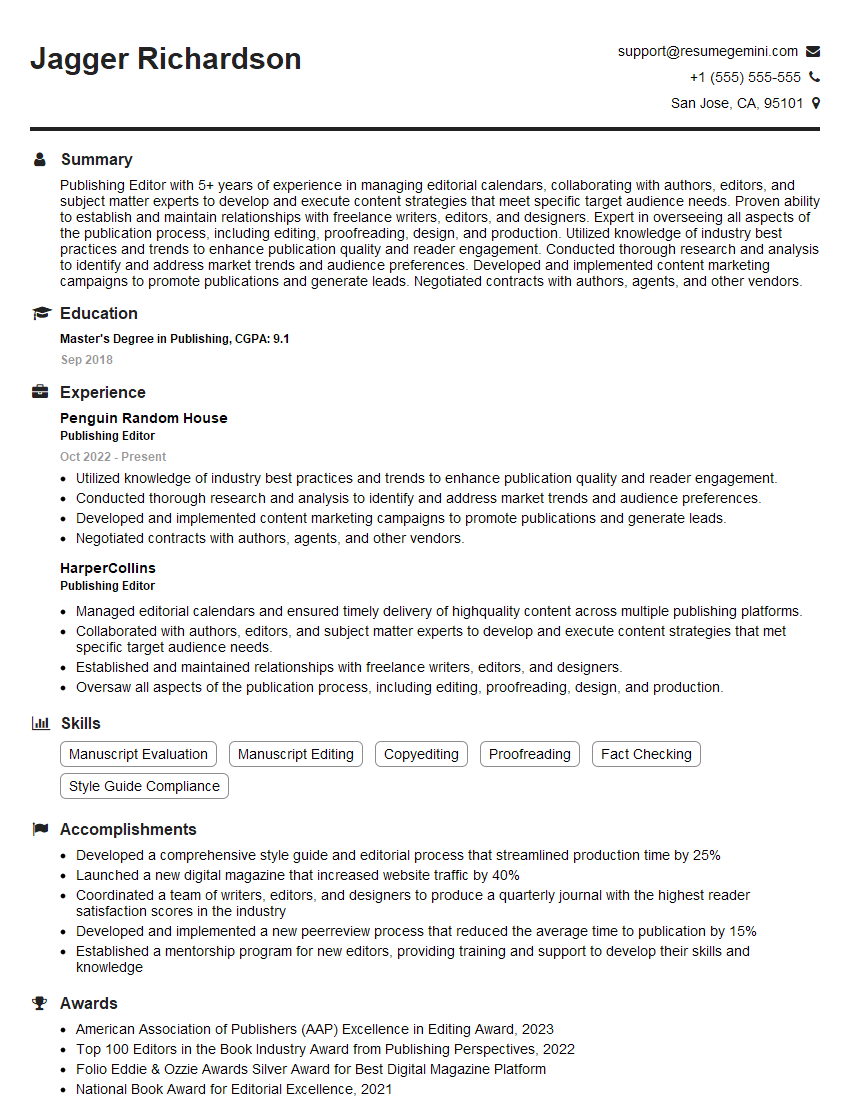
Publishing Editor Resume Sample
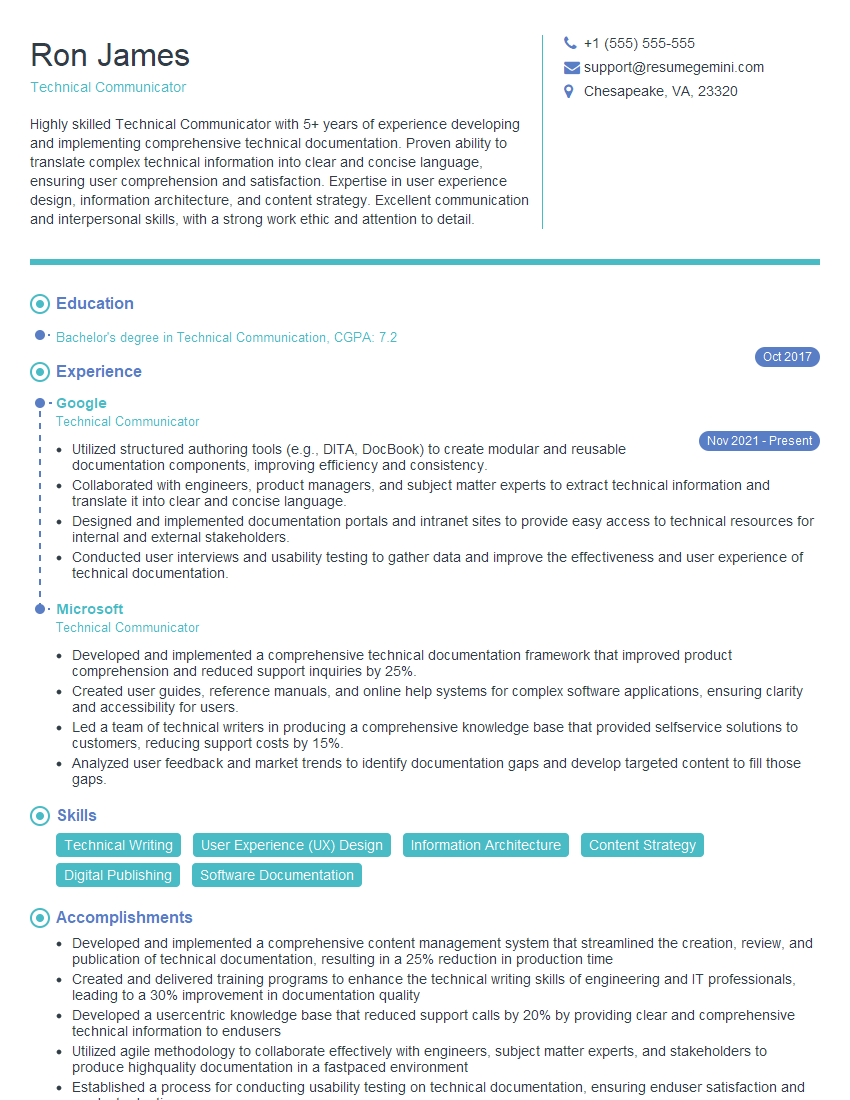
Technical Communicator Resume Sample

Technical Writer Resume Sample

Copywriter Resume Sample
Explore more articles
Users Rating of Our Blogs
Share Your Experience
We value your feedback! Please rate our content and share your thoughts (optional).
What Readers Say About Our Blog
Hello,
we currently offer a complimentary backlink and URL indexing test for search engine optimization professionals.
You can get complimentary indexing credits to test how link discovery works in practice.
No credit card is required and there is no recurring fee.
You can find details here:
https://wikipedia-backlinks.com/indexing/
Regards
NICE RESPONSE TO Q & A
hi
The aim of this message is regarding an unclaimed deposit of a deceased nationale that bears the same name as you. You are not relate to him as there are millions of people answering the names across around the world. But i will use my position to influence the release of the deposit to you for our mutual benefit.
Respond for full details and how to claim the deposit. This is 100% risk free. Send hello to my email id: [email protected]
Luka Chachibaialuka
Hey interviewgemini.com, just wanted to follow up on my last email.
We just launched Call the Monster, an parenting app that lets you summon friendly ‘monsters’ kids actually listen to.
We’re also running a giveaway for everyone who downloads the app. Since it’s brand new, there aren’t many users yet, which means you’ve got a much better chance of winning some great prizes.
You can check it out here: https://bit.ly/callamonsterapp
Or follow us on Instagram: https://www.instagram.com/callamonsterapp
Thanks,
Ryan
CEO – Call the Monster App
Hey interviewgemini.com, I saw your website and love your approach.
I just want this to look like spam email, but want to share something important to you. We just launched Call the Monster, a parenting app that lets you summon friendly ‘monsters’ kids actually listen to.
Parents are loving it for calming chaos before bedtime. Thought you might want to try it: https://bit.ly/callamonsterapp or just follow our fun monster lore on Instagram: https://www.instagram.com/callamonsterapp
Thanks,
Ryan
CEO – Call A Monster APP
To the interviewgemini.com Owner.
Dear interviewgemini.com Webmaster!
Hi interviewgemini.com Webmaster!
Dear interviewgemini.com Webmaster!
excellent
Hello,
We found issues with your domain’s email setup that may be sending your messages to spam or blocking them completely. InboxShield Mini shows you how to fix it in minutes — no tech skills required.
Scan your domain now for details: https://inboxshield-mini.com/
— Adam @ InboxShield Mini
Reply STOP to unsubscribe
Hi, are you owner of interviewgemini.com? What if I told you I could help you find extra time in your schedule, reconnect with leads you didn’t even realize you missed, and bring in more “I want to work with you” conversations, without increasing your ad spend or hiring a full-time employee?
All with a flexible, budget-friendly service that could easily pay for itself. Sounds good?
Would it be nice to jump on a quick 10-minute call so I can show you exactly how we make this work?
Best,
Hapei
Marketing Director
Hey, I know you’re the owner of interviewgemini.com. I’ll be quick.
Fundraising for your business is tough and time-consuming. We make it easier by guaranteeing two private investor meetings each month, for six months. No demos, no pitch events – just direct introductions to active investors matched to your startup.
If youR17;re raising, this could help you build real momentum. Want me to send more info?
Hi, I represent an SEO company that specialises in getting you AI citations and higher rankings on Google. I’d like to offer you a 100% free SEO audit for your website. Would you be interested?
Hi, I represent an SEO company that specialises in getting you AI citations and higher rankings on Google. I’d like to offer you a 100% free SEO audit for your website. Would you be interested?
good