Are you ready to stand out in your next interview? Understanding and preparing for Hide Selection interview questions is a game-changer. In this blog, we’ve compiled key questions and expert advice to help you showcase your skills with confidence and precision. Let’s get started on your journey to acing the interview.
Questions Asked in Hide Selection Interview
Q 1. Explain the difference between hiding selection using CSS and using JavaScript.
Hiding selection in CSS and JavaScript achieves the same goal – preventing users from selecting text or elements – but uses different mechanisms. CSS provides a declarative approach, setting a style property directly on the element, while JavaScript offers a programmatic way, manipulating the selection through browser APIs. CSS is generally preferred for its simplicity and better performance, while JavaScript provides more control and the ability to react to selection changes.
CSS: Uses the user-select property. Setting it to none prevents selection completely. For example: <div style="user-select: none;"><p>This text cannot be selected.</p></div>
JavaScript: Uses methods like window.getSelection().removeAllRanges() to programmatically clear the selection. This is useful for more dynamic scenarios where selection needs to be controlled based on user interactions or other events. For example: const selection = window.getSelection(); selection.removeAllRanges();
Think of it like this: CSS is like setting a ‘no entry’ sign; JavaScript is like having a security guard actively removing anyone who tries to enter.
Q 2. How would you hide a selection on a specific element while allowing selection on others?
To prevent selection on a specific element while allowing it on others, you’ll typically use CSS. Apply the user-select: none; style only to the target element. Other elements will retain their default selection behavior. For instance:
<div><p>This text is selectable.</p><div style="user-select: none;"><p>This text is NOT selectable.</p></div><p>This text is selectable too.</p></div>
This approach is clean, efficient, and easily maintainable. You can also achieve this with JavaScript but it is generally less efficient.
Q 3. Describe different methods for preventing text selection on an element.
Several methods prevent text selection, each with its strengths and weaknesses:
user-select: none;(CSS): The simplest and most efficient method. Works consistently across modern browsers.- JavaScript’s
window.getSelection().removeAllRanges(): Offers more control; you can clear the selection in response to events. However, it can be less performant for frequent use and requires event handling. - Overlaying a transparent element: Place a transparent element on top of the text you want to protect. The overlay will receive the selection instead of the underlying text. This can be cumbersome and may affect user interaction.
The user-select property is generally the recommended approach for its simplicity and efficiency unless dynamic control is needed.
Q 4. How can you handle selection events in JavaScript?
JavaScript handles selection events using the following:
selectstartevent: Fired when the user begins to select text. You can use this to prevent selection from starting by callingevent.preventDefault().selectionchangeevent: Fired when the selection changes. This allows you to react to selection changes, such as clearing the selection or manipulating the selected content.
Example using selectstart:
const element = document.getElementById('myElement'); element.addEventListener('selectstart', function(event) { event.preventDefault(); });Remember that the best choice depends on the desired level of control and your application’s performance requirements. selectstart is best for simple prevention, while selectionchange offers more detailed interaction.
Q 5. What are the cross-browser compatibility challenges of hiding selection, and how can they be overcome?
Cross-browser compatibility challenges mainly arise from variations in how browsers handle selection events and the user-select property. Older browsers might not support user-select fully or might have quirks in their event handling. Inconsistent behavior can be seen with touch devices as well.
Solutions include:
- Feature detection: Before relying on
user-select, check if it’s supported. Fallback to JavaScript methods if necessary. - Polyfills: Use libraries or scripts that provide consistent behavior across browsers. These polyfills often patch inconsistencies in older browsers.
- Thorough testing: Test your implementation on multiple browsers and devices to identify and address inconsistencies.
By using robust testing and adapting to differences through feature detection and polyfills, you can ensure a consistent experience across various browsers.
Q 6. Explain how to use the `user-select` CSS property to control selection.
The user-select CSS property controls how selectable an element is. Its values determine whether the user can select text or elements within that element.
auto(default): Allows selection according to the browser’s default behavior.none: Prevents text selection entirely.text: Allows text selection only.all: Allows selection of both text and elements.contain: Allows selection only within the element, preventing selection that crosses element boundaries.
Example using user-select: text:
<div style="user-select: text;"><p>Select only the text within this div.</p></div>
Understanding these values allows for fine-grained control over selection behavior, enhancing user experience and preventing unintended selections.
Q 7. How do you prevent selection on images or other non-text elements?
Preventing selection on non-text elements like images is primarily achieved using the user-select: none; CSS property. Just like with text elements, applying this style to the image will prevent selection. However, keep in mind that some users may rely on selection for accessibility features, so consider the implications carefully.
<img src="image.jpg" style="user-select: none;" alt="Image">
This ensures that users can’t accidentally select the image while interacting with the page. If needed, JavaScript can also be used, but is generally less efficient in this situation. Remember that context is key. If the image is part of a larger interactive component, you might need a more nuanced approach.
Q 8. Describe a scenario where you needed to implement custom selection handling.
I once worked on a rich text editor where users could select text, but we needed to prevent the selection from interfering with an overlay displaying formatting options. A standard window.getSelection().removeAllRanges() wasn’t sufficient because it disrupted the user’s workflow. Instead, we implemented custom selection handling using a combination of techniques. We listened for the selectionchange event, detected the selected text’s bounding rectangle, and positioned the overlay strategically to avoid overlapping the selection. If the overlay *did* overlap, we temporarily hid the selection using JavaScript and re-displayed it after the user interacted with the overlay.
This involved creating custom functions to manage the selection, ensuring a smooth user experience without jarring visual changes. It was crucial to balance the need to hide the selection with the importance of allowing users to continue working with the selected text seamlessly.
Q 9. What techniques can be used to improve the user experience related to selection and deselection?
Improving the UX around selection and deselection involves anticipating and addressing potential friction points. Think about it like this: selection is like highlighting a word in a book – you want it to be intuitive and not distracting.
- Visual Feedback: Provide clear visual cues when an element is selected (e.g., change in background color, border). Make this feedback consistent and easily discernible.
- Multiple Selection Methods: Support both mouse and keyboard selection for broader accessibility. Consider touch devices as well (discussed later).
- Smooth Transitions: Avoid abrupt changes in the UI when selection occurs. Use smooth animations or transitions to create a more polished experience.
- Deselection Mechanism: Make it easy for users to deselect items. A simple click outside the selected area or a specific deselect button can improve workflow.
- Contextual Feedback: Offer feedback about what actions are available on selected elements. For example, if multiple elements are selected, show options for batch editing.
Q 10. How do you test your selection hiding implementation to ensure it functions correctly across browsers?
Testing selection hiding across browsers requires a multifaceted approach, focusing on both functional correctness and visual consistency.
- Cross-browser Testing Framework: Use a framework like Selenium or Cypress to automate tests across different browsers (Chrome, Firefox, Safari, Edge) and versions.
- Visual Regression Testing: Capture screenshots of the selection handling in various scenarios (before and after selection, different selection sizes) and compare them across browsers to identify visual inconsistencies. Tools like Percy or BackstopJS are useful here.
- Manual Testing: While automation is vital, manual testing is also crucial. Perform thorough tests on different operating systems and devices to catch edge cases.
- Edge Case Testing: Test with complex selections (e.g., selections spanning multiple elements, selections within nested elements), selections involving different input types (text fields, rich text editors), and different zooming levels.
- Accessibility Testing: Verify that assistive technologies (screen readers) correctly interpret selection state, even when the selection is visually hidden. Tools like NVDA or VoiceOver can be used.
Q 11. Explain the concept of a ‘selection range’ and its relevance to hiding selections.
A ‘selection range’ refers to the portion of text or content selected by a user. It’s not just the visible highlighted area, but the underlying data representing the start and end points of the selection. This is crucial for hiding selections because you need to know precisely what to hide. The selection range can be accessed and manipulated using the browser’s window.getSelection() API.
For example, if a user selects part of a paragraph, the selection range contains information about the starting and ending character offsets within that paragraph. This information allows you to programmatically identify and manipulate the selected content without relying solely on visual cues. This is essential when hiding the selection, as you’re working with the underlying data rather than just the visual representation.
//Example (Conceptual):
const selection = window.getSelection();
const range = selection.getRangeAt(0);
// range.startOffset and range.endOffset contain the selection boundaries.
Q 12. Describe how to hide selection on touch devices.
Hiding selection on touch devices requires a similar approach to desktop browsers, but with considerations for the different event handling. Touch events like touchstart, touchmove, and touchend are used to detect and manage selection. It is important to note that direct manipulation of selection often isn’t as seamless on touch devices compared to desktop.
One common strategy involves detecting the start of a selection gesture and then using techniques similar to those used on desktop browsers – identifying the selection boundaries and employing CSS or JavaScript to cover the selection. However, it’s more common to provide alternative interaction patterns on touch devices. This might involve using contextual menus or buttons that enable selection and manipulation instead of directly selecting via touch.
Q 13. How do you handle selection highlighting with assistive technologies?
Handling selection highlighting with assistive technologies requires careful consideration to ensure inclusivity. Screen readers rely on the browser’s accessibility APIs to understand the selection state. Simply hiding the visual selection isn’t sufficient; you need to maintain the accessibility information.
One approach involves using ARIA attributes (Accessible Rich Internet Applications) to maintain the context of the selection. You can’t hide selection completely while keeping it accessible – instead, you could use ARIA to describe the currently selected item to screen readers, even if it’s not visually highlighted. This ensures users of assistive technologies can still interact with and understand the selection, even though they don’t see the visual highlighting.
Q 14. What are the security considerations related to manipulating selection behavior?
Manipulating selection behavior introduces security considerations, primarily related to Cross-Site Scripting (XSS) vulnerabilities. If a malicious script gains control of the selection, it could potentially inject arbitrary code into the document, leading to security breaches.
To mitigate these risks:
- Input Sanitization: Always sanitize user input before using it to affect the selection. This prevents malicious code from being injected.
- Content Security Policy (CSP): Implement a robust CSP to restrict the resources the application can load, reducing the risk of malicious scripts.
- Least Privilege Principle: Grant only the necessary permissions to the code that manipulates selection. Avoid granting excessive privileges to scripts.
- Regular Security Audits: Conduct regular security audits and penetration testing to identify and address potential vulnerabilities.
Q 15. Explain how to programmatically select text in JavaScript.
Programmatically selecting text in JavaScript involves manipulating the browser’s selection mechanism. This is typically done using the window.getSelection() method, which returns a Selection object representing the currently selected text. You can then use the Selection object’s methods to set the selection range.
Here’s a breakdown:
- Get the Selection Object:
const selection = window.getSelection(); - Create a Range Object: A Range object defines the start and end points of the selection. You create this using
document.createRange(). - Set the Range: Use the
range.setStart(node, offset)andrange.setEnd(node, offset)methods to specify the start and end positions within the text.nodeis the DOM element containing the text, andoffsetis the character index within that node. - Add the Range to the Selection: Finally, use
selection.removeAllRanges()to clear any existing selection, and thenselection.addRange(range)to add your newly created range.
Example: Let’s say you have a paragraph with the ID ‘myParagraph’:
This is some sample text.
To select ‘sample text’, you would do:
Remember that character offsets are zero-based. This approach is crucial for tasks like highlighting specific text portions or implementing custom text editors.
Career Expert Tips:
- Ace those interviews! Prepare effectively by reviewing the Top 50 Most Common Interview Questions on ResumeGemini.
- Navigate your job search with confidence! Explore a wide range of Career Tips on ResumeGemini. Learn about common challenges and recommendations to overcome them.
- Craft the perfect resume! Master the Art of Resume Writing with ResumeGemini’s guide. Showcase your unique qualifications and achievements effectively.
- Don’t miss out on holiday savings! Build your dream resume with ResumeGemini’s ATS optimized templates.
Q 16. How can you prevent accidental selection during user interaction?
Preventing accidental selection is crucial for a polished user experience. The most effective method is using CSS’s -webkit-user-select property (and its equivalents for other browsers: -moz-user-select, -ms-user-select, and user-select). Setting this to none disables text selection entirely within the targeted element.
Example:
This text cannot be selected.For more granular control, you can combine this with JavaScript event listeners to detect and prevent selection only under specific conditions, like preventing selection while dragging an element or interacting with specific UI components. This avoids a completely unresponsive experience while protecting key areas from unwanted selections.
Q 17. What are the performance implications of different selection hiding methods?
The performance implications of hiding selection methods depend heavily on the implementation and scale. Simply using CSS user-select: none; is generally lightweight and has minimal performance impact, as it’s a purely stylistic change.
However, using JavaScript to constantly monitor and clear selections can be resource-intensive, especially on large or complex pages with frequent user interactions. This is because JavaScript-based solutions require continuous monitoring of selection events, which consumes CPU cycles. It’s akin to constantly checking a light switch to ensure it’s off – unnecessary if a more efficient solution like a fixed off-switch (CSS) is available.
Therefore, prioritizing CSS-based solutions for hiding selection is highly recommended for optimal performance. Only resort to JavaScript-based approaches if CSS alone cannot achieve the required level of control.
Q 18. How would you implement a ‘copy-paste’ functionality while still hiding selection?
Implementing copy-paste functionality while maintaining hidden selection requires a clever workaround. We cannot directly hide the selection *and* allow copying, because copying relies on the browser’s selection mechanism. Instead, we’ll use a hidden, temporary element to hold the text to be copied.
Steps:
- Create a hidden element: Create a
textareaelement withstyle="position: absolute; left: -9999px;"(or similar to move it off-screen). This acts as a temporary clipboard. - Programmatically select and copy the desired text: Use JavaScript to populate the hidden
textareawith the text you want to copy. Then, programmatically select the text in the hiddentextareaand usedocument.execCommand('copy'). - Clear the hidden element: After copying, clear the content of the hidden
textarea.
Example:
This method cleverly uses a hidden element to facilitate copying without visibly altering the main content or impacting the selection state of the visible elements.
Q 19. Explain the use of CSS `-webkit-user-select`.
The CSS property -webkit-user-select is a vendor prefix for the user-select property. It controls whether the user can select text within an element. Its values include:
none: Disables text selection. This is the most common use case for hiding selection.text: Allows text selection (default).all: Allows selection of everything, including images and other elements.contain: Allows selection only within the element, preventing selection from spilling into other elements.auto: Reverts to the browser’s default selection behavior.
Important Note: While user-select is the standard property, using the vendor prefixes (-webkit-, -moz-, -ms-) ensures broader compatibility across different browsers, particularly older ones.
Example: To prevent selection in a specific div:
This text is unselectable.Q 20. How would you handle selection events on dynamically added elements?
Handling selection events on dynamically added elements requires attaching event listeners *after* the elements are added to the DOM. Simply attaching the listener to a parent element won’t work reliably if the elements are added later.
Strategies:
- Event Delegation: Attach the event listener to a parent element that *will* exist when the page loads. Then, within the event handler, check if the event’s target is one of the dynamically added elements. This is efficient because it avoids attaching multiple listeners.
- MutationObserver: Use the
MutationObserverAPI to monitor changes to the DOM. When a new element is added, attach the selection event listener to that element. This approach is more sophisticated but handles dynamic changes gracefully.
Example (Event Delegation):
Choosing the right strategy depends on the complexity of your dynamic content updates. Event delegation is often sufficient for simpler scenarios, while MutationObserver provides a more robust solution for complex, rapidly changing DOM structures.
Q 21. Describe how to detect if text selection is active on a page.
Detecting active text selection involves checking the window.getSelection() object. If it returns a selection with a non-zero range, it indicates active selection.
Method:
This function neatly checks whether the selection is collapsed (no selection) or not. You can call this function whenever you need to ascertain the selection status. This is critical for features like context menus that should only appear when text is selected.
Q 22. How can you use JavaScript to clear selected text?
Clearing selected text using JavaScript involves manipulating the browser’s selection object. There isn’t a single universal method, as the approach depends slightly on the browser and context. However, the most reliable approach is to utilize the window.getSelection() method, which returns a Selection object representing the currently selected text. We then use the removeAllRanges() method of this object to clear the selection.
Here’s an example:
function clearSelection() {
  if (window.getSelection) {
    window.getSelection().removeAllRanges();
  } else if (document.selection) {
    document.selection.empty();
  }
}

//Example usage: Attach this function to a button click or other event
document.getElementById('myButton').addEventListener('click', clearSelection);
This code first checks for the modern window.getSelection() method. If it’s not available (older browsers), it falls back to the older document.selection.empty() method. This ensures cross-browser compatibility. Remember to replace 'myButton' with the actual ID of your button or element triggering the selection clearing.
Q 23. Discuss the trade-offs between using CSS and JavaScript for hiding selection.
Both CSS and JavaScript can hide selected text, but they offer different approaches and trade-offs. CSS solutions are generally simpler to implement but have limitations, whereas JavaScript offers more control but requires more code.
- CSS: CSS utilizes the
::selectionpseudo-element to style selected text. You can hide it by setting its properties likeopacity: 0;orvisibility: hidden;. This approach is quick and requires no JavaScript. However, it’s less precise and can’t handle complex scenarios, such as selectively hiding selection in specific elements only. - JavaScript: JavaScript offers fine-grained control over the selection. It allows you to detect and clear selection on specific events or elements, or manipulate the selection programmatically. This provides flexibility to handle edge cases and integrate with other UI interactions. However, JavaScript-based solutions are more complex to develop and maintain.
The choice depends on the project’s complexity and requirements. For simple cases, CSS is sufficient. For more complex scenarios demanding dynamic control, JavaScript is necessary.
Q 24. How do you ensure your selection hiding logic is responsive and adaptive?
Ensuring responsiveness and adaptability in selection-hiding logic is crucial for a seamless user experience. This involves several considerations:
- Media Queries (for CSS): Use CSS media queries to adjust the styling based on screen size and device orientation. This ensures that the selection-hiding remains effective across various screen sizes and resolutions.
- Event Listeners (for JavaScript): Use event listeners for
resizeandorientationchangeevents to dynamically adjust the logic when the viewport changes. This ensures the solution adapts to different device rotations and resizing. - Flexible Layout: Ensure that your page layout is flexible and responsive. This will prevent conflicts between the selection hiding and the overall layout as the screen size changes. Consider using flexible box layout (Flexbox) or grid layout.
- Testing on Different Devices and Browsers: Thoroughly test your implementation on various devices, screen sizes, and browsers to identify and resolve responsiveness issues. This involves testing on both desktop and mobile devices.
By combining these approaches, you create a selection-hiding solution that adapts dynamically to the user’s environment.
Q 25. Describe a time when your selection-hiding implementation encountered unexpected behavior, and how you resolved it.
In one project, we implemented selection hiding using CSS’s ::selection. Initially, it worked flawlessly on desktop browsers. However, on mobile devices, especially iOS, the selection would momentarily flash before being hidden due to the timing of the browser’s rendering engine. This brief flash was jarring to the user experience.
To resolve this, we transitioned to a JavaScript-based approach. We used an event listener for the selectstart event, which is triggered when the user begins selecting text. In the event handler, we prevented the default selection behavior using event.preventDefault(). This stopped the text from being selected completely, eliminating the flash issue altogether. The trade-off was slightly more complex code, but the improved user experience made it worthwhile.
This experience taught me the importance of thorough cross-device testing and the adaptability of using JavaScript for more control over selection events in complex situations.
Q 26. How do you handle the conflict between hiding selection and other UI interactions?
Conflicts between selection hiding and other UI interactions are common. For example, preventing selection might inadvertently interfere with text input fields or selectable elements. Careful planning and implementation are key.
- Selective Application: Don’t apply selection hiding universally. Target specific elements or areas of the page where you want to prevent selection. This isolates the functionality to avoid conflicts with other interactive elements.
- Event Delegation: Use event delegation to handle events on parent containers rather than individual elements. This reduces the number of event listeners and improves efficiency, particularly when dealing with many interactive elements.
- Conditional Logic: Use conditional logic to determine when selection hiding should be active and inactive. For example, you might want to disable selection hiding when the user is editing a text input.
A well-structured implementation prioritizes targeted application and strategic use of events to mitigate these conflicts, leading to a more robust and less error-prone system.
Q 27. How can you adjust the selection behavior for different input methods (mouse, touch, keyboard)?
Handling different input methods requires understanding how each interacts with text selection. Mouse and touch events are relatively straightforward, but keyboard interactions require a different approach.
- Mouse and Touch: For mouse and touch, the
selectstartevent, combined withevent.preventDefault(), generally provides sufficient control to prevent selection. You might also leveragetouchstartandtouchmovefor touch devices to provide a more responsive user experience. - Keyboard: Handling keyboard selection is more involved. Keyboard events such as
keydownandkeyup(checking for Shift + arrow keys) can be monitored. However, preventing default behavior might lead to unexpected outcomes, such as preventing users from navigating elements or using keyboard shortcuts. A more refined approach might involve detecting selection programmatically and clearing it if deemed necessary, rather than preventing the event altogether. The key is to balance user experience with functionality.
A robust solution requires careful consideration of each input method to ensure consistent and predictable behavior.
Q 28. What accessibility guidelines are relevant when implementing selection hiding?
Accessibility is paramount when implementing selection hiding. Completely preventing selection can negatively impact users who rely on assistive technologies such as screen readers.
- ARIA Attributes: Consider using ARIA attributes like
aria-readonlyoraria-describedbyto provide context to assistive technologies. This clarifies to screen readers why the text might not be selectable. This enhances accessibility without hindering the functionality of selection hiding. - Alternative Interactions: If you completely prevent text selection, provide alternative mechanisms for users to interact with the content. For instance, consider providing copy buttons or offering the selected text in a separate dialog box.
- Avoid Conflicting Styles: Ensure that your selection-hiding styles don’t conflict with screen reader styles. This could render the content inaccessible or unreadable to these users. Test your implementation with assistive technology to identify and rectify potential issues.
By following these guidelines, you can ensure your selection-hiding implementation remains usable and accessible to everyone, including users with disabilities.
Key Topics to Learn for Hide Selection Interview
- Understanding the Fundamentals: Grasp the core concepts behind hide selection – what it is, why it’s used, and its limitations.
- Practical Implementation: Explore different methods and techniques for implementing hide selection in various contexts (e.g., specific programming languages, frameworks, or user interface designs).
- Performance Optimization: Learn strategies to optimize hide selection for speed and efficiency, avoiding performance bottlenecks.
- Accessibility Considerations: Understand how to implement hide selection in an accessible manner, ensuring inclusivity for all users.
- Security Implications: Discuss potential security vulnerabilities related to hide selection and best practices for mitigation.
- Error Handling and Debugging: Develop effective strategies for identifying and resolving issues related to hide selection.
- Testing and Validation: Learn to rigorously test and validate your hide selection implementations to ensure correctness and reliability.
- Advanced Techniques: Explore more advanced concepts and techniques related to hide selection, depending on the specific job requirements.
Next Steps
Mastering hide selection demonstrates a strong understanding of crucial programming concepts and problem-solving skills, significantly boosting your career prospects in software development and related fields. To further enhance your job search, create an ATS-friendly resume that effectively showcases your skills and experience. ResumeGemini is a trusted resource that can help you build a professional resume tailored to your specific career goals. We provide examples of resumes tailored to Hide Selection expertise to give you a head start. Take advantage of these resources to present yourself effectively to potential employers.

Software Engineer Resume Sample

Information Architect Resume Sample

Web Designer Resume Sample
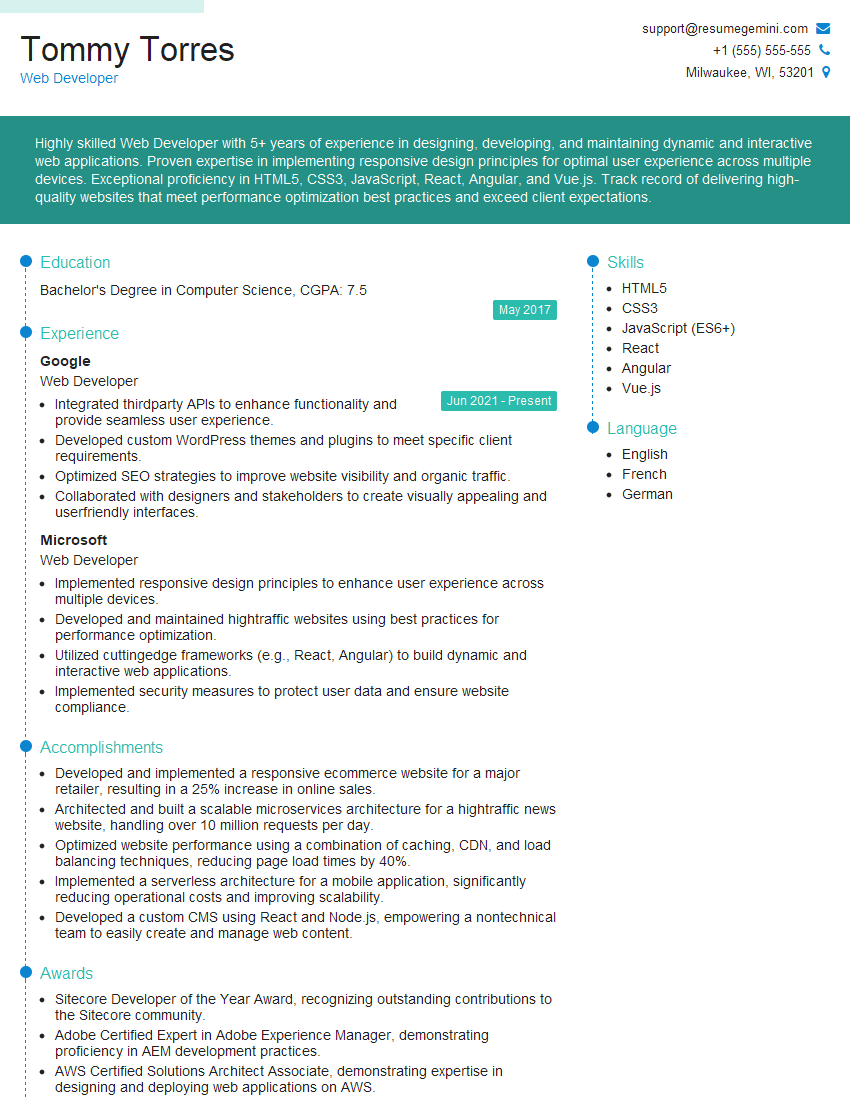
Web Developer Resume Sample
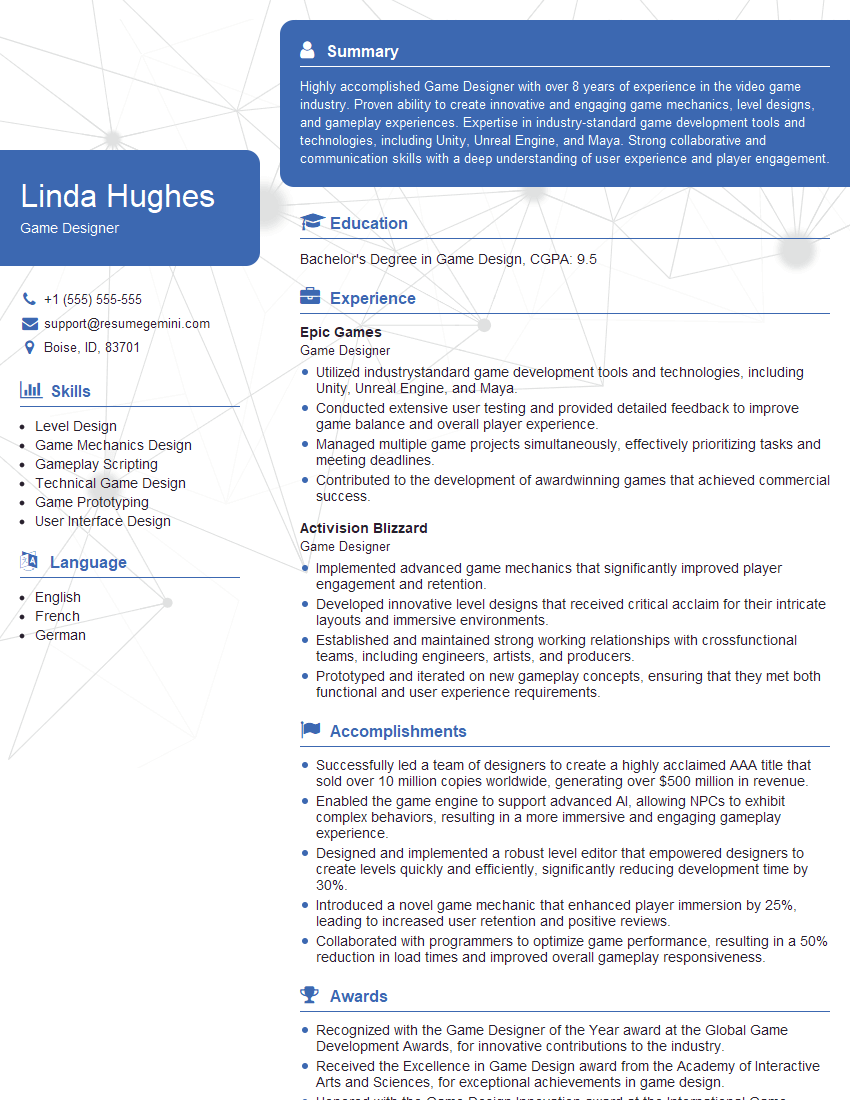
Game Designer Resume Sample

Technical Designer Resume Sample
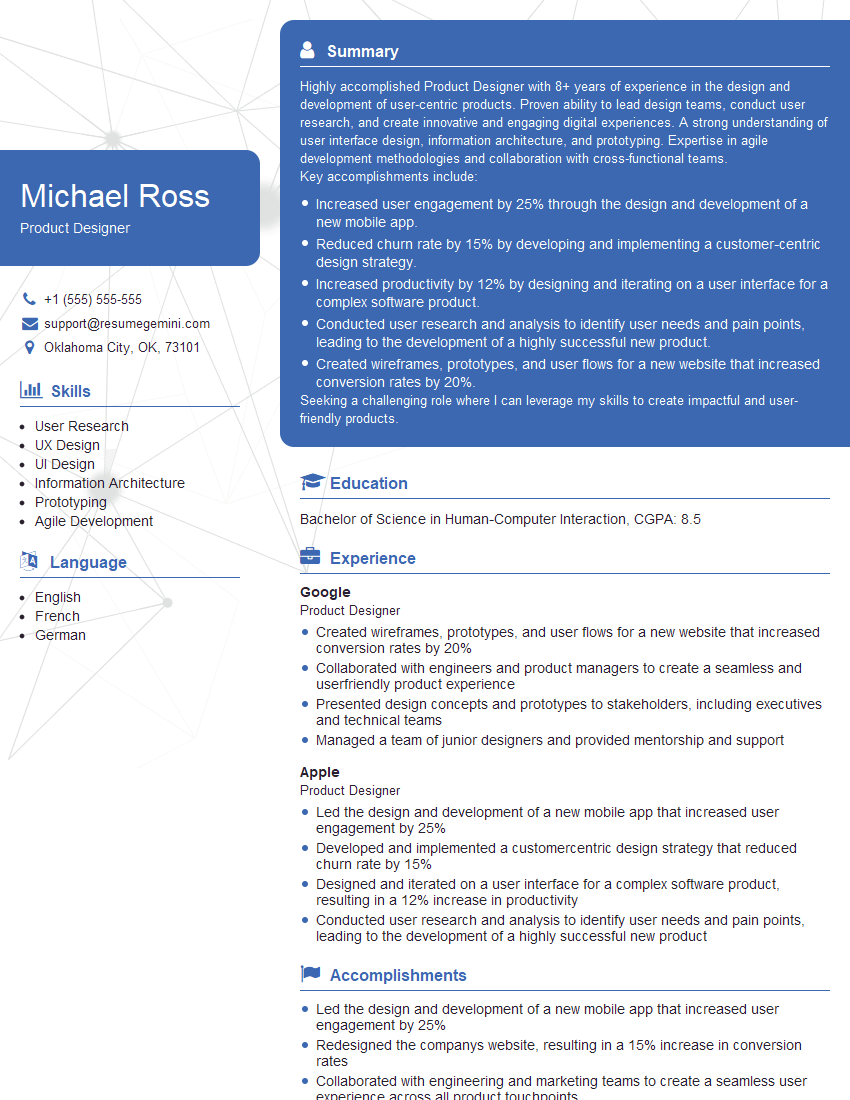
Product Designer Resume Sample

3D Modeler Resume Sample

Graphic Designer Resume Sample

Motion Designer Resume Sample
Explore more articles
Users Rating of Our Blogs
Share Your Experience
We value your feedback! Please rate our content and share your thoughts (optional).
What Readers Say About Our Blog
Hello,
we currently offer a complimentary backlink and URL indexing test for search engine optimization professionals.
You can get complimentary indexing credits to test how link discovery works in practice.
No credit card is required and there is no recurring fee.
You can find details here:
https://wikipedia-backlinks.com/indexing/
Regards
NICE RESPONSE TO Q & A
hi
The aim of this message is regarding an unclaimed deposit of a deceased nationale that bears the same name as you. You are not relate to him as there are millions of people answering the names across around the world. But i will use my position to influence the release of the deposit to you for our mutual benefit.
Respond for full details and how to claim the deposit. This is 100% risk free. Send hello to my email id: [email protected]
Luka Chachibaialuka
Hey interviewgemini.com, just wanted to follow up on my last email.
We just launched Call the Monster, an parenting app that lets you summon friendly ‘monsters’ kids actually listen to.
We’re also running a giveaway for everyone who downloads the app. Since it’s brand new, there aren’t many users yet, which means you’ve got a much better chance of winning some great prizes.
You can check it out here: https://bit.ly/callamonsterapp
Or follow us on Instagram: https://www.instagram.com/callamonsterapp
Thanks,
Ryan
CEO – Call the Monster App
Hey interviewgemini.com, I saw your website and love your approach.
I just want this to look like spam email, but want to share something important to you. We just launched Call the Monster, a parenting app that lets you summon friendly ‘monsters’ kids actually listen to.
Parents are loving it for calming chaos before bedtime. Thought you might want to try it: https://bit.ly/callamonsterapp or just follow our fun monster lore on Instagram: https://www.instagram.com/callamonsterapp
Thanks,
Ryan
CEO – Call A Monster APP
To the interviewgemini.com Owner.
Dear interviewgemini.com Webmaster!
Hi interviewgemini.com Webmaster!
Dear interviewgemini.com Webmaster!
excellent
Hello,
We found issues with your domain’s email setup that may be sending your messages to spam or blocking them completely. InboxShield Mini shows you how to fix it in minutes — no tech skills required.
Scan your domain now for details: https://inboxshield-mini.com/
— Adam @ InboxShield Mini
Reply STOP to unsubscribe
Hi, are you owner of interviewgemini.com? What if I told you I could help you find extra time in your schedule, reconnect with leads you didn’t even realize you missed, and bring in more “I want to work with you” conversations, without increasing your ad spend or hiring a full-time employee?
All with a flexible, budget-friendly service that could easily pay for itself. Sounds good?
Would it be nice to jump on a quick 10-minute call so I can show you exactly how we make this work?
Best,
Hapei
Marketing Director
Hey, I know you’re the owner of interviewgemini.com. I’ll be quick.
Fundraising for your business is tough and time-consuming. We make it easier by guaranteeing two private investor meetings each month, for six months. No demos, no pitch events – just direct introductions to active investors matched to your startup.
If youR17;re raising, this could help you build real momentum. Want me to send more info?
Hi, I represent an SEO company that specialises in getting you AI citations and higher rankings on Google. I’d like to offer you a 100% free SEO audit for your website. Would you be interested?
Hi, I represent an SEO company that specialises in getting you AI citations and higher rankings on Google. I’d like to offer you a 100% free SEO audit for your website. Would you be interested?
good