The thought of an interview can be nerve-wracking, but the right preparation can make all the difference. Explore this comprehensive guide to Layout Software Proficiency interview questions and gain the confidence you need to showcase your abilities and secure the role.
Questions Asked in Layout Software Proficiency Interview
Q 1. Explain your experience with Adobe InDesign.
Adobe InDesign is my primary tool for complex layout design. I’ve used it extensively for over eight years, creating everything from brochures and annual reports to magazines and ebooks. My expertise extends beyond basic functionality; I’m proficient in advanced features such as scripting (using JavaScript) for automation, creating interactive PDFs, and managing large, complex documents with numerous linked files and styles. For example, I once managed a 300-page magazine layout, using InDesign’s features to maintain consistency across the entire publication and ensure efficient collaboration with the editorial team. I’m comfortable working with master pages, styles, and templates to maintain brand consistency and streamline the design process. I also frequently utilize InDesign’s features for typography management, ensuring consistent font usage and kerning across the project.
Q 2. Describe your proficiency in QuarkXPress.
While InDesign is my preferred tool, I possess a solid understanding of QuarkXPress, gained from earlier projects and training. I’m comfortable navigating its interface and utilizing its core layout features. My experience with QuarkXPress primarily involves working on legacy projects where the client already had established templates or required specific functionalities only available in QuarkXPress. While I wouldn’t choose it for new projects unless specifically requested, my knowledge allows me to seamlessly integrate with existing QuarkXPress workflows and troubleshoot any issues that arise. I find its strengths lie in its stability and precision for certain types of layouts, especially those requiring very fine control over typography.
Q 3. How familiar are you with Adobe Illustrator for layout tasks?
I’m very familiar with Adobe Illustrator’s role in layout design. I frequently use it to create and edit vector graphics for incorporation into InDesign layouts. This includes logos, illustrations, and complex diagrams. My workflow often involves creating highly detailed vector assets in Illustrator, then optimizing them for print or web use before importing them into InDesign. Understanding Illustrator’s capabilities is crucial for achieving high-quality, scalable graphics within a larger layout context. For example, I recently created a series of intricate icons in Illustrator, which were then seamlessly integrated into a website banner design created in InDesign. The precision and scalability of Illustrator’s vector-based tools were essential for ensuring crispness at various sizes.
Q 4. What is your experience with creating master pages?
Master pages are fundamental to my workflow. I leverage them extensively to establish consistent design elements across multiple pages. This includes page numbering, headers, footers, running heads, and consistent margins and column structures. Creating well-structured master pages dramatically reduces repetitive tasks and ensures design consistency throughout large documents. My approach involves creating multiple master pages catering to different sections of a document (e.g., a separate master for chapter starts, another for regular content, and potentially one for appendices). This allows for flexibility and efficiency. I also meticulously use styles within the master pages so that any updates to the style (font, size, colour) will cascade across the entire document, simplifying future revisions.
Q 5. How do you manage and organize large design projects?
Managing large design projects requires a structured approach. I utilize a combination of techniques, including creating a detailed project plan, using InDesign’s features for organizing files, and using a robust folder structure for assets. I consistently employ version control (saving multiple versions with descriptive names), naming conventions for files and folders, and utilizing InDesign’s libraries and packages to share assets efficiently between team members. I also rely on cloud-based collaboration tools to track progress and facilitate communication, ensuring transparency and efficient workflow for both individual and team projects. Regular backups are crucial to prevent data loss.
Q 6. Describe your workflow for creating a multi-page document.
My workflow for creating a multi-page document typically begins with planning: defining the content structure, creating a style guide, and establishing a clear visual hierarchy. Then, I create master pages, define styles for text and paragraphs, and import images. Next, I assemble the document, ensuring that content flows logically and that each page aligns with the established design system. Throughout the process, I regularly review and proofread the document, making necessary adjustments before exporting. Finally, I carefully review the final output, ensuring that it meets the client’s specifications and high-quality standards. Automation, using styles and scripts where appropriate, significantly improves efficiency.
Q 7. How do you handle image resolution and color profiles in your layouts?
Image resolution and color profiles are critical considerations. For print, I ensure all images are at least 300 DPI (dots per inch) and use CMYK (Cyan, Magenta, Yellow, Key/Black) color profiles, as this accurately reflects print output. For web, I use RGB (Red, Green, Blue) color profiles and optimize images for web resolution and file size. I always check the color profile settings within InDesign, making sure they are aligned with the intended output. I often embed profiles to prevent potential color inconsistencies during file transfer or printing. I frequently use image editing software to adjust and optimize images to meet these specific requirements, ensuring optimal quality and avoiding unwanted color shifts.
Q 8. Explain your understanding of bleed and margins.
Bleed and margins are crucial for professional print design. Think of it like framing a picture; you need space around the image for it to look good. Margins are the area between the edge of the paper and the content, preventing important information from getting too close to the edge and potentially being cut off during trimming. Bleed, on the other hand, is the extension of your design beyond the trim line. It’s necessary because printers don’t always cut paper perfectly to the exact size. Having bleed ensures that even with slight inaccuracies, the final printed piece doesn’t have any unwanted white edges. For example, if you have a background color that extends to the edge of your design, it needs bleed to prevent a white line from appearing after trimming. Typically, a bleed of 0.125 inches (3mm) is standard.
In a practical setting, imagine designing a business card. You’d want margins around the text and logo to avoid them being too close to the edge. But you’d also need bleed for a background color or image that reaches the edge to prevent a white border.
Q 9. How do you ensure design consistency across multiple pages?
Maintaining design consistency across multiple pages is paramount for professional output. I achieve this primarily through the use of master pages and styles. Master pages are like templates—they define the consistent elements across all pages, such as headers, footers, page numbers, and background styles. Any changes made to the master page automatically propagate across all linked pages. Styles, on the other hand, control the formatting of text, images, and other elements. Creating a comprehensive style guide ensures that headings, body text, captions, etc., are consistent in font, size, and spacing throughout the document. This ensures a professional and polished final product. For example, a style guide might specify a specific font for headings, body text, and captions, ensuring uniformity across the entire document.
Beyond master pages and styles, I use linked assets where appropriate. If an image is used multiple times across a document, I ensure that the same file is used in every instance rather than making multiple copies. This way, if a change is needed, it only needs to be done once. Finally, I always perform rigorous quality checks, reviewing the final document for consistency before sending it to print.
Q 10. Describe your experience with creating and using styles and templates.
I have extensive experience creating and using styles and templates. My approach is centered around building reusable components that promote efficiency and consistency. I start by creating a detailed style guide defining specific styles for text (headings, body text, captions, etc.), paragraph styles, object styles, and even color palettes. I use these styles consistently throughout the project. For example, a specific heading style might include a font size, font family, color, and paragraph spacing, eliminating the need to repeatedly input these parameters. Creating templates, whether for brochures, newsletters, or annual reports, saves time and effort on repetitive tasks, ensuring design consistency and a professional look. I often build templates that include pre-set margins, bleed areas, and master pages, facilitating faster document creation. I’ve developed robust templates that accommodate various content types, easily adaptable to changing client needs. In one project, I created a template for a series of product brochures. This reusable template saved considerable time and ensured design uniformity across all products.
Q 11. How do you troubleshoot common layout issues?
Troubleshooting layout issues requires a systematic approach. I start by identifying the problem precisely. Is it a text overflow, image distortion, incorrect spacing, or something else? Then, I utilize a combination of techniques to resolve it. For text overflow, I might adjust font size, line spacing, or column width. For image distortion, I check for incorrect scaling or resolution. Incorrect spacing usually involves inspecting margins, padding, and other spacing parameters. If the issue involves unexpected behavior, I examine the layer stacking order. Sometimes, a corrupted file is the culprit, in which case, I might try opening a previous version or recreating the problematic elements.
For example, if an image is pixelated, I’d check its resolution and ensure it’s appropriate for print. If text is overlapping, I’d examine text wrap settings or adjust margins and padding. I often use the software’s built-in tools to detect issues such as overlapping elements or low resolution images, streamlining the process. If problems persist, I thoroughly review all styles, master pages, and linked assets to identify any conflicting settings.
Q 12. Explain your process for preparing files for print.
Preparing files for print requires meticulous attention to detail. The first step is ensuring the document is set up correctly, including proper bleed, margins, and color profiles. I always use CMYK (Cyan, Magenta, Yellow, Key/Black) color mode for print, as RGB (Red, Green, Blue) is for screen display and will often produce unexpected color results. I make sure all images are high-resolution (at least 300 DPI for print). Checking for embedded fonts is crucial; missing fonts will cause problems during printing. Lastly, I perform a thorough pre-flight check (detailed below) to identify and correct any potential issues before sending the files to the printer.
Before submitting the files, I typically create a PDF/X-1a compliant file. This standard ensures compatibility across different print platforms and minimizes the risk of errors during printing. I also provide the printer with detailed instructions and specifications to avoid misunderstandings. I often save multiple copies of the document, including the source file and the final PDF, as backups. In one instance, this saved the day when a last-minute change required revisiting the original file.
Q 13. Describe your experience with pre-flighting documents.
Pre-flighting is a critical step in preparing print-ready documents. It’s a process of automatically checking for potential problems before the document goes to print. This includes verifying things like color profiles, fonts, images, and bleeds. I regularly use pre-flight tools, both built-in and third-party, which identify issues like missing fonts, low-resolution images, color inconsistencies, or incorrect bleed settings. The pre-flighting process usually involves an automated check followed by a manual review. The automated check identifies potential problems, and the manual review helps to verify their accuracy and make any necessary corrections. This ensures that the document meets the print specifications and reduces the chance of costly errors during printing. For example, pre-flighting might reveal a missing font, allowing me to replace it before sending the file to print, preventing delays and potential reprint costs.
Q 14. How familiar are you with different file formats (e.g., PDF, EPS, TIFF)?
I’m very familiar with various file formats used in graphic design and printing. PDF (Portable Document Format) is the most common for final print output, particularly PDF/X versions created for print workflows. EPS (Encapsulated PostScript) is used for vector graphics, often for logos and illustrations, ensuring crisp, scalable images. TIFF (Tagged Image File Format) is a raster format commonly used for high-resolution images, especially photographs. Other formats I use regularly include JPEG (for web images), PNG (for images with transparency), and AI (Adobe Illustrator native format). Understanding the strengths and limitations of each format is critical for selecting the appropriate format for each use case. For example, I use PDF/X for print-ready files, TIFF for high-resolution images, and EPS for vector-based elements.
Q 15. What are your preferred methods for working with typography?
My approach to typography is multifaceted, focusing on readability, aesthetics, and brand consistency. I begin by understanding the project’s purpose and target audience. This informs my choice of font families – considering their legibility, style, and overall mood. For example, a serif font like Garamond might suit a sophisticated publication, while a sans-serif like Open Sans would be more appropriate for a website needing maximum readability on screens.
Beyond font selection, I meticulously manage kerning (space between individual letters), tracking (space between words), and leading (space between lines). Fine-tuning these elements ensures optimal visual hierarchy and prevents cramped or visually jarring text blocks. I also pay close attention to hierarchy, using different font sizes, weights, and styles to guide the reader’s eye and highlight important information. Think of it as composing music; the different fonts and spacing are like instruments creating a harmonious and clear melody for the reader.
Finally, I consistently test the typography on different devices and screen sizes to guarantee optimal display and readability across various platforms. This iterative process ensures a polished and accessible typographic experience.
Career Expert Tips:
- Ace those interviews! Prepare effectively by reviewing the Top 50 Most Common Interview Questions on ResumeGemini.
- Navigate your job search with confidence! Explore a wide range of Career Tips on ResumeGemini. Learn about common challenges and recommendations to overcome them.
- Craft the perfect resume! Master the Art of Resume Writing with ResumeGemini’s guide. Showcase your unique qualifications and achievements effectively.
- Don’t miss out on holiday savings! Build your dream resume with ResumeGemini’s ATS optimized templates.
Q 16. How do you work with clients or stakeholders to meet their design needs?
Collaborating with clients involves a structured and iterative process focused on clear communication and mutual understanding. I begin with a thorough intake, where I actively listen to the client’s vision, understanding their needs, goals, and brand identity. This often involves asking clarifying questions to uncover any unspoken requirements or potential challenges. I then present mood boards, style guides, and initial design concepts, encouraging open feedback and revisions throughout the process.
For larger projects or those involving multiple stakeholders, I utilize collaborative tools like shared design files, online presentations, and regular check-in meetings. These methods maintain transparency and ensure everyone remains aligned. My goal is not just to meet the client’s specifications, but to exceed their expectations by offering insightful suggestions and creative solutions. Constructive criticism is welcomed, and I value feedback as a crucial part of the design refinement process.
Q 17. Describe a time you had to solve a complex layout problem.
In a recent project for a museum’s exhibition catalog, I faced a challenge integrating a large number of high-resolution images with detailed captions and accompanying text within a visually appealing and manageable layout. The initial attempt resulted in a cluttered and overwhelming design. To solve this, I implemented a modular design system. I created reusable templates for image blocks, caption blocks, and text blocks, each with consistent spacing and visual hierarchy.
This system allowed me to organize the content efficiently. I also used visual cues like white space and subtle color changes to create visual breathing room and guide the reader’s eye. Additionally, I explored different image cropping techniques and alternative layouts to optimize image placement and balance the text-to-image ratio. This iterative process significantly improved the catalog’s readability and aesthetic appeal. The final result was a visually appealing and informative catalog that met the museum’s requirements while enhancing the visitor experience.
Q 18. How do you stay up-to-date with the latest layout software trends?
Staying current in the fast-paced world of layout software requires a multi-pronged approach. I actively follow industry blogs, online publications, and social media groups dedicated to graphic design and layout software. This gives me exposure to new features, design trends, and best practices. I also attend webinars and workshops offered by software companies and industry professionals. Hands-on experimentation is key; I dedicate time to exploring new features and techniques in my personal projects and experiment with different software versions to expand my skills.
Furthermore, I engage with online design communities and forums to learn from other designers’ experiences and participate in discussions on current design challenges and solutions. This collaborative learning environment complements my individual learning and provides valuable insights into real-world design challenges and best practices.
Q 19. What is your experience with collaborative design tools?
I have extensive experience with collaborative design tools, including Adobe Creative Cloud Libraries, Figma, and InVision. These platforms enable efficient teamwork and seamless feedback integration. Adobe Creative Cloud Libraries allow me to share assets like color palettes, fonts, and graphic elements across different projects and team members, ensuring brand consistency. Figma and InVision facilitate real-time collaboration, allowing multiple designers and stakeholders to work on the same project simultaneously, providing feedback, and making changes collaboratively.
I’m adept at utilizing the version history features within these tools to track changes, revert to earlier versions, and ensure that everyone is working with the most up-to-date design files. This collaborative workflow significantly streamlines project development, promoting transparency and improving communication among team members.
Q 20. How do you manage version control in your design projects?
Version control is paramount in design projects to prevent data loss and ensure project integrity. I utilize a combination of strategies. Firstly, I regularly save incremental changes, using descriptive file names. Think of it like saving frequent checkpoints in a game – if something goes wrong, you can always go back to a stable point. For larger projects, I utilize cloud-based solutions such as Dropbox or Google Drive, leveraging their version history features to easily revert to previous versions if needed. Cloud storage also ensures that project files are backed up and accessible from multiple locations.
For more complex projects, and especially when working in a team, I integrate version control directly into the design process using dedicated design management platforms. These tools enable collaborative work, track changes made by each team member, and offer a streamlined approach to managing project versions. This allows for organized file management and minimizes the risk of conflicts or overwriting.
Q 21. Explain your understanding of color theory and its application to layout design.
Color theory is fundamental to effective layout design. It governs how colors interact to create mood, hierarchy, and visual appeal. Understanding the color wheel – including primary, secondary, and tertiary colors – helps create harmonious color palettes. Analogous colors (colors adjacent on the wheel) produce a calm and cohesive feel, while complementary colors (opposite each other on the wheel) create contrast and visual excitement.
In layout design, I consider the psychological impact of colors. Warm colors (reds, oranges, yellows) tend to be energizing and attention-grabbing, while cool colors (blues, greens, purples) tend to be calming and soothing. I strategically use color to highlight key elements, guide the reader’s eye, and establish a specific mood. The saturation and brightness (value) of colors also play a crucial role, affecting the overall visual weight and perceived energy of the design. For instance, a highly saturated red might be used for a call to action, while a muted blue might create a sense of tranquility in a background. Using accessibility guidelines to ensure sufficient contrast between text and background colors is also a key consideration for all designs.
Q 22. How do you use grids and alignment to create visually appealing layouts?
Grids and alignment are fundamental to creating visually appealing layouts. Think of a grid as the invisible scaffolding that organizes your content. It provides structure and consistency, preventing a chaotic arrangement. Alignment, on the other hand, ensures that elements are positioned harmoniously, creating a sense of order and balance.
For instance, a website using a 12-column grid allows designers to easily place elements in specific columns, ensuring consistent spacing and visual harmony. Imagine trying to arrange furniture in a room without a plan – it would likely look cluttered. A grid provides that plan.
Alignment can be vertical (top, middle, bottom), horizontal (left, center, right), or both. Consistent alignment, such as left-aligning text and images, creates a clean and readable layout. In contrast, inconsistent alignment can make a design feel haphazard and unprofessional. Consider the impact of aligning elements to the same baseline – it creates a very visually appealing and readable layout. This is commonly seen in well-designed brochures and magazines.
- Example: A blog post might use a grid to place the main text in a central column, and a sidebar for widgets in an adjacent column. Aligning the headings and images within the main column enhances readability.
- Example: A product page might use a grid to arrange product images, descriptions, and customer reviews in a clear and organized fashion. Using consistent vertical alignment for the product images and horizontally aligning the price would create a well-organized and aesthetically pleasing layout.
Q 23. Describe your experience with interactive PDF creation.
I have extensive experience creating interactive PDFs, leveraging features like form fields, buttons, hyperlinks, and multimedia integration to enhance user engagement. This is especially valuable for creating dynamic documents like interactive training manuals, questionnaires, and visually rich reports. I’m proficient in using software like Adobe Acrobat Pro to achieve this.
For example, I once developed an interactive training manual that included embedded videos, clickable quizzes, and hyperlinks to supplementary resources. This significantly improved user engagement and knowledge retention compared to a static PDF. Another project involved designing a dynamic client proposal with embedded calculators to automatically compute prices based on client selections, creating a seamless and highly professional experience.
The key to successful interactive PDF creation is careful planning and user experience design. I always prioritize intuitive navigation and clear instructions, ensuring users can seamlessly interact with the document’s features without frustration. I focus on making the experience as engaging as a website, bringing the same level of interactivity to a document.
Q 24. How familiar are you with accessibility guidelines in layout design?
I’m very familiar with accessibility guidelines, specifically WCAG (Web Content Accessibility Guidelines) and Section 508 compliance. These guidelines ensure that layouts are usable by people with disabilities, including those with visual, auditory, motor, or cognitive impairments.
My approach involves using sufficient color contrast, ensuring alternative text for all images, providing clear headings and proper semantic HTML structure, adding keyboard navigation support, and considering screen reader compatibility. For example, when choosing colors, I use tools that measure color contrast ratios to ensure they meet WCAG guidelines. I also meticulously provide descriptive alternative text for images that accurately conveys the content to screen reader users. I believe accessible design is not just a matter of compliance but a fundamental aspect of ethical and inclusive design.
Incorporating accessibility guidelines early in the design process is crucial. Retrofitting accessibility later can be significantly more challenging and costly. It’s a matter of building inclusivity into the design from the ground up, rather than adding it as an afterthought.
Q 25. Explain your experience with using plugins or extensions in layout software.
I have extensive experience using plugins and extensions in various layout software, such as Adobe InDesign, Illustrator and Photoshop, and Affinity Publisher. These tools significantly enhance productivity and add specialized functionalities.
For example, in InDesign, I frequently use plugins for automated tasks such as generating table of contents, indexing, and creating cross-references, saving considerable time and effort. I’ve also used extensions that automate tasks involving image optimization and export settings. In Illustrator, I’ve used extensions to create custom brushes and shapes that are not natively available.
When selecting plugins, I carefully evaluate their reliability, security, and compatibility with my existing software versions and workflow. A well-chosen plugin can drastically improve efficiency, but a poorly-chosen one can introduce bugs or compatibility issues. I only utilize plugins from reputable sources and thoroughly test them before integrating them into my workflow.
Q 26. How do you optimize layouts for different screen sizes and devices?
Optimizing layouts for different screen sizes and devices involves using responsive design techniques. This ensures that the layout adapts seamlessly to various screen resolutions and devices, providing a consistent and optimal user experience across desktops, tablets, and smartphones.
My approach involves using flexible grids, fluid images, and media queries. Flexible grids allow content to reflow and rearrange itself based on screen size. Fluid images scale proportionally to fit the available space. Media queries apply CSS rules based on specific screen characteristics (width, height, orientation). For example, a layout might use a 12-column grid on a desktop, but switch to a single-column layout on a mobile phone to avoid horizontal scrolling.
I also consider factors like font size adjustments, touch target sizes (for mobile devices), and the overall visual hierarchy. This ensures ease of navigation and readability across various devices and screen sizes.
Q 27. Describe your experience with creating responsive layouts.
My experience with responsive layouts spans various projects, from website design to mobile applications. Responsive design allows for layouts to adapt to different screen sizes dynamically. I utilize several techniques such as fluid grids, flexible images, and media queries in CSS. I often employ frameworks like Bootstrap or Foundation to expedite this process and ensure consistent standards.
For example, in a recent e-commerce website redesign, I implemented a responsive layout that optimized product displays for various screen sizes. On desktops, users saw a multi-column product grid. On tablets, the layout shifted to a two-column grid, and on smartphones, a single-column layout optimized for touch navigation was used. This ensured the optimal user experience regardless of the device.
Testing on different devices and browsers is essential in the development process to identify potential issues. This process is iterative, and often involves several design iterations and refinements, with careful attention to maintaining consistency across different devices. This allows for a better understanding of how the layout performs on different devices and aids in optimizing the user experience.
Q 28. How do you measure the success of your layout designs?
Measuring the success of layout designs involves a multi-faceted approach that goes beyond just aesthetics. I consider both quantitative and qualitative metrics.
- Quantitative Metrics: These involve measurable data like bounce rates (the percentage of visitors who leave after viewing only one page), conversion rates (the percentage of visitors who complete a desired action), task completion rates, and time spent on page. Tools like Google Analytics are invaluable here.
- Qualitative Metrics: These are less easily quantifiable, but equally important. They include user feedback through surveys, usability testing, A/B testing (comparing two different designs), and heatmap analysis (visualizing where users are interacting on a page). A/B testing allows for direct comparisons of different layout options, providing data on which design is more effective.
By combining both quantitative and qualitative data, I gain a comprehensive understanding of how well my designs are performing and identify areas for improvement. For instance, a high bounce rate might indicate navigation problems, while user feedback could highlight visual or usability issues. This iterative process ensures continuous refinement of designs and a constant push towards better user experience.
Key Topics to Learn for Layout Software Proficiency Interview
- Software Fundamentals: Understanding the core functionalities and interface of your chosen layout software (e.g., InDesign, QuarkXPress, Adobe Illustrator). This includes navigating the workspace, mastering tool palettes, and understanding document setup.
- Design Principles: Demonstrate knowledge of typography, color theory, layout grids, and visual hierarchy. Be prepared to discuss how you apply these principles to create effective and visually appealing designs.
- Workflow & Efficiency: Discuss your approach to managing projects, from initial concept to final output. Highlight your proficiency in using templates, styles, and master pages to streamline your workflow and maintain consistency.
- Image Editing & Manipulation: Showcase your ability to import, edit, and optimize images for print or digital media. Understanding resolution, color modes (RGB vs. CMYK), and image compression techniques is crucial.
- Prepress & Print Production: Demonstrate familiarity with preparing files for print, including understanding bleeds, margins, color profiles, and output settings. Knowing about different printing methods is beneficial.
- Problem-Solving & Collaboration: Be ready to discuss how you approach challenges in layout design and how you collaborate effectively with designers, writers, and other stakeholders.
- Software-Specific Features: Deepen your knowledge of advanced features within your chosen software. This shows initiative and a desire to master the tools.
Next Steps
Mastering Layout Software Proficiency is paramount for career advancement in design, publishing, and marketing roles. A strong command of these skills opens doors to exciting opportunities and higher earning potential. To maximize your job prospects, create a compelling and ATS-friendly resume that effectively showcases your skills and experience. ResumeGemini is a trusted resource to help you build a professional resume that stands out. We provide examples of resumes tailored to Layout Software Proficiency to guide you in crafting your perfect application.

Art Director Resume Sample

Creative Director Resume Sample

Web Designer Resume Sample
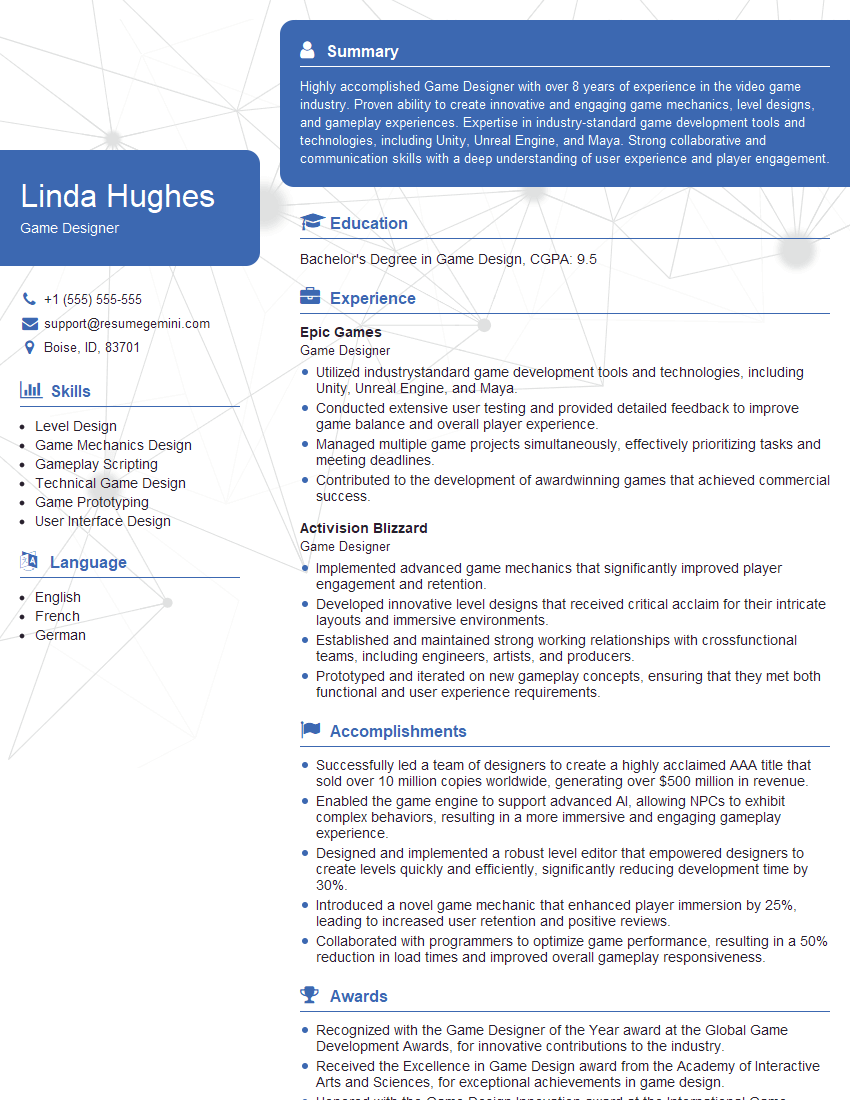
Game Designer Resume Sample
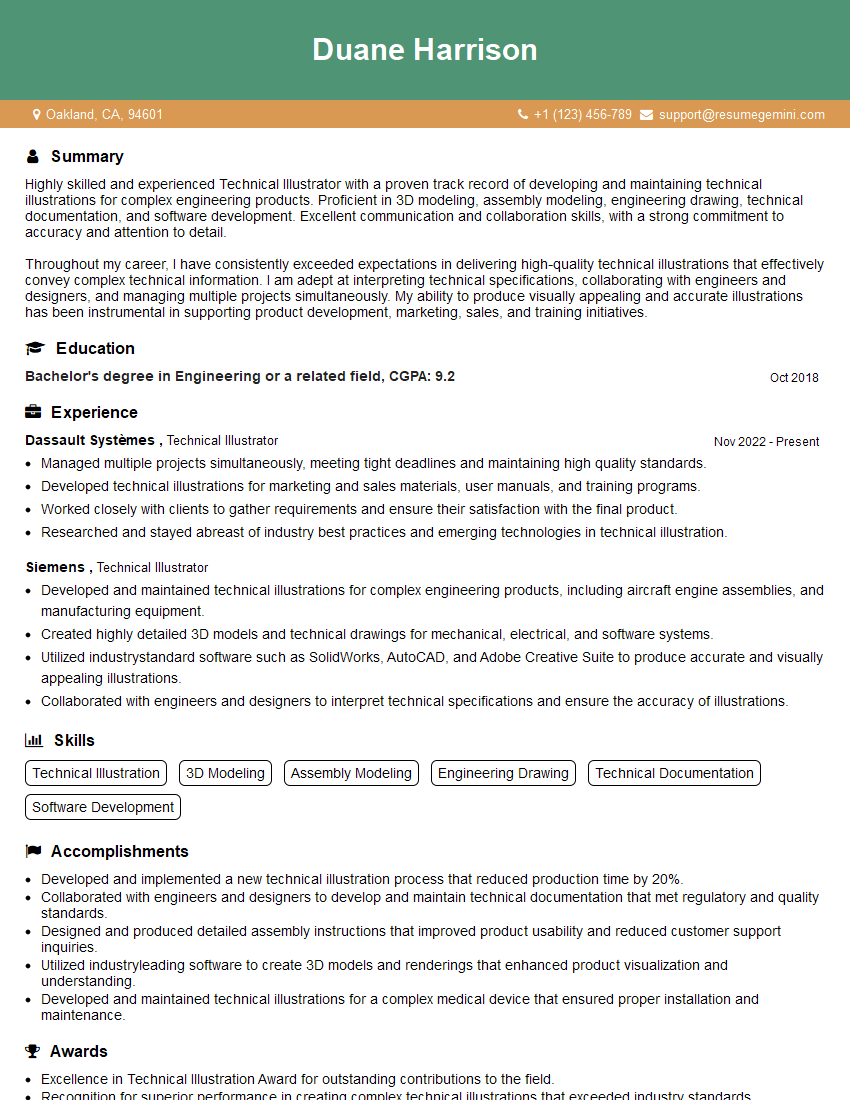
Technical Illustrator Resume Sample

Graphic Designer Resume Sample
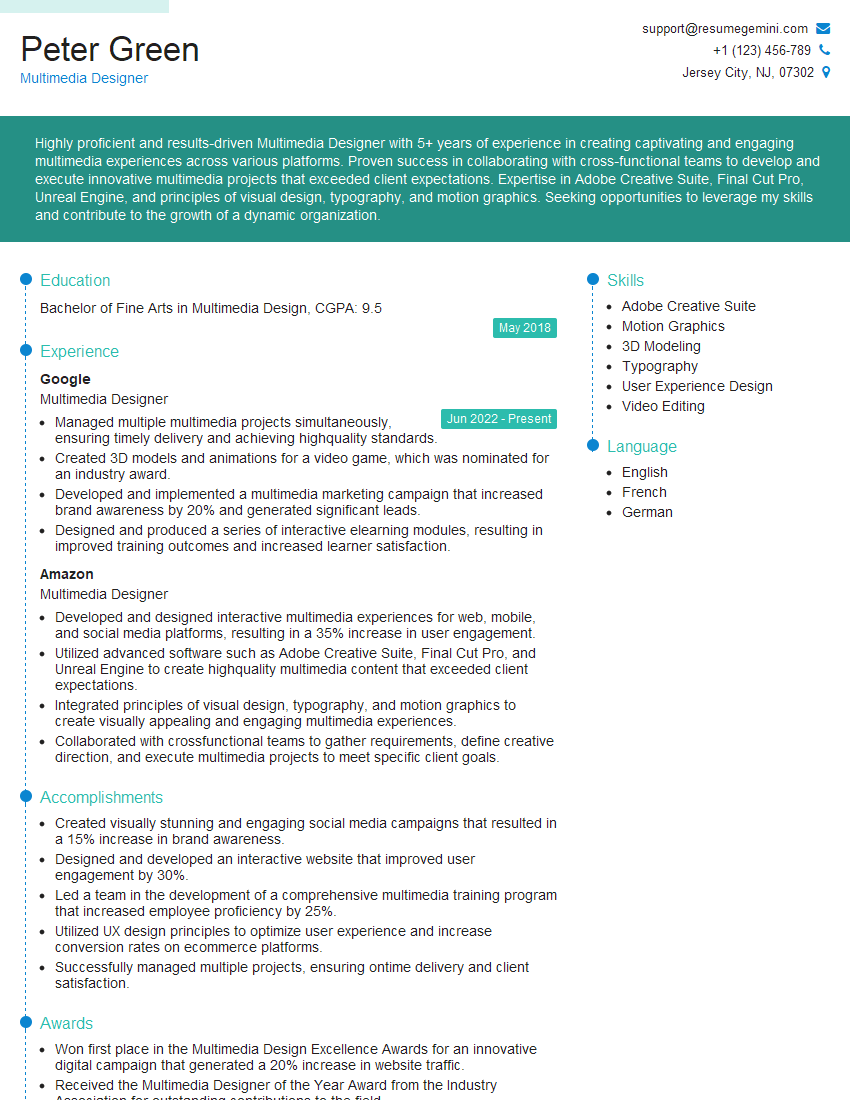
Multimedia Designer Resume Sample
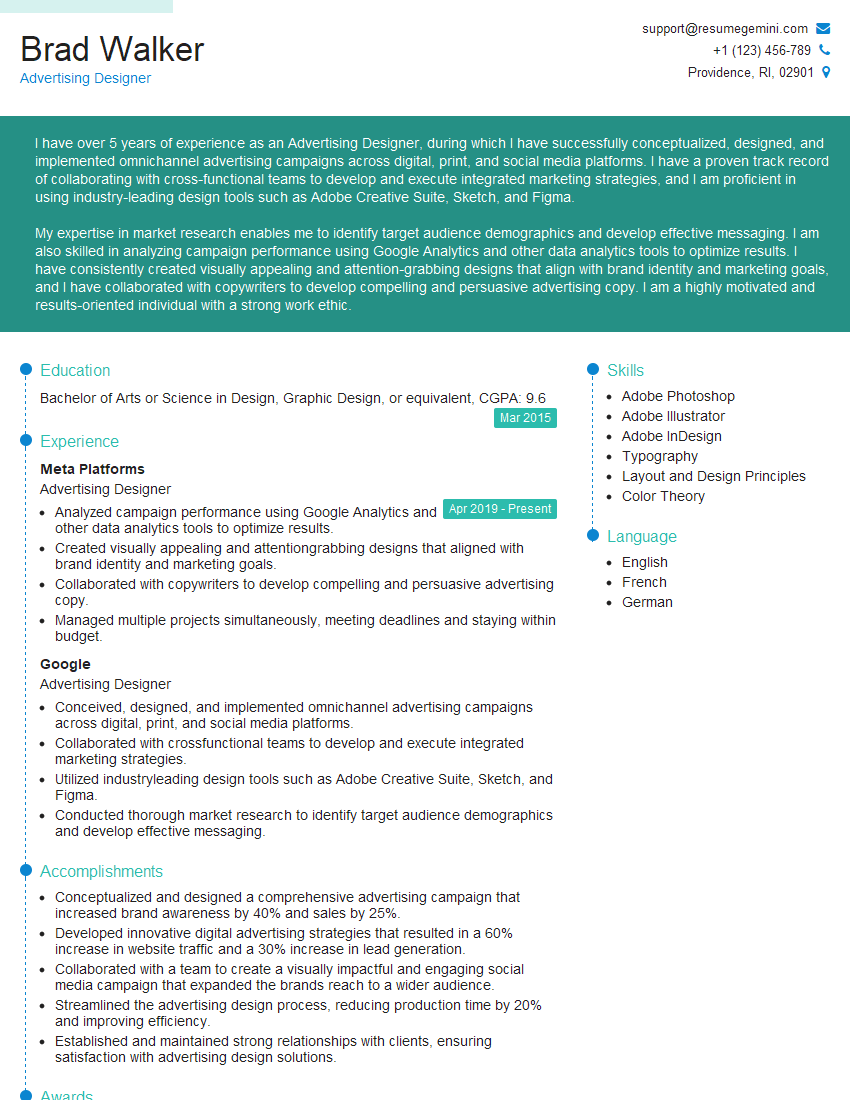
Advertising Designer Resume Sample
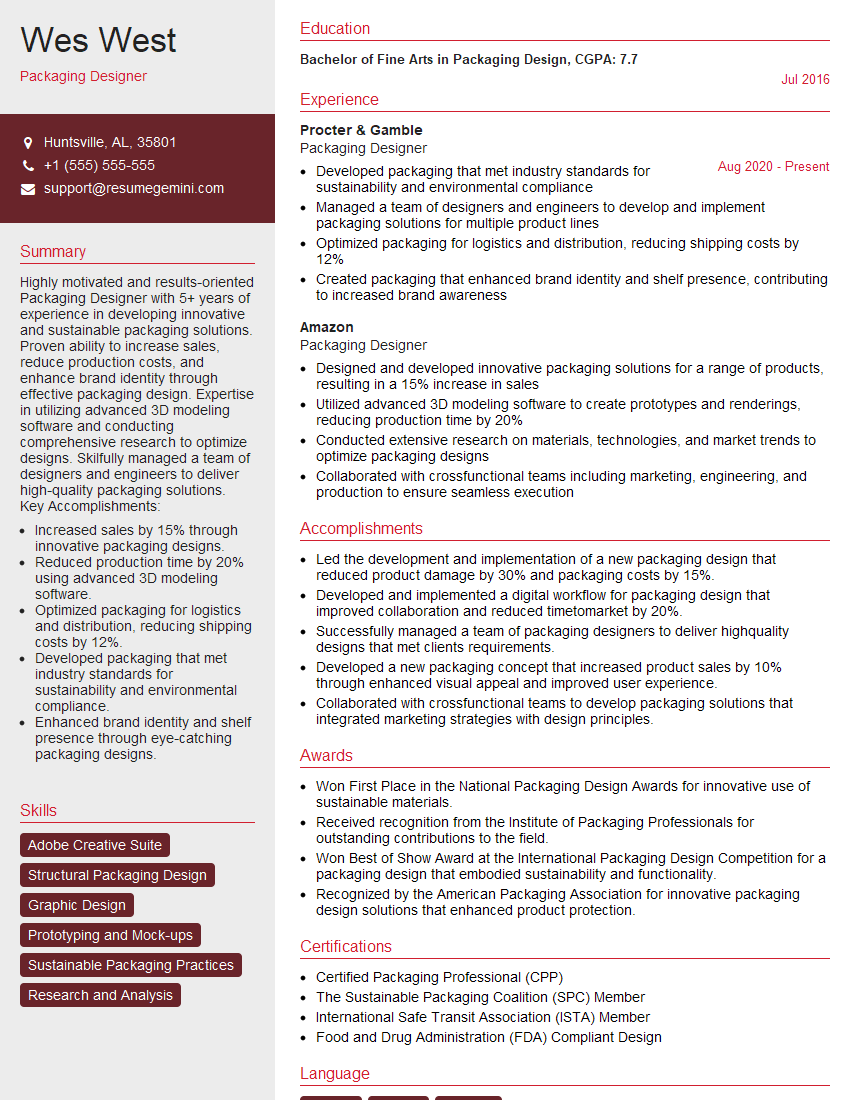
Packaging Designer Resume Sample
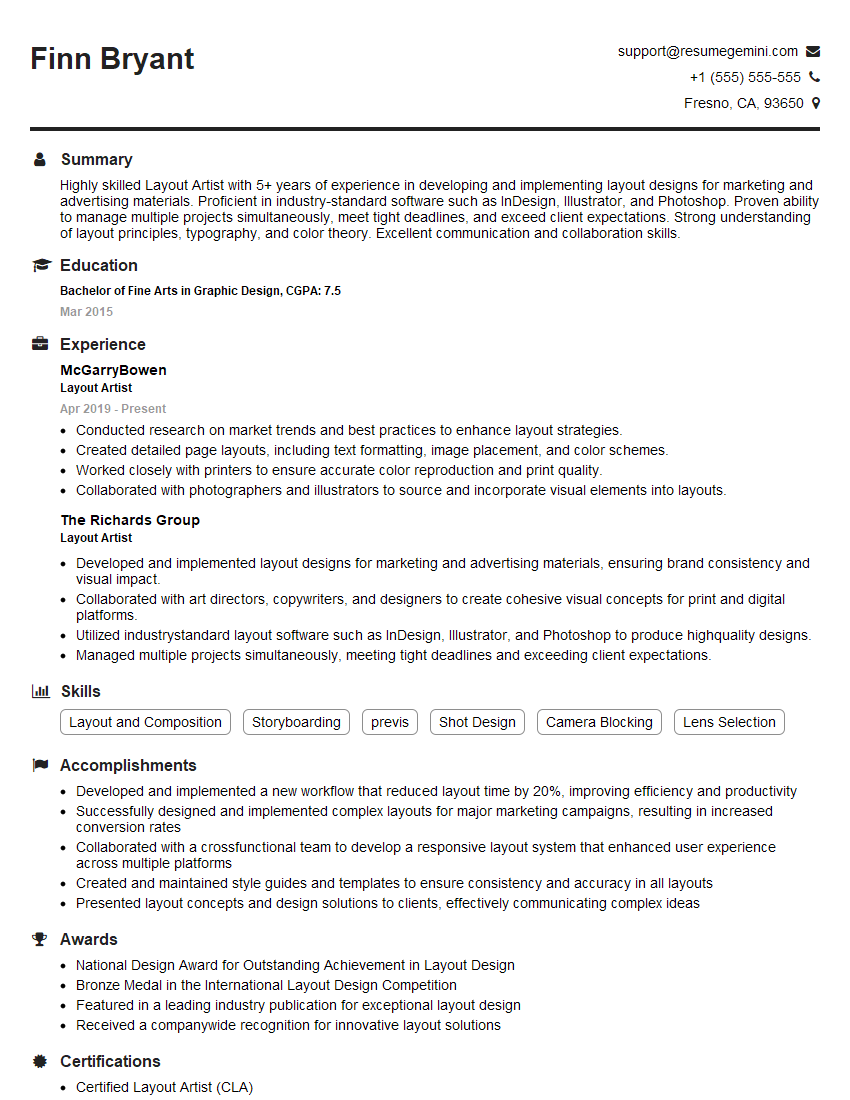
Layout Artist Resume Sample
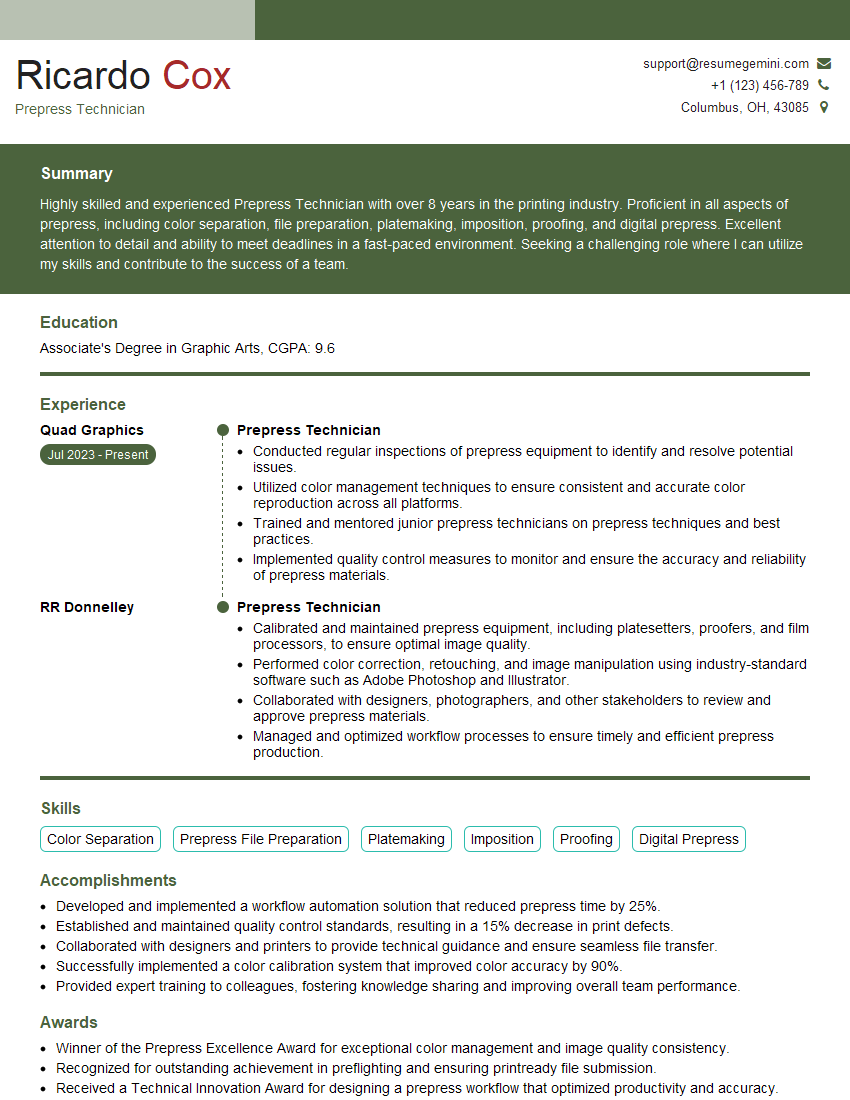
Prepress Technician Resume Sample
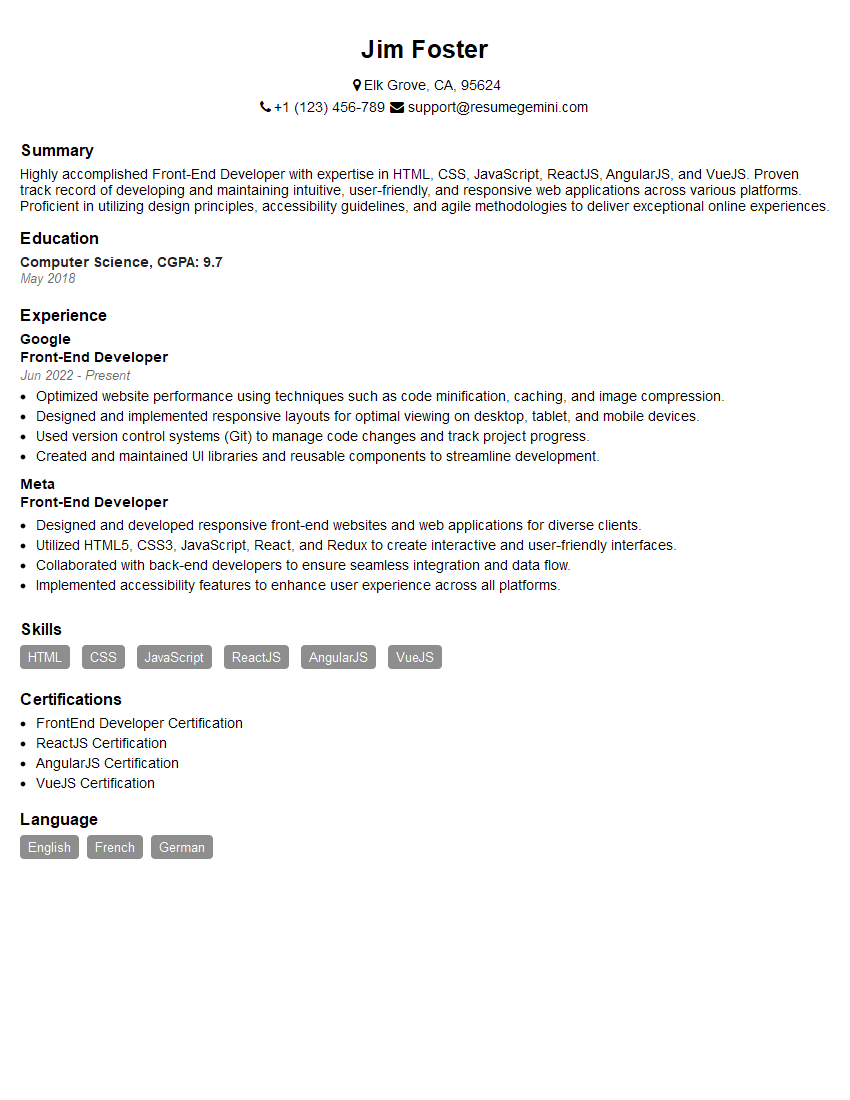
Front-End Developer Resume Sample
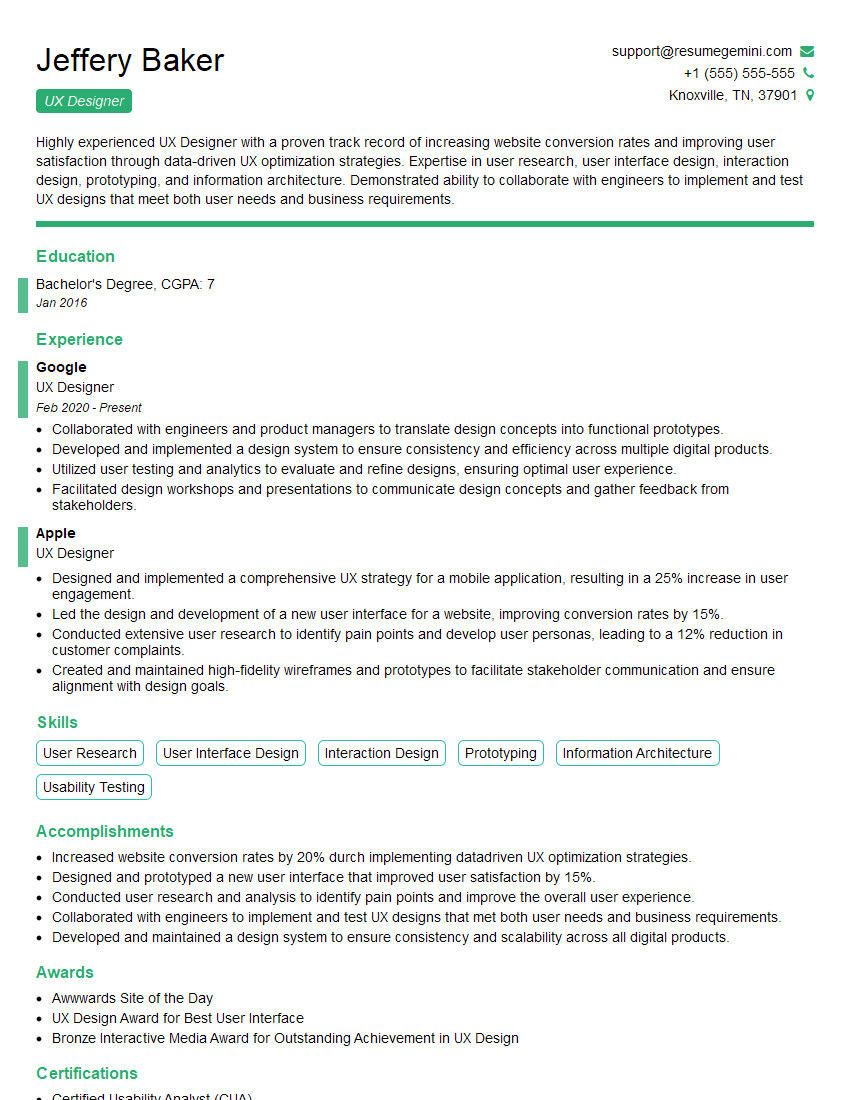
UX Designer Resume Sample
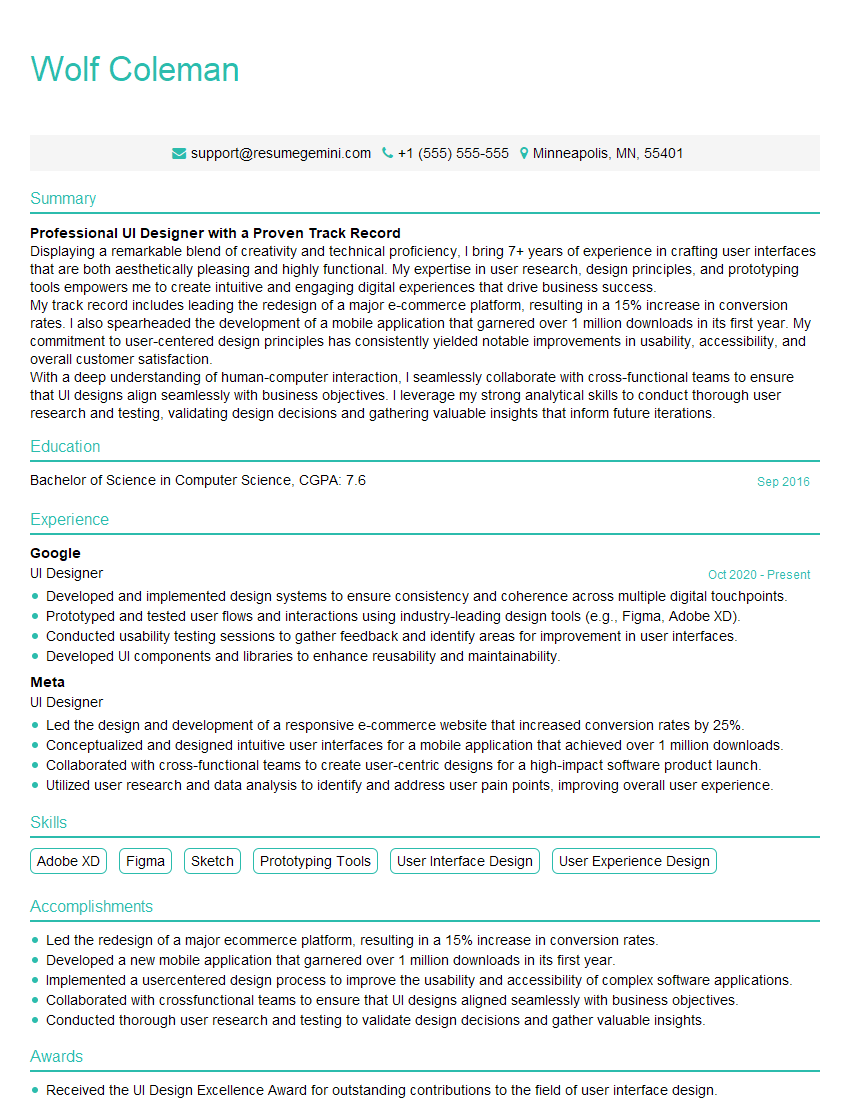
UI Designer Resume Sample
Explore more articles
Users Rating of Our Blogs
Share Your Experience
We value your feedback! Please rate our content and share your thoughts (optional).
What Readers Say About Our Blog
Attention music lovers!
Wow, All the best Sax Summer music !!!
Spotify: https://open.spotify.com/artist/6ShcdIT7rPVVaFEpgZQbUk
Apple Music: https://music.apple.com/fr/artist/jimmy-sax-black/1530501936
YouTube: https://music.youtube.com/browse/VLOLAK5uy_noClmC7abM6YpZsnySxRqt3LoalPf88No
Other Platforms and Free Downloads : https://fanlink.tv/jimmysaxblack
on google : https://www.google.com/search?q=22+AND+22+AND+22
on ChatGPT : https://chat.openai.com?q=who20jlJimmy20Black20Sax20Producer
Get back into the groove with Jimmy sax Black
Best regards,
Jimmy sax Black
www.jimmysaxblack.com
Hi I am a troller at The aquatic interview center and I suddenly went so fast in Roblox and it was gone when I reset.
Hi,
Business owners spend hours every week worrying about their website—or avoiding it because it feels overwhelming.
We’d like to take that off your plate:
$69/month. Everything handled.
Our team will:
Design a custom website—or completely overhaul your current one
Take care of hosting as an option
Handle edits and improvements—up to 60 minutes of work included every month
No setup fees, no annual commitments. Just a site that makes a strong first impression.
Find out if it’s right for you:
https://websolutionsgenius.com/awardwinningwebsites
Hello,
we currently offer a complimentary backlink and URL indexing test for search engine optimization professionals.
You can get complimentary indexing credits to test how link discovery works in practice.
No credit card is required and there is no recurring fee.
You can find details here:
https://wikipedia-backlinks.com/indexing/
Regards
NICE RESPONSE TO Q & A
hi
The aim of this message is regarding an unclaimed deposit of a deceased nationale that bears the same name as you. You are not relate to him as there are millions of people answering the names across around the world. But i will use my position to influence the release of the deposit to you for our mutual benefit.
Respond for full details and how to claim the deposit. This is 100% risk free. Send hello to my email id: lukachachibaialuka@gmail.com
Luka Chachibaialuka
Hey interviewgemini.com, just wanted to follow up on my last email.
We just launched Call the Monster, an parenting app that lets you summon friendly ‘monsters’ kids actually listen to.
We’re also running a giveaway for everyone who downloads the app. Since it’s brand new, there aren’t many users yet, which means you’ve got a much better chance of winning some great prizes.
You can check it out here: https://bit.ly/callamonsterapp
Or follow us on Instagram: https://www.instagram.com/callamonsterapp
Thanks,
Ryan
CEO – Call the Monster App
Hey interviewgemini.com, I saw your website and love your approach.
I just want this to look like spam email, but want to share something important to you. We just launched Call the Monster, a parenting app that lets you summon friendly ‘monsters’ kids actually listen to.
Parents are loving it for calming chaos before bedtime. Thought you might want to try it: https://bit.ly/callamonsterapp or just follow our fun monster lore on Instagram: https://www.instagram.com/callamonsterapp
Thanks,
Ryan
CEO – Call A Monster APP
To the interviewgemini.com Owner.
Dear interviewgemini.com Webmaster!
Hi interviewgemini.com Webmaster!
Dear interviewgemini.com Webmaster!
excellent
Hello,
We found issues with your domain’s email setup that may be sending your messages to spam or blocking them completely. InboxShield Mini shows you how to fix it in minutes — no tech skills required.
Scan your domain now for details: https://inboxshield-mini.com/
— Adam @ InboxShield Mini
support@inboxshield-mini.com
Reply STOP to unsubscribe
Hi, are you owner of interviewgemini.com? What if I told you I could help you find extra time in your schedule, reconnect with leads you didn’t even realize you missed, and bring in more “I want to work with you” conversations, without increasing your ad spend or hiring a full-time employee?
All with a flexible, budget-friendly service that could easily pay for itself. Sounds good?
Would it be nice to jump on a quick 10-minute call so I can show you exactly how we make this work?
Best,
Hapei
Marketing Director
Hey, I know you’re the owner of interviewgemini.com. I’ll be quick.
Fundraising for your business is tough and time-consuming. We make it easier by guaranteeing two private investor meetings each month, for six months. No demos, no pitch events – just direct introductions to active investors matched to your startup.
If youR17;re raising, this could help you build real momentum. Want me to send more info?
Hi, I represent an SEO company that specialises in getting you AI citations and higher rankings on Google. I’d like to offer you a 100% free SEO audit for your website. Would you be interested?
Hi, I represent an SEO company that specialises in getting you AI citations and higher rankings on Google. I’d like to offer you a 100% free SEO audit for your website. Would you be interested?