Are you ready to stand out in your next interview? Understanding and preparing for Netmon interview questions is a game-changer. In this blog, we’ve compiled key questions and expert advice to help you showcase your skills with confidence and precision. Let’s get started on your journey to acing the interview.
Questions Asked in Netmon Interview
Q 1. Explain the purpose of Netmon.
Netmon, now largely superseded by Network Monitor 3.4, was a powerful network protocol analyzer from Microsoft. Its primary purpose was to capture and analyze network traffic, providing a detailed view of network communications at the packet level. Think of it like a microscope for your network, allowing you to inspect every detail of how data flows between devices. This deep dive into network activity is crucial for troubleshooting, performance analysis, and security investigations.
By examining the packets, you could pinpoint issues like dropped packets, slow responses, and even malicious activity. Netmon provided a graphical representation of this data, making complex network problems easier to understand. While its modern counterpart, Microsoft Message Analyzer, provides enhanced capabilities, understanding the fundamentals of Netmon remains valuable in comprehending network analysis techniques.
Q 2. Describe the different capture filters available in Netmon.
Netmon offered a range of capture filters, allowing you to focus on specific types of network traffic. These filters acted like sieves, letting only relevant data through. This prevented overwhelming the analysis with irrelevant information, especially in busy network environments. Some common filter types included:
- Protocol Filters: These allowed you to capture only traffic using specific protocols, such as TCP, UDP, or ICMP. For example, filtering for
tcp.port == 80would only capture HTTP traffic. - Address Filters: These enabled capturing traffic to or from specific IP addresses or subnets. For example, you could filter for traffic involving a particular server’s IP address to isolate its network activity.
- Keyword Filters: These filters could identify packets containing particular strings within their payload. Though less common for network analysis, it could be helpful for specific security investigations.
- Combination Filters: Netmon also allowed for combining multiple filter types to narrow down the captured data even further. This granular control provided maximum flexibility.
Properly utilizing these filters was critical for effective troubleshooting. Imagine investigating a slow application – filtering for the application’s port would significantly reduce the noise in your capture, making it much easier to find the root cause.
Q 3. How do you use Netmon to troubleshoot network connectivity issues?
Troubleshooting network connectivity issues with Netmon involved a systematic approach:
- Identify the problem: Clearly define the issue – is it slow response times, intermittent connectivity, or complete outage?
- Capture the traffic: Use Netmon to capture packets from relevant network segments, using appropriate filters. If you suspect a problem between two machines, capture on the switch connecting them.
- Analyze the capture: Examine the captured packets. Look for signs of dropped packets, high latency, incorrect routing, or other anomalies. Pay attention to timestamps to identify patterns.
- Interpret the results: Based on your analysis, pinpoint the source of the problem. This might involve looking at TCP flags, DNS resolution, or other protocol-specific details.
- Verify the solution: After implementing a fix, use Netmon to recapture traffic and ensure that the issue is resolved.
For instance, if a client can’t reach a server, you could filter for traffic to the server’s IP address and port. If you see many dropped packets, it indicates a connectivity issue.
Q 4. What are the key performance indicators (KPIs) you would monitor using Netmon?
Key performance indicators (KPIs) monitored using Netmon often focused on aspects of network traffic. Some essential KPIs include:
- Packet Loss: The percentage of packets that fail to reach their destination. High packet loss directly impacts application performance and reliability.
- Latency: The delay between sending and receiving a packet. High latency leads to slow responses and sluggish applications.
- Bandwidth Utilization: The percentage of available bandwidth being used. High utilization can indicate a bottleneck, while extremely low utilization might suggest under-provisioning.
- Throughput: The amount of data transmitted per unit of time. This reflects the overall data transfer rate.
- Re-transmissions: The number of times packets need to be resent due to errors. High retransmission rates show network unreliability.
By tracking these KPIs over time, you could identify trends and proactively address potential network performance issues. For instance, consistently high packet loss on a particular link would warrant an investigation of the physical cable or network device.
Q 5. Explain how to capture specific types of network traffic using Netmon.
Netmon allowed capturing specific traffic types primarily through its filter capabilities. To capture only HTTP traffic, for example, you would apply a filter like tcp.port == 80. To capture DNS traffic, you’d filter for udp.port == 53. For more complex scenarios involving multiple conditions, you could combine these filters. For instance, to capture HTTP traffic only from a specific IP address, you’d use a combined filter like ip.src == 192.168.1.100 and tcp.port == 80.
Remember that these filters are applied during the capture process. Incorrect filters could lead to missing critical data, so careful planning is crucial before starting a capture. Understanding the protocols and ports involved in the traffic you wish to examine is fundamental to selecting the correct filters.
Q 6. How do you analyze network latency using Netmon?
Analyzing network latency with Netmon involved examining the time difference between packet transmission and reception. Netmon would display timestamps for each packet. By comparing the timestamps of sent and received packets, you could calculate the latency for individual packets or for the entire conversation. High latency could indicate a number of issues like network congestion, slow links, or high CPU utilization on involved network devices.
To easily visualize this, you could use Netmon’s display options to focus on the timestamps and sort the packets accordingly. This would highlight significant delays between transmission and receipt, pinpoint slow response times within applications, and even identify potential points of congestion or bottlenecks along the data path.
Q 7. How would you use Netmon to identify a network bottleneck?
Identifying network bottlenecks using Netmon required a combination of techniques. First, you’d capture network traffic, possibly using filters to focus on specific applications or devices. Then, you’d analyze the captured data, focusing on several indicators:
- High Latency: Consistent high latency across multiple packets could indicate a bottleneck at a particular point in the network.
- High Bandwidth Utilization: Observe the bandwidth utilization on different links and network segments. High utilization close to 100% strongly suggests a bottleneck.
- High Packet Loss: A high rate of packet loss could indicate that a network segment is overloaded or experiencing hardware failures.
- Slow Throughput: Low throughput despite high bandwidth utilization points to inefficient use of bandwidth, often due to congestion or resource limitations.
By analyzing these indicators in conjunction with network topology, you could pinpoint the bottleneck. For example, if you observe high latency and high bandwidth utilization on a specific network segment, you would investigate that segment for the cause – potentially a failing switch or link.
Q 8. Describe how to use Netmon to investigate a Denial of Service (DoS) attack.
Investigating a Denial of Service (DoS) attack with Netmon involves capturing network traffic during the attack and analyzing it to identify the source, type, and volume of malicious traffic. Think of Netmon as a high-speed camera recording everything happening on your network. We can then rewind and examine the footage to pinpoint the culprits.
Here’s a step-by-step approach:
- Start a Capture: Configure Netmon to capture traffic on the affected network segment. Consider using a display filter (discussed later) to focus on specific ports or protocols suspected to be involved.
- Identify Suspicious Traffic: Look for unusually high volumes of traffic from a single source IP address or a range of IP addresses. A DoS attack often manifests as a flood of packets targeting a specific server or service.
- Analyze Packet Details: Examine individual packets to understand the type of attack. For example, a SYN flood attack will show numerous SYN requests without corresponding SYN-ACK responses. A UDP flood will show many UDP packets directed at the victim.
- Correlate with Other Data: Combine Netmon data with logs from affected servers, firewalls, and intrusion detection systems for a holistic view of the attack. This helps establish the timeline and impact of the attack.
- Identify the Attack Vector: Determine how the attacker is exploiting vulnerabilities. Is it a simple flood, or is there application-layer exploitation involved?
- Generate Reports: Netmon allows exporting captured data in various formats for reporting and further analysis.
Example: If you see thousands of ICMP echo requests (ping floods) originating from a single IP address targeting a specific server during a network outage, it strongly suggests a Ping of Death or similar DoS attack.
Q 9. What are the limitations of Netmon?
While Netmon is a powerful tool, it does have limitations:
- Limited Scalability: Netmon can struggle with very high-bandwidth networks, potentially missing packets or slowing down the system during capture. Think of it as a high-quality camera, but it might struggle to keep up with a Formula 1 race.
- Lack of Advanced Features: Compared to more modern network monitoring tools, Netmon lacks advanced features like automated threat detection, real-time visualization dashboards, and sophisticated reporting capabilities. It’s a highly skilled technician’s tool.
- Windows-Only: Netmon is a Windows-based application, limiting its use in cross-platform environments.
- Resource Intensive: Capturing large volumes of network traffic can consume significant CPU and memory resources on the host machine.
- Steep Learning Curve: Netmon’s interface and functionality require a significant amount of training and experience to master.
Q 10. What are some alternative tools to Netmon and when would you choose them over Netmon?
Alternatives to Netmon include Wireshark (cross-platform, open-source, vastly more features), tcpdump (command-line, powerful, cross-platform), and Microsoft Message Analyzer (integrated into Windows, great for protocol analysis).
You might choose these alternatives over Netmon if:
- Cross-platform support is needed: Wireshark and tcpdump are ideal for non-Windows environments.
- Advanced features are required: Wireshark offers a far richer feature set for analyzing network traffic, including deep packet inspection, scripting capabilities, and extensive protocol support.
- Scalability is crucial: Modern tools often handle high-bandwidth networks more efficiently than Netmon.
- Real-time analysis is important: Some alternatives provide real-time visualizations and alerts, which Netmon lacks.
The choice ultimately depends on the specific requirements of the task and the user’s expertise.
Q 11. How do you interpret the results of a Netmon capture?
Interpreting Netmon results involves a systematic approach, combining visual analysis with a deep understanding of networking protocols. It’s like reading a complex story; each packet is a sentence, and together they tell the network’s narrative.
Here’s how you do it:
- Filter the Data: Use display filters to narrow down the results to specific protocols, IP addresses, or ports of interest.
- Examine Packet Details: Pay attention to key fields such as source and destination IP addresses, ports, protocol type, packet length, timestamps, and TCP flags.
- Look for Patterns and Anomalies: Identify unusual traffic patterns, such as high packet loss, retransmissions, or unusual packet sizes. These can indicate network issues or attacks.
- Correlate with Other Data: Integrate Netmon data with logs from other network devices or applications to understand the context of observed events.
- Use Statistical Analysis: Utilize Netmon’s built-in tools or external statistical packages to analyze large datasets and identify trends.
Example: Observing a high number of TCP retransmissions between two hosts indicates a potential network connectivity problem. Repeated timeouts suggest packet loss.
Q 12. Explain the different display filters in Netmon.
Netmon’s display filters are powerful tools for refining captured data and focusing on specific aspects of network traffic. They act like search filters, allowing you to quickly find the information you need within a massive dataset.
Some common examples include:
ip.addr == 192.168.1.100(Shows only packets from or to a specific IP address)tcp.port == 80(Shows only traffic on port 80, HTTP)tcp.flags == 0x12(Shows packets with a specific TCP flag combination, e.g., SYN+ACK)http.request.method == GET(Filters HTTP requests based on method)icmp(Shows only ICMP traffic)
You can combine multiple filters using logical operators (AND, OR, NOT) to create highly specific filters. For example, ip.addr == 192.168.1.100 and tcp.port == 80 will only show HTTP traffic to or from 192.168.1.100.
Q 13. How do you use Netmon to identify slow network connections?
Identifying slow network connections with Netmon involves analyzing packet round-trip times (RTTs) and looking for signs of congestion or delays. Think of it like a detective observing the timing of events to understand where delays occurred.
Here’s the process:
- Capture Traffic: Capture network traffic between the suspected slow devices.
- Analyze RTTs: Examine the time elapsed between sending a packet and receiving a response. High RTTs indicate slow connections.
- Look for Packet Loss: Identify instances where packets are not delivered. This usually results in retransmissions, lengthening the connection time.
- Examine Network Congestion: Investigate if there’s high network utilization during the slow periods, suggesting congestion.
- Check for Errors: Look for error codes in the packets indicating transmission problems or other network issues.
- Analyze Protocol Behavior: Examine details within specific protocols (e.g. TCP slow start, TCP retransmission timeouts) that would reveal slowdowns.
By examining these factors, you can pinpoint the cause of the slow network connections – whether it’s congestion, packet loss, device limitations, or other problems.
Q 14. Explain how to configure Netmon to capture specific protocols.
Netmon allows you to capture specific protocols by using display filters during the capture process. This helps reduce the size of the capture file and speeds up analysis by focusing only on relevant data.
During the capture setup, you can add a display filter. For example:
- To capture only HTTP traffic, use
http. - To capture only DNS traffic, use
dns. - To capture specific TCP ports, use
tcp.port == 80 or tcp.port == 443(captures ports 80 and 443). - To capture all traffic except for a specific protocol (e.g., ICMP), you can use
not icmp.
Once a capture starts, you can always apply additional filters using the Netmon UI, but filtering during capture is more efficient for resource management on busy networks.
Q 15. How do you use Netmon to troubleshoot DNS problems?
Troubleshooting DNS problems with Netmon involves capturing network traffic and analyzing DNS queries and responses. Think of it like listening in on a phone conversation between a computer and a DNS server. If the conversation isn’t going smoothly, Netmon shows you where it breaks down.
- Capture Traffic: Set up a Netmon capture on a machine involved in the DNS resolution process, focusing on UDP port 53 (DNS). You might need to capture on multiple machines depending on where the problem lies (client, server, or router).
- Analyze DNS Queries: Examine the DNS query packets. Look for invalid queries, malformed requests, or incorrect domain names. Netmon allows you to view the details of each DNS query, including the host name, query type (A, AAAA, MX, etc.), and the source and destination IP addresses.
- Analyze DNS Responses: Check the DNS response packets for errors. Common errors include NXDOMAIN (domain not found), SERVFAIL (server failure), or REFUSED. Netmon will clearly show the response code.
- Time Analysis: Look for excessively long response times. High latency can indicate a slow DNS server, network congestion, or DNS server overload.
- Example: If a user can’t reach ‘www.example.com’, you’d see a DNS query for ‘www.example.com’ from the client machine. If the response is NXDOMAIN, you know the domain doesn’t exist; if it’s SERVFAIL, the DNS server is having issues; if there’s a long delay, you suspect network or server issues.
Career Expert Tips:
- Ace those interviews! Prepare effectively by reviewing the Top 50 Most Common Interview Questions on ResumeGemini.
- Navigate your job search with confidence! Explore a wide range of Career Tips on ResumeGemini. Learn about common challenges and recommendations to overcome them.
- Craft the perfect resume! Master the Art of Resume Writing with ResumeGemini’s guide. Showcase your unique qualifications and achievements effectively.
- Don’t miss out on holiday savings! Build your dream resume with ResumeGemini’s ATS optimized templates.
Q 16. How would you use Netmon to detect malware?
Netmon can’t directly identify malware, but it can provide crucial clues by examining network traffic patterns associated with malicious activity. It’s like finding fingerprints at a crime scene – it doesn’t name the criminal, but it points to their presence.
- Suspicious Connections: Look for connections to known malicious IP addresses or domains. Netmon can help you identify connections to command and control (C&C) servers used by malware.
- Unusual Traffic Volumes: A sudden surge in outbound traffic to unknown destinations could indicate a malware infection attempting to exfiltrate data.
- Encrypted Traffic Analysis (with caveats): While the contents of encrypted traffic can’t be directly viewed, unusual volumes of encrypted traffic to unusual destinations might raise a red flag. Remember, this isn’t definitive proof.
- Protocol Analysis: Analyze the protocols used in communication. Some malware communicates using unusual or less common protocols.
- Correlation with other tools: Netmon data should be correlated with antivirus logs, endpoint detection and response (EDR) tools, and security information and event management (SIEM) systems for a complete picture.
- Example: Observing numerous outgoing connections to a known botnet C&C server on an unusual port would strongly suggest malware is present. But always remember to cross-reference with other security tools to confirm.
Q 17. Describe the process of using Netmon for network performance optimization.
Netmon aids network performance optimization by pinpointing bottlenecks and inefficiencies. It’s like a doctor using diagnostic tools to find the cause of a health problem.
- Identify Bottlenecks: Analyze packet loss, latency, and jitter. High packet loss signifies dropped packets, leading to slowdowns. High latency indicates delays in packet transmission. Jitter reflects inconsistent delays, which can affect real-time applications.
- Protocol Analysis: Examine the overhead associated with different protocols. Some protocols are more resource-intensive than others. Inefficient network protocols can create bottlenecks and consume excessive bandwidth. Netmon provides detailed information on the protocol used, which helps in identifying this.
- Bandwidth Utilization: Monitor the bandwidth usage of various applications and services. Identify applications consuming an excessive amount of bandwidth which might need optimization or throttling.
- Re-transmission Analysis: Analyze the frequency of packet retransmissions. High rates suggest problems with network connectivity or unreliable links.
- Example: If you observe high latency on certain network segments, it points towards congestion on that particular segment, perhaps requiring more bandwidth or network upgrades. High packet loss might indicate faulty network hardware or cabling requiring attention.
Q 18. How can you correlate Netmon data with other network monitoring tools?
Correlating Netmon data with other network monitoring tools provides a more comprehensive view of network health. It’s like having multiple doctors examining a patient from different perspectives.
- Performance Monitoring Tools: Integrate Netmon data with tools like Perfmon (Performance Monitor) to correlate network performance issues with CPU, memory, and disk usage. This helps identify if a server is struggling due to network load or internal resource limitations.
- Network Management Systems (NMS): Compare Netmon capture data with NMS information about network devices and topology. This helps pinpoint the exact location of a network problem.
- Security Information and Event Management (SIEM): Correlate Netmon’s network traffic analysis with security logs from firewalls, intrusion detection systems (IDS), and other security devices. This helps identify security incidents and their impact on network performance.
- Methods of Correlation: Use timestamps and IP addresses as common identifiers to link events across different tools. Many modern tools support automated correlation through APIs or log aggregation platforms.
- Example: If Netmon shows high latency on a particular link, and Perfmon reveals high CPU usage on a router on that link, you have correlated a network performance problem with a potential resource exhaustion on the router.
Q 19. How do you troubleshoot network authentication issues using Netmon?
Netmon is invaluable for troubleshooting network authentication issues by analyzing the authentication protocols in action. It’s like observing the security guards at the entrance to a building.
- Capture Authentication Traffic: Capture network traffic related to the authentication protocol used (e.g., Kerberos, NTLM, RADIUS, EAP). This usually involves specific ports and protocols.
- Examine Authentication Packets: Analyze the authentication packets for errors, invalid credentials, or protocol mismatches. Netmon allows you to decode these packets and review their content (though sensitive information may be obscured).
- Identify Authentication Failures: Look for authentication failure messages or error codes. This information will point to the reason for failure, such as incorrect usernames, passwords, or domain mismatches.
- Time Analysis: Note the time taken for authentication. Prolonged authentication times point towards network issues, server delays, or overloaded authentication servers.
- Example: If you see numerous Kerberos authentication failures, you can check the error codes provided in the Netmon capture to see if it is a password problem, ticket validity issue, or a problem with the Kerberos servers.
Q 20. Explain the use of Netmon in identifying rogue devices on a network.
Identifying rogue devices using Netmon relies on analyzing network traffic for devices that aren’t authorized to be on the network. It’s similar to identifying an uninvited guest at a party.
- MAC Address Filtering: Monitor for devices with MAC addresses not included in the network’s allowed MAC address list. This is a less reliable method given MAC address spoofing is relatively easy.
- Unknown Devices: Detect devices with unknown IP addresses or devices communicating on unusual ports or using unusual protocols.
- ARP Table Analysis: Examine the ARP table to identify devices not authorized to be on the network. This is especially useful in identifying rogue DHCP servers which may use ARP to direct traffic.
- Traffic Analysis: Observe network traffic patterns. Unusually high bandwidth usage from an unknown source might be indicative of a rogue device.
- Correlation with Network Inventory: Compare devices found in the Netmon capture with a known network inventory list. Any discrepancy may indicate a rogue device.
- Example: A new device with an unfamiliar MAC address continuously trying to access network resources, especially if it attempts to bypass security policies could be a sign of a rogue device.
Q 21. How would you use Netmon to investigate network security incidents?
Investigating network security incidents with Netmon involves capturing and analyzing network traffic to reconstruct the sequence of events. It’s like creating a timeline of a robbery using security footage.
- Capture Network Traffic: Capture traffic relevant to the time of the incident, usually focusing on affected systems or network segments.
- Analyze the Sequence of Events: Review the captured traffic to reconstruct the timeline of events, identifying the source and destination of malicious traffic, the protocols used, and the data transmitted.
- Identify Malicious Activities: Look for patterns indicative of malicious activity such as port scanning, unauthorized access attempts, data exfiltration, or denial-of-service attacks.
- Data Exfiltration Detection: Analyze traffic for unusual outbound connections transferring large volumes of data. Note: Encryption might obscure the data’s content.
- Protocol Analysis: Identify unauthorized use of specific protocols or ports. This can show attacks leveraging vulnerabilities or exploiting known weaknesses.
- Correlation with Other Logs: Correlate Netmon data with security logs, firewall logs, and IDS/IPS alerts to gain a holistic view of the incident.
- Example: A successful intrusion might be shown as a series of connections from an external IP address to an internal server, followed by data transfer over unusual ports.
Q 22. What are the different types of network topologies and how can Netmon assist in their troubleshooting?
Network topologies define how devices are interconnected. Common types include bus, star, ring, mesh, and tree. Netmon helps troubleshoot these by visualizing the data flow. For example, in a star topology (most common in LANs), if a device isn’t communicating, Netmon can pinpoint whether the problem lies with the device itself, the cable connecting to the central switch/hub, or the switch/hub itself. Analyzing captured packets reveals which devices are communicating and any errors or dropped packets.
- Bus Topology: Netmon can help identify signal attenuation issues along a single cable, as a failing connection would show up in a significant packet loss.
- Star Topology: Netmon excels here in identifying faulty connections between a switch and a client device or problems at the switch itself through dropped packets or error codes within the network traffic.
- Ring Topology: With a ring, Netmon assists in finding the break in the ring that prevents data from circulating. Examining packets reveals where the transmission fails.
- Mesh Topology: Netmon’s strength lies in the ability to diagnose issues in redundant paths. If one path is congested or down, Netmon will show which alternative paths are being used or if there’s a complete communication breakdown.
By examining the source and destination IP addresses and MAC addresses in the captured packets, Netmon effectively maps the communication paths and identifies bottlenecks or failures within any topology.
Q 23. Describe the process of capturing and analyzing network traffic with Netmon for a specific application.
Analyzing network traffic for a specific application with Netmon involves a multi-step process:
- Capture Setup: Identify the network interface where the application traffic flows. Use Netmon’s interface to specify the adapter and choose a capture filter (e.g., by port number or specific IP address) to focus on the relevant application traffic. This minimizes file size and simplifies analysis.
- Capture Execution: Start the capture, ensuring sufficient buffer size to avoid data loss. The application should be actively used during this period.
- Data Analysis: Once the capture is complete, open the .cap file in Netmon. Use filters to narrow down the traffic to the specific application. You can filter by protocol (e.g., TCP, UDP), port number, IP addresses, or keywords.
- Protocol Decoding: Netmon will decode the packets, providing details about the application’s communication. This includes identifying the protocol version, request/response sequences, errors, and timing information.
- Problem Identification: Analyze the decoded packets for clues about performance issues, errors, or security vulnerabilities. Look for things like retransmissions, timeouts, dropped packets, or unusual data patterns.
Example: To troubleshoot an application using port 8080, you would create a capture filter such as tcp.port == 8080. This ensures only traffic on port 8080 is captured, reducing analysis time.
Q 24. How do you handle large Netmon capture files?
Handling large Netmon capture files (.cap) requires strategies to manage storage and analysis efficiency:
- Filtering during Capture: The most effective method is to use capture filters to reduce the volume of captured data from the start, targeting specific traffic based on IP addresses, ports, or protocols. This drastically reduces file size.
- Selective Capture: Only capture data when a problem is suspected. Don’t capture for extended periods unnecessarily.
- Disk Space Management: Use external hard drives or network-attached storage (NAS) with adequate space for large captures.
- Data Reduction Tools: Explore tools to reduce the size of the .cap file by removing redundant or unnecessary data. Some third-party tools may offer such functionality.
- Analysis Tools: Use Netmon’s filtering and display options effectively. Focus analysis on specific time ranges or events rather than examining the entire capture at once. Use advanced display options to summarize data.
- Decomposition: Break down large captures into smaller, manageable segments focused on specific time periods or events for individual analysis. This helps to pinpoint problems more effectively.
Remember that efficient filtering during capture is the most impactful step for managing large Netmon capture files.
Q 25. Explain the differences between Netmon and Wireshark.
Netmon and Wireshark are both network protocol analyzers, but they have key differences:
- Platform: Netmon is a Microsoft product designed primarily for Windows networks, while Wireshark is a cross-platform open-source tool available for various operating systems (Windows, macOS, Linux).
- Integration: Netmon integrates more seamlessly with other Microsoft tools and technologies within a Windows environment. Wireshark offers broader compatibility with diverse systems and network technologies.
- Features: Both offer similar core functionalities (packet capture, decoding, filtering), but Wireshark generally provides a more extensive range of advanced features, including more comprehensive protocol support and plugin extensibility.
- Ease of Use: Netmon’s interface is sometimes considered less user-friendly for beginners than Wireshark’s.
- Cost: Wireshark is free and open-source, while Netmon is typically included with certain Microsoft products or requires licensing.
In essence, Netmon is a powerful tool within the Microsoft ecosystem, while Wireshark offers broader compatibility and more advanced features for a wider range of scenarios.
Q 26. How does Netmon integrate with other Microsoft tools?
Netmon integrates effectively with several other Microsoft tools, enhancing its capabilities for network troubleshooting and analysis:
- Performance Monitor: Combined use allows for correlation between network events (captured by Netmon) and system performance metrics (monitored by Performance Monitor). This helps pinpoint whether network issues are impacting overall system performance.
- Event Viewer: Event logs often provide context for network events captured by Netmon. Analyzing both simultaneously helps understand the root cause of network problems.
- Microsoft Message Analyzer (formerly Network Monitor 3.4): While Netmon is largely superseded, Message Analyzer offers more advanced capabilities and is the recommended Microsoft tool for network analysis.
- System Center Operations Manager (SCOM): SCOM can integrate with Netmon data to provide a centralized view of network health and performance across an enterprise network.
This integrated approach facilitates comprehensive network problem diagnosis, moving beyond network-centric views to the broader IT ecosystem.
Q 27. Describe a situation where using Netmon was crucial for solving a complex network issue.
I once encountered a situation where a critical business application experienced intermittent slowdowns. Initial troubleshooting pointed to potential server-side issues. However, after using Netmon to capture network traffic, we discovered that the slowdowns coincided with high latency spikes on a specific network link. Further investigation, using Netmon’s filtering capabilities, revealed that a specific type of multicast traffic was overwhelming this link during peak hours. By filtering this multicast traffic at the network layer (using a router), we eliminated the high latency spikes and resolved the application performance issue. Without Netmon’s detailed packet capture and filtering capabilities, pinpointing the root cause—the unexpected multicast traffic congestion—would have been significantly more challenging and time-consuming.
Key Topics to Learn for Netmon Interview
- Network Packet Capture and Analysis: Understand the fundamental principles of packet capture, filtering, and analysis using Netmon. Practice capturing different types of network traffic and identifying patterns.
- Protocol Decoding: Master the ability to decode various network protocols (TCP, UDP, HTTP, etc.) within Netmon. Focus on understanding the header information and its practical implications for troubleshooting.
- Network Troubleshooting with Netmon: Learn to use Netmon to diagnose network issues. Practice identifying common network problems such as latency, packet loss, and connectivity issues by analyzing captured packets.
- Performance Monitoring and Optimization: Explore how Netmon can be utilized for performance monitoring. Understand how to identify bottlenecks and optimize network performance based on captured data.
- Security Analysis using Netmon: Learn to identify potential security threats and vulnerabilities within network traffic using Netmon’s analysis capabilities. This includes detecting malicious activity and unauthorized access attempts.
- Netmon’s Filtering and Display Options: Become proficient in using Netmon’s advanced filtering and display options to efficiently analyze large amounts of network data. This includes understanding and utilizing various display filters and their effects.
- Reporting and Documentation: Learn to create effective reports and documentation based on Netmon’s analysis. This involves summarizing findings, providing recommendations, and communicating technical information clearly.
Next Steps
Mastering Netmon significantly enhances your skills in network troubleshooting, security analysis, and performance optimization, making you a highly valuable asset in today’s competitive job market. To maximize your chances of landing your dream Netmon-related role, it’s crucial to present your skills effectively. Building an ATS-friendly resume is paramount. We strongly recommend using ResumeGemini, a trusted resource, to craft a compelling and professional resume that highlights your Netmon expertise. Examples of resumes tailored to Netmon positions are available for your reference.

Security Analyst Resume Sample

Network Administrator Resume Sample
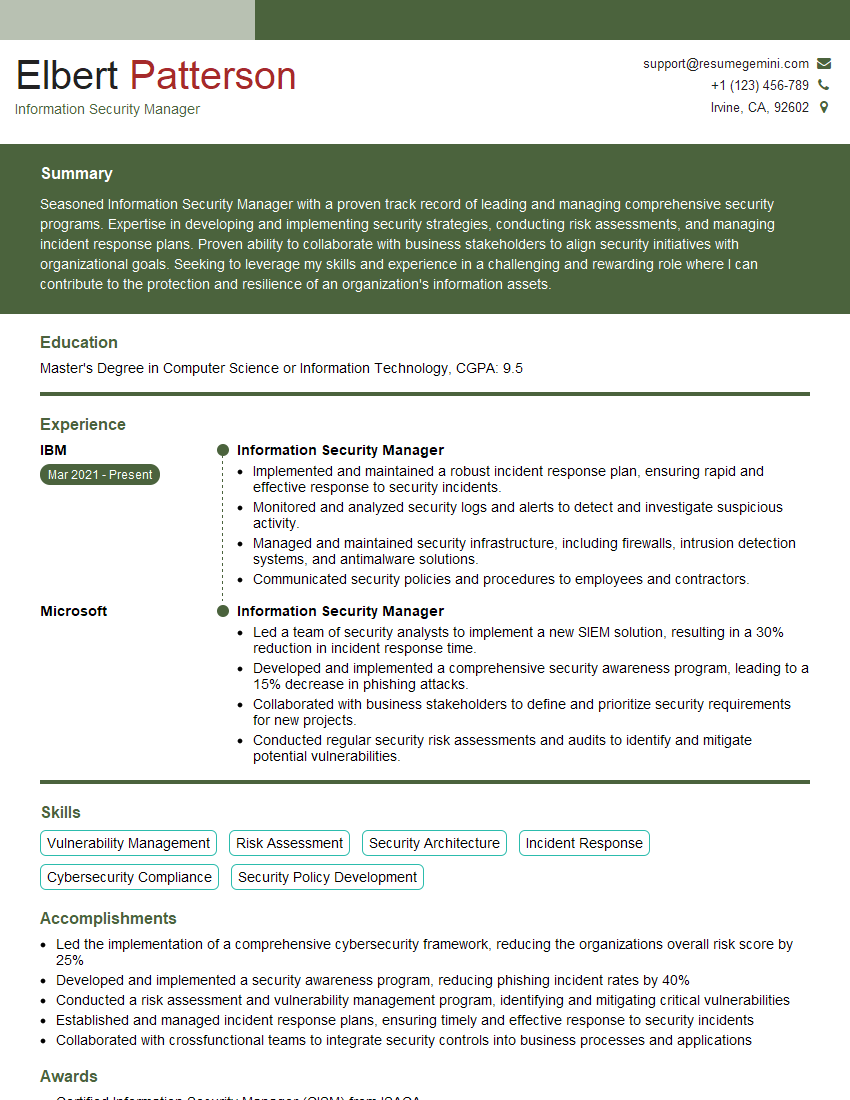
Information Security Manager Resume Sample
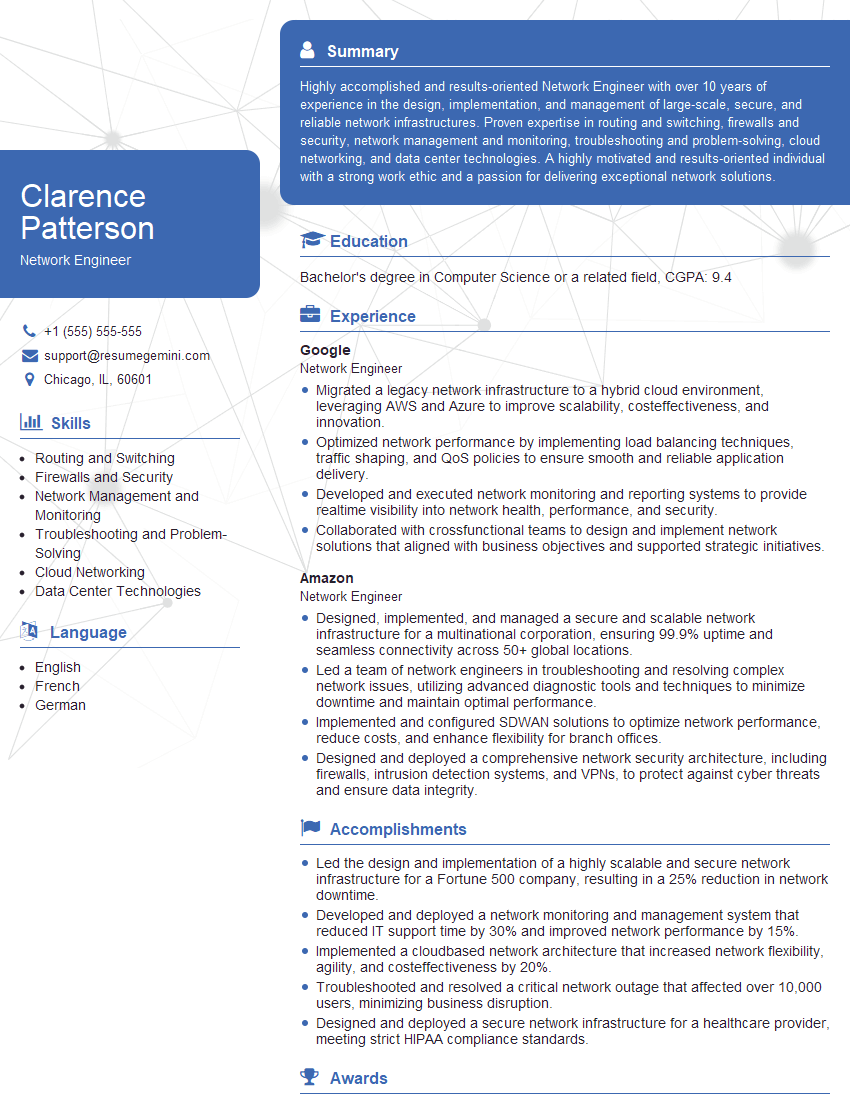
Network Engineer Resume Sample
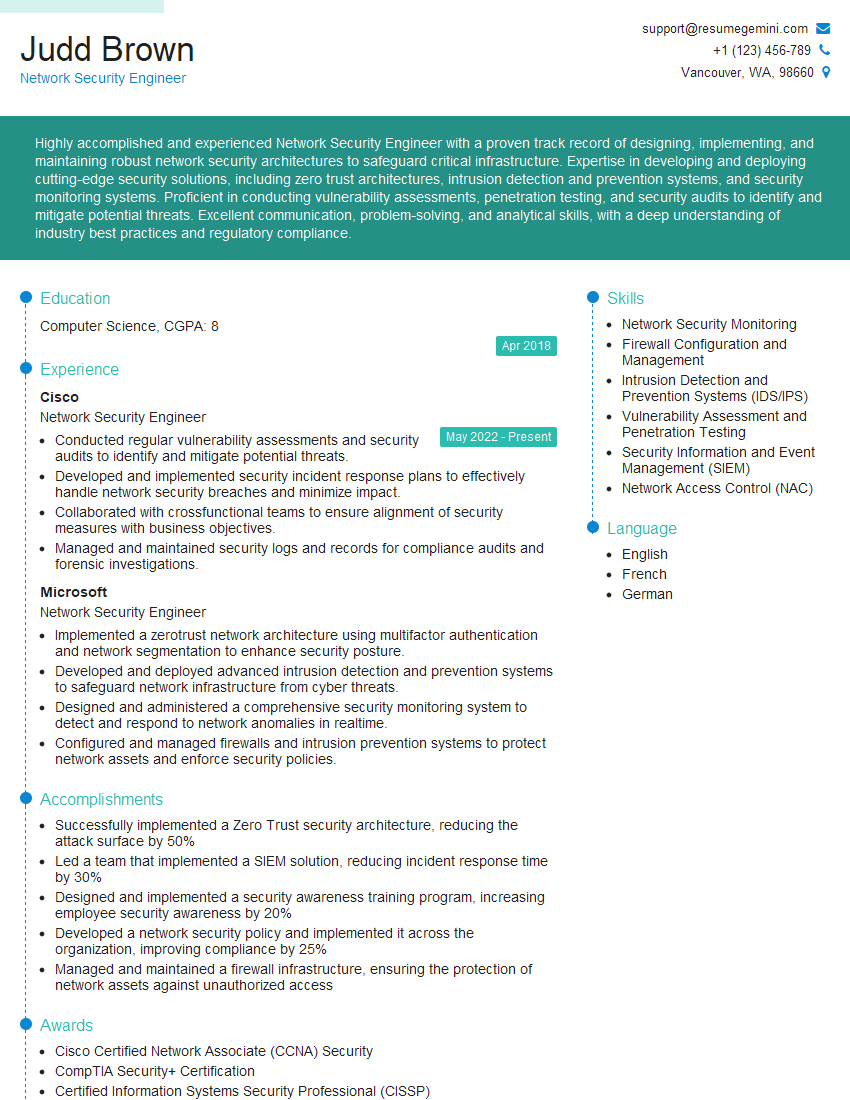
Network Security Engineer Resume Sample
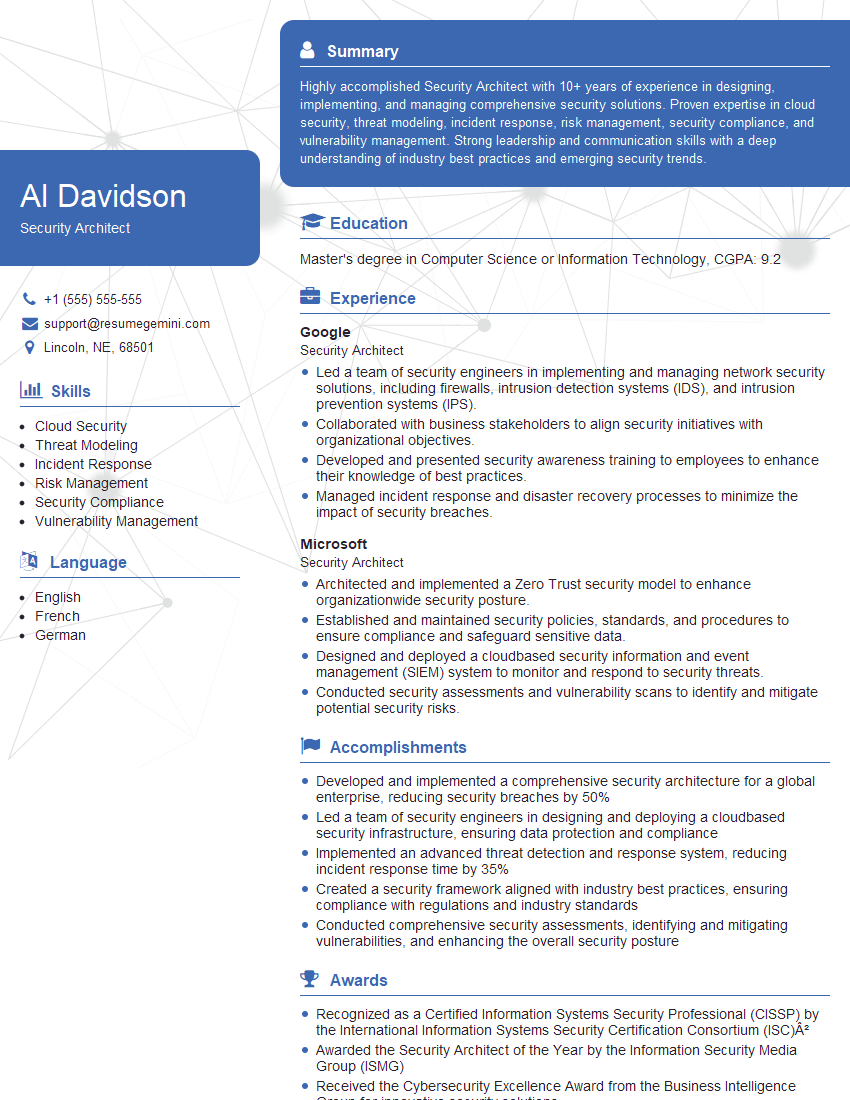
Security Architect Resume Sample
System Engineer Resume Sample
System Administrator Resume Sample
Network Technician Resume Sample
Network Architect Resume Sample
Network Operations Center Engineer Resume Sample
Help Desk Analyst Resume Sample

IT Manager Resume Sample
IT Support Specialist Resume Sample

DevOps Engineer Resume Sample

Cloud Engineer Resume Sample
- Security Analyst
- Network Administrator
- Information Security Manager
- Network Engineer
- Network Security Engineer
- Security Architect
- System Engineer
- System Administrator
- Network Technician
- Network Architect
- Network Operations Center Engineer
- Help Desk Analyst
- IT Manager
- IT Support Specialist
- DevOps Engineer
- Cloud Engineer
Explore more articles
Users Rating of Our Blogs
Share Your Experience
We value your feedback! Please rate our content and share your thoughts (optional).
What Readers Say About Our Blog
Hello,
we currently offer a complimentary backlink and URL indexing test for search engine optimization professionals.
You can get complimentary indexing credits to test how link discovery works in practice.
No credit card is required and there is no recurring fee.
You can find details here:
https://wikipedia-backlinks.com/indexing/
Regards
NICE RESPONSE TO Q & A
hi
The aim of this message is regarding an unclaimed deposit of a deceased nationale that bears the same name as you. You are not relate to him as there are millions of people answering the names across around the world. But i will use my position to influence the release of the deposit to you for our mutual benefit.
Respond for full details and how to claim the deposit. This is 100% risk free. Send hello to my email id: [email protected]
Luka Chachibaialuka
Hey interviewgemini.com, just wanted to follow up on my last email.
We just launched Call the Monster, an parenting app that lets you summon friendly ‘monsters’ kids actually listen to.
We’re also running a giveaway for everyone who downloads the app. Since it’s brand new, there aren’t many users yet, which means you’ve got a much better chance of winning some great prizes.
You can check it out here: https://bit.ly/callamonsterapp
Or follow us on Instagram: https://www.instagram.com/callamonsterapp
Thanks,
Ryan
CEO – Call the Monster App
Hey interviewgemini.com, I saw your website and love your approach.
I just want this to look like spam email, but want to share something important to you. We just launched Call the Monster, a parenting app that lets you summon friendly ‘monsters’ kids actually listen to.
Parents are loving it for calming chaos before bedtime. Thought you might want to try it: https://bit.ly/callamonsterapp or just follow our fun monster lore on Instagram: https://www.instagram.com/callamonsterapp
Thanks,
Ryan
CEO – Call A Monster APP
To the interviewgemini.com Owner.
Dear interviewgemini.com Webmaster!
Hi interviewgemini.com Webmaster!
Dear interviewgemini.com Webmaster!
excellent
Hello,
We found issues with your domain’s email setup that may be sending your messages to spam or blocking them completely. InboxShield Mini shows you how to fix it in minutes — no tech skills required.
Scan your domain now for details: https://inboxshield-mini.com/
— Adam @ InboxShield Mini
Reply STOP to unsubscribe
Hi, are you owner of interviewgemini.com? What if I told you I could help you find extra time in your schedule, reconnect with leads you didn’t even realize you missed, and bring in more “I want to work with you” conversations, without increasing your ad spend or hiring a full-time employee?
All with a flexible, budget-friendly service that could easily pay for itself. Sounds good?
Would it be nice to jump on a quick 10-minute call so I can show you exactly how we make this work?
Best,
Hapei
Marketing Director
Hey, I know you’re the owner of interviewgemini.com. I’ll be quick.
Fundraising for your business is tough and time-consuming. We make it easier by guaranteeing two private investor meetings each month, for six months. No demos, no pitch events – just direct introductions to active investors matched to your startup.
If youR17;re raising, this could help you build real momentum. Want me to send more info?
Hi, I represent an SEO company that specialises in getting you AI citations and higher rankings on Google. I’d like to offer you a 100% free SEO audit for your website. Would you be interested?
Hi, I represent an SEO company that specialises in getting you AI citations and higher rankings on Google. I’d like to offer you a 100% free SEO audit for your website. Would you be interested?
good