Every successful interview starts with knowing what to expect. In this blog, we’ll take you through the top Proficient in using version control systems such as Git interview questions, breaking them down with expert tips to help you deliver impactful answers. Step into your next interview fully prepared and ready to succeed.
Questions Asked in Proficient in using version control systems such as Git Interview
Q 1. Explain the difference between `git add`, `git commit`, and `git push`.
In Git, git add, git commit, and git push are three fundamental commands that work together to manage your project’s version history. Think of them as stages in a journey: you prepare your changes (add), record a snapshot (commit), and then share that snapshot with a remote repository (push).
git add: This command stages changes in your working directory. It prepares the changes you’ve made to your files for inclusion in your next commit. It’s like putting items in a shopping cart before you check out. You can add individual files (git add filename.txt), multiple files (git add *.txt), or all changes (git add .).git commit: This command creates a snapshot of your staged changes. It saves a permanent record of your work at that specific point in time. Think of it as checking out of the store with your shopping cart. A commit message (a description of the changes) is crucial for understanding the history later; for example,git commit -m "Added feature to calculate totals".git push: This command uploads your local commits to a remote repository (like GitHub, GitLab, or Bitbucket). This makes your changes available to collaborators or the wider world. It’s like delivering the items you purchased to your home; Typically, you’d use something likegit push origin mainto push your changes to the `main` branch on the `origin` remote.
Example: Imagine you’re building a website. You edit an HTML file (your working directory), then you stage the change (git add index.html), save the changes as a snapshot with a descriptive message (git commit -m "Updated website layout"), and then you share that snapshot with your team on GitHub (git push origin main).
Q 2. What is a Git repository?
A Git repository is a directory that contains all the files and directories of a project, along with a hidden subdirectory called .git. This .git directory stores the entire version history of the project – a complete record of every change made over time. Imagine it as a detailed time capsule for your project, tracking every modification, addition, and deletion. This allows for easy rollback, collaborative work, and transparent change management. It’s essentially the heart of your project’s version control.
Q 3. How do you create a new branch in Git?
Creating a new branch in Git is incredibly simple and is a core component of efficient workflow. Branches allow developers to work on new features or bug fixes in isolation without affecting the main codebase (typically the main or master branch). This helps keep your main code stable and prevents disruption from experimental changes.
The command to create a new branch is git checkout -b . This both creates the branch and switches to it. For example, git checkout -b feature/new-login creates a branch named feature/new-login and immediately places you within that branch. You can also create a branch and remain on the current branch using git branch , and subsequently switch to the new branch with git checkout .
Q 4. How do you switch between branches in Git?
Switching between branches in Git is straightforward. You use the git checkout command followed by the name of the branch you want to switch to. For instance, if you have branches named main and feature/new-login, you can switch to the feature/new-login branch using git checkout feature/new-login. This command updates your working directory to reflect the state of the selected branch, allowing you to work on that specific version of your project.
Important Note: Before switching, make sure to git add and git commit any changes on your current branch to avoid losing your work.
Q 5. How do you merge branches in Git?
Merging branches in Git combines the changes from one branch into another. This is usually done when you’ve finished working on a feature in a separate branch and are ready to integrate it into the main branch. The primary command is git merge . For example, git checkout main (switch to the main branch) and then git merge feature/new-login (merge feature/new-login into main). If there are no conflicts (explained below), Git will automatically integrate the changes.
Git offers different merge strategies, but the default is generally sufficient for most straightforward merges.
Q 6. What is a Git merge conflict, and how do you resolve it?
A Git merge conflict occurs when two or more branches have made changes to the same lines of the same file. Git can’t automatically determine which version to keep, so it flags the conflict and stops the merge process. Think of it like trying to merge two documents that have different content in the same paragraph. You need to manually decide which changes to keep, or how to combine them.
Resolving Conflicts: Git will mark conflicting sections in the file using special markers (<<<<<<<, =======, >>>>>>>). You need to manually edit the file, choosing which parts to keep, remove the conflict markers, and then git add the resolved file. Finally, git commit to finalize the merge.
Q 7. Explain the difference between `git merge` and `git rebase`.
Both git merge and git rebase integrate changes from one branch into another, but they differ in how they achieve this.
git merge: This command preserves the branch history. It creates a new merge commit that points to both the branches being merged. Think of it like adding a new page to a history book. It maintains a complete and chronological record of all changes.git rebase: This command rewrites the project history by moving the commits from one branch onto the tip of the target branch. This results in a cleaner, linear history, but it alters the commit history, which can be problematic in collaborative environments. Think of it like re-writing your history book to eliminate branching paths.
In summary: git merge is generally safer for collaborative work because it maintains the integrity of the project history. git rebase is useful for creating a cleaner history, but must be used carefully and with an understanding of potential risks and should generally be avoided unless working on a personal branch that has not been shared.
Q 8. What is a Git stash, and when would you use it?
A Git stash is like a temporary parking lot for your uncommitted changes. Imagine you're working on a feature, but you need to quickly switch to fix a bug. You don't want to commit your half-finished feature, but you also don't want to lose your progress. That's where git stash comes in. It saves your changes without committing them, allowing you to switch branches and then restore them later.
When to use it:
- Switching branches quickly without committing incomplete work.
- Cleaning up your working directory before pulling changes from a remote repository.
- Temporarily shelving changes to work on a higher-priority task.
Example: Let's say you're working on a new feature and have made several changes. You receive an urgent request to fix a critical bug on the main branch. You can use git stash push -u "Stashing changes for feature branch" to stash your changes with a descriptive message. Then you can switch to the main branch, fix the bug, commit and push your changes. After that, you can retrieve your stashed changes using git stash pop.
Q 9. How do you undo a commit in Git?
Undoing a commit in Git depends on whether you want to remove it from your local history or the shared repository. Let's explore both scenarios.
- Undoing a commit locally (still unpushed): If the commit hasn't been pushed to a remote repository, you can use
git reset --soft. This moves the HEAD pointer to the specified commit, making your changes uncommitted but still available in your staging area. You can then amend the last commit or create a new one. - Undoing a commit that's already been pushed: This is more delicate and requires more caution. One approach is to create a revert commit using
git revert. This creates a new commit that undoes the changes introduced by the original commit, preserving the history. This is generally the safer and preferred method. A more aggressive approach (use with caution!) is a force push (git push --force-with-lease origin) which rewrites the remote history - best avoided unless you understand the implications and are coordinating carefully with collaborators.
Example: Let's say you committed something accidentally with git reset --soft . To undo a pushed commit, use git revert .
Q 10. How do you view the commit history in Git?
You can view the commit history in Git using the git log command. This command displays a list of commits chronologically, showing the commit hash, author, date, and commit message. You can customize the output with various options.
git log --oneline: Shows a concise one-line summary of each commit.git log --graph: Visualizes the commit history as a graph, showing branching and merging.git log --author=: Filters the log to display commits made by a specific author.git log --pretty=format:"%h - %an, %ad : %s": Customizes the output format.
Example: To see a simple, one-line log, you would run git log --oneline. To view a graphical representation of the branch history use git log --graph --oneline --decorate --all
Q 11. What are Git tags, and how are they used?
Git tags are like bookmarks or labels for specific points in your repository's history. They're typically used to mark significant releases (e.g., v1.0, v2.0) or milestones in a project. They act as a reference point to easily find a particular commit.
How they are used:
- Marking releases: This allows you to easily identify the code associated with a particular release version.
- Identifying specific points: They can point to a critical bug fix or a feature implementation.
- Versioning software: Essential for managing and releasing software in a structured way.
Creating a tag: You create a tag using the git tag command, replacing
Example: To tag the current HEAD commit as version 1.0, you'd run git tag v1.0. To tag a specific commit a1b2c3d4... as release candidate 1, you'd use git tag rc1 a1b2c3d4...
Q 12. Explain the concept of a remote repository in Git.
A remote repository is a version of your Git project that's hosted on a server, such as GitHub, GitLab, or Bitbucket. It acts as a central hub for collaboration, allowing multiple developers to work on the same project simultaneously. Think of it like a shared drive where everyone has access to the same files but with powerful version control features.
Benefits:
- Collaboration: Multiple developers can contribute to the same codebase.
- Backup: Provides a secure backup of your project.
- Version history: Keeps track of all changes made to the project.
- Code review: Facilitates code review and collaboration processes.
Q 13. How do you clone a remote repository in Git?
Cloning a remote repository creates a local copy of the project on your computer. It's the first step in contributing to a project hosted online.
The command: You use the git clone command, where git clone https://github.com/username/repository.git).
Example: To clone a repository from GitHub, you'd run a command like git clone https://github.com/example/myproject.git. This downloads the entire repository history to your local machine.
Q 14. How do you push your changes to a remote repository?
Pushing your changes to a remote repository uploads your local commits to the server, making them available to other collaborators. Before pushing, ensure your local changes are committed and pushed.
The process:
- Commit your changes:
git add .(stages all changes),git commit -m "Your commit message"(commits the changes). - Push to the remote:
git push origin(pushes your changes to the remote repository named 'origin'). If you are working on a new branch, you will need to first push the branch itself withgit push --set-upstream originto link the local branch to the remote.
Example: To push changes to the 'main' branch on the 'origin' remote, you would execute git push origin main.
Q 15. How do you pull changes from a remote repository?
Pulling changes from a remote repository in Git is the process of syncing your local copy of a project with the latest updates on the remote server. Think of it like updating your local map with the latest road changes from a central navigation system.
The primary command is git pull. This command actually does two things under the hood: it first fetches the updates from the remote and then merges them into your current branch.
To pull changes from the origin remote repository into your current branch, you'd typically use:
git pull origin For example, to pull changes from the main branch on the origin remote, you would run:
git pull origin mainIf you omit the branch name, Git will pull changes into the branch you're currently on.
Career Expert Tips:
- Ace those interviews! Prepare effectively by reviewing the Top 50 Most Common Interview Questions on ResumeGemini.
- Navigate your job search with confidence! Explore a wide range of Career Tips on ResumeGemini. Learn about common challenges and recommendations to overcome them.
- Craft the perfect resume! Master the Art of Resume Writing with ResumeGemini's guide. Showcase your unique qualifications and achievements effectively.
- Don't miss out on holiday savings! Build your dream resume with ResumeGemini's ATS optimized templates.
Q 16. What is a Git pull request?
A Git pull request (often shortened to PR) is a mechanism for proposing changes to a shared codebase. It's essentially a formal request to merge your branch's commits into another branch, usually the main branch (like main or develop). Think of it as submitting a formal proposal for your work to be integrated into the main project.
Before merging, other developers can review your code, suggest improvements, and ensure that your changes integrate seamlessly without causing issues. This collaborative review process improves code quality and prevents bugs from making their way into the main project.
The process usually involves creating a branch for your work, committing your changes, pushing that branch to the remote repository, and then creating the pull request on the platform (like GitHub, GitLab, or Bitbucket). After the review and approval, the pull request is merged, integrating your code into the main branch.
Q 17. Describe the Git workflow you are most comfortable with.
I'm most comfortable with a Gitflow workflow. This workflow provides a structured approach to managing branches, particularly useful for larger projects with multiple developers. It utilizes distinct branches for development, releases, and hotfixes, minimizing the risk of conflicts and ensuring a stable main branch.
The core branches are:
main(ormaster): This branch contains the production-ready code.develop: This branch is the integration branch for features.
Feature branches are created from develop, developed independently, and then merged back into develop. Release branches are created from develop for preparing releases. Hotfix branches are created from main to address urgent production issues.
This structured approach offers excellent organization, clear separation of concerns, and a robust system for managing different aspects of the development lifecycle. It's particularly beneficial for projects requiring high stability and collaborative development.
Q 18. What is the purpose of `.gitignore`?
The .gitignore file is a crucial part of any Git project. It specifies files and directories that Git should ignore, preventing them from being tracked in the repository. This is vital for keeping your repository clean and efficient, avoiding the tracking of temporary files, build artifacts, and other unnecessary data.
Imagine trying to track every temporary file your text editor generates. .gitignore stops this clutter. Typical entries include:
*.log(ignore all log files)node_modules/(ignore the Node.js dependencies folder)target/(ignore build output)
The file is added to the root of your project. Once committed, the ignored files will not be included in the version control.
Q 19. How do you resolve a merge conflict using a merge tool?
Merge conflicts arise when two or more developers modify the same lines of code in a file. Git cannot automatically determine which version to keep, requiring manual intervention.
A merge tool (like Beyond Compare, Meld, or even the built-in tools of IDEs like VS Code or IntelliJ) helps to visualize and resolve these conflicts. The tool presents a comparison view, showing the conflicting changes from your branch and the branch you're merging into.
The process usually involves:
- Identifying the conflict: Git will mark the conflicting sections in the file.
- Opening the file with the merge tool: This will show the conflicting sections side-by-side.
- Resolving the conflict: Manually edit the file to select the correct changes, incorporating or removing portions as needed. This may involve combining, keeping one version, or writing entirely new code to resolve the conflict.
- Saving the file: This marks the conflict as resolved.
- Staging and committing: You stage the resolved file (
git add) and then commit the merge (git commit).
Merge tools greatly simplify the process, offering a visual interface for navigating and resolving conflicts much more efficiently than manually editing the conflicting sections.
Q 20. Explain the difference between `git fetch` and `git pull`.
Both git fetch and git pull interact with remote repositories, but they do so differently:
git fetch downloads the changes from a remote repository without integrating them into your local branches. It essentially updates your knowledge of what's on the remote, but doesn't modify your local work. It's like checking your email inbox—you see what's new, but don't open the emails yet.
git pull, on the other hand, fetches changes and then immediately merges them into your current branch. It's a combined operation of fetching and merging. It's like checking your email and then immediately opening and reading all the new messages.
In short: fetch downloads; pull downloads and merges.
Q 21. What is the significance of the HEAD pointer in Git?
The HEAD pointer in Git is a crucial reference that always points to your current branch's latest commit. Imagine it as a label that highlights your current position in the project's history.
When you create a new branch, HEAD switches to the new branch's latest commit. Every time you commit, HEAD moves to that new commit. This dynamic pointer allows Git to track your progress and maintain your working context. Understanding HEAD is fundamental to comprehending Git's branching model.
Commands like git checkout and git reset directly manipulate the HEAD pointer, making it a vital concept for advanced Git usage and understanding branching strategies.
Q 22. How do you delete a branch in Git?
Deleting a branch in Git is straightforward, but it's crucial to understand the implications before proceeding. You wouldn't want to accidentally delete a branch containing crucial work! The process involves two main steps: locally deleting the branch and then removing it from the remote repository.
Locally deleting the branch: This removes the branch from your local copy of the Git repository. The command is git branch -d . Replace git branch -d feature-x. If the branch has unmerged changes, Git will refuse to delete it; you'll need to either merge, stash, or reset the changes first. Use git branch -D (note the uppercase 'D') to force the deletion, but exercise extreme caution with this command.
Deleting the branch from the remote repository: This removes the branch from the central repository accessible to your team. The command is git push origin --delete or, alternatively, git push origin :. Both commands achieve the same result. Again, replace
Example Scenario: Imagine you completed a feature branch ('feature-x') and merged it into your main branch. After a thorough review and successful merge, you can safely delete the 'feature-x' branch locally using git branch -d feature-x and then remotely using git push origin --delete feature-x. This keeps your repository clean and organized.
Q 23. How do you find the difference between two commits in Git?
Finding the difference between two commits in Git is essential for understanding the changes introduced over time. The primary command for this is git diff . This command shows you the changes between
Example: Let's say you want to see the differences between commit a1b2c3d and e4f5g6h. You would use the command: git diff a1b2c3d..e4f5g6h. The output will highlight the additions, deletions, and modifications made between these two commits, providing a clear picture of the evolution of the code.
Using branch names: You can also use branch names instead of commit hashes. For instance, git diff main..feature-x shows the changes that are in the 'feature-x' branch but not in the 'main' branch. This is very useful when comparing a feature branch to the main codebase before merging.
Visualization tools: Many Git GUI clients (like SourceTree, GitKraken, or GitHub Desktop) offer visual representations of the differences between commits, making them easier to understand, especially for more complex changesets. These tools can be particularly helpful for large projects.
Q 24. How do you revert a commit in Git?
Reverting a commit in Git is crucial for correcting mistakes or undoing unwanted changes without altering the commit history in a disruptive way. There are two main approaches: using git revert and using git reset. Choosing the right approach depends on whether you want to preserve the commit history.
Using git revert (Recommended): This creates a *new* commit that undoes the changes introduced by the commit you want to revert. This preserves the complete history and is generally the preferred method, especially in collaborative environments. The command is: git revert . Replace
Using git reset (Use with Caution): This rewrites the commit history. This is generally avoided in shared repositories as it can cause problems for collaborators. It's mainly used for local cleanup. The command is git reset --hard (use with extreme caution!). This moves the HEAD pointer to the specified commit, effectively discarding all subsequent commits. It alters history and should only be used on local branches that haven't been shared.
Example: Let's say commit f00ba4 introduced a bug. To revert it safely and without disturbing the project history, the recommended approach is: git revert f00ba4. This will generate a new commit that undoes the changes in f00ba4, keeping the original commit in the history, but marked as reverted.
Q 25. What is cherry-picking in Git?
Cherry-picking in Git allows you to select specific commits from one branch and apply them to another. This is useful when you want to integrate only certain changes from a feature branch into the main branch without merging the entire branch. Imagine a scenario where a feature branch contains multiple commits, but only one or two fix critical bugs; cherry-picking lets you apply just those fixes without the rest of the changes in the feature branch.
The command is git cherry-pick . Replace
Example: Let's say you have a bug-fix commit c0ffee on a branch called 'bugfix-branch'. To apply this bug fix to your 'main' branch, you'd first checkout 'main' (git checkout main), then cherry-pick the commit: git cherry-pick c0ffee. This adds the changes from c0ffee to 'main' as a new commit, but it doesn't merge the entire 'bugfix-branch'.
Caution: While powerful, cherry-picking can complicate the history if overused, so use it judiciously, especially in shared projects. It can be confusing to others if they are trying to understand the project evolution.
Q 26. Explain the concept of Git hooks.
Git hooks are custom scripts that run automatically before or after specific Git events. They provide a powerful mechanism for automating tasks and enforcing workflows within your Git repository. They are local to each repository, meaning they don't need to be pushed or shared with other developers. They can be client-side (on the developer's machine) or server-side (on the remote server).
Types of Hooks: There are various types of hooks, each triggered by a different Git event. Examples include:
pre-commit: Runs before a commit is made. Useful for code style checks or running tests.pre-push: Runs before pushing to a remote repository. Can be used to verify that all tests pass before deployment.post-receive: Runs after a push to a remote repository. Could trigger a build or deployment process.
Example: A pre-commit hook could be configured to run a linter (like ESLint for JavaScript) to automatically check the code for style violations before allowing a commit. This ensures a consistent coding style throughout the project.
Implementing Hooks: Hooks are simple shell scripts or executables placed in the .git/hooks directory of your repository. Git provides example scripts that you can modify or replace with your own.
Q 27. How do you use Git to collaborate on a project with multiple developers?
Collaborating on a Git project with multiple developers requires a well-defined workflow and the use of features like branching, merging, and pull requests. A common approach is the Gitflow workflow or a simplified variation thereof.
Branching Strategy: Each developer typically works on a separate feature branch. This isolates their changes from the main development line, preventing conflicts until the feature is ready for integration.
Pull Requests (or Merge Requests): Once a feature is complete, a developer creates a pull request (or merge request, depending on the platform). This is a formal request to merge their feature branch into the main branch. Other team members review the code, provide feedback, and approve the merge.
Centralized Repository: A single central repository (often hosted on platforms like GitHub, GitLab, or Bitbucket) acts as the single source of truth. Developers clone the repository, create their feature branches, push their changes, and submit pull requests to merge their work.
Conflict Resolution: Conflicts may occur when multiple developers make changes to the same parts of the code. Git provides tools to identify and resolve these conflicts manually, either through a text editor or a GUI client.
Regular Integration: Developers should integrate their changes regularly to minimize the risk of large, difficult-to-merge conflicts. This can be achieved through frequent commits and pushing of changes to the feature branch.
Example workflow: Developer A works on 'feature-A' branch. Developer B works on 'feature-B'. They both work independently. Once 'feature-A' is finished, A creates a pull request to merge into 'main'. The pull request is reviewed and approved. Then the process repeats for 'feature-B'.
Q 28. Describe a situation where you had to resolve a complex Git issue. How did you approach it?
In a previous project, we encountered a complex Git issue involving a mistakenly deleted remote branch that contained crucial work. The branch had been deleted by a team member who didn't fully understand the consequences and hadn't backed up their work properly. The branch contained several days' worth of development, and it was crucial to recover it.
My approach involved several steps:
- Understanding the situation: I first investigated to confirm the branch had actually been deleted and if there were any local backups. I checked the remote repository's history to see if there was any trace of the branch.
- Checking for reflogs: I leveraged the Git reflog (
git reflog), which stores a history of all actions performed in the repository. This often contains information about deleted branches, even if they are no longer present in the main branch list. - Retrieving the branch: Using information from the reflog, I was able to identify the commit hash of the last commit on the deleted branch. I then created a new branch from this commit using
git checkout -b. This effectively recreated the deleted branch. - Verification: After recreating the branch, I carefully reviewed the code to ensure that nothing had been lost and everything was functional. I then communicated with the team about the recovery process and the importance of taking proper backups and understanding the Git commands used.
This situation highlighted the importance of understanding the potential impacts of Git commands and the value of regularly backing up important work and educating the team on best practices.
Key Topics to Learn for Proficient in using version control systems such as Git Interview
- Understanding Git Fundamentals: Grasp core concepts like repositories, branches, commits, and the staging area. Practice creating, cloning, and managing repositories.
- Branching and Merging Strategies: Learn effective branching strategies (e.g., Gitflow) and master merging techniques, including resolving merge conflicts. Understand the importance of feature branches and their lifecycle.
- Version Control Workflow: Become proficient in a typical Git workflow, including committing changes, pushing to remote repositories, pulling updates, and resolving conflicts collaboratively.
- Practical Application: Collaborative Development: Practice working on projects with others using Git, simulating real-world scenarios involving branching, merging, and conflict resolution. Understand the importance of clear commit messages and code reviews.
- Using Git Commands Effectively: Master essential Git commands for everyday use, including `add`, `commit`, `push`, `pull`, `branch`, `merge`, `checkout`, `rebase`, and `stash`. Practice using these commands in various scenarios.
- Advanced Git Concepts: Explore more advanced topics like rebasing, cherry-picking, and using Git hooks for automation. Understanding these concepts demonstrates a deeper understanding of Git's capabilities.
- Git and Collaborative Tools: Familiarize yourself with how Git integrates with popular collaborative platforms like GitHub, GitLab, or Bitbucket. Understand pull requests, code reviews, and issue tracking.
- Problem-Solving with Git: Prepare for common issues such as accidentally committing incorrect changes, dealing with merge conflicts, and recovering from mistakes. Learn how to use Git commands effectively for troubleshooting.
Next Steps
Mastering Git is crucial for any developer, significantly enhancing your collaboration skills and project management abilities. This directly translates to better career opportunities and higher earning potential. To boost your job prospects, create a resume that effectively showcases your Git proficiency and uses keywords recognized by Applicant Tracking Systems (ATS). ResumeGemini is a trusted resource to help you build a professional and ATS-friendly resume, highlighting your skills effectively. Examples of resumes tailored to showcase proficiency in using version control systems such as Git are available to help you get started.
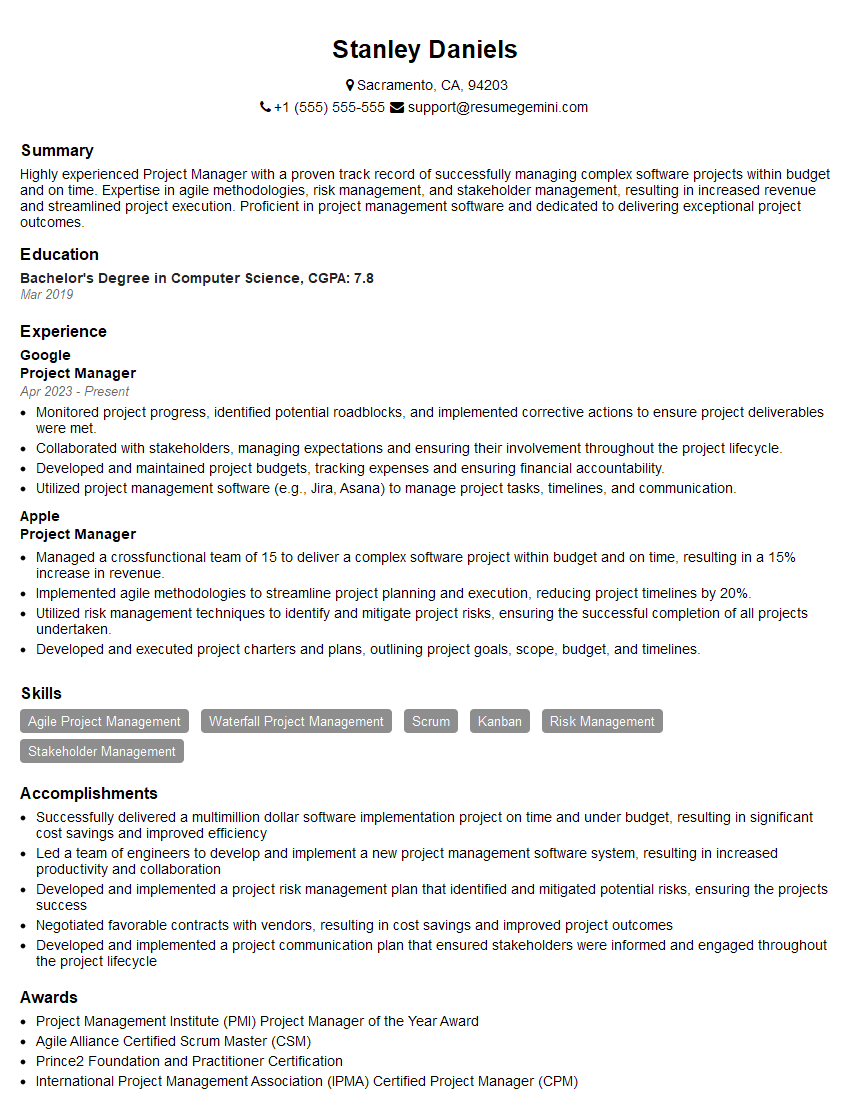
Project Manager Resume Sample
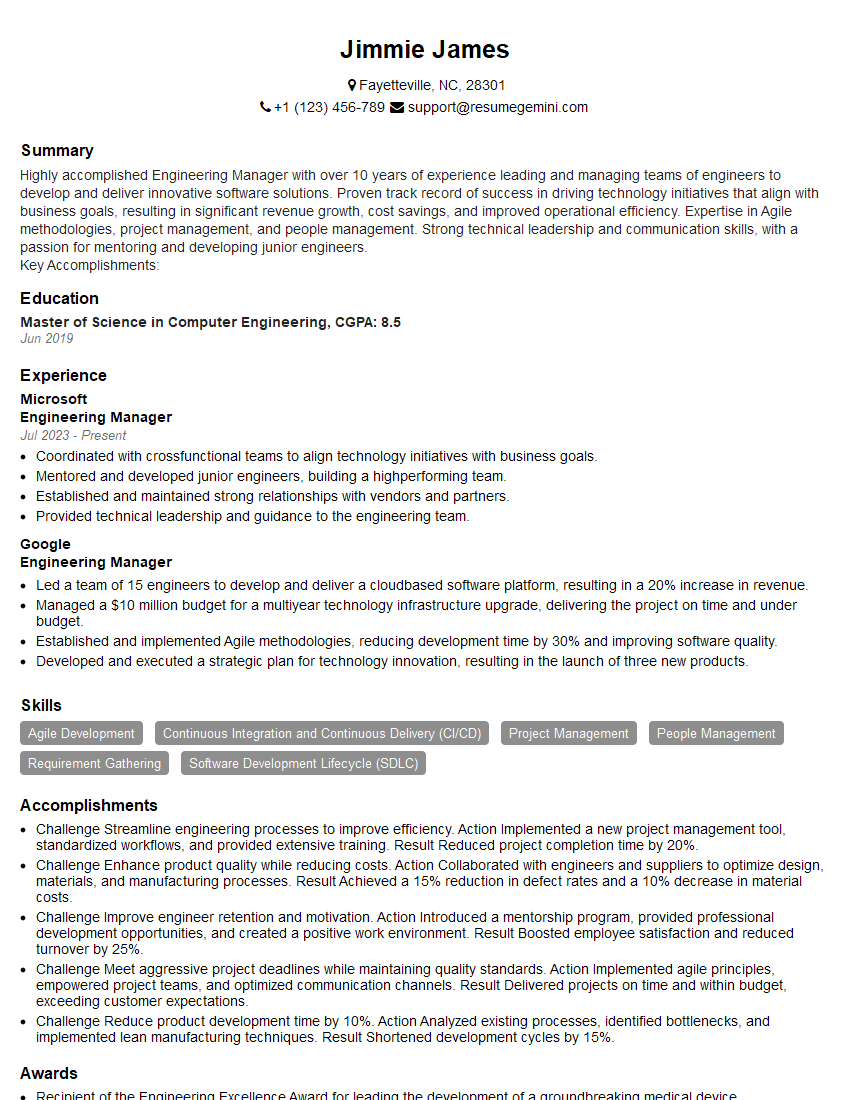
Engineering Manager Resume Sample
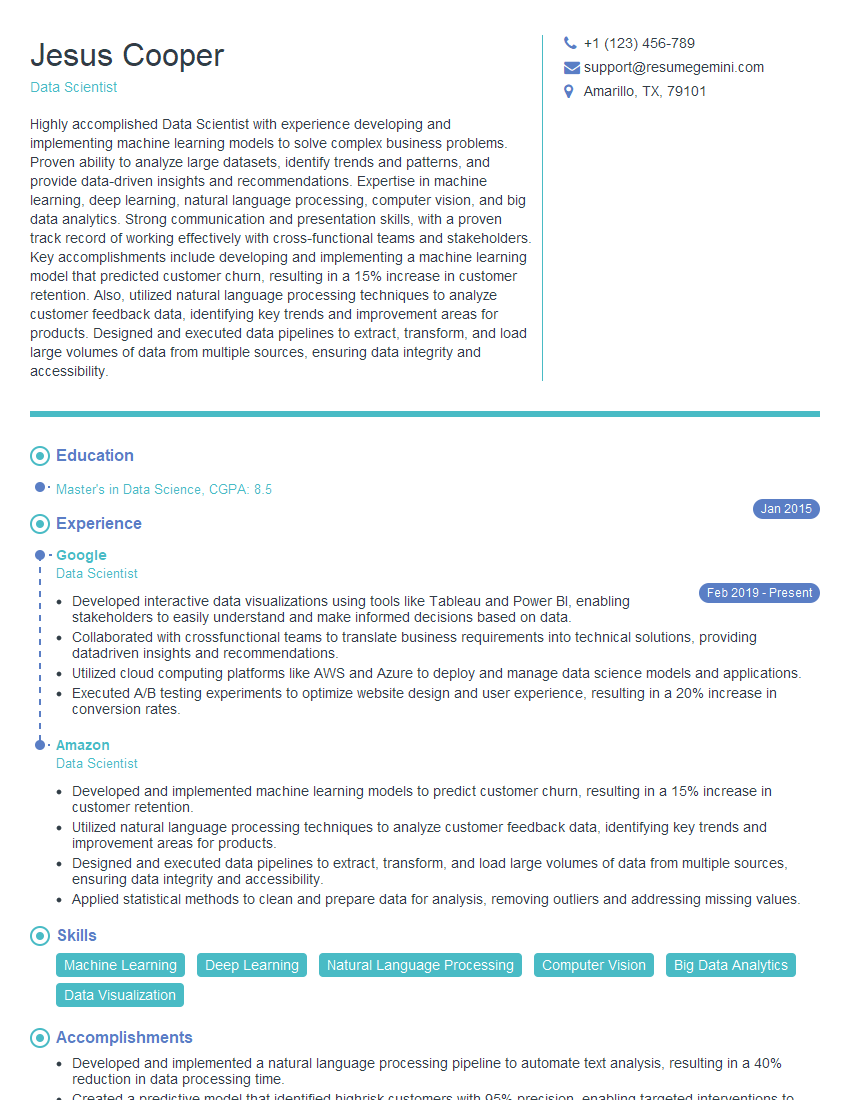
Data Scientist Resume Sample
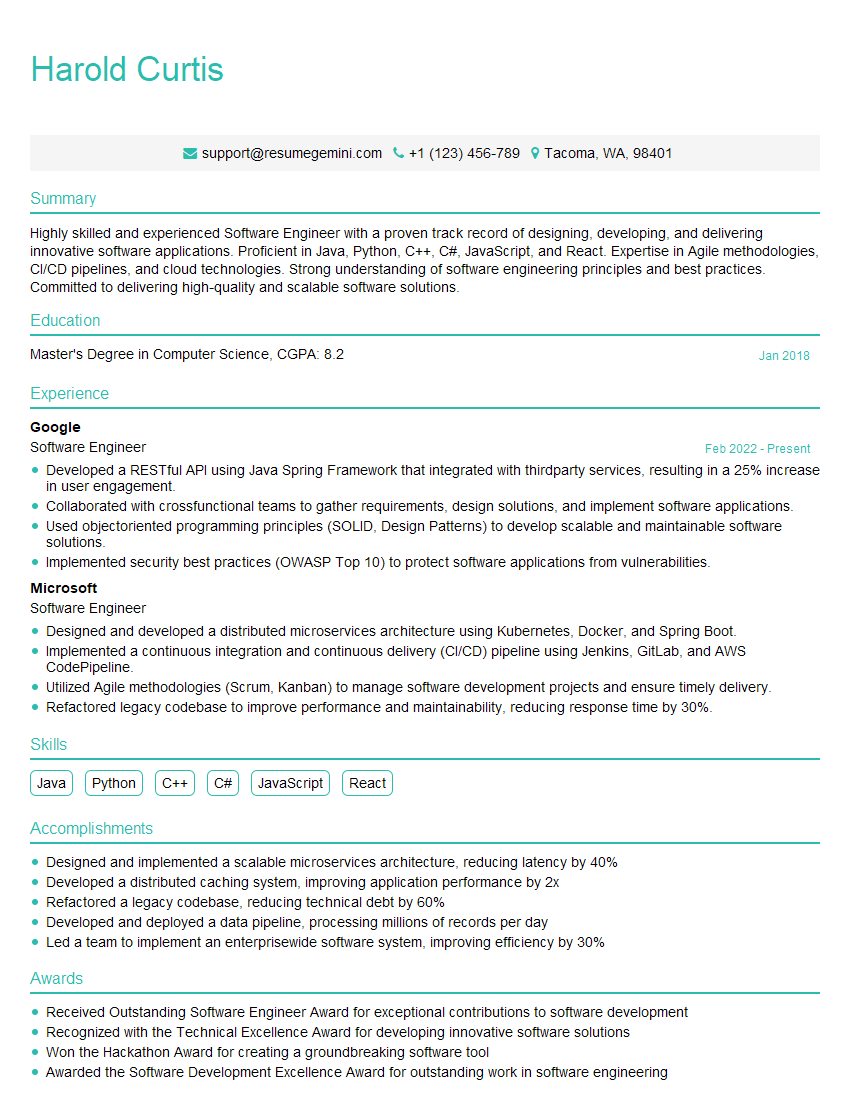
Software Engineer Resume Sample
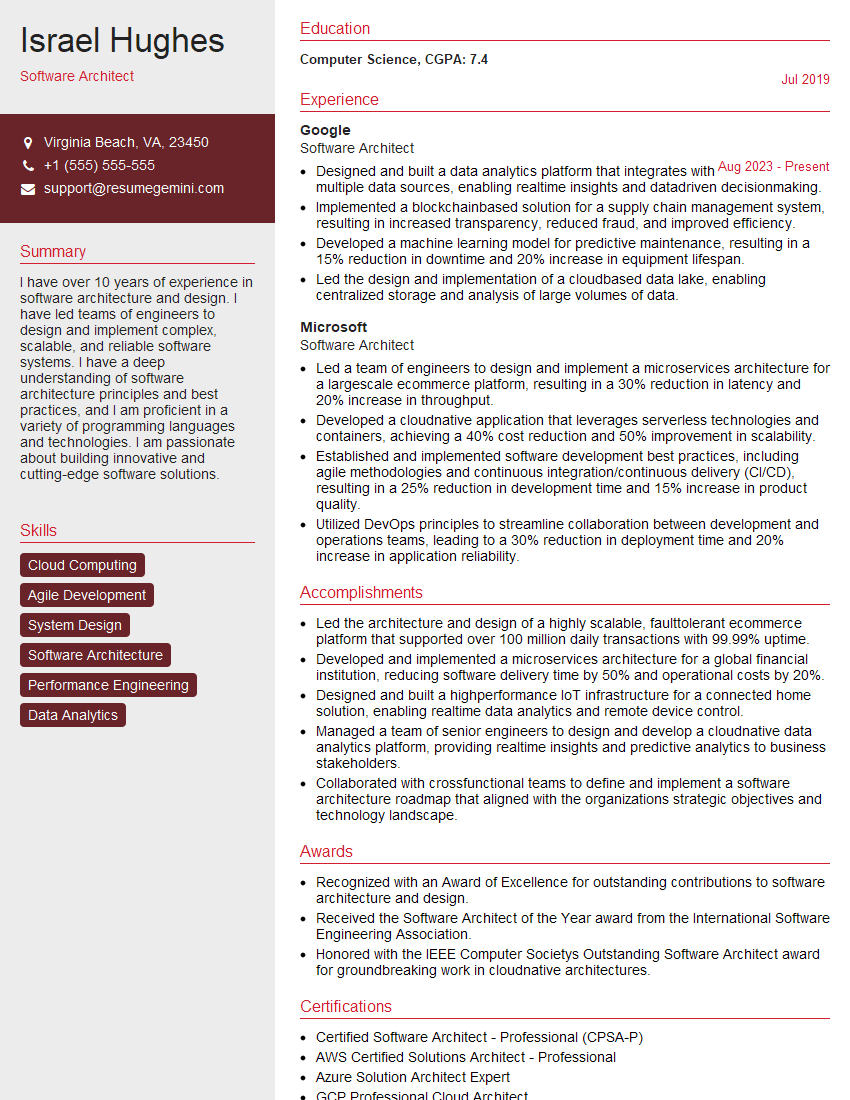
Software Architect Resume Sample
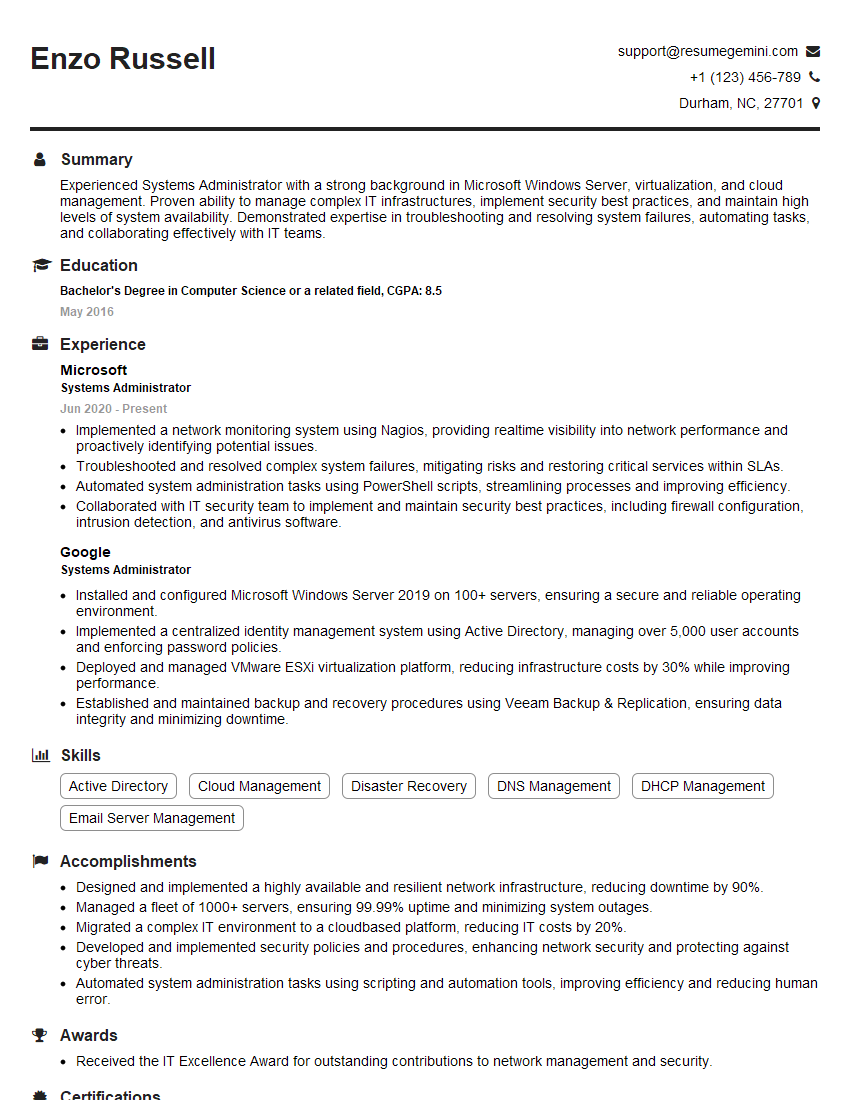
Systems Administrator Resume Sample
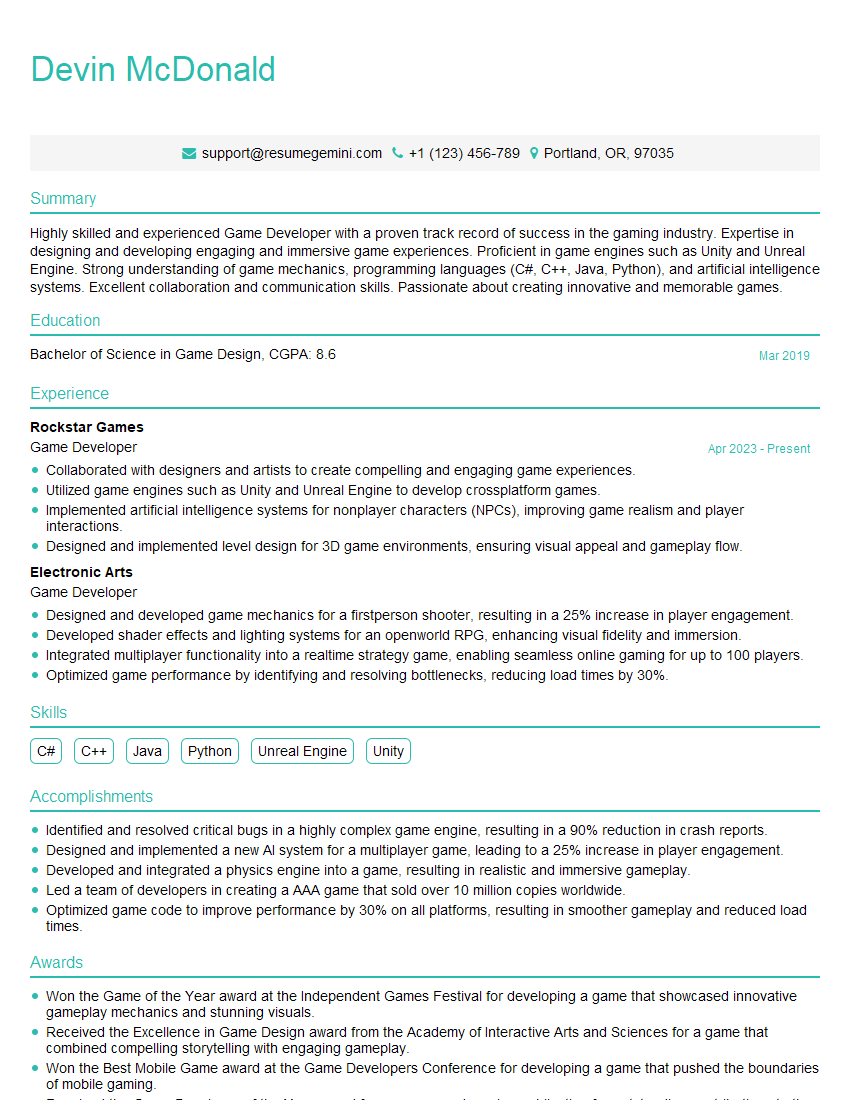
Game Developer Resume Sample
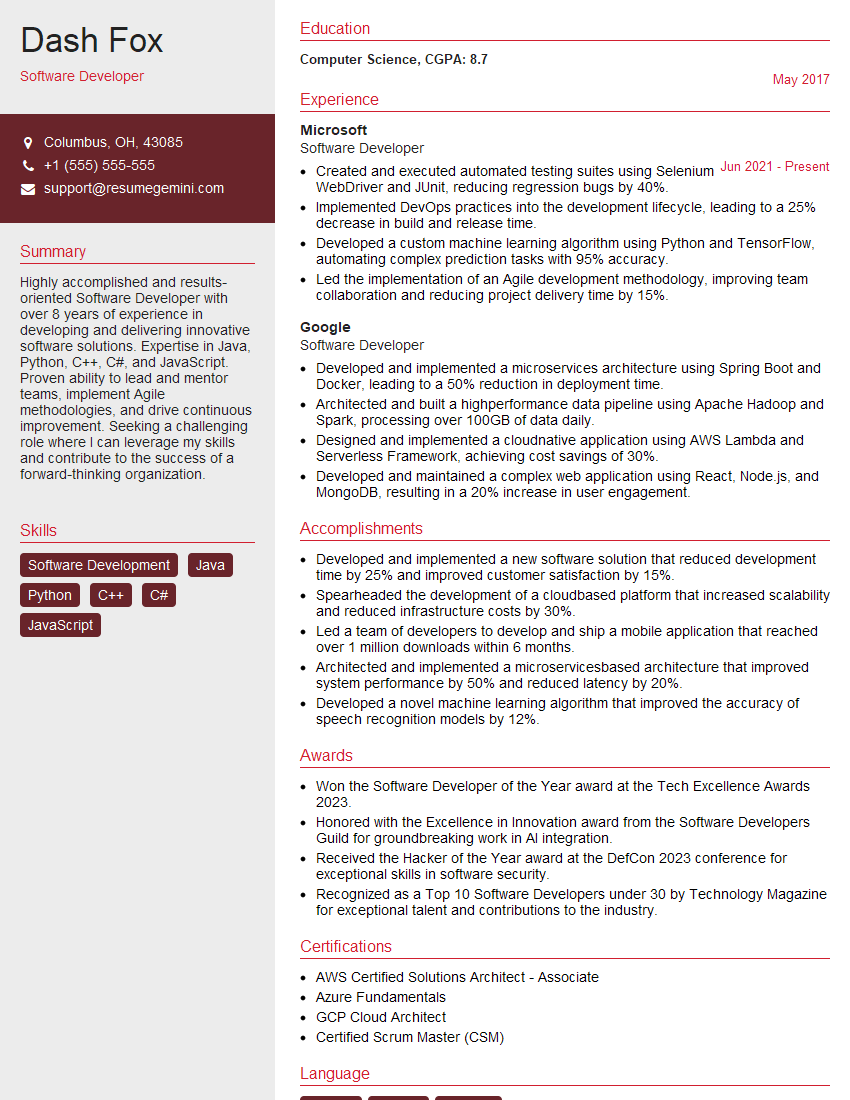
Software Developer Resume Sample
Configuration Manager Resume Sample

Senior Software Engineer Resume Sample
Web Developer Resume Sample

IT Manager Resume Sample
Release Manager Resume Sample
Full Stack Developer Resume Sample
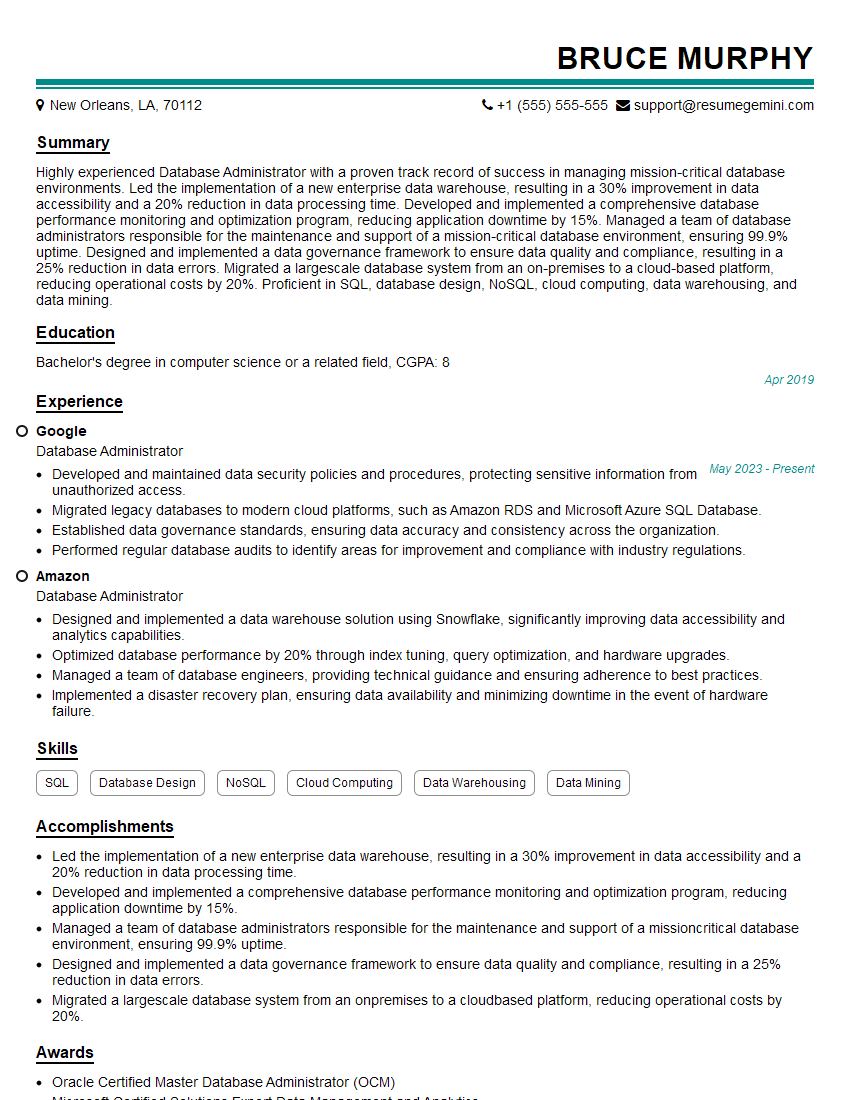
Database Administrator Resume Sample
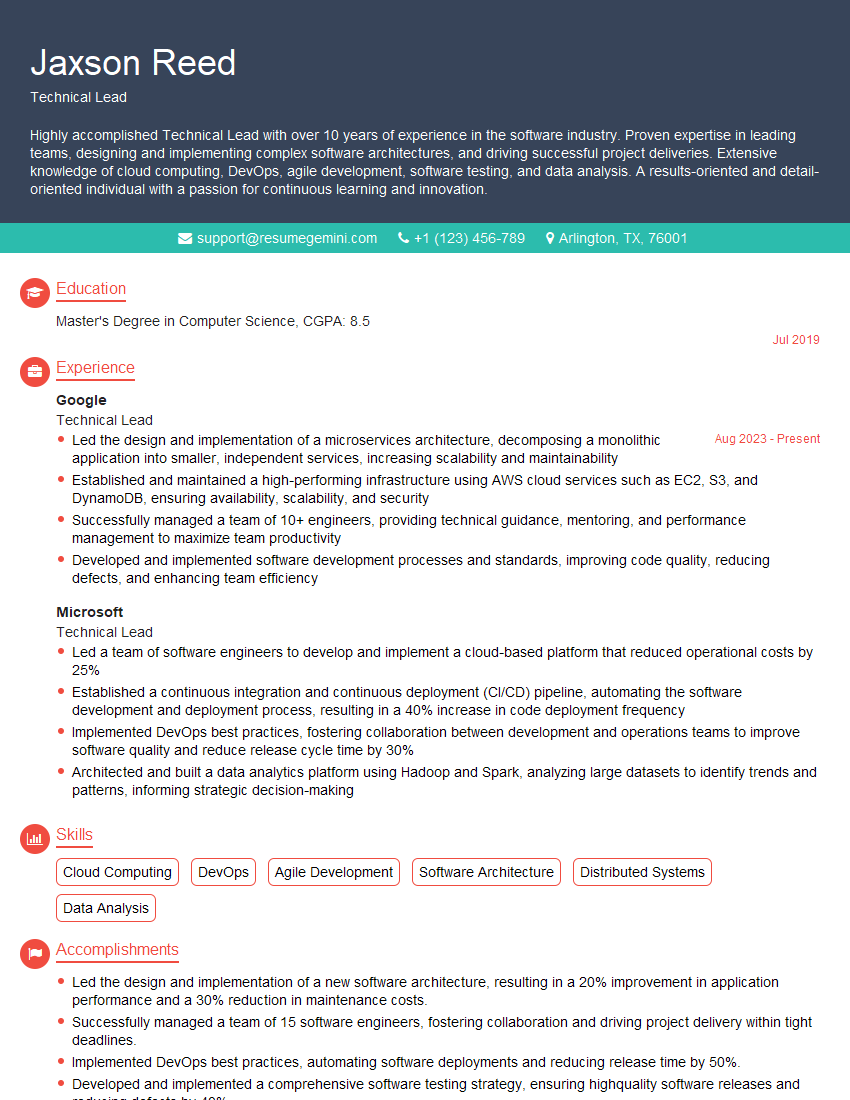
Technical Lead Resume Sample

DevOps Engineer Resume Sample
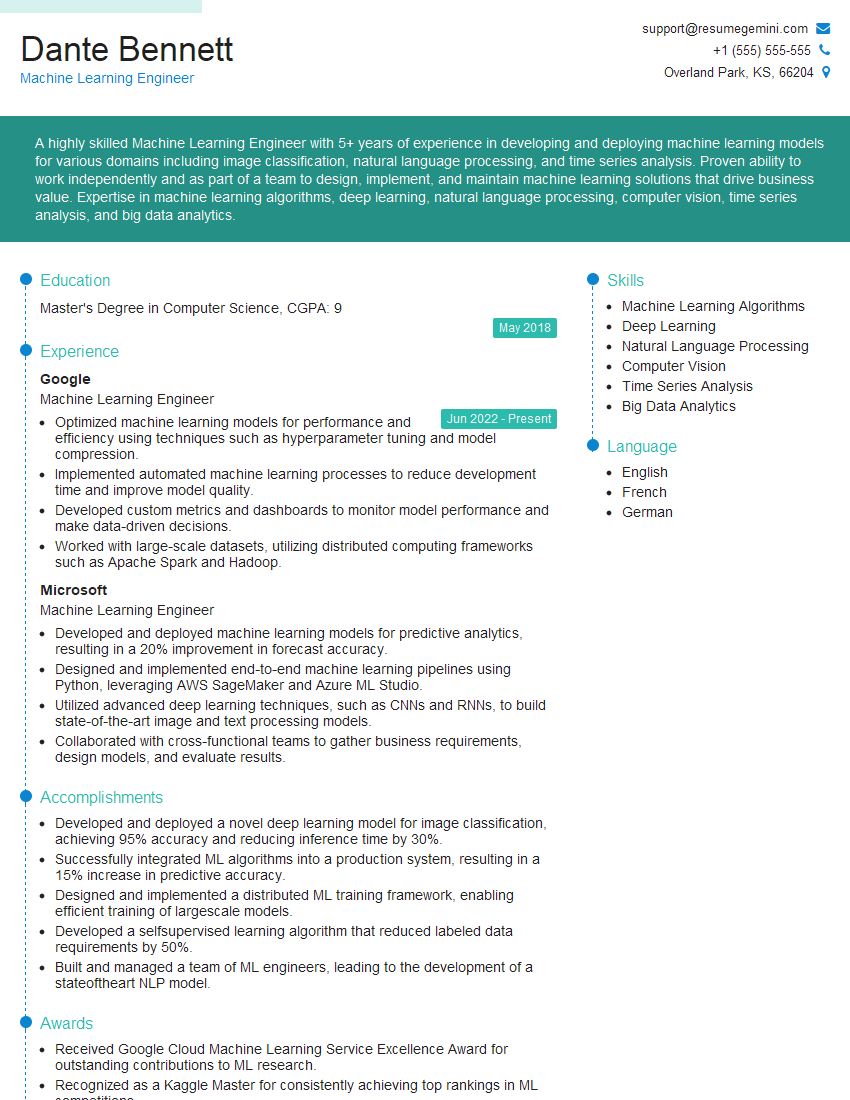
Machine Learning Engineer Resume Sample
- Project Manager
- Engineering Manager
- Data Scientist
- Software Engineer
- Software Architect
- Systems Administrator
- Game Developer
- Software Developer
- Configuration Manager
- Senior Software Engineer
- Web Developer
- IT Manager
- Release Manager
- Full Stack Developer
- Database Administrator
- Technical Lead
- DevOps Engineer
- Machine Learning Engineer
Explore more articles
Users Rating of Our Blogs
Share Your Experience
We value your feedback! Please rate our content and share your thoughts (optional).
What Readers Say About Our Blog
Hello,
we currently offer a complimentary backlink and URL indexing test for search engine optimization professionals.
You can get complimentary indexing credits to test how link discovery works in practice.
No credit card is required and there is no recurring fee.
You can find details here:
https://wikipedia-backlinks.com/indexing/
Regards
NICE RESPONSE TO Q & A
hi
The aim of this message is regarding an unclaimed deposit of a deceased nationale that bears the same name as you. You are not relate to him as there are millions of people answering the names across around the world. But i will use my position to influence the release of the deposit to you for our mutual benefit.
Respond for full details and how to claim the deposit. This is 100% risk free. Send hello to my email id: [email protected]
Luka Chachibaialuka
Hey interviewgemini.com, just wanted to follow up on my last email.
We just launched Call the Monster, an parenting app that lets you summon friendly ‘monsters’ kids actually listen to.
We’re also running a giveaway for everyone who downloads the app. Since it’s brand new, there aren’t many users yet, which means you’ve got a much better chance of winning some great prizes.
You can check it out here: https://bit.ly/callamonsterapp
Or follow us on Instagram: https://www.instagram.com/callamonsterapp
Thanks,
Ryan
CEO – Call the Monster App
Hey interviewgemini.com, I saw your website and love your approach.
I just want this to look like spam email, but want to share something important to you. We just launched Call the Monster, a parenting app that lets you summon friendly ‘monsters’ kids actually listen to.
Parents are loving it for calming chaos before bedtime. Thought you might want to try it: https://bit.ly/callamonsterapp or just follow our fun monster lore on Instagram: https://www.instagram.com/callamonsterapp
Thanks,
Ryan
CEO – Call A Monster APP
To the interviewgemini.com Owner.
Dear interviewgemini.com Webmaster!
Hi interviewgemini.com Webmaster!
Dear interviewgemini.com Webmaster!
excellent
Hello,
We found issues with your domain’s email setup that may be sending your messages to spam or blocking them completely. InboxShield Mini shows you how to fix it in minutes — no tech skills required.
Scan your domain now for details: https://inboxshield-mini.com/
— Adam @ InboxShield Mini
Reply STOP to unsubscribe
Hi, are you owner of interviewgemini.com? What if I told you I could help you find extra time in your schedule, reconnect with leads you didn’t even realize you missed, and bring in more “I want to work with you” conversations, without increasing your ad spend or hiring a full-time employee?
All with a flexible, budget-friendly service that could easily pay for itself. Sounds good?
Would it be nice to jump on a quick 10-minute call so I can show you exactly how we make this work?
Best,
Hapei
Marketing Director
Hey, I know you’re the owner of interviewgemini.com. I’ll be quick.
Fundraising for your business is tough and time-consuming. We make it easier by guaranteeing two private investor meetings each month, for six months. No demos, no pitch events – just direct introductions to active investors matched to your startup.
If youR17;re raising, this could help you build real momentum. Want me to send more info?
Hi, I represent an SEO company that specialises in getting you AI citations and higher rankings on Google. I’d like to offer you a 100% free SEO audit for your website. Would you be interested?
Hi, I represent an SEO company that specialises in getting you AI citations and higher rankings on Google. I’d like to offer you a 100% free SEO audit for your website. Would you be interested?
good