Feeling uncertain about what to expect in your upcoming interview? We’ve got you covered! This blog highlights the most important Telecom Equipment Troubleshooting interview questions and provides actionable advice to help you stand out as the ideal candidate. Let’s pave the way for your success.
Questions Asked in Telecom Equipment Troubleshooting Interview
Q 1. Explain the OSI model and its relevance to troubleshooting.
The OSI (Open Systems Interconnection) model is a conceptual framework that standardizes the functions of a telecommunication or computing system without regard to its underlying internal structure and technology. It divides network communication into seven distinct layers, each with specific responsibilities. This layered approach is crucial for troubleshooting because it allows us to isolate problems to a specific layer, greatly simplifying the diagnostic process. Think of it like a layered cake; if one layer is bad, you don’t need to investigate the entire cake.
- Layer 7 (Application): Handles user interface and application protocols (e.g., HTTP, FTP).
- Layer 6 (Presentation): Formats data for application use (e.g., encryption, compression).
- Layer 5 (Session): Establishes, manages, and terminates communication sessions.
- Layer 4 (Transport): Provides reliable data transfer (e.g., TCP) or unreliable, fast data transfer (e.g., UDP).
- Layer 3 (Network): Handles logical addressing (IP addresses) and routing.
- Layer 2 (Data Link): Handles physical addressing (MAC addresses) and error detection on a local network segment.
- Layer 1 (Physical): Deals with the physical transmission of data (cables, signals).
For example, if a web page won’t load (application layer issue), we’d first check the website itself (is it down?), then browser settings (application layer), then network connectivity (lower layers). If we have network connectivity, the problem lies higher up in the OSI stack. Conversely, if we see no network connectivity at all, we know to focus on lower layers like the physical cabling or network devices.
Q 2. Describe your experience with TDM and packet-switched networks.
I have extensive experience with both Time-Division Multiplexing (TDM) and packet-switched networks. TDM, a legacy technology, divides a communication channel into multiple time slots, each assigned to a different conversation. This is like a round-robin schedule where each person gets a turn to speak. While efficient for dedicated circuits, TDM is inflexible and inefficient when dealing with intermittent communication needs. I’ve worked on maintaining and troubleshooting older PBX systems using TDM technology, including addressing issues like synchronization problems and signal degradation.
Packet-switched networks, on the other hand, break data into packets, transmitting them individually across the network. This is more flexible and efficient because resources aren’t allocated in advance; it’s like a courier system, delivering packages as needed. This is the dominant technology today and includes both the Internet Protocol (IP) and numerous other networking protocols. My experience involves extensive troubleshooting across various packet-switched networks, diagnosing problems ranging from routing issues to network congestion and quality of service problems. A specific example includes resolving packet loss on a corporate network by identifying a faulty switch using network monitoring tools.
Q 3. How do you troubleshoot a connectivity issue on a VoIP system?
Troubleshooting VoIP connectivity issues requires a systematic approach. I start by identifying the affected endpoint(s), then systematically check each layer of the OSI model. Think of it like diagnosing a car problem; you don’t start by replacing the engine; you check the basics first.
- Check the endpoint: Verify the VoIP phone is properly configured, has network connectivity, and the microphone and speaker work.
- Network connectivity: Confirm the phone has a valid IP address, can ping the gateway, and has sufficient bandwidth. Tools like
pingandtracerouteare invaluable here. - Gateway/Server: Check that the VoIP gateway or server is running and reachable. Check server logs for any errors.
- Network infrastructure: Look for any issues in the network infrastructure, such as firewall rules blocking VoIP traffic or network congestion. Use tools like Wireshark to inspect network traffic if the problem persists.
- Codec Compatibility: Ensure compatibility between the codecs used by the VoIP devices and the server.
- Quality of Service (QoS): Verify QoS settings are configured correctly to prioritize VoIP traffic over other types of network traffic.
I often use network monitoring tools to observe real-time performance metrics like jitter and packet loss, which are key indicators of VoIP call quality problems. A recent example involved a large-scale VoIP outage where, by analyzing QoS parameters and server logs, we pinpointed a misconfigured Quality of Service policy on a core router as the root cause.
Q 4. What are common causes of high latency in a network?
High latency, or delay in network communication, can stem from several sources. Think of it like traffic congestion on a highway; the more traffic, the slower the travel time.
- Network Congestion: High volume of traffic on the network can cause delays. This is common during peak usage times or when there are bandwidth bottlenecks.
- Physical Distance: The longer the physical distance data needs to travel, the higher the latency. This is simply a matter of the speed of light.
- Routing Issues: Inefficient or faulty routing can lead to data taking longer paths than necessary.
- Faulty Network Hardware: Problems with routers, switches, or other network devices can introduce latency.
- Overloaded Servers: If a server is under heavy load, it might take longer to respond to requests.
- Wireless Interference: Wireless signals can be affected by interference from other devices, leading to higher latency.
Diagnosing high latency often involves using tools like ping (to measure round-trip time) and traceroute (to identify bottlenecks along the path) as well as network monitoring systems that provide more comprehensive performance metrics.
Q 5. Explain your process for diagnosing a faulty optical fiber connection.
Diagnosing a faulty optical fiber connection involves a methodical approach that combines visual inspection with specialized equipment. It’s like detective work, systematically eliminating possible causes.
- Visual Inspection: Start by carefully inspecting the fiber optic cables and connectors for any physical damage, such as bends, cracks, or loose connections. This is the easiest and often the most effective first step.
- Optical Power Meter (OPM): Use an OPM to measure the optical power levels at different points along the fiber link. Low power levels indicate attenuation (signal loss) due to damage or poor connection. Comparing readings at different points helps pinpoint the location of the fault.
- Optical Time-Domain Reflectometer (OTDR): An OTDR is more advanced equipment; it sends pulses of light down the fiber and measures the time it takes for the light to return. This allows precise localization of breaks, splices, or other problems along the fiber’s length. It can even indicate the severity of attenuation or reflection.
- Connector Inspection: If the fault is localized to a connector, it may be possible to clean or replace it. Contamination can be a common issue.
- Testing the entire link: Use an end-to-end test set that combines the functionalities of the OPM and OTDR to measure signal quality across the entire link. This offers a comprehensive view of performance parameters.
I remember one case where a seemingly simple fiber cut led to a massive network outage. A thorough OTDR analysis helped to rapidly locate the precise location of the damage, facilitating quick repairs.
Q 6. How do you troubleshoot a router configuration issue?
Troubleshooting router configuration issues can be tricky. It involves a combination of understanding network configurations, using specialized tools, and having knowledge of command-line interfaces.
- Check Basic Connectivity: Make sure the router is properly connected to the network and powered on. Test basic connectivity using
ping. - Check the configuration file: Check router’s configuration files for syntax errors or incorrect settings. Access the router via SSH or the console and review files like running-config to identify the cause of the issue. Using a configuration management system can greatly improve consistency and helps to easily rollback changes.
- Verify Routing Tables: Inspect the routing tables to ensure routes are properly configured. Incorrect routing can lead to connectivity issues. Use commands like
show ip route(Cisco IOS). - Check Access Lists: Access control lists (ACLs) can restrict network traffic. Ensure there are no unnecessary ACLs that are blocking required traffic.
- Check Interface Status: Verify that the router’s interfaces are up and running. Check for errors or configuration inconsistencies using commands like
show interfaces(Cisco IOS). - Examine Logs: Router logs often contain valuable information about errors and events. Review system and interface logs for clues.
- Restart the router: As a last resort, if all else fails, restarting the router can resolve temporary software glitches.
For instance, I once resolved an intermittent connectivity issue by spotting a misconfigured static route in the router’s configuration file. The incorrect gateway address was causing packets to be dropped.
Q 7. What tools do you use for network troubleshooting?
My troubleshooting toolkit includes a variety of tools, both hardware and software. The choice depends on the specific issue and the network infrastructure.
- Network Monitoring Tools: SolarWinds, Nagios, PRTG, and Zabbix provide comprehensive network monitoring, alerting, and performance analysis. They help proactively identify potential problems.
- Protocol Analyzers: Wireshark and tcpdump capture and analyze network traffic, providing invaluable insights into network communication. They are my go-to tools for detailed packet analysis.
- Optical Power Meter (OPM) and OTDR: Essential tools for troubleshooting fiber optic links, as described above.
- Ping and Traceroute: These basic command-line utilities are essential for initial network connectivity diagnostics.
- IP Scanner: Nmap and similar tools help discover devices on a network and identify potential security vulnerabilities.
- Multimeter: Used to test cable continuity and signal strength in physical layer troubleshooting.
- Remote Access Tools: Secure shell (SSH) and Telnet provide command-line access to network devices for configuration and troubleshooting.
The selection of tools is always guided by the nature of the problem and the available resources. Sometimes a simple multimeter is sufficient; other times, sophisticated network monitoring systems are needed for a comprehensive analysis.
Q 8. Describe your experience with network monitoring tools.
Network monitoring tools are indispensable for maintaining the health and performance of any telecom network. My experience encompasses a wide range of tools, from basic command-line utilities like ping, traceroute, and netstat to sophisticated, enterprise-grade solutions such as SolarWinds, Nagios, and PRTG. I’m proficient in using these tools to monitor key metrics like CPU utilization, memory usage, bandwidth consumption, latency, and packet loss on various network devices, including routers, switches, and servers. For example, using SolarWinds, I’ve successfully identified a bottleneck in a core router by monitoring its interface utilization and subsequently implemented a solution to alleviate the congestion by upgrading the router’s capacity. My experience also includes using network monitoring tools to proactively identify potential issues before they impact service, allowing for preventative maintenance and minimizing downtime.
I’m also familiar with the use of SNMP (Simple Network Management Protocol) for collecting data from network devices and creating customized dashboards for real-time monitoring and alerting. This proactive approach helps minimize disruptions and ensures optimal network performance.
Q 9. How do you troubleshoot a problem with a DSL connection?
Troubleshooting a DSL connection involves a systematic approach. First, I’d verify the physical connection – ensuring the DSL modem is properly connected to the wall jack and the power is on. Next, I’d check the DSL modem’s lights. Different colors indicate different statuses (e.g., solid green usually means a connection, while flashing red might indicate a problem). Then, I would use a DSL line tester to verify the signal strength and quality at the modem. A weak or noisy signal often points to issues with the line itself, possibly requiring a technician visit to check for external interference or internal wiring problems.
If the line test shows good signal, I’d check the modem’s configuration, making sure it’s correctly provisioned with the right settings from the Internet Service Provider (ISP). I might also try resetting the modem to factory settings and re-configuring it. If the problem persists, I’d contact the ISP’s technical support to rule out issues on their end, such as problems with the DSLAM (Digital Subscriber Line Access Multiplexer).
Imagine a situation where a customer reports slow internet speeds. I’d first check the modem’s signal strength. If weak, the problem could be external interference or a faulty line. If the signal is strong, I’d test the internet speed from a computer directly connected to the modem, eliminating potential router problems. If still slow, the issue lies with the ISP’s infrastructure or the customer’s internet plan.
Q 10. Explain your experience with different types of cabling (e.g., CAT5, fiber optic).
My experience with various cabling types is extensive. I’ve worked extensively with CAT5, CAT5e, CAT6, and fiber optic cables in diverse network environments. CAT5 and CAT5e are commonly used for Ethernet networks, supporting speeds up to 1 Gigabit per second (Gbps). CAT6 offers higher bandwidth and is better suited for faster networks (10 Gbps and higher). I understand the importance of proper termination and testing for these cables using tools like cable testers, to ensure signal integrity and prevent data loss.
Fiber optic cables offer significantly higher bandwidth and longer reach compared to copper cables, making them ideal for high-capacity long-haul networks. I’m skilled in working with different fiber types (single-mode and multi-mode), connectors (SC, LC, ST), and fusion splicing techniques. For example, I’ve been involved in installing and troubleshooting fiber optic links connecting different buildings in a large campus network, requiring precise attention to detail and understanding of optical signal loss considerations.
A memorable experience was troubleshooting a data center network that was experiencing intermittent connectivity. I discovered a faulty CAT6 cable causing the problem – a pin was not making proper contact. Replacing the cable resolved the issue immediately, highlighting the importance of proper cabling and testing.
Q 11. How do you identify and resolve problems with a faulty switch?
Troubleshooting a faulty switch involves a systematic process. First, I’d check the switch’s physical connections – power, cables, and uplinks. Then, I’d examine the switch’s lights (link/activity LEDs) to identify any connectivity issues. Many switches have command-line interfaces (CLIs) that provide detailed information about the switch’s status, ports, and configuration.
Using the CLI, I can check for errors, port status (up/down), and any spanning-tree issues. If a specific port is down, I’d examine the connected cables and devices. If the problem persists, I would check the switch’s configuration, looking for potential misconfigurations (e.g., incorrect VLAN assignments, port security settings). Tools like packet sniffers (e.g., Wireshark) can help to analyze network traffic and identify issues related to specific devices or services connected to the switch.
For instance, imagine a situation where a specific switch port stops working. I’d first use the CLI commands like show interface status to check the port status. I might then use show spanning-tree to rule out spanning-tree issues causing port flapping. If the problem still exists after checking physical connections and configuration, the switch might need replacement or repair.
Q 12. Describe your experience working with different network protocols (e.g., TCP/IP, BGP).
My experience with network protocols is extensive, covering both Layer 3 (Network Layer) and Layer 4 (Transport Layer) protocols. I’m highly proficient with TCP/IP, the foundation of the internet. I understand the differences between TCP (Transmission Control Protocol), a connection-oriented protocol providing reliable data transfer, and UDP (User Datagram Protocol), a connectionless protocol offering speed but less reliability. I also have experience configuring and troubleshooting IP addressing schemes (IPv4 and IPv6), subnetting, and routing protocols.
I have substantial experience with BGP (Border Gateway Protocol), a crucial routing protocol used in the internet’s core. I’m capable of configuring BGP on routers, establishing peering relationships, and troubleshooting BGP routing issues. My experience includes working with other routing protocols like OSPF (Open Shortest Path First) and EIGRP (Enhanced Interior Gateway Routing Protocol) used in enterprise networks. I can analyze routing tables, identify routing loops, and resolve routing convergence problems. For example, I once resolved a network connectivity issue caused by incorrect BGP configuration, where an improper route advertisement was causing routing loops and network instability.
Q 13. What are the common causes of packet loss?
Packet loss, the failure of data packets to reach their destination, can have various causes. On the physical layer, this can be due to cabling problems (broken cables, faulty connectors), signal interference, or physical damage to network infrastructure. On the data link layer, errors in framing, CRC checksum failures, or collisions can lead to packet loss.
On the network layer, routing problems, such as incorrect routing tables or routing loops, can cause packets to be dropped or delayed excessively, resulting in perceived packet loss. Congestion in the network (too much traffic for the available bandwidth) is a common cause of packet loss. Faulty network devices (routers, switches) can also introduce packet loss. On the transport layer, TCP retransmissions (due to errors or congestion) may appear as packet loss depending on how it is measured. Finally, security measures like firewalls can sometimes drop packets if misconfigured or if they match certain criteria.
Troubleshooting requires identifying the layer where the loss is occurring. Tools like packet sniffers are crucial here. For example, analyzing packet capture files helps identify whether the loss is due to congestion, physical errors, or routing issues.
Q 14. How do you isolate a problem within a large network?
Isolating a problem in a large network is a challenge requiring a structured approach. I would start by gathering information from various sources: monitoring tools, user reports, and network management systems. This initial information helps define the scope of the problem – is it impacting all users, a specific department, or a particular application? Then, I’d use a top-down approach, breaking down the network into smaller segments.
Using network monitoring tools, I would analyze key metrics (latency, bandwidth, packet loss) at different network points. I’d investigate the network’s topology and routing tables to identify potential points of failure. Traceroute and ping commands are invaluable in determining the path packets take and identifying network segments where issues occur. If a specific area appears problematic, I would narrow my focus to that area and use more granular diagnostics – for example, checking specific devices or connections in that segment.
Imagine a large enterprise network experiencing slowdowns. I would begin by analyzing network monitoring data for overall performance trends. I might notice high latency at a specific core router. Using traceroute, I’d pinpoint the problematic segment. Further investigation might reveal a congested link or a faulty router interface in that segment. Using this approach, I can effectively isolate problems by systematically eliminating areas of the network until I identify the root cause.
Q 15. Explain your troubleshooting methodology.
My troubleshooting methodology follows a systematic approach, often described as the “five-whys” technique combined with a structured diagnostic process. It starts with clearly identifying the problem: What’s not working as expected? Then, I gather information. This includes checking logs, monitoring system performance, and interviewing users. Next, I formulate a hypothesis based on the information. This isn’t just a guess; it’s an educated prediction based on my experience and knowledge of the system. I then test this hypothesis through various diagnostic checks, and finally, I implement the solution and verify its effectiveness. If the initial hypothesis is wrong, I iterate the process, refining my understanding of the root cause until the problem is resolved. Think of it like a detective solving a case – you gather clues, formulate theories, and test them systematically.
- Identify the Problem: Precisely define the issue (e.g., ‘Users cannot access the internet via Wi-Fi’).
- Gather Information: Check network logs for errors, monitor CPU/Memory utilization on affected devices, assess signal strength, interview affected users.
- Formulate a Hypothesis: Based on gathered data, form a theory (e.g., ‘The Wi-Fi access point is overloaded’).
- Test the Hypothesis: Conduct checks (e.g., check AP CPU/memory, analyze Wi-Fi channel utilization).
- Implement the Solution: Address the problem (e.g., reboot the AP, adjust the Wi-Fi channel).
- Verify: Confirm the solution worked and monitor for recurrence.
Career Expert Tips:
- Ace those interviews! Prepare effectively by reviewing the Top 50 Most Common Interview Questions on ResumeGemini.
- Navigate your job search with confidence! Explore a wide range of Career Tips on ResumeGemini. Learn about common challenges and recommendations to overcome them.
- Craft the perfect resume! Master the Art of Resume Writing with ResumeGemini’s guide. Showcase your unique qualifications and achievements effectively.
- Don’t miss out on holiday savings! Build your dream resume with ResumeGemini’s ATS optimized templates.
Q 16. How do you document troubleshooting steps and resolutions?
Documentation is crucial for efficient troubleshooting and future reference. I use a combination of methods to record my steps. I start with a concise problem description, including timestamps and affected systems. This is often a ticket in a ticketing system. Then, each step of my troubleshooting process is meticulously documented, including the actions taken, the results observed, and any diagnostic information gathered (logs, screenshots, etc.). For instance, if I’m working on a router issue, I’ll note the router’s model, firmware version, and the specific commands I execute. Finally, the resolution is clearly outlined, along with any preventative measures that can avoid similar issues in the future. This comprehensive approach guarantees future colleagues can easily understand the history of the issue and its solution. This is vital for minimizing downtime and preventing future problems.
Tools I commonly use include ticketing systems (like Jira or ServiceNow), internal wikis, and sometimes even simple text files for quick notes, depending on the complexity of the situation.
Q 17. Describe your experience with remote troubleshooting techniques.
Remote troubleshooting is a significant part of my role. I’m proficient in using various remote access tools, such as SSH, Telnet, VNC, and remote desktop software, to access and manage network devices. I’ve extensively used these to diagnose and resolve issues in geographically diverse locations. For instance, I once remotely diagnosed and fixed a problem with a cell tower’s baseband unit causing intermittent service outages. The issue turned out to be a misconfiguration in the unit’s software. I used SSH to access the unit’s console, reviewed its logs, and then remotely executed the necessary commands to correct the configuration. A key skill in remote troubleshooting is to effectively communicate and guide on-site personnel through the diagnostic process when needed, sometimes using screen sharing and remote control tools. Effective communication is key to quickly identify and resolve the problem.
Q 18. How do you handle escalating a problem to a higher-level support team?
Escalating an issue involves a structured process. First, I ensure my own troubleshooting steps have been exhaustive, and I’ve gathered all relevant diagnostic data. This includes detailed logs, screenshots, and a clear description of the problem and the steps I’ve already taken. Then, I use the appropriate channels to escalate the issue, typically through the ticketing system, notifying the relevant higher-level support team. My communication clearly highlights the urgency, severity, and impact of the problem, along with the information gathered. I keep the higher-level team updated on the progress and actively participate in the resolution process. Open and clear communication during the escalation process is key to a smooth and swift resolution.
Q 19. What are your experience with different types of network hardware?
My experience spans a broad range of network hardware, including routers (Cisco, Juniper), switches (Cisco, Arista), firewalls (Palo Alto Networks, Fortinet), wireless access points (Cisco, Aruba), and various telecommunications equipment like baseband units, radio units, and core network elements. I am familiar with different operating systems like IOS, JunOS, and various proprietary systems found in telecom equipment. I also have hands-on experience with optical transport equipment and associated network monitoring tools.
For example, I’ve worked extensively with Cisco’s Catalyst switches for campus networking and Juniper’s MX Series routers for core network infrastructure. This diverse experience ensures that I can effectively troubleshoot issues across a variety of platforms and technologies.
Q 20. How do you troubleshoot problems with network security?
Troubleshooting network security problems requires a different approach, emphasizing security best practices. I start by identifying any security breaches or vulnerabilities. This may involve analyzing logs for suspicious activity, scanning for malware, or checking firewall rules. I use tools like intrusion detection systems (IDS) and intrusion prevention systems (IPS) to detect and prevent attacks. If a breach is identified, I immediately work to contain it, isolating affected systems and preventing further damage. Then, I investigate the root cause, fixing the vulnerability that allowed the breach. The next step involves remediation, implementing updates, patches, and strengthened security measures to prevent future occurrences. This often involves coordinating with security teams to ensure comprehensive remediation and ongoing monitoring of the network’s security posture. Regular security audits and penetration testing are vital in proactive security maintenance.
Q 21. Explain your understanding of network performance metrics.
Understanding network performance metrics is essential for identifying and resolving performance bottlenecks. Key metrics I regularly monitor include:
- Throughput: The amount of data transmitted over a network in a given time. Low throughput often indicates congestion or bandwidth limitations.
- Latency: The delay in data transmission. High latency can impact applications such as VoIP and video conferencing.
- Packet Loss: The percentage of data packets lost during transmission. High packet loss indicates network instability or errors.
- Jitter: Variation in latency. High jitter affects real-time applications.
- CPU and Memory Utilization: On network devices, high utilization can point to overload and performance issues.
I use network monitoring tools to collect and analyze these metrics, identifying trends and anomalies. These tools provide real-time insights into network health and performance, allowing for proactive identification of potential problems before they impact users. For instance, consistently high latency on a specific link might suggest a problem with that link’s equipment or connectivity. Analyzing these metrics helps in isolating the root cause of the performance issues and implementing effective solutions.
Q 22. How do you troubleshoot a problem with a wireless network?
Troubleshooting a wireless network involves a systematic approach. Think of it like diagnosing a car problem – you wouldn’t just start replacing parts randomly! Instead, you’d check the basics first.
- Check the Obvious: Begin by verifying the router is powered on and the wireless signal is enabled. Is the Wi-Fi light illuminated? Try restarting the router – often a simple reboot solves temporary glitches.
- Signal Strength and Interference: Use your device’s Wi-Fi settings or a network analyzer (more on that later) to assess the signal strength. Weak signals suggest distance from the router or interference from other devices like microwaves or cordless phones. Try relocating your router or devices for better signal reception.
- Connectivity Issues: Is your device able to connect to the network, but unable to access the internet? This points to a problem beyond the local network, possibly your internet service provider (ISP). Check your modem’s status lights and consider contacting your ISP.
- Security Settings: Incorrect passwords or security settings can prevent connections. Double-check the network’s SSID (network name) and password. Ensure the security protocol (WPA2/WPA3) is correctly configured.
- Device-Specific Problems: Sometimes, the issue lies with the device itself. Try connecting other devices to the network to see if the problem is widespread or isolated to a particular device. Check for driver updates or factory resets as a last resort.
- Advanced Troubleshooting: If the problem persists, consider using advanced tools like a network analyzer to pinpoint issues with signal quality, channel congestion, or network configuration.
For example, I once solved a wireless network issue where a client was experiencing intermittent connectivity. It turned out a nearby microwave was interfering with the 2.4 GHz Wi-Fi signal. Simply changing the router’s channel to a less congested one resolved the issue.
Q 23. What is your experience with different types of network topologies?
I’m experienced with a variety of network topologies, each with its strengths and weaknesses. Think of these as different road maps for your network’s data flow.
- Bus Topology: A simple, linear structure where all devices connect to a single cable. Easy to implement but a single cable failure can bring down the entire network. Think of this like a single-lane road – any blockage stops everything.
- Star Topology: All devices connect to a central hub or switch. This is the most common topology in modern networks, offering greater flexibility and scalability. A failure of one device doesn’t affect the others, akin to a city’s road network where one road closure doesn’t necessarily affect traffic everywhere.
- Ring Topology: Devices are connected in a closed loop. Data travels in one direction. Reliable but adding or removing devices can be disruptive. This is like a circular train track – a problem at one point could impact the whole loop.
- Mesh Topology: Highly redundant, with multiple paths between devices. Resilient to failures but more complex to manage. This is like a complex highway system with many alternate routes.
- Tree Topology: A hierarchical structure, often used in larger networks. Combines aspects of star and bus topologies. This is like the branching structure of a river system.
In my previous role, I designed and implemented a star topology for a small office network, utilizing a managed switch to provide features like VLANs and QoS (Quality of Service).
Q 24. How do you use a network analyzer to troubleshoot network issues?
Network analyzers are invaluable tools for troubleshooting network issues. They’re like a doctor’s stethoscope for your network, providing detailed information about the network’s health.
I use network analyzers to:
- Analyze Signal Strength and Quality: Identify weak signals, interference, and signal loss.
- Identify Channel Congestion: Determine which Wi-Fi channels are most crowded and choose less congested ones to improve performance.
- Detect Packet Loss and Latency: pinpoint bottlenecks or areas where data is being lost or experiencing delays.
- Capture Network Traffic: Examine the data flowing across the network to identify malicious activity or unusual patterns.
- Verify Network Configuration: Check IP addresses, subnet masks, and other network parameters.
For example, I recently used Wireshark (a popular open-source network analyzer) to troubleshoot a slow network connection. The analyzer revealed high latency due to a congested Wi-Fi channel. By switching to a less crowded channel, the network performance significantly improved.
Q 25. Describe your experience with IP addressing schemes.
IP addressing schemes are fundamental to network communication. Think of them as the postal codes for your network’s devices.
I have extensive experience with IPv4 and IPv6 addressing. IPv4 uses a 32-bit address, represented in dotted decimal notation (e.g., 192.168.1.100), while IPv6 uses a 128-bit address, represented in hexadecimal notation (e.g., 2001:0db8:85a3:0000:0000:8a2e:0370:7334).
My experience includes:
- Subnet Masking: Dividing a larger network into smaller subnets for better management and security.
- Classless Inter-Domain Routing (CIDR): Efficiently allocating IP addresses using CIDR notation (e.g.,
192.168.1.0/24). - Private and Public IP Addresses: Understanding the difference between private IP addresses used within a local network and public IP addresses used for internet access.
- DHCP (Dynamic Host Configuration Protocol): Automating the assignment of IP addresses to devices.
I’ve worked on projects requiring careful IP address planning to ensure efficient network allocation and avoid IP address conflicts.
Q 26. How do you troubleshoot a problem with a VPN connection?
Troubleshooting VPN connections requires a methodical approach. Imagine a VPN as a secure tunnel – if something blocks the tunnel, the connection fails.
My troubleshooting steps include:
- Verify VPN Client Configuration: Check the VPN client settings, ensuring the correct server address, username, and password are entered. Incorrect credentials are a common cause of failure.
- Check Network Connectivity: Ensure your device has a stable internet connection before attempting to connect to the VPN. A faulty internet connection will prevent VPN access.
- Firewall and Antivirus Interference: Firewalls or antivirus software might be blocking the VPN connection. Temporarily disable these to see if it resolves the issue. If it does, configure your firewall or antivirus to allow the VPN connection.
- DNS Resolution: Problems resolving domain names can prevent VPN access. Try using a public DNS server like Google DNS.
- VPN Server Issues: If multiple users are experiencing problems, the issue may be with the VPN server itself. Contact your VPN provider or network administrator.
- Check VPN Logs: Examine the VPN client and server logs for error messages that may provide clues to the problem.
For instance, I once resolved a VPN issue by identifying that a company firewall was blocking a specific VPN port. After configuring the firewall to allow that port, the VPN connection was successfully established.
Q 27. What is your experience with SNMP?
SNMP (Simple Network Management Protocol) is a powerful tool for monitoring and managing network devices. It’s like having a dashboard that displays the vital signs of your network equipment.
My experience with SNMP includes:
- Monitoring Network Devices: Using SNMP to monitor CPU utilization, memory usage, interface traffic, and other key metrics on routers, switches, and servers.
- Setting SNMP Traps: Configuring SNMP traps to alert administrators of critical events, such as device failures or security breaches.
- Using SNMP Management Tools: Working with SNMP management software to view network statistics, configure devices remotely, and troubleshoot problems.
- SNMP Security: Implementing appropriate security measures to protect SNMP access, preventing unauthorized access to managed devices.
In a previous role, I used SNMP to create automated alerts for high CPU utilization on our network servers, allowing for proactive problem-solving and preventing potential outages.
Q 28. Explain your experience with network redundancy and failover mechanisms.
Network redundancy and failover mechanisms are critical for ensuring high availability and minimizing downtime. Think of them as backup systems, ensuring your network keeps running even if one component fails.
My experience includes:
- Redundant Power Supplies: Using multiple power supplies to prevent outages in case one fails. This is like having two batteries in a car – one for everyday use, and another to take over if the first one fails.
- Redundant Network Links: Implementing multiple network connections between devices to ensure connectivity even if one link fails. Similar to having multiple roads to a destination – if one road is blocked, there’s an alternative route.
- Redundant Routers and Switches: Deploying duplicate routers and switches with failover capabilities so that if one device fails, the other takes over seamlessly. Like having two servers managing your online store – one is actively working while the second is standing by in case of failure.
- Virtualization: Using virtualization to create redundant virtual machines or services. Failure of one virtual machine doesn’t affect the others.
- Failover Clusters: Implementing high availability clusters that automatically switch to a backup system in case of a failure.
In one project, I implemented a redundant network infrastructure with dual routers and switches, ensuring that if a primary device failed, the secondary device would automatically take over, minimizing any disruption to services.
Key Topics to Learn for Telecom Equipment Troubleshooting Interview
- Network Fundamentals: Understanding OSI model, TCP/IP, routing protocols (e.g., BGP, OSPF), and subnetting is crucial for diagnosing network issues.
- Telecom Equipment Knowledge: Familiarize yourself with common equipment like routers, switches, optical transceivers, and multiplexers. Understand their functions and common failure points.
- Troubleshooting Methodologies: Master systematic troubleshooting approaches, including the use of diagnostic tools, logs, and network monitoring systems. Practice using a structured approach to isolate and resolve problems.
- Practical Application: Consider scenarios involving packet loss, latency issues, connectivity problems, and signal degradation. Practice identifying the root cause and proposing effective solutions.
- Layer 2 & Layer 3 Troubleshooting: Develop expertise in diagnosing issues at both the data link (Layer 2) and network (Layer 3) layers. This includes understanding VLANs, MAC addresses, and IP addressing schemes.
- Optical Networking: Gain a working knowledge of optical fiber principles, OTDR testing, and common optical network issues.
- Security Considerations: Understand basic network security concepts and how security breaches can impact telecom equipment and services.
- Remote Access and Management: Become familiar with methods for remotely accessing and managing telecom equipment, including SSH and Telnet.
- Documentation and Reporting: Practice clear and concise documentation of troubleshooting steps, findings, and solutions.
Next Steps
Mastering Telecom Equipment Troubleshooting is vital for career advancement in the dynamic telecommunications industry. It demonstrates a strong technical foundation and problem-solving skills highly valued by employers. To significantly boost your job prospects, create a compelling and ATS-friendly resume that highlights your skills and experience. ResumeGemini is a trusted resource that can help you build a professional resume that stands out. They provide examples of resumes tailored specifically to Telecom Equipment Troubleshooting roles, ensuring your application makes a strong first impression.
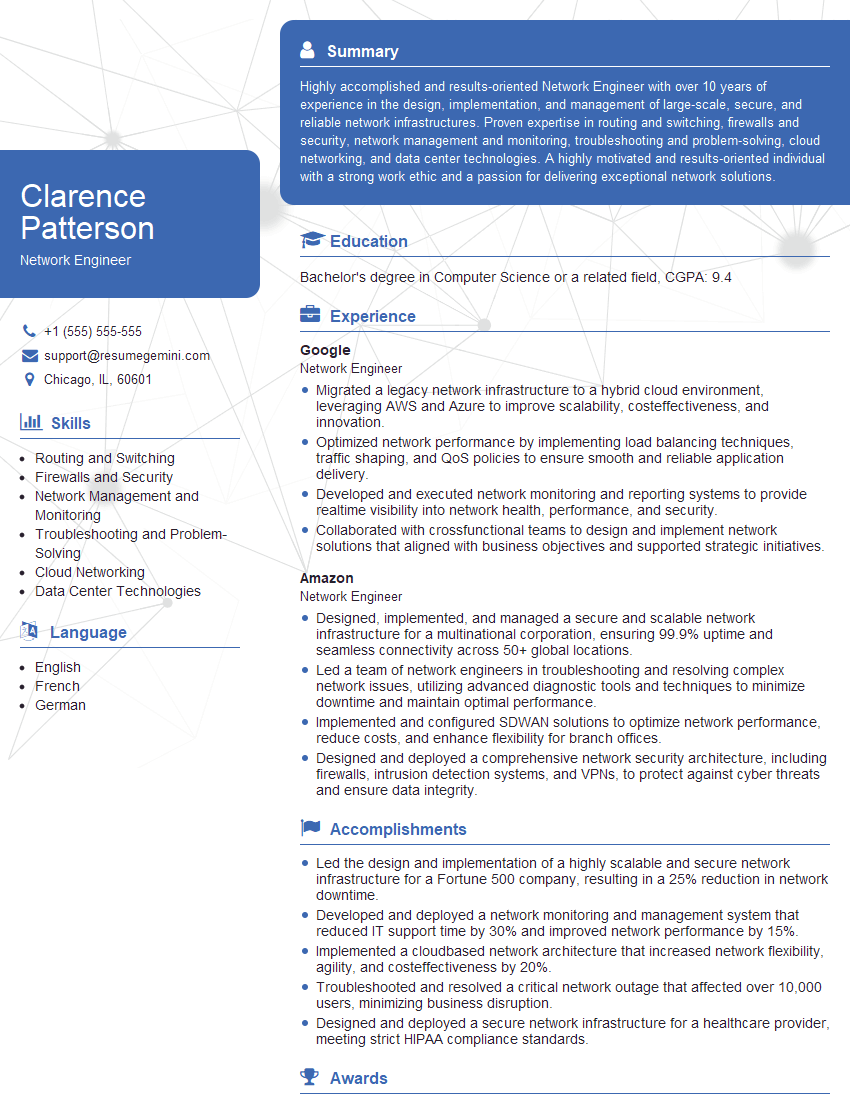
Network Engineer Resume Sample

Network Security Engineer Resume Sample
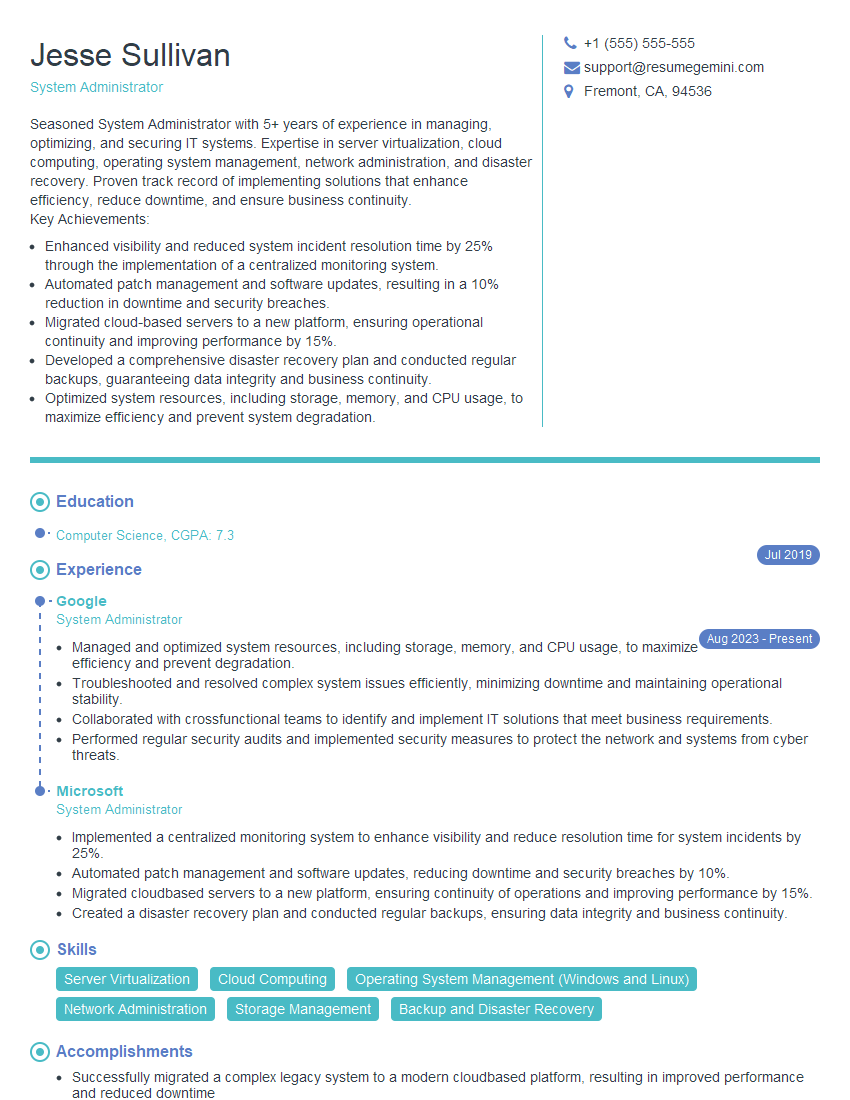
System Administrator Resume Sample
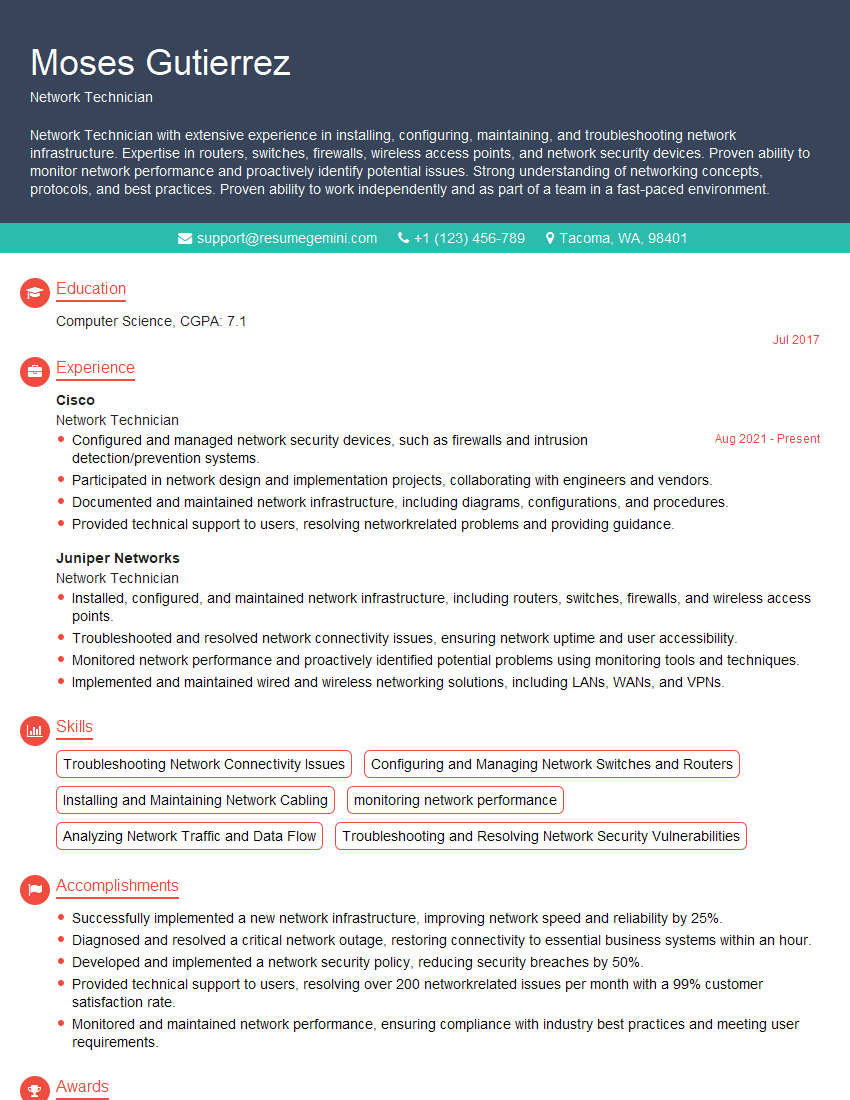
Network Technician Resume Sample
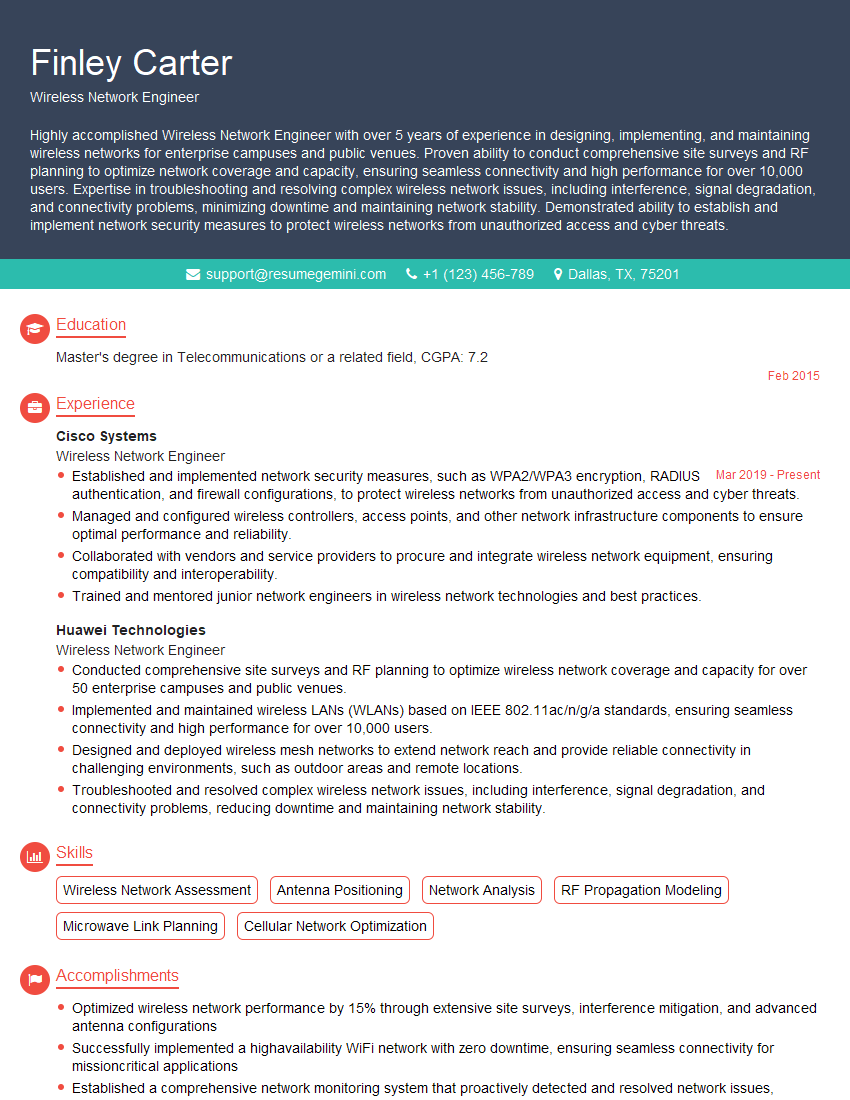
Wireless Network Engineer Resume Sample
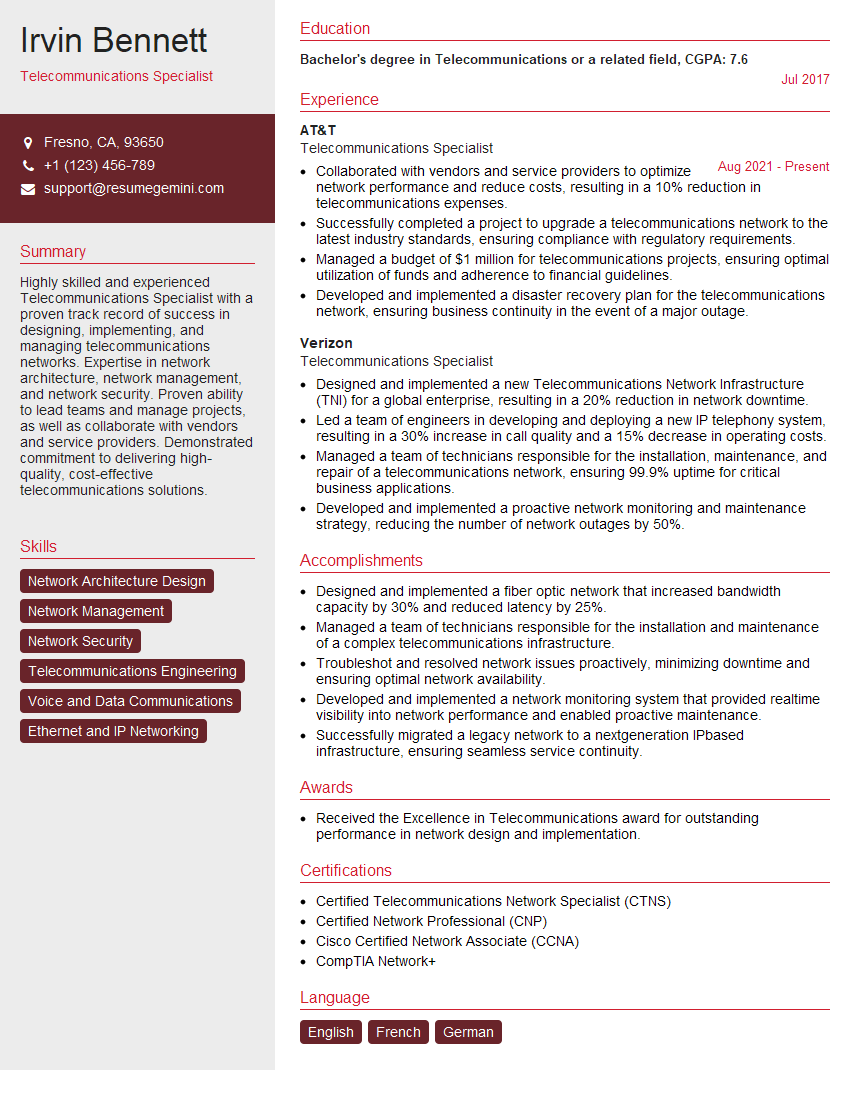
Telecommunications Specialist Resume Sample
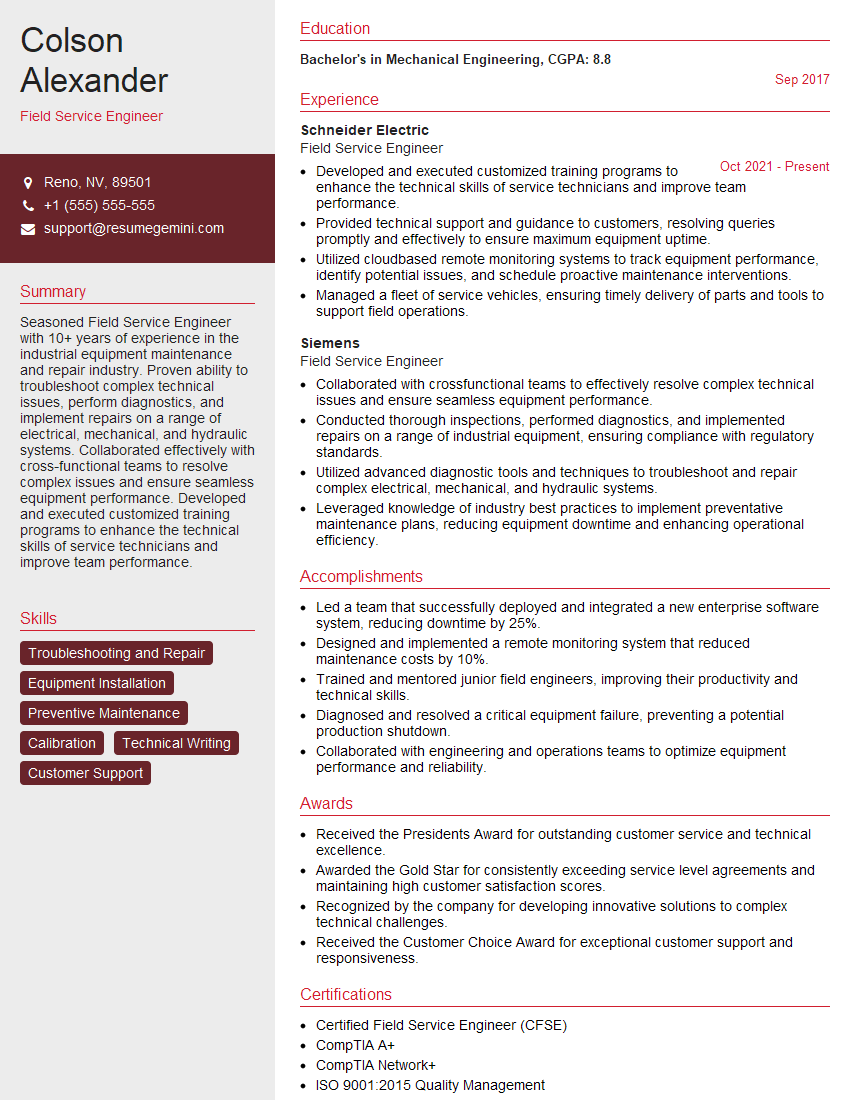
Field Service Engineer Resume Sample
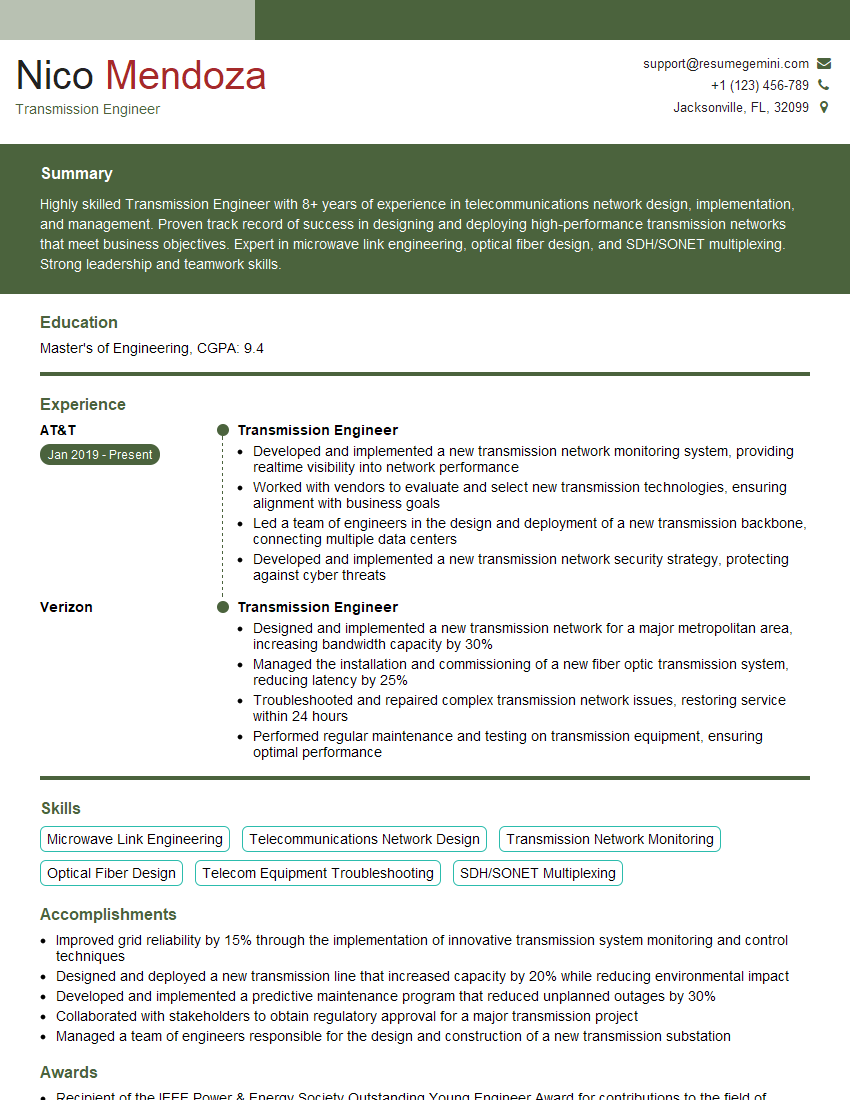
Transmission Engineer Resume Sample

Microwave Engineer Resume Sample
Explore more articles
Users Rating of Our Blogs
Share Your Experience
We value your feedback! Please rate our content and share your thoughts (optional).
What Readers Say About Our Blog
Attention music lovers!
Wow, All the best Sax Summer music !!!
Spotify: https://open.spotify.com/artist/6ShcdIT7rPVVaFEpgZQbUk
Apple Music: https://music.apple.com/fr/artist/jimmy-sax-black/1530501936
YouTube: https://music.youtube.com/browse/VLOLAK5uy_noClmC7abM6YpZsnySxRqt3LoalPf88No
Other Platforms and Free Downloads : https://fanlink.tv/jimmysaxblack
on google : https://www.google.com/search?q=22+AND+22+AND+22
on ChatGPT : https://chat.openai.com?q=who20jlJimmy20Black20Sax20Producer
Get back into the groove with Jimmy sax Black
Best regards,
Jimmy sax Black
www.jimmysaxblack.com
Hi I am a troller at The aquatic interview center and I suddenly went so fast in Roblox and it was gone when I reset.
Hi,
Business owners spend hours every week worrying about their website—or avoiding it because it feels overwhelming.
We’d like to take that off your plate:
$69/month. Everything handled.
Our team will:
Design a custom website—or completely overhaul your current one
Take care of hosting as an option
Handle edits and improvements—up to 60 minutes of work included every month
No setup fees, no annual commitments. Just a site that makes a strong first impression.
Find out if it’s right for you:
https://websolutionsgenius.com/awardwinningwebsites
Hello,
we currently offer a complimentary backlink and URL indexing test for search engine optimization professionals.
You can get complimentary indexing credits to test how link discovery works in practice.
No credit card is required and there is no recurring fee.
You can find details here:
https://wikipedia-backlinks.com/indexing/
Regards
NICE RESPONSE TO Q & A
hi
The aim of this message is regarding an unclaimed deposit of a deceased nationale that bears the same name as you. You are not relate to him as there are millions of people answering the names across around the world. But i will use my position to influence the release of the deposit to you for our mutual benefit.
Respond for full details and how to claim the deposit. This is 100% risk free. Send hello to my email id: lukachachibaialuka@gmail.com
Luka Chachibaialuka
Hey interviewgemini.com, just wanted to follow up on my last email.
We just launched Call the Monster, an parenting app that lets you summon friendly ‘monsters’ kids actually listen to.
We’re also running a giveaway for everyone who downloads the app. Since it’s brand new, there aren’t many users yet, which means you’ve got a much better chance of winning some great prizes.
You can check it out here: https://bit.ly/callamonsterapp
Or follow us on Instagram: https://www.instagram.com/callamonsterapp
Thanks,
Ryan
CEO – Call the Monster App
Hey interviewgemini.com, I saw your website and love your approach.
I just want this to look like spam email, but want to share something important to you. We just launched Call the Monster, a parenting app that lets you summon friendly ‘monsters’ kids actually listen to.
Parents are loving it for calming chaos before bedtime. Thought you might want to try it: https://bit.ly/callamonsterapp or just follow our fun monster lore on Instagram: https://www.instagram.com/callamonsterapp
Thanks,
Ryan
CEO – Call A Monster APP
To the interviewgemini.com Owner.
Dear interviewgemini.com Webmaster!
Hi interviewgemini.com Webmaster!
Dear interviewgemini.com Webmaster!
excellent
Hello,
We found issues with your domain’s email setup that may be sending your messages to spam or blocking them completely. InboxShield Mini shows you how to fix it in minutes — no tech skills required.
Scan your domain now for details: https://inboxshield-mini.com/
— Adam @ InboxShield Mini
support@inboxshield-mini.com
Reply STOP to unsubscribe
Hi, are you owner of interviewgemini.com? What if I told you I could help you find extra time in your schedule, reconnect with leads you didn’t even realize you missed, and bring in more “I want to work with you” conversations, without increasing your ad spend or hiring a full-time employee?
All with a flexible, budget-friendly service that could easily pay for itself. Sounds good?
Would it be nice to jump on a quick 10-minute call so I can show you exactly how we make this work?
Best,
Hapei
Marketing Director
Hey, I know you’re the owner of interviewgemini.com. I’ll be quick.
Fundraising for your business is tough and time-consuming. We make it easier by guaranteeing two private investor meetings each month, for six months. No demos, no pitch events – just direct introductions to active investors matched to your startup.
If youR17;re raising, this could help you build real momentum. Want me to send more info?
Hi, I represent an SEO company that specialises in getting you AI citations and higher rankings on Google. I’d like to offer you a 100% free SEO audit for your website. Would you be interested?
Hi, I represent an SEO company that specialises in getting you AI citations and higher rankings on Google. I’d like to offer you a 100% free SEO audit for your website. Would you be interested?