Interviews are opportunities to demonstrate your expertise, and this guide is here to help you shine. Explore the essential Proficient in vector graphics software (e.g., CorelDRAW, Inkscape) interview questions that employers frequently ask, paired with strategies for crafting responses that set you apart from the competition.
Questions Asked in Proficient in vector graphics software (e.g., CorelDRAW, Inkscape) Interview
Q 1. Explain the difference between raster and vector graphics.
Raster and vector graphics are two fundamentally different ways of representing images digitally. Think of it like this: raster graphics are like a mosaic – made up of tiny squares of color called pixels. Vector graphics, on the other hand, are like blueprints – composed of mathematical equations that define lines, curves, and shapes.
Raster Graphics: These images are resolution-dependent. Zooming in makes them pixelated and blurry because you’re essentially magnifying the individual pixels. Examples include JPG, PNG, and GIF files. They are great for photorealistic images.
Vector Graphics: These images are resolution-independent. You can zoom in infinitely without losing quality because the image is defined by mathematical formulas, not pixels. Examples include SVG, AI, and EPS files. They are ideal for logos, illustrations, and designs that need to be scalable.
Q 2. What are the advantages and disadvantages of using vector graphics over raster graphics?
The choice between vector and raster graphics depends heavily on the project’s needs.
- Advantages of Vector Graphics:
- Scalability: Vectors can be scaled to any size without loss of quality, perfect for logos and designs used across various platforms (website, business cards, billboards).
- Editability: Individual elements are easily editable. You can modify shapes, colors, and positions without affecting the entire image.
- File Size: Generally smaller file sizes compared to raster images of the same complexity.
- Clean Lines: Produce sharp, crisp lines and curves, ideal for technical drawings or designs requiring precision.
- Disadvantages of Vector Graphics:
- Not Ideal for Photorealistic Images: They struggle to represent the subtle gradations of color and texture found in photographs.
- Steeper Learning Curve: Vector software can be more complex to learn than raster editors.
- File Compatibility: Not all software supports all vector file formats.
Conversely, raster graphics excel at photorealistic imagery but suffer from scalability issues.
Q 3. Describe your experience with CorelDRAW or Inkscape. What features do you use most frequently?
I’ve been using CorelDRAW extensively for over eight years, and I’m also proficient in Inkscape. My workflow leans heavily towards CorelDRAW due to its advanced features and superior performance for complex projects. In both programs, my most frequently used features include:
- Shape Tools: Precisely creating and manipulating shapes like rectangles, ellipses, polygons, and freehand drawing tools are fundamental to my workflow.
- Bézier Curves: Creating smooth curves and organic shapes is essential for many designs.
- Pen Tool: This allows for highly detailed and precise line work.
- Layer Management: Organizing objects into layers is crucial for efficient project management, especially with complex designs.
- Color Palettes & Fill/Stroke Options: Experimenting with different color combinations and applying gradients is a constant part of my design process.
- Object Manipulation Tools: Grouping, aligning, and transforming objects (scaling, rotating, skewing) are necessary for creating balanced compositions.
- Text Tools: Adding and formatting text is critical for logo designs and illustrations that incorporate text elements.
Q 4. How would you create a complex logo using vector software?
Creating a complex logo in vector software involves a structured approach. Let’s say we’re designing a logo for a fictional coffee shop named ‘The Daily Grind’.
- Sketching: I’d start with sketching ideas on paper, focusing on the overall concept and key elements (e.g., coffee beans, a coffee cup, a grinder).
- Initial Vectorization: In CorelDRAW, I’d begin by importing a scan of my favorite sketch or creating basic shapes representing the core elements (coffee bean, cup) using the Ellipse, Rectangle, and Pen tools.
- Refining Shapes: I’d use the Shape Tool, Bézier curves, and the Node tool to refine shapes, ensuring smooth transitions and clean lines. This involves adjusting individual nodes to get the exact curves and shapes needed.
- Adding Details: I’d incorporate more intricate details like textures or shading. This often involves using the Gradient tool to add depth and realism.
- Typography: I’d incorporate the ‘The Daily Grind’ text, experimenting with different fonts and sizes to find the most visually appealing combination. Careful consideration of kerning and tracking is crucial for professional results.
- Color Selection: The final step involves choosing appropriate colors that align with the brand identity. I’d experiment with various color palettes, considering the target audience and overall brand message.
- Exporting: The completed logo is exported in various vector formats (SVG, AI, EPS) for use in different applications.
Q 5. Explain the concept of Bézier curves and their application in vector graphics.
Bézier curves are mathematical curves defined by control points. Imagine pulling and stretching a rubber band with your fingers. Your fingers would be the control points, and the rubber band would be the Bézier curve. They are incredibly versatile for creating smooth, organic shapes.
In vector graphics, Bézier curves are fundamental for creating curves that are both precise and visually appealing. The curve itself is not defined by a set of points that it passes through, but rather by how these points *influence* the curve’s shape. Changing the position of a control point directly modifies the shape of the curve without affecting other areas.
Application: They are used to create everything from smooth lines in logos to complex curves in illustrations and even to model three-dimensional surfaces in some 3D modeling software.
Q 6. How do you manage layers and objects effectively in your preferred vector software?
Efficient layer management is paramount for managing complexity in vector illustrations. In CorelDRAW or Inkscape, I employ a systematic approach:
- Naming Conventions: I use clear and concise names for each layer (e.g., ‘logo-text’, ‘coffee-bean’, ‘background’). This makes it easy to identify and find specific elements.
- Grouping: Related objects are grouped together to streamline manipulation. For example, all elements composing the coffee cup would be grouped under a layer titled ‘coffee-cup’.
- Layer Order: Layers are carefully arranged to maintain the correct visual hierarchy. The background layer typically sits at the bottom, while foreground elements are on top.
- Layer Visibility: The ability to hide and show layers is invaluable for editing, troubleshooting, and focusing on specific parts of the illustration.
- Layer Locking: Locking layers prevents accidental modification of completed elements.
- Color Coding: Sometimes I use color-coding to further differentiate layers. For example, using a specific color for text layers or shading layers.
Q 7. Describe your workflow for creating a vector illustration from scratch.
My workflow for creating a vector illustration starts with a clear concept and ends with a polished, exportable file.
- Planning & Sketching: I begin with rough sketches on paper to solidify the concept, composition, and key elements.
- Vectorization: I create the basic shapes in CorelDRAW, using a combination of the pen tool, shape tools, and Bézier curves. I focus on getting the basic forms and proportions right.
- Refinement: This stage involves adjusting individual nodes and handles to refine the shapes, adding detail and making curves smooth.
- Color & Detail: I select colors and gradients, and I would add details such as shading and textures.
- Typography: If text is needed, I select appropriate fonts, set sizes, and apply any necessary effects.
- Final Adjustments & Export: I make final adjustments, checking for consistency and accuracy. Then I export the artwork in appropriate formats (SVG, AI, EPS) depending on intended use.
Q 8. How do you handle color palettes and color modes (e.g., CMYK, RGB) in vector graphics software?
Managing color palettes and modes in vector graphics is crucial for print and digital consistency. RGB (Red, Green, Blue) is the standard for screens, while CMYK (Cyan, Magenta, Yellow, Key/Black) is used for printing. Software like CorelDRAW and Inkscape allow you to easily switch between these modes and create custom palettes.
In CorelDRAW, for example, you can access the color palettes through the ‘Object Properties’ docker. You can choose from pre-set palettes, import custom palettes (e.g., .aco files), or create your own by mixing colors directly. You’ll also find options to convert between RGB and CMYK, though be aware that this conversion isn’t always perfect, and you might need to manually adjust colors for optimal results in print. Inkscape offers similar functionality, allowing you to use the color picker, create custom swatches, and use different color systems depending on your output destination.
For instance, when designing a logo for a client, I’d typically work in RGB for viewing on the screen and then convert it to CMYK before sending the final artwork for print. This requires understanding color profiles and considering how different color modes translate to different mediums. I always check the color proof to make sure the color differences aren’t drastic.
Q 9. How would you optimize a vector image for web use?
Optimizing vector images for web use focuses on file size reduction without sacrificing quality. Since vectors are resolution-independent, the key is to reduce the complexity of the artwork. This involves cleaning up the paths – removing unnecessary nodes, simplifying shapes, and reducing the number of objects.
For example, if you have a complex logo with many intricate details, you might consider using fewer paths and simplifying some elements. Avoid unnecessary gradients or effects that inflate file sizes. Before saving, ensure you’re using a well-supported web format like SVG. SVG offers excellent compression capabilities. You can use software built-in options to optimize the SVG file for web use. If the image is still too large after these steps, consider using lossy compression techniques if your quality requirements allow. Always test the optimized file on different browsers to ensure compatibility.
Q 10. Explain your understanding of vector file formats (e.g., SVG, AI, EPS).
Vector file formats store images using mathematical equations to define shapes and lines, unlike raster formats which use pixels. Each format has strengths and weaknesses.
- SVG (Scalable Vector Graphics): This is an open-standard XML-based format, ideal for web use due to its scalability and compatibility with most browsers. It supports animation and interactivity.
- AI (Adobe Illustrator): This is Adobe’s proprietary format and is generally considered the industry standard for complex vector illustrations. AI files often incorporate features specific to Illustrator.
- EPS (Encapsulated PostScript): A widely compatible format, it’s often used for high-quality printing, especially when dealing with older printing equipment. EPS files are often larger than SVGs and can present compatibility issues in some software applications.
Choosing the right format depends on the intended use. For web graphics, SVG is generally preferred, while AI is best for workflow within the Adobe Creative Suite. EPS remains relevant for print projects requiring compatibility across different platforms.
Q 11. How would you troubleshoot a problem with an imported vector file?
Troubleshooting imported vector files involves a systematic approach. Common problems include corrupted files, font issues, and compatibility problems between software applications.
- Check File Integrity: Attempt opening the file in another vector graphics program. If this fails, the original file might be corrupted. Try to find a backup version.
- Font Problems: If the file displays missing fonts, find and install the correct fonts on your system. Sometimes the original file has embedded fonts, but sometimes the creator hasn’t.
- Compatibility Issues: When importing between different software (e.g., CorelDRAW to Inkscape), some features or effects might not be fully supported. Simplify the vector artwork to avoid complex effects before importing.
- Path Issues: Examine the paths for any anomalies, such as overlapping or intersecting lines. If the problem is complex, try tracing the problematic parts over rather than editing the imported file directly.
- Color Profile Mismatches: This can lead to unexpected color shifts. Ensure color profiles are consistent between the source and target software.
Remember to always save a backup of the original file before making any extensive edits.
Q 12. Describe your experience with creating and editing vector paths.
Creating and editing vector paths is fundamental to vector graphics. Paths are the outlines of shapes and lines defined by nodes. I’m proficient in using various tools to create, modify, and manipulate these paths.
In CorelDRAW, I use the pen tool extensively, creating precise paths with Bézier curves and adjusting node handles to fine-tune curves. The shape tool is great for creating basic geometric shapes, and I use the knife tool for splitting paths. Inkscape offers similar tools, and I find their node editing features very intuitive. I can create smooth or sharp corners, and adjust the curves of the paths precisely. I also often use pathfinder tools to combine or subtract paths for complex shapes. My experience extends to utilizing path manipulation for creating complex logos, illustrations and even animations.
For instance, when designing an intricate logo, I might spend significant time refining the paths to ensure smooth transitions and clean lines. Each project requires understanding the nuances of path manipulation for the best visual outcome.
Q 13. How do you use typography effectively in vector graphics design?
Typography plays a crucial role in vector graphics, conveying the message and enhancing the overall aesthetic. Effective typography in vector designs involves choosing the right fonts, sizes, weights, and spacing.
I carefully select fonts based on readability, style, and brand identity. I often use a combination of serif and sans-serif fonts for visual hierarchy, using bolder fonts for headings and lighter ones for body text. I pay attention to kerning and tracking to ensure even spacing between letters and words. In both CorelDRAW and Inkscape, I can readily create and adjust outlines to ensure text elements are crisp and scalable. I also utilize text effects like drop shadows or outlines to emphasize the text without sacrificing overall design aesthetics.
For example, in a poster design, I would choose a bold and impactful font for the title, then a more legible and delicate one for the supporting text. The font choices directly impact the message’s effectiveness and contribute to the overall mood of the poster.
Q 14. How do you ensure consistency in your vector designs?
Consistency in vector designs is achieved through careful planning and the use of styles and templates. I use several techniques to maintain consistency across projects and ensure visual harmony.
- Style Guides: Creating a style guide for each project – specifying colors, fonts, spacing, and other design elements – ensures uniformity.
- Master Pages (in CorelDRAW): Using master pages allows applying common elements (e.g., headers, footers, logos) across multiple pages consistently.
- Templates: Using pre-designed templates for recurring project types simplifies the design process, maintaining consistent layouts and styles.
- Libraries (Inkscape/CorelDRAW): Storing and reusing frequently used elements within libraries ensures consistent use of colors, shapes, and other design assets.
- Color Palettes: Applying pre-defined color palettes throughout projects limits color variations, maintaining a cohesive feel.
For large projects, I ensure a systematic approach to maintaining consistency, using the mentioned techniques to establish and maintain a unified visual identity.
Q 15. Describe your experience working with different types of vector brushes and tools.
Vector brushes and tools are the heart of creating dynamic and expressive vector art. My experience spans a wide range of tools across both CorelDRAW and Inkscape. In CorelDRAW, I’m proficient with the artistic media brushes, offering various textures and effects like calligraphy and watercolor, allowing for expressive line work and unique brush strokes. I frequently utilize the pressure-sensitive features to control the thickness and opacity of the strokes, adding realism and finesse to my illustrations. In Inkscape, while the brush options aren’t as extensive, I effectively use the calligraphy and pattern brushes for similar effects, relying on path manipulation and node editing for finer control. For example, I recently used CorelDRAW’s artistic media brushes to create a highly textured, hand-painted look for a promotional poster, while in Inkscape I used its simple brushes and path effects to create a stylized line art piece for a website logo.
Beyond artistic brushes, I’m adept at using tools like the pencil tool (for freehand drawing), the pen tool (for precise path creation – more on this later), and the shape tools (rectangles, ellipses, etc.) to build the foundation of my vector illustrations. I often combine these tools in a single project, starting with basic shapes that are then manipulated and detailed using brushes and other effects.
Career Expert Tips:
- Ace those interviews! Prepare effectively by reviewing the Top 50 Most Common Interview Questions on ResumeGemini.
- Navigate your job search with confidence! Explore a wide range of Career Tips on ResumeGemini. Learn about common challenges and recommendations to overcome them.
- Craft the perfect resume! Master the Art of Resume Writing with ResumeGemini’s guide. Showcase your unique qualifications and achievements effectively.
- Don’t miss out on holiday savings! Build your dream resume with ResumeGemini’s ATS optimized templates.
Q 16. How do you handle scaling and resizing of vector images without loss of quality?
The beauty of vector graphics lies in their scalability. Unlike raster images (like JPEGs), vector images are composed of mathematical equations describing lines and curves, not pixels. This means you can scale them to any size – from a tiny icon to a billboard-sized print – without losing any quality. There’s no pixelation or blurring. It’s a fundamental advantage.
My workflow ensures I maintain this quality: I always ensure my source files are created at a high enough resolution to accommodate even the largest potential scaling needs. I avoid rasterizing elements within the vector file unless absolutely necessary (for special effects not readily available in vector format). And finally, I always export the final artwork in the correct vector format (.AI, .SVG, .EPS) for the intended use. I’ve used this to great effect several times – once I created a logo in Inkscape at a small size that later scaled beautifully up to print on large banners and promotional materials.
Q 17. Explain your process for creating a seamless pattern using vector software.
Creating seamless patterns is a common task, and it requires precision. My process involves several key steps:
- Design a single repeating unit: This is the core element that will tile to form the pattern. I usually begin with a sketch to map out the design elements, and then meticulously recreate it in vector format, using a variety of tools to ensure the lines and shapes are clean and crisp.
- Establish the pattern dimensions: I define the width and height of the repeating unit, keeping in mind the final use of the pattern. The dimensions should enable the pattern to tile seamlessly without gaps or overlaps.
- Create the pattern tile: Using the tools available, I precisely build my design within the designated dimensions. This is where expertise with vector tools is essential to produce a high-quality result.
- Test the pattern: The most crucial step involves testing how the tile replicates. In CorelDRAW and Inkscape, there are built-in pattern creation tools that automatically tile the design. I check for any misalignments or inconsistencies that need correction.
- Refine and adjust: I repeatedly adjust my initial design, experimenting with variations, until it produces a fully seamless repeat. Often, this involves slight tweaks to ensure perfect alignment at the edges.
For instance, I recently designed a seamless floral pattern for a textile company. The process involved careful planning of the floral elements and their placement to ensure a smooth and harmonious repetition across the fabric.
Q 18. How familiar are you with creating and editing vector shapes using the pen tool?
The pen tool is my go-to tool for creating precise vector shapes. It’s the foundation of meticulous work. My familiarity with it is extensive. I understand how to create both simple and complex shapes by manipulating Bezier curves – manipulating anchor points and handles to achieve smooth curves and sharp corners exactly as needed. I can efficiently create both open and closed paths and easily manage path segments.
For example, I recently used the pen tool to create intricate illustrations for a children’s book, including delicate flower petals and organic shapes requiring precise control over curves and sharp points. I’m also proficient in using the pen tool in conjunction with other tools, such as the shape tools, to create perfectly aligned and interconnected elements.
Q 19. How do you create and manage gradients in your chosen vector software?
Managing gradients is crucial for adding depth and visual interest to vector designs. Both CorelDRAW and Inkscape provide robust gradient tools. In CorelDRAW, I frequently use fountain fills for complex gradients, precisely controlling the colors, positions, and blending modes. The interactive gradient editor allows for fine adjustments of color stops and the shape of the gradient. In Inkscape, I utilize the linear and radial gradients, adjusting the stops, opacity, and spread for different effects. I also use mesh gradients for more complex patterns.
For instance, I recently created a gradient background for a website banner. This gradient transitioned subtly from a deep blue at the top to a lighter blue at the bottom. It was created in CorelDRAW using a fountain fill to achieve the smooth and natural transition.
Q 20. Describe your experience with exporting vector files for different applications (e.g., print, web).
Exporting vector files for different applications requires understanding the format’s strengths and weaknesses and choosing the appropriate format to ensure compatibility and quality. For print, I usually export as .AI (Adobe Illustrator), .EPS (Encapsulated PostScript), or .PDF (Portable Document Format). These formats preserve the vector data flawlessly, ensuring high-quality output at any print size. For web use, .SVG (Scalable Vector Graphics) is the preferred format; it’s lightweight, easily scalable, and compatible with web browsers. For applications requiring compatibility with specific programs, such as those that may not support .AI or .EPS, I will opt for a suitable vector format. I always keep in mind the file size, compatibility, and quality requirements of the target application.
For example, I’ve prepared vector files for clients intending to print on t-shirts using .AI, while for online marketing materials, I’ve exported as optimized .SVG files ensuring quick loading times.
Q 21. How do you use clipping masks in vector graphics?
Clipping masks are invaluable for creating complex shapes and effects within vector graphics. They essentially mask a part of one object using the shape of another. It’s like using a stencil or cookie cutter: only the portion of the top object that lies within the shape of the bottom (mask) object is visible. This process allows me to create intricate patterns, and combine different images without losing detail.
For example, I might use a clipping mask to apply a photograph to the shape of a circular logo. The image would only be visible within the circle. Or, I might create an illustration where complex foliage is only visible within a specific frame. This enhances the overall design and maintains clean lines by hiding parts of images outside the mask.
Q 22. Explain your understanding of image tracing in vector software.
Image tracing, also known as vectorization, is the process of converting a raster image (like a JPEG or PNG) into a vector image. Raster images are made up of pixels, while vector images are composed of mathematical equations that define lines and curves. This conversion is crucial because vector images are scalable without losing quality, unlike raster images which become pixelated when enlarged. In software like CorelDRAW and Inkscape, you achieve this through automated tracing tools. These tools analyze the raster image and attempt to reconstruct it using vector shapes. You typically have control over parameters like corner detection, detail level, and color quantization, allowing you to fine-tune the result. A poorly traced image might have jagged edges or inaccurate representations of subtle details. Therefore, careful selection of tracing parameters and sometimes manual editing of the resulting vector shapes are essential for achieving a high-quality result.
For example, if I need to use a scanned logo in a vector-based design project, I’d trace it to ensure it remains sharp at any size. I might experiment with different tracing options to find the optimal balance between detail and smoothness.
Q 23. How do you use the Pathfinder tool in CorelDRAW or a similar function in Inkscape?
The Pathfinder tool in CorelDRAW (and similar tools like the ‘Path’ menu in Inkscape) is a powerhouse for manipulating vector shapes. It allows you to combine, subtract, intersect, and exclude shapes to create complex designs. Think of it as a sophisticated set of digital scissors and glue.
- Union: Combines multiple shapes into a single shape.
- Intersection: Creates a new shape showing only the overlapping areas of selected shapes.
- Subtract: Removes the overlapping area of one shape from another.
- Exclude: Similar to subtract, but it removes the overlapping areas from *all* selected shapes.
Imagine you’re designing a logo with a complex shape. You might create several individual shapes (e.g., circles, squares, etc.) and then use the Pathfinder tool to combine them seamlessly into a single, cohesive vector object. For example, you could subtract a circle from a square to create a shape with rounded corners, or intersect two overlapping shapes to create a unique design element. I frequently use the Pathfinder to simplify complex shapes, create intricate patterns, and streamline my workflow.
Q 24. Describe your experience with creating and working with compound paths.
Compound paths are groups of individual paths that are treated as a single object. This is incredibly useful for creating complex shapes that retain their individual components while acting as one unit. You wouldn’t want individual parts to move independently, but rather as a cohesive whole.
Let’s say I’m designing a company logo with text inside a detailed shape. I’d create the shape and the text separately, then combine them into a compound path. This prevents accidental movement or edits to one element without affecting the others. This is especially important when exporting files for print or preparing for more complicated operations. The process typically involves selecting the individual paths, then using the ‘Create Compound Path’ function (or equivalent in Inkscape). Once created, you can move, scale, and otherwise manipulate the entire compound path as a single unit.
Q 25. What are some common pitfalls to avoid when working with vector graphics?
Several pitfalls can lead to frustration and quality issues when working with vector graphics. Here are a few common ones:
- Overly Complex Paths: Extremely intricate paths can lead to file bloat and slow performance. Simplifying shapes whenever possible is crucial.
- Unnecessary Nodes: Too many anchor points (nodes) in a path make it difficult to edit and increase file size. Cleaning up unnecessary nodes using tools like ‘Simplify’ or ‘Optimize’ is essential for efficient design.
- Raster Images Embedded in Vector Files: This defeats the purpose of using vector graphics for scalability. If you need to include a photo, ensure it’s appropriately sized and high-resolution, or consider alternatives.
- Improper File Formats for Output: Exporting to the wrong file format (e.g., using JPEG for print work instead of PDF or EPS) can lead to significant quality loss.
- Ignoring Color Profiles: Inconsistent or improperly assigned color profiles can lead to color discrepancies between screen and print.
For instance, I once spent hours refining a complex logo only to find out that the numerous unnecessary nodes were making it incredibly difficult to edit. After simplifying the paths, the workflow became much smoother and the file size was significantly reduced. Learning to work efficiently and efficiently is a crucial part of mastering vector graphics.
Q 26. How would you prepare a vector file for print production?
Preparing a vector file for print production involves several critical steps to ensure optimal print quality:
- High Resolution: While vector graphics are scalable, ensure the design is created at a resolution appropriate for the print size. Avoid excessively small details that could become lost during printing.
- Embedded Fonts (or Outlines): When using fonts, embed them in the file or convert the text to outlines (paths) to prevent font substitution issues during printing.
- Color Mode: Use CMYK (Cyan, Magenta, Yellow, Key – black) color mode instead of RGB (Red, Green, Blue), as CMYK is used by printing presses.
- Bleeds: Add bleeds (extra space around the design) to account for slight shifts during the printing process. This prevents white edges showing up around your design.
- Proper File Format: Export the file in a suitable format such as PDF/X-1a, EPS, or AI (Adobe Illustrator). These formats maintain the vector integrity and color profiles necessary for professional printing.
- Proofreading: Meticulously check the file for errors before sending it to print.
For example, in one print job, forgetting to set the bleeds resulted in a noticeable white border around the final product, costing time and money to correct.
Q 27. Describe your experience using effects and filters in vector software.
Vector software offers a range of effects and filters that can enhance designs. However, it’s important to remember that applying effects in vector graphics is different from raster graphics. In raster software, filters directly manipulate pixels. In vector software, effects are usually applied to the underlying paths and shapes, influencing their appearance without loss of quality.
I frequently use effects like drop shadows, glows, and bevels to add depth and visual interest. Inkscape and CorelDRAW have robust libraries of such effects. For instance, I might add a subtle drop shadow to a logo to make it stand out against a background. These effects are often non-destructive, meaning you can easily adjust or remove them later. Be aware that overusing effects can lead to cluttered designs. Applying effects subtly and strategically is crucial for achieving a refined aesthetic.
Unlike raster images, the use of filters does not degrade the resolution in vector images, hence making them a powerful design tool. Always bear in mind that the effect you apply could make it harder to work with the resulting vector if you need to make changes later.
Key Topics to Learn for Proficient in vector graphics software (e.g., CorelDRAW, Inkscape) Interview
- Understanding Vector Graphics: Differentiate between vector and raster graphics, explaining the advantages and limitations of each. Be prepared to discuss the underlying mathematical principles of vector graphics.
- Software-Specific Features (CorelDRAW & Inkscape): Demonstrate familiarity with key tools and features in both CorelDRAW and Inkscape. This includes path manipulation, object manipulation, color palettes, gradients, and typography.
- File Formats and Compatibility: Discuss common vector file formats (AI, SVG, EPS, PDF) and their compatibility across different software and platforms. Explain how to handle potential conversion issues.
- Workflow and Design Principles: Articulate your understanding of efficient workflow in vector graphics software. Discuss the application of design principles like balance, contrast, and visual hierarchy in your work.
- Practical Applications: Be ready to discuss real-world applications of your vector graphics skills, such as logo design, illustration, web graphics, or print design. Provide specific examples from your portfolio.
- Troubleshooting and Problem-Solving: Discuss your approach to resolving common issues such as overlapping objects, path inconsistencies, or color profile mismatches.
- Advanced Techniques: Familiarize yourself with advanced techniques like creating complex shapes using the pen tool, applying effects and filters, working with layers and masking, and creating and using custom brushes/styles.
- Print vs. Web Considerations: Understand the differences in preparing vector graphics for print versus web publication, including resolution, color spaces, and file optimization strategies.
Next Steps
Mastering vector graphics software like CorelDRAW and Inkscape is crucial for career advancement in design, marketing, and many other creative fields. Proficiency in these tools significantly enhances your marketability and opens doors to exciting opportunities. To maximize your job prospects, focus on creating an ATS-friendly resume that highlights your skills and experience effectively. ResumeGemini is a trusted resource that can help you build a professional and impactful resume. ResumeGemini provides examples of resumes tailored to showcasing proficiency in vector graphics software like CorelDRAW and Inkscape, helping you present your skills in the best possible light.

Art Director Resume Sample

Creative Director Resume Sample

Web Designer Resume Sample
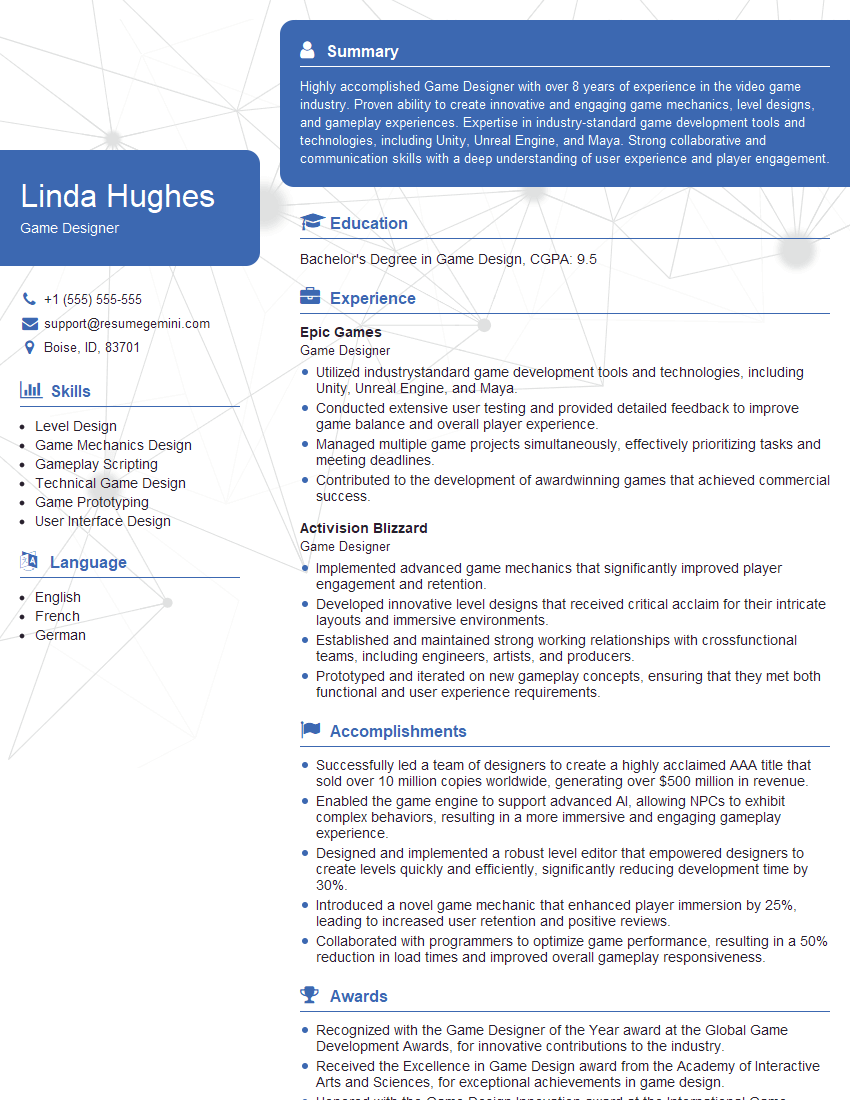
Game Designer Resume Sample
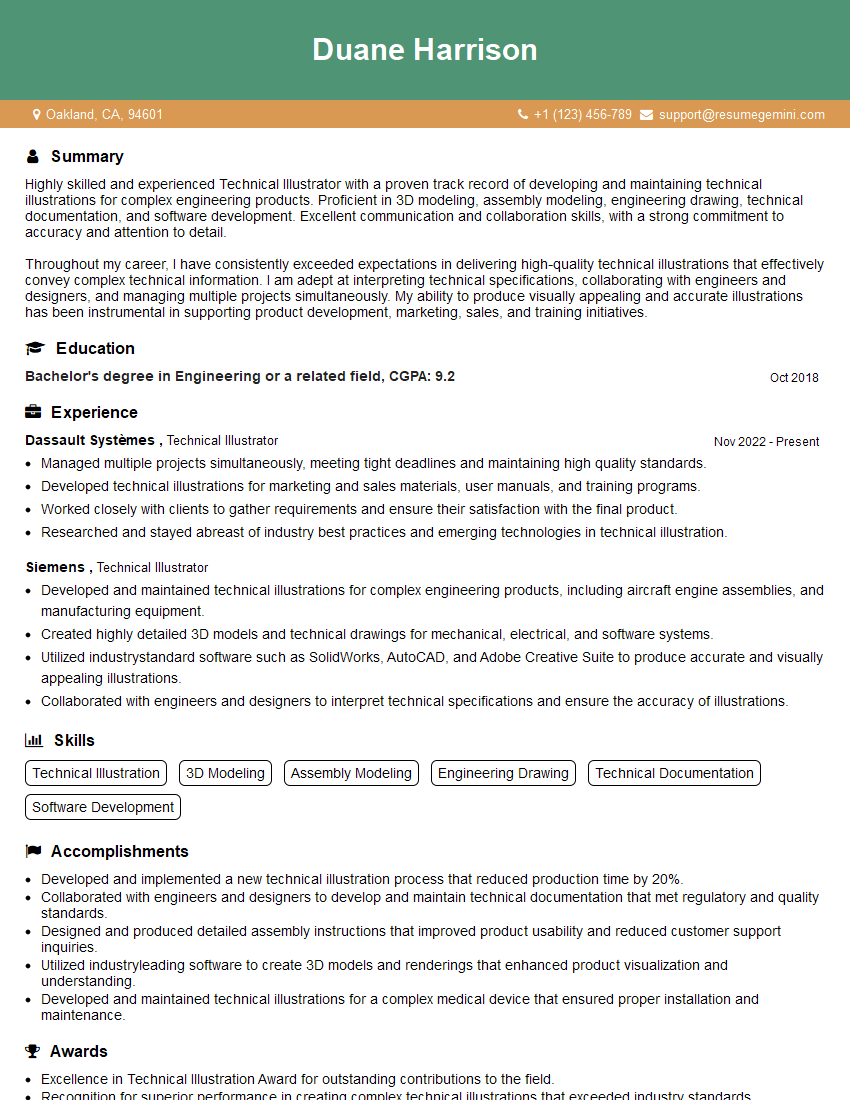
Technical Illustrator Resume Sample
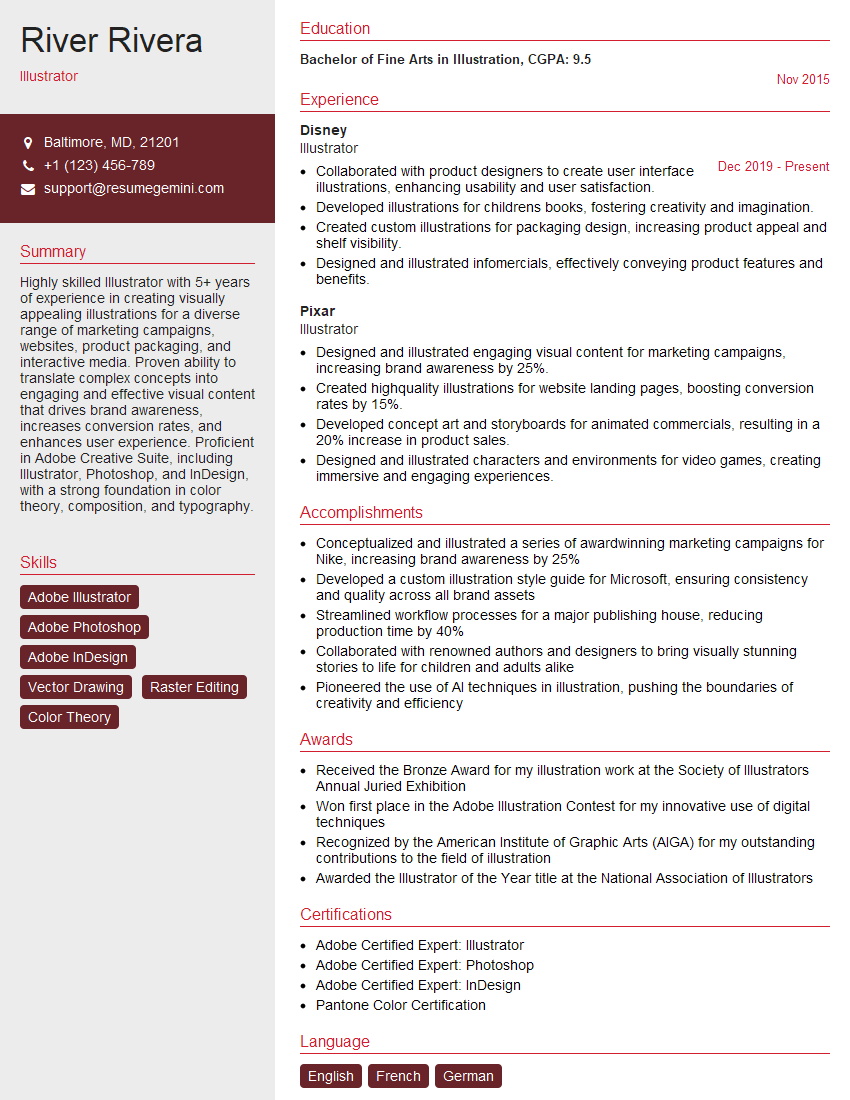
Illustrator Resume Sample
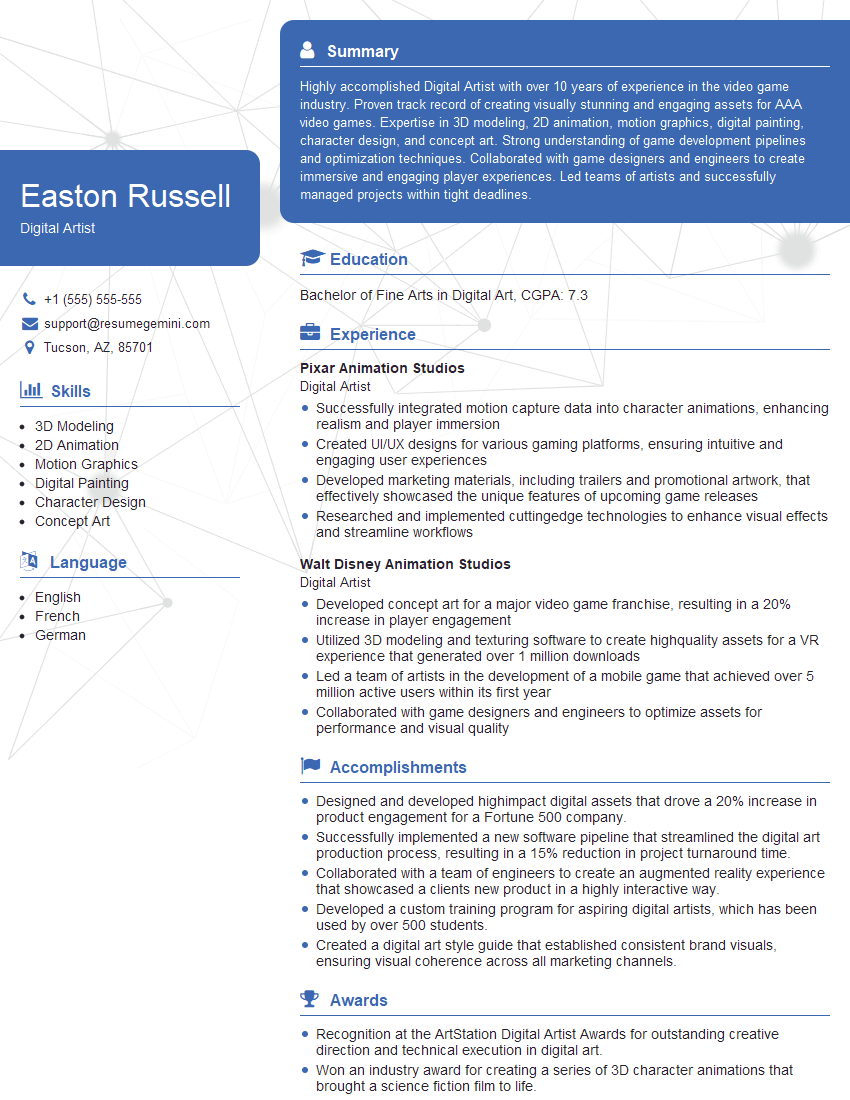
Digital Artist Resume Sample

Graphic Designer Resume Sample
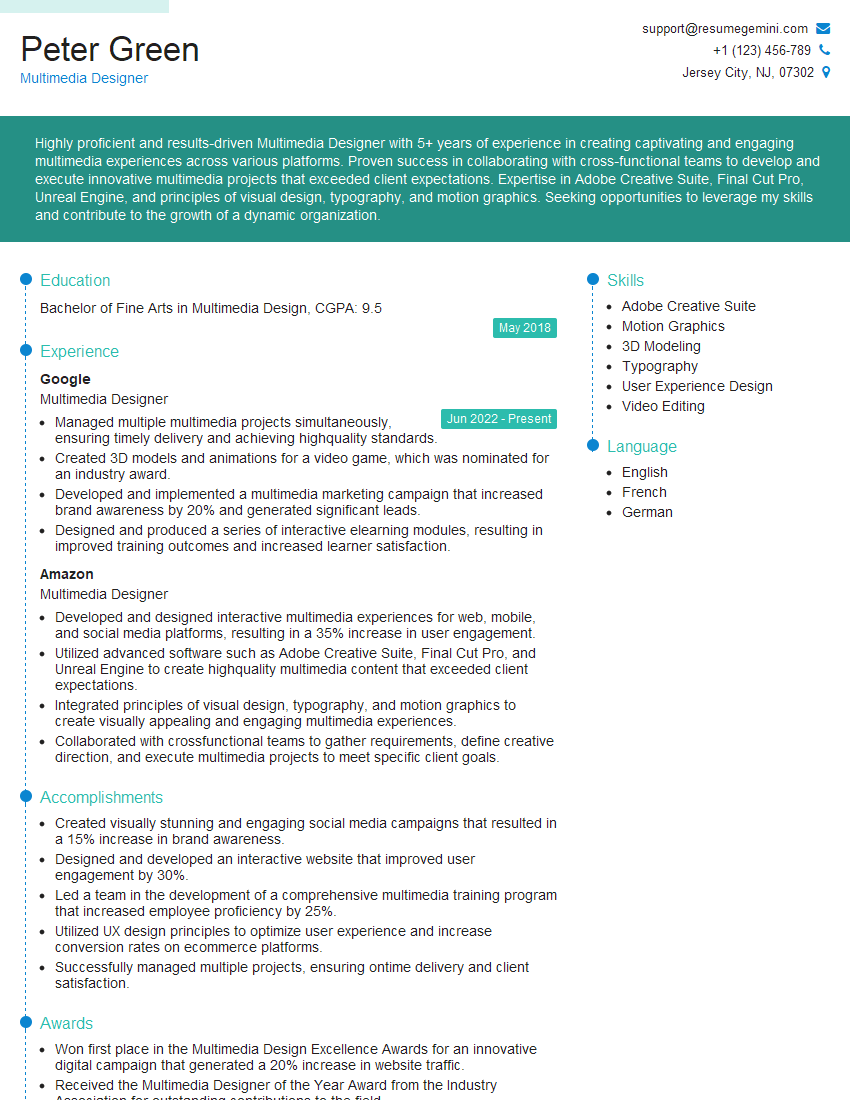
Multimedia Designer Resume Sample
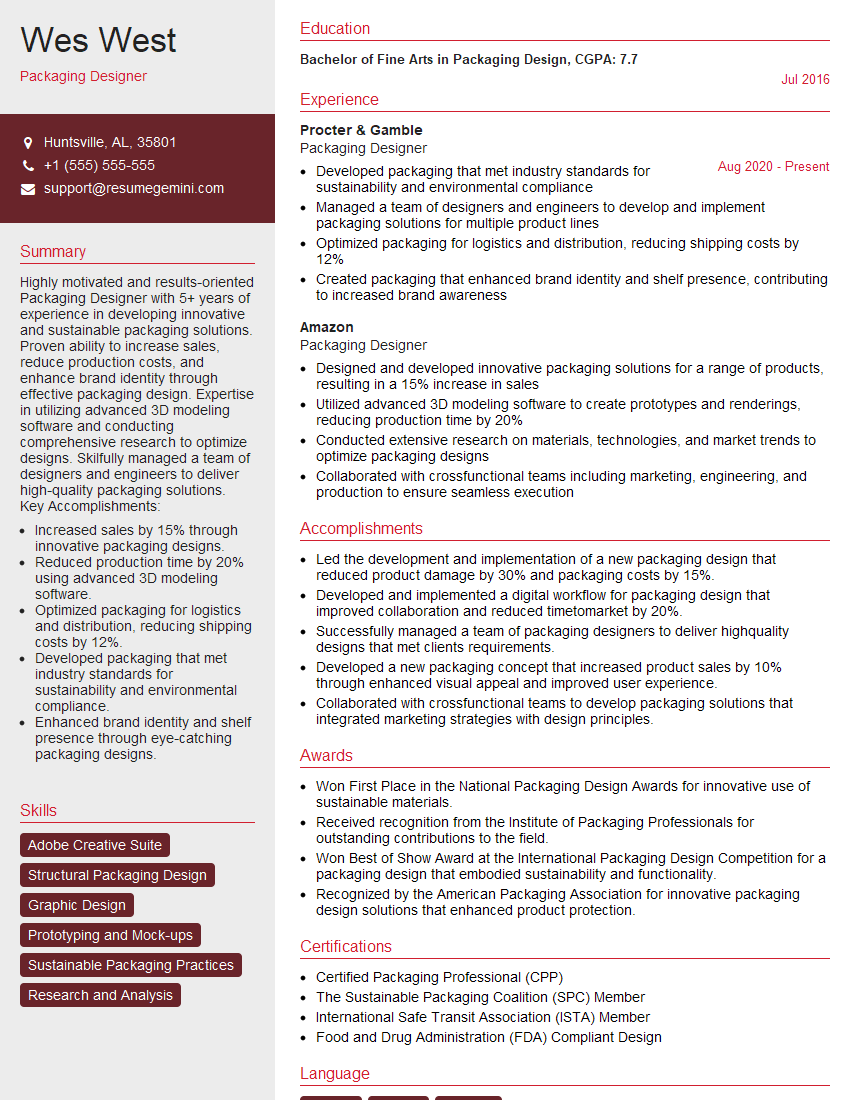
Packaging Designer Resume Sample
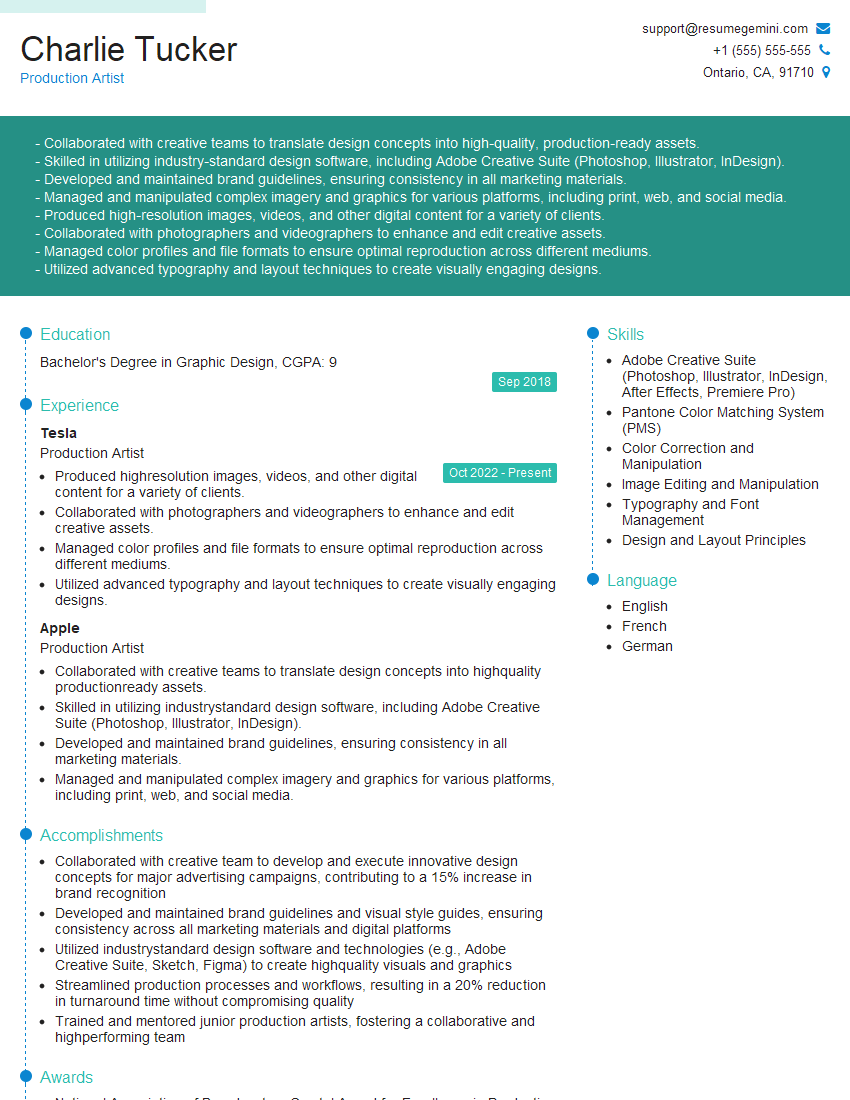
Production Artist Resume Sample
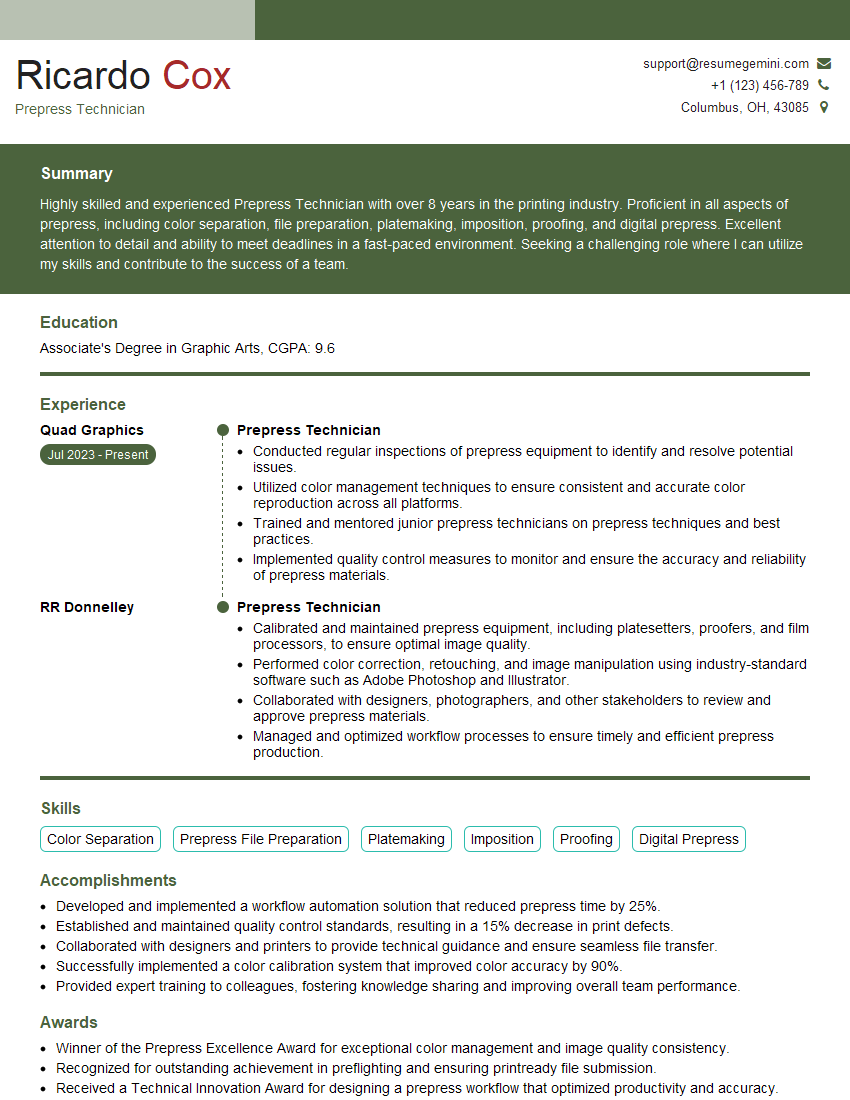
Prepress Technician Resume Sample
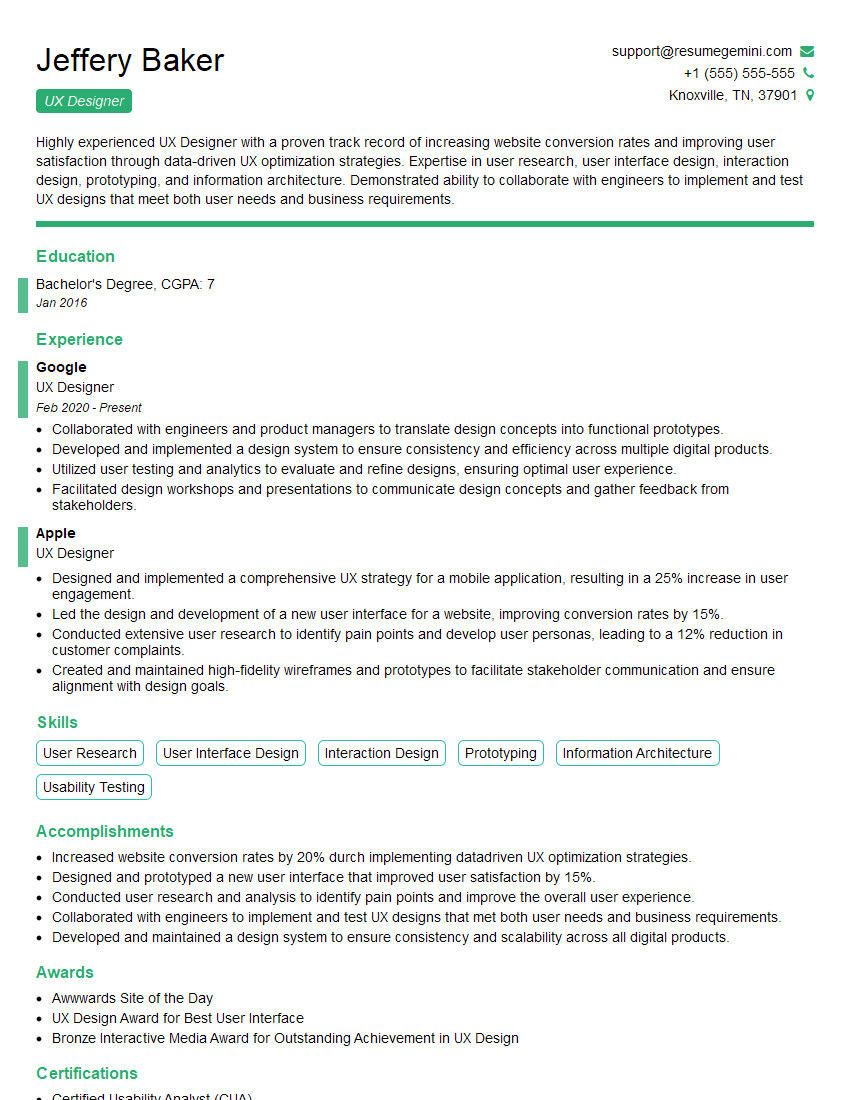
UX Designer Resume Sample
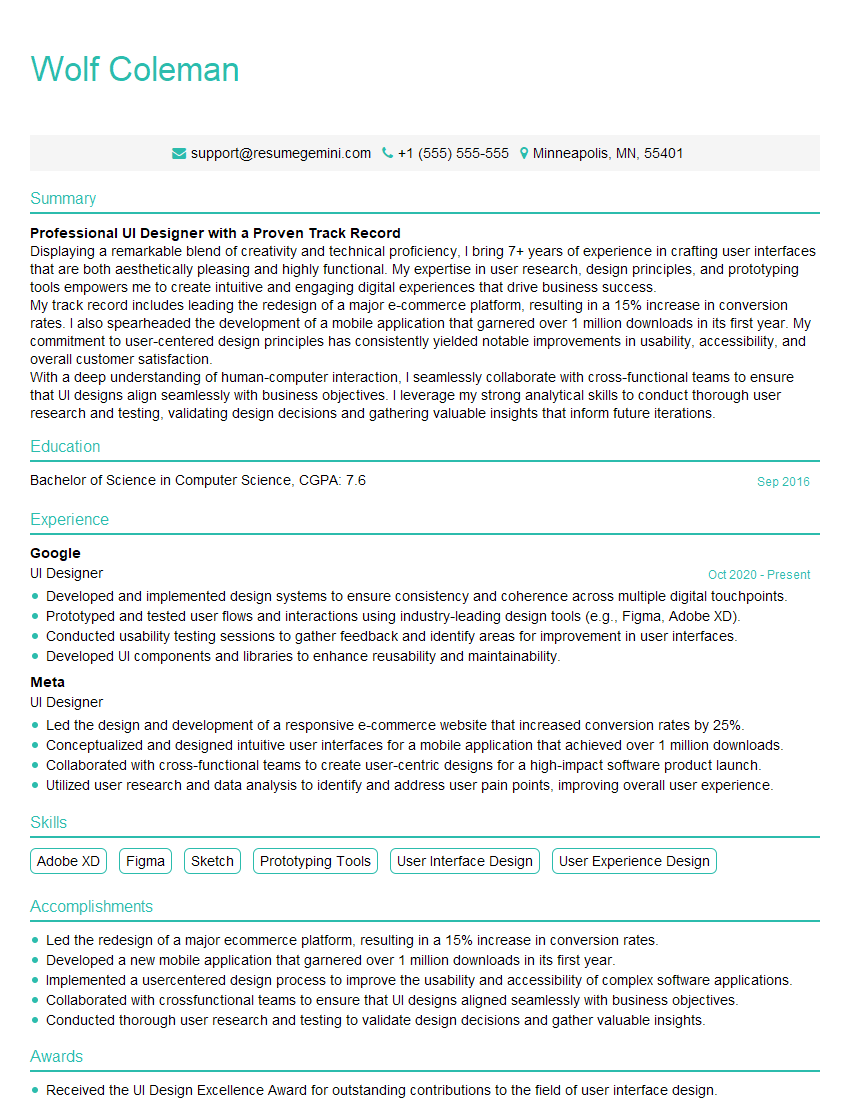
UI Designer Resume Sample
Explore more articles
Users Rating of Our Blogs
Share Your Experience
We value your feedback! Please rate our content and share your thoughts (optional).
What Readers Say About Our Blog
Very informative content, great job.
good