Are you ready to stand out in your next interview? Understanding and preparing for Basic Word Processing Skills interview questions is a game-changer. In this blog, we’ve compiled key questions and expert advice to help you showcase your skills with confidence and precision. Let’s get started on your journey to acing the interview.
Questions Asked in Basic Word Processing Skills Interview
Q 1. What word processing software are you proficient in?
I’m proficient in several word processing software packages, most notably Microsoft Word and Google Docs. My experience extends to using these programs for a wide variety of tasks, from creating simple letters and reports to designing complex documents with tables, images, and advanced formatting. I’m comfortable navigating the features and functions of both desktop and cloud-based applications. I also have experience with LibreOffice Writer, offering me a versatile skill set across different platforms.
Q 2. Explain the difference between saving and saving as a document.
The difference between ‘saving’ and ‘saving as’ is crucial for document management. ‘Saving’ a document updates the existing file, overwriting the previous version. Think of it like writing on a single sheet of paper – each save replaces what was written before. ‘Saving as,’ on the other hand, lets you create a copy of your document under a new name or in a different format. This allows you to keep the original version intact while creating variations or backups. It’s like making a photocopy of your paper; you have both the original and a new copy. Using ‘Save As’ is especially valuable for creating different versions of a document, such as a draft and a final version.
Q 3. How do you create a header and footer in your preferred word processor?
Creating headers and footers is straightforward in most word processors. In Microsoft Word, for instance, you’ll find the ‘Header & Footer’ option usually under the ‘Insert’ tab. Clicking this opens a header/footer section at the top or bottom of your page. You can then type in your desired content – page numbers, document titles, dates, or company logos. Google Docs has a similar interface. Headers and footers are essential for professional documents as they provide consistent branding and crucial information like page numbers across all pages, saving you manual work and enhancing readability. For example, a company report might have a header with the company logo and a footer with page numbers and the document’s title.
Q 4. Describe the process of inserting a table into a document.
Inserting a table is a common task. In Microsoft Word, navigate to the ‘Insert’ tab and click on ‘Table.’ You’ll then either choose the number of rows and columns you need directly or drag your cursor over a grid to select the size. Alternatively, you can use the ‘Insert Table’ option to specify the exact dimensions. Once inserted, you can easily resize cells, add or delete rows and columns, and format the table using different styles and borders. Imagine you’re creating a product catalog; a table is ideal for neatly presenting product names, descriptions, and prices in an organized format.
Q 5. How do you format text using bold, italic, and underline?
Formatting text with bold, italic, and underline is fundamental. In most word processors, this involves selecting the text you want to format and then clicking the corresponding buttons on the formatting toolbar. In Microsoft Word, for example, you’ll find these buttons prominently displayed. You can also use keyboard shortcuts: Ctrl+B for bold, Ctrl+I for italic, and Ctrl+U for underline. This helps emphasize key points or words. For instance, in a report, you might use bold for headings, italic for emphasized terms, and underline for web addresses.
Q 6. How do you create numbered and bulleted lists?
Creating numbered and bulleted lists is essential for organizing information. In Word or Google Docs, you typically select the text and then click on the numbered or bulleted list button on the toolbar. Alternatively, you can type your list items and then press Enter after each one to automatically format them. Numbered lists are useful for sequential steps, like instructions, while bulleted lists are better for a set of unrelated items or ideas. For example, when creating a to-do list, a bulleted list is appropriate. To present a step-by-step guide, a numbered list works better.
Q 7. How do you insert a page break?
Inserting a page break forces the next section of text to start on a new page. In most word processors, you can achieve this by pressing Ctrl+Enter. This is invaluable for dividing your document into distinct sections, ensuring a clean and professional look. For instance, you might use a page break after the introduction section of a report to separate it from the main body, creating a more organized and visually appealing layout.
Q 8. Explain how to use the find and replace function.
The Find and Replace function is a powerful tool for editing text efficiently. It allows you to locate specific words or phrases and replace them with something else, saving you significant time and effort, especially in lengthy documents.
Most word processors use a similar approach. You typically access it through an ‘Edit’ menu or by pressing keyboard shortcuts like Ctrl+H (Windows) or Cmd+H (Mac).
- Find What: This field is where you enter the text you want to find. You can use wildcards (* for any number of characters, ? for a single character) for more advanced searches.
- Replace With: Here, you input the text that will replace the found text.
- Options: These vary by program but often include ‘Match case’ (only finds exact matches considering capitalization), ‘Match whole word only’ (prevents partial matches), and ‘Find all’ (lists all instances before replacing).
Example: Imagine you’ve misspelled ‘reciept’ throughout a report as ‘receipt’. Using Find and Replace, you’d enter ‘reciept’ in ‘Find What’ and ‘receipt’ in ‘Replace With’. Clicking ‘Replace All’ would correct all instances instantly.
Professional Tip: Always preview or test the ‘Replace All’ feature on a copy of your document first, in case there are unintended consequences.
Q 9. How do you insert images or graphics into a document?
Inserting images and graphics is crucial for visually enhancing documents. The process is straightforward in most word processing software. You usually find an ‘Insert’ menu option with a sub-menu dedicated to ‘Pictures’ or ‘Images’.
- From File: This lets you browse your computer’s files and select the image you want to include. The image will appear at your cursor’s position.
- Online Pictures: Many programs allow searching for images directly from the internet, providing options to select from various online sources.
- Screenshots: Some programs let you take a screenshot directly and insert it into your document.
Example: To add a company logo, select ‘Insert’ > ‘Pictures’ > ‘From File’, navigate to your logo file, and click ‘Insert’. You can then resize and position it as needed.
Professional Tip: Use high-resolution images for professional documents to avoid pixelation. Consider image compression to keep file sizes manageable, but without significant quality loss.
Q 10. How do you create and edit a hyperlink?
Hyperlinks transform static text into clickable links, allowing readers to quickly access online resources or other parts of your document. Creating them is simple.
Most word processors allow you to highlight the text you want to make into a link, then right-click (or use a similar context menu option) to select ‘Insert Hyperlink’ or a similar phrase. You’ll be prompted to input the URL (web address) or file path.
Example: To link the text “Our Website” to your company’s site, you would highlight “Our Website”, select ‘Insert Hyperlink’, paste the website address (e.g., www.example.com) into the URL field, and click ‘OK’.
For internal links: Within a document, you can create a hyperlink to a specific heading or page number by highlighting the text, selecting ‘Insert Hyperlink’, and choosing the destination within the document. This is invaluable for navigating large reports.
Professional Tip: Always double-check the accuracy of the URL before inserting a hyperlink to avoid broken links.
Q 11. How do you manage different font sizes and styles within a document?
Managing font sizes and styles is essential for document readability and visual appeal. Word processors offer extensive customization options.
You can usually change font size and style using the formatting toolbar. This toolbar typically contains dropdown menus for selecting fonts (e.g., Times New Roman, Arial), sizes (e.g., 10pt, 12pt, 14pt), and styles (e.g., Bold, Italic, Underline).
Example: To make a heading bold and larger, select the heading text, choose a bold style from the toolbar, and increase the font size to, say, 16pt. For body text, a smaller, less prominent font is generally better.
Professional Tip: Maintain consistency. Choose a limited set of fonts and sizes for a professional look. Avoid using too many different styles within a single document, unless it’s for a specific design purpose.
Q 12. How do you use the spell check and grammar check functions?
Spell check and grammar check tools are invaluable for ensuring accuracy and professionalism. Most word processors have built-in functionalities for both.
Typically, you can access these features through the ‘Review’ or ‘Proofing’ menu. Spell check will underline misspelled words, while grammar check will identify potential grammatical errors, such as subject-verb agreement issues or improper punctuation.
Example: As you type, the program will automatically underline potential spelling errors in red. Right-clicking on the underlined word often provides suggestions for correction. The grammar check will usually provide suggestions in green or blue.
Professional Tip: While these tools are helpful, they aren’t perfect. Always proofread your document carefully to catch errors that the automated tools might miss, especially nuanced grammatical issues or stylistic choices.
Q 13. How do you adjust margins and page orientation?
Adjusting margins and page orientation is key for customizing the layout and appearance of your documents. These settings are usually found in the ‘Page Layout’ or ‘Layout’ menu.
Margins define the space around the text on a page. You can typically adjust the top, bottom, left, and right margins individually, or choose a preset option like ‘Normal’, ‘Wide’, or ‘Narrow’.
Page orientation refers to whether the page is in portrait (taller than wider) or landscape (wider than taller) mode. This is particularly useful for documents with wide tables or images.
Example: For a formal letter, you might set narrower margins (e.g., 1 inch all around) and portrait orientation. For a landscape photo presentation, choose landscape orientation and adjust margins as needed.
Professional Tip: Consider the purpose of your document when choosing margins and orientation. Standard margins and portrait orientation work well for most documents.
Q 14. How do you create a mail merge?
Mail merge is a powerful feature that lets you create personalized letters, emails, labels, and envelopes from a single template and a data source (e.g., a spreadsheet).
You start by creating a main document (the template), containing placeholders for information that will be personalized. Then, you link this to a data source, usually a spreadsheet or database, containing the individual recipient details.
Steps (general):
- Create a main document: Insert fields where the personalized data will go (name, address, etc.).
- Select data source: Choose your spreadsheet (CSV, Excel, etc.).
- Insert merge fields: Link placeholders in your template to corresponding columns in your data source.
- Preview and print: Check the results before generating multiple personalized documents.
Example: Imagine sending personalized thank-you notes to customers. Your template would include fields like “[Customer Name]” and “[Order Number]” which would be populated using data from your customer order spreadsheet.
Professional Tip: Ensure your data source is clean and accurately formatted to avoid errors in your merged documents.
Q 15. How do you work with different document templates?
Working with document templates is crucial for efficiency and consistency. A template is a pre-formatted document that provides a basic structure and style, saving you time on repetitive tasks. Most word processing software offers a range of built-in templates for various document types like letters, resumes, reports, and more. You can also create and save your own custom templates.
To use a template, you typically select ‘New’ from the file menu and then choose from the available templates. You can search by keyword or browse categories. Once you open a template, simply replace the placeholder text and content with your own information. Remember to save your customized version as a new file to preserve the original template.
For example, if you regularly write business proposals, creating a custom template with pre-formatted sections for executive summary, methodology, budget, and conclusion can significantly streamline your workflow. This ensures consistency in formatting and presentation across all your proposals.
Career Expert Tips:
- Ace those interviews! Prepare effectively by reviewing the Top 50 Most Common Interview Questions on ResumeGemini.
- Navigate your job search with confidence! Explore a wide range of Career Tips on ResumeGemini. Learn about common challenges and recommendations to overcome them.
- Craft the perfect resume! Master the Art of Resume Writing with ResumeGemini’s guide. Showcase your unique qualifications and achievements effectively.
- Don’t miss out on holiday savings! Build your dream resume with ResumeGemini’s ATS optimized templates.
Q 16. How do you manage page numbers and sections in a document?
Managing page numbers and sections allows for more sophisticated document control, particularly in longer documents like theses or books. Page numbering can be different in different sections; for instance, you might want Roman numerals for the preface and Arabic numerals for the main chapters.
Sections are independent areas within a document, each with its own formatting settings (page margins, headers, footers, page numbers). To insert a section break, you’ll typically find an option in the ‘Layout’ or ‘Page Layout’ tab of your word processor. This creates a distinct section that allows you to apply unique formatting to it without affecting other parts of the document. You can control the page numbering within each section, choosing to start anew, continue from the previous section, or even suppress page numbers entirely in certain sections.
Imagine writing a research paper. You might want page numbers to start over with each chapter, or even omit them from the title page and abstract. Section breaks allow you to manage this easily, while ensuring your numbering remains logical and consistent.
Q 17. How do you track changes in a document?
Tracking changes is vital for collaborative work, allowing you to see revisions made by different authors and accept or reject them. Most word processors have a ‘Track Changes’ feature. Once enabled, every insertion, deletion, or formatting change is highlighted visually (usually with underlines or strikethroughs) in the document. You can then review these changes and accept or reject them individually, or all at once. This feature makes it easy to manage revisions and maintain a history of alterations.
Think of a team working on a marketing report. With tracked changes, each member can make edits, and the final editor can then review all alterations before finalizing the document. This is far more efficient and avoids accidental overwriting or confusion compared to simply making edits without a clear change log.
Q 18. How do you use the comment feature?
The comment feature lets you add notes or feedback directly within a document, without altering the main text. It’s ideal for reviewing drafts, providing feedback, or annotating specific parts of a document. Comments are usually represented by small icons or markers in the margins, clicking which will display the comment text in a separate panel or pop-up box.
For instance, if you’re reviewing a colleague’s report, you can add comments suggesting improvements to wording, data presentation, or overall structure without affecting the original text. This ensures that feedback is clearly associated with specific sections of the document and avoids confusion.
Q 19. How do you insert footnotes or endnotes?
Footnotes and endnotes are used to provide additional information or citations without disrupting the flow of your main text. Footnotes appear at the bottom of the page, while endnotes are collected at the end of the document. Both are typically numbered sequentially and linked to the relevant point in the main text.
In academic writing, for example, footnotes are often used for citations and endnotes for more extensive commentary or explanations. Most word processors offer easy ways to insert footnotes or endnotes using menu commands or keyboard shortcuts. The software typically automatically numbers them and handles the placement, ensuring a clean and professional presentation.
Q 20. How do you create a table of contents?
A table of contents (TOC) provides a quick overview of a document’s structure, listing section headings and their corresponding page numbers. Most word processors automatically generate a TOC based on headings you’ve defined in your document. You’ll usually find a ‘References’ or ‘Insert’ tab with a ‘Table of Contents’ option. The software will scan your document for headings and create a numbered list of them, linking each to its page number.
When working on lengthy reports or books, a TOC is invaluable for navigation and quick referencing. It makes the document more user-friendly and enhances the professional appearance of your work.
Q 21. How do you use the print preview function?
The print preview function is a crucial tool that allows you to see exactly how your document will look when printed before you actually send it to the printer. This prevents unexpected formatting issues, such as text running off the page or incorrect margins. The print preview usually offers options to zoom in or out, adjust page settings, and check page breaks. You can often see multiple pages simultaneously, getting a better sense of the layout and flow.
Imagine preparing a presentation handout. Using the print preview, you can confirm that graphics are positioned correctly, text is legible, and there are no unnecessary blank pages. This prevents wasted paper and ensures a professional-looking final product.
Q 22. How do you create a document with multiple columns?
Creating multi-column documents is essential for layouts like newsletters or brochures. Most word processors offer this functionality through a simple menu option. Think of it like dividing your page into distinct sections, running side-by-side.
- In most applications: You’ll typically find a ‘Layout’ or ‘Page Layout’ tab. Within this tab, look for options like ‘Columns’ or ‘Column Layout’.
- Number of columns: You can choose the number of columns you need (two, three, etc.).
- Column width adjustments: Many programs allow you to adjust the width of each column to fit your content.
- Column breaks: You can manually insert column breaks to control where content moves to the next column. This is useful if you want to ensure a specific section stays within one column.
Example: Imagine designing a company newsletter. Using two columns allows you to place a large headline in one column and accompanying text and images in the other, creating a visually balanced and engaging design.
Q 23. How do you insert a watermark?
Watermarks are subtle images or text overlaid on a document, often used to indicate confidentiality or draft status. They add a professional touch and protect your intellectual property. Think of it as a semi-transparent stamp on your document.
- Accessing the watermark feature: The exact location varies by software, but generally, you’ll find it under ‘Design’ or ‘Page Layout’ tabs. Look for options like ‘Watermark’ or ‘Page Background’.
- Types of watermarks: You can choose to create a text watermark (e.g., ‘Confidential’) or use an image. Often, you can adjust the watermark’s transparency and position.
- Applying the watermark: Select your watermark type and settings, and the program will automatically apply it to the entire document.
Example: For a draft report, a text watermark saying ‘DRAFT’ clearly signals its incomplete status. For a highly sensitive document, a company logo watermark visually reinforces confidentiality.
Q 24. How do you create and use styles?
Styles are predefined formatting sets applied to text, paragraphs, or even entire documents. Think of them as templates for consistent formatting. This is incredibly useful for maintaining a uniform look across long documents or projects.
- Creating a style: Most applications have a ‘Styles’ panel. Select the text or paragraph you want to format, and then click ‘Create a Style’ or a similar option. You can then adjust the font, size, color, spacing, etc. Give your style a descriptive name (e.g., ‘Heading 1’, ‘Body Text’).
- Applying a style: Once created, select the text you want to format and choose the style from the Styles panel. The formatting will instantly apply.
- Modifying Styles: You can modify an existing style’s formatting, and the changes will automatically update everywhere that style is used in the document.
Example: Using styles to create consistent headings (e.g., ‘Heading 1’ with a large, bold font; ‘Heading 2’ with a slightly smaller bold font) instantly makes your document look more professional and readable.
Q 25. How do you use the autocorrect feature?
Autocorrect is a built-in feature that automatically corrects common spelling, grammar, and typing errors as you type. Think of it as your personal proofreader.
- Enabling/Disabling Autocorrect: You usually find Autocorrect settings within the program’s preferences or options. Most programs have it enabled by default.
- Customizing Autocorrect: Many programs allow you to customize the Autocorrect list, adding or removing specific words or corrections. This is useful for correcting frequently misspelled words specific to your industry or work.
- Understanding Autocorrect limitations: While Autocorrect helps, it’s not perfect. Always proofread your work, as Autocorrect can sometimes make incorrect suggestions or miss errors.
Example: Autocorrect will automatically change ‘teh’ to ‘the’ and correct other common typos. You can also teach it to correct your own personalized abbreviations or nicknames.
Q 26. How do you convert a document to PDF?
Converting a document to PDF (Portable Document Format) is essential for sharing documents widely, as PDFs maintain formatting and are universally accessible. This is crucial for final reports, client presentations, or any document needing consistent appearance across different devices or software.
- Using the ‘Save As’ option: Most word processing programs have a ‘Save As’ option. Choose ‘PDF’ as the file type and save your document. Simple and quick!
- Print to PDF: Many operating systems offer a ‘Print to PDF’ option. This allows you to convert virtually any document into a PDF file.
- Online PDF converters: Numerous websites offer free online PDF conversion tools. You upload your document, and they convert it to PDF format.
Example: Sending a final report to a client as a PDF ensures that they’ll see the exact formatting, regardless of their operating system or software.
Q 27. How do you handle formatting inconsistencies in a document?
Formatting inconsistencies can make a document look unprofessional and detract from readability. Addressing these inconsistencies is crucial for professional document presentation.
- Using Styles: Applying consistent styles is the best way to prevent formatting inconsistencies. Once a style is created, any change to that style updates the formatting everywhere that style is used.
- Find and Replace: This can be useful to fix simple formatting issues, like correcting inconsistent font sizes or colors.
- Manual Correction: For smaller documents or complex formatting issues, a manual review and correction are sometimes necessary.
- Using the ‘Find and Replace’ feature: For example, search for instances of ‘Times New Roman 10pt’ and replace with the consistently desired formatting, such as ‘Arial 12pt’.
Example: Imagine a document with headings in various font sizes and styles. Using consistent styles for headings would easily solve this issue. Using ‘Find and Replace’ for quick fixes of inconsistencies.
Q 28. Describe your experience with different document file formats (e.g., .doc, .docx, .rtf)
Different document file formats each have their own strengths and weaknesses. Familiarity with these formats is crucial for ensuring compatibility and efficient document management.
- .doc (Microsoft Word 97-2003): An older format, generally compatible, but may not support newer features.
- .docx (Microsoft Word Open XML): The current standard for Microsoft Word, supporting features like styles and complex layouts, offering better compatibility than .doc.
- .rtf (Rich Text Format): A cross-platform format offering basic formatting compatibility across various word processors. Lacks the advanced features of .docx files.
Experience: In my experience, .docx is the most versatile and preferred format due to its broad compatibility and feature support. However, understanding .doc and .rtf allows for working with older documents and ensuring wider accessibility.
Example: If you need a document to be easily opened on both Windows and macOS machines, .rtf may be a good choice for simple documents. For complex documents, with rich formatting and features, using .docx is optimal for most scenarios.
Key Topics to Learn for Basic Word Processing Skills Interview
- Document Creation and Formatting: Understanding how to create, save, and format documents using common word processing software (like Microsoft Word or Google Docs). This includes setting margins, fonts, line spacing, and paragraph styles.
- Text Editing and Manipulation: Mastering skills like cut, copy, paste, find and replace, spell check, grammar check, and autocorrect. Practical application includes efficiently editing and proofreading documents for accuracy and clarity.
- Working with Tables and Images: Creating and formatting tables, inserting and manipulating images, and aligning elements within a document for a professional and organized look. Problem-solving might involve troubleshooting image insertion issues or table formatting challenges.
- Headers, Footers, and Page Numbers: Understanding how to add headers and footers, including page numbers, and using different page numbering styles. Practical application extends to formatting reports or formal documents.
- Mail Merge: Learning the fundamentals of mail merge for creating personalized letters or documents from a template. This demonstrates efficiency and automation skills.
- Templates and Styles: Utilizing pre-designed templates and creating custom styles to ensure consistency and efficiency in document creation. This showcases an understanding of best practices.
- File Management and Saving: Understanding different file formats (.doc, .docx, .pdf), saving documents correctly, and organizing files efficiently. This shows attention to detail and organizational skills.
Next Steps
Mastering basic word processing skills is crucial for almost every professional role, significantly enhancing your productivity and efficiency. A strong foundation in these skills demonstrates attention to detail, organizational abilities, and proficiency with essential office software – all highly valued by employers. To maximize your job prospects, create an ATS-friendly resume that highlights these skills. ResumeGemini is a trusted resource to help you build a professional and impactful resume that will catch the eye of recruiters. Examples of resumes tailored to showcasing Basic Word Processing Skills are provided to guide you. Take this opportunity to showcase your abilities and land your dream job!

Office Manager Resume Sample

Administrative Assistant Resume Sample
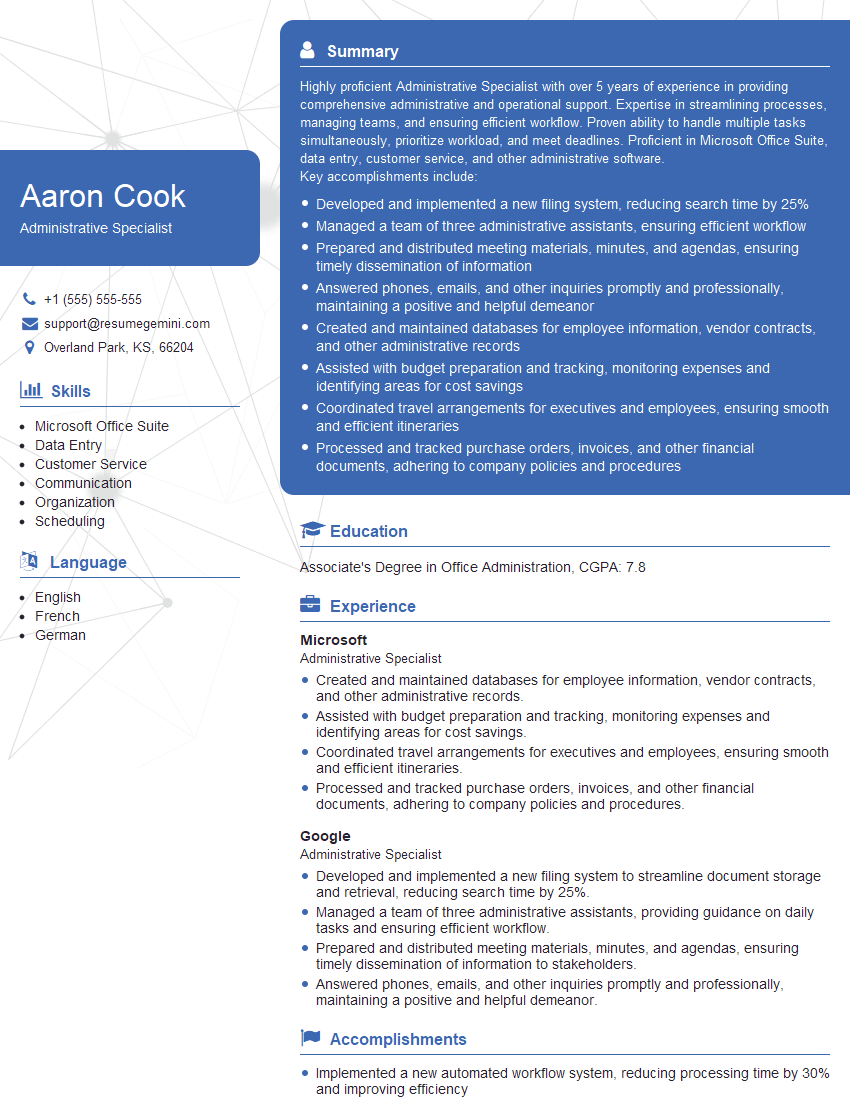
Administrative Specialist Resume Sample
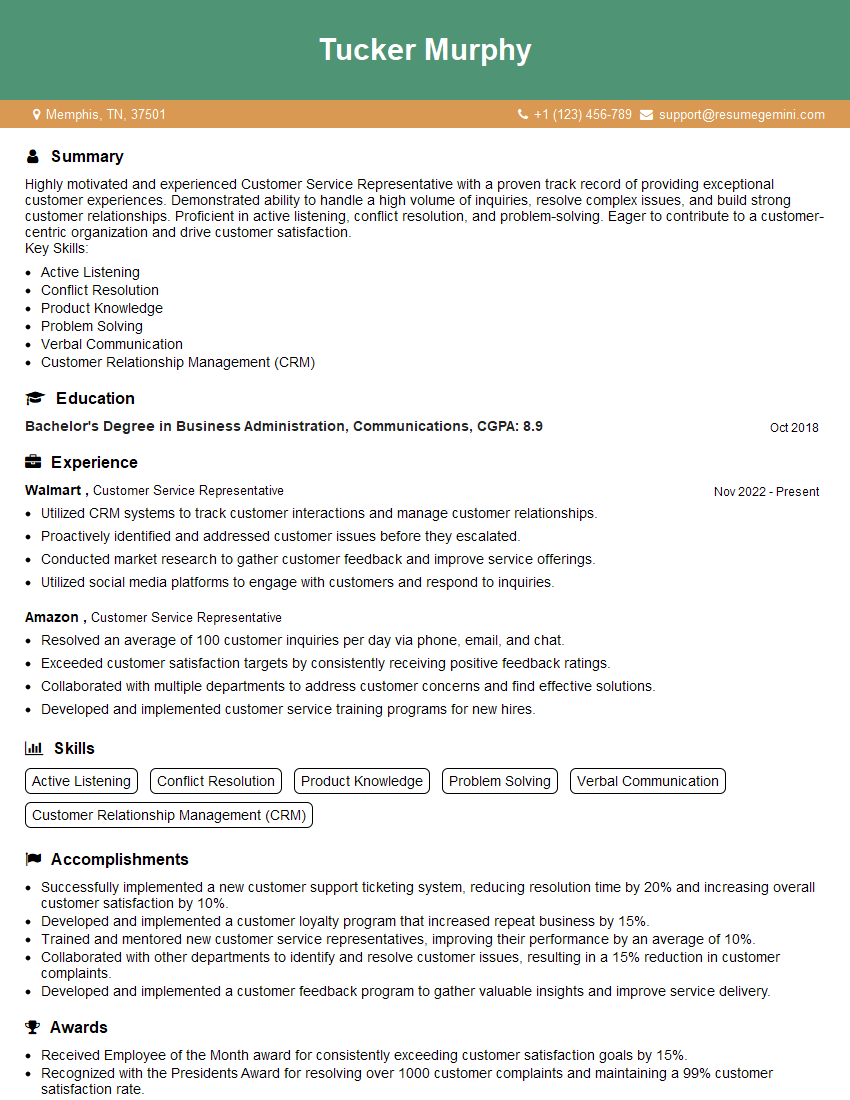
Customer Service Representative Resume Sample
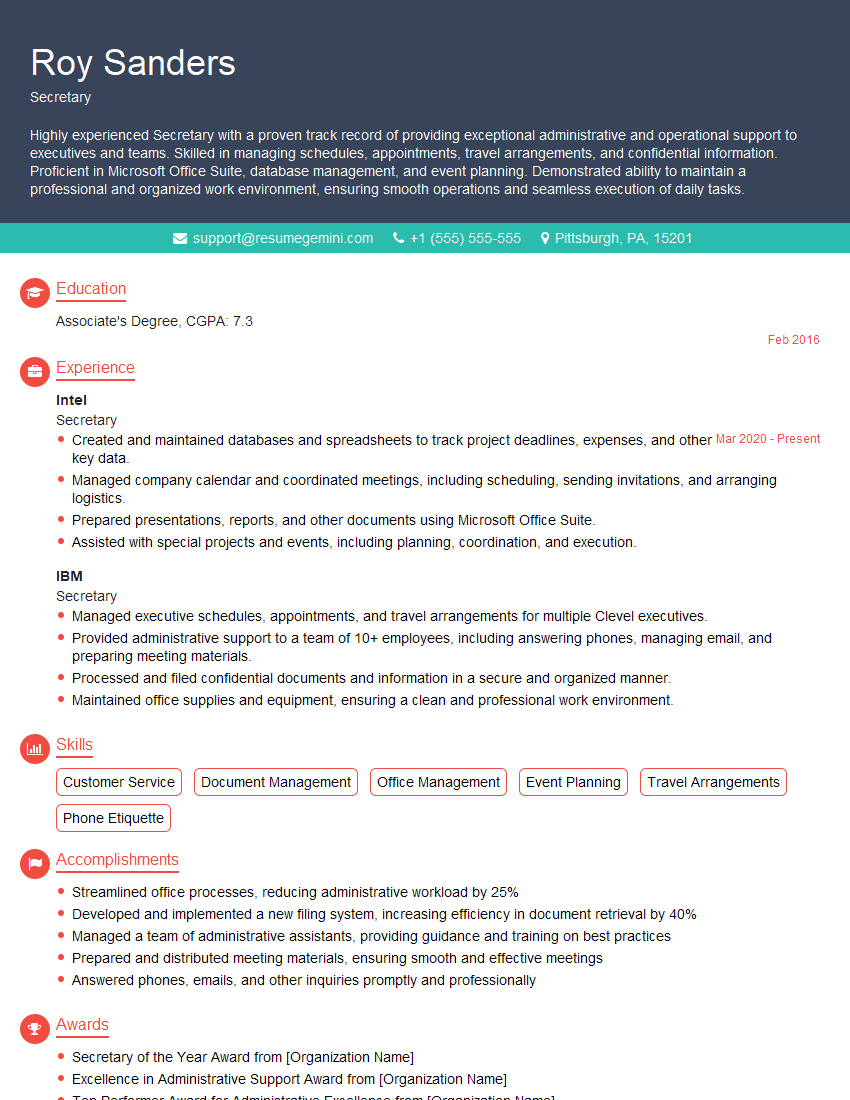
Secretary Resume Sample
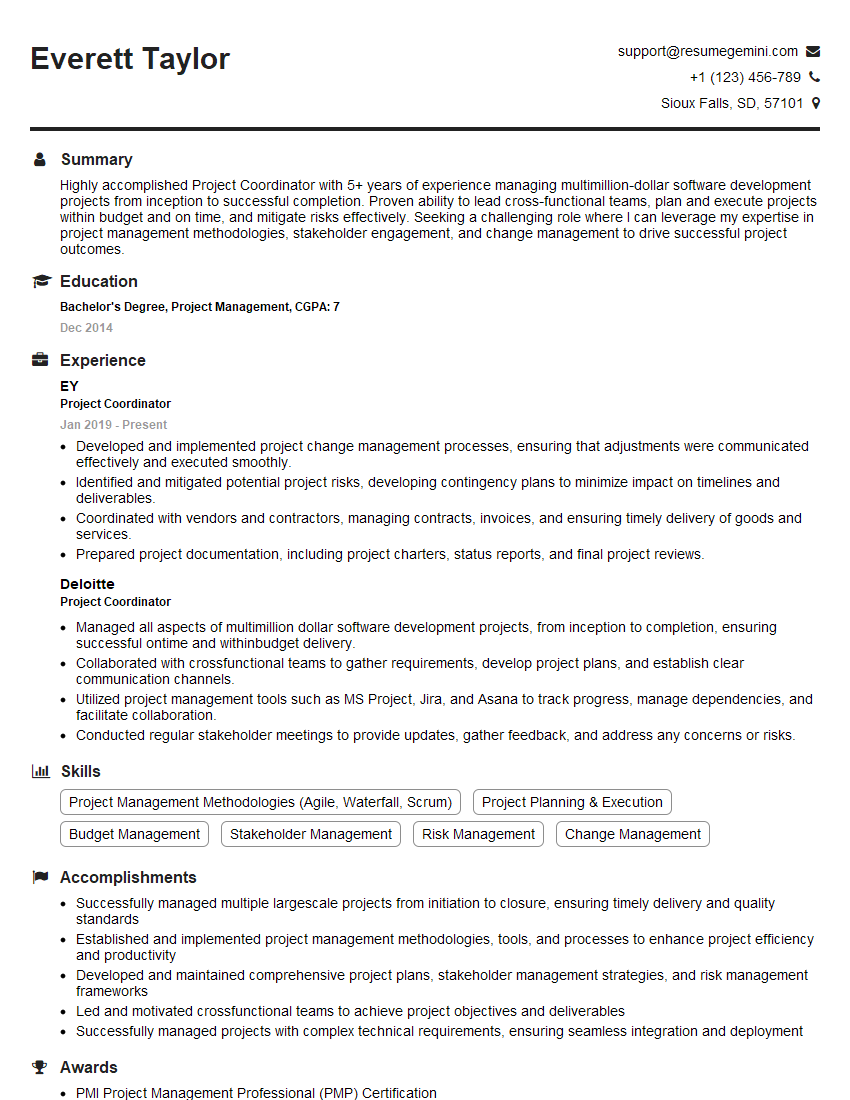
Project Coordinator Resume Sample
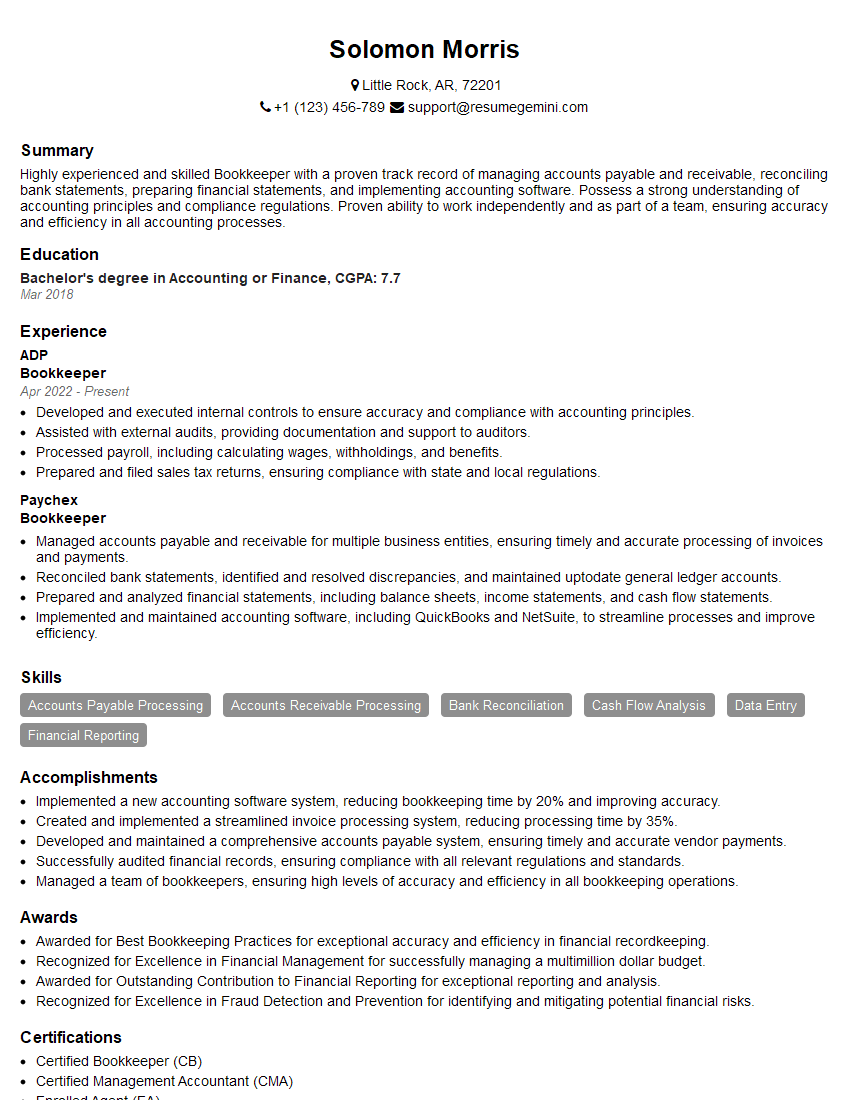
Bookkeeper Resume Sample
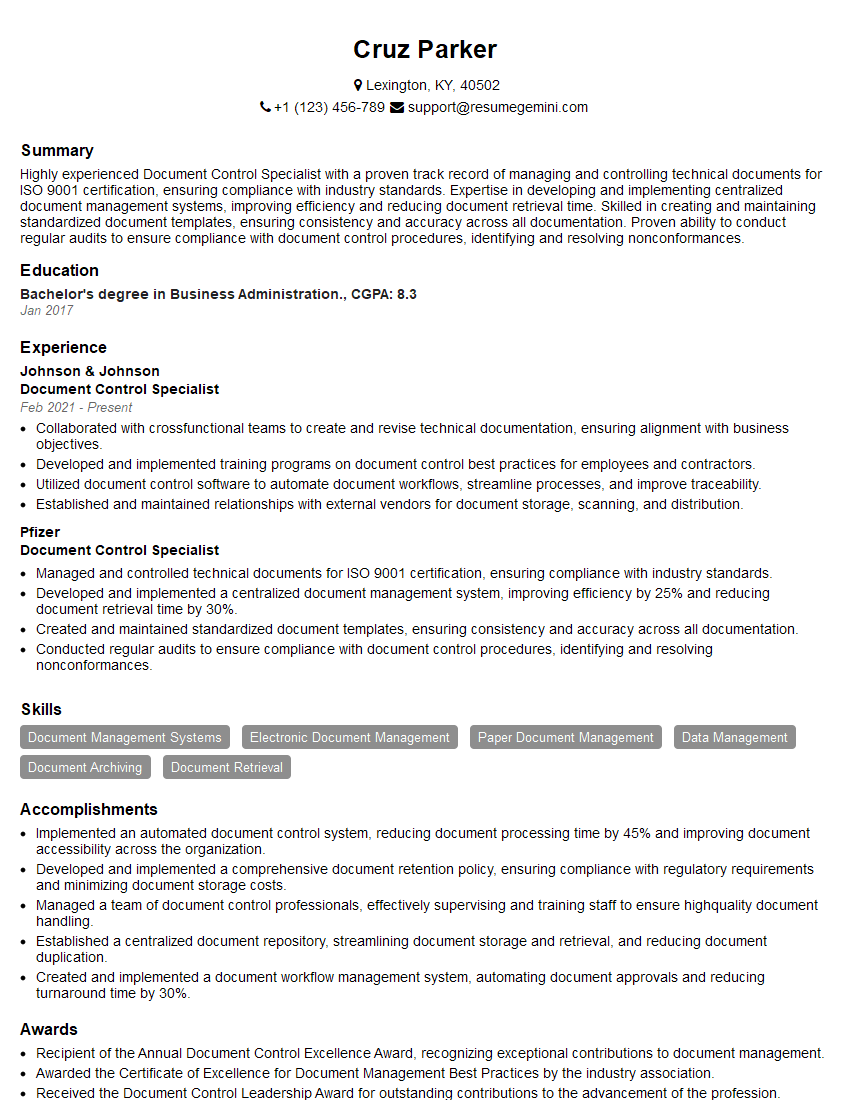
Document Control Specialist Resume Sample
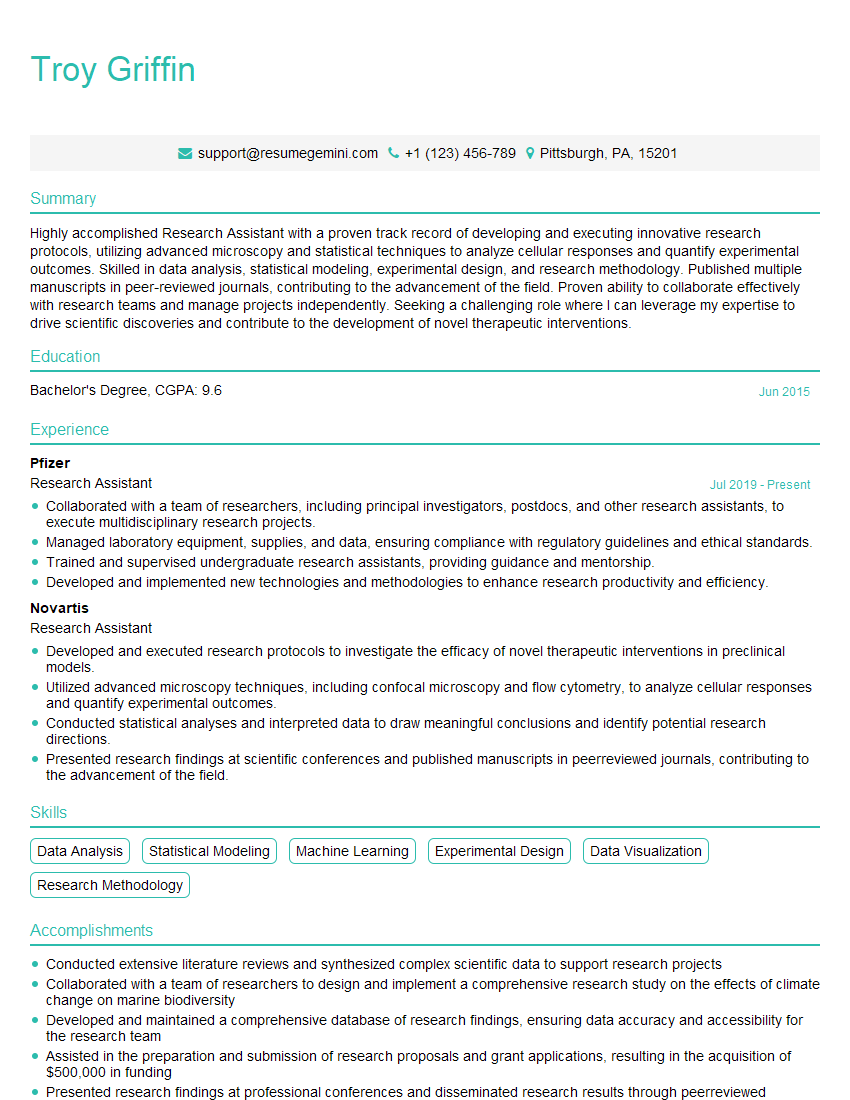
Research Assistant Resume Sample
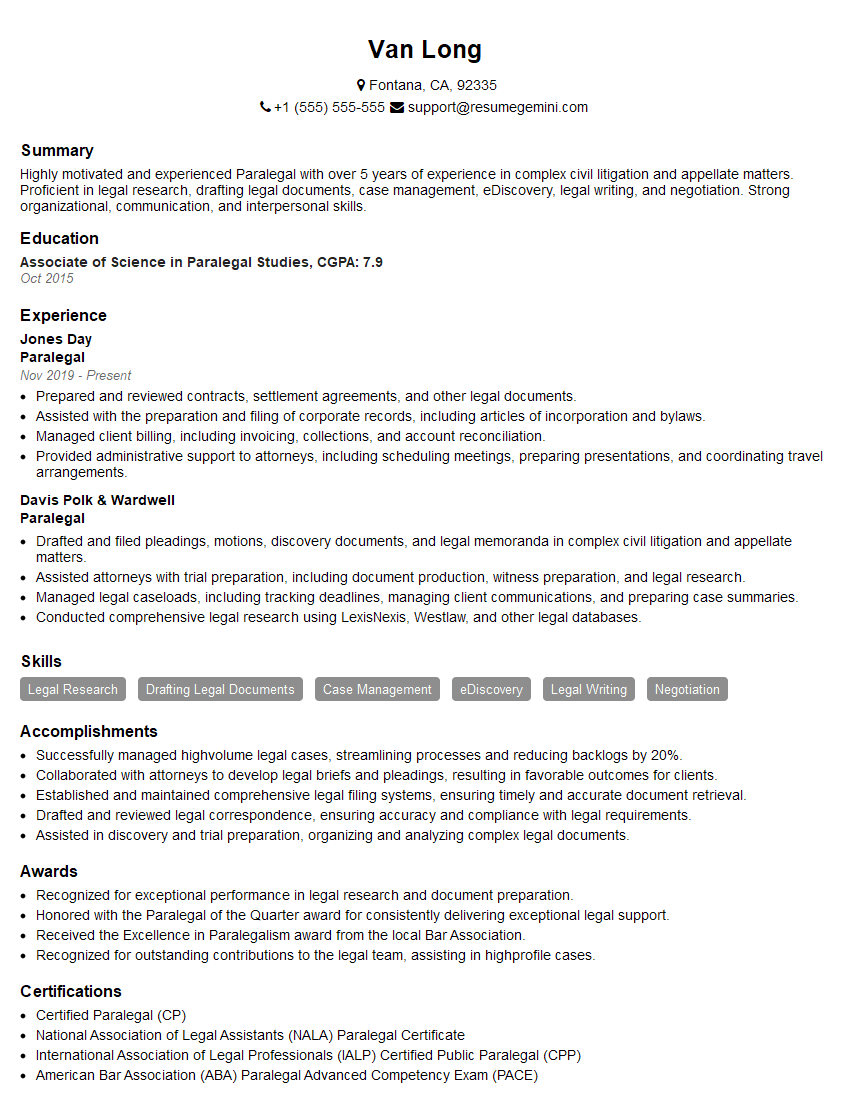
Paralegal Resume Sample
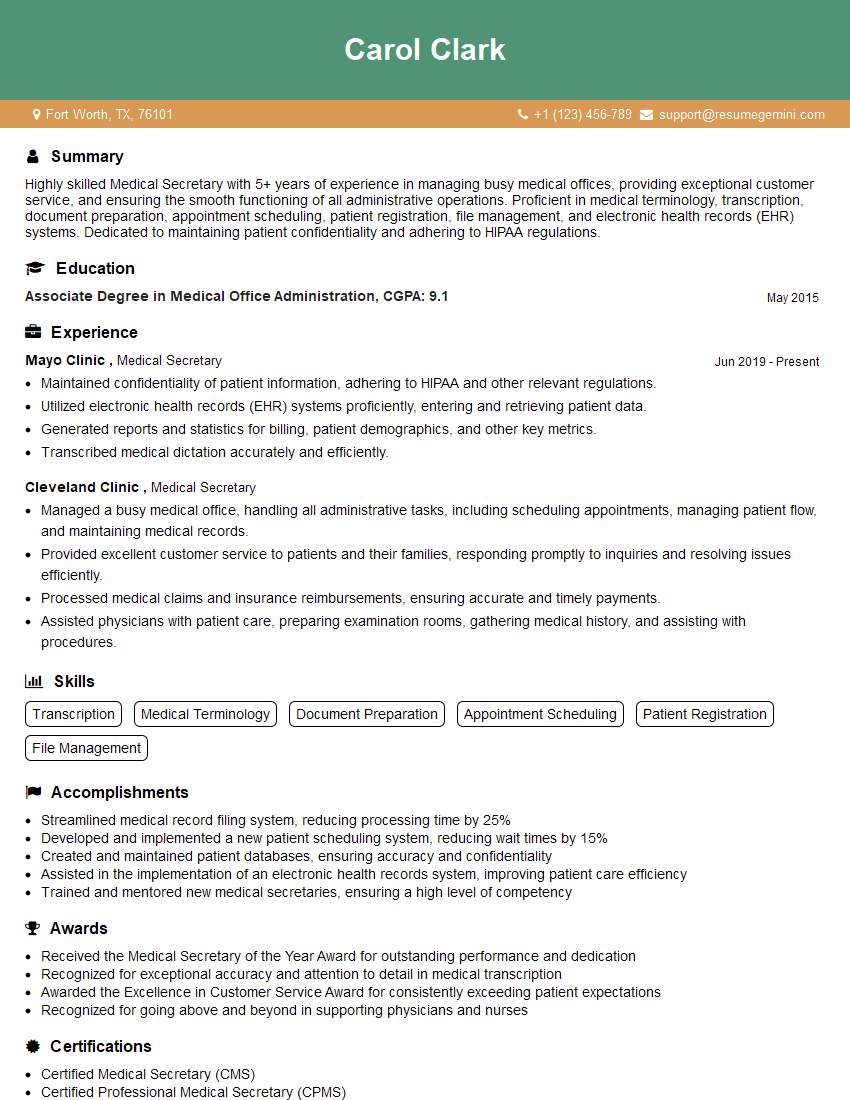
Medical Secretary Resume Sample
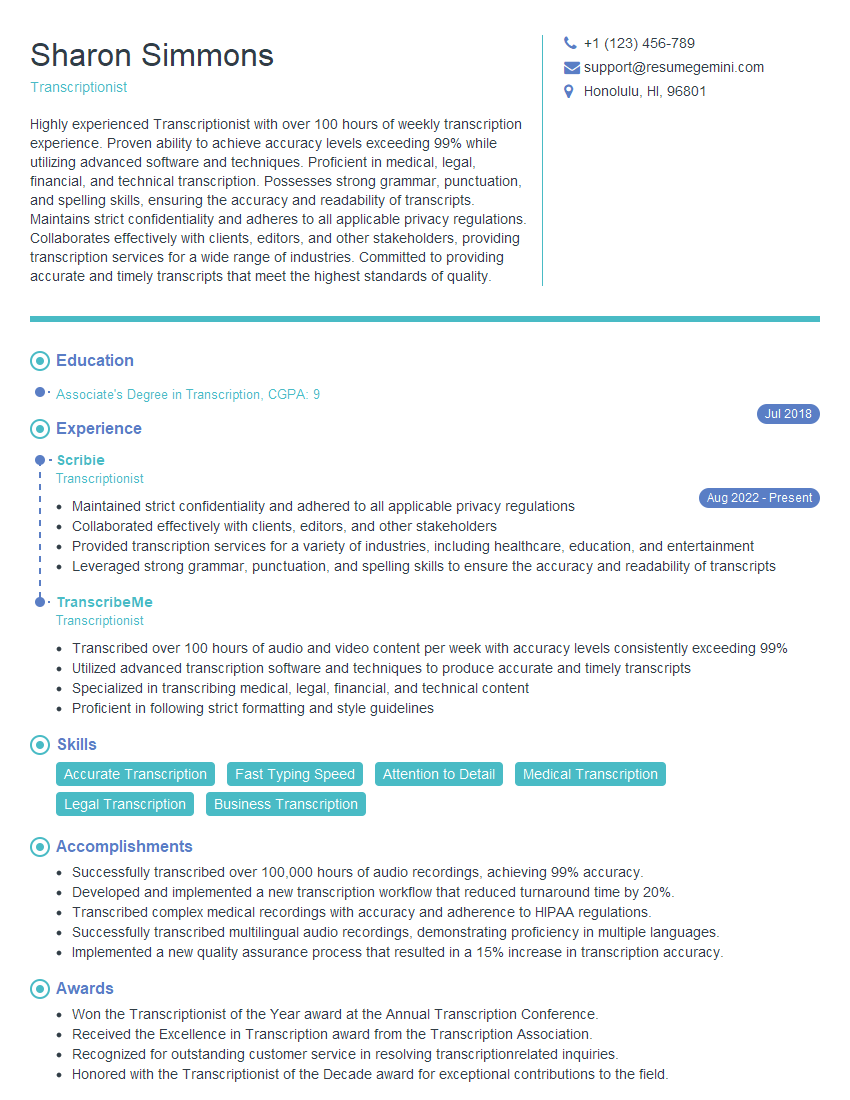
Transcriptionist Resume Sample
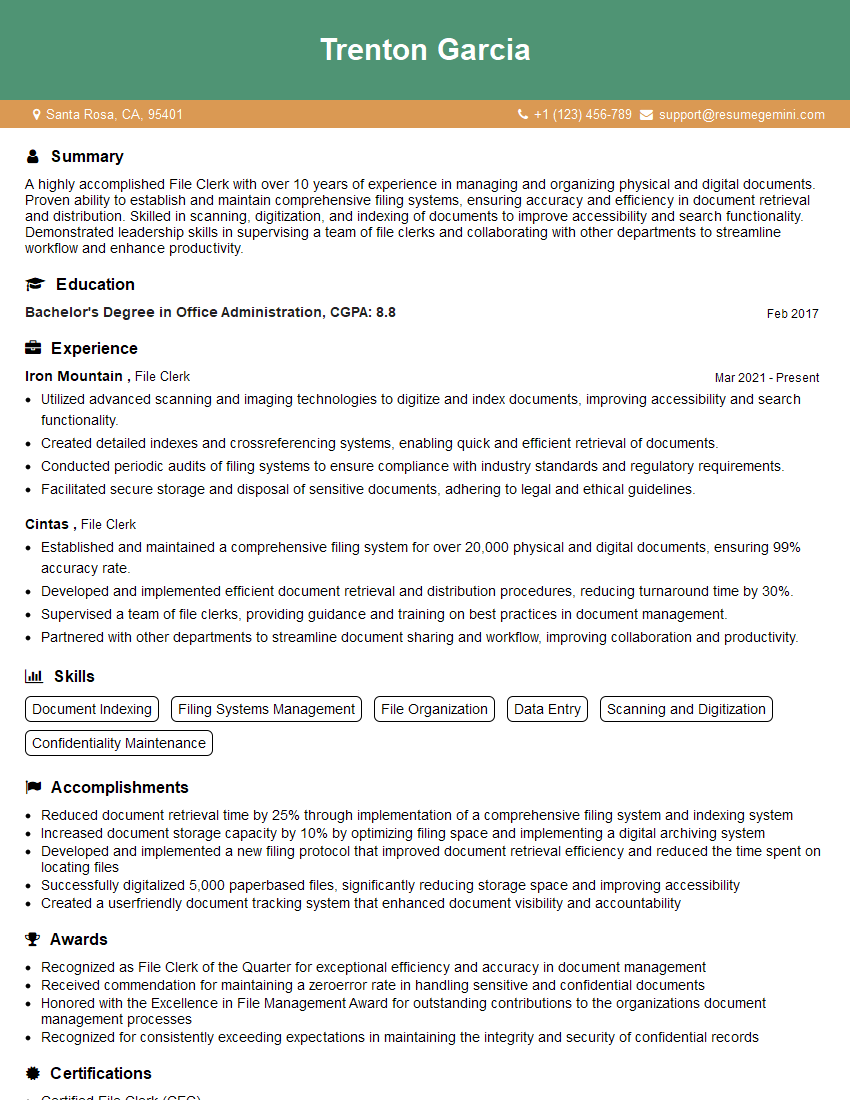
File Clerk Resume Sample
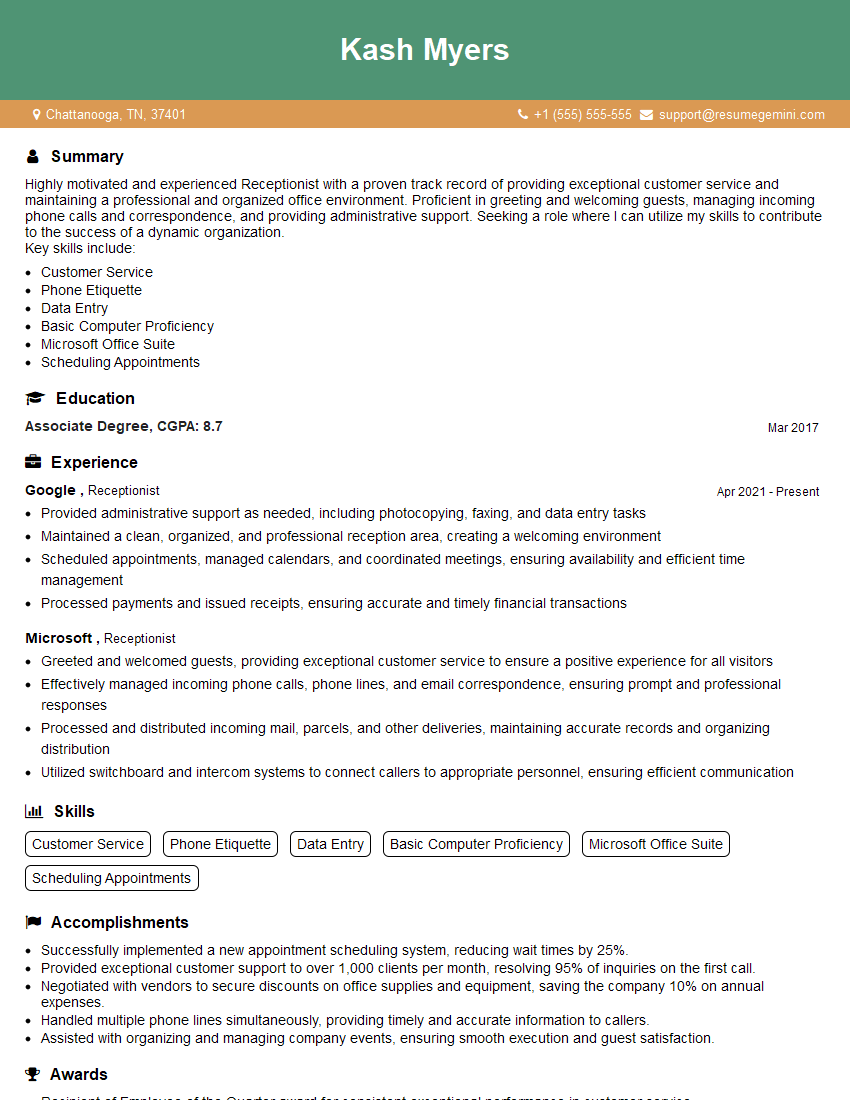
Receptionist Resume Sample

Executive Assistant Resume Sample
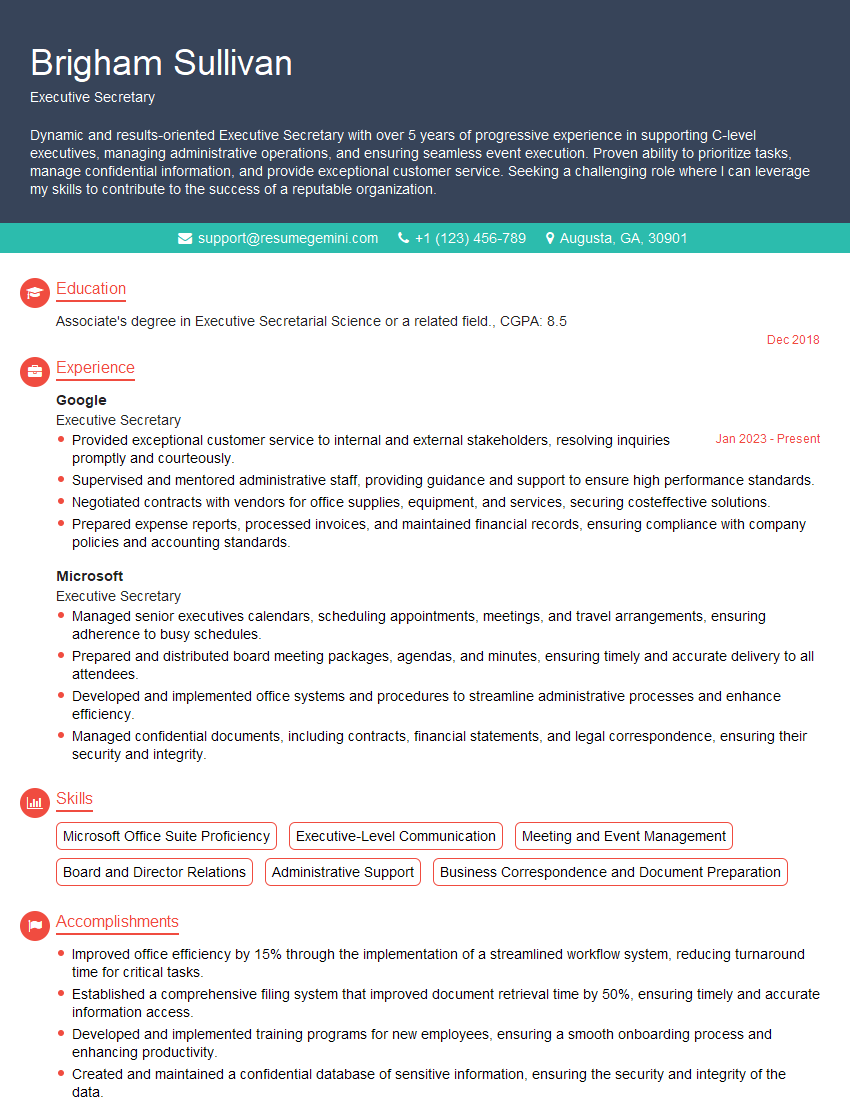
Executive Secretary Resume Sample
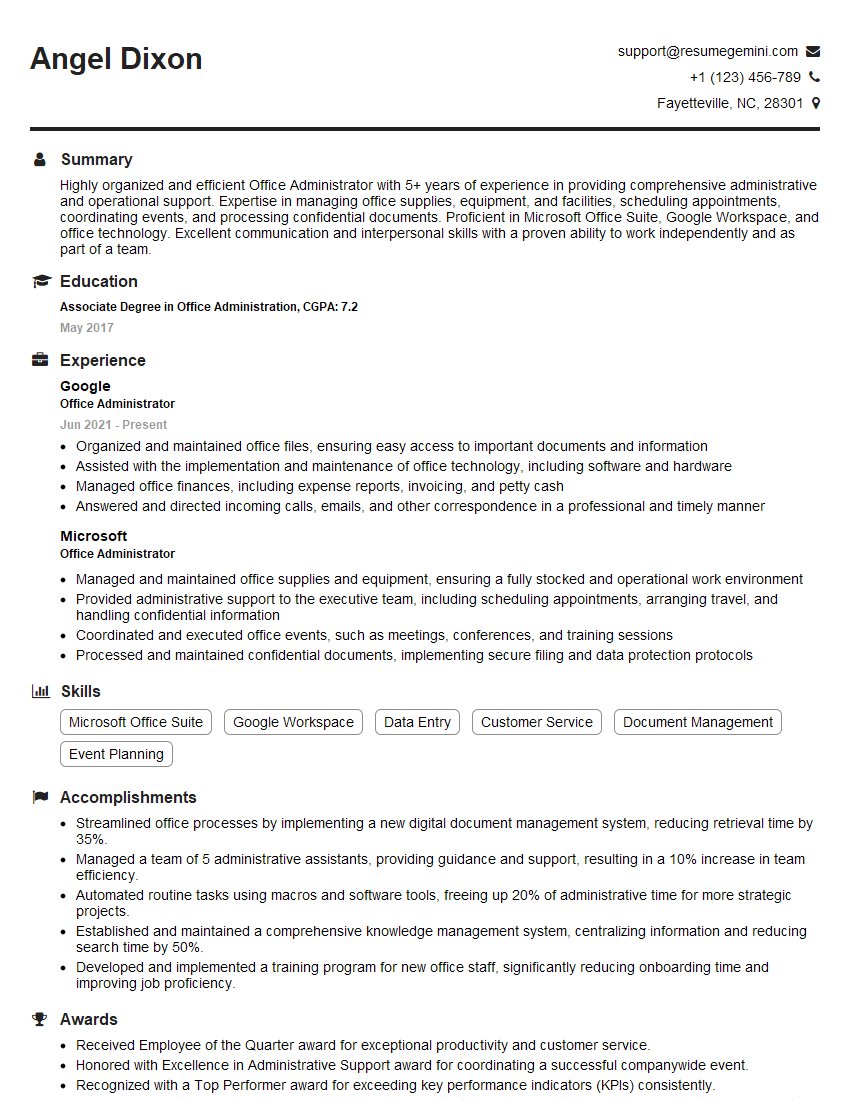
Office Administrator Resume Sample
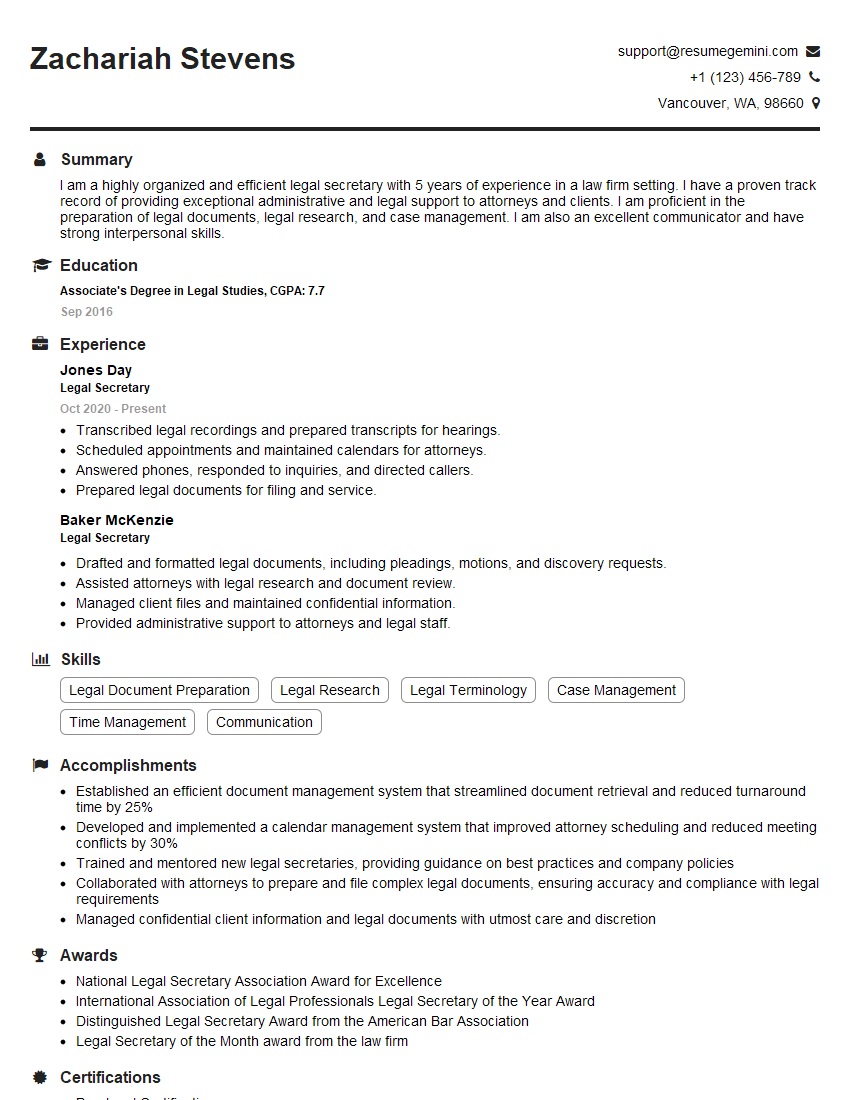
Legal Secretary Resume Sample

Data Entry Clerk Resume Sample
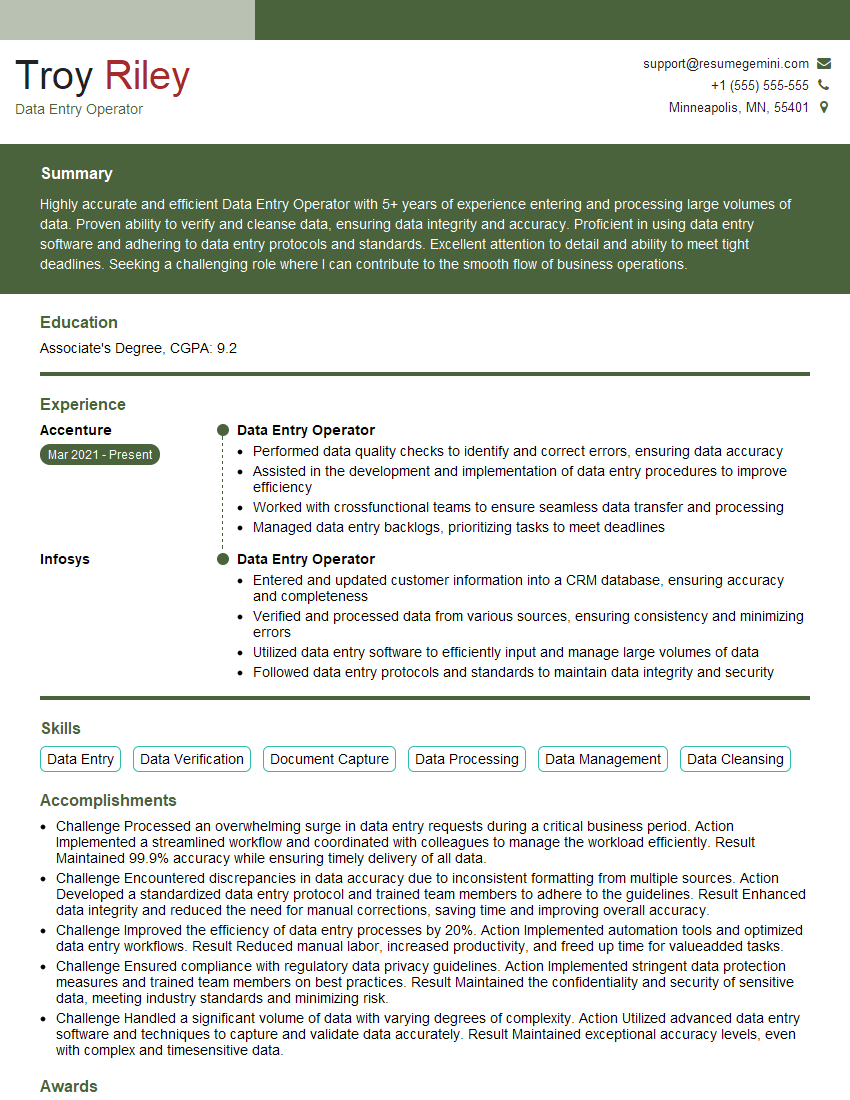
Data Entry Operator Resume Sample
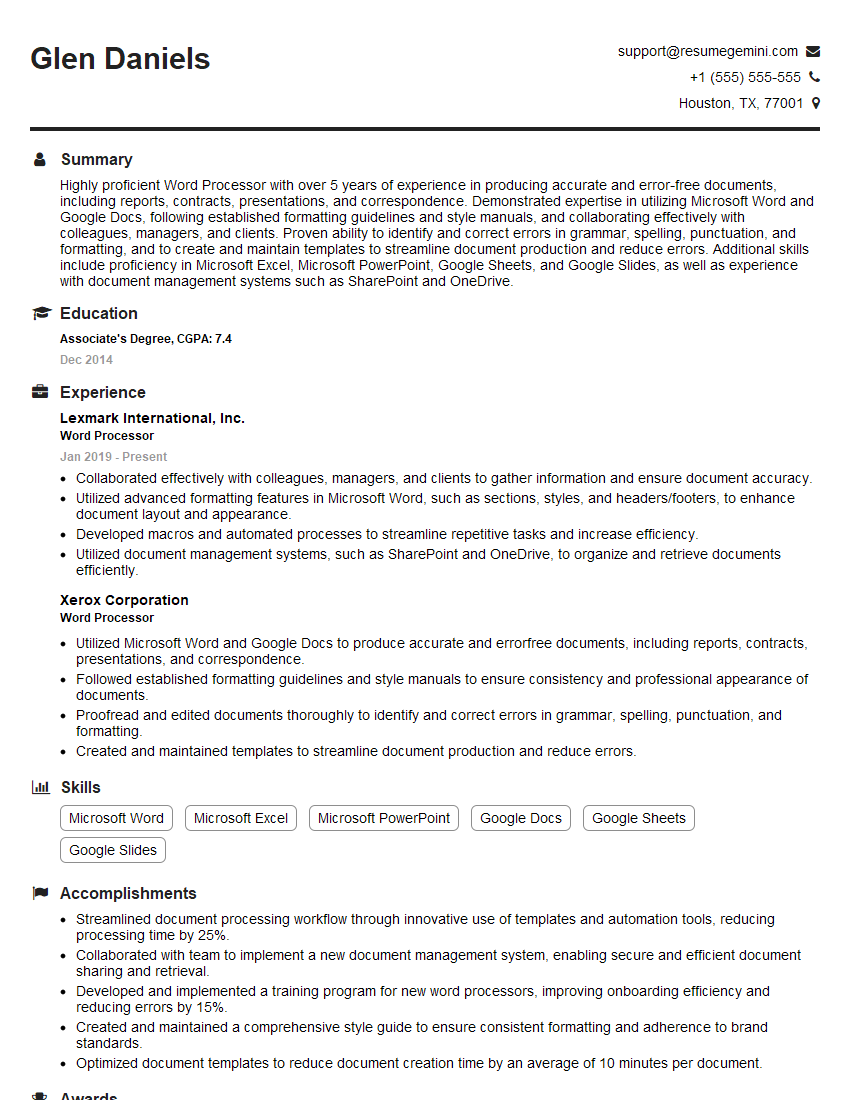
Word Processor Resume Sample
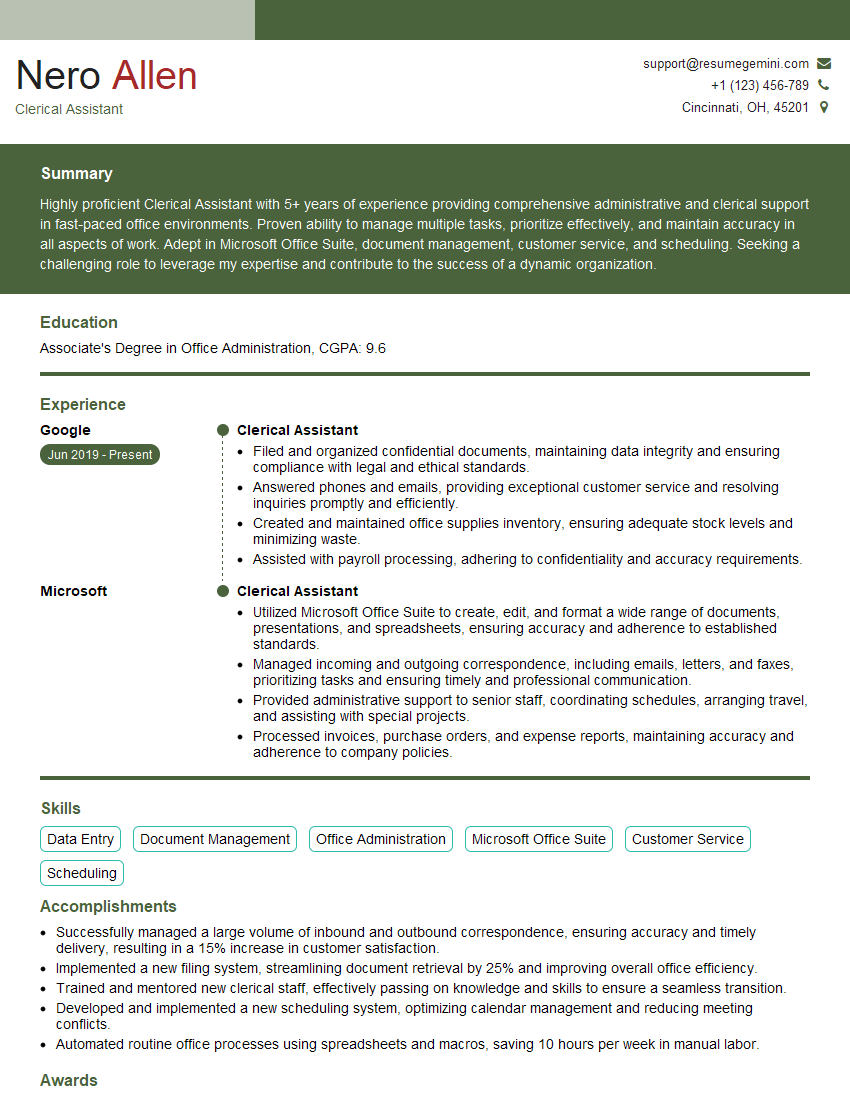
Clerical Assistant Resume Sample
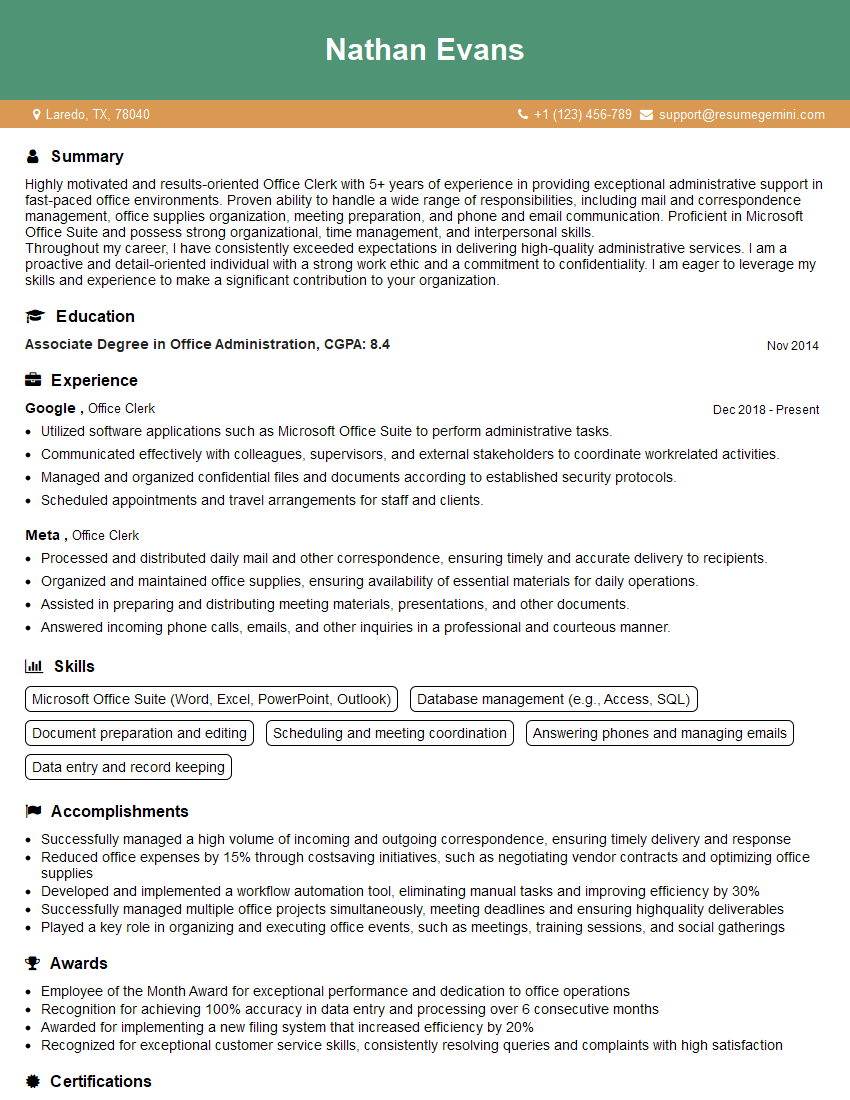
Office Clerk Resume Sample
- Office Manager
- Administrative Assistant
- Administrative Specialist
- Customer Service Representative
- Secretary
- Project Coordinator
- Bookkeeper
- Document Control Specialist
- Research Assistant
- Paralegal
- Medical Secretary
- Transcriptionist
- File Clerk
- Receptionist
- Executive Assistant
- Executive Secretary
- Office Administrator
- Legal Secretary
- Data Entry Clerk
- Data Entry Operator
- Word Processor
- Clerical Assistant
- Office Clerk
Explore more articles
Users Rating of Our Blogs
Share Your Experience
We value your feedback! Please rate our content and share your thoughts (optional).
What Readers Say About Our Blog
Attention music lovers!
Wow, All the best Sax Summer music !!!
Spotify: https://open.spotify.com/artist/6ShcdIT7rPVVaFEpgZQbUk
Apple Music: https://music.apple.com/fr/artist/jimmy-sax-black/1530501936
YouTube: https://music.youtube.com/browse/VLOLAK5uy_noClmC7abM6YpZsnySxRqt3LoalPf88No
Other Platforms and Free Downloads : https://fanlink.tv/jimmysaxblack
on google : https://www.google.com/search?q=22+AND+22+AND+22
on ChatGPT : https://chat.openai.com?q=who20jlJimmy20Black20Sax20Producer
Get back into the groove with Jimmy sax Black
Best regards,
Jimmy sax Black
www.jimmysaxblack.com
Hi I am a troller at The aquatic interview center and I suddenly went so fast in Roblox and it was gone when I reset.
Hi,
Business owners spend hours every week worrying about their website—or avoiding it because it feels overwhelming.
We’d like to take that off your plate:
$69/month. Everything handled.
Our team will:
Design a custom website—or completely overhaul your current one
Take care of hosting as an option
Handle edits and improvements—up to 60 minutes of work included every month
No setup fees, no annual commitments. Just a site that makes a strong first impression.
Find out if it’s right for you:
https://websolutionsgenius.com/awardwinningwebsites
Hello,
we currently offer a complimentary backlink and URL indexing test for search engine optimization professionals.
You can get complimentary indexing credits to test how link discovery works in practice.
No credit card is required and there is no recurring fee.
You can find details here:
https://wikipedia-backlinks.com/indexing/
Regards
NICE RESPONSE TO Q & A
hi
The aim of this message is regarding an unclaimed deposit of a deceased nationale that bears the same name as you. You are not relate to him as there are millions of people answering the names across around the world. But i will use my position to influence the release of the deposit to you for our mutual benefit.
Respond for full details and how to claim the deposit. This is 100% risk free. Send hello to my email id: lukachachibaialuka@gmail.com
Luka Chachibaialuka
Hey interviewgemini.com, just wanted to follow up on my last email.
We just launched Call the Monster, an parenting app that lets you summon friendly ‘monsters’ kids actually listen to.
We’re also running a giveaway for everyone who downloads the app. Since it’s brand new, there aren’t many users yet, which means you’ve got a much better chance of winning some great prizes.
You can check it out here: https://bit.ly/callamonsterapp
Or follow us on Instagram: https://www.instagram.com/callamonsterapp
Thanks,
Ryan
CEO – Call the Monster App
Hey interviewgemini.com, I saw your website and love your approach.
I just want this to look like spam email, but want to share something important to you. We just launched Call the Monster, a parenting app that lets you summon friendly ‘monsters’ kids actually listen to.
Parents are loving it for calming chaos before bedtime. Thought you might want to try it: https://bit.ly/callamonsterapp or just follow our fun monster lore on Instagram: https://www.instagram.com/callamonsterapp
Thanks,
Ryan
CEO – Call A Monster APP
To the interviewgemini.com Owner.
Dear interviewgemini.com Webmaster!
Hi interviewgemini.com Webmaster!
Dear interviewgemini.com Webmaster!
excellent
Hello,
We found issues with your domain’s email setup that may be sending your messages to spam or blocking them completely. InboxShield Mini shows you how to fix it in minutes — no tech skills required.
Scan your domain now for details: https://inboxshield-mini.com/
— Adam @ InboxShield Mini
support@inboxshield-mini.com
Reply STOP to unsubscribe
Hi, are you owner of interviewgemini.com? What if I told you I could help you find extra time in your schedule, reconnect with leads you didn’t even realize you missed, and bring in more “I want to work with you” conversations, without increasing your ad spend or hiring a full-time employee?
All with a flexible, budget-friendly service that could easily pay for itself. Sounds good?
Would it be nice to jump on a quick 10-minute call so I can show you exactly how we make this work?
Best,
Hapei
Marketing Director
Hey, I know you’re the owner of interviewgemini.com. I’ll be quick.
Fundraising for your business is tough and time-consuming. We make it easier by guaranteeing two private investor meetings each month, for six months. No demos, no pitch events – just direct introductions to active investors matched to your startup.
If youR17;re raising, this could help you build real momentum. Want me to send more info?
Hi, I represent an SEO company that specialises in getting you AI citations and higher rankings on Google. I’d like to offer you a 100% free SEO audit for your website. Would you be interested?
Hi, I represent an SEO company that specialises in getting you AI citations and higher rankings on Google. I’d like to offer you a 100% free SEO audit for your website. Would you be interested?