Preparation is the key to success in any interview. In this post, we’ll explore crucial Document Design and Layout interview questions and equip you with strategies to craft impactful answers. Whether you’re a beginner or a pro, these tips will elevate your preparation.
Questions Asked in Document Design and Layout Interview
Q 1. Explain your experience with different design software (InDesign, Illustrator, Photoshop, etc.)
My experience with design software spans several industry-standard applications. Adobe InDesign is my primary tool for complex multi-page layouts, such as brochures, magazines, and books. Its features for master pages, text frames, and advanced typography are invaluable for maintaining consistency and efficiency. I’m also proficient in Adobe Illustrator for creating and editing vector graphics, essential for logos, illustrations, and charts that need to scale without losing quality. Photoshop plays a crucial role in image editing and manipulation, ensuring images are optimized for print or digital use. My workflow often involves a synergy between these tools; for example, I might create a logo in Illustrator, retouch it in Photoshop, and then integrate it seamlessly into an InDesign layout.
Beyond the Adobe Creative Suite, I have experience with Figma for collaborative design projects and Affinity Publisher for more streamlined layout tasks. This diverse skillset allows me to adapt my approach to different project needs and client preferences.
Q 2. Describe your process for designing a multi-page document.
Designing a multi-page document involves a structured process. I begin with thorough planning, including defining the document’s purpose, target audience, and content hierarchy. This phase includes creating a detailed outline or content map to ensure a logical flow of information. Next, I develop a style guide that outlines fonts, colors, imagery, and layout grids for consistent branding. This guide becomes the cornerstone of the project. I then build the master pages in InDesign, establishing consistent headers, footers, and page numbering. Content is then placed and formatted according to the style guide, ensuring visual harmony and readability. Throughout the process, I regularly review the design for clarity, consistency, and overall effectiveness. Finally, I conduct thorough proofreading and quality checks before delivering the final document.
Q 3. How do you ensure consistency in branding and style across a document?
Maintaining branding consistency is critical. My approach starts with a comprehensive style guide, a living document that dictates every visual element. This includes specifying fonts (e.g., Helvetica Neue for headings, Garamond for body text), color palettes (using hex codes for precision), and image styles. In InDesign, I leverage styles and paragraph styles to ensure that every heading, body paragraph, and caption automatically adopts the correct formatting. Master pages are essential for consistent headers, footers, and page numbering across the entire document. Regularly checking against the style guide throughout the design process helps me catch any inconsistencies early. Think of it like building with prefabricated components – consistency is built in from the start, minimizing errors later.
Q 4. What are your strategies for optimizing documents for different screen sizes and devices?
Optimizing documents for different screen sizes and devices requires a multi-pronged approach. For digital documents, I avoid using large, high-resolution images that can slow down loading times on mobile devices. I instead use optimized images (smaller file sizes without compromising visual quality). I also utilize responsive design principles, ensuring text reflows and images resize gracefully across different screen widths. For print documents, I focus on high-resolution images and ensure adequate bleed and margins to accommodate different printing processes and trimming. Using vector graphics whenever possible is also key, allowing for scalability without loss of quality. Finally, testing the document on various devices is crucial to identify and resolve any display issues.
Q 5. Explain your understanding of typography and its impact on readability.
Typography is the art and technique of arranging type to make written material legible, readable, and appealing. It significantly impacts readability. Factors like font choice, size, leading (line spacing), kerning (spacing between letters), and tracking (spacing between words) all contribute to the overall visual experience. Serif fonts (like Times New Roman) are often preferred for body text due to their readability, while sans-serif fonts (like Arial) are commonly used for headings. Appropriate font sizes and leading ensure comfortable reading distances. Poor typography can lead to eye strain and hinder comprehension, while good typography enhances the overall aesthetic appeal and makes reading a more enjoyable experience. I carefully consider the context and target audience when selecting and applying typography.
Q 6. How do you handle revisions and feedback from clients or stakeholders?
Handling revisions efficiently is key to client satisfaction. I utilize version control systems (like those built into InDesign or external platforms) to track changes. When receiving feedback, I meticulously document all revisions, ensuring clarity and understanding. I maintain open communication, proactively addressing any concerns and offering creative solutions. I present revisions in a clear, organized manner, highlighting the changes made. This collaborative approach fosters a positive working relationship and ensures the final document meets the client’s expectations. For complex projects, I schedule regular check-in points to discuss progress and address potential issues early on. This proactive approach helps to avoid extensive and costly revisions at later stages.
Q 7. Describe your experience with color theory and its application in document design.
Color theory is fundamental to effective document design. Understanding the color wheel – primary, secondary, and tertiary colors – is crucial for creating harmonious palettes. I consider color psychology, recognizing how different colors evoke various emotions and associations. For example, blues often convey calmness, while reds can represent energy or urgency. I use color hierarchies to guide the reader’s eye, highlighting important information with contrasting colors. I also consider color accessibility, ensuring sufficient contrast between text and background for readability, especially for individuals with visual impairments. Balancing color saturation and brightness is crucial, avoiding jarring combinations that can be visually overwhelming. My goal is to use color strategically to enhance the message and create a visually appealing and engaging document.
Q 8. How do you create visually appealing and informative infographics?
Creating visually appealing and informative infographics involves a strategic blend of design principles and data representation. Think of it as storytelling with visuals; you’re aiming to communicate complex information quickly and memorably.
- Start with a clear objective: What key message do you want to convey? What action do you want the viewer to take?
- Choose the right chart type: Different chart types are suitable for different data. Bar charts are great for comparisons, pie charts for proportions, and line charts for trends. Avoid using charts that are overly complicated or difficult to interpret.
- Prioritize visual hierarchy: Guide the viewer’s eye through the infographic using size, color, and placement. The most important information should be the most prominent.
- Use a consistent color palette: A limited, well-chosen color scheme enhances readability and creates a professional look. Consider using color to represent categories or data points.
- Keep it concise: Infographics should be easily digestible. Avoid overwhelming the viewer with too much text or data. Use clear, concise labels and avoid jargon.
- Employ compelling visuals: Use high-quality images and icons to enhance engagement and make the information more memorable. Make sure these visuals align with your overall message.
- Test and iterate: Before finalizing your infographic, test it with your target audience to ensure clarity and effectiveness. Gather feedback and refine your design based on their insights.
For example, an infographic explaining the growth of a company’s revenue over five years would ideally use a line chart, clearly labelled axes, and maybe incorporate relevant icons representing sales or growth.
Q 9. Explain your process for creating effective data visualizations.
My process for creating effective data visualizations starts with understanding the data and the intended audience. It’s crucial to choose the right tool for the job – a spreadsheet might work for a simple chart, but more complex visualizations might require specialized software.
- Data Understanding and Cleaning: I begin by thoroughly examining the data, identifying outliers, and addressing inconsistencies. Accurate data is paramount for effective visualization.
- Defining the Objective: What story does the data tell? What insights are you hoping to communicate? Defining this objective guides the selection of the visualization type.
- Choosing the Right Chart Type: This depends on the nature of the data and the message. Bar charts compare categories, scatter plots show correlations, and maps display geographical data. The choice is critical for clear communication.
- Design and Aesthetics: I focus on creating a visually appealing and easily understandable chart. This includes using a consistent color palette, clear labels, and an appropriate font. The design shouldn’t distract from the data.
- Testing and Iteration: I test the visualization with the intended audience, gathering feedback to identify areas for improvement. Sometimes, a seemingly perfect chart might be confusing to the audience. Iteration is key.
For instance, if I needed to showcase the correlation between ice cream sales and temperature, a scatter plot would be ideal, showcasing the positive relationship between the two variables. A poorly designed chart, however, could obscure this correlation.
Q 10. How do you ensure accessibility in your document designs for users with disabilities?
Accessibility is paramount in document design. It’s about ensuring everyone, regardless of ability, can access and understand the information. This involves considering visual, auditory, motor, and cognitive impairments.
- Sufficient Color Contrast: Ensure enough contrast between text and background colors to meet WCAG (Web Content Accessibility Guidelines) standards. Tools are available to check color contrast ratios.
- Alternative Text for Images: Provide descriptive alternative text for all images so screen readers can convey the image content to visually impaired users. This should be concise yet informative.
- Clear and Consistent Font Choices: Select fonts that are easy to read and avoid overly decorative or stylized fonts that might be difficult for users with dyslexia or other reading difficulties.
- Appropriate Heading Structure: Use heading levels (H1, H2, H3, etc.) to structure the document logically. This helps screen readers navigate the content and allows users to quickly scan the document’s outline.
- Keyboard Navigation: Ensure all interactive elements are accessible via keyboard navigation, important for users who cannot use a mouse.
- PDF Accessibility: When creating PDFs, use tagged PDFs which provide semantic meaning to the document elements, allowing assistive technology to interpret it correctly.
For example, a document with dark text on a light background offers better contrast than light text on a dark background. Similarly, using descriptive alt text (e.g., “A bar chart showing sales figures for the last five years”) makes image information accessible to those who cannot see it.
Q 11. What are your strategies for creating user-friendly navigation in complex documents?
Creating user-friendly navigation in complex documents requires a well-structured approach, focusing on clarity and predictability. Think of it like designing a map for your reader.
- Clear Table of Contents: A comprehensive table of contents (TOC) provides an overview and allows users to quickly find specific sections.
- Logical Sectioning and Headings: Organize the document into logical sections with clear and descriptive headings. Use a consistent heading hierarchy (H1, H2, H3, etc.) to improve readability and searchability.
- Internal Hyperlinks: Use hyperlinks to connect related sections within the document. This allows users to easily jump between different parts of the document without tedious searching.
- Visual Cues: Employ visual cues, such as icons, separators, and visual breaks to enhance navigation. These help break up large chunks of text and guide the reader’s eye.
- Search Functionality: If the document is digital, incorporate a robust search function. This allows users to quickly locate specific information within the document.
- Page Numbering and Footers: Consistent page numbering and footers help users orient themselves within the document and easily locate specific pages.
For instance, a technical manual might use a detailed TOC, hyperlinks connecting to specific troubleshooting sections, and clear visual cues like icons indicating different procedure types.
Q 12. Describe your experience with print production and pre-press preparation.
My experience with print production and pre-press preparation includes working with various file formats, color profiles, and print specifications. It’s crucial to understand the entire process to ensure the final printed product matches the design intent.
- File Preparation: This involves ensuring the files are in the correct format (usually high-resolution PDFs), with embedded fonts and images, and appropriate color profiles (CMYK for print). I’ve worked extensively with Adobe Acrobat Pro and other pre-press software.
- Color Management: Accurate color representation is key. I’m familiar with color profiles (CMYK, RGB) and techniques to ensure consistent color across different media.
- Proofing: Careful proofing is essential before going to print. This involves reviewing the document for any errors in text, images, or layout, often using soft proofing to simulate the printed output.
- Print Specifications: Understanding print specifications, such as bleed, trim marks, and the chosen paper stock, is crucial for producing a high-quality printed product. I’ve worked with different printers and understand their individual requirements.
- Communication with Printers: Effective communication with printers is vital for ensuring a smooth workflow and meeting deadlines. This includes clear instructions, providing the correct files, and managing any revisions or adjustments.
For example, I once caught a crucial typo during the final proofreading stage which saved the client from a costly reprint. This highlights the importance of meticulous pre-press preparation.
Q 13. How do you manage large and complex document projects?
Managing large and complex document projects requires a structured approach. Think of it as orchestrating a large-scale project with many moving parts.
- Project Planning and Scope Definition: This involves clearly defining the project scope, deliverables, timelines, and resources. I often use project management tools like Gantt charts or Trello.
- Team Collaboration: Effective teamwork is vital. I utilize collaborative tools like shared online documents, cloud storage, and regular team meetings to keep everyone on the same page.
- Version Control: Tracking changes and maintaining different versions of the document is crucial. This often involves using version control systems or simply employing a clear naming convention for each version.
- Content Management: For large projects with extensive content, content management systems (CMS) can be invaluable for organization and workflow efficiency.
- Workflow Optimization: Developing a smooth workflow is vital to ensure timely completion. This might involve breaking down the project into smaller tasks and assigning them to team members with appropriate expertise.
- Regular Communication and Feedback: Frequent communication with stakeholders and clients is crucial to address questions, manage expectations, and incorporate feedback throughout the project.
For example, in one large project involving multiple authors and editors, we used a dedicated project management tool to track tasks, deadlines, and approvals, which kept everything running smoothly and on schedule.
Q 14. What are some common pitfalls to avoid when designing documents?
Many common pitfalls can derail a document design project. Avoiding these traps leads to more effective and visually appealing documents.
- Ignoring Target Audience: Designing without considering the audience’s needs and preferences results in a document that fails to connect with its intended readership.
- Poor Information Architecture: Lack of structure and organization makes the document difficult to navigate and understand. Think of it like building a house without a blueprint.
- Overuse of Visual Elements: Too many images, graphics, or distracting elements can clutter the document and hinder readability.
- Inconsistent Branding: Lack of consistency in fonts, colors, and imagery weakens the document’s professional image.
- Ignoring Accessibility Guidelines: Failing to consider the needs of users with disabilities leads to an exclusionary and ineffective document.
- Poor Typography Choices: Incorrect font sizes, styles, and leading (spacing between lines) make text difficult to read. Poor typography can create visual fatigue and strain for readers.
- Insufficient White Space: Lack of white space (blank areas) makes the document feel cramped and difficult to read.
For instance, a visually cluttered marketing brochure with too many images, competing colors, and small font sizes can easily overwhelm the reader and fail to convey the intended message.
Q 15. How do you stay current with the latest design trends and technologies?
Staying ahead in the ever-evolving world of document design requires a multi-pronged approach. I actively engage with several key resources to keep my skills sharp and my knowledge current.
- Industry Publications and Blogs: I regularly read publications like Print magazine, Communication Arts, and blogs from leading designers and companies like Adobe. These provide insights into emerging trends, new software features, and best practices.
- Online Courses and Workshops: Platforms like Skillshare, Udemy, and LinkedIn Learning offer excellent courses on various aspects of design, from typography to UX/UI principles, ensuring I continually refine my expertise.
- Design Communities and Conferences: Actively participating in online forums, attending webinars, and attending conferences like Adobe MAX allows me to network with peers, learn from experts, and discover innovative techniques.
- Experimentation and Personal Projects: I dedicate time to personal projects and experimentation, pushing boundaries and exploring new design software features. This hands-on approach helps solidify theoretical knowledge and allows me to develop a unique design style.
By combining these methods, I ensure I remain informed about the latest design trends and technologies, allowing me to create cutting-edge and effective documents.
Career Expert Tips:
- Ace those interviews! Prepare effectively by reviewing the Top 50 Most Common Interview Questions on ResumeGemini.
- Navigate your job search with confidence! Explore a wide range of Career Tips on ResumeGemini. Learn about common challenges and recommendations to overcome them.
- Craft the perfect resume! Master the Art of Resume Writing with ResumeGemini’s guide. Showcase your unique qualifications and achievements effectively.
- Don’t miss out on holiday savings! Build your dream resume with ResumeGemini’s ATS optimized templates.
Q 16. Explain your understanding of grid systems and their application in layout design.
Grid systems are the backbone of effective layout design. They provide a structured framework for arranging elements, ensuring consistency, readability, and visual harmony. Think of it like a blueprint for your document.
A grid system typically consists of a series of columns and rows, which can be customized based on the document’s purpose and content. For example, a website might use a 12-column grid, while a brochure might use a simpler 2 or 3-column grid.
The application of grid systems varies. In InDesign, I utilize the built-in grid and guides to create a structured layout. I define margins, gutter widths (the space between columns), and column widths to create a visually appealing and functional design. This approach ensures that elements are consistently spaced and aligned, leading to a professional and polished final product.
Using a grid also simplifies the design process, as it allows for rapid prototyping and adjustments. It streamlines the workflow by providing a predictable structure that makes it easier to arrange text, images, and other design elements. Consistency and readability are greatly improved, leading to an enhanced user experience.
Q 17. How do you balance aesthetics and functionality in your designs?
Balancing aesthetics and functionality is crucial for effective document design. A beautifully designed document that is difficult to navigate or understand is ultimately a failure. I achieve this balance through a systematic approach.
- Understanding the Audience and Purpose: Before I begin designing, I thoroughly understand the target audience and the document’s purpose. This informs all design decisions, ensuring that the aesthetics are appropriate and the functionality meets the audience’s needs.
- Prioritizing Information Hierarchy: I carefully structure the content using headings, subheadings, bullet points, and visual cues to guide the reader’s eye and make the information easy to digest. This is crucial for functionality.
- Strategic Use of Visual Elements: Visual elements like images, illustrations, and typography are selected not just for their aesthetic appeal, but also for their effectiveness in communicating information. For example, a well-chosen image can improve engagement and convey information more effectively than text alone.
- Iterative Design Process: I use an iterative design process, constantly evaluating the balance between aesthetics and functionality. User testing and feedback play a crucial role in refining the design to ensure it achieves its intended purpose.
The result is a document that is both visually appealing and easy to use, leaving a positive and lasting impression on the reader.
Q 18. Describe your experience with designing for different print sizes and formats.
My experience encompasses designing for a wide range of print sizes and formats, from business cards and brochures to posters and books. This requires a deep understanding of print production processes and different file formats.
For example, designing a brochure requires careful consideration of bleed (the extra area that extends beyond the trim line), safe zone (the area where important elements should be placed to avoid being trimmed off), and appropriate resolution for high-quality printing. Designing a book involves understanding pagination, spine width calculations, and working with imposition software for efficient printing.
I am proficient in using InDesign’s features to accommodate various print specifications. I can create documents that accurately reflect the intended print dimensions and handle variations in page sizes and orientations effortlessly. My experience includes working with different paper stocks and understanding their impact on the final product’s look and feel. Ultimately, the goal is to ensure a seamless transition from digital design to a high-quality, printed output.
Q 19. How do you ensure the consistent use of styles and master pages in InDesign?
Consistency in document design is paramount for a professional look. In InDesign, I achieve this through the strategic use of styles and master pages.
Styles: I meticulously create paragraph and character styles for headings, body text, captions, and other elements. This ensures consistency in font size, font family, spacing, and other formatting attributes across the entire document. Any changes made to a style are automatically applied throughout the document, saving time and ensuring consistency.
Master Pages: Master pages are the foundation for page layouts. I design master pages to include elements like headers, footers, page numbers, and running headers or footers. These elements are automatically applied to all pages based on the master page assigned to them. This creates a consistent layout and branding across the document.
Practical Example: If I need to change the font size of all headings, I only need to modify the paragraph style, and the change will automatically reflect throughout the entire document. Similarly, changing the header on a master page instantly updates the header on all pages linked to that master. This efficiency is crucial for large, complex documents, ensuring consistency and reducing the risk of errors.
Q 20. Explain your process for creating interactive PDFs.
Creating interactive PDFs involves incorporating elements that go beyond static text and images. This requires familiarity with PDF creation tools and an understanding of user experience principles.
My process typically involves these steps:
- Design in InDesign (or similar software): I begin by designing the document in InDesign, carefully structuring the content and creating a visually appealing layout.
- Adding Interactive Elements: I add interactive elements such as buttons, hyperlinks, form fields, and multimedia using InDesign’s interactive features or Acrobat Pro. Hyperlinks can navigate to other pages within the PDF, external websites, or specific sections of the document.
- Testing and Refinement: Thorough testing is crucial to ensure that all interactive elements function as intended and provide a seamless user experience. This involves checking functionality across different devices and PDF readers.
- Exporting as Interactive PDF: Once the interactive elements are tested, I export the document as an interactive PDF using the appropriate settings to ensure optimal quality and functionality.
I consider factors like user flow, accessibility, and overall usability to ensure an enjoyable and intuitive experience for the reader. The key is to seamlessly blend interactivity without overwhelming the user, enhancing engagement and information retention.
Q 21. How do you handle image optimization for web and print?
Image optimization is crucial for both web and print, impacting file size, download speed (web), and print quality.
For web: I use lossy compression techniques (like JPEG for photographs) to reduce file sizes without significant quality loss. I also consider using web-friendly image formats like WebP, which offer superior compression compared to JPEG. For vector graphics (logos, illustrations), I use SVG (Scalable Vector Graphics) which maintain quality at any size.
For print: I prioritize high resolution and ensure images are at least 300 DPI (dots per inch) for optimal print quality. Lossy compression is generally avoided to preserve detail. I carefully manage color profiles (CMYK for print) to match the printer’s capabilities and avoid color shifts.
Tools and Techniques: I utilize Adobe Photoshop and other image editing software for image optimization. These programs allow for fine-grained control over compression levels and other image settings. I also use online tools for image compression to further reduce file sizes without significant quality loss for web applications.
The goal is to achieve the best balance between image quality and file size, optimizing for the specific output medium (web or print) to ensure the best possible viewing or printing experience.
Q 22. Describe your experience working with different file formats (PDF, AI, PSD, etc.)
My experience spans a wide range of file formats crucial in document design and layout. I’m proficient in handling vector-based formats like Adobe Illustrator (AI), where I meticulously craft logos, illustrations, and complex layouts that can be scaled without loss of quality. Raster-based formats such as Photoshop (PSD) are essential for image editing, retouching, and creating photorealistic elements. Ultimately, the project often culminates in a PDF (Portable Document Format), ensuring cross-platform compatibility and a consistent final product. I also have experience with other formats like InDesign (INDD) for complex page layouts, and even older formats like EPS (Encapsulated PostScript), understanding their nuances and limitations.
For example, in a recent project designing a company brochure, I used AI to create the logo and vector illustrations, PSD to retouch product photography, and InDesign to assemble the final layout before exporting it as a high-quality PDF for printing.
Q 23. How do you use whitespace effectively in document design?
Whitespace—the often-overlooked space between elements—is a powerful tool in document design. It’s not just empty space; it’s a deliberate design choice that significantly impacts readability, visual hierarchy, and the overall aesthetic appeal. Effective use of whitespace creates visual breathing room, prevents clutter, and guides the reader’s eye through the content.
I use whitespace strategically. For instance, ample margins create a clean and professional look. Consistent spacing between paragraphs improves readability. Strategic use of white space around headings and subheadings makes them stand out and establishes a clear visual hierarchy. Think of it like the negative space in a sculpture; it’s just as important as the positive forms in shaping the overall impression.
In a recent website design, I used generous whitespace around key calls to action, drawing the user’s attention and increasing click-through rates. This demonstrates how purposeful use of whitespace can directly affect user interaction and achieve design goals.
Q 24. Explain your experience with designing for different target audiences.
Designing for diverse audiences requires a deep understanding of their needs, preferences, and cultural contexts. I adapt my design approach based on factors like age, education level, technical proficiency, and cultural background. For example, a document targeted towards senior citizens might require a larger font size and simpler language, while a technical manual will necessitate precise diagrams and detailed explanations.
- Children: Bright colors, playful fonts, and simplified layouts.
- Professionals: Clean layouts, sophisticated typography, and high-quality imagery.
- International audiences: Consideration of language, cultural symbols, and color connotations.
In a recent project designing educational materials, I created different versions tailored for different grade levels, adjusting the complexity of the language, visual elements, and overall layout to suit each target audience’s understanding.
Q 25. What is your preferred workflow for creating a document from start to finish?
My workflow is iterative and follows a structured approach. It generally includes:
- Understanding the brief: Thoroughly reviewing the project requirements, target audience, and objectives.
- Research and ideation: Conducting research on competitors and best practices, generating multiple design concepts, and sketching initial layouts.
- Wireframing and prototyping: Creating low-fidelity wireframes to establish the document’s structure and information architecture, then building interactive prototypes for usability testing.
- Visual design and layout: Developing the visual design, choosing typography, colors, and imagery, and refining the layout for optimal readability and aesthetics.
- Review and iteration: Presenting the design to stakeholders, receiving feedback, and iterating on the design based on feedback.
- Production and delivery: Preparing the final files for print or digital distribution.
This iterative approach allows for flexibility and ensures that the final product meets the client’s needs and expectations.
Q 26. How do you collaborate effectively with other designers and stakeholders?
Effective collaboration is paramount in design. I use a variety of tools and strategies to ensure seamless teamwork. I believe in open communication, actively seeking input and providing constructive feedback. I leverage collaboration platforms like Slack and Microsoft Teams for real-time communication and file sharing. Version control systems like Git (with tools like Adobe Creative Cloud Libraries) are crucial for managing changes and preventing conflicts. Regular client meetings and presentations ensure everyone is on the same page and aligned with the project goals.
For example, in a recent project, we used a shared online whiteboard to brainstorm design concepts and provide real-time feedback, significantly improving the efficiency and quality of our collaboration.
Q 27. Explain your experience with version control systems for design files.
Version control is essential for managing design files, especially in collaborative projects. While Git isn’t directly used for design files in the same way as code, I leverage cloud-based collaboration platforms integrated with version history, such as Adobe Creative Cloud. This allows me to track changes, revert to previous versions if needed, and collaborate effectively with other designers without overwriting each other’s work. The ability to compare versions side-by-side is invaluable in identifying improvements and resolving conflicts. I also maintain a well-organized file structure with clear naming conventions to ensure easy retrieval and management of different versions.
Q 28. Describe a time you had to solve a challenging design problem. What was your approach?
I once faced a challenge designing a complex infographic that needed to convey a lot of data in a clear and visually engaging way. The initial design felt cluttered and overwhelming. My approach involved breaking down the problem into smaller, manageable parts. I started by reorganizing the information into a logical hierarchy, prioritizing key data points. I experimented with different visual representations of the data, such as charts, graphs, and icons, to find the most effective combinations. I also focused on creating a strong visual narrative, using color, typography, and whitespace to guide the reader’s eye and enhance understanding. Through iterative refinement and user testing, we arrived at a final design that effectively conveyed the information while remaining visually appealing and easy to digest.
The key was a systematic approach: breaking down the complexity, prioritizing information, experimenting with different visuals, and continuously seeking feedback throughout the process.
Key Topics to Learn for Document Design and Layout Interview
- Typography and Readability: Understanding typefaces, kerning, leading, tracking, and their impact on visual hierarchy and readability. Practical application: Analyzing existing documents for optimal typography and suggesting improvements.
- Layout Principles: Mastering principles like proximity, alignment, repetition, and contrast to create visually appealing and user-friendly documents. Practical application: Designing a brochure or multi-page report with strong visual flow.
- Grid Systems and Page Composition: Utilizing grid systems to create consistent and balanced layouts. Practical application: Designing a website layout or a multi-column publication using a grid system.
- Color Theory and Palette Selection: Understanding color psychology and choosing effective color palettes to evoke desired emotions and enhance readability. Practical application: Creating a brand style guide with consistent color usage.
- Image Selection and Manipulation: Choosing appropriate images and using image editing software to optimize images for print or digital use. Practical application: Optimizing images for various resolutions and file sizes.
- Software Proficiency (InDesign, Illustrator, Photoshop): Demonstrating a strong command of industry-standard software for design and layout. Practical application: Articulating your workflow in a specific software and showcasing your proficiency through examples.
- Accessibility and Inclusivity: Designing documents that are accessible to users with disabilities, considering factors like color contrast, font size, and alternative text for images. Practical application: Creating a document that conforms to WCAG guidelines.
- Print Production and Pre-press: Understanding the process of preparing documents for print, including bleeds, margins, and color profiles. Practical application: Preparing a document for professional printing, considering all pre-press requirements.
- Problem-Solving and Creative Thinking: Demonstrating the ability to approach design challenges creatively and efficiently. Practical application: Explaining how you’ve solved a difficult layout problem in the past.
Next Steps
Mastering Document Design and Layout opens doors to exciting career opportunities in publishing, marketing, advertising, and more. A strong portfolio is crucial, but so is a well-crafted resume that showcases your skills effectively. Creating an ATS-friendly resume is vital for getting your application noticed by recruiters. To help you build a compelling and ATS-friendly resume, we recommend using ResumeGemini. ResumeGemini provides a user-friendly platform and offers examples of resumes tailored to Document Design and Layout professionals, ensuring your resume stands out from the competition.

Art Director Resume Sample

Creative Director Resume Sample

Information Architect Resume Sample

Web Designer Resume Sample
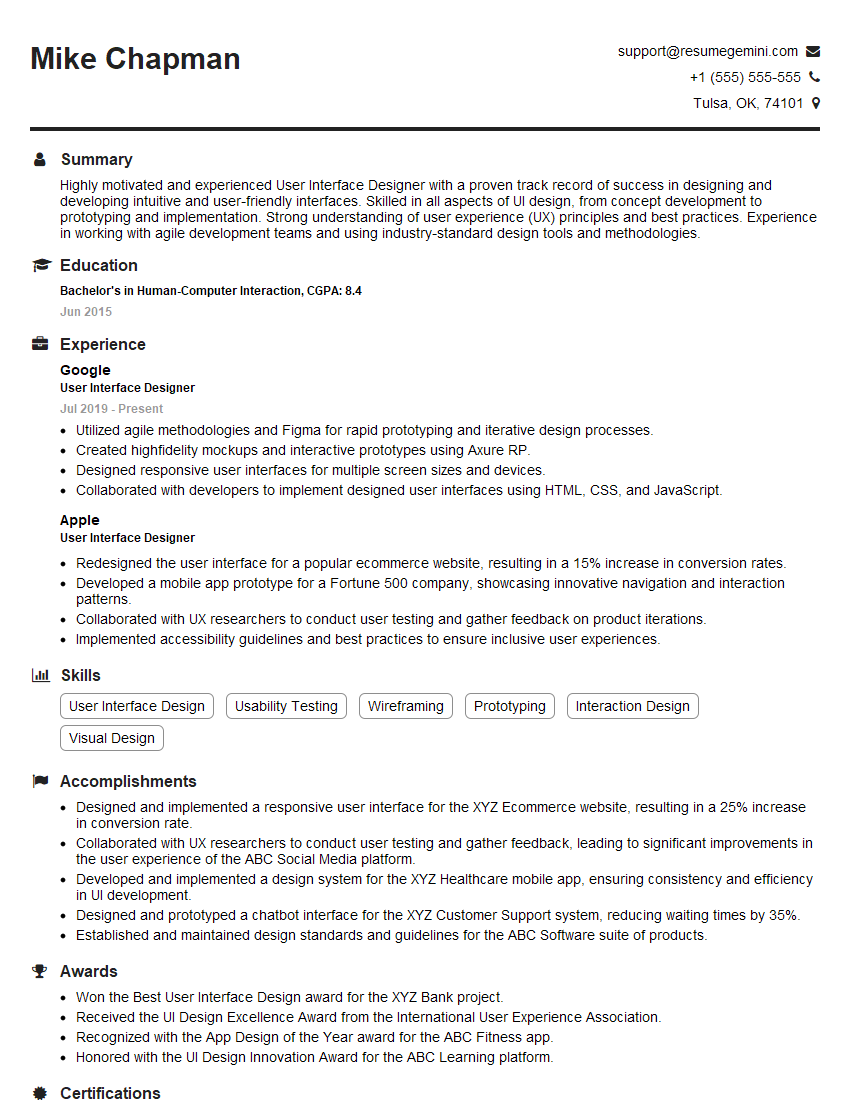
User Interface Designer Resume Sample

Graphic Designer Resume Sample
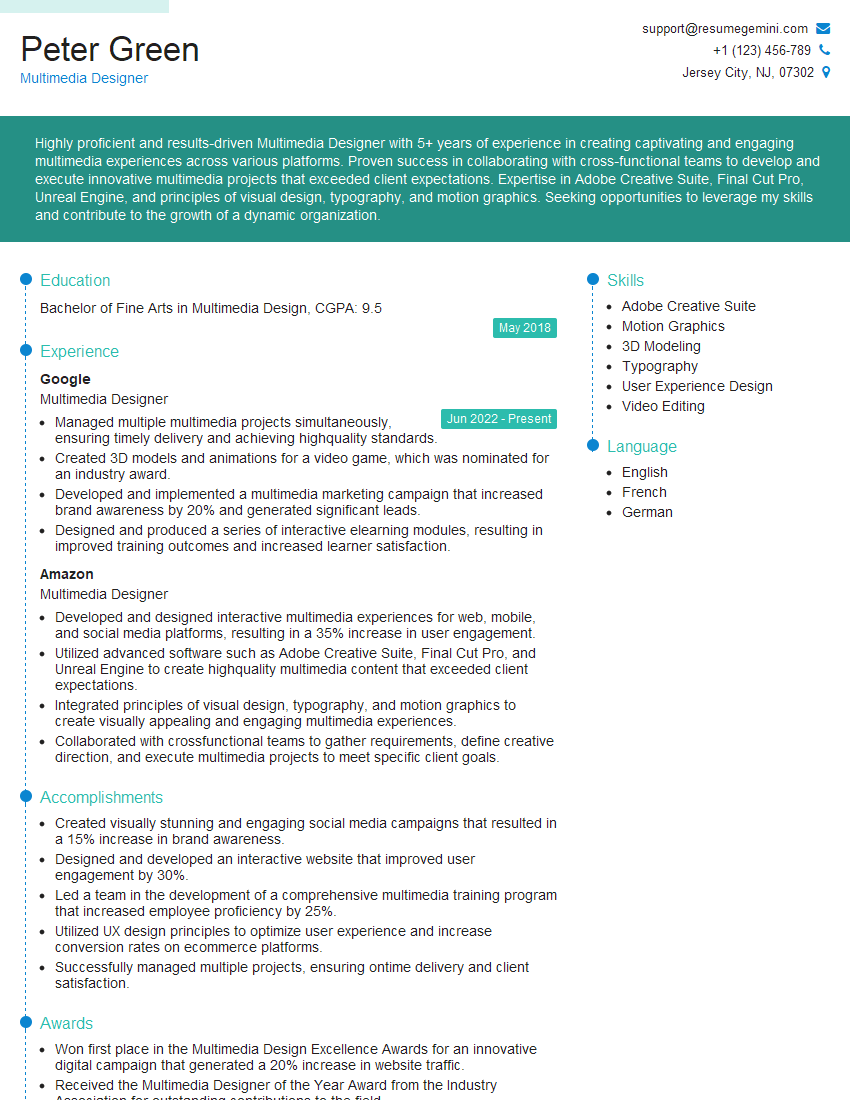
Multimedia Designer Resume Sample

Technical Writer Resume Sample
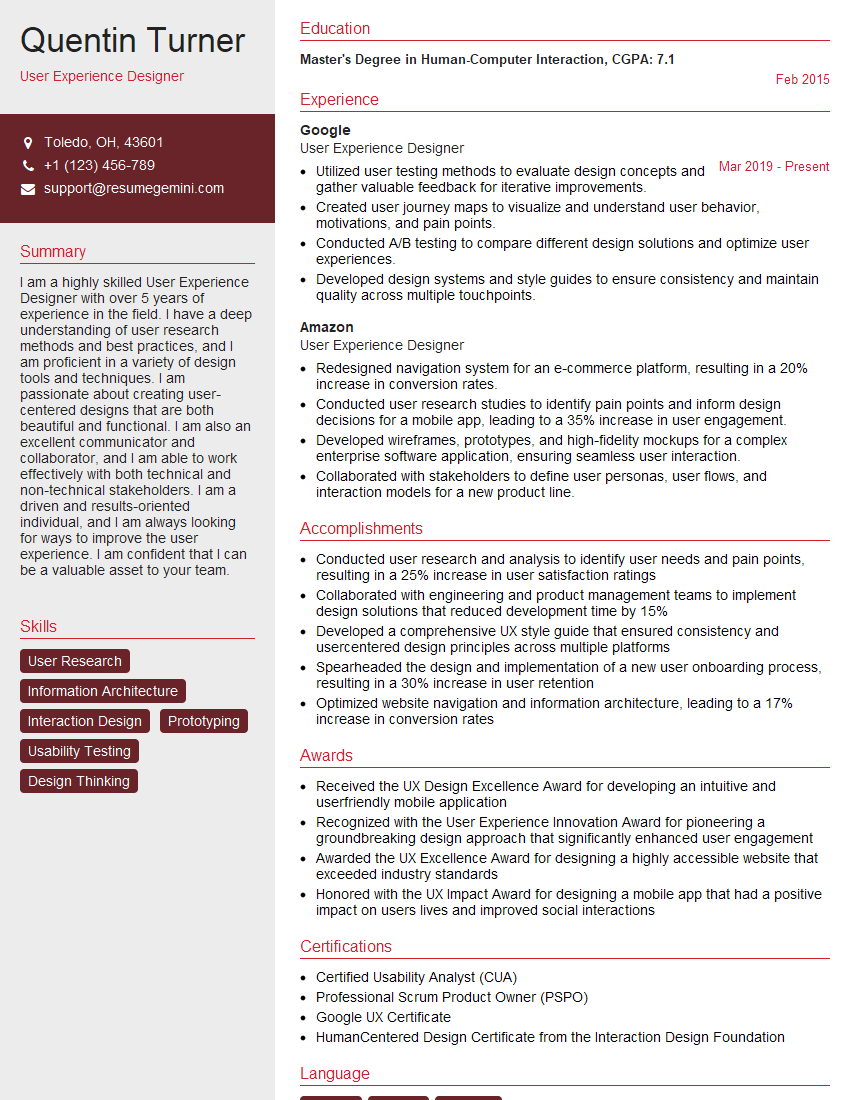
User Experience Designer Resume Sample
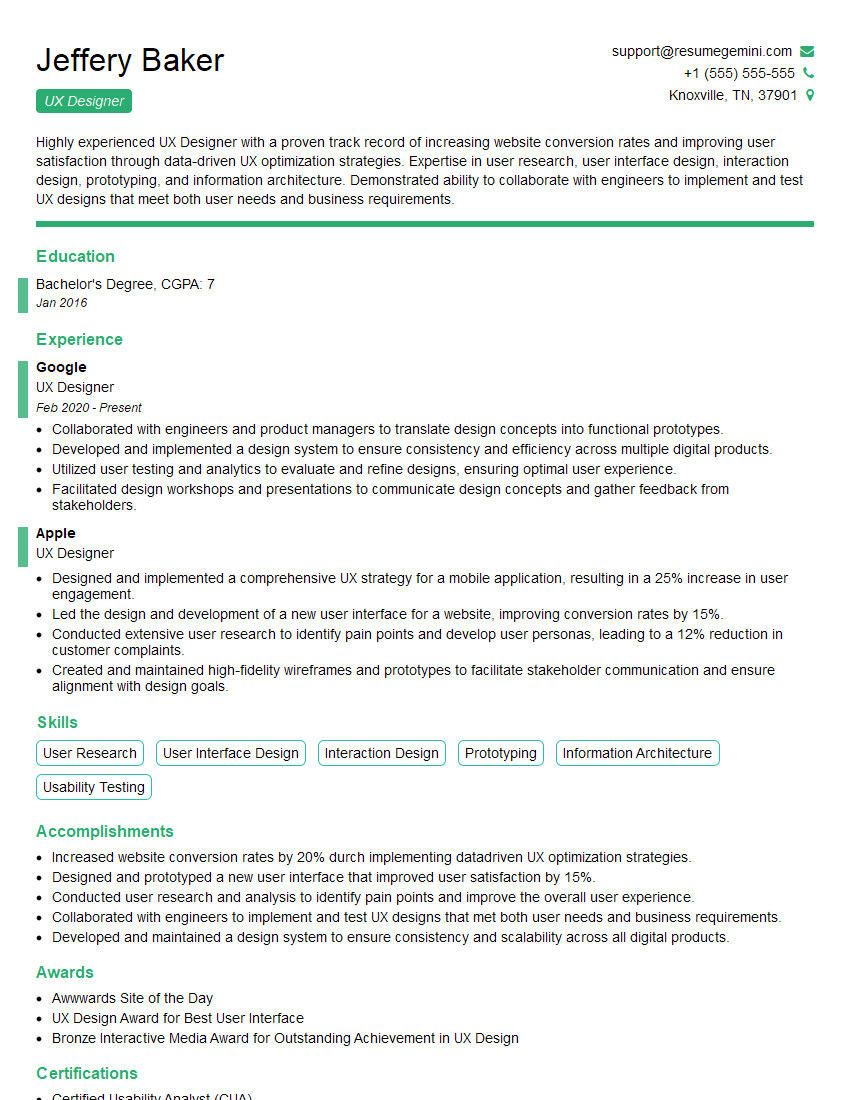
UX Designer Resume Sample
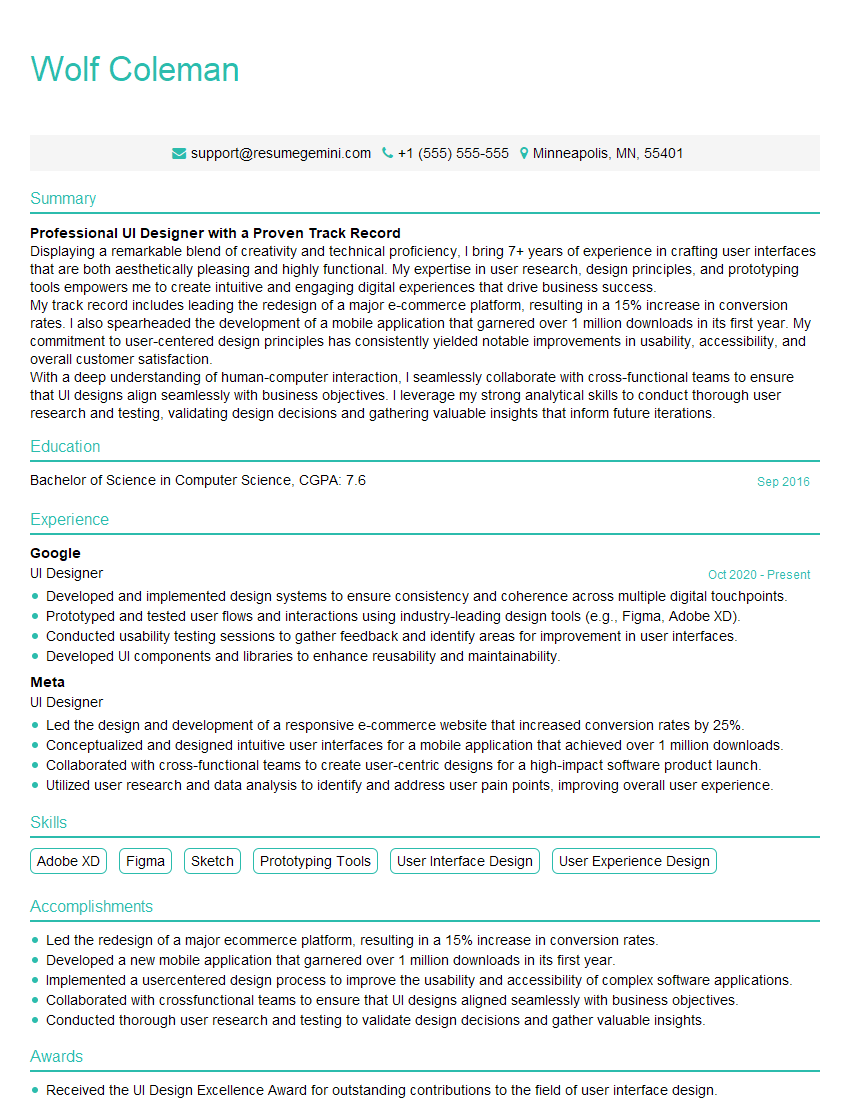
UI Designer Resume Sample
Explore more articles
Users Rating of Our Blogs
Share Your Experience
We value your feedback! Please rate our content and share your thoughts (optional).
What Readers Say About Our Blog
Very informative content, great job.
good