Unlock your full potential by mastering the most common Asciidoctor and Markdown interview questions. This blog offers a deep dive into the critical topics, ensuring you’re not only prepared to answer but to excel. With these insights, you’ll approach your interview with clarity and confidence.
Questions Asked in Asciidoctor and Markdown Interview
Q 1. Explain the difference between Asciidoctor and Markdown.
Both Asciidoctor and Markdown are lightweight markup languages used for creating documents, but they differ significantly in their features, complexity, and capabilities. Markdown is simpler, focusing on ease of writing and readability. Its syntax is minimal, making it easy to learn and use quickly. Asciidoctor, on the other hand, is a more powerful and feature-rich language. It’s designed for creating complex documents with advanced features such as document structure, customization, and extensibility. Think of Markdown as a quick note-taking tool, while Asciidoctor is a sophisticated word processor.
Imagine you’re writing a simple email. Markdown would be perfect. But if you’re writing a technical manual with diagrams, code listings, and detailed cross-referencing, Asciidoctor would be a much better choice.
Q 2. What are the advantages of using Asciidoctor over Markdown?
Asciidoctor surpasses Markdown in several key areas:
- Advanced Features: Asciidoctor offers features like document structure (chapters, sections, etc.), built-in support for various document elements (tables, lists, images), macros for code generation, and much more, which are largely absent or require workarounds in Markdown.
- Customization: Asciidoctor allows for extensive customization through attributes and extensions. You can define your own styles, macros, and even build custom processors to tailor the output to your specific needs. Markdown lacks this level of flexibility.
- Extensibility: Asciidoctor’s extensibility makes it incredibly versatile. You can easily add functionality through extensions, integrating it with other tools and workflows.
- Formal Structure: Asciidoctor enforces a structured document approach, benefiting larger projects and collaborative writing. This leads to greater consistency and maintainability compared to the more free-form nature of Markdown.
- Output Formats: Asciidoctor readily generates various output formats such as HTML, PDF, EPUB, and more, often with better quality and control.
For instance, creating a complex technical manual with numbered sections, cross-references, and a custom table of contents is significantly easier and more efficient with Asciidoctor.
Q 3. What are the advantages of using Markdown over Asciidoctor?
Markdown’s advantages lie primarily in its simplicity and ease of use:
- Ease of Learning: The Markdown syntax is incredibly straightforward and intuitive. Anyone can pick it up quickly, requiring minimal effort to learn the basics.
- Readability: Markdown’s plain text format makes it easy to read and edit directly in a text editor, without needing specialized software.
- Lightweight: Markdown files are lightweight and simple, making them easy to manage and version control.
- Wide Adoption: Markdown has broader adoption across different platforms and tools, leading to greater compatibility.
- Speed of Writing: The minimal syntax allows for faster writing compared to the more verbose Asciidoctor.
When you need to quickly jot down notes, write a README file, or create simple web pages, Markdown’s speed and simplicity is a huge asset. Think of blogging or taking meeting minutes.
Q 4. Describe Asciidoctor’s document structure and its key elements.
Asciidoctor documents follow a hierarchical structure, similar to a book. The basic structure includes:
- Preamble: Contains metadata like title, author, date, etc., using key-value pairs.
- Document Body: The main content, organized into sections, subsections, and paragraphs. Sections are typically created using
== Section Title ==. - Blocks: Asciidoctor uses blocks to contain different types of content, such as paragraphs, lists, tables, images, code snippets, and more. These are enclosed in block delimiters.
Example:
= Asciidoctor Document :author: John Doe :date: 2024-10-27 == Section 1 This is a paragraph. === Subsection 1.1 Another paragraph.The key elements are the header (= Document Title =), document attributes (like :author:), section and subsection headings, and the various block elements. The clear structure facilitates easy navigation and management of complex documents.
Q 5. How do you handle images and figures in Asciidoctor?
Images are included in Asciidoctor using the image:: macro. This macro allows you to specify the image file, alt text, and several other attributes for detailed control.
Example: image::myimage.png[My Image, alt="Description of the image", width=200]
This code inserts an image named myimage.png, displays ‘My Image’ as the caption, provides alternative text for accessibility, and sets the width to 200 pixels. The file path can be relative or absolute, depending on your setup. You can customize the image further with other attributes like height, scaling, and linking.
Q 6. How do you create tables in Asciidoctor and Markdown?
Asciidoctor Tables: Asciidoctor offers a flexible table syntax. You can define tables using either a simple grid-based syntax or a more structured approach with column specifications.
Example (simple):
| Header 1 | Header 2 | | -------- | -------- | | Row 1, Cell 1 | Row 1, Cell 2 | | Row 2, Cell 1 | Row 2, Cell 2 |Example (structured):
[cols="1,1,1", options="header"] |=== | Header 1 | Header 2 | Header 3 | Row 1, Cell 1 | Row 1, Cell 2 | Row 1, Cell 3 |===Markdown Tables: Markdown tables are simpler and use a pipe (|) character to separate columns. Alignment is specified using colons (:).
Example:
| Left Aligned | Center Aligned | Right Aligned | | :------------- | :----------: | -------------: | | Text 1 | Text 2 | Text 3 |Asciidoctor’s approach is more powerful for complex tables, while Markdown’s is best suited for simpler ones.
Q 7. Explain the concept of attributes in Asciidoctor.
Attributes in Asciidoctor are key-value pairs that control various aspects of the document’s processing and rendering. They can be defined globally in the document header or locally within specific blocks. Attributes are used to customize styles, set metadata, control behavior of macros, and much more.
Example: :icons: font (sets the icon theme), or :sectnums: (enables section numbering).
Attributes provide a powerful mechanism to dynamically customize the output. You can use attributes to change the appearance of headings, add or remove elements, or even tailor the generated output to different contexts. Attributes are one of Asciidoctor’s most powerful features for creating sophisticated and flexible documents.
Q 8. How do you include code snippets in Asciidoctor and Markdown?
Including code snippets in both Asciidoctor and Markdown is crucial for technical documentation. It allows you to showcase examples, illustrate concepts, and provide working code for your readers. The methods, however, differ slightly.
In Markdown: You typically use backticks (`) to denote code. For single-line snippets, use one backtick at the beginning and end: `print('Hello, world!')`. For multi-line code blocks, use three backticks before and after the code, often specifying the language for syntax highlighting:
def greet(name):
    print(f"Hello, {name}!")
greet("Alice")
In Asciidoctor: Asciidoctor offers the [source,language] attribute block for code snippets. The `language` part is important for syntax highlighting. For example:
[source,python]
----
def greet(name):
    print(f"Hello, {name}!")
greet("Alice")
----
Both methods allow for easy inclusion and highlighting, making your code clear and readable within your documentation.
Q 9. What are the different types of lists supported by Asciidoctor and Markdown?
Both Asciidoctor and Markdown support several list types, making your documents more organized and readable. They are essential for outlining steps, presenting options, or structuring information hierarchically.
Unordered Lists: Both use asterisks (*), plus signs (+), or hyphens (-) for unordered lists:
* Item 1
* Item 2
  * Sub-item 1
  * Sub-item 2
* Item 3
Asciidoctor uses the same symbols, or you can even use a custom bullet point, defined through the `bullet` attribute.
Ordered Lists: Both use numbers followed by a period (.) to create ordered lists:
1. First item
2. Second item
3. Third item
Definition Lists: Useful for defining terms or providing explanations. Markdown uses a colon (:) after the term, while Asciidoctor uses a more structured approach with term:: definition.
Term 1:
Definition 1

Term 2:
Definition 2
Choosing the right list type enhances the clarity and overall presentation of your documents.
Q 10. How do you create links in Asciidoctor and Markdown?
Creating links is vital for connecting your document to external resources or internal sections. Both Asciidoctor and Markdown provide straightforward ways to achieve this.
In Markdown: Links are created using square brackets for the link text and parentheses for the URL:
[Link Text](URL)
Example: [My Website](https://www.example.com)
In Asciidoctor: Asciidoctor uses a similar approach but with slightly different syntax. It uses the `link:` attribute:
link:URL[Link Text]
Example: link:https://www.example.com[My Website]
Both methods make it easy to include links, improving navigation and providing richer content within your documents. For internal links, the approach varies depending on the tools used to convert the files to HTML. Asciidoctor, for example, has a more robust mechanism for cross-referencing.
Q 11. Describe Asciidoctor’s built-in extensions.
Asciidoctor boasts a powerful set of built-in extensions that enhance its functionality. These extensions are pre-packaged and ready to use, expanding the capabilities of the core language without requiring external libraries or complex setups. They often handle tasks like creating specific document structures, incorporating advanced features, or integrating with external services.
Some notable built-in extensions include those for:
- Tables: Asciidoctor’s built-in table support offers features beyond basic Markdown tables, allowing for more complex table structures and styling options.
- Footnotes and Callouts: These extensions allow you to add annotations to your content, providing explanations or clarifying information without disrupting the flow of the main text.
- Admonitions: They support different types of notices (like warnings, tips, and notes), enhancing readability and emphasizing key points.
- Includes and Inclusions: You can seamlessly include other Asciidoctor files or external content into your document, improving organization and reusability.
- Images and Figures: Managing images with captions and alternative text is simplified with Asciidoctor’s built-in capabilities.
These extensions make it easy to create professional-looking documents efficiently, reducing the need for manual coding or external tools.
Q 12. How do you create a custom Asciidoctor extension?
Creating a custom Asciidoctor extension lets you tailor the language to your specific needs. It’s particularly useful when you have recurring tasks or patterns in your documentation that aren’t directly supported by the core language or its built-in extensions. Think of it as adding a new tool to your Asciidoctor toolbox.
Custom extensions are typically implemented as Ruby gems or JavaScript modules, allowing interaction with the Asciidoctor processing pipeline. This involves writing code that interacts with the Asciidoctor API to extend its functionality, adding custom blocks, attributes, or processors.
Step-by-step process:
- Define the Extension’s Purpose: What problem are you solving? What new capability do you want to add?
- Choose an Extension Type: Block, attribute, processor, or a combination.
- Implement the Ruby or JavaScript Code: This is where you write the code using the Asciidoctor API to handle the logic of your extension.
- Package the Extension: If using Ruby, create a gem; if using JavaScript, create a package compatible with your Asciidoctor setup.
- Register the Extension: This involves making Asciidoctor aware of your custom extension in your document or build process. This will differ depending on the build system used.
- Test Thoroughly: Ensure it works as expected before integration.
Building custom extensions adds significant power to Asciidoctor for anyone working with it regularly.
Q 13. Explain the use of front matter in Asciidoctor and Markdown.
Front matter provides a way to add metadata to your documents without interfering with the main content. It’s like the header of a document, storing details about the file, author, or other relevant information for processing or organization.
In Markdown: Front matter is usually enclosed in YAML (YAML Ain’t Markup Language) between triple-dashed lines (---) at the beginning of the file. The format is key-value pairs:
---
title: My Document
author: John Doe
date: 2024-10-27
---

# My Document Content
In Asciidoctor: Asciidoctor uses a similar approach but with slightly different syntax; it also supports other metadata formats. It generally also uses YAML front matter enclosed by triple-dashed lines (---) at the beginning of the file.
---
title: My Asciidoctor Document
author: Jane Smith
---
= My Asciidoctor Document
This metadata is often used by static site generators or other tools to process, categorize, or organize documents. For instance, it can be used to determine the document’s title, author, date or other metadata that can be used to organize or filter documents.
Q 14. How do you handle cross-references in Asciidoctor?
Asciidoctor excels at handling cross-references, enabling you to link sections, figures, tables, or other elements within your document. This makes navigation and organization much easier.
Cross-references are created using the `xref:` macro followed by the ID of the target element. Asciidoctor automatically resolves these references during the document conversion process.
Example:
= My Document

== Section 1

This is Section 1.

== Section 2

This is Section 2.  See also {xref:section-1}.
In this example, {xref:section-1} will be replaced during processing with a link to Section 1. To ensure that a section is properly referenced, you need to give that section an ID. You can do this with the `id` attribute.
== Section 1 {id=section-1}
Asciidoctor’s cross-referencing capabilities reduce manual work and improve document maintainability and consistency. The cross-references are automatically updated during the build process, making it easy to keep your document organized.
Q 15. How do you create a table of contents in Asciidoctor?
Creating a table of contents (TOC) in Asciidoctor is straightforward and leverages the power of its built-in attributes. You don’t need to manually create it; Asciidoctor does the heavy lifting for you. Simply include the toc attribute in your document’s header. This tells Asciidoctor to generate a TOC based on the headings (sections, subsections, etc.) you define in your document. For example, placing :toc: at the top of your document will generate a basic TOC. For more control, you can use :toc:left to place it on the left side, or :toc:macro to customize it further using macros.
Think of it like a book’s contents page – it automatically lists all chapters and sub-chapters, making navigation easier for your reader. This is especially useful for longer documents where quick access to specific sections is critical. Imagine creating a technical manual—a TOC significantly improves usability.
Example:
:toc:This simple line in your Asciidoctor file, placed before the first section heading, will automatically generate a Table of Contents.
Career Expert Tips:
- Ace those interviews! Prepare effectively by reviewing the Top 50 Most Common Interview Questions on ResumeGemini.
- Navigate your job search with confidence! Explore a wide range of Career Tips on ResumeGemini. Learn about common challenges and recommendations to overcome them.
- Craft the perfect resume! Master the Art of Resume Writing with ResumeGemini’s guide. Showcase your unique qualifications and achievements effectively.
- Don’t miss out on holiday savings! Build your dream resume with ResumeGemini’s ATS optimized templates.
Q 16. How do you format text (bold, italics, etc.) in Asciidoctor and Markdown?
Formatting text in both Asciidoctor and Markdown uses distinct but similarly intuitive syntax. Bold and italic formatting are core features, ensuring text emphasis and readability. Both use special characters or words to wrap the text you want to style.
Asciidoctor:
- Bold: Use two asterisks (
**bold text**) or two plus signs (++bold text++). - Italic: Use one asterisk (
*italic text*) or one underscore (_italic text_).
Markdown:
- Bold: Usually, two asterisks (
**bold text**) or two underscores (__bold text__) work across most flavors. - Italic: Typically, one asterisk (
*italic text*) or one underscore (_italic text_) is used.
Example (Asciidoctor):
This is some *italic* text and this is **bold** text.This will render as: This is some italic text and this is bold text.
Q 17. What are some common Markdown flavors and how do they differ?
Markdown boasts several flavors, each with subtle to significant variations. The core syntax remains similar, but extensions and features differ, leading to inconsistencies if you switch between flavors unexpectedly. Common ones include:
- GitHub Flavored Markdown (GFM): Widely adopted on GitHub and other platforms, it adds features like task lists, autolinking URLs, and improved table support.
- CommonMark: A more standardized and stricter version aimed at creating a more consistent interpretation across different parsers. It’s more predictable than others.
- Pandoc Markdown: A highly versatile flavor supported by the Pandoc document converter. It handles numerous features from other flavors and also has its own unique extensions.
The key differences involve supported extensions, rendering of certain elements (like tables or code blocks), and how they handle syntax ambiguities. It’s crucial to know which flavor your chosen editor or platform uses to guarantee consistency and expected rendering. Imagine writing a document in one Markdown flavor, then publishing it on a platform using a different flavor; you might end up with unexpected formatting.
Q 18. How do you handle footnotes and endnotes in Asciidoctor and Markdown?
Handling footnotes and endnotes differs slightly between Asciidoctor and Markdown. Asciidoctor’s approach is more structured, while Markdown relies on conventions and often parser-specific extensions.
Asciidoctor:
Asciidoctor uses a straightforward approach. You create a footnote using the footnote[] macro. For example: This is a sentence with a footnote.^{[This is my footnote.]} This will create a numbered footnote at the bottom of the page or section.
Markdown:
Markdown generally uses a superscript notation for footnotes. A typical format uses [^1] for the footnote marker in the text and then [^1]: This is the footnote text somewhere later in the document, typically at the bottom.
Markdown’s handling of endnotes is less consistent across flavors and often requires extensions. Asciidoctor doesn’t directly support endnotes in the same way.
The difference is in how you define and place the notes—Asciidoctor is more explicit, while Markdown relies on simple conventions that may not be universally consistent.
Q 19. Explain the concept of Asciidoctor’s built-in converters.
Asciidoctor’s built-in converters are a powerful feature that simplifies the process of outputting your document to various formats. These converters are essentially backend modules that take your Asciidoctor source file as input and generate the desired output (like HTML, PDF, or DocBook) without requiring external tools. They offer a seamless and integrated workflow.
Think of them as built-in translators. You write your document once in Asciidoctor’s concise syntax, and the converter handles the transformation into your target format. This eliminates the need for separate tools or scripts to perform this task.
Each converter handles the complexities of generating the target format’s specific markup or structure. The benefit is consistency and simplified workflow. You don’t need to deal with the nuances of HTML or PDF generation directly. Asciidoctor handles it behind the scenes.
Q 20. How do you create a PDF from an Asciidoctor document?
Generating a PDF from an Asciidoctor document usually involves using a converter like the Asciidoctor PDF extension or a tool like Prawn, and a back-end such as Ruby or node.js. The simplest approach often involves using a command-line tool, providing the Asciidoctor file path and specifying the PDF as the output. This depends on your environment and chosen tools. There isn’t a built-in converter for PDF in the core Asciidoctor library (which is why many people use the Asciidoctor PDF extension).
For example, if you’re using a command-line tool with the extension installed correctly, you might use a command similar to asciidoctor-pdf mydocument.adoc, replacing mydocument.adoc with your Asciidoctor file’s name.
Other approaches, such as using Ruby and Prawn (a PDF library), might be needed for advanced control over the PDF’s styling and structure. The choice of tools depends on project requirements, familiarity, and control level desired.
Q 21. How do you create an HTML document from an Asciidoctor document?
Creating an HTML document from an Asciidoctor document is relatively simple and often the default behavior. Asciidoctor has a built-in HTML converter. You can typically generate HTML directly from the command line using the asciidoctor command, provided you have the Asciidoctor gem (or equivalent in other environments) installed. The generated HTML should conform to web standards and be usable on most browsers.
Example:
If you have a file named mydocument.adoc, you can generate HTML using a command like:
asciidoctor mydocument.adocThis command will produce an HTML file (often named mydocument.html) based on your Asciidoctor source. Asciidoctor handles the conversion, including any embedded images or styles you’ve defined. This is efficient and straightforward.
More advanced configurations for the HTML output may be possible by adding specific attributes to the Asciidoctor header but the basic process is simple.
Q 22. What are some best practices for writing clear and concise documentation?
Writing clear and concise documentation is crucial for effective communication. Think of it like crafting a well-organized story – you want to guide the reader smoothly through the information, ensuring they understand everything effortlessly. This involves several best practices:
Structure your content logically: Use headings, subheadings, and lists to break down complex topics into manageable chunks. Think of it as building a roadmap for the reader.
Use plain language: Avoid jargon and technical terms unless absolutely necessary. If you must use them, always define them clearly. Imagine explaining your work to your grandmother – would she understand it?
Prioritize brevity: Get straight to the point. Avoid unnecessary words or sentences. Every word should add value. Think of each sentence as a precious gem – you want only the most brilliant ones in your document.
Use visuals: Diagrams, charts, and screenshots can greatly improve understanding. A picture is worth a thousand words, especially in technical documentation.
Employ consistent formatting: Maintain a consistent style throughout the document, using a style guide if needed. This ensures readability and professionalism. Think of it as building a house – you wouldn’t use different types of bricks for different parts of the building.
Test your documentation: Have someone else read it to check for clarity and accuracy. A fresh pair of eyes can catch mistakes you might miss.
Q 23. Describe your experience with Asciidoctor’s templating engine.
Asciidoctor’s templating engine, based on the Asciidoctor backend, is a powerful tool for generating customized output formats. I’ve extensively used it to create highly tailored documentation sets. I typically employ it to create themes that encapsulate a consistent look and feel across multiple documents, ensuring brand consistency and user experience. For instance, I might create a theme that includes specific styles for headings, code blocks, and tables, tailoring the output to the specific project’s branding guidelines. This avoids repetitive styling within individual documents and enables rapid updates of the overall theme.
I’ve also leveraged the templating engine to dynamically include content from external sources, such as configuration files or databases, directly into the generated documentation. This is extremely useful for generating documentation that reflects the current state of a system. A typical use case involves generating API documentation where the descriptions and parameters are pulled from the source code directly, ensuring documentation stays perfectly synchronized.
Q 24. How do you ensure your documentation is accessible to all users?
Accessibility is paramount. I ensure my documentation is inclusive by following these guidelines:
Semantic HTML: I use proper HTML semantics (headings, lists, paragraphs) to structure the content, making it easily understandable by assistive technologies like screen readers.
Alternative text for images: Every image has detailed alt text describing its content, providing context for visually impaired users.
Sufficient color contrast: I maintain sufficient contrast between text and background colors to ensure readability for users with visual impairments.
Keyboard navigation: I ensure all interactive elements are navigable using a keyboard, catering to users who can’t use a mouse.
Structure for screen readers: I use clear headings and logical document structure that works well with screen reader software.
Validation using accessibility checkers: Tools like WAVE and aXe are used to identify and rectify accessibility issues.
I also test the documentation using various assistive technologies to ensure it’s accessible to everyone, simulating the experience of a visually impaired user or someone using a screen reader.
Q 25. How would you handle version control for documentation files?
Version control is essential for any documentation project. I primarily use Git for managing documentation files. This allows me to track changes, revert to previous versions, and collaborate effectively with others. I typically create a dedicated repository for the documentation, separate from the codebase but potentially linked to it. This keeps the documentation organized and easily accessible. The use of branches allows for parallel development and testing of different versions without affecting the main documentation branch. Commit messages are clear and descriptive, helping to understand the changes made in each version. Pull requests facilitate code reviews, ensuring quality and consistency.
Q 26. How do you use Asciidoctor for generating different output formats?
Asciidoctor excels at generating various output formats. The choice of format depends on the intended audience and purpose. I commonly use the --backend html5 option for web-based documentation. For printable documents, I use --backend pdf, often leveraging a PDF converter like wkhtmltopdf. For simple text-based formats, I use --backend docbook or other suitable options. The backend option in the command line directs the output type, enabling me to produce diverse formats with the same source file. For example:
asciidoctor -b html5 mydocument.adoc generates HTML5 output.
asciidoctor -b pdf mydocument.adoc generates PDF output (requires a PDF converter).
Q 27. Describe a time when you had to troubleshoot an issue with Asciidoctor or Markdown.
I once encountered an issue where nested Asciidoctor attributes were causing unexpected behavior in the generated HTML. The problem was difficult to trace as the error messages were not very descriptive. My debugging process involved:
Simplifying the document: I systematically removed sections of the document until I isolated the source of the problem.
Inspecting the generated HTML: I examined the HTML output using a browser’s developer tools to see how the attributes were being rendered.
Consulting the Asciidoctor documentation: I reviewed the Asciidoctor documentation for information on attribute inheritance and scope.
Testing different attribute combinations: I experimented with various attribute combinations to see how they affected the output.
Searching online forums and communities: I searched online for similar issues, finding solutions or workarounds reported by others.
Ultimately, I discovered that the issue was caused by a conflict between an attribute defined at the document level and an attribute defined within a nested block. Restructuring the attributes to ensure proper scoping resolved the problem.
Q 28. What tools or extensions do you commonly use with Asciidoctor or Markdown?
My Asciidoctor and Markdown workflow relies on several tools and extensions:
Asciidoctor extensions: I use various Asciidoctor extensions for tasks such as creating diagrams (plantuml), embedding code snippets, creating tables and more.
Version control (Git): Git is fundamental for collaboration and tracking changes.
IDEs with Asciidoctor support: IDEs with syntax highlighting and preview features for Asciidoctor greatly improve efficiency.
Linters: I use linters to check for style and structural inconsistencies in my documents.
Documentation generators: For larger projects, I often employ documentation generators that integrate Asciidoctor to streamline the process.
Key Topics to Learn for Asciidoctor and Markdown Interviews
- Asciidoctor Fundamentals: Understanding Asciidoctor’s syntax, including headers, lists, tables, and code blocks. Practice converting simple documents to Asciidoctor format.
- Asciidoctor Attributes and Extensions: Explore how attributes customize document output and how extensions add functionality. Consider building a document with custom styling using attributes.
- Markdown Basics: Mastering Markdown’s core syntax for headers, lists, emphasis, links, and images. Practice writing clean and readable Markdown.
- Markdown Flavors and Extensions: Learn about different Markdown variations (e.g., CommonMark, GitHub Flavored Markdown) and how extensions enhance functionality. Try converting between different Markdown flavors.
- Practical Application: Documentation Generation: Understand how Asciidoctor and Markdown are used to create professional documentation, such as API references or user manuals. Practice creating a small documentation set.
- Problem-Solving: Practice troubleshooting common issues encountered when writing and rendering Asciidoctor and Markdown documents, including syntax errors and formatting problems. Try debugging a sample document.
- Advanced Asciidoctor: Explore advanced features like includes, macros, and custom backends. Build a more complex document incorporating these features.
- Advanced Markdown: Delve into advanced techniques such as using footnotes, tables, and creating complex nested lists. Build a document demonstrating these techniques.
- Version Control (Git): Understand the importance of using Git for managing your Asciidoctor and Markdown documents. Practice creating a Git repository and committing changes.
Next Steps
Mastering Asciidoctor and Markdown significantly enhances your technical communication skills, making you a more valuable asset in any tech role. A well-crafted, ATS-friendly resume is crucial for showcasing your abilities to potential employers. To make your resume stand out, leverage the power of ResumeGemini. ResumeGemini provides a user-friendly platform to build professional and effective resumes, and we provide examples of resumes tailored to highlight Asciidoctor and Markdown expertise.
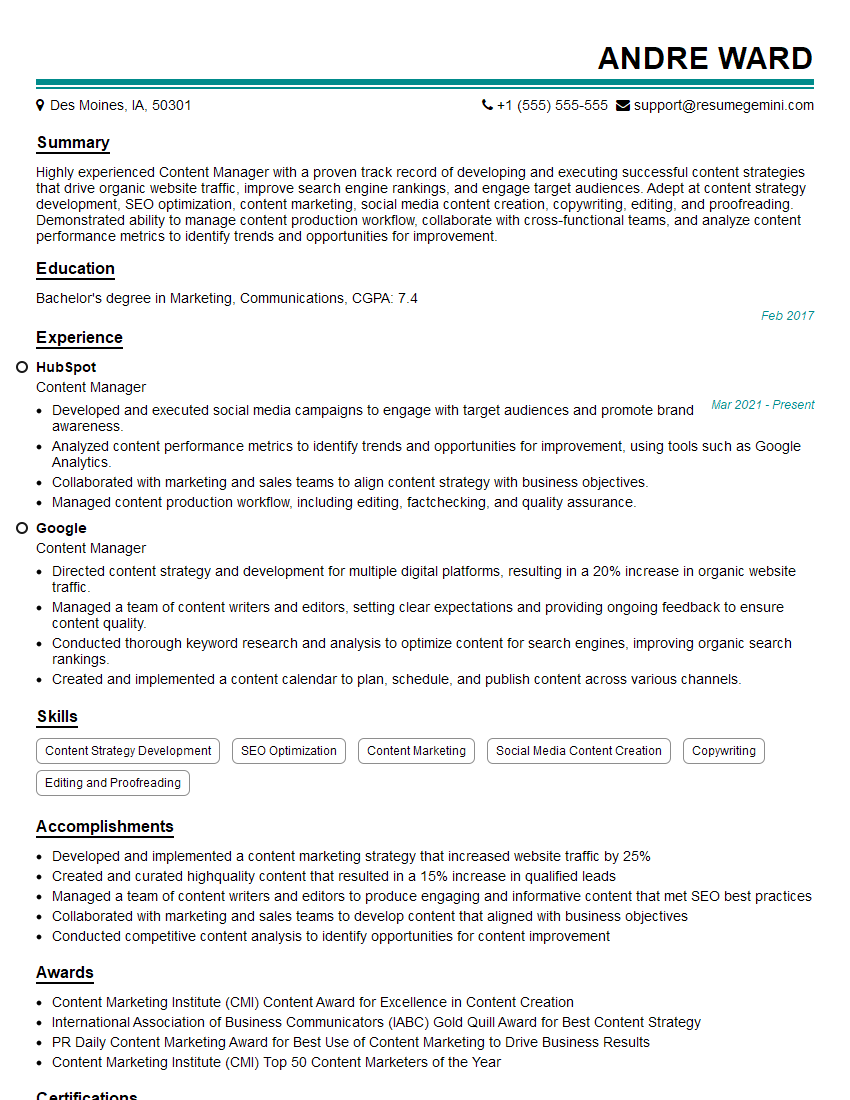
Content Manager Resume Sample

Information Architect Resume Sample
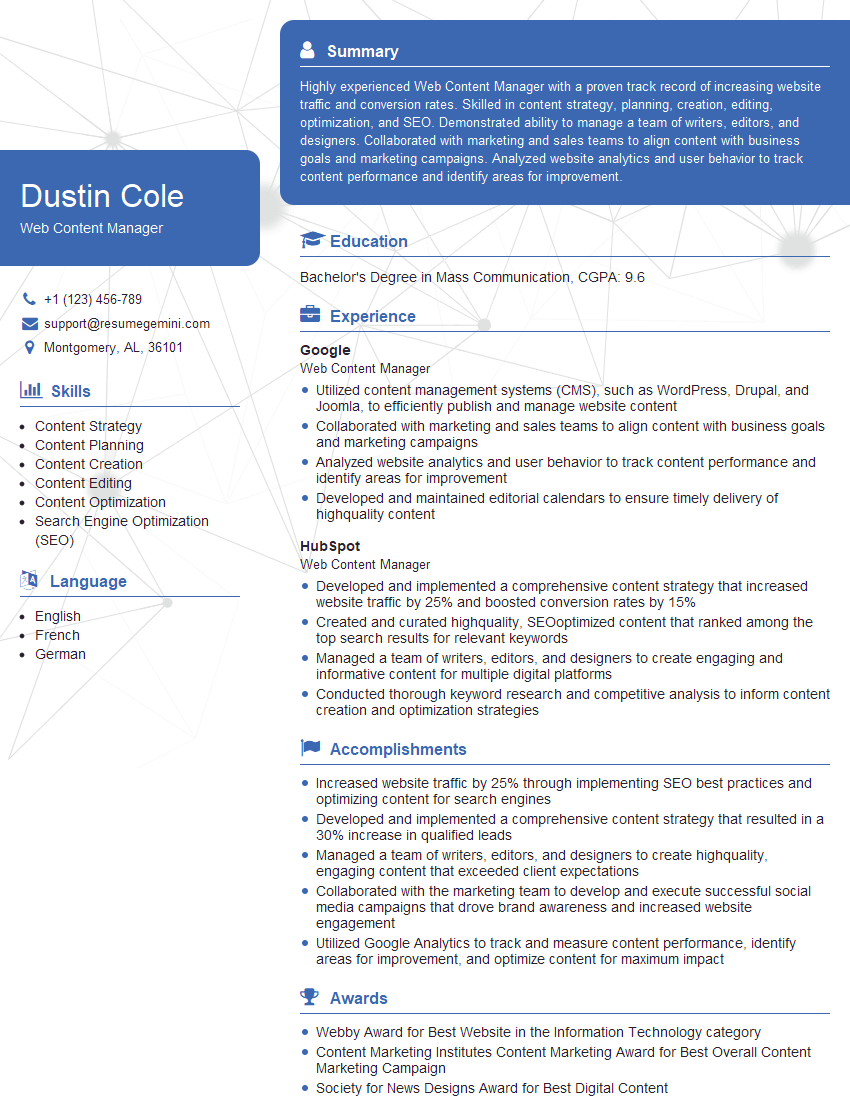
Web Content Manager Resume Sample

Content Strategist Resume Sample
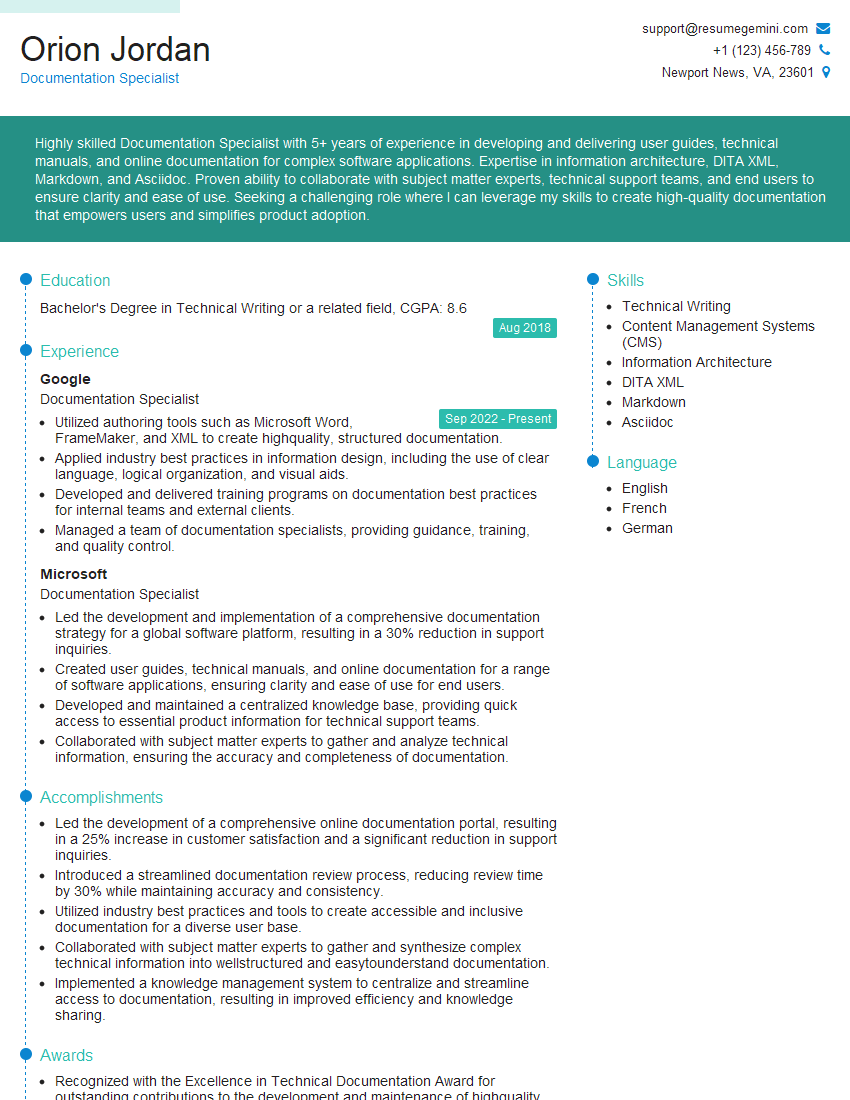
Documentation Specialist Resume Sample
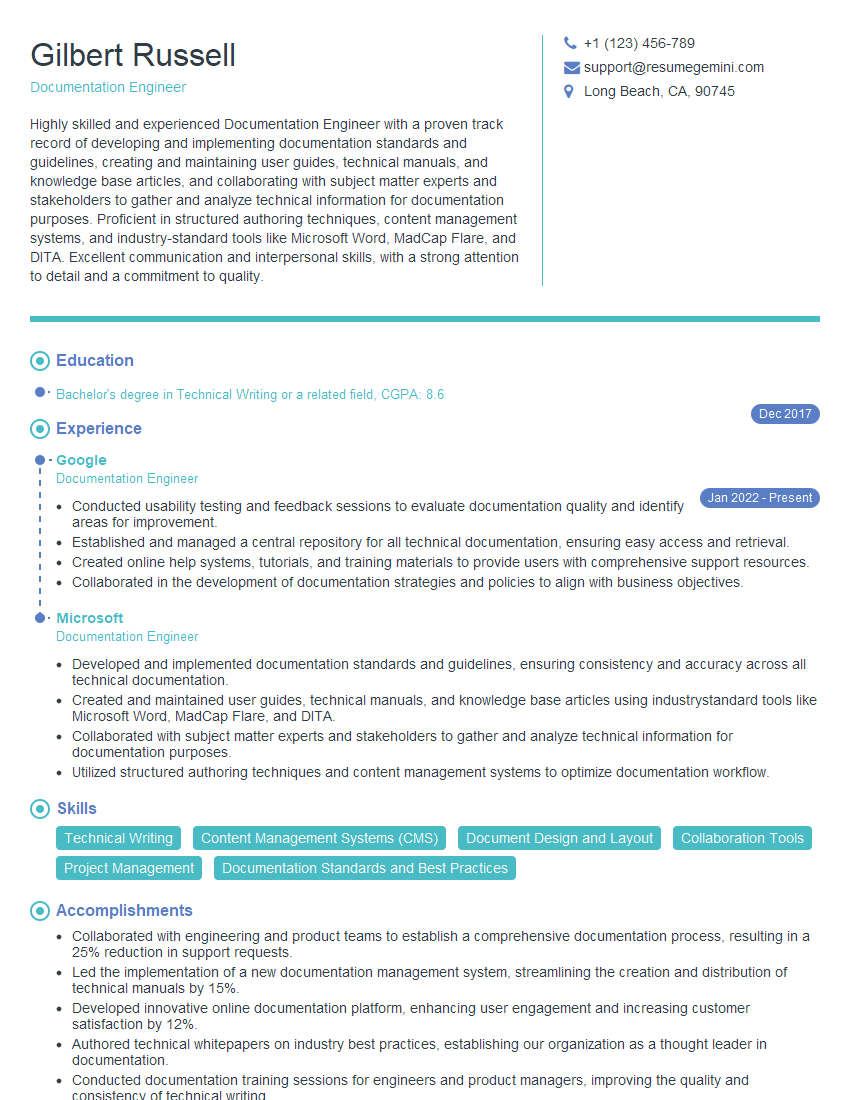
Documentation Engineer Resume Sample
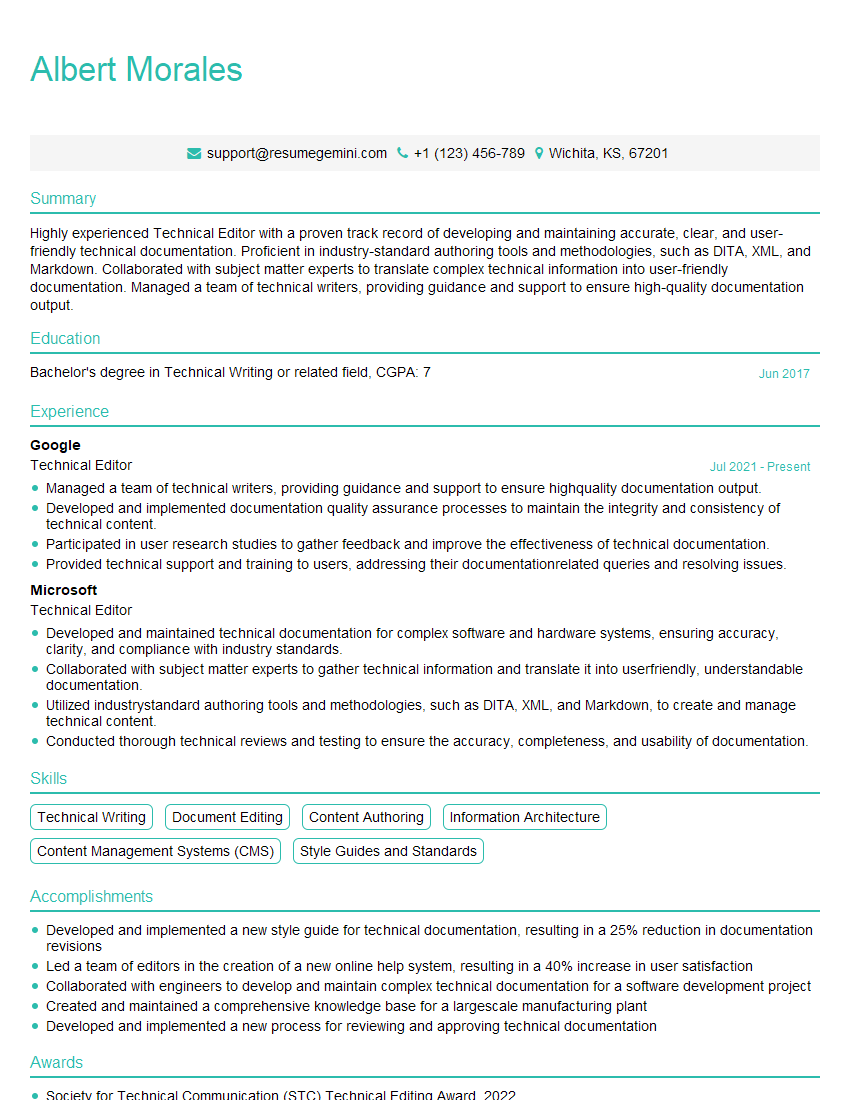
Technical Editor Resume Sample
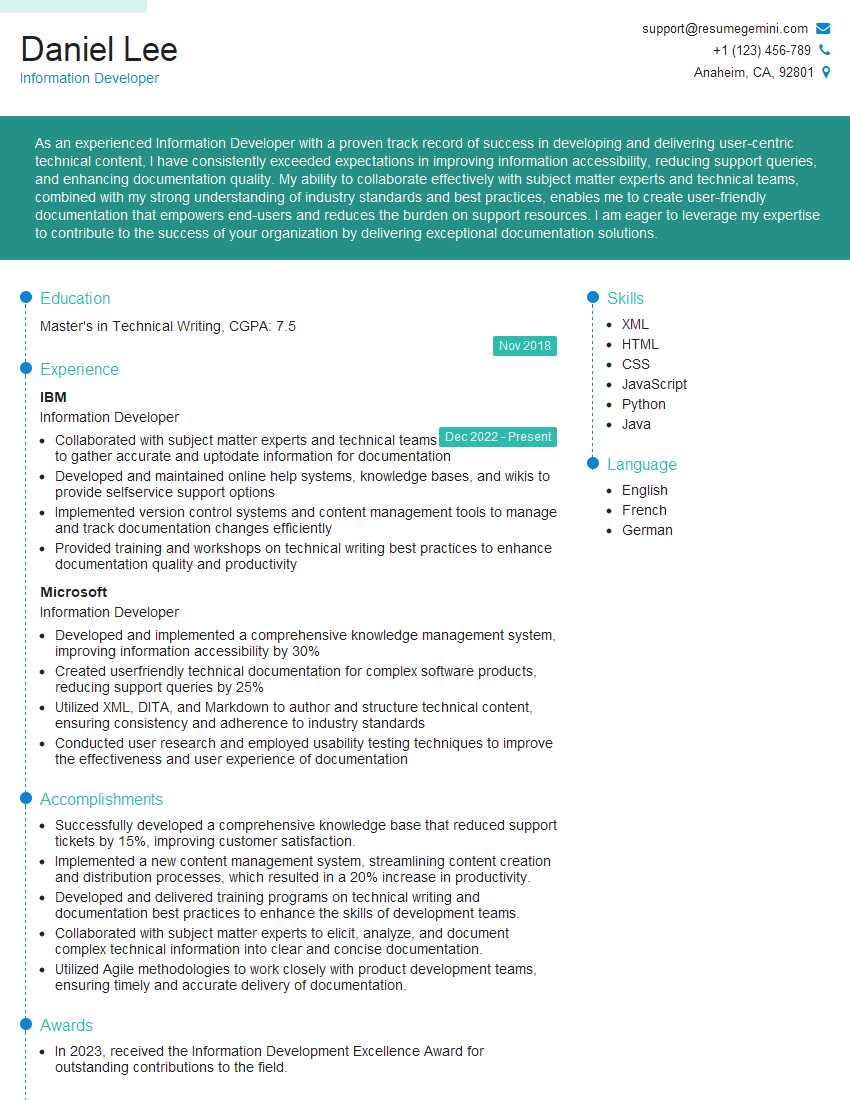
Information Developer Resume Sample
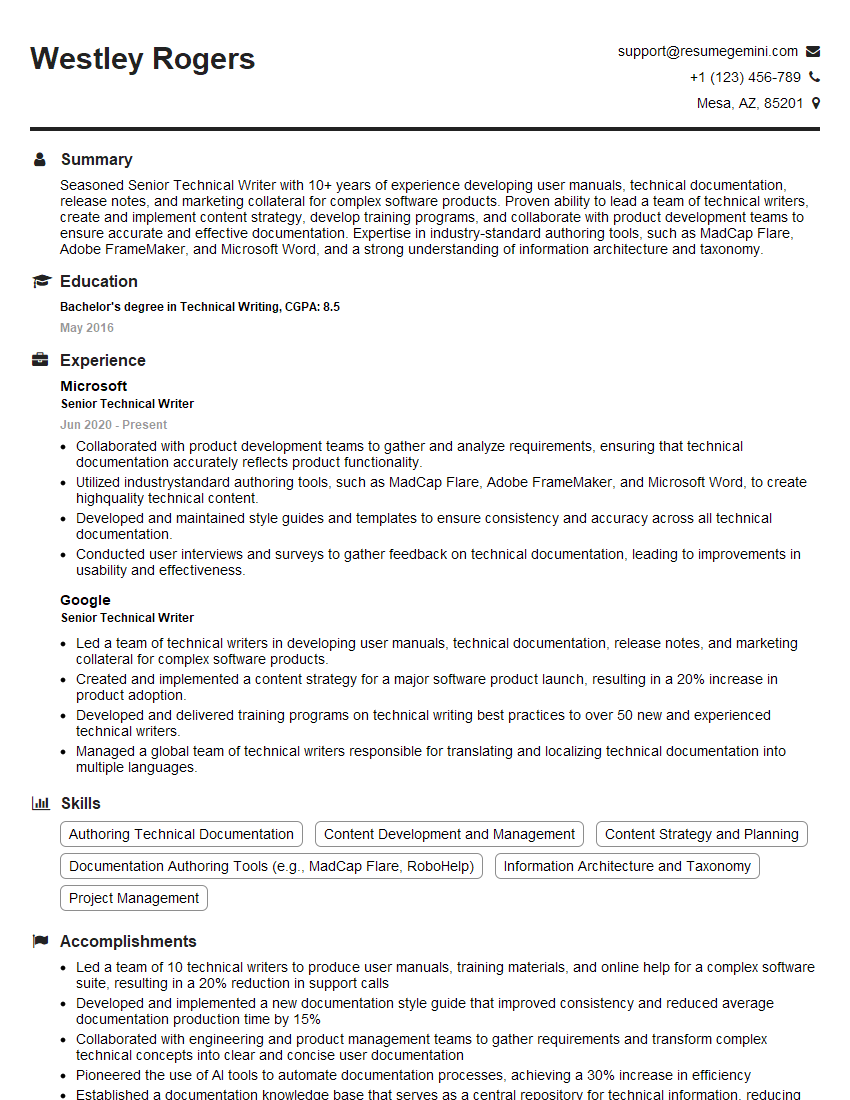
Senior Technical Writer Resume Sample
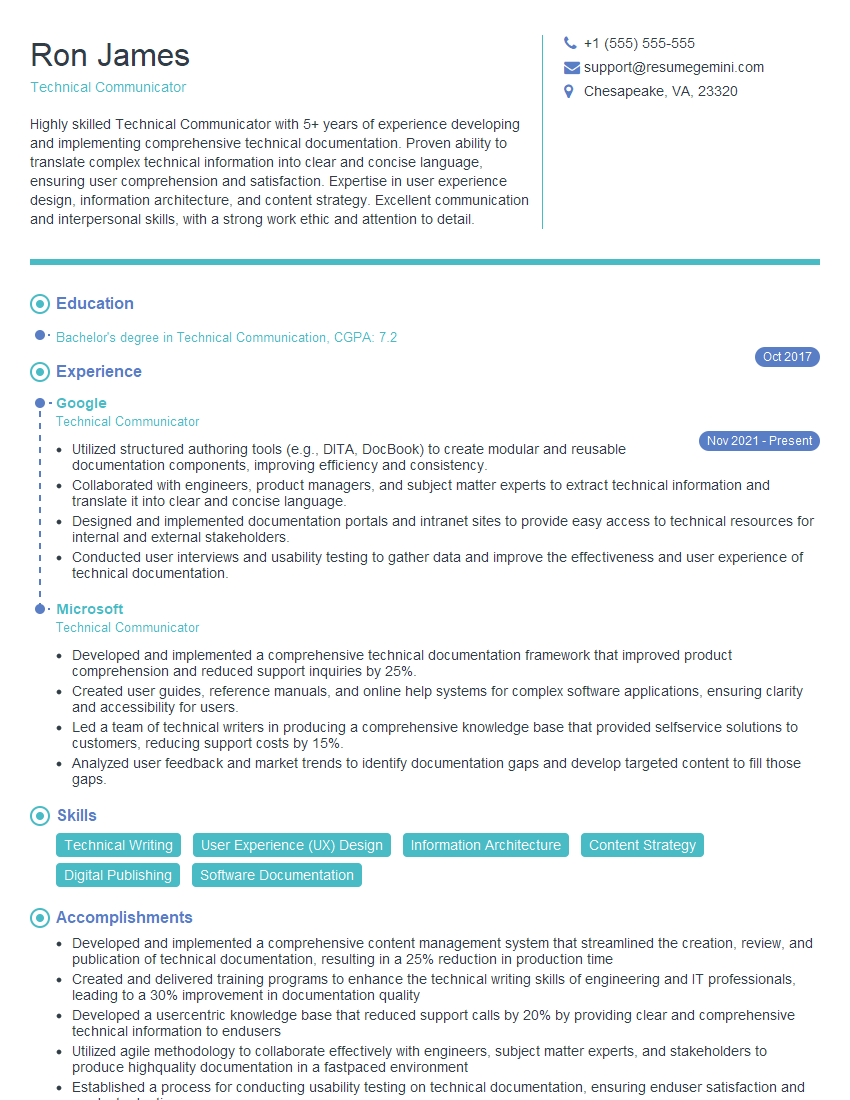
Technical Communicator Resume Sample

Technical Writer Resume Sample
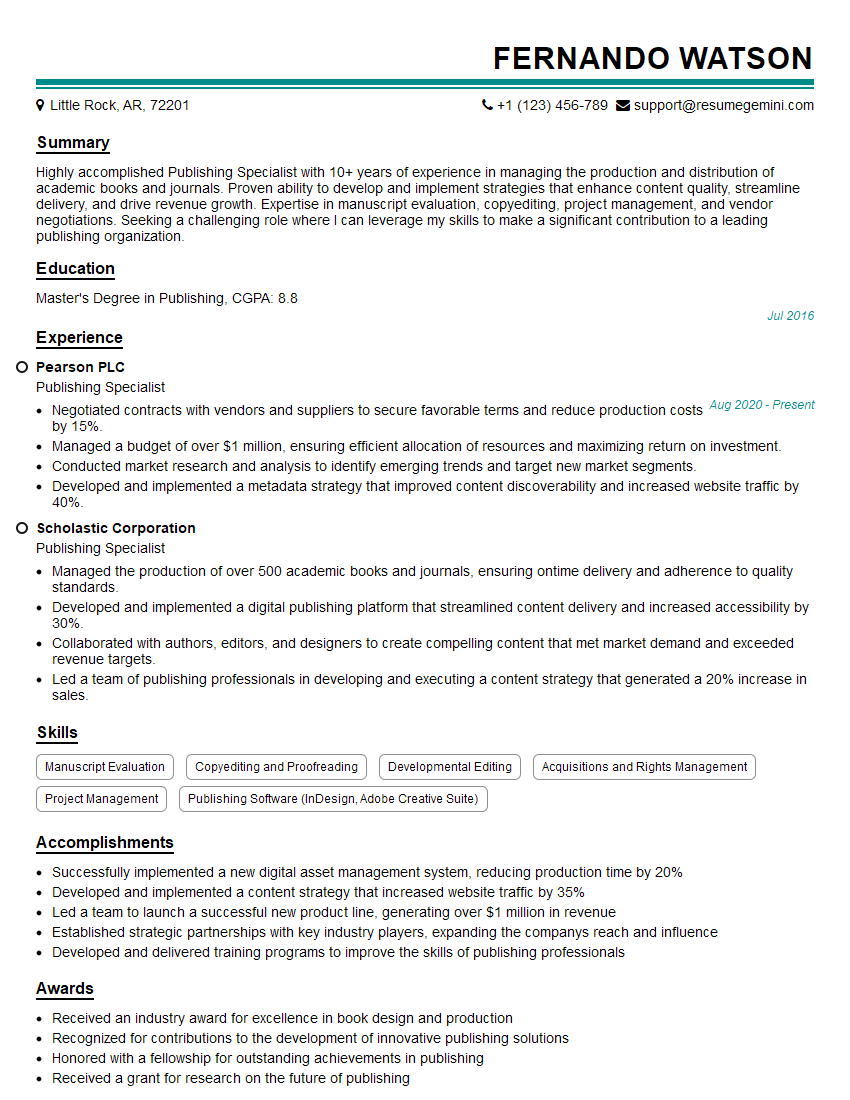
Publishing Specialist Resume Sample
Explore more articles
Users Rating of Our Blogs
Share Your Experience
We value your feedback! Please rate our content and share your thoughts (optional).
What Readers Say About Our Blog
Very informative content, great job.
good