Preparation is the key to success in any interview. In this post, we’ll explore crucial Adobe FrameMaker interview questions and equip you with strategies to craft impactful answers. Whether you’re a beginner or a pro, these tips will elevate your preparation.
Questions Asked in Adobe FrameMaker Interview
Q 1. Explain the difference between FrameMaker books and chapters.
In FrameMaker, books and chapters represent a hierarchical structure for organizing large documents. Think of a book as the overarching container, like a novel or a technical manual. Chapters, on the other hand, are subdivisions within the book, representing distinct sections or units of information. For instance, a technical manual might have a book titled “User Guide” containing chapters like “Installation,” “Getting Started,” and “Troubleshooting.”
The key difference lies in their functionality. A book allows you to manage multiple chapters collectively, facilitating tasks such as generating a table of contents (TOC) for the entire book or performing a global search and replace across all chapters simultaneously. Chapters, meanwhile, enable you to organize content within the book logically, providing a clear structure and improving readability. You can nest chapters within other chapters to create a multi-level structure if needed, mirroring the complexity of your document.
For example, a chapter on “Troubleshooting” might contain sub-chapters like “Hardware Issues” and “Software Issues,” further refining the organization. This hierarchical approach drastically simplifies managing large and complex documentation projects.
Q 2. Describe your experience using FrameMaker’s XML features.
My experience with FrameMaker’s XML features is extensive. I’ve leveraged its capabilities to create and manage structured content, significantly improving content reusability and streamlining the workflow for complex documentation projects. I’ve worked extensively with DITA (Darwin Information Typing Architecture) and other XML-based specifications, importing and exporting XML files seamlessly. This enabled me to integrate FrameMaker into larger content management systems.
One specific project involved creating a large technical manual using DITA. We defined a DITA XML schema that dictated the structure and metadata of the content. FrameMaker’s XML support allowed us to import the XML files, map the XML elements to FrameMaker’s paragraph styles, and then easily manage the content. This ensured consistency and greatly reduced the time spent on formatting. Furthermore, using XML allowed us to easily repurpose content across different output formats, like online help, PDFs, and print manuals, all from a single source.
I’m proficient in using XML editors to create and modify XML files, and I can expertly configure FrameMaker’s XML import and export settings to ensure accurate mapping and data integrity. I’m also familiar with using XSLT stylesheets to customize the output of the XML data, offering extensive flexibility in how the content is presented.
Q 3. How do you manage styles and templates in FrameMaker?
Managing styles and templates in FrameMaker is crucial for maintaining consistency and efficiency. I typically start by creating a master template containing all the essential styles and formatting elements for the entire document. This master template serves as the foundation upon which all other documents or chapters are built. This ensures a consistent look and feel across the entire project.
Styles are applied to individual text elements to define their appearance (fonts, sizes, spacing, etc.). Templates, on the other hand, define the overall structure and layout of the document, including margins, headers, footers, and page numbering. I utilize FrameMaker’s style inheritance mechanism, allowing me to create parent styles and child styles, minimizing the number of styles I need to maintain. This simplifies modification and ensures that changes made to a parent style automatically propagate to its children.
For example, I might have a parent style called “Heading 1” and then child styles like “Heading 1.1” and “Heading 1.2”, inheriting many properties from the parent but slightly altered as needed. To manage styles effectively, I utilize FrameMaker’s style sheets to categorize and view all the styles in the document. This helps to prevent style duplication and maintain consistency.
Q 4. Explain the process of creating and using conditional text in FrameMaker.
Conditional text in FrameMaker allows you to include or exclude content based on specific conditions, making it perfect for creating multiple versions of a document (e.g., a user manual for different product versions). It’s achieved using conditional tags that are inserted around the relevant text. These tags are then used to define conditions that determine whether the enclosed text is displayed or not.
The process involves:
- Defining conditions: Create conditions (e.g., “Version 1,” “Version 2”) in FrameMaker’s conditional text settings.
- Applying conditional tags: Wrap the text you want to show conditionally with tags that reference those conditions. For instance,
This text is only for version 1. - Selecting conditions: Choose the active conditions (which versions to display) to generate the desired output. FrameMaker will only show the text corresponding to selected conditions.
For example, you might have a manual describing features only available in a premium version. You can surround the descriptions with
Q 5. How do you handle cross-references and indexes in FrameMaker?
FrameMaker provides robust tools for handling cross-references and indexes. Cross-references link one part of the document to another, while indexes allow readers to quickly locate specific topics. Both are essential for creating well-organized and easily navigable documents.
To create a cross-reference, you simply select the target text and insert a cross-reference marker. FrameMaker automatically generates a unique identifier. Then, wherever you need a reference, you insert a cross-reference to that identifier. FrameMaker updates these automatically during updates ensuring they always point to the correct location. For indexes, you mark entries for index creation by assigning index tags to relevant keywords or terms. FrameMaker allows multiple levels of indexing, adding depth to your indexes. FrameMaker then automatically generates the index upon compilation.
I often use cross-references to link figures and tables to their descriptions within the text. For indexes, I generally mark key terms and concepts, allowing FrameMaker to automatically sort and organize these to generate an accurate index. This ensures easy navigation for the reader.
Q 6. Describe your experience with FrameMaker’s table creation and formatting tools.
FrameMaker’s table creation and formatting tools are quite powerful and flexible. I’ve used them to create complex tables with numerous rows, columns, and sophisticated formatting. It offers several ways to build tables: manually, from data sources (spreadsheets), or by importing tables from other applications.
FrameMaker allows for precise control over cell merging, column widths, row heights, borders, shading, and text alignment within cells. I often utilize the advanced features to create tables with nested tables, headers, footers, and captions. You can define table styles to ensure consistency. The ability to define repeating headers and footers in large tables is particularly useful, enhancing readability and understanding. I’ve found that FrameMaker’s table tools are significantly more robust and flexible than those found in many other word processing applications.
In a recent project, I used FrameMaker to create a complex table summarizing various hardware specifications, with separate sections for each component and various formatting requirements for each cell. FrameMaker’s features allowed me to accomplish this efficiently and effectively.
Q 7. How do you import and export content in various formats (e.g., Word, PDF)?
FrameMaker supports a wide variety of import and export formats, facilitating seamless integration with other applications. Common formats include Microsoft Word (.doc, .docx), Rich Text Format (RTF), plain text (.txt), and of course PDF. The process is relatively straightforward and usually involves using the “Import” or “Export” functions within FrameMaker’s File menu.
When importing content, I pay close attention to how styles and formatting are mapped. Often, some manual adjustments are necessary to ensure that the imported content conforms to the style sheet of the FrameMaker document. When exporting, I often choose PDF as the final output format for its universality and ability to preserve formatting faithfully. However, for content that needs further editing in another application, I might choose Word or RTF.
For example, I might import a Word document containing technical specifications and then reformat it using FrameMaker’s styles to ensure consistency with the rest of the project. For final distribution, I would then export it as a PDF.
Q 8. Explain your experience with FrameMaker’s automated numbering and list features.
FrameMaker’s automated numbering and list features are incredibly powerful for creating structured documents. They ensure consistency and save significant time compared to manual numbering. You can easily create numbered lists, bulleted lists, and even multi-level lists with nested numbering schemes. The system automatically updates numbers when content is added or removed, preventing errors.
For example, let’s say you’re writing a technical manual. You can define a numbered list style for your procedures. FrameMaker will automatically assign numbers to each step, and if you insert a new step, it re-numbers the entire list correctly. You can also create custom numbering schemes, such as using Roman numerals or letters, within a single document or across multiple documents using styles.
Beyond simple numbered lists, FrameMaker also supports cross-referencing within lists. If you reference a figure or table within your list, the cross-reference will update automatically if you move or rename the referenced item. This is crucial for maintaining consistency and accuracy in large, complex documents. It’s like having a smart assistant managing your numbering, guaranteeing your document is always up-to-date and error-free.
Q 9. How do you ensure consistency in formatting and style throughout a FrameMaker document?
Maintaining consistency in formatting and style across a FrameMaker document is paramount for professional results. This is achieved primarily through the use of styles and templates. Styles define the formatting characteristics for different elements (paragraphs, headings, lists, etc.), while templates pre-define the structure and styles for a new document. Creating a style sheet that covers all the formatting needs of your document is the first step. This allows for global changes: modifying a style updates all instances of that style throughout the document.
For instance, if you decide to change the font size of all headings from 12pt to 14pt, you only need to make the change within the heading style. FrameMaker automatically updates all headings in the document, saving hours of manual editing. Regularly reviewing and updating your style sheet will ensure your document’s consistent look and feel across sections and revisions. This method avoids inconsistencies that are hard to catch manually and creates a more professional and easily readable document.
Moreover, using master pages offers a way to control elements that repeat on every page like headers, footers and page numbers, ensuring consistency across pages without manual intervention.
Q 10. How familiar are you with FrameMaker’s automation features (e.g., macros, scripting)?
I’m very familiar with FrameMaker’s automation capabilities, leveraging both macros and scripting (primarily using VBScript or JavaScript) to enhance productivity and streamline workflows. Macros allow you to record and replay sequences of actions, automating repetitive tasks. For example, I’ve created macros to automate the process of generating tables of contents, indices, and cross-references, significantly speeding up the post-production phase.
Scripting provides more sophisticated automation. For instance, I wrote a script that automatically inserts page numbers according to a specific customer’s requirements, including specific formatting for different sections of a document. This eliminates manual input and avoids potential errors. Scripting also allows for dynamic content generation, conditional formatting, and integration with external data sources—all crucial for managing large, complex projects efficiently. Imagine a scenario where you need to process hundreds of files and apply a set of styling changes. A script can automate this far more quickly and accurately than manual processing.
I’m also experienced in debugging and troubleshooting scripts, ensuring seamless automation.
Q 11. Describe your process for creating and managing FrameMaker templates.
Creating and managing FrameMaker templates is crucial for maintaining consistency across multiple projects. My process starts by defining the fundamental structure of the document, including the layout, styles, and master pages. I always begin with a well-defined style sheet covering all anticipated formatting needs.
I then ensure the template includes all necessary elements, such as page numbering, headers, footers, and placeholders for content. This reduces manual work for new projects by providing a solid foundation. For example, a template for a technical manual might predefine styles for headings, paragraphs, code examples, figures, and tables, and even set up automated cross-referencing.
I store templates in a central location, accessible to all team members. This ensures everyone uses the same standard, improving consistency and collaboration. Regularly reviewing and updating templates to reflect current style guides and best practices is essential for maintaining accuracy and efficiency across projects.
Q 12. How do you troubleshoot common FrameMaker errors and issues?
Troubleshooting FrameMaker errors requires a systematic approach. My first step is to identify the error message precisely. This usually points to the source of the problem. For example, a memory error suggests the document is too large, and I might consider breaking it into smaller parts. If the error message is vague, I use the following steps:
- Check for corrupted files: Try opening the document in a new profile or on a different machine.
- Review recent changes: Undo recent edits to see if they introduced the error.
- Examine the log file: FrameMaker keeps log files which can provide valuable information about the error.
- Restart FrameMaker: A simple restart often resolves temporary glitches.
- Seek online resources: FrameMaker’s online help documentation, user forums, and Adobe’s support channels offer valuable troubleshooting advice.
If the issue persists, I’ll contact Adobe support for assistance. Experience has taught me that carefully examining error messages and systematically reviewing changes often leads to quick resolution.
Q 13. Explain your experience working with large, complex FrameMaker documents.
Working with large, complex FrameMaker documents demands a structured approach. I employ strategies like modular design, breaking the document into smaller, manageable files linked together through FrameMaker’s book feature. This allows multiple authors to work simultaneously without conflicts and simplifies version control.
Regularly saving the document is essential, and using FrameMaker’s version control features or an external system helps track changes and revert to previous versions if needed. Employing efficient file management strategies, such as well-organized folder structures, is also critical. Utilizing FrameMaker’s ‘Check Document’ functionality to detect errors and inconsistencies before finalizing is a vital part of my workflow.
Furthermore, leveraging automation and macros significantly reduces manual effort and potential errors. For example, automating tasks like generating tables of contents and cross-references saves time and ensures accuracy in large projects. It’s similar to building a house—you wouldn’t construct the entire thing as one unit; a modular approach is far more efficient and manageable.
Q 14. How do you collaborate with others on FrameMaker projects?
Collaboration on FrameMaker projects requires effective communication and workflow strategies. Using version control software, such as Git or similar systems, allows multiple users to work on the same document concurrently while tracking revisions. I often define clear roles and responsibilities for each team member, designating specific sections or tasks to prevent conflicts.
Regular team meetings are crucial to discuss progress, address issues, and coordinate efforts. FrameMaker’s book feature allows multiple files to be integrated into a single publication, facilitating collaboration on larger projects. Clear communication channels, whether email, instant messaging, or project management software, are vital for keeping everyone informed and synchronized. A well-defined style guide ensures consistent formatting throughout the entire document, regardless of who is working on it. This ensures a streamlined workflow and a consistent, high-quality final product.
Q 15. Describe your experience using FrameMaker’s version control features.
FrameMaker doesn’t have built-in version control like Git. However, I’ve effectively managed versioning using external tools integrated with FrameMaker’s file management. My typical approach involves using a version control system like Git alongside a structured file naming convention. For instance, I might use a naming scheme like Project_Name_v1.0.fm, Project_Name_v1.1.fm, etc., to track revisions. I’d then commit these files to a Git repository, allowing me to revert to previous versions if needed and track changes throughout the document’s lifecycle. This ensures collaboration is smooth, even in large teams working on extensive documentation projects. Another approach I’ve used is to leverage the features of the file system itself (copying and renaming files), documenting changes in a separate log file, especially for simpler projects or when integration with a full-blown version control system is impractical.
Career Expert Tips:
- Ace those interviews! Prepare effectively by reviewing the Top 50 Most Common Interview Questions on ResumeGemini.
- Navigate your job search with confidence! Explore a wide range of Career Tips on ResumeGemini. Learn about common challenges and recommendations to overcome them.
- Craft the perfect resume! Master the Art of Resume Writing with ResumeGemini’s guide. Showcase your unique qualifications and achievements effectively.
- Don’t miss out on holiday savings! Build your dream resume with ResumeGemini’s ATS optimized templates.
Q 16. How do you optimize FrameMaker documents for accessibility?
Optimizing FrameMaker documents for accessibility is crucial for inclusivity. My strategy focuses on several key areas. First, I ensure logical structure using appropriate styles and paragraph tags. For instance, using heading styles (Heading 1, Heading 2, etc.) establishes a clear hierarchy for screen readers. Second, I use alternative text (alt text) for all images, describing their content and purpose. This is vital for visually impaired users. Third, I maintain consistent and clear formatting. Avoiding complex or unusual layouts and using sufficient color contrast between text and background are essential. Fourth, I check for and correct any semantic errors in the document’s structure and use of tags. Finally, using FrameMaker’s built-in accessibility checker (if available in the version) is a good final check. I regularly test my documents using screen readers and assistive technologies to ensure they meet accessibility standards.
Q 17. Explain your understanding of DITA and its application in FrameMaker.
DITA (Darwin Information Typing Architecture) is an XML-based authoring standard for creating modular and reusable content. In FrameMaker, its application significantly enhances the efficiency and maintainability of documentation projects. FrameMaker’s support for DITA allows authors to create individual topic files that are then assembled into larger publications. This modularity enables reuse of content across multiple documents, reducing redundancy and ensuring consistency. For example, if a procedure is described in several manuals, it can be authored once as a DITA topic and then reused in each manual. Further, DITA’s structured approach facilitates content reuse and simplifies single-sourcing across different output formats. The ability to import and export DITA content directly streamlines the workflow and significantly reduces the chance of errors when creating localized versions or updating technical documentation.
Q 18. How do you use FrameMaker’s features to create professional-quality publications?
Creating professional-quality publications in FrameMaker relies on a multifaceted approach. I start by meticulously planning the document’s structure and layout using templates and styles. Consistency in typography, headings, and formatting is paramount. FrameMaker’s advanced formatting features, such as master pages and conditional text, are instrumental in creating a polished look. I leverage FrameMaker’s capabilities for sophisticated cross-referencing and indexing to improve readability and navigation. For example, I might create an index automatically, and cross-reference figures and tables to relevant sections of the text. Furthermore, I pay close attention to image quality and placement, ensuring images are high-resolution and properly integrated into the layout. Finally, a thorough proofreading and quality assurance process is essential before publishing, involving checking for grammar, style consistency, and accuracy of all information.
Q 19. Describe your experience with FrameMaker’s image editing and placement capabilities.
FrameMaker provides robust image handling capabilities. I frequently use it to import various image formats (JPEG, PNG, TIFF, etc.), resize and crop images precisely, and manage image resolution for optimal print and screen output. Beyond basic placement, FrameMaker’s features allow for precise control over image wrapping and alignment with text. For instance, I can easily wrap text around an image, ensuring it seamlessly integrates within the page layout. Advanced techniques include the use of image maps to create interactive elements within documents. However, for extensive image editing, I prefer using dedicated image editing software like Adobe Photoshop, then import the finalized images into FrameMaker for optimal integration with the document’s layout. This workflow enables me to maintain efficient workflow and quality control across both image editing and document composition.
Q 20. How familiar are you with FrameMaker’s output options (e.g., PDF, print)?
I am very familiar with FrameMaker’s output options. It supports numerous output formats, most importantly PDF (for digital distribution and archiving) and print-ready formats. I can produce high-quality PDFs with various settings, including compression levels, embedded fonts, and accessibility features. I understand the nuances of setting up print jobs for different printers and paper sizes, ensuring optimal color and resolution. FrameMaker allows for the customization of PDF output, such as adding watermarks, security restrictions, or bookmarks to improve the user experience. For example, I can create different PDF versions optimized for different purposes; one may be high-resolution for print while another is a lower-resolution, smaller file size optimized for online viewing. I’m also proficient in using FrameMaker’s print preview to ensure the document is formatted correctly before committing to final output.
Q 21. Explain your approach to quality assurance and testing in FrameMaker.
My quality assurance approach in FrameMaker is systematic and rigorous. It begins with thorough planning and adherence to style guides. During the authoring process, I regularly check for consistency in formatting, spelling, and grammar using both manual reviews and FrameMaker’s built-in spell checkers and grammar tools. For larger projects, I collaborate with colleagues for peer reviews. Before final output, I perform a comprehensive quality check, focusing on the accuracy of data, consistent cross-referencing, and correct image placement. This includes generating proofs and reviewing them carefully for any errors. For accessibility, I use assistive technologies to test the document from the perspective of users with disabilities. Finally, I always perform a final check of the generated output (PDF or print) to ensure that everything is as expected, including checking for any unexpected formatting issues that might have only become apparent during the output process.
Q 22. Describe your experience using FrameMaker’s find and replace functionality.
FrameMaker’s find and replace functionality is a powerful tool for editing large documents efficiently. It goes far beyond simple text searches, allowing for sophisticated pattern matching and conditional replacements. Think of it as a highly customizable search-and-replace superpower for your documents.
I routinely use it for tasks like:
- Simple replacements: Finding all instances of “colour” and replacing them with “color”, ensuring consistency in style across a document.
- Wildcard searches: Replacing all chapter numbers (e.g., “Chapter 1”, “Chapter 2”) using wildcards like
Chapter *and replacing with a consistent style. This is invaluable for updating numbering schemes. - Conditional replacements: Using regular expressions (regex) to find and replace text based on context. For example, I might find all instances of bold text containing a specific keyword and change the formatting to italic. This is particularly useful for complex formatting changes.
- Across multiple files: FrameMaker’s find and replace can span multiple files within a project, ensuring consistent changes across related documents. This is a massive time saver when working on large, multi-part projects.
For example, let’s say I needed to replace all occurrences of “Version 1.0” with “Version 2.0” in a technical manual. I would simply open the find and replace dialog, enter “Version 1.0” in the “Find” field and “Version 2.0” in the “Replace” field, then select the appropriate scope and click “Replace All.” More complex scenarios might involve regular expressions to account for variations in spacing or capitalization.
Q 23. How do you use styles to maintain consistency in a FrameMaker document?
Styles are the cornerstone of maintaining consistency in FrameMaker. They are reusable formatting templates that apply consistent formatting to text and other elements. Imagine styles as pre-programmed formatting settings that ensure uniformity throughout your document, even with complex multi-part projects. They prevent the tedious and error-prone task of manually formatting each element.
My approach to using styles involves:
- Creating a comprehensive style sheet: I begin by defining a complete set of styles tailored to the document’s needs. This often includes styles for headings, body text, lists, tables, captions, and more. Careful planning here ensures efficient formatting throughout the project.
- Applying styles consistently: Instead of applying formatting directly, I use the style sheet to format each element, like applying the “Heading 1” style to all level-one headings. This ensures consistent formatting regardless of who edits the document.
- Using paragraph styles effectively: Paragraph styles are particularly useful for managing text formatting, including font size, spacing, indentation, and alignment, maintaining consistent paragraph structure.
- Leveraging character styles for specific text elements: Character styles are used for elements like bold, italics, superscript and subscript, ensuring consistency in how these are applied throughout the document.
- Regular style updates: For long or evolving documents, periodically reviewing and updating the style sheet helps in maintaining consistency and efficiency over time.
By consistently applying styles, I guarantee that any changes to a style, like a change in font or size, automatically propagate to all elements using that style, saving tremendous time and effort and minimizing inconsistency.
Q 24. Explain your experience with working with master pages in FrameMaker.
Master pages in FrameMaker are like templates for your document’s pages. They provide a framework for consistent page layout across the document, enabling you to add headers, footers, page numbers, and other recurring elements without having to manually add them to each page individually. Think of them as page blueprints.
My experience includes:
- Creating master pages for different sections: I often create separate master pages for chapters, sections, or even different types of content (e.g., one for text and another for illustrations) to account for varying requirements.
- Managing headers and footers: Master pages allow easy management of headers and footers, including page numbers, document titles, and other relevant information. They ensure consistency across pages.
- Positioning running headers and footers: Master pages provide control over the precise placement and formatting of running heads and feet, maintaining visual consistency.
- Using master page layers: FrameMaker allows the use of layers on master pages. This enables complex designs where elements can be shown or hidden selectively on different pages.
- Applying master pages to specific sections: I’ve used FrameMaker to selectively apply specific master pages to particular sections or chapters of the document, customizing page layout for different parts.
For instance, I might have one master page for the main body of a document with a header containing the chapter title and page number, and a different master page for the appendices without a chapter title in the header.
Q 25. How do you handle different page sizes and orientations in FrameMaker?
FrameMaker handles different page sizes and orientations seamlessly. This is crucial for documents like manuals, where different sections might require different layouts, or for documents that need to be printed on different paper sizes.
My approach typically involves:
- Defining page sizes in the document setup: I start by setting the initial page size during document creation or using the page setup dialog for a more granular approach.
- Using multiple master pages: As mentioned, employing multiple master pages is key for accommodating different orientations (portrait, landscape) or sizes. Each master page is designed for a specific orientation and size.
- Employing page breaks to switch page orientations: To change the orientation within a document, I use page breaks to demarcate the transition point. This allows consistent sections across various orientations.
- Creating and applying different master pages: To handle diverse sizes, I’d create multiple master pages (A4, Letter, etc.) and then apply the appropriate master page to the relevant sections of the document. This eliminates the need for manual adjustments of page layout.
For example, a technical manual might have the main text in A4 portrait orientation while diagrams are displayed in A4 landscape orientation on separate pages.
Q 26. Describe your experience using FrameMaker’s table of contents and index generation features.
FrameMaker excels at generating tables of contents (TOCs) and indexes automatically. This significantly reduces the manual work involved in creating these essential navigational aids, minimizing errors and saving considerable time.
My workflow involves:
- Defining TOC styles: I start by defining styles for the TOC entries ensuring formatting consistency. This includes the style applied to the TOC entries, the title of the TOC, and any other elements like page numbers.
- Using paragraph styles for headings: To automatically generate the TOC, I ensure that all headings in the document use appropriate paragraph styles (Heading 1, Heading 2, etc.). FrameMaker uses these styles to identify the hierarchical structure of the content.
- Generating the TOC: Once styles are correctly applied, I generate the TOC using FrameMaker’s built-in functionality by creating the TOC and selecting the appropriate styles used for headings and subheadings.
- Generating indexes: Similar to TOC generation, I use FrameMaker’s indexing features to create indexes efficiently and accurately. This involves marking index entries throughout the document, choosing an indexing style, and generating the index. I often use multiple index entries per page, depending on the document’s complexity.
- Customizing TOC and index appearance: FrameMaker allows extensive customization of both TOC and index appearance through the use of styles, ensuring consistency with the rest of the document’s design.
The automatic generation feature is a huge productivity enhancer compared to manually creating these critical document elements. It ensures accuracy and consistency.
Q 27. How do you manage footnotes and endnotes in FrameMaker?
FrameMaker simplifies the management of footnotes and endnotes, ensuring correct numbering, placement, and formatting across the document. This is vital for maintaining the integrity and readability of academic and technical documents.
My experience includes:
- Inserting footnotes and endnotes: I use FrameMaker’s built-in functionality to insert footnotes and endnotes efficiently. I can easily switch between footnotes and endnotes depending on the citation style.
- Managing footnote and endnote numbering: FrameMaker automatically numbers footnotes and endnotes sequentially, ensuring correct numbering throughout the document. This eliminates manual numbering and the associated risks of errors.
- Formatting footnotes and endnotes: FrameMaker allows customization of footnote and endnote formatting through style sheets, enabling a consistent and professional look across the document.
- Automatic renumbering: When I add or delete footnotes and endnotes, FrameMaker automatically renumbers them, which significantly simplifies updates and revisions in complex documentation.
This automatic management significantly increases efficiency. Manually managing footnotes and endnotes in a large document would be incredibly time-consuming and error-prone.
Q 28. Explain your experience with FrameMaker’s built-in spell check and grammar check features.
FrameMaker’s built-in spell check and grammar check features are valuable tools for ensuring the accuracy and quality of written content. They are not just simple checkers, they are integral to a streamlined editing process.
My experience incorporates:
- Customizing dictionaries: FrameMaker allows adding custom dictionaries to account for technical terms, acronyms, and specialized vocabulary specific to the documents I’m working on, avoiding unnecessary flagging of correct terminology.
- Using spell check for multiple languages: FrameMaker supports multiple languages, enabling me to seamlessly use spell-checking features for documents containing text in various languages.
- Reviewing grammar suggestions: While I value the grammar suggestions, I always review them carefully. The software isn’t perfect and may flag correctly used sentences. I leverage it as a supportive editing tool, not as the absolute authority.
- Integrating with external grammar checkers: For more sophisticated grammar checking, FrameMaker can be integrated with external tools, offering a more comprehensive review process.
While these features aren’t a replacement for a thorough human proofread, they act as a first line of defense against common errors, considerably improving the overall quality of the documents I produce.
Key Topics to Learn for Adobe FrameMaker Interview
- Mastering the FrameMaker Interface: Understand the workspace, toolbars, and menus. Practice navigating efficiently and customizing your environment.
- Document Creation and Formatting: Learn to create various document types, apply styles, manage master pages, and utilize templates for consistent output.
- Text and Image Handling: Explore advanced text formatting options, image insertion and manipulation, and techniques for creating visually appealing documents.
- Table Creation and Manipulation: Master the creation and formatting of complex tables, including cell merging, borders, and data integration.
- Working with Styles and Templates: Understand the power of styles and templates for ensuring consistent formatting across large documents and facilitating efficient updates.
- Conditional Text and Variables: Learn how to use conditional text and variables for creating dynamic and personalized documents.
- XML and Data Integration: Explore importing and exporting data using XML, enabling seamless integration with other systems.
- Cross-referencing and Indexing: Master the creation of cross-references, indexes, and tables of contents for improved document navigation.
- Advanced Features: Research and understand features such as structured applications, automated processes, and advanced publishing options.
- Troubleshooting and Problem-Solving: Develop your ability to diagnose and resolve common FrameMaker issues, demonstrating practical problem-solving skills.
Next Steps
Mastering Adobe FrameMaker opens doors to exciting career opportunities in technical writing, documentation, and publishing. Demonstrating proficiency in this powerful tool significantly enhances your job prospects. To maximize your chances of landing your dream role, it’s crucial to present yourself effectively. Creating an ATS-friendly resume is paramount in today’s competitive job market. We highly recommend using ResumeGemini to craft a compelling resume that showcases your skills and experience. ResumeGemini offers a streamlined process and provides examples of resumes tailored to Adobe FrameMaker users to help you get started.

Information Architect Resume Sample
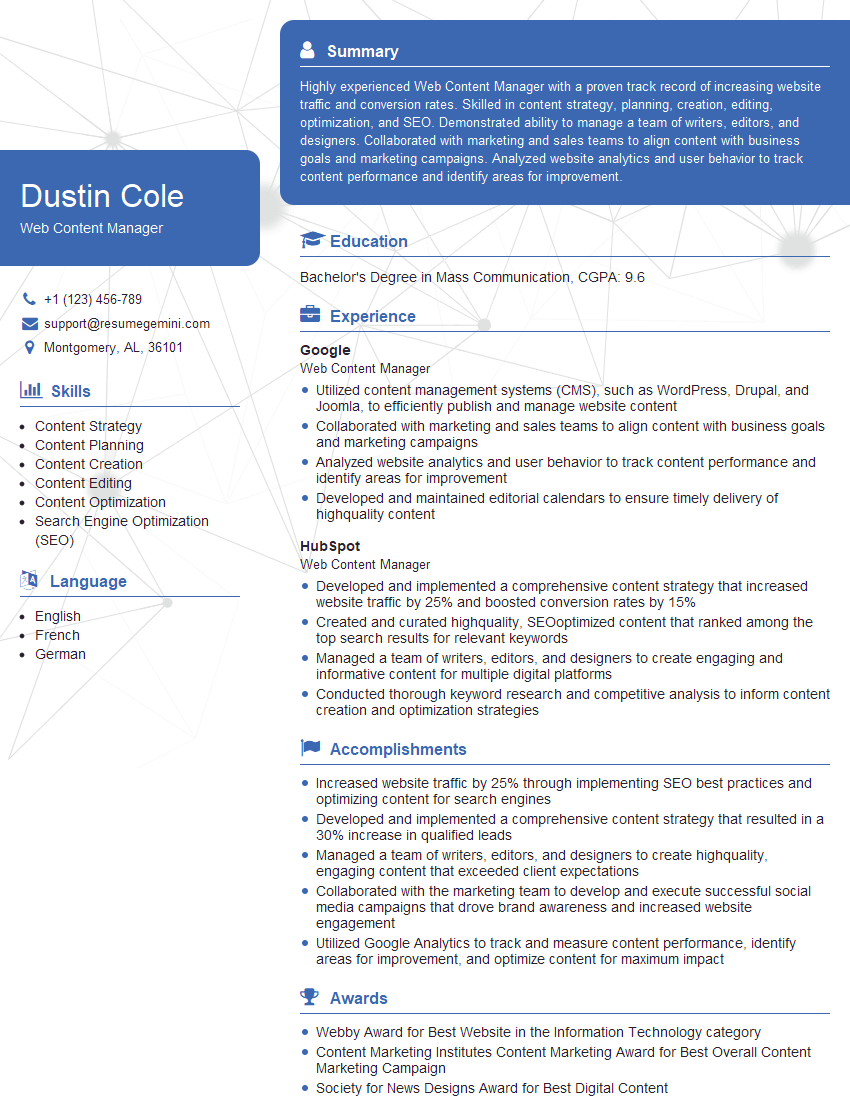
Web Content Manager Resume Sample

Content Strategist Resume Sample
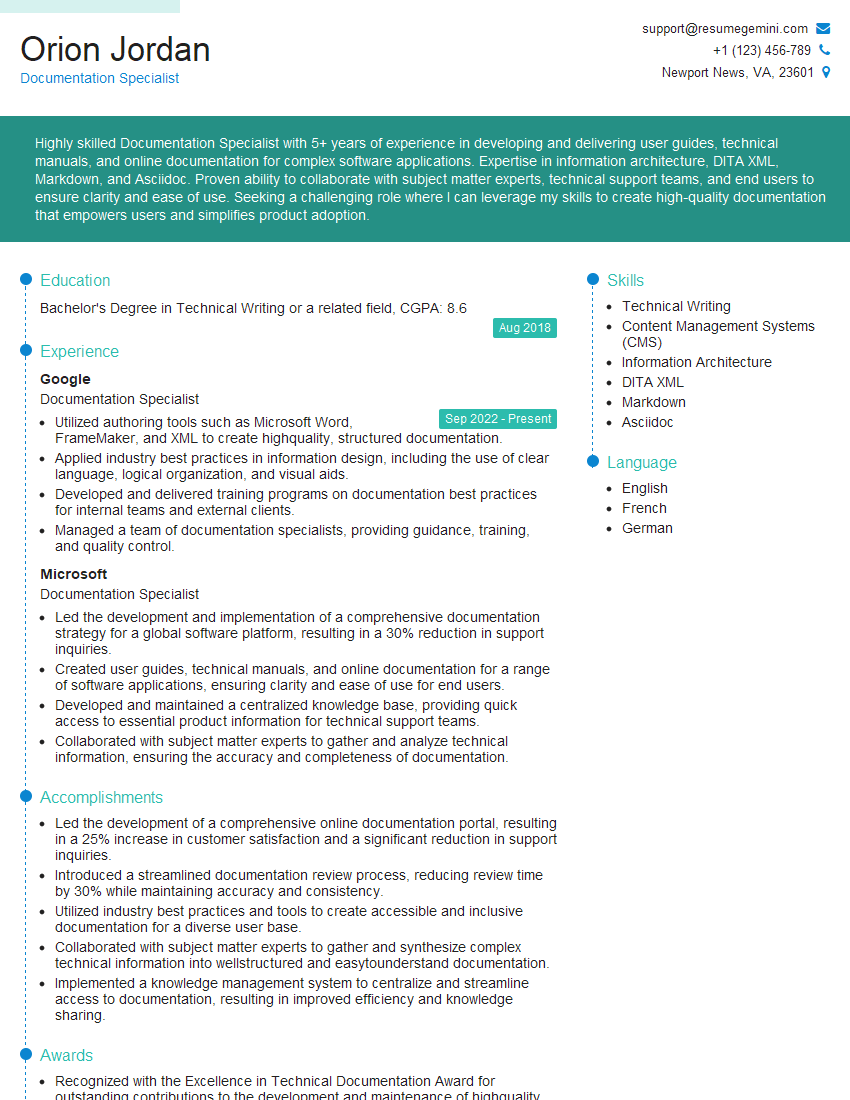
Documentation Specialist Resume Sample
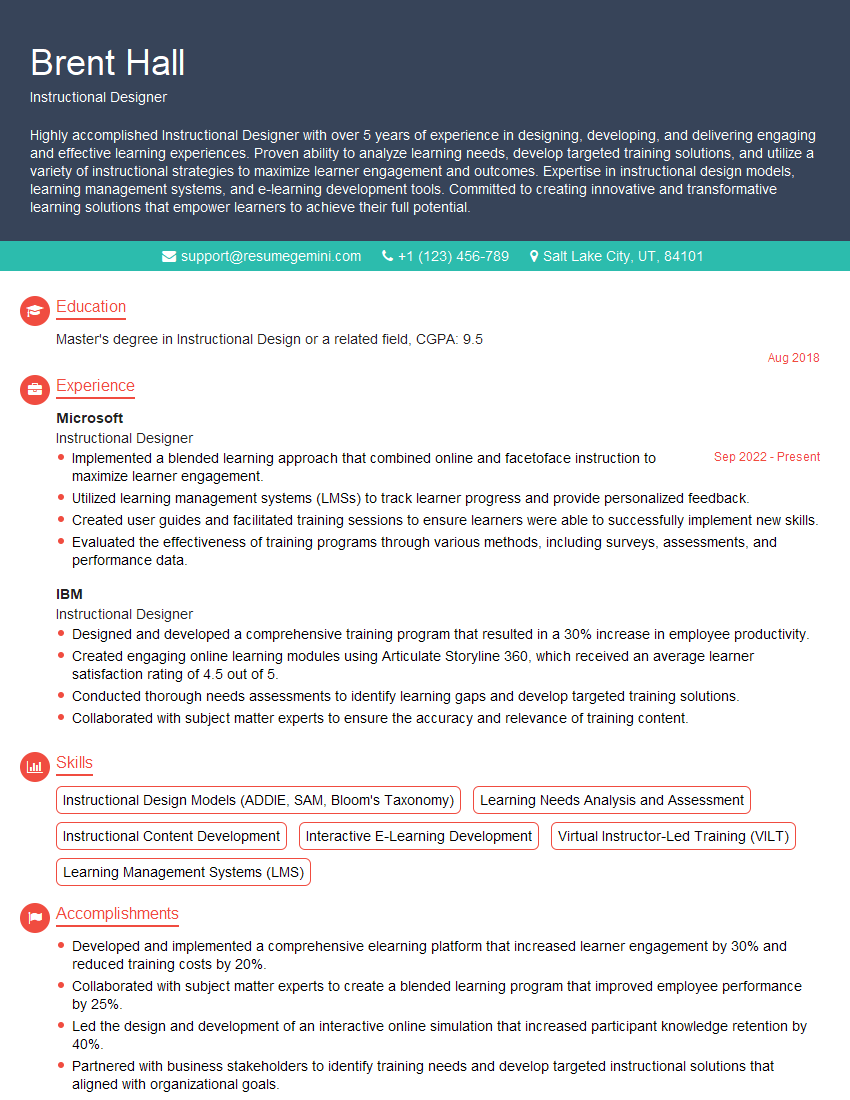
Instructional Designer Resume Sample
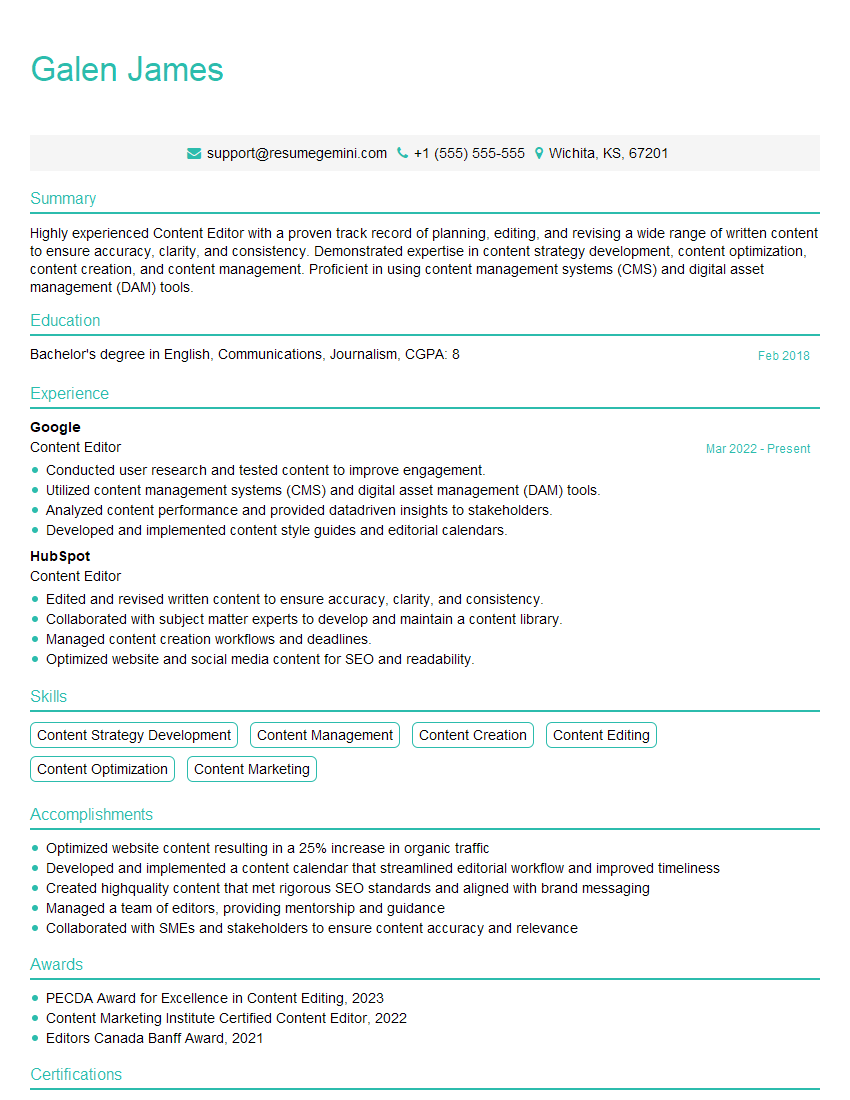
Content Editor Resume Sample
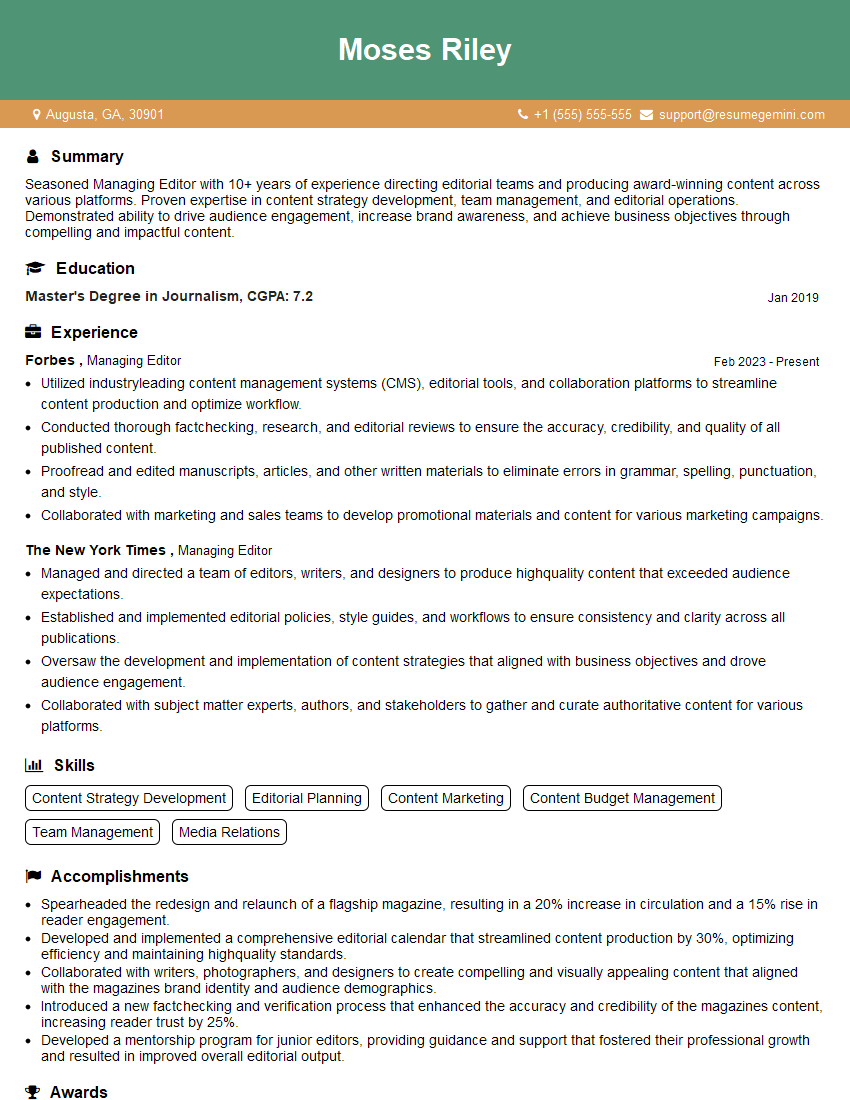
Managing Editor Resume Sample
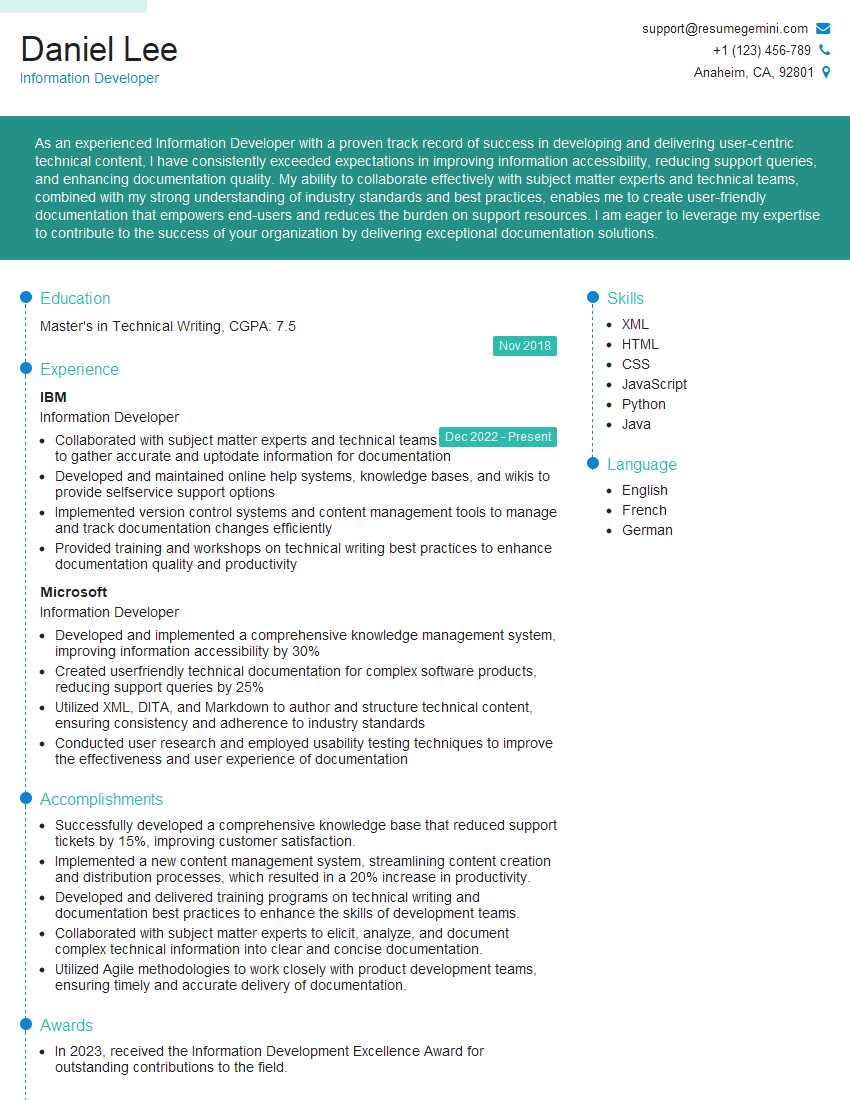
Information Developer Resume Sample
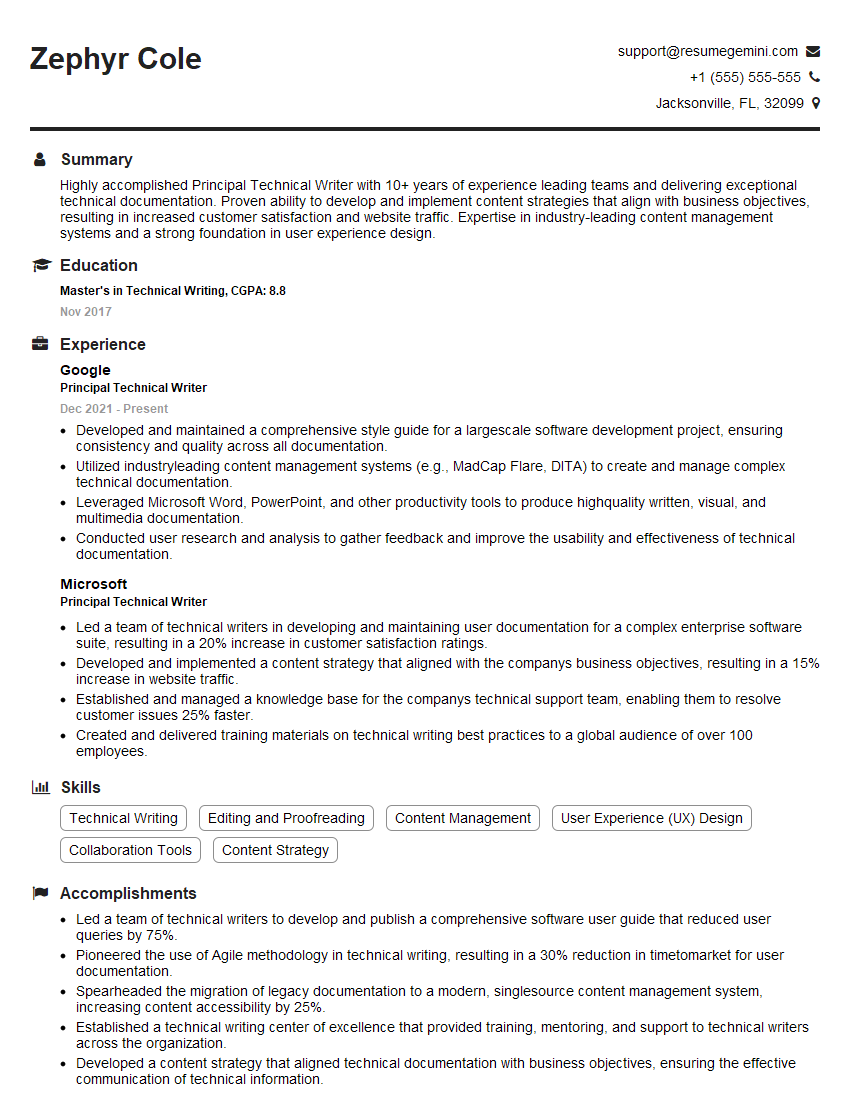
Principal Technical Writer Resume Sample
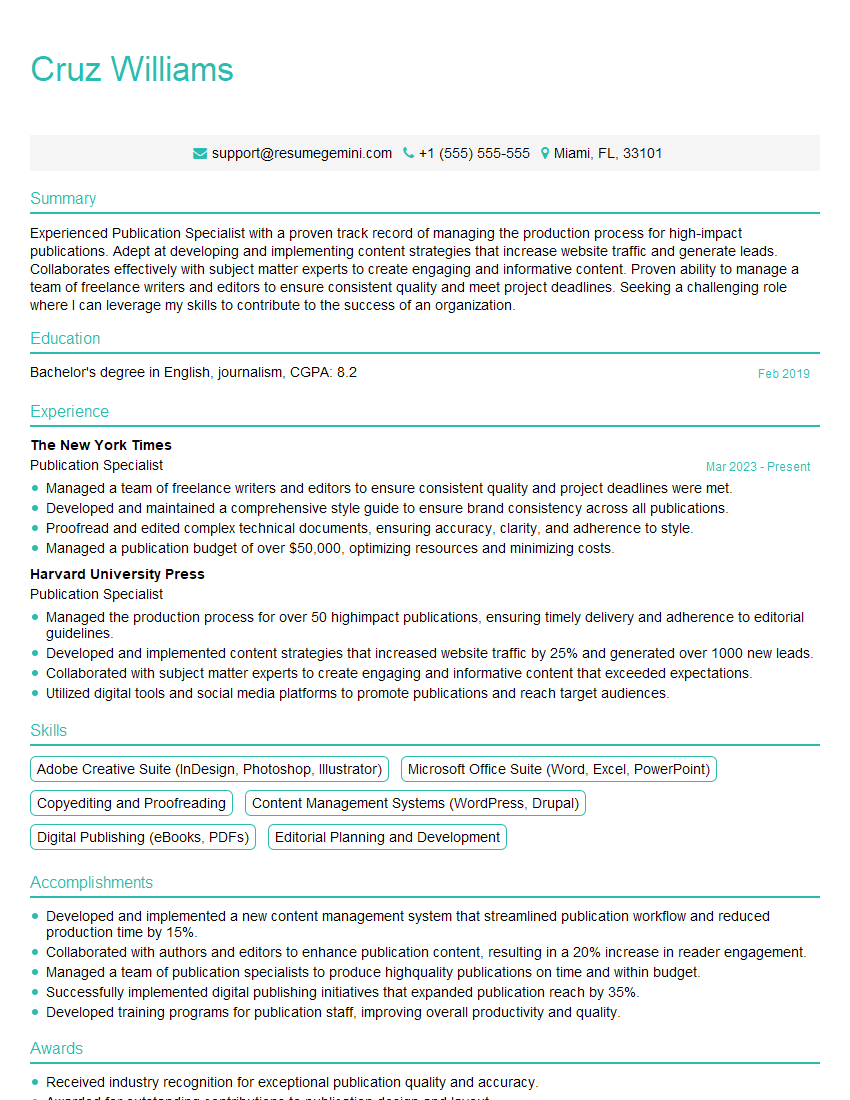
Publication Specialist Resume Sample
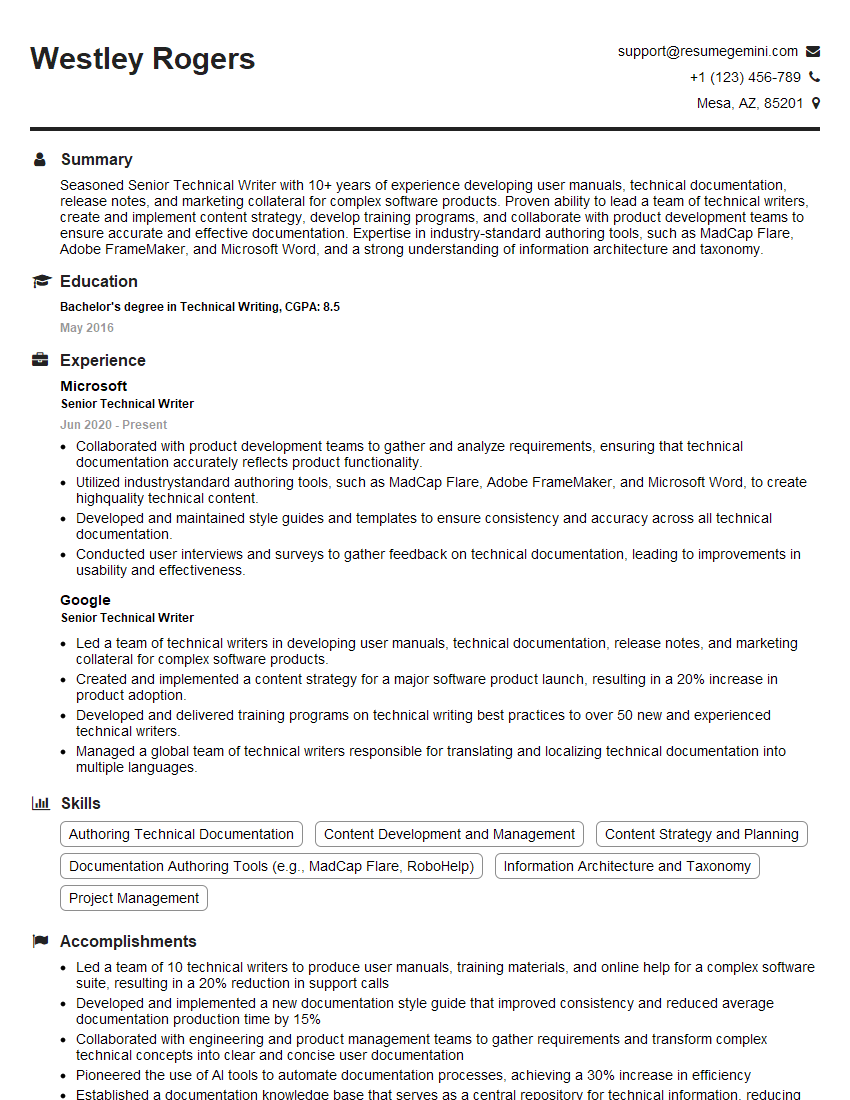
Senior Technical Writer Resume Sample

Technical Writer Resume Sample
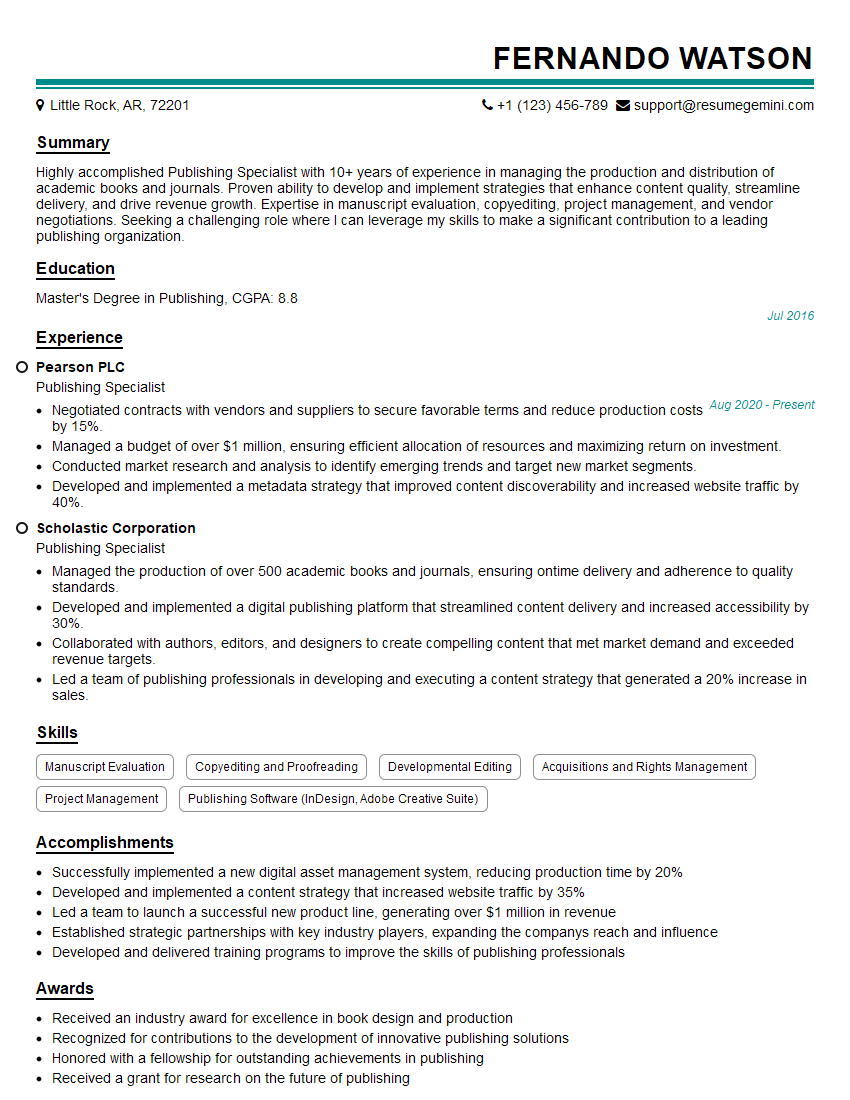
Publishing Specialist Resume Sample
Explore more articles
Users Rating of Our Blogs
Share Your Experience
We value your feedback! Please rate our content and share your thoughts (optional).
What Readers Say About Our Blog
Very informative content, great job.
good