Every successful interview starts with knowing what to expect. In this blog, we’ll take you through the top AutoCAD (Civil 3D) interview questions, breaking them down with expert tips to help you deliver impactful answers. Step into your next interview fully prepared and ready to succeed.
Questions Asked in AutoCAD (Civil 3D) Interview
Q 1. Explain the difference between a Point, a Line, and a Polyline in Civil 3D.
In Civil 3D, Points, Lines, and Polylines are fundamental drawing objects, each serving a distinct purpose. Think of them as building blocks for more complex features.
Point: A Point represents a single location in space, defined by its X, Y, and Z coordinates. It’s the most basic element, often used to represent survey data points, control points for alignments, or nodes in a TIN (Triangulated Irregular Network) surface. Imagine it as a pin dropped on a map marking a specific location. You’d use points as the foundation for many other Civil 3D features.
Line: A Line is defined by two points and represents a straight segment connecting them. It’s used for simple linear features, but lacks the flexibility of a polyline. For instance, you might use a line to represent a property boundary or a simple drainage ditch. Unlike polylines, lines cannot have curves or different line types (like dashed lines) within a single segment.
Polyline: A Polyline is a more versatile object than a line. It can be made up of multiple straight line segments and arcs, allowing you to create complex curves and shapes. This makes it ideal for representing complex boundaries, roads, or streams. You can also assign different line styles and properties to individual segments of the polyline for better visualization and data representation. Consider it a more powerful, adaptable version of a line.
In essence, Points define locations, Lines connect two points with a straight segment, and Polylines connect multiple points with straight segments and arcs offering greater flexibility in shape creation.
Q 2. Describe your experience with creating and managing surfaces in Civil 3D.
My experience with creating and managing surfaces in Civil 3D is extensive. I’ve worked on projects ranging from small site developments to large-scale infrastructure projects, requiring the creation of sophisticated surface models. I’m proficient in all aspects, from data import to surface manipulation and analysis.
Data Import: I regularly import survey data from various formats (landXML, TXT, etc.), ensuring data integrity and proper coordinate system transformation. I’m adept at identifying and resolving data inconsistencies or errors before creating the surface.
Surface Creation: I use both breaklines and triangulated irregular networks (TINs) to generate accurate surfaces, selecting the most appropriate method based on the project’s complexity and data availability. For complex terrain, I often leverage breaklines to define critical features like drainage patterns and elevation changes. I’m also familiar with using multiple datasets to create a composite surface, representing the different layers.
Surface Manipulation and Analysis: I’m experienced in using Civil 3D’s tools to perform various analyses, including volume calculations, grading design, and cross-section generation. I’m proficient in using surface editing tools to refine the surface model, including adding breaklines, smoothing areas, and adjusting point elevations. I understand how to use volume calculations to accurately estimate earthwork quantities for cost estimations and project planning.
Surface Styles and Visualization: I’m adept at using various surface styles and contours to visualize surfaces effectively, customizing their appearance to improve the clarity and presentation of the model.
I always prioritize accuracy and ensure the surface model reflects the real-world conditions as faithfully as possible. For instance, on one project involving a highway corridor, creating an accurate surface model was crucial for calculating cut and fill volumes, ensuring efficient earthwork operations and minimizing project costs. The accuracy of this surface directly impacted the project budget.
Q 3. How do you handle large datasets in Civil 3D?
Handling large datasets in Civil 3D requires a strategic approach focused on data management, efficient processing techniques, and hardware optimization. Simply opening a massive dataset and trying to work with it directly can lead to performance issues.
Data Optimization: Before even importing, I assess the data, removing redundant points or unnecessary information to reduce file size. This pre-processing step significantly improves performance.
Proxy Data: For exceptionally large datasets, I utilize Civil 3D’s proxy data functionality, which creates a simplified representation of the data, allowing for faster drawing response times. Detailed information is only accessed when needed. Think of it like using a low-resolution image preview until you need to zoom in for fine details.
Data Partitioning: If feasible, I partition large datasets into smaller, manageable subsets. This allows for parallel processing, speeding up various operations. Instead of trying to work with a single massive dataset, I manage multiple smaller ones, similar to dividing a large task into smaller, more manageable parts.
Hardware and Software Optimization: I ensure the computer system meets the software’s recommended specifications, especially in terms of RAM and processing power. Solid-state drives (SSDs) are preferred over hard disk drives (HDDs) for faster data access. I also regularly check for updates to Civil 3D and drivers.
Combining these techniques allows me to efficiently manage and work with large datasets in Civil 3D, even on projects requiring massive amounts of survey and design data, maintaining responsiveness and avoiding crashes.
Q 4. What are your preferred methods for creating alignments and profiles?
My preferred methods for creating alignments and profiles depend on the project’s specific requirements and the available data. However, I generally favor a combination of data-driven approaches and interactive tools.
Alignments: I frequently use the ‘Create Alignment from Points’ command for survey data. This allows for a quick, accurate alignment creation based on existing survey control points. For more complex alignments, I might use the interactive alignment creation tools, meticulously fitting the alignment to existing features like roads or terrain. This usually involves using reference lines and curves to adjust the alignment path.
Profiles: Profile creation typically follows alignment creation. I create profiles using the ‘Create Profile View’ command, which generates profiles along the alignment’s centerline. I might adjust the profile grade using interactive tools to accommodate design criteria and site constraints. For example, I would refine the profile to meet minimum grade requirements or avoid potential conflicts with existing utilities.
Regardless of the method, I always adhere to industry standards and best practices, ensuring consistency and accuracy in my design. Thorough quality checks are essential to ensure the alignments and profiles are accurately reflecting the intended design, avoiding potential problems during construction. On one project, creating an accurate alignment was critical for minimizing land acquisition, resulting in considerable cost savings.
Q 5. Explain your understanding of Civil 3D’s coordinate systems.
Civil 3D’s coordinate systems are fundamental to the accuracy and reliability of any project. A thorough understanding is crucial for proper data integration and model consistency. The software uses various coordinate systems, including:
Projected Coordinate Systems (PCS): These are 2D coordinate systems that define locations on a flat plane. Examples include State Plane Coordinates and UTM (Universal Transverse Mercator). They’re essential for mapping and large-scale projects where the Earth’s curvature is significant.
Geographic Coordinate Systems (GCS): These use latitude and longitude to define locations on the Earth’s curved surface. They are used for global positioning and applications needing a global spatial reference.
Local Coordinate Systems: These are user-defined coordinate systems used for specific projects or smaller areas. They simplify working with data if a standard coordinate system isn’t suitable.
A common mistake is using incompatible coordinate systems. If datasets use different systems, errors can easily propagate through calculations and drawings. I ensure that all data used in a project share a common coordinate system before beginning any work. Proper coordinate system management is essential for accurate results and model consistency. Mismatched coordinate systems can lead to severe errors in construction and surveying.
Q 6. How do you ensure the accuracy of your Civil 3D models?
Ensuring the accuracy of Civil 3D models involves a multi-faceted approach, encompassing data validation, regular quality checks, and adherence to best practices.
Data Validation: Before starting any modeling, I thoroughly validate the input data, checking for inconsistencies, errors, and outliers. This often involves comparing data from different sources, verifying coordinates, and identifying any discrepancies. I also verify coordinate systems are consistent.
Regular Quality Checks: Throughout the modeling process, I perform regular quality checks. These checks include verifying the accuracy of alignments, profiles, and surfaces, ensuring they meet design requirements and match real-world conditions. This could involve comparing models to survey data or referencing physical site conditions.
Use of Civil 3D Tools: I effectively use Civil 3D’s built-in tools for error detection and correction. For example, geometry checks can help identify overlaps or gaps in geometries, while surface analysis tools can highlight any unrealistic terrain features.
External References: Where applicable, I incorporate external references to improve accuracy and consistency. This often includes CAD files, survey data, and other relevant project information.
Accuracy is paramount in Civil 3D modeling. Inaccurate models can lead to costly errors during construction. A meticulous approach to quality assurance helps prevent this and is crucial for delivering reliable and efficient designs. For example, I once caught an error in survey data before it was incorporated into the model, preventing significant construction problems. This saved the project both time and money.
Q 7. Describe your experience with creating and modifying parcels in Civil 3D.
My experience with creating and modifying parcels in Civil 3D involves a range of tasks, from basic parcel creation to complex subdivision design.
Parcel Creation: I can create parcels from various sources, including boundary surveys, deed descriptions, and existing CAD data. I’m proficient in using the parcel tools to define parcel boundaries, areas, and attributes. This often involves importing survey data and using the tools to precisely define the boundaries.
Parcel Editing and Modification: I’m adept at editing and modifying existing parcels, adjusting boundaries, areas, and attributes as needed. This may involve splitting parcels, merging parcels, or adjusting their shapes to reflect changes in ownership or design. I always ensure that area calculations are accurate and that any adjustments maintain the overall parcel integrity.
Parcel Data Management: I’m experienced in managing parcel data, including associating relevant attributes such as ownership information, zoning classifications, and easements. I can also generate reports summarizing parcel information for use in legal documents or presentations.
Subdivision Design: I’ve worked on various subdivision projects, creating complex parcel layouts, integrating with roads and utilities. This often involves coordinating with surveyors and other design professionals to create a comprehensive subdivision plan.
Parcel creation and modification require attention to detail and a strong understanding of surveying and legal principles. Accuracy is critical as any errors can lead to legal disputes or construction issues. In one project, I used Civil 3D to create a complex subdivision plan, ensuring all parcels met legal requirements and zoning regulations. The precise parcel layout saved the developer significant time and legal costs.
Q 8. How familiar are you with the various annotation tools in Civil 3D?
My familiarity with Civil 3D’s annotation tools is extensive. I’m proficient in using a wide range of tools for creating and managing labels, text, dimensions, and other annotations. This includes leveraging the power of label styles to maintain consistency and efficiency across the project. Think of it like a painter having a variety of brushes – each tool serves a specific purpose, from precise dimensioning of features to adding informative labels to pipes or structures.
- Leader lines: I regularly use leader lines to connect annotations to specific features, ensuring clear visual relationships. For instance, I might use them to link a pipe diameter label to the actual pipe.
- Multileaders: For complex scenarios, multileaders help me to annotate multiple features with a single leader, streamlining annotation workflows and reducing clutter.
- Tables: I frequently use tables to summarize attribute data, allowing for easy data extraction and report generation, especially useful for summarizing quantities of materials or showing stationing information. This is much clearer than simply scattering individual text annotations.
- Text Styles: Consistent text styles are paramount for professional drawings. I meticulously manage styles to ensure readability and project uniformity. This includes adjusting font sizes, weights, and colors to enhance clarity.
Q 9. Explain your experience with creating and managing styles in Civil 3D.
Managing styles in Civil 3D is fundamental to my workflow. I approach style creation and management systematically, creating a library of reusable styles to maintain consistency and efficiency. It’s like having a well-organized toolbox – each tool (style) is readily available and ready to use for a specific task. This drastically reduces rework and ensures that all drawings adhere to a uniform standard.
- Style creation: I create custom styles for all aspects of the drawing, from points and lines to surfaces and labels, ensuring that my annotations, alignments, and other features are consistent and conform to standards. I always document my style settings clearly.
- Style organization: My style management is organized and follows a logical naming convention, so I can quickly find the style I need. I often use a dedicated style sheet to manage them.
- Style management: I regularly review and update styles to ensure accuracy and consistency with project standards, incorporating changes in drawing standards and client preferences.
- Style auditing: I use Civil 3D’s auditing tools to identify and correct inconsistencies in style usage. This helps prevent issues later in the project.
Q 10. How do you use templates to improve efficiency in your workflow?
Templates are the cornerstone of my efficient workflow in Civil 3D. Think of them as pre-built frameworks for new projects, saving countless hours of repetitive setup. They ensure consistency across multiple projects, reduce errors, and maintain standardization. It’s like starting a construction project with prefabricated wall sections – the foundation is already there, allowing you to focus on the specifics.
- Project-specific templates: I create custom templates tailored to specific project requirements, including pre-defined styles, layers, and settings. This allows me to jump right into the design process without the need to configure the basics from scratch.
- Standard templates: I maintain a library of standard templates for common project types. These templates contain basic settings and styles, providing a consistent foundation for various projects.
- Template maintenance: Regularly reviewing and updating templates is crucial for keeping them up-to-date with best practices and changes in software updates. I meticulously document changes for team collaboration.
Q 11. Describe your experience with data extraction and reporting in Civil 3D.
Data extraction and reporting in Civil 3D are critical for delivering comprehensive project information. I’m proficient in using various methods to extract relevant data from the model and present it in clear, concise reports. It’s akin to having a powerful database at your fingertips – readily capable of transforming complex spatial data into actionable insights.
- Data shortcuts: I leverage Civil 3D’s built-in tools like the “Create Report” function to quickly generate reports on features, quantities, and alignments.
- Data links: I utilize data links to external applications such as spreadsheets or databases for robust data management and analysis.
- External referencing: I expertly use external referencing to incorporate data from other sources, for example, linking to survey data stored in a separate file, ensuring data integrity and consistency.
- Custom reports: For complex reporting needs, I generate custom reports using external scripting tools, automating data extraction and formatting.
Q 12. How do you troubleshoot common issues encountered in Civil 3D?
Troubleshooting in Civil 3D requires a systematic approach. I utilize a combination of techniques, from basic checks to advanced debugging, to resolve issues efficiently. It’s like being a detective, systematically investigating clues to identify the root cause of a problem.
- Layer management: I often start by verifying layer states and visibility to ensure that all necessary elements are displayed correctly.
- Style checks: I check the integrity of the styles used in the drawing, ensuring that there aren’t any corrupted or conflicting style definitions.
- Purge and audit: I use the “purge” and “audit” commands to remove unnecessary objects and detect errors in the drawing.
- Coordinate systems: I always verify the coordinate system settings and ensure they are consistent throughout the project.
- Online resources: I leverage the Autodesk knowledge base and online forums for solutions to common and uncommon issues, learning from others’ experiences.
Q 13. What are your preferred methods for collaborating on Civil 3D projects?
Collaboration is paramount in Civil 3D projects. I prefer methods that streamline workflow and maintain data integrity. It’s like working on a complex jigsaw puzzle, each team member contributing their piece to create a comprehensive whole.
- Cloud collaboration: I utilize cloud-based platforms such as BIM 360 to enable real-time collaboration on the model, ensuring all team members work on the same version of the project.
- Version control: I adhere to strict version control practices, using tools such as Autodesk Vault to manage revisions and prevent conflicts.
- Clearly defined roles: I ensure that each team member has clearly defined roles and responsibilities, minimizing confusion and overlap of tasks.
- Regular meetings: I participate in regular meetings and coordinate with the team to ensure project alignment and address potential issues promptly.
Q 14. Explain your experience with external referencing and linking in Civil 3D.
External referencing and linking are crucial for managing large and complex Civil 3D projects. I use these techniques to integrate data from multiple sources and maintain a manageable model size. Think of it as building a house with prefabricated sections, allowing you to work on individual components independently without affecting the rest of the structure.
- Xrefs: I regularly use external references (xrefs) to incorporate drawings from other disciplines or to manage large datasets from other projects without bloating the main drawing file.
- Data linking: I often link to external data sources like survey data or point clouds, which keeps this data current and updated as changes happen in the source file.
- Path management: I meticulously manage the paths to external references to ensure that the links remain valid when working across different computers or transferring project files.
- Managing conflicts: I am experienced in resolving conflicts that can arise when working with multiple xrefs or linked data sets. Understanding how to override or detach these external links when needed is a critical skill.
Q 15. How familiar are you with the various Civil 3D tool palettes?
My familiarity with Civil 3D tool palettes is extensive. I regularly utilize the various palettes, understanding their purpose and optimal application within different project phases. These palettes are crucial for efficient workflow and are organized logically to streamline design processes. For instance, the “Home” tab provides access to fundamental commands, while specialized palettes like the “Grading” or “Pipe Networks” palettes offer tools specifically tailored to those disciplines. I’m proficient in customizing tool palettes to prioritize frequently used commands, further enhancing my productivity.
For example, when working on a road design, I frequently use the Survey tab’s tools for importing data and the Prospector tab for managing and manipulating data. During the grading phase, the Grading palette becomes my primary tool, allowing me to efficiently create surfaces and perform volume calculations. I’m adept at navigating the different tool palettes and know which tools to select for each project requirement – from the initial site survey to final design deliverables.
Career Expert Tips:
- Ace those interviews! Prepare effectively by reviewing the Top 50 Most Common Interview Questions on ResumeGemini.
- Navigate your job search with confidence! Explore a wide range of Career Tips on ResumeGemini. Learn about common challenges and recommendations to overcome them.
- Craft the perfect resume! Master the Art of Resume Writing with ResumeGemini’s guide. Showcase your unique qualifications and achievements effectively.
- Don’t miss out on holiday savings! Build your dream resume with ResumeGemini’s ATS optimized templates.
Q 16. Describe your understanding of 3D modeling principles within Civil 3D.
3D modeling in Civil 3D is all about creating a realistic representation of the earth’s surface and the planned infrastructure. It goes beyond simple visualization; it’s about leveraging the model for analysis, design, and quantity calculations. Think of it as building a virtual replica of your project, allowing you to manipulate and analyze every aspect before breaking ground. This involves creating surfaces from survey data, designing alignments, and incorporating features like pipes, structures, and corridors. The key is to build a model that is both accurate and efficient, using intelligent objects and parameters to ensure modifications are easily implemented and changes are reflected throughout the model.
For example, when creating a road design, I’ll start by creating a surface model representing the existing terrain. Then, I’ll design the road alignment, and using the corridor modeling tools, generate the road’s cross-sections and 3D model automatically. Any changes to the alignment will automatically update the entire 3D model. This is far superior to traditional 2D drafting where adjustments are tedious and prone to errors.
Q 17. How do you manage layers and layer properties effectively?
Effective layer management is the backbone of any well-organized Civil 3D drawing. Without it, drawings become cluttered, difficult to understand, and prone to errors. My approach involves using a standardized layer naming convention, typically including prefixes to identify the feature type (e.g., “EX” for existing conditions, “PROP” for proposed features) and the specific element. This ensures consistency across multiple drawings and facilitates quick identification of elements. I use layer states extensively to control the visibility of different elements, making it easy to focus on specific aspects of the design without visual clutter. Color codes also play a vital role in quickly identifying different layers.
For instance, all existing features might be on layers with a specific color and linetype, while proposed features have a different color and lineweight. This allows for an intuitive visual hierarchy, making design review and collaboration much smoother. Further, I leverage layer properties such as lineweights and linetypes to enhance clarity and readability. I also create layer filters to isolate specific types of features within a complex design, making navigation easy. This systematic approach saves time and avoids confusion when working on large, complex projects.
Q 18. What is your experience with creating and managing drawings sets?
Drawing sets are essential for managing multiple drawings within a project, especially those with many sheets. My experience involves setting up sheet sets to organize drawings logically, making it easy to find specific sheets or plot the entire set. I utilize the sheet set manager to manage sheet numbers, titles, and viewports. Understanding how to link sheets to specific models and how to create and manage title blocks is crucial for generating professional-quality drawings. This efficient approach is especially useful when collaborating on large infrastructure projects, as it enhances organization and improves communication.
For example, I would create a sheet set for a highway design project that logically organizes all the sheets for various aspects of the project, such as alignments, profiles, cross-sections, and details. I also routinely use sheet set managers to automate the process of updating sheet numbers, titles, and revision blocks. This saves considerable time and ensures consistency across drawings, which is crucial for both internal review and client submission.
Q 19. Explain your experience with the Civil 3D Pipe Networks tools.
My experience with Civil 3D’s Pipe Networks tools is extensive. I’m proficient in creating and managing both pressure and gravity networks, including designing the layout, setting pipe sizes, and performing hydraulic analysis. This involves understanding the various pipe network components, such as structures, fittings, and appurtenances. I’m familiar with the use of parts catalogs to streamline the design process and ensure consistency in the use of standard components. Furthermore, I utilize the network analysis tools to check for system performance, ensuring that the design meets all relevant standards and regulations.
For example, I’ve used this toolset to design a drainage system for a large residential development, ensuring proper sizing of pipes to prevent flooding. The ability to run hydraulic models within Civil 3D provides real-time feedback, allowing iterative design improvements until an optimal solution is found. The tools also enable the generation of detailed reports of pipe sizes, lengths, and other crucial information for construction, ensuring accuracy in quantity take-off and cost estimations.
Q 20. How do you utilize the Civil 3D Grading tools?
Civil 3D’s grading tools are fundamental for earthwork design. I’m highly proficient in creating and manipulating surfaces from survey data, developing grading plans, and designing earthwork volumes. This includes creating surfaces from point clouds and contours, designing and modifying surfaces using various tools, such as grading objects, and analyzing the volumes of cut and fill. I’m well-versed in creating design surfaces that meet specified design criteria, such as slopes and elevations. The ability to visualize and analyze grading designs in 3D is particularly useful for identifying potential conflicts and optimizing earthwork operations.
In a real-world example, I used these tools to optimize the grading design for a large-scale commercial development. By creating various surface models and comparing volume calculations, we identified an alternative design that significantly reduced cut and fill quantities, leading to significant cost savings for the project. The ability to quickly analyze different grading options allows for informed decision-making, which is vital for optimizing both the design and budget.
Q 21. Describe your experience with quantity takeoff in Civil 3D.
Quantity takeoff in Civil 3D is a critical aspect of project estimation and cost control. My experience encompasses using the software’s tools to generate accurate and detailed quantity reports for various elements, such as earthwork, paving, and pipe networks. This involves understanding the different reporting options available and customizing them to meet specific project requirements. The ability to export these quantities into spreadsheets or other formats is also crucial for integration with other project management tools.
For example, in a recent road construction project, I used Civil 3D to generate detailed quantity reports for earthwork, paving, and drainage structures. This enabled accurate cost estimation and allowed us to track the progress of the project against the budget throughout the construction process. The accuracy and efficiency provided by these tools are invaluable for providing reliable cost estimates to clients and managing the overall project budget.
Q 22. What is your experience with creating and using labels in Civil 3D?
Labeling in Civil 3D is crucial for clear and concise communication of design information. It allows us to annotate features like alignments, profiles, surfaces, and parcels with descriptive text and data. I’m proficient in creating both standard and custom labels using Civil 3D’s built-in tools and label styles.
For instance, I often create custom labels for alignments that display stationing, bearing, and curve data. This involves defining the label style, choosing the appropriate text and attributes, and then applying that style to the alignment. I also utilize label sets, which allow for multiple label styles to be applied simultaneously, enhancing flexibility and efficiency.
Managing label placement is essential for readability. I leverage tools like label overrides and constraints to finely tune label placement, ensuring they’re clear and don’t overlap. I’ve worked on large-scale projects where effectively managing labels was critical for ensuring the drawings were easy to understand and navigate.
- Example: On a highway design project, I created custom labels showing the design speed, lane width, and shoulder width for each alignment section. This ensured everyone reviewing the plan had instant access to critical design parameters.
- Practical Application: Using different label styles for different design stages (design, construction, as-built) helps maintain clear distinctions throughout the project lifecycle.
Q 23. How familiar are you with the Civil 3D Point Cloud tools?
I possess extensive experience working with Civil 3D’s Point Cloud tools. These tools are invaluable for integrating and processing real-world survey data to create accurate and detailed models. My experience spans from importing point cloud data from various sources (LiDAR, terrestrial scanning) to using point cloud editing and analysis tools.
I’m proficient in classifying points, creating surface models from point clouds, and extracting features like breaklines or contours. I often utilize point cloud data to create accurate terrain models, which then serve as the basis for further design work, such as grading and drainage design. Understanding point cloud density and accuracy is crucial for ensuring the quality of the resulting model.
Furthermore, I’m comfortable working with different point cloud formats, such as LAS and RCP, and understand the importance of managing large point cloud datasets efficiently. I’ve used various techniques for data management and processing, including indexing and filtering, to streamline the workflow and improve performance.
- Example: On a recent land development project, I used a point cloud to create a highly accurate terrain model, which significantly improved the precision of our earthwork calculations and drainage design.
- Practical Application: Point clouds are particularly useful for creating as-built models, accurately capturing existing conditions on a site.
Q 24. Describe your understanding of Civil 3D’s dynamic input.
Civil 3D’s dynamic input is a powerful feature that enhances productivity by allowing users to specify coordinates, angles, and distances interactively as they draw and modify objects. It eliminates the need to constantly type coordinates or use the command line, speeding up the overall design process.
I regularly use dynamic input to create accurate geometry. The real-time feedback on coordinates and distances ensures precise placement of objects. I can easily snap to existing objects, points, or grid lines, further enhancing accuracy and reducing the chances of errors. Customizing the dynamic input settings allows tailoring the information displayed to suit individual preferences and project requirements.
Think of it like having a virtual measuring tape and protractor integrated directly into your drawing tools. This significantly reduces the time it takes to create and modify drawings. For instance, when creating a polyline, I can directly input the distance and angle of each segment instead of relying on separate commands for coordinate entry.
- Example: While designing a curb and gutter, I used dynamic input to precisely define the curve radius, ensuring the gutter slope meets the required specifications.
- Practical Application: Dynamic input is essential for tasks involving precise placement and dimensions, such as surveying and construction detailing.
Q 25. How do you manage version control in your Civil 3D projects?
Version control is paramount in any collaborative Civil 3D project. To manage versions effectively, I typically use a combination of techniques, including utilizing Autodesk Vault or similar cloud-based platforms and employing a robust file naming convention.
Autodesk Vault provides a centralized repository for all project files, enabling version history tracking, efficient file management, and collaboration among team members. It allows rollback to previous versions if errors occur or modifications need to be undone. This helps to preserve design integrity and track design changes throughout the project lifecycle.
In addition to Vault, a systematic file-naming convention is critical. We use a system that includes project number, revision number, date, and author. This simple yet effective method allows clear identification of each version and minimizes confusion when working with multiple files.
- Example: On a large-scale transportation project, using Autodesk Vault allowed our team of engineers and designers to collaborate seamlessly, with each revision clearly documented and readily accessible.
- Practical Application: This approach eliminates the risk of working on outdated files and simplifies the process of identifying and reverting to previous versions. It prevents potentially costly mistakes stemming from file conflicts.
Q 26. What is your experience with customization and automation in Civil 3D using AutoLISP or Dynamo?
I have significant experience with customizing and automating tasks in Civil 3D using both AutoLISP and Dynamo. AutoLISP allows me to create custom commands and functions to streamline repetitive tasks, while Dynamo offers a more visual and node-based approach to automation.
AutoLISP is excellent for creating smaller, specific automation routines, particularly those focused on manipulating geometry and data within the drawing. I’ve used AutoLISP to create functions for automating tasks like generating reports, extracting data, and automating complex geometry creation.
Dynamo, on the other hand, is better suited for larger, more complex automation processes and data manipulation, especially when working with external data sources. I’ve used Dynamo to create workflows that automate tasks like generating multiple design alternatives, integrating data from external spreadsheets, and creating custom visualization tools.
Choosing between AutoLISP and Dynamo depends on the complexity and scope of the automation task. For simple tasks, AutoLISP is often sufficient, while for more complex or data-intensive processes, Dynamo provides more flexibility and power.
- Example: I used Dynamo to create a script that automatically generates cross-sections from a surface model based on a defined alignment, saving significant time compared to manual creation.
- Practical Application: Automation reduces the likelihood of human errors, frees up time for more creative design work, and improves consistency across projects.
Q 27. How do you handle conflicts when integrating data from different sources into a Civil 3D model?
Integrating data from various sources into a Civil 3D model can inevitably lead to conflicts. To handle these conflicts effectively, a systematic and organized approach is necessary. My strategy involves a combination of data validation, careful data transformation, and rigorous quality control.
Before integrating data, I thoroughly validate its accuracy and consistency. This involves checking coordinate systems, units, and data formats. Inconsistent units or coordinate systems can lead to significant errors in the final model. For instance, I ensure that all survey data is properly transformed into the project’s coordinate system before integration.
Data transformation is often required to match data formats and structures. I leverage Civil 3D’s tools and external software to transform data into a compatible format for integration. I thoroughly examine the transformed data to ensure the integrity and accuracy of the transformations. After the integration, a detailed quality control process is essential. This involves visual inspection of the model, cross-checking data against other sources, and checking for any spatial or attribute conflicts.
- Example: When integrating survey data and design data, I check for conflicts in ground elevations. Any discrepancies are resolved through collaboration with surveyors and engineers.
- Practical Application: A methodical approach to data integration, incorporating validation and quality control procedures, minimizes errors and ensures the accuracy and reliability of the final Civil 3D model.
Key Topics to Learn for AutoCAD (Civil 3D) Interview
- Surface Modeling: Understanding the creation, manipulation, and analysis of surfaces. Practical application: Generating earthwork volumes for a site development project.
- Alignment Design: Proficiently creating and modifying alignments (horizontal and vertical). Practical application: Designing a highway corridor, including curves and grades.
- Corridor Modeling: Mastering the creation and management of corridor models, including various features and sections. Practical application: Developing cross-sections and quantities for a road project.
- Grading Design: Understanding the principles of grading design and their implementation in Civil 3D. Practical application: Creating a grading plan for a residential subdivision.
- Pipe Networks: Designing and analyzing pipe networks, including pressure and flow calculations. Practical application: Modeling a water distribution system for a new community.
- Point Clouds: Working with and processing point cloud data for accurate surveying and modeling. Practical application: Integrating LiDAR data to create a precise terrain model.
- Customization and Automation: Familiarization with customizing the Civil 3D environment and automating tasks using tools like Dynamo or VBA. Practical application: Creating custom tools to streamline repetitive workflows.
- Data Extraction and Reporting: Generating reports and extracting data from Civil 3D models for analysis and presentation. Practical application: Creating quantity takeoffs for construction bidding.
- Coordinate Systems and Projections: A strong understanding of coordinate systems and projections and their impact on accuracy. Practical application: Ensuring proper data integration from different survey sources.
- Problem-Solving and Troubleshooting: Demonstrating the ability to identify and resolve common issues encountered during Civil 3D projects. Practical application: Effectively debugging model errors and recovering lost data.
Next Steps
Mastering AutoCAD Civil 3D is crucial for career advancement in the civil engineering field, opening doors to exciting opportunities and higher earning potential. To maximize your job prospects, invest time in crafting an ATS-friendly resume that effectively highlights your skills and experience. ResumeGemini is a trusted resource that can significantly enhance your resume-building experience. We provide examples of resumes tailored to AutoCAD Civil 3D professionals to help you showcase your qualifications effectively.
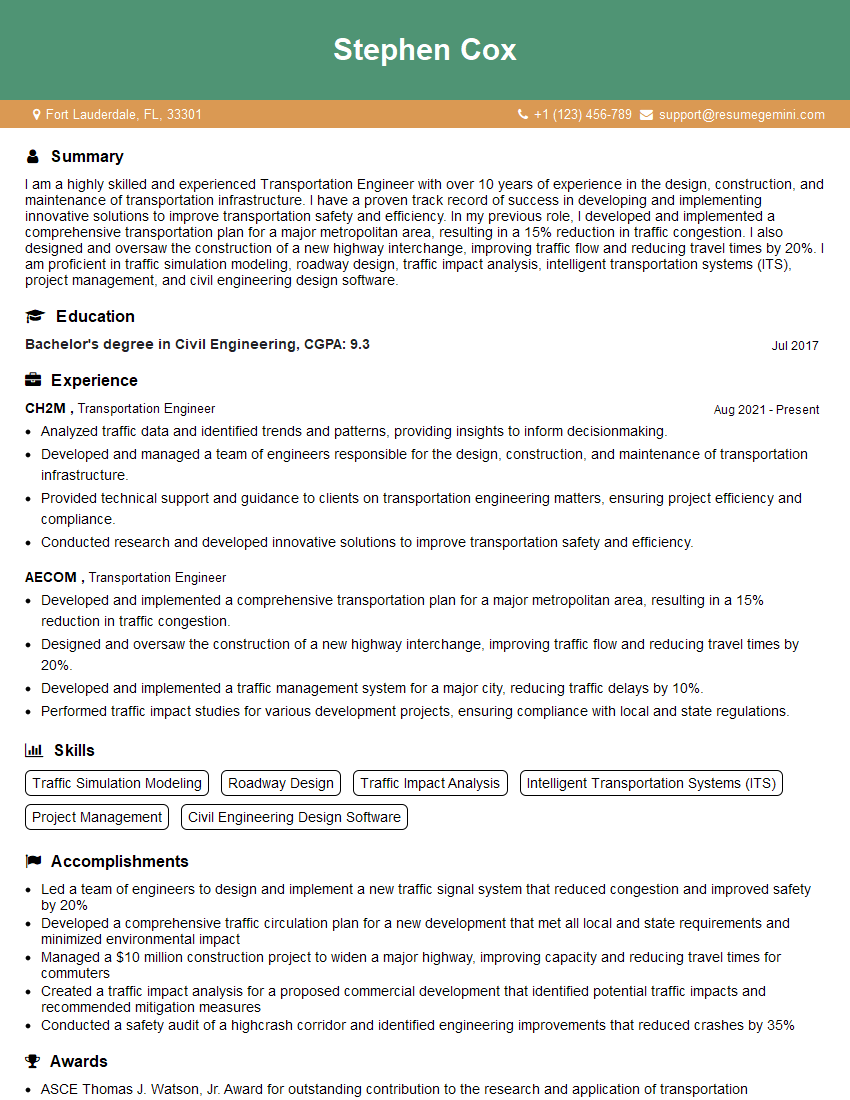
Transportation Engineer Resume Sample

Project Engineer Resume Sample
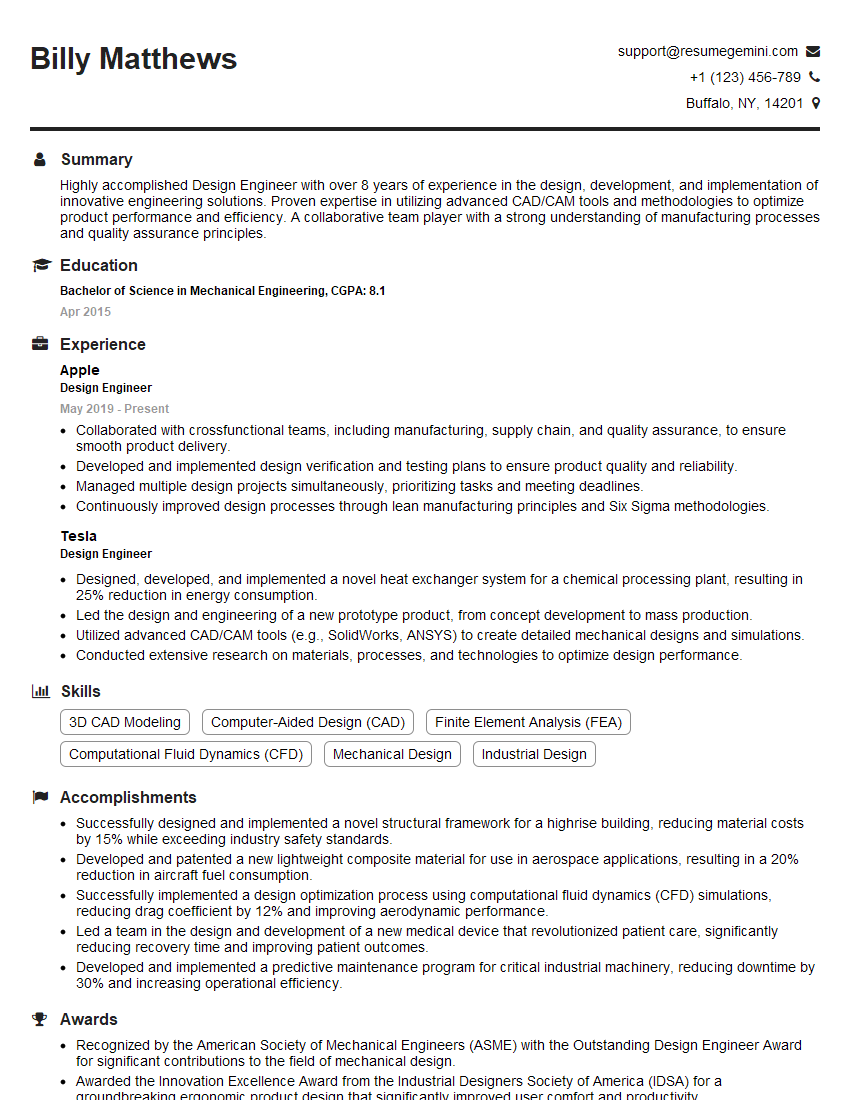
Design Engineer Resume Sample
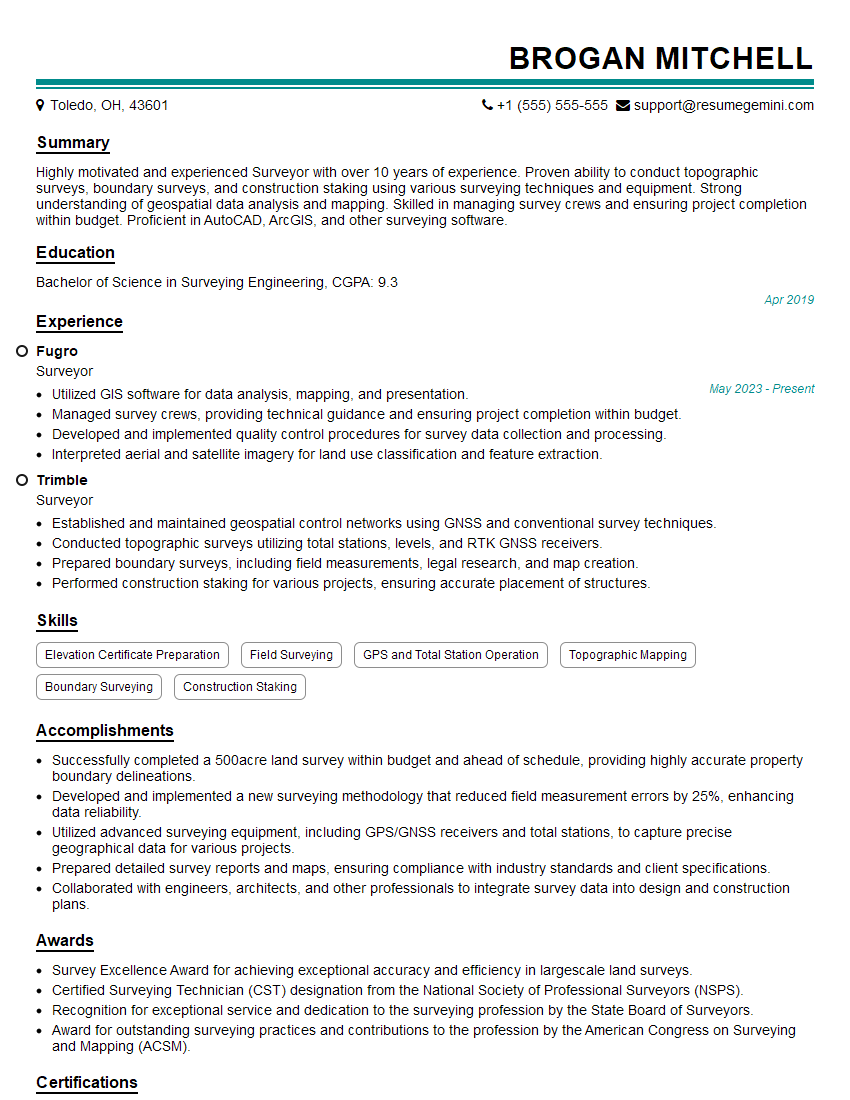
Surveyor Resume Sample
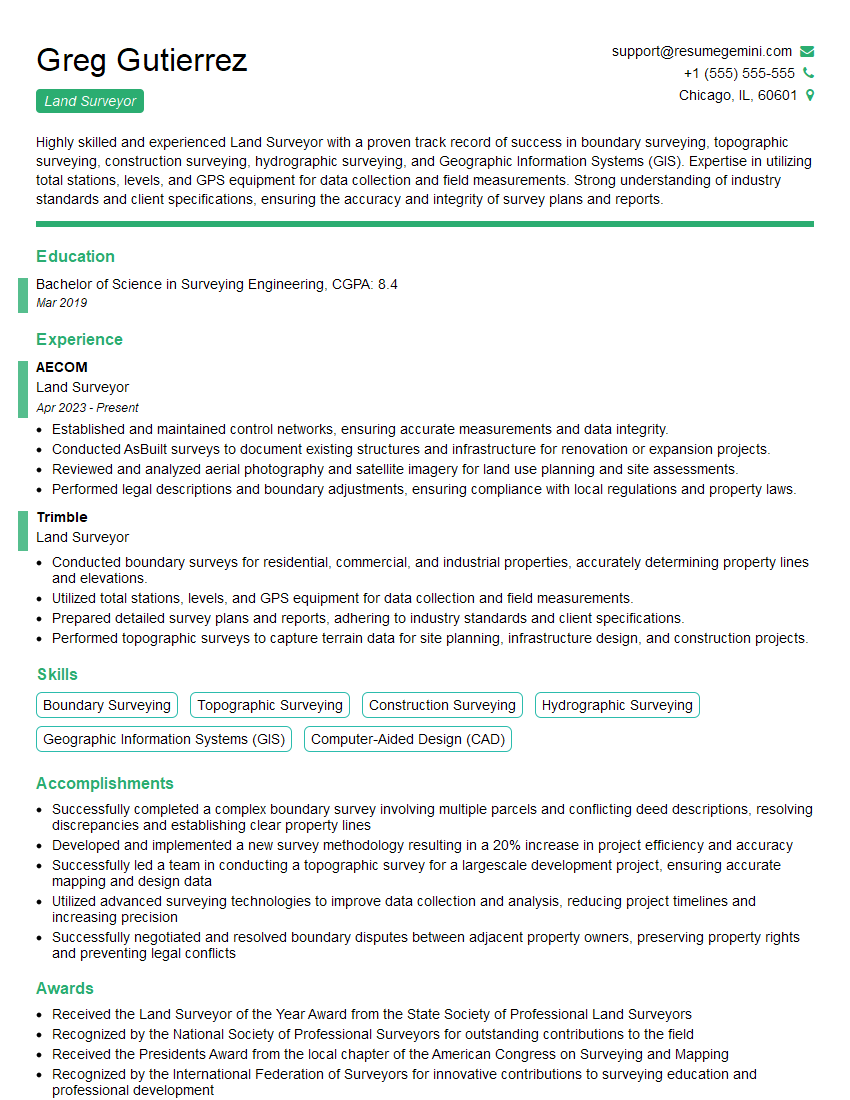
Land Surveyor Resume Sample

Civil Engineer Resume Sample
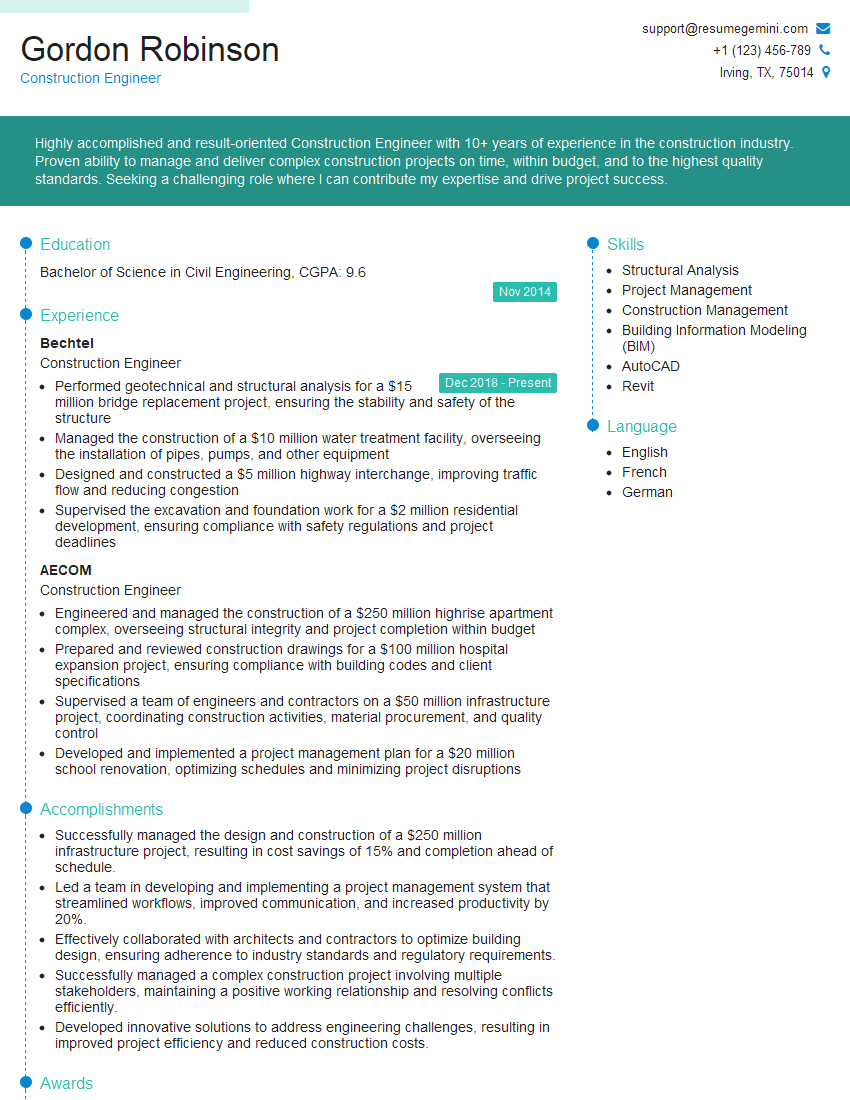
Construction Engineer Resume Sample
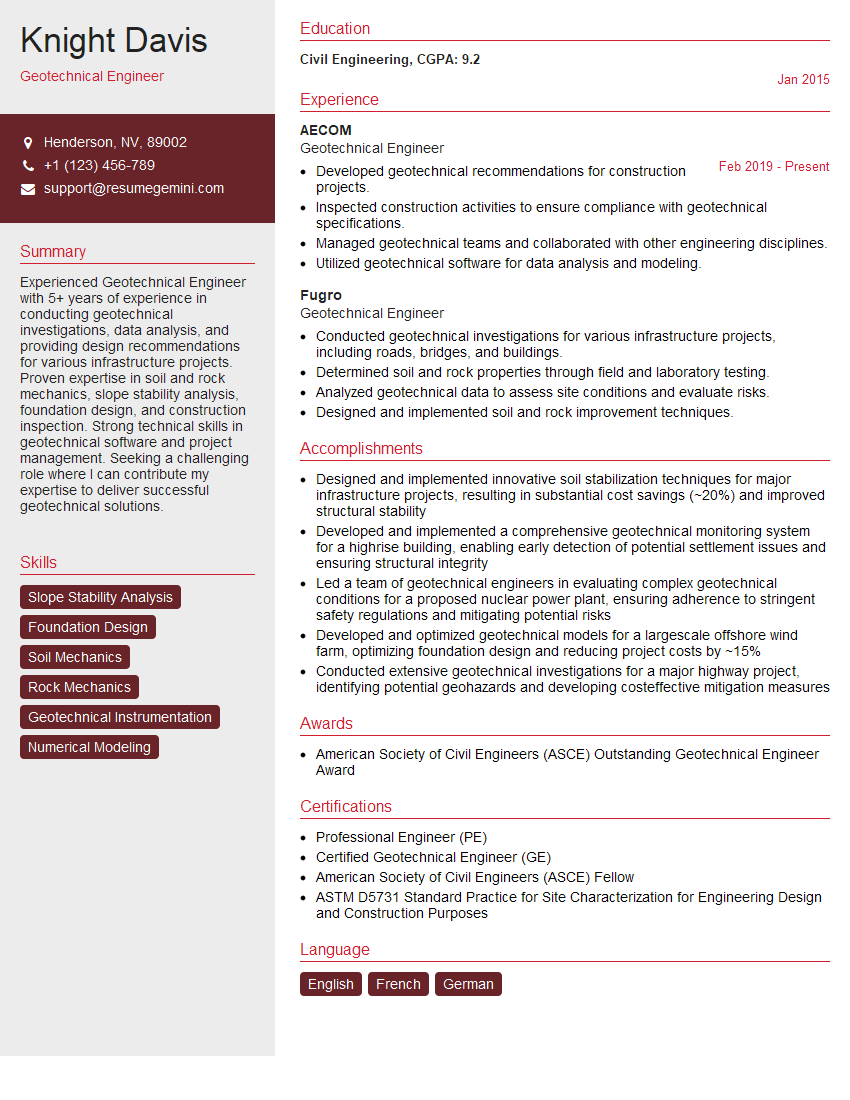
Geotechnical Engineer Resume Sample
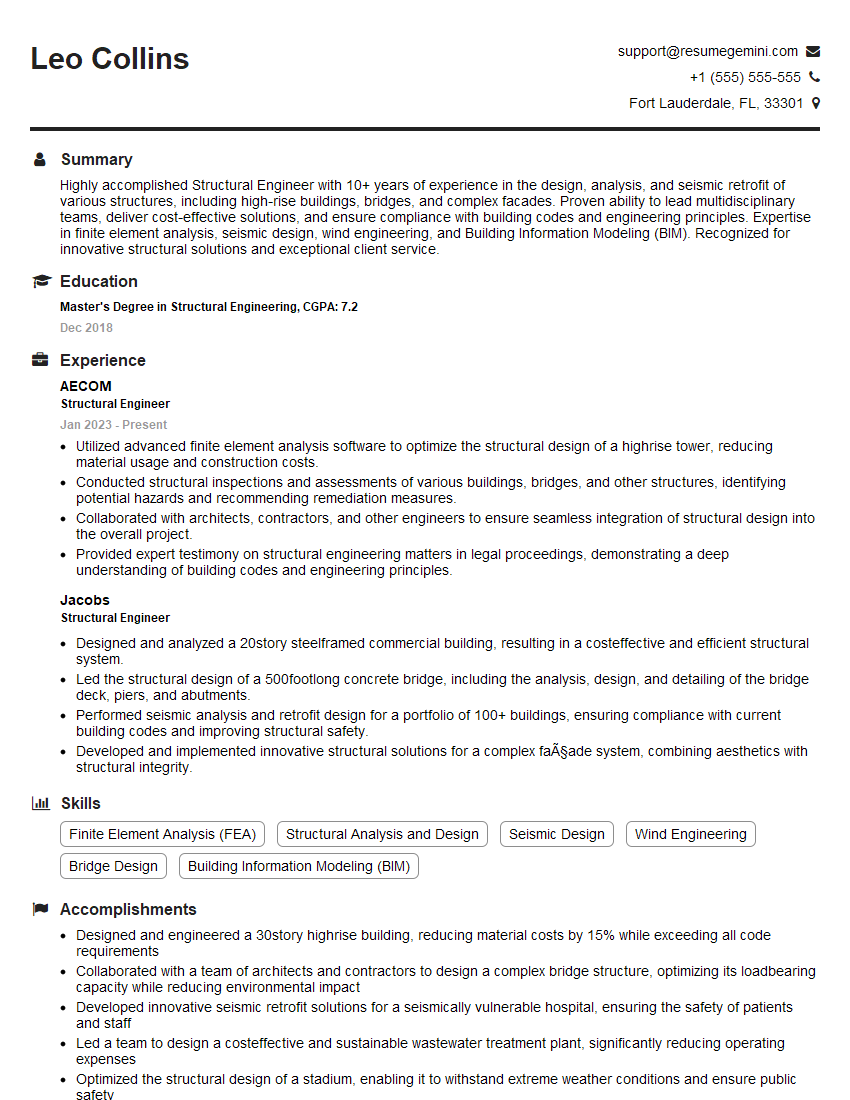
Structural Engineer Resume Sample
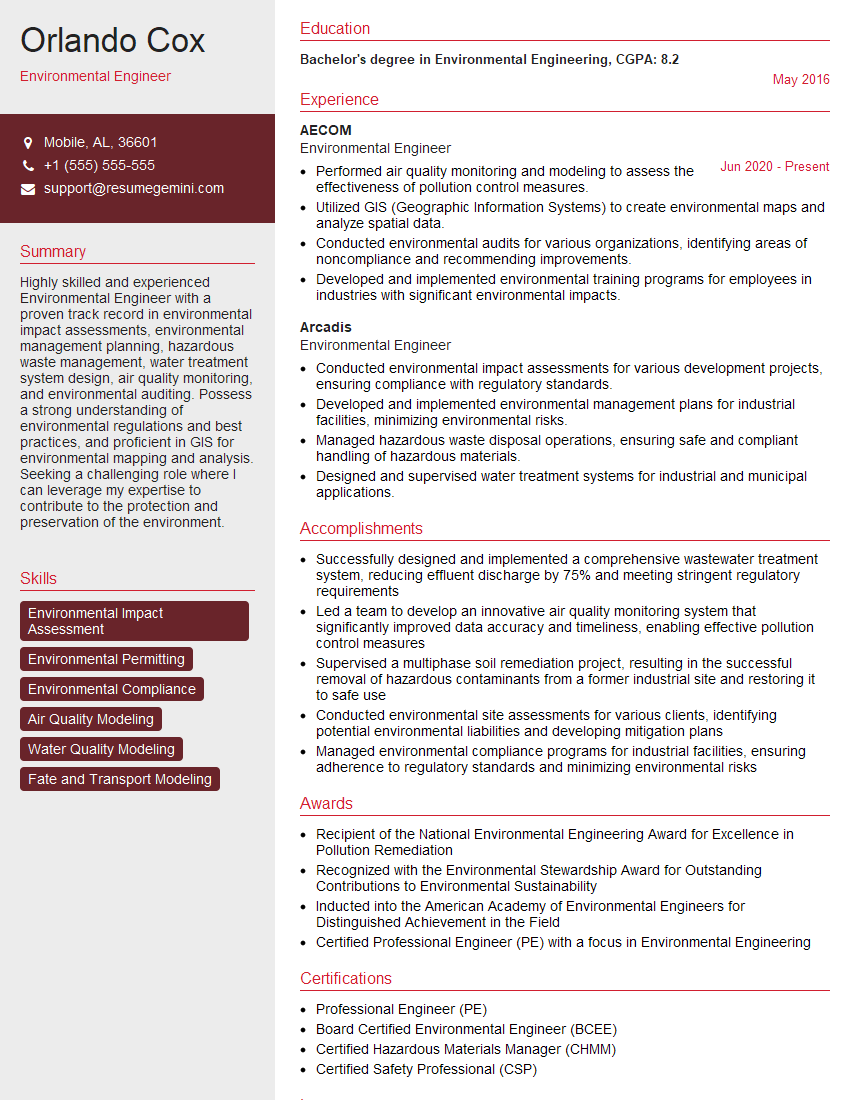
Environmental Engineer Resume Sample
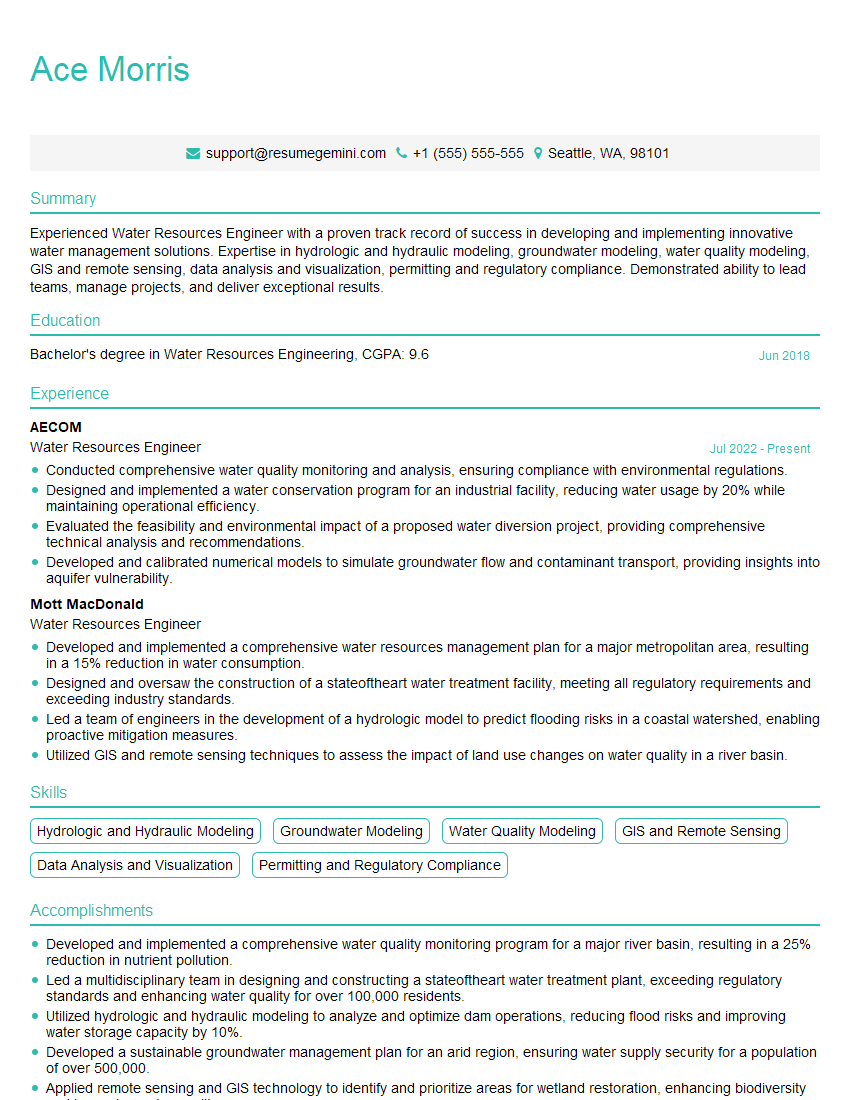
Water Resources Engineer Resume Sample
Explore more articles
Users Rating of Our Blogs
Share Your Experience
We value your feedback! Please rate our content and share your thoughts (optional).
What Readers Say About Our Blog
Very informative content, great job.
good