Preparation is the key to success in any interview. In this post, we’ll explore crucial AutoCAD or similar design software proficiency interview questions and equip you with strategies to craft impactful answers. Whether you’re a beginner or a pro, these tips will elevate your preparation.
Questions Asked in AutoCAD or similar design software proficiency Interview
Q 1. Explain the difference between a block and a symbol in AutoCAD.
In AutoCAD, both blocks and symbols are used to represent reusable components, but they differ significantly in their functionality and application. Think of a block as a more robust, feature-rich tool, while a symbol is a simpler, more streamlined representation.
- Blocks: Blocks are dynamic collections of objects that can be inserted, scaled, rotated, and even edited individually after insertion. They maintain their internal structure, allowing you to modify individual components within the block definition and those changes propagate to all instances of that block in the drawing. For example, a block representing a standard door would allow you to easily update its dimensions for all instances of that door across the design.
- Symbols: Symbols, while often visually similar to blocks, are generally static. They’re essentially a flattened image of the object and are usually created using the ‘Insert’ command to import a graphic file. Once inserted, the components of a symbol cannot be edited individually. If changes are needed, you would replace the entire symbol. Think of a corporate logo – you’d want a consistent representation across all your drawings, not one that could be accidentally altered component by component.
In essence, blocks are ideal for complex components that require frequent modification or updating, while symbols are better suited for static graphic elements like logos or images requiring consistency.
Q 2. How do you manage layers effectively in a complex drawing?
Managing layers effectively is crucial in large, complex AutoCAD drawings. It’s like organizing a city – you wouldn’t want all the buildings, roads, and utilities jumbled together! A well-organized layer structure improves drawing clarity, efficiency, and simplifies plot management.
My approach involves a hierarchical layer naming convention (e.g., using prefixes to indicate disciplines like ‘ARCH’, ‘MECH’, ‘ELEC’) and a clear color-coding system to quickly identify different elements. For example: ARCH-Walls, MECH-HVAC, ELEC-Lighting. I also use layer states to temporarily freeze or hide layers, improving performance when working on specific aspects of a design.
I find it helpful to create a layer key or legend that clearly documents each layer’s purpose and settings. This acts as a guide for myself and collaborators, ensuring consistency throughout the project. Moreover, I leverage layer properties to assign lineweights, line types, and other attributes, streamlining the drawing process and promoting uniformity. In a complex project, using layer filters to rapidly isolate particular elements by name or color is a significant time-saver.
Q 3. Describe your experience with AutoCAD’s various coordinate systems.
AutoCAD offers various coordinate systems crucial for precise object placement and drawing manipulation. I’m proficient in all three: World Coordinate System (WCS), User Coordinate System (UCS), and Display Coordinate System (DCS).
- World Coordinate System (WCS): This is the absolute coordinate system inherent to the drawing file. It’s the default and remains constant regardless of your viewing angle or any manipulations. It’s the foundation for all other coordinate systems.
- User Coordinate System (UCS): The UCS is a customizable, dynamic system that lets you define a local coordinate system for specific tasks. Imagine working on a building’s facade; orienting the UCS to the wall simplifies object placement and drawing. Switching between different UCS orientations makes working on different parts of the design much more intuitive.
- Display Coordinate System (DCS): The DCS is closely tied to the view and how objects are projected onto the screen. This is useful for understanding how your view affects the coordinates used in various commands.
I frequently use the UCS to simplify complex geometries. For instance, when modeling a curved structure, creating a UCS aligned with the curve’s tangent significantly aids in accurate object placement, preventing misalignments.
Q 4. How do you handle Xrefs (external references) in your projects?
External References (Xrefs) are invaluable for managing large and complex projects by allowing multiple drawings to link and share data. This is akin to using modular construction in architecture – separate components (drawings) assembled to create a complete design.
My workflow involves meticulous management of Xref paths and versions. I always utilize relative paths instead of absolute paths to ensure portability across different computers and networks. This avoids broken links when sharing drawings. Regularly backing up Xrefs, maintaining version control (using cloud storage or dedicated software), and thoroughly checking for updates before integrating changes are critical.
I also utilize the Xref Manager to efficiently manage multiple Xrefs, including binding, detaching, reloading, and resolving conflicts. Careful consideration of Xref settings (such as overlay, clipping boundaries, and visibility) ensures that the final drawing is visually clear and accurately represents all the linked information.
Q 5. What are some techniques for improving drawing performance in AutoCAD?
Improving drawing performance in AutoCAD is essential for maintaining productivity, especially with large, intricate files. Several techniques help optimize performance. Think of it like decluttering your hard drive – the more organized and streamlined it is, the faster everything runs.
- Purge Unused Objects: Regularly purging unused blocks, layers, styles, and text greatly reduces file size and enhances performance. This removes unnecessary baggage.
- Audit the Drawing: Running the ‘Audit’ command fixes minor errors and inconsistencies that can slow down the software.
- Optimize Layer Management: Freezing and turning off unnecessary layers can dramatically improve performance. It’s like closing applications you’re not using on your computer.
- Reduce the Number of Objects: Simplifying complex geometries into simpler shapes reduces the computational burden. This can involve using blocks, hatch patterns or even simplifying complex 3D models.
- Use the Right Hardware: High RAM, a fast processor, and a suitable graphics card all play a significant role in drawing performance.
Q 6. Explain your understanding of AutoCAD’s object snaps and their application.
Object snaps are fundamental for accurate and efficient drawing in AutoCAD. They’re like precise targeting mechanisms for your cursor, allowing you to easily select specific points on existing objects. They save time and ensure geometrical accuracy.
I routinely use object snaps such as Endpoint, Midpoint, Center, Quadrant, Intersection, and Insert to pinpoint exact locations. For instance, when connecting lines, using the Endpoint snap ensures a clean, precise connection between two objects. When creating a circle centered on a point, the Center object snap is indispensable.
AutoCAD’s dynamic input further enhances the use of object snaps, providing real-time feedback on coordinates and distances as you move the cursor, facilitating intuitive and precise drawing. Knowing which object snaps to apply significantly speeds up the drafting process and reduces the chances of errors during the design phase. This precision is especially critical in architectural plans, ensuring dimensional accuracy.
Q 7. Describe your experience with creating and using custom linetypes.
Creating and utilizing custom linetypes allows for a high degree of customization and visual representation in AutoCAD drawings. Imagine needing to show different road types with unique visual patterns, custom linetypes become essential for clarity and better communication.
I’ve extensively utilized the LINETYPE command to create and manage custom linetypes. The process begins with defining the pattern as a sequence of dashes, dots, and spaces. For example, a dashed line could be defined as A,.5,-.2,.2 (A representing a dash of length 0.5, followed by a space of 0.2, and then a dot of length 0.2). Once defined, the custom linetype can be loaded and assigned to layers or specific objects.
I have created custom linetypes for various applications, including representing different types of piping in a plant schematic or indicating various soil conditions in a site plan. Using custom linetypes significantly improves design clarity and enhances visual communication, making drawings more easily understood.
Q 8. How do you create and manage dimension styles in AutoCAD?
Managing dimension styles in AutoCAD is crucial for maintaining consistency and professionalism in your drawings. Think of dimension styles as templates for your dimensions – they dictate the appearance of all dimensions created using that style. You can control everything from the arrowhead type and size to the text font, height, and precision.
To create a new dimension style, you navigate to the DIMSTYLE manager (found under the Annotate tab). Here, you can create a new style based on a pre-existing style (like the default ‘Standard’) or start from scratch. This is where you meticulously customize every aspect of your dimensions. For example, you might set a specific text height for all your dimensions in architectural drawings, ensuring readability at different scales. After customizing, you save the new style with a descriptive name, like ‘Architectural-Dimensions’.
Managing existing styles is equally important. You can modify existing styles to refine their appearance without affecting dimensions already placed. You can also rename, copy, or delete styles as needed. This flexibility allows for adapting styles to different projects or client preferences. A project with millimeter measurements will use a style different than one using inches, for example. This organized approach to dimension styles enhances efficiency and drawing clarity.
Q 9. Explain your workflow for creating and editing text in AutoCAD drawings.
My workflow for creating and editing text in AutoCAD emphasizes clarity, consistency, and efficiency. I always start by selecting the appropriate text style. AutoCAD’s text styles are analogous to formatting in a word processor; they determine font, height, and other characteristics. Just like using a consistent font in a report makes it look professional, consistent text styles in drawings ensure a clean look.
For creating text, I typically use the TEXT command. This lets me precisely control the text location, style, and rotation. Alternatively, the MTEXT (multi-line text) command is invaluable for paragraphs and blocks of text. Within MTEXT, I can easily format the text with different styles and alignment.
Editing existing text is equally straightforward. I can either double-click the text to open the in-place editor or use the DDEDIT command for more control over edits, especially when dealing with multiple lines of text. This precise control ensures that my text remains accurate, legible, and consistent throughout the design process. I always preview the final output before finalizing to ensure clarity and proper formatting.
Q 10. How do you utilize AutoCAD’s hatching and fill commands?
Hatching and filling in AutoCAD are essential for creating visually appealing and informative drawings. Hatching adds a pattern to an enclosed area, while filling provides a solid color. Both are used to represent materials, textures, or sections in a design. Imagine designing a floor plan – you’d use different hatch patterns to distinguish between wood flooring, tile, and carpet.
I usually use the HATCH command. This allows me to select from a wide array of predefined patterns or create my own custom ones. The process typically involves selecting an enclosed area – either a closed polyline or a region – and then choosing a hatch pattern and scale. The ability to adjust the angle and scale of the pattern ensures the hatch pattern visually represents the material appropriately and is readable at any scale. Solid fills are easily applied using the FILL command, changing the visual weight and improving clarity within the drawings.
Knowing when to use hatching versus solid fill depends on the context. Hatching offers more detail for representing different materials or surfaces while solid fills are simpler and improve the drawing’s visual appearance. This careful consideration is critical for clear and effective communication in the design.
Q 11. What is your experience with plotting and printing AutoCAD drawings?
Plotting and printing AutoCAD drawings is a critical final step, ensuring the drawings are accurately represented on paper or in digital formats. My process begins with setting up the correct plot configuration using the PLOT command or the Plot dialog box. This involves selecting the appropriate plotter or printer, paper size, and orientation. Consider this a pre-flight checklist before you print.
Before plotting, I meticulously review the drawing’s scale and ensure that all necessary elements are visible within the plotting area. I typically create plot styles, which are similar to dimension styles in that they control the appearance of line weights and colors on the plotted output. These plot styles ensure consistency across my drawings and allow for effective communication. Finally, I always preview the plot before printing to confirm that everything is as intended, catching potential errors early on.
My experience includes various printing methods, from large-format plotters for construction drawings to standard desktop printers for smaller-scale designs. This adaptability to different printing methods is key in the professional world, where projects require versatile output options.
Q 12. Describe your process for creating and managing templates in AutoCAD.
AutoCAD templates are crucial for streamlining the design process and enforcing consistency across multiple projects. A template is like a pre-built framework for a drawing; it already includes the basic setup, layers, text styles, dimension styles, and other settings tailored to a specific project type or company standards. Think of it as a pre-formatted document.
Creating a template usually involves starting with a new drawing and then meticulously setting up all the elements I’ll need for repeated usage. This includes setting up layers with meaningful names, defining text and dimension styles, creating title blocks with all the necessary information, and adjusting overall settings. Once this is complete, I save the drawing as a template file (typically with the .dwt extension). The filename should clearly indicate its intended purpose, for instance, ‘A1-Architectural-Template’.
Managing templates involves regularly reviewing and updating them as standards change or new requirements emerge. Maintaining consistency in templates ensures design standards are adhered to and makes collaboration within a team significantly easier. Efficient template management ensures a smooth workflow from project start to finish.
Q 13. How familiar are you with using the AutoCAD command line?
I’m highly proficient with AutoCAD’s command line. It’s a powerful tool that enables efficient and precise control over commands, especially for repetitive tasks. It’s much faster than navigating through menus for common tasks.
Think of the command line as a direct conversation with the software. You can quickly access any command by typing its abbreviation or full name. For instance, instead of clicking through menus to draw a line, I would simply type LINE, specify the start and end points, and press Enter. This method, while requiring some memorization, is far quicker once you’re familiar with the commands. Moreover, you can chain commands together for complex actions, significantly increasing efficiency. For example: LINE;@10,0;@0,10;C creates a right-angled triangle using just one line.
Beyond individual commands, the command line supports variables and scripting, adding another level of automation for complex drawing tasks or batch processing. It’s an indispensable skill for advanced AutoCAD usage, saving substantial time and increasing productivity in the long run.
Q 14. How do you create and modify 3D models in AutoCAD?
Creating and modifying 3D models in AutoCAD involves a range of tools and techniques depending on the complexity of the model. The basic building blocks are primitives like boxes, cylinders, and cones, which can be combined and manipulated to form complex shapes. More complex models require advanced techniques.
I typically start by sketching 2D shapes that I then extrude or revolve to create 3D solids. Tools like EXTRUDE and REVOLVE are fundamental. EXTRUDE extends a 2D shape along a specified path to create a 3D solid. REVOLVE rotates a 2D shape around an axis to generate 3D objects like cups or vases. Advanced modeling involves techniques like surfaces and solids editing, using commands like SOLIDEDIT to combine or modify existing 3D solids. For more complex designs, I may use the 3D modeling tools to create and edit 3D solids, such as using the 3DPOLY command or creating surfaces using commands like REVSURF or RULESURF. Subdivision modeling is also frequently used for organic shapes.
Modifying existing 3D models can involve operations like scaling, rotating, mirroring, and boolean operations (union, subtraction, intersection) to combine or subtract volumes. I always pay attention to the model’s geometry and use appropriate tools and techniques to ensure an accurate and efficient workflow.
Q 15. What experience do you have with data extraction and reporting from AutoCAD?
Data extraction and reporting from AutoCAD are crucial for analyzing design data and generating insightful reports. I’ve extensively used various methods, including:
AutoCAD’s built-in tools: I leverage commands like
AREA,LIST, andPROPERTIESto extract basic geometric data like area, perimeter, and object properties. For instance, I might useAREAto calculate the total area of a building footprint and then use theLISTcommand to gather information on individual walls and rooms.Data Linking and External Databases: I’m experienced in linking AutoCAD data to spreadsheets (like Excel) or databases (like Access) using tools like the Data Extraction Wizard or custom LISP routines. This allows for more complex analysis and reporting, such as generating material takeoffs or cost estimates based on object properties.
Third-party plugins and add-ons: I’ve worked with several add-ons that specialize in data extraction and reporting, streamlining the process significantly. These tools often provide features for automated reporting and customization based on specific project needs.
For example, in a recent project involving a large-scale infrastructure design, I used a combination of data linking to Excel and custom LISP routines to automate the generation of a comprehensive report showing the total length of roads, the area of different land parcels, and the quantity of materials required for construction. This saved countless hours of manual data entry and ensured accuracy.
Career Expert Tips:
- Ace those interviews! Prepare effectively by reviewing the Top 50 Most Common Interview Questions on ResumeGemini.
- Navigate your job search with confidence! Explore a wide range of Career Tips on ResumeGemini. Learn about common challenges and recommendations to overcome them.
- Craft the perfect resume! Master the Art of Resume Writing with ResumeGemini’s guide. Showcase your unique qualifications and achievements effectively.
- Don’t miss out on holiday savings! Build your dream resume with ResumeGemini’s ATS optimized templates.
Q 16. Describe your experience with AutoCAD customization and lisp routines.
AutoCAD customization using LISP is a powerful way to automate tasks and improve efficiency. Think of LISP as a programming language specifically designed for AutoCAD. My experience includes:
Creating custom commands: I’ve developed numerous custom commands to automate repetitive tasks, such as creating standardized details, generating reports, or performing complex geometric calculations. For example, I created a command that automatically generates floor plans with dimensions and annotations based on a simple input of wall coordinates.
Automating drawing creation: I’ve written LISP routines to automate the entire creation of drawings from existing data, significantly reducing manual effort and improving consistency. Imagine a routine that takes data from a spreadsheet of building specifications and automatically generates all the necessary floor plans, elevations, and sections.
Developing custom tool palettes: I’ve created custom tool palettes to organize and streamline access to frequently used commands and functions, improving workflow efficiency.
Here’s a simple example of a LISP function to create a circle:
(defun c:mycircle ( / radius) (setq radius (getreal "Enter radius:")) (command "_circle" "c" 0 0 radius) )This function prompts the user for a radius and then draws a circle centered at the origin. This is a basic example, but it illustrates how LISP can be used to automate drawing creation.
Q 17. How do you handle version control and collaboration in AutoCAD projects?
Version control and collaboration are critical in large-scale AutoCAD projects. I utilize several strategies:
Cloud-based collaboration tools: I’m proficient with cloud-based solutions like Autodesk Collaboration for AutoCAD and BIM 360, which allow multiple users to work simultaneously on the same project, track changes, and manage revisions effectively. This eliminates the issues related to email attachments and version conflicts.
Local version control systems: For projects where cloud-based solutions aren’t feasible, I’ve employed local version control methods, regularly saving different versions of the drawing files with clear naming conventions to maintain a history of changes. This, combined with detailed change logs, ensures easy tracking of project iterations and assists in rollback to previous versions if needed.
Clear communication and workflows: Effective communication and established workflows are crucial. We define roles, responsibilities, and file-naming conventions upfront to avoid conflicts and ensure everyone is working with the latest version.
For example, in a recent large-scale project, we used BIM 360 to manage the entire design process. This allowed us to track changes, resolve conflicts, and efficiently collaborate with different disciplines, ensuring everyone was working on the same updated version of the design.
Q 18. Explain your experience working with different CAD file formats.
Working with various CAD file formats is essential for interoperability. My experience covers a wide range of file formats, including:
DWG: Autodesk’s native format, offering the broadest compatibility and access to all features.
DXF: A more simplified, industry-standard format for exchanging data between different CAD applications. I frequently use DXF for transferring drawings to clients using different software.
DWF: A compressed format suitable for sharing drawings that do not require editing.
Other formats: I’m also familiar with importing and exporting to other formats like SKP (SketchUp), 3DS, and various image formats like JPG, PNG, and TIFF, adapting the workflows depending on client and project requirements.
Understanding the nuances of each format is crucial to ensure data integrity during conversion. For example, importing a DXF file into AutoCAD may require some cleanup or adjustments to ensure compatibility with the original design intent.
Q 19. How familiar are you with Revit or other BIM software?
While my primary expertise is in AutoCAD, I possess a working knowledge of Revit and other BIM (Building Information Modeling) software. I understand the key principles of BIM, including its focus on creating a digital representation of a building and its components. My experience includes:
Collaborating with Revit users: I frequently collaborate with architects and engineers using Revit, ensuring seamless integration of my AutoCAD-based designs into the overall BIM workflow. This often involves coordinating file exchange and understanding how my work impacts the bigger BIM model.
Importing and exporting data: I’m comfortable importing and exporting data between AutoCAD and Revit, understanding the limitations and potential data loss during this process.
Basic Revit understanding: I have a foundational understanding of Revit’s interface and its capabilities, allowing me to interpret and contribute effectively in BIM-based projects.
While I may not be a Revit expert, my knowledge allows me to contribute effectively to BIM-based projects and communicate effectively with Revit users. I am eager to expand my Revit proficiency further.
Q 20. Describe your experience with Civil 3D or other specialized CAD software.
I have significant experience with Civil 3D, particularly in projects involving land development and infrastructure design. My proficiency includes:
Surface modeling: I’m adept at creating and manipulating surface models, performing volume calculations, and generating contours for site analysis and design.
Corridors and alignments: I’m skilled in defining alignments, creating corridors, and generating cross-sections for road and pipeline design.
Drainage design: I’ve worked on projects involving drainage design, including pipe networks and grading plans.
For instance, in a recent project, I used Civil 3D to design a new highway interchange, creating surface models from survey data, defining alignments, and generating detailed drawings for construction. This involved coordinating with other disciplines to ensure seamless integration of the design.
Q 21. How do you ensure accuracy and quality control in your AutoCAD drawings?
Ensuring accuracy and quality control in AutoCAD drawings is paramount. My approach involves:
Regular checks and audits: I perform regular checks throughout the design process, verifying dimensions, coordinates, and consistency across different drawing sheets. This involves using AutoCAD’s built-in tools for checking geometry and annotations.
Layer management: Maintaining a well-organized layer structure is essential for clarity and avoiding drawing errors. This ensures easy identification and modification of different drawing elements.
External references (xrefs): I use xrefs effectively to manage large drawings and ensure consistency across different sheets and drawings. This allows for efficient updating and modification of various sections of the design.
Drawing standards and templates: Adhering to established drawing standards and using pre-defined templates ensures consistency and reduces errors throughout the project.
Peer review: I actively engage in peer reviews to ensure accuracy and catch potential errors that might have been overlooked. A second pair of eyes is invaluable.
For example, before submitting any drawing, I always perform a thorough dimension check using the DIM command and visually inspect the drawing for any inconsistencies. This multi-layered approach ensures the final product is accurate and meets high quality standards.
Q 22. Explain your experience with using AutoCAD for specific design tasks (e.g., architectural, mechanical, electrical).
My AutoCAD experience spans various design disciplines, primarily focusing on architectural and mechanical design. In architectural projects, I’ve utilized AutoCAD to create detailed 2D floor plans, elevations, sections, and site plans. This involved meticulous layering, annotation, and the use of blocks and xrefs to manage complex building designs efficiently. For instance, I worked on a large residential project where I developed a comprehensive set of drawings, including detailed specifications for plumbing, electrical, and HVAC systems, leveraging AutoCAD’s annotation features to ensure clarity and precision. In mechanical design, I’ve employed AutoCAD to create detailed 2D drawings of machine components, assemblies, and fabrication details. This included working with dimensions, tolerances, and creating parts lists. One notable project involved designing a custom fixture, where I used AutoCAD’s parametric design capabilities to create various design iterations quickly and efficiently.
Q 23. How do you troubleshoot common AutoCAD issues and errors?
Troubleshooting AutoCAD issues involves a systematic approach. First, I’d check for simple issues like incorrect layer visibility or frozen layers, which can often be resolved by simply turning layers on or thawing them. LAYERS and LAYERSTATE commands are invaluable here. If the problem persists, I would check the drawing’s history, often examining the previous saves to see when the error started. Common problems like corrupted files usually require resorting to AutoCAD’s recovery options, available when opening the file. If the error message is cryptic, I consult Autodesk’s online help forums and documentation or search for the error code online for potential solutions. For example, if I encounter unexpected behavior, I would check for conflicts between loaded add-ins or custom lisp routines by temporarily disabling them to see if the problem is resolved. Finally, if all else fails, I would create a new drawing and import necessary data, avoiding transferring the corrupted parts of the original.
Q 24. How do you stay up-to-date with the latest advancements in AutoCAD software?
Staying current with AutoCAD advancements is crucial. I regularly engage with Autodesk’s online resources, including their knowledge base, tutorials, and webinars. I also actively participate in online forums and communities dedicated to AutoCAD, where professionals share tips, tricks, and solutions. I subscribe to industry newsletters and magazines that cover CAD software updates and best practices. Furthermore, attending industry conferences and workshops allows me to gain hands-on experience with new features and network with other professionals, staying informed about trends and upcoming software releases. This continuous learning ensures I remain proficient with the latest capabilities and methodologies.
Q 25. Describe your experience working with large and complex AutoCAD drawings.
Working with large and complex drawings requires a strategic approach. I leverage AutoCAD’s features such as external references (xrefs) to manage large drawings by breaking them down into smaller, more manageable files. This improves performance and reduces file sizes. Proper use of layers and layer management is also critical. I use layer states to control the visibility of layers, and named views to easily switch between different perspectives or detail levels. Furthermore, externalizing data where applicable (like using external databases) helps manage large datasets associated with complex drawings. For example, when working on a massive infrastructure project with thousands of elements, separating different utility systems into separate xrefs significantly enhances efficiency and prevents performance bottlenecks. This allows for simultaneous work on various aspects of the project without impacting overall performance.
Q 26. How do you prioritize tasks and manage your time effectively when working on AutoCAD projects?
Effective task prioritization and time management are essential. I typically begin by breaking down a project into smaller, manageable tasks and setting realistic deadlines for each. I use project management tools, such as to-do lists or project management software, to track my progress and ensure I meet deadlines. I prioritize tasks based on urgency and importance, focusing on the most critical aspects first. This often involves identifying potential bottlenecks and addressing them early. Regular review of progress and adjustments to the schedule as needed prevent delays. For example, if I have multiple drawings with tight deadlines, I’ll focus on completing the most time-sensitive ones first, potentially delegating simpler tasks or using batch processing features in AutoCAD to improve efficiency.
Q 27. Explain your understanding of the importance of drawing standards and conventions.
Drawing standards and conventions are crucial for creating clear, consistent, and easily understandable drawings. They ensure that drawings are easily interpreted by anyone familiar with the standard, regardless of the designer. This includes consistent line weights, text styles, layer organization, and annotation methods. Adherence to standards like ISO or ANSI minimizes ambiguity and improves collaboration. For example, using specific line weights for different elements (e.g., thick lines for walls, thin lines for dimensions) enhances readability. Using consistent text styles and a clear annotation scheme (consistent dimensioning styles, labels) avoids confusion and prevents errors. Proper layer organization, using descriptive layer names and a logical hierarchy, is vital for efficient drawing management and makes future editing significantly easier.
Q 28. How would you approach a complex design challenge using AutoCAD?
Approaching a complex design challenge in AutoCAD involves a phased approach. Firstly, I gather all necessary information and specifications, understanding the problem’s constraints and requirements. Next, I create a detailed plan, outlining the design process, including the use of specific AutoCAD tools and techniques. Then, I start with a simplified model, testing different design concepts before refining the most promising one. I would use parametric modeling techniques wherever possible to enable quick iterations and explore various design options efficiently. I use extensive simulations, as applicable, to verify the design’s functionality and performance before proceeding with finalization. This iterative process, combined with regular reviews and adjustments, ensures a robust and well-optimized solution. Finally, I thoroughly document the design process, including all design decisions and calculations, ensuring that the final product is both functional and easily understood.
Key Topics to Learn for AutoCAD or similar design software proficiency Interview
- Understanding the Interface and Workspaces: Become proficient in navigating the software, customizing workspaces, and utilizing tool palettes efficiently. This demonstrates foundational knowledge and adaptability.
- 2D Drafting Fundamentals: Master drawing creation, modification, and annotation. Practice creating precise geometric shapes, using layers effectively, and applying dimensions and text. Be prepared to discuss real-world applications like floor plans or technical drawings.
- 3D Modeling Techniques: Explore various 3D modeling methods, including extrusion, revolution, and solid modeling. Understand the differences and applications of each technique. Prepare examples of your 3D modeling projects and the challenges you overcame.
- Working with Blocks and Xrefs: Demonstrate your ability to create, manage, and utilize blocks and external references (xrefs) to improve efficiency and design consistency. Explain scenarios where these features are particularly useful.
- Customization and Automation: Showcase your understanding of using AutoLISP or other scripting languages to automate repetitive tasks and enhance workflow. This highlights advanced skills and problem-solving capabilities.
- Printing and Plotting: Know how to set up and manage print styles, plot configurations, and output to various devices. Understand considerations for different plot scales and paper sizes.
- File Management and Data Exchange: Demonstrate your proficiency in managing files, importing and exporting data in various formats (e.g., DWG, DXF), and collaborating on projects using cloud-based solutions.
- Problem-Solving and Troubleshooting: Be ready to discuss your approach to diagnosing and resolving common issues encountered during the design process. This showcases practical experience and analytical skills.
Next Steps
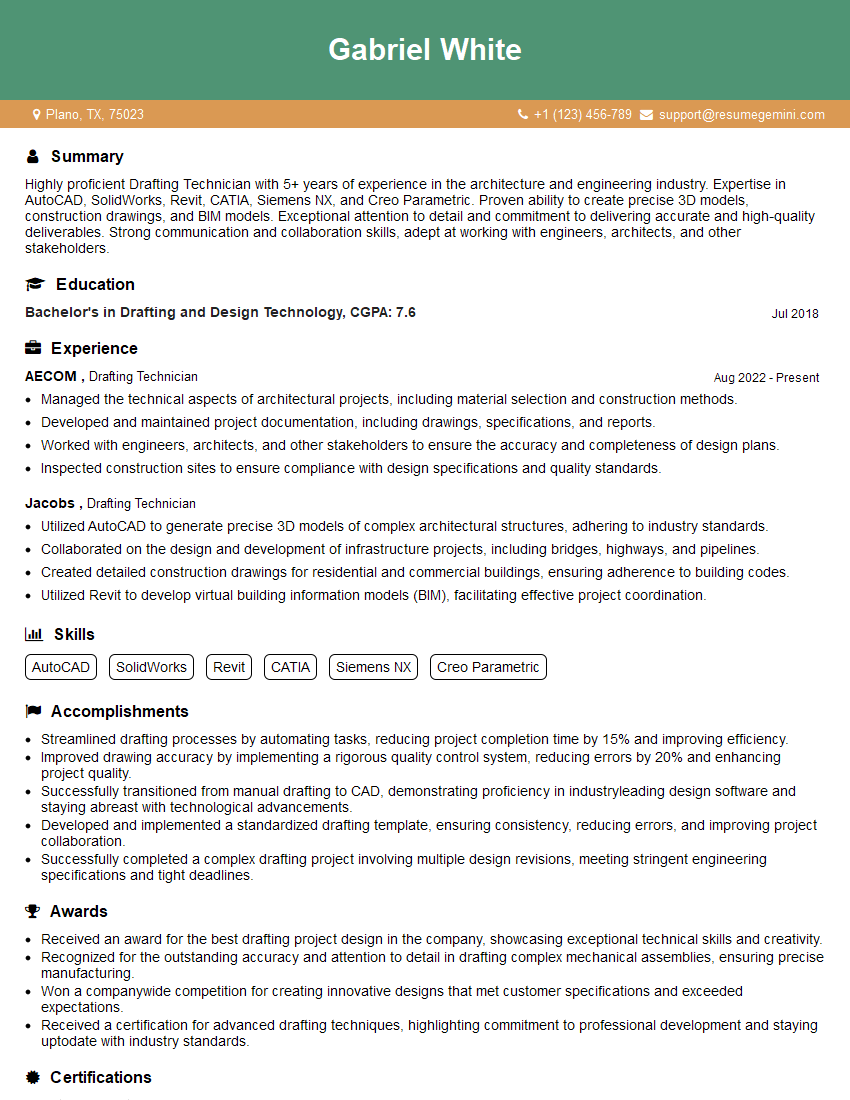
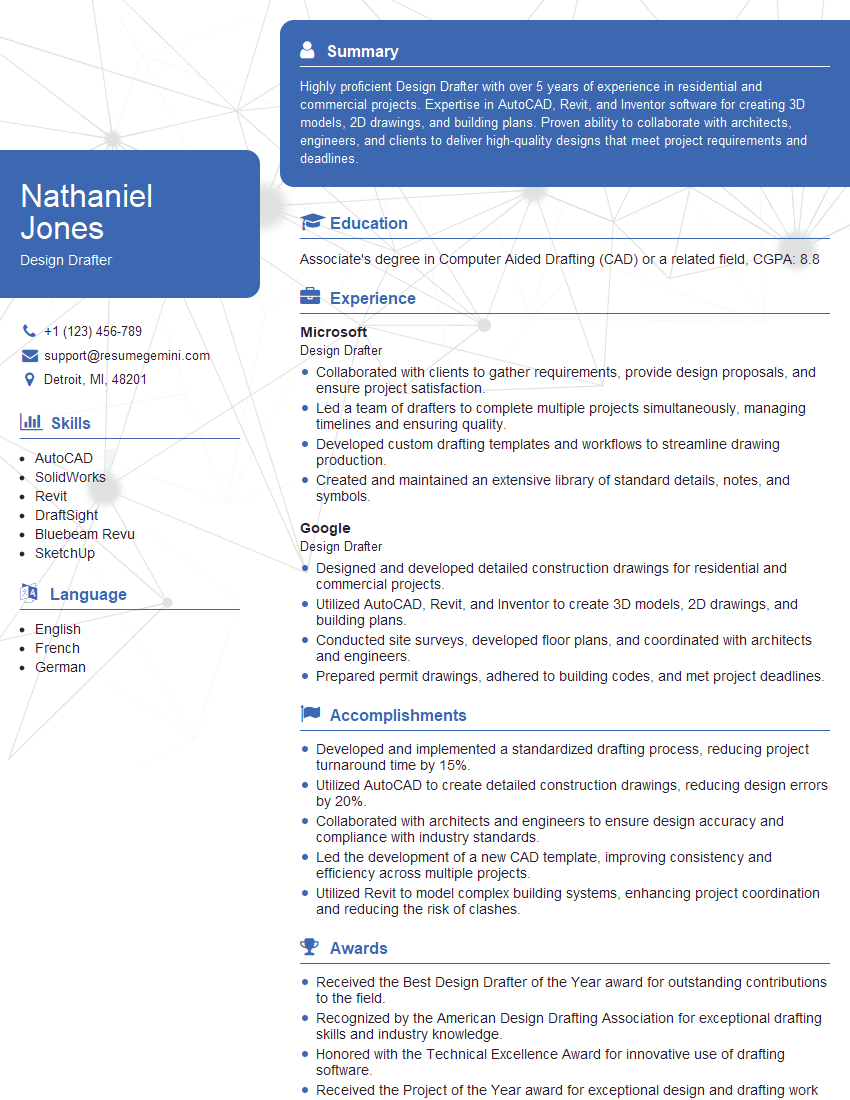
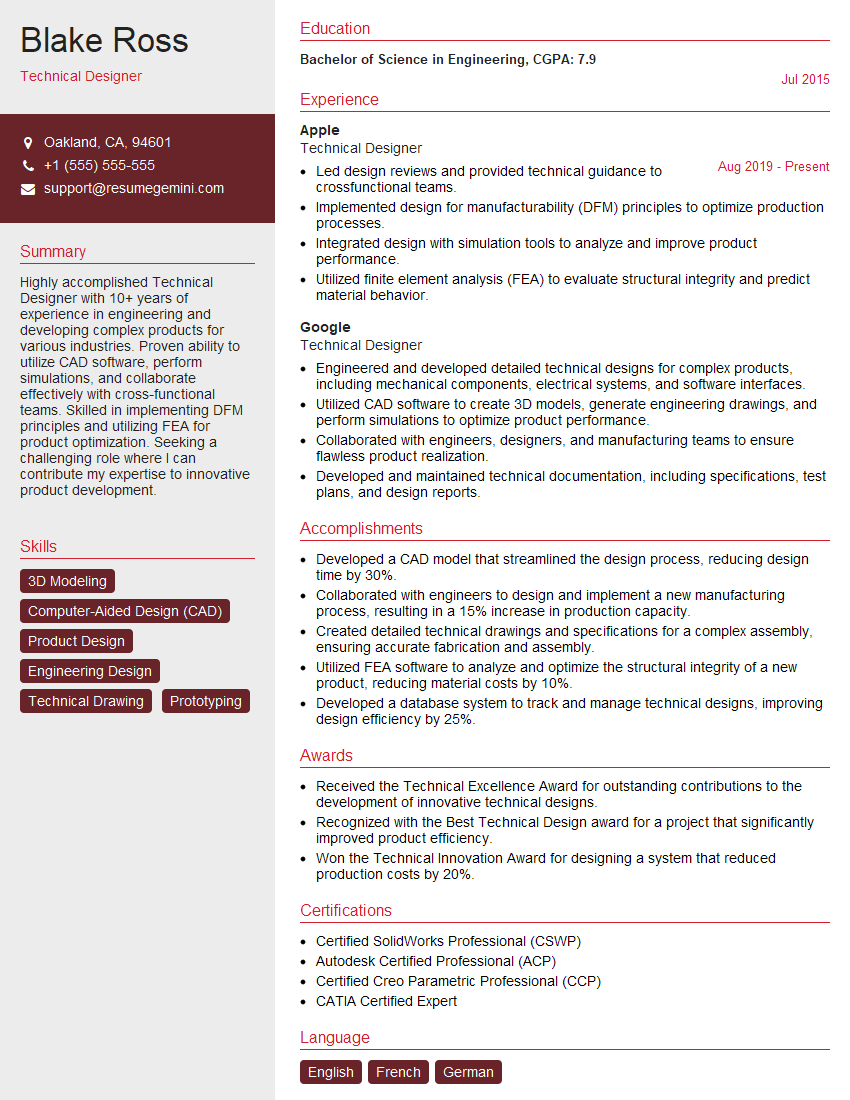
Mastering AutoCAD or similar design software is crucial for career advancement in many fields, opening doors to exciting opportunities and higher earning potential. A well-crafted resume is essential for showcasing your skills effectively to potential employers. Creating an ATS-friendly resume is key to ensuring your application gets noticed. ResumeGemini is a trusted resource that can help you build a professional and impactful resume. Examples of resumes tailored to AutoCAD and similar design software proficiency are available to guide you in building your own. Take the next step towards your dream career by investing in a strong resume that highlights your expertise.


Explore more articles
Users Rating of Our Blogs
Share Your Experience
We value your feedback! Please rate our content and share your thoughts (optional).
What Readers Say About Our Blog
Very informative content, great job.
good