Interviews are more than just a Q&A session—they’re a chance to prove your worth. This blog dives into essential AutoCAD Plant 3D interview questions and expert tips to help you align your answers with what hiring managers are looking for. Start preparing to shine!
Questions Asked in AutoCAD Plant 3D Interview
Q 1. Explain your experience with AutoCAD Plant 3D’s pipe routing tools.
AutoCAD Plant 3D’s pipe routing tools are a cornerstone of efficient plant design. They allow for the automated and intelligent placement of piping systems, significantly reducing manual effort and improving accuracy. My experience encompasses the full spectrum of these tools, from basic pipe runs to complex networks involving multiple components and constraints.
I’m proficient in using various routing methods, including automatic routing, manual routing, and constraint-based routing. For instance, when dealing with a congested area, I leverage constraint-based routing to define specific clearances and avoid collisions with other equipment. Automatic routing is fantastic for straightforward sections, speeding up the process considerably. However, I always carefully review the automatically generated routes to ensure they adhere to design specifications and best practices.
I also regularly utilize features such as pipe fitting optimization and automatic support placement. Imagine a scenario where you have a long pipe run with multiple bends. The optimization tools help minimize the number of fittings, reducing material costs and simplifying fabrication. Similarly, automatically placing supports according to code standards saves time and guarantees structural integrity.
My experience also includes using advanced features like pipe stress analysis integration to ensure the designed piping systems can withstand anticipated loads and pressures. This holistic approach to pipe routing guarantees both functional and structurally sound designs.
Q 2. Describe your process for creating isometric drawings in Plant 3D.
Creating isometric drawings in Plant 3D is a critical step in delivering fabrication-ready drawings to contractors. My process is structured and meticulous to ensure accuracy and completeness.
- Data Preparation: I begin by meticulously checking the 3D model for completeness and accuracy. This includes verifying the accuracy of pipe specifications, component placements, and any associated metadata.
- Isometric Generation: Once the 3D model is validated, I utilize Plant 3D’s built-in isometric generation tools. This often involves specifying the drawing scale, sheet size, and other relevant parameters. I carefully review the automatic generation for potential issues and make adjustments as needed.
- Annotation and Review: Post-generation, I add all necessary annotations, including dimensions, labels, and details as per project standards. This includes adding bill of materials (BOM) data, and any special notes for the fabricators. A thorough review for accuracy and compliance is crucial at this stage.
- Revision Control: I meticulously track all revisions, changes, and approvals on the isometric drawings, adhering to established company procedures. This ensures transparency and prevents conflicts.
For example, in a recent project involving a complex chemical reactor system, I utilized Plant 3D’s isometric generation tools to create highly detailed drawings that showed every pipe, valve, fitting, and support, complete with the necessary dimensions and notations for precise fabrication. The result was seamless integration with the manufacturing process, leading to significant time savings during construction.
Q 3. How do you manage data and revisions in a Plant 3D project?
Data and revision management are crucial for large Plant 3D projects. I utilize a combination of Plant 3D’s built-in features and external tools to ensure data integrity and efficient collaboration.
Within Plant 3D, I leverage the project’s revision clouds to track design changes and maintain a clear history of modifications. For larger, multi-disciplinary projects, I often utilize a collaborative data management system like Autodesk Vault. This system provides centralized data storage, revision control, and workflow management. This allows multiple users to access and modify the model while maintaining version control. Version control is managed through a defined check-in/check-out process ensuring no data loss or conflicts.
I also implement a robust naming convention for files and folders, which ensures a clear and organized project structure. Clear naming conventions are vital, especially in multi-user environments, preventing confusion and facilitating efficient retrieval of specific information. Detailed documentation of all design decisions and changes adds another layer of data management, creating a comprehensive project history.
Imagine working on a large refinery project with multiple engineers. Vault allows for secure access and concurrent work, minimizing potential conflicts and maximizing team efficiency. The clear revision history helps in tracing the design evolution and resolving issues quickly.
Q 4. What are your strategies for optimizing Plant 3D model performance?
Optimizing Plant 3D model performance is critical for maintaining productivity and preventing crashes. My strategies involve a multifaceted approach focusing on model simplification, data management, and hardware optimization.
- Simplifying the Model: I regularly purge unnecessary data, such as unused blocks and layers, to reduce file size and improve responsiveness. Detailed models are great, but unnecessary detail can hinder performance. I also utilize the ‘Simplify’ command to reduce the level of detail in areas that won’t impact the project’s deliverables.
- Efficient Data Management: As previously mentioned, using a centralized data management system such as Autodesk Vault, reduces the load on individual workstations. This improves access time and simplifies the process of merging changes.
- Hardware Optimization: Having a workstation with sufficient RAM, a fast processor, and a dedicated graphics card is essential for smooth performance. I work closely with IT to ensure our equipment meets the project’s demands.
- Regular Backups: Frequent backups protect against data loss and allow quick recovery in case of system failure.
For example, on a recent large petrochemical plant model, I used a combination of simplifying geometry and managing data using Vault. This improved model performance significantly, reducing loading times and preventing system crashes, ultimately increasing team efficiency and ensuring project completion on time.
Q 5. Explain your experience with Plant 3D’s clash detection features.
Plant 3D’s clash detection features are invaluable for preventing costly errors during construction. My experience involves using these tools throughout the design process to identify and resolve potential conflicts between different disciplines.
I typically utilize Plant 3D’s built-in clash detection capabilities, defining clash parameters such as clearance distances between pipes, equipment, and structural elements. The process involves creating specific clash detection sets tailored to specific requirements. For instance, one clash detection set might focus on piping and structural steel, while another might focus on equipment and piping.
Once a clash is detected, Plant 3D generates a report detailing the location, severity, and components involved. This report facilitates a systematic approach to resolving the issue. Resolving clashes involves modifying the design to achieve sufficient clearance or adjusting the placement of components. This iterative process often involves communication and collaboration with other disciplines to achieve optimal solutions.
For a real-world example, in a recent power plant project, clash detection identified a conflict between a large pipe and a structural beam. Using the report, we were able to quickly identify the issue, adjust the pipe routing, and prevent a potential construction delay and cost overrun.
Q 6. How do you handle discrepancies between design specifications and Plant 3D model?
Discrepancies between design specifications and the Plant 3D model are inevitable. My approach involves a systematic process to identify, analyze, and resolve these differences.
- Detailed Comparison: I meticulously compare the design specifications (provided in documents or spreadsheets) with the Plant 3D model’s attributes. This might involve cross-referencing equipment specifications, pipe sizes, and material lists.
- Root Cause Analysis: Once discrepancies are identified, I investigate the root cause. This might involve reviewing the original design documents, checking data entry accuracy, or clarifying ambiguities with the design team.
- Corrective Actions: Based on the root cause analysis, I implement the necessary corrective actions. This might involve modifying the Plant 3D model, updating the design specifications, or clarifying the design intent.
- Documentation: I meticulously document all discrepancies, their root causes, and the corrective actions taken. This documentation is crucial for maintaining transparency and facilitating future reference.
For instance, if a pipe’s diameter in the model differs from the specification, I’ll investigate whether it’s a data entry error or a genuine design change. If it’s an error, I correct it; if it’s a design change, I update the specifications and communicate the change to the relevant parties.
Q 7. Describe your workflow for creating and managing P&IDs in Plant 3D.
Creating and managing P&IDs (Piping and Instrumentation Diagrams) in Plant 3D is a crucial aspect of plant design. My workflow ensures both accuracy and efficiency.
- Data Import: I often begin by importing existing P&ID data from other sources, such as spreadsheets or legacy CAD systems, leveraging Plant 3D’s import functionalities.
- Schematic Creation: I then create or modify the P&ID schematic using Plant 3D’s tools, ensuring the diagram accurately reflects the process flow, equipment, instrumentation, and piping. I rigorously adhere to industry standards and company specifications.
- Data Linking: A key aspect of my workflow is linking P&ID elements to the 3D model. This ensures consistency between the schematic and the 3D representation of the plant. This bidirectional link allows any changes made in the P&ID to be reflected in the 3D model and vice-versa.
- Revision Control: Similar to other aspects of the project, revision control is essential for P&IDs. This ensures that all changes are tracked and approved, maintaining the integrity and accuracy of the design.
- Reporting: Finally, I generate reports from the P&ID, such as equipment lists, instrument lists, and loop diagrams, to support other project deliverables.
For a large-scale chemical process plant, the linked P&ID and 3D model are crucial for smooth construction and operation. Changes in the P&ID are automatically updated in the 3D model, eliminating potential inconsistencies and saving time and resources.
Q 8. How familiar are you with Plant 3D’s specification-based design features?
I’m highly familiar with Plant 3D’s specification-based design. It’s the cornerstone of efficient and consistent project delivery. This feature allows you to define standards for components—piping, valves, equipment—once, and then reuse those specifications throughout the entire project. This drastically reduces errors, ensures uniformity, and speeds up the design process. Think of it like a recipe book for your plant design: you define your ingredients (specifications) and then use them to build your dishes (plant model).
For instance, I’ve extensively used specification-based design to manage different pipe classes. I’d create a specification for each class (e.g., SCH 40 carbon steel, SCH 80 stainless steel) detailing material, diameter, wall thickness, and other attributes. Then, when placing pipe in the model, I simply select the appropriate specification, and Plant 3D automatically applies the correct properties.
This approach is crucial for large, complex projects. It simplifies managing revisions and changes; altering a specification updates all instances of that specification across the model, avoiding the tedious task of manual modification.
Q 9. Explain your experience with different piping components and their representation in Plant 3D.
My experience encompasses a wide range of piping components, from simple straight pipes and elbows to complex fittings like reducers, tees, and valves. Plant 3D provides excellent tools to model these components accurately and efficiently. I’m proficient in using the various catalogs and libraries to select and place components, ensuring proper connectivity and adhering to project specifications.
For example, I’ve worked with gate valves, globe valves, check valves, and butterfly valves, understanding their specific properties and how they are represented in Plant 3D. This includes specifying valve sizes, materials, pressure ratings, and flange connections. I also have extensive experience with different types of pipe fittings, including welding neck flanges, slip-on flanges, and threaded fittings, all of which need careful consideration for accurate modeling and proper stress analysis later in the design process.
Furthermore, I understand the importance of using correct component data. Incorrect or incomplete component data leads to errors in material takeoffs, isometrics, and other project deliverables. Using consistent and up-to-date component libraries is paramount in my workflow.
Q 10. How do you ensure accuracy and consistency in your Plant 3D models?
Ensuring accuracy and consistency in Plant 3D models is paramount. My approach is multifaceted and involves a combination of best practices and utilizing Plant 3D’s built-in features.
- Regular Data Checks: I routinely perform data checks to identify inconsistencies or errors early in the process. Plant 3D provides tools for this, and I leverage them to validate connections, attributes, and component data. This includes verifying pipe sizes, valve specifications, and equipment configurations.
- Specification Management: As mentioned earlier, employing robust specifications for all components plays a key role. Changes to specifications are centrally managed, ensuring consistency throughout the model.
- Templates and Standards: I utilize project templates to enforce design standards from the outset. These templates predefine settings, styles, and layers, maintaining uniformity throughout the modeling process.
- Collaboration and Reviews: Teamwork and peer reviews are essential. I actively participate in model reviews to identify potential issues and ensure accuracy with project requirements.
For example, in a recent project, a thorough data check revealed a mismatch in pipe sizes at a critical junction. Early detection prevented downstream issues that would have been costly and time-consuming to correct.
Q 11. Describe your experience working with different project standards and specifications in Plant 3D.
I have extensive experience working with diverse project standards and specifications, including ANSI, ASME, and ISO standards. My approach involves thoroughly understanding the specific requirements of each standard and configuring Plant 3D to adhere to them. This includes customizing catalogs, creating project standards, and developing custom specifications.
For example, in one project adhering to ASME B31.3, I configured the Plant 3D settings and created custom specifications to reflect the specific requirements for piping stress analysis, including allowable stresses, expansion coefficients, and support design criteria. Adapting to different standards requires a detailed understanding of engineering principles and effective use of Plant 3D’s configuration options.
Understanding these diverse standards allows me to easily translate client requirements into a functional Plant 3D model, ensuring compliance and efficiency.
Q 12. How do you utilize Plant 3D’s reporting capabilities?
Plant 3D’s reporting capabilities are invaluable for generating various project documents. I utilize these capabilities extensively to create reports including:
- Isometric Drawings: Plant 3D automatically generates accurate isometric drawings of piping systems, including dimensions, annotations, and component details. This saves significant time and ensures consistency.
- Material Takeoffs: I use Plant 3D to generate detailed material lists, identifying the quantity and type of materials required for the project. This is crucial for accurate cost estimation and procurement.
- Equipment Lists: Plant 3D facilitates the creation of comprehensive equipment lists, detailing all equipment components with their specifications and locations within the plant.
- Reports for 3D Design Review: I often use Plant 3D to create custom reports containing clash detection results, highlighting conflicts between different disciplines in the design.
These reports are not only vital for construction but also essential for client communication and project management. The accuracy and automation provided by Plant 3D reporting capabilities are invaluable.
Q 13. Explain your process for creating and managing equipment specifications in Plant 3D.
Creating and managing equipment specifications in Plant 3D is a crucial aspect of my workflow. I start by understanding the detailed requirements of each piece of equipment—dimensions, performance characteristics, connection points, and relevant safety standards. This information is then inputted into Plant 3D using its specification editor. Each specification is thoroughly documented to ensure accuracy and ease of future modifications.
Consider a pump specification. I would define parameters like flow rate, head, horsepower, material of construction, and connection types. Plant 3D allows for the attachment of additional documentation like vendor drawings or datasheets to enhance clarity and traceability. This detailed process is crucial for accurate equipment placement, sizing, and piping design.
Once created, these specifications are reused throughout the project, ensuring consistency and minimizing the risk of errors. Managing these specifications effectively is key to a streamlined design process and a successful project. A robust and well-organized system of naming and categorizing specifications is indispensable for effective management.
Q 14. Describe your experience with Plant 3D’s integration with other software.
Plant 3D’s integration capabilities are a significant advantage. I have experience integrating it with several other software applications, enhancing project efficiency and data sharing.
- Navisworks: I regularly use Navisworks for clash detection and model coordination with other disciplines’ models (structural, architectural, electrical).
- AutoCAD: Seamless integration with AutoCAD allows for easy transfer of data and drawings, streamlining the design workflow.
- Spreadsheet Software (Excel): Data from Plant 3D can be easily exported to spreadsheets for detailed analysis and reporting.
- P&ID Software: In several projects, I’ve integrated Plant 3D with P&ID software to ensure consistent representation of piping and instrumentation diagrams.
These integrations significantly reduce data duplication and ensure consistency across the different project phases and software applications, creating a smooth, streamlined collaborative environment.
Q 15. How do you address and resolve model conflicts in a collaborative Plant 3D environment?
Model conflicts in a collaborative Plant 3D environment are inevitable when multiple users work on the same project simultaneously. Addressing these conflicts effectively requires a combination of proactive measures and robust conflict resolution strategies. Think of it like a collaborative document editing scenario, but with 3D plant models.
Proactive Measures: Establish clear project workflows and file management protocols. Define areas of responsibility for each team member to minimize overlapping edits. Regular check-ins and synchronization using the Plant 3D’s built-in version control are crucial. Employ a robust naming convention for files to avoid confusion.
Conflict Resolution: When conflicts arise, Plant 3D provides tools to compare and merge changes. This involves reviewing the differences between the conflicting revisions and choosing which changes to keep. Careful consideration is needed to avoid unintended data loss. Sometimes, manual intervention is necessary to resolve complex conflicts. A detailed comparison of the conflicting areas allows for informed decision-making. This process might involve using the ‘Compare’ functionality within Plant 3D, which highlights differences graphically.
Example: Imagine two engineers simultaneously working on the piping layout. One engineer adds a new valve, while the other modifies the pipe diameter. Plant 3D will detect this conflict during the merge process, prompting the user to resolve the discrepancy by selecting either the new valve, modified pipe diameter, or a combination that aligns with the project requirements.
Career Expert Tips:
- Ace those interviews! Prepare effectively by reviewing the Top 50 Most Common Interview Questions on ResumeGemini.
- Navigate your job search with confidence! Explore a wide range of Career Tips on ResumeGemini. Learn about common challenges and recommendations to overcome them.
- Craft the perfect resume! Master the Art of Resume Writing with ResumeGemini’s guide. Showcase your unique qualifications and achievements effectively.
- Don’t miss out on holiday savings! Build your dream resume with ResumeGemini’s ATS optimized templates.
Q 16. What is your experience with Plant 3D’s material takeoff capabilities?
Plant 3D’s material takeoff capabilities are a powerful feature for generating accurate and detailed quantity takeoffs for various project components. This is essential for cost estimation, procurement, and scheduling. It’s like having a sophisticated inventory system built directly into the design software.
Data Extraction: The software automatically extracts data from the 3D model, including pipe sizes, valve types, equipment specifications, and other relevant details. This eliminates the need for manual counting and calculations, saving significant time and reducing the potential for human error.
Reporting: Plant 3D generates comprehensive reports that can be customized to meet specific project needs. These reports typically include item descriptions, quantities, and associated costs, which are vital for creating accurate project budgets.
Integration: The material takeoff data can be easily exported to other applications, like spreadsheets or project management software, facilitating seamless integration with other project management tools.
Example: For a large chemical plant, I used Plant 3D to generate a detailed report on the quantity of various types of valves, pipes, and fittings needed for the project. This report was then used to create a precise bill of materials, which was crucial in ensuring timely procurement and cost control.
Q 17. Describe your problem-solving approach when encountering unexpected issues in Plant 3D.
My problem-solving approach when encountering unexpected issues in Plant 3D follows a structured, systematic methodology. I approach unexpected issues in Plant 3D much like troubleshooting any complex system – a logical, methodical approach is crucial.
Identify and Define: First, I clearly identify the problem and gather relevant information. This includes error messages, timestamps, and any preceding actions that might be contributing to the issue.
Isolate the Source: I try to isolate the source of the problem by testing different aspects of the model. This might involve checking specific components, layers, or even the overall project configuration.
Search for Solutions: I consult the Autodesk Plant 3D documentation, online forums, and knowledge bases. I leverage my experience and knowledge, searching for similar issues that have been resolved previously.
Test and Iterate: Once I have a potential solution, I test it thoroughly to ensure it works correctly and doesn’t introduce other problems. This is an iterative process; I might need to refine my approach based on the test results.
Seek Expert Assistance: If the problem persists, I don’t hesitate to seek expert assistance from Autodesk support or other experienced Plant 3D users. Collaboration is key; often a fresh perspective can quickly pinpoint the root cause.
Q 18. Explain your understanding of AutoCAD Plant 3D’s object properties and their significance.
Object properties in AutoCAD Plant 3D are the defining attributes of each element within the design. They are like the DNA of each object, dictating its behavior, appearance, and integration with other parts of the model. Understanding these properties is fundamental to effective Plant 3D modeling.
Data-Driven Design: Object properties are not just visual; they contain critical engineering data such as pipe diameter, material type, pressure rating, and valve specifications. This data is essential for accurate calculations, simulations, and material takeoffs.
Customization and Reporting: Plant 3D allows customization of object properties to meet specific project standards. This ensures consistency and accuracy throughout the design. Customized properties can also be used to generate tailored reports.
Integration with other Systems: Object properties provide a bridge between the Plant 3D model and other engineering tools. Data from Plant 3D can be easily exported and utilized in other software for analysis, simulation, or data management.
Example: A pipe’s object properties would include its diameter, schedule, material (e.g., carbon steel), and insulation thickness. These details are essential for calculating pressure drop, determining the amount of material needed, and providing accurate information for piping stress analysis.
Q 19. How do you ensure compliance with industry standards and best practices in your Plant 3D designs?
Ensuring compliance with industry standards and best practices in Plant 3D designs is paramount for safety, efficiency, and legal reasons. It is achieved through a combination of rigorous processes and leveraging the software’s capabilities.
Standard Specifications: I integrate relevant industry standards (e.g., ASME, ANSI, API) into the Plant 3D project by utilizing the software’s capabilities for defining custom specifications and data templates. This ensures consistency and compliance with the required regulations and codes.
Data Validation: Plant 3D offers tools to perform data validation, which helps identify potential inconsistencies or errors in the design that could violate industry standards. This proactive approach is essential in maintaining compliance.
Documentation and Audits: Maintaining meticulous documentation throughout the design process and conducting regular audits are crucial for demonstrating compliance. Comprehensive reports generated by Plant 3D can serve as evidence of conformity.
Example: When designing a piping system, I would ensure that all pipe specifications, including material, diameter, and pressure rating, adhere to the ASME B31.1 standard. The Plant 3D model would be configured to flag any discrepancies, ensuring that the design meets the required safety and performance standards.
Q 20. What is your experience with creating and managing design layers and viewports in Plant 3D?
Effective management of design layers and viewports in Plant 3D is crucial for organizing complex models and creating clear, informative drawings. It’s like organizing a city; layers are the neighborhoods, and viewports are the specific perspectives.
Layer Organization: I use a logical layer structure based on discipline (piping, instrumentation, electrical) and object type (pipes, valves, equipment). This allows for easy selection, modification, and visibility control of specific design elements.
Viewport Management: Viewports provide different perspectives of the 3D model. I use them strategically to create detailed isometric drawings, plan views, sections, and elevation drawings needed for documentation and analysis. This ensures clear communication of design intent.
Annotation and Detailing: Layers and viewports work together to facilitate precise annotation and detailing of the model. Specific layers can be assigned to different annotation elements (dimensions, notes, labels) within each viewport.
Example: I might use separate layers for piping, equipment, and instrumentation. I would then create viewports showing specific sections of the plant for detailed drawings, each viewport displaying only the relevant layers for clarity. This keeps the model organised and prevents information overload.
Q 21. Explain your familiarity with AutoCAD Plant 3D’s customization options.
AutoCAD Plant 3D offers extensive customization options to tailor the software to specific project needs and company standards. These options allow for enhancing efficiency and ensuring consistent output. Think of it as being able to tailor your toolbox to your exact needs.
Project Settings: Customization starts with setting up project standards, including units, drawing templates, and material specifications. This ensures consistency across all project deliverables.
Customization of the User Interface (UI): Tool palettes, menus, and ribbon options can be customized to suit individual workflows. Frequently used commands can be easily accessed, streamlining the design process.
Customizing Object Properties: As previously mentioned, object properties can be extended with custom fields to capture and manage additional data relevant to specific projects or company requirements.
AutoLISP and VBA: For advanced customization, Plant 3D supports programming with AutoLISP and VBA. This enables automating repetitive tasks and developing custom tools to streamline workflows. This is useful for larger, complex projects.
Example: I’ve created custom tool palettes to quickly access frequently used commands specific to my company’s standards, saving me significant time and improving efficiency.
Q 22. How do you utilize Plant 3D’s annotation tools for creating detailed drawings?
AutoCAD Plant 3D offers a robust set of annotation tools crucial for creating detailed and accurate drawings. These tools go beyond simple text and dimensions; they allow for intelligent annotation that dynamically updates with model changes. For instance, you can automatically tag equipment with its specifications pulled directly from the Plant 3D database, eliminating manual entry and ensuring consistency.
I typically utilize several key annotation features: MTO (Material Take-Off) reports for comprehensive equipment and material lists, line number tagging to clearly identify piping runs, and tag creation tools to automatically generate unique identifiers for valves, instruments, and other components. These tags can be customized with various data fields, such as size, material, and pressure rating. Furthermore, I leverage annotation styles to maintain a consistent look across all drawings. Imagine creating a P&ID (Piping and Instrumentation Diagram) – these tools are invaluable in creating a clear, concise, and readily understandable document from a complex 3D model.
For example, I once worked on a project where the client required a specific format for their valve tags. Using Plant 3D’s annotation tools, I easily customized the tag template, ensuring every valve across the 100+ sheets of the drawing set followed the client’s exact requirements. This saved significant time and reduced potential errors compared to manual annotation.
Q 23. Describe your experience with Plant 3D’s sheet management and organization tools.
Efficient sheet management and organization are paramount in Plant 3D, especially for large projects. Plant 3D provides tools to manage drawings effectively. I typically use the Sheet Set Manager to create and organize drawing sheets, logically grouping them by discipline (e.g., piping, instrumentation, electrical). This simplifies navigation and ensures that all drawings are accounted for.
Within each sheet, I utilize the viewports to display specific parts of the 3D model at appropriate scales and orientations. I create title blocks containing project information and revision history. Furthermore, I leverage cross-referencing tools to link between different drawings, allowing for easy navigation between related sheets.
Think of organizing a large library. You wouldn’t just throw all the books on the floor. You’d use shelves, categories, and a cataloging system. Plant 3D’s sheet management tools provide that same level of organization for your drawings, making navigation and maintenance effortless.
Q 24. How do you manage large and complex Plant 3D models efficiently?
Managing large and complex Plant 3D models requires a strategic approach. Key strategies include: Model simplification—avoiding unnecessary detail in areas not requiring high fidelity, component grouping—organizing components into logical groups for easier selection and manipulation, and workset management—dividing the model into manageable parts for concurrent work by different team members.
Before starting any project, a well-defined naming convention is crucial for every component. This ensures consistency and allows for efficient searching and filtering. I also utilize project templates which pre-configure settings, reducing setup time for new projects. Regularly backing up the model is crucial, saving the model at several points throughout the day prevents the loss of work due to unexpected problems. Finally, using AutoCAD Plant 3D’s performance monitoring tools can help identify areas for improvement and optimization of the model.
For example, in a recent refinery project, we used worksets to divide the model into sections by process unit. This allowed different teams to work concurrently without conflicts, significantly accelerating the project timeline. Regular model cleanup and optimization, combined with well-defined naming conventions, were essential for keeping the model manageable.
Q 25. Describe your experience with using Plant 3D’s tools for creating and modifying piping networks.
Plant 3D’s piping tools are at the heart of the software. My experience spans the entire piping workflow, from initial design to final as-built drawings. I use the piping spec editor to create and manage piping specifications that define pipe sizes, materials, and other properties. The isometric generation capabilities allow me to create detailed isometric drawings of piping systems automatically. The pipe routing tools allow for manual and automated pipe placement, incorporating constraints, avoiding collisions, and optimizing routing. The piping component libraries enable quick insertion of valves, fittings, and other components.
I’m proficient in creating and modifying complex piping networks, incorporating features like supports, valves, instruments, and equipment connections. I can work with various piping standards and handle changes efficiently, updating drawings automatically when the 3D model is modified. I am also familiar with the use of the piping reports for material takeoff and other analysis purposes.
In one project, we had to reroute a section of the main process piping to accommodate a new piece of equipment. Using Plant 3D’s routing tools and automated clash detection, I quickly identified and resolved conflicts, ensuring a smooth integration without impacting other sections of the plant.
Q 26. What are your strategies for maintaining data integrity in a Plant 3D project?
Maintaining data integrity in Plant 3D is critical for ensuring project accuracy and avoiding costly errors. My strategies include: Regular data backups, utilizing both local and cloud storage, preventing data loss from hardware failures or software issues. Implementing and enforcing a strict naming convention ensures consistency and prevents duplicate or conflicting data. Using data validation tools to check for inconsistencies or errors in the model before proceeding with further modifications. Enforcing a process of regular model cleanup removing unnecessary or duplicate data prevents performance issues. Finally, implementing a version control system, such as Autodesk Vault, for tracking changes and managing revisions is critical for larger projects.
Using a strong project database is also critical. All components should be entered accurately, including material specifications, part numbers, and manufacturers. This will improve data consistency and allow for accurate reporting and analysis.
For example, a seemingly minor discrepancy in material specifications could lead to significant issues during construction. By enforcing data validation and implementing a comprehensive data review process, we can catch and correct these inconsistencies early.
Q 27. How familiar are you with Plant 3D’s orthographic projection and isometric projection tools?
I am very familiar with Plant 3D’s orthographic and isometric projection tools. Orthographic projections provide multiple 2D views (plan, elevation, section) of the 3D model, useful for detailed design and construction drawings. I frequently use these to create plan views of piping layouts, elevation views of equipment placement, and section views showing internal details. The isometric projection tool generates 3D-like views perfect for creating isometrics of piping systems, which are essential for fabrication and installation. These views allow for clearer visualization of pipe routing and component placement, simplifying the construction process.
The software provides powerful tools to automatically generate these projections, saving considerable time and effort. The ability to customize views, such as adding labels and dimensions, is also crucial for generating clear and concise drawings. I regularly use both types of projections to create comprehensive documentation for various plant engineering projects. This ensures a complete and consistent set of drawings for the client and contractors.
Q 28. Explain your understanding of the importance of model coordination and collaboration in Plant 3D projects.
Model coordination and collaboration are essential in Plant 3D projects, especially for large, multi-disciplinary teams. Effective collaboration prevents costly clashes and ensures that all disciplines work with a shared understanding of the project. I leverage Plant 3D’s collaboration features extensively. Worksets allow for concurrent work on different parts of the model without data conflicts. Model review tools enable efficient detection and resolution of clashes between different disciplines (e.g., piping clashes with structural steel). Collaboration platforms such as Autodesk BIM 360 facilitate easy file sharing and version control, ensuring everyone is working with the latest data.
Open communication is crucial. Regular meetings and clear communication protocols ensure that everyone is on the same page. Employing a standardized approach to naming conventions and data management greatly reduces the risk of conflicts. By promoting a collaborative work environment and utilizing Plant 3D’s tools effectively, we can minimize errors, reduce rework, and deliver projects on time and within budget.
In a previous project involving several engineering disciplines, our use of collaborative tools and regular coordination meetings prevented numerous clashes during the design phase, saving significant time and resources. The ability to quickly identify and resolve conflicts in the 3D model ensured a smoother transition to the construction phase.
Key Topics to Learn for AutoCAD Plant 3D Interview
- Project Setup and Management: Understanding project templates, managing data, and configuring settings for optimal workflow. Practical application: Setting up a new project from scratch, importing existing data, and managing revisions.
- 3D Modeling and Piping: Creating and modifying 3D piping models, including routing, sizing, and component placement. Practical application: Designing a simple piping system, understanding isometric drawings, and resolving routing conflicts.
- Equipment and Components: Working with various equipment catalogs, inserting and configuring equipment, and understanding their specifications. Practical application: Selecting and placing pumps, valves, and vessels, configuring their properties, and managing connections.
- Isometric Drawings and Reports: Generating and interpreting isometric drawings, creating reports, and understanding specifications. Practical application: Creating an isometric drawing of a section of a plant, understanding the data extracted from reports for analysis and fabrication.
- P&ID Integration: Integrating P&IDs (Piping and Instrumentation Diagrams) with 3D models. Practical application: Using P&ID data to create a 3D model, understanding the link between the two, and addressing discrepancies.
- Material Takeoffs and Cost Estimations: Extracting material quantities and generating cost estimations from the 3D model. Practical application: Using Plant 3D tools to produce accurate reports and contribute to project budgeting.
- Collaboration and Data Management: Working in a collaborative environment, managing revisions, and understanding data sharing practices. Practical application: Utilizing version control systems, understanding data sharing protocols, and resolving conflicts in a collaborative project.
- Troubleshooting and Problem Solving: Identifying and resolving errors in models, understanding model diagnostics, and developing efficient problem-solving strategies. Practical application: Diagnosing and correcting model errors, efficiently managing issues during project design.
Next Steps
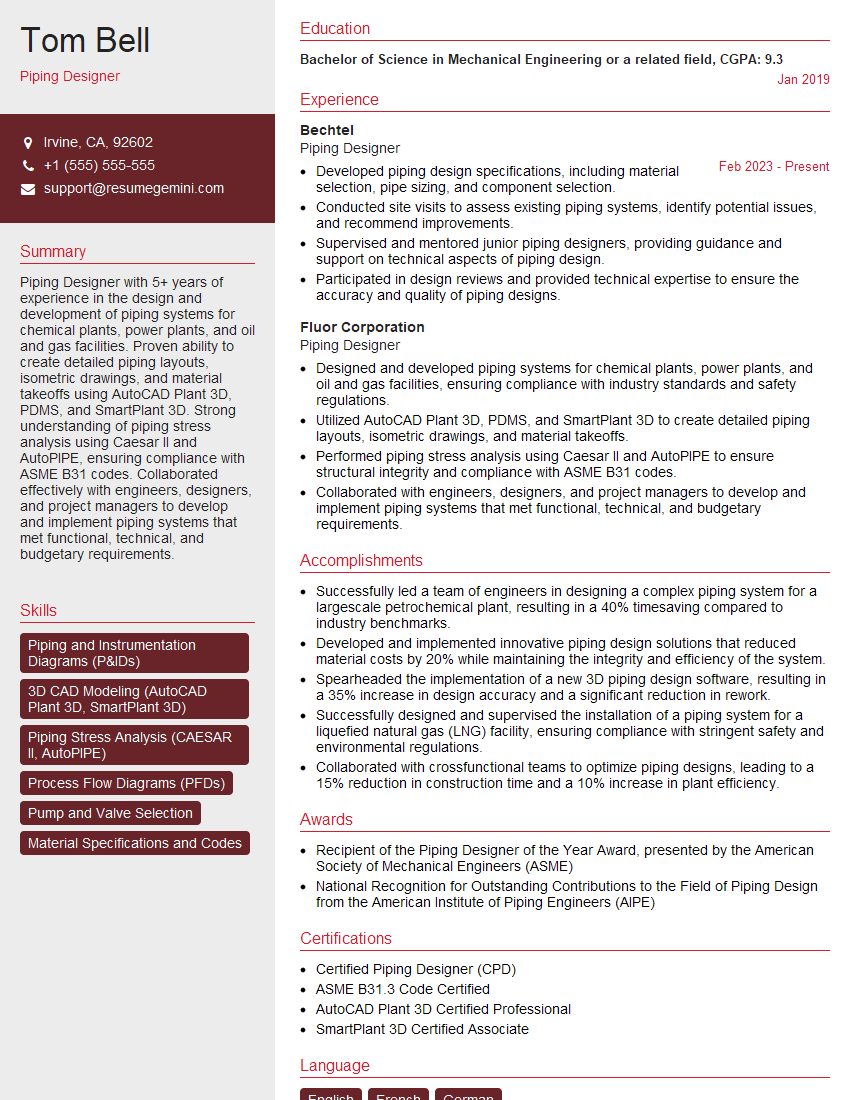
Mastering AutoCAD Plant 3D significantly enhances your career prospects in the process engineering and design industries, opening doors to exciting and challenging roles. To maximize your chances of landing your dream job, focus on creating an ATS-friendly resume that effectively highlights your skills and experience. We strongly encourage you to utilize ResumeGemini, a trusted resource for building professional and impactful resumes. ResumeGemini provides examples of resumes tailored specifically to AutoCAD Plant 3D professionals, giving you a head start in showcasing your capabilities to potential employers.
Explore more articles
Users Rating of Our Blogs
Share Your Experience
We value your feedback! Please rate our content and share your thoughts (optional).
What Readers Say About Our Blog
Very informative content, great job.
good