Preparation is the key to success in any interview. In this post, we’ll explore crucial Basic Computer and Software Skills interview questions and equip you with strategies to craft impactful answers. Whether you’re a beginner or a pro, these tips will elevate your preparation.
Questions Asked in Basic Computer and Software Skills Interview
Q 1. What is the difference between hardware and software?
Hardware and software are the two fundamental components of any computer system. Think of it like a car: hardware is the physical parts you can touch, like the engine, wheels, and steering wheel; software is the instructions that tell the car what to do, like the driving manual or the GPS system.
- Hardware: This refers to the physical components of a computer system. Examples include the computer case, monitor, keyboard, mouse, motherboard, CPU, RAM, hard drive, and graphics card. These are tangible components you can see and touch.
- Software: This comprises the programs, applications, and data that instruct the hardware what to do. Examples include operating systems (like Windows or macOS), applications (like Microsoft Word or Adobe Photoshop), and even the data files you create and store.
In essence, hardware provides the platform, while software provides the instructions and functionality.
Q 2. Explain the functions of the CPU, RAM, and hard drive.
The CPU, RAM, and hard drive are crucial components with distinct roles:
- CPU (Central Processing Unit): Often called the ‘brain’ of the computer, the CPU executes instructions from software. Think of it as the engine of the car, carrying out calculations and processing data. It fetches instructions from RAM, processes them, and stores the results either back in RAM or on the hard drive.
- RAM (Random Access Memory): RAM is the computer’s short-term memory. It stores data and instructions that the CPU is currently using. Imagine it as your desk; you keep the documents you’re actively working on there. RAM is fast but volatile, meaning data is lost when the computer is turned off.
- Hard Drive (or SSD – Solid State Drive): The hard drive (or SSD) is the computer’s long-term storage. It stores your files, operating system, and applications. It’s like your filing cabinet; you store documents you need to keep for later use. Unlike RAM, data on a hard drive persists even when the computer is turned off.
Q 3. What is an operating system, and can you name a few examples?
An operating system (OS) is the fundamental software that manages all the hardware and software resources of a computer. It acts as an intermediary between the user and the hardware. Think of it as the conductor of an orchestra, ensuring all the instruments (hardware and software) work together harmoniously.
- Examples of operating systems include:
- Windows: Developed by Microsoft, this is one of the most popular operating systems for personal computers.
- macOS: Apple’s operating system for its Macintosh computers.
- Linux: A family of open-source operating systems known for its flexibility and customization options.
- Android: A mobile operating system developed by Google.
- iOS: Apple’s mobile operating system for iPhones and iPads.
Q 4. Describe the difference between a file and a folder.
The difference between a file and a folder is analogous to the difference between a document and a filing cabinet drawer.
- File: A file is a collection of data stored on a computer. It could be a document (like a Word file), an image (like a JPG), a program (like an executable file), or any other type of data. It’s a single unit of information.
- Folder (or Directory): A folder is a container used to organize files. It allows you to group related files together for better management. Think of it as a way to categorize your files; you might have a folder for ‘Documents’, another for ‘Images’, and so on.
Q 5. How do you create, save, and open files using Microsoft Word?
Creating, saving, and opening files in Microsoft Word is straightforward:
- Creating a new file: Open Microsoft Word. A blank document will appear. Start typing to create your content.
- Saving a file: Click on ‘File’ in the top-left corner. Select ‘Save As’. Choose a location to save the file (like your Documents folder). Give your file a name (e.g., ‘MyDocument’). Choose ‘Word Document (*.docx)’ as the file type and click ‘Save’.
- Opening a file: Click on ‘File’ in the top-left corner. Select ‘Open’. Navigate to the location where you saved the file, select it, and click ‘Open’.
Q 6. Explain how to use basic spreadsheet functions in Microsoft Excel (e.g., SUM, AVERAGE).
Microsoft Excel uses formulas to perform calculations. Here’s how to use SUM and AVERAGE:
- SUM: The
SUMfunction adds up a range of numbers. For example, to add the numbers in cells A1 to A5, you would enter the formula=SUM(A1:A5)in a cell. - AVERAGE: The
AVERAGEfunction calculates the average (mean) of a range of numbers. To find the average of the numbers in cells B1 to B10, you would enter=AVERAGE(B1:B10)in a cell.
These formulas are entered into a cell, starting with an equals sign (=), and the result will be displayed in that cell. You can then use these results in further calculations or analysis.
Q 7. What is a database, and what are some examples of database software?
A database is an organized collection of structured information, or data, typically stored electronically in a computer system. It’s designed for efficient storage, retrieval, modification, and deletion of data. Think of it as a highly organized library, allowing you to easily find specific information.
- Examples of database software include:
- MySQL: A popular open-source relational database management system (RDBMS).
- PostgreSQL: Another powerful open-source RDBMS.
- Microsoft Access: A desktop database management system included in Microsoft Office.
- Oracle Database: A commercial RDBMS used in large-scale enterprise systems.
- MongoDB: A NoSQL (non-relational) database that’s widely used for large datasets.
Different types of databases cater to various needs, from managing small personal datasets to handling massive amounts of information for large organizations.
Q 8. How do you manage email effectively using Microsoft Outlook or Gmail?
Effective email management is crucial for productivity. In both Microsoft Outlook and Gmail, the key is to establish a system for organization and prioritization.
- Folders and Labels: Create folders (Outlook) or labels (Gmail) to categorize emails by project, client, or topic. For example, I might have folders for ‘Work Projects,’ ‘Personal Correspondence,’ and ‘Client X.’ This prevents your inbox from becoming overwhelming.
- Filtering and Rules: Utilize filters or rules to automatically sort incoming emails. You can set up rules to move emails from specific senders to designated folders, mark emails as read, or even delete unwanted emails automatically. For instance, I use a rule to automatically archive newsletters to a separate folder.
- Prioritization: Employ the ‘flag’ feature (both Outlook and Gmail) to mark important emails requiring immediate attention. Use the ‘star’ feature (Gmail) or similar functionality in Outlook to highlight emails you want to review later.
- Regular Archiving/Deletion: Regularly archive or delete old emails to keep your inbox clean and efficient. This ensures quicker search times and prevents your inbox from slowing down your computer.
- Search Functionality: Learn to effectively use the search function. Both Outlook and Gmail offer powerful search capabilities, allowing you to quickly locate specific emails using keywords or sender names. For instance, typing ‘project deadline’ will surface all relevant emails.
By consistently applying these strategies, you’ll maintain a well-organized inbox, improving your email management and overall productivity. Think of it like organizing a physical filing cabinet—clear labeling and consistent filing makes finding what you need simple and efficient.
Q 9. What are some common keyboard shortcuts you use?
Keyboard shortcuts are invaluable for boosting efficiency. Here are a few of my most frequently used shortcuts:
Ctrl + C(Copy) andCtrl + V(Paste): Essential for moving text or files between documents or applications.Ctrl + X(Cut): Similar to copy, but removes the text from its original location.Ctrl + Z(Undo): A lifesaver when you make a mistake! It allows you to reverse your last action.Ctrl + S(Save): A habit I strongly recommend to avoid losing work.Ctrl + A(Select All): Quickly selects all content in a document or window.Ctrl + F(Find): Lets you search for specific text within a document.Alt + Tab(Switch between applications): Efficiently navigate between open programs.Windows Key + D(Show Desktop): Quickly minimizes all open windows and shows the desktop.
These are just a few; the specific shortcuts can vary slightly depending on the application, but learning and using them dramatically improves workflow.
Q 10. Explain the difference between saving and saving as a file.
The difference between ‘Save’ and ‘Save As’ lies in how they affect your file.
- Save: This command updates the existing file. If you’ve already saved a document named ‘Report.docx,’ clicking ‘Save’ will overwrite any changes made to the original ‘Report.docx’ file.
- Save As: This allows you to create a copy of the file under a new name or in a different location. This is crucial for creating backups or for saving different versions of your work. For instance, you might save your document as ‘Report_Final.docx’ to create a distinct file for the final version.
Think of it like this: ‘Save’ is like writing over what’s already on a page, while ‘Save As’ is like creating a new page with the same content.
Q 11. How do you troubleshoot a printer issue?
Printer troubleshooting involves a systematic approach to identify and resolve the problem.
- Check the obvious: Is the printer turned on? Is it connected to the computer and/or network? Does it have paper? Is the ink/toner cartridge properly installed and not empty?
- Check the printer’s status: Look for error messages on the printer’s display or control panel. These messages often provide clues about the issue.
- Check the printer driver: Make sure you have the correct driver installed for your operating system. Sometimes, outdated or corrupt drivers can cause printing problems. Go to your printer manufacturer’s website to download the latest driver.
- Restart the printer and computer: A simple reboot often resolves temporary glitches.
- Check your printer cables and connections: Ensure the cables are securely connected to both the printer and your computer. Try a different cable if you have one.
- Check the print queue: Go to your computer’s print queue and check if any jobs are stuck or paused. Cancel any stuck jobs and retry printing.
- Check network connectivity (for network printers): If the printer is on a network, verify that it’s correctly connected to your network and that your computer can communicate with it.
- Check for paper jams: Paper jams are a common cause of printer issues. Carefully inspect the printer to locate and clear any jams.
- Consult the printer’s manual: The printer’s manual often provides detailed troubleshooting information.
- Contact technical support: If none of these steps resolve the issue, contact the printer manufacturer’s technical support for assistance.
A methodical approach, starting with simple checks and progressing to more complex solutions, is key to efficient printer troubleshooting.
Q 12. How do you manage your computer files and folders to ensure organization?
Organizing computer files and folders is essential for efficient work. I use a system based on clear naming conventions and a hierarchical folder structure.
- Consistent Naming Conventions: I use descriptive and consistent names for files and folders. For example, instead of ‘doc1.docx,’ I would use ‘Project X Report Q3 2024.docx’. This makes it much easier to find files later.
- Hierarchical Folder Structure: I organize my files into a hierarchy of folders. For example, I might have a main folder for ‘Projects,’ then subfolders within that for individual projects. Within each project folder, I might have folders for ‘Documents,’ ‘Spreadsheets,’ and ‘Images’.
- Regular Cleaning: I periodically review my files and folders, deleting unnecessary files and reorganizing as needed. This prevents clutter and keeps my system running smoothly.
- Cloud Storage and Backup: I utilize cloud storage services (like Google Drive or OneDrive) for backup and accessibility from multiple devices. This ensures data safety and easier collaboration.
- Using Search Effectively: I utilize the search function to quickly locate files when I don’t remember the exact location. The consistent naming convention mentioned above makes this process very efficient.
Maintaining a well-organized file system is like maintaining a well-organized office—it’s crucial for productivity and prevents wasted time searching for files. My system is tailored to my needs, but the core principles are consistent naming and hierarchical organization.
Q 13. Describe the basics of internet browsing and search engines.
Internet browsing involves using a web browser (like Chrome, Firefox, or Safari) to access websites and online resources. Search engines are tools that help you find information on the internet.
- Browsers: Browsers interpret website code and display it visually. They manage your browsing history, cookies, and bookmarks, making navigating the web more efficient.
- Search Engines: Search engines (like Google, Bing, DuckDuckGo) index billions of web pages and use algorithms to rank and display the most relevant results based on your search query. You enter keywords into the search bar, and the engine returns a list of websites that match those keywords.
- URLs (Uniform Resource Locators): URLs are addresses that uniquely identify web pages. They’re how browsers find specific pages on the internet, and a crucial element of browsing.
- Basic Search Techniques: Simple keyword searches can be very broad. Advanced techniques like using quotation marks for exact phrases (‘project management software’) or the minus sign to exclude terms (‘best laptops -gaming’) significantly improve search results.
In essence, search engines are the key to finding what you need on the internet, and browsers are the tools that allow you to interact with what you find.
Q 14. What are different types of software licenses?
Software licenses dictate the terms of use for software. Different types grant varying levels of access and rights.
- Proprietary Software Licenses: These licenses grant usage rights but restrict copying, modification, and distribution. They are common for commercial software like Microsoft Office. Typically, a user purchases a license for a single computer or user.
- Open-Source Licenses: These licenses allow for free access to the software’s source code, enabling users to modify, distribute, and even sell it under certain conditions. Examples include GNU General Public License (GPL) and MIT License.
- Freeware Licenses: This grants free usage but often restricts commercial use, modification, or redistribution. These programs are typically free to use but often don’t come with technical support.
- Shareware Licenses: Often a trial period, requiring payment for continued use or full functionality after a specific timeframe.
- Commercial Licenses: These licenses are purchased for a fee and often allow for commercial use, distribution, and modification depending on the specifics outlined.
Understanding the type of license is essential before using any software to ensure compliance and avoid legal issues. Always check the license agreement before installing and using any software.
Q 15. What is the difference between a website and a web application?
While both websites and web applications exist online, they serve distinct purposes. Think of a website as a digital brochure, primarily presenting information. A web application, on the other hand, is more interactive, allowing users to perform tasks and manipulate data.
Website: Primarily static content; focuses on information dissemination. Examples include news sites, blogs, and company profiles. You primarily read and consume information.
Web Application: Dynamic and interactive; provides functionality beyond information display. Examples include online banking, email services, and social media platforms. You interact with the application to perform tasks like transferring money, sending emails, or updating your profile.
In essence, a website informs, while a web application does something.
Career Expert Tips:
- Ace those interviews! Prepare effectively by reviewing the Top 50 Most Common Interview Questions on ResumeGemini.
- Navigate your job search with confidence! Explore a wide range of Career Tips on ResumeGemini. Learn about common challenges and recommendations to overcome them.
- Craft the perfect resume! Master the Art of Resume Writing with ResumeGemini’s guide. Showcase your unique qualifications and achievements effectively.
- Don’t miss out on holiday savings! Build your dream resume with ResumeGemini’s ATS optimized templates.
Q 16. What are some common file formats (e.g., .doc, .pdf, .jpg)?
File formats are essentially containers specifying how data is structured and stored. Different programs require different formats to open and process files correctly. Some common ones include:
- .doc/.docx: Microsoft Word document – text, images, formatting.
- .pdf: Portable Document Format – preserves formatting across different systems.
- .jpg/.jpeg: Joint Photographic Experts Group – image format, good for photos.
- .png: Portable Network Graphics – image format, supports transparency.
- .txt: Plain text – simple text files.
- .xls/.xlsx: Microsoft Excel spreadsheet – data organized in rows and columns.
- .ppt/.pptx: Microsoft PowerPoint presentation – slides with text, images, and other multimedia.
Understanding file formats is crucial for working with various software and sharing files effectively. For instance, sending a .docx to someone without Word might require converting it to a .pdf for broader compatibility.
Q 17. How do you use the internet for research purposes?
The internet is an invaluable research tool. Effective internet research involves a systematic approach.
- Identify Keywords: Clearly define your research topic and break it into specific keywords. For example, instead of ‘climate change,’ you might use ‘effects of climate change on coastal communities.’
- Utilize Search Engines: Use search engines like Google, Bing, or specialized academic search engines like Google Scholar. Experiment with different keyword combinations and search operators (e.g., quotation marks for exact phrases, minus sign to exclude terms).
- Evaluate Sources: Critically assess the credibility of your sources. Consider the author’s expertise, the website’s reputation, publication date, and potential biases. Look for evidence-based information and multiple sources supporting your findings.
- Utilize Databases: For academic research, access online databases like JSTOR, PubMed, or EBSCOhost, providing access to peer-reviewed articles and scholarly publications.
- Organize Information: Keep track of your sources using citation management tools (like Zotero or Mendeley) and take notes to synthesize information effectively.
Remember that not all information online is accurate. Always verify information from multiple reliable sources.
Q 18. Explain the concept of cloud storage.
Cloud storage is a service that allows you to store your digital files on remote servers, accessible via the internet. Think of it as a digital filing cabinet in the cloud, rather than on your physical computer’s hard drive. This offers several advantages.
- Accessibility: Access your files from any device with an internet connection.
- Convenience: Automatic backups, reducing the risk of data loss.
- Collaboration: Share files easily with others.
- Scalability: Easily increase or decrease storage capacity as needed.
Examples of cloud storage services include Google Drive, Dropbox, OneDrive, and iCloud. Choosing a service depends on your needs, considering storage space, security features, and cost.
Q 19. What is data security, and what basic measures should be taken?
Data security involves protecting digital information from unauthorized access, use, disclosure, disruption, modification, or destruction. It’s crucial to safeguard sensitive personal, financial, and business data. Basic measures include:
- Strong Passwords: Use long, complex passwords that are unique to each account.
- Two-Factor Authentication (2FA): Add an extra layer of security using a code from your phone or email.
- Antivirus Software: Install and regularly update antivirus software to protect against malware.
- Firewall: Use a firewall to prevent unauthorized access to your computer network.
- Regular Software Updates: Keep your operating system and software updated to patch security vulnerabilities.
- Secure Wi-Fi: Use strong passwords for your Wi-Fi network and avoid using public Wi-Fi for sensitive activities.
- Data Backups: Regularly back up your important data to prevent loss due to hardware failure or cyberattacks.
Data security is an ongoing process, requiring vigilance and proactive measures.
Q 20. What are some common computer viruses, and how to prevent them?
Computer viruses are malicious programs designed to disrupt computer operations, steal data, or damage systems. Examples include ransomware (which encrypts your files and demands payment), Trojans (disguised as legitimate software), and worms (self-replicating and spreading across networks).
Prevention involves:
- Antivirus Software: Employing a robust antivirus program with real-time protection and regular updates is paramount.
- Firewall: A firewall acts as a barrier, preventing unauthorized access to your system.
- Software Updates: Keeping your operating system and software current patches security holes that viruses could exploit.
- Caution with Downloads: Only download software from trusted sources. Be wary of suspicious emails and attachments.
- Safe Browsing Practices: Avoid clicking on links or downloading files from unreliable websites.
- Email Security: Be cautious of phishing emails, which try to trick you into revealing sensitive information.
Staying vigilant and following these preventative steps significantly reduces the risk of infection.
Q 21. Explain how to create a basic presentation using PowerPoint.
Creating a basic PowerPoint presentation involves several steps:
- Open PowerPoint: Launch the PowerPoint application.
- Create a New Presentation: Choose a blank presentation or select a template.
- Add Slides: Use the ‘New Slide’ button to add slides to your presentation.
- Add Content: Add text, images, charts, or other media to your slides. Use placeholders provided to easily add content.
- Format Content: Format your text, images, and other content using PowerPoint’s tools to ensure a consistent and visually appealing design. Use appropriate font sizes, colors, and styles.
- Add Transitions and Animations (Optional): Enhance the visual appeal with transitions between slides and animations for specific elements. However, use these sparingly to avoid overwhelming the audience.
- Review and Rehearse: Review your presentation for any errors or inconsistencies. Rehearse your presentation to ensure a smooth delivery.
- Save and Present: Save your presentation and present it to your audience using the slideshow mode.
PowerPoint provides a user-friendly interface, making it accessible to create simple presentations. With practice, you can create increasingly sophisticated presentations.
Q 22. How do you use a computer to communicate through email, messaging or video conference?
Computers are essential tools for communication. Email, messaging, and video conferencing all rely on different protocols but share the common thread of using a computer as the interface.
- Email: Email clients like Outlook, Gmail, or Thunderbird allow you to compose, send, and receive emails. You connect to your email provider’s server using your credentials (username and password). For example, you might compose an email in Outlook, then click ‘Send’ which triggers the client to connect to the mail server (e.g., Gmail’s servers) and deliver the email.
- Messaging: Applications like WhatsApp, Slack, or Microsoft Teams use internet connectivity to send and receive text messages, images, and sometimes voice notes or video clips in real-time. Think of them as modern, enhanced versions of instant messaging services, operating either over cellular data or Wi-Fi. Each platform uses its own proprietary protocols to handle communications.
- Video Conferencing: Tools like Zoom, Google Meet, or Microsoft Teams facilitate real-time video and audio communication between multiple participants. These applications require a stable internet connection with sufficient bandwidth to transmit audio and video data efficiently. Setting up a video call involves inviting participants, checking microphone and camera settings, and joining the meeting link or ID provided by the host. For example, in a professional setting, a team might use Zoom to conduct a weekly project meeting across different geographical locations.
Q 23. Explain the difference between a router and a modem.
Modems and routers are both crucial components of a network, but they serve distinct functions.
A modem (modulator-demodulator) acts as a bridge between your computer network and your internet service provider (ISP). It translates the digital signals from your computer into analog signals that can travel over your phone line or cable connection, and vice-versa. Think of it as a translator: it allows your computer to ‘speak’ the language of the internet.
A router takes the internet connection provided by the modem and distributes it across your local network. It routes the data to the correct devices, manages the traffic flow, and allows multiple devices to share the same internet connection simultaneously. Imagine it’s a traffic controller, directing data packets to where they need to go within your home or office network. Most routers today also include a built-in firewall and Wi-Fi access point.
Q 24. What is the purpose of a firewall?
A firewall acts as a security barrier between your computer or network and the internet. It examines incoming and outgoing network traffic and blocks any connections that it deems suspicious or unsafe. Think of it as a bouncer at a nightclub, carefully checking IDs before allowing entry. Firewalls prevent unauthorized access, protecting your system from malware, viruses, and hackers.
Firewalls work by analyzing network packets based on pre-defined rules. These rules might include allowing certain types of traffic, such as web browsing, while blocking others, like malicious attempts to access your system. They can be either software-based (part of your operating system) or hardware-based (a dedicated device on your network).
Q 25. What is an IP address?
An IP address (Internet Protocol address) is a unique numerical label assigned to each device connected to a computer network that uses the Internet Protocol for communication. It’s essentially your device’s address on the internet. Just like a postal address allows mail to reach your house, an IP address allows data to reach your computer.
There are two main types: IPv4 addresses (e.g., 192.168.1.1) which are 32-bit numbers and IPv6 addresses which are 128-bit numbers (e.g., 2001:0db8:85a3:0000:0000:8a2e:0370:7334). IPv6 addresses are becoming increasingly prevalent due to the exhaustion of available IPv4 addresses.
Q 26. What is the difference between malware and spyware?
Both malware and spyware are types of malicious software that can infect your computer, but they have different goals.
Malware (malicious software) is a broad term encompassing any software designed to damage, disrupt, or gain unauthorized access to a computer system. This includes viruses, worms, Trojans, ransomware, and more. Malware can have a range of harmful effects, from deleting files to stealing sensitive information.
Spyware is a specific type of malware designed to secretly monitor your online activity and collect your personal information. This information might include your browsing history, keystrokes, passwords, and credit card details. It often operates in the background without your knowledge, sending the collected data to a remote server.
The key difference is the intention: malware aims to cause general harm, while spyware focuses on stealing information.
Q 27. How do you back up important data?
Backing up important data is crucial to protect against data loss due to hardware failure, accidental deletion, or malware attacks.
There are several methods for backing up data:
- Local backups: Copying your data to an external hard drive, USB flash drive, or another internal hard drive. This is a simple and relatively inexpensive option but vulnerable to theft or damage if the backup device is lost or destroyed.
- Cloud backups: Storing your data on a remote server provided by a cloud storage service like Google Drive, Dropbox, or OneDrive. This offers protection against physical damage but relies on a stable internet connection and incurs a cost (usually monthly subscriptions).
- Image backups: Creating an exact copy of your entire hard drive. This is usually done using specialized software and allows for a complete system restore in case of a major failure.
A comprehensive backup strategy typically involves a combination of these methods. For example, I might keep a local backup of important documents and an image backup stored in the cloud, so that if one fails, I have a second method available.
Q 28. Describe your experience with different software applications.
Throughout my career, I’ve gained extensive experience with a wide variety of software applications. My proficiency spans various categories, including:
- Operating Systems: I am experienced with Windows, macOS, and Linux operating systems, understanding their respective strengths and weaknesses and how to troubleshoot common issues within each.
- Productivity Suites: I am highly proficient in Microsoft Office (Word, Excel, PowerPoint, Outlook), Google Workspace (Docs, Sheets, Slides, Gmail) and other productivity tools. I frequently leverage these for report creation, data analysis, presentations, and communication management.
- Graphic Design Software: I have working knowledge of Adobe Photoshop and Illustrator for image editing and design tasks, as well as experience with Canva, a more user-friendly design tool for quick projects.
- Programming and Development Tools: I have experience with basic programming languages and IDEs. This exposure assists my understanding of software functionality and troubleshooting from a developer’s perspective.
- Database Management: I have experience working with relational databases like MySQL and have a basic understanding of SQL.
My experience extends beyond simple usage; I understand the underlying principles of these applications, facilitating efficient problem-solving and advanced functionality utilization. I can adapt quickly to new software and leverage existing knowledge to integrate various platforms and maximize productivity.
Key Topics to Learn for Basic Computer and Software Skills Interview
- Operating Systems (OS): Understanding different OS types (Windows, macOS, Linux), their functionalities, and basic troubleshooting. Practical application: Describe your experience navigating file systems, managing applications, and resolving common OS issues.
- File Management: Proficiency in creating, deleting, renaming, and organizing files and folders; understanding file types and extensions. Practical application: Explain your approach to maintaining a well-organized digital workspace and efficiently locating files.
- Software Applications (MS Office Suite): Demonstrate competency in Word (document creation and formatting), Excel (spreadsheets, formulas, data analysis), and PowerPoint (presentations). Practical application: Share examples of projects where you utilized these applications to achieve a specific outcome.
- Internet and Email: Navigating the internet, using search engines effectively, composing and managing emails professionally. Practical application: Discuss your experience with online research, communication protocols, and managing a professional email inbox.
- Data Entry and Accuracy: Understanding data entry procedures, maintaining data integrity, and minimizing errors. Practical application: Describe your approach to ensuring accuracy in data entry tasks and handling potential discrepancies.
- Basic Networking Concepts: Understanding fundamental network terminology (e.g., internet, intranet, LAN, WAN) and their applications. Practical application: Explain how you’ve used network resources in a past role or project.
- Problem-Solving & Troubleshooting: Demonstrate a systematic approach to identifying and resolving common computer and software problems. Practical application: Provide an example of a technical issue you encountered and how you successfully resolved it.
- Data Security & Privacy: Understanding basic data security practices, including password management and safe internet browsing habits. Practical application: Discuss your understanding of responsible online behavior and data protection measures.
Next Steps
Mastering basic computer and software skills is crucial for career advancement across numerous fields. These skills are foundational to most modern workplaces, demonstrating efficiency and adaptability. To significantly boost your job prospects, crafting a strong, ATS-friendly resume is essential. ResumeGemini is a trusted resource that can help you build a professional and impactful resume tailored to your skills and experience. Examples of resumes tailored to Basic Computer and Software Skills are available to guide you. Invest time in building a compelling resume; it’s your first impression on potential employers.

Office Manager Resume Sample

Administrative Assistant Resume Sample
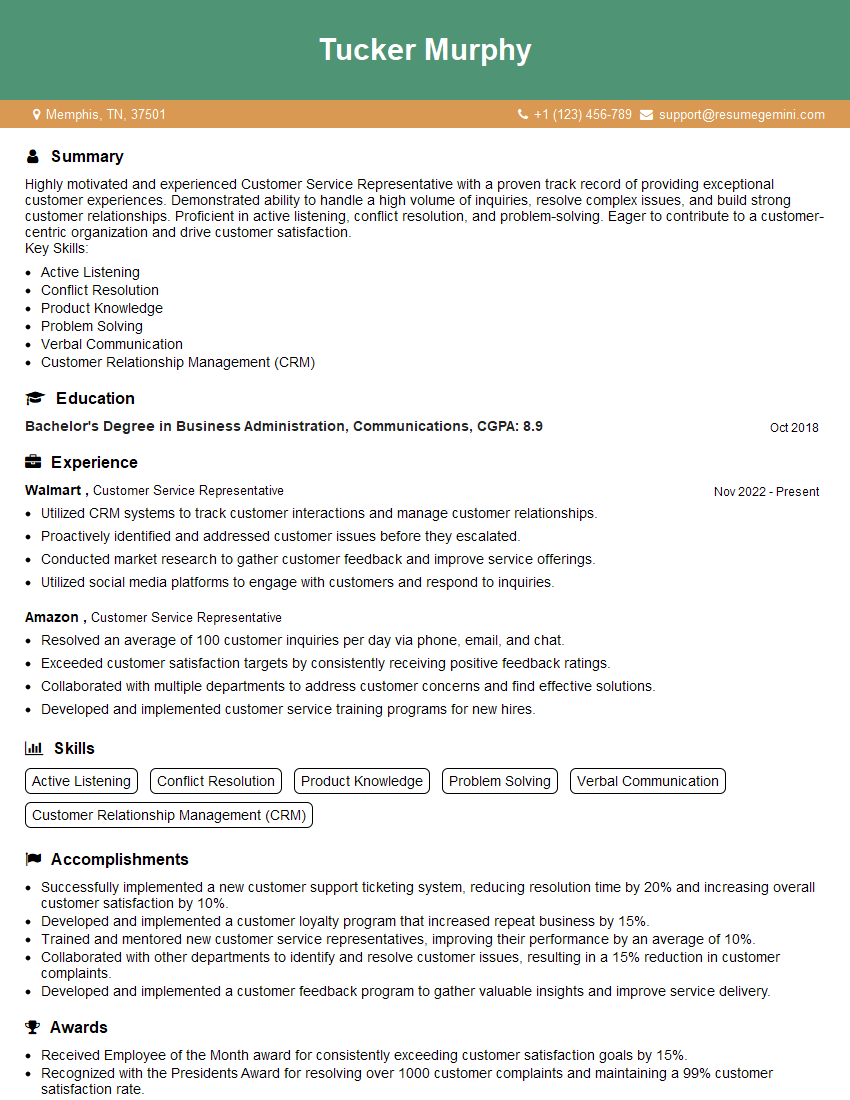
Customer Service Representative Resume Sample
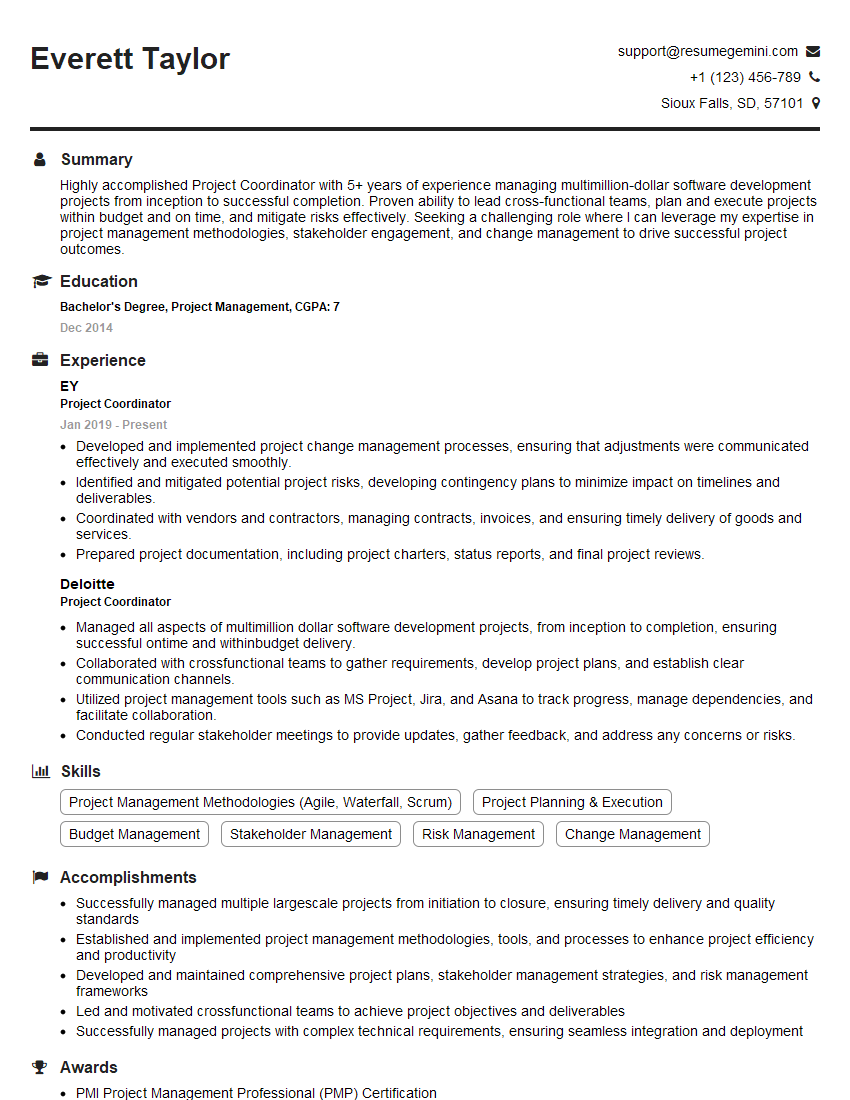
Project Coordinator Resume Sample

Social Media Manager Resume Sample
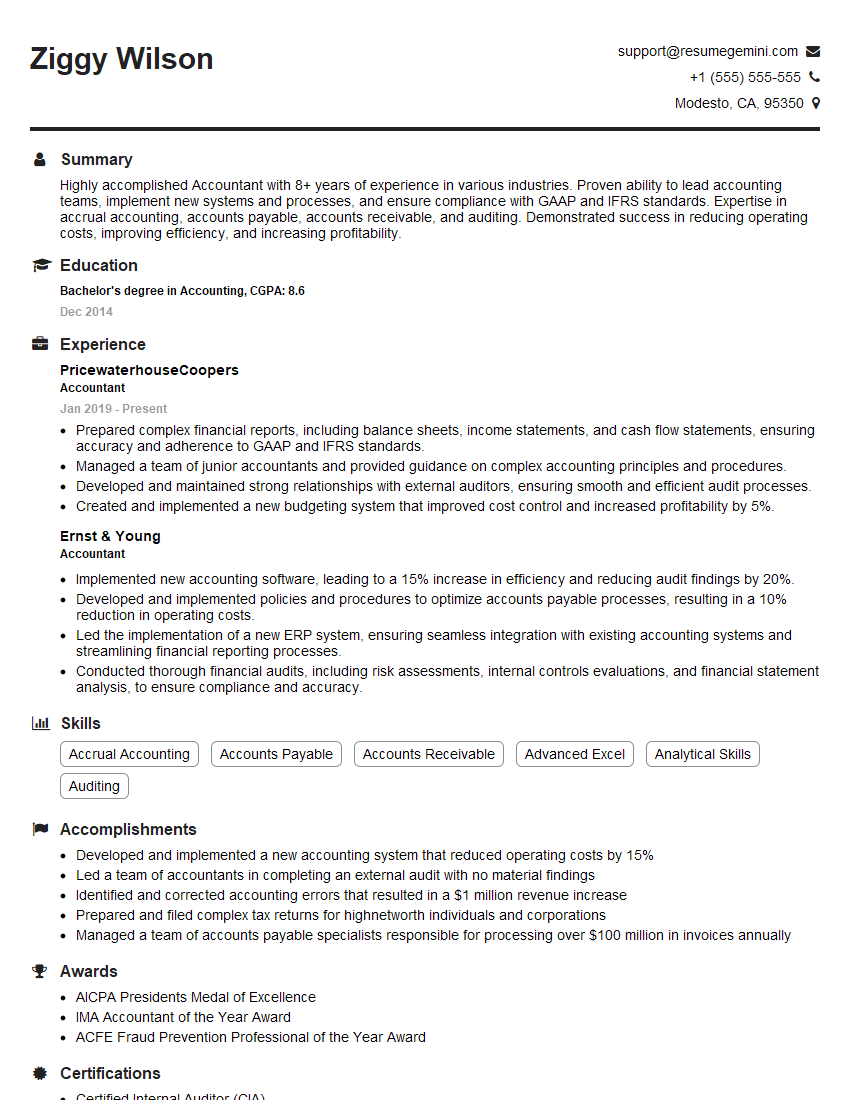
Accountant Resume Sample
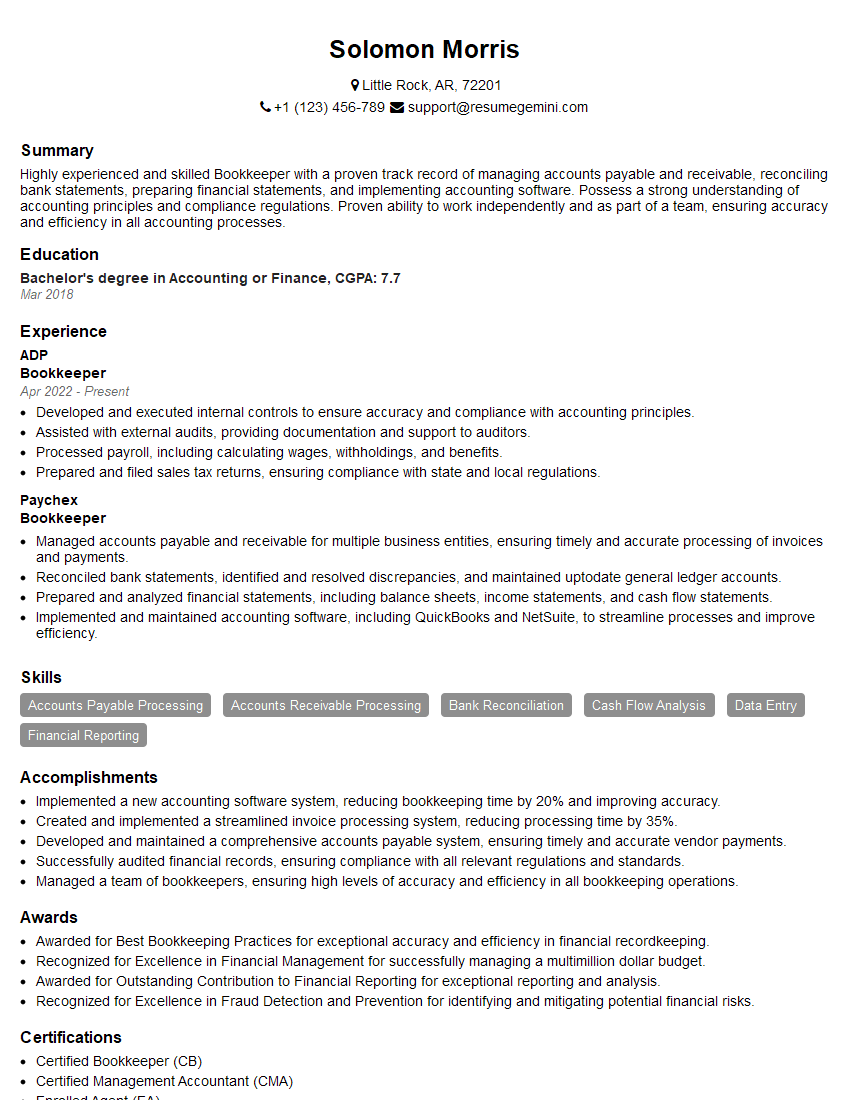
Bookkeeper Resume Sample
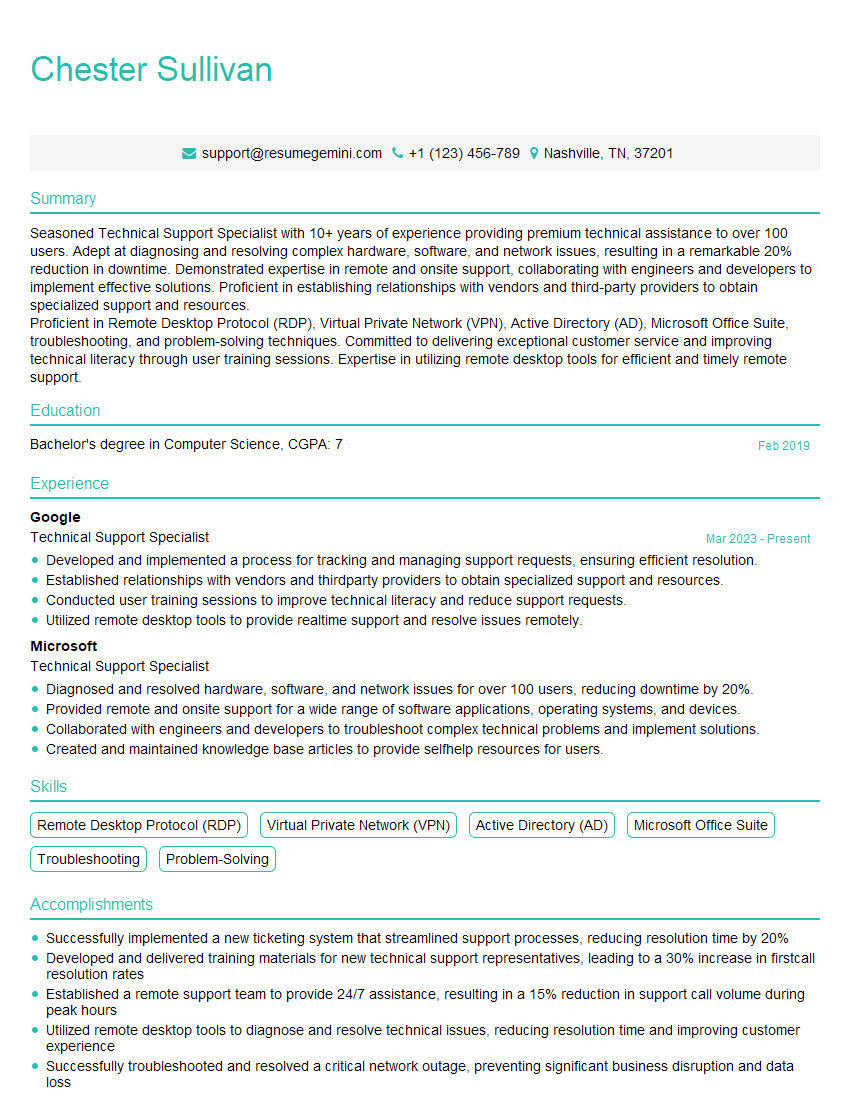
Technical Support Specialist Resume Sample
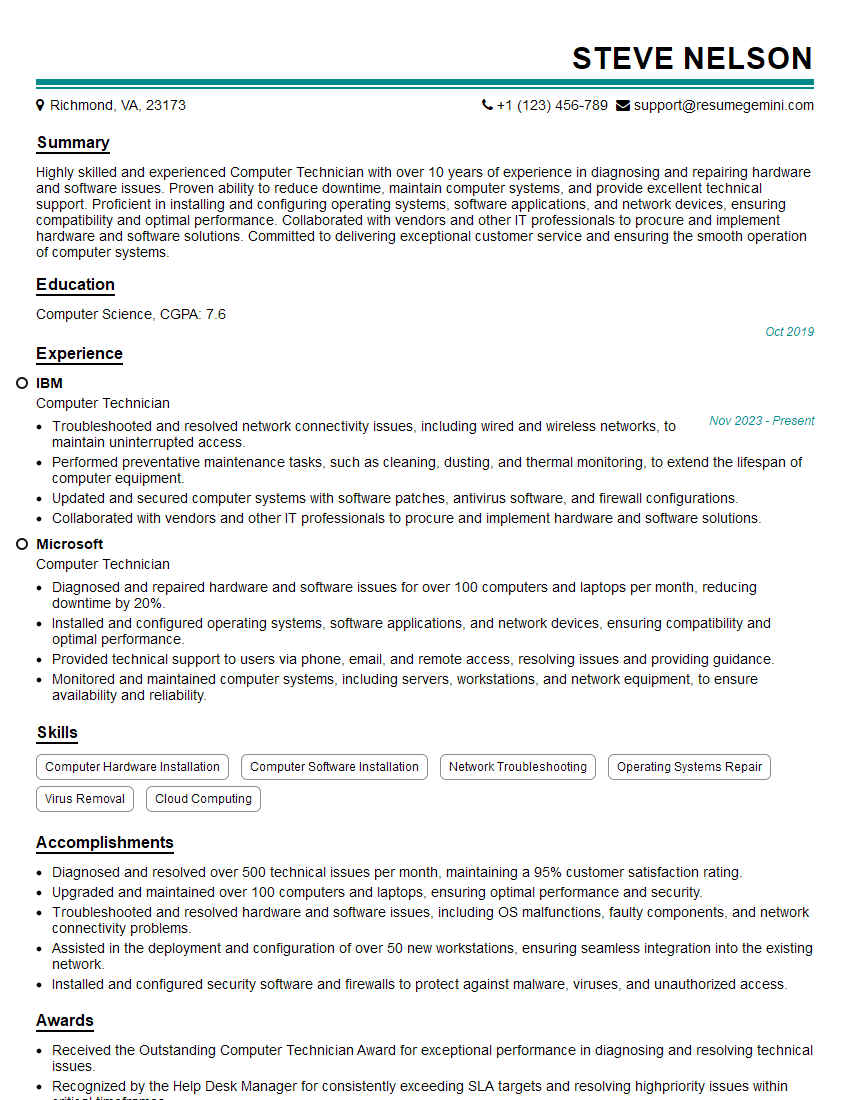
Computer Technician Resume Sample
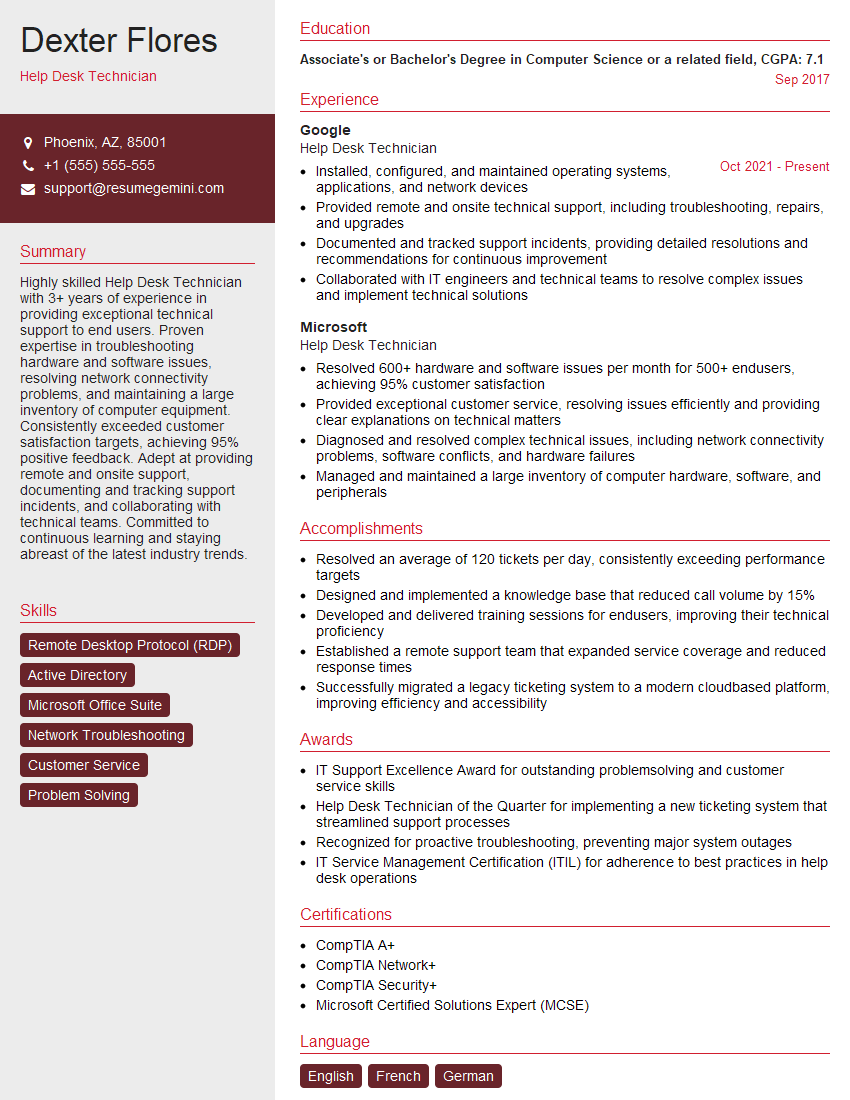
Help Desk Technician Resume Sample

Technical Writer Resume Sample
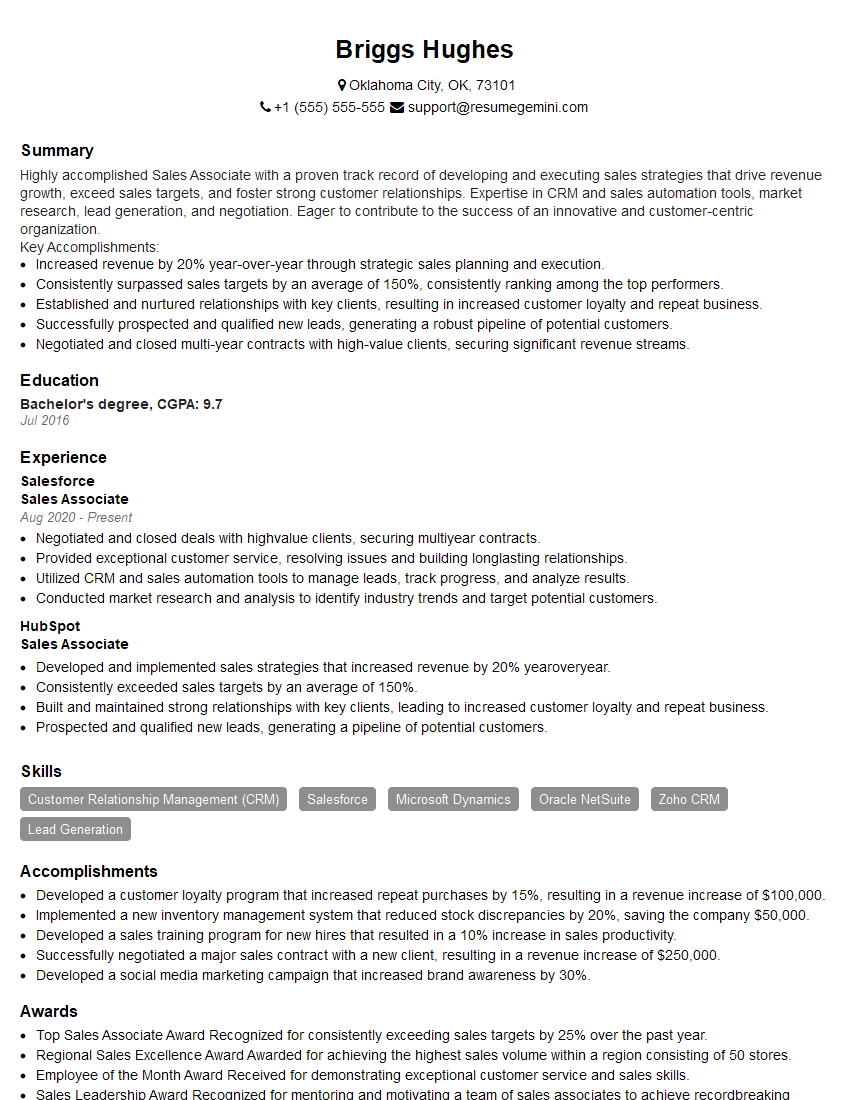
Sales Associate Resume Sample
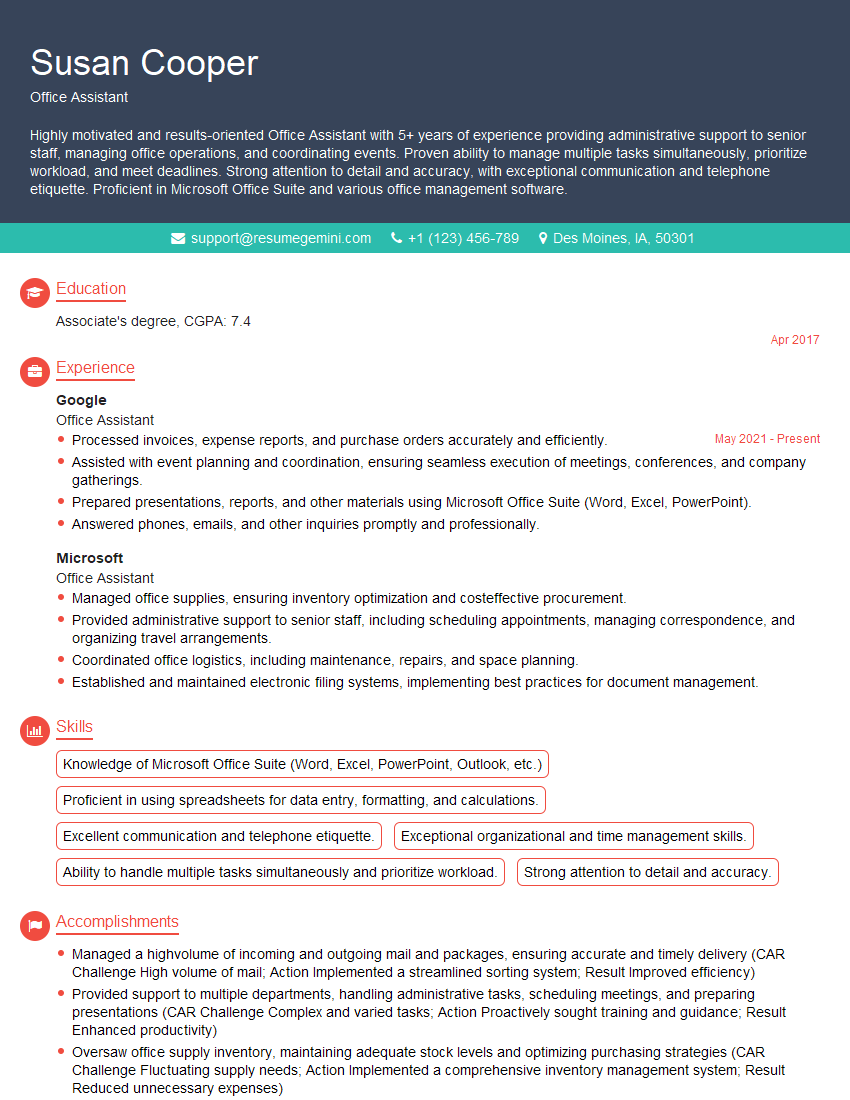
Office Assistant Resume Sample
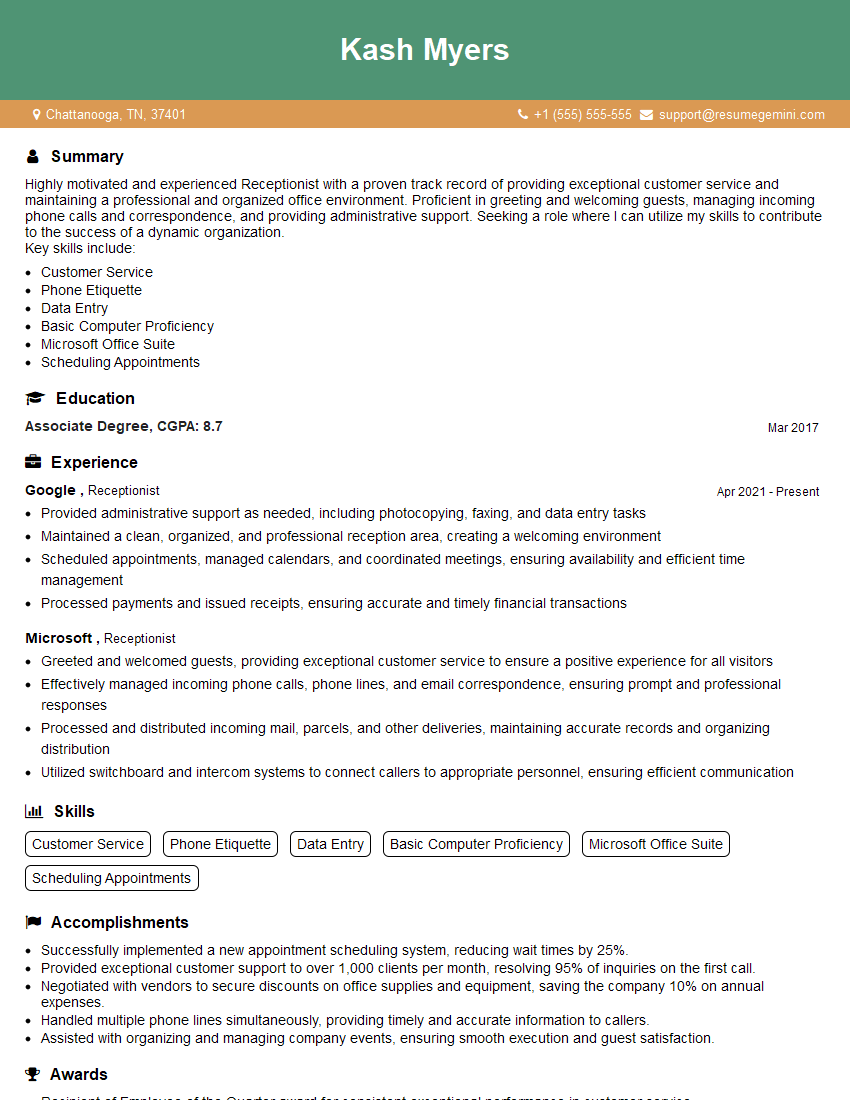
Receptionist Resume Sample

Executive Assistant Resume Sample

Computer Operator Resume Sample

Data Entry Clerk Resume Sample
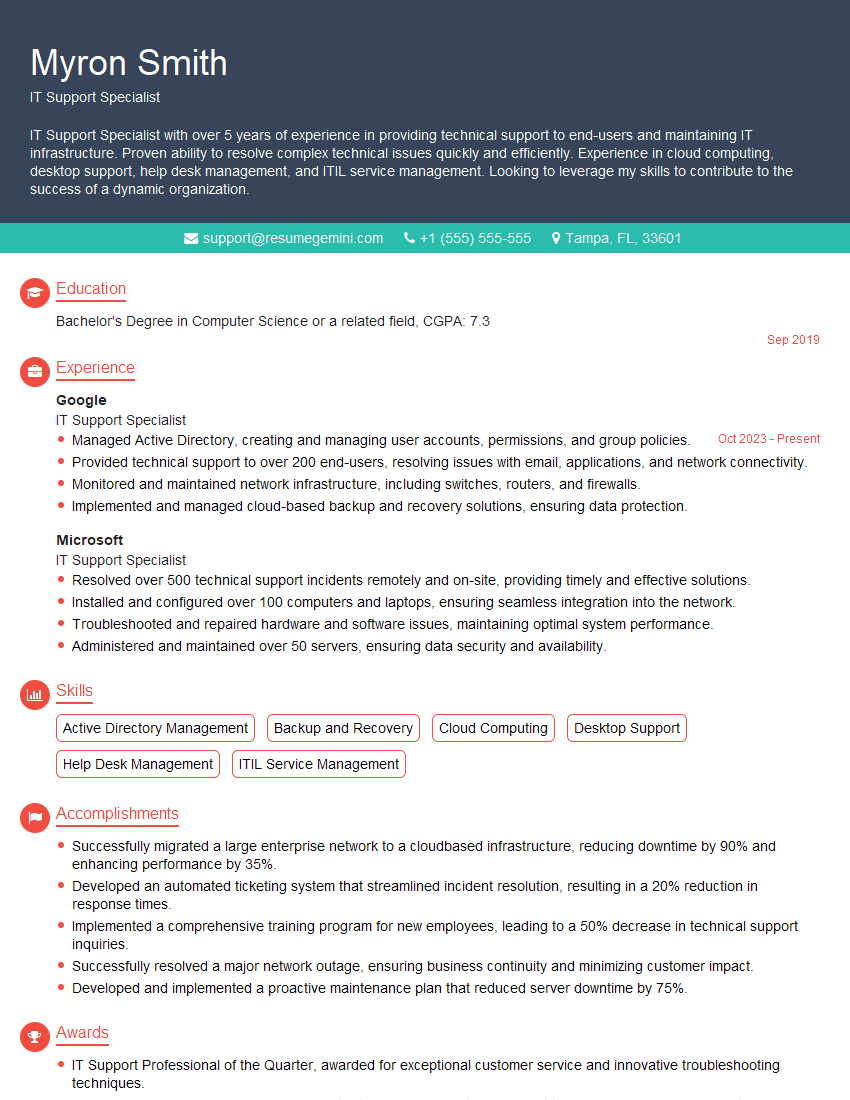
IT Support Specialist Resume Sample
- Office Manager
- Administrative Assistant
- Customer Service Representative
- Project Coordinator
- Social Media Manager
- Accountant
- Bookkeeper
- Technical Support Specialist
- Computer Technician
- Help Desk Technician
- Technical Writer
- Sales Associate
- Office Assistant
- Receptionist
- Executive Assistant
- Computer Operator
- Data Entry Clerk
- IT Support Specialist
Explore more articles
Users Rating of Our Blogs
Share Your Experience
We value your feedback! Please rate our content and share your thoughts (optional).
What Readers Say About Our Blog
Attention music lovers!
Wow, All the best Sax Summer music !!!
Spotify: https://open.spotify.com/artist/6ShcdIT7rPVVaFEpgZQbUk
Apple Music: https://music.apple.com/fr/artist/jimmy-sax-black/1530501936
YouTube: https://music.youtube.com/browse/VLOLAK5uy_noClmC7abM6YpZsnySxRqt3LoalPf88No
Other Platforms and Free Downloads : https://fanlink.tv/jimmysaxblack
on google : https://www.google.com/search?q=22+AND+22+AND+22
on ChatGPT : https://chat.openai.com?q=who20jlJimmy20Black20Sax20Producer
Get back into the groove with Jimmy sax Black
Best regards,
Jimmy sax Black
www.jimmysaxblack.com
Hi I am a troller at The aquatic interview center and I suddenly went so fast in Roblox and it was gone when I reset.
Hi,
Business owners spend hours every week worrying about their website—or avoiding it because it feels overwhelming.
We’d like to take that off your plate:
$69/month. Everything handled.
Our team will:
Design a custom website—or completely overhaul your current one
Take care of hosting as an option
Handle edits and improvements—up to 60 minutes of work included every month
No setup fees, no annual commitments. Just a site that makes a strong first impression.
Find out if it’s right for you:
https://websolutionsgenius.com/awardwinningwebsites
Hello,
we currently offer a complimentary backlink and URL indexing test for search engine optimization professionals.
You can get complimentary indexing credits to test how link discovery works in practice.
No credit card is required and there is no recurring fee.
You can find details here:
https://wikipedia-backlinks.com/indexing/
Regards
NICE RESPONSE TO Q & A
hi
The aim of this message is regarding an unclaimed deposit of a deceased nationale that bears the same name as you. You are not relate to him as there are millions of people answering the names across around the world. But i will use my position to influence the release of the deposit to you for our mutual benefit.
Respond for full details and how to claim the deposit. This is 100% risk free. Send hello to my email id: [email protected]
Luka Chachibaialuka
Hey interviewgemini.com, just wanted to follow up on my last email.
We just launched Call the Monster, an parenting app that lets you summon friendly ‘monsters’ kids actually listen to.
We’re also running a giveaway for everyone who downloads the app. Since it’s brand new, there aren’t many users yet, which means you’ve got a much better chance of winning some great prizes.
You can check it out here: https://bit.ly/callamonsterapp
Or follow us on Instagram: https://www.instagram.com/callamonsterapp
Thanks,
Ryan
CEO – Call the Monster App
Hey interviewgemini.com, I saw your website and love your approach.
I just want this to look like spam email, but want to share something important to you. We just launched Call the Monster, a parenting app that lets you summon friendly ‘monsters’ kids actually listen to.
Parents are loving it for calming chaos before bedtime. Thought you might want to try it: https://bit.ly/callamonsterapp or just follow our fun monster lore on Instagram: https://www.instagram.com/callamonsterapp
Thanks,
Ryan
CEO – Call A Monster APP
To the interviewgemini.com Owner.
Dear interviewgemini.com Webmaster!
Hi interviewgemini.com Webmaster!
Dear interviewgemini.com Webmaster!
excellent
Hello,
We found issues with your domain’s email setup that may be sending your messages to spam or blocking them completely. InboxShield Mini shows you how to fix it in minutes — no tech skills required.
Scan your domain now for details: https://inboxshield-mini.com/
— Adam @ InboxShield Mini
Reply STOP to unsubscribe
Hi, are you owner of interviewgemini.com? What if I told you I could help you find extra time in your schedule, reconnect with leads you didn’t even realize you missed, and bring in more “I want to work with you” conversations, without increasing your ad spend or hiring a full-time employee?
All with a flexible, budget-friendly service that could easily pay for itself. Sounds good?
Would it be nice to jump on a quick 10-minute call so I can show you exactly how we make this work?
Best,
Hapei
Marketing Director
Hey, I know you’re the owner of interviewgemini.com. I’ll be quick.
Fundraising for your business is tough and time-consuming. We make it easier by guaranteeing two private investor meetings each month, for six months. No demos, no pitch events – just direct introductions to active investors matched to your startup.
If youR17;re raising, this could help you build real momentum. Want me to send more info?
Hi, I represent an SEO company that specialises in getting you AI citations and higher rankings on Google. I’d like to offer you a 100% free SEO audit for your website. Would you be interested?
Hi, I represent an SEO company that specialises in getting you AI citations and higher rankings on Google. I’d like to offer you a 100% free SEO audit for your website. Would you be interested?