Every successful interview starts with knowing what to expect. In this blog, we’ll take you through the top Basic Computer Literacy and Software Skills interview questions, breaking them down with expert tips to help you deliver impactful answers. Step into your next interview fully prepared and ready to succeed.
Questions Asked in Basic Computer Literacy and Software Skills Interview
Q 1. What is the difference between hardware and software?
Think of a computer as a body. Hardware is the physical, tangible parts – the body itself. This includes the monitor you see, the keyboard you type on, the mouse you use, the hard drive storing your data, the CPU (Central Processing Unit) which is the brain, and the RAM (Random Access Memory) which is short-term memory. Software, on the other hand, is the set of instructions – the mind – that tells the hardware what to do. It’s intangible; you can’t touch it. Examples include operating systems like Windows, applications like Microsoft Word, and even simple games.
- Hardware: Monitor, keyboard, mouse, CPU, RAM, hard drive, printer.
- Software: Windows 10, Microsoft Word, Google Chrome, Adobe Photoshop.
Without software, the hardware is just a collection of inert components. Without hardware, software has nowhere to run.
Q 2. Explain the function of an operating system.
The operating system (OS) is the fundamental software that manages all the hardware and software resources of a computer. It’s like the air traffic controller of your computer, making sure everything runs smoothly and efficiently. It acts as an intermediary between you (the user) and the hardware. Key functions include:
- Managing Hardware: Allocating resources like memory and processing power to different programs.
- Running Applications: Providing a platform for software programs to operate.
- File Management: Organizing and storing files on the hard drive.
- User Interface: Providing a way for users to interact with the computer (e.g., graphical user interface).
- Security: Protecting the system from unauthorized access and malware.
For example, when you open a document in Word, the OS manages the allocation of memory and processing power to Word, allowing it to run. If multiple programs are running simultaneously, the OS ensures they don’t interfere with each other.
Q 3. Name three common operating systems.
Three common operating systems are:
- Windows: Developed by Microsoft, it’s the most widely used OS for personal computers. Known for its user-friendly interface and vast software compatibility.
- macOS: Developed by Apple, it’s used exclusively on Apple computers (Macs). It’s known for its elegant design and seamless integration with other Apple products.
- Linux: An open-source OS known for its flexibility and customizability. It’s popular among developers and system administrators and also forms the basis of many mobile operating systems like Android.
Q 4. Describe your experience with Microsoft Word.
I’ve been using Microsoft Word extensively for over 10 years, both for personal and professional tasks. My proficiency encompasses a wide range of features, including:
- Document Creation and Formatting: Creating professional-looking documents with various fonts, styles, and layouts. I’m comfortable using headers, footers, page numbers, and styles to maintain consistency.
- Table Creation and Manipulation: Creating and editing complex tables, formatting cells, and using formulas within tables.
- Mail Merge: Generating personalized letters and documents using mail merge functionality.
- Collaboration Tools: Using track changes, comments, and version history to collaborate effectively with others on projects.
- Advanced Features: I’m familiar with using macros (though not an expert programmer), advanced formatting options, and inserting various objects (images, charts, etc.).
For example, I recently used Word to create a detailed project proposal, incorporating charts and graphs generated in Excel, and incorporating client feedback using track changes.
Q 5. How proficient are you with Microsoft Excel? Can you explain your experience with formulas?
I’m highly proficient in Microsoft Excel. I’ve used it extensively for data analysis, financial modeling, and report generation. My formula experience is comprehensive; I’m comfortable with a wide range of functions including:
- Basic Formulas:
SUM,AVERAGE,COUNT,MAX,MIN - Logical Functions:
IF,AND,OR - Lookup Functions:
VLOOKUP,HLOOKUP,INDEX,MATCH - Statistical Functions:
STDEV,AVERAGEIF,COUNTIF - Date and Time Functions:
TODAY,NOW,YEAR,MONTH,DAY
I regularly use these functions to analyze datasets, create charts and graphs, and generate reports for various purposes. For instance, I recently created a financial model projecting revenue for the next five years, using complex formulas involving various factors and scenarios.
Q 6. What is your experience with PowerPoint or similar presentation software?
I have extensive experience with PowerPoint and similar presentation software like Google Slides. I can create visually appealing and engaging presentations incorporating various elements such as:
- Text and Formatting: Using different fonts, sizes, and styles to create clear and concise messaging.
- Images and Graphics: Incorporating high-quality images and graphics to enhance visual appeal.
- Charts and Graphs: Using charts and graphs to present data effectively.
- Animations and Transitions: Adding subtle animations and transitions to make the presentation more dynamic (without being overly distracting).
- Multimedia: Embedding videos and audio clips when appropriate.
I’ve used these skills to create presentations for various audiences, from small team meetings to large conferences. My focus is always on clarity, visual appeal, and effectively communicating the key message.
Q 7. How familiar are you with email clients such as Outlook or Gmail?
I’m very familiar with email clients like Outlook and Gmail. My experience includes:
- Email Composition and Management: Composing professional emails, managing inbox efficiently using folders and filters, and prioritizing important messages.
- Calendar Management: Scheduling meetings and appointments, setting reminders, and managing multiple calendars.
- Contact Management: Organizing contacts, creating groups, and managing contact information.
- Email Security: Being aware of phishing scams and best practices for email security, such as recognizing suspicious emails.
- Advanced Features: Using features like email rules, signatures, and email templates to streamline workflows.
I regularly use email for communication, scheduling, and collaboration, ensuring that I adhere to professional etiquette and best practices.
Q 8. How do you organize your files on a computer?
Organizing my computer files is crucial for efficiency and productivity. I employ a hierarchical system, using a combination of folders and subfolders to categorize files logically. Think of it like organizing a library – you wouldn’t just throw all the books onto one shelf!
For example, I might have a main folder called “Work,” with subfolders for each project (e.g., “Project Alpha,” “Project Beta”). Within each project folder, I’d have subfolders for documents, spreadsheets, presentations, and images. This clear structure allows me to quickly locate any file I need. I also use descriptive file names, avoiding generic titles like “Document1.docx.” Instead, I use names that clearly indicate the file’s content, such as “Project Alpha_Proposal_Final.docx.” Regularly cleaning up and deleting unnecessary files helps maintain a streamlined system.
Using descriptive folder and file names makes finding files dramatically easier – saving me time and frustration. It also improves collaboration if others need access to my files.
Q 9. Describe your experience with internet browsers.
I have extensive experience using various internet browsers, including Chrome, Firefox, and Edge. My familiarity extends beyond simply browsing; I understand how to manage bookmarks, extensions, and browser settings. I know how to use private browsing modes to protect my privacy and clear browsing history for security. I’m comfortable troubleshooting common browser issues, such as slow loading times or plugin conflicts.
For instance, I regularly use browser extensions to enhance productivity, such as Grammarly for writing and Evernote Web Clipper for saving web content. Understanding browser settings allows me to customize my browsing experience – adjusting font sizes, managing cookies, and optimizing security protocols. I am also adept at using the developer tools within browsers for basic web debugging.
Q 10. How do you troubleshoot basic computer problems, such as a printer malfunction?
Troubleshooting printer malfunctions involves a systematic approach. My first step is always to check the most obvious things: Is the printer turned on? Is it connected to the computer and the power source correctly? Is there paper in the tray? Is the ink or toner low?
If the issue persists, I’d check the printer’s status lights or error messages for clues. Many printers have helpful indicators that pinpoint the problem. Next, I’d check the printer driver on my computer. Sometimes a driver update or reinstall is necessary. If the problem is still unresolved, I might consult the printer’s manual or the manufacturer’s website for troubleshooting guides or contact their support team.
For instance, a recent issue I encountered involved a printer that was offline. After checking the obvious, I discovered the printer’s network connection had dropped. Rebooting the router and the printer solved the problem. A methodical approach is key to quickly identifying and resolving these issues.
Q 11. What is your experience with file management, including creating folders and moving files?
File management is a fundamental skill for me. I’m proficient in creating folders and subfolders using various operating systems (Windows, macOS). I understand how to move, copy, rename, and delete files efficiently. I use the drag-and-drop feature extensively, along with keyboard shortcuts for faster navigation.
For example, when working on a large project, I’ll create a main project folder, then subfolders for each phase or deliverable. This keeps everything organized and avoids file clutter. I also understand the importance of using descriptive file names to easily locate files later. I regularly review and clean up my files, deleting duplicates or outdated documents to maintain a clear and organized workspace.
Proficient file management is crucial for project efficiency. The time saved by easily locating files significantly increases productivity.
Q 12. Are you comfortable using cloud storage services like Google Drive or Dropbox?
Yes, I’m very comfortable using cloud storage services like Google Drive and Dropbox. I understand their benefits for data backup, accessibility, and collaboration. I’m familiar with features like file sharing, version history, and syncing across multiple devices. I often utilize these services for storing important documents, photos, and project files.
I also understand the importance of security and privacy when using cloud storage, including password management and selecting appropriate privacy settings. I understand the tradeoffs between convenience and security, weighing these considerations carefully when selecting and using cloud storage options.
Q 13. Explain your understanding of data backups and recovery.
Data backups and recovery are essential for protecting against data loss. A backup is simply a copy of your data, stored separately from the original. In the event of a hardware failure, accidental deletion, or malware attack, you can restore your data from a backup. There are various backup strategies, including local backups (to an external hard drive), cloud backups (using services like Google Drive or Dropbox), and offsite backups (storing data in a physically separate location).
Regular backups are crucial. The frequency depends on how often your data changes; some users back up daily, while others might do it weekly or monthly. I always ensure that backups are tested periodically to make sure they are recoverable. Knowing how to restore data from a backup is just as important as creating the backups themselves.
Imagine losing years of photos or important project documents – a properly executed backup strategy prevents this disaster.
Q 14. What is your experience with different file formats (e.g., .doc, .pdf, .xlsx)?
I have experience with a wide range of file formats, including the common ones you mentioned: .doc (Microsoft Word), .pdf (Portable Document Format), and .xlsx (Microsoft Excel). Beyond these, I’m also familiar with image formats like .jpg, .png, and .gif; audio formats like .mp3 and .wav; and video formats like .mp4 and .mov. I understand the inherent properties and uses of each file type. For instance, I know that .pdf files are generally good for preserving formatting across different platforms, while .docx files allow for more editing.
This knowledge is crucial for effective file management and collaboration. It helps ensure that I can open, edit, and share files regardless of the application used to create them.
Q 15. How comfortable are you with using search engines effectively?
I’m highly proficient in using search engines effectively. My approach goes beyond simply typing keywords; it involves strategically crafting search queries to yield the most relevant results. This includes using advanced search operators like quotation marks for exact phrases (e.g., “data analysis techniques”), minus signs to exclude irrelevant terms (e.g., “machine learning -python”), and the asterisk for wildcard searches (e.g., “data* analysis”).
For example, if I’m researching a specific software bug, I wouldn’t just type the error message. I’d break it down, identify key terms, and use boolean operators to refine my search across different platforms like Google, Bing, and specialized technical forums. This ensures I find precise solutions quickly, saving valuable time and effort. I also regularly utilize the filtering and sorting options offered by search engines to prioritize results from reputable sources and specific date ranges.
Career Expert Tips:
- Ace those interviews! Prepare effectively by reviewing the Top 50 Most Common Interview Questions on ResumeGemini.
- Navigate your job search with confidence! Explore a wide range of Career Tips on ResumeGemini. Learn about common challenges and recommendations to overcome them.
- Craft the perfect resume! Master the Art of Resume Writing with ResumeGemini’s guide. Showcase your unique qualifications and achievements effectively.
- Don’t miss out on holiday savings! Build your dream resume with ResumeGemini’s ATS optimized templates.
Q 16. Describe your experience with social media platforms from a professional perspective.
From a professional standpoint, I view social media as a powerful tool for networking, staying updated on industry trends, and even for targeted marketing (depending on the role). I’m experienced in using platforms like LinkedIn, Twitter, and even occasionally Facebook for professional purposes. LinkedIn, in particular, is crucial for building professional connections, showcasing my skills, and discovering job opportunities. I understand the importance of maintaining a professional online presence, ensuring my posts and interactions reflect positively on my brand and my organization.
On Twitter, I follow thought leaders and key players in my field to stay informed about advancements and emerging trends. I use hashtags strategically to find relevant discussions and participate in professional conversations. My approach emphasizes responsible and ethical online behavior, always respecting privacy and professional boundaries.
Q 17. Explain your experience with basic computer security practices.
My experience with basic computer security practices is extensive. I understand the importance of strong passwords (using a password manager to generate and store them securely), regular software updates, and the dangers of phishing attempts. I’m adept at recognizing suspicious emails and websites, never clicking on links or downloading attachments from unknown sources. I routinely back up my important data to both local and cloud storage to prevent data loss in case of a hardware failure or cyberattack.
Furthermore, I’m familiar with the concept of firewalls and antivirus software, understanding their roles in protecting my system from malware and unauthorized access. I’m cautious about connecting to public Wi-Fi networks, understanding their inherent security risks. I prioritize using secure websites (HTTPS) and regularly review my privacy settings on various applications and platforms. Think of it like locking your front door and installing an alarm system – proactive security measures are essential.
Q 18. What is your typing speed and accuracy?
My typing speed is approximately 70 words per minute with over 95% accuracy. I’ve consistently honed my typing skills over years of working with computers, and I find this speed and accuracy crucial for maintaining efficiency in my work. I utilize touch typing, minimizing the need to look at the keyboard, which significantly increases both speed and accuracy. I regularly use online typing tests to maintain and improve my skills.
Q 19. How familiar are you with database software (e.g., Access or MySQL)?
I have considerable experience with database software. While I haven’t worked extensively with MySQL, I’m very familiar with Microsoft Access, having used it for various projects, including data management, report generation, and data analysis. I understand database concepts like tables, queries, forms, and reports. In Access, I’ve created databases for inventory management, customer relationship tracking, and even project scheduling. This involved designing database schemas, creating input forms, developing queries to extract specific data, and generating comprehensive reports for analysis and decision-making. I’m confident in my ability to learn and adapt to other database systems quickly.
Q 20. What is your experience with web conferencing software (e.g., Zoom or Skype)?
I have extensive experience with web conferencing software, primarily Zoom and Skype. I’ve used both for numerous professional purposes, including client meetings, internal team collaborations, and online presentations. I’m comfortable using features such as screen sharing, recording sessions, and managing participant access. I understand the importance of utilizing the mute function appropriately, minimizing background noise, and ensuring a clear and concise communication style. I’ve also utilized features like breakout rooms in Zoom to facilitate small group discussions during larger meetings. I find these tools invaluable for remote collaboration and communication.
Q 21. How comfortable are you with using online collaboration tools?
I’m very comfortable using online collaboration tools. I’ve used platforms like Google Workspace (Docs, Sheets, Slides), Microsoft 365 (Word, Excel, PowerPoint), and various project management tools. My experience includes collaboratively editing documents, spreadsheets, and presentations in real-time with multiple users. I understand the importance of version control, commenting features, and effective communication within these collaborative environments. I find these tools essential for fostering teamwork and enhancing efficiency, especially in remote or distributed team settings. The ability to seamlessly share and edit documents in real-time is a significant advantage in modern collaborative workflows.
Q 22. Describe your experience using project management software.
I have extensive experience using project management software, primarily Trello and Asana. These tools are invaluable for organizing tasks, tracking progress, and collaborating with team members. In Trello, for example, I’ve used Kanban boards to visualize workflows, breaking down large projects into smaller, manageable cards. Each card represents a specific task with assigned deadlines, checklists, and comments for clear communication. Asana’s features, such as task dependencies and custom fields, have helped me manage complex projects with multiple stakeholders and timelines. I’m adept at utilizing their reporting features to monitor project health and identify potential bottlenecks. For instance, in a recent project involving website development, I used Asana to track the progress of individual developers, ensuring each stage—from design to deployment—stayed on schedule. This allowed for proactive issue identification and timely resolution.
Q 23. Can you describe your experience with any Customer Relationship Management (CRM) software?
My experience with CRM software includes using Salesforce. I’ve used it to manage customer interactions, track sales leads, and analyze sales data. I understand the importance of accurate data entry in a CRM, as it forms the basis for effective customer relationship management. Salesforce’s reporting features helped me identify key trends in customer behavior, leading to improved sales strategies. For instance, I once used Salesforce’s reporting tools to identify a segment of customers who were highly responsive to a particular marketing campaign. This insight allowed us to tailor future marketing efforts, resulting in a significant increase in conversions. I’m proficient in using Salesforce’s features to track customer interactions across various channels, ensuring a consistent and personalized customer experience.
Q 24. What is your experience with basic networking concepts (e.g., Wi-Fi, Ethernet)?
I possess a strong understanding of basic networking concepts. I’m comfortable configuring Wi-Fi networks, troubleshooting connection issues, and understanding the differences between wired (Ethernet) and wireless connections. Wi-Fi uses radio waves to transmit data, offering mobility but potentially slower speeds and susceptibility to interference. Ethernet, on the other hand, uses physical cables for a more reliable and faster connection. I’ve personally resolved numerous network issues, such as identifying faulty network cables, optimizing router settings for better performance, and troubleshooting Wi-Fi dead zones. For example, I once resolved a slow internet connection issue in an office by identifying a faulty Ethernet cable and replacing it. My experience includes working with both TCP/IP and DHCP protocols.
Q 25. How comfortable are you using keyboard shortcuts?
I’m highly comfortable using keyboard shortcuts. I find them essential for increasing efficiency and productivity. I regularly use shortcuts for common tasks like copy-paste (Ctrl+C, Ctrl+V), saving files (Ctrl+S), undo/redo (Ctrl+Z, Ctrl+Y), and navigating documents. I’ve also mastered numerous application-specific shortcuts, such as those in Microsoft Word, Excel, and PowerPoint. This has significantly reduced my reliance on the mouse, saving me valuable time and improving my workflow. For instance, using keyboard shortcuts in Excel to quickly navigate through spreadsheets and apply formulas has greatly accelerated my data analysis tasks.
Q 26. Are you familiar with different types of computer networks (e.g., LAN, WAN)?
Yes, I’m familiar with different types of computer networks. A Local Area Network (LAN) connects devices within a limited geographical area, such as an office or home. A Wide Area Network (WAN) spans a larger geographical area, often connecting multiple LANs across cities, states, or even countries. Understanding the differences is crucial for choosing the right network infrastructure for a specific need. For example, a small office would typically use a LAN, while a multinational corporation would require a WAN to connect its various offices globally. My understanding extends to network topologies (e.g., star, bus, ring) and protocols (e.g., TCP/IP).
Q 27. How would you handle a situation where your computer crashes during a critical task?
If my computer crashes during a critical task, my first step would be to try to save my work if possible. Depending on the situation, this could involve quickly copying and pasting critical data into a separate document or using the ‘Save As’ function. If the computer is completely unresponsive, I would wait a few minutes to see if it restarts automatically. If not, I’d perform a hard reboot by holding down the power button. After rebooting, I’d check for error messages and try to identify the cause of the crash. This might involve checking system logs or running a virus scan. If the problem persists, I’d seek help from IT support or consult online resources to troubleshoot the issue. Regular backups are crucial to mitigate data loss in such scenarios.
Q 28. Describe your experience troubleshooting software problems.
I have considerable experience troubleshooting software problems. My approach is systematic, starting with identifying the specific issue and gathering relevant information. This might involve checking error messages, reviewing system logs, or observing the behavior of the software. I then attempt to isolate the problem by systematically eliminating possible causes, such as checking for outdated drivers, running a virus scan, or verifying software compatibility. For instance, I once resolved a software conflict by carefully uninstalling and reinstalling conflicting programs. If the issue is more complex, I use online resources, documentation, and community forums to find solutions. I also value documenting my troubleshooting steps to aid in future problem-solving.
Key Topics to Learn for Basic Computer Literacy and Software Skills Interview
- Operating Systems (OS): Understanding different OS types (Windows, macOS, Linux), basic navigation, file management, and troubleshooting common issues. Practical application: Describe your experience using different OS features for productivity.
- File Management: Organizing files and folders efficiently, using different file formats (.doc, .pdf, .xlsx, etc.), understanding file paths and directories. Practical application: Explain how you would organize a large project’s files for easy access and collaboration.
- Software Applications: Proficiency in common productivity software (Microsoft Office Suite, Google Workspace, etc.). Practical application: Detail your experience with word processing, spreadsheets, presentations, and email management.
- Internet & Email: Navigating the web, using search engines effectively, understanding email protocols (SMTP, POP3, IMAP), managing email accounts, and practicing online safety. Practical application: Describe a time you used the internet to research and solve a problem.
- Data Entry & Accuracy: Efficient and accurate data entry skills, understanding data validation, and minimizing errors. Practical application: Explain your approach to ensuring data accuracy in a high-pressure situation.
- Basic Troubleshooting: Identifying and resolving common computer problems (e.g., printer issues, software crashes, connectivity problems). Practical application: Describe a situation where you successfully troubleshooted a technical issue.
- Hardware Awareness: Basic understanding of computer hardware components (CPU, RAM, hard drive) and their functions. Practical application: Explain the importance of sufficient RAM for efficient multitasking.
- Data Security & Privacy: Understanding basic cybersecurity concepts, password management, and protecting sensitive information. Practical application: Explain your understanding of safe internet browsing practices.
Next Steps
Mastering Basic Computer Literacy and Software Skills is crucial for success in today’s job market. These skills are foundational for nearly every role and demonstrate your ability to adapt to new technologies and contribute effectively to a team. To significantly boost your job prospects, create an ATS-friendly resume that highlights your abilities clearly and concisely. ResumeGemini is a trusted resource that can help you build a professional resume that showcases your skills effectively. Examples of resumes tailored to Basic Computer Literacy and Software Skills are available to guide you. Take the next step towards a successful career – invest in your resume today.

Office Manager Resume Sample
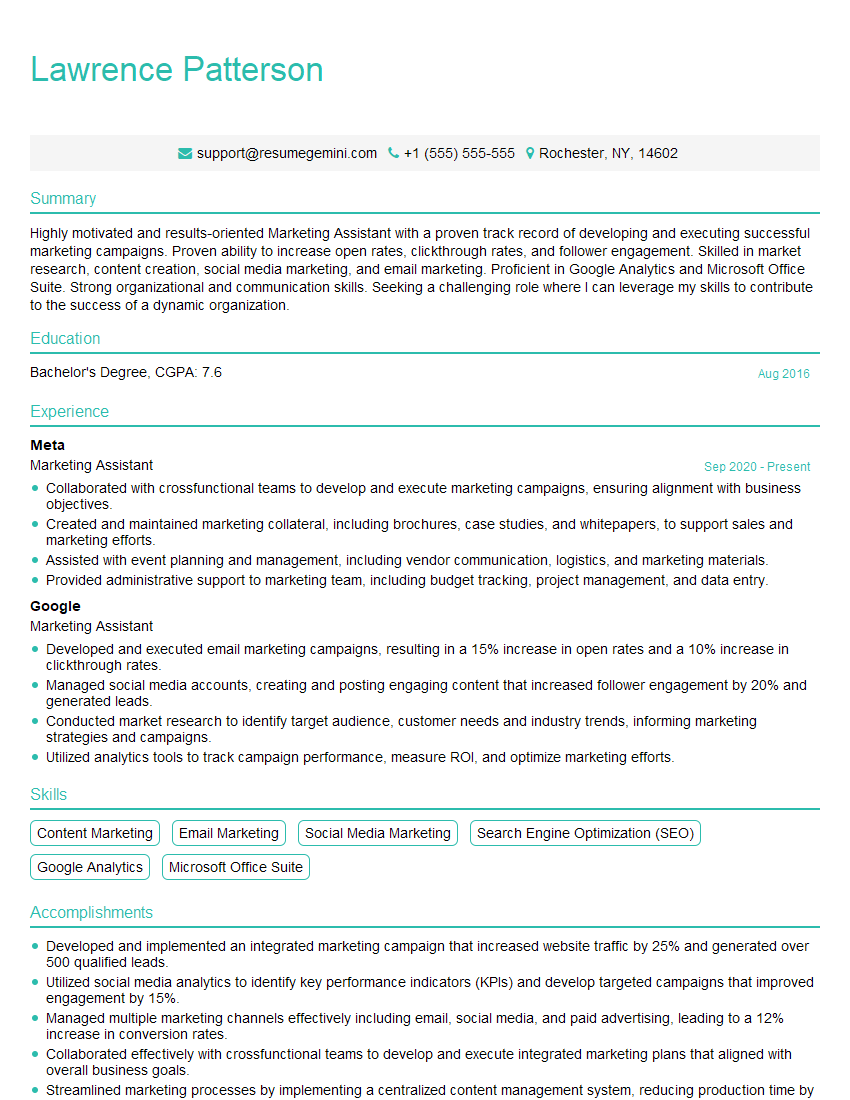
Marketing Assistant Resume Sample

Administrative Assistant Resume Sample
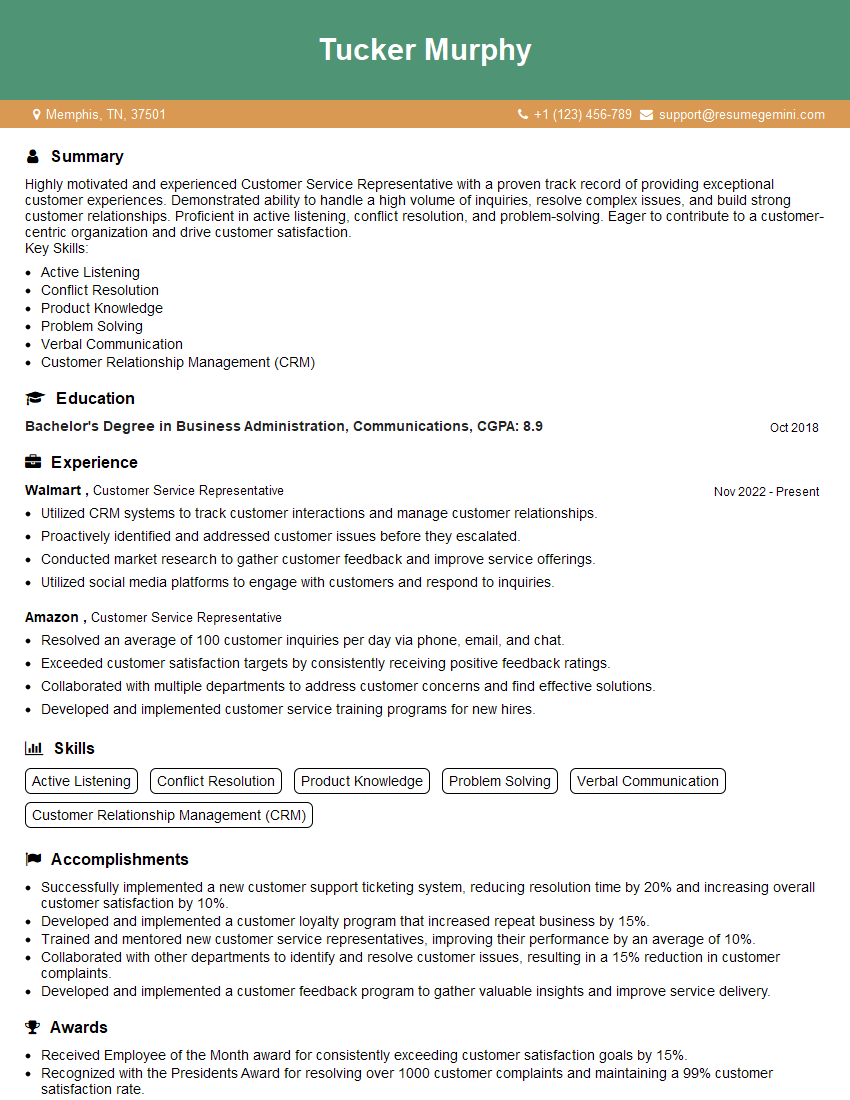
Customer Service Representative Resume Sample
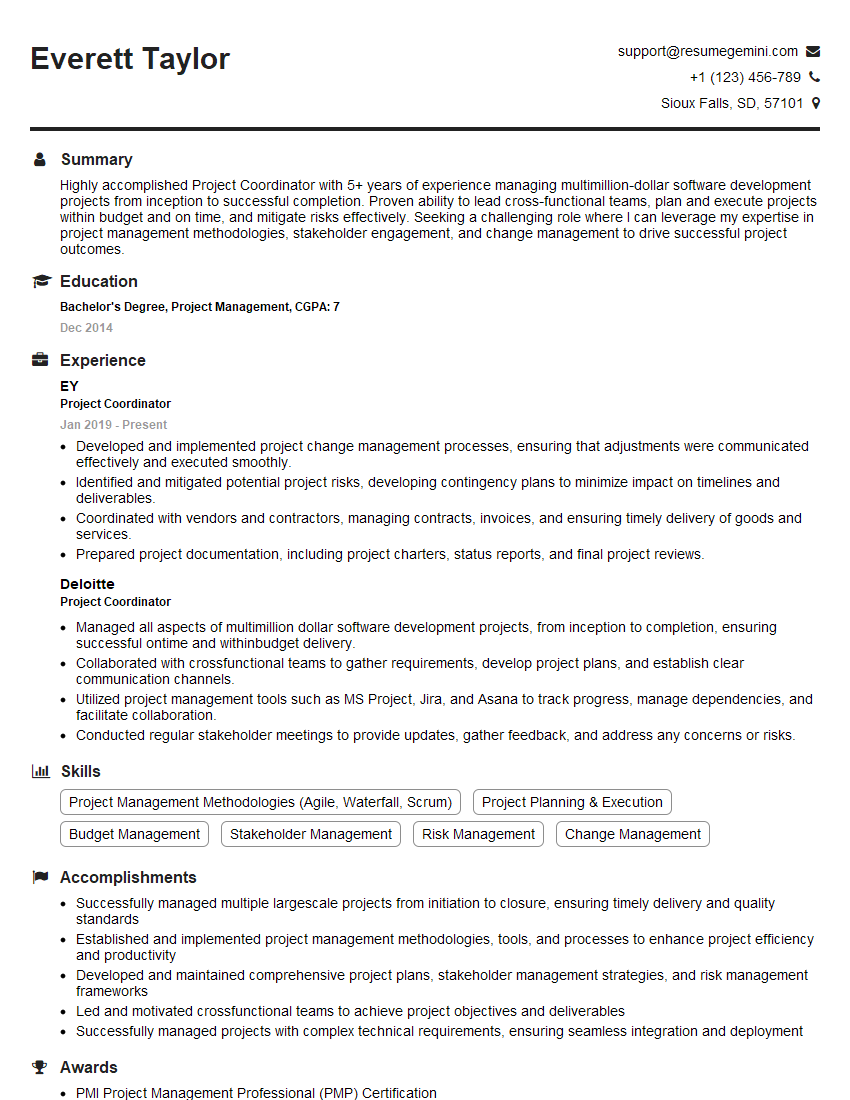
Project Coordinator Resume Sample

Social Media Manager Resume Sample
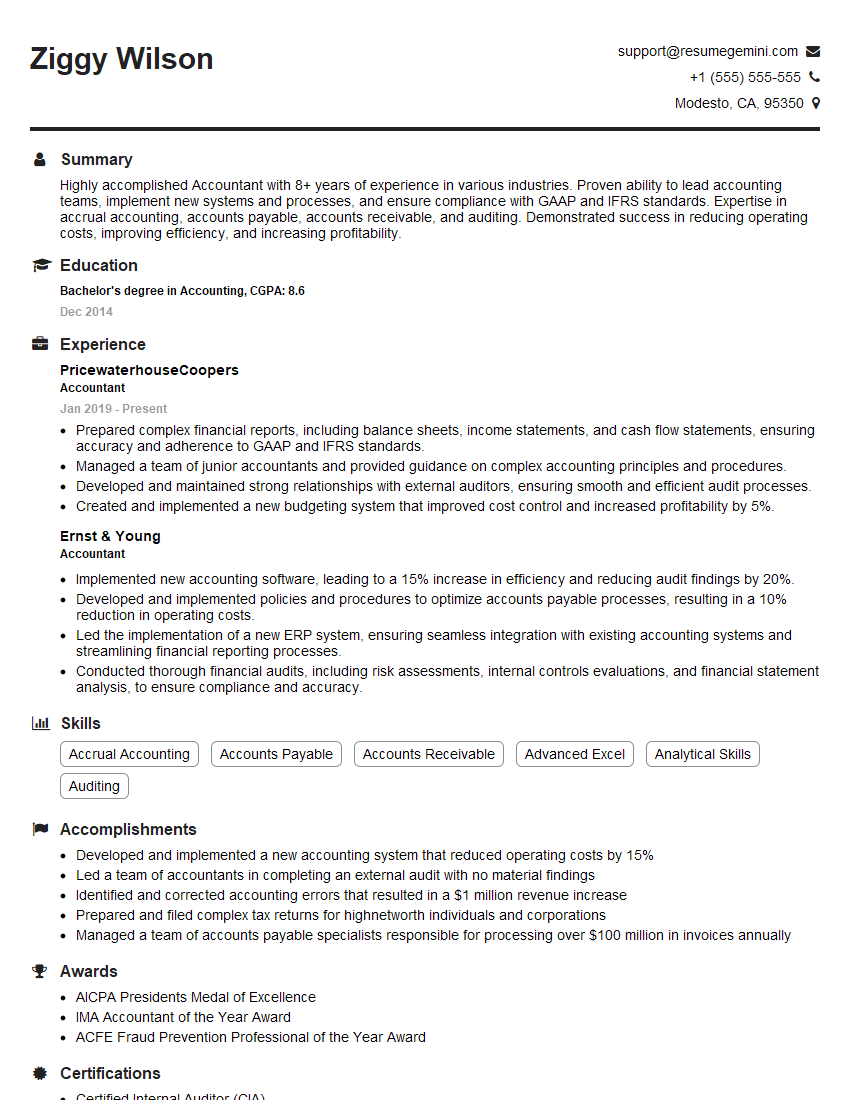
Accountant Resume Sample
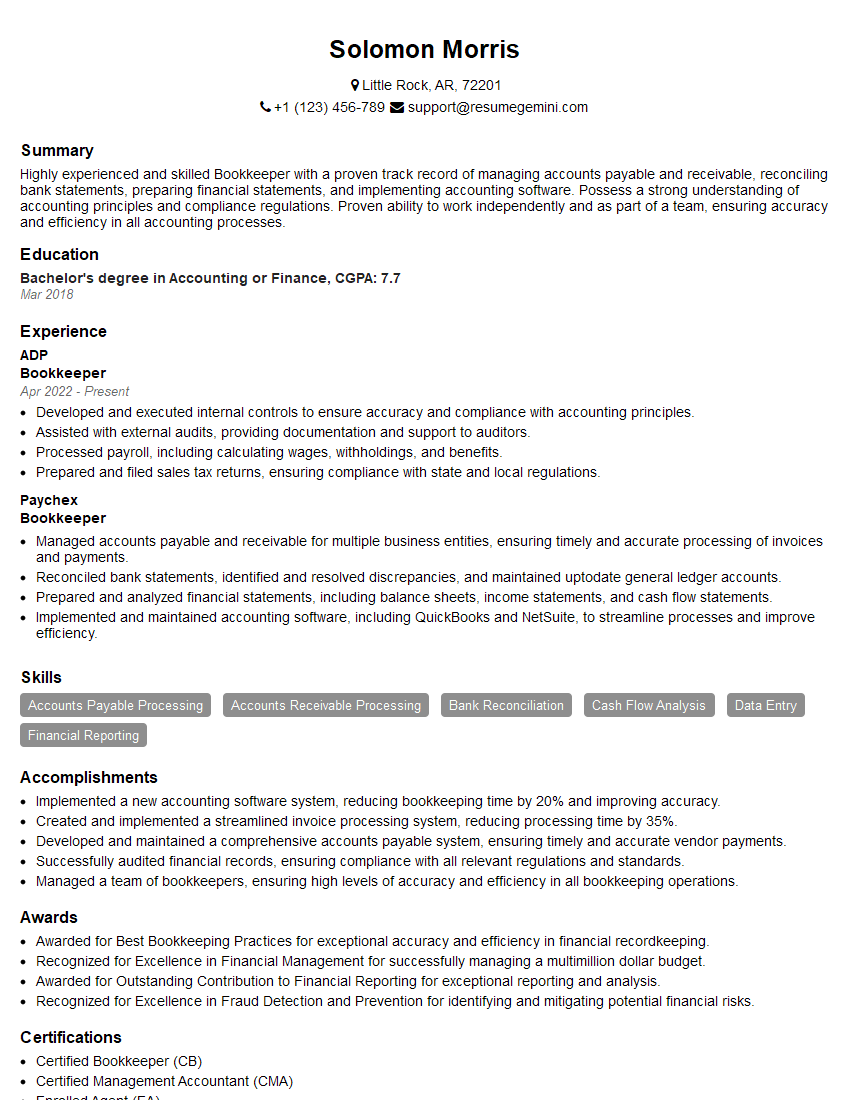
Bookkeeper Resume Sample
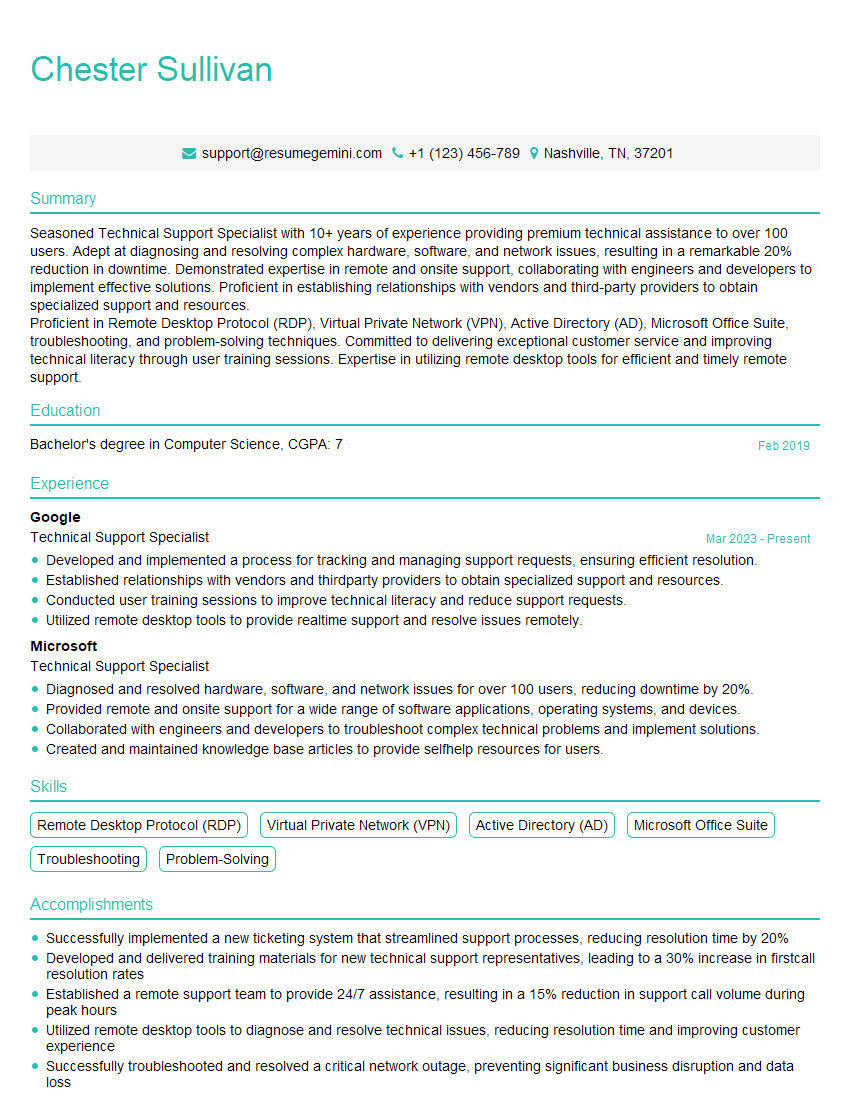
Technical Support Specialist Resume Sample
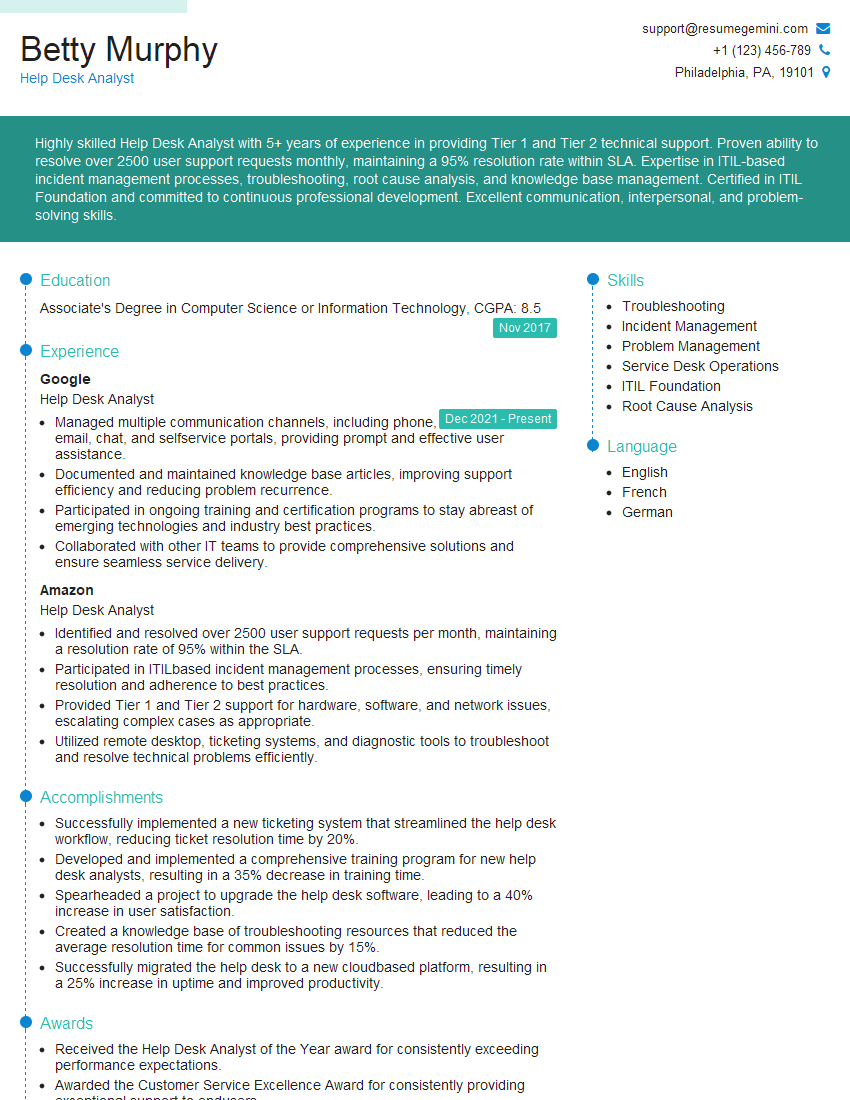
Help Desk Analyst Resume Sample
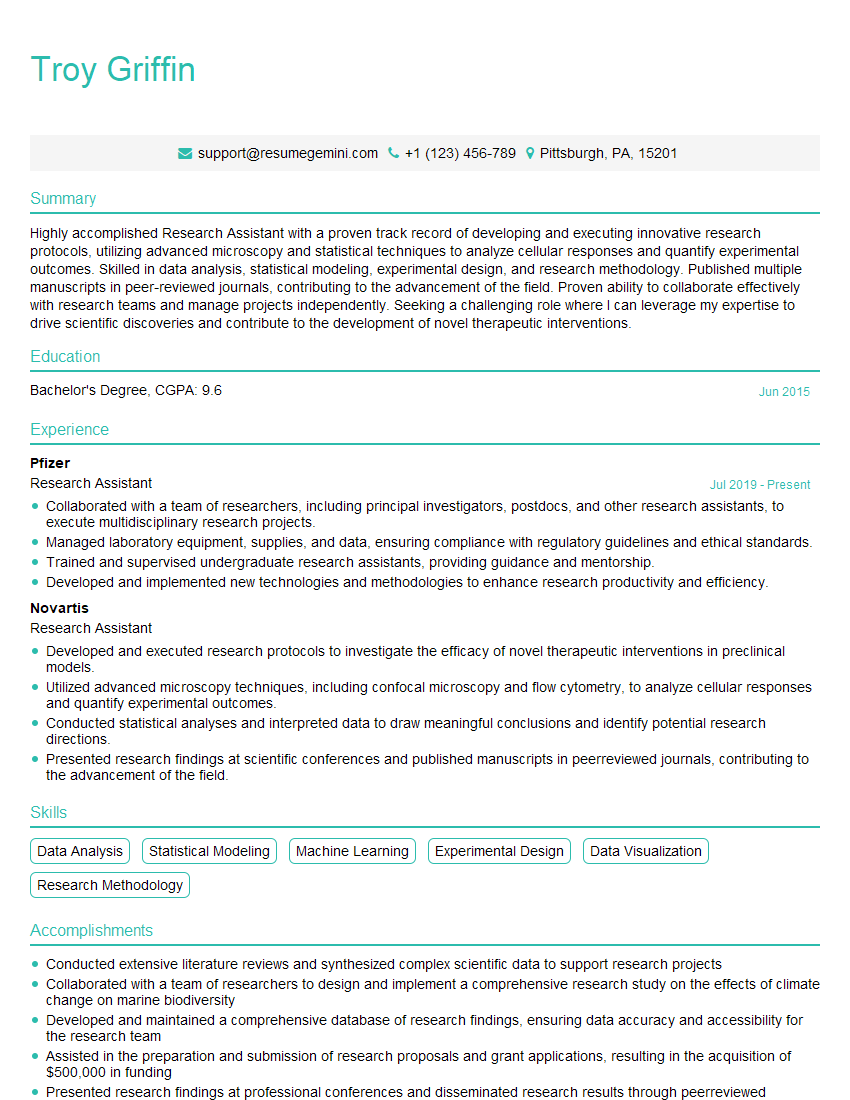
Research Assistant Resume Sample
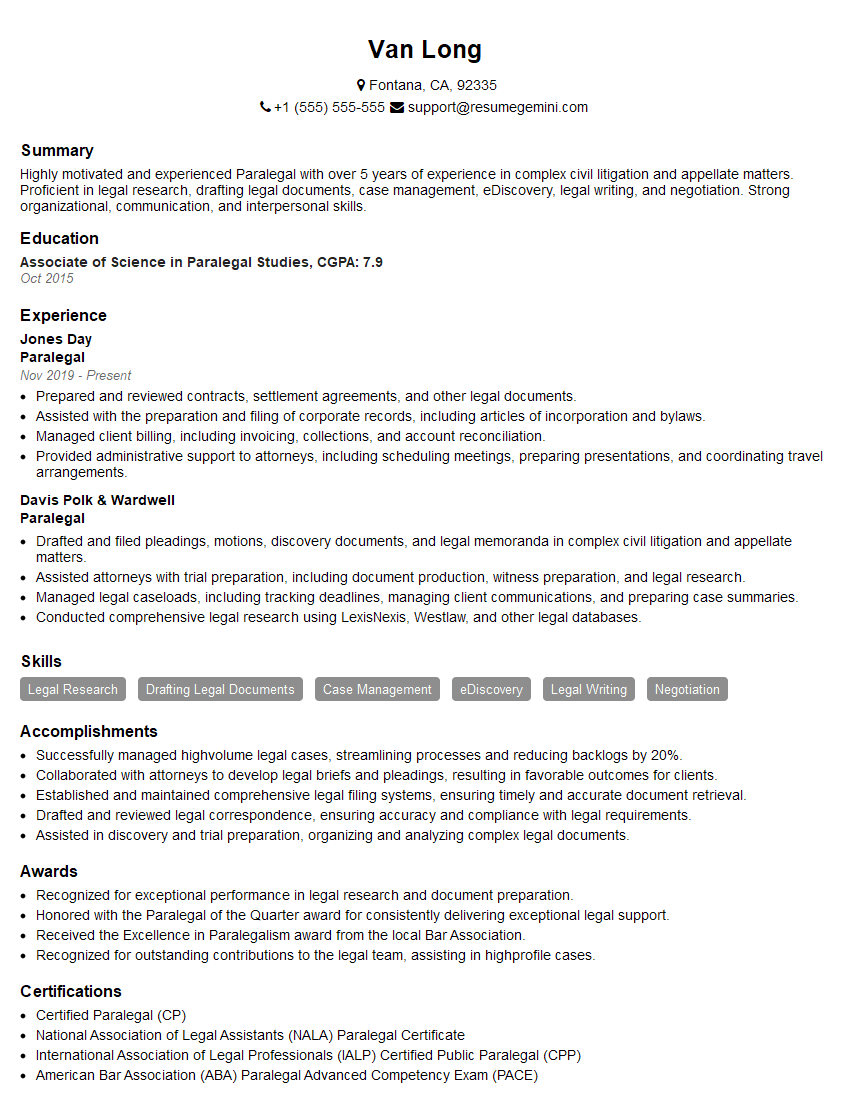
Paralegal Resume Sample

Graphic Designer Resume Sample
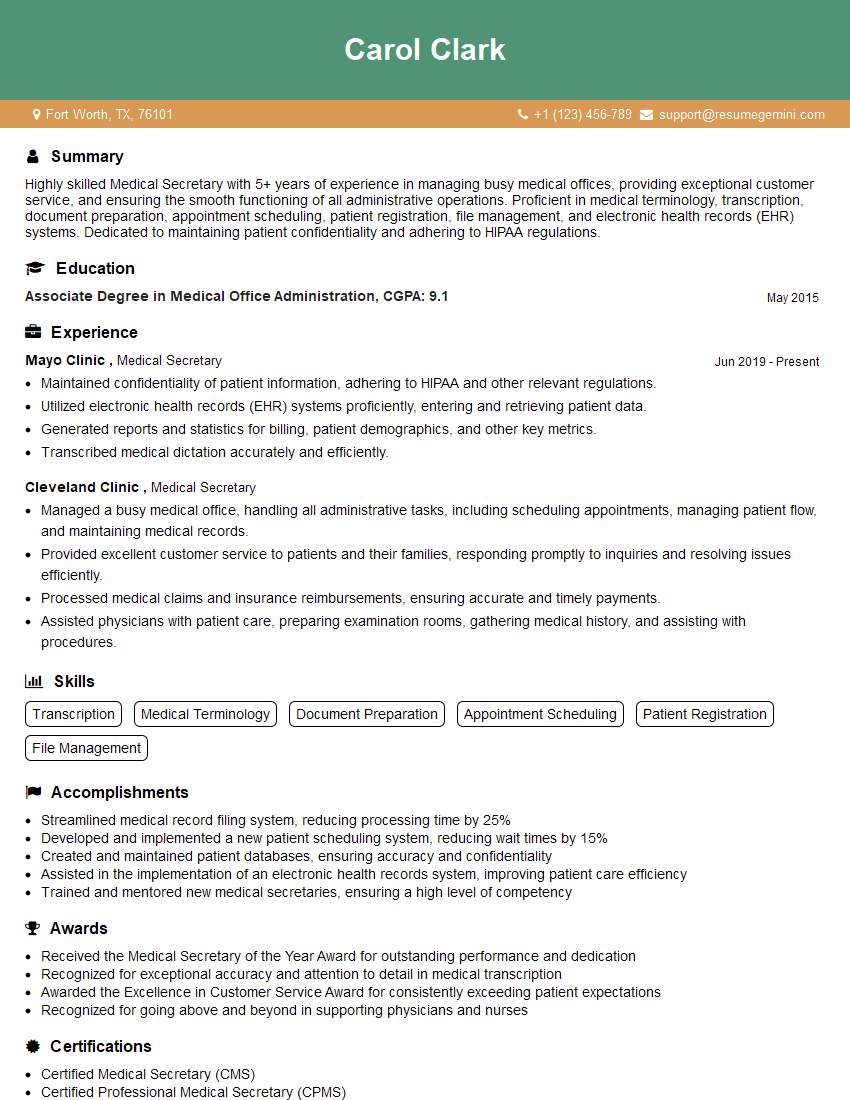
Medical Secretary Resume Sample
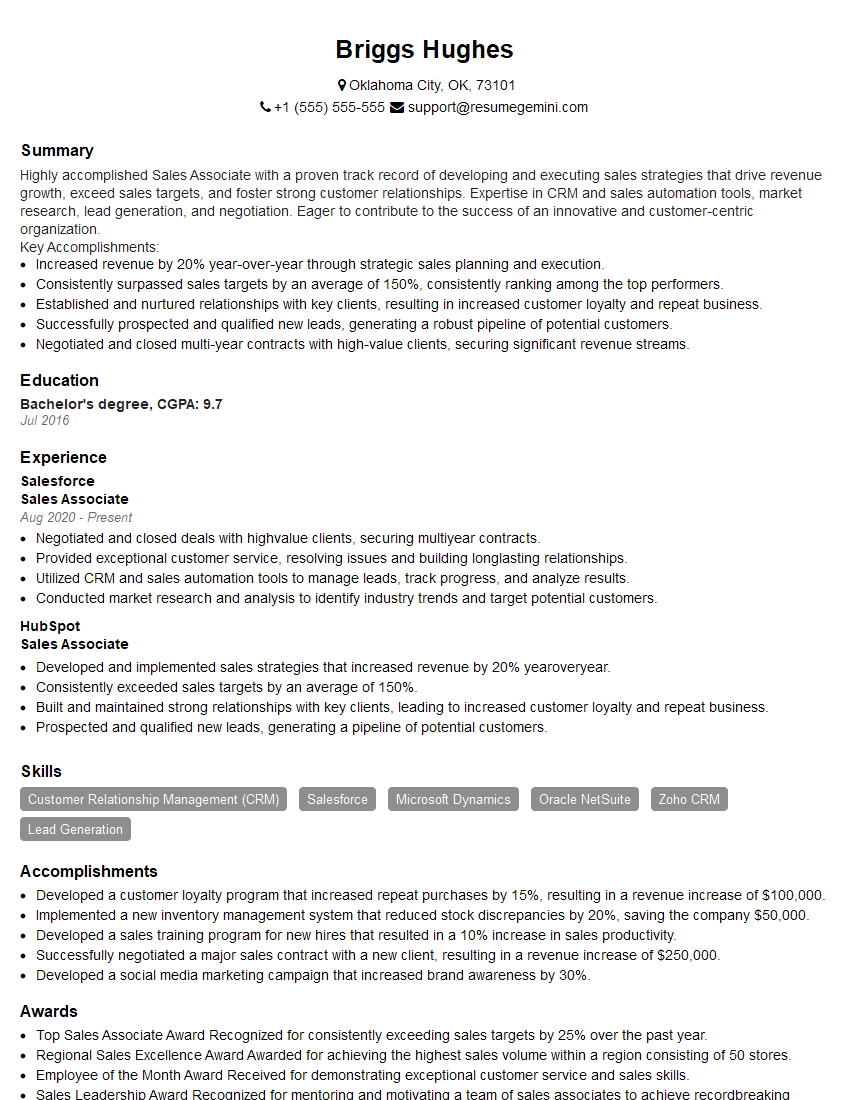
Sales Associate Resume Sample
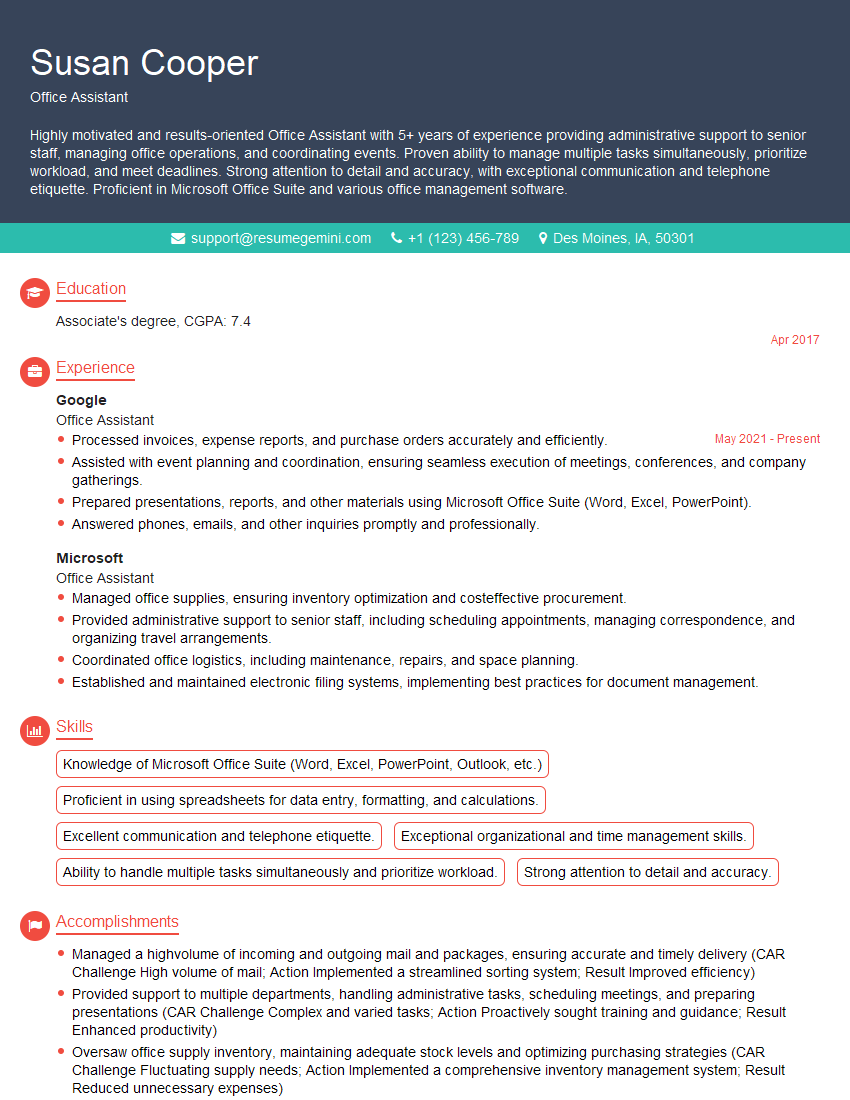
Office Assistant Resume Sample
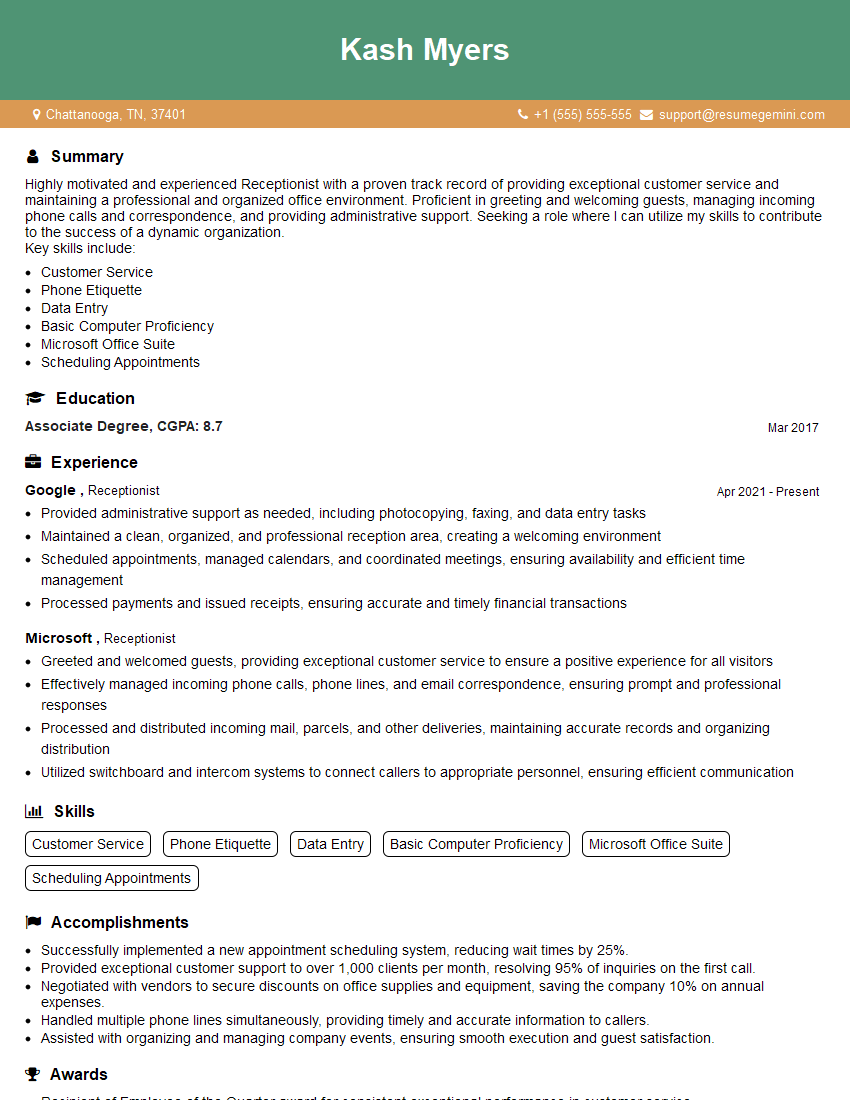
Receptionist Resume Sample

Executive Assistant Resume Sample
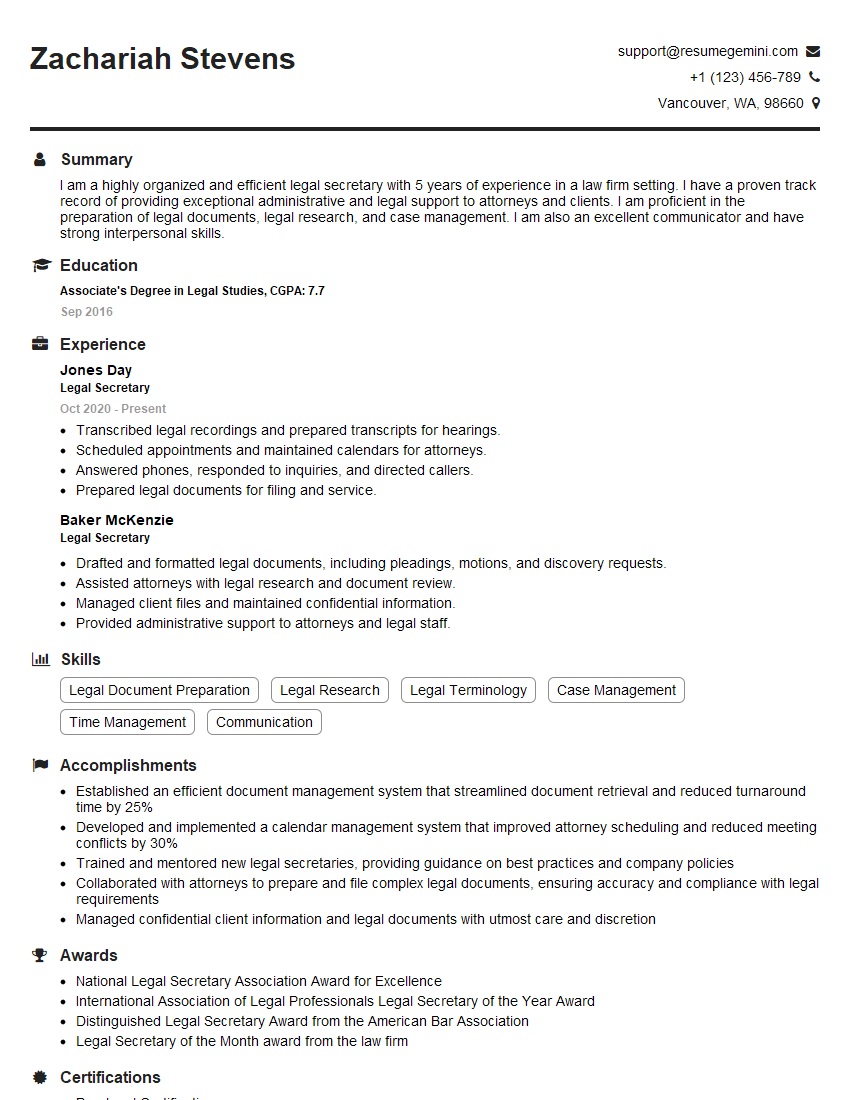
Legal Secretary Resume Sample

Data Entry Clerk Resume Sample

Content Creator Resume Sample
- Office Manager
- Marketing Assistant
- Administrative Assistant
- Customer Service Representative
- Project Coordinator
- Social Media Manager
- Accountant
- Bookkeeper
- Technical Support Specialist
- Help Desk Analyst
- Research Assistant
- Paralegal
- Graphic Designer
- Medical Secretary
- Sales Associate
- Office Assistant
- Receptionist
- Executive Assistant
- Legal Secretary
- Data Entry Clerk
- Content Creator
Explore more articles
Users Rating of Our Blogs
Share Your Experience
We value your feedback! Please rate our content and share your thoughts (optional).
What Readers Say About Our Blog
Very informative content, great job.
good