Interviews are more than just a Q&A session—they’re a chance to prove your worth. This blog dives into essential CAD/CAE Software Proficiency (e.g., AutoCAD, MicroStation) interview questions and expert tips to help you align your answers with what hiring managers are looking for. Start preparing to shine!
Questions Asked in CAD/CAE Software Proficiency (e.g., AutoCAD, MicroStation) Interview
Q 1. Explain your experience with AutoCAD’s layer management system.
AutoCAD’s layer management system is crucial for organizing complex drawings. Think of layers as transparent sheets stacked on top of each other. Each layer can contain specific elements – like walls on one layer, doors on another, and electrical fixtures on a third. This allows for selective visibility, editing, and plotting.
My experience includes extensive use of layer properties such as color, linetype, lineweight, and plot styles. I frequently create layers using descriptive names (e.g., ‘Structural-Columns’, ‘MEP-Plumbing’), ensuring clear project organization. I’m adept at using layer states, freezing and thawing layers to improve performance when working with large drawings, and using layer filters for efficient selection and editing. For instance, if I need to edit only the plumbing fixtures, I can freeze all other layers, significantly speeding up the process. I also frequently utilize layer management tools for tasks such as merging, copying and renaming layers to maintain consistency and efficiency.
In one project involving a large industrial plant design, effective layer management was essential. By meticulously organizing elements into logical layers, we were able to easily isolate and modify specific parts of the drawing without affecting others. This prevented errors and considerably reduced design time.
Q 2. Describe your proficiency in creating and modifying 3D models using AutoCAD.
My 3D modeling skills in AutoCAD involve a range of techniques, from basic extrusion and revolution to more advanced surface modeling and solid modeling. I’m proficient in creating 3D models from 2D drawings and using various tools like the 3D Solid commands, Surfaces, and Mesh objects. I understand the importance of choosing appropriate modeling techniques based on the complexity and requirements of the project.
For example, I’ve used solid modeling to create detailed representations of mechanical parts, allowing for accurate volume and mass calculations. On other occasions, I’ve utilized surface modeling to create aesthetically pleasing designs for architectural projects. I’m comfortable using various editing tools to modify existing 3D models, including boolean operations (union, subtraction, intersection) to combine or subtract parts, and editing tools to refine shapes and details. My workflow emphasizes creating clean and well-structured models that are easy to understand and modify. I regularly employ tools like the PROPERTIES palette to control object characteristics for better management and efficient workflow.
Q 3. How do you handle large CAD files in AutoCAD to maintain efficiency?
Handling large AutoCAD files efficiently is critical. My strategies include optimizing the drawing’s structure through proper layer management (as discussed earlier), purging unused blocks and layers, and using external references (xrefs) to link in data rather than embedding it. This prevents file bloat and improves performance. I also employ AutoCAD’s PURGE command regularly to remove unused entities. This command helps to significantly reduce file size. This command removes drawing elements which are no longer referenced or used, optimizing file size and improving drawing performance.
Furthermore, I leverage tools like AutoCAD’s XREF functionality. Instead of embedding large datasets, I link them as external references. This improves responsiveness, because AutoCAD only loads and processes the necessary data for optimal performance. If changes are required in the referenced drawings, they automatically update.
In one project involving a large-scale infrastructure design, we were dealing with exceptionally large files. By employing these techniques, we reduced file size by over 60%, significantly improving drawing load and manipulation times. This enabled our team to work more effectively and efficiently.
Q 4. What are the different types of dimensioning in AutoCAD and when would you use each?
AutoCAD offers various dimensioning styles, each suited for different applications. The most common types include:
- Linear Dimensions: Measure the distance between two points. Used for general measurements of lengths and distances.
- Angular Dimensions: Measure the angle between two lines. Useful for depicting angles in design drawings.
- Radial Dimensions: Measure the radius or diameter of a circle or arc. Essential for specifying circular elements’ sizes.
- Ordinate Dimensions: Measure the distance of a point from two perpendicular baselines. Helpful for precise location specification.
- Aligned Dimensions: Create dimension lines parallel to an object’s line. Provides a clean, space-saving approach.
The choice depends on what needs to be communicated clearly in the drawing. For example, in a mechanical drawing, radial dimensions are crucial for specifying the sizes of holes and shafts. In architectural drawings, linear dimensions are essential for measuring room sizes and wall lengths.
Q 5. Explain your understanding of parametric modeling in AutoCAD.
Parametric modeling in AutoCAD allows you to create models driven by parameters or variables. Changes to these parameters automatically update the model, ensuring consistency and reducing the risk of errors. This differs from traditional drafting where changes require manual adjustments. It’s a powerful tool for design exploration and modification. AutoCAD’s parametric capabilities are primarily realized through the use of dynamic blocks, which allow for the creation of reusable components with customizable parameters.
For instance, creating a dynamic block for a door would allow you to define parameters like width, height, and swing direction. Changing any of these parameters automatically adjusts the door’s geometry within the drawing, maintaining consistency. This is extremely useful for creating variations or updates to a design. While not as extensive as dedicated parametric modeling software like Inventor or SolidWorks, AutoCAD’s dynamic blocks offer a valuable degree of parametric control within its capabilities.
Q 6. Describe your experience with MicroStation’s design modeling tools.
My experience with MicroStation’s design modeling tools is extensive. I’m comfortable using its robust set of 3D modeling capabilities, including solid modeling, surface modeling, and terrain modeling. MicroStation’s strength lies in its ability to handle very large and complex models efficiently. I’ve used its tools to create models for various projects, including infrastructure design, surveying, and plant modeling. I’m familiar with creating and manipulating various geometric primitives, creating complex 3D solids using boolean operations, and using its powerful tools for surface creation and editing.
Specific tools I frequently use include the model creation tools, the tools for editing and modifying existing models, and the rendering and visualization tools available in MicroStation. These tools allow for effective management of project data and creating visually appealing representations of the design.
Q 7. How do you manage version control in MicroStation projects?
Version control in MicroStation projects is usually managed through external systems like ProjectWise or other similar solutions, rather than being a built-in feature within the software itself. These systems track changes made to project files and allow multiple users to collaborate effectively on large design projects. My experience involves using such systems to manage multiple revisions, track changes made by different team members, and revert to previous versions if needed.
This system is crucial for collaboration and change management. Each revision is clearly documented, enabling an audit trail for project review and analysis. The use of a version control system ensures project data integrity and enables efficient team collaboration, reducing the risk of conflicting edits and data loss.
Q 8. Explain your proficiency in using MicroStation’s rendering capabilities.
MicroStation’s rendering capabilities are quite extensive, allowing for the creation of photorealistic images and animations directly from the design model. My proficiency spans a range of techniques, from simple shaded views to complex renderings incorporating realistic materials, lighting, and atmospheric effects.
I’m comfortable using the built-in rendering engine, leveraging its various rendering styles and settings to achieve desired visual outputs. This includes adjusting parameters like shadow quality, ambient occlusion, and global illumination to optimize render times and visual fidelity. Furthermore, I have experience exporting models to external rendering engines like Lumion or Unreal Engine for even more advanced visualizations when necessary. For instance, on a recent highway design project, I used MicroStation’s rendering capabilities to create compelling fly-through animations showcasing the proposed roadway’s integration with the surrounding landscape, helping stakeholders visualize the project’s impact.
Beyond basic rendering, I’m adept at utilizing advanced techniques such as creating custom materials and applying realistic textures to accurately represent different surface types. This level of detail is crucial in conveying the nuances of a design, especially in projects involving complex architectural or engineering models.
Q 9. How do you ensure accuracy and precision in your CAD drawings?
Accuracy and precision are paramount in CAD, and I employ several strategies to ensure their consistent application in my drawings. Think of it like building a house – a tiny error in the foundation can lead to major problems later! My approach is multi-faceted:
- Precise Input Methods: I always use precise coordinate input methods, avoiding estimations whenever possible. This involves using coordinate systems, object snaps, and parametric constraints. For example, instead of roughly sketching a line, I would specify its length and angle using precise numerical values.
- Geometric Constraints: I extensively utilize geometric constraints to define relationships between objects. This ensures that if one part of the drawing changes, other related parts update automatically, preserving dimensional accuracy. Think of this as creating strong, unbreakable links between elements.
- Regular Checks and Audits: Throughout the drawing process, I conduct regular checks for errors, employing tools like dimension verification and geometry analysis. This helps identify any discrepancies early on, minimizing rework and ensuring the final product is accurate.
- Model Checking: I always verify the model’s integrity through self-checking and validation tools. Tools like model checker can flag potential conflicts and errors before they propagate into the final output. This proactive approach significantly reduces the probability of encountering issues during construction or manufacturing.
- Layer Management and Organization: Maintaining a well-organized layer structure ensures elements are clearly identifiable and easily managed. This simplifies revision tracking and reduces the risk of accidental modifications or overwrites, contributing to overall accuracy and cleanliness of the project.
Q 10. Describe a complex CAD project you’ve worked on and the challenges you faced.
One particularly challenging project involved the 3D modeling and detailed design of a large-scale industrial plant layout using MicroStation. The complexity stemmed from the intricate network of piping, ducting, and structural elements involved. The key challenge was managing the sheer volume of data and ensuring the accurate spatial relationships between thousands of individual components.
To overcome this, we implemented a rigorous workflow involving modular design and a strictly adhered-to naming convention. We broke down the plant into smaller, manageable modules, each modeled and verified individually before being integrated into the overall model. This modular approach simplified the process of detecting and resolving collisions or interferences between different systems.
Another significant hurdle was ensuring consistency across the multiple disciplines involved (process engineering, structural engineering, electrical engineering) who all worked on the same model concurrently. We utilized MicroStation’s version control capabilities and implemented regular model coordination meetings to identify and resolve any conflicting design changes. This collaborative approach ensured a smooth workflow despite the project’s complexity.
Q 11. How do you utilize CAD software for collaboration within a team?
Collaboration is key in CAD projects, and MicroStation provides excellent tools to facilitate this. We primarily use its version control features for collaborative work, ensuring each team member can access and modify the project files while preserving a history of changes. This allows for easy tracking of revisions and simplifies merging updates from various team members.
Beyond version control, we often utilize shared model files stored on a central server. This method allows all team members to access the latest version in real-time, minimizing potential inconsistencies and communication delays. We also leverage markups and annotations directly within the model itself to communicate design changes or concerns quickly and efficiently. For instance, one team member might annotate a potential interference on a pipe using the built-in markup tools, allowing the entire team to see and address the issue promptly.
Finally, regular team meetings, where we review the progress and address any issues encountered, are invaluable to a successful collaborative workflow. This face-to-face interaction facilitates clear communication and effective problem-solving.
Q 12. What are your preferred methods for troubleshooting CAD software issues?
My troubleshooting methodology for CAD software issues follows a structured approach. First, I carefully identify the nature of the problem. Is it a software bug, a user error, a hardware issue, or a file corruption?
Then, I proceed with these steps:
- Check for obvious errors: Begin by verifying simple issues such as incorrect layer settings, missing references, or unintended commands.
- Consult the MicroStation help documentation: MicroStation’s help files often contain solutions to common problems. I always search for relevant keywords related to the error message or the issue I’m facing.
- Restart the software and computer: A simple restart often resolves temporary glitches.
- Check for software updates: Outdated software can lead to instability and bugs. Ensuring the software is up-to-date is crucial.
- Utilize online forums and communities: Engaging with online communities dedicated to MicroStation can provide valuable insights and solutions from experienced users.
- Contact software support: If the problem persists after exhausting all other avenues, contacting the software’s support team is necessary.
Throughout the troubleshooting process, I meticulously document my actions and results to efficiently track progress and to provide clear context if seeking external assistance.
Q 13. Explain your understanding of CAD standards and best practices.
Understanding and adhering to CAD standards and best practices is essential for creating efficient, consistent, and easily maintainable drawings. These standards vary depending on industry and project requirements, but some key principles remain constant.
- Layer Management: Employing a clear and consistent layer naming convention simplifies organization and efficient management of drawing elements. For example, I often use a system that includes discipline, element type, and status (e.g., ‘Structural_Columns_Final’). This systematic naming allows quick identification of elements.
- Text Styles and Dimensioning: Maintaining consistency in text styles and dimensioning standards throughout a drawing creates a clean, professional appearance and ensures readability. I usually follow company or industry standards that specify text sizes, fonts, and dimensioning styles.
- Drawing Templates: Using drawing templates that pre-define layer settings, text styles, and other drawing properties ensures consistency across multiple drawings and projects. Templates save time and ensure a uniform presentation.
- File Naming Conventions: Implementing a standardized file naming convention helps streamline project management. This might involve indicating the project name, drawing number, revision level, and date. This ensures easy identification and retrieval of files.
- Data Management: Effective data management practices are vital for large or complex projects. This includes proper file organization, version control, and backup procedures to avoid data loss or corruption.
Adherence to these standards greatly enhances the usability and maintainability of CAD drawings, making them easier to share, update, and collaborate on.
Q 14. How familiar are you with different CAD file formats (e.g., DWG, DXF, DGN)?
I’m very familiar with a variety of CAD file formats, including DWG, DXF, and DGN. Understanding their strengths and limitations is critical for effective data exchange.
- DWG (Drawing): This is the native file format for AutoCAD, and it’s widely used across many industries. I frequently use DWG for collaboration with AutoCAD users and it generally offers good compatibility.
- DXF (Drawing Exchange Format): DXF is a more neutral, text-based format that enables data exchange between different CAD systems. I use it primarily when interfacing with software other than MicroStation, as it’s a common intermediary format. However, some data loss might occur during the conversion.
- DGN (Design File): This is MicroStation’s native format, offering superior data integrity and support for MicroStation-specific features. It is my preferred format for projects using MicroStation, as it preserves all the model’s data and capabilities.
Knowing which format is appropriate for a given situation is crucial. For instance, I might use DWG for external collaborations, but DGN for internal project development to maintain the highest level of data fidelity.
Q 15. Describe your experience with CAD data extraction and reporting.
CAD data extraction and reporting involves retrieving specific information from CAD drawings and presenting it in a user-friendly format. This could range from simple measurements to complex analysis of geometry, materials, and quantities. My experience encompasses using various tools within AutoCAD and MicroStation to accomplish this. For instance, I’ve used AutoCAD’s AREA command to calculate areas of specific regions within architectural plans, and then exported that data into an Excel spreadsheet for reporting to clients on material costs. Similarly, in MicroStation, I’ve leveraged its powerful query tools to extract information about pipe diameters and lengths from a large network model to create a comprehensive bill of materials. In another project, I used both programs’ capabilities to extract coordinates of surveyed points from digital terrain models (DTMs) for use in geotechnical analysis. The key is selecting the right tools for the job based on the data’s complexity and the desired format for reporting.
Career Expert Tips:
- Ace those interviews! Prepare effectively by reviewing the Top 50 Most Common Interview Questions on ResumeGemini.
- Navigate your job search with confidence! Explore a wide range of Career Tips on ResumeGemini. Learn about common challenges and recommendations to overcome them.
- Craft the perfect resume! Master the Art of Resume Writing with ResumeGemini’s guide. Showcase your unique qualifications and achievements effectively.
- Don’t miss out on holiday savings! Build your dream resume with ResumeGemini’s ATS optimized templates.
Q 16. How do you ensure consistency and accuracy in CAD drawings across different projects?
Maintaining consistency and accuracy in CAD drawings across projects relies on establishing and rigorously adhering to standards and best practices. This involves creating and implementing a comprehensive CAD style guide. Think of it as a style guide for writers, but for drawings. It dictates things like layer naming conventions (e.g., using consistent prefixes for different disciplines like ‘ARCH-WALLS’ and ‘MEP-PIPING’), text styles, linetypes, and drawing templates. We use version control systems to track changes and ensure everyone is working with the latest, approved versions of the standards. Regular quality checks and peer reviews are also crucial, acting like proofreading for design drawings. For example, we might use batch plotting to compare drawings against the style guide, highlighting any deviations. Finally, training all team members on these standards ensures everyone is on the same page, contributing to a consistent and accurate final product.
Q 17. Explain your knowledge of CAD plotting and printing techniques.
CAD plotting and printing techniques extend beyond simply hitting ‘print.’ It’s about optimizing output for different needs and devices. My experience involves various methods like creating plot styles to manage line weights, colors, and scales appropriately for large format printers or PDF creation. I’m proficient in setting up plot configurations for different paper sizes and orientations. For example, I might configure a plot style to show detailed architectural elements at a large scale for construction drawings, while a separate style would be used to create smaller-scale overview plans for client presentations. Furthermore, I understand the importance of generating high-resolution PDFs suitable for digital archiving and distribution, as well as ensuring that printed drawings are accurate and legible. Choosing the correct printer drivers and settings, especially for specialized printers, is key for successful plotting. Knowledge of color management and optimizing plot settings for different media (e.g., paper types) is also essential to ensure optimal print quality.
Q 18. What are the advantages and disadvantages of using AutoCAD vs. MicroStation?
AutoCAD and MicroStation are both powerful CAD software packages, but they cater to different needs and workflows. AutoCAD, with its extensive market share and vast community support, offers a user-friendly interface and a massive library of add-ons and extensions. This ease of use makes it particularly strong for smaller projects and individual users. However, it can become less efficient for extremely large, complex projects with extensive data. MicroStation, on the other hand, shines in managing massive datasets and complex 3D models, making it ideal for large infrastructure projects, such as highway design or large-scale mapping. It’s generally considered to have more robust tools for handling large-scale geospatial data. The downside is that it has a steeper learning curve and a smaller user community compared to AutoCAD. Ultimately, the best choice depends on the specific project requirements and user preferences. I’m comfortable and proficient in both, allowing me to select the optimal tool for each project.
Q 19. How do you maintain the integrity of CAD data throughout the project lifecycle?
Maintaining CAD data integrity throughout a project’s lifecycle is paramount. It involves several key strategies: First, we employ rigorous version control using systems like Autodesk Vault or similar platforms. This allows us to track changes, revert to previous versions if needed, and maintain a complete audit trail. Second, regular data backups are essential to protect against data loss due to hardware failure or accidental deletion. Third, we implement strict data naming conventions and organizational structures to prevent confusion and ensure data accessibility. Fourth, regular quality checks and validation are implemented to identify and correct errors early on. Finally, data migration procedures are meticulously documented and followed to ensure the successful transfer of data between different software versions or project phases. Imagine building a house – you wouldn’t start constructing the roof before laying the foundation. Similarly, managing data integrity ensures the ‘foundation’ of our design remains sound and reliable.
Q 20. Describe your experience with CAD customization and automation tools.
I have extensive experience with CAD customization and automation tools, significantly improving efficiency and reducing repetitive tasks. In AutoCAD, I’ve used LISP and VBA scripting to automate tasks like creating blocks, generating reports, and managing layers. For instance, I wrote a LISP routine to automatically generate numbered and labeled sections in architectural plans, dramatically reducing manual effort. In MicroStation, I’ve used its powerful macro capabilities and the MDL language to achieve similar automation. A key project involved creating a macro to automatically extract data from a point cloud for use in structural analysis. These automation efforts not only save time but also minimize the potential for human error, contributing to higher accuracy and consistency. I am also proficient in using and adapting various third-party add-ins to further expand the capabilities of both platforms.
Q 21. What is your experience with creating and using CAD templates?
CAD templates are crucial for maintaining consistency and accelerating the design process. I regularly create and utilize templates customized for specific project types and company standards. These templates pre-define layers, linetypes, text styles, and drawing settings to ensure consistency across all drawings. For example, I’ve created templates for architectural plans, structural drawings, and MEP systems, each with unique layer organizations and settings optimized for those specific disciplines. A well-structured template helps avoid common mistakes and ensures the drawings adhere to the company’s style guide from the outset, saving significant time and effort compared to starting each drawing from scratch. Think of it like a ready-made outline for a document – it provides a structure to build upon, leading to a more efficient and organized workflow.
Q 22. Explain your understanding of coordinate systems and their application in CAD.
Coordinate systems are fundamental to CAD. They define the location of points and objects within a digital space. Think of it like a grid on graph paper, but in 3D. Common systems include Cartesian (X, Y, Z coordinates), polar (distance and angle), and cylindrical or spherical coordinates, each offering different advantages depending on the task.
In CAD, understanding coordinate systems is crucial for precise object placement, defining relationships between parts, and ensuring accurate measurements. For example, when designing a building, the Cartesian system helps define the exact location of walls, columns, and doors relative to a project base point. Using polar coordinates might be more efficient when creating circular features like pipes or holes.
- Cartesian: The most common, using three perpendicular axes (X, Y, Z) to specify a point’s position.
- Polar: Defined by distance from a reference point and angle from a reference direction. Useful for circular features.
- Cylindrical: Uses radial distance, angle, and height. Ideal for objects with cylindrical symmetry.
- Spherical: Employs radial distance, two angles (longitude and latitude). Good for representing spherical objects.
Incorrectly defining or interpreting coordinate systems leads to design errors, assembly problems, and manufacturing difficulties. Mastering coordinate systems ensures accuracy and efficiency in the design process.
Q 23. How proficient are you in using CAD software for creating detailed drawings and specifications?
I’m highly proficient in creating detailed drawings and specifications using CAD software, particularly AutoCAD and MicroStation. My experience spans various industries, including architectural, mechanical, and civil engineering. I’m comfortable working with both 2D and 3D models, generating detailed views, sections, and annotations. I routinely produce drawings conforming to industry standards, incorporating dimensions, tolerances, material specifications, and other critical information.
For example, in a recent project designing a mechanical assembly, I used AutoCAD to create detailed 2D drawings of individual components, including exploded views for assembly instructions. I then used these drawings to generate a 3D model, enabling simulation and interference checking before manufacturing. The resulting drawings and specifications were clear, concise, and easily understood by the manufacturing team.
My skills include creating custom linetypes, text styles, and dimension styles to maintain consistency and professionalism in the final deliverables. I’m also adept at using layers and blocks effectively to manage drawing complexity and ensure easy modification. I’m familiar with various plot configurations and output formats to meet client requirements.
Q 24. Describe your experience with utilizing CAD software in conjunction with other engineering software.
I have extensive experience integrating CAD software with other engineering tools. This typically involves data exchange for analysis, simulation, and visualization. Commonly used software includes FEA (Finite Element Analysis) packages like ANSYS or ABAQUS, and CFD (Computational Fluid Dynamics) software like FLUENT or COMSOL.
A typical workflow would involve exporting a CAD model (often in STEP or IGES format) to an analysis software. The analysis software then uses the geometric data to perform simulations. The results, like stress distributions or flow patterns, are then often imported back into the CAD environment for visual representation and design iteration. For example, I have used this workflow to optimize the structural design of a bridge, utilizing a CAD model in MicroStation that was then imported into ANSYS to conduct a stress analysis to ensure it could withstand expected loads.
Other integrations include using CAD data for CNC machining programs (CAM software), creating building information models (BIM) through integration with Revit, and generating fabrication drawings using dedicated software.
Q 25. How familiar are you with different types of CAD modeling techniques (e.g., wireframe, surface, solid)?
I’m very familiar with wireframe, surface, and solid modeling techniques. Each offers unique advantages and is appropriate for different design stages and applications.
- Wireframe Modeling: This is the simplest, representing an object using lines and curves. It’s primarily used for early-stage design visualization and conceptual sketches. It lacks volume information, making it unsuitable for analysis or manufacturing.
- Surface Modeling: Builds upon wireframe, defining the object’s surfaces using curves and patches. It’s ideal for creating complex shapes with smooth contours, often used in automotive or aerospace design. Surface models are better for visualization than analysis.
- Solid Modeling: The most robust technique, defining objects using volume information. It enables the most accurate representation of physical objects, crucial for analysis, simulation, and manufacturing. This includes techniques like CSG (Constructive Solid Geometry) and feature-based modeling.
The choice of modeling technique depends on project needs. A wireframe might suffice for a preliminary concept, while a solid model is essential for detailed design and analysis.
Q 26. Explain your understanding of the difference between 2D and 3D CAD modeling.
The key difference lies in dimensionality. 2D CAD modeling creates drawings on a plane, representing objects with lines, arcs, and text. It’s useful for creating detailed plans, sections, and elevations, often used in fields like architecture and drafting. Think of a blueprint of a house: it shows the layout but not the three-dimensional structure.
3D CAD modeling, however, represents objects in three dimensions, providing a complete spatial representation. It allows for a more comprehensive understanding of the object’s geometry, and is vital for design analysis, simulation, and manufacturing. You can visualize a car’s design in 3D CAD—seeing all its angles and details impossible in a 2D representation.
While 2D drawings remain important for communication and documentation, 3D modeling offers significant advantages in complexity, analysis, and manufacturing process optimization.
Q 27. How do you handle conflicts or discrepancies in CAD data?
Handling conflicts or discrepancies in CAD data requires a systematic approach. This often involves careful data review, communication, and version control. First, I would identify the source of the discrepancy: was it due to human error, software glitches, or conflicting revisions?
My process involves:
- Data Comparison: Using CAD software’s comparison tools to highlight differences between revisions or versions of a model.
- Root Cause Analysis: Investigating the origin of the conflict. This may involve reviewing design history, checking model parameters, and consulting with relevant team members.
- Resolution Strategy: Once the root cause is identified, implementing a fix. This might involve modifying the model, updating drawings, or adjusting parameters.
- Version Control: Ensuring proper version control to track changes and avoid future conflicts. Using a dedicated version control system, like Autodesk Vault, is highly beneficial.
- Documentation: Clearly documenting all changes made and the rationale for the resolution.
Effective communication and collaboration are key to resolving CAD data conflicts efficiently and ensuring the accuracy of the final design.
Q 28. Describe your experience with integrating CAD data into BIM workflows.
My experience with integrating CAD data into BIM workflows is significant. This typically involves importing CAD data (often DWG or DXF files) into BIM software like Revit or ArchiCAD to enrich the BIM model. This integration is crucial in bridging the gap between design and construction.
The process usually involves cleaning and preparing the CAD data—removing unnecessary layers or objects, ensuring consistent coordinate systems, and verifying geometric accuracy. This may also include converting 2D CAD data to 3D using appropriate modeling techniques. Once prepared, the data is imported into the BIM software, and often needs to be reviewed and adjusted to ensure it aligns with the BIM standards and requirements.
For instance, I’ve worked on projects where architectural CAD drawings were imported into Revit to create a detailed BIM model. This allowed us to enhance the building model with precise details, coordinate various building systems (MEP, structural), and conduct clash detection to avoid construction issues. The resulting BIM model served as a crucial tool for project coordination, visualization, and construction management.
Key Topics to Learn for CAD/CAE Software Proficiency (e.g., AutoCAD, MicroStation) Interview
- 2D Drafting Fundamentals: Mastering drawing creation, editing, and annotation tools. Understanding layer management, object snaps, and drawing templates.
- 3D Modeling Techniques: Solid modeling, surface modeling, and mesh modeling techniques. Experience with different modeling workflows and their applications.
- Working with Drawings: Importing, exporting, and managing various file formats. Understanding scaling, units, and coordinate systems.
- Customization and Automation: Utilizing macros, scripts, or Lisp routines (AutoCAD) to automate repetitive tasks and improve efficiency. Understanding customization options to personalize the software.
- Data Extraction and Reporting: Generating reports, schedules, and quantities from CAD models. Utilizing tools for data analysis and visualization.
- Collaboration and Teamwork: Understanding version control, data sharing, and cloud-based collaboration platforms within the CAD/CAE environment.
- Design Standards and Best Practices: Adherence to industry standards, layer naming conventions, and best practices for model organization and documentation. Understanding drawing and model cleanup procedures.
- Practical Application: Discuss specific projects where you utilized your CAD/CAE skills to solve real-world engineering challenges. Be ready to explain your problem-solving approach and the outcome.
- Troubleshooting and Problem Solving: Be prepared to discuss instances where you encountered errors or unexpected results and how you resolved them. Demonstrating your problem-solving abilities is crucial.
Next Steps
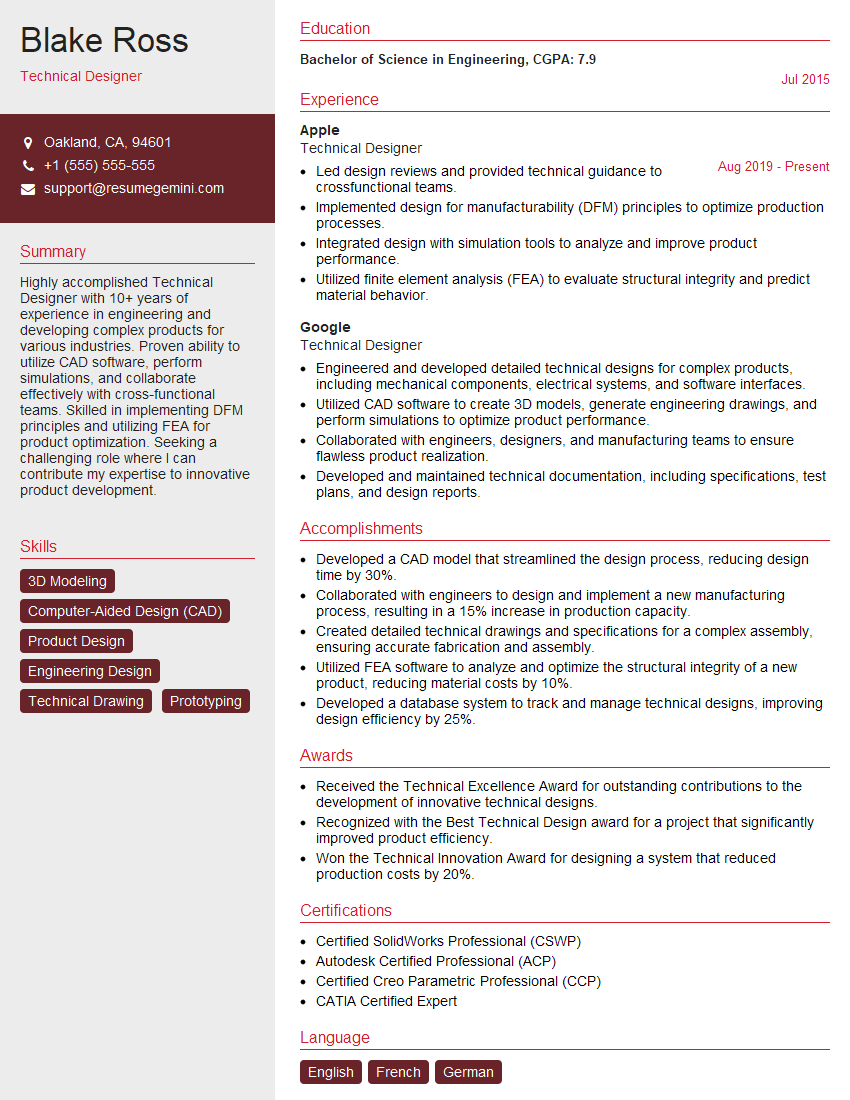
Mastering CAD/CAE software proficiency is paramount for career advancement in engineering and design. Strong skills in these programs are highly sought after, opening doors to exciting opportunities and higher earning potential. To maximize your job prospects, creating a compelling and ATS-friendly resume is essential. ResumeGemini is a trusted resource that can help you build a professional resume tailored to highlight your unique skills and experience. We provide examples of resumes specifically designed for candidates with CAD/CAE software proficiency (e.g., AutoCAD, MicroStation) to give you a head start.
Explore more articles
Users Rating of Our Blogs
Share Your Experience
We value your feedback! Please rate our content and share your thoughts (optional).
What Readers Say About Our Blog
Very informative content, great job.
good