Feeling uncertain about what to expect in your upcoming interview? We’ve got you covered! This blog highlights the most important CAD Design (SolidWorks, Creo) interview questions and provides actionable advice to help you stand out as the ideal candidate. Let’s pave the way for your success.
Questions Asked in CAD Design (SolidWorks, Creo) Interview
Q 1. Explain the difference between a part, assembly, and drawing in SolidWorks/Creo.
In SolidWorks and Creo, a part is the fundamental building block – a single, solid or surface model representing a component. Think of it as a digital blueprint for a single piece, like a bolt or a gear. An assembly is a collection of multiple parts, digitally fastened together to represent a complete product or sub-assembly. It’s like assembling the individual parts of a bicycle. Finally, a drawing is a 2D representation of a part or assembly, containing dimensions, tolerances, and other manufacturing information. It’s the technical illustration you give to a manufacturer.
For example, a car engine is an assembly composed of many parts (pistons, cylinders, crankshaft, etc.). Each of those individual components would be modeled as a part, and then the whole engine would be put together as an assembly. Finally, a detailed drawing of the engine, including measurements and specifications, would be generated for manufacturing.
Q 2. Describe your experience with feature-based modeling.
Feature-based modeling is my preferred method. It’s a parametric design approach where you build a part by adding features sequentially – extrudes, revolves, cuts, etc. – each defined by parameters (dimensions, location). This allows for easy modification. If a dimension changes, the entire model updates automatically. I’ve extensively used this in designing complex parts, such as injection molded plastic housings and intricate metal components. For instance, designing a complex gearbox involved building the body using extrudes and revolves, then adding features like internal gears and shafts using specialized features like helical sweeps and hole patterns.
The advantages are significant: design changes are quick, history trees aid in understanding the design process, and it supports automated design exploration (like design tables for multiple iterations).
Q 3. How do you manage large assemblies in SolidWorks/Creo?
Managing large assemblies requires a strategic approach. I utilize techniques like component suppression to hide parts not currently needed, improving performance. Lightweight components create smaller, faster-loading representations of complex parts. Top-down assembly modeling, starting with larger components and gradually adding details, provides better control and organization. I also use assembly constraints effectively to avoid over-constraining, which can lead to model instability. Finally, leveraging design reuse through the creation of sub-assemblies simplifies complex assemblies.
For example, in a large aircraft assembly, I might build the fuselage as a top-level assembly and then add sub-assemblies like the wings and landing gear. Each sub-assembly is managed separately to simplify work and prevent model slowdown.
Q 4. What are your preferred methods for creating complex curves and surfaces?
Creating complex curves and surfaces is crucial to my workflow. I commonly use splines to define freeform shapes, utilizing control points to manipulate the curve’s form. Sweep features are excellent for creating complex surfaces by sweeping a profile along a path. Surface fillets and blends are essential for smoothing transitions between surfaces, producing aesthetically pleasing and structurally sound designs. For highly complex geometries, I often explore the use of NURBS surfaces, offering precise control and compatibility with other design software.
For instance, designing an aerodynamic car body often requires the use of splines and surface fillets to achieve the desired smooth curves and transitions. I used sweeps to create complex ducts for an air handling system.
Q 5. Explain your experience with different types of constraints and their applications.
Constraints are fundamental in assembly modeling. I utilize mate constraints (e.g., flush, concentric, tangent) to define relationships between parts. Geometric constraints (e.g., coincident, parallel, perpendicular) define relationships between features. Dimensional constraints specify precise distances or angles. It’s critical to understand the implications of different constraint types. Over-constraining can cause model instability, while under-constraining can lead to undefined positions. I usually work in a structured way, starting with the most critical constraints and gradually adding others.
For instance, when assembling a motor, I’d use concentric constraints to align the shaft with the bearing, ensuring smooth operation. I would also use distance constraints to maintain specific clearances between components.
Q 6. How do you handle design changes and revisions in SolidWorks/Creo?
Handling design changes requires a disciplined approach. SolidWorks and Creo’s version control systems are essential. I always create new revisions, carefully documenting changes using the software’s revision tools. This preserves a complete history of the design’s evolution. Parametric modeling allows for efficient change management; altering a single parameter automatically updates the entire model. I also utilize configurations within parts and assemblies to manage different design variations without creating completely new files. These configurations let you keep different versions (e.g., different sizes, materials) of a part within the same file.
For example, imagine designing a phone case. Different versions with minor changes in the button placement, material, or antenna location can all be managed within a single file using configurations.
Q 7. Describe your experience with creating and managing design tables.
Design tables are incredibly powerful for creating families of parts. I use them to manage multiple variations of a part by defining parameters (e.g., length, width, hole size) in a spreadsheet. The software then automatically generates different part configurations based on the table’s data. This is efficient for creating similar parts with only minor differences in dimensions. This saves significant time and reduces errors when creating many similar parts.
For instance, a series of bolts with varying lengths, all sharing the same head design, can be effortlessly created and managed through a design table. You simply specify the different lengths in the table, and the software generates all the bolt variations.
Q 8. How do you utilize simulations (e.g., FEA) within your CAD workflow?
Simulation, particularly Finite Element Analysis (FEA), is an integral part of my CAD workflow. It allows me to predict a product’s behavior under real-world conditions before it’s even manufactured, saving significant time and resources. I typically integrate FEA into my design process after completing the initial CAD model. This involves:
- Defining Simulation Goals: Clearly identifying what needs to be analyzed. This could be stress distribution under load, thermal behavior, or fluid flow, depending on the product’s function.
- Meshing the Model: Creating a mesh—a network of elements—over the CAD model. The mesh density is crucial; finer meshes provide more accuracy but require more computation time. I carefully choose the mesh density based on the complexity of the geometry and the desired accuracy.
- Applying Boundary Conditions and Loads: Simulating real-world scenarios by defining constraints (fixed supports, hinges) and applying forces (pressure, gravity, temperature). For example, for a car part, I would simulate the forces experienced during a crash test.
- Running the Simulation: Using FEA software (like ANSYS or Abaqus, often integrated with SolidWorks or Creo) to run the simulation and generate results.
- Analyzing Results and Iterating the Design: Reviewing the results, such as stress plots, displacement plots, and safety factors. Based on these results, I then iterate on the design—modifying geometry, material properties, or boundary conditions—to optimize performance and address potential weaknesses. For instance, if a stress concentration is identified, I might add reinforcement or change the part’s shape to distribute the load more effectively.
For example, in designing a bicycle frame, I used FEA to simulate the stresses under various riding conditions. The simulation highlighted stress concentration points, enabling me to reinforce the frame at those locations and ensure its durability and rider safety. This iterative process, using FEA within the CAD workflow, results in a robust and reliable product.
Q 9. Explain your understanding of tolerance analysis and GD&T.
Tolerance analysis and Geometric Dimensioning and Tolerancing (GD&T) are critical for ensuring that manufactured parts fit together correctly and function as intended. Tolerance analysis determines the acceptable range of variations in dimensions and features, while GD&T uses symbols and annotations to precisely define those acceptable variations on engineering drawings.
My understanding involves:
- Defining Tolerances: This starts with understanding the functional requirements of the part and determining which dimensions are critical and which can tolerate more variation. For instance, a tight tolerance is needed for a bearing’s inner diameter to ensure proper fit and function, while a less critical dimension might allow a larger tolerance.
- Applying GD&T: Using GD&T symbols (like position, parallelism, perpendicularity) to specify the allowable deviations from nominal dimensions. This provides clearer and more comprehensive tolerance information than simply stating plus/minus values.
- Stack-up Analysis: Considering the cumulative effect of tolerances on the overall assembly. If multiple parts are assembled, the individual tolerances can add up, leading to potential interference or malfunction. Stack-up analysis helps identify potential issues early in the design phase.
- Tolerance Simulation: Using specialized software to simulate the effects of tolerances on assembly, potentially identifying design flaws before manufacturing. This helps ensure manufacturability and reliability.
For example, designing a complex assembly like an engine requires meticulous tolerance analysis and GD&T. Without proper tolerance control, parts might not fit together, leading to costly rework or assembly failures. GD&T ensures that manufacturers understand the precise requirements for each part, reducing ambiguity and ensuring consistent results.
Q 10. How do you ensure the accuracy and precision of your 3D models?
Ensuring accuracy and precision in 3D models is paramount. I employ several strategies:
- Precise Measurements and Input: Using accurate dimensions and data when creating the model, ideally sourced from reliable sources like blueprints or laser scans.
- Appropriate Modeling Techniques: Choosing the correct modeling method (e.g., feature-based modeling, surface modeling, solid modeling) depending on the complexity and requirements of the part. I carefully use features like constraints and relations to ensure geometric accuracy and consistency.
- Regular Model Checks: Employing SolidWorks/Creo’s built-in tools for model validation, including checking for inconsistencies, gaps, intersections, and overlaps.
- Reference Geometry: Making use of reference geometry to aid in feature creation and ensure consistent placement and relationships between features.
- Design Reviews: Conducting regular design reviews with colleagues to catch errors or inconsistencies early in the design process. A fresh pair of eyes can often spot subtle mistakes.
- Verification and Validation: Comparing the final 3D model to the original design specifications and blueprints to ensure compliance and accuracy. This can involve 3D scanning or using other verification methods.
For instance, when designing a precision instrument, any small inaccuracy could lead to malfunction. Therefore, meticulous attention is paid to every detail, employing all the techniques mentioned above to guarantee the final model’s accuracy and precision.
Q 11. What are your preferred methods for creating detailed drawings and annotations?
Creating detailed drawings and annotations is crucial for effective communication and manufacturing. My preferred methods include:
- Utilizing Drawing Templates: Starting with pre-defined templates to ensure consistency in the drawings’ appearance and information.
- Appropriate Views and Sections: Creating multiple views (front, top, side) and sections to clearly show all relevant features of the part. This allows the manufacturers to fully grasp the design intent.
- Clear Dimensioning and Tolerancing: Using GD&T to accurately specify dimensions and tolerances, adhering to industry standards (ANSI, ISO).
- Detailed Annotations: Including notes, material specifications, surface finishes, and other relevant information to guide manufacturing. This minimizes ambiguity and misinterpretations.
- Bill of Materials (BOM): Generating a comprehensive BOM to specify all parts and materials needed for assembly.
- Revision Control: Maintaining version control and clearly indicating revisions on the drawings to avoid confusion.
For example, creating a drawing for a custom-designed electronic enclosure requires careful consideration of all the components, their placement, and how they interact. Using detailed annotations and clear dimensioning, I can ensure that the manufacturer understands how to assemble and finish the product according to specifications.
Q 12. Describe your experience with data management in SolidWorks/Creo (PDM).
My experience with Product Data Management (PDM) systems within SolidWorks and Creo involves managing the entire product lifecycle – from initial design concepts to final manufacturing documentation. I’m proficient in using PDM systems to:
- Version Control: Managing multiple revisions of design files, ensuring that everyone is working with the most up-to-date version.
- Data Security: Protecting design data from unauthorized access and maintaining data integrity.
- Workflow Management: Creating and managing workflows for design reviews, approvals, and releases of drawings and models.
- Collaboration: Facilitating seamless collaboration among team members by providing a centralized repository for design data. This minimizes the risk of file conflicts and ensures everyone works from a consistent source.
- Data Archiving: Archiving completed projects for future reference and retrieval.
A specific example of my PDM utilization involves working on a large-scale project where multiple engineers were simultaneously working on different parts of the same product. PDM facilitated seamless version control and prevented potential conflicts, ensuring a smooth and efficient design process. The ability to track changes and revert to earlier versions was crucial in managing the project effectively and delivering the product on time.
Q 13. How do you handle conflicts between design requirements and manufacturing constraints?
Handling conflicts between design requirements and manufacturing constraints is a common challenge in engineering. My approach involves a collaborative and iterative process:
- Early Communication: Engaging manufacturing engineers early in the design process. This helps identify potential issues and limitations upfront, avoiding costly rework later.
- Design for Manufacturing (DFM): Applying DFM principles to design parts that are manufacturable, efficient, and cost-effective. This often involves simplifying geometries, choosing appropriate materials, and considering manufacturing processes.
- Compromise and Negotiation: Finding a balance between ideal design features and manufacturing capabilities. This may involve making concessions on certain design aspects to achieve manufacturability. Clear communication and collaboration between design and manufacturing teams are essential here.
- Iterative Design: Continuously evaluating design changes and their impact on manufacturing, making necessary adjustments along the way.
For example, in designing a complex plastic part, the original design required intricate undercuts, making it difficult and expensive to manufacture using standard injection molding techniques. By collaborating with manufacturing engineers, we simplified the design, eliminating the undercuts and maintaining the part’s functionality. This resulted in a cost-effective manufacturing solution while maintaining the product’s performance.
Q 14. Explain your experience with different rendering techniques.
My experience with rendering techniques spans various methods, each suited for different purposes:
- Ray Tracing: A computationally intensive technique that generates highly realistic images by simulating the path of light rays. It’s excellent for photorealistic renderings, showcasing fine details and material properties. However, it’s time-consuming for complex scenes.
- Rasterization: A faster technique that is often used for real-time rendering, such as in game engines. It’s not as realistic as ray tracing but offers quicker results, making it useful for quick visual checks during design.
- Path Tracing: A more advanced form of ray tracing that is particularly good at handling global illumination, resulting in extremely realistic lighting and shadows.
- Global Illumination: Techniques that simulate how light bounces around a scene, creating realistic lighting effects like indirect illumination and ambient occlusion.
- Photorealistic Rendering: Focusing on achieving the highest level of realism, usually employing ray tracing or path tracing and detailed material properties. This is ideal for marketing materials or client presentations.
- Stylized Rendering: Applying artistic styles and effects to create non-photorealistic renderings. This can be used to highlight particular design aspects or create a specific mood.
For example, in presenting a new product to potential clients, I might use photorealistic ray tracing rendering to showcase its features and aesthetics in a visually appealing way. However, for quick design iterations during the modeling phase, a faster rasterization technique would be more appropriate.
Q 15. How familiar are you with different file formats (e.g., STEP, IGES, STL)?
Understanding different file formats is crucial for seamless data exchange in CAD. STEP (Standard for the Exchange of Product data) and IGES (Initial Graphics Exchange Specification) are neutral formats, meaning they can be imported and exported between different CAD software without significant data loss. Think of them as universal translators for 3D models. STL (Stereolithography) on the other hand, is a simpler format primarily used for 3D printing and rapid prototyping. It focuses on the surface geometry, losing internal details.
- STEP (.stp, .step): Preserves a high level of detail, including features, parameters, and even design history. Ideal for transferring complex assemblies or parts requiring precise dimensions.
- IGES (.igs, .iges): Older but still widely used, it’s generally less detailed than STEP but still suitable for most design transfers. It’s often preferred when dealing with older systems or when a less complex representation is needed.
- STL (.stl): Represents the model as a collection of triangles. Perfect for 3D printing, but not suitable for design modifications or complex analysis since it lacks internal details. Imagine a very rough 3D approximation of the object.
In my experience, choosing the right file format depends heavily on the intended application. For collaborative projects requiring design modifications, STEP is the preferred choice. For 3D printing or sharing simplified models, STL is the appropriate selection. IGES serves as a reliable fallback for broader compatibility.
Career Expert Tips:
- Ace those interviews! Prepare effectively by reviewing the Top 50 Most Common Interview Questions on ResumeGemini.
- Navigate your job search with confidence! Explore a wide range of Career Tips on ResumeGemini. Learn about common challenges and recommendations to overcome them.
- Craft the perfect resume! Master the Art of Resume Writing with ResumeGemini’s guide. Showcase your unique qualifications and achievements effectively.
- Don’t miss out on holiday savings! Build your dream resume with ResumeGemini’s ATS optimized templates.
Q 16. Describe your experience working with different CAD software packages.
I have extensive experience with both SolidWorks and Creo Parametric, having utilized them extensively throughout my career on diverse projects. My SolidWorks expertise encompasses design, simulation, and assembly modeling, while with Creo, I’ve focused on detailed part modeling, assembly management, and advanced surfacing techniques.
In one project, we used SolidWorks’ advanced surfacing capabilities to design a complex aerodynamic component for a racing car. The intuitive interface and powerful tools allowed for efficient creation of class-A surfaces. Conversely, on a manufacturing project, Creo’s robust feature-based modeling tools proved indispensable for creating detailed and accurate drawings of a high-precision mechanical assembly, ensuring manufacturability. My proficiency extends to understanding the strengths and weaknesses of each software, enabling me to select the most appropriate tool for the task at hand. For instance, for a project requiring complex sheet metal design, SolidWorks’ dedicated sheet metal tools would be my first choice, while for high-end machining, Creo’s capabilities excel.
Q 17. How do you collaborate with other team members on a CAD project?
Collaboration is fundamental in CAD design. We leverage several tools and strategies for seamless teamwork. A primary method is utilizing a centralized data management system, such as a PDM (Product Data Management) system. This allows all team members to access the latest design revisions, eliminating version control issues and ensuring everyone works with the same data. Furthermore, we regularly hold design reviews using screen sharing and video conferencing, allowing for real-time feedback and discussion. Clear communication is key, and defining individual responsibilities from the start streamlines the workflow.
For example, in a recent project involving a complex product assembly, we used a PDM system to manage all files, enabling simultaneous work on different sub-assemblies. Regular virtual design reviews fostered a collaborative approach, ensuring everyone’s ideas were incorporated efficiently and potential conflicts were identified promptly. We also used tools like markup and annotation features within the CAD software itself to communicate directly on the models.
Q 18. How do you troubleshoot common CAD modeling issues?
Troubleshooting CAD issues is a regular part of the design process. My approach is systematic:
- Identify the problem: Carefully examine the error message or the issue itself. Is it a geometry error, a rendering issue, or a file corruption?
- Isolate the cause: Try simplifying the model or isolating the problematic part to pinpoint the source. If a specific feature is causing problems, investigate its parameters and construction.
- Consult resources: Refer to the software’s help documentation, online forums, or tutorials. Searching for similar errors often yields solutions.
- Check model integrity: Use the software’s built-in tools to check for errors in the model’s geometry, like inconsistencies or self-intersections.
- Undo and retry: If the problem seems related to a specific step, undo those actions and try creating the feature again.
- Seek peer assistance: If I’m stumped, I don’t hesitate to ask for help from experienced colleagues. Two heads are often better than one!
For instance, a common issue is a ‘self-intersecting surface’. I’d first isolate the affected area, check the surface parameters for inconsistencies, and then try rebuilding the surface using a different technique. If that fails, I would look for solutions online and perhaps ask a senior CAD engineer for guidance.
Q 19. Describe your experience with creating and using custom macros or add-ins.
I have experience creating and using custom macros and add-ins in both SolidWorks and Creo to automate repetitive tasks and streamline workflows. Macros are like mini-programs that automate a sequence of actions, while add-ins offer more extensive functionality, often involving custom interfaces.
In SolidWorks, I’ve written macros to automate the creation of complex parts with repetitive features. For instance, I developed a macro that automatically generates a series of holes based on user-defined parameters, saving significant time compared to manual creation. In Creo, I’ve used add-ins to integrate with other software for data exchange and analysis. For example, I utilized an add-in to link Creo with a simulation software package, enabling automated transfer of model data for analysis. The benefits are significant: macros and add-ins dramatically enhance efficiency by automating repetitive actions, minimizing human error, and streamlining the design process.
'Example VBA Macro (SolidWorks):' Sub CreateHoles() Dim i As Integer For i = 1 To 10 ' Code to create a hole at a specific location Next i End SubQ 20. Explain your approach to optimizing CAD models for manufacturing.
Optimizing CAD models for manufacturing is crucial for cost-effectiveness and efficient production. My approach focuses on several key areas:
- Simplify Geometry: Reducing unnecessary complexity decreases manufacturing time and costs. Avoid overly intricate features and surfaces. Think about the simplest way to achieve the desired functionality.
- Consider Manufacturing Processes: The design should align with the chosen manufacturing process. For example, a design intended for injection molding needs draft angles, while a part destined for machining might require specific tolerances and features to ease the process.
- Utilize Standard Parts: Using commercially available standard components wherever possible reduces design time and cost, simplifying assembly and reducing procurement complexities.
- Feature Optimization: Utilize manufacturing-friendly features: for instance, ensure that holes are appropriately sized and positioned for ease of drilling or that features allow for easy removal of tooling in processes such as injection molding.
- Tolerance Analysis: Properly define tolerances to ensure the parts meet specifications while allowing for reasonable manufacturing variations.
For example, in designing a plastic part, I’d ensure sufficient draft angles for easy removal from the mold. If designing for CNC machining, I’d avoid sharp corners and small radii to reduce tool wear and prevent breakage. A well-optimized model ensures smooth manufacturing, reduces costs, and enhances product quality.
Q 21. How do you ensure design for manufacturability (DFM) in your designs?
Design for Manufacturability (DFM) is a critical aspect of my design process. I actively consider manufacturability throughout the design cycle, not just at the end. This involves:
- Material Selection: Choosing materials appropriate for the intended manufacturing process and application. A material suitable for injection molding might not be ideal for machining.
- Tolerance Analysis: Defining realistic tolerances that are achievable within the chosen manufacturing process and cost constraints. Overly tight tolerances increase manufacturing costs and lead time.
- Feature Design: Designing features that are easily manufactured. This includes avoiding features that require complex or expensive tooling. Understanding the capabilities and limitations of the selected manufacturing process is crucial.
- Assembly Considerations: Designing for ease of assembly, reducing the number of parts and simplifying the assembly process whenever possible. This directly impacts production speed and cost.
- Collaboration with Manufacturing Engineers: Early involvement of manufacturing engineers in the design process provides valuable insights and feedback to avoid design flaws that might surface late in the process.
For instance, during the design phase, if I am working with a manufacturing engineer, we will discuss the feasibility of a certain part geometry before finalizing the design, thus avoiding costly design changes later. Implementing DFM throughout the design minimizes rework, lowers costs, and ensures manufacturability right from the start.
Q 22. Describe your experience with parametric modeling techniques.
Parametric modeling is the cornerstone of modern CAD design. Instead of creating geometry purely by defining points and lines, it involves defining features and relationships between them, creating a model driven by parameters. Think of it like a sophisticated mathematical formula – changing one parameter (like a hole’s diameter) automatically updates related parts of the design, ensuring consistency and reducing errors. This is in stark contrast to older, direct modeling techniques.
In SolidWorks, for instance, I frequently use parameters to define the size and position of features. Imagine designing a bracket. Instead of manually adjusting dimensions, I’d create parameters for length, width, thickness, and hole diameter. Then, changing the ‘length’ parameter automatically adjusts the overall dimensions, and all related features update accordingly. This saves immense time and effort, especially during design iterations.
In Creo, I’ve utilized similar techniques extensively, leveraging their powerful family table functionality to generate numerous variations of a design by simply changing parameter values. For example, I once created a family table of engine mounts with variations in size and mounting points, all generated from a single master model.
The benefits extend beyond efficiency. Parametric modeling ensures design integrity, makes it easier to manage revisions, and significantly simplifies manufacturing documentation by automatically updating drawings as the model changes.
Q 23. Explain your understanding of different types of analysis (e.g., stress analysis, flow analysis).
My experience encompasses various analysis types, primarily stress analysis and flow analysis. Stress analysis is crucial for determining a part’s ability to withstand expected loads. It involves applying virtual forces and analyzing the resulting stresses, strains, and deflections within the model. I’ve used SolidWorks Simulation extensively for this, employing methods like Finite Element Analysis (FEA) to predict failure points and optimize designs for strength and durability.
For example, during the design of a robotic arm, I used SolidWorks Simulation to determine the optimal material and dimensions to withstand the anticipated forces during operation. The analysis revealed stress concentrations in certain areas, leading to design modifications that improved the arm’s structural integrity. Similarly, in Creo Simulate, I’ve tackled more complex scenarios, such as analyzing vibration and fatigue life.
Flow analysis, on the other hand, deals with the movement of fluids. I’ve used SolidWorks Flow Simulation and specialized CFD (Computational Fluid Dynamics) software to analyze things like airflow around automotive components or fluid flow in pipes. This helps optimize designs for efficiency, reducing drag or optimizing flow rates.
Other types of analysis I’m familiar with include thermal analysis (predicting temperature distribution), modal analysis (analyzing vibration modes), and drop test simulation to assess the impact resilience of a product.
Q 24. How familiar are you with the concept of design intent?
Design intent is the underlying philosophy and reasoning behind the design’s geometry and features. It’s not just about the visual representation but about the ‘why’ behind the model. A strong design intent ensures the model is not only visually correct but also logically sound and easily modifiable. It’s essentially building with purpose, not just shapes.
A good example: designing a simple hole. Poor design intent might involve simply drawing a circle. But good design intent would involve defining parameters for hole diameter, location, and possibly even the type of fastener it’s intended for. This ensures that if the overall design changes, the hole’s location and size adjust accordingly, maintaining the original design purpose.
In practice, I ensure strong design intent by using parameters consistently, adding clear annotations, and using named features that clearly describe their function (e.g., ‘Mounting_Hole’ instead of ‘Hole_1’). This not only simplifies future modifications but also improves collaboration with other engineers.
Q 25. Explain your experience with reverse engineering using CAD software.
Reverse engineering using CAD software involves creating a 3D model from an existing physical object. This often begins with scanning the object (using laser or 3D scanning techniques) to obtain a point cloud. The point cloud is then imported into CAD software and processed to create a surface model or solid model, depending on the level of detail required. I’ve used Geomagic software in conjunction with SolidWorks and Creo to process point clouds and create accurate CAD models.
One project involved reverse engineering a vintage carburetor. Using a 3D scanner, I captured the point cloud, imported it into Geomagic, and then used its powerful surface reconstruction tools to create a highly accurate surface model. This model was then imported into SolidWorks for further refinement and analysis, allowing us to understand its design and potentially produce improved or replacement parts.
The challenges include dealing with noisy or incomplete scans, resolving surface inconsistencies, and making engineering-level judgements to fill in missing information. Successful reverse engineering demands a strong understanding of both CAD software and manufacturing processes.
Q 26. Describe your experience with creating animations or walkthroughs of your models.
Creating animations and walkthroughs is a powerful communication tool. I’ve utilized SolidWorks Visualize and Creo Illustrate to generate high-quality animations and renderings, effectively communicating designs to clients, stakeholders, and other engineers. These visual aids are far more effective than static images or drawings.
For instance, I’ve created an animation demonstrating the assembly process of a complex mechanism. This walkthrough helped identify potential assembly issues early on and allowed for adjustments to improve the design for manufacturability. Similarly, I’ve created renderings showcasing the final product in its intended environment, allowing clients to visualize the finished design.
Beyond assembly walkthroughs, animations are crucial for demonstrating the functionality of a design, such as the movement of robotic arms or the flow of fluids in a system. The ability to create such visualizations is key to effectively communicating technical concepts to a broader audience.
Q 27. How do you stay current with the latest advancements in CAD technology?
Staying current in CAD technology is crucial. I actively participate in online courses and webinars offered by the software vendors (Dassault Systèmes for SolidWorks, PTC for Creo). I also follow industry publications, attend relevant conferences, and engage with online communities and forums to learn about new features, best practices, and emerging trends.
I regularly experiment with new features and techniques within the software, pushing myself to learn and explore advanced functionalities. Exploring case studies and examples from other users provides valuable insights and inspires innovative approaches to design challenges. Staying updated not only improves my efficiency but also allows me to offer better solutions and tackle increasingly complex design problems.
Key Topics to Learn for CAD Design (SolidWorks, Creo) Interview
- Part Modeling Fundamentals: Understanding sketching, feature creation (extrusions, revolves, sweeps), and part manipulation. Practical application: Designing a simple mechanical component from scratch.
- Assembly Modeling: Mastering techniques for assembling parts, constraints, and managing component relationships. Practical application: Creating an assembly of multiple parts and analyzing its movement.
- Drawing Creation: Generating detailed technical drawings including views, dimensions, tolerances, and annotations. Practical application: Preparing manufacturing-ready drawings for a designed part.
- Advanced Modeling Techniques: Exploring surface modeling, sheet metal design, and weldments. Practical application: Designing complex curved surfaces or sheet metal components.
- Simulation and Analysis: Understanding basic stress analysis, motion simulation, or finite element analysis (FEA) within SolidWorks or Creo. Practical application: Analyzing the strength of a designed part under load.
- Data Management: Understanding version control, design collaboration, and data exchange formats (e.g., STEP, IGES). Practical application: Managing and sharing design files effectively within a team environment.
- Software Specific Knowledge: Demonstrating proficiency in the specific features and functionalities of SolidWorks and/or Creo, including shortcuts and efficient workflows.
- Problem-Solving and Design Thinking: Articulating your approach to tackling design challenges, including iterative design processes and troubleshooting techniques.
Next Steps
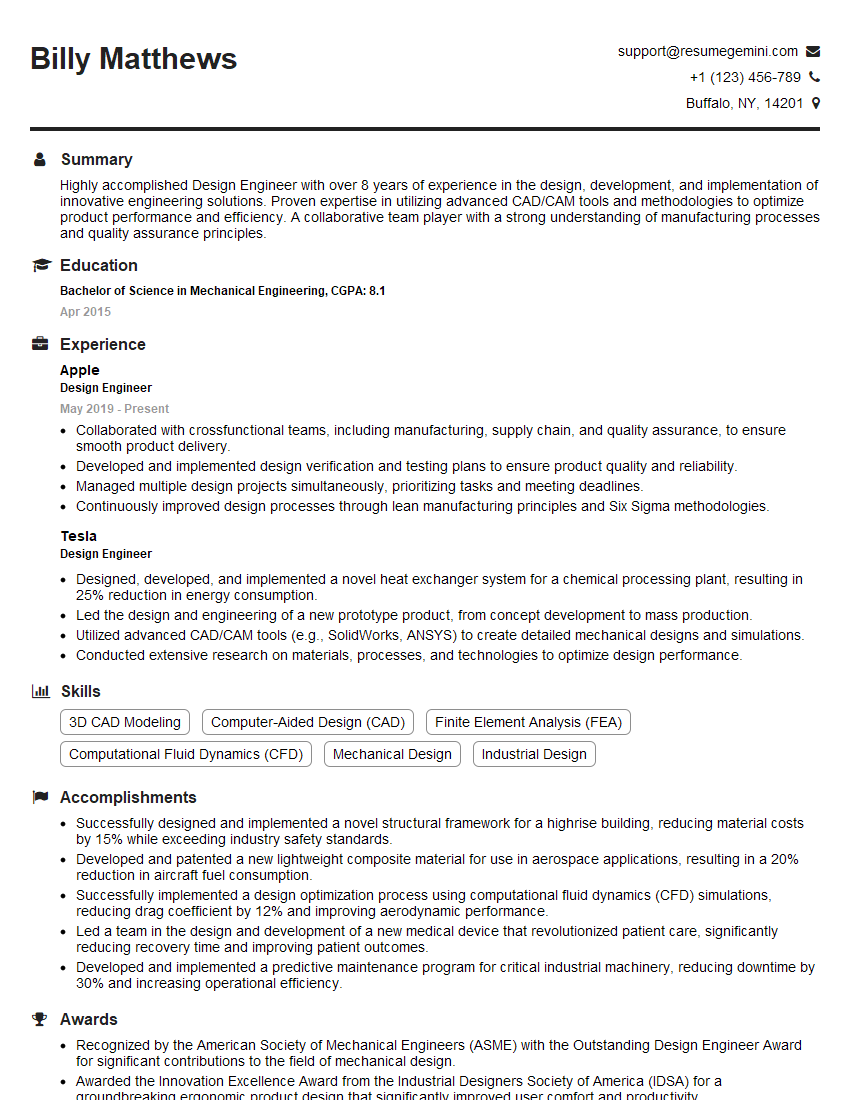
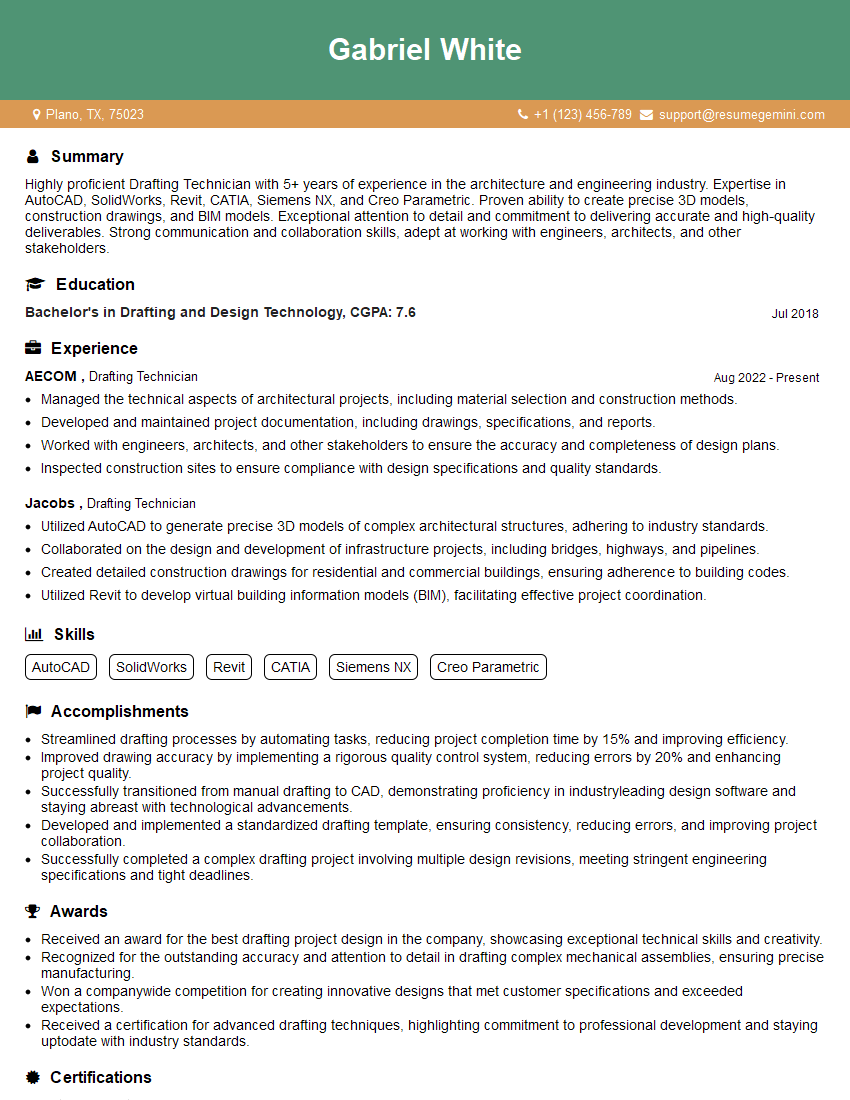
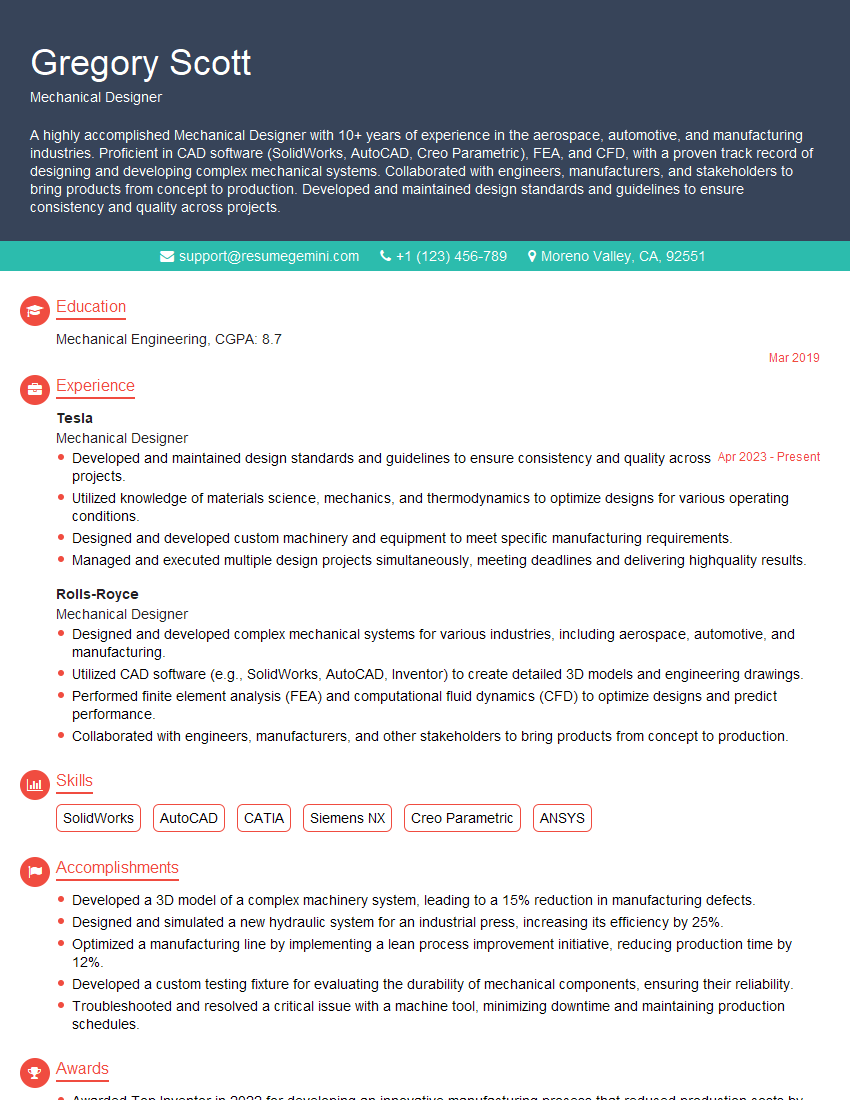
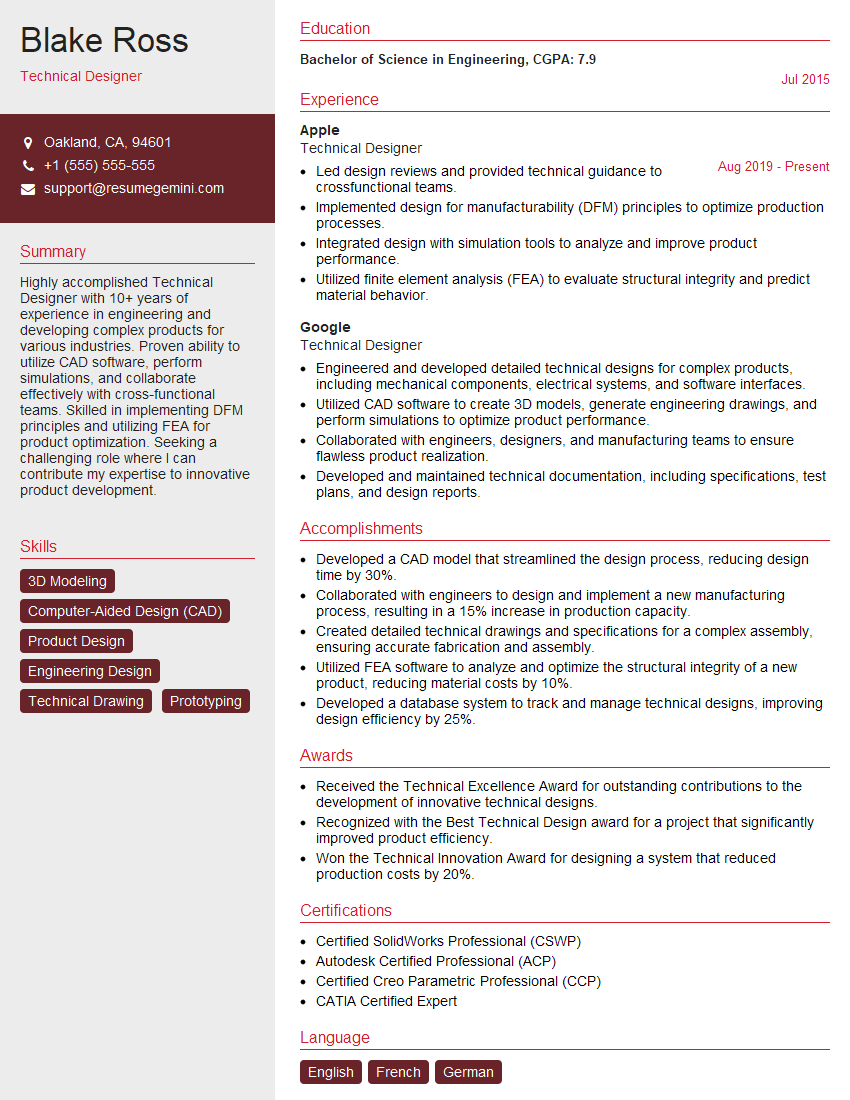
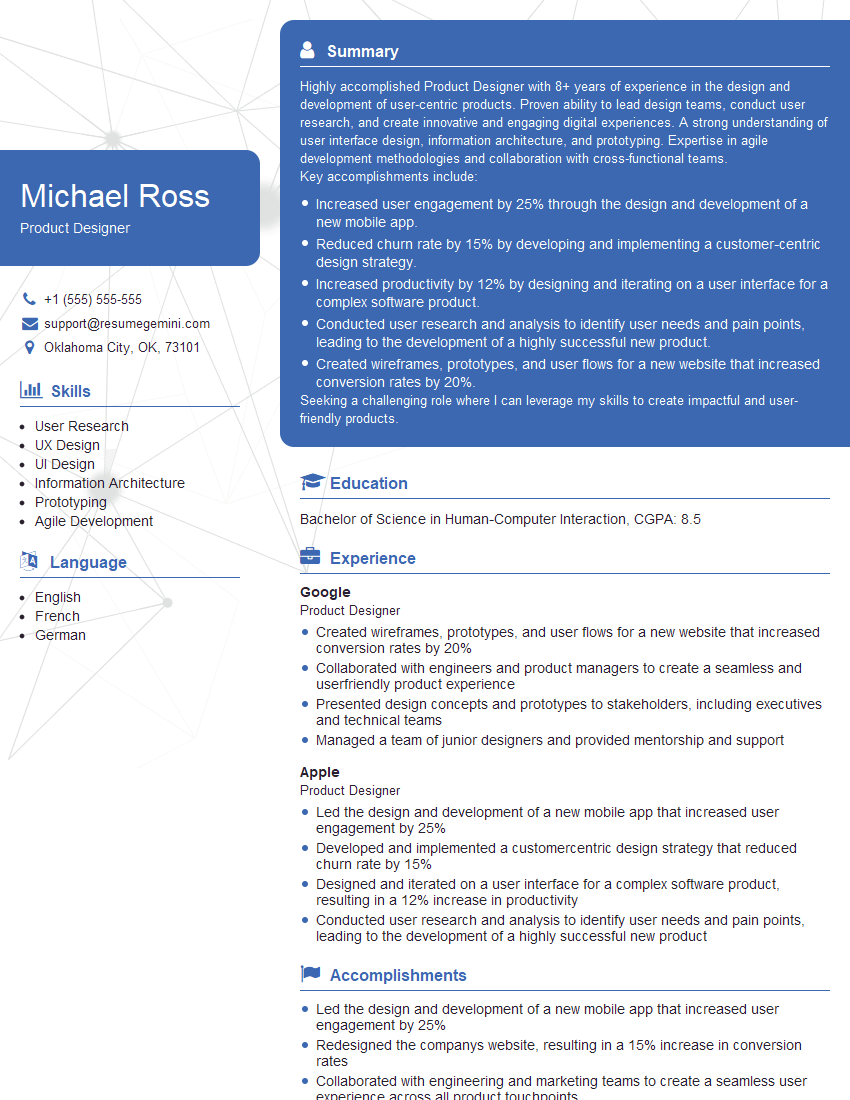
Mastering CAD Design (SolidWorks and Creo) is crucial for a successful and rewarding career in engineering and design. These skills open doors to diverse and exciting roles, offering opportunities for innovation and problem-solving. To maximize your job prospects, creating a strong, ATS-friendly resume is essential. ResumeGemini can help you build a professional and impactful resume that showcases your CAD design expertise effectively. Examples of resumes tailored specifically to CAD Design (SolidWorks, Creo) roles are available, helping you present your skills and experience in the best possible light. Invest the time in crafting a compelling resume—it’s your first impression and a key to unlocking your career goals.

Explore more articles
Users Rating of Our Blogs
Share Your Experience
We value your feedback! Please rate our content and share your thoughts (optional).
What Readers Say About Our Blog
Very informative content, great job.
good