The thought of an interview can be nerve-wracking, but the right preparation can make all the difference. Explore this comprehensive guide to CAD Software (e.g., AutoCAD, MicroStation) interview questions and gain the confidence you need to showcase your abilities and secure the role.
Questions Asked in CAD Software (e.g., AutoCAD, MicroStation) Interview
Q 1. Explain the difference between AutoCAD and MicroStation.
AutoCAD and MicroStation are both leading Computer-Aided Design (CAD) software packages, but they cater to different needs and have distinct strengths. Think of it like choosing between two very capable cars – one is a sports car (AutoCAD), excellent for speed and agility on smaller projects, while the other is an SUV (MicroStation), better suited for larger, more complex projects requiring robust handling and collaboration.
AutoCAD, developed by Autodesk, is known for its user-friendly interface and wide range of readily available add-ons. It excels in 2D drafting and detailing, and its 3D modeling capabilities are sufficient for many applications. Its dominance in the architectural, mechanical, and electrical industries stems from its extensive library of tools and a large community providing support and customization options. It’s generally considered easier to learn initially.
MicroStation, developed by Bentley Systems, is often preferred for large-scale infrastructure projects like highways, bridges, and railways. It boasts superior handling of massive datasets and complex geometries, facilitating collaborative work among large teams. Its strengths lie in its robust handling of spatial data, its ability to manage large projects efficiently, and its powerful referencing tools. Its interface can have a steeper learning curve but ultimately offers more powerful tools for large-scale projects.
In essence, the best choice depends on the project’s scale and specific requirements. For smaller projects or those requiring quick turnaround times, AutoCAD’s ease of use is a significant advantage. For vast, complex projects demanding precise collaboration and efficient data management, MicroStation emerges as the more suitable option.
Q 2. Describe your experience with 2D and 3D modeling in CAD software.
My experience encompasses both 2D and 3D modeling in various CAD platforms, primarily AutoCAD and MicroStation. In 2D, I’m proficient in creating detailed drawings, plans, sections, and elevations using tools like lines, arcs, circles, and splines. For example, I’ve extensively used 2D drafting to create detailed shop drawings for steel fabrication, ensuring accuracy in dimensions and annotations for manufacturing.
In 3D modeling, I’ve worked on projects ranging from simple part modeling to complex assemblies. I’m familiar with various techniques such as extrusion, revolution, and surface modeling. I’ve utilized these skills to design and model building components, machinery parts, and even terrain models. For instance, in one project, I used MicroStation’s powerful 3D modeling tools to create a detailed 3D model of a large bridge, incorporating elements like structural supports, roadway, and surrounding terrain.
My experience extends to utilizing both wireframe and solid modeling techniques. I understand the advantages and limitations of each and choose the appropriate method based on the project’s needs. For instance, wireframe models are useful for quick visualization and early-stage design, while solid models are crucial for accurate analysis and manufacturing.
Q 3. How proficient are you with CAD layering and its importance?
CAD layering is fundamental for organizing and managing complex drawings. Think of it as organizing files in folders – it allows you to separate different aspects of a design into distinct layers, making it easier to manage, edit, and understand the drawing. Each layer can have its own properties, like color, line weight, and linetype. This is crucial for effective collaboration and efficient project management.
My proficiency in CAD layering is high. I can effectively utilize layers to separate architectural elements (walls, doors, windows), structural elements (columns, beams, foundations), MEP elements (pipes, ducts, electrical conduits), and annotations. For instance, in a building design, I would create separate layers for each architectural feature and MEP systems, allowing me to easily turn them on and off for review or printing. This avoids clutter and allows for targeted modifications. I also use layer management to control plot styles, ensuring only relevant layers are included in specific output.
Furthermore, I understand the importance of naming conventions for layers to maintain consistency and clarity throughout a project. A well-organized layer structure significantly improves the overall efficiency and readability of the design.
Q 4. What are your preferred methods for creating complex geometries in CAD?
Creating complex geometries in CAD involves a combination of techniques and tools. My preferred methods depend on the nature of the geometry, but generally include:
- Boolean operations: Using functions like Union, Subtract, and Intersect to combine or modify existing geometries, allowing the creation of complex shapes from simpler ones. For example, I might subtract a cylindrical hole from a rectangular block to create a specific part.
- Parametric modeling: Defining geometries based on parameters, allowing for easy modification and updating of designs. A change in a single parameter automatically updates the entire design. This is particularly useful for repetitive components or when design iterations are expected.
- Sweeping and lofting: Creating complex surfaces by sweeping a profile along a path or lofting between multiple cross-sections. This is ideal for creating curved surfaces and free-form shapes.
- Constraint-based modeling: Defining relationships between geometric elements using constraints, ensuring that the model maintains its intended shape and dimensions when modified. This approach helps in creating robust and accurate models.
I’m also adept at using specialized tools and plugins available in AutoCAD and MicroStation to create intricate geometries efficiently. The choice of method depends on the complexity, desired accuracy, and overall project goals.
Q 5. Explain your understanding of CAD file formats (DWG, DGN, DXF).
Understanding CAD file formats is crucial for interoperability and data exchange. Let’s explore the three you mentioned:
- DWG (Drawing): Autodesk’s proprietary format. It’s the native file format for AutoCAD and is widely used in the industry. It supports both 2D and 3D data and various object properties.
- DGN (Design): Bentley Systems’ proprietary format. This is the native format for MicroStation and is commonly used in large infrastructure projects. It’s known for its ability to handle large datasets and complex geometries efficiently.
- DXF (Drawing Exchange Format): A neutral, text-based format that can be exchanged between different CAD software. Although simpler than DWG or DGN, it can sometimes lose certain features during conversion.
The choice of file format depends on the software being used and the level of data fidelity needed. I am experienced in working with all three formats and understand the potential for data loss during conversion, taking necessary precautions to ensure data integrity.
Q 6. How do you handle large and complex CAD drawings?
Handling large and complex CAD drawings requires strategic approaches to manage file size, maintain performance, and ensure data integrity. My strategies include:
- Xrefs (External References): Breaking down a large drawing into smaller, manageable files, linked together using external references. This improves performance and allows for easier updates to individual components.
- Data optimization: Regularly purging unnecessary data, such as unused blocks and layers, to reduce file size and improve responsiveness.
- Layer management: Maintaining a well-organized layer structure, freezing or turning off unnecessary layers while working on specific areas of the drawing.
- Efficient modeling techniques: Employing strategies such as parametric modeling or using simplified geometries wherever possible to avoid unnecessary complexity.
- Using specialized CAD tools and add-ons: Leveraging software features designed for large drawing management and performance optimization.
I also utilize techniques like creating proxies or lightweight representations of complex models for improved performance, particularly during rendering or analysis. The key is proactive management throughout the design process to prevent issues associated with large files.
Q 7. Describe your experience with CAD plotting and output settings.
My experience with CAD plotting and output settings is extensive. I’m proficient in generating high-quality plots for various purposes, including construction documents, shop drawings, and presentations. I understand the importance of selecting appropriate plot styles, printer configurations, and paper sizes to achieve the desired output.
I’m familiar with various plotting methods, including direct plotting to a printer, plotting to a file (PDF, TIFF, etc.), and using plotters with different functionalities. I can optimize plot settings for various output devices and formats, ensuring accurate representation of line weights, colors, and text. For example, I understand how to adjust the plot scale, paper size, and margins to fit the drawing content appropriately. I can also create custom plot styles to ensure consistency across multiple drawings and projects.
I’m experienced in troubleshooting plot issues, addressing problems such as incorrect scaling, missing elements, or printing errors. In short, I am confident in my ability to produce high-quality, accurate CAD plots tailored to specific project needs.
Q 8. How familiar are you with CAD data management and version control?
CAD data management and version control are crucial for collaborative projects and preventing data loss. Think of it like writing a document with multiple authors – you need a system to track changes, revert to previous versions, and avoid conflicts. I’m proficient in using various methods, including:
- Cloud-based solutions: I have experience with Autodesk BIM 360, A360, and similar platforms that offer centralized data storage, version history, and collaborative workflows. These are particularly beneficial for large teams working on complex projects.
- Local version control systems: I’m also familiar with using local version control within CAD software itself. AutoCAD, for instance, allows you to save different versions of a drawing, making it easy to revert to earlier stages if needed. This is valuable for smaller projects or when offline access is necessary.
- External Version Control Systems (e.g., Git): While less common directly within CAD software, integrating Git with a workflow using file-based outputs (like DXF or DWG) offers powerful branching and merging capabilities, particularly when dealing with large data sets or intricate designs.
In practice, I always choose the best method based on project size, team structure, and the required level of control and collaboration. For example, for a small team working on a simple project, local version control may suffice. However, for a large, distributed team on a complex project, cloud-based solutions with robust versioning capabilities are far more suitable.
Q 9. How do you ensure accuracy and precision in your CAD work?
Accuracy and precision are paramount in CAD. A slight error can have significant real-world consequences. I ensure this through several strategies:
- Precise Input Methods: I utilize object snaps (endpoint, midpoint, intersection, etc.) extensively to accurately place and dimension objects. I also employ polar coordinates and relative coordinates for precise positioning. Think of it like using a highly accurate ruler and protractor rather than just eyeballing it.
- Units and Precision Settings: I meticulously set the appropriate units (e.g., millimeters, inches) and precision settings within the CAD software to reflect the required accuracy for the project. This determines the level of decimal places displayed and used in calculations.
- Regular Checks and Verification: I routinely check my work using various tools, such as dimensioning, area calculations, and visual inspections. I also frequently use layers to keep my work organized and easy to review.
- External References: When working with survey data or imported models, I ensure proper geometric referencing and coordinate systems are maintained to avoid misalignment and errors during integration.
For instance, in a building design project, an inaccurate dimension could lead to construction problems. My methodical approach ensures I avoid such costly mistakes.
Q 10. Describe your experience with CAD customization and automation.
CAD customization and automation are key to boosting efficiency and consistency. I’ve utilized several methods to streamline my workflow:
- LISP Programming (AutoLISP for AutoCAD): I’ve written custom LISP routines for repetitive tasks like generating reports, automating drawing creation, and performing complex calculations. For example, I created a routine to automatically generate a bill of materials (BOM) from a drawing.
- Macros and Scripts: I frequently utilize built-in macro recording features and scripting capabilities within CAD software to automate sequences of actions. This is particularly helpful for repetitive tasks like creating standard details or applying layer styles.
- Dynamic Blocks: I’m adept at creating and using dynamic blocks to create reusable components with parametric properties. This simplifies design iterations and ensures consistency across drawings.
- AutoCAD VBA or similar: Using Visual Basic for Applications (VBA) in AutoCAD allows for more sophisticated automation and integration with other applications. This was particularly useful in a project where I integrated CAD data with a project management database.
Automation reduces the chance of human error and frees up time for more complex design challenges. It’s about turning manual tasks into efficient, repeatable processes.
Q 11. Explain your knowledge of CAD drawing standards (e.g., ANSI, ISO).
Understanding CAD drawing standards like ANSI and ISO is vital for ensuring drawings are clear, consistent, and easily understood by others. My experience includes:
- ANSI Standards: I’m familiar with ANSI standards for various disciplines, including mechanical, architectural, and electrical drawings. This includes understanding sheet sizes, title blocks, line weights, layer organization, and dimensioning conventions.
- ISO Standards: I’m also proficient in working with ISO standards, allowing me to adapt to international project requirements. Key aspects include understanding the variations in sheet sizes, dimensioning styles, and general drawing organization compared to ANSI.
- Company-Specific Standards: I adapt quickly to any company-specific standards that may be implemented. Understanding and adhering to these standards is crucial for maintaining project consistency and collaboration.
Consistency in following standards ensures that drawings are unambiguous, facilitating collaboration and reducing the risk of errors during the construction or manufacturing phases.
Q 12. How do you troubleshoot common CAD software issues?
Troubleshooting CAD issues requires a systematic approach. My process usually involves:
- Identifying the Problem: Carefully define the error – what’s happening, when it happens, and any error messages displayed. Taking screenshots helps.
- Checking Simple Solutions: First, try the obvious: Restart the software, check for updates, ensure sufficient disk space, and close unnecessary applications.
- Online Resources: Consult online forums, the software’s help documentation, and online tutorials. Search for the error message or a similar issue.
- Testing and Isolation: If the issue is with a specific drawing, try creating a new drawing to rule out file corruption. Test different commands or actions to isolate the root cause.
- Support Channels: If the issue persists, I don’t hesitate to contact the software vendor’s technical support for assistance.
For instance, if a drawing is corrupted, I might try recovering it using the software’s recovery features. If that fails, I may try opening it in an older version of the software.
Q 13. What are your preferred methods for creating and editing blocks in CAD?
Creating and editing blocks efficiently is essential for efficient CAD work. My preferred methods are:
- Base Point Selection: I carefully select the insertion point of the block to ensure precise placement. Understanding how the base point affects placement is crucial.
- Attribute Definition: I define attributes within the block definition (like text fields for part numbers or descriptions) to make data management easier.
- Exploding and Modifying: While avoiding unnecessary exploding, I know when it’s necessary to edit individual components within an existing block. Re-saving as a new block is essential afterward.
- Dynamic Blocks: When appropriate, creating dynamic blocks allows for flexibility and parameterization. This lets users manipulate aspects of the block (size, position of components, etc.) without needing to edit its geometry directly. This dramatically increases efficiency and reduces design errors.
- Block Libraries: I maintain well-organized block libraries, storing commonly used components for easy access and reuse across multiple projects. This ensures standardization and consistency.
In a plumbing design project, creating blocks for standard fixtures ensures consistency and speeds up the process dramatically. The use of attributes lets me manage the specifications of each fixture easily.
Q 14. Describe your experience with CAD annotation and dimensioning.
CAD annotation and dimensioning are critical for clear and unambiguous communication. I ensure accuracy and readability through:
- Dimension Styles: I always define and manage dimension styles to maintain consistent presentation across the entire drawing. This includes settings for arrowheads, text height, and precision.
- Layer Management: Dimensions are placed on dedicated layers to maintain organization and clarity. This makes selecting and editing dimensions easier.
- Text Styles: Similar to dimension styles, using consistent text styles ensures uniform presentation of annotations and other text information.
- Annotation Scales: I am very mindful of annotation scales to maintain proper legibility at various plot scales. This is essential to avoid dimensions that are either too large or too small to read easily.
- Leader Lines: I use leader lines effectively to connect dimensions or notes to the relevant features, enhancing clarity and avoiding ambiguity.
In architectural drawings, precise dimensioning is crucial for construction. My approach ensures that the information is not only accurate but also easily understood by builders and contractors. Consistent annotation styles ensure that the drawings are professional and readable.
Q 15. How do you collaborate with others on CAD projects?
Collaboration on CAD projects is crucial for efficient workflow and project success. My approach involves a multi-faceted strategy leveraging various tools and techniques.
- Version Control Systems: I utilize cloud-based platforms like Autodesk BIM 360 or similar solutions which allow multiple users to access and modify the same drawings simultaneously while tracking changes and revisions. This prevents conflicts and ensures everyone works with the most up-to-date version. Think of it like Google Docs for CAD drawings.
- Cloud Storage and Sharing: We use shared network drives or cloud storage services like Dropbox or OneDrive to easily share files and ensure everyone has access to the necessary data. This eliminates the need for constant emailing of large files.
- Communication Tools: Regular meetings, email updates, and project management software (e.g., Asana, Trello) ensure transparent communication and efficient problem-solving. Clear communication prevents misunderstandings and keeps the project on track.
- Model Coordination: In larger projects, we leverage model coordination software to detect and resolve clashes between different disciplines (e.g., architectural, structural, MEP). This avoids costly rework later in the project.
- Defined Roles and Responsibilities: A clear understanding of each team member’s role minimizes overlap and ensures tasks are completed efficiently. Everyone knows who’s responsible for what, minimizing confusion.
For example, on a recent stadium design project, using BIM 360 allowed the structural, architectural, and MEP teams to simultaneously work on the model, identifying conflicts early and avoiding significant delays.
Career Expert Tips:
- Ace those interviews! Prepare effectively by reviewing the Top 50 Most Common Interview Questions on ResumeGemini.
- Navigate your job search with confidence! Explore a wide range of Career Tips on ResumeGemini. Learn about common challenges and recommendations to overcome them.
- Craft the perfect resume! Master the Art of Resume Writing with ResumeGemini’s guide. Showcase your unique qualifications and achievements effectively.
- Don’t miss out on holiday savings! Build your dream resume with ResumeGemini’s ATS optimized templates.
Q 16. Explain your understanding of CAD rendering and visualization techniques.
CAD rendering and visualization are critical for communicating design intent and showcasing the final product to clients. My experience encompasses a range of techniques:
- Raster Rendering: This traditional approach produces photorealistic images. Software like V-Ray or Arnold within CAD platforms or dedicated rendering software produce high-quality results, but can be computationally intensive.
- Ray Tracing: A more advanced technique that simulates how light interacts with surfaces, creating highly realistic reflections, shadows, and refractions. This adds a significant level of detail and realism to the renders.
- Real-time Rendering: Using engines like Unreal Engine or Unity, allows for interactive walkthroughs and visualizations, providing clients with an immersive experience. This is particularly useful for presentations and client reviews.
- Animation: Creating short animations can dramatically improve comprehension of a design by showing how elements move and interact. For instance, animating the movement of people through a building can highlight design flaws or demonstrate efficiency.
- Virtual Reality (VR) and Augmented Reality (AR): Immersive technologies like VR and AR provide even more engaging ways to experience the design. Walking through a virtual model or overlaying a 3D model onto a real-world setting can make a project more relatable to clients.
For instance, on a residential project, we used real-time rendering to create a virtual walkthrough, allowing the client to experience the design before construction began and make informed decisions about layout and finishes.
Q 17. What is your experience with CAD APIs or programming extensions?
I have significant experience with CAD APIs and programming extensions, primarily using AutoLISP for AutoCAD and VBA for MicroStation. This allows for automation of repetitive tasks and the creation of custom tools to enhance productivity and efficiency.
- AutoLISP: I’ve used AutoLISP to create custom commands for automating tasks like drawing generation, data extraction, and report creation, reducing manual effort and improving accuracy. For example, I developed a script to automate the creation of detailed construction drawings from a simplified model.
- VBA: Similar to AutoLISP, I’ve employed VBA in MicroStation to develop macros for automating data processing and generating customized reports. This increased efficiency in managing large datasets and creating project summaries.
- Python: I also have experience with Python scripting, leveraging libraries like PyAutoCAD and pyMicroStation to interface with the CAD software. This provides a more flexible and powerful approach to automation than traditional macros.
In one project, I developed an AutoLISP routine to automatically generate detailed shop drawings from a parametric model, saving countless hours of manual drafting and reducing the potential for errors.
Q 18. How do you manage revisions and updates to CAD drawings?
Managing revisions and updates to CAD drawings is critical for maintaining accuracy and ensuring everyone works with the latest information. My strategy involves a combination of best practices:
- Version Control: Employing version control systems, such as those integrated into cloud-based platforms, is essential for tracking changes and reverting to previous versions if necessary. This is crucial for maintaining a clear history of modifications.
- Revision Clouds: Using revision clouds in the drawings themselves highlights the changes made between versions, making it easy to identify modifications at a glance. Think of them as visual markers for updates.
- Revision Tables: Maintaining a detailed revision table helps document each change, its date, author, and description, providing a comprehensive record of the drawing’s history.
- Naming Conventions: Implementing a consistent file naming convention (e.g., Project Name_Revision Number_Date) ensures easy identification and organization of various drawing versions.
- Regular Backups: Frequent backups are essential to protect against data loss. I use both local and cloud backups to ensure data redundancy and security.
For instance, on a large infrastructure project, the version control system allowed us to easily revert to a previous version after an unintended change was made, minimizing rework and maintaining data integrity.
Q 19. Describe your experience with using CAD software for specific industries.
My CAD experience spans various industries, including:
- Architecture: Extensive experience in creating architectural drawings, 3D models, and visualizations using AutoCAD and Revit. I have worked on projects ranging from residential homes to large-scale commercial buildings.
- Civil Engineering: Proficient in using MicroStation and Civil 3D for tasks like site planning, road design, and surveying. I’ve participated in projects involving highway design and urban planning.
- MEP Engineering: Experience in using AutoCAD MEP and Revit MEP for designing mechanical, electrical, and plumbing systems. I’ve contributed to projects involving building services design.
For example, in an architectural project, I used Revit to create a detailed 3D model of a high-rise building, which was then used for coordination with structural and MEP engineers. In a civil engineering project, I leveraged MicroStation to design a complex road network, incorporating terrain data and drainage systems.
Q 20. What are your strengths and weaknesses when using CAD software?
Strengths: My strengths lie in my ability to efficiently create detailed and accurate CAD drawings, automate repetitive tasks using programming extensions, and effectively visualize complex designs. I am adept at troubleshooting and problem-solving within the software and am comfortable working independently or collaboratively within a team.
Weaknesses: While I am proficient in several CAD platforms, continually expanding my knowledge of the newest features and advanced functionalities is an ongoing process. Furthermore, staying current with industry-specific software plugins and add-ons relevant to specialized projects is a continuous learning curve.
Q 21. How do you stay updated with the latest CAD software features and advancements?
Staying updated with the latest CAD software features and advancements is vital for maintaining competitiveness and enhancing productivity. I employ several strategies:
- Online Courses and Tutorials: I regularly take online courses and tutorials offered by platforms like LinkedIn Learning and Udemy to learn new techniques and software updates.
- Software Updates and Release Notes: I diligently review software release notes and updates to learn about new features and bug fixes.
- Industry Publications and Websites: I stay informed by reading industry publications, blogs, and websites dedicated to CAD software and related technologies.
- Conferences and Webinars: Attending industry conferences and webinars provides valuable insights into emerging trends and best practices.
- Networking with Colleagues: Discussing new techniques and challenges with other CAD professionals helps me learn from their experiences and share my own knowledge.
This proactive approach ensures I am always abreast of the latest advancements, allowing me to efficiently incorporate innovative techniques and improve my workflows.
Q 22. Describe a complex CAD problem you solved and how you approached it.
One challenging project involved developing a 3D model of a complex industrial facility for a piping and instrumentation diagram (P&ID) update. The challenge lay in integrating laser scan data, architectural plans, and existing piping schematics, all with varying levels of accuracy and detail. My approach was methodical:
- Data Integration: I started by importing the point cloud data from the laser scan into the CAD software. This created a massive dataset which I then selectively utilized. I then overlaid this with the architectural plans, aligning them using key reference points. Finally, the existing P&ID information was meticulously integrated.
- Data Cleaning and Refinement: The point cloud data was noisy, containing extraneous elements. I used filtering techniques within the CAD software to clean it, focusing on relevant structural elements. Similarly, inconsistencies and errors within the architectural plans and piping schematics were identified and resolved through careful comparison and analysis.
- Model Building: I constructed the 3D model progressively, starting with the main structural elements (buildings, platforms). I then added secondary elements like piping systems, equipment, and support structures. The process involved extensive use of constraints and parametric modeling to ensure dimensional accuracy and maintain consistency.
- Collaboration and Verification: Throughout the project, I collaborated closely with engineers and designers, ensuring the model reflected the latest design changes and technical specifications. Regular quality checks were implemented, comparing the model to the original source data to verify accuracy and identify potential errors.
This project highlighted the importance of structured workflow, data integrity, and collaborative design in tackling complex CAD projects. The result was a highly accurate and comprehensive 3D model that greatly aided in the update of the P&ID, leading to significant time and cost savings.
Q 23. How familiar are you with external referencing (XREFs) in CAD?
External referencing (XREFs) are crucial for managing large and complex CAD projects. They allow you to link external drawing files into your current drawing as references, maintaining their independent existence. This is like having a linked document in a word processor – changes made to the referenced file automatically update in the main drawing, unless explicitly detached.
My familiarity extends to various aspects, including:
- Managing XREF Paths: I’m proficient in setting up and managing XREF paths to ensure seamless access to linked files, even when moving projects or collaborating on network drives. Understanding how to correctly manage these paths is vital to avoid broken links.
- XREF Overlays: I utilize XREFs with various overlay settings (e.g., frozen, faded, locked) to control their visibility and editability in the main drawing. This is particularly useful for managing layer clutter.
- Nested XREFs: I’m experienced in working with nested XREFs (XREFs within XREFs) to create hierarchical drawing structures, enhancing organization and management of large-scale projects.
- XREF Binding: I understand how to bind XREFs to make them permanent parts of the main drawing, but I understand when and why this is a crucial decision. It’s important to avoid data bloat.
XREFs are indispensable for collaborative projects, allowing multiple designers to work concurrently on different aspects of a drawing without overwriting each other’s work. They are essential for maintaining data integrity and promoting efficient workflows in large-scale projects.
Q 24. Explain your understanding of coordinate systems in CAD.
Coordinate systems are fundamental in CAD, defining the location and orientation of objects within a drawing. Think of it like a grid system on a map – it provides a framework for precise positioning.
I’m familiar with several types:
- World Coordinate System (WCS): This is the default system, a global reference point for all objects within a drawing. It’s the fundamental starting point for all measurements.
- User Coordinate System (UCS): This allows you to define your own custom coordinate system, oriented relative to the WCS. This is invaluable when working on specific areas within a larger project, allowing you to simplify input and visualization. For example, when detailing a small component of a larger machine, a UCS aligned with the component’s geometry is extremely helpful.
- Project Coordinate System (PCS) This is crucial for large projects covering substantial geographical areas. It allows for the alignment of various drawings to a common geographical coordinate system. It allows accurate data referencing.
Understanding coordinate systems is crucial for accurate measurements, precise object placement, and data exchange between different CAD systems. Incorrect coordinate system settings can lead to errors and inconsistencies that propagate throughout the drawing.
Q 25. Describe your experience with creating and utilizing CAD templates.
CAD templates are pre-configured drawing files that contain standardized settings, layers, and styles. They provide a consistent foundation for new drawings, ensuring uniformity and efficiency across projects. Think of them as pre-formatted documents with all the necessary setup.
My experience includes:
- Creating Templates: I’ve created numerous custom templates tailored to different project types and company standards, including layer definitions, text styles, dimension styles, line types, and plot settings.
- Utilizing Templates: I routinely use templates to start new drawings, ensuring consistency in drawing presentation and reducing setup time. This standardization allows for easier collaboration and improves the overall quality of the drawings.
- Template Management: I’ve participated in the development and maintenance of a template library, ensuring its organization and accessibility to team members. This includes version control and updating templates to reflect changes in company standards.
Well-designed templates significantly streamline the workflow, reducing the time spent on repetitive tasks and improving overall consistency. This translates directly to better project efficiency and reduced error rates.
Q 26. How do you ensure your CAD drawings are compatible across different software versions?
Ensuring CAD drawing compatibility across software versions requires a multi-pronged approach.
- File Formats: Using widely compatible file formats like DXF (Drawing Exchange Format) or DWG (Drawing Database Format – the native format for AutoCAD) minimizes version-specific issues. While DWG is preferred for internal use, DXF is a reliable option for sharing drawings with users of different CAD software.
- Version Control: Saving drawings in older, widely supported versions can help ensure compatibility with older software. However, this should be carefully balanced with the use of latest features.
- Purge and Audit: Regularly purging unused data and auditing the drawing for errors helps reduce file size and improve compatibility. This eliminates potential conflicts and issues that may arise from using older software.
- Simple Geometry: Avoiding overly complex geometry, custom objects, or software-specific features that may not be supported in older versions increases the chances of drawing compatibility. Sticking to standard CAD commands helps ensure portability.
- Testing Compatibility: Before sharing or archiving drawings, test their compatibility with the target software version to identify and resolve potential issues early in the workflow.
By implementing these strategies, we minimize the risk of compatibility problems and ensure that drawings are readily accessible across different versions and platforms.
Q 27. What is your experience with CAD software training and mentoring?
I have extensive experience in both providing and receiving CAD software training and mentoring.
- Training: I’ve conducted training sessions for colleagues on various CAD software applications, covering topics ranging from basic drawing commands to advanced modeling techniques. I tailor my training to the specific needs and skill levels of the participants, using a mix of lectures, demonstrations, and hands-on exercises.
- Mentoring: I’ve mentored junior designers, providing guidance and support on various aspects of CAD work, including project management, problem-solving, and best practices. This involved regular feedback, code reviews, and assistance in tackling complex challenges.
- Learning: I am a lifelong learner and continuously upgrade my skills through online courses, workshops, and professional development programs to remain up-to-date with the latest industry trends and software updates.
My approach focuses on fostering a collaborative learning environment where individuals feel comfortable asking questions and sharing their experiences. I believe that effective training and mentoring are crucial for promoting continuous improvement and building a strong, skilled workforce.
Q 28. How do you approach quality control in CAD drafting and modeling?
Quality control (QC) in CAD drafting and modeling is paramount to ensure accuracy, consistency, and compliance with project specifications.
My QC process involves:
- Regular Checks: I conduct regular checks throughout the drawing creation process, verifying dimensions, coordinates, and object properties to identify and correct errors early on.
- Layer Management: Utilizing a well-organized layer structure aids in identifying and managing individual elements of the drawing, streamlining the review process.
- Dimensioning and Annotation: I ensure that all dimensions and annotations are clear, concise, and accurate, following established standards and conventions.
- Model Checking: For 3D models, I use model-checking tools to identify errors, such as gaps, intersections, or inconsistencies in geometry. This also includes checking model integrity against design criteria.
- Peer Review: I encourage peer reviews to identify potential errors or inconsistencies that may have been overlooked. A fresh pair of eyes can often spot issues easily missed by the original creator.
- Drawing Comparison: For revisions, I use drawing comparison tools to highlight the changes made between versions, facilitating a smooth and efficient review process.
A robust QC process is essential not only to maintain the quality of the drawings but also to ensure project efficiency and avoid costly rework or delays later in the project lifecycle.
Key Topics to Learn for CAD Software (e.g., AutoCAD, MicroStation) Interview
- Fundamentals: Understanding the user interface, navigation, and basic drawing tools. Mastering the creation and manipulation of 2D and 3D objects.
- Drawing Precision and Accuracy: Proficiency in using snap, object snaps, and precision input methods. Understanding drawing tolerances and their importance in real-world applications.
- Layer Management and Organization: Efficiently managing layers, colors, and linetypes to create organized and easily modifiable drawings. Understanding the importance of layer visibility and plotting considerations.
- Annotation and Dimensioning: Creating accurate and clear annotations, including text, dimensions, and leaders. Understanding dimension styles and their customization.
- Block Creation and Management: Creating and utilizing custom blocks to streamline the design process and maintain consistency. Understanding dynamic blocks and their advantages.
- Printing and Plotting: Setting up plot styles, configuring plotters, and generating high-quality printouts. Understanding different plot styles and their applications.
- Data Management and File Formats: Understanding different file formats (e.g., DWG, DGN) and the ability to import and export data. Familiarity with cloud-based collaboration tools.
- Advanced Features (Depending on Software): Explore parametric modeling, surface modeling, 3D printing capabilities, and other advanced features relevant to the specific CAD software you are using.
- Problem-Solving and Troubleshooting: Demonstrate your ability to identify and resolve common CAD issues. Explain your approach to debugging and error correction.
- Practical Applications: Be prepared to discuss real-world projects where you have utilized CAD software, highlighting your problem-solving skills and technical expertise.
Next Steps
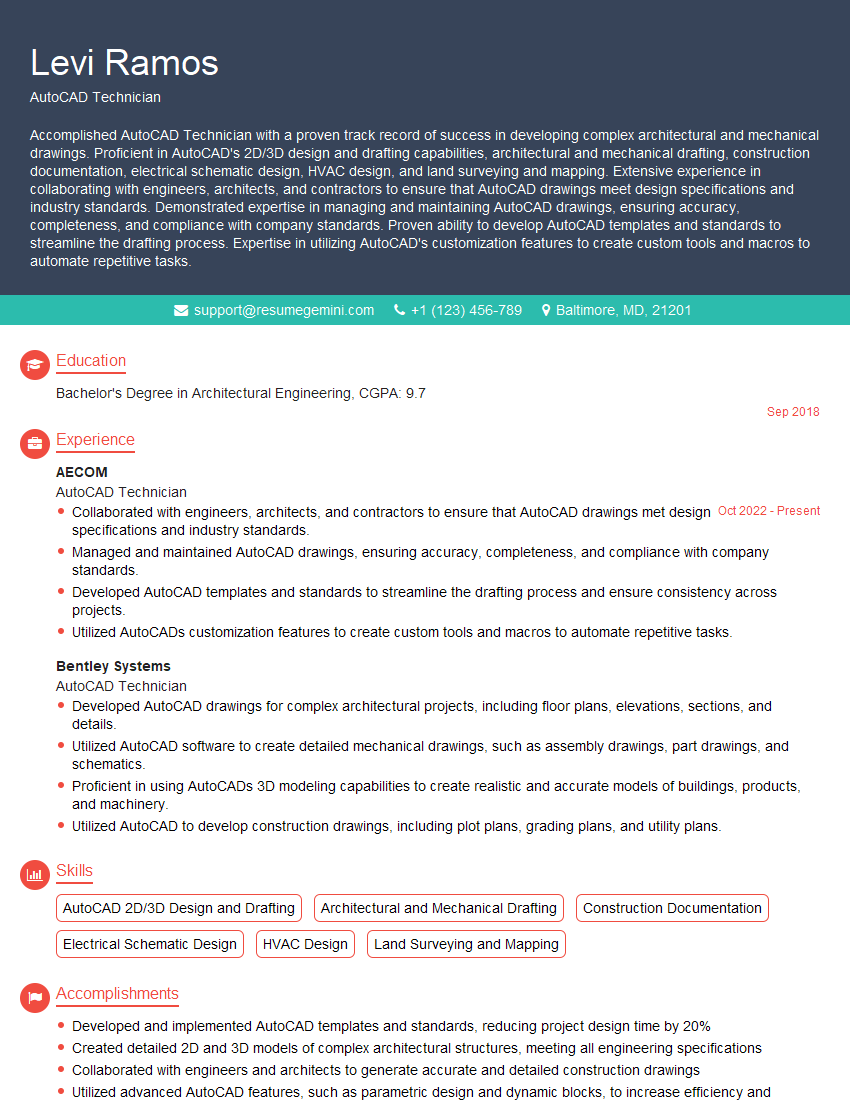
Mastering CAD software like AutoCAD or MicroStation is crucial for a successful career in many fields, from architecture and engineering to manufacturing and construction. Proficiency in these tools demonstrates valuable technical skills and opens doors to exciting opportunities. To maximize your job prospects, create a resume that is both ATS-friendly and showcases your skills effectively. ResumeGemini is a trusted resource to help you build a professional and impactful resume. Examples of resumes tailored to CAD software professionals, highlighting relevant skills and experience, are available to help you get started.
Explore more articles
Users Rating of Our Blogs
Share Your Experience
We value your feedback! Please rate our content and share your thoughts (optional).
What Readers Say About Our Blog
Very informative content, great job.
good