Preparation is the key to success in any interview. In this post, we’ll explore crucial Chrome DevTools interview questions and equip you with strategies to craft impactful answers. Whether you’re a beginner or a pro, these tips will elevate your preparation.
Questions Asked in Chrome DevTools Interview
Q 1. Explain the difference between the Elements, Console, and Sources panels in Chrome DevTools.
Chrome DevTools’ three core panels – Elements, Console, and Sources – each serve a distinct purpose in web development debugging and inspection. Think of them as a detective’s toolkit for investigating your website.
Elements: This panel provides a live, editable representation of your webpage’s HTML, CSS, and DOM (Document Object Model). It’s like looking under the hood of your car’s engine – you see all the parts and how they’re connected. You can inspect individual elements, modify their styles in real-time, and understand their structure. For instance, you can identify why a particular element isn’t displaying correctly by examining its CSS rules and HTML attributes.
Console: The console is your logging and debugging command line. It’s where you can write JavaScript code, view logged messages (from
console.log()statements), check for errors, and interact directly with the page’s JavaScript context. Imagine it as your detective’s notepad – you write down clues (log messages) and observe the page’s responses to your actions (commands).Sources: This is your primary JavaScript debugging environment. Here you’ll find all the JavaScript files loaded by your webpage. You can set breakpoints to pause execution at specific points in your code, step through it line by line, inspect variables, and identify the origin of bugs. Think of it as your detective’s laboratory – it’s where you dissect the code and pinpoint the cause of a problem.
Q 2. How do you use the Network panel to identify slow-loading resources?
The Network panel in Chrome DevTools is invaluable for analyzing website performance. It acts like a traffic monitor for your website, showing you every resource (images, scripts, stylesheets, etc.) downloaded during a page load. To identify slow resources, follow these steps:
- Open the Network panel (usually found by pressing F12 and selecting the ‘Network’ tab).
- Reload the page. This will capture all network requests.
- Sort the requests by ‘Time’ or ‘Size’ (descending) to quickly pinpoint the slowest loading resources. Long loading times usually indicate large files or slow server responses.
- Examine individual resource timings, looking at ‘Waiting’ (time spent waiting for the server), ‘Stalled’ (time spent blocked), and ‘Download’ (time spent downloading) phases. These timings reveal bottlenecks.
- Look for large resources that could be optimized (e.g., images that need compression). Use the ‘Size’ column and ‘Timeline’ view to visualize resource loading performance.
For example, if you see a large image with a long ‘Download’ time, you might investigate compressing it or using a smaller version.
Q 3. Describe how to use the Timeline panel to profile JavaScript execution.
The Timeline panel provides a visual representation of your page’s performance, including JavaScript execution. Profiling JavaScript helps identify performance bottlenecks. Here’s how to profile JavaScript using the Timeline panel:
- Open the Timeline panel (usually by pressing F12 and selecting ‘Performance’).
- Select the ‘Record’ button and then interact with your page (scroll, click, etc.). This captures performance data for the duration of the recording.
- After recording, you’ll see a visual representation of CPU activity, rendering, network requests, and more. The ‘Bottom-up’ or ‘Call Tree’ tab organizes profiling data hierarchically, making it easy to discover functions consuming excessive CPU time.
- Analyze the flame chart within the Bottom-Up tab. Longer bars represent functions taking longer to execute, and you can easily identify bottlenecks by looking at the flame chart’s overall shape.
- Focus on the functions with the highest self-time (time spent within a specific function) or total time (self-time plus time spent in child functions) to isolate areas for optimization.
For instance, you might discover that a particular sorting algorithm is causing a performance dip, prompting you to look for more efficient approaches.
Q 4. How can you debug JavaScript code using breakpoints in Chrome DevTools?
Debugging JavaScript using breakpoints in Chrome DevTools is like pausing a movie at a specific moment to examine what’s happening. It allows for precise analysis of code execution flow.
- Open the Sources panel.
- Open the JavaScript file you want to debug.
- Click in the gutter (the area to the left of the line numbers) to set a breakpoint. A blue circle will appear indicating the breakpoint.
- Refresh the page or trigger the action that executes the code with the breakpoint.
- When the code execution reaches the breakpoint, it will pause. You can now inspect variable values, step through the code line by line (using the stepping controls), and observe the execution flow.
Example: If you suspect a bug in a specific function, setting a breakpoint at the function’s beginning will allow you to step through the code and pinpoint the error’s source.
Q 5. What are the different types of breakpoints available in Chrome DevTools?
Chrome DevTools offers various breakpoint types for refined debugging:
- Line-of-code breakpoints: These are the most common type, pausing execution when the line is reached.
- Conditional breakpoints: These pause execution only when a specific condition is met (e.g., a variable reaches a certain value). This allows you to pinpoint issues that only occur under certain circumstances, saving debugging time.
- DOM breakpoints: These pause execution when a specific DOM node is modified (added, removed, or attributes changed). This is useful for tracking changes within the page structure.
- XHR/Fetch breakpoints: These pause execution when an AJAX request or fetch call is made. Helpful for debugging asynchronous network calls.
- Exception breakpoints: These pause execution whenever an exception (error) is thrown. Excellent for quickly identifying errors in your code.
Using the right breakpoint type significantly streamlines the debugging process. For example, a conditional breakpoint in a loop could prevent unnecessarily stepping through hundreds of iterations, while a DOM breakpoint can isolate changes in the UI.
Q 6. Explain the use of the Call Stack panel during debugging.
The Call Stack panel shows the sequence of function calls leading to the current execution point. It’s like a breadcrumb trail, guiding you through the program’s flow. During debugging, it helps you understand which functions called each other and the order of execution. For instance, if your code is stuck in an infinite loop, the Call Stack will show you which functions are repeatedly called, indicating the source of the infinite loop.
The panel is particularly useful in scenarios involving nested functions or asynchronous operations. Each entry in the stack represents a function call, and the order of entries shows the chain of function calls. By inspecting each function call, you can trace the flow of execution and identify the function causing the issue. This understanding is crucial in resolving complex debugging issues.
Q 7. How do you use the console to log variables and debug JavaScript?
The console is a powerful tool for logging variables and debugging JavaScript. console.log() is your friend! You can use it to display the value of variables, track execution flow, and test code snippets.
Example 1: Logging variable values:
console.log('The value of x is:', x);This line logs the value of the variable x to the console, along with a descriptive message. This simple act can significantly aid debugging efforts.
Example 2: Tracking execution flow:
console.log('Entering function myFunction'); // Log at the start of a function
console.log('Exiting function myFunction'); // Log at the end of a function
These logs mark entry and exit points of a function, confirming whether the function is even being called and how many times.
Beyond console.log(), you can use other helpful console functions like console.error() (for errors), console.warn() (for warnings), console.table() (for formatting data as a table), and console.dir() (for inspecting objects in detail). These tools provide a comprehensive approach to debugging.
Q 8. How can you use Chrome DevTools to inspect and modify CSS styles?
Inspecting and modifying CSS styles in Chrome DevTools is a cornerstone of web development debugging. The process primarily involves the “Elements” panel. Once you open DevTools (usually by pressing F12), navigate to the Elements tab. This panel provides a live, DOM tree representation of your webpage’s structure.
To inspect an element’s styles, simply click on it in the tree or directly on the page. The “Styles” pane will then show all the CSS rules affecting that element, organized by source (e.g., inline styles, internal stylesheets, external stylesheets). You can easily identify which CSS rule is responsible for a specific style attribute.
Modifying styles is equally straightforward. You can directly edit values within the Styles pane. For instance, if you want to change a paragraph’s color, you can directly type in a new color value next to the color property. These changes are live, so you’ll see the effect instantly on your webpage. This allows for quick experimentation and iterative design improvements. These changes are temporary; they only affect the live page and are not saved to the actual stylesheet files.
Example: If you have a paragraph with the style color: blue; and you change it to color: red; in the Styles pane, the paragraph’s text will immediately turn red on the page.
Q 9. Explain the concept of event listeners and how to debug them using Chrome DevTools.
Event listeners are pieces of code that ‘listen’ for specific events happening on a web page, such as a button click, mouse hover, or form submission. When the event occurs, the corresponding listener function executes. Debugging event listeners in Chrome DevTools is crucial for identifying issues with website interactivity.
The “Event Listeners” pane (found within the Elements panel, sometimes requiring clicking on a small icon to expand) is your primary tool. It shows all the event listeners attached to a selected element. You can see the event type (e.g., click, mouseover), the listener function, and the element it’s attached to. This helps pinpoint which piece of JavaScript code is responsible for a specific event handling.
For effective debugging, you can use breakpoints within the event listener’s function. Simply click the line number to set a breakpoint. Once you trigger the event, DevTools will pause execution at the breakpoint, allowing you to step through the code line by line, inspect variables, and understand the flow of execution. This empowers you to locate the root cause of any unexpected event behavior or errors.
Example: If a button click isn’t triggering the expected action, you can examine the Event Listeners pane. If you find a listener attached to the button, placing a breakpoint within it lets you step through the code, ensuring that the logic inside is functioning correctly.
Q 10. How do you use Chrome DevTools to analyze the performance of a webpage?
Analyzing webpage performance is paramount for ensuring a smooth and responsive user experience. Chrome DevTools offers powerful tools for this purpose, primarily through the “Performance” panel.
To begin profiling, open the Performance panel, select the type of profiling you need (e.g., ‘Performance’ for general performance, ‘Memory’ for memory leaks), and click the record button. Perform actions on your webpage to simulate user behavior. After stopping the recording, DevTools generates a detailed timeline visualization.
This timeline displays various aspects of the webpage’s activity, such as rendering, scripting, painting, and network activity. The visualization highlights long tasks, which indicate potential performance bottlenecks. It also breaks down the performance events, enabling pinpoint identification of slow components. You can also analyze a flame chart to see which functions consume the most time during the recording.
Example: Analyzing a long recording may reveal that a large number of long tasks are related to JavaScript execution, indicating the need for JavaScript optimization. This could involve code refactoring, lazy loading, or leveraging Web Workers.
Q 11. What are some common performance bottlenecks you can identify using Chrome DevTools?
Identifying performance bottlenecks using Chrome DevTools often reveals common culprits that significantly impact webpage speed and responsiveness. Here are a few examples:
- Long JavaScript execution times: Inefficient or poorly optimized JavaScript code can dramatically slow down the page. The Performance panel identifies such issues.
- Slow rendering: Rendering issues, often stemming from complex layouts or inefficient CSS, can cause noticeable delays in page load and display updates. DevTools provides insights into rendering bottlenecks.
- Excessive network requests: Too many HTTP requests (especially large ones) take time. The Network panel helps identify slow or unnecessary requests.
- Blocking CSS and JavaScript: Large CSS and JavaScript files that haven’t been optimized (minified) for size can delay rendering. DevTools highlights these blocking resources.
- Image optimization: Large or unoptimized images significantly increase page load time. DevTools helps identify large images that can be optimized (compressed).
- Memory leaks: Failing to properly release unused memory can lead to poor performance and crashes. The Memory panel allows memory profiling.
Identifying and addressing these bottlenecks improves page performance significantly.
Q 12. Explain how to use the Audits panel to identify performance optimization opportunities.
The Audits panel in Chrome DevTools provides a comprehensive analysis of your webpage’s performance, accessibility, SEO, and best practices. It’s a powerful tool for identifying and prioritizing performance improvements.
To use it, open the Audits panel and run an audit by selecting the type of audit (usually a performance audit). After the audit completes, the panel displays various opportunities for optimization, categorized by impact level (high, medium, low). These opportunities typically include suggestions such as:
- Minifying CSS and JavaScript: Reducing file sizes improves load times.
- Optimizing images: Using smaller image formats and compression techniques.
- Caching static assets: Enabling browser caching improves subsequent page loads.
- Reducing render-blocking resources: Moving CSS and JavaScript to asynchronous loading.
- Removing unused CSS: Removing unused CSS styles, which reduces file sizes.
The Audits panel not only identifies these issues but also provides detailed explanations and sometimes even suggests code changes to implement the optimizations. It acts as an expert assistant for performance tuning.
Q 13. How can you use Chrome DevTools to troubleshoot network requests?
Troubleshooting network requests using Chrome DevTools’s Network panel is essential for diagnosing issues in web application communication. The Network panel displays a detailed list of all network requests made by the page, including their status codes, timing, size, and content.
When investigating network issues, the Network panel allows for various filtering and sorting options to pinpoint problems. You can filter requests by type (e.g., image, JavaScript, CSS), domain, or status code. The waterfall chart visually represents the timing of requests, revealing any delays or bottlenecks. Inspecting individual requests provides details like the request headers, response headers, and response body (for text-based responses). Examining these reveals problems in configuration, headers, or server-side errors.
Example: If your page isn’t loading images, use the Network panel’s filters to isolate image requests. Checking the status codes helps identify whether the problem is server-side (e.g., 404 Not Found) or a client-side issue. Inspecting request headers could reveal missing authentication tokens or incorrect URL formatting.
Q 14. What are the different HTTP status codes and how do you interpret them using Chrome DevTools?
HTTP status codes are three-digit numbers that indicate the outcome of a client’s (browser’s) request to a server. They are essential for diagnosing network issues and understanding communication success or failure.
Chrome DevTools’s Network panel displays the status code for each request. You interpret them as follows:
- 1xx (Informational): These codes indicate that the request has been received and is being processed. They don’t usually indicate problems.
- 2xx (Successful): These codes (e.g.,
200 OK) indicate that the request was successful and the server returned the requested resource. - 3xx (Redirection): These codes (e.g.,
301 Moved Permanently,302 Found) indicate that the resource has moved to a new location. The browser automatically follows these redirects, unless there are issues with the redirect chain. - 4xx (Client Error): These codes (e.g.,
404 Not Found,403 Forbidden) indicate an error on the client’s side (such as a wrong URL, permission issues, or invalid request). Troubleshooting typically involves inspecting the request parameters. - 5xx (Server Error): These codes (e.g.,
500 Internal Server Error,502 Bad Gateway) indicate an error on the server’s side. Troubleshooting is generally beyond the scope of the client-side developer and involves server administration.
By interpreting these status codes and examining other details in the Network panel, you can effectively pinpoint the cause of various network-related issues and identify whether the problem lies with the client, the server, or network connectivity itself.
Q 15. Explain how to use the Coverage panel to identify unused code.
The Coverage panel in Chrome DevTools is a powerful tool for identifying unused JavaScript and CSS code. Think of it like a detective finding unnecessary baggage in your application. Unused code bloats your application size, impacting load times and performance. The Coverage panel helps you pinpoint and eliminate this excess weight.
To use it, open DevTools (usually by pressing F12), go to the ‘Coverage’ tab, and then click the ‘Reload’ button. DevTools will now record which parts of your JavaScript and CSS files were actually executed or used during page load. After the page loads, you’ll see a detailed report showing which resources were covered (used) and which were not. Unused code will be highlighted, usually in a different color (often red or gray), and you can click to see the specific lines of code that are unused.
Example: Imagine you have a feature for dark mode that the user never enables. The CSS associated with that feature, or the associated JavaScript code will show up as uncovered by the Coverage panel. You can then safely remove that code, significantly reducing your application’s size and improving performance. This process is invaluable for optimizing web applications and reducing bundle size, crucial in today’s performance-driven web development world.
Career Expert Tips:
- Ace those interviews! Prepare effectively by reviewing the Top 50 Most Common Interview Questions on ResumeGemini.
- Navigate your job search with confidence! Explore a wide range of Career Tips on ResumeGemini. Learn about common challenges and recommendations to overcome them.
- Craft the perfect resume! Master the Art of Resume Writing with ResumeGemini’s guide. Showcase your unique qualifications and achievements effectively.
- Don’t miss out on holiday savings! Build your dream resume with ResumeGemini’s ATS optimized templates.
Q 16. How do you use the Memory panel to identify memory leaks?
The Memory panel helps you track memory usage over time and diagnose memory leaks. A memory leak occurs when your application allocates memory but fails to release it when it’s no longer needed, leading to gradual performance degradation or even crashes. The Memory panel acts like a financial ledger for your application’s memory, tracking every allocation and deallocation.
To use the Memory panel, open DevTools, go to the ‘Memory’ tab, and select the ‘Heap snapshot’ option. This takes a snapshot of your application’s current memory usage. You can then take multiple snapshots at different points in time. By comparing snapshots, you can see which objects are growing in size or accumulating without being garbage collected. This is where you’ll often find your memory leaks. Look for objects that keep accumulating references, preventing the garbage collector from reclaiming them. The ‘Allocation instrumentation on timeline’ feature can be incredibly useful for tracking memory allocation over time. It shows you which functions are allocating the most memory.
Example: Imagine an application that keeps adding event listeners without ever removing them. Over time, this leads to more and more listeners, consuming excessive memory. The Memory panel’s snapshot comparison would show a consistent growth in the number of event listeners, pointing to the memory leak.
Q 17. Describe the process of profiling CPU usage using Chrome DevTools.
Profiling CPU usage in Chrome DevTools is crucial for identifying performance bottlenecks in your JavaScript code. It’s like using a stopwatch to measure the execution time of specific parts of your program. This helps optimize the efficiency of your code, leading to faster loading times and a smoother user experience.
To profile CPU usage, go to the ‘Performance’ tab in DevTools. Start recording a performance profile by clicking the record button. Interact with your application as you normally would. After stopping the recording, DevTools will show a flame chart visualizing the execution time of various functions. The height of the bars in the flame chart is proportional to the execution time. You can analyze the chart to identify functions that consume a disproportionately large amount of time, indicating potential performance issues.
The ‘Bottom-Up’ tab provides a detailed summary of function call times. The ‘Call Tree’ tab displays the function call stack, allowing you to navigate and trace the execution flow to identify bottlenecks. The ‘Event Log’ provides granular detail about events occurring during profiling.
Example: A lengthy loop within a rendering function may show up as a prominent peak in the flame chart. Profiling can help to optimize the loop for significant performance improvements.
Q 18. How can you use Chrome DevTools to test the responsiveness of a webpage?
Chrome DevTools offers several ways to test webpage responsiveness. Responsiveness refers to how well a page adapts to different screen sizes and devices. Poor responsiveness frustrates users, leading to negative user experiences. DevTools’ tools for testing responsiveness make this a smooth process. You want to ensure your webpage looks and functions perfectly across all platforms. Think of it as ensuring your website looks good in all mirrors.
The most straightforward way is using the ‘Device Toolbar’ within the DevTools. You can choose different screen sizes and device presets (mobile, tablet, desktop). This allows you to emulate how your webpage would render on various devices. You can also manually adjust the viewport size for more precise testing. Beyond the visual representation, using the performance panel while testing different device modes is important. This lets you see how the performance changes with varying resolutions and device types.
Example: If your navigation menu overlaps content on smaller screens, the Device Toolbar will instantly highlight this issue. This allows you to immediately adjust your CSS to ensure proper layout and functionality across all devices.
Q 19. What are Lighthouse and how it can be used for website optimization using Chrome DevTools?
Lighthouse is an automated tool integrated within Chrome DevTools that provides a comprehensive audit of your web page’s performance, accessibility, best practices, SEO, and PWA (Progressive Web App) aspects. Think of it as a comprehensive health check for your website. It generates a report highlighting areas needing improvement and provides actionable insights to optimize your web application.
To use Lighthouse, open DevTools, go to the ‘Audits’ tab, and click ‘Generate report’. You can customize the audit by selecting specific categories you want to focus on. Lighthouse then performs a series of checks and produces a report with scores and suggestions for improvement in each category. This report is extremely valuable in identifying performance bottlenecks, accessibility issues, or SEO problems that you might not have noticed otherwise.
Example: Lighthouse may identify that your images are too large, leading to slow load times. It will recommend optimizing the images to improve performance. This feedback is crucial to creating a performant web experience.
Q 20. How to use the Application panel for Local Storage and Session Storage debugging?
The Application panel in Chrome DevTools provides access to various application data, including local storage and session storage. This data storage is often used to persist user settings, preferences or session-specific information. Debugging these storage mechanisms is essential for troubleshooting issues related to data persistence.
To debug local and session storage, open DevTools, navigate to the ‘Application’ tab, and then locate the ‘Local Storage’ and ‘Session Storage’ sections in the left-hand sidebar. The data is displayed in a key-value format. You can easily view, modify, or delete the entries. Changes made here are reflected in the running web application, providing a live, interactive debugging environment. The Application panel also allows you to debug cookies, IndexedDB, WebSQL databases and Cache Storage.
Example: Imagine a user authentication issue where the session storage does not hold the user data. Examining the Session Storage section within the Application tab lets you check the actual data stored and verify if the data is correctly stored and loaded. This allows you to quickly identify the origin of such an issue.
Q 21. Explain the use of the ‘Sources’ panel for debugging minified JavaScript files.
Debugging minified JavaScript files can be challenging because the code is compressed and lacks readable variable and function names. The ‘Sources’ panel in Chrome DevTools provides features to alleviate this challenge, acting as a powerful tool in such scenarios. It’s like having a magnifying glass for your compressed code, making it significantly easier to navigate and understand the minified file.
The ‘Sources’ panel allows you to set breakpoints within your minified JavaScript code. This helps to pause execution at specific points, allowing you to inspect variables and the call stack. However, to make debugging easier, many developers utilize source maps. Source maps are files that map the minified code back to the original, unminified source code. When using source maps, DevTools can display and debug your code using the original, readable format.
Example: Even with a source map, navigating a large minified file can be difficult. Utilizing the search functionality within the ‘Sources’ panel is extremely helpful to find specific lines of code, and setting conditional breakpoints aids in narrowing down your problem area.
Q 22. How do you use Chrome DevTools to emulate different mobile devices?
Emulating mobile devices in Chrome DevTools allows developers to test their websites’ responsiveness and functionality across various screen sizes and resolutions. This is crucial for ensuring a consistent user experience across different devices.
To do this, open DevTools (usually by pressing F12), navigate to the ‘Toggle device toolbar’ icon (it looks like a phone and tablet), and select the device you want to emulate from the dropdown menu. You can choose from a list of pre-defined devices or customize your own device settings, such as screen size, pixel density, and user-agent.
For example, selecting ‘iPhone 13’ will simulate the screen size and resolution of an iPhone 13, allowing you to see how your website renders on that device. This is particularly helpful for identifying and resolving layout issues that might only be apparent on specific screen sizes.
Q 23. How do you identify and fix rendering issues using the Chrome DevTools?
Identifying and fixing rendering issues is a common task for web developers. Chrome DevTools provides a suite of tools to help with this. Think of it as a detective’s toolkit for your website.
- Inspect Element: Use the ‘Elements’ panel to inspect the HTML, CSS, and JavaScript of any element on the page. This helps pinpoint the source of rendering problems, such as unexpected styles or layout issues. For instance, if text overlaps, you can check the CSS to see if margins or paddings are conflicting.
- Computed Tab: The ‘Computed’ tab in the ‘Elements’ panel shows the final computed styles applied to an element. This is useful in identifying unexpected style overrides or conflicting styles from different CSS rules. Imagine trying to find a rogue style that unexpectedly changes the color of your text – the ‘Computed’ tab would help track this down.
- Rendering Tab: The ‘Rendering’ tab allows you to visually inspect various aspects of the page rendering, such as highlighting layout shifts, showing paint areas, and enabling the FPS meter. It’s like using X-ray vision on your webpage’s performance.
- Console: Check the console for any JavaScript errors that might be interfering with the rendering. Often, a simple JavaScript error can disrupt the entire layout. The console messages can provide clues.
By systematically examining these areas, you can effectively diagnose and resolve the root cause of rendering problems, improving the visual presentation and user experience of your web application.
Q 24. Explain how to use the ‘Layers’ panel for analyzing the layout of a webpage.
The ‘Layers’ panel in DevTools is a powerful tool for understanding the visual layout of a webpage. It shows how the various layers of the page are stacked on top of each other, much like looking at layers in a Photoshop document. Each layer represents an element or a group of elements with their own positioning and rendering properties.
Using the ‘Layers’ panel, you can:
- Identify Z-index issues: Easily see the stacking order of elements to quickly spot issues related to z-index, helping to resolve overlapping elements.
- Debug compositing: Understand how the browser composes the different layers and identify performance bottlenecks related to inefficient composition.
- Inspect layer properties: Analyze the dimensions, transform properties, and other attributes of each layer to pinpoint the source of layout problems.
- Highlight elements: Select an element in the ‘Layers’ panel to quickly highlight its associated layer in the webpage preview.
For example, if you notice a button is hidden behind another element, the ‘Layers’ panel will visually confirm the stacking order, potentially revealing a z-index mismatch or other positioning problem. It essentially provides a bird’s-eye view of the webpage’s layout, facilitating quicker diagnosis and resolution of layout conflicts.
Q 25. What are the differences between `console.log`, `console.warn`, and `console.error`?
console.log, console.warn, and console.error are all methods used to display messages in the Chrome DevTools console, but they differ in their purpose and how they are visually presented. They act like different levels of alerts within your application.
console.log(): This is used for general debugging purposes. It displays messages in a neutral style (typically black text).console.warn(): This is for displaying warnings. Messages appear in yellow and indicate potential problems that might not be critical errors yet but should be addressed. Think of it as a yellow traffic light: proceed with caution.console.error(): This is used to display error messages. These messages appear in red and signify critical errors that may prevent the correct functioning of the web application. It’s your website’s equivalent of a red traffic light: stop and address it immediately.
Example:
console.log('This is a log message.');console.warn('This is a warning message.');console.error('This is an error message.');Using these different methods improves the organization and readability of your debugging output, allowing for quicker identification of serious issues amongst informational messages.
Q 26. How do you use the ‘Computed’ tab in the Elements panel?
The ‘Computed’ tab in the ‘Elements’ panel is invaluable for understanding the final, computed styles applied to an HTML element. Think of it as the final result after all CSS rules, browser defaults, and user-agent styles are applied. It’s like seeing the ‘after’ picture after applying a complex make-up look.
It’s particularly useful for:
- Debugging style conflicts: If an element doesn’t look as expected, the ‘Computed’ tab shows exactly which style rules are being applied and their cascading order. This allows you to pin down conflicts between styles and correct inconsistencies. You can see what is overriding what.
- Understanding inherited properties: It clearly displays inherited styles, helping you understand how styles propagate from parent to child elements.
- Identifying browser-specific quirks: Sometimes, styles are rendered differently across browsers. The ‘Computed’ tab can highlight these differences, assisting in creating cross-browser compatibility.
- Inspecting box model details: It explicitly outlines the dimensions (margin, border, padding, content) of an element, helping to determine if spacing issues are related to the box model.
By thoroughly inspecting the ‘Computed’ tab, you can resolve styling issues efficiently and confidently create consistent visual results across various browsers and devices.
Q 27. Explain the difference between network throttling and CPU throttling in Chrome DevTools.
Both network throttling and CPU throttling in Chrome DevTools simulate real-world limitations on user devices, allowing developers to test the performance of their web applications under various network and processing conditions. They are essential for creating websites that perform well for users with different internet speeds or hardware.
- Network Throttling: This simulates different network connection speeds (e.g., 3G, 4G, slow 3G, offline) and network latency. It helps determine how the site reacts when resources are slow to load. Think of it as testing your website on a dial-up connection from a decade ago.
- CPU Throttling: This emulates different CPU speeds to test how your webpage handles slower processing power. This is crucial for testing on low-end devices or when the CPU is already stressed with many applications running in the background.
Using these features, developers can optimize their websites for various conditions and prevent performance degradation in diverse user environments. For instance, a website may load flawlessly on a high-speed connection, but it can take minutes to load on a 3G network, requiring specific optimizations in image size, loading techniques, or code execution.
Q 28. How can you use Chrome DevTools to debug cross-origin requests?
Debugging cross-origin requests (CORS) is crucial as they frequently cause issues due to browser security restrictions. Chrome DevTools facilitates this debugging process in several ways:
- Network Tab: The ‘Network’ tab shows all network requests, including those that fail. When a CORS error occurs, you’ll see the error message in the request details, providing clues about the source of the problem (e.g., incorrect headers on the server).
- Console: CORS errors often manifest as errors in the console. These messages will specifically indicate the nature of the CORS issue (e.g., ‘CORS policy: No ‘Access-Control-Allow-Origin’ header is present’).
- Headers: Inspecting the request and response headers helps identify if the necessary Access-Control-Allow-Origin headers are correctly set on the server.
To address a CORS issue, you’ll likely need to work with the server-side code. For instance, if the server doesn’t send the correct Access-Control-Allow-Origin header, you need to update the server-side configuration to enable CORS for the specific origin making the request. Remember to check the required headers and their configurations very carefully.
Key Topics to Learn for Chrome DevTools Interview
- Elements Panel: Inspecting and modifying HTML and CSS; understanding the DOM structure; troubleshooting layout issues.
- Practical Application: Debugging responsive design problems, identifying CSS conflicts, optimizing website performance by analyzing rendered HTML.
- Additional Subtopics: Working with the Styles pane, understanding the box model, using the computed styles feature.
- Network Panel: Analyzing network requests, identifying slow loading resources, optimizing website performance; understanding caching mechanisms.
- Practical Application: Troubleshooting slow page load times, identifying bottlenecks in network requests, optimizing image sizes and delivery.
- Additional Subtopics: Understanding HTTP headers, using network throttling, working with the timeline.
- Sources Panel: Setting breakpoints, stepping through code, debugging JavaScript; understanding call stacks and scopes.
- Practical Application: Troubleshooting JavaScript errors, understanding code execution flow, improving code efficiency.
- Additional Subtopics: Using the debugger, working with the call stack, understanding variable scopes.
- Console Panel: Logging messages, evaluating JavaScript expressions, interacting with the browser environment.
- Practical Application: Debugging JavaScript errors, testing code snippets, interacting with browser APIs.
- Additional Subtopics: Using console logging effectively, understanding the console API, leveraging browser debugging tools.
- Performance Panel: Analyzing website performance, identifying performance bottlenecks, optimizing website speed.
- Practical Application: Improving page load times, optimizing rendering performance, identifying memory leaks.
- Additional Subtopics: Understanding the performance timeline, using the memory profiler, optimizing JavaScript execution.
Next Steps
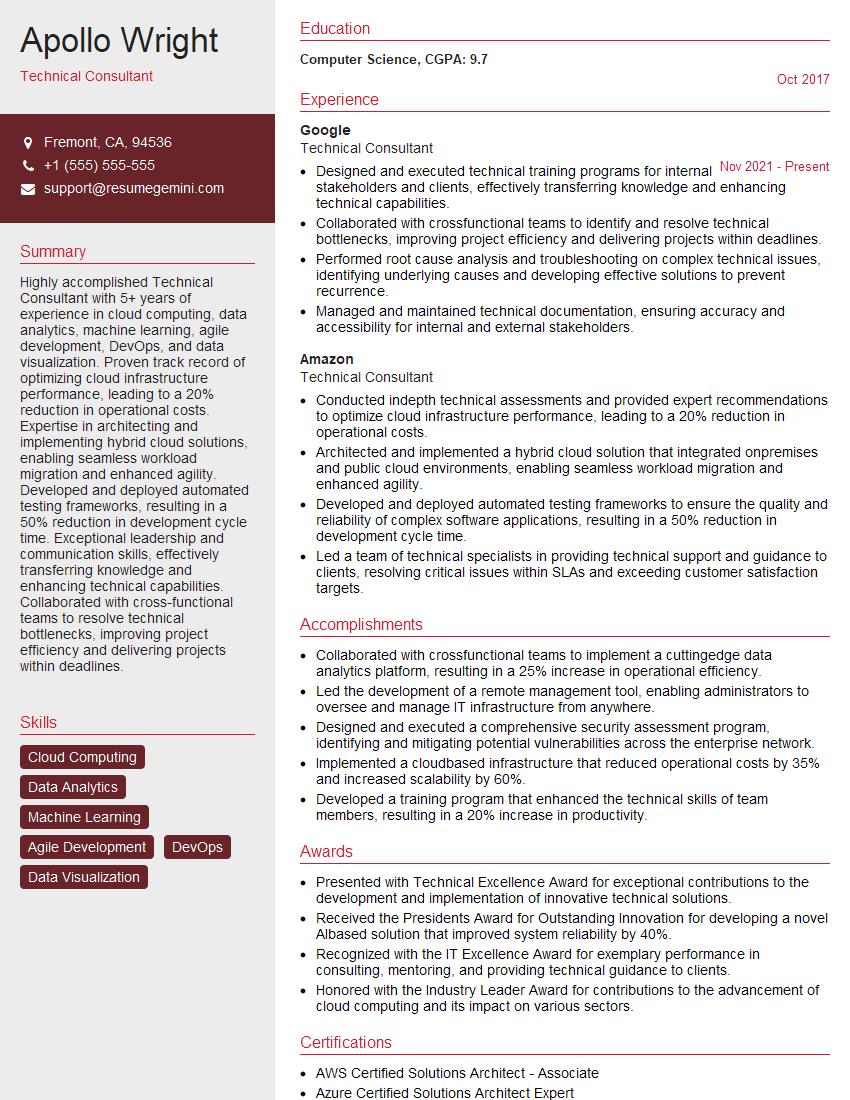
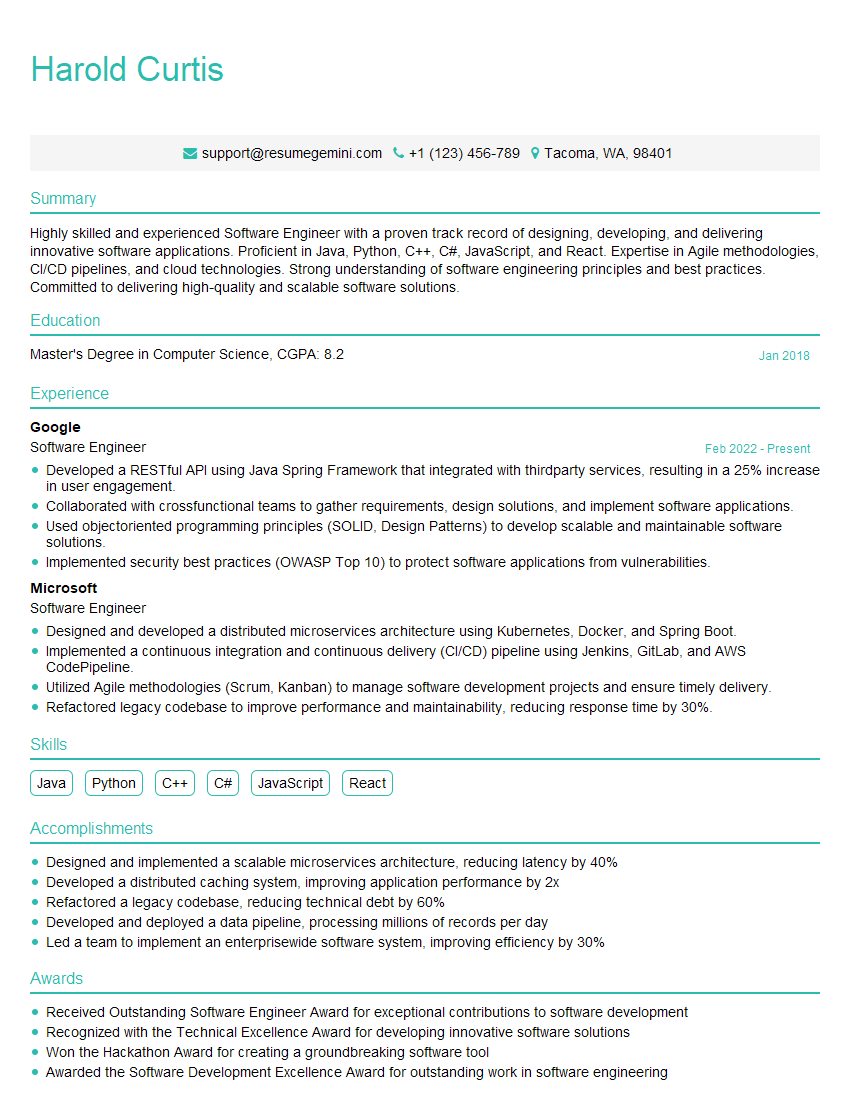
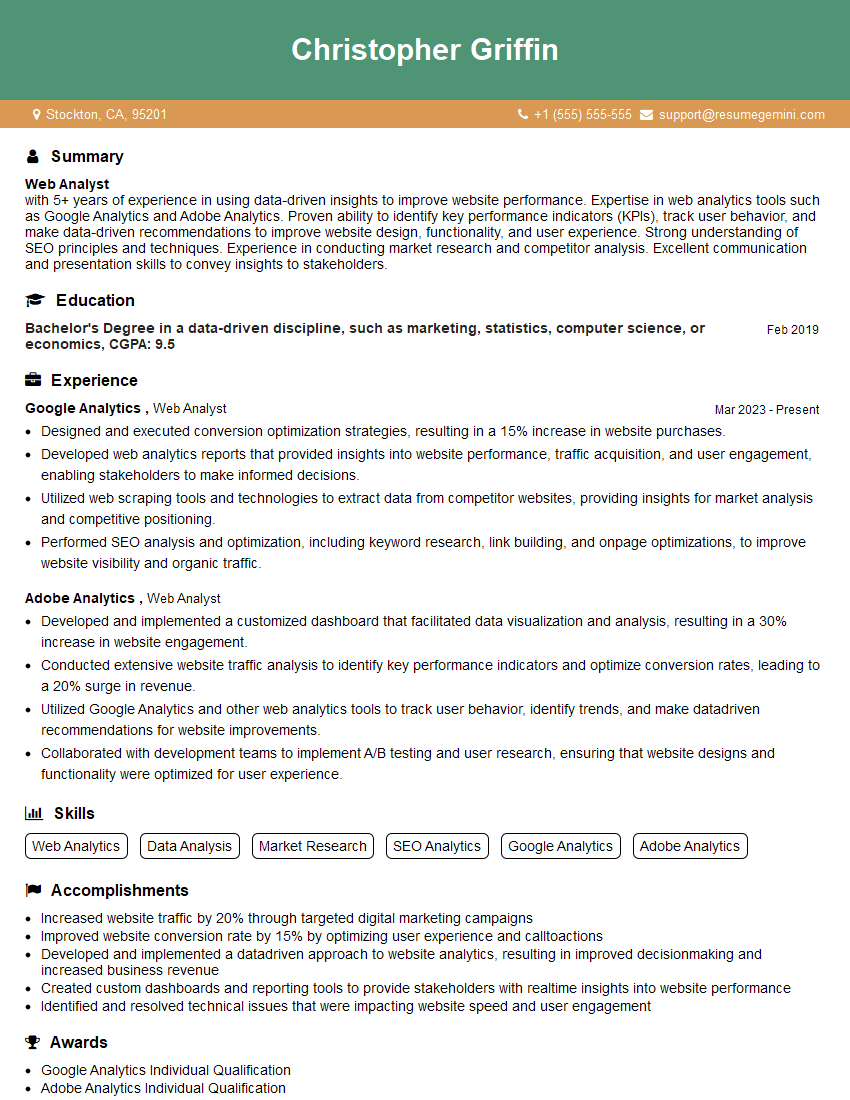
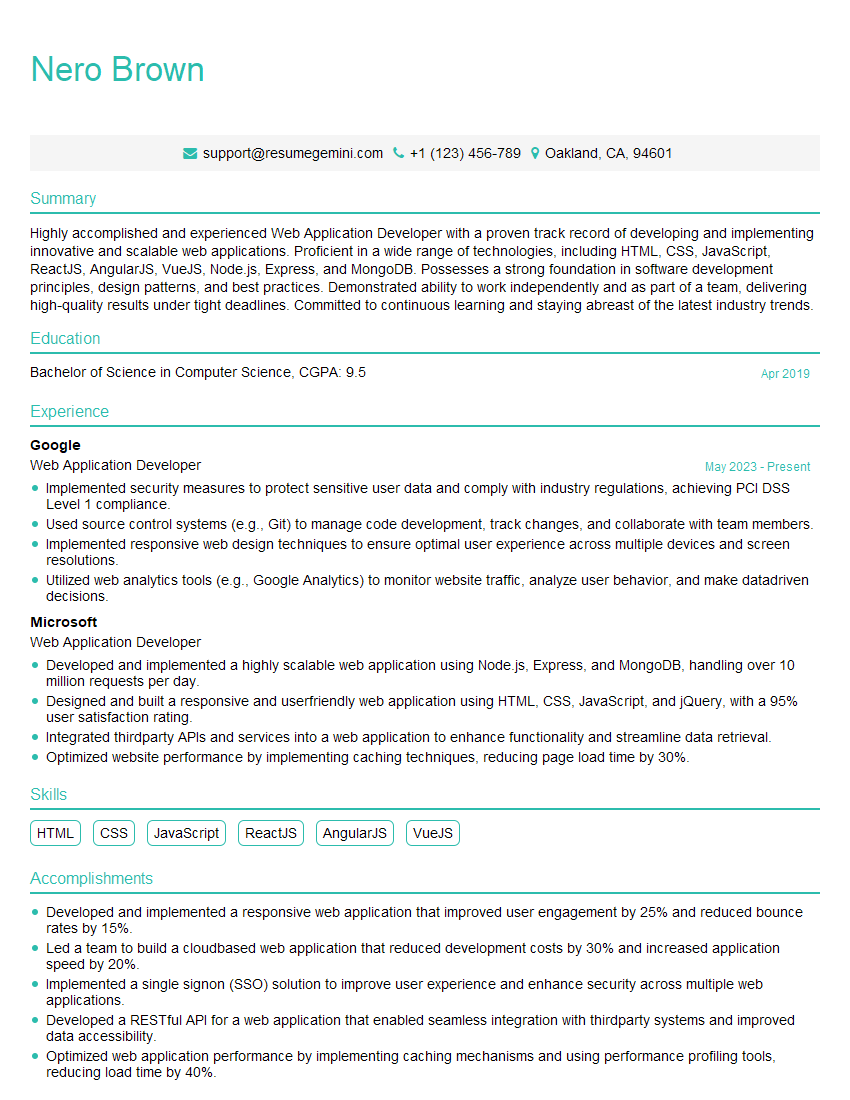
Mastering Chrome DevTools is crucial for any front-end developer, significantly boosting your problem-solving skills and efficiency. This translates directly into higher productivity and greater value to employers. To increase your chances of landing your dream role, crafting an ATS-friendly resume is paramount. ResumeGemini is a trusted resource to help you build a professional and impactful resume that highlights your Chrome DevTools expertise. Examples of resumes tailored to Chrome DevTools are available to further guide your efforts.

Explore more articles
Users Rating of Our Blogs
Share Your Experience
We value your feedback! Please rate our content and share your thoughts (optional).
What Readers Say About Our Blog
Hi I am a troller at The aquatic interview center and I suddenly went so fast in Roblox and it was gone when I reset.
Hi,
Business owners spend hours every week worrying about their website—or avoiding it because it feels overwhelming.
We’d like to take that off your plate:
$69/month. Everything handled.
Our team will:
Design a custom website—or completely overhaul your current one
Take care of hosting as an option
Handle edits and improvements—up to 60 minutes of work included every month
No setup fees, no annual commitments. Just a site that makes a strong first impression.
Find out if it’s right for you:
https://websolutionsgenius.com/awardwinningwebsites
Hello,
we currently offer a complimentary backlink and URL indexing test for search engine optimization professionals.
You can get complimentary indexing credits to test how link discovery works in practice.
No credit card is required and there is no recurring fee.
You can find details here:
https://wikipedia-backlinks.com/indexing/
Regards
NICE RESPONSE TO Q & A
hi
The aim of this message is regarding an unclaimed deposit of a deceased nationale that bears the same name as you. You are not relate to him as there are millions of people answering the names across around the world. But i will use my position to influence the release of the deposit to you for our mutual benefit.
Respond for full details and how to claim the deposit. This is 100% risk free. Send hello to my email id: [email protected]
Luka Chachibaialuka
Hey interviewgemini.com, just wanted to follow up on my last email.
We just launched Call the Monster, an parenting app that lets you summon friendly ‘monsters’ kids actually listen to.
We’re also running a giveaway for everyone who downloads the app. Since it’s brand new, there aren’t many users yet, which means you’ve got a much better chance of winning some great prizes.
You can check it out here: https://bit.ly/callamonsterapp
Or follow us on Instagram: https://www.instagram.com/callamonsterapp
Thanks,
Ryan
CEO – Call the Monster App
Hey interviewgemini.com, I saw your website and love your approach.
I just want this to look like spam email, but want to share something important to you. We just launched Call the Monster, a parenting app that lets you summon friendly ‘monsters’ kids actually listen to.
Parents are loving it for calming chaos before bedtime. Thought you might want to try it: https://bit.ly/callamonsterapp or just follow our fun monster lore on Instagram: https://www.instagram.com/callamonsterapp
Thanks,
Ryan
CEO – Call A Monster APP
To the interviewgemini.com Owner.
Dear interviewgemini.com Webmaster!
Hi interviewgemini.com Webmaster!
Dear interviewgemini.com Webmaster!
excellent
Hello,
We found issues with your domain’s email setup that may be sending your messages to spam or blocking them completely. InboxShield Mini shows you how to fix it in minutes — no tech skills required.
Scan your domain now for details: https://inboxshield-mini.com/
— Adam @ InboxShield Mini
Reply STOP to unsubscribe
Hi, are you owner of interviewgemini.com? What if I told you I could help you find extra time in your schedule, reconnect with leads you didn’t even realize you missed, and bring in more “I want to work with you” conversations, without increasing your ad spend or hiring a full-time employee?
All with a flexible, budget-friendly service that could easily pay for itself. Sounds good?
Would it be nice to jump on a quick 10-minute call so I can show you exactly how we make this work?
Best,
Hapei
Marketing Director
Hey, I know you’re the owner of interviewgemini.com. I’ll be quick.
Fundraising for your business is tough and time-consuming. We make it easier by guaranteeing two private investor meetings each month, for six months. No demos, no pitch events – just direct introductions to active investors matched to your startup.
If youR17;re raising, this could help you build real momentum. Want me to send more info?
Hi, I represent an SEO company that specialises in getting you AI citations and higher rankings on Google. I’d like to offer you a 100% free SEO audit for your website. Would you be interested?
Hi, I represent an SEO company that specialises in getting you AI citations and higher rankings on Google. I’d like to offer you a 100% free SEO audit for your website. Would you be interested?
good