Preparation is the key to success in any interview. In this post, we’ll explore crucial Computer System Troubleshooting interview questions and equip you with strategies to craft impactful answers. Whether you’re a beginner or a pro, these tips will elevate your preparation.
Questions Asked in Computer System Troubleshooting Interview
Q 1. Explain the troubleshooting process you typically follow.
My troubleshooting process follows a systematic approach, often described as the “five whys.” It begins with identifying the problem clearly. Instead of jumping to conclusions, I ask the user for detailed information to understand the issue’s context. Then, I proceed with a structured investigation:
- Identify the Problem: Gather all relevant information from the user, including error messages, when the problem started, and any recent changes to the system.
- Gather Information: Use diagnostic tools like event viewers (Windows), system logs (Linux/macOS), and network monitoring utilities to collect data about the system’s state.
- Establish a Theory: Based on the gathered information, formulate a hypothesis about the root cause. This is where experience plays a crucial role in recognizing patterns and common issues.
- Test the Theory: Implement specific tests to verify or refute your hypothesis. This may involve isolating components, running diagnostics, or temporarily disabling features.
- Implement Solution: If the theory is confirmed, implement the solution. If not, return to step 3 and refine the hypothesis based on the test results. This iterative process continues until the problem is resolved.
- Document and Prevent: Once resolved, I meticulously document the issue, the steps taken, and the solution. This helps in future troubleshooting and prevents recurrence.
For example, if a user reports their computer is slow, I wouldn’t immediately assume it’s a hardware issue. I’d systematically check for malware, excessive startup programs, insufficient RAM, or a full hard drive, before considering a hardware upgrade.
Q 2. Describe your experience with remote troubleshooting.
I have extensive experience with remote troubleshooting, using tools like TeamViewer, AnyDesk, and LogMeIn. Remote troubleshooting requires strong communication skills and the ability to guide users through complex procedures. I often utilize screen sharing to visually assess the problem and remotely control the system to perform diagnostics and implement solutions. A critical aspect is clear, step-by-step instructions delivered in a language the user understands. I find it particularly effective to have the user explain what they are seeing and doing while I guide them through the process. I’ve successfully resolved numerous remote issues, ranging from simple printer configuration problems to complex network configurations and software malfunctions. One memorable case involved remotely diagnosing and resolving a server-side issue affecting a client’s entire network – a significant challenge that required deft maneuvering of remote tools and understanding of network topology.
Q 3. How do you prioritize multiple critical system issues?
Prioritizing multiple critical system issues requires a systematic approach. I use a risk assessment matrix to determine the severity and impact of each issue. Factors considered include:
- Impact: How many users are affected?
- Severity: How critical is the failure to the business operations?
- Urgency: How quickly does the issue need to be resolved?
I typically prioritize issues based on a combination of these factors, addressing the highest-impact, most severe, and most urgent issues first. This ensures that the most critical problems receive immediate attention, minimizing downtime and preventing further damage. I use tools like ticketing systems to track and manage the priority of issues and ensure nothing falls through the cracks.
Q 4. What are some common causes of slow computer performance?
Slow computer performance has several common causes. Identifying the root cause requires a methodical approach:
- Malware/Virus Infections: Malware consumes system resources and can significantly slow down performance. Regular scans with updated antivirus software are essential.
- Insufficient RAM: If your computer doesn’t have enough RAM, it will start using your hard drive as virtual memory, which is far slower. Adding RAM is a common solution.
- Hard Drive Issues: A failing hard drive or a drive that is nearly full can lead to significant performance degradation. Check disk space and run disk diagnostics.
- Too Many Startup Programs: Many programs automatically launch at startup, consuming resources. Disabling unnecessary startup programs can improve boot times and overall performance.
- Outdated Drivers: Outdated or corrupted drivers can cause various performance issues. Updating drivers to their latest versions often solves many problems.
- Background Processes: Identify and close resource-intensive processes running in the background that you aren’t actively using.
- Overheating: Overheating can cause the system to throttle performance to prevent damage. Clean fans and ensure proper ventilation.
For example, I once helped a client whose computer was extremely slow. After running a malware scan (which found several viruses), increasing the RAM, and removing unnecessary startup applications, the computer’s speed improved drastically. The process of elimination was key.
Q 5. How do you diagnose and resolve network connectivity problems?
Diagnosing and resolving network connectivity problems involve a systematic approach, starting with the most basic checks:
- Check Physical Connections: Ensure cables are securely connected to the computer, router, and modem. Try different cables if possible.
- Check Network Settings: Verify the correct IP address configuration (static or DHCP). Make sure the network adapter is enabled.
- Test Network Connectivity: Ping the router or a known working website (
ping google.com) to check basic connectivity. Use tools liketracertortraceroute(Windows/Linux/macOS) to trace the route to a destination and identify potential bottlenecks. - Check Router and Modem: Restart the router and modem. Check for any error lights or messages.
- Check for Firewall Interference: Temporarily disable the firewall to see if it’s causing the connectivity issue (remember to re-enable it afterward!).
- Check DNS Settings: If websites are unreachable, ensure the correct DNS servers are configured.
- Check for Network Conflicts: Are there duplicate IP addresses on the network?
Tools like Wireshark can be invaluable for capturing and analyzing network traffic to pinpoint the root cause of connectivity problems. If a connection still isn’t established, the problem may reside beyond your immediate network, requiring contact with your internet service provider.
Q 6. What are your strategies for dealing with difficult or frustrated users?
Dealing with difficult or frustrated users requires patience, empathy, and strong communication skills. My strategies include:
- Active Listening: Let the user fully explain their problem without interruption. Show that you’re actively listening by making eye contact and summarizing their concerns.
- Empathy and Understanding: Acknowledge the user’s frustration. Put yourself in their shoes and demonstrate understanding of their situation.
- Clear and Concise Communication: Use simple language, avoiding technical jargon. Explain complex concepts in a way that is easy for the user to understand.
- Positive and Reassuring Tone: Maintain a calm and positive demeanor, even under pressure. Reassure the user that you’re working to solve the problem.
- Set Realistic Expectations: Clearly communicate the steps involved in troubleshooting and provide an estimated timeframe for resolution. Manage expectations to avoid creating further frustration.
- Regular Updates: Keep the user informed about your progress. This helps manage their expectations and reduces anxiety.
Sometimes, a simple acknowledgement of their frustration (“I understand this is frustrating; let’s work together to fix this.”) can go a long way in de-escalating a tense situation.
Q 7. How familiar are you with different operating systems (Windows, macOS, Linux)?
I’m proficient in Windows, macOS, and Linux operating systems. My experience includes:
- Windows: Extensive experience across various versions, including Windows 10, Windows Server 2019, and earlier versions. I’m familiar with the Windows registry, command prompt, PowerShell, and various troubleshooting tools.
- macOS: Experience with troubleshooting macOS systems, including user account management, network configurations, and software installation and troubleshooting. Familiar with the Terminal and command-line tools.
- Linux: Proficient in several distributions, including Ubuntu, CentOS, and Debian. Comfortable working with the command line, package management systems (apt, yum, dnf), and system administration tasks.
My knowledge of these operating systems goes beyond basic usage; I can effectively troubleshoot complex issues, diagnose system problems, and implement solutions across various platforms. This cross-platform knowledge is a significant asset in today’s diverse technological landscape.
Q 8. Describe your experience with troubleshooting hardware issues.
Troubleshooting hardware issues requires a systematic approach combining practical skills and diagnostic tools. My experience spans various scenarios, from simple peripheral replacements to complex server rebuilds. I start by identifying the symptoms: is the system unresponsive, displaying error messages, or exhibiting unusual behavior? Then, I isolate the problem by systematically testing components. For instance, if a computer won’t boot, I’d first check the power supply, then the RAM, followed by the hard drive, and finally the motherboard.
For example, I once diagnosed a server outage by carefully examining the system logs. The logs revealed a pattern of errors correlating with high CPU usage. This led me to identify a faulty CPU fan that was causing overheating and subsequent system crashes. Replacing the fan immediately resolved the issue. In another case, a user reported intermittent network connectivity. After ruling out network infrastructure problems, I discovered a failing network card in their machine by swapping it with a known good one. This highlights the importance of methodical testing and component replacement.
Beyond the physical aspects, I’m also proficient in using diagnostic tools like BIOS/UEFI utilities, POST (Power-On Self-Test) error codes, and system monitoring software to pinpoint hardware problems. Understanding these tools allows for a precise diagnosis and efficient repair.
Q 9. How do you handle situations where you cannot immediately resolve a problem?
When faced with an intractable problem, escalation and collaboration are key. My first step is to thoroughly document the issue, including all observed symptoms, troubleshooting steps taken, and error messages received. This creates a detailed record for future reference. I then consult available resources such as online forums, knowledge bases, and vendor documentation to see if similar issues have been reported and resolved.
If my own expertise proves insufficient, I escalate the problem to a senior colleague or the relevant support team, providing them with the comprehensive documentation I’ve created. I also proactively explore alternative solutions – perhaps a temporary workaround can be implemented while a permanent fix is found. Clear and concise communication is crucial during this phase, ensuring everyone involved understands the problem’s scope and the steps being taken.
For example, I once encountered an obscure driver conflict that prevented a specific application from running. After exhausting all available resources, I escalated the issue to the software vendor, who provided a patch to resolve the incompatibility. This case underscores the value of leveraging external support when internal expertise is insufficient.
Q 10. What tools and software do you use for troubleshooting?
My troubleshooting toolkit encompasses a wide range of hardware diagnostic tools and software applications. For hardware, I regularly use multimeters to check voltage and continuity, and specialized tools for memory testing, hard drive diagnostics, and network cable testing.
Software plays an equally crucial role. I am proficient with operating system diagnostic tools like systeminfo (Windows) or systemd-analyze (Linux) for analyzing system configurations and resource utilization. I frequently leverage performance monitoring tools such as Task Manager (Windows) or top (Linux) to identify performance bottlenecks. Network monitoring utilities like Wireshark and packet analyzers help analyze network traffic and pinpoint network connectivity problems. Event viewers and system logs provide a crucial trail of events leading to system issues.
Furthermore, remote access tools like TeamViewer or RDP (Remote Desktop Protocol) are essential for accessing and troubleshooting systems remotely. This saves time and allows me to assist users regardless of their physical location.
Q 11. Explain your experience with ticketing systems.
I possess extensive experience working with ticketing systems, including ServiceNow, Jira, and Zendesk. These systems are vital for managing and tracking support requests, ensuring that all issues are documented, prioritized, and resolved efficiently. My experience includes creating, updating, and resolving tickets, managing ticket queues, and utilizing reporting features to monitor key metrics like resolution times and customer satisfaction.
I am adept at using ticketing systems to efficiently categorize and assign tickets based on urgency and technical expertise required. I consistently ensure that ticket details are precise, including clear descriptions of the problem, steps taken, and any temporary workarounds implemented. This ensures transparency and accountability throughout the resolution process. The use of these systems dramatically improves communication and facilitates collaboration with other team members.
Q 12. How do you document your troubleshooting steps?
Thorough documentation is critical for efficient troubleshooting and knowledge sharing. My documentation style includes a detailed chronological record of every step undertaken. I begin with a clear description of the problem, including error messages, symptoms, and the affected system. Then, I document each troubleshooting step – what was done, what the outcome was, and any observations made. This includes screenshots or screen recordings for visual reference.
I utilize a structured approach, often using a checklist or template to ensure consistency and completeness. This aids in identifying patterns and resolving recurring issues. After a resolution is found, I include a concise summary of the root cause and the steps taken to resolve it. This information is valuable for future reference, training new team members, and preventing similar issues from recurring.
For example, I might use a markdown format or a specialized documentation tool that allows for version control. This allows tracking changes made over time and easily sharing information with colleagues.
Q 13. What are your experience with Active Directory troubleshooting?
My experience with Active Directory troubleshooting encompasses a broad range of scenarios, from user account issues to replication problems and Group Policy conflicts. I’m proficient in using Active Directory Users and Computers (ADUC) and other management tools to diagnose and resolve problems related to user accounts, groups, permissions, and domain controllers.
For example, I’ve successfully resolved issues involving orphaned user accounts, broken trust relationships, and replication failures. Troubleshooting these issues often requires a deep understanding of DNS (Domain Name System), LDAP (Lightweight Directory Access Protocol), and the underlying infrastructure of Active Directory. I use tools like repadmin and nltest to diagnose replication issues and check domain controller health. I also possess a strong understanding of Group Policy Objects (GPOs) and can effectively troubleshoot conflicts or unintended consequences resulting from GPO deployments.
A recent example involved a scenario where users were unable to access network resources due to a misconfigured GPO. By carefully analyzing the GPO settings and comparing them to the intended configuration, I identified the conflicting setting and corrected it, resolving the access issue for all affected users. This highlights the importance of meticulous attention to detail when working with Active Directory.
Q 14. How do you handle security incidents related to system compromise?
Handling security incidents related to system compromise requires immediate action and a structured approach. My response follows a well-defined protocol focused on containment, eradication, and recovery. The first step is to immediately isolate the compromised system to prevent further damage or lateral movement within the network. This might involve disconnecting the system from the network or disabling network interfaces.
Next, I initiate a thorough investigation to determine the extent of the compromise. This involves analyzing system logs, network traffic, and other relevant data to identify the attack vector, the affected systems, and the type of malware involved. I collaborate with security teams to analyze malware samples and assess the impact of the incident. Once the extent of the compromise is understood, I work to eradicate the malware through the use of specialized tools and techniques. This might include removing malicious files, cleaning infected registries, and reinstalling affected systems.
Following eradication, I implement measures to strengthen security and prevent future incidents. This involves reviewing and patching vulnerabilities, updating security software, and implementing stronger access controls. Finally, the entire incident is documented and analyzed to identify lessons learned and improve overall security posture. Effective incident response is critical for minimizing damage, mitigating risk, and ensuring business continuity.
Q 15. Describe your approach to troubleshooting printer issues.
Troubleshooting printer issues involves a systematic approach. I start by verifying the most basic things: Is the printer powered on? Is it properly connected to the computer and the power source? Is there paper in the tray?
If the basics check out, I move to software issues. I check the printer driver: Is it correctly installed and up-to-date? Are there any error messages displayed on the computer or printer?
- Check Printer Status: Look for error messages on the printer’s control panel and the computer.
- Driver Check: Uninstall and reinstall the printer driver. If that doesn’t work, try updating the driver from the manufacturer’s website.
- Connectivity: If it’s a network printer, verify network connectivity by checking the IP address, network cables, and wireless signals (if applicable). Ping the printer’s IP address to ensure connectivity.
- Test Print: Attempt a test print from the printer properties or a built-in diagnostic utility.
- Troubleshooting utilities: Utilize printer’s built-in diagnostic tools to pinpoint the source of the problem.
For example, I once had a case where a client couldn’t print to a networked printer. After checking cables and network connectivity, I found that the printer’s IP address had changed due to DHCP lease expiry. A simple IP address renewal fixed the problem.
Career Expert Tips:
- Ace those interviews! Prepare effectively by reviewing the Top 50 Most Common Interview Questions on ResumeGemini.
- Navigate your job search with confidence! Explore a wide range of Career Tips on ResumeGemini. Learn about common challenges and recommendations to overcome them.
- Craft the perfect resume! Master the Art of Resume Writing with ResumeGemini’s guide. Showcase your unique qualifications and achievements effectively.
- Don’t miss out on holiday savings! Build your dream resume with ResumeGemini’s ATS optimized templates.
Q 16. How familiar are you with DNS and DHCP troubleshooting?
I’m very familiar with DNS (Domain Name System) and DHCP (Dynamic Host Configuration Protocol) troubleshooting. DNS translates domain names (like google.com) into IP addresses, while DHCP automatically assigns IP addresses and other network configuration parameters to devices on a network. Troubleshooting these services involves a similar methodical approach:
- DNS Troubleshooting: I start by checking the DNS server settings on the client machine. Is the correct DNS server address specified? I then perform
nslookupordigcommands to check DNS resolution. If a name doesn’t resolve, it could be a DNS server issue, a problem with the DNS record itself, or a network connectivity problem. I may need to check for DNS propagation delays as well. - DHCP Troubleshooting: For DHCP problems, I start with checking the DHCP server’s configuration. Is the scope properly defined? Are there any address conflicts? I use tools like
ipconfig /all(Windows) orifconfig(Linux) to inspect the IP address, subnet mask, and gateway information on the client device. If DHCP isn’t working, I might need to manually configure the IP address and then try again to obtain one from DHCP.
A common scenario is a user unable to access websites. This could be due to incorrect DNS server settings, a DNS server outage, or even a problem with the internet connection itself. I’d systematically investigate each possibility.
Q 17. What is your experience with server maintenance and troubleshooting?
My experience in server maintenance and troubleshooting encompasses various aspects, including:
- Hardware Maintenance: This includes tasks such as replacing faulty hardware components, performing regular hardware checks, and monitoring server health.
- Software Updates and Patching: I ensure the servers are running the latest OS patches and application updates, applying them in a controlled manner to minimize disruptions.
- Performance Monitoring and Optimization: I utilize monitoring tools to track server performance, identify bottlenecks, and implement optimization strategies. This often involves analyzing resource utilization (CPU, memory, disk I/O).
- Log Analysis: I regularly review server logs to identify potential issues, security threats, or performance problems. This often involves using centralized log management systems.
- Backup and Recovery: This is a critical part of server maintenance and I have extensive experience in setting up and testing backup and recovery strategies (see following answer).
For instance, I once resolved a server performance issue by identifying and removing a poorly written script that was consuming excessive CPU resources. This involved using performance monitoring tools to pinpoint the offending script and then working with the development team to resolve the underlying code problem.
Q 18. Describe your experience with backup and recovery procedures.
Backup and recovery procedures are crucial for data protection and business continuity. My experience includes designing, implementing, and testing various backup strategies:
- Full, Incremental, and Differential Backups: Understanding the trade-offs between these different backup types and choosing the most appropriate strategy for a given system.
- Backup Media: Using different backup media like tape drives, local and network attached storage (NAS), and cloud-based storage solutions. Understanding the advantages and disadvantages of each.
- Backup Software: Proficiency in using various backup software solutions (both commercial and open-source). This includes configuring backup schedules, monitoring backup jobs, and troubleshooting potential issues.
- Recovery Testing: Regularly testing the restoration process to ensure data can be recovered quickly and reliably in case of a disaster.
- Disaster Recovery Planning: Developing and implementing a disaster recovery plan that outlines the steps to take in case of a major system failure or other unforeseen events.
In one instance, I implemented a 3-2-1 backup strategy (3 copies, 2 different media types, 1 offsite copy) for a critical database server, significantly reducing the risk of data loss. This involved configuring full backups once a week, differential backups daily, and using both local storage and a cloud-based storage service for redundancy.
Q 19. How do you troubleshoot issues related to data loss or corruption?
Troubleshooting data loss or corruption requires a careful and methodical approach. The first step is to determine the extent of the damage and the potential cause. This often involves analyzing system logs and reviewing recent changes to the system.
- Identify the Source: Determine if the data loss is due to hardware failure, software malfunction, accidental deletion, or a malicious attack.
- Data Recovery Tools: Using data recovery software to attempt to recover lost or corrupted data from hard drives or other storage media. This might involve using both commercial and open-source tools.
- System Restore/Rollback: If a system restore point or previous backup is available, restoring the system to a point before the data loss or corruption occurred is usually the safest and easiest method.
- File System Repair: In some cases, the file system itself might be corrupted. Tools like
chkdsk(Windows) orfsck(Linux) can help repair these issues, allowing data recovery. - Seek Professional Help: For severe cases of data loss involving critical data, it’s often best to engage a specialized data recovery service.
I once recovered crucial customer data from a severely damaged hard drive using a professional data recovery service. While expensive, it avoided potential legal issues and financial damage for the company.
Q 20. Explain your understanding of TCP/IP networking.
TCP/IP (Transmission Control Protocol/Internet Protocol) is the foundation of the internet. TCP is a connection-oriented protocol that ensures reliable data transmission, while IP handles the addressing and routing of data packets across networks.
My understanding of TCP/IP includes:
- IP Addressing: Understanding IPv4 and IPv6 addressing schemes, subnetting, and routing protocols.
- TCP/UDP: Knowing the differences between TCP and UDP (User Datagram Protocol) and when each is appropriate. TCP is reliable but slower, while UDP is faster but less reliable.
- Port Numbers: Understanding how port numbers are used to identify applications and services. For example, port 80 is typically used for HTTP, while port 443 is used for HTTPS.
- Network Protocols: Familiarity with various networking protocols like ARP (Address Resolution Protocol), ICMP (Internet Control Message Protocol), and others.
- Troubleshooting TCP/IP Issues: Using tools like
ping,traceroute, andnetstatto troubleshoot network connectivity problems.
For example, diagnosing slow network speeds might involve using traceroute to identify network bottlenecks or using netstat to check for excessive network traffic on specific ports.
Q 21. What is your experience with troubleshooting firewall issues?
Troubleshooting firewall issues often involves a careful analysis of the firewall rules and logs. Firewalls are designed to protect networks from unauthorized access, but misconfigured rules can prevent legitimate traffic.
- Firewall Logs: Reviewing the firewall logs to identify any dropped packets or denied connections. This will often point to the specific rule causing the issue.
- Firewall Rules: Examining the firewall rules to ensure that they allow the necessary traffic. This often involves understanding the different types of rules (allow, deny, etc.) and the different criteria that can be used (source IP address, destination IP address, port numbers, protocols, etc.).
- Port Forwarding: Verifying that any necessary port forwarding rules are correctly configured. If a service is inaccessible, this might be because the necessary ports aren’t forwarded.
- Testing Connectivity: Using tools like
telnetornetcatto test connectivity to specific ports. This helps to determine if the firewall is blocking traffic on a specific port. - Whitelist/Blacklist: Understanding the use of whitelists (allowing only specified traffic) and blacklists (blocking specified traffic) and ensuring that they are properly configured.
I once resolved a situation where users couldn’t access a specific web application because the firewall was blocking traffic on the application’s port. By carefully adding a rule to the firewall that allowed traffic on that specific port, I restored access to the application without compromising security.
Q 22. How do you troubleshoot application-specific problems?
Troubleshooting application-specific problems requires a systematic approach. Think of it like detective work: you need to gather clues, form hypotheses, and test them until you find the culprit. It starts with understanding the application itself – its architecture, dependencies, and typical behavior.
My approach typically involves these steps:
- Reproduce the issue: The first step is to consistently reproduce the problem. This helps eliminate random occurrences and provides a controlled environment for testing.
- Gather logs and error messages: Application logs, system logs, and error messages are invaluable clues. I analyze these for patterns, timestamps, and error codes, focusing on the messages closest to the point of failure.
- Check application configuration: Incorrect settings or misconfigurations can be a common source of problems. I review the application’s configuration files and settings, comparing them to known good configurations.
- Investigate dependencies: Applications rarely stand alone. I check the status and health of databases, network connections, and other dependent services. For example, a web application might fail due to a database connection problem.
- Examine resource utilization: High CPU, memory, or disk I/O usage can point to performance bottlenecks or resource exhaustion. Tools like Task Manager (Windows) or
top(Linux) are crucial for identifying resource hogs. - Test in a controlled environment: If possible, I recreate the problem in a sandbox or test environment to isolate the issue without affecting production systems. This allows for safe experimentation and testing of solutions.
- Consult documentation and support resources: The application’s documentation and online support forums are often rich sources of troubleshooting information and known issues.
For example, if a web application is consistently returning a 500 error, I would examine the web server logs, the application logs, the database logs, and check the application’s configuration for any misconfigurations or resource limits.
Q 23. Describe your experience with scripting (e.g., PowerShell, Bash).
I have extensive experience with both PowerShell and Bash scripting, leveraging them for automation, system administration, and troubleshooting tasks. PowerShell is my go-to for Windows environments, while Bash is my preference for Linux and macOS.
I’ve used PowerShell to automate tasks like:
- Deploying and configuring applications.
- Managing user accounts and permissions.
- Monitoring system performance and generating reports.
- Automating backups and restores.
In Bash, I’ve used scripting for:
- System log analysis and parsing.
- Automating server deployments and configurations using tools like Ansible or Puppet.
- Creating custom tools for monitoring and alerting.
Here’s a simple example of a PowerShell script to check disk space:
Get-WmiObject Win32_LogicalDisk | Where-Object {$_.DriveType -eq 3} | Select-Object DeviceID, @{Name = "FreeSpaceGB"; Expression = {$_.FreeSpace / 1GB}}This script retrieves the free space on all hard drives and displays it in gigabytes. My scripting skills allow me to quickly prototype solutions, automate repetitive tasks, and significantly improve my troubleshooting efficiency.
Q 24. How familiar are you with virtualization technologies (e.g., VMware, Hyper-V)?
I’m highly proficient with virtualization technologies, primarily VMware vSphere and Microsoft Hyper-V. I understand the concepts of virtual machines (VMs), virtual networks, and storage virtualization. My experience includes:
- Creating and managing virtual machines for development, testing, and production environments.
- Configuring virtual networks and implementing network security.
- Managing virtual storage using technologies like vSAN (VMware) and Storage Spaces Direct (Hyper-V).
- Troubleshooting VM performance issues, such as CPU contention, memory leaks, and disk I/O bottlenecks.
- Implementing high-availability and disaster recovery solutions using virtual machine replication and clustering.
For example, I once resolved a production outage caused by a VM running out of disk space by quickly provisioning additional storage and migrating the VM to the new storage. This minimized downtime and prevented data loss.
Q 25. Explain your experience with cloud computing platforms (e.g., AWS, Azure, GCP).
I have practical experience with all three major cloud platforms: AWS, Azure, and GCP. My experience isn’t limited to just one; I’ve worked across them, adapting my knowledge based on the specific project requirements. This has given me a broad understanding of cloud concepts and best practices.
My cloud experience encompasses:
- Designing and implementing cloud-based infrastructure.
- Managing cloud resources and costs.
- Deploying and managing applications in the cloud using containerization technologies like Docker and Kubernetes.
- Implementing cloud security best practices, including access control and data encryption.
- Utilizing cloud-native services such as databases, storage, and messaging queues.
One example is migrating a client’s on-premise application to AWS. This involved designing a new architecture, migrating data, and configuring various AWS services like EC2, S3, and RDS. Throughout the process, I prioritized cost optimization and high availability, using tools and strategies specific to the AWS environment.
Q 26. How do you stay current with the latest technologies and troubleshooting techniques?
Staying current is vital in this field. Technology changes rapidly, and new troubleshooting techniques constantly emerge. My approach is multi-faceted:
- Online resources: I regularly follow industry blogs, websites, and online forums dedicated to system administration, cloud computing, and cybersecurity. I look for articles, tutorials, and discussions on new technologies and best practices.
- Certifications: Certifications such as CompTIA A+, Network+, Security+, AWS Certified Solutions Architect, or Microsoft Certified Azure Administrator demonstrate my commitment to continuous learning and provide structured knowledge.
- Professional development courses: I actively participate in online courses and workshops provided by platforms like Coursera, Udemy, and LinkedIn Learning. These courses help to keep my skills sharp and introduce me to new technologies.
- Conferences and webinars: Attending industry conferences and webinars exposes me to cutting-edge technologies and provides networking opportunities with other professionals.
- Hands-on practice: Theory is crucial, but practical application is even more important. I create personal projects to experiment with new tools and technologies.
Continuous learning is not just about staying updated; it’s about adapting and growing as a professional, making me a more effective and valuable problem-solver.
Q 27. Describe a challenging troubleshooting experience and how you overcame it.
One of the most challenging experiences involved a production database server that experienced sudden, intermittent performance degradation. It wasn’t crashing, but queries were taking an unreasonably long time to complete, impacting the entire application.
My troubleshooting steps included:
- Monitoring: I started by closely monitoring system performance metrics, such as CPU usage, memory usage, disk I/O, and network traffic. This revealed periods of high disk I/O during the performance slowdowns.
- Log analysis: Database logs showed no significant errors but indicated an increase in slow queries during these periods.
- Disk analysis: Analyzing the disk subsystem showed extremely high disk fragmentation. This was the unexpected clue.
- Solution: I worked with the database administrator to perform a defragmentation of the database files. This resolved the performance issue dramatically.
The challenge wasn’t just the technical aspect; it was identifying the root cause. High disk I/O was expected with a busy database, but the unexpected level of fragmentation pointed to a neglected maintenance task. This incident emphasized the importance of regular database maintenance and proactive monitoring.
Q 28. What are your salary expectations?
My salary expectations are in the range of $[Insert Salary Range] per year. This is based on my experience, skills, and the requirements of this role. I am open to discussing this further based on the specifics of the position and the company’s compensation structure.
Key Topics to Learn for Computer System Troubleshooting Interview
- Operating Systems Fundamentals: Understanding different OS architectures (Windows, macOS, Linux), boot processes, and file systems is crucial for diagnosing system-level issues.
- Hardware Troubleshooting: Learn to identify and resolve problems related to CPU, RAM, storage devices, peripherals (printers, scanners), and network connectivity. Practical application includes diagnosing slow boot times or hardware malfunctions.
- Networking Concepts: Mastering TCP/IP, DNS, DHCP, and common network protocols is essential for troubleshooting network connectivity problems, including internet access and LAN issues.
- Software Troubleshooting: Develop skills in identifying and resolving software conflicts, application errors, driver issues, and software installation problems. Practical application includes resolving application crashes or slow performance.
- Remote Troubleshooting Techniques: Familiarize yourself with remote access tools and techniques for diagnosing and resolving problems on remote systems. This includes understanding security implications and best practices.
- Diagnostic Tools and Techniques: Learn to utilize system monitoring tools, event logs, and command-line interfaces (like PowerShell or Bash) to diagnose and troubleshoot effectively.
- Problem-Solving Methodology: Practice a systematic approach to troubleshooting, including defining the problem, gathering information, identifying potential causes, implementing solutions, and verifying results.
- Security Considerations: Understand basic security concepts and their role in troubleshooting, including virus detection, malware removal, and data security best practices.
- Virtualization and Cloud Environments: For advanced roles, understanding troubleshooting in virtualized environments (VMware, Hyper-V) and cloud platforms (AWS, Azure, GCP) is highly beneficial.
Next Steps
Mastering computer system troubleshooting is invaluable for career advancement in IT, opening doors to higher-paying roles and increased responsibility. A strong foundation in these skills showcases your problem-solving abilities and technical expertise, making you a highly sought-after candidate. To maximize your job prospects, focus on creating an ATS-friendly resume that highlights your relevant skills and experience. ResumeGemini is a trusted resource to help you build a professional and effective resume that grabs recruiters’ attention. Examples of resumes tailored to Computer System Troubleshooting are available within ResumeGemini to guide you. Invest the time to create a compelling resume—it’s your first impression!
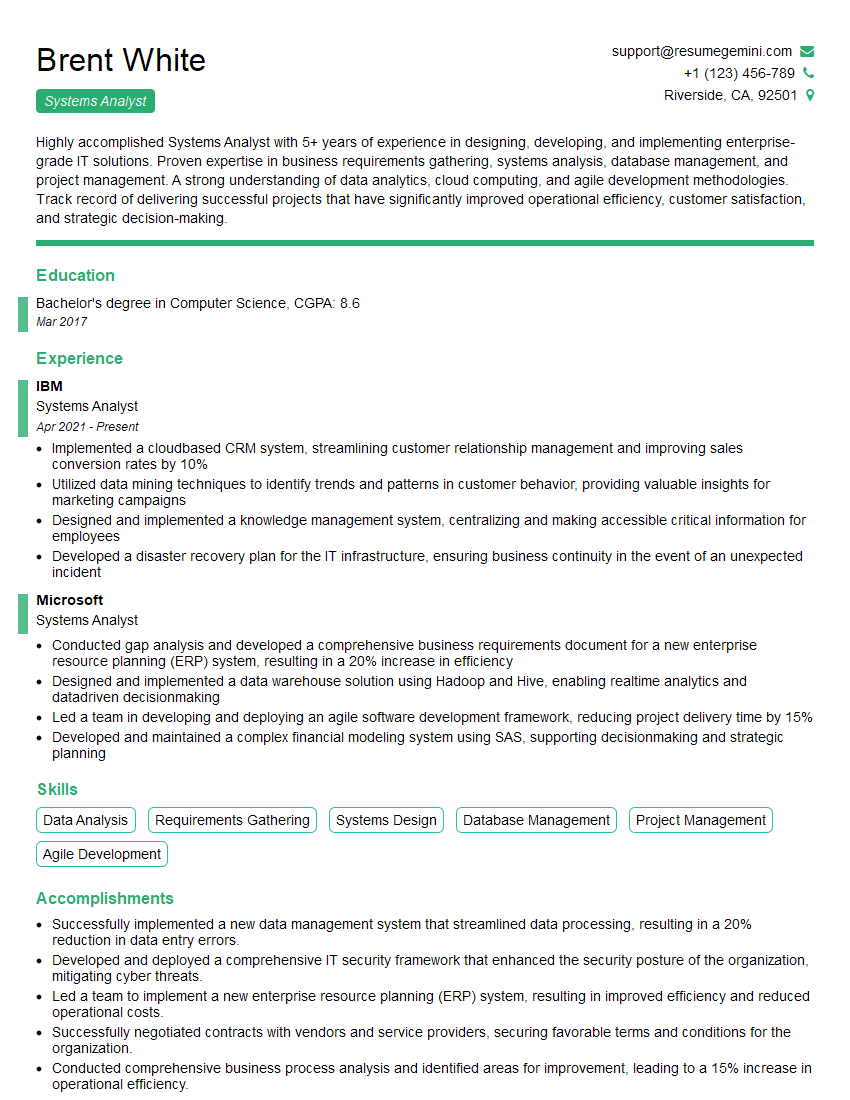
Systems Analyst Resume Sample
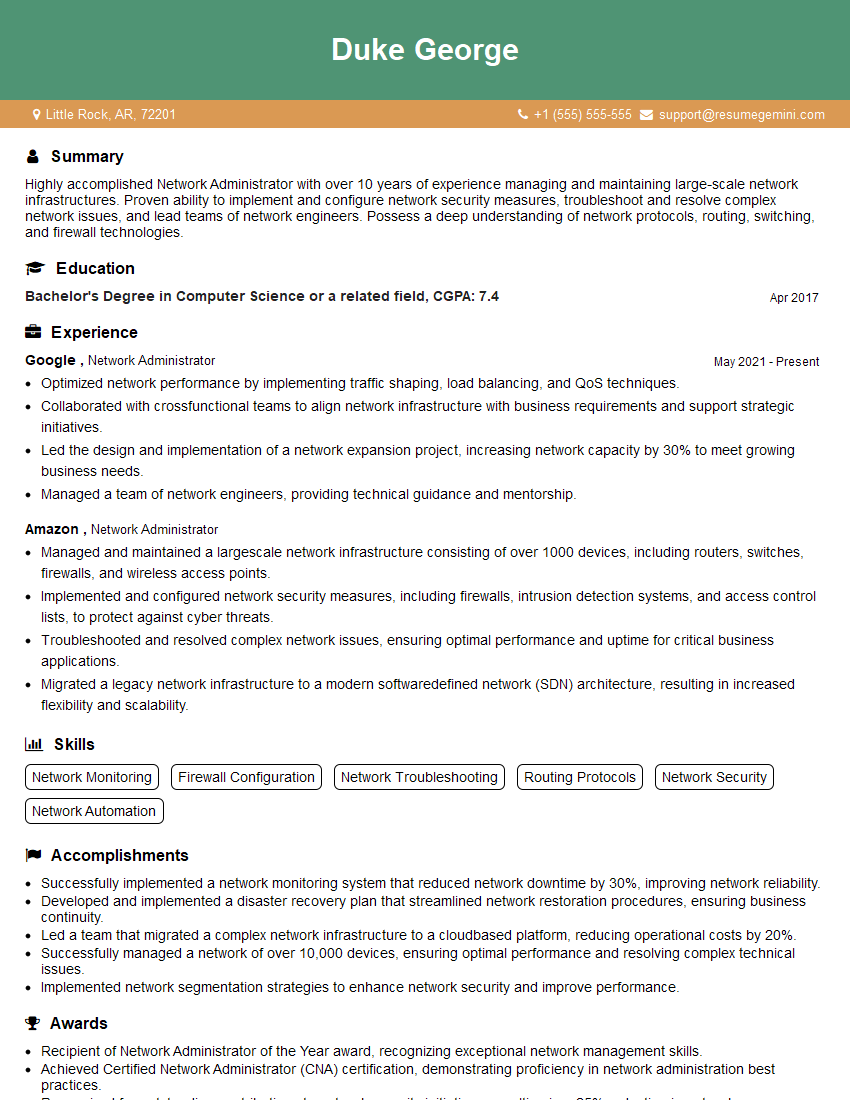
Network Administrator Resume Sample
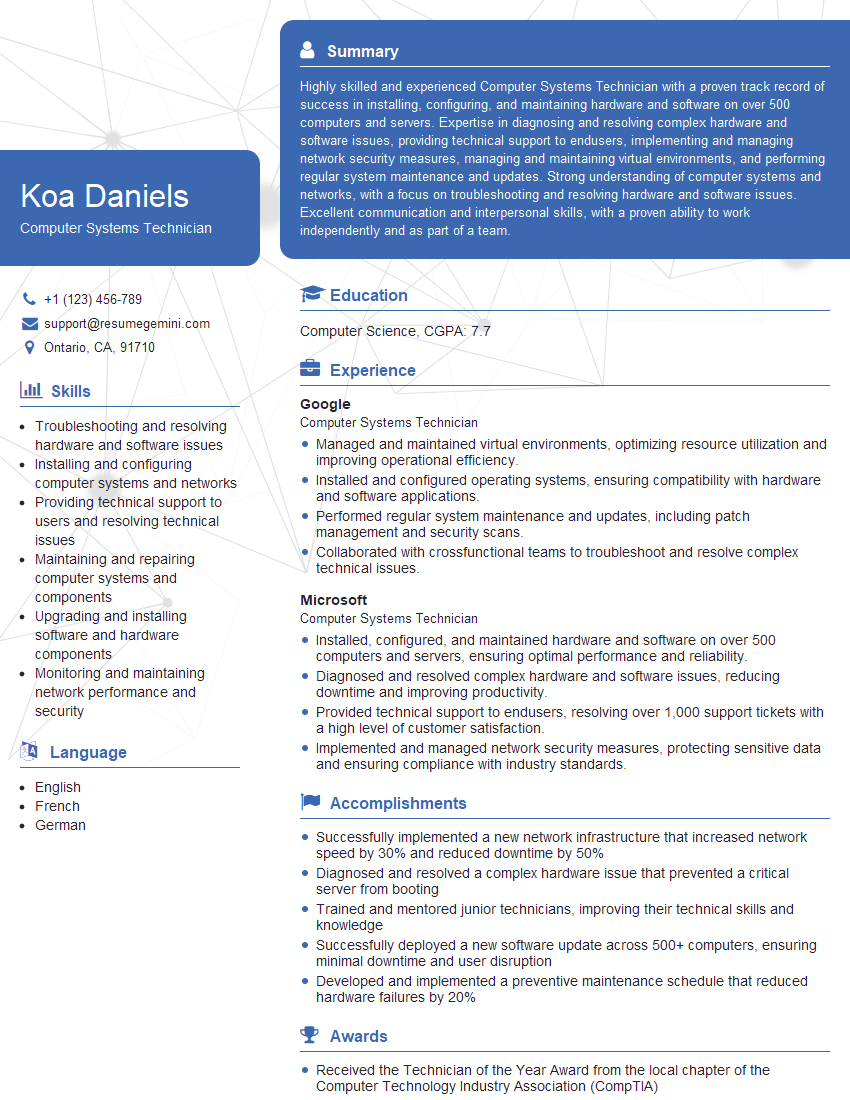
Computer Systems Technician Resume Sample
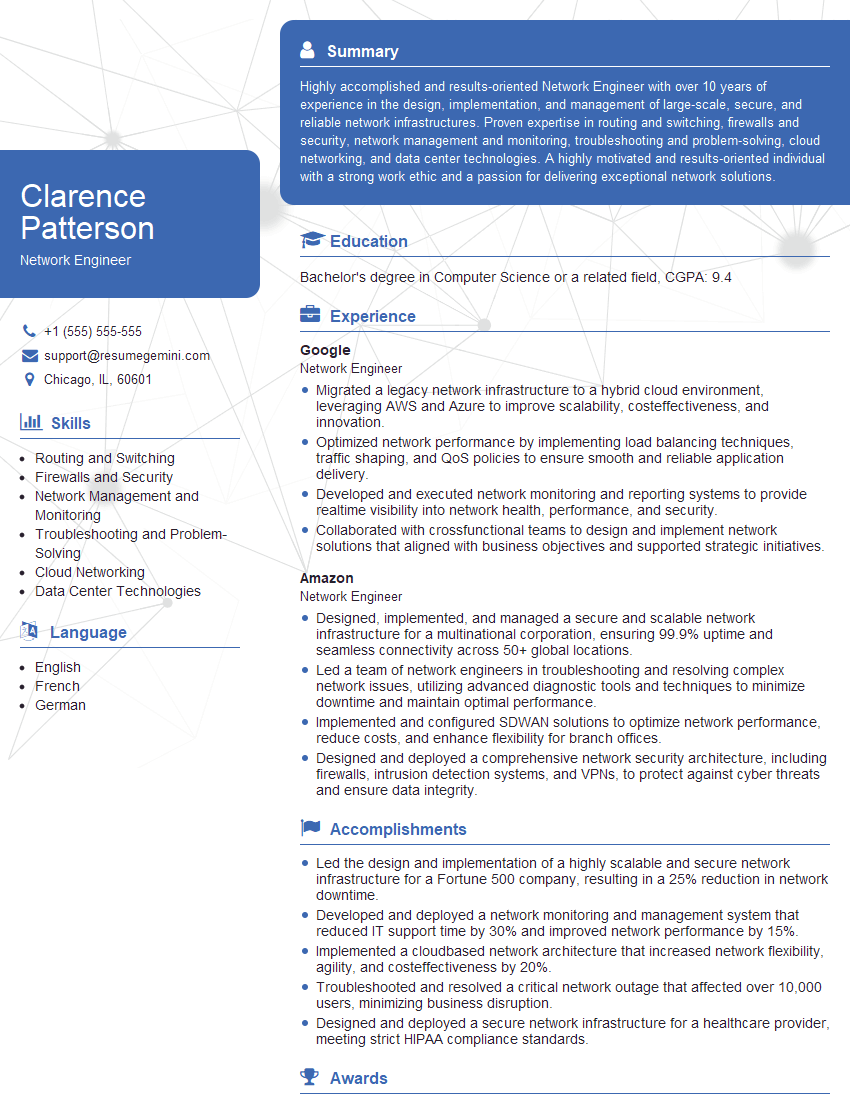
Network Engineer Resume Sample

Technical Support Engineer Resume Sample
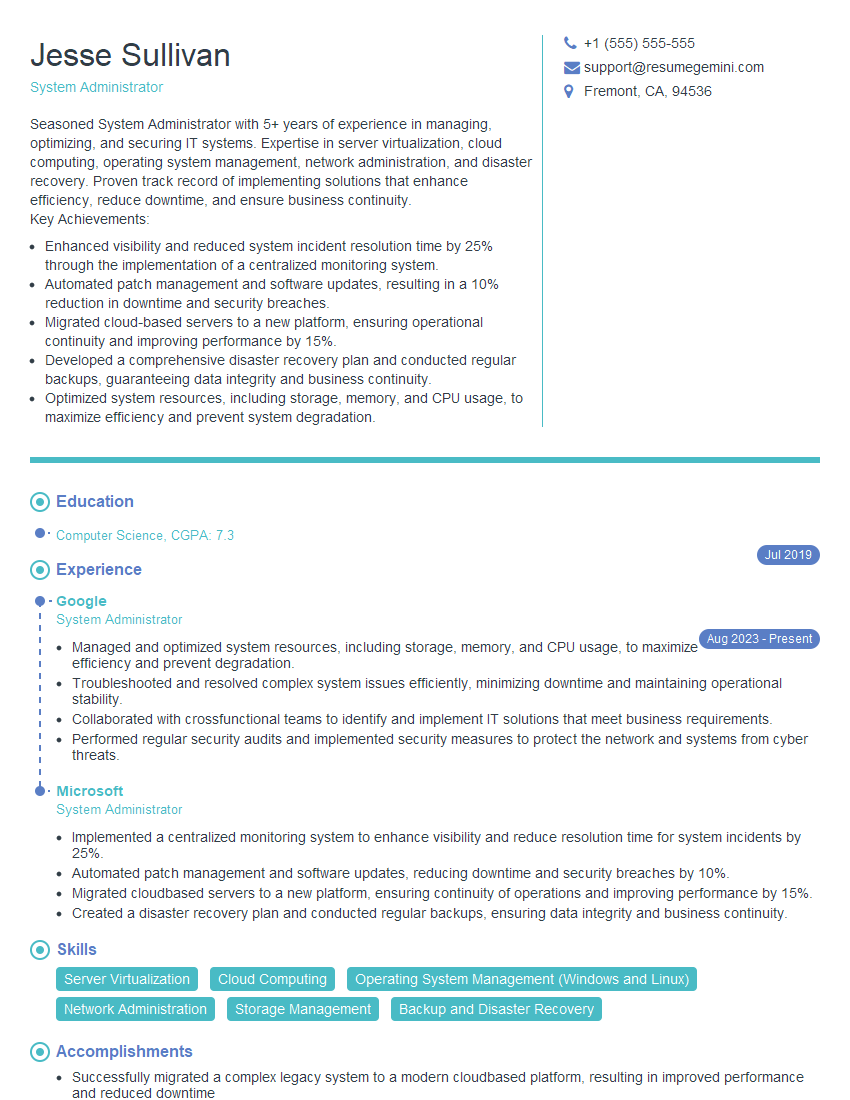
System Administrator Resume Sample
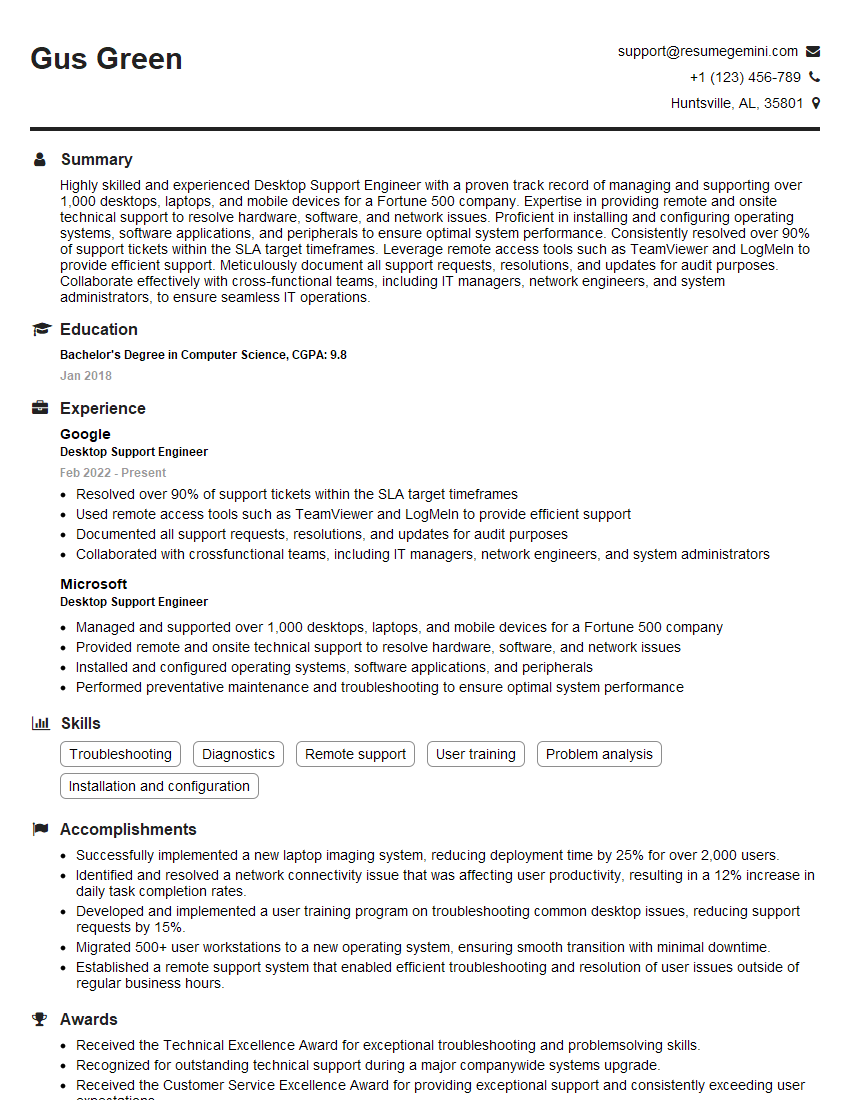
Desktop Support Engineer Resume Sample
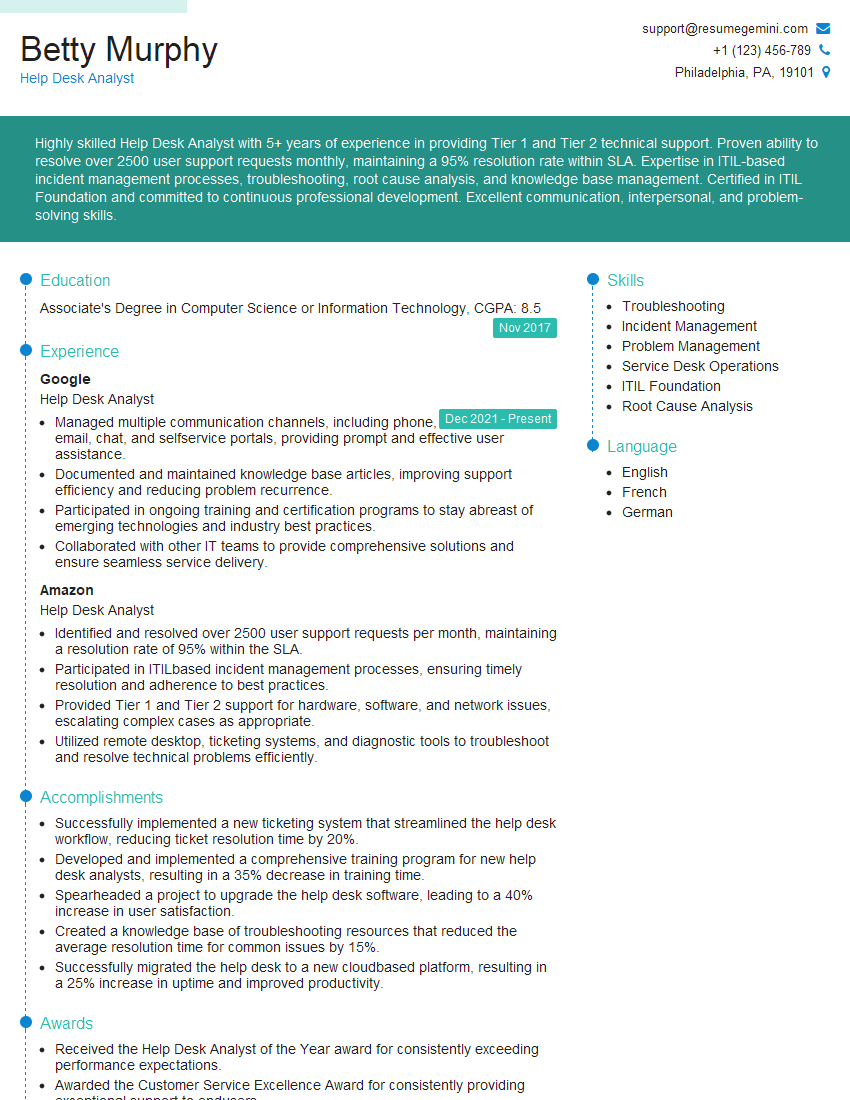
Help Desk Analyst Resume Sample
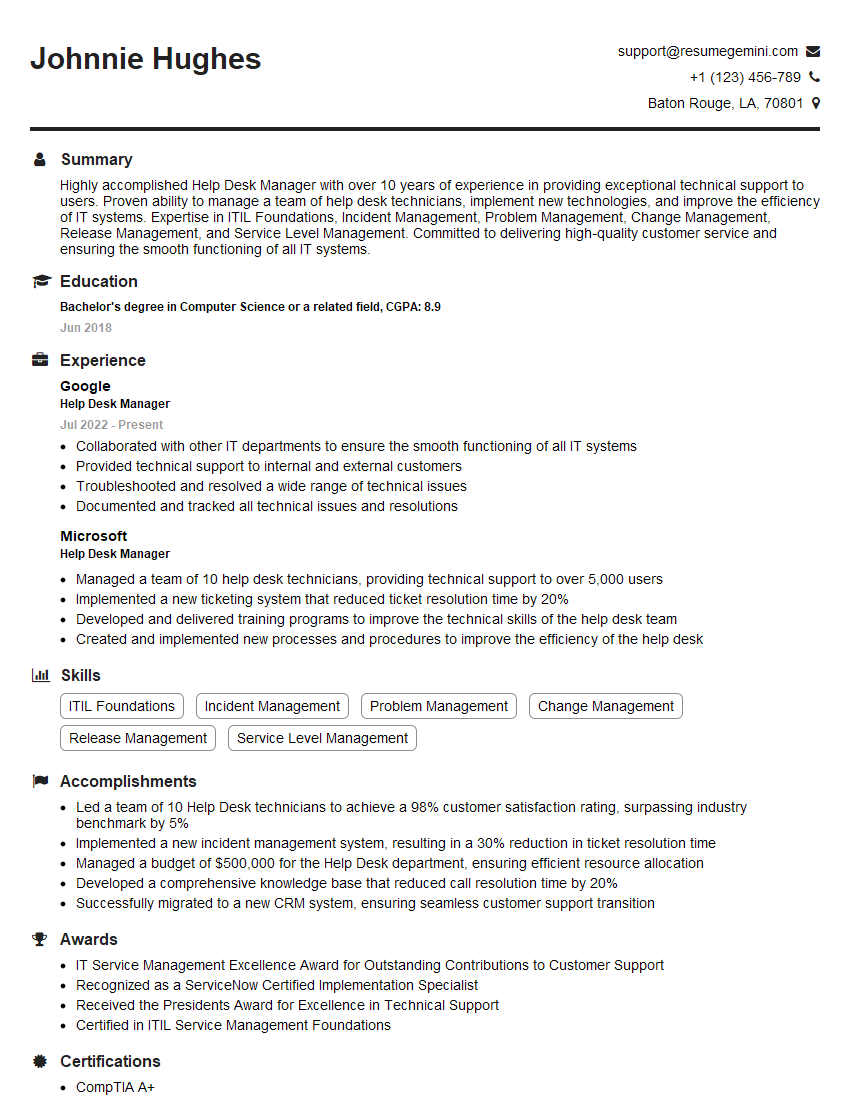
Help Desk Manager Resume Sample
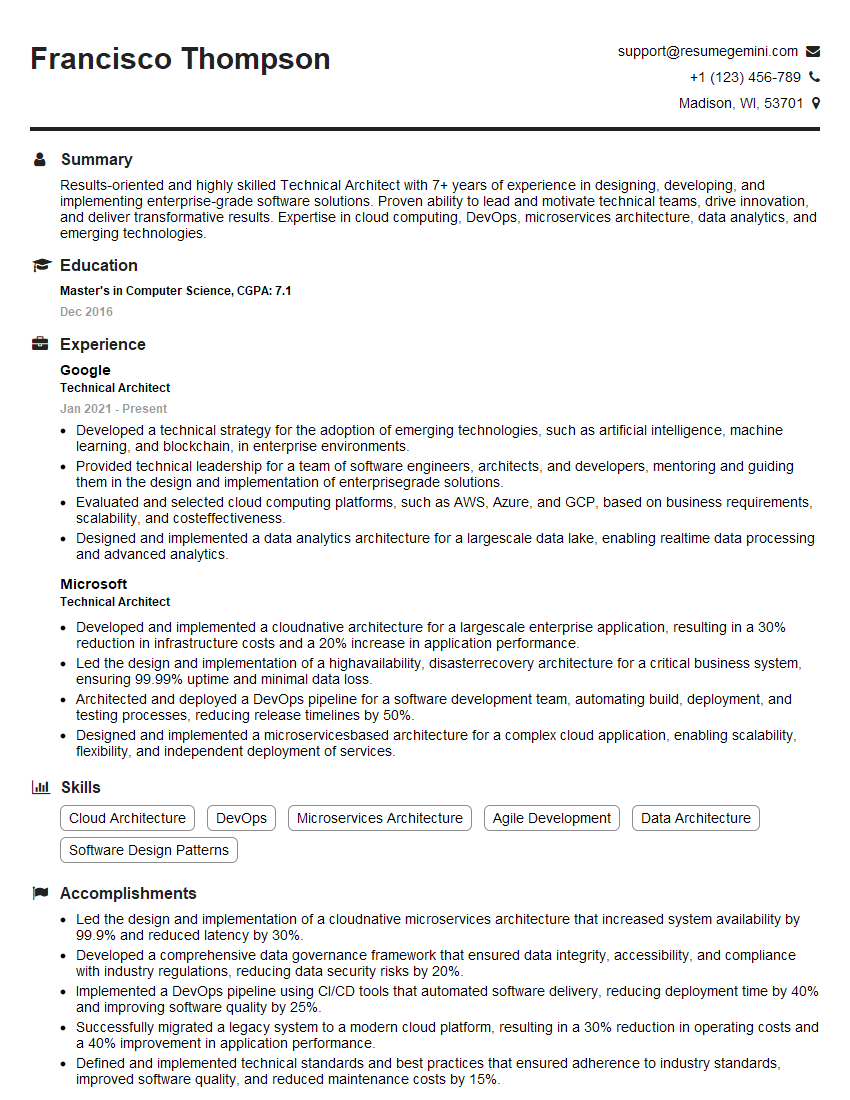
Technical Architect Resume Sample

IT Manager Resume Sample
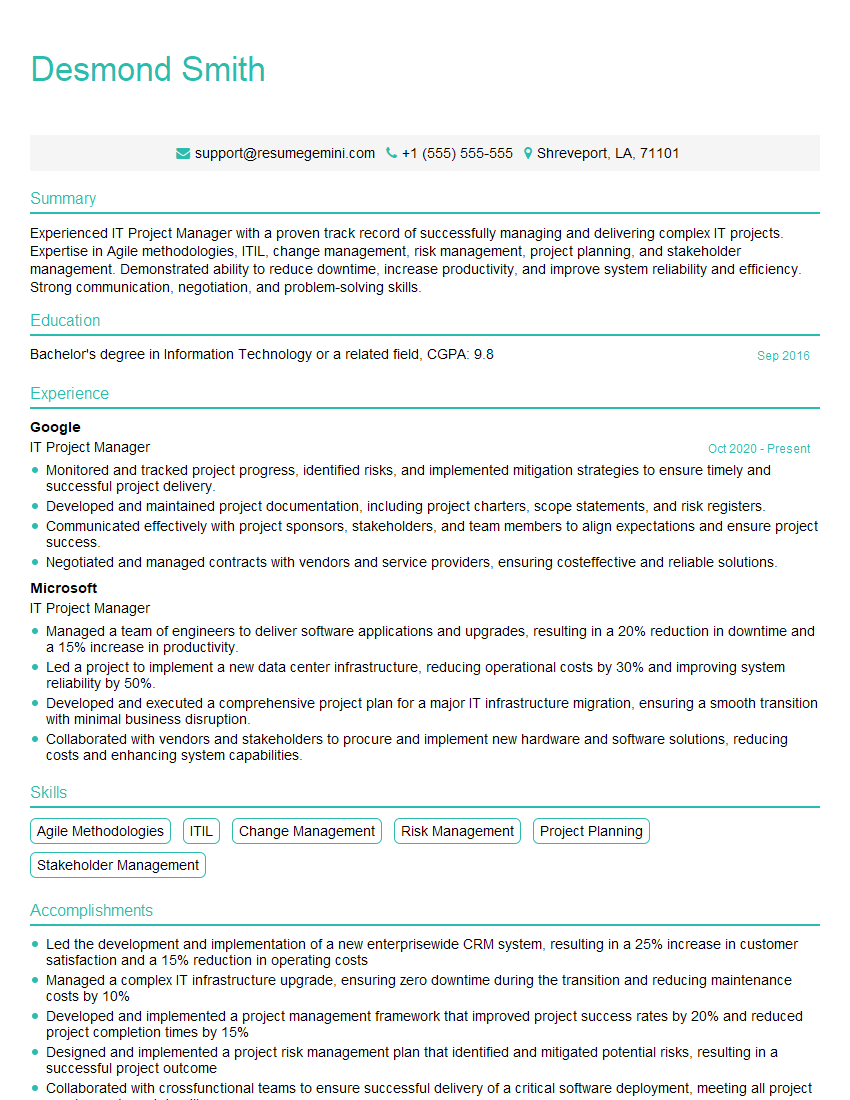
IT Project Manager Resume Sample
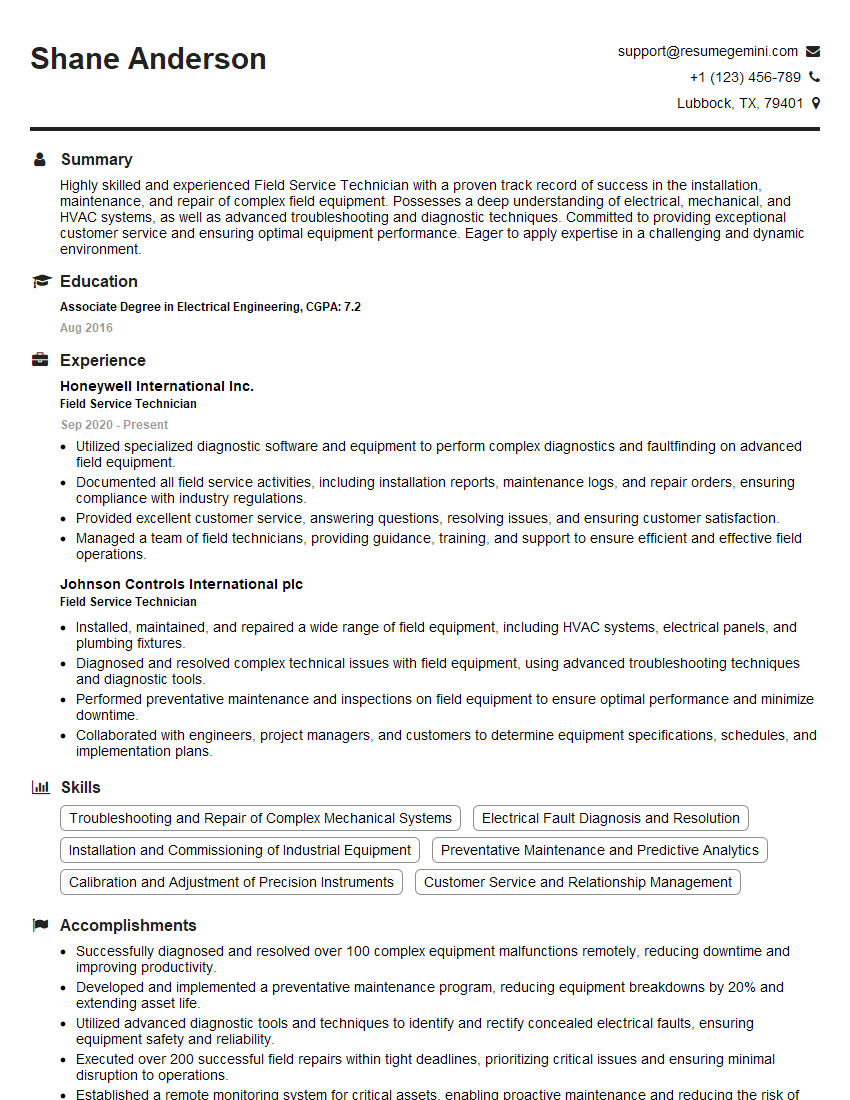
Field Service Technician Resume Sample
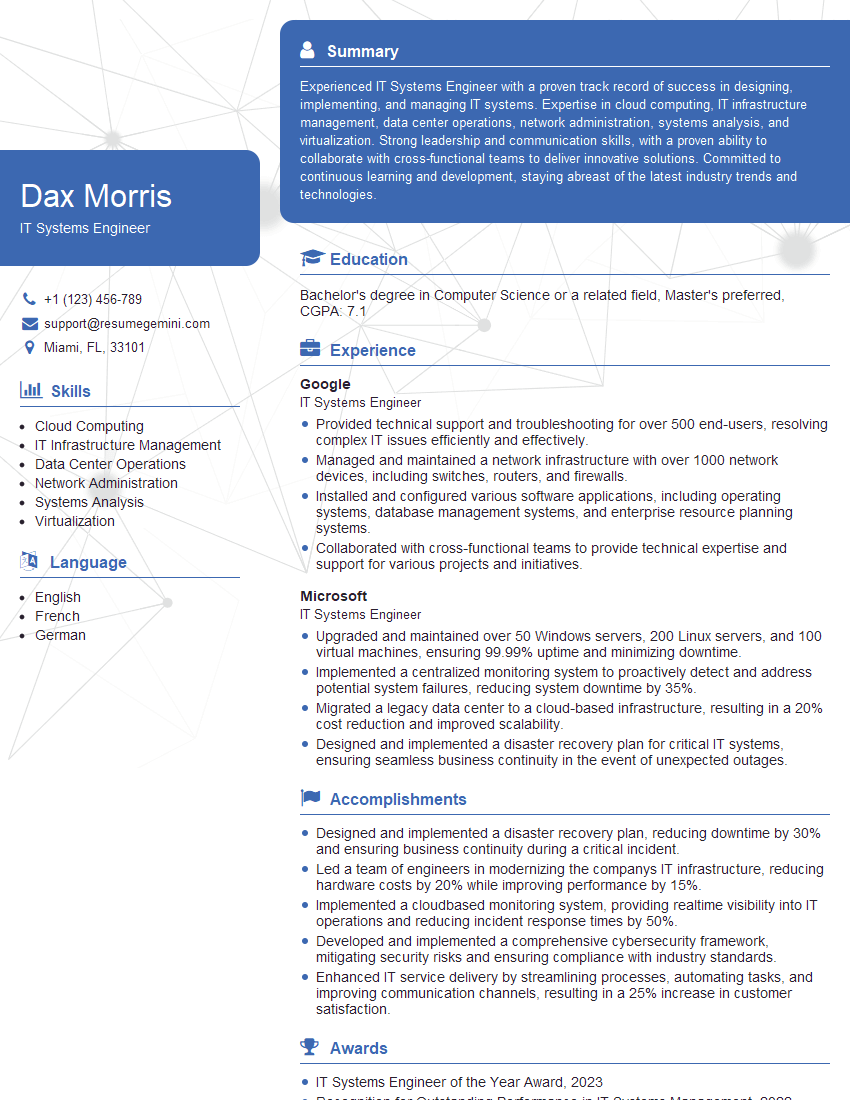
IT Systems Engineer Resume Sample
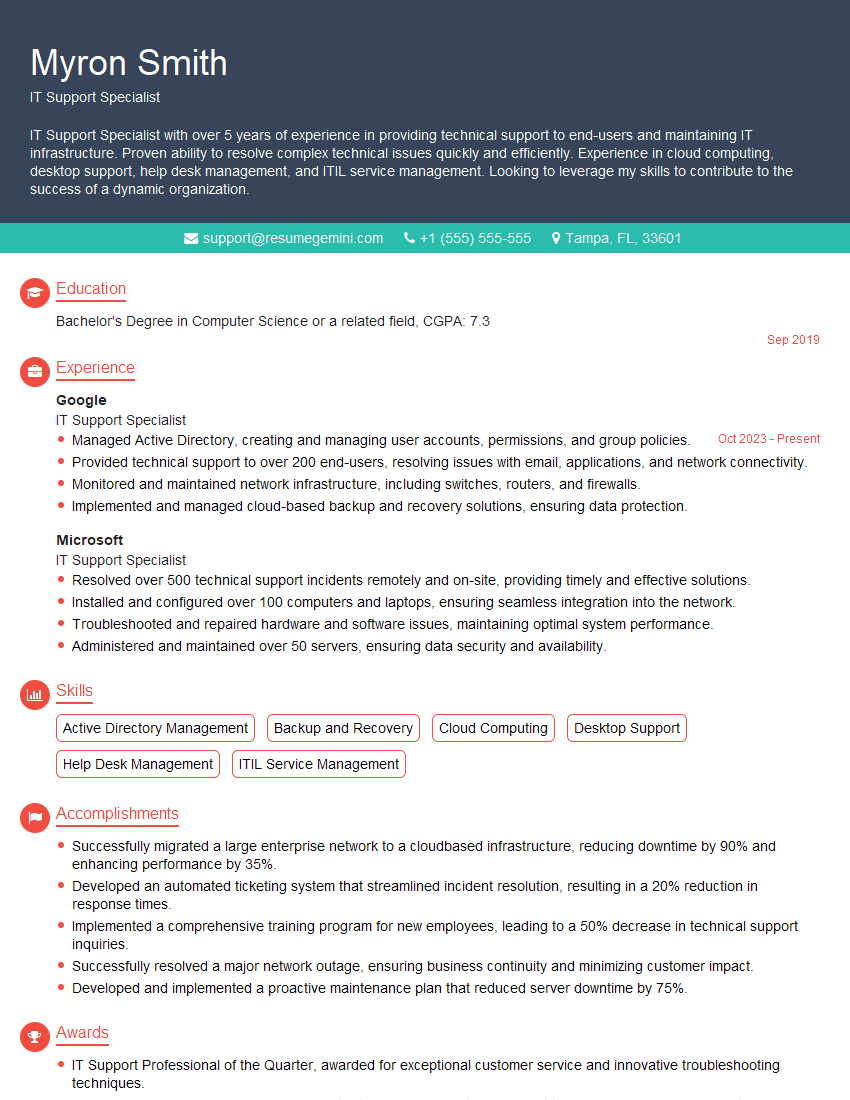
IT Support Specialist Resume Sample
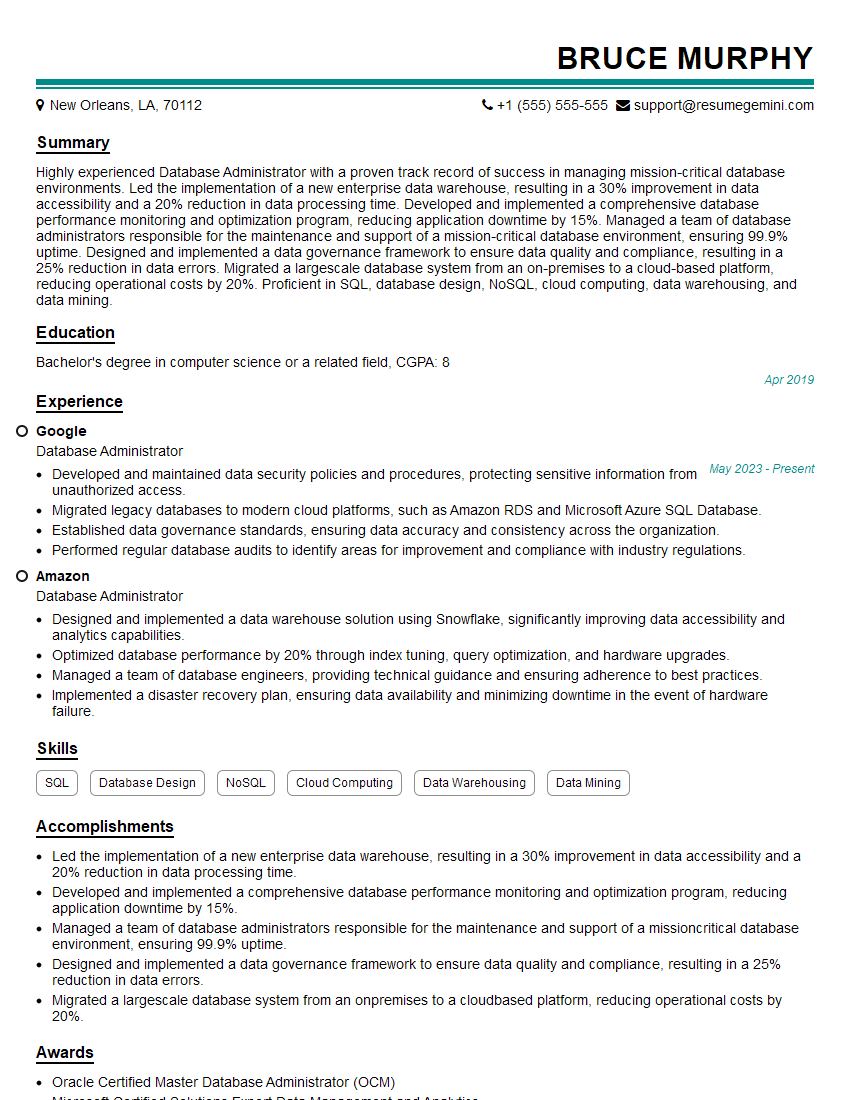
Database Administrator Resume Sample

DevOps Engineer Resume Sample
- Systems Analyst
- Network Administrator
- Computer Systems Technician
- Network Engineer
- Technical Support Engineer
- System Administrator
- Desktop Support Engineer
- Help Desk Analyst
- Help Desk Manager
- Technical Architect
- IT Manager
- IT Project Manager
- Field Service Technician
- IT Systems Engineer
- IT Support Specialist
- Database Administrator
- DevOps Engineer
Explore more articles
Users Rating of Our Blogs
Share Your Experience
We value your feedback! Please rate our content and share your thoughts (optional).
What Readers Say About Our Blog
Very informative content, great job.
good