Every successful interview starts with knowing what to expect. In this blog, we’ll take you through the top Design Software (e.g., AutoCAD, Photoshop) interview questions, breaking them down with expert tips to help you deliver impactful answers. Step into your next interview fully prepared and ready to succeed.
Questions Asked in Design Software (e.g., AutoCAD, Photoshop) Interview
Q 1. Explain your experience with AutoCAD’s layer management system.
AutoCAD’s layer management system is fundamental to organizing complex drawings. Think of layers as transparent sheets stacked on top of each other. Each layer can contain different types of objects – walls on one, electrical wiring on another, etc. Effective layer management is crucial for clarity, efficiency, and control over your drawing.
- Creating Layers: I always start by creating a logical layer structure. For instance, a project might have layers for ‘Walls’, ‘Doors’, ‘Windows’, ‘Plumbing’, ‘Electrical’, etc. This prevents visual clutter and makes selecting and modifying specific elements easy. I usually name layers descriptively and consistently, using a naming convention (e.g., ’01-Walls’, ’02-Doors’).
- Layer Properties: Beyond just names, I carefully manage layer properties like color, linetype, and lineweight. This allows for immediate visual distinction between different elements. For example, walls might be a thick, black line, while dimensions are a thin, cyan line. Freezing and thawing layers helps manage complexity in large drawings by hiding or showing layers as needed.
- Layer States: I leverage AutoCAD’s ‘freeze’ and ‘thaw’ options frequently. Freezing a layer hides it, significantly improving performance when working with massive drawings containing many elements. I’ll often freeze layers that I’m not actively working on, then thaw them when needed. This greatly improves the responsiveness of AutoCAD, especially on less powerful machines.
- Layer Visibility: I use layer visibility controls to selectively show or hide layers during different stages of the design process. This allows me to focus on specific aspects of the drawing without the distraction of irrelevant information. For example, when focusing on structural details, I might hide layers related to electrical systems.
In a recent project designing a multi-story building, managing layers was critical. By creating separate layers for each floor, structural elements, MEP systems, and annotations, I was able to easily isolate, modify, and review individual components without affecting others. This streamlined the design process and reduced errors.
Q 2. How do you manage large files in AutoCAD?
Managing large AutoCAD files requires a multifaceted approach focused on organization, data optimization, and efficient workflows. Simply put, a poorly managed large file can become extremely slow and cumbersome.
- External References (Xrefs): For large projects, I extensively use external references. This breaks down the drawing into smaller, manageable files. Changes in one file automatically update in the main drawing, but only when needed, improving performance. This is akin to using modules in programming, promoting reusability and maintainability.
- Purge and Audit: Regularly purging and auditing the drawing is critical. Purging removes unused data like blocks, layers, and styles, reducing file size and improving performance. Auditing checks for and fixes errors that may cause instability. I do this frequently during and after a design process.
- Layer Management (as described above): Effective layer management is paramount. Freezing and thawing irrelevant layers during work sessions improves the speed and responsiveness of the program, significantly impacting workflow.
- Data Extraction: When dealing with massive files, I often extract necessary data to smaller, more manageable drawings for specific tasks. For example, I might extract only the structural elements for structural analysis.
- File Compression: While not reducing drawing size itself, proper compression formats (e.g., zip) help manage storage space and data transfer more efficiently.
On a recent stadium design, I used Xrefs to manage separate files for different sections – seating, structural elements, landscaping. This drastically reduced file size and allowed different team members to work on separate areas concurrently without slowing down each other’s progress. Regular purging and auditing ensured the files remained clean and efficient.
Q 3. Describe your workflow for creating 3D models in AutoCAD.
My 3D modeling workflow in AutoCAD involves a systematic approach, starting with a clear understanding of the design intent and ending with a polished, accurate model.
- 2D Base Plan: I usually begin by creating a detailed 2D plan view. This serves as the foundation for the 3D model, ensuring accurate dimensions and relationships between elements.
- 3D Modeling Techniques: I utilize various 3D modeling techniques, including extrusion, revolution, and solids modeling. The choice depends on the object’s complexity. For simple objects, extrusion is often sufficient. Complex shapes might require more advanced techniques.
- Constraints and Relations: I make extensive use of constraints and relations to maintain geometric accuracy and avoid inconsistencies. This ensures that the model behaves as expected when modifications are made.
- Blocks and Components: I create reusable blocks and components for repetitive elements, such as doors, windows, and structural members, to streamline the modeling process and maintain consistency.
- Rendering and Visualization: Finally, I employ rendering and visualization techniques to create realistic representations of the model, aiding in communication and design review.
For example, when modeling a piece of furniture, I’d start with a 2D sketch, extrude the various parts, then use constraints to ensure proper connections. This creates a parametric model easily adaptable to design changes.
Q 4. How proficient are you with AutoCAD’s various drawing tools (e.g., line, arc, circle)?
I’m highly proficient with AutoCAD’s fundamental drawing tools. My skill level comes from years of experience and a deep understanding of their application in different design contexts.
- Line, Arc, Circle: These are the building blocks of any CAD drawing. I understand their properties, options (like lineweight, linetype, and color), and how to use them effectively for both 2D and 3D modeling.
- Precise Input: I’m comfortable using various input methods – absolute coordinates, relative coordinates, object snaps – to achieve precise drawing, ensuring accurate geometry.
- Construction Aids: I’m adept at using construction aids such as grids, snap settings, and object snaps to increase drawing speed and accuracy. These aids are crucial for ensuring consistency and reducing errors.
- Advanced Tools: I am also proficient in using more advanced tools like the array command, mirror command, and the fillet command to increase efficiency.
I use these tools constantly. For instance, when designing a building layout, precisely placing walls and doors requires mastery of these tools. Accurate dimensions and angles are essential for a successful design, highlighting the importance of proficiency in these fundamental tools.
Q 5. What are the advantages and disadvantages of using parametric modeling in AutoCAD?
Parametric modeling in AutoCAD allows you to create models based on parameters or variables, rather than fixed dimensions. This approach has significant advantages, but also some drawbacks.
- Advantages:
- Design Flexibility: Changes to one parameter automatically update the entire model, reducing errors and saving time. For instance, changing the length of a wall automatically adjusts connected elements.
- Improved Efficiency: Parametric modeling accelerates the design process, allowing for rapid exploration of design alternatives.
- Enhanced Consistency: It ensures consistency throughout the model, minimizing discrepancies and inconsistencies.
- Disadvantages:
- Complexity: Setting up parametric relationships can be complex, requiring a good understanding of constraints and equations.
- Steeper Learning Curve: Parametric modeling involves a steeper learning curve than traditional methods.
- File Size: Parametric models can sometimes be larger than non-parametric models.
In a recent bridge design project, using parametric modeling allowed us to easily explore various span lengths and structural configurations by simply adjusting key parameters. This quick iteration proved invaluable in optimizing the design for cost and structural performance. However, the initial setup required a thorough understanding of the relationships between parameters and careful constraint definitions.
Q 6. Explain your experience using AutoCAD’s annotation tools.
AutoCAD’s annotation tools are essential for communicating design intent and adding information to drawings. Effective annotation is critical for clarity and understanding.
- Dimensions: I use various dimensioning styles, aligning them consistently and using appropriate tolerances to ensure accurate representation of measurements.
- Text and Labels: I employ text styles and annotation scales for clarity, and ensure that text is legible and easy to understand. I use consistent text styles and font sizes across drawings.
- Leader Lines and Callouts: Leader lines and callouts are essential for pointing out specific features or details, adding extra descriptive context to the drawing.
- Table Creation: I create tables to organize design data effectively, particularly in larger and more complex designs, aiding easy access and understanding of specifications.
- Annotation Scales: I use appropriate annotation scales to maintain consistency between text, dimensions, and other annotations across different viewports and sheets. Incorrect annotation scaling can lead to major misinterpretations in drawings.
During the design phase of a residential project, the accurate placement of dimensions and annotations made it incredibly clear and easy to understand various design aspects, leading to clear communication with the client and the construction team.
Q 7. How do you handle complex design revisions in AutoCAD?
Handling complex design revisions in AutoCAD involves using revision clouds, version control, and a systematic approach to manage changes efficiently and avoid errors. Proper version control is paramount.
- Revision Clouds: I use revision clouds to clearly highlight areas that have been modified. This makes it easy to identify changes during reviews and approvals.
- Layers and Xrefs: I leverage layers and external references (Xrefs) to manage different revisions. This allows for maintaining various versions of the drawing without excessive file size bloat. For example, an ‘approved’ Xref might be used for the finalized sections while a separate ‘revisions’ Xref manages the altered parts.
- Version Control (External Software): For significant projects, I integrate with external version control systems (e.g., Autodesk Vault) to track changes, manage multiple versions, and revert to previous states if necessary. This provides crucial back-up and provides a history for easy review.
- Change Logs: I maintain a detailed change log documenting all revisions, their dates, and the reasons for the changes. This is invaluable for tracking progress and providing context to future modifications or inquiries.
In a large-scale commercial building project, using a combination of these strategies ensured that all changes were tracked, documented, and easily reviewed. The use of a version control system was essential in preventing conflicts and ensuring the integrity of the design files.
Q 8. Describe your experience with Photoshop’s layers and blending modes.
Photoshop’s layers are like transparent sheets stacked on top of each other. Each layer contains its own image elements, allowing for non-destructive editing. Blending modes determine how these layers interact. Instead of simply placing one layer on top of another, blending modes specify how the colors of the layers combine. For instance, ‘Normal’ mode simply places the top layer over the bottom, while ‘Multiply’ darkens the underlying layer, and ‘Screen’ brightens it.
My experience spans using layers to isolate elements for precise edits (like removing blemishes in a portrait), creating complex composite images (e.g., combining a model with a background), and applying stylistic effects (using multiple layers with different blending modes to achieve a unique look). For example, I recently used a ‘Soft Light’ blending mode over a layer with a textured brush to add a subtle, painterly feel to a product photograph. I frequently use layer masks to selectively apply effects or edits to specific areas without directly affecting the underlying pixels, maintaining flexibility throughout the editing process. This non-destructive approach allows for easy adjustments and experimentation without fear of permanent alteration.
Q 9. How do you create and manipulate selections in Photoshop?
Creating and manipulating selections in Photoshop is fundamental. Think of a selection as highlighting a specific area of the image for editing. The Lasso tool allows for freehand selection, the Marquee tool creates precise rectangular or elliptical selections, and the Magic Wand tool selects areas based on similar color tones. More advanced tools like the Quick Selection tool and the Object Selection tool leverage AI to intelligently identify and select subjects, saving significant time and effort.
Once a selection is made, various operations can be performed such as copying, pasting, applying filters, adjustments, or making edits within the selected area only. Refining a selection is often crucial, and I regularly use techniques like feathering (softening the selection edges), expanding or contracting the selection, and using the Refine Edge tool (particularly useful for hair or intricate details) to achieve precise control. For instance, when removing a background from a product photo, I frequently use the Quick Selection tool to create a preliminary selection and then refine it with the Refine Edge tool to ensure clean edges and prevent haloing around the subject.
Q 10. Explain your experience with Photoshop’s adjustment layers.
Adjustment layers are one of Photoshop’s most powerful features, allowing non-destructive color and tonal corrections. Unlike directly adjusting the image pixels, adjustment layers create a layer that sits above the image, affecting the layers below without altering the original image data. This offers immense flexibility since you can easily adjust the settings, change the blending mode, or even delete the layer without losing the original image.
I extensively use adjustment layers such as Levels, Curves, Brightness/Contrast, Hue/Saturation, and Color Balance to fine-tune images. For instance, a ‘Curves’ adjustment layer gives granular control over tonal range, making it indispensable for balancing highlights and shadows or increasing contrast. A ‘Hue/Saturation’ layer allows me to subtly adjust colors without affecting other areas of the image. I regularly use these in combination to achieve a balanced and visually appealing result. The ability to mask adjustment layers allows me to apply corrections to specific parts of the image, a significant advantage in ensuring precision.
Q 11. Describe your workflow for retouching images in Photoshop.
My retouching workflow typically begins with assessing the image’s needs. A portrait might require blemish removal and skin smoothing, while a product shot might necessitate background removal and color correction. I always work non-destructively using layers and adjustment layers.
My typical steps include: 1. Initial assessment and organization of layers. 2. Basic color corrections with adjustment layers. 3. Spot healing or cloning of blemishes, using the healing brush and clone stamp tools carefully. 4. Refinement of skin tone and texture, often using frequency separation for delicate adjustments. 5. Background removal and replacement if necessary. 6. Final color grading and sharpening. Throughout this process, I regularly save my work and use version history to track changes, providing a safety net and the flexibility to revert to earlier stages if needed. Each project demands a tailored approach; however, this structured workflow helps ensure efficiency and quality.
Q 12. How do you optimize images for web use in Photoshop?
Optimizing images for web use involves reducing file size without significantly compromising image quality. The goal is to balance visual appeal with fast loading times. In Photoshop, this is achieved through several techniques.
Before saving, I generally make sure that the image is at the appropriate dimensions for web use. I then use ‘Save for Web (Legacy)’ to export the image in a format like JPEG (for photographs) or PNG (for images with sharp edges and transparency). This dialog box lets me fine-tune compression levels, affecting both file size and quality. Higher compression means smaller file sizes but might also result in some quality loss. I carefully balance these factors, depending on the image’s criticality and the website’s requirements. For instance, images featured prominently might require less compression compared to smaller, less important images. I always preview the image at different compression levels to ensure the quality remains acceptable. For graphics with text, PNG is preferred to maintain crisp edges. For photographs, I use JPEG compression.
Q 13. What are your preferred methods for creating and applying filters in Photoshop?
Photoshop offers a vast array of filters, from simple sharpen or blur effects to highly stylized artistic filters. My approach depends on the desired effect and the complexity of the task. For quick, simple adjustments, I often use filters directly on a layer, while for more nuanced effects, I prefer applying filters to a duplicate layer for greater control.
I frequently use the Smart Sharpen filter for image sharpening, controlling the amount and radius to avoid halos. The Gaussian Blur filter is useful for softening edges. More advanced filters like Liquify and the various artistic filters offer creative possibilities, and I use them sparingly to achieve specific creative aims. I prefer exploring filter options in conjunction with layer masks to apply the effects selectively rather than to the whole image. Understanding the implications of each filter and how they interact with the image’s characteristics is crucial. For example, applying a high-radius Gaussian Blur can lead to significant detail loss.
Q 14. How proficient are you with Photoshop’s vector tools?
While Photoshop is primarily a raster-based editor, it does offer vector tools, though they are not as comprehensive as dedicated vector programs like Illustrator. I am proficient in using the Pen tool to create precise vector shapes and paths, which can be used for masking, creating custom shapes, and vector-based illustrations. I understand the difference between vector and raster graphics and recognize the strengths and limitations of using vector tools within Photoshop. Vector shapes are scalable without losing quality, unlike raster images, making them useful for logos or elements that require high-resolution output at different sizes. However, the workflow in Photoshop for creating and editing vector graphics isn’t as intuitive or streamlined as dedicated vector applications. I mostly use Photoshop’s vector tools for supplementary tasks or when a quick vector element needs to be incorporated within a raster-based project.
Q 15. Explain your experience with masking techniques in Photoshop.
Masking in Photoshop is a crucial technique for isolating and manipulating specific areas of an image without affecting the rest. Think of it like using a stencil – you reveal what you want to work on and hide the rest. I’ve extensively used various masking methods, including layer masks, vector masks, and quick selection masks, depending on the complexity and desired outcome.
- Layer Masks: These are non-destructive, allowing for easy adjustments and revisions. I often use them for subtle adjustments to portraits, carefully masking areas to enhance skin tone or remove blemishes. For example, I might use a soft-edged brush on a layer mask to gently blend a retouched area into its surroundings, preserving the natural look of the image.
- Vector Masks: These are precise and scalable, ideal for sharp edges or complex shapes. Imagine creating a logo; vector masks allow you to perfectly isolate the logo from the background, maintaining crisp lines even at high resolutions. I regularly employ this for creating clean cut-outs or isolating objects for compositing.
- Quick Selection Masks: These are time-savers for quickly selecting large areas, especially with uniform backgrounds. However, they require refinement and often need manual touch-ups with brushes to achieve a perfect selection, especially with intricate details. I use this for quick selections that need less precision, saving considerable time on projects where perfect selection isn’t paramount.
My experience encompasses using masking to combine images seamlessly, creating composite images, and isolating elements for special effects. The choice of masking technique always depends on the project’s specific requirements and the level of precision needed.
Career Expert Tips:
- Ace those interviews! Prepare effectively by reviewing the Top 50 Most Common Interview Questions on ResumeGemini.
- Navigate your job search with confidence! Explore a wide range of Career Tips on ResumeGemini. Learn about common challenges and recommendations to overcome them.
- Craft the perfect resume! Master the Art of Resume Writing with ResumeGemini’s guide. Showcase your unique qualifications and achievements effectively.
- Don’t miss out on holiday savings! Build your dream resume with ResumeGemini’s ATS optimized templates.
Q 16. Describe your experience with color correction and color management in Photoshop.
Color correction and management are critical for ensuring consistency and accuracy in my Photoshop work. I’m proficient in using various tools and techniques to achieve the desired color balance, vibrancy, and overall look. This involves understanding color spaces (like sRGB and Adobe RGB), color profiles, and the impact of different editing techniques on the final output.
- Color Balance: I use the Color Balance adjustment layer to subtly shift the overall color temperature and tint of an image, correcting for casts caused by lighting conditions. For example, a photo taken under tungsten lighting might have a yellowish cast; I’d adjust the color balance to introduce more blues to neutralize this.
- Curves: The Curves adjustment layer offers precise control over tonal range and color channels. I use curves to enhance contrast, adjust shadows and highlights, and fine-tune individual color channels for a more nuanced approach. Imagine subtly increasing the vibrancy of reds in a flower photograph to make it more eye-catching.
- Color Lookup: This tool applies pre-defined color palettes to the image. While sometimes used creatively for stylistic effects, I’ve also used it practically for matching the color scheme across multiple images in a project.
- Color Management: I always ensure the correct color profile is assigned to my images throughout the editing process to prevent color shifts and ensure accurate reproduction on different devices. I usually work in Adobe RGB for maximum color gamut and convert to sRGB for web use.
By carefully managing color and applying correction techniques, I consistently achieve professional results, ensuring that the final image looks its best across different displays and output methods.
Q 17. How do you handle large image files in Photoshop?
Working with large image files requires strategic approaches to maintain performance and efficiency. Simply opening a massive image can cause Photoshop to slow down dramatically. To handle this, I employ several techniques:
- Image Size Reduction: Before beginning intensive edits, I might reduce the image size to a manageable resolution. I use image resizing tools to maintain a reasonable quality and reduce file size. For example, I might reduce the resolution for initial edits, creating a smaller proxy file to work from, only opening the full-resolution file for final adjustments.
- Using Smart Objects: Smart Objects maintain high-resolution image data without affecting file size, so I convert large images to Smart Objects before extensive editing to preserve detail without dramatically increasing file size.
- Layer Comps: Layer Comps allow me to save different versions of my work without duplicating the entire layer structure. This is crucial when working with large files, preventing unnecessary memory consumption.
- Memory Management: I pay close attention to Photoshop’s memory usage, making sure to close unnecessary files and layers to free up system resources.
- Save As Copy: I regularly save my work as copies (especially for large files) at different stages in the editing process, creating backups and minimizing the risk of data loss.
These strategies ensure that I can effectively work with large images without compromising performance or stability. It’s all about planning and smart utilization of Photoshop’s features.
Q 18. What are your preferred methods for creating photorealistic images in Photoshop?
Creating photorealistic images involves a blend of technical skill and artistic judgment. My approach typically involves a combination of techniques:
- High-Resolution Source Images: The foundation is always high-quality source imagery, ensuring sufficient detail for realistic rendering. A blurry or low-resolution photo will never produce a convincing photorealistic image.
- Careful Selection and Masking: Precise masking is key to combining elements seamlessly. This includes using layer masks and advanced selection tools to achieve realistic blending.
- Lighting and Shadows: Understanding light and shadow is essential. I pay meticulous attention to how light interacts with the scene, using adjustment layers and digital painting tools to simulate realistic lighting conditions. It’s not enough to simply combine elements; their interaction with light and shadows must be realistic.
- Texture and Detail: I use various techniques to add texture and detail, enhancing the realism of surfaces. This includes using high-resolution texture images, brushes, and other tools to replicate fine details.
- Color Grading and Correction: Finally, color grading is used to achieve a consistent and cohesive look. This involves adjusting color balance, saturation, and vibrancy to create a believable atmosphere.
I often build up my photorealistic images from multiple source images, meticulously combining textures, lighting, and elements to create a cohesive and convincing result. It’s a layered process that often takes multiple hours to perfect.
Q 19. What is your experience with using actions and presets in Photoshop?
Actions and presets are invaluable for streamlining my workflow in Photoshop. Actions automate repetitive tasks, while presets provide quick access to pre-configured settings.
- Actions: I’ve created custom actions for tasks like batch resizing images, applying specific color corrections, or performing complex retouching procedures. This dramatically reduces the time spent on repetitive actions. For example, I have an action that automatically sharpens images, adjusts contrast, and saves them in the correct file format for web use.
- Presets: Presets are handy for quickly applying consistent styles or settings across multiple images. I frequently use brush presets for painting or retouching and pattern presets for adding textures to images.
By leveraging actions and presets, I can significantly increase my efficiency and maintain consistency across projects. This allows me to focus on creative aspects rather than getting bogged down in repetitive tasks.
Q 20. How familiar are you with using plugins in Photoshop?
I have extensive experience using various Photoshop plugins. These extensions significantly expand Photoshop’s capabilities, enabling specialized effects and workflows.
- Nik Collection: I utilize the Nik Collection for advanced image editing, particularly for sharpening, color correction, and special effects. This provides more granular control over certain aspects of image manipulation that Photoshop’s built-in tools may lack.
- Topaz Labs Plugins: Topaz plugins offer impressive features for noise reduction, sharpening, and AI-powered upscaling. These are invaluable tools for enhancing image quality and resolution.
- Other Specialized Plugins: Depending on the project, I’ve used plugins for tasks ranging from 3D rendering integration to advanced masking and compositing.
My plugin choices depend on the specific project needs, but using them allows me to leverage specialized tools and achieve higher quality results than would be possible using only Photoshop’s built-in functionality.
Q 21. Describe your experience using different file formats (e.g., PSD, JPG, PNG) in Photoshop.
Understanding the strengths and limitations of different file formats is crucial for efficient and high-quality image handling in Photoshop. Each format offers unique trade-offs between image quality, file size, and compatibility.
- PSD (Photoshop Document): This is the native format for Photoshop, preserving all layers, edits, and adjustment layers. It’s essential for maintaining non-destructive workflows and allowing for revisits and modifications. I always start and sometimes end projects in PSD format for these reasons.
- JPG (JPEG): This is a widely compatible format ideal for web use and distribution. However, it’s a lossy format, meaning that some image data is lost during compression, especially at lower quality settings. I use JPG for web images and other situations where file size is critical.
- PNG (Portable Network Graphics): PNG supports lossless compression, preserving image quality without significant file size increases. It is well-suited for images with sharp lines, text, or transparent backgrounds. I prefer PNG for graphics and images with transparent sections, ensuring the transparency remains intact.
I choose the file format based on the final intended use of the image. For archiving or projects requiring future edits, I use PSD. For web publishing, I usually use JPG or PNG, based on the need for lossless compression or transparency.
Q 22. What is your experience with creating and editing vector graphics?
Creating and editing vector graphics is a fundamental skill in my design workflow. Vector graphics, unlike raster images (like JPEGs), are based on mathematical equations that define lines and curves. This means they can be scaled to any size without losing quality—a crucial advantage for logos, illustrations, and designs intended for various applications.
My experience encompasses using tools like Adobe Illustrator and AutoCAD to create vector artwork. In Illustrator, I’m proficient in using the Pen tool to create precise paths, the Shape Builder tool to combine shapes, and the Pathfinder panel for complex manipulations. In AutoCAD, I utilize similar principles but within the context of precise technical drawings, often employing polylines, splines, and blocks to build complex vector models.
For example, I recently created a logo for a client using Illustrator. I started with basic shapes, refined them using the Pen tool, and applied gradients and effects to achieve the desired aesthetic. The final vector file is scalable to any size needed—from a business card to a billboard—without pixelation.
Q 23. Explain your understanding of CMYK vs. RGB color modes.
CMYK and RGB are two different color models used in different contexts. RGB (Red, Green, Blue) is an additive color model, meaning colors are created by adding light. It’s primarily used for screens (monitors, TVs, smartphones). CMYK (Cyan, Magenta, Yellow, Key/Black) is a subtractive color model used for print. Colors are created by subtracting light from white.
Understanding the difference is vital to avoid color discrepancies between digital designs and printed materials. A design that looks vibrant on screen in RGB may appear duller when printed in CMYK because inks absorb light, resulting in a less saturated output. Converting an RGB file to CMYK often requires color adjustments to ensure the printed result matches the digital design as closely as possible. I regularly utilize color profiles and proofing tools in Photoshop to manage this conversion and minimize color shifts.
Imagine painting with light (RGB) versus mixing paints (CMYK). The light can become brighter, whereas the paint becomes darker as you add more colours.
Q 24. How do you troubleshoot common issues when working with design software?
Troubleshooting in design software often involves a systematic approach. I start by identifying the specific problem: Is it a software glitch, a file corruption issue, a hardware limitation, or a user error?
My troubleshooting steps typically involve:
- Restarting the software and computer: A simple but often effective solution for minor glitches.
- Checking file integrity: Ensuring the file isn’t corrupted. If possible, I’ll try opening it in a different software or version.
- Reviewing recent actions: Undoing changes to identify the source of the problem.
- Consulting online resources: Searching for solutions on forums, help sites, or the software’s documentation.
- Updating software and drivers: Outdated software or drivers can cause various issues.
- Checking system resources: Ensuring sufficient RAM and processing power, especially when working with large files.
For example, if I encounter a rendering issue in Photoshop, I’ll first check if my system meets the software’s minimum requirements and if the file size is excessively large, potentially causing the slow-down. If the issue persists, I’d explore online forums for solutions related to that specific issue or contact technical support.
Q 25. Describe your experience with working collaboratively on design projects using design software.
Collaborative design projects require efficient communication and utilization of collaborative design tools. I have extensive experience working in teams using cloud-based platforms like Dropbox, Google Drive, and project management software such as Asana or Monday.com to share files and track progress.
In design software specifically, features like version control (in software like Adobe Creative Cloud) and collaborative editing tools (available in some applications) are invaluable. For example, I’ve worked on architectural plans in AutoCAD where multiple team members simultaneously accessed and edited the same file, with revision history being meticulously tracked. Clear communication through regular check-ins and feedback sessions is essential to ensure everyone’s on the same page, preventing conflicts and ensuring the project’s success. For example, using comments and markup tools directly within the design files made it easy to highlight areas for revisions and discuss design decisions effectively.
Q 26. What version of AutoCAD and Photoshop are you most proficient with?
I’m most proficient with AutoCAD 2023 and Photoshop CC 2022. However, I possess working knowledge of several previous versions of both programs and am adaptable to learning new versions as needed. My proficiency extends beyond basic functionality; I am adept at utilizing advanced features like dynamic blocks in AutoCAD and advanced masking and layer techniques in Photoshop.
Q 27. Explain your problem-solving skills when working with complex design challenges.
My approach to complex design challenges involves breaking down the problem into smaller, more manageable parts. I begin by thoroughly understanding the project requirements, constraints, and desired outcomes. Then, I brainstorm multiple solutions, weighing the pros and cons of each. I prioritize solutions that are both effective and efficient, taking into consideration factors like budget, timeline, and available resources.
For example, during one project involving a large-scale 3D model in AutoCAD, I identified performance bottlenecks by analyzing the model’s complexity. By optimizing the model’s geometry and employing efficient rendering techniques, I significantly improved performance without compromising visual quality. I constantly test my proposed solutions, iterate based on the results, and seek feedback throughout the process. A systematic and iterative approach ensures I’m able to tackle challenging design problems effectively.
Q 28. How do you stay up-to-date with the latest features and updates in design software?
Staying current with design software is crucial in this rapidly evolving field. I use several strategies to keep my skills sharp:
- Regularly attending webinars and online courses: Platforms like LinkedIn Learning and Udemy offer many courses on the latest design software features.
- Following industry blogs and publications: I subscribe to newsletters and follow industry leaders on social media to stay informed about new releases and best practices.
- Participating in online communities: Engaging in forums and online groups allows me to learn from other designers and share my own knowledge.
- Experimenting with new features: I actively explore new tools and features within the software, practicing their application in personal projects.
- Seeking out advanced training: I periodically invest in advanced training courses to deepen my understanding of specialized tools and techniques.
Continuous learning ensures I can leverage the latest advancements to optimize my workflow and deliver high-quality designs consistently.
Key Topics to Learn for Design Software (e.g., AutoCAD, Photoshop) Interview
Ace your interview by mastering these key areas. Remember, practical application and problem-solving are just as important as theoretical understanding!
- Fundamentals: Understanding the software interface, toolbars, and basic functionalities. This forms the bedrock of your skills.
- Drawing & Editing Techniques: Proficiency in creating, manipulating, and modifying 2D and 3D models (AutoCAD) or images (Photoshop). Practice complex edits and demonstrate your precision.
- Layer Management & Organization: Efficiently managing layers for complex projects. This showcases your organizational skills and workflow efficiency.
- File Formats & Compatibility: Knowing which file formats are appropriate for different applications and how to ensure seamless compatibility between software.
- Printing & Output: Understanding print settings, resolutions, and color profiles to achieve professional-quality outputs.
- Shortcuts & Efficiency: Mastering keyboard shortcuts to speed up your workflow and demonstrate your expertise.
- Advanced Features: Explore advanced tools and functionalities specific to your chosen software (e.g., parametric modeling in AutoCAD, advanced retouching techniques in Photoshop).
- Problem-Solving & Troubleshooting: Be prepared to discuss how you approach and solve common design software challenges. Showcase your analytical skills.
- Workflow & Collaboration: Describe your typical design workflow and how you collaborate with others on projects. This demonstrates teamwork and communication skills.
Next Steps
Mastering design software like AutoCAD and Photoshop is crucial for a successful career in design, engineering, or related fields. It opens doors to exciting opportunities and higher earning potential. To maximize your chances of landing your dream job, a well-crafted resume is essential. An ATS-friendly resume ensures your application gets noticed by recruiters and hiring managers.
ResumeGemini is a trusted resource that can help you build a professional, impactful resume tailored to the specific requirements of design software roles. We provide examples of resumes specifically designed for candidates proficient in AutoCAD and Photoshop, giving you a head start in creating a winning application. Take the next step towards your dream career today!

Web Designer Resume Sample
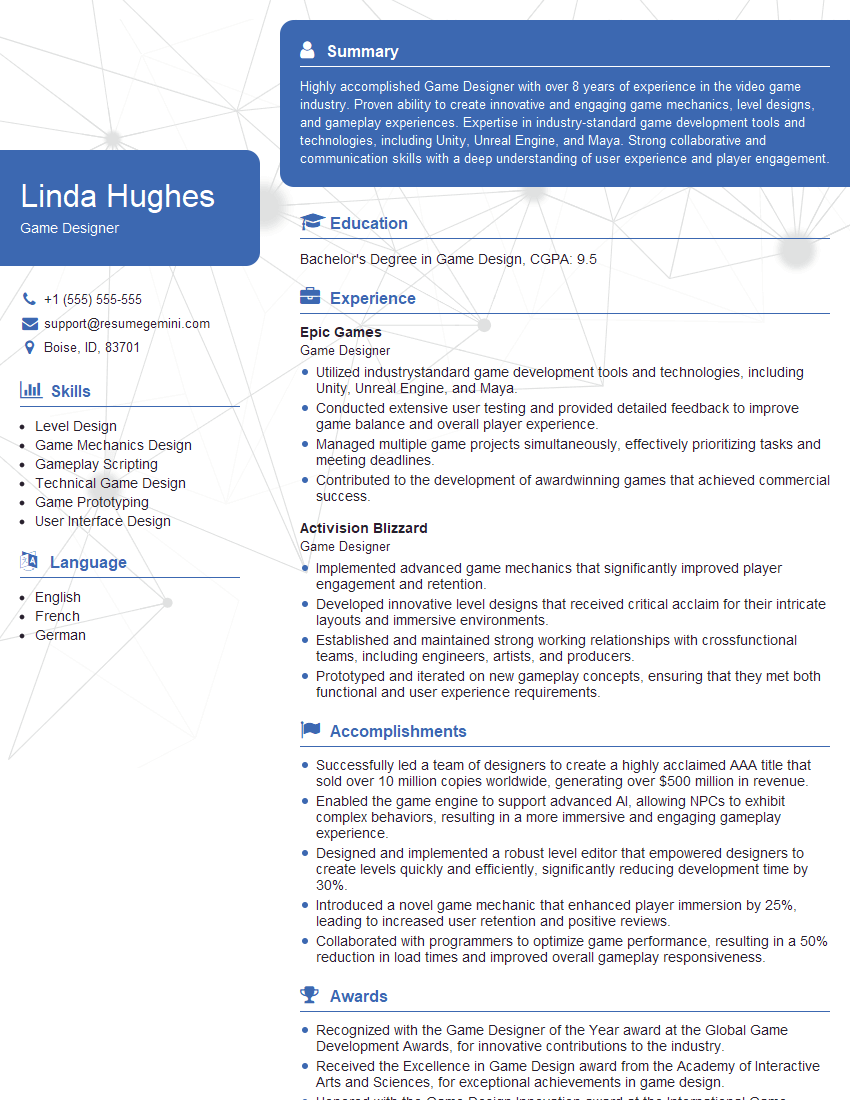
Game Designer Resume Sample
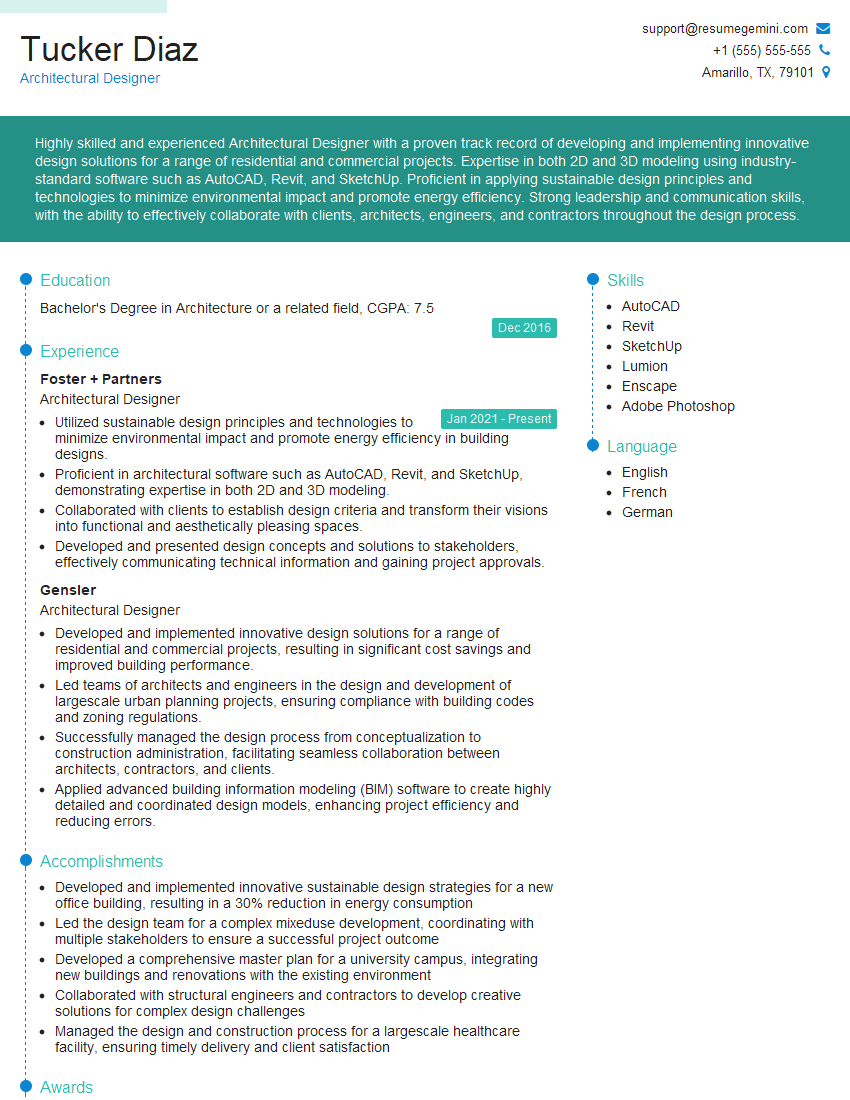
Architectural Designer Resume Sample
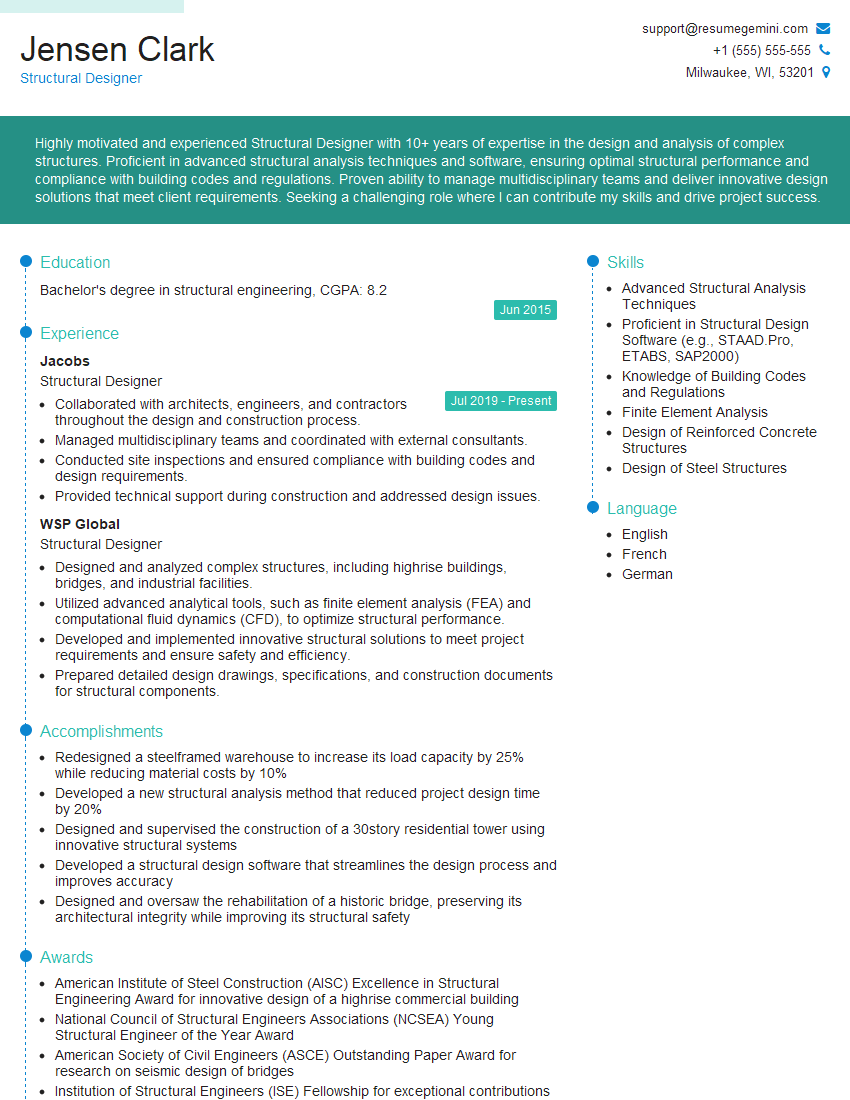
Structural Designer Resume Sample
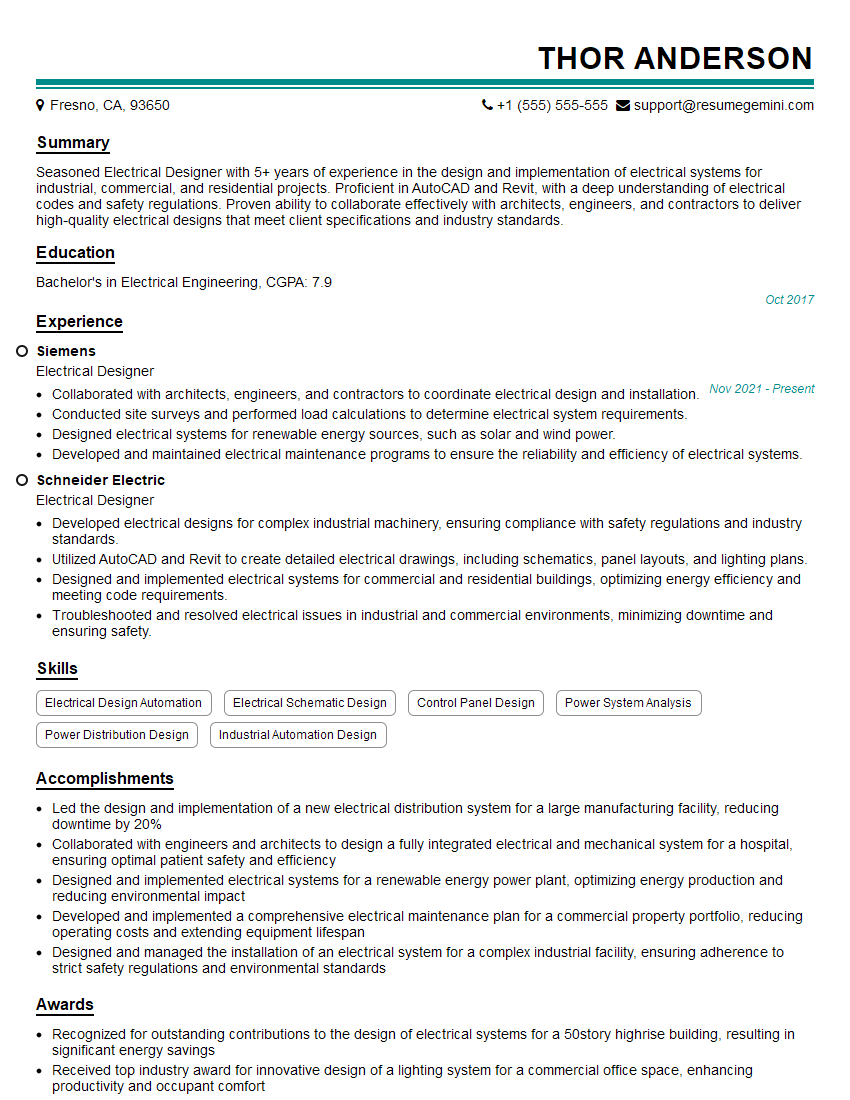
Electrical Designer Resume Sample
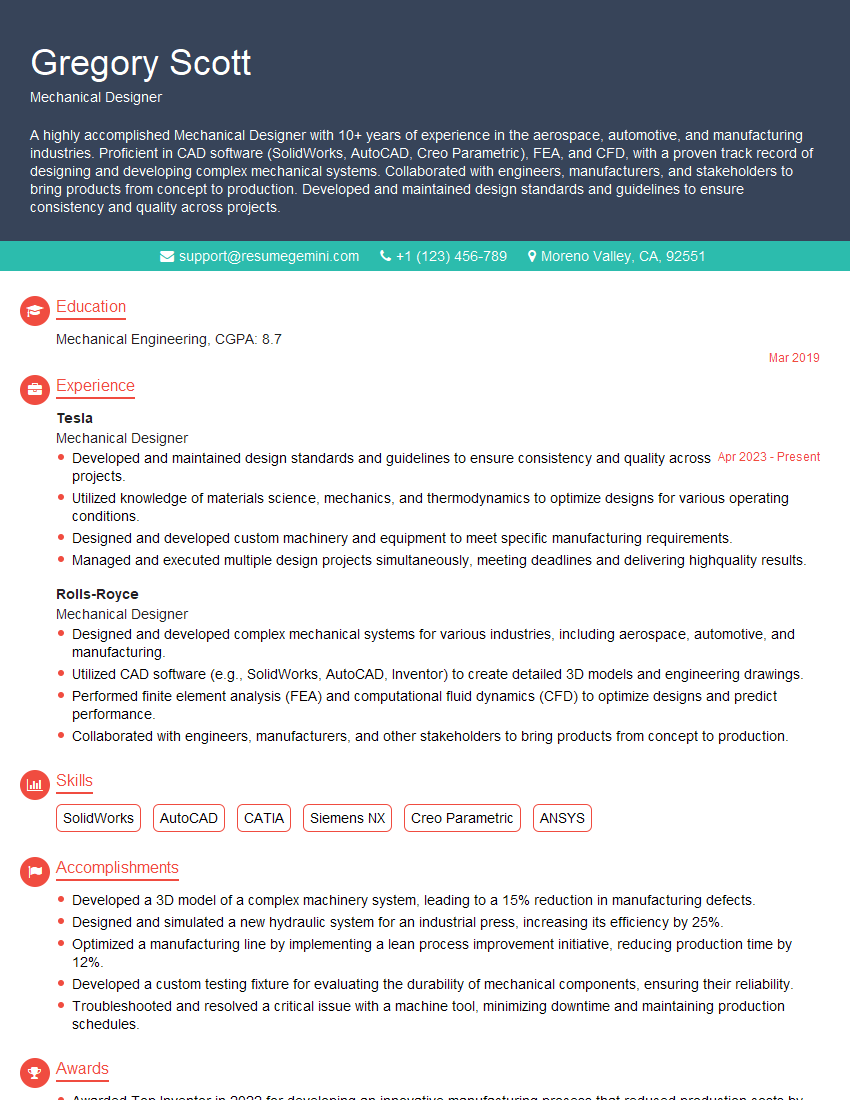
Mechanical Designer Resume Sample
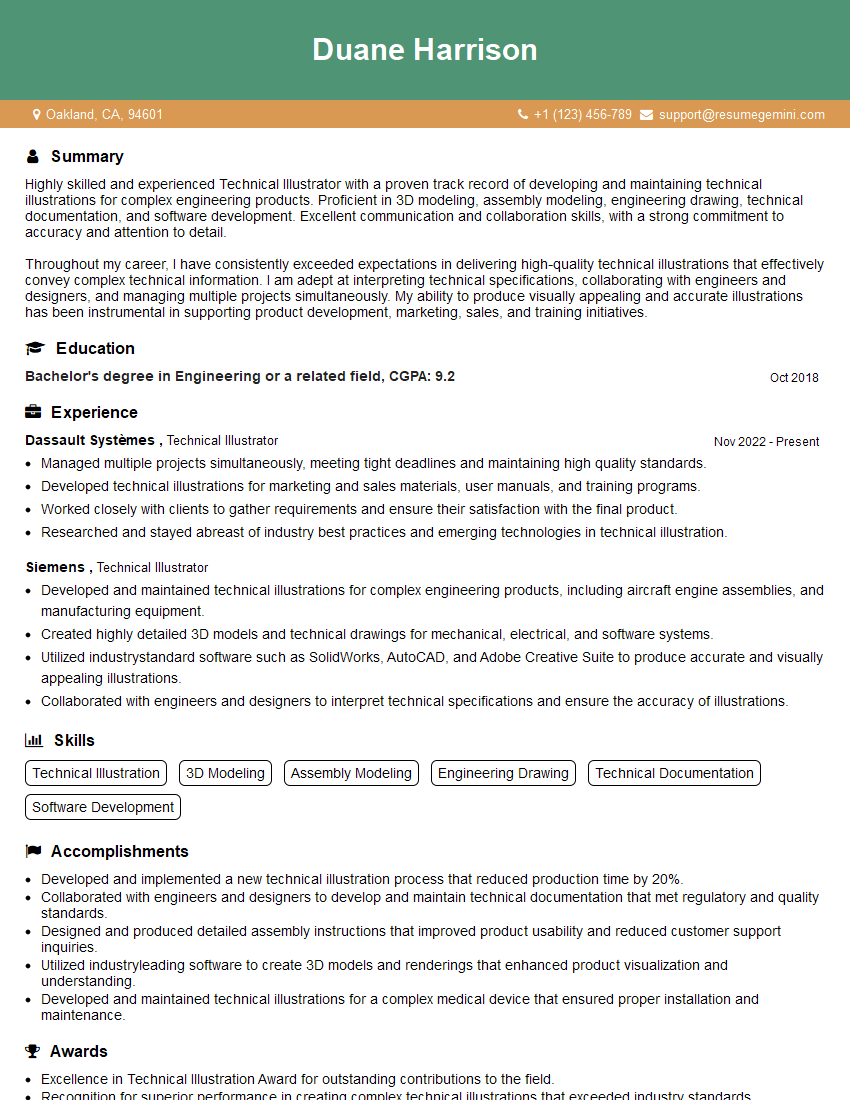
Technical Illustrator Resume Sample

Multimedia Specialist Resume Sample

3D Modeler Resume Sample
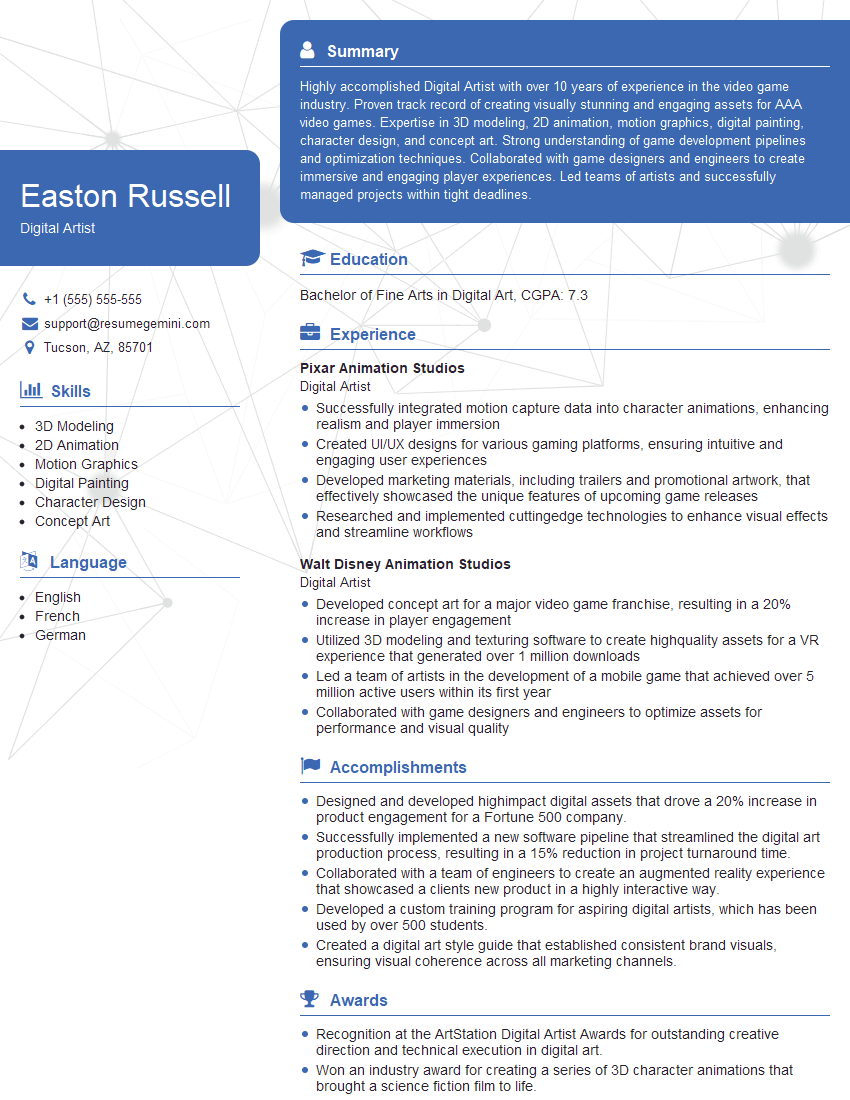
Digital Artist Resume Sample

Graphic Designer Resume Sample
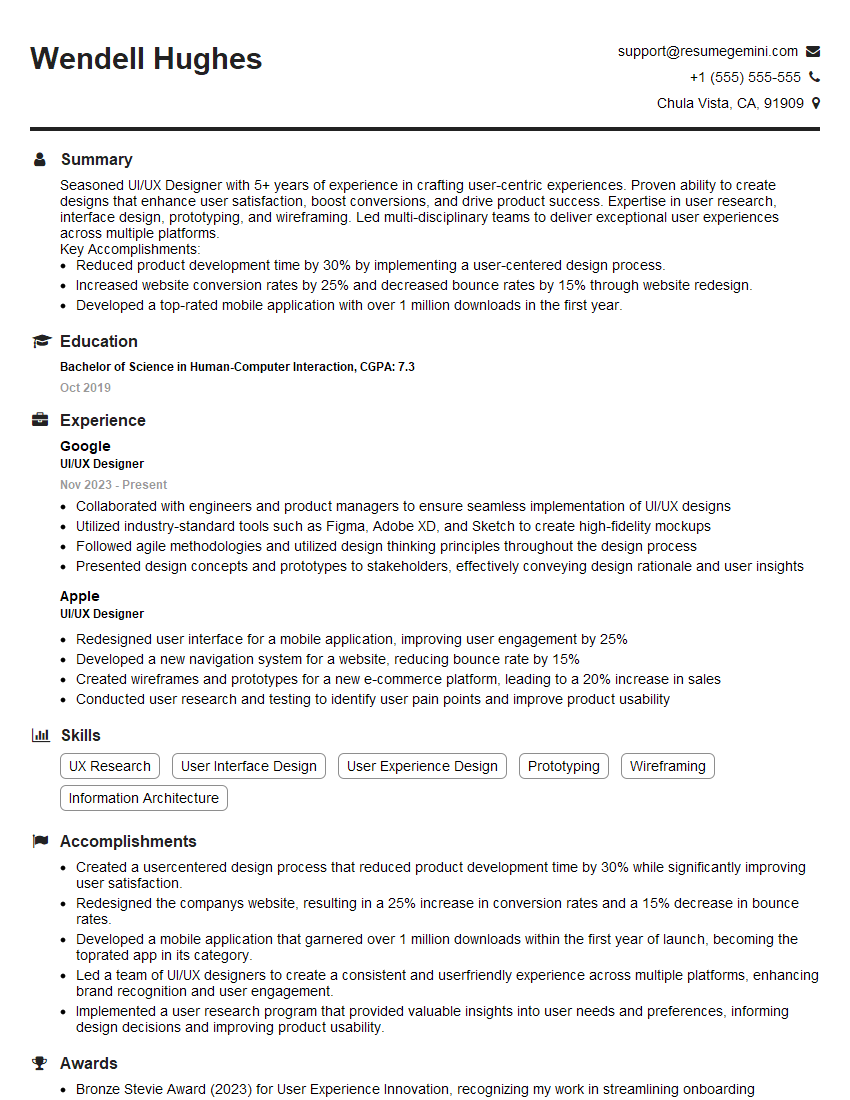
UI/UX Designer Resume Sample
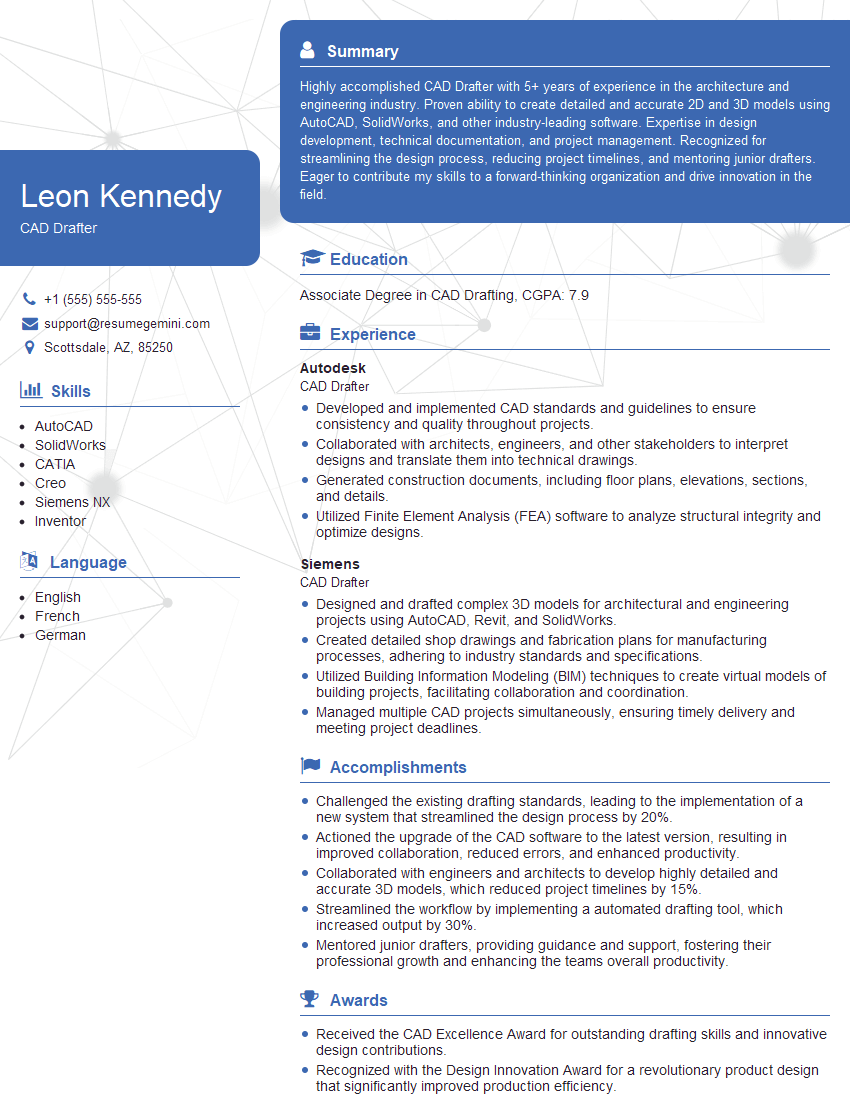
CAD Drafter Resume Sample
Explore more articles
Users Rating of Our Blogs
Share Your Experience
We value your feedback! Please rate our content and share your thoughts (optional).
What Readers Say About Our Blog
Very informative content, great job.
good