The thought of an interview can be nerve-wracking, but the right preparation can make all the difference. Explore this comprehensive guide to Design Software (e.g., AutoCAD, SolidWorks) interview questions and gain the confidence you need to showcase your abilities and secure the role.
Questions Asked in Design Software (e.g., AutoCAD, SolidWorks) Interview
Q 1. Explain your experience with AutoCAD’s various drawing tools.
My experience with AutoCAD’s drawing tools is extensive, encompassing both 2D drafting and basic 3D modeling. I’m proficient in using a wide range of tools, from fundamental commands like LINE, CIRCLE, and ARC for precise geometry creation, to more advanced tools such as POLYLINE for complex shapes, and SPLINE for smooth curves. I frequently utilize the OFFSET command for parallel lines and the ARRAY command for creating repetitive patterns, significantly boosting efficiency. For precise placement and manipulation, I rely heavily on object snaps like ENDPOINT, MIDPOINT, and INTERSECTION. My workflow often incorporates the use of layers to organize drawings effectively, ensuring clarity and maintainability. For example, I might dedicate separate layers to architectural elements, structural components, and MEP systems in a building plan.
Beyond the basics, I’m comfortable using tools for creating text annotations, dimensions, and leader lines to produce clear and comprehensive drawings. I’m also experienced with hatching patterns for representing different materials and using blocks to create reusable symbols and components. In essence, I’m adept at leveraging AutoCAD’s drawing tools to create accurate, detailed, and well-organized technical drawings across diverse projects.
Q 2. Describe your proficiency in SolidWorks’ part modeling features.
My SolidWorks proficiency in part modeling is strong, covering a range of techniques. I’m fluent in using features like extrude, revolve, sweep, and loft to create complex 3D geometries from simple sketches. I regularly employ features like shell, pattern, and mirror to efficiently create intricate parts. For example, creating a complex impeller would involve sketching the profile, using the revolve feature to create the basic shape, then using pattern features to create the multiple blades. I understand the importance of feature-based modeling; understanding the history tree allows for easy modifications and design iterations. I also utilize the various sketch tools extensively, including constraints to ensure precise geometry and proper relationships between features.
Beyond basic features, I have experience with advanced techniques like creating and managing configurations, which allows for multiple versions of a part within a single file, varying by dimensions or features. This greatly enhances design flexibility and helps manage different design options. I frequently use SolidWorks’ simulation capabilities to analyze the strength and performance of the designs before manufacturing. This proactive approach avoids costly mistakes and results in higher-quality designs.
Q 3. How do you manage large assemblies in SolidWorks?
Managing large assemblies in SolidWorks requires a strategic approach. My strategy involves using techniques to optimize performance and maintain design integrity. First, I leverage the power of component patterns and configurations to reduce file size and improve performance. I also make extensive use of lightweight components to reduce the load on the system, especially when dealing with numerous instances of the same part. This helps maintain responsiveness in complex assemblies. Furthermore, I employ top-down design methodologies where possible, assembling larger sub-assemblies before integrating them into the main assembly. This helps control the complexity and makes the assembly process more manageable.
Another key aspect is proper component organization. Using folders and effectively naming components ensures clarity and efficient navigation within the assembly. This organizational approach, along with the use of proper constraints between components, ensures structural stability and prevents floating or interfering parts, which could cause significant issues down the line. I also regularly employ SolidWorks’ performance tools, like the ‘Simplify’ feature to reduce polygon counts and improve loading times, allowing for smoother workflow even with extensive models.
Q 4. What are your preferred methods for creating 2D drawings from 3D models?
My preferred methods for creating 2D drawings from 3D models in SolidWorks center around efficient workflows and leveraging the software’s integrated tools. I typically start by creating detailed 3D models that are well-organized and feature-based. Then, I utilize SolidWorks’ Drawing functionality to generate 2D orthographic views (front, top, side, isometric, etc.) automatically from the 3D model. This ensures consistency between the 3D model and the 2D drawings. I will then add dimensions, tolerances, and notes to these views to create detailed manufacturing drawings. I find this approach significantly reduces errors and maintains design integrity.
For complex parts or assemblies, I might selectively create sections and detailed views to illustrate critical features clearly. I carefully select the appropriate view scales and arrange the views on the drawing sheet according to industry standards and project requirements. The use of drawing templates ensures consistent formatting across all drawings, streamlining the process and improving readability. This method allows for quick and accurate updates to drawings if any design changes are made to the 3D model.
Q 5. Explain your understanding of dimensioning and tolerancing in CAD software.
Dimensioning and tolerancing are fundamental to creating manufacturable designs. My understanding encompasses both geometric dimensioning and tolerancing (GD&T) and traditional dimensioning methods. In CAD software, I use the built-in dimensioning tools to precisely define the sizes and locations of features on a part. I understand the importance of clear and unambiguous dimensioning to avoid misinterpretations by manufacturers. I apply GD&T symbols (like positional tolerances, perpendicularity, and flatness) to specify acceptable variations in the geometry, ensuring that the part meets the required specifications even with manufacturing variations.
For example, specifying a hole’s diameter with a plus/minus tolerance (e.g., 10 ± 0.1 mm) ensures the part remains functional even if the hole is slightly larger or smaller than the nominal size. Similarly, specifying a positional tolerance on a mounting hole ensures it’s properly located even with slight variations in the manufacturing process. My proficiency in applying GD&T principles allows me to create clear, concise, and manufacturable designs, minimizing potential manufacturing issues.
Q 6. How do you handle revisions and version control in your design projects?
Revision and version control are critical for managing design projects effectively, particularly in collaborative environments. I typically use a combination of the software’s native revision control features (like SolidWorks’ revision management or AutoCAD’s Xref functionality) along with external version control systems such as Git for more advanced projects. This enables a robust versioning system.
With native tools, I create new revisions of files, clearly documenting changes made between versions. I use descriptive revision numbers (e.g., Rev A, Rev B) and revision notes to track progress and modifications. For larger projects, integrating a version control system like Git allows for better collaboration, easier tracking of changes made by multiple team members, and straightforward rollback to previous versions if necessary. I ensure all team members are aware of the revision control system and its procedures for seamless and conflict-free collaboration.
Q 7. Describe your experience with creating and managing design layers in AutoCAD.
Managing design layers in AutoCAD is crucial for organizational clarity and efficiency. I use layers extensively to separate different aspects of a drawing, such as architectural elements, structural components, and mechanical, electrical, and plumbing (MEP) systems. Each layer is assigned a distinct name and color to improve visual clarity and assist in quickly identifying and selecting specific elements within the drawing. Using layer properties, such as line weights and linetypes, further enhances the drawing’s readability and professional appearance.
For instance, I might have separate layers for walls, doors, windows, and furniture in an architectural plan. This layered approach enables selective display and editing of specific elements without affecting others, significantly improving the workflow. Before starting a project, I usually create a standardized layer structure based on the project’s needs, ensuring consistency and easing collaboration among team members. This systematic approach contributes to creating clean, organized, and easily understandable AutoCAD drawings.
Q 8. How familiar are you with different file formats used in CAD software (e.g., DWG, DXF, STEP)?
CAD software utilizes various file formats to store and exchange design data. Understanding these formats is crucial for interoperability and data management. Here are some key examples:
- DWG (Drawing): The native file format for AutoCAD, it’s a proprietary format containing all aspects of a drawing, including geometry, annotations, and layers. Think of it as the original, high-resolution image.
- DXF (Drawing Exchange Format): A more widely compatible, text-based format that can be exchanged between different CAD systems. It’s like a universal translator for CAD drawings, allowing collaboration across different platforms.
- STEP (Standard for the Exchange of Product model data): A neutral, international standard for exchanging 3D CAD data. It’s essential for collaborative projects involving multiple design teams or different software packages, ensuring everyone works with the same data. It’s the go-to when you need to transfer complex models between vastly different systems.
- IGES (Initial Graphics Exchange Specification): Another neutral format similar to STEP, though generally less preferred for modern complex models. It’s still used in legacy systems but is increasingly being replaced by STEP.
My experience encompasses extensive use of all these formats, regularly converting between them to ensure seamless data exchange with clients and collaborators who may use different software.
Q 9. Explain your experience with parametric modeling.
Parametric modeling is a cornerstone of modern CAD design. Instead of creating geometry directly, you define relationships and constraints between design elements. Changes to one parameter automatically update other related elements. Think of it like building with LEGOs—you define the pieces and how they connect, and the overall structure adjusts as you change individual parts.
For instance, in designing a part with a specific hole diameter, rather than manually drawing the hole, I would define the diameter as a parameter. Changing this parameter automatically adjusts the hole size throughout the model, ensuring consistency and reducing the risk of errors.
In my experience, I’ve used parametric modeling extensively in SolidWorks to design complex assemblies. Designing a car engine block, for example, benefits immensely from parametric modeling, as changing the cylinder bore size automatically updates the piston size, connecting rods, and other related components. This ensures a cohesive design and drastically reduces rework.
Q 10. How do you ensure the accuracy and precision of your CAD models?
Accuracy and precision are paramount in CAD. Several methods ensure high-quality models:
- Precise input methods: Using dimensional constraints, geometric relationships, and precise numerical input rather than relying on visual estimations. For example, defining a specific length rather than trying to visually judge it.
- Regular model checks: Performing geometry checks and analysis regularly to detect errors such as gaps, intersections, or inconsistencies in the model. Think of it as a quality control process during the design phase.
- Reference models: Using accurate reference models such as imported scans or blueprints to ensure the model aligns with the real-world counterpart. This allows for verification against existing designs or physical components.
- Proper units and scaling: Setting and consistently using the correct units (e.g., millimeters, inches) and maintaining proper scaling throughout the design process. This is an often overlooked but critical aspect that prevents significant errors.
I always employ these methods, often employing multiple checks to ensure my models meet the highest standards of accuracy.
Q 11. Describe your experience with creating and managing design templates.
Design templates are incredibly valuable for streamlining the design process. They provide pre-defined settings, layers, and elements that standardize the creation of new drawings or models. This ensures consistency, reduces errors, and saves time.
My experience includes creating and managing numerous templates for different projects. For example, I’ve created a template for sheet metal parts that already includes standard bend radii, material properties, and annotation styles. Another template I use frequently is for architectural drawings, which includes pre-set layers for walls, doors, windows, and annotations. This ensures all my drawings have a consistent look and feel and meet company standards.
Managing templates involves version control, regular updates, and maintaining a central repository so everyone in the team has access to the latest versions. It’s like having a pre-set toolkit ready to use, customizing it to meet individual project needs.
Q 12. How do you troubleshoot and resolve common CAD software errors?
Troubleshooting CAD software errors requires a systematic approach. Here’s a strategy:
- Identify the error: Carefully read error messages, noting specific details. They often provide crucial clues.
- Restart the software: This often resolves minor glitches caused by temporary memory issues.
- Check the file: Inspect for corrupted files, often indicated by slow performance or strange behavior.
- Review recent actions: Consider recent edits or operations that might have caused the problem. Often, a simple undo might solve the issue.
- Consult the help documentation: Search the software’s help system or online resources for solutions to specific error messages.
- Search online forums: Many forums dedicated to specific CAD software offer solutions to common issues.
- Contact support: For persistent problems, contact the software vendor’s support team.
Over the years, I’ve encountered various errors, ranging from simple file corruption to complex software glitches. My systematic approach has always led me to a solution, enabling me to maintain project deadlines.
Q 13. What are your preferred methods for creating detailed sections and elevations?
Creating detailed sections and elevations is vital for conveying design intent. I typically utilize the following methods:
- Section tools: Using the built-in sectioning tools within the CAD software to quickly create sections through 3D models. These tools allow precise control over the cutting plane and view generation, providing clean and accurate representations.
- Elevation views: Utilizing the projection or elevation tools to generate views from specific angles, providing clear visual representations of the design.
- Annotation: Adding detailed annotations such as dimensions, labels, and material specifications to the sections and elevations, making the drawings easily understood.
- View management: Using the software’s view management tools to organize and arrange the sections and elevations effectively, providing a logical and accessible presentation.
For instance, when designing a building, I would create detailed cross-sections to show the structural elements, MEP (Mechanical, Electrical, and Plumbing) systems, and internal spaces clearly. These detailed sections, along with elevations showing the building’s exterior, are crucial for construction and communication.
Q 14. Explain your experience with rendering and visualization techniques.
Rendering and visualization are key to effectively communicating design ideas to clients and stakeholders. My experience encompasses a variety of techniques:
- Ray tracing: A computationally intensive method producing photorealistic images with accurate lighting and reflections, essential for high-quality visualizations. Think of it like simulating how light actually interacts with a real object.
- Real-time rendering: Used for interactive visualization, allowing for quick design exploration and iterative feedback. It’s great for quick turnaround visual representations.
- Software specific rendering tools: Utilizing built-in rendering tools of CAD software such as SolidWorks Visualize or Keyshot for streamlined workflow within the same environment.
- External rendering software: Employing specialized rendering packages like V-Ray or OctaneRender for enhanced control and photorealistic results when needed. They often provide greater rendering flexibility.
For a recent project involving a complex industrial machine, I used KeyShot to create high-quality renderings for the client’s presentation. These visuals clearly demonstrated the machine’s functionality and aesthetic appeal, resulting in a successful project proposal.
Q 15. How do you collaborate with other team members on design projects?
Collaboration is crucial in design. My approach hinges on utilizing collaborative platforms and adhering to established workflows. We use cloud-based solutions like Autodesk Collaboration for AutoCAD or SolidWorks PDM for data management and version control. This allows multiple team members to simultaneously access and modify designs, track changes, and resolve conflicts easily. For example, on a recent project designing a complex machinery component, we used Autodesk Collaboration. Each engineer worked on specific sub-assemblies, with the cloud platform allowing real-time updates and preventing version conflicts. We also employed regular team meetings and design reviews to ensure everyone was aligned on the project’s progress and to address any issues proactively. Clear communication channels, both synchronous (instant messaging) and asynchronous (email), are vital for keeping everyone informed and working efficiently.
Career Expert Tips:
- Ace those interviews! Prepare effectively by reviewing the Top 50 Most Common Interview Questions on ResumeGemini.
- Navigate your job search with confidence! Explore a wide range of Career Tips on ResumeGemini. Learn about common challenges and recommendations to overcome them.
- Craft the perfect resume! Master the Art of Resume Writing with ResumeGemini’s guide. Showcase your unique qualifications and achievements effectively.
- Don’t miss out on holiday savings! Build your dream resume with ResumeGemini’s ATS optimized templates.
Q 16. How do you integrate CAD software with other design and engineering tools?
Integrating CAD software with other tools is essential for streamlined design processes. I’ve extensively used CAD data exchange formats like STEP and IGES to seamlessly transfer models between different software. For example, I’ve imported CAD models from SolidWorks into simulation software like ANSYS for Finite Element Analysis (FEA) and then exported the analysis results back into SolidWorks for design refinement. We also use PLM (Product Lifecycle Management) systems which integrate CAD with other tools such as ERP (Enterprise Resource Planning) for managing bill of materials and manufacturing processes. Data transfer between applications might require some pre-processing and post-processing to ensure data integrity and compatibility, which I’m experienced in handling.
Q 17. What is your experience with creating and managing design libraries?
Managing design libraries is vital for efficiency and consistency. My experience includes creating and maintaining libraries of standardized parts, components, and symbols within SolidWorks and AutoCAD. We utilize the built-in library functions in each program, categorizing parts with clear naming conventions and metadata to ensure easy searchability and retrievability. This significantly reduces design time and ensures consistency across multiple projects. For example, we created a library of standard fasteners, eliminating the need to model each bolt, nut, or screw from scratch. This also improves the accuracy of our designs as standardized components are thoroughly tested and verified. Regular updates and quality control of the library are critical to maintain its integrity and usability.
Q 18. Describe your approach to creating detailed design documentation.
Detailed design documentation is paramount for effective manufacturing and future reference. My approach involves creating comprehensive drawings that include geometric dimensions and tolerances (GD&T), material specifications, assembly instructions, and bill of materials (BOM). I adhere to industry standards like ASME Y14.5 for GD&T, ensuring clarity and precision. For example, in creating documentation for a pressure vessel, I use AutoCAD to generate detailed orthographic views with annotations detailing dimensions, tolerances, and material specifications. I also utilize SolidWorks to create 3D models that can be used to generate exploded views, showcasing the assembly process. The documentation is carefully organized and cross-referenced to ensure easy navigation and understanding by manufacturing personnel. Digital versions are stored in a centralized, controlled environment for efficient access and version control.
Q 19. Explain your experience with finite element analysis (FEA) integration with CAD software.
FEA integration with CAD is vital for validating designs and predicting their performance under various loads and conditions. I have extensive experience in linking SolidWorks models to ANSYS for FEA simulations. This involves meshing the CAD model, defining material properties, applying boundary conditions, and running the simulation. The results, such as stress distributions and displacements, are then used to refine the design, optimizing for strength, weight, and performance. For instance, on a recent project designing a chassis component, the FEA simulations identified potential stress concentrations that were subsequently addressed by modifying the geometry, resulting in a stronger and lighter design. This iterative design process ensures the final product meets all the required performance criteria.
Q 20. How do you manage and organize large CAD files?
Managing large CAD files requires a structured approach. I use SolidWorks PDM or similar Product Data Management systems to organize files and maintain version control. This prevents confusion and ensures everyone is working with the latest version of the design. Files are organized using a hierarchical folder structure based on project names and component types. Large assemblies are often broken down into smaller sub-assemblies to improve performance. Data cleansing and purging of unnecessary data are also regularly performed to reduce file size. Employing data compression techniques also aids in effective file management. Regular backups are crucial to mitigate data loss risks. For example, we have a robust data management system that archives designs and enables easy retrieval of previous revisions, crucial for traceability and legal compliance.
Q 21. Describe your experience with using CAD software for different manufacturing processes.
My experience encompasses using CAD for various manufacturing processes. I’ve created designs optimized for subtractive manufacturing (e.g., CNC machining) by considering factors like tool accessibility, material removal strategies, and surface finish. For additive manufacturing (3D printing), I’ve designed parts with considerations for support structures, layer orientation, and material properties. For casting, I’ve accounted for draft angles, parting lines, and core configurations. I’m familiar with generating manufacturing-ready drawings with detailed annotations for each process, ensuring smooth transitions from design to production. Understanding the limitations and capabilities of each manufacturing process is key to creating designs that are both functional and producible.
Q 22. How do you ensure designs meet specific industry standards and regulations?
Ensuring designs meet industry standards and regulations is paramount for safety, functionality, and legal compliance. My approach involves a multi-step process. First, I thoroughly research and understand the relevant standards – this could be anything from ASME Y14.5 for geometric dimensioning and tolerancing (GD&T) in mechanical engineering to specific building codes for architectural designs. I then integrate these standards directly into the design process. This might involve using specific templates within the CAD software that pre-populate dimensions and tolerances according to the standard, or creating custom scripts or macros to automate compliance checks. For example, in AutoCAD, I might use the ‘LAYER’ command to organize drawings according to a standard layer naming convention to improve clarity and maintainability, consistent with industry best practices. Finally, I conduct rigorous reviews and simulations to validate the design’s adherence to the standards. This includes using built-in analysis tools within the software (like stress analysis in SolidWorks) or integrating with external simulation packages. Any deviations are meticulously documented and addressed before the design is finalized.
Q 23. What are your strategies for optimizing CAD models for manufacturing efficiency?
Optimizing CAD models for manufacturing efficiency is crucial for reducing costs and lead times. My strategies focus on several key areas. Firstly, I strive for design simplification. This means avoiding unnecessarily complex geometries, which can make manufacturing more difficult and expensive. For instance, I prioritize using standard parts and features whenever possible, rather than custom designs. Secondly, I pay close attention to manufacturability constraints early in the design process. This often involves considering the chosen manufacturing method (e.g., casting, machining, 3D printing) and ensuring the design is compatible with the capabilities of the chosen machinery and processes. Thirdly, I use design for manufacturing (DFM) techniques. This might include incorporating features to facilitate assembly or reducing the number of parts required. Fourthly, I leverage the capabilities of my CAD software to perform simulations like mold flow analysis (in SolidWorks) to predict potential manufacturing problems early on. Finally, I closely collaborate with manufacturing engineers throughout the design process, ensuring that the design aligns with their expertise and capabilities. A specific example would be designing parts with draft angles to aid in mold removal during plastic injection molding.
Q 24. Explain your experience with design review and feedback processes.
Design review and feedback are integral parts of the design process. My experience involves implementing robust review processes, starting with internal reviews where team members provide feedback on functionality, manufacturability, and aesthetics. I utilize the built-in markup and revision capabilities within the CAD software to track and address comments. For example, in SolidWorks, I use the ‘eDrawings’ feature to share designs easily with stakeholders and gather feedback remotely. This process is often supplemented by formal presentations and meetings where the designs are discussed. After internal reviews, external reviews are often conducted with clients or other stakeholders, where their specific needs and feedback are incorporated. This iterative feedback process continues until the design meets all specified requirements and is optimized for all intended uses.
Q 25. How do you stay updated on the latest advancements in CAD software and technologies?
Staying updated on CAD software advancements is critical for maintaining a competitive edge. I employ several strategies to achieve this. Firstly, I actively participate in online forums, webinars, and industry conferences dedicated to CAD software. Secondly, I subscribe to industry publications and newsletters to learn about new features and best practices. Thirdly, I leverage the online learning resources provided by the software vendors themselves—tutorials, documentation, and training courses. Fourthly, I actively seek out and engage with industry professionals and thought leaders through networking opportunities. Lastly, I actively experiment with new features within the software myself, tackling personal projects to explore the capabilities of new tools and techniques. Keeping current with these advancements allows me to continuously optimize my workflow and design more efficient and innovative solutions.
Q 26. Describe a challenging CAD project and how you overcame the obstacles.
One challenging project involved designing a complex assembly for a medical device. The constraints were incredibly tight – minute tolerances, stringent material requirements, and a demanding regulatory environment. The initial designs proved difficult to manufacture due to intricate geometries and tight assembly tolerances. To overcome this, I employed a multi-pronged approach. Firstly, I collaborated closely with the manufacturing team from the outset, incorporating their feedback early in the design phase. Secondly, I utilized finite element analysis (FEA) in SolidWorks to simulate the stresses and strains on the components, optimizing the design to minimize stress concentrations. Thirdly, I explored alternative manufacturing techniques, ultimately selecting a combination of machining and 3D printing that best met the requirements. Through careful planning, iterative design refinement, and close collaboration, we successfully delivered a functional and manufacturable design that met all regulatory requirements. The successful outcome was a testament to the importance of proactive problem-solving and collaborative design.
Q 27. What are your strengths and weaknesses when working with CAD software?
My strengths lie in my proficiency in various CAD software packages (AutoCAD, SolidWorks, and Fusion 360), my attention to detail, and my problem-solving skills. I’m adept at creating complex models, performing simulations, and generating accurate manufacturing documentation. I am also a strong team player and communicate effectively with engineers and stakeholders. A weakness I’m actively working on is improving my proficiency with scripting and automation within CAD software – while I understand the concepts, I’m seeking to enhance my speed and efficiency in implementing custom solutions. I am currently undertaking online courses to strengthen my abilities in this area.
Key Topics to Learn for Design Software (e.g., AutoCAD, SolidWorks) Interview
- Fundamentals: Mastering the interface, navigation, and basic drawing/modeling tools. Understand the difference between 2D and 3D modeling environments.
- Drawing/Modeling Techniques: Practice creating precise 2D drawings (AutoCAD) or complex 3D models (SolidWorks). Focus on accuracy, dimensioning, and proper layering techniques.
- Advanced Features: Explore parametric modeling (SolidWorks), constraints, assemblies, and rendering capabilities. For AutoCAD, delve into features like blocks, xrefs, and scripting.
- Design Principles: Showcase your understanding of design principles like ergonomics, aesthetics, and manufacturability. Be prepared to discuss design choices and justify your approach.
- File Management & Collaboration: Demonstrate proficiency in saving, exporting, and importing files in various formats. Understand version control and collaborative workflows.
- Problem-Solving & Troubleshooting: Be ready to discuss how you approach and solve common design challenges. This might involve using debugging tools, understanding error messages, and utilizing online resources.
- Practical Applications: Prepare examples from your projects that highlight your skills. Be ready to explain your design process and the specific software features you employed.
Next Steps
Mastering design software like AutoCAD and SolidWorks is crucial for career advancement in engineering, architecture, and product design. These skills are highly sought after, opening doors to exciting opportunities and higher earning potential. To maximize your job prospects, it’s essential to create a resume that effectively showcases your abilities to Applicant Tracking Systems (ATS). Building an ATS-friendly resume is key to getting your application noticed. We highly recommend using ResumeGemini to craft a professional and impactful resume tailored to the specific requirements of your target roles. ResumeGemini provides examples of resumes specifically designed for candidates proficient in AutoCAD and SolidWorks, giving you a head start in building your perfect resume.

Project Engineer Resume Sample
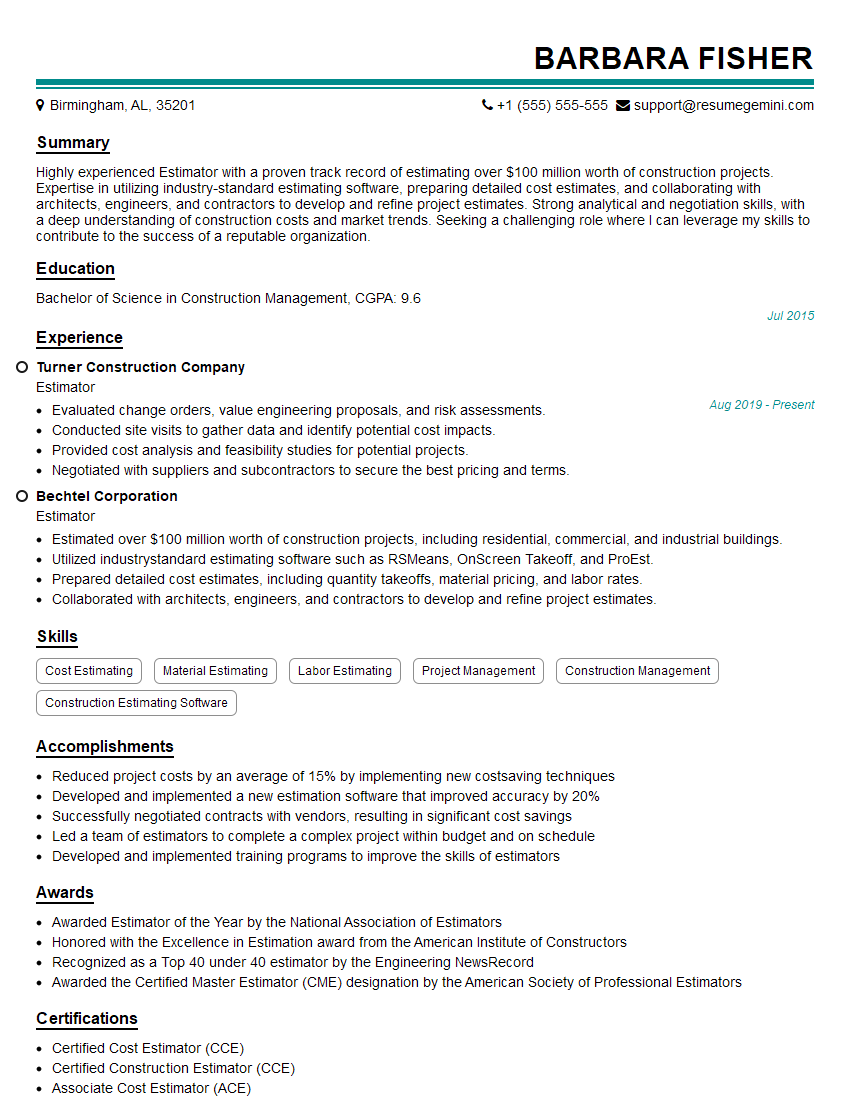
Estimator Resume Sample
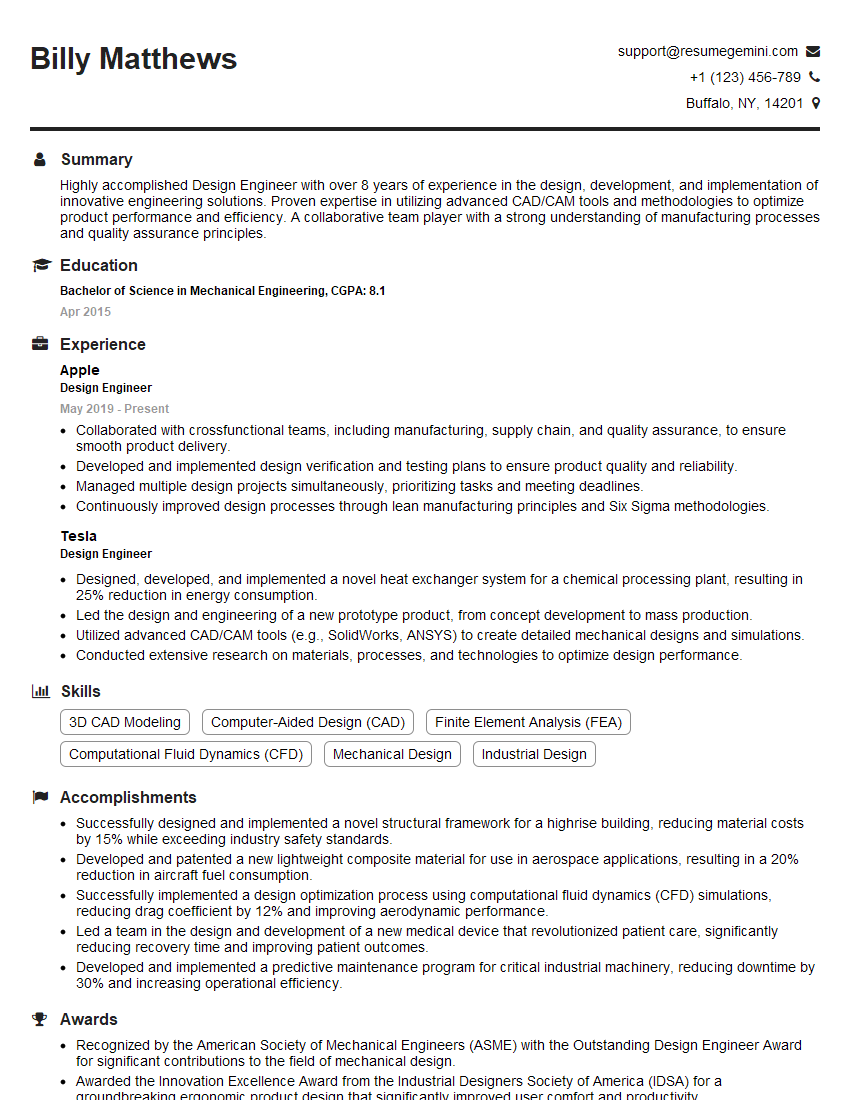
Design Engineer Resume Sample
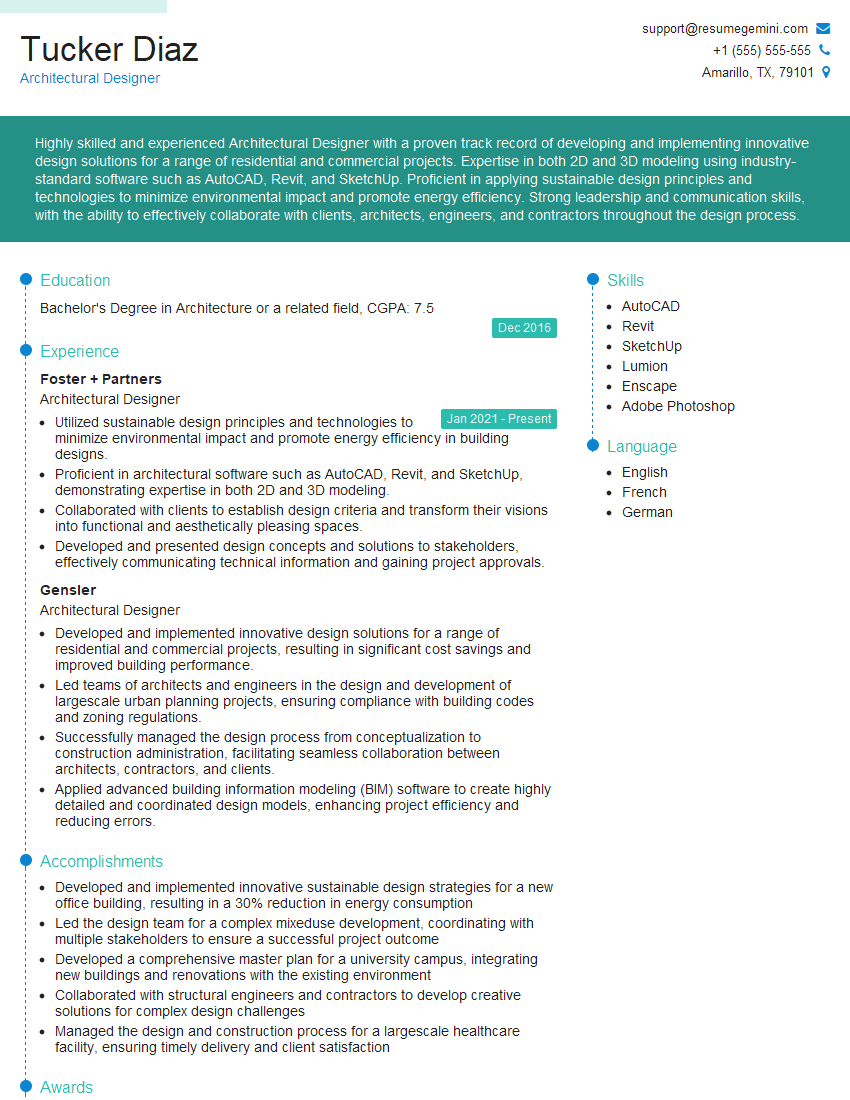
Architectural Designer Resume Sample
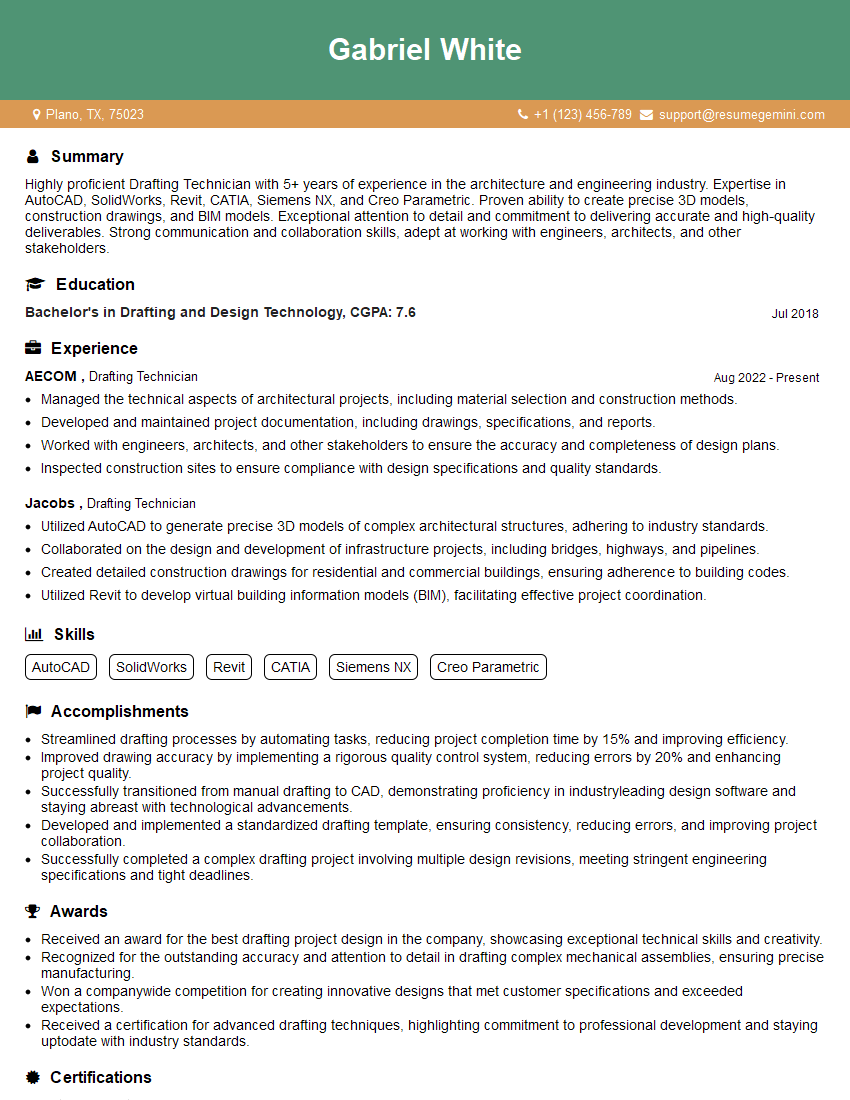
Drafting Technician Resume Sample
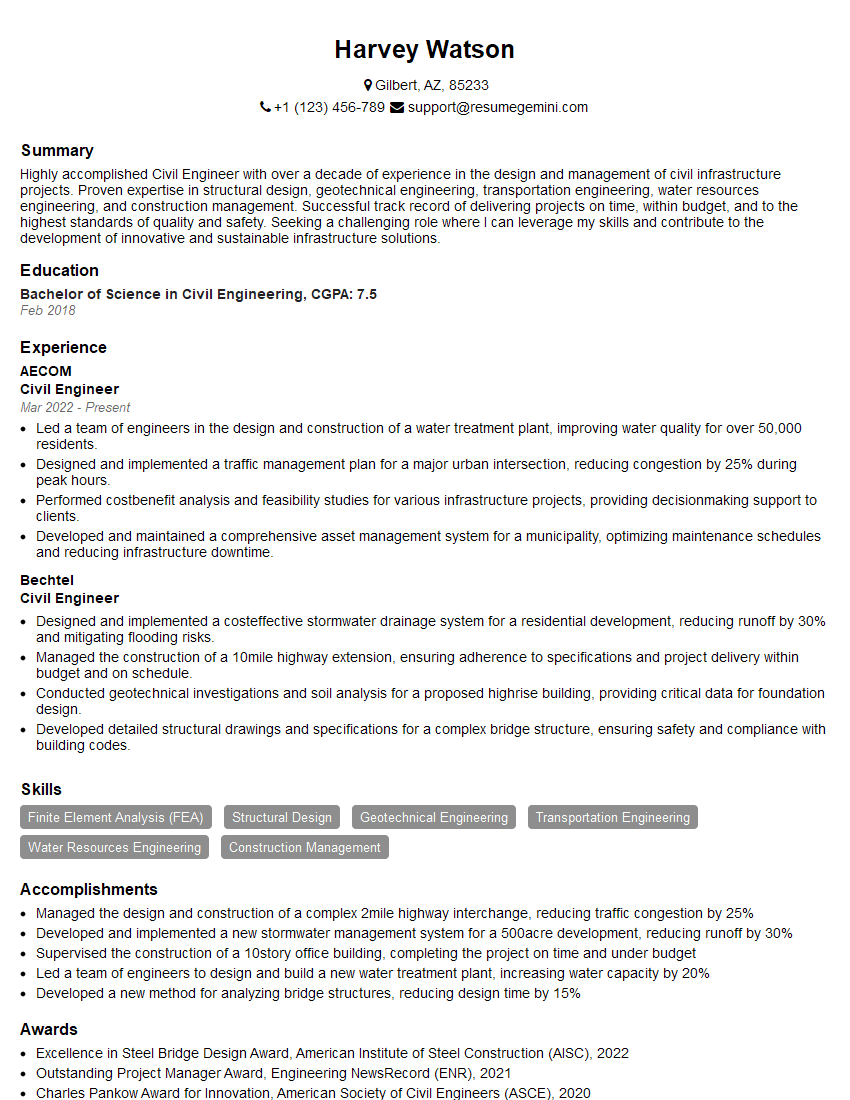
Civil Engineer Resume Sample
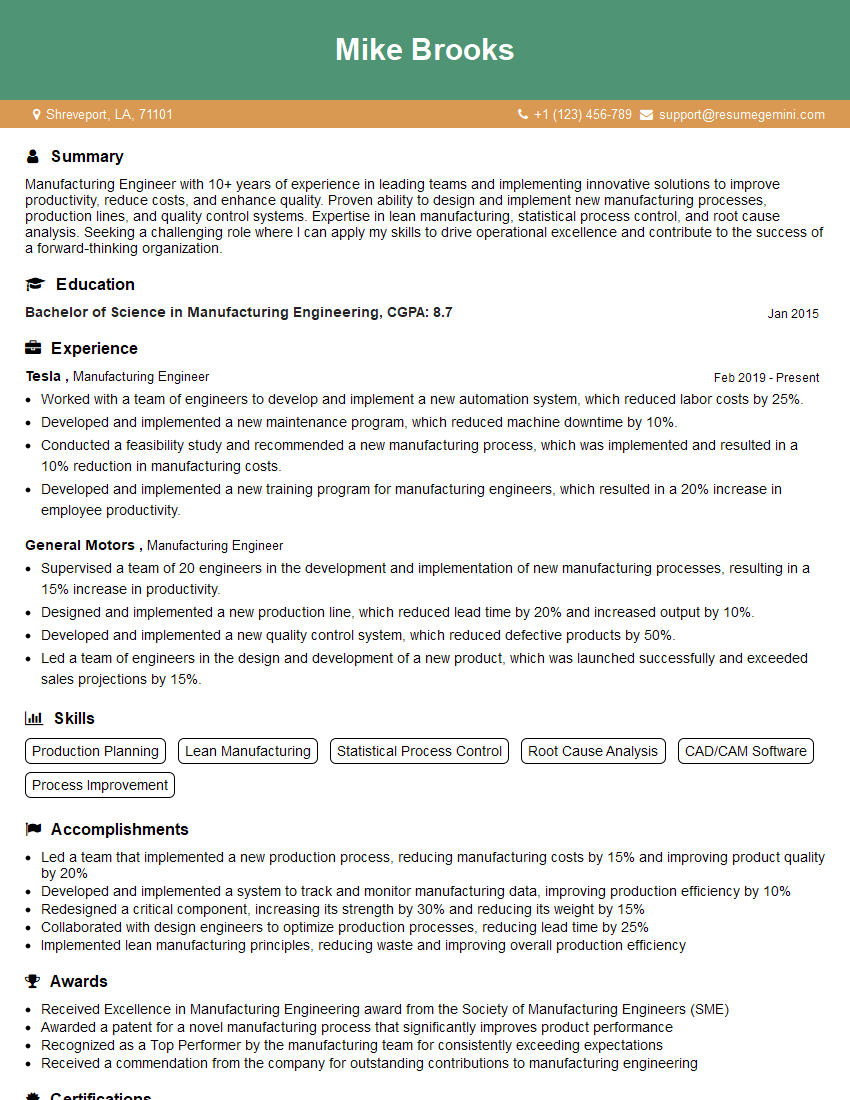
Manufacturing Engineer Resume Sample
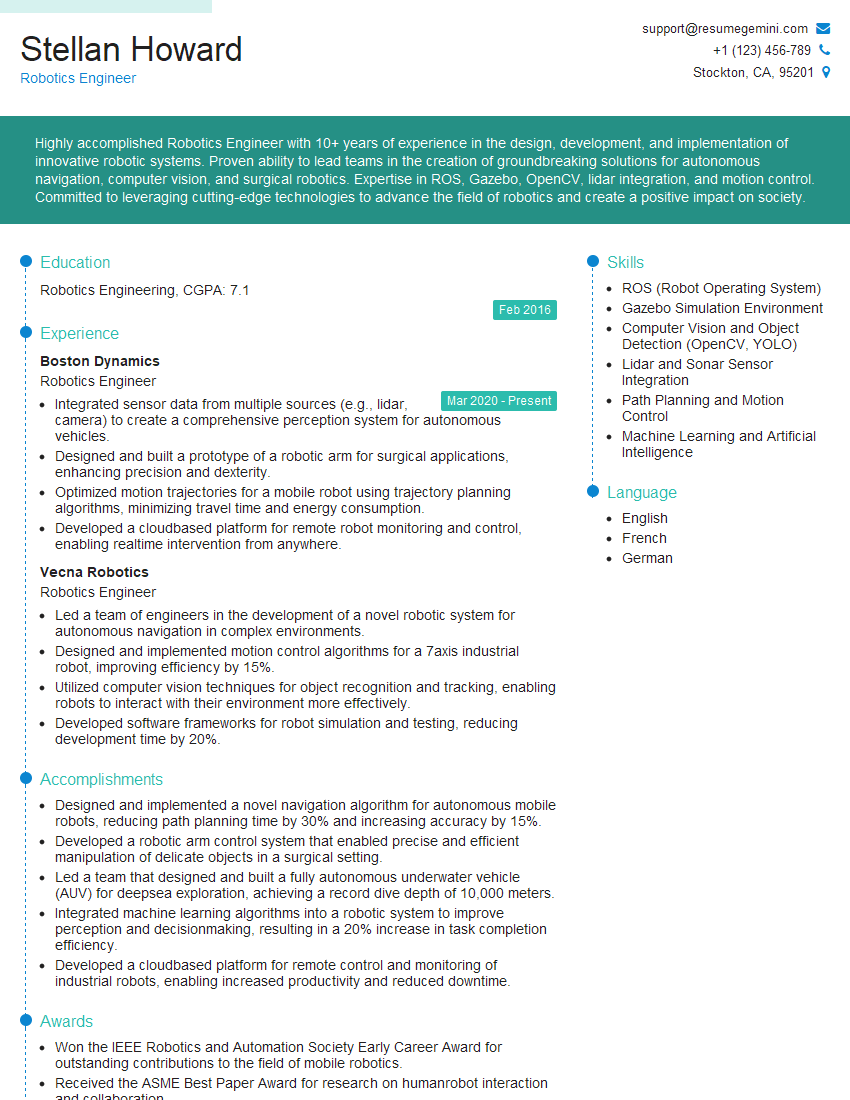
Robotics Engineer Resume Sample
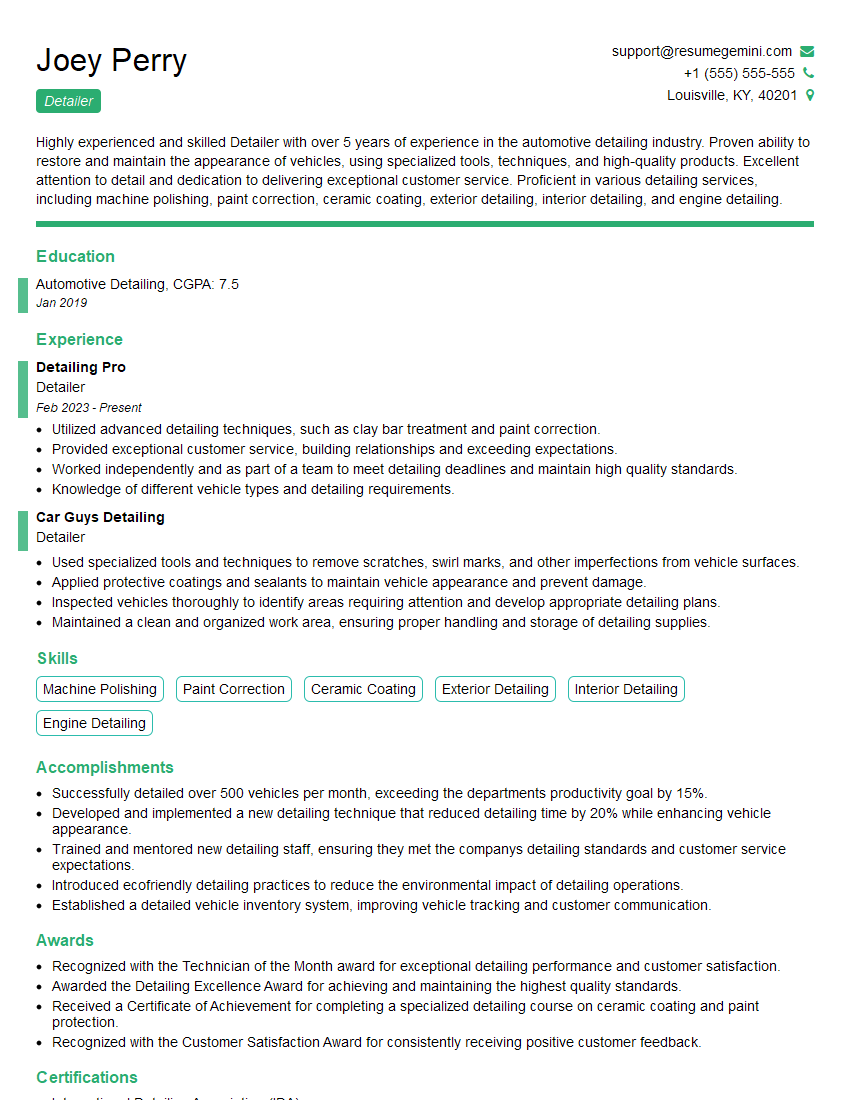
Detailer Resume Sample
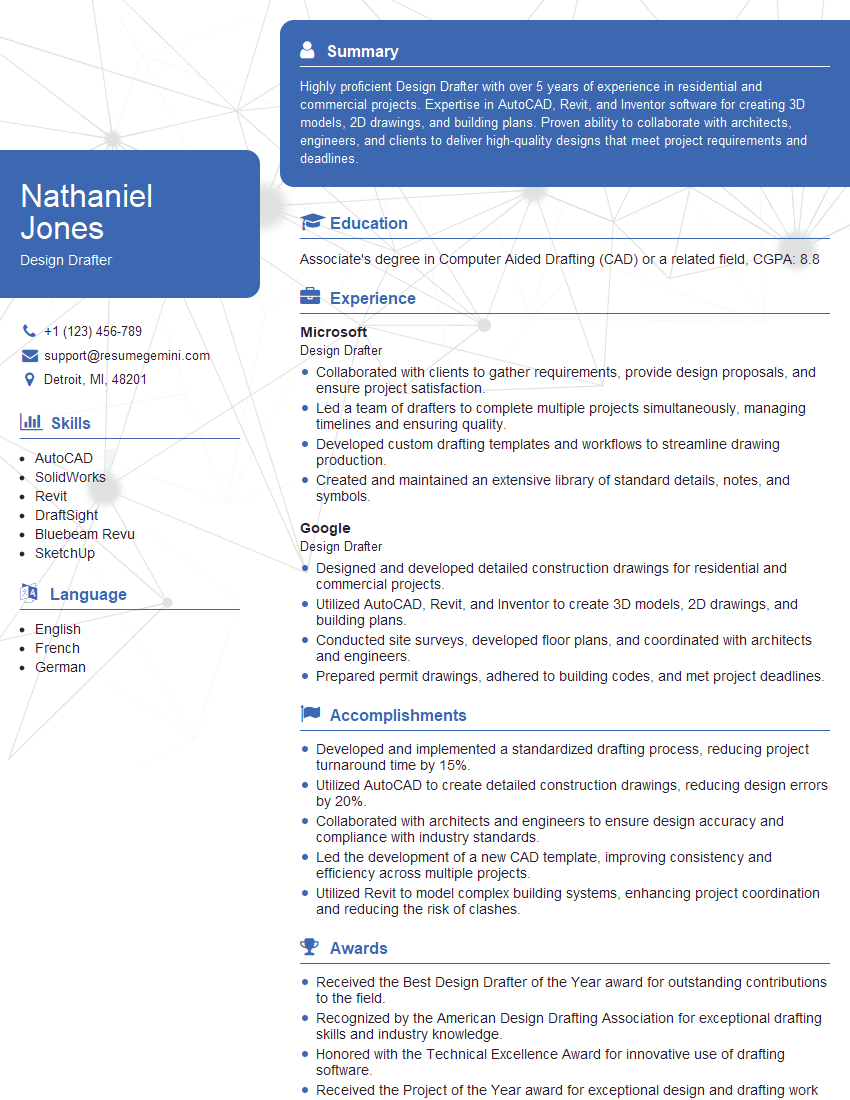
Design Drafter Resume Sample
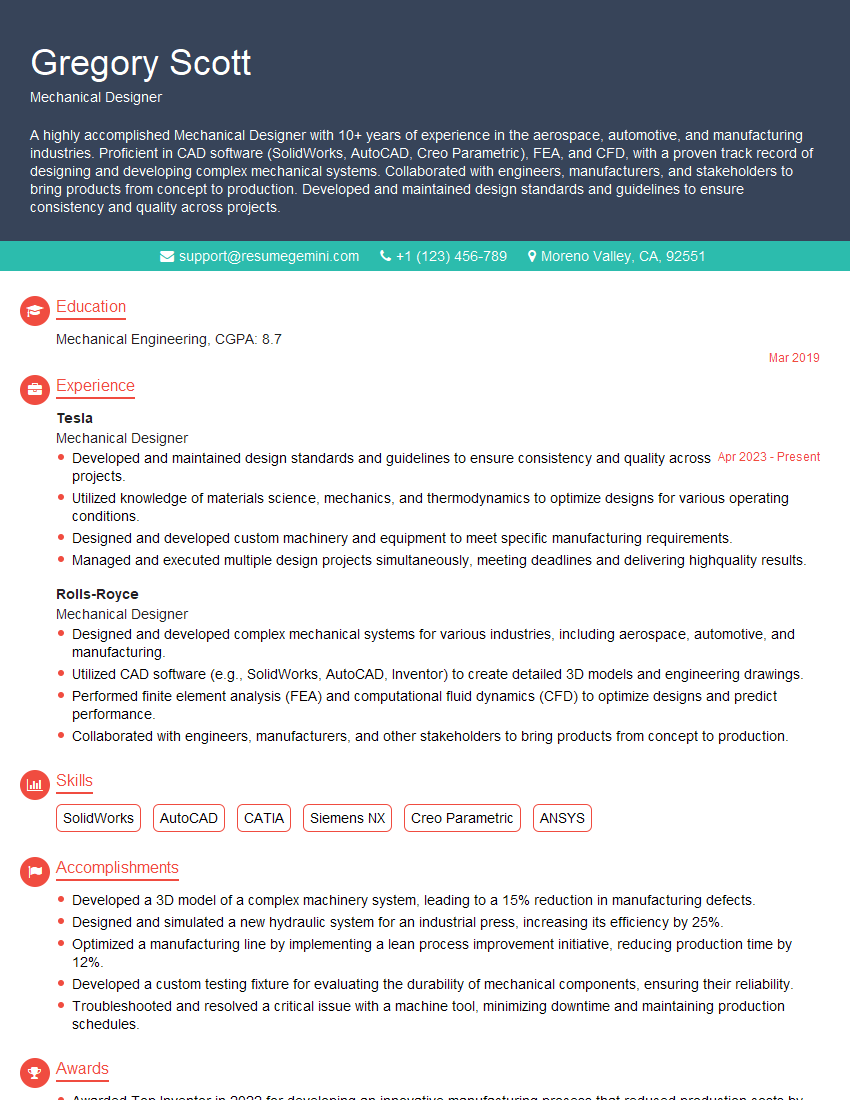
Mechanical Designer Resume Sample
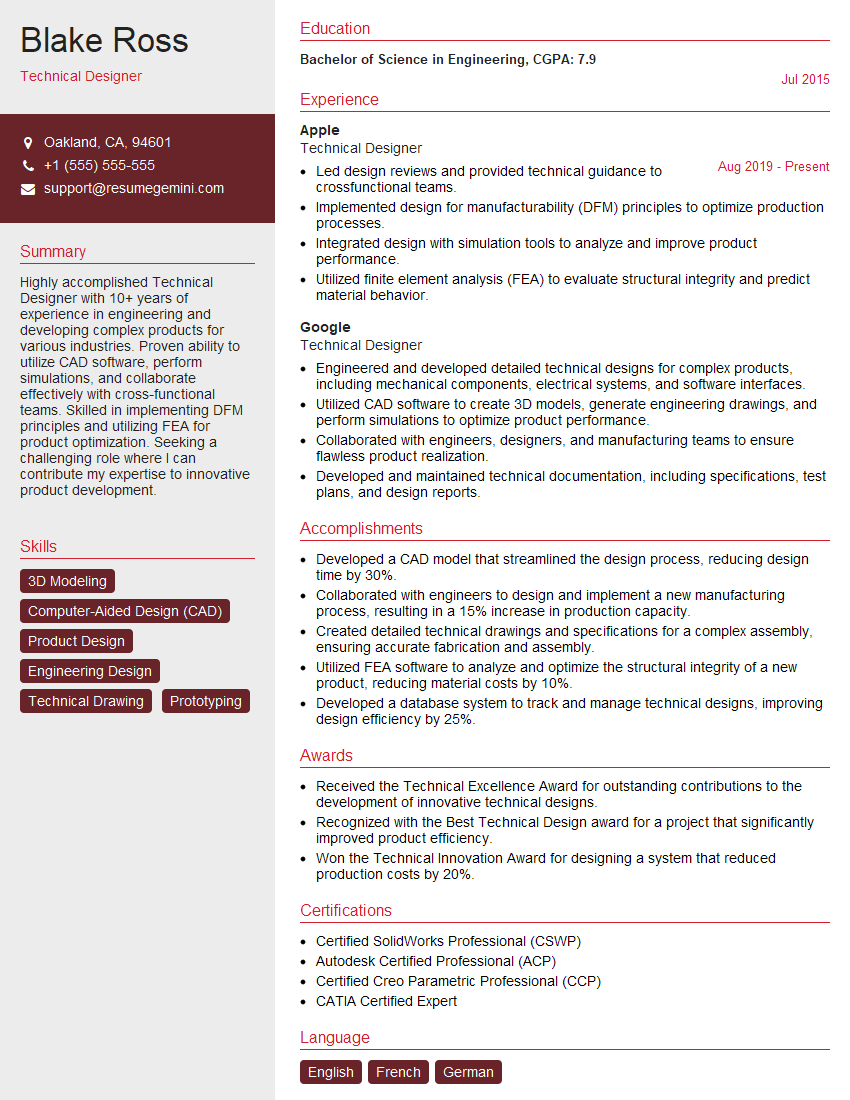
Technical Designer Resume Sample
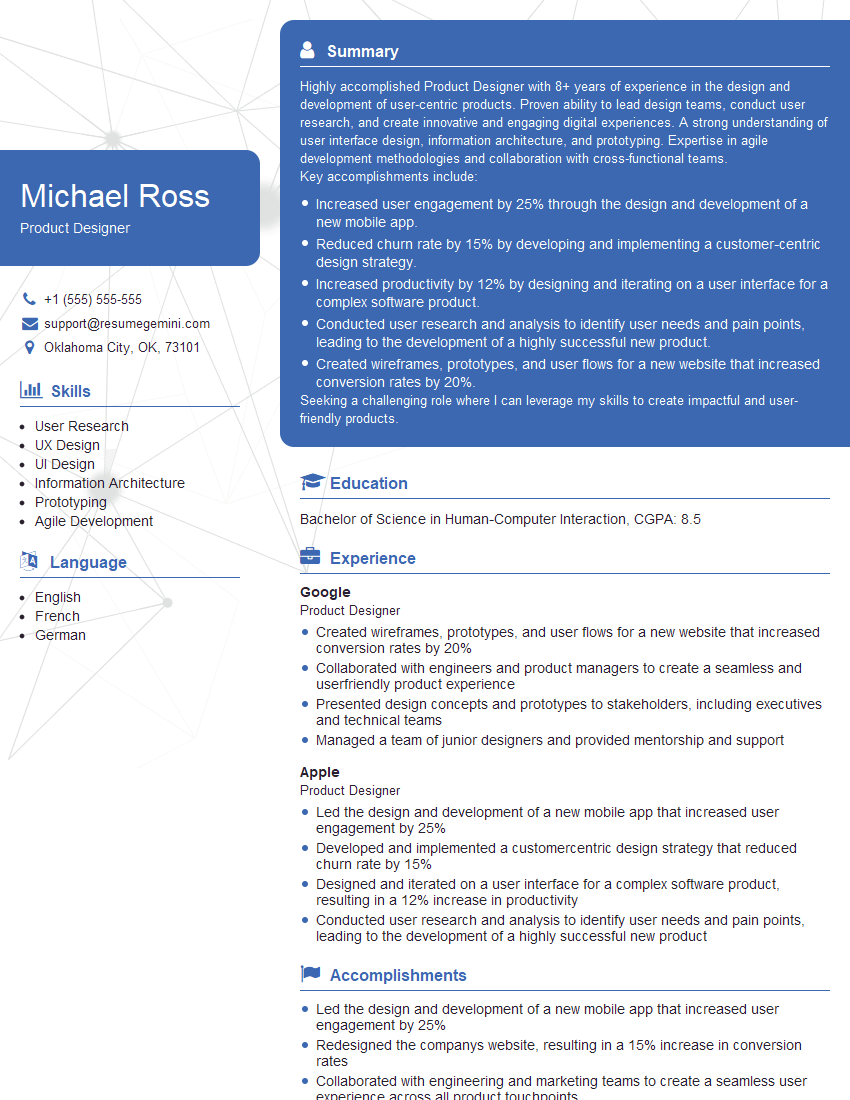
Product Designer Resume Sample

3D Modeler Resume Sample
Explore more articles
Users Rating of Our Blogs
Share Your Experience
We value your feedback! Please rate our content and share your thoughts (optional).
What Readers Say About Our Blog
Very informative content, great job.
good