Interviews are opportunities to demonstrate your expertise, and this guide is here to help you shine. Explore the essential Desktop Publishing Software (e.g., Adobe InDesign) interview questions that employers frequently ask, paired with strategies for crafting responses that set you apart from the competition.
Questions Asked in Desktop Publishing Software (e.g., Adobe InDesign) Interview
Q 1. Explain the difference between InDesign’s Master Pages and Regular Pages.
Master Pages in InDesign are like templates for your document. They act as a foundation, holding elements that you want to appear consistently across multiple pages, such as page numbers, headers, footers, and running text styles. Regular pages, on the other hand, are the individual pages where you place your content. Think of it like building a house: the master page is the blueprint for each floor, defining the layout of walls and doors, while the regular pages are the rooms you furnish individually.
For example, you might set up a master page with a header containing your company logo and a page number in the footer. Every page based on that master page will automatically inherit these elements. You can then add unique content to each regular page without affecting the master page design. This saves a tremendous amount of time and ensures consistency.
Q 2. How do you manage styles and paragraph styles in InDesign for consistency?
Consistent styles are crucial for professional-looking documents. In InDesign, I manage styles using the Styles panel (Window > Styles). Paragraph Styles control the formatting of text paragraphs (font, size, spacing, indents, etc.), while Character Styles manage individual character formatting (bold, italic, font size, etc.). I create styles for every recurring element, ensuring I always use the same style for the same type of text. For example, I’d create separate paragraph styles for ‘body text,’ ‘headings,’ ‘captions,’ and ‘quotes.’
To maintain consistency, I create a comprehensive style guide document. This details each style’s name, formatting, and usage. This acts as a style library and ensures every team member follows the same rules. Regular review and updating of styles ensures the document remains consistent throughout the project. Nested styles are particularly useful, such as building a Heading 1 paragraph style containing both a character style for the text itself and a specific paragraph style for the subsequent line.
Q 3. Describe your experience with creating and using templates in InDesign.
Templates are essential for streamlining workflows and ensuring consistency. I frequently create templates based on common document types, like brochures, newsletters, or annual reports. A well-structured template includes master pages with pre-designed layouts, pre-defined styles, and placeholders for images and text. This significantly reduces the time spent on initial setup for new projects.
For instance, when designing a series of newsletters, I’d create a template containing master pages for different sections (header, body, sidebar, footer). I pre-define styles for headings, body text, and call-to-action buttons. This approach ensures consistency across all issues. When starting a new newsletter, I simply open the template and populate the placeholders, saving countless hours.
Q 4. How do you handle color management in InDesign for print and digital outputs?
Color management is crucial for achieving accurate color reproduction across print and digital outputs. In InDesign, I begin by setting up the document’s color profile (Edit > Color Settings). For print, I typically use a CMYK profile (like Adobe RGB (1998) or SWOP Coated). For digital, sRGB is standard. Consistent use of color swatches is crucial; I avoid using the color picker directly and instead create and use named swatches throughout the document. This ensures accuracy and consistency.
For print, I always create a proof to verify color accuracy. InDesign’s built-in soft proofing feature allows simulating the output on different printers. I also communicate closely with the printer to ensure their color profiles align with mine. For digital, checking the document’s appearance on various screens helps ensure its optimal visibility across devices. This multi-faceted approach ensures accurate color representation regardless of the output method.
Q 5. Explain your workflow for creating a multi-page document in InDesign.
My workflow for multi-page documents is structured and iterative. It starts with planning: defining the document’s structure, content hierarchy, and page layouts. Then, I create master pages, defining consistent elements like headers, footers, and page numbers. I then create paragraph and character styles to maintain consistent formatting. Content is added incrementally per section, focusing on clear visual hierarchy and readability.
I regularly save my progress and back up my files. Throughout the process, I test the document’s functionality and appearance, regularly checking links, images, and styles for errors. Once the content is finalized and approved, I move to the preflight and export stage. This systematic approach ensures a clean, efficient, and timely workflow.
Q 6. How do you ensure your InDesign files are properly prepped for print?
Preparing InDesign files for print requires a thorough preflight process. I use InDesign’s built-in preflight feature (Package) or a third-party tool to identify and resolve potential issues such as missing fonts, linked images, and overset text. I ensure all images are high-resolution and in the correct color space (CMYK). I verify that all fonts are embedded or outlined, to avoid issues with font substitution. Overset text must be resolved. I also check the document’s bleed and trim settings, to ensure the final print aligns with the design intent.
Before sending the file to the printer, I create a PDF proof in a print-optimized setting (for example, PDF/X-1a). This allows both myself and the printer to review the final output before actual printing, ensuring that the design intent and specifications are accurate.
Q 7. What are your preferred methods for importing and exporting files in InDesign?
My preferred methods for importing and exporting files depend on the file type and its purpose. For images, I typically use high-resolution formats like TIFF or EPS for print, and JPEG or PNG for digital. I always embed fonts to prevent font issues and ensure consistency. For text, importing from Word documents (.docx) is common, but I always thoroughly style the text within InDesign afterwards to ensure consistency.
For exporting, I frequently use PDF/X-1a for print, ensuring compatibility with most printers. For digital outputs, I might export as an interactive PDF or even a series of images, depending on the intended use. Choosing the appropriate method depends largely on the ultimate goal and the platform on which the final output will be viewed.
Q 8. How do you troubleshoot common InDesign errors, such as missing fonts or linked files?
Troubleshooting missing fonts or linked files in InDesign is crucial for a smooth workflow. Think of it like baking a cake – you can’t bake without all the ingredients! Missing fonts or files are like missing ingredients. Here’s how I approach it:
- Missing Fonts: InDesign displays a warning if a font is missing. It often substitutes a similar font, but this can affect the layout and overall design. To fix this, I first identify the missing font using InDesign’s warning messages. Then, I locate the correct font file (usually a .otf or .ttf) on my system or obtain it from the client/designer. Finally, I add the font to InDesign’s font list via the ‘Add Fonts’ dialog, and InDesign automatically updates the document.
- Missing Linked Files: Missing images or other linked files can cause significant problems. InDesign’s Links panel is your best friend here. It displays all linked files and their status. A missing file will be indicated by a warning symbol. To resolve this, I’d either locate the missing file and then use the ‘Relink’ option in the Links panel, or I would replace the missing files with appropriate alternatives. It’s often a good idea to keep all linked files in a centralized folder for easy access and management.
Pro Tip: Regularly backing up your InDesign files and maintaining organized linked files is crucial to prevent these errors. I always create a project folder with all assets in it – images, fonts, etc. – and keep a separate backup folder.
Q 9. Describe your experience with creating interactive PDFs in InDesign.
Creating interactive PDFs in InDesign is a powerful way to engage readers. Imagine transforming a static brochure into a dynamic experience with clickable links, animations, and multimedia. I have extensive experience building interactive PDFs, incorporating elements like:
- Buttons and Hyperlinks: I use InDesign’s interactive features to create clickable buttons that navigate to different pages within the PDF, open external websites, or even play embedded videos. For example, I recently created an interactive product catalog with buttons for each product, linking to a detailed product page on the client’s website.
- Multimedia Integration: I routinely embed videos and audio files into interactive PDFs, enhancing the user experience. This requires careful consideration of file size and compatibility to ensure the PDF remains easily accessible.
- Forms and Fields: For documents needing user input, I build forms within the interactive PDF using InDesign’s form capabilities. This could include things like fillable fields for contact information or surveys.
It’s important to remember that the level of interactivity supported depends on the PDF reader used. I always test the interactive PDF across multiple platforms and readers to ensure seamless functionality.
Q 10. How do you work with images in InDesign, including image resolution and scaling?
Image handling is vital in InDesign, and understanding resolution and scaling is key to avoiding blurry or pixelated results. Think of it like using a magnifying glass – if you zoom in too much on a low-resolution image, it will become blurry.
- Image Resolution: Images for print typically require high resolution (300 DPI or higher) to ensure sharp, clear results. Web images often use 72 DPI. I always confirm the resolution of images before importing them into InDesign. If the resolution is too low, I would either request a higher-resolution version from the client or find a suitable replacement.
- Image Scaling: Scaling images involves changing their size within InDesign. When scaling, it is crucial to avoid scaling images beyond their original resolution. Doing so will result in a noticeable loss in quality (pixelization). InDesign allows for resampling images, but it’s generally recommended to start with high-resolution images.
- Image Formats: I carefully choose appropriate image formats like JPEG (for photographs), PNG (for images with transparent backgrounds), or TIFF (for high-quality print images).
Example: For a magazine spread, I wouldn’t use a 72 DPI web image. That would result in a terrible print result. I’d use 300 DPI or higher to ensure sharpness.
Q 11. Explain your experience with using layers and layer styles in InDesign.
Layers and layer styles are essential for organizing and styling elements in InDesign. They’re like layers of paint on a canvas, each one building upon the last. This allows for efficient editing and modification of design elements.
- Layer Organization: I utilize layers to organize different aspects of my designs. For example, one layer might contain background images, another for text, and another for graphics. This modularity helps immensely when making changes.
- Layer Styles: Layer styles allow me to apply pre-defined formatting to multiple elements. This is particularly efficient if you have repeating design elements. You create a style once and apply it to many elements, maintaining consistency across the document. For example, I might create a layer style for headings, applying consistent font, size, and color across all headings.
- Layer Effects: InDesign provides layer effects like drop shadows, glows, and bevels. These add visual depth and interest to elements without the need for separate images or graphics.
Using layers and layer styles helps maintain a clean, organized InDesign file, regardless of the complexity of the project. It makes editing significantly less complex.
Q 12. How do you manage bleed and margins in InDesign for print documents?
Bleed and margins are crucial for professional print design. Bleed is extra space extending beyond the trim edge of the page, allowing for accurate cuts. Margins provide space between the text and the edge of the page. It’s like framing a photograph – you need margins for the mat and bleed to ensure you don’t get a cut-off image.
- Bleed: I always set up bleed in InDesign. The amount of bleed (usually 0.125 inches or 3mm) depends on the printer’s requirements. Elements that reach to the edge of the page (e.g., background images) should extend into the bleed area.
- Margins: Margins ensure your content is not too close to the edge of the page. Appropriate margins ensure readability and a professional appearance. I typically work with a consistent set of margins, but these will vary based on the design of the piece and the client’s requirements.
Example: For a business card, I would add bleed to ensure the background color extends beyond the cut line, avoiding a white border after printing. I’d add appropriate margins to ensure text isn’t too close to the edge.
Q 13. What is your experience with using InDesign’s scripting capabilities?
While I’m not a dedicated programmer, I have practical experience using InDesign’s scripting capabilities, primarily using JavaScript. I find scripting useful for automating repetitive tasks and enhancing workflow efficiency. Imagine it as having a helpful assistant to handle the tedious stuff.
- Automation: I’ve used scripts to automate tasks such as generating page numbers, applying consistent formatting to numerous text boxes, and exporting files in specific formats. For example, I created a script to automatically generate chapter headings and page numbers for a large textbook.
- Customization: Scripts can also customize InDesign’s behavior. I used a script once to change the default paragraph styles to match my company’s branding guidelines.
- Data Merge: While not strictly scripting, I have used InDesign’s data merge functionality which uses scripting under the hood to automate the process of creating personalized documents such as mail merge letters or customized certificates.
While I don’t write complex scripts from scratch often, understanding scripting allows me to leverage pre-written scripts and customize my workflow, ultimately boosting productivity.
Q 14. How do you collaborate with others on InDesign projects?
Collaboration is crucial in the design world. I leverage InDesign’s collaborative features and external tools to work efficiently with others.
- Package Feature: InDesign’s Package feature is a lifesaver for collaboration. It gathers all linked files, fonts, and the InDesign document, making it easy to share with others. This reduces the risk of missing files.
- Cloud Storage: Using cloud storage (like Dropbox or Google Drive) allows for real-time sharing and easy version control. This is especially handy when multiple people work simultaneously on the same document.
- Version Control: I always maintain multiple versions of the document and clearly label each with the date and a description of the changes. This method ensures that we can revert to previous versions if needed.
- Communication: Clear and consistent communication through email, messaging platforms, or project management software is key to ensuring everyone is on the same page, reducing the potential for errors or misinterpretations.
In a recent project, our team worked on the same InDesign document stored in a shared cloud folder. This allowed for real-time collaboration and easy tracking of changes.
Q 15. Explain your experience with creating tables and charts in InDesign.
Creating tables and charts in InDesign is a crucial aspect of effective document design. While InDesign isn’t primarily a spreadsheet or charting application, its table and chart functionalities are robust enough for many professional projects. I typically leverage InDesign’s built-in table tools for straightforward data presentation. For complex tables requiring intricate formatting or extensive data manipulation, I often prepare the table in a spreadsheet program like Excel or Google Sheets, then import it as a graphic or tab-separated text file. This workflow ensures accuracy and efficiency. For charts, I often create them in a dedicated application like Adobe Illustrator or a charting software, then import them as high-resolution images to maintain visual quality and consistent branding. This approach allows for a clean separation of data manipulation from design.
For instance, when creating a multi-page brochure featuring product specifications, I’d create the data table in Excel, meticulously formatting it for clarity and consistency. I’d then import it into InDesign, ensuring cell styles are aligned with the document’s overall aesthetic, applying appropriate formatting like borders and cell padding to make the table visually appealing and easy to read. If I needed a chart visualizing sales figures, I’d produce it in Illustrator, ensuring vector output for crisp scaling at any resolution, then place it within the InDesign layout. The key is to select the best tool for the job: InDesign for layout and design finesse, and specialized apps for data management and chart creation.
Career Expert Tips:
- Ace those interviews! Prepare effectively by reviewing the Top 50 Most Common Interview Questions on ResumeGemini.
- Navigate your job search with confidence! Explore a wide range of Career Tips on ResumeGemini. Learn about common challenges and recommendations to overcome them.
- Craft the perfect resume! Master the Art of Resume Writing with ResumeGemini’s guide. Showcase your unique qualifications and achievements effectively.
- Don’t miss out on holiday savings! Build your dream resume with ResumeGemini’s ATS optimized templates.
Q 16. How do you ensure accessibility in your InDesign documents?
Accessibility is paramount in my InDesign workflow. I always prioritize creating documents that are usable for individuals with disabilities. This involves several key strategies:
- Using sufficient color contrast: I meticulously check color contrast ratios using tools both within InDesign and external checkers, ensuring readability for those with visual impairments. The WCAG (Web Content Accessibility Guidelines) provides valuable benchmarks.
- Employing alternative text for images: Every image includes descriptive alternative text (alt text), providing context for screen readers. This ensures that visually impaired users understand the image’s content.
- Using structured text: I utilize paragraph and character styles consistently for logical document structure, making navigation easier for screen readers.
- Ensuring proper heading hierarchy: I maintain a logical hierarchy of headings (H1, H2, H3, etc.) to facilitate navigation for screen readers and users who scan documents.
- Using tagged PDFs: When exporting to PDF, I always create tagged PDFs, which provide semantic structure for assistive technologies.
For example, when designing a company report, I’d use a color palette that meets WCAG contrast standards for all text and backgrounds. I’d carefully craft alt text for every chart and image, describing the data or visual content accurately. I’d also ensure consistent use of headings to logically structure sections, enabling assistive technologies to help navigate the document smoothly.
Q 17. What is your experience with different InDesign versions?
My experience spans several InDesign versions, starting from CS6 and extending to the current CC versions. While the core functionalities remain consistent, each version introduces refinements and new features. I’m adept at adapting to new features and workflows, ensuring consistent quality regardless of the version used. For example, I’ve leveraged features introduced in CC 2019, such as improved performance and enhanced typography controls. In CS6, I relied on different techniques to achieve similar results, showcasing my adaptable skill set. Familiarity with older versions is also valuable when collaborating with teams that haven’t yet upgraded.
Moving between versions is usually straightforward. Core concepts like text frames, styles, and master pages remain consistent. The key difference lies in mastering the nuances of specific features added in newer versions, such as variable fonts and enhanced automation tools. My approach always centers on understanding the underlying design principles and applying the most efficient tools within the available version to achieve high-quality outcomes.
Q 18. Explain the use of text frames, text wrap, and object styles.
Text frames, text wrap, and object styles are fundamental InDesign tools that significantly enhance design efficiency and consistency.
- Text Frames: These containers hold text, allowing precise control over placement and formatting. They can be linked to create multi-column layouts or flowing text across pages.
- Text Wrap: This feature controls how text flows around objects. Options include wrapping text tightly around an object, allowing text to jump over it, or creating a custom wrap path. Mastering text wrap is essential for complex layouts with images and text intertwined.
- Object Styles: These are reusable styles applied to graphics, text frames, and other objects, ensuring consistent formatting across a document. This saves significant time and maintains visual harmony. Applying a style instantly updates all objects using that style, providing a powerful mechanism for global formatting changes.
For example, in a magazine layout, I would use text frames to create columns, linked frames to flow text across pages. Text wrap would position text elegantly around images. Object styles would be applied to all image captions, maintaining consistent font, size, and spacing. This ensures efficient design and a unified visual language across the publication.
Q 19. How do you handle version control in InDesign projects?
Version control in InDesign projects is crucial for collaboration and maintaining project integrity. While InDesign lacks built-in version control like Git, I employ several strategies to manage revisions effectively:
- Saving frequent backups: I save different versions with descriptive names (e.g., ‘version_1_draft’, ‘version_2_final_edits’), maintaining a local history.
- Using InDesign’s Package feature: This creates a self-contained folder including all linked files and fonts, vital for archiving and sharing with collaborators.
- Employing cloud storage: Services like Dropbox or Google Drive allow version history and facilitate team collaboration, enabling multiple users to access and modify files.
- Utilizing external version control systems for linked files: For complex projects with many linked assets (images, graphics), integrating an external version control system (like Git) for these assets maintains track changes outside of InDesign’s core files.
In a team project, we might use a cloud storage service and agreed-upon file-naming conventions (e.g., using dates and initials) to avoid overwriting each other’s work. We’d frequently sync to the cloud and communicate changes to ensure everyone works with the latest version.
Q 20. What is your experience with Adobe InCopy and its integration with InDesign?
Adobe InCopy is a powerful tool for collaborative text editing, seamlessly integrating with InDesign. While InDesign handles layout and design, InCopy specializes in streamlining the text editing process. This is particularly beneficial for large projects requiring multiple editors or writers. InCopy allows editors to work simultaneously on the same document without interfering with the InDesign layout. Once edits are made and checked in, they automatically update in InDesign.
I’ve utilized InCopy extensively in projects involving multiple authors and editors, enabling a more streamlined and efficient workflow. Each author works in their own InCopy instance, making edits and revisions without impacting the layout or the work of other team members. The close integration between InCopy and InDesign allows for a very smooth exchange of files, ensuring consistent changes across the entire project.
Q 21. Describe your process for creating and managing hyperlinks in InDesign.
Creating and managing hyperlinks in InDesign involves several steps, ensuring accurate and reliable links. First, I select the text that will serve as the hyperlink. Then, I use InDesign’s Hyperlink feature (found under the ‘Type’ menu). This opens a dialog where I enter the URL or file path. For internal links within the same document, I can select the page or specific text frame as the target. I always double-check the link’s accuracy after creation, ensuring it functions correctly. For complex projects with many hyperlinks, I maintain a spreadsheet or document listing all links and their corresponding target URLs for easy maintenance and troubleshooting.
When creating a corporate annual report with links to various sections, I’d use the Hyperlink tool to link chapter titles to their respective page numbers. For links to external websites, I’d make sure the URLs are correct and test the links after creation. This meticulous approach ensures readers easily navigate and access supplemental information, enhancing user experience and accessibility.
Q 22. How do you ensure consistency in typography and design across multiple documents?
Maintaining typographic and design consistency across multiple documents is crucial for brand identity and a professional look. Think of it like a well-orchestrated symphony – each instrument (design element) needs to play in harmony. I achieve this through several key methods:
- Style Guides: Creating a comprehensive style guide that dictates font families, sizes, colors, spacing, and other design elements is paramount. This acts as a single source of truth for all projects. For example, I’d specify ‘Heading 1: Montserrat, 36pt, Bold, #0077CC’ and ensure everyone adheres to it.
- InDesign Styles: I leverage InDesign’s paragraph and character styles extensively. Defining styles for headings, body text, captions, etc., and meticulously applying them across all documents ensures uniform formatting. If a change is needed, updating a single style instantly propagates the change across all instances.
- Master Pages: For consistent page layouts, master pages are indispensable. They provide a template for running headers, footers, page numbers, and other recurring elements. Modifications made to the master page automatically update all linked pages.
- Templates: Using templates based on the style guide further enhances consistency. This pre-sets the document’s structure and styles, minimizing the chance of accidental deviations.
- Version Control: Using a version control system like Git (with a suitable file management strategy) allows for collaborative work and easier tracking of changes across multiple versions of the document or across different documents in a project.
By combining these techniques, I ensure a seamless and professional appearance across all documents, regardless of the project’s complexity or the number of contributors.
Q 23. What are your methods for creating custom InDesign palettes?
Creating custom InDesign palettes significantly improves workflow efficiency. Imagine having all your frequently used colors, swatches, and styles readily available – it’s like having your own personalized toolbox. Here’s how I create them:
- Swatches: I create custom color swatches by selecting ‘New Swatch’ from the Swatches panel. I name each swatch descriptively (e.g., ‘Brand Blue,’ ‘Accent Yellow’). This ensures easy identification and consistent color usage. Using the color picker, I can easily input specific hex codes or choose from various color models (CMYK, RGB, LAB).
- Paragraph Styles: I define paragraph styles with specific font families, sizes, leading (line spacing), indents, and other formatting attributes. For example, I might create styles for ‘Body Text,’ ‘Heading 1,’ ‘Quote,’ each with unique settings.
- Character Styles: Similar to paragraph styles, I use character styles for consistent formatting of specific text attributes, like superscripts, subscripts, or emphasized words.
- Saving the Palette: Once the swatches and styles are defined, I save the palette by selecting ‘Save Swatches’ or ‘Save Styles’ from the respective panel menus. This saved palette can then be loaded into future documents.
By organizing my palettes logically, I can quickly access frequently used elements, accelerating my design process and maintaining consistency.
Q 24. How do you optimize InDesign files for different file sizes and output resolutions?
Optimizing InDesign files for different file sizes and output resolutions is critical for efficient file management and optimal print or digital output. It’s like choosing the right tool for the job – a sledgehammer isn’t needed for a tiny nail.
- Image Resolution: For print, high-resolution images (300 DPI or higher) are essential for crisp, sharp results. For web or screen, lower resolutions (72-150 DPI) are sufficient. I carefully select image resolutions based on the intended output. I also compress images using appropriate software before importing them into InDesign to manage file size.
- File Format: For print, using high-quality image formats like TIFF or EPS is preferable. For web, JPEG or PNG are commonly used. Selecting the correct format is crucial for maintaining image quality and file size balance.
- Linking vs. Embedding: I generally prefer linking images whenever possible to keep the InDesign file size smaller. However, embedding is necessary when working offline or for ensuring reliable distribution.
- PDF Compression: When creating PDFs, I use appropriate compression settings to minimize file size without sacrificing image quality. I often choose a balance between file size and image quality, and I always preview the final PDF for artifacts before distribution.
- Font Management: Embedding necessary fonts in PDFs is vital to ensure consistent appearance on different systems. However, for web and email, consideration of font availability on end user machines is crucial. This often involves using web-safe fonts.
By carefully considering these factors, I ensure the final product is visually appealing and the files are manageable, regardless of their intended use.
Q 25. Describe your experience with using InDesign’s packaging feature.
InDesign’s packaging feature is invaluable for project management and ensures that all necessary files are collected and organized for sharing with clients or printers. It’s like packing a suitcase for a trip—everything needs to be in its place. I use it routinely to prepare files for external collaborations, especially for print jobs.
The packaging process involves selecting the InDesign file and specifying a folder location. InDesign then automatically gathers all linked files, fonts, and other assets into a single, organized package, which facilitates easy sharing and prevents missing elements from causing problems.
I pay particular attention to ensuring that all fonts are properly included and the links are correctly updated. This is especially important for collaborative projects where other team members might not have the same fonts or assets.
The package also allows for clear organization, avoiding confusion and missed elements. I ensure that the folder structure in the package is clear, and that file names are descriptive and intuitive.
Q 26. Explain your troubleshooting strategy when encountering unexpected InDesign behavior.
Troubleshooting unexpected InDesign behavior requires a systematic approach. It’s similar to diagnosing a car problem – you need to check various components.
- Restart InDesign and the Computer: Often, a simple restart resolves temporary glitches.
- Check for Updates: Outdated software can cause unforeseen issues. I always ensure InDesign is updated to the latest version.
- Check Memory Usage: InDesign can be memory-intensive. If encountering slowdowns or crashes, I check for excessive RAM usage and close unnecessary applications.
- Preferences Reset: Corrupted preferences can cause strange behavior. Resetting InDesign preferences to default values often helps resolve issues.
- Font Conflicts: Font issues are common culprits. I check for font conflicts or missing fonts. Removing or reinstalling fonts can sometimes solve the problem.
- Document Corruption: Sometimes, documents become corrupted. Saving frequently and making backup copies mitigate this risk. If a document is heavily corrupted, attempting to open it in a previous version or using InDesign’s recovery features may sometimes help.
- Seek External Support: If the issue persists, I consult online forums, Adobe’s support documentation, or other expert resources. Community forums are also a great resource for less common problems.
I document the steps I take during troubleshooting to aid in future resolution and to assist others. A well-maintained log file speeds up problem-solving and enhances efficiency.
Q 27. How do you maintain high quality and accuracy in your InDesign work?
Maintaining high quality and accuracy in InDesign work demands meticulous attention to detail and a rigorous workflow. It’s like building a house – every brick matters.
- Proofreading and Spell-Checking: Thorough proofreading and spell-checking are essential. I use both InDesign’s built-in tools and external resources to catch errors. Multiple rounds of proofreading are often necessary.
- Pre-flight Checks: InDesign’s pre-flight feature helps identify potential problems before printing or exporting. I utilize this feature meticulously to ensure a smooth and error-free process.
- Color Management: I use a consistent color profile throughout the process to avoid color shifts during output. Correct color management involves properly calibrated monitors and the understanding of different color spaces (CMYK, RGB).
- Image Quality Control: I always examine images for resolution, sharpness, and overall quality before incorporating them into the document. Low-resolution images can severely impact the final output quality.
- Version Control: Utilizing version control helps to track changes and revert to previous versions if needed. It also allows for easier collaboration.
- Client Review and Feedback: I always factor in client feedback throughout the process, making necessary revisions to ensure client satisfaction.
By combining these strategies, I aim for perfection in every aspect of my InDesign work.
Q 28. What are your strategies for managing large and complex InDesign projects?
Managing large and complex InDesign projects requires a structured approach. It’s like managing a large construction project – careful planning is key.
- Project Breakdown: I start by breaking down the project into smaller, manageable tasks. This allows for easier tracking of progress and delegation if necessary.
- Templates and Styles: Using templates and styles ensures consistency and speeds up the design process. It also reduces the risk of errors.
- File Organization: I maintain a well-organized file structure to easily locate assets and prevent confusion. Using descriptive file names is crucial.
- Collaboration Tools: For teamwork, I use collaborative tools like shared cloud storage or version control systems to ensure everyone is working with the latest version.
- Checkpoints and Reviews: Regular checkpoints allow for early detection of problems and provide opportunities for feedback. Frequent reviews ensure the project remains on track.
- Automation: I utilize InDesign’s scripting capabilities (or use external tools) to automate repetitive tasks whenever possible. This saves time and improves efficiency.
A well-defined workflow, combined with effective communication and organizational tools, ensures smooth project management even with complex, multi-faceted InDesign projects.
Key Topics to Learn for Desktop Publishing Software (e.g., Adobe InDesign) Interview
- Mastering the Interface and Workspaces: Understand the different panels, tools, and workspace configurations to maximize efficiency. Practice navigating the software intuitively.
- Typography and Text Formatting: Demonstrate a deep understanding of typography principles, including kerning, tracking, leading, and the use of different fonts and styles for effective communication. Be prepared to discuss best practices for readability and visual hierarchy.
- Image Handling and Color Management: Know how to import, edit, and optimize images for print and digital media. Discuss your knowledge of color modes (CMYK, RGB), resolution, and image compression techniques.
- Layout and Design Principles: Explain your understanding of design principles like balance, proportion, contrast, and visual flow. Be ready to discuss how these principles apply to creating effective layouts for various projects (brochures, magazines, etc.).
- Working with Styles and Templates: Showcase your proficiency in creating and applying styles (paragraph, character, object) and templates to maintain consistency and efficiency in large projects. Discuss the benefits of using styles for brand consistency and ease of editing.
- Pre-flight and Print Production: Explain your understanding of pre-flight checks, ensuring files are properly prepared for print, including color profiles, bleed settings, and resolution. Discuss common print-related issues and how to troubleshoot them.
- Advanced Features (depending on experience level): Explore features like creating interactive PDFs, using scripting, working with variables, and collaborating using InDesign’s collaborative features.
- Problem-Solving and Troubleshooting: Be prepared to discuss how you approach challenges encountered during the design and production process, such as resolving layout conflicts or fixing image quality issues.
Next Steps
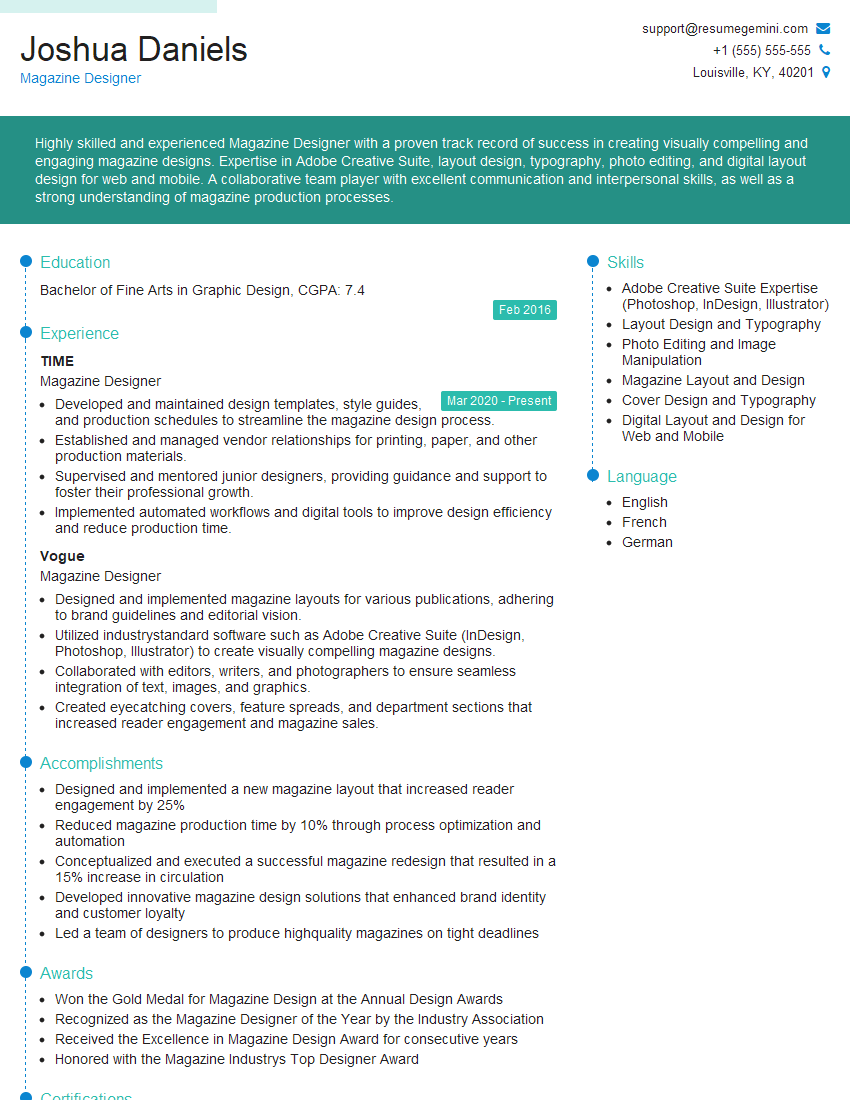
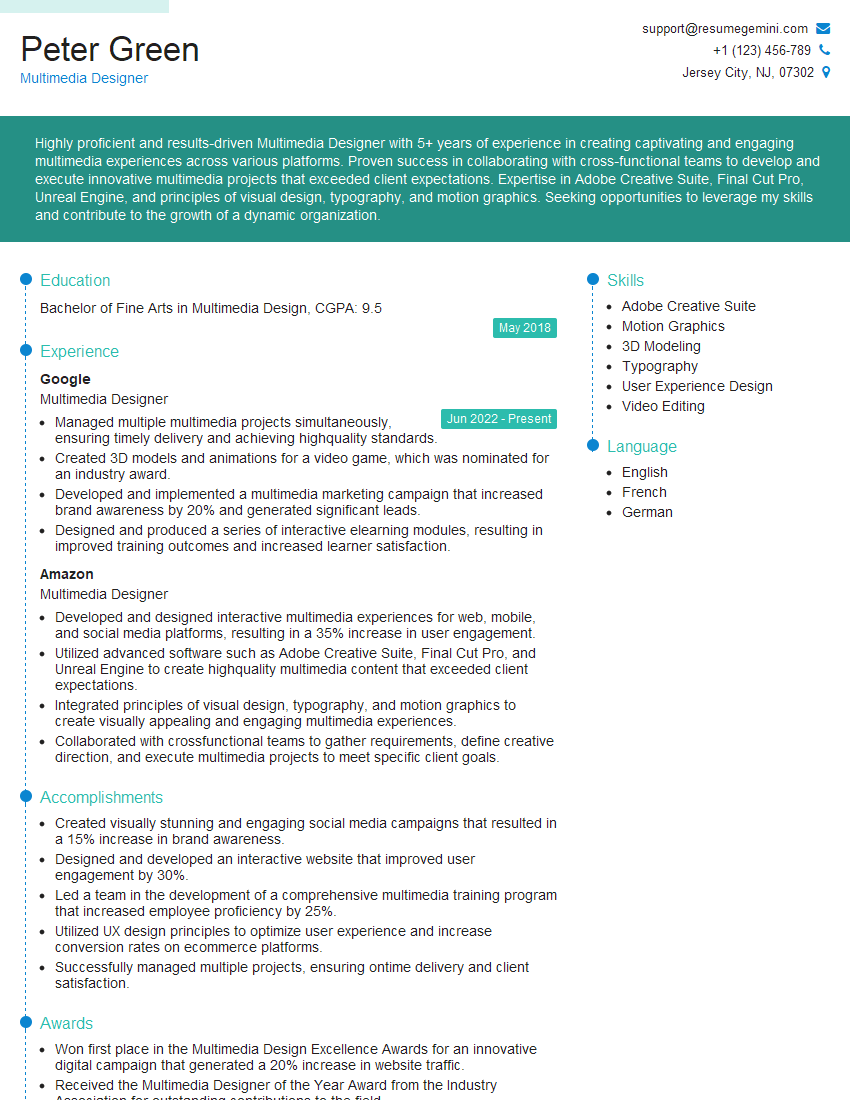
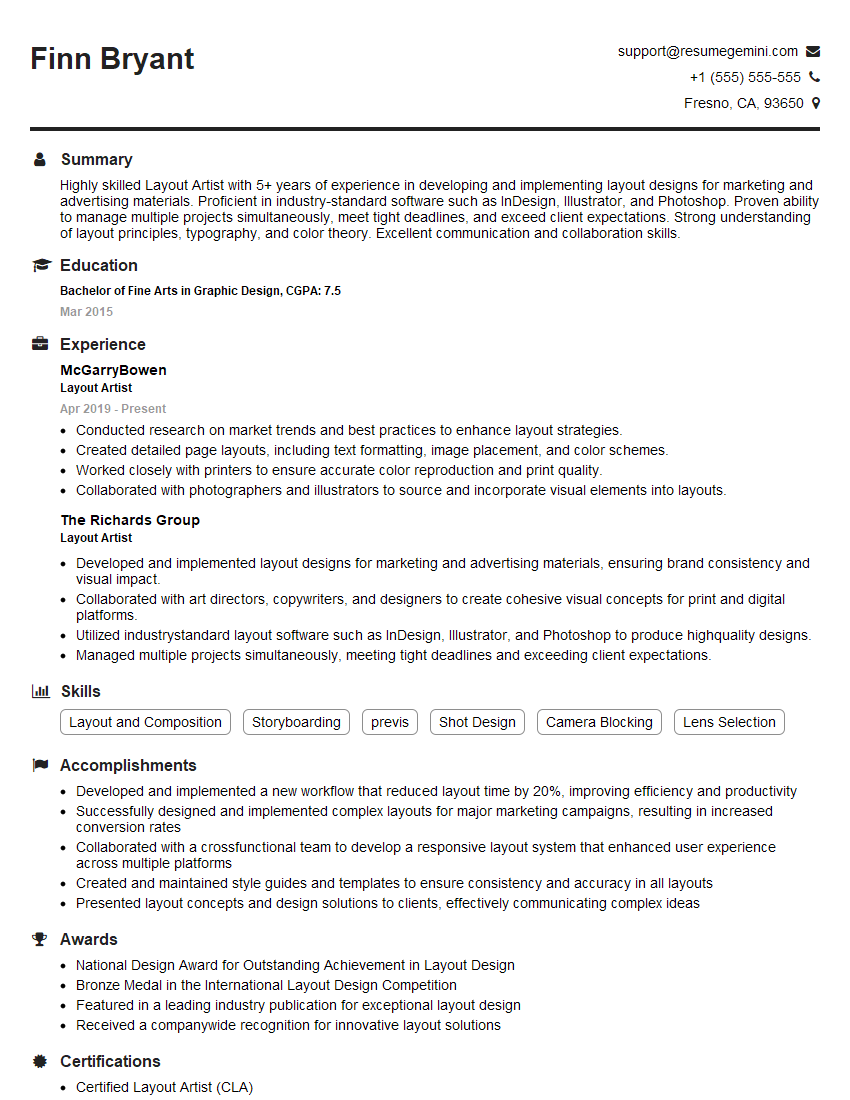
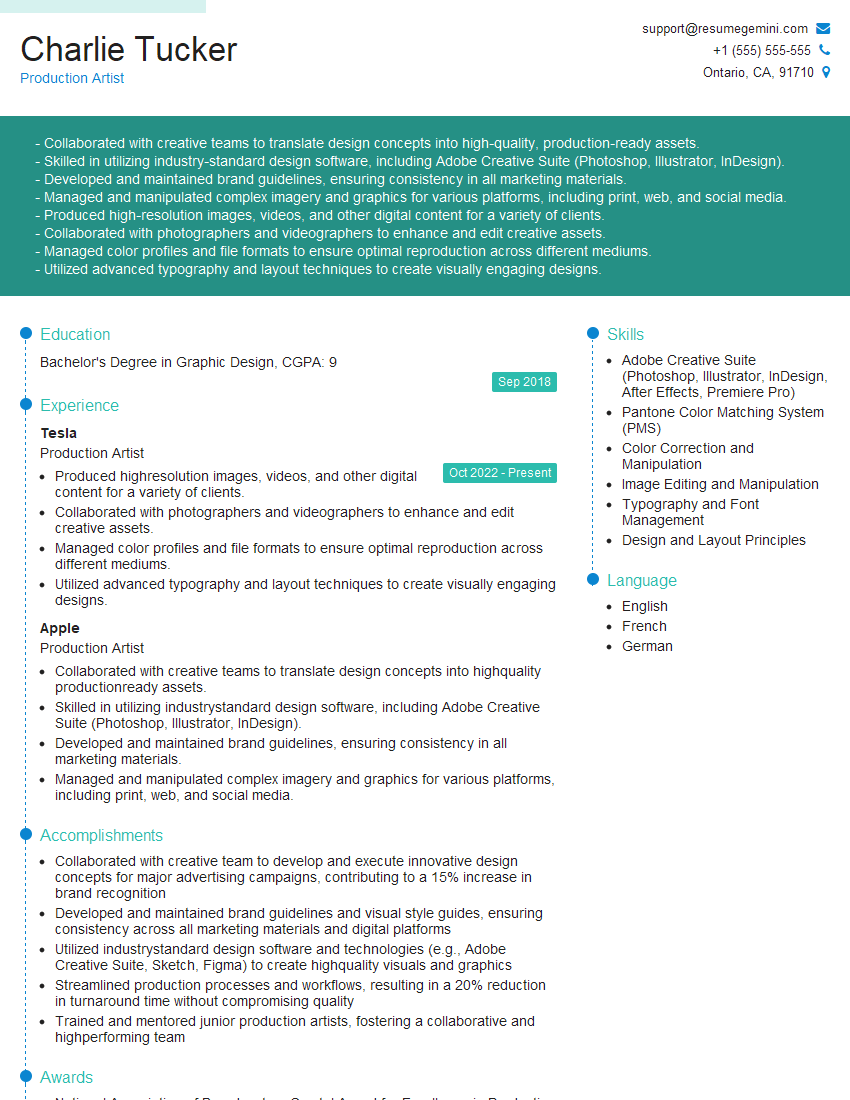
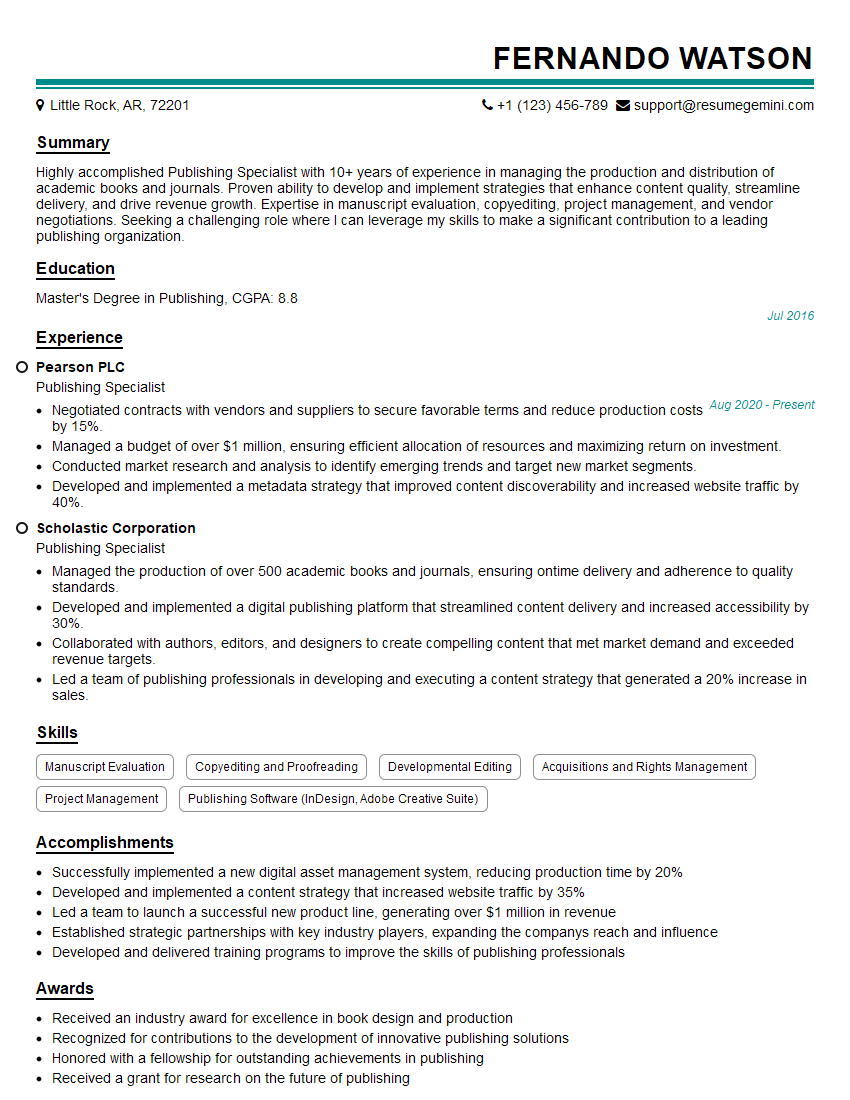
Mastering Desktop Publishing Software like Adobe InDesign is crucial for career advancement in design, publishing, and marketing roles. A strong understanding of these skills will significantly improve your job prospects and allow you to contribute meaningfully to your team. To increase your chances of landing your dream job, focus on creating an ATS-friendly resume that highlights your key skills and achievements. ResumeGemini is a trusted resource to help you build a professional and effective resume. We provide examples of resumes tailored to Desktop Publishing Software (e.g., Adobe InDesign) roles to help you create the perfect application.

Explore more articles
Users Rating of Our Blogs
Share Your Experience
We value your feedback! Please rate our content and share your thoughts (optional).
What Readers Say About Our Blog
good